 User Manual
True Wireless
Earphones for TV
TWS116
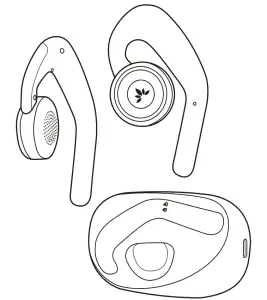
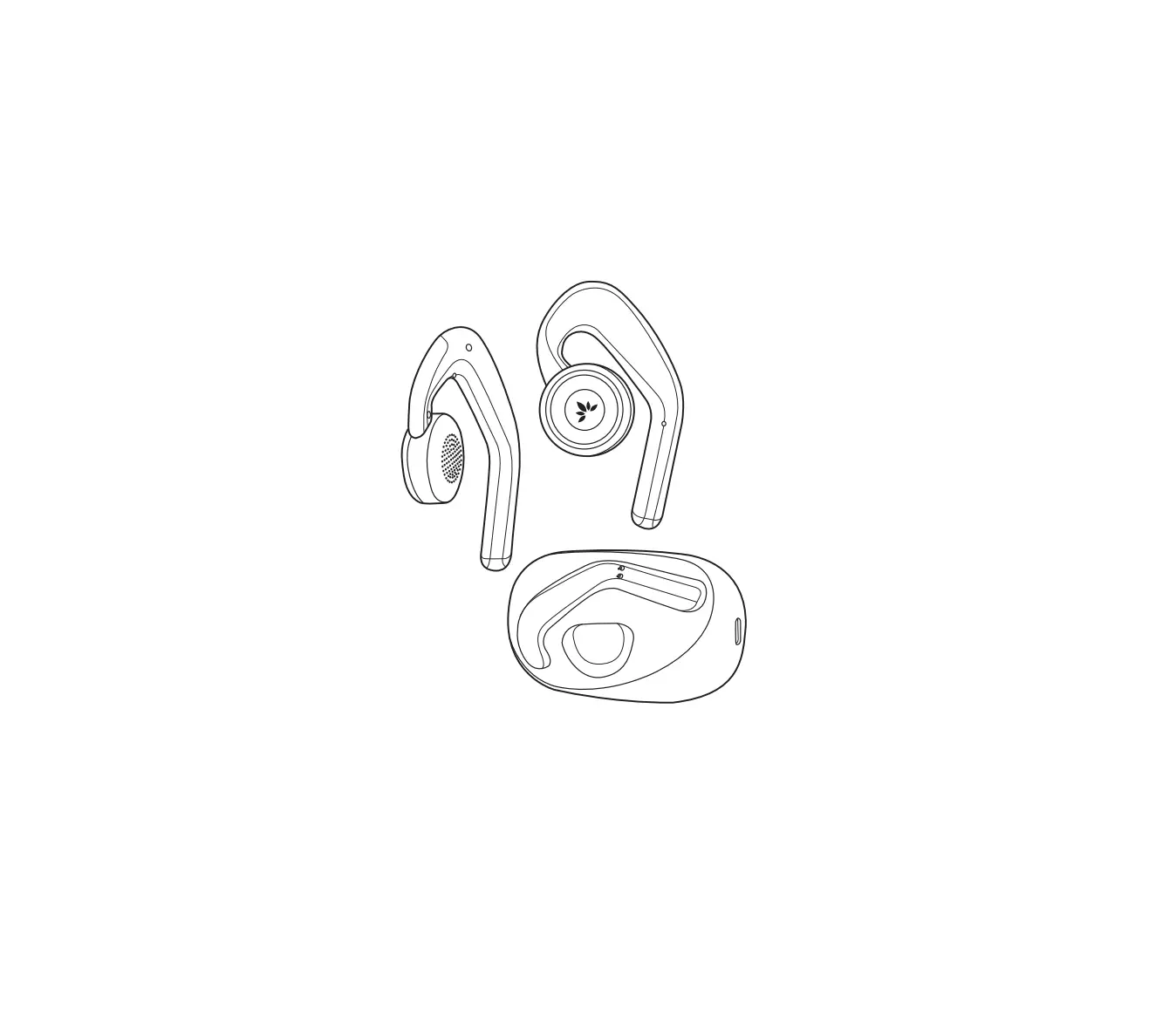
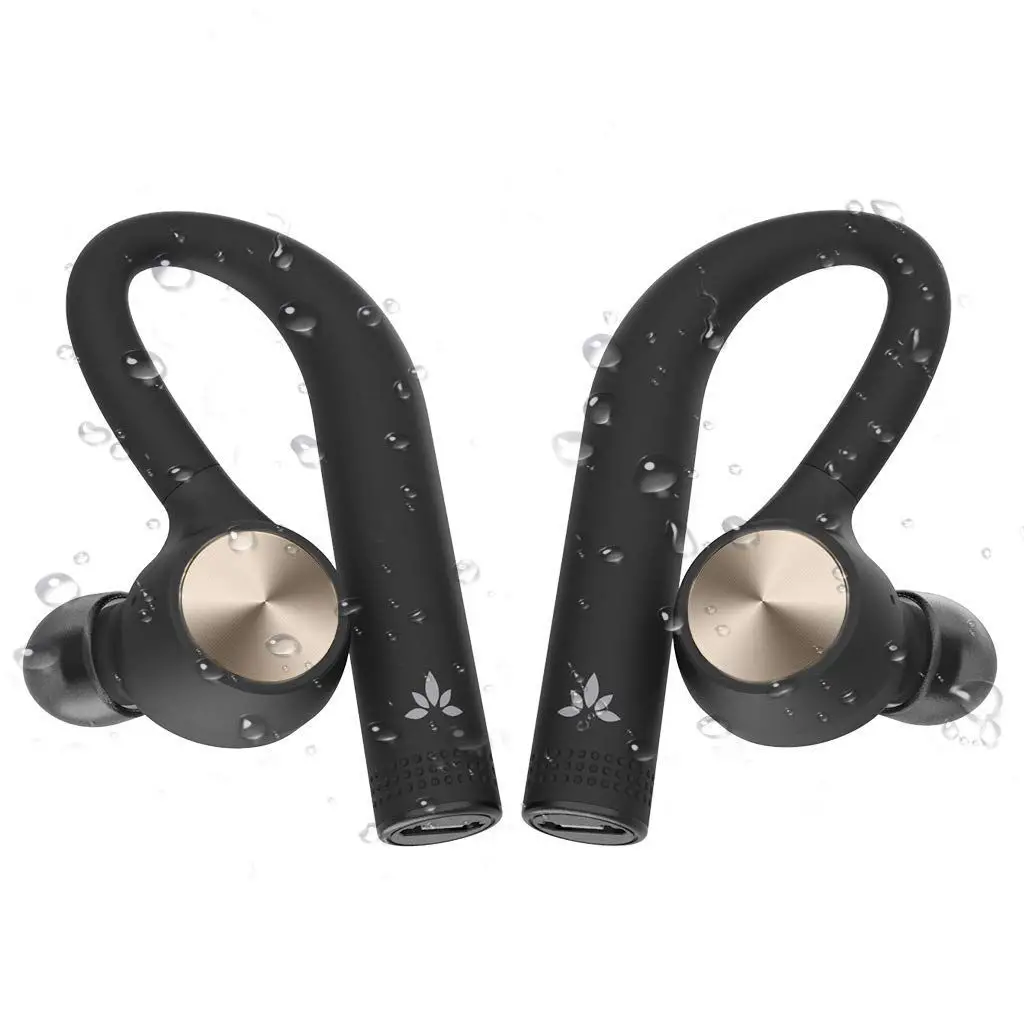
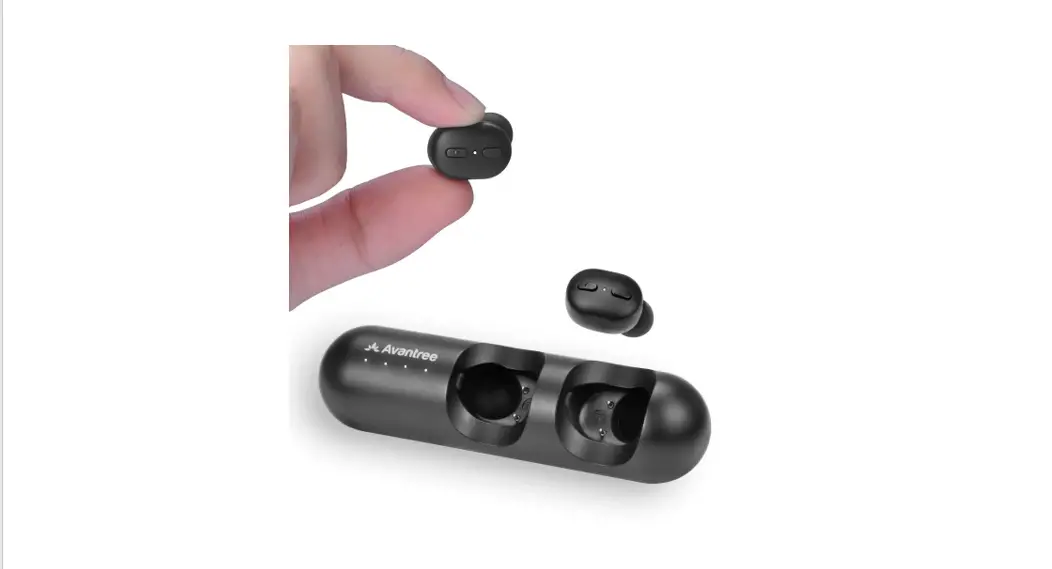
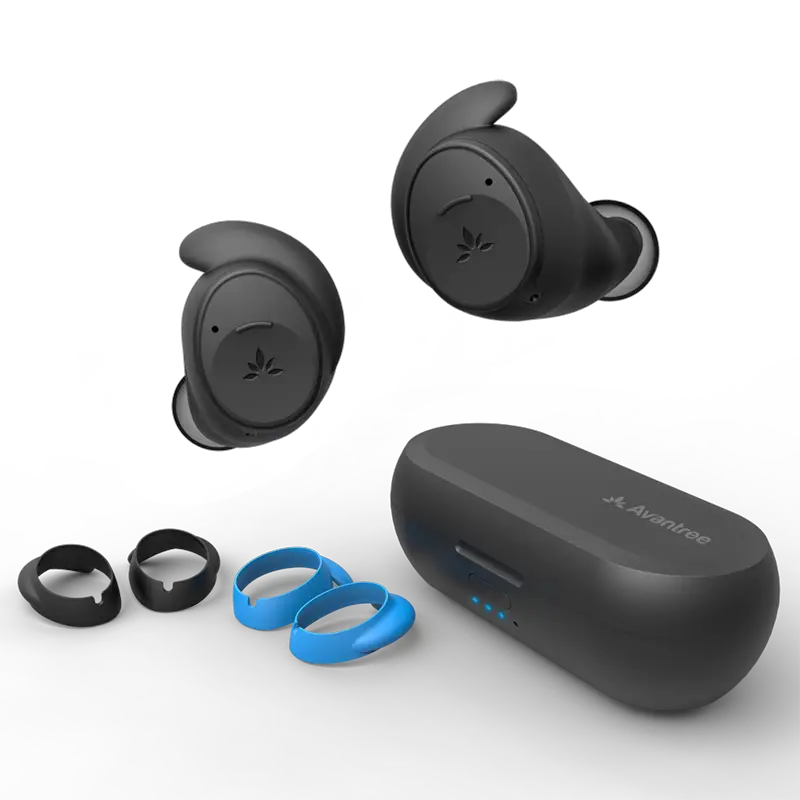
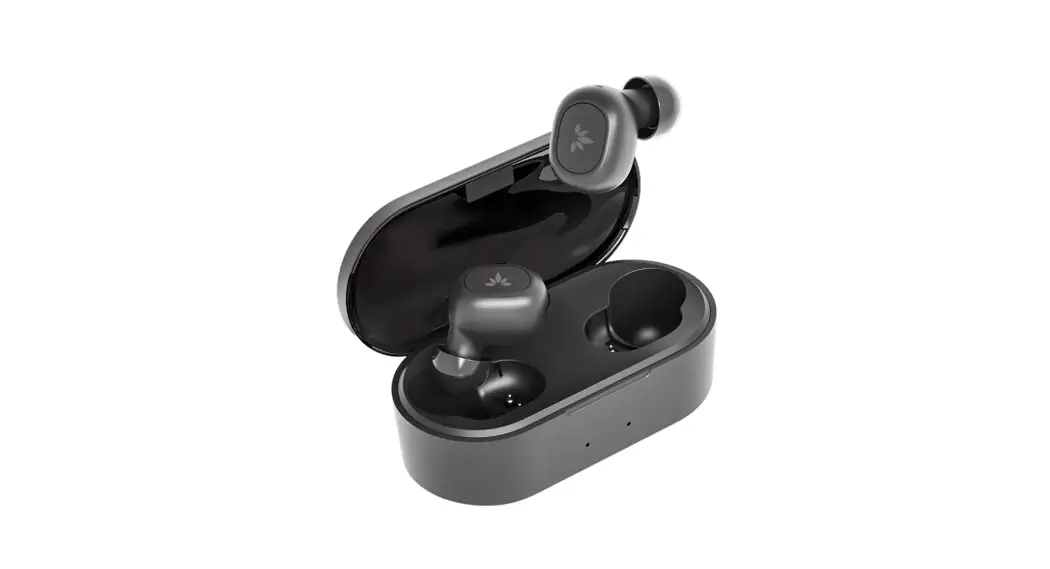
Product overview
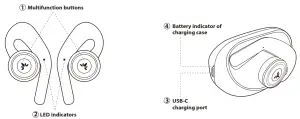
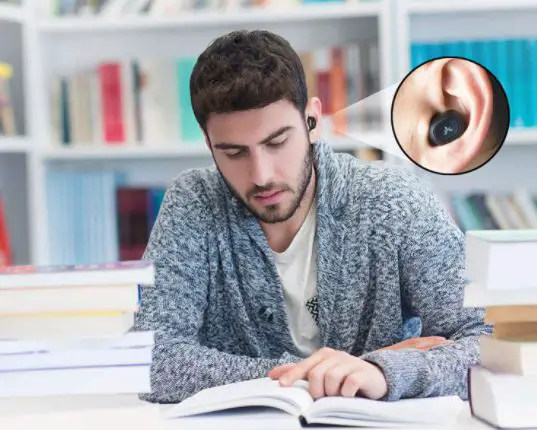
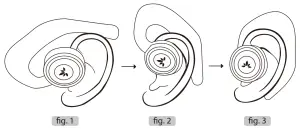
How to wear
How to charge
Charging the earbuds
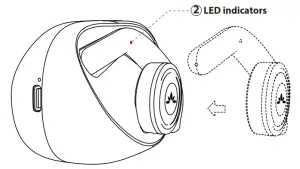 It takes about 2.5 hours to fully charge. will automatically turn off when the charging is complete.
Charging the case
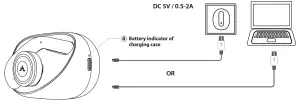
(4) will turn off automatically when fully charged.
Basic operations
| Functions | Operations |
| Power On | Remove earphones from the charging case, they will power on automatically. OR from off status, long press for about 3 seconds |
| Power Off | Put the earphones back into the charging case and they will power off and begin charging. OR double click (1) and hold for about 3s until the indicators dim out. |
| Pairing | Remove earphones from the case. OR from off status, press & hold for about 3s. One earphone will enter PAIRING MODE with the indicator flashing BLUE & RED. |
| Play / pause | Click (1) once on either side |
| Volume up / down | Press & hold (1) on the EITHER earphone |
| Previous / next track | Double-Click (1) on EITHER earphone |
| Answer/end a call | Click (1) once on EITHER earphone |
| Activate Siri / Google Assistant(Phone dependent) | Triple-Click (1) on EITHER earphone |
LED Indications
Earphones
| Status | LED indicator | Voice prompt |
| Power on | Flash BLUE for about 1s | Power on |
| Power off | Flash RED for about 1s, then turns off | Power off |
| Ready to pair | One earphone flashes BLUE & RED | Pairing |
| Connected | Both earphones’ LEDs flash BLUE once every 8s | Your headset is connected |
| Not connected with phone | One earphone flashes BLUE once every 8s, while the other flashes BLUE & RED | Disconnected |
| Earphones Not connected with each other | Both earphones flash BLUE & RED | NA |
| Low battery | Triple-Flash RED every 5 mins | Battery low |
| Charging | SOLID RED | NA |
| Fully charged | Both earphones’ Indicators dim out | NA |
Charging Case
| Status | LED indicator |
| Battery low | SOLID BLUE |
| Charging | SOLID RED |
| Fully charged | Indicator dimmed out |
How to pair
How to use with Mobile Device / PC
For first use
Please put both earphones onto the charging case
- Remove BOTH earphones to turn them ON.
- Wait for the LED on ONE of the earphones to flash BLUE & RED – PAIRING MODE.
- Search & select Avantree TWS116 from the Bluetooth menu on your device to connect.

- Once connected, the flashing on both earphones will slow down significantly.
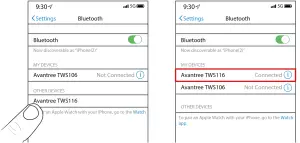
Notes:
For use with PC, please make sure that you set Avantree TWS116 as the default output and input device. If you’re not sure how, please see the guides below:
Reconnecting
The earphones will auto-reconnect to your most recently paired device the next time you remove them from the case. If they don’t, please select “Avantree TWS116” on your device to manually reconnect.
Note: To connect with another device, please turn off Bluetooth on the previously connected device.
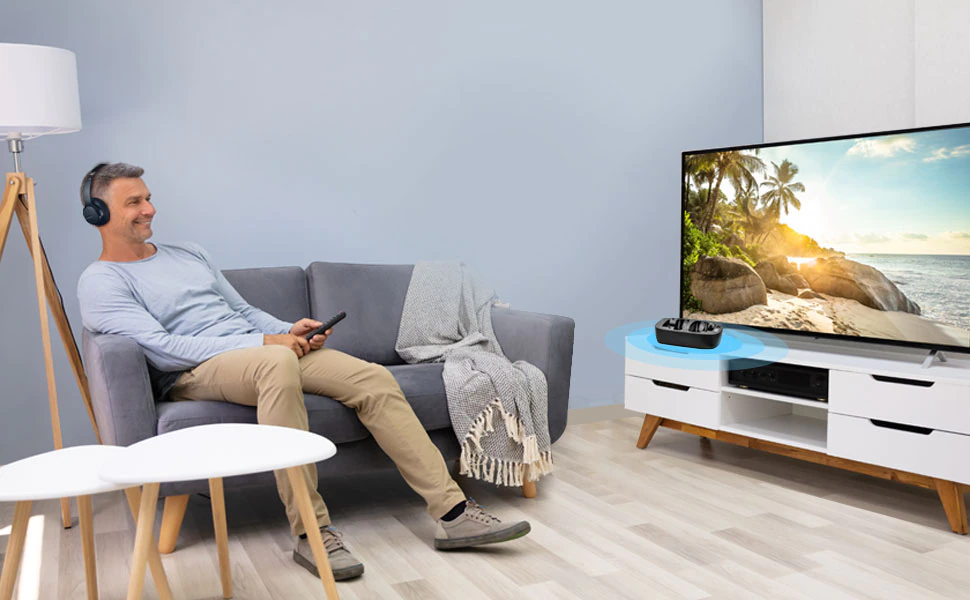
How to use with TV
For how to use with TV, please refer to this FAQ:
https://avantree.com/product-support/BTHS-AS90P-BLK-X?k=AS90T#general-headphones-use-with-television
Mono (Single) earbud use
Either side can be used independently by itself.
- Follow the section above and pair both earbuds to your device first.
- Put both earbuds back into the charging case.
- Take out the earbud you’d like to use, it will automatically reconnect to your device.
How to Factory Reset
- Power off both earphones manually – double click
 and hold for about 3s until the LED lights up RED about 1s, then turns off.
- Take one of the Earphones (either one), Press & hold for about 10s. DO NOT release until you see the indicator turns PINK. It’ll power off right after.
- Put the Earphone back into the case.
- Take the other earphone out and do the same (steps 2 & 3). Now they’ve been reset.
- Connect two earphones – Remove both earphones from the case. LEDs on both earphones will flash BLUE & RED – indicating that they are connecting with each other.
- Once they’ve connected with each other, the indicator on one of the earphones will switch into flashing BLUE, while the continues flashing BLUE & RED alternately.
Now you can pair with your device again.
 and hold for about 3s until the LED lights up RED about 1s, then turns off.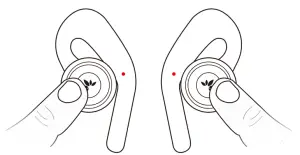
Note: before pairing again, please delete Avantree TWS116 from your device’s Bluetooth list.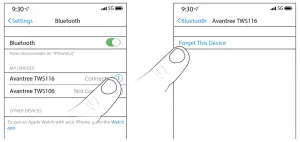
Support
FAQ
View the FAQs on https://avantree.com/product-support/BTHS-TWS116-BLK
How to take care of your TWS116
- Always store the earbuds inside the charging case and make sure that they are safely protected.
- The TWS116 is designed to function optimally between the temperatures of 0°C and 40°C (32-100°F.)
Although it can and will function beyond this temperature range, performance may be impaired. - Avoid storing the earbuds for extended periods of time without recharging them (max. three months.)
- The charging case is designed to charge using standard USB voltage (5v ± 0,25v). It is not recommended to charge this product using power supplies/sources with higher voltage.