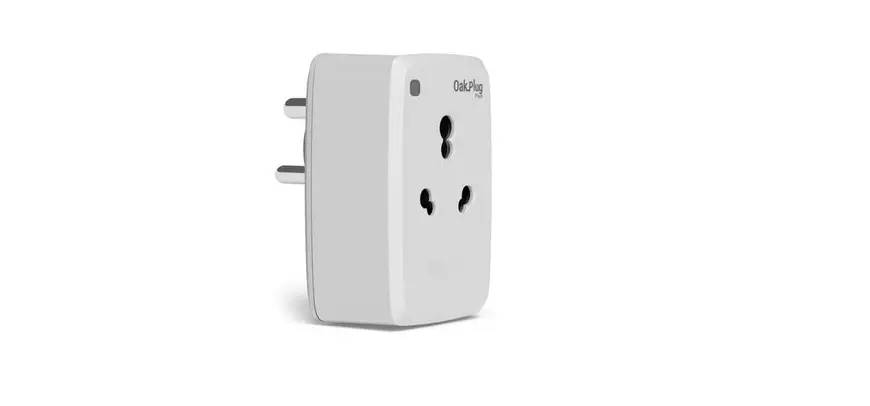
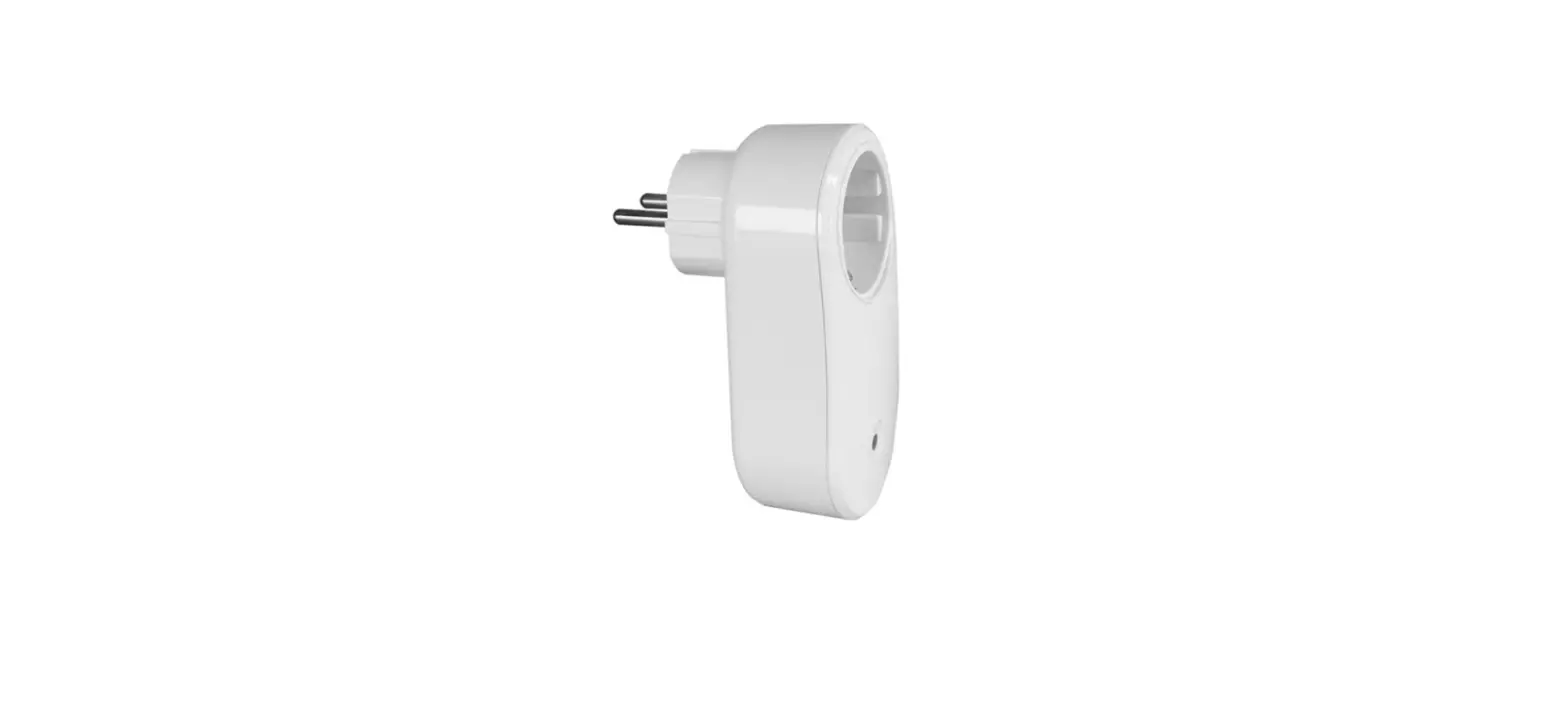
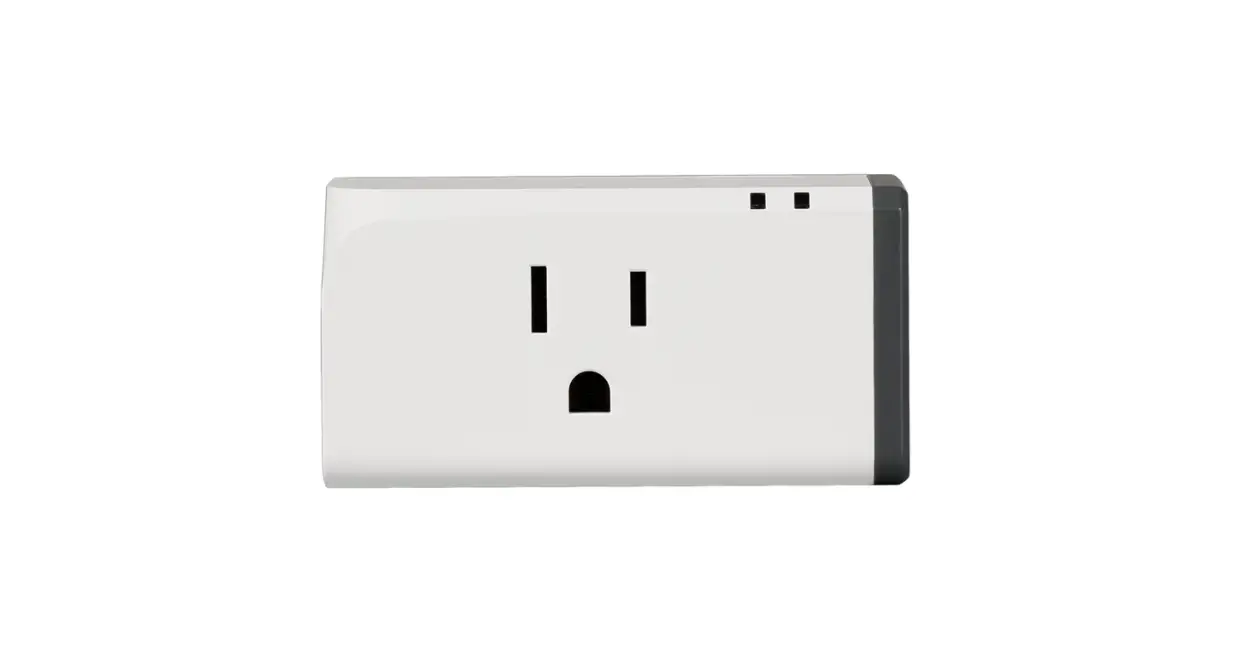
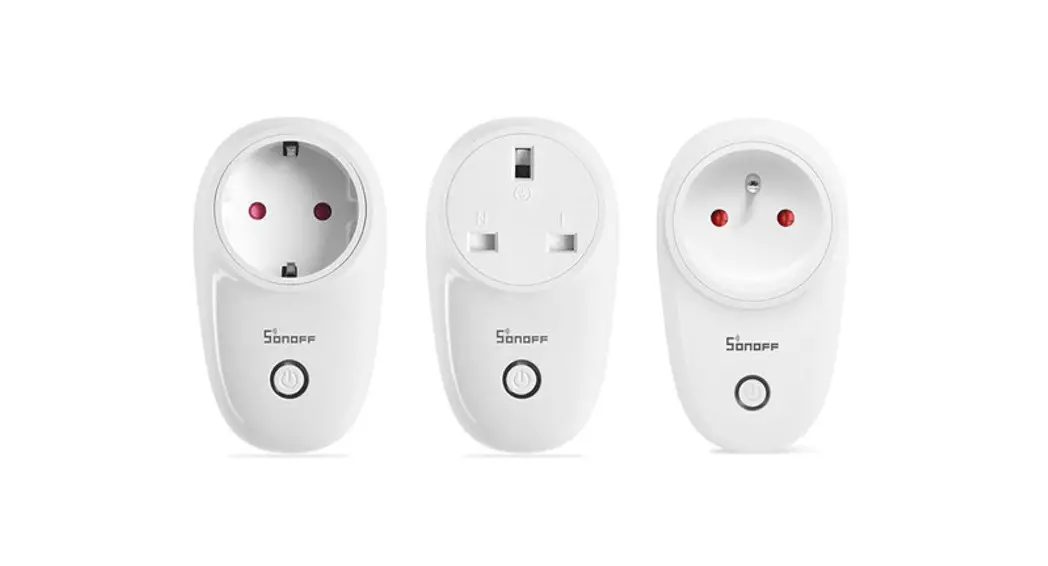
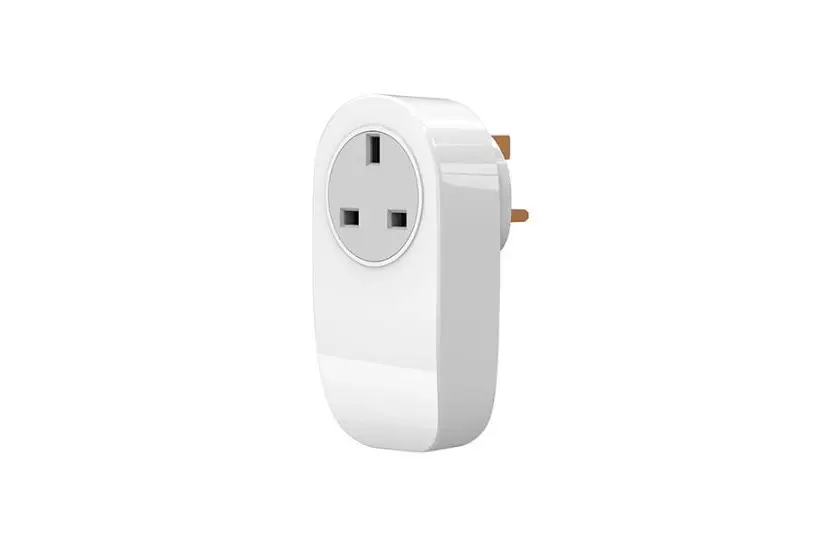
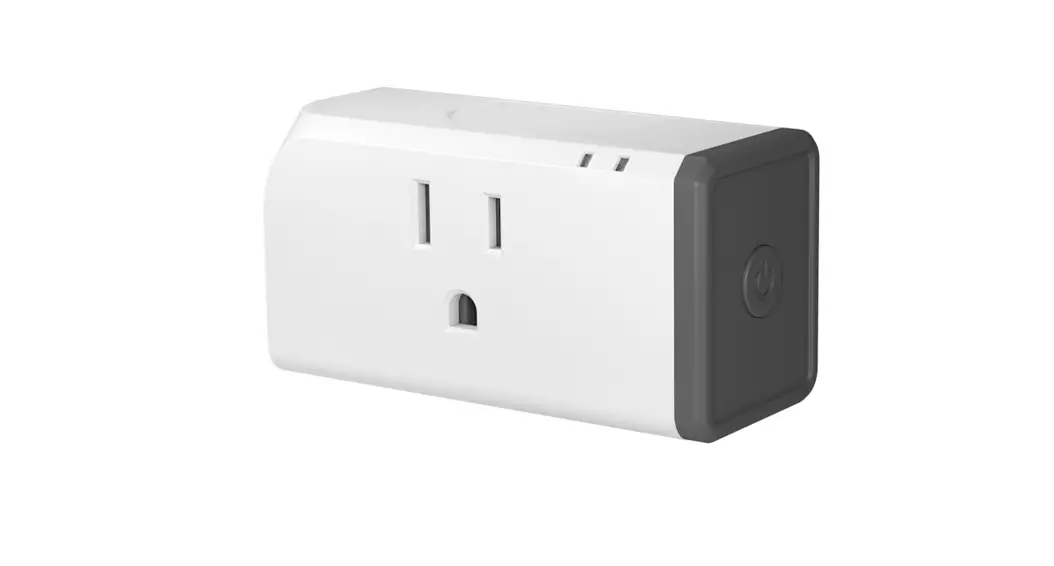
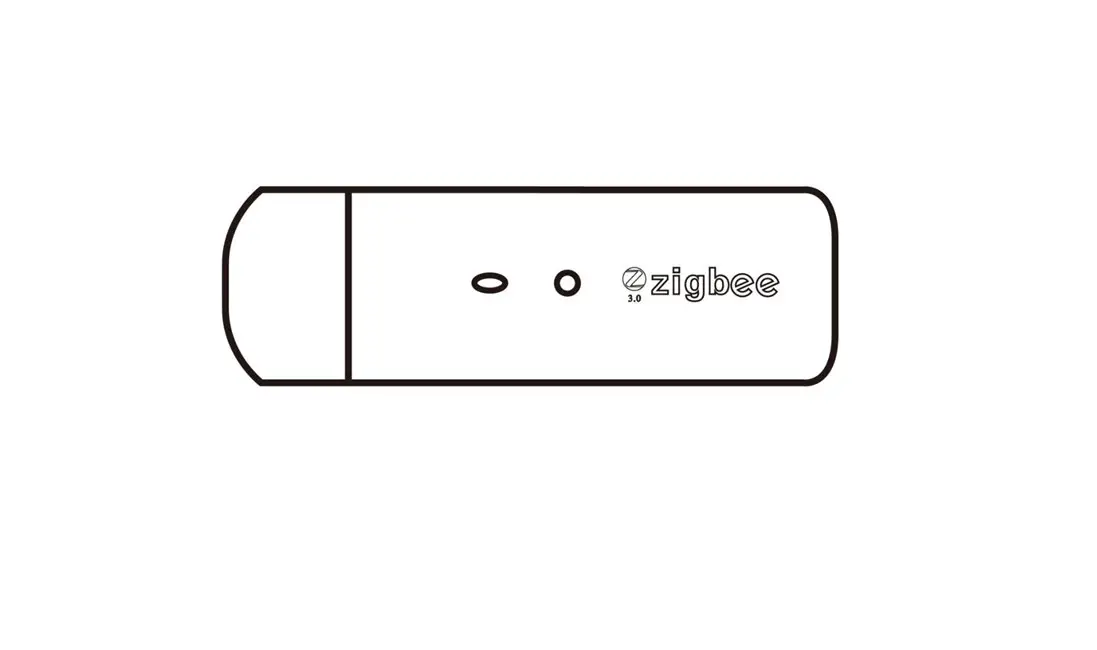
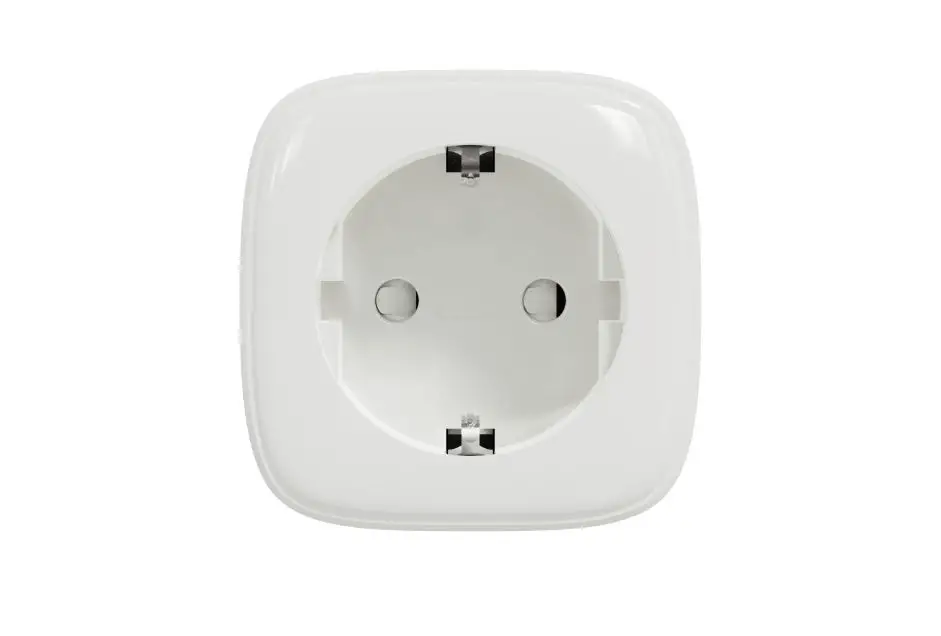
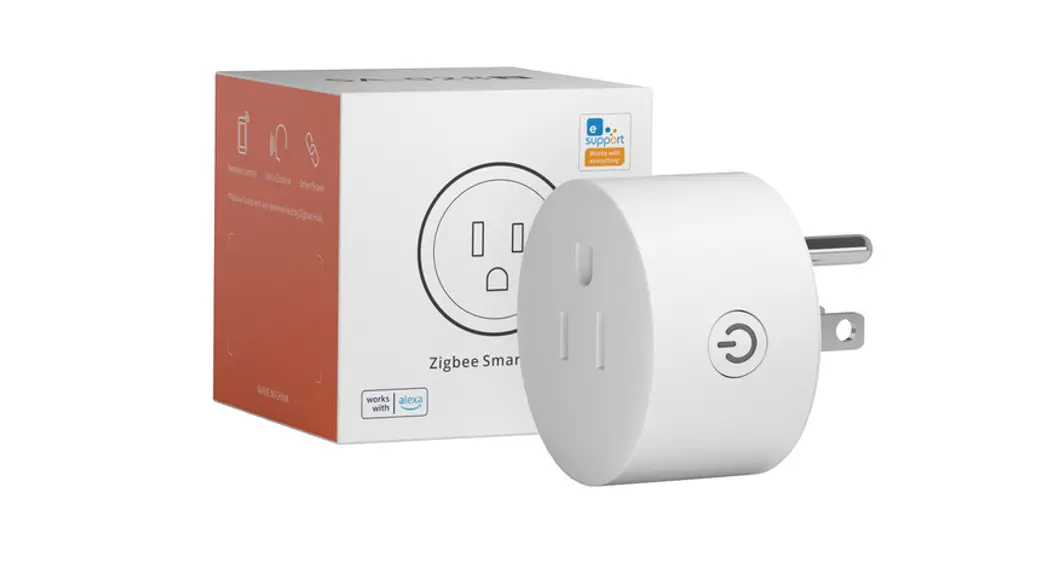
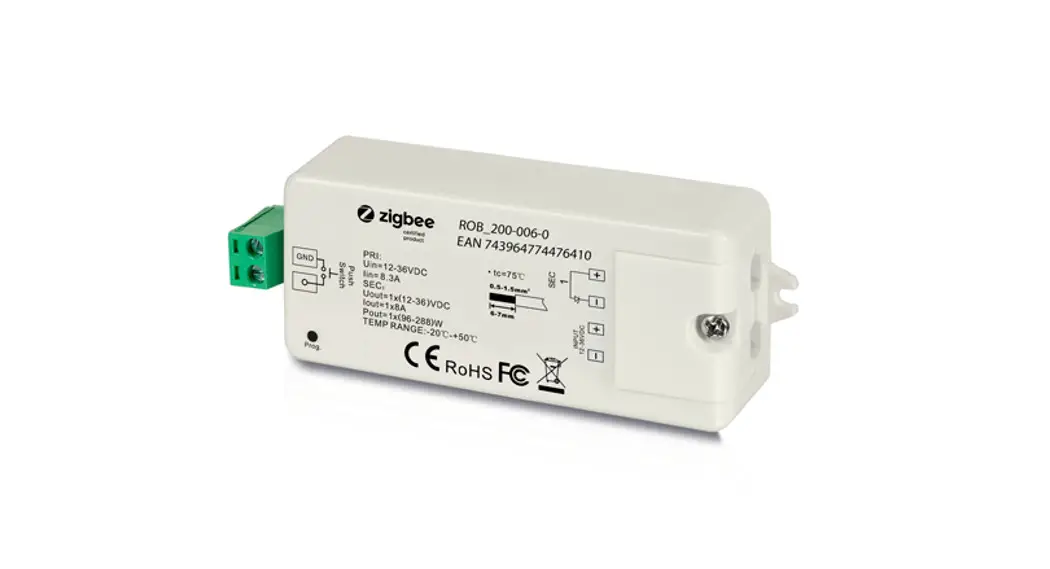
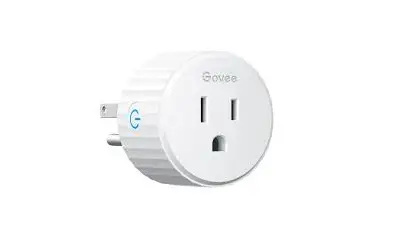
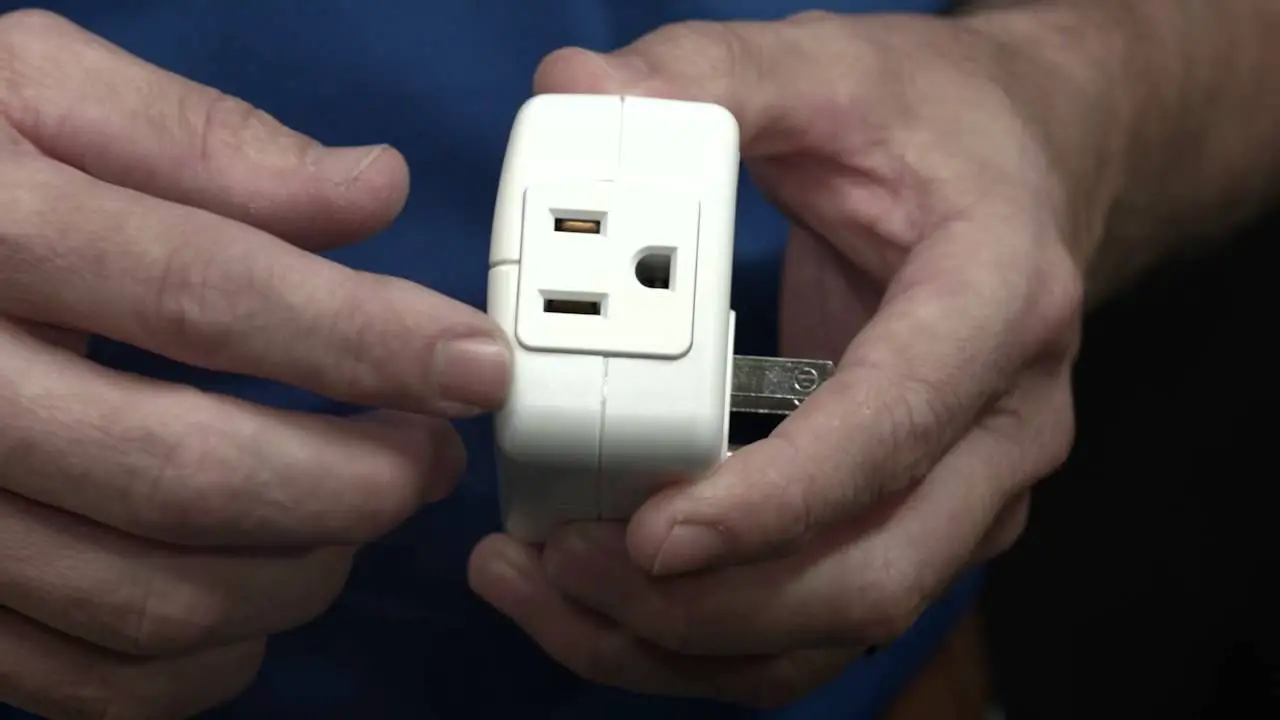
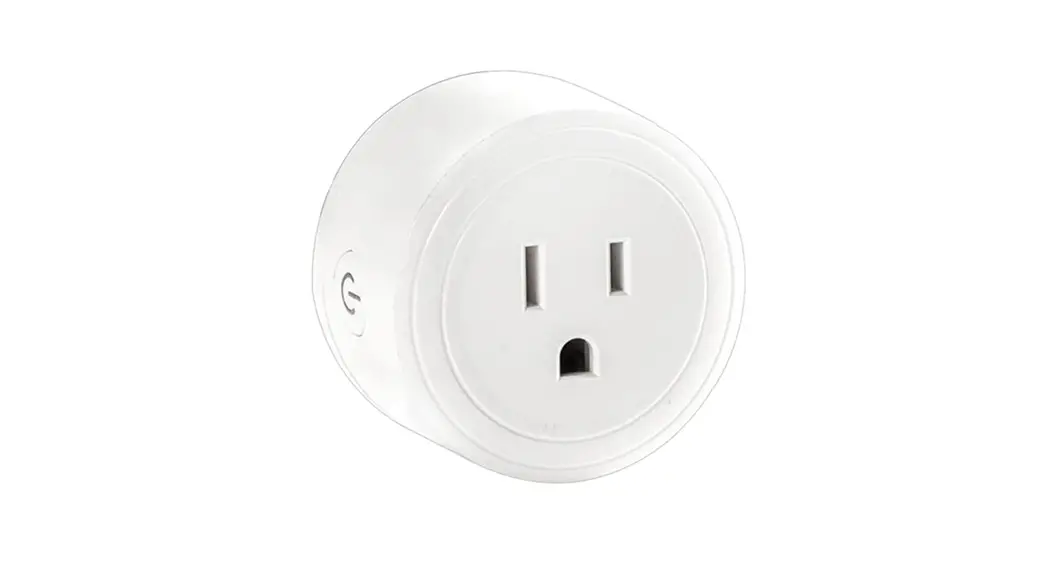
70110005 Zigbee Smart Plug
Zigbee Smart Plug
Important: Read All Instructions Prior to Installation
Function Introduction
70110005
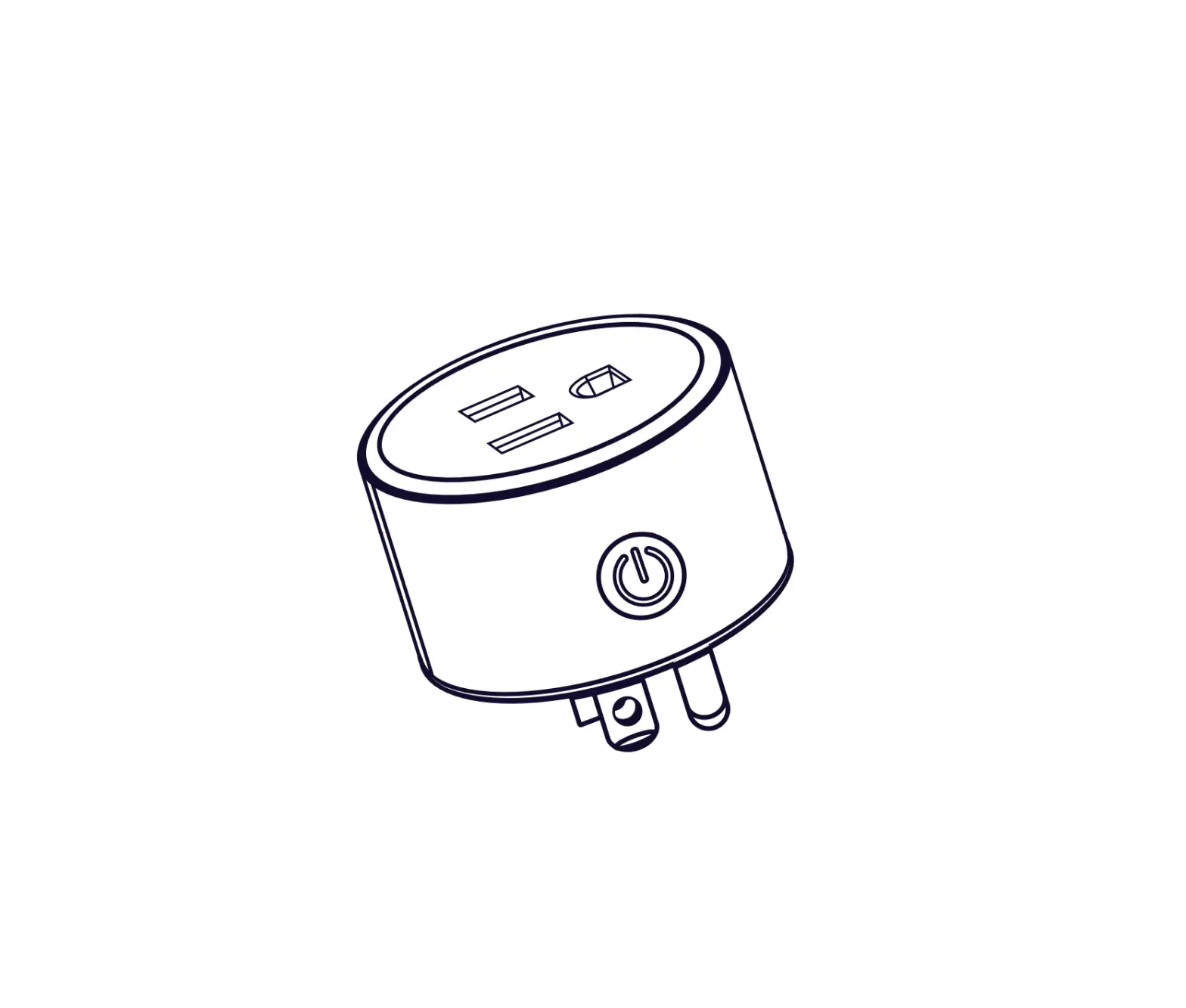
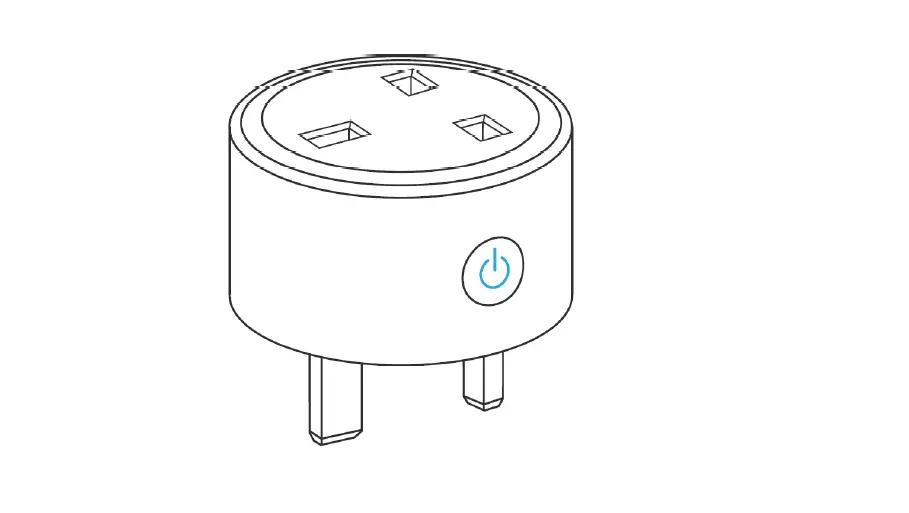
Program button: Short press to switch on/off load
Product Data
- Zigbee profile: 0x0104(ZHA)
- Device ID: 0x000A(Plug-in Unit)
- Radio Frequency: 2.4GHz
- Input Voltage: AC200-240V, 50/60Hz
- Max. Load: Load power > 2200W
- Over Current Protection Definition: 16.1A Over Current
- Operating Temperature:
- Relative Humidity:
- Dimensions:
- LED Indicator State:
- Flashes red slowly
- Stays solid orange
- Stays solid yellow
- Stays solid green
- Stays solid cyan
- Stays solid blue
- Flashes purple slowly
- Stays solid white at a low brightness
Product Usage Instructions
- Make sure the input voltage is within the range of AC200-240V,
50/60Hz. - Plug the Zigbee Smart Plug into a compatible power outlet.
- Press the program button on the Zigbee Smart Plug to switch
on/off the load connected to it. - Observe the LED indicator state to determine the status of the
Zigbee Smart Plug:
- If the LED flashes red slowly, there is an over current
condition. Check the load power and reduce it if necessary. - If the LED stays solid orange, the load power is greater than
2200W. - If the LED stays solid yellow, the load power is between
2001-2200W. - If the LED stays solid green, the load power is between
1501-2000W. - If the LED stays solid cyan, the load power is between
1001-1500W. - If the LED stays solid blue, the load power is below
1000W. - If the LED flashes purple slowly, there may be a malfunction.
Contact customer support for assistance. - If the LED stays solid white at a low brightness, the Zigbee
Smart Plug is in standby mode.
Zigbee Smart Plug
Important: Read All Instructions Prior to Installation Function introduction
70110005
Program button, short press to switch on/off load
Product Data Zigbee profile Device ID
Radio Frequency Input Voltage Max. Load
Over Current Protection Operating temperature
Relative humidity Dimensions
LED indicator
0x0104(ZHA) 0x000A(Plug-in Unit)
2.4GHz AC200-240V, 50/60Hz
16A 16.1A 0 to 40°C 8% to 80% 114.8×54.8×74.7(mm)
LED Indicator State Flashes red slowly Stays solid orange Stays solid yellow Stays solid green
Stays solid cyan Stays solid blue Flashes purple slowly Stays solid white at a low brightness
Definition (16.1A Over Current) Over current
Load power > 2200W Load power 2001-2200W Load power 1501-2000W Load power 1001-1500W
Load power <= 1000W Firmware updating via OTA
Load switched off
· ZigBee smart plug based on latest ZigBee 3.0 protocol · Enables to control ON/OFF of the load, supports max. 16 scenes · ZigBee end device that supports Touchlink commissioning · Supports find and bind mode to bind a ZigBee remote · Supports zigbee green power and can bind max. 20 zigbee green power switches · Supports temperature measurement · Supports over current protection and power metering, enables to report power consumption to gateway · Waterproof grade: IP20
Safety & Warnings · DO NOT install with power applied to device. · DO NOT expose the device to moisture.
Operation 1.Plug the smart plug into AC power source.
2.This ZigBee device is a wireless receiver that communicates with a variety of ZigBee compatible systems. This receiver receives and is controlled by wireless radio signals from the compatible ZigBee system.
3. Zigbee Network Pairing through Coordinator or Hub (Added to a Zigbee Network) Step 1: Remove the device from previous zigbee network if it has already been added to, otherwise pairing will
fail. Please refer to the part “Factory Reset Manually”. Step 2: From your ZigBee Controller or hub interface, choose to add lighting device and enter Pairing mode as instructed by the controller. Step 3: Short press “Program” button 5 times continuously to set the device to network pairing mode, LED indicator will flash white fast.
Step 4: LED indicator will flash white 6 times to indicate successful pairing. LED indicator will maintain the status before entering into network pairing mode if pairing fails.
4. TouchLink to a Zigbee Remote
Step 1: Short press “Prog” button 4 times (Or re-power on the device 4 times) to start Touchlink commissioning, 180S timeout. Once timeout, repeat the operation.
AC Power 50/60Hz
Zigbee Remote
< 10cm
Step 4: There shall be indication on the remote for successful link and LED indicator of the plug will flash white twice.
Step 2: Bring the remote or touch panel within 10cm of the lighting device.
Step 3: Set the remote or touch panel into Touchlink commissioning, please refer to corresponding remote or touch panel manual to learn how.
Note: 1) Directly TouchLink (both not added to a ZigBee network), each device can link with 1 remote. 2) TouchLink after both added to a ZigBee network, each device can link with max. 30 remotes. 3) To control by both gateway and remote, add remote and device to network first then TouchLink. 4) After TouchLink, the device can be controlled by the linked remotes.
5. Removed from a Zigbee Network through Coordinator or Hub Interface
From your ZigBee controller or hub interface, choose to delete or reset the lighting device as instructed. LED indicator of the plug blinks white 3 times to indicate successful reset.
8. Find and Bind Mode
Note: Make sure both the device and remote are added to the same gateway that supports find and bind. Step 1: Short press “Prog.” button 3 times to start Find and Bind mode (LED indicator flashes white slowly) to
find and bind target node, 180 seconds timeout, repeat the operation.
6. Factory Reset Manually Step 1: Short press the “program” button 5 times continuously, the plug will enter into network pairing mode.
Step 2: LED indicator will flash white fast and the plug will try to join a Zigbee network.
7. Factory Reset through a Zigbee Remote (Touch Reset) Note: Make sure the device already added to a network, the remote added to the same one or not added to any network. Step 1: Re-power on the device to start TouchLink Commissioning, 180 seconds timeout, repeat the operation.
Zigbee Remote
Step 2: Set the remote or touch panel (target node) into find and bind mode, and enable it to find and bind initiator, please refer to corresponding remote or touch panel manual.
Step 3: There shall be indication on the remote or touch panel that it bind the device successfully and can control it then.
9. Learning to a Zigbee Green Power Switch
Step 1: Short press “Program” button 4 times to start Learning to GP switch mode (LED indicator flashes twice), 180 seconds timeout, repeat the operation.
Step 3: LED indicator will flash twice to indicate successful learning. Then the switch can control the device.
Zigbee Green Power
Switch
Step 2: Set the green power switch into Learning mode,
please refer to its manual.
Note: Each device can learn to max. 20 zigbee green power switches.
10. Delete Learning to a Zigbee Green Power Switch Step 1: Short press “Program” button 3 times to start delete Learning to GP switch mode (LED indicator flashes slowly), 180 seconds timeout, repeat the operation.
AC Power 50/60Hz
Zigbee Remote
< 10cm
Step 4: There shall be indication on the remote for successful reset and LED indicator of the plug will flash white 3 times.
Step 2: Bring the remote or touch panel within 10cm of the lighting device.
Step 3: Set the remote or touch panel into Touch Reset procedure to reset the device, please refer to corresponding remote or touch panel manual to learn how.
Zigbee Green Power
Switch
Step 2: Set the paired green power switch into Learning mode, please refer to its manual.
Step 3: LED indicator will flash 4 times to indicate
successful deleting.
11. Setup a Zigbee Network & Add Other Devices to the Network (No Coordinator Required) Step 1: Short press “Program” button 4 times to enable the device to setup a zigbee network (LED indicator flashes white twice) to discover and add other devices, 180 seconds timeout, repeat the operation.
Zigbee Remote
< 10cm TouchLink
ZigBee Lighting Device
Step 2: Set another device or remote or touch panel into network pairing mode and pair to the network, refer to their manuals. Step 3: Pair more devices and remotes to the network as you would like, refer to their manuals. Step 4: Bind the added devices and remotes through Touchlink so that the devices can be controlled by the remotes, refer to their manuals. Note: 1) Each added device can link and be controlled by max. 30 added remotes.
2) Each added remote can link and control max. 30 added devices.
12. ZigBee Clusters the device supports are as follows: Input Clusters · 0x0000: Basic · 0x0003: Identify · 0x0004: Groups · 0x0005: Scenes · 0x0006: On/off · 0x0402: temperature measurement · 0x0702: Simple Metering · 0x0b04: Electrical Measurement · 0x0b05: Diagnostics · 0x1000: ZLL Commissioning Output Clusters · 0x0003: Identify · 0x0019: OTA
13. OTA The device supports firmware updating through OTA, and will acquire new firmware from zigbee controller or hub every 10 minutes automatically.