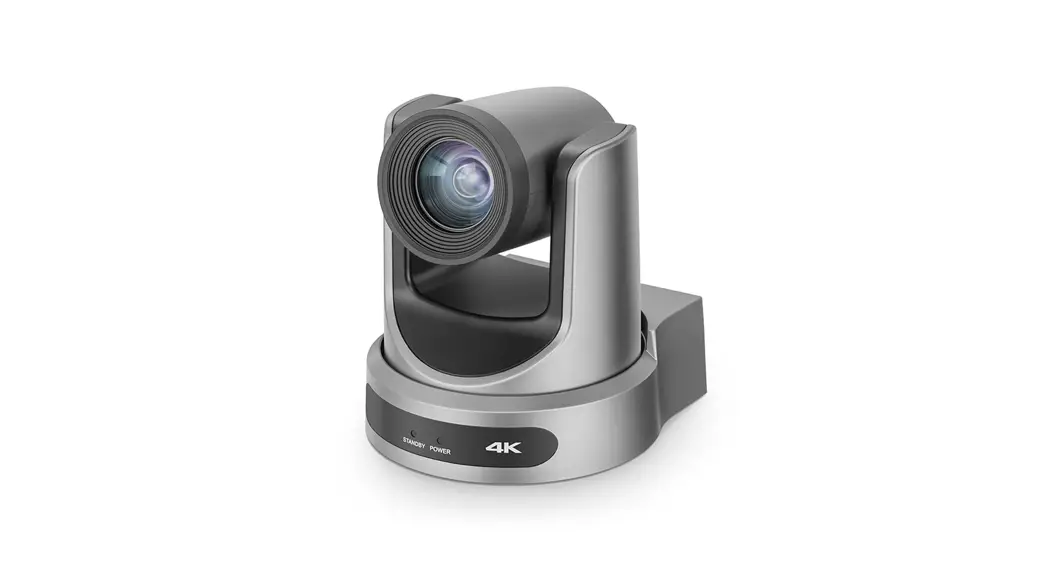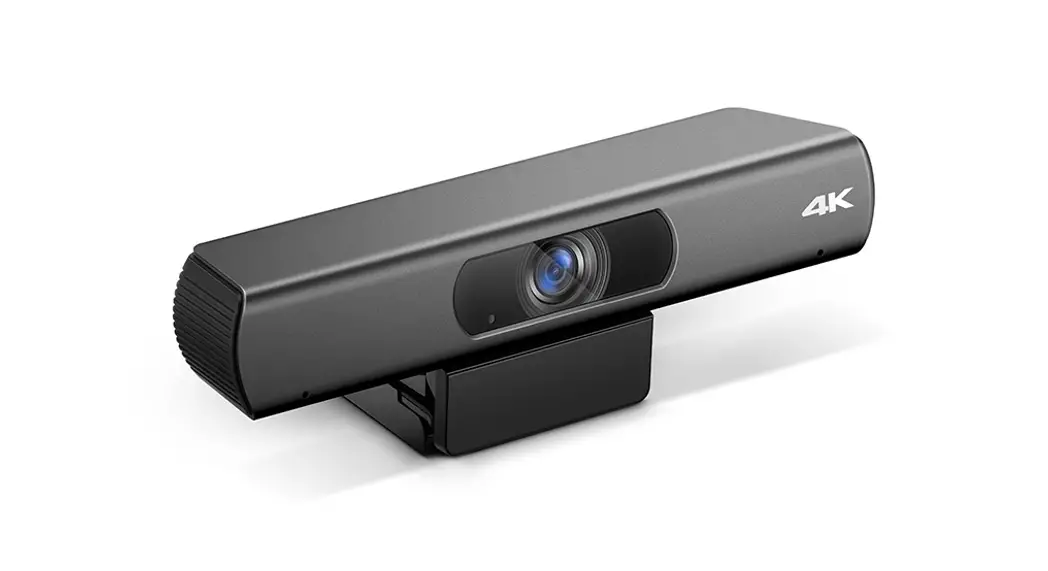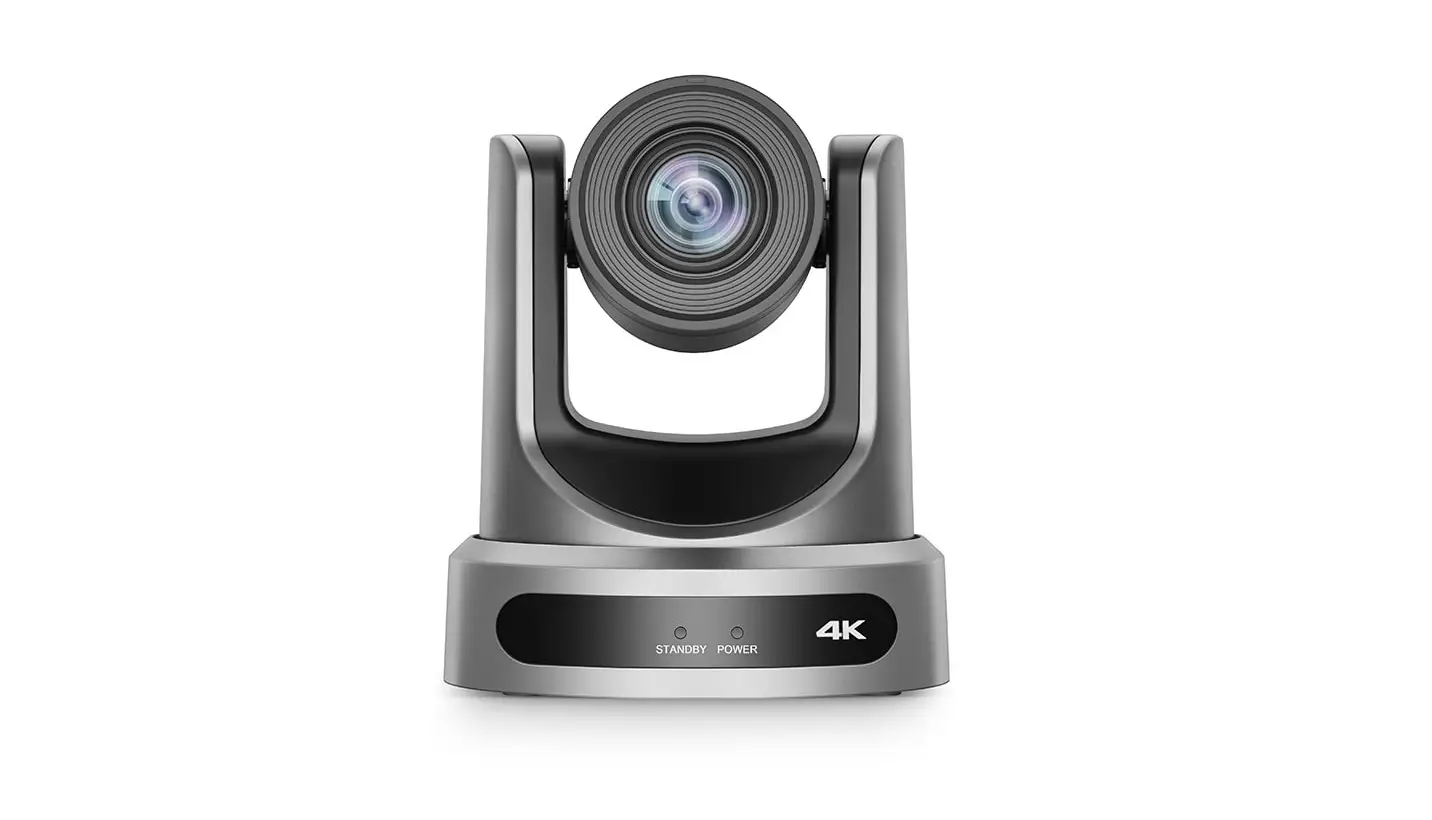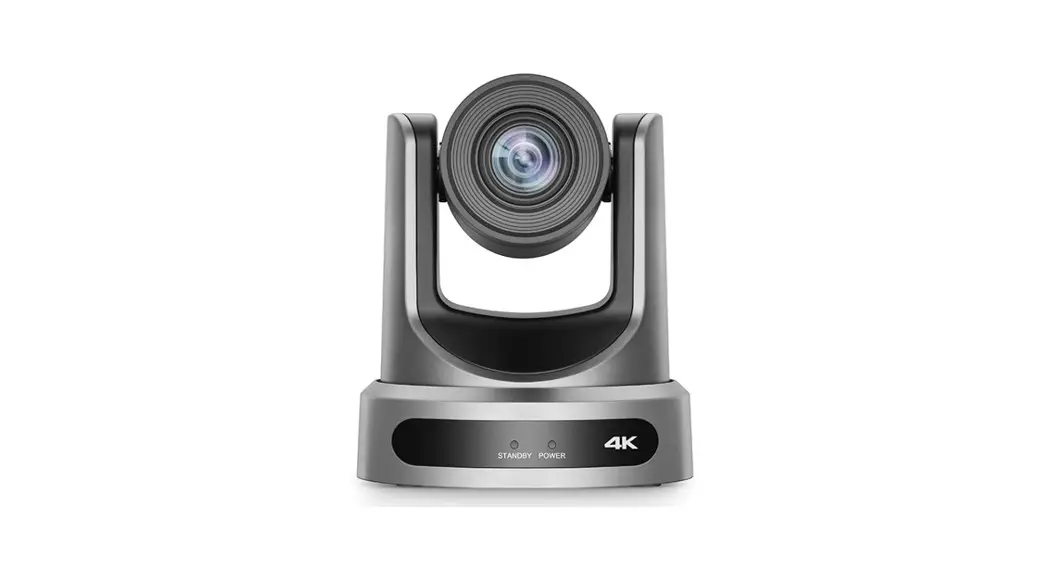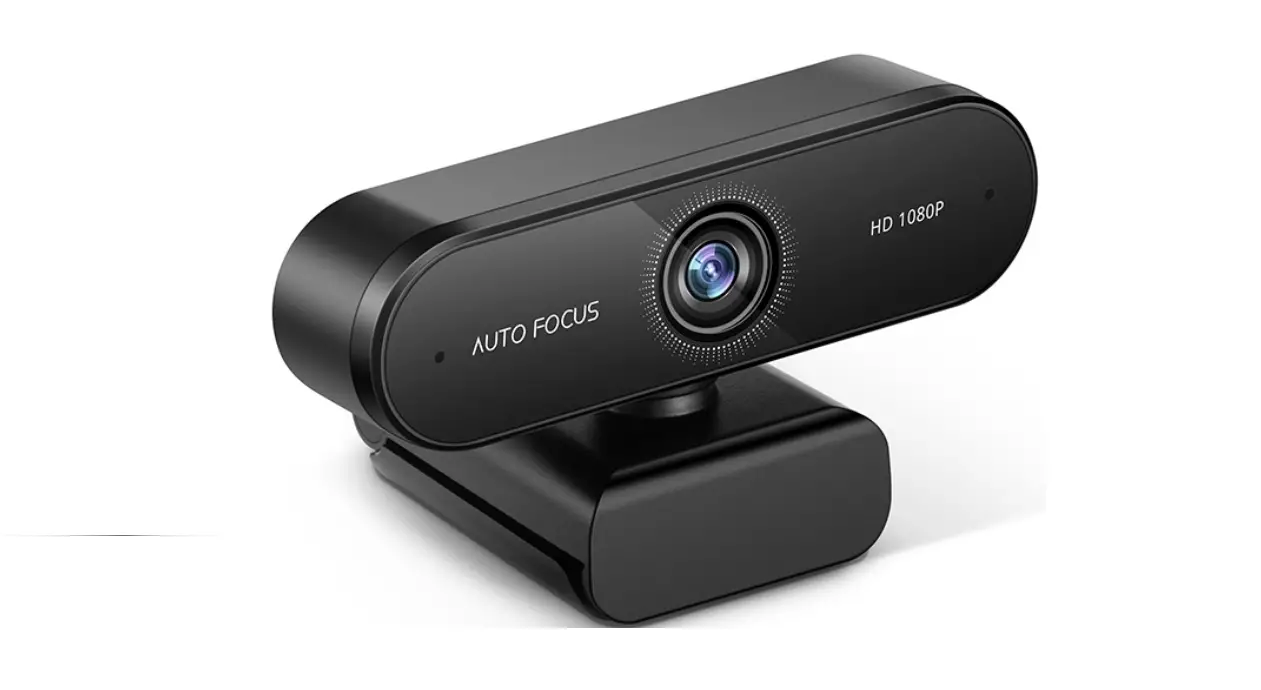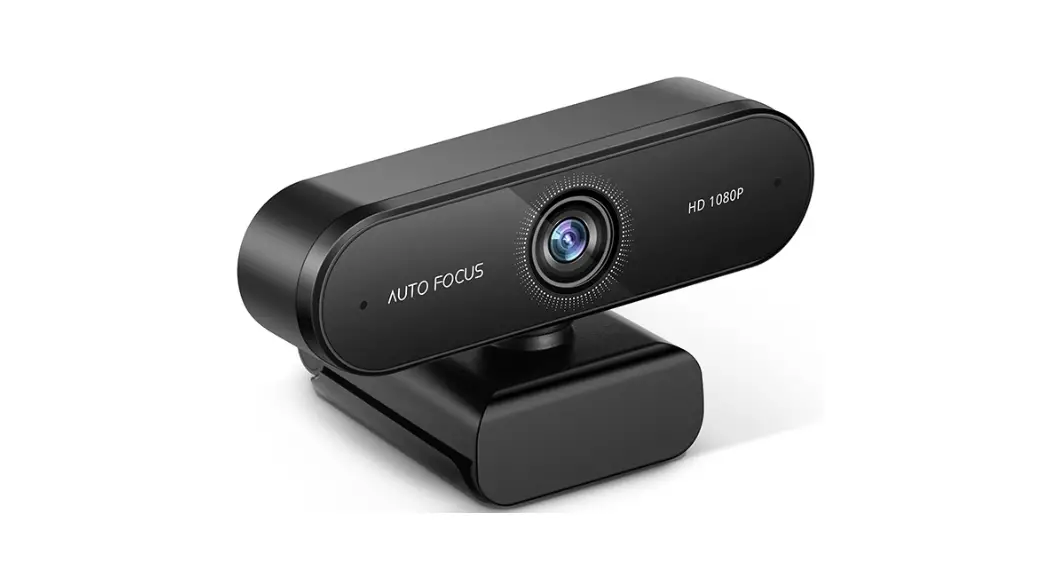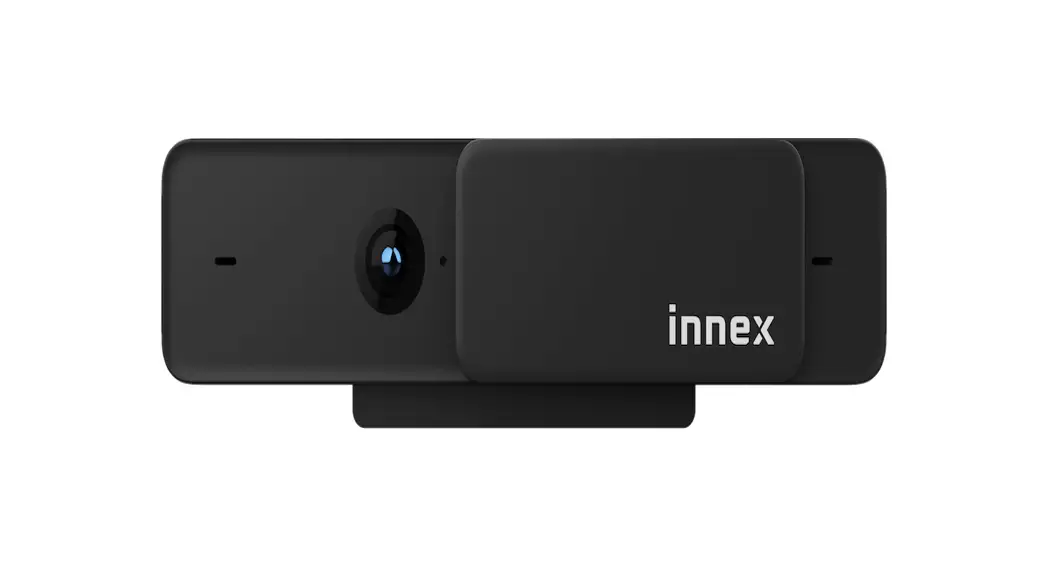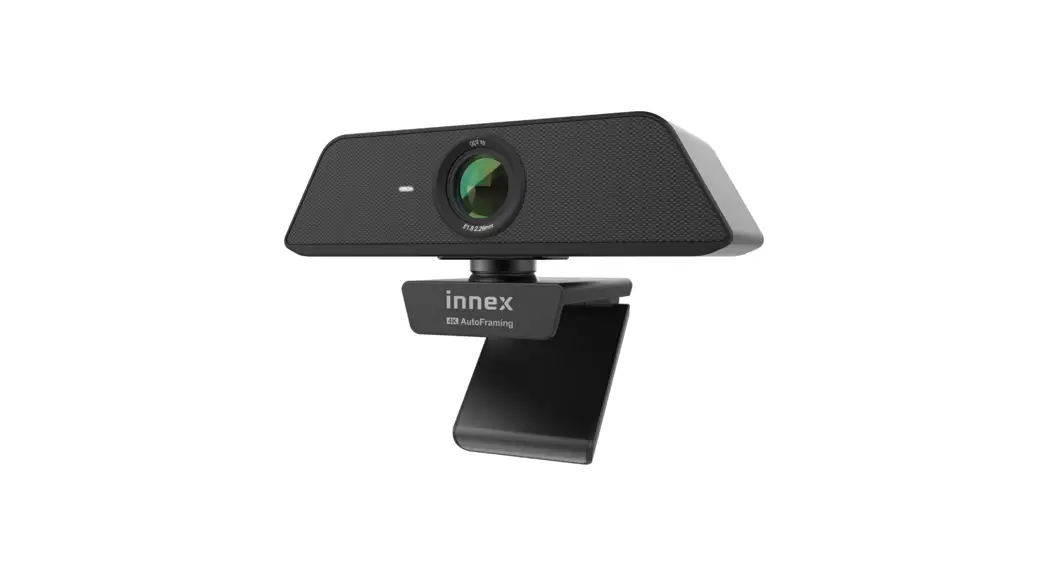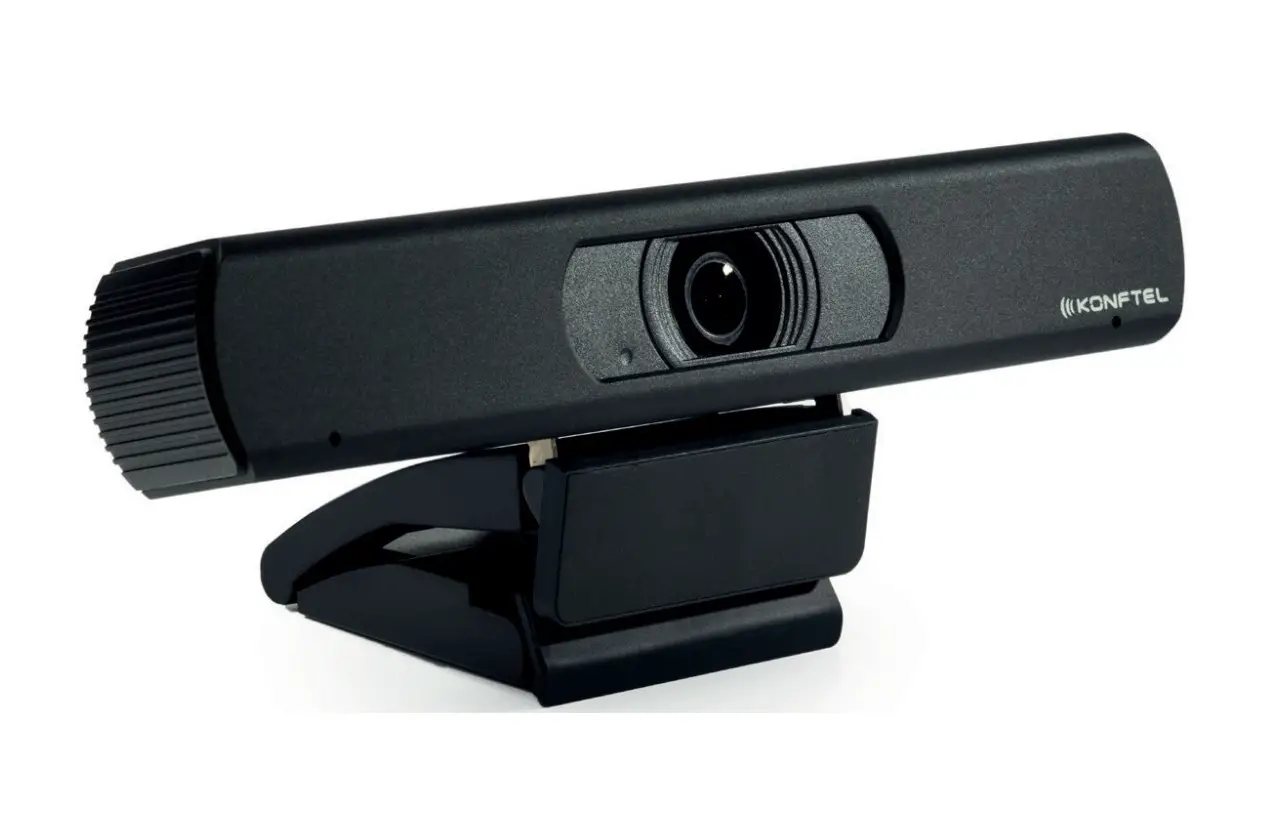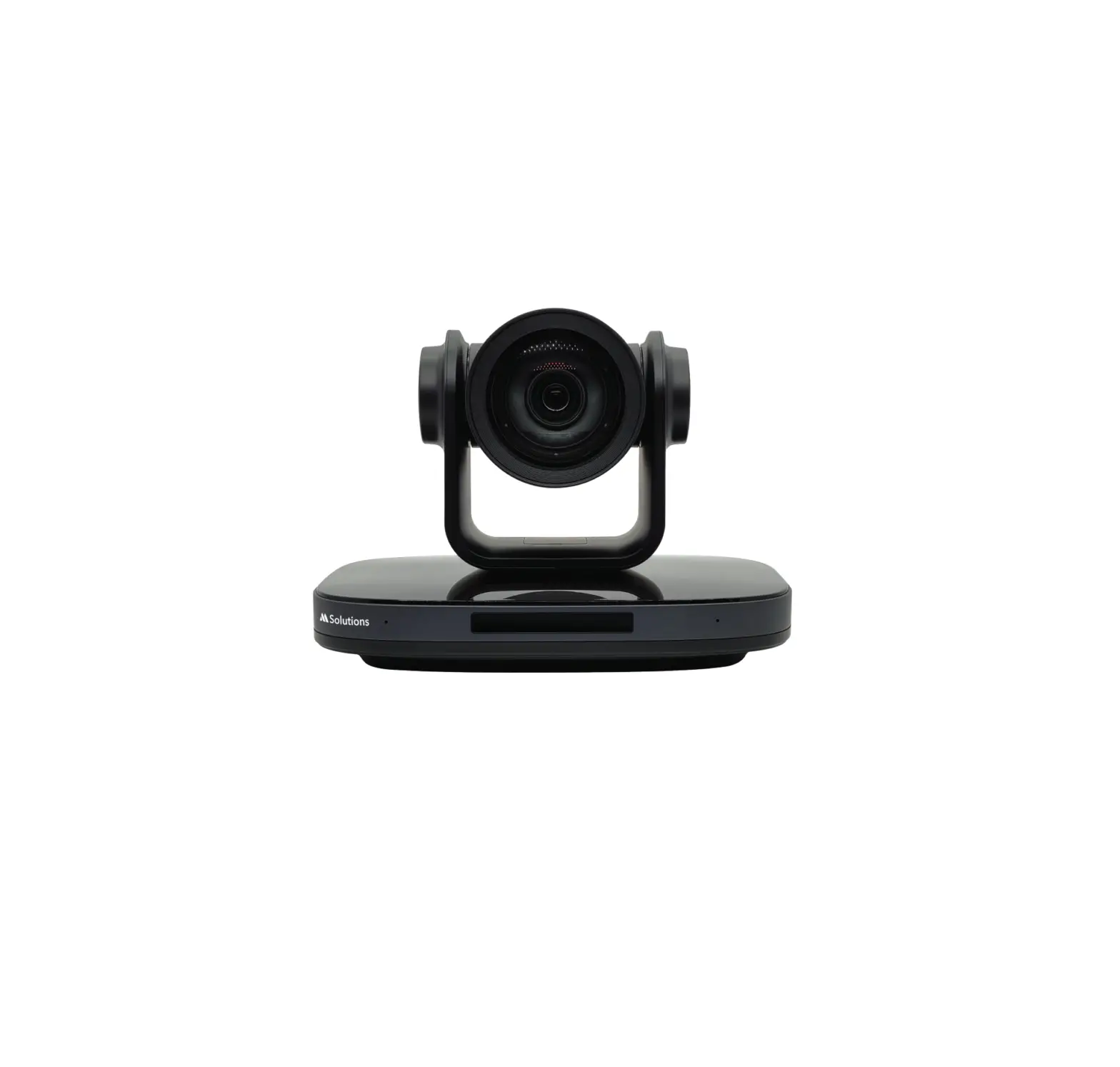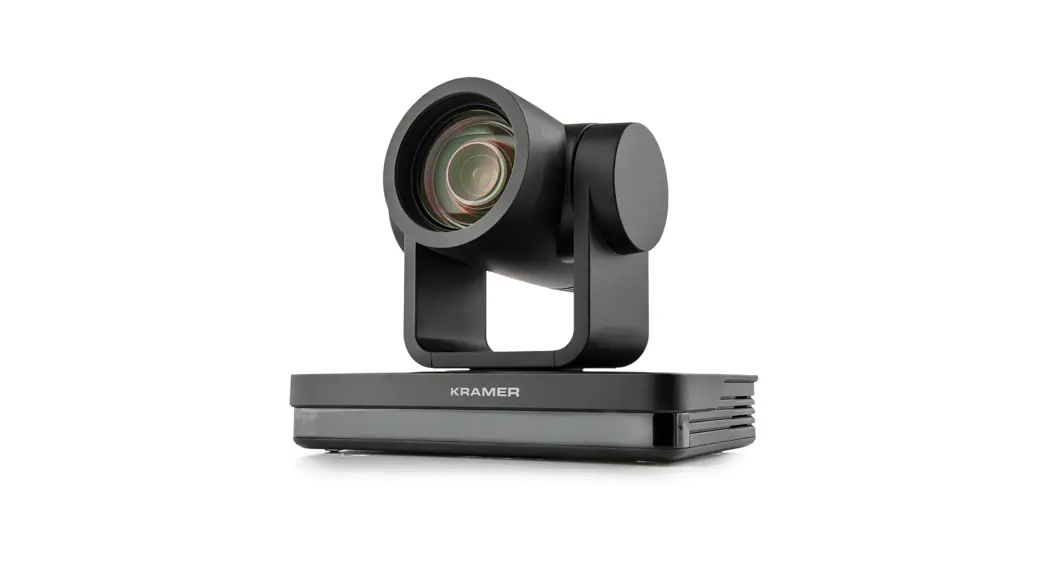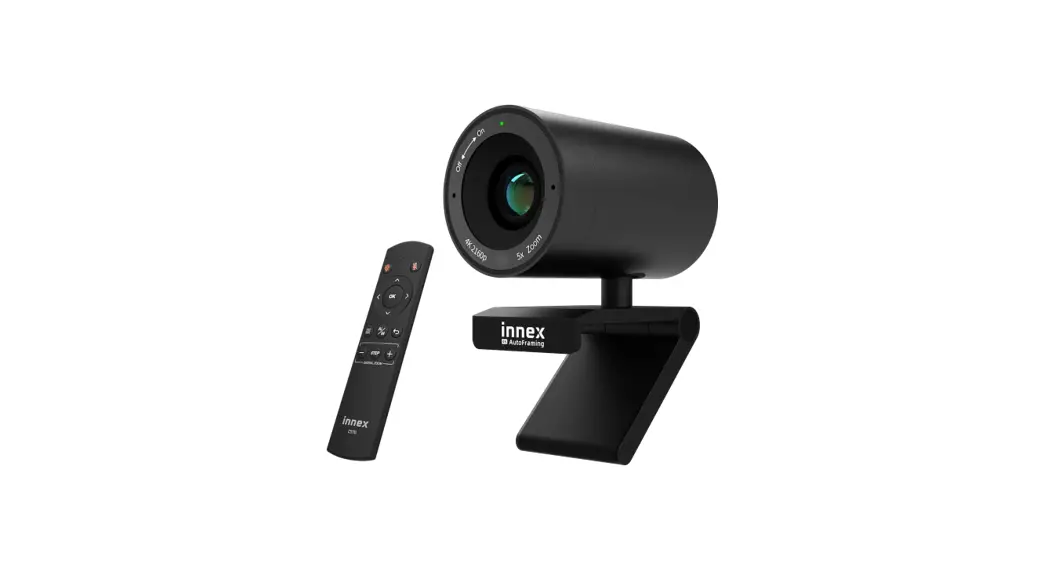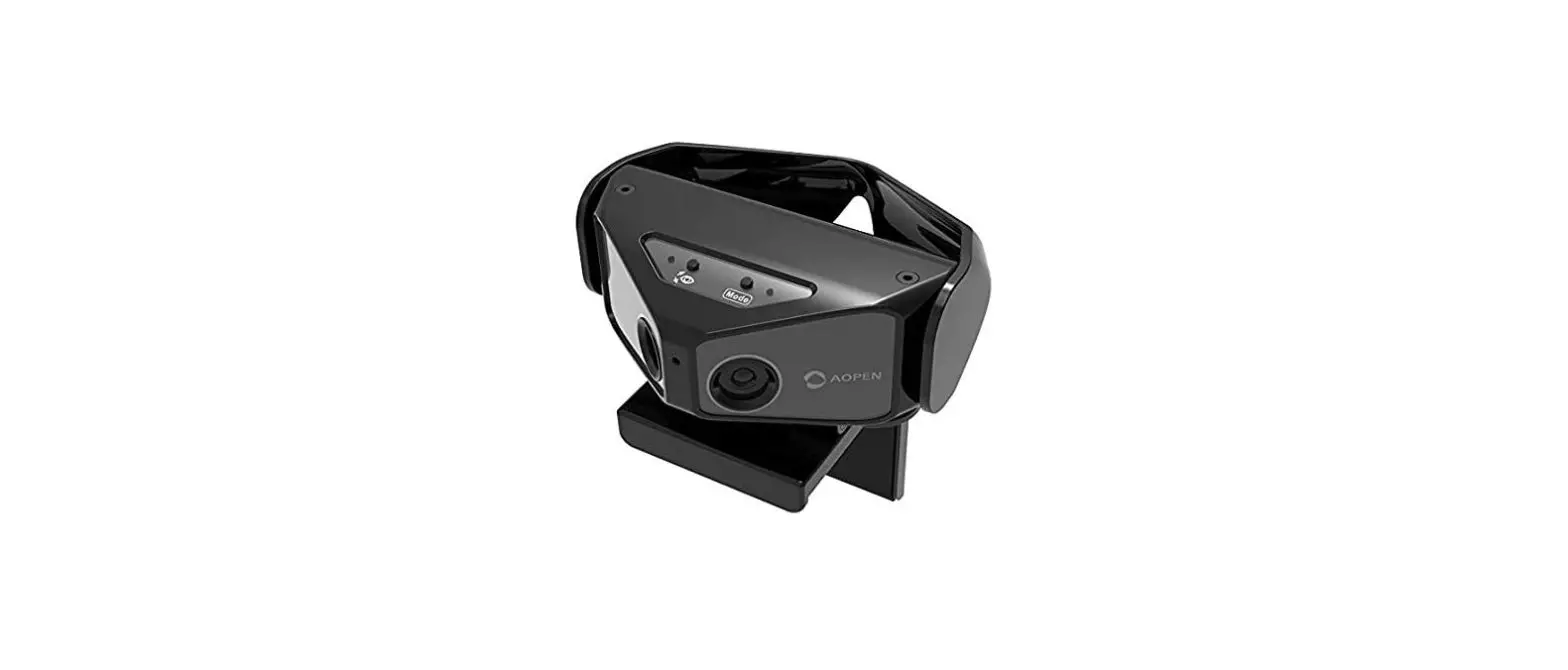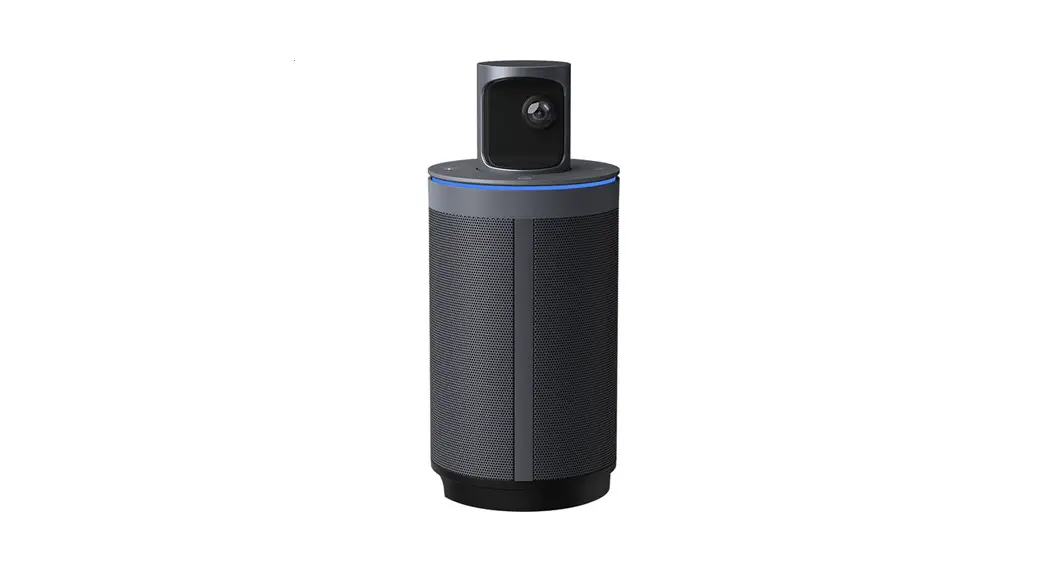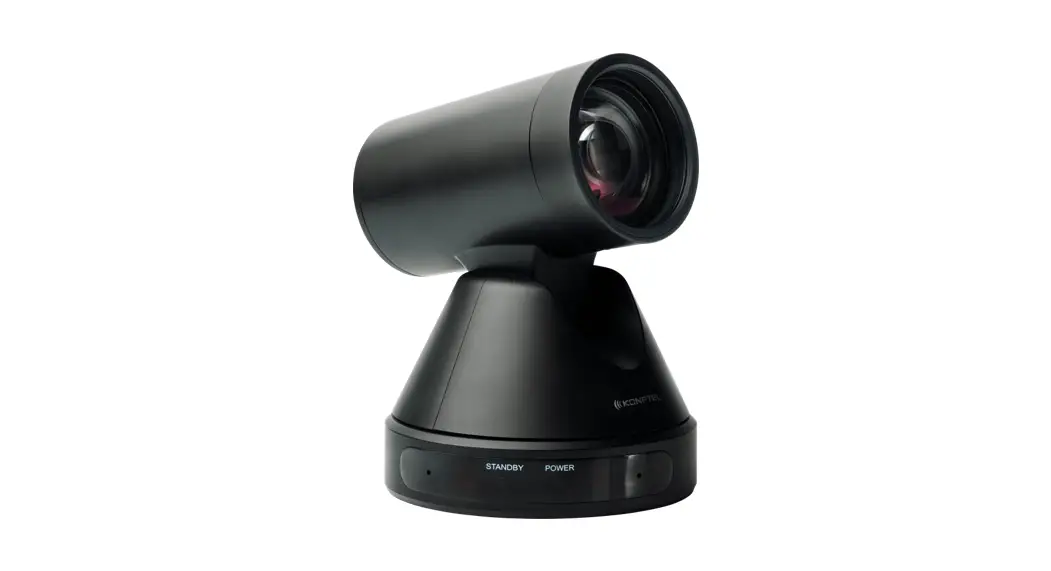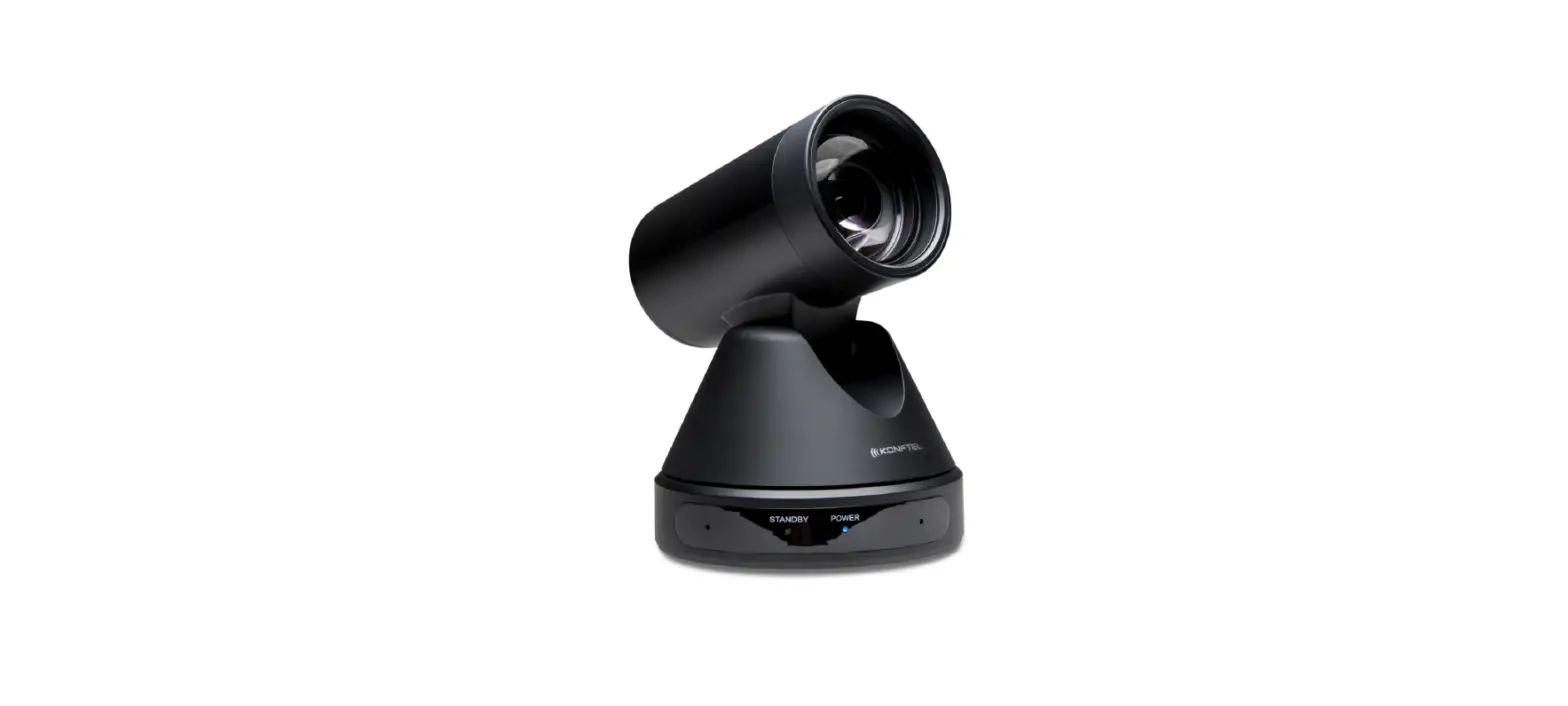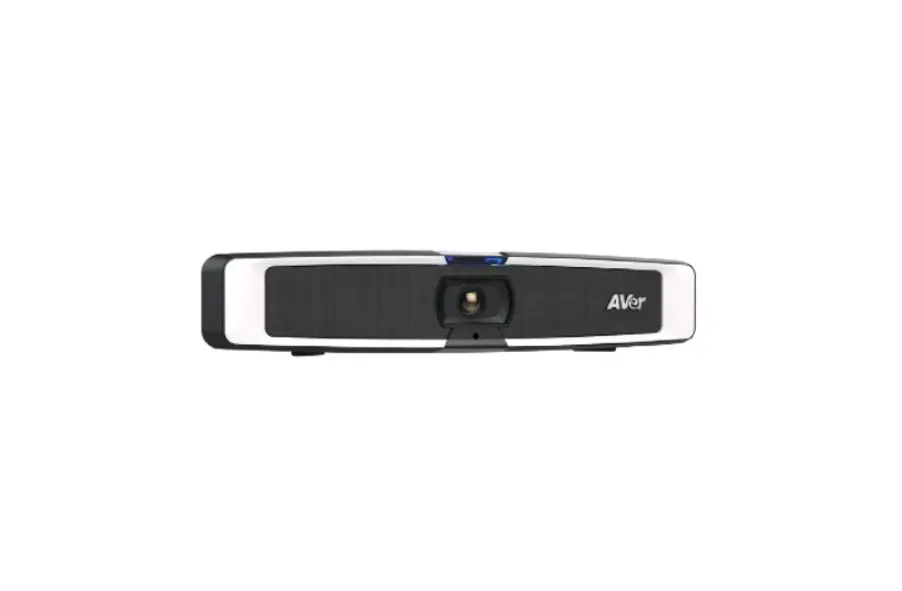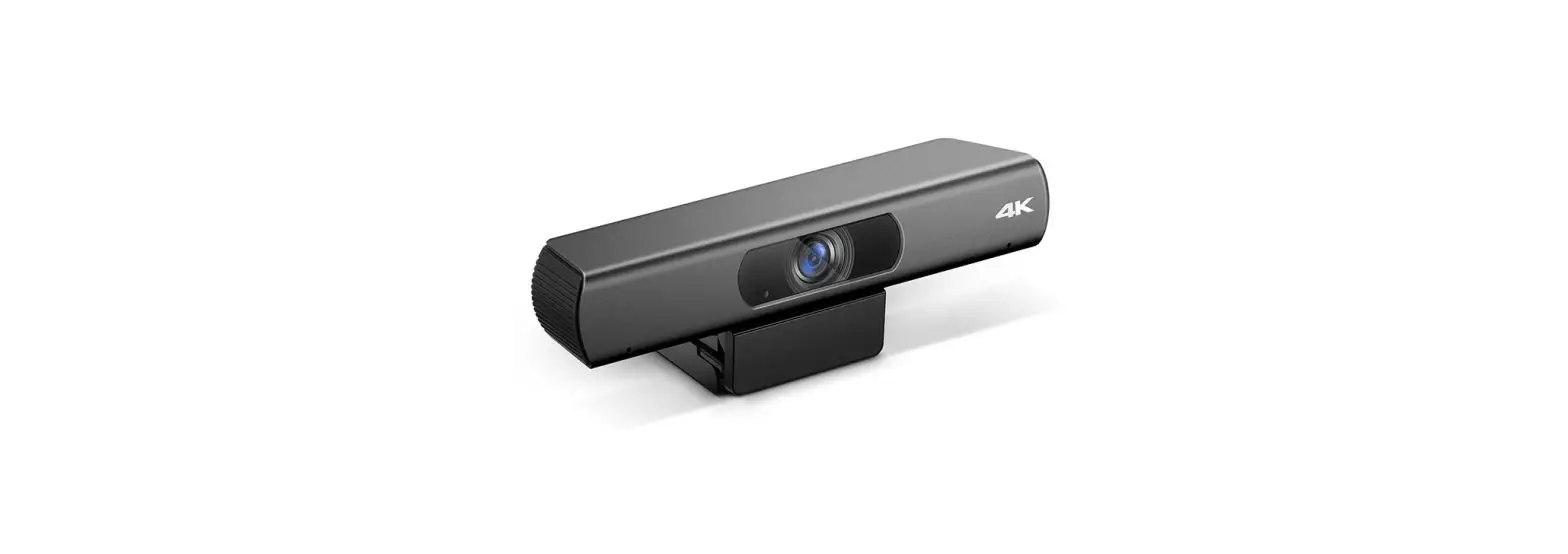
FS FC530-4K HD Video Conference Camera for Small Rooms User Guide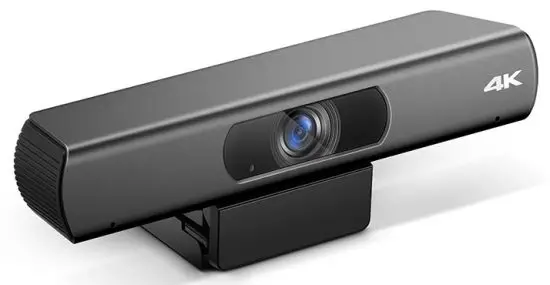
Inroduction
FS provides professional USB plug and play cameras for small conference rooms, saving your manpower and equipment costs maximizing your team’s collaboration.
- FC530

- FC530-4K

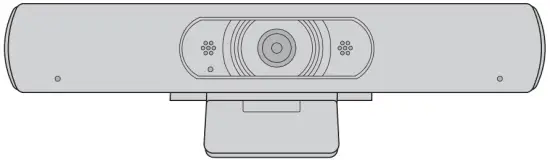
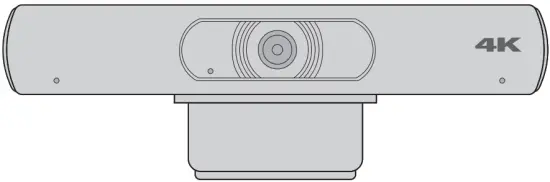
Accessories
- FC530
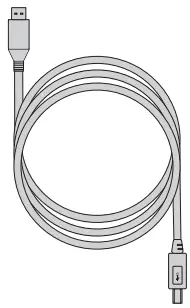
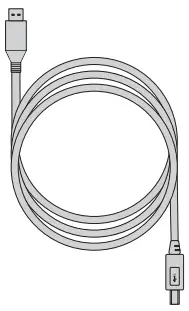
- USB 2.0 Cable x1

- USB 2.0 Cable x1
- FC530-4K
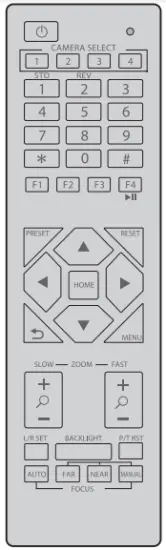
- Remote Control x1

- USB 3.0 Cable x1

- Remote Control x1
Hardware Overview
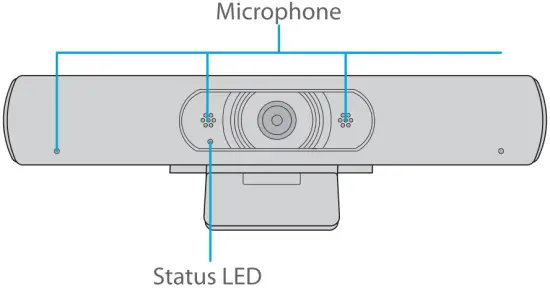
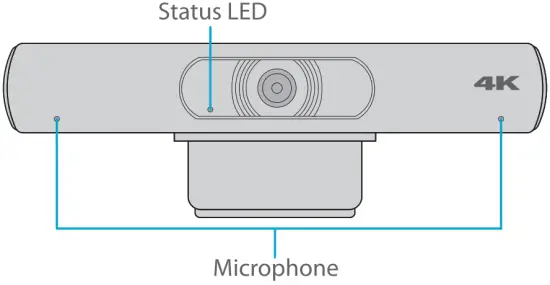
Front Pannel
- FC530

- FC530-4K

Back Pannel
- FC530

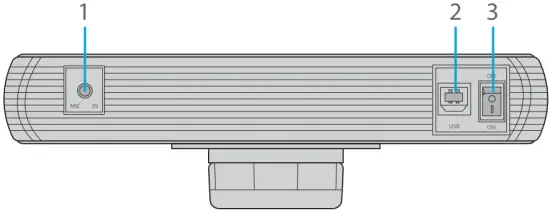
| Ports | Description | |
| 1 | MIC IN | Connect Audio Pickup Device |
| 2 | USB 2.0 | Connect to Computer |
| 3 | ON/OFF | Power ON/OFF |
- FC530-4K

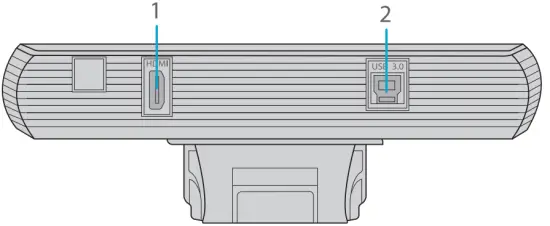
| Port | Description | |
| 1 | HDMI | Connect to TV |
| 2 | USB 3.0 | Connect to Computer |
Remote Control
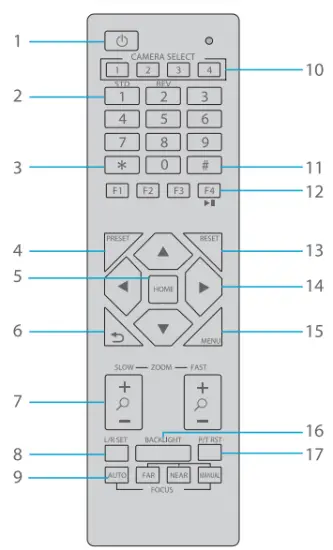
Name | Description | |
| 1 | Standby | Press it to enter standby mode |
| 2 | Number | Preset setting or transfer preset |
| 3 | * | Used with other buttons |
| 4 | Preset | Set preset + number key (0-9) |
| 5 | Home | Confirm menu or the lens will back to the middle position after pressed it |
| 6 | Return | Return back the last level menu |
| 7 | Zoom | Make the lens wide angle/narrow angle slowly or quickly |
| 8 | Left/Right Setting | Standard: simultaneously press Left/Right setting key + 1 (horizontal) Reverse: simultaneously press Left/Right setting key + 2 (horizontal) |
| 9 | Focus | AUTO/MANUAL/FAR/NEAR focus |
| 10 | Selection | Press the button of the camera you want to operate |
| 11 | # | Used with other buttons |
| 12 | IR Remote Control | [*+#+F1 /F2/F3/F4]: NO.1/2/3/4 address |
| 13 | Reset | Delete preset: click RESET key + corresponding preset number key |
| 14 | ePTZ Control | After zoom, ePTZ moved according to the arrow indicates |
| 15 | Menu | Enter or exit OSD menu after pressed it |
| 16 | Backlight | Turn on/off backlight consumption |
| 17 | PTZ Reset | PTZ starts to self-test after pressed it |
 Note AAA batteries are not Provided.
Mounting the Camera
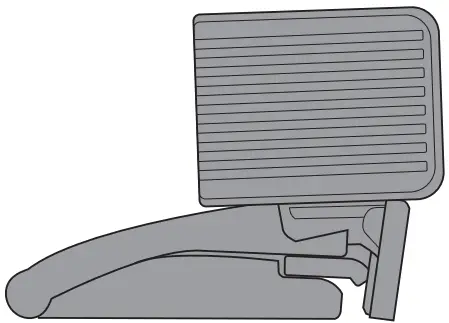
- Placing on Desktop
Fold in the clip so it forms a flat surface, and place it on a flat desk top.
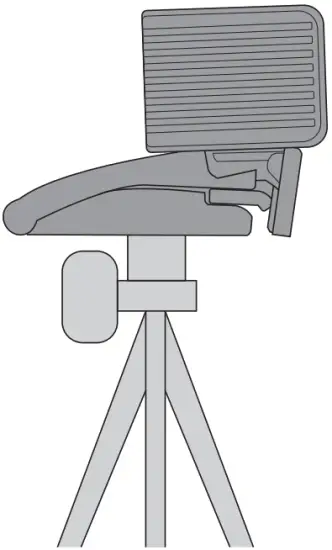
- Mounting on a Tripod
Fold in the clip and mount the camera onto a tripod (not provided) with the ‘A inch thread.
Connecting the Camera
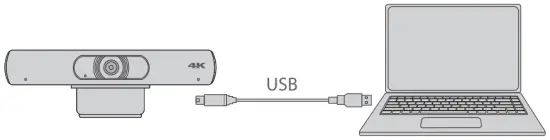
- Connect Your Camera
- Run the Software
Run your video software (Zoom, Skype for Business, Google Hangouts, Cisco WebEx, GoToMeeting, and etc.) and select FS camera as your video device.
Troubleshooting
How do I know if my camera is recognized by the operating system?
Connect the camera in any USB 2.0/3.0 port. Once the camera is connected it takes a few moments before the new hardware is recognized.
To ensure that the camera has installed correctly, check the following: Under Control Panel > Device Manager.
- Review the Imaging Devices, FS camera should be seen.
- Review the Sound, Video, and Game Controllers, FS camera should be seen.
If the device can’t be located, check whether the camera is properly connected to the desktop.Try to insert the camera into another USB port.
NOTE: Supported operating systems-Windows’ 7 (1080p and under only), ) Windows 8.1, Windows 10 or higher; macOS’m 10.10 or higher; GoogleTM ChromebookTM Version 29.0.1547.70 or higher; Linux.
How do I know if my video client is using my FS camera?
All video clients have an option setting to review the audio and video device.
Using the video client in question review the following:
- The Audio selection to ensure the FS camera microphone is selected, if not change the selection to the FS camera.
- The Video selection to ensure the FS camera is selected, if not change the selection to the FS camera.
Why I get blurry pictures/videos?
Place the subject of the photograph within a range of 5cm to 5m away from the camera to obtain higher definition. To obtain the highest frame rate possible, use the camera in a place with sufficient lighting.\
Support and other Resources
- Download
https://www.fs.com/download.html - Help Center
https://www.fs.com/service/help_center.html - Contact Us
https://www.fs.com/contact_us.html
Product Warranty
FS ensures our customers that any damage or faulty items due to our workmanship, we will offer a free return within 30 Days from the day you receive your goods. This excludes any custom made items or tailored solutions.
 Warranty: All Video Conference Cameras enjoy 2 years limited warranty against defect in materials or workmanship. For more details about warranty, please check at https://www.fs.com/policies/warranty.html
 Return: If you want to return item(s), information on how to return can be found at https://www.fs.com/policies/day_return_policy.html
Compliance Infromation
FCC
Note: This equipment has been tested and found to comply with the limits for a Class A digital device, pursuant to part 15 of the FCC Rules. These limits are designed to provide reasonable protection against harmful interference when the equipment is operated in a commercial environment. This equipment generates, uses, and can radiate radio frequency energy and, if not installed and used in accordance with the instruction manual, may cause harmful interference to radio communications. Operation of this equipment in a residential area is likely to cause harmful interference in which case the user will be required to correct the interference at his own expense.
This device complies with part 15 of the FCC Rules. Operation is subject to the following two conditions:
- This device may not cause harmful interference, and
- this device must accept any interference received, including interference that may cause undesired operation.
CAUTION: Any changes or modifications not expressly approved by the grantee of this device could void the user’s authority to operate the equipment.
Responsible party (only for FCC matter) FS.COM Inc. 380 Centerpoint Blvd, New Castle, DE 19720, United States https://www.fs.com
CE
FS.COM GmbH hereby declares that this device is in compliance with the Directive 2014/30/EU. A copy of the EU Declaration of Conformity is available at www.fs.com/company/quality_control.html
Die FS.COM GmbH erklart hiermit, dass dieses Gerat mit der Richtlinie 2014/30/EU konform ist. Eine Kopie der EU Konformitatserklarung finden Sie unter www.fs.com/de/company/quality_control.html
FS.COM GmbH declare par la presente que cet appareil est conforme a la directive 2014/30/UE. Une copie de la declaration de conformite de l’UE est disponible a l’adresse suivante www.fs.com/fr/company/quality_control.html
FS.COM LIMITED
24F, Infore Center, No.19, Haitian 2nd Rd, Binhai Community, Yuehai Street,Nanshan District, Shenzhen City
FS.COM GmbH
NOVA Gewerbepark Building 7, Am Gfild 7, 85375 Neufahrn bei Munich, Germany
Copyright © 2021 FS.COM All Rights Reserved.