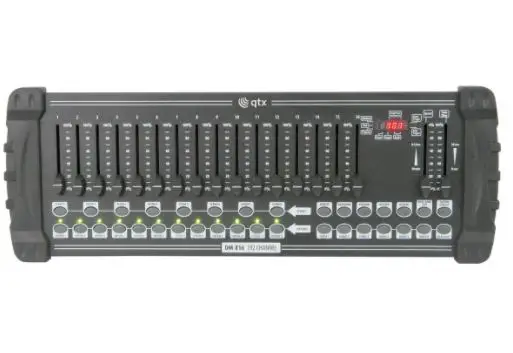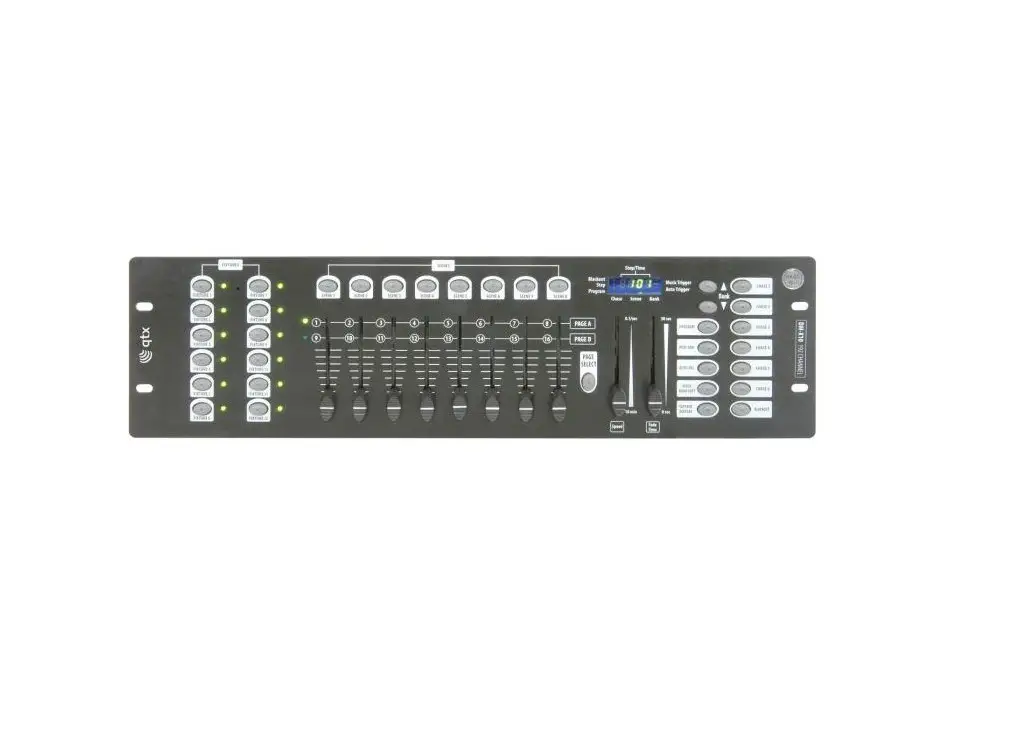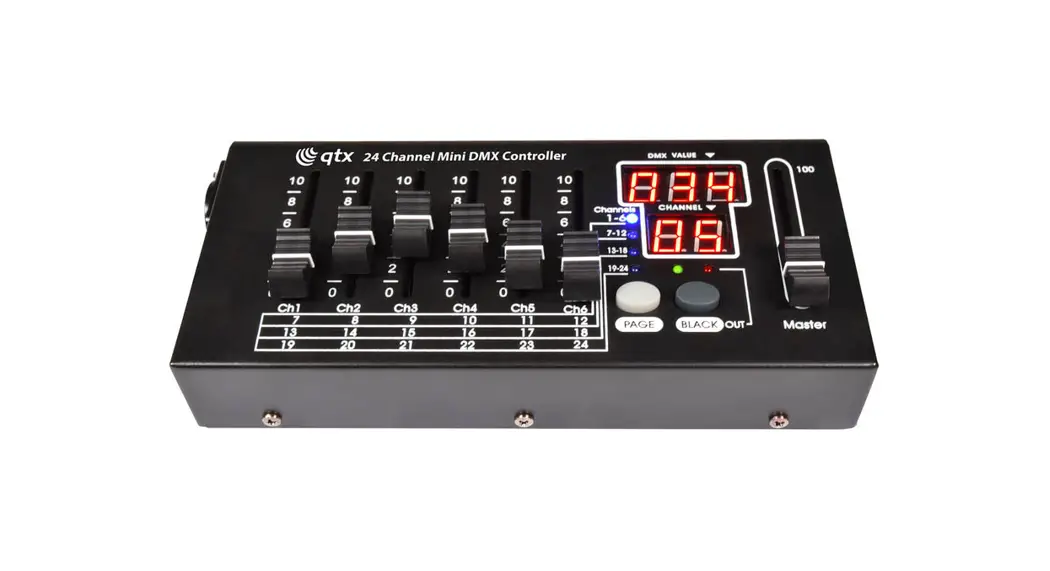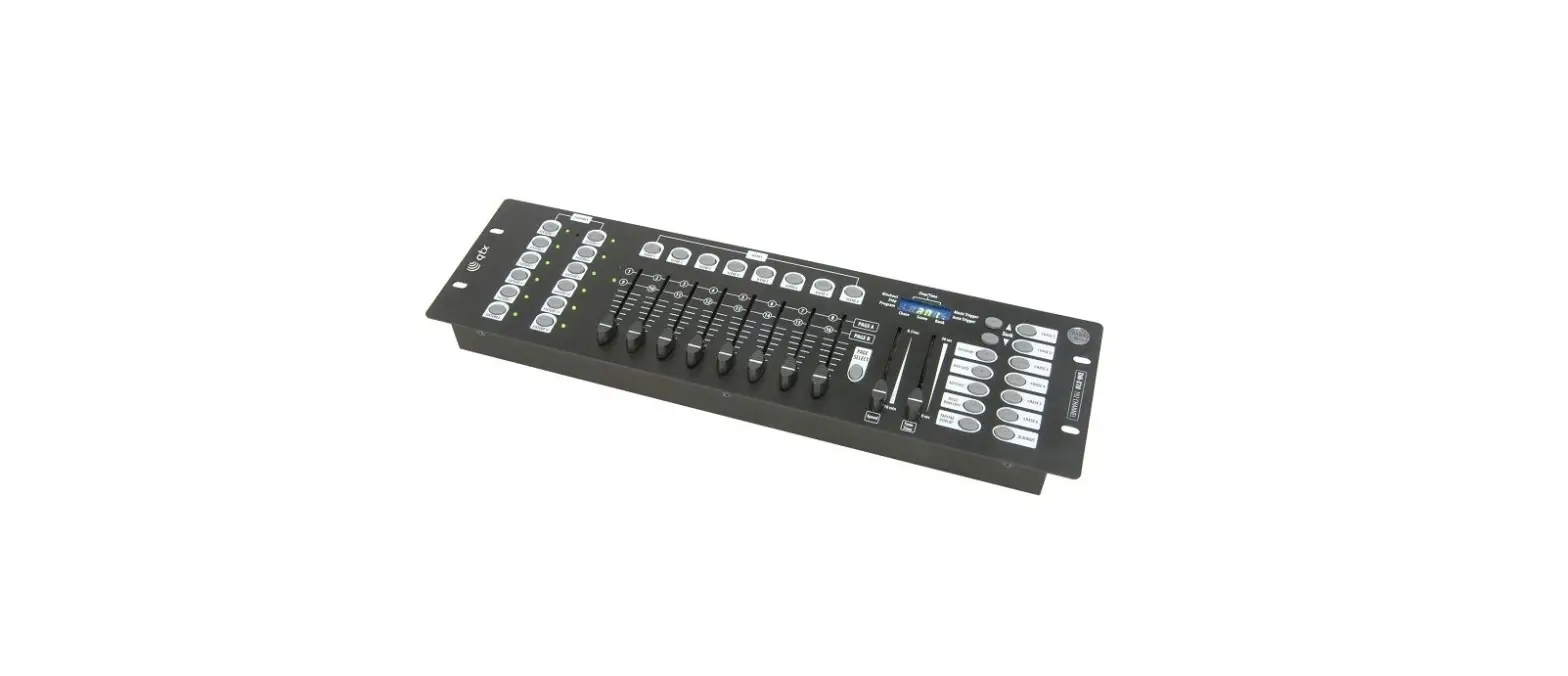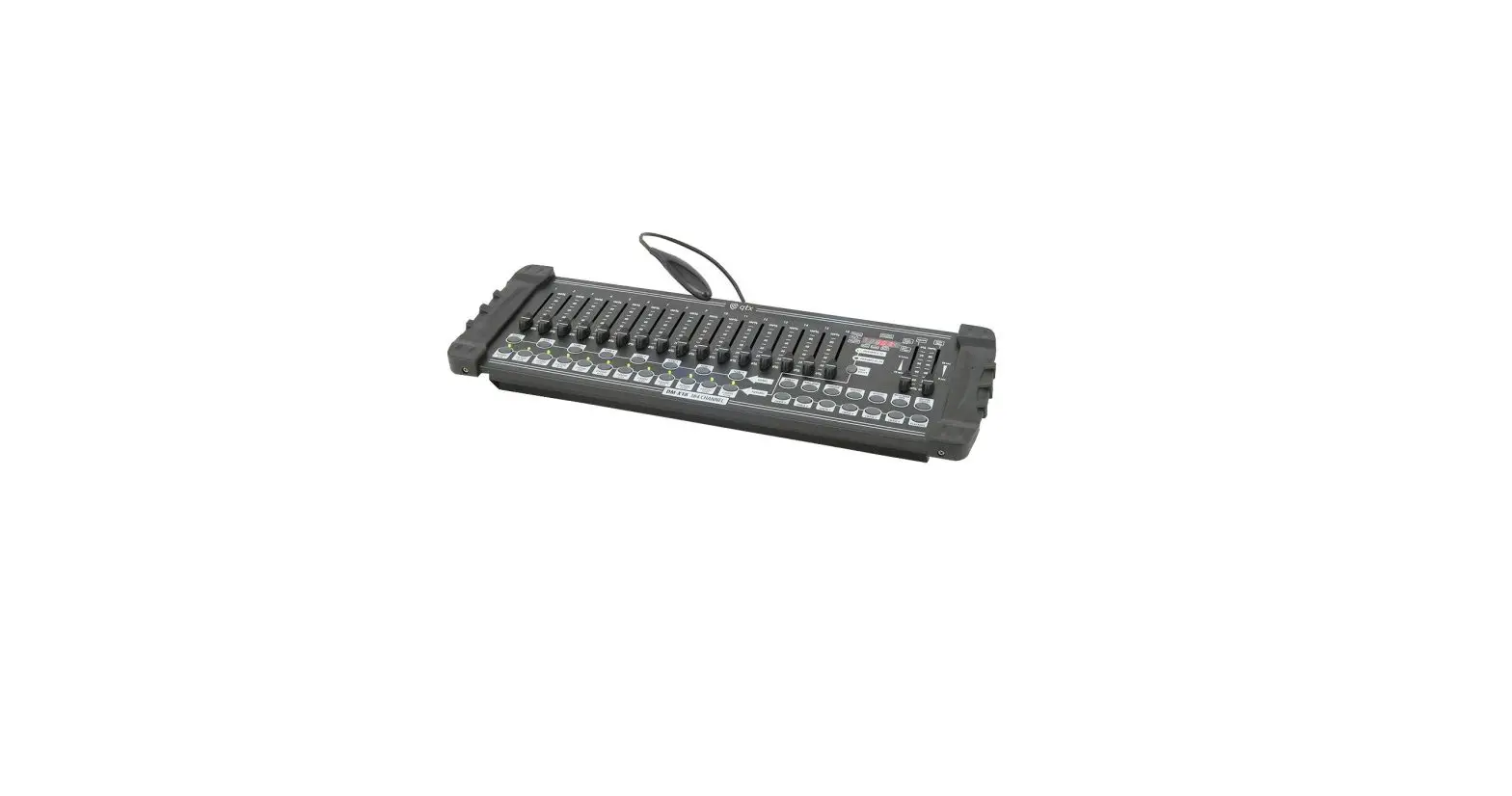

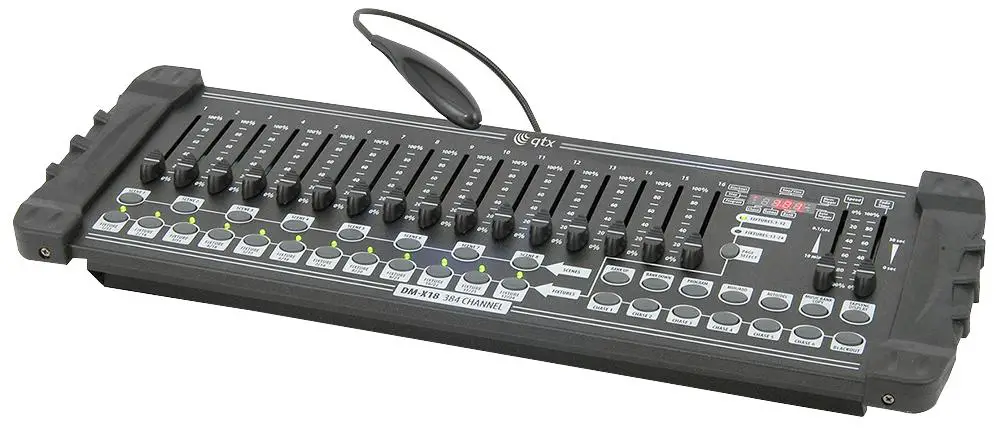
qts DM-X18 3 8 4 Channel DMX Controller
 What are included
 What are included
1) DMX-512 Controller
- DC 9-12V 500mA, 90V~240V Power Adapter
- Manual
- LED gooseneck lamp
- Unpacking Instructions
Immediately upon receiving a fixture, carefully unpack the carton, check the contents to ensure that all parts are present, and have been received in good condition. Notify the shipper immediately and retain the packing material for inspection if any parts appear damaged from shipping or the carton itself shows signs of mishandling. Save the carton and all packing materials. In the event that a fixture must be returned to the factory, it is important that the fixture be returned in the original factory box and packing.
Safety Instructions
- Please keep this User Guide for future If you sell the unit to another user, be sure that they also receive this instruction booklet.
- Always make sure that you are connecting to the proper voltage and that the line voltage you are connecting to is not higher than that stated on decal or rear panel of the
- This product is intended for indoor use only!
- To prevent risk of fire or shock, do not expose fixture to rain or Make sure there are no flammable materials close to the unit while operating.
- The unit must be installed in a location with adequate ventilation, at least 50cm from adjacent Be sure that no ventilation slots are blocked.
- Always disconnect from power source before servicing or replacing lamp or fuse and be sure to replace with same lamp
- In the event of serious operating problem, stop using the unit Never try to repair the unit by yourself. Repairs carried out by unskilled people can lead to damage or malfunction. Please contact the nearest authorized technical assistance center. Always use the same type spare parts.
- Don t connect the device to a dimmer
- Make sure power cord is never crimped or
- Never disconnect power cord by pulling or tugging on the
- Do not operate this device under 113 F ambient temperature
INTRODUCTION
Features
* DMX512/1990 Standard
- Controls 24 intelligent lights of up to 16 channels, a totally 384 channels
- 30 banks, each with 8 scenes; 6 chases, each with up to 240 scenes
- Record up to 6 chases with fade time and speeds
- 16 sliders for direct control of channels
- MIDI control over banks, chases and blackout
- Built-in microphone for music mode
- Auto mode program controlled by fade time sliders
- DMX in/out: 3 pin XRL
- LED gooseneck lamp
- Plastic end housing
General Overview
* The Controller is a universal intelligent lighting controller. It allows the control of 24 fixtures composed of 16 channels each and up to 240 programmable scenes. Six chase banks can contain up to 240 steps composed of the saved scenes and in any order. Programs can be triggered by music, midi, automatically or manually. All chases can be executed at the same time.
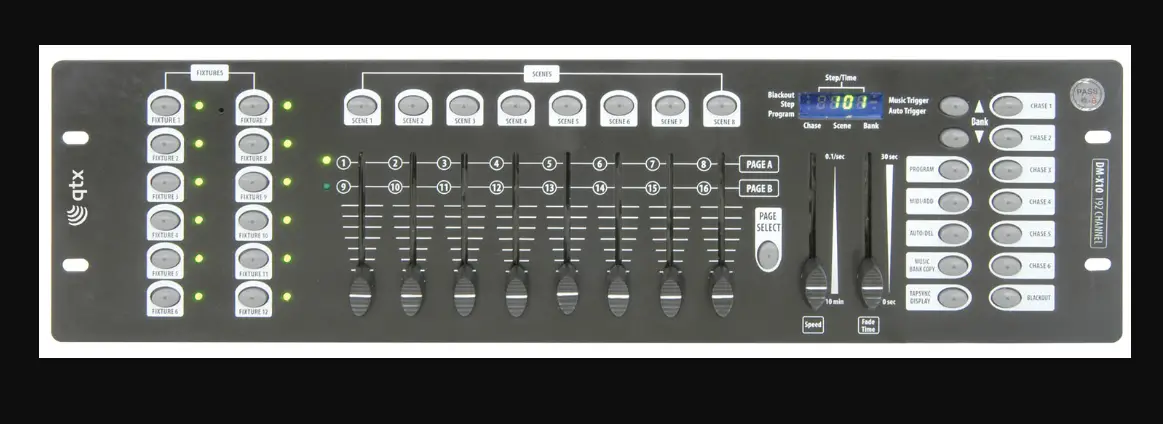
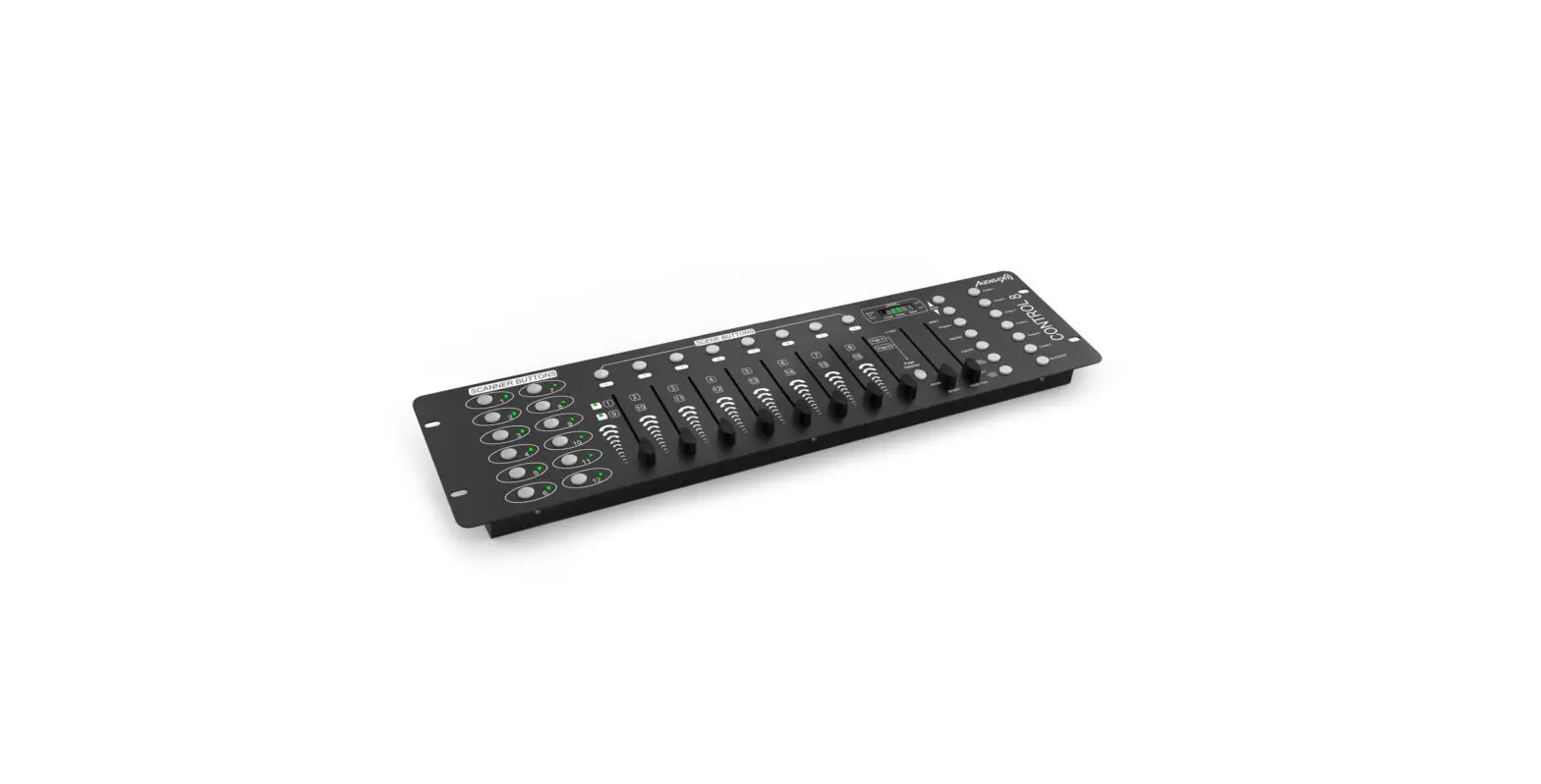
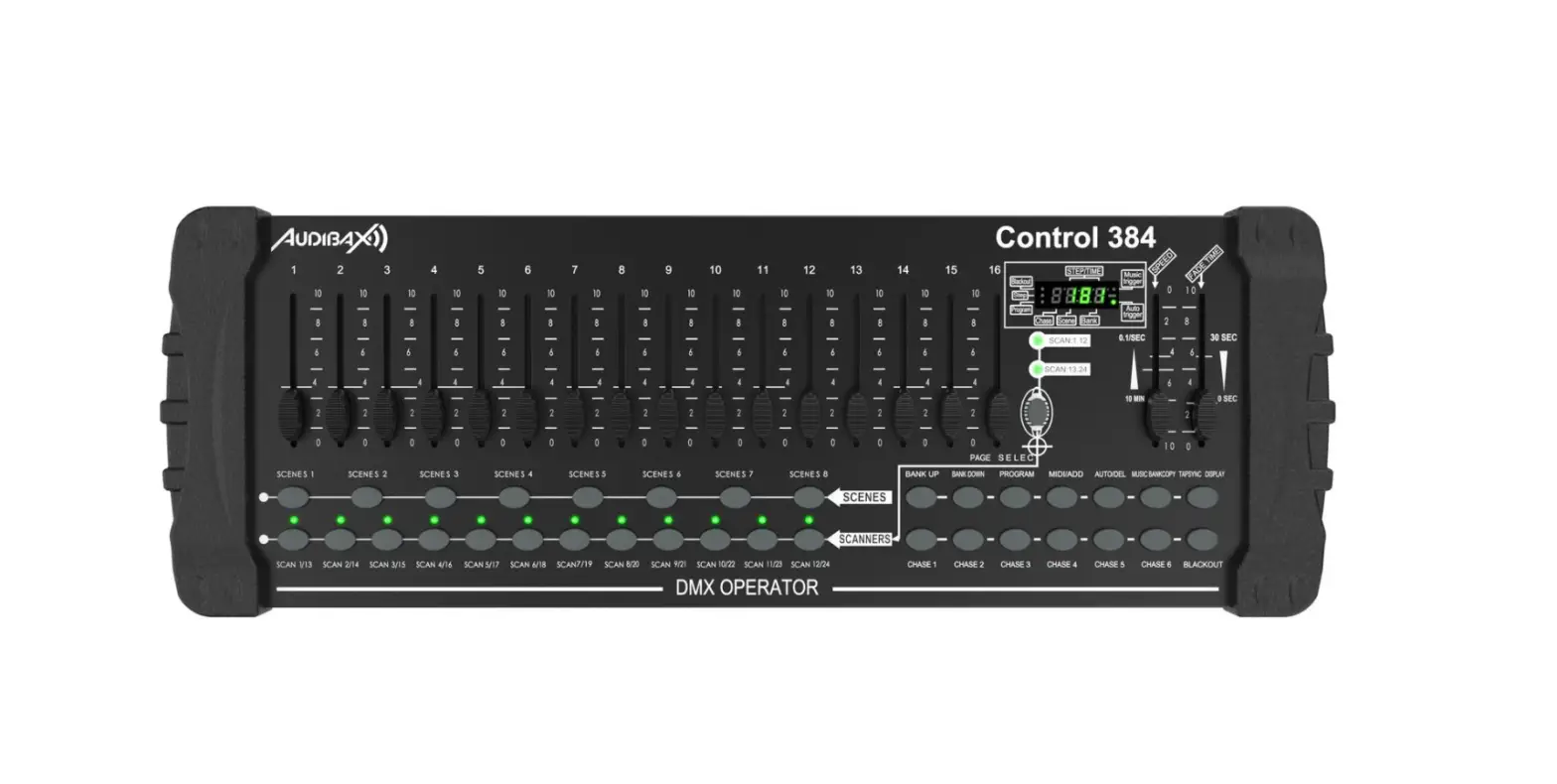
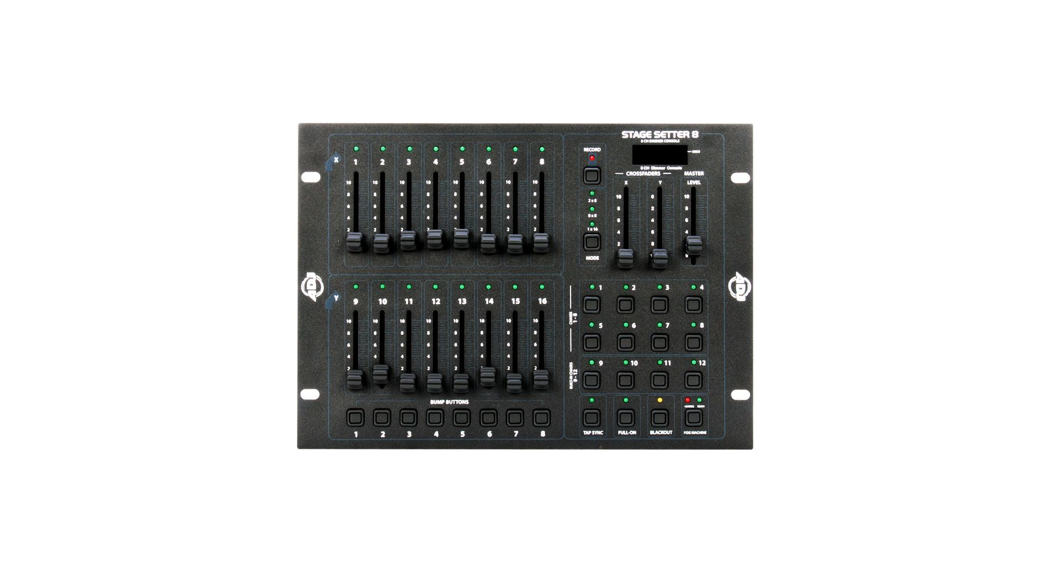
- On the surface, you will find various programming tools such as 16 universal channel sliders, quick access scanner and scene buttons, and an LED display indicator for easier navigation of controls and menu
Product Overview (front)
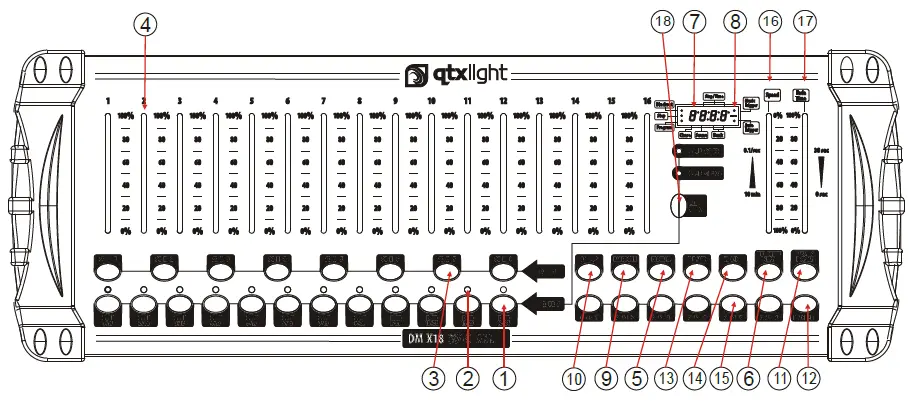
| Item | Button or Fader Function |
| 1 | Scanner select buttons Fixture selection |
| 2 | Scanner indicator LEDS Indicates the fixtures currently selected |
| 3 | Scene select buttons Universal bump buttons representing scene location for storage and selection |
| 4 | For adjusting DMX values, Ch 1~16 can be adjusted Channel faders immediately after pressing the respective scanner select button |
| 5 | Program button Used to enter programming mode |
| 6 | Used to activate Music mode and as the copy Music/Bank Copy button command during programming |
| 7 | LED display window Status window displays pertinent operational data |
| 8 | Mode Indicator LEDS Provides operating mode status, (manual, music or auto) |
| 9 | Bank Up button Function button to traverse Scene/Steps in banks or chases |
| 10 | Bank Down button Function button to traverse Scene/Steps in banks or chases |
| 11 | Tap Display button Sets the chase speed by tapping, and toggles between values and percentages. |
| 12 | Blackout button Sets the shutter or dimmer value of all fixtures to 0 causing all light output to cease |
| 13 | Midi/ADD button Activates MIDI external control and also used to confirm the record/save process |
| 14 | Auto/Del button Used to activate Auto mode and as the delete function key during programming |
| 15 | Chaser buttons Chase memory 1 ~ 6 |
| 16 | Speed fader This will adjust the hold time of a scene or a step within a chase |
| 17 | Fade-Time fader Also considered a cross-fade, sets the interval time between two scenes in a chase |
| 18 | Page select button In manual mode, press to toggle between pages of control |
Product Overview (rear panel)
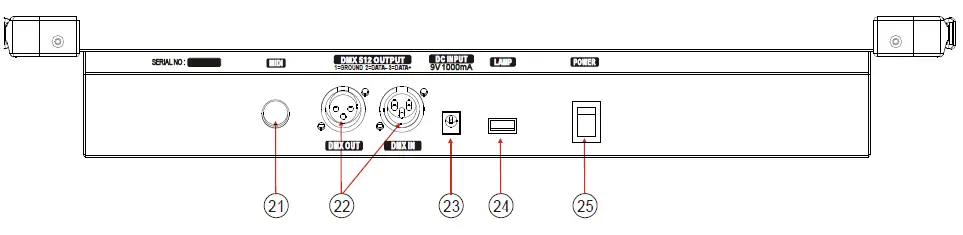
| Item | Button or Fader | Function |
| 21 | MIDI input port | For external triggering of Banks and Chases using a MIDI device |
| 22 | DMX output connector | DMX control signal |
| 23 | DC Input jack | Main power feed |
| 24 | USB Lamp socket | |
| 25 | ON/OFF power switch | Turns the controller on and off |
Common Terms
The following are common terms used in intelligent light programming.
Blackout is a state by where all lighting fixtures’ light output are set to 0 or off, usually on a temporary basis.
DMX-512 is an industry-standard digital communication protocol used in entertainment lighting equipment. For more information read Sections DMX Primer and DMX Control Mode in the Appendix.
Fixture refers to your lighting instrument or another device such as a fogger or dimmer of which you can control.
Programs are a bunch of scenes stacked one after another. It can be programmed as either a single scene or multiple scenes in sequence.
Scenes are static lighting states.
Sliders also known as faders.
Chases can also be called programs. A chase consists of a bunch of scenes stacked one after another.
Scanner refers to a lighting instrument with a pan and tilt mirror; however, in the ILS-CON controller it can be used to control any DMX-512 compatible device as a generic fixture.
MIDI is a standard for representing musical information in a digital format. A MIDI input would provide external triggering of scenes using midi device such as a midi keyboard.
Stand Alone refers to a fixture s ability to function independently of an external controller and usually in sync to music, due to a built in microphone.
Fade slider is used to adjust the time between scenes within a chase.
Speed slider affects the amount of time a scene will hold its state. It is also considered a wait time.
Shutter is a mechanical device in the lighting fixture that allows you to block the path of the light. It is often used to lessen the intensity of the light output and to strobe.
Patching refers to the process of assigning fixtures a DMX channel or.
Playbacks can be either scenes or chases that are directly called to execution by the user. Playback can also be considered a program memory that can be recalled during a show.
OPERATING I INSTRUCTIONS
Setup
SETTING UP THE SYSTEM
- Plug the AC to DC power supply to the system back panel and to the main outlet.
- Plug in your DMX cable(s) to your intelligent lighting as described in the fixture’s respective manual. For a quick Primer on DMX see the “DMX Primer” section in the Appendix of this manual.
FIXTURE ADDRESSING
The Controller is programmed to control 16 channels of DMX per fixture, therefore the fixtures you wish to control with the corresponding SCANNER buttons on the unit, must be spaced 16 channels apart
| FIXTURE OR SCANNER # | DEFAULT DMX STARTING ADDRESS | BINARY DIPSWITCH SETTINGS SWITCH TO THE ON POSITION |
| 1 | 1 | 1 |
| 2 | 17 | 1 , 5 |
| 3 | 33 | 1 ,6 |
| 4 | 49 | 1 ,5,6 |
| 5 | 65 | 1 ,7 |
| 6 | 81 | 1 ,5,7 |
| 7 | 97 | 1 ,6,7 |
| 8 | 113 | 1 ,5,6,7 |
| 9 | 129 | 1,8 |
| 10 | 145 | 1 ,5,8 |
| 11 | 161 | 1 ,6,8 |
| 12 | 177 | 1,5,6,8 |
| FIXTURE OR SCANNER # | DEFAULT DMX STARTING ADDRESS | BINARY DIPSWITCH SETTINGS SWITCH TO THE ON POSITION |
| 13 | 193 | 1,7,8 |
| 14 | 209 | 1,5,7,8 |
| 15 | 225 | 1,6,7,8 |
| 16 | 241 | 1,5,6,7,8 |
| 17 | 257 | 1,9 |
| 18 | 273 | 1,5,9 |
| 19 | 289 | 1,6,9 |
| 20 | 305 | 1,5,6,9 |
| 21 | 321 | 1,7,9 |
| 22 | 337 | 1,5,7,9 |
| 23 | 353 | 1,6,7,9 |
| 24 | 369 | 1,5,6,7,9 |
Please refer to your individual fixture s manual for DMX addressing instructions. The table above refers to a standard 9 dipswitch binary configurable device.
PAN AND TILT CHANNELS
Because not all intelligent lighting fixtures are alike or share the same control attributes, the Controller allows the user to assign the wheel the correct pan and tilt channel for every individual fixture
Action :
Press and hold PROGRAM & TAPSYNC different DMX channel. Faders are given a channel button together (1) time to access the number and are labeled on the surface of the channel assignment mode.
- Press a SCANNER button or PAGE SELECT button that represents the fixture whose faders you would like to reassign
Notes :
All pan/tilt can be reassigned to output on a different DMX channel. Press AUTO/DEL buttons to delete the channel assignment mode
- Move one fader of 16 channel to select the pan channel.
- Press the TAPSYNC DISPLAY button to select pan / tilt
- Move one fader of 16 channel to select the tilt channel.
- press and hold PROGRAM & TAPSYNC DISPLY buttons to exit and save setting.All LEDs will blink.
Notes :
All pan/tilt can be reassigned to output on a different DMX channel
RESETTING THE SYSTEM
Warning: this will reset the controller to its factory defaults. This will erase all programs and settings.
Action :
- Turn off the
- Press and hold BANK UP and AUTO/DEL.
- Turn on power to the unit (while still holding BANK UP and AUTO/DEL).
COPY SCANNER
Example: Copying Scanner 1 into Scanner 2
Action :
- Press and hold SCANNER button #
- While holding button # 1 press SCANNER button # 2
- Release SCANNER button # 1 first before releasing
- All SCANNER LED indicators will flash to confirm successful copy
FADE TIME ASSIGN
You can choose whether the board s fade time during scene execution is implemented broadly to all output channels or only to the Pan & Tilt movement channels. This is relevant because often you will want gobos and colors to change quickly while not affecting the movement of the light.
Action :
- Turn OFF the
- Hold the BLACKOUT and TAPSYNC DISPLAY buttons simultaneously.
- Turn ON the
- Press the TAPSYNC DISPLAY button to toggle between the two Either all channels (A) or select channel Pan & Tilt only (P)
- Press BLACKOUT and TAPSYNC DISPLAY to save All LEDs will blink to confirm.
Operation
MANUAL MODE
The manual mode allows direct control of all scanners. You are able to move them and change attributes by using the channel faders.
Action :
- Press the AUTO DEL button repeatedly until the MANUAL LED is
- Select a SCANNER
- Move faders to change fixture
TAPSYNC DISPLAY button:
Press to toggle the output indicator on the LED display between DMX values (0-255) and percentage (0-100)
REVIEW SCENE OR CHASE
Notes :
All changes made while in Manual Mode are temporary and will not be recorded.
This instruction assumes that you have already recorded scenes and chases on the controller. Other wise skip section and go to programming.
Action : (SCENE Review)
- Action : (CHASE Review)Select any one of the 30 banks by pressing the
- Select a SCENE button (1~8) to
- Move wheel and faders to change fixture
- Press any one of the 6 CHASE
- Press the TAP DISPLAY button to view the step number on the
- Press the BANK UP/DOWN buttons review all scenes in the
Programming
Notes : Make sure you are still in MANUAL Mode.
A program (bank) is a sequence of different scenes (or steps) that will be called up one after another. In the controller 30 programs can be created of 8 scenes in each.
ENTERING PROGRAM MODE
- Press the Program button until the LED
CREATE A SCENE :
A scene is a static lighting state. Scenes are stored in banks. There are 30 bank memories on the controller and each bank can hold 8 scene memories. The controller can save 240 scenes total.
Action :
- Press the PROGRAM button until the LED
- Position SPEED and FADE TIME sliders all the way
- Select the SCANNERS you wish to include in your
- Compose a look by moving the sliders and
- Tap MIDI/REC
- Choose a BANK (01~30) to change if
- Select a SCENES button to
- Repeat steps 3 through 7 as 8 scenes can be recorded in a Program.
- To exit program mode, hold the PROGRAM
RUNNING A PROGRAM
Action :
- Use BANK UP/DOWN buttons to change Program
banks if necessary.
- Press the AUTO DEL button repeatedly until the
AUTO LED turns on.
- Adjust the PROGRAM speed via the SPEED fader and the loop rate via the FADE TIME
- Alternatively, you can tap the TAPSYNC DISPLAY button The time between two taps sets the time between SCENES (up to 10 minutes).
Notes :
Deselect Blackout if LED is lit.
Also called a Tap-Sync.
CHECK PROGRAM Action :
- Press and hold the PROGRAM button until the
LED blinks.
- Use the BANK UP/DOWN buttons to select the PROGRAM bank to
- Press the SCENES buttons to review each scene
EDITING A PROGRAM
Scenes will need to be modified manually.
Notes :
- Press and hold the LED blinks. button until the Deselect Blackout if LED is lit.
- Use BANK UP/DOWN buttons to change Program banks if necessary.
- Select the desired fixture via the SCANNERS button or PAGE SELECT
- Adjust and change fixture attributes using the channel faders and
- Press the MIDI/ADD button to prepare the
- Select the desired SCENES button to
COPY A PROGRAM Action :
- Press and hold the PROGRAM button until the LED
- Use BANK UP/DOWN buttons to select the
PROGRAM bank you will copy.
- Press the MIDI/ADD button to prepare the
- Use BANK UP/DOWN buttons to select the destination PROGRAM
- Press the MUSIC BANK COPY button to execute the All LEDs on the controller will blink.
Chase ProgrammingChase Programming
A chase is created by using previously created scenes. Scenes become steps in a chase and can be arranged in any order you choose. It is highly recommended that prior to programming chases for the first time; you delete all chases from memory. See Delete All Chases for instructions.
CREATE A CHASE
A Chase can contain 240 scenes as steps. The term steps and scenes are used interchangeably.
Action :
- Press the PROGRAM button until the LED blinks.
- Press the CHASE (1~6) button you wish to program.
- Change BANK if necessary to locate a scene.
- Select the SCENE to insert.
- Tap the MIDI/ADD button to store.
- Repeat steps 3 ~ 5 to add additional steps in the chase. Up to 240 steps can be recorded.
- Press and hold the PROGRAM button to save the chase.
RUNNING3.4.2 RUNNING A A CHASE CHASE
Action :
- Press a CHASE button then press the AUTO DEL button.
- Adjust the Chase speed by tapping the TAPSYNC DI- SPLAY button twice at a rate of your choosing.
CHECKING A CHASE
Action :
- Press and hold the PROGRAM button until the LED is light.
- Select the desired CHASE button.
- Press the TAPSYNC DISPLAY button to switch the LED display to steps.
- Review each scene/step individually by using the BANK UP/DOWN buttons.
EDIT CHASE (COPY BANK INTO CHASE)
Action :
- Press and hold the PROGRAM button to enter programming
- Press the desired CHASE
- Select the BANK to be copied using the
BANK UP/DOWN buttons.
- Press the MUSIC/BANK COPY button to prepare
- Press the MIDI/ADD button to copy the All LEDs will blink.
EDIT CHASE (COPY SCENE INTO CHASE
Action :
- Press and hold the PROGRAM button to enter programming
- Press the desired CHASE
- Select the BANK that contains the scene to be copied using the BANK UP/DOWN
- Press the SCENE button that corresponds to the scene to be
- Press the MIDI/ADD button to copy the All LEDs will blink.
EDIT CHASE (INSERT SCENE INTO A CHASE)
Action :
- Press and hold the PROGRAM button to enter programming
- Press the desired CHASE
- Press the TAPSYNC DISPLAY to switch the LED display to steps
- Use the BANK UP/DOWN buttons to navigate steps and locate the insert point of the new
The display will read the step number.
- Press the MIDI/ADD button to prepare the
- Use the BANK UP/DOWN button to locate the SCENE.
- Press the SCENE button that corresponds to the scene to be
- Press the MIDI/ADD button to insert the All LEDs will blink.
DELETE A SCENE IN A CHASE
Action :
- Press and hold the PROGRAM button to enter programming
- Press the desired CHASE button that contains the scene to be
- Press the TAPSYNC DISPLAY button to switch the LED display to
- Select the scene/step to be deleted using the BANK UP/DOWN buttons.
- Press the AUTO DEL button to delete the step/scene. All LEDs will blink
DELETE A CHASE
Action :
- Press and hold the PROGRAM button to enter programming
- Press the CHASE button (1~6) to be
- Press and hold the AUTO DEL button and the respective CHASE button to delete the chase. All LEDs will blink.
CAUTION! This procedure will result in irrevocable loss of chase step memory. The individual scenes and program banks will be preserved.
Action :
- Turn OFF
- Press and hold the BANK DOWN button and the
AUTO DEL button while turning ON the controller
Scene Programming (Steps)
INSERT A SCENE
Action :
- Press and hold the PROGRAM button to enter programming
- Press the desired CHASE
- Press the TAPSYNC DISPLAY to switch the LED display to steps
- Use the BANK UP/DOWN buttons to navigate steps and locate the insert point of the new
The display will read the step number.
- Press the MIDI/ADD button to prepare the
- Use the BANK UP/DOWN button to locate the SCENE.
- Press the SCENE button that corresponds to the scene to be
- Press MIDI/ADD button to insert the All LEDs will blink
Notes :
To insert a scene between Steps 05 and 06 navigate using BANK buttons until the display reads STEP05.
COPY A SCENE
Action :
- Press and hold the PROGRAM button to enter programming
- /DOWN
- Press the SCENE button that corresponds to the scene to be
- Press MIDI/ADD button to copy the
- Select the destination BANK that contains the scene memory to record onto using the BANK UP/DOWN
- Press the desired SCENE button to complete All LEDs will blink.
DELETE A SCENE
Action :
- Press and hold the PROGRAM button to enter programming
- Select the BANK that contains the scene to be deleted by using the BANK UP/DOWN
- Press and hold the AUTO DEL
- Press the SCENE button that corresponds to the scene you want to All LEDs will blink.
DELETE ALL SCENES
Action :
- Press and hold the PROGRAM button and the BANK DOWN button while turning off power to the
- Turn the controller back Playback
RUNNING IN SOUND-MODE
Action :
- Press the MUSIC BANK COPY button until the MUSIC LED turns on.
- Select the program BANK to run in sound active mode using the BANK UP/DOWN
- Alternatively, you can press a single CHASE button (1~6) or several CHASE buttons in sequence and all selected chases will loop in the order
- You can adjust the duration time using the FADE TIME fade
The Blackout button brings all lighting output to 0 or off.
Midi Operation
The controller will only respond to MIDI commands on the MIDI channel which it is set to full stop. All MIDI control is performed using Note on commands. All other MIDI instructions are ignored. To stop a chase, send the blackout on note.
Action :
- Press and hold the MIDI/ADD button for about 3
- Select the MIDI control channel (1~16) via the bank UP/DOWN buttons to set.
- Press and hold the MIDI/ADD button for 3 seconds to save
To release MIDI control, press any other button except the BANK buttons during step 2
| BLACKOUT | BLACKOUT |
| BLACKOUT | BLACKOUT |
| BLACKOUT | BLACKOUT |
| BLACKOUT | BLACKOUT |
| BLACKOUT | BLACKOUT |
| BLACKOUT | BLACKOUT |
| BLACKOUT | BLACKOUT |
| BLACKOUT | BLACKOUT |
| BLACKOUT | BLACKOUT |
| BLACKOUT | BLACKOUT |
| BLACKOUT | BLACKOUT |
| BLACKOUT | BLACKOUT |
| MIDI NOTE | FUNCTION (TURN ON/OFF) |
| 88 to 95 | Scenes 1~8 in BANK 12 |
| 96 to 103 | Scenes 1~8 in BANK 13 |
| 104 to 111 | Scenes 1~8 in BANK 14 |
| 112 to 11 9 | Scenes 1~8 in BANK 15 |
| 120 | Chase 1 |
| 121 | Chase 2 |
| 122 | Chase 3 |
| 123 | Chase 4 |
| 124 | Chase 5 |
| 125 | Chase 6 |
| 126 | BLACKOUT |
APPENDIX
DMX Primer
There are 512 channels in a DMX-512 connection. Channels may be assigned in any manner. A fixture capable of receiving DMX 512 will require one or a number of sequential channels. The user must assign a starting address on the fixture that indicates the first channel reserved in the controller. There are many different types of DMX controllable fixtures and they all may vary in the total number of channels required. Choosing a start address should be planned in advance. Channels should never overlap. If they do, this will result in erratic operation of the fixtures whose starting address is set incorrectly. You can, however, control multiple fixtures of the same type using the same starting address as long as the intended result is that of unison movement or operation. In other words, the fixtures will slave together and all respond exactly the same.
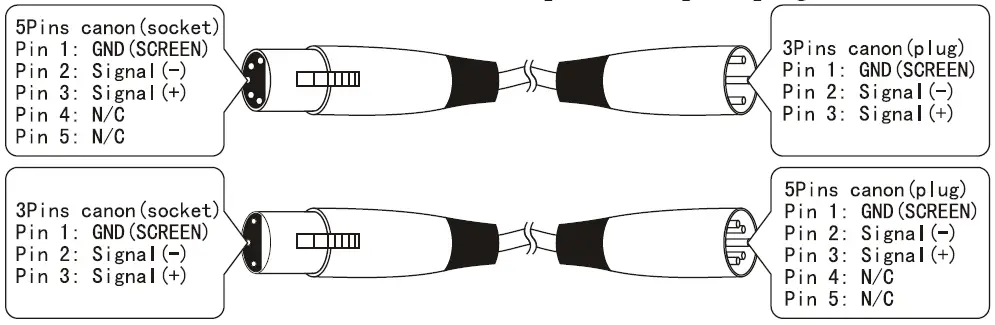
DMX fixtures are designed to receive data through a serial Daisy Chain. A Daisy Chain connection is where the DATA OUT of one fixture connects to the DATA IN of the next fixture. The order in which the fixtures are connected is not important and has no effect on how a controller communicates to each fixture. Use an order that provides for the easiest and most direct cabling. Connect fixtures using shielded two conductor twisted pair cable with three-pin XLR male to female connectors. The shield connection is pin 1, while pin 2 is Data Negative (S-) and pin 3 is Data positive (S+).
FIXTURE LINKING
Occupation of the XLR-connection
DMX-OUTPUT
XLR mounting-socket:
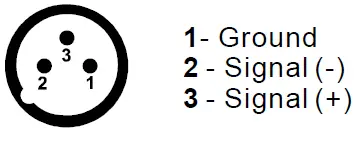 DMX-OUTPUT
XLR mounting-plug: 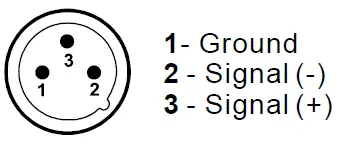
Caution: At the last fixture, the DMX-cable has to be terminated with a terminator. Solder a 120 resistor between Signal (-) and Signal (+) into a 3-pin XLR-plug and plug it in the DMX-output of the last fixture.
In the Controller mode, at the last fixture in the chain, the DMX output has to be connected with a DMX terminator. This prevents electrical noise from disturbing and corrupting the DMX control signals. The DMX terminator is simply an XLR connector with a 120W (ohm) resistor connected across pins 2 and 3, which is then plugged into the output socket on the last projector in the chain. The connections are illustrated below.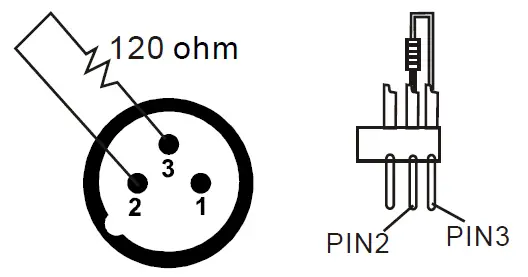
If you wish to connect DMX controllers with other XLR-outputs, you need to use adapter cables.
The transform of the controller line of 3 pins and 5 pins (plug and socket)
DMX Dipswitch Quick Reference Chart
| DMX Address Quick Reference Chart | |||||||||||||||||||||
| Dip Switch Position | |||||||||||||||||||||
| DMX DIP SWITCH SET 0=OFF 1=ON X=OFF or ON | #9 | 0 | 0 | 0 | 0 | 0 | 0 | 0 | 0 | 1 | 1 | 1 | 1 | 1 | 1 | 1 | 1 | ||||
| #8 | 0 | 0 | 0 | 0 | 1 | 1 | 1 | 1 | 0 | 0 | 0 | 0 | 1 | 1 | 1 | 1 | |||||
| #7 | 0 | 0 | 1 | 1 | 0 | 0 | 1 | 1 | 0 | 0 | 1 | 1 | 0 | 0 | 1 | 1 | |||||
| #6 | 0 | 1 | 0 | 1 | 0 | 1 | 0 | 1 | 0 | 1 | 0 | 1 | 0 | 1 | 0 | 1 | |||||
| #1 | #2 | #3 | #4 | #5 | |||||||||||||||||
| 0 | 0 | 0 | 0 | 0 | 32 | 64 | 96 | 128 | 160 | 192 | 224 | 256 | 288 | 320 | 352 | 384 | 416 | 448 | 480 | ||
| 1 | 0 | 0 | 0 | 0 | 1 | 33 | 65 | 97 | 129 | 161 | 193 | 225 | 257 | 289 | 321 | 353 | 385 | 417 | 449 | 481 | |
| 0 | 1 | 0 | 0 | 0 | 2 | 34 | 66 | 98 | 130 | 162 | 194 | 226 | 258 | 290 | 322 | 354 | 386 | 418 | 450 | 482 | |
| 1 | 1 | 0 | 0 | 0 | 3 | 35 | 67 | 99 | 131 | 163 | 195 | 227 | 259 | 291 | 323 | 355 | 387 | 419 | 451 | 483 | |
| 0 | 0 | 1 | 0 | 0 | 4 | 36 | 68 | 100 | 132 | 164 | 196 | 228 | 260 | 292 | 324 | 356 | 388 | 420 | 452 | 484 | |
| 1 | 0 | 1 | 0 | 0 | 5 | 37 | 69 | 101 | 133 | 165 | 197 | 229 | 261 | 293 | 325 | 357 | 389 | 421 | 453 | 485 | |
| 0 | 1 | 1 | 0 | 0 | 6 | 38 | 70 | 102 | 134 | 166 | 198 | 230 | 262 | 294 | 326 | 358 | 390 | 422 | 454 | 486 | |
| 1 | 1 | 1 | 0 | 0 | 7 | 39 | 71 | 103 | 135 | 167 | 199 | 231 | 263 | 295 | 327 | 359 | 391 | 423 | 455 | 487 | |
| 0 | 0 | 0 | 1 | 0 | 8 | 40 | 72 | 104 | 136 | 168 | 200 | 232 | 264 | 296 | 328 | 360 | 392 | 424 | 456 | 488 | |
| 1 | 0 | 0 | 1 | 0 | 9 | 41 | 73 | 105 | 137 | 169 | 201 | 233 | 265 | 297 | 329 | 361 | 393 | 425 | 457 | 489 | |
| 0 | 1 | 0 | 1 | 0 | 10 | 42 | 74 | 106 | 138 | 170 | 202 | 234 | 266 | 298 | 330 | 362 | 394 | 426 | 458 | 490 | |
| 1 | 1 | 0 | 1 | 0 | 11 | 43 | 75 | 107 | 139 | 171 | 203 | 235 | 267 | 299 | 331 | 363 | 395 | 427 | 459 | 491 | |
| 0 | 0 | 1 | 1 | 0 | 12 | 44 | 76 | 108 | 140 | 172 | 204 | 236 | 268 | 300 | 332 | 364 | 396 | 428 | 460 | 492 | |
| 1 | 0 | 1 | 1 | 0 | 13 | 45 | 77 | 109 | 141 | 173 | 205 | 237 | 269 | 301 | 333 | 365 | 397 | 429 | 461 | 493 | |
| 0 | 1 | 1 | 1 | 0 | 14 | 46 | 78 | 110 | 142 | 174 | 206 | 238 | 270 | 302 | 334 | 366 | 398 | 430 | 462 | 494 | |
| 1 | 1 | 1 | 1 | 0 | 15 | 47 | 79 | 111 | 143 | 175 | 207 | 239 | 271 | 303 | 335 | 367 | 399 | 431 | 463 | 495 | |
| 0 | 0 | 0 | 0 | 1 | 16 | 48 | 80 | 112 | 144 | 176 | 208 | 240 | 272 | 304 | 336 | 368 | 400 | 432 | 464 | 496 | |
| 1 | 0 | 0 | 0 | 1 | 17 | 49 | 81 | 113 | 145 | 177 | 209 | 241 | 273 | 305 | 337 | 369 | 401 | 433 | 465 | 497 | |
| 0 | 1 | 0 | 0 | 1 | 18 | 50 | 82 | 114 | 146 | 178 | 210 | 242 | 274 | 306 | 338 | 370 | 402 | 434 | 466 | 498 | |
| 1 | 1 | 0 | 0 | 1 | 19 | 51 | 83 | 115 | 147 | 179 | 211 | 243 | 275 | 307 | 339 | 371 | 403 | 435 | 467 | 499 | |
| 0 | 0 | 1 | 0 | 1 | 20 | 52 | 84 | 116 | 148 | 180 | 212 | 244 | 276 | 308 | 340 | 372 | 404 | 436 | 468 | 500 | |
| 1 | 0 | 1 | 0 | 1 | 21 | 53 | 85 | 117 | 149 | 181 | 213 | 245 | 277 | 309 | 341 | 373 | 405 | 437 | 469 | 501 | |
| 0 | 1 | 1 | 0 | 1 | 22 | 54 | 86 | 118 | 150 | 182 | 214 | 246 | 278 | 310 | 342 | 374 | 406 | 438 | 470 | 502 | |
| 1 | 1 | 1 | 0 | 1 | 23 | 55 | 87 | 119 | 151 | 183 | 215 | 247 | 279 | 311 | 343 | 375 | 407 | 439 | 471 | 503 | |
| 0 | 0 | 0 | 1 | 1 | 24 | 56 | 88 | 120 | 152 | 184 | 216 | 248 | 280 | 312 | 344 | 376 | 408 | 440 | 472 | 504 | |
| 1 | 0 | 0 | 1 | 1 | 25 | 57 | 89 | 121 | 153 | 185 | 217 | 249 | 281 | 313 | 345 | 377 | 409 | 441 | 473 | 505 | |
| 0 | 1 | 0 | 1 | 1 | 26 | 58 | 90 | 122 | 154 | 186 | 218 | 250 | 282 | 314 | 346 | 378 | 410 | 442 | 474 | 506 | |
| 1 | 1 | 0 | 1 | 1 | 27 | 59 | 91 | 123 | 155 | 187 | 219 | 251 | 283 | 315 | 347 | 379 | 411 | 443 | 475 | 507 | |
| 0 | 0 | 1 | 1 | 1 | 28 | 60 | 92 | 124 | 156 | 188 | 220 | 252 | 284 | 316 | 348 | 380 | 412 | 444 | 476 | 508 | |
| 1 | 0 | 1 | 1 | 1 | 29 | 61 | 93 | 125 | 157 | 189 | 221 | 253 | 285 | 317 | 349 | 381 | 413 | 445 | 477 | 509 | |
| 0 | 1 | 1 | 1 | 1 | 30 | 62 | 94 | 126 | 158 | 190 | 222 | 254 | 286 | 318 | 350 | 382 | 414 | 446 | 478 | 510 | |
| 1 | 1 | 1 | 1 | 1 | 31 | 63 | 95 | 127 | 159 | 191 | 223 | 255 | 287 | 319 | 351 | 383 | 415 | 447 | 479 | 511 | |
Technical Specifications
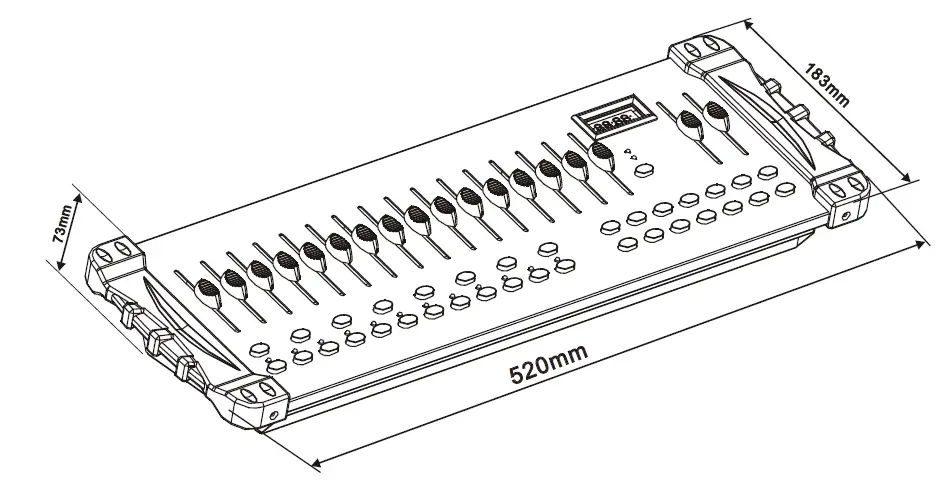
Dimensions…………………………………………………………………………………….. 520 X183 X73 mm
Weight…………………………………………………………………………………………………………… 3.0 Kg
Operating Range………………………………………………………………………….DC 9V-12V 500mA min
Maximum ambient temperature……………………………………………………………………………45 C
Data input ………………………………………………………………………. locking 3-pin XLR male socket
Data output ………………………………………………………………….. locking 3-pin XLR female socket
Data pin configuration …………………………………………………………pin 1 shield, pin 2 (-), pin 3 (+) Protocols…………………………………………………………………………………………..DMX-512 USITT