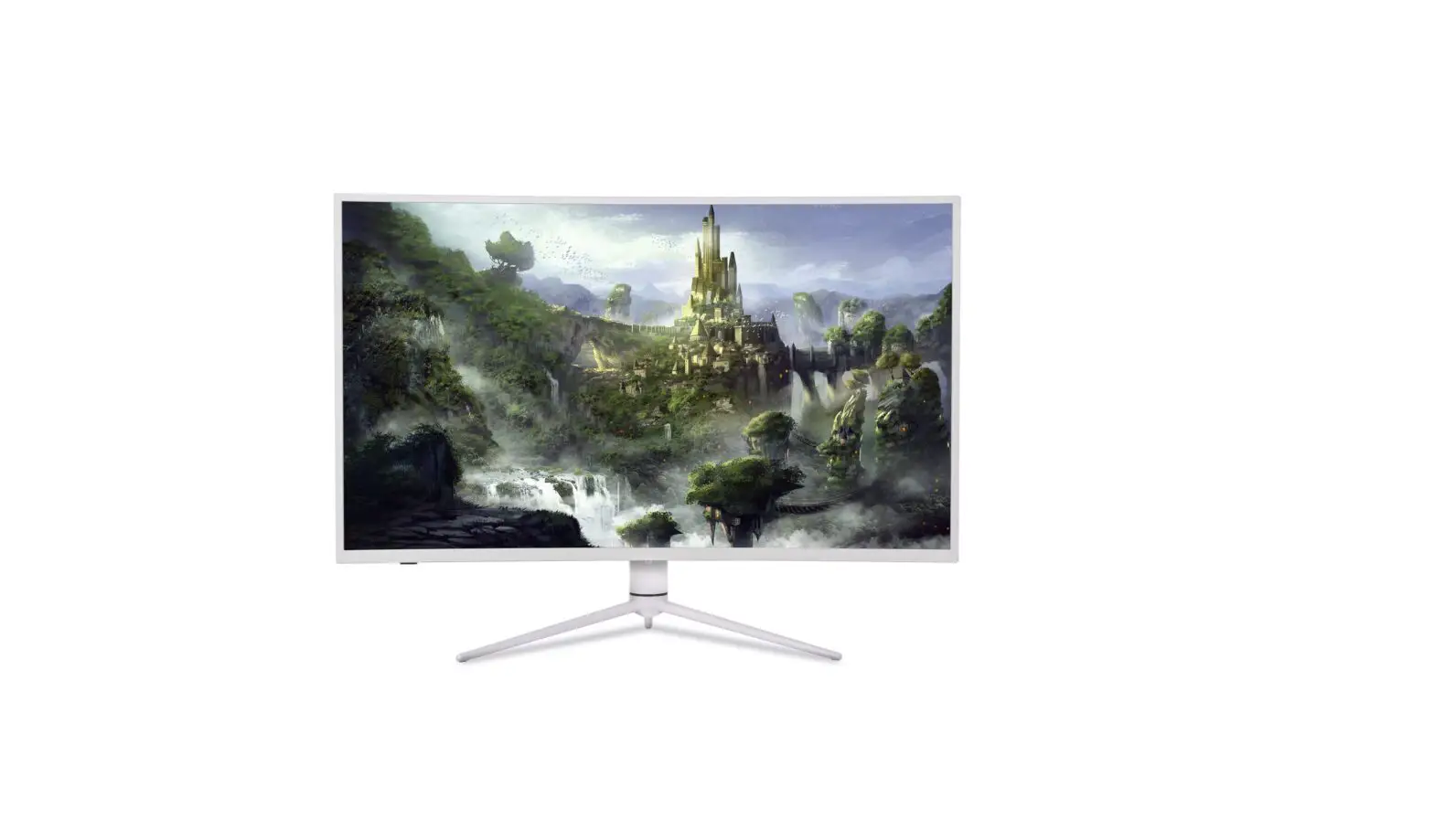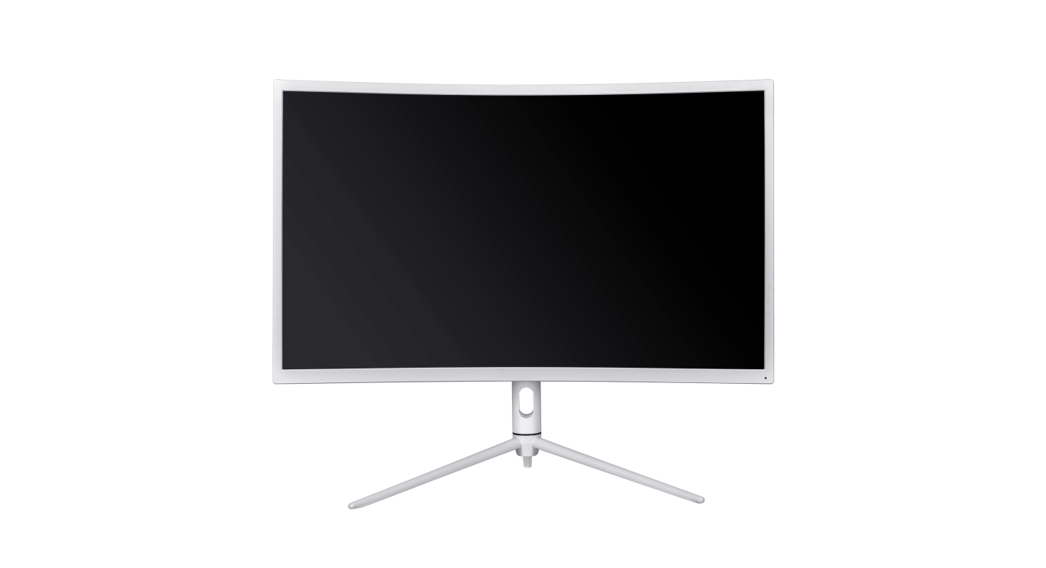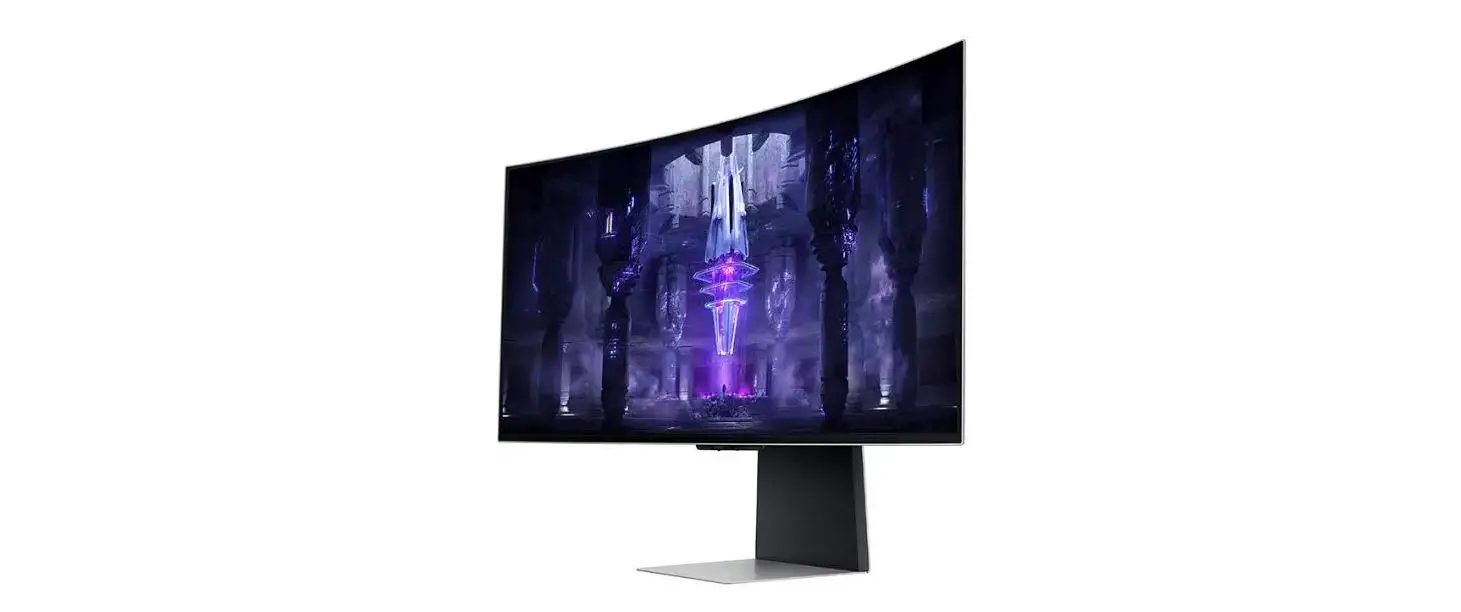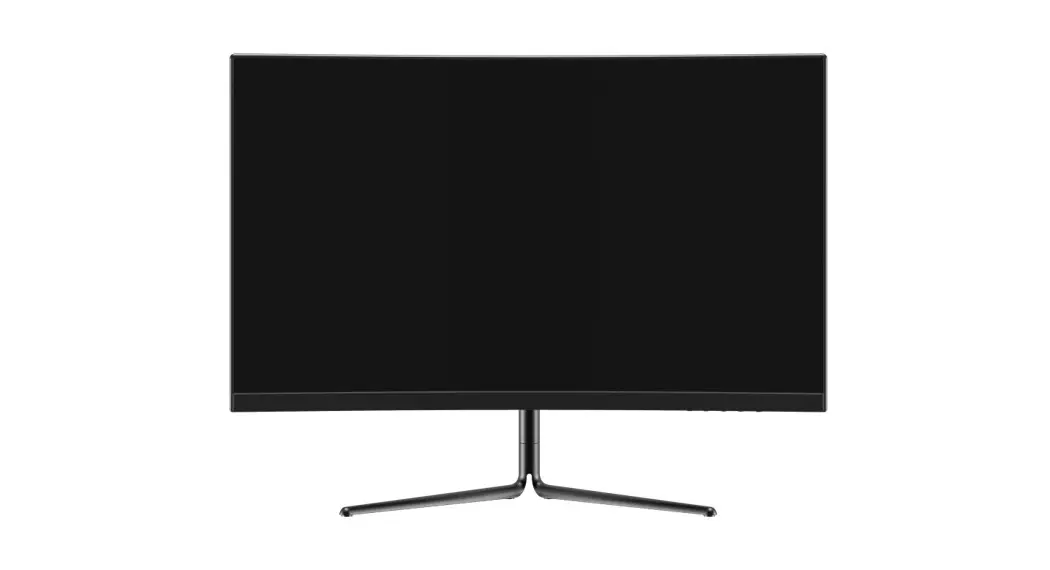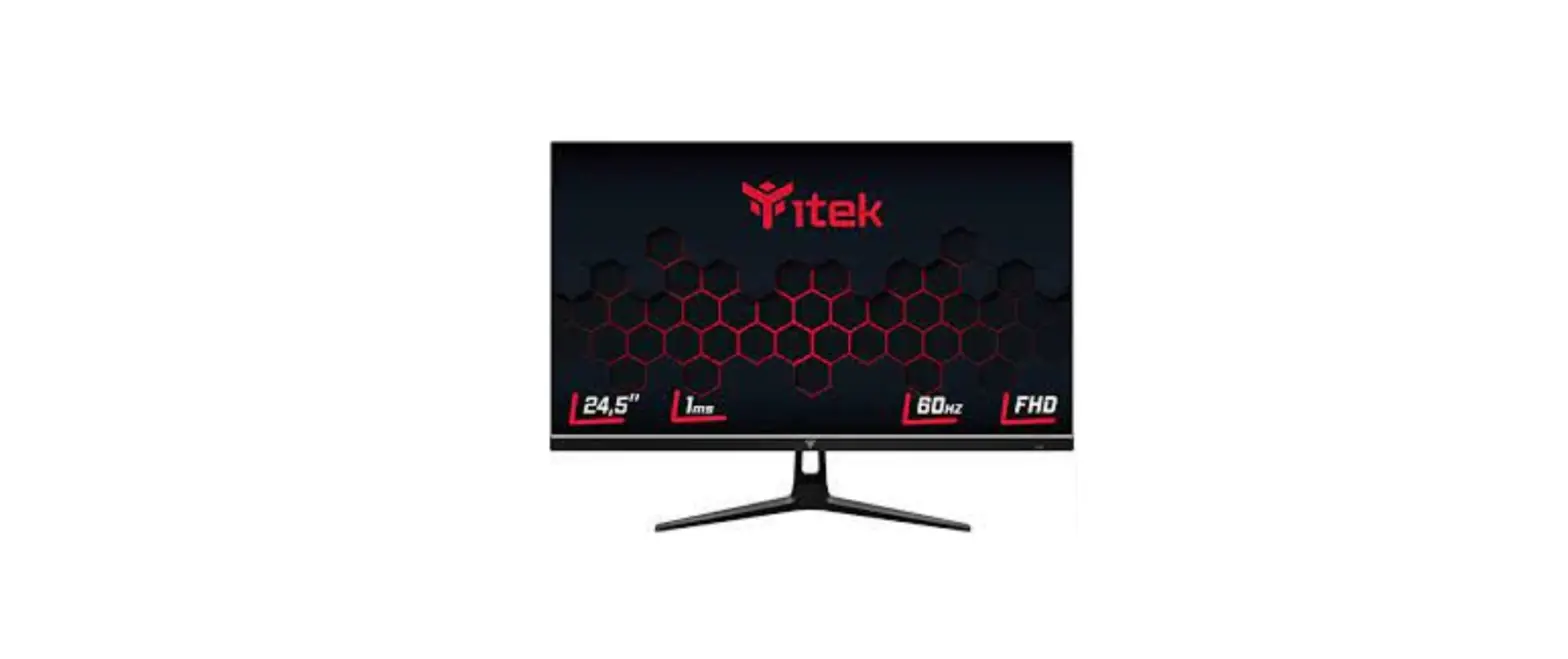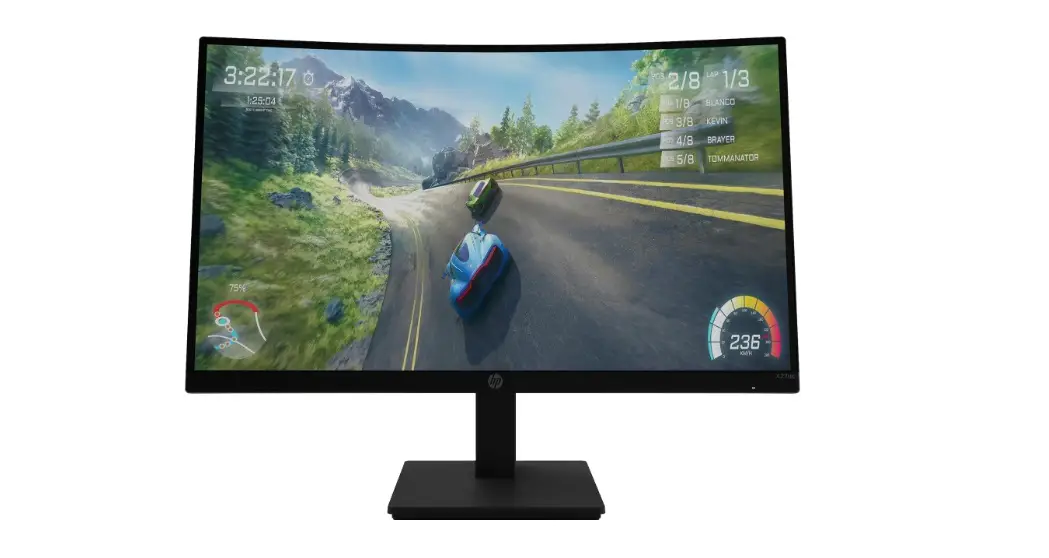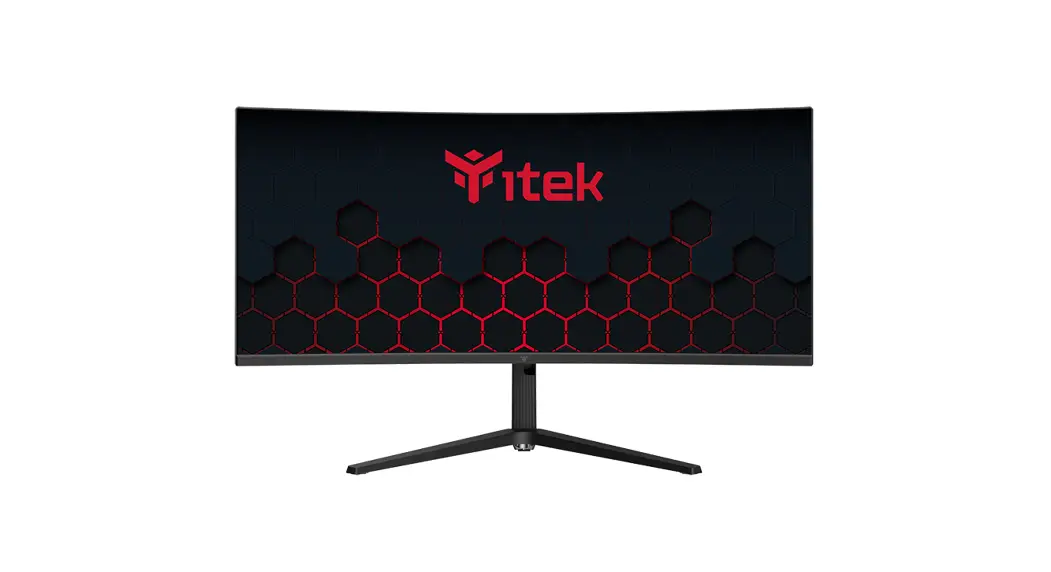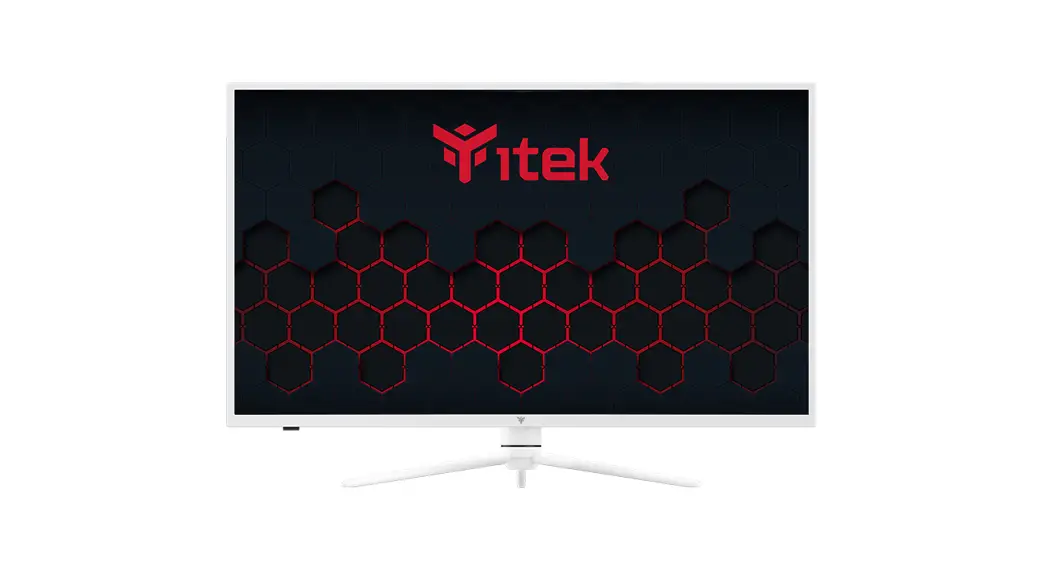
 ITMC39V164QHD User Manual
Safety Precautions
WARNING: Safety Instructions
Do not place the monitor in a rainy, or humid environment or open the monitor case to avoid any shock, electrical hazards, and/or mechanical hazards.
Operation
- Keep the monitor out of direct sunlight and away from stoves or any other heat source.
- Keep the monitor out of the water source.
- Remove any object that could fall into ventilation holes or prevent proper cooling of the monitor’s electronics.
- Do not block the ventilation holes.
- Do not knock or drop the monitor during operation or transportation.
Maintenance Guidelines
CAUTION
Before cleaning the monitor, unplug the monitor power cable from the electrical outlet.
Caring For Your Monitor
- To clean your screen, slightly dampen a soft, clean cloth with water, If possible, use a special screen-cleaning tissue or solution. Do not use benzene, thinner, ammonia, abrasive cleaners, or compressed air.
- Use a slightly dampened, warm cloth to clean the frame. Avoid using detergent of any kind as some detergents might leave a milky film on the plastics.
- Unplug the monitor if you are not going to use it for an extended period of time.
- To avoid the risk of shock or permanent damage to the set, do not expose the monitor to dust, rain, water, or excessive moisture environment. If your monitor gets wet, wipe it with dry cloth as soon as possible.
 The terms HDMI and HDMI High-Definition Multimedia Interface, and the HDMI Logo are trademarks or registered trademarks of HDMI Licensing Administrator, Inc. in the United States and other countries.
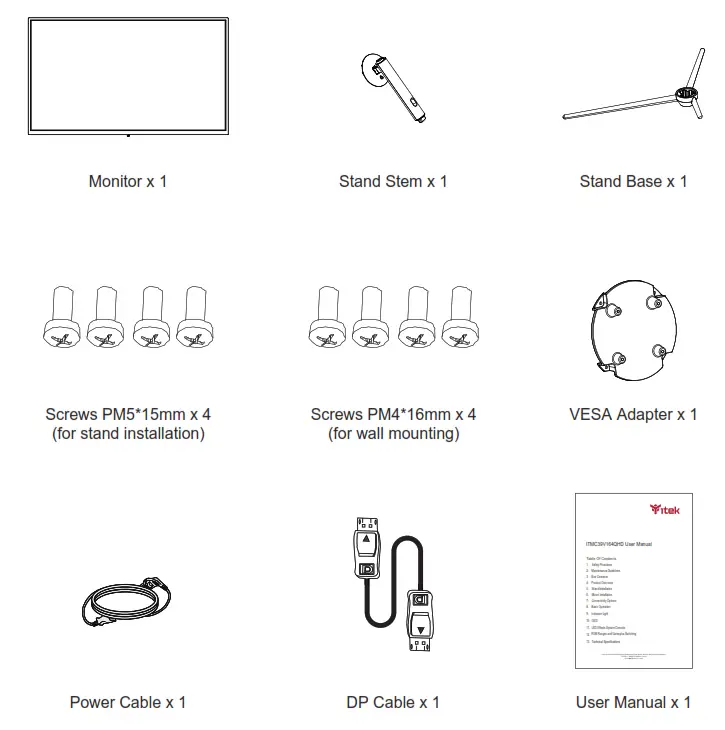
Box Contents
Product Overview
4.1 – Monitor Buttons 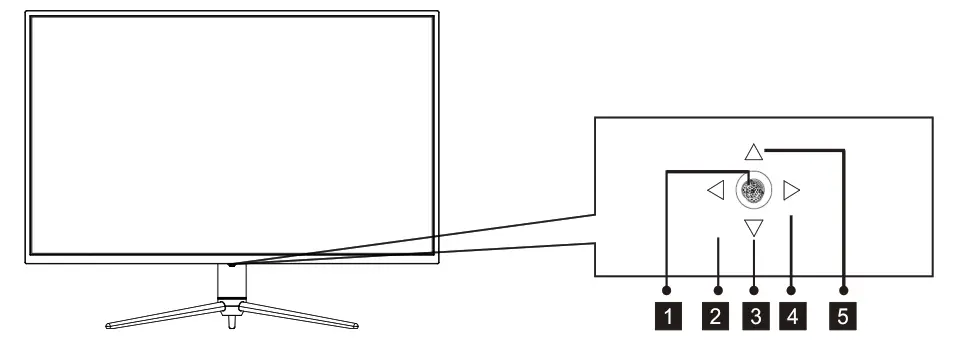
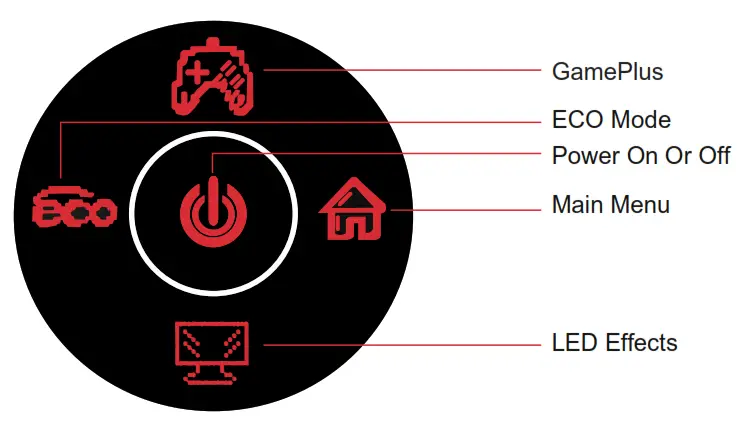
- Press the rocker to turn the display on/off.
- Rocker left scene mode switching.
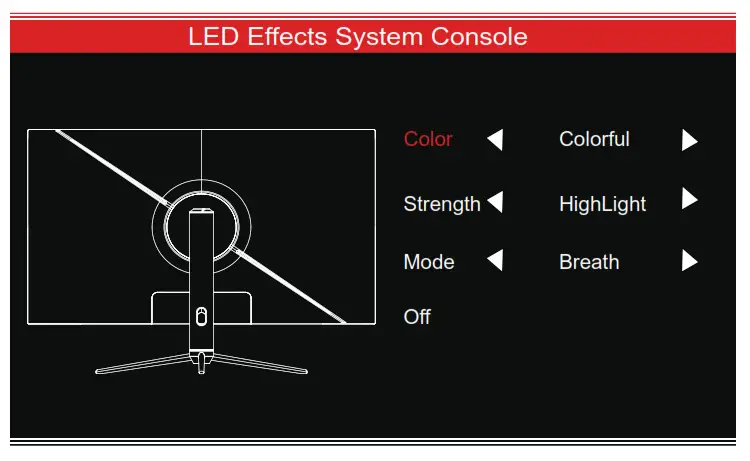
- Rocker backward LED Effects.
- Rocker right Main Menu.
- Rocker forward GamePlus.
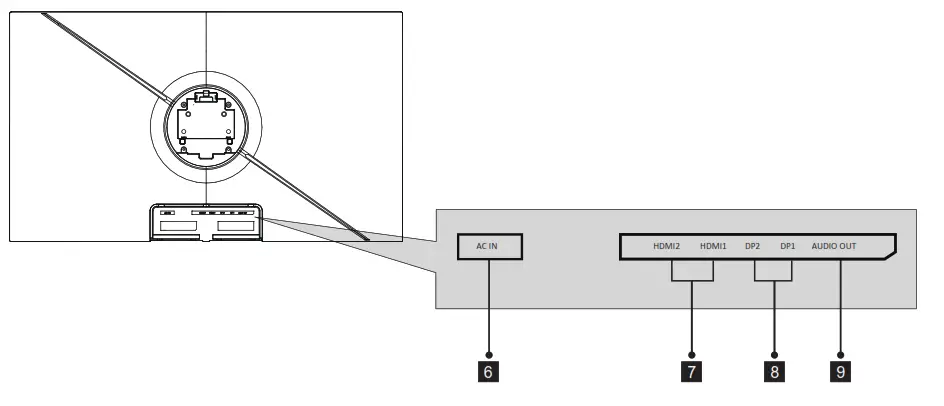
4.2 – Monitor Ports
- Power Connector: Insert the power cable to supply power to the monitor.
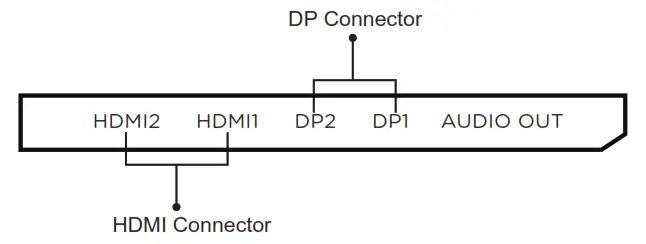
- HDMI Connectors: Insert one end of the HDMI cable into the computer’s HDMI output and connect the other end to the monitor’s HDMI port.
- DP Connectors: insert one end of the DP cable into the computer’s DP output and connect the other end to the monitor’s DP port.
- Audio Output: Insert the audio cable for the output of audio signals.
Stand installation
- Open the package, take out the product with foam still attached, and gently place it on a desktop or table.

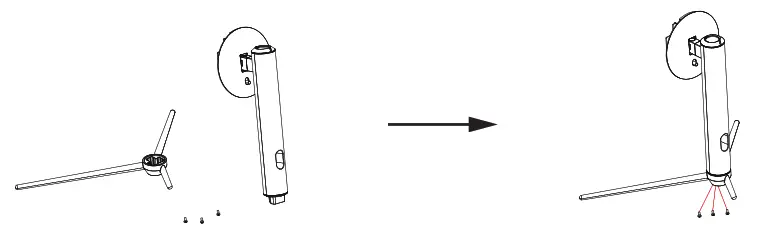
- Take out the base and bracket, as well as three PM5 * 15 screws, and lock the three PM5 * 15 screws on the bottom of the base.

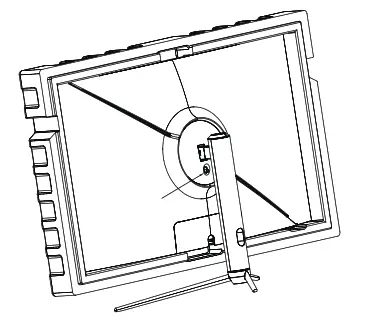
- Use the base bracket assembly assembled in step 2 to align with the slot of the machine and buckle it down. (Note: use your finger to move the quick-release button upward to take out the base bracket assembly)

 Make sure the monitor is laid on a flat surface before removing the stand.
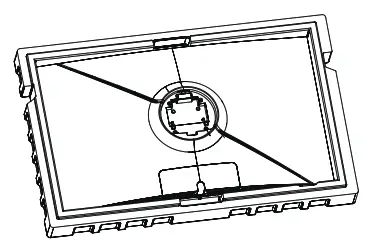
Mount installation
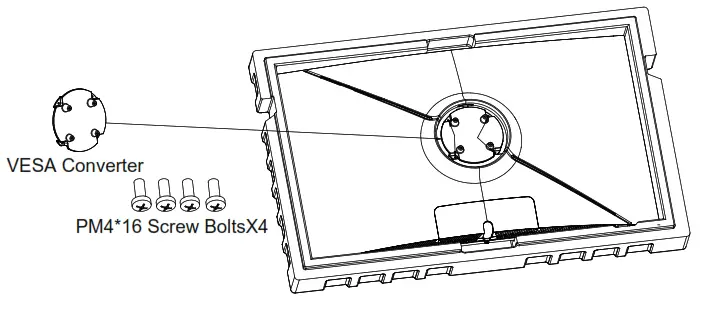
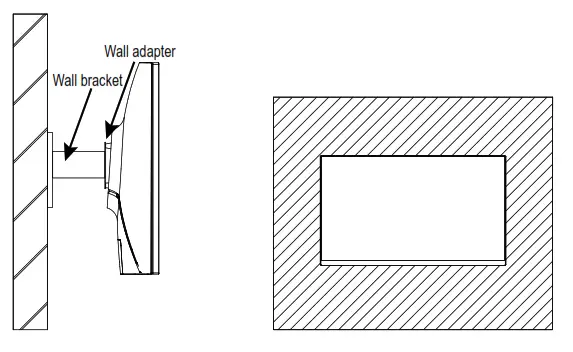
 This monitor only includes screws which may be used when attaching the monitor to a VESA 75*75mm type mount. No VESA mount or mounting accessory is included.
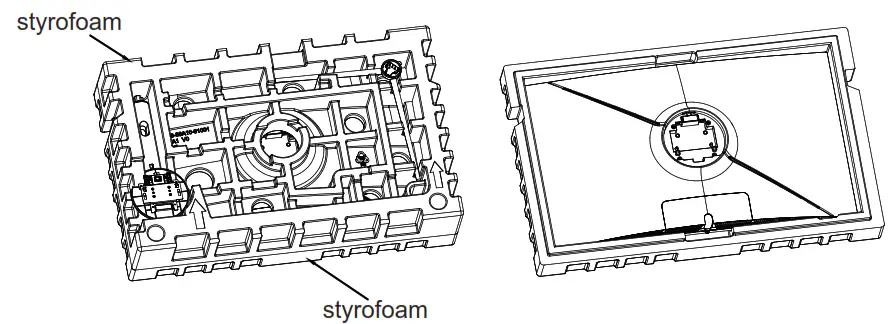
- Take out all the accessories on the styrofoam, and take out the upper styrofoam. (The display cannot leave the lower styrofoam to prevent the screen from breaking)

- Take out the wall-mounting adapter from the bubble bag, take out four PM4*16mm screws from the accessory bag, and use the screws to lock the wall-mounting adapter to the back shell. (the display screen cannot leave the Polylon foam to prevent a Broken screen)

- Do not pinch the screen directly with your hands during the process of hanging the product to prevent the screen from breaking.

Connectivity Options
7.1 – Connecting the Power Cable
Connect the included power cable to the power connector and then plug the other end into a wall outlet.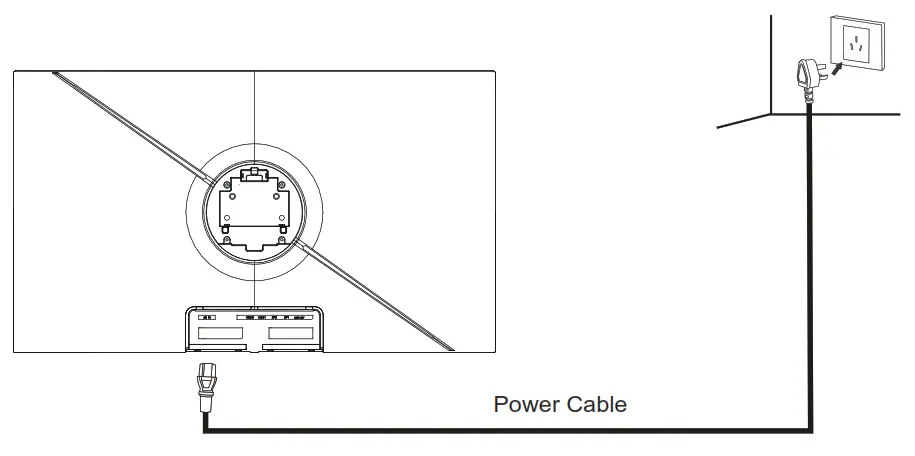 7.2 – Connecting Your Earphones
Plug in your earphones to receive audio signals from your monitor. If you have an audio device connected to your computer when you connect your earphones to the monitor, the audio device will not produce sound. Earphones and other audio devices are not included.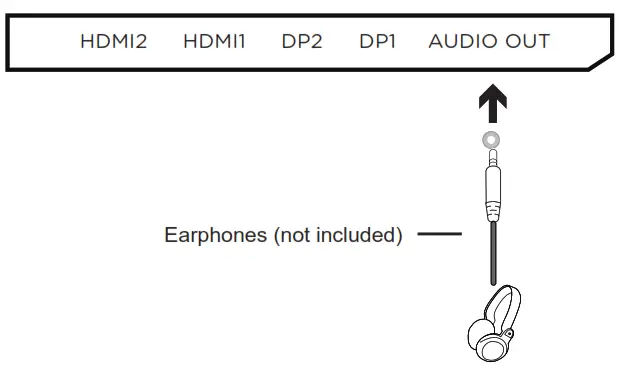 Exposure to loud audio for prolonged periods of time may permanently damage your hearing.
7.3 – DP Connectivity
For the monitor to receive DP signals from the computer, use the DP cable to connect the monitor to the computer. 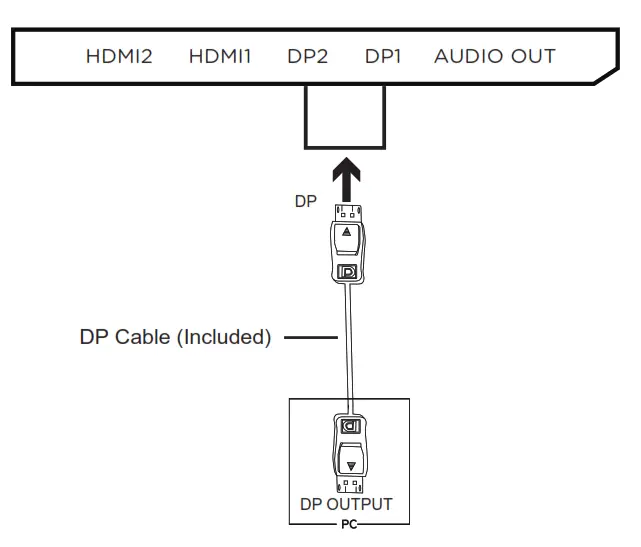 7.4 – HDMI Connectivity
For the monitor to receive HDMI signals from the computer, use an HDMI cable to connect the monitor to the computer.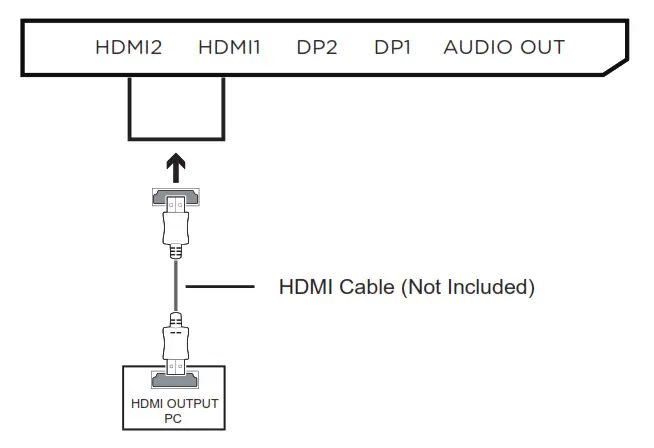
Basic Operation
- Insert one end of the DP cable into your PC’s graphics card. An HDMI cable may also be used. HDMI cable is not included.
- Connect the other end of the cable to the corresponding connector on your monitor.

- Connect the power cable to your monitor then connect the other end to your power source. It is recommended that you use a surge protector with adequate voltage if a wall outlet cannot be reached directly.
- Locate the power button on the monitor and press it to turn the monitor on.
Adaptive-Sync
This feature is off by default. To activate, you must have hardware with Adaptive-Sync capability, a DP or HDMI cable, and the latest graphic drivers. After connecting your computer and monitor with a DP or HDMI cable, you may receive a prompt to enable the feature on your computer. If you do not, you may need to enable the function in your graphics card menu. See your graphics card manufacturer’s documentation for instructions.
Indicator Light
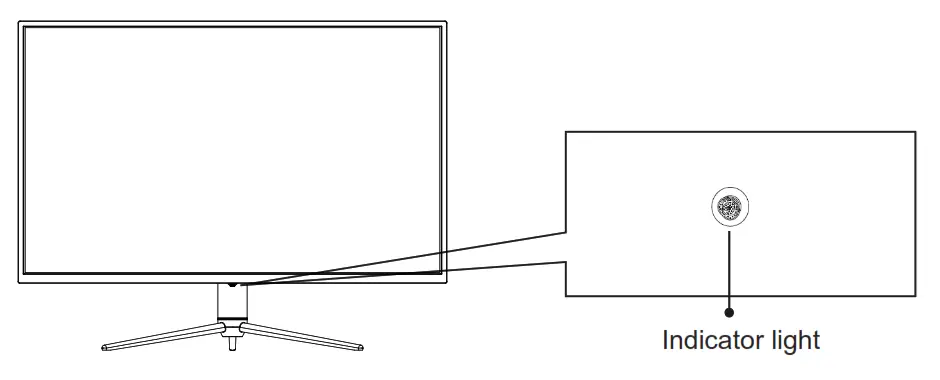
Solid blue light indicates power is on and the monitor is operating normally. Red and blue flash alternately during standby, Red when shutting down.
On-Screen Display (OSD)
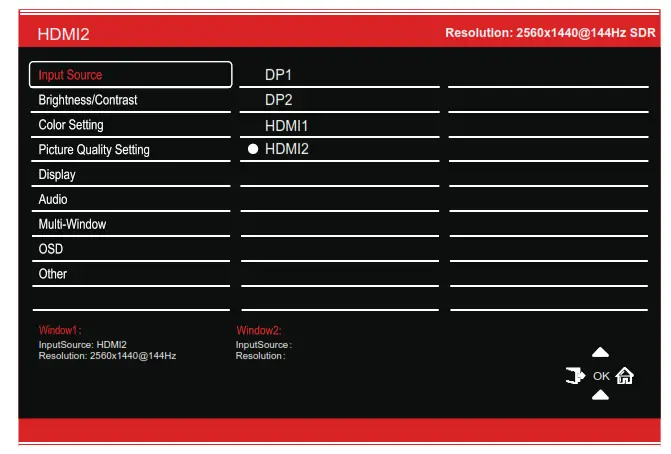
The On-Screen Display (OSD) Menu may be used to adjust your monitor’s settings and appears on the screen after turning on the monitor and pressing the M button. When using the monitor for the first time, settings will automatically adjust to optimal settings according to your computer’s configuration and parts, etc.
- The monitor includes one-touch options to access common settings.

- Remote sensing (Right) to enter the OSD screen.

- Remote sensing Front (
 ) or After (
 ) to browse functions.
 - Remote sensing Left (
 ) to exit the current screen.
 ) or After (
 ) to browse functions.
 ) to exit the current screen.
10.1- OSD Menu Functions
| Main Menu | Sub-Menu | Options | Description |
| Input Source | DP1 | Nessuna | Segnale di ingresso DP1 |
| DP2 | Nessuna | Segnale di ingresso DP2 | |
| HDMI1 | Nessuna | Segnale di ingresso HDMI1 | |
| HDMI2 | Nessuna | Segnale di ingresso HDMI2 | |
| Brightness/ Contrast | Luminosita | 0-100 | Regola la luminosita del display |
| Livello del nero | 0-100 | Regola ii livello di nero del display | |
| Contrasto | 0-100 | Regola il contrasto del display | |
| DCR | Attiva | Attiva la funzione DCR | |
| Disattiva | Disattiva la funzione DCR | ||
| Color Setting | Gamma | 2. | Imposts ii componente aggiuntivo Gamma |
| 2.0 | |||
| 2. | |||
| 2. | |||
| 3. | |||
| Modality immagine | Standard, Immagine, Film, Gioco, FPS, RTS | Imposta la modality visiva in base all’attivith | |
| Temperatura colore | Caldo, Freddo, Utente | Seleziona la temperatura del colore | |
| Luce blu bassa | 0-100 | Imposta il livello di filtraggio della luce blu | |
| Tonality | 0-100 | Regola i livelli di tonality | |
| Saturazione | 0-100 | Regola i livelli di saturazione | |
| RGB Range | RGB Full, RGB Limited | Seleziona la modality gamma RGB completa e limitata | |
| Picture Quality Setting | Nitidezza | 0-100 | Imposta la nitidezza del display |
| Tempo di risposta | Disattiva, Alto, Medio, Basso | Regola il tempo di risposta | |
| Riduzione disturbi | Disattiva, Alto, Medio, Basso | Riduce l’interferenza del rumore dell’immagine causato dall’interferenza della sorgente del segnale | |
| Controllo luminosity dinamica | Attiva, Disattiva | Calibrazione della scala di grigi dello schermo | |
| MPRT | Attiva, Disattiva | Tempo di risposta dell’immagine in movimento | |
| Display | Proporzioni | Widescreen, 4:3, 1:1, Auto | Seleziona le proporzioni sullo schermo |
| Audio | Disattiva audio | Attiva, Disattiva | Attiva / disattiva la modality silenziosa |
| Volume | 0-100 | Regola il volume dell’audio | |
| Origine audio | DP1, DP2, HDMI1, HDM2 | Seleziona (‘ingresso del segnale audio tramite HDMI o DP | |
| Multi-Window | Multi-Window | Off, PIP Mode, PBP 2Win | Select PIP/PBP modes according to the number of input signals etc. |
| Sub Win2 Input | DP1. DP2, HDMI1, HDMI2 | Select according to input signal for PIP/ PBP mode | |
| PIP Size | Small, Medium, Large | Adjust the PIP/PBP display window size | |
| PIP Position | Top Right, Top Left, Bottom Right, Bottom Left | Adjust the PIP/PBP window position | |
| Swap | NONE | Swap the two-channel signal source of only the PIP/PBP 2 screens function | |
| OSD | Language | English. Pyccifinci, Espanol, Italian | Set OSD language |
| OSD H-Position | 0-100 | Adjust the OSD’s horizontal position | |
| OSD V-Position | 0-100 | Adjust the OSD’s vertical position | |
| OSD Transparency | 0-100 | Set the OSD’s overall transparency | |
| OSD Time Out | 5-100 | Set how long the OSD remains open after non-use | |
| OSD Rotation | Norma1,90, 180,270 | When the user flips the display , this function can also flip the OSD to achieve the best display angle | |
| Other | DP Version | DP1.1, DP1.2, DP 1.4 | |
| Adaptive-Sync | On, Off | Turn the Adaptive-Sync function on/off | |
| HDR | On, Off; Auto Detect | Turn the HDR mode on/off | |
| Reset | None | Reset monitor configurations |
LED Effects System Console
RGB Ranges and Game plus Switching
- Press
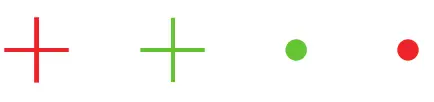
 the button to switch Game plus modes. According to the needs of your game, choose the corresponding game icon. These game icons are primarily designed to optimize your aim during shooting games, though they can be used for other scenarios.
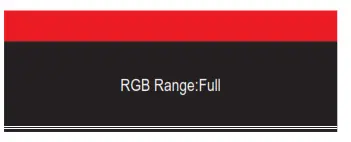
- Press E button to switch RGB Ranges including Limited and Full. Full Range is suitable for most activities.
Technical Specifications
| Model | ITMC39V164QHD |
| Screen Size | 38.5″ |
| Aspect Ratio | 16:09 |
| Backlight | E-LED |
| Brightness | 350cd/m2(Typ.) |
| Panel | VA |
| Resolution | DP1.4: 2560×1440@1651-1z HDMI2.0: 2560×1440@144Hz |
| Refresh Rate | 165Hz |
| Response Time | OD 4ms |
| Viewing Angle | 3178°(H) / 3178°(V) |
| Contrast Ratio | 3000:1 |
| VESA Mounting | 75 x 75mm |
| Display Colours | 16.7M |
| Adaptive-sync | Yes |
| Interface | DP 1.4’2, HDMI 2.0.2, Audio out-1 |
| Power Input | AC 100-240– 50/60Hz 2 2A |
| Audio | |
| Speakers | NO |
| Audio Out | Yes |
| Accessories | |
| Power Cable | Yes |
| DisplayPort Cable | Yes |
| Additional Functions | |
| Low Blue Light | Yes |
| Physical Dimensions | |
| Dimensions (w/ stand) | 879.24.286.77.645.09mm |
| Dimensions (w/o stand) | 879.24.83.56’514.07mm |
| Net Weight | 11.6kg |
| Gross Weight | 16kg |
For more information please visit our web site or write us an
email: https://www.itekevo.com
[email protected]
 Homepage - Itek