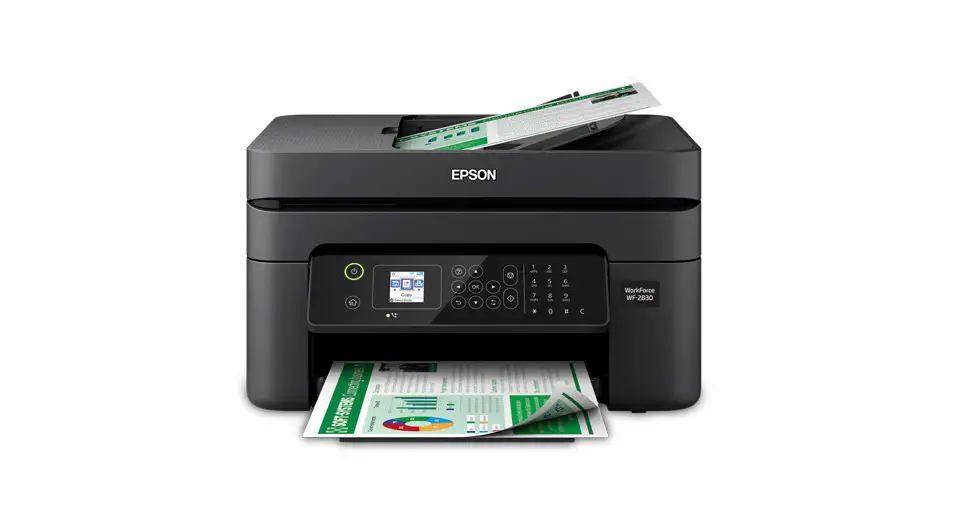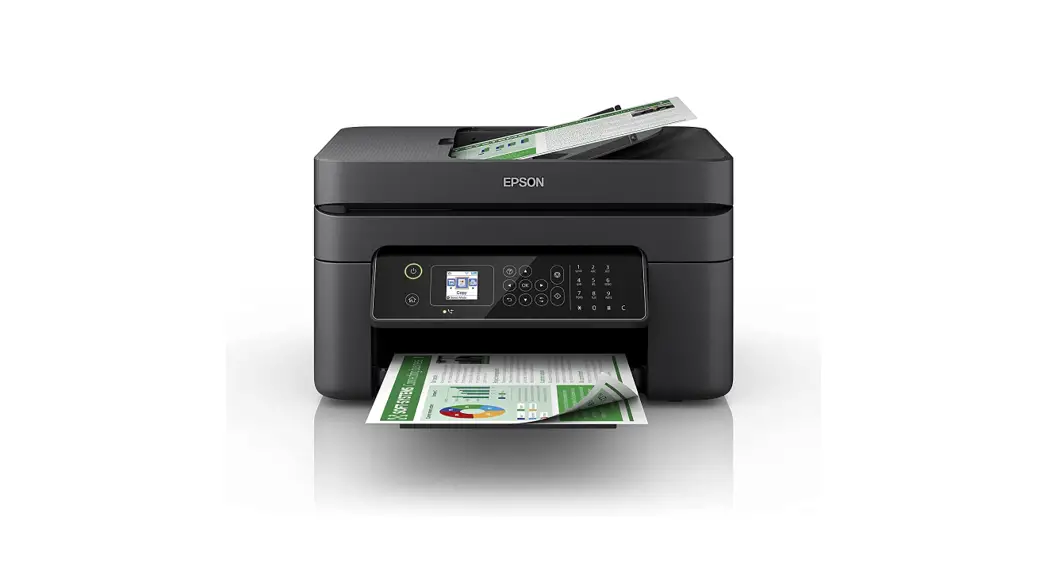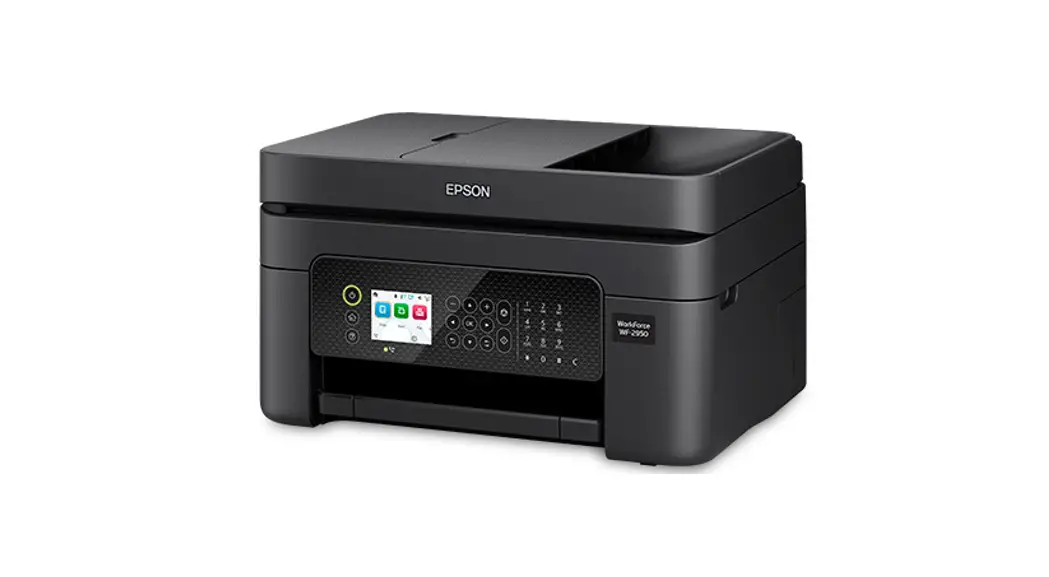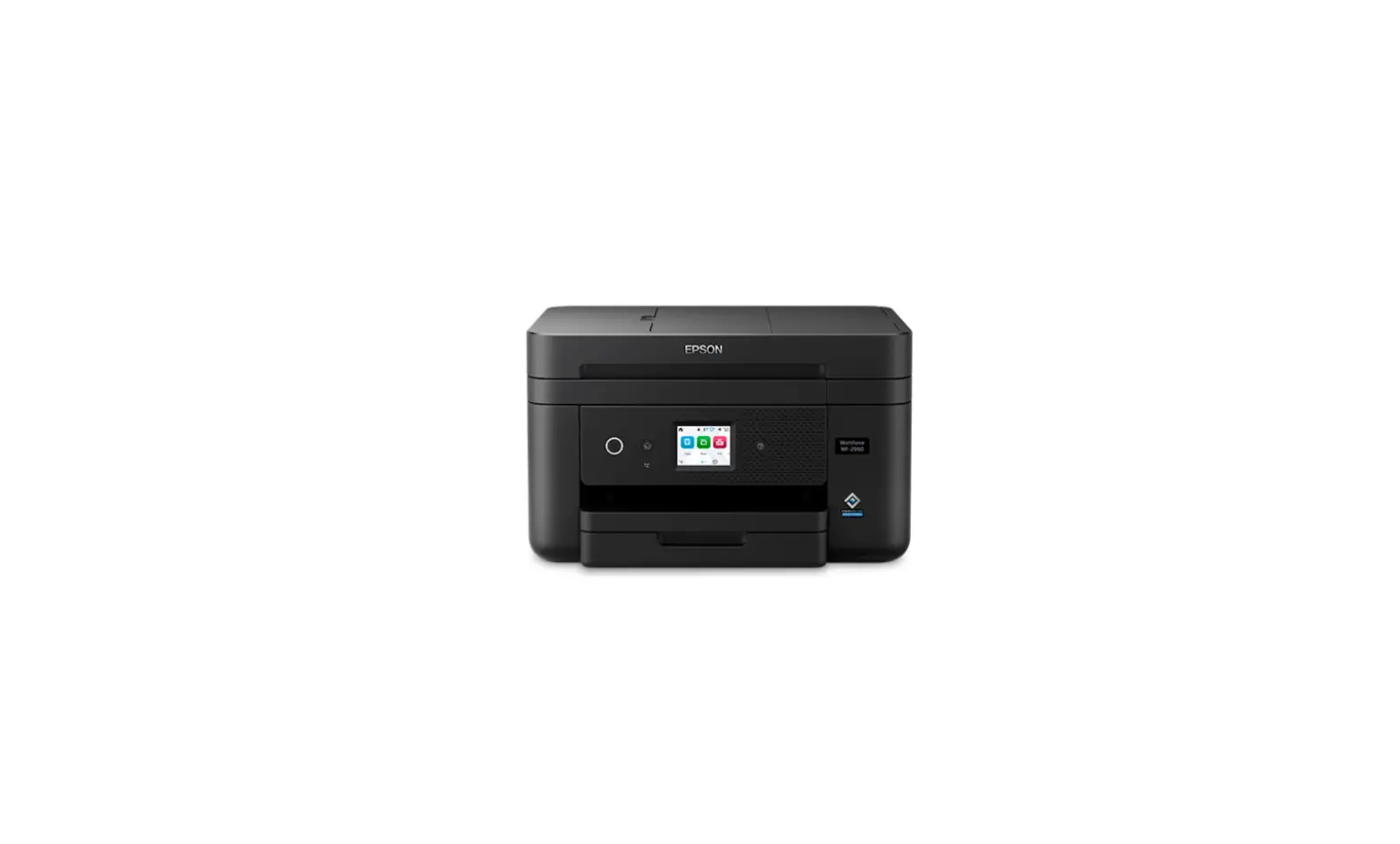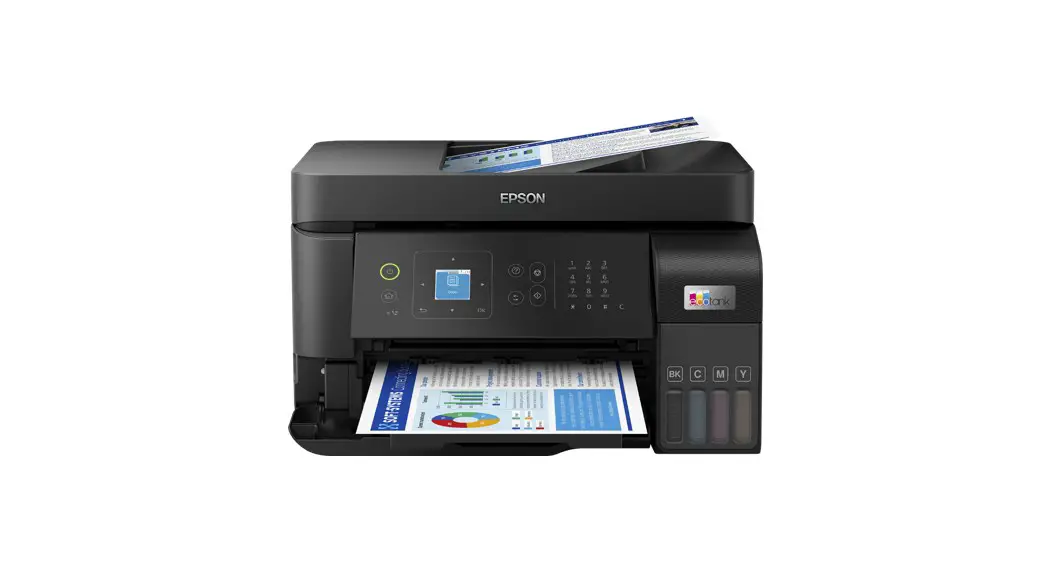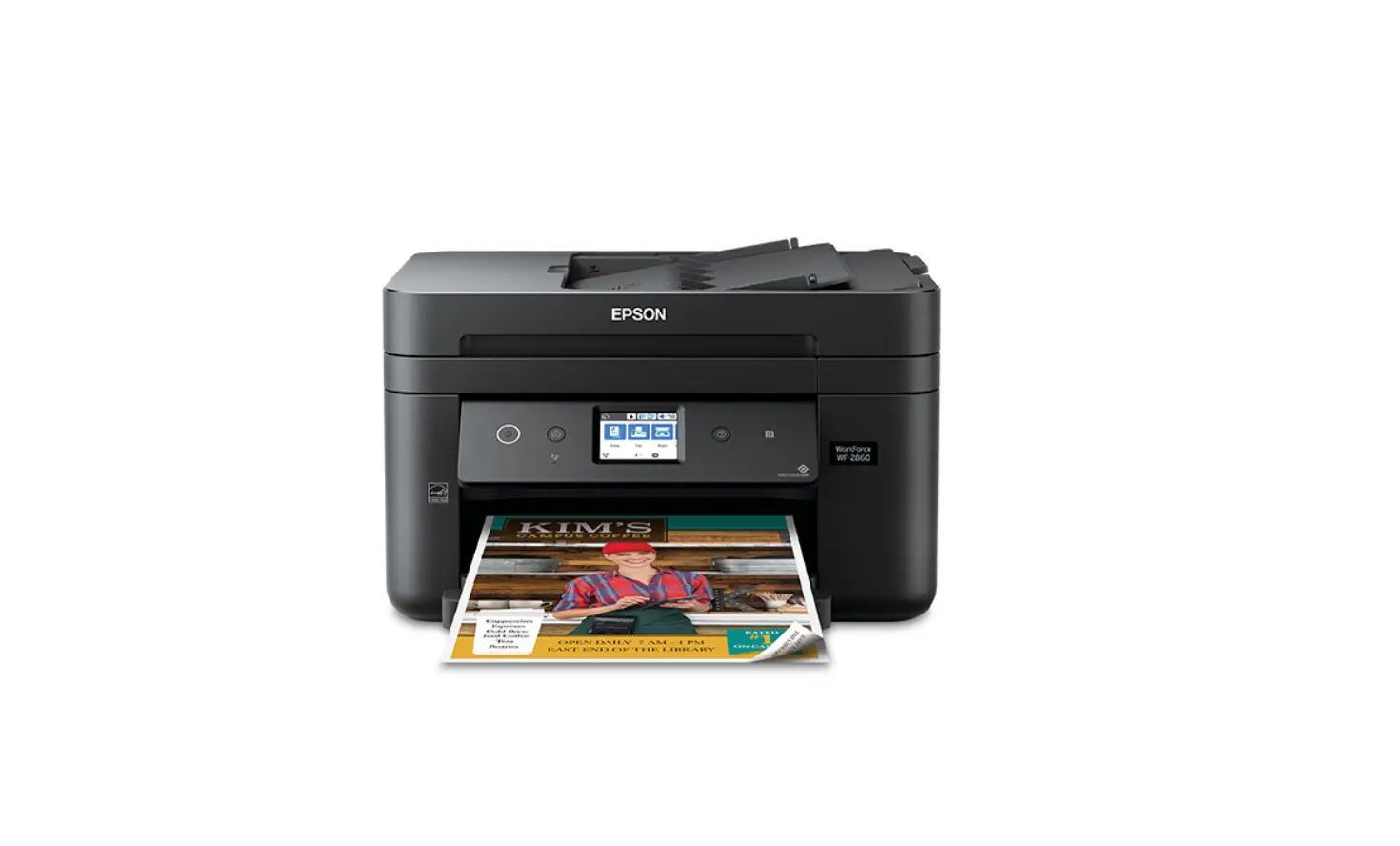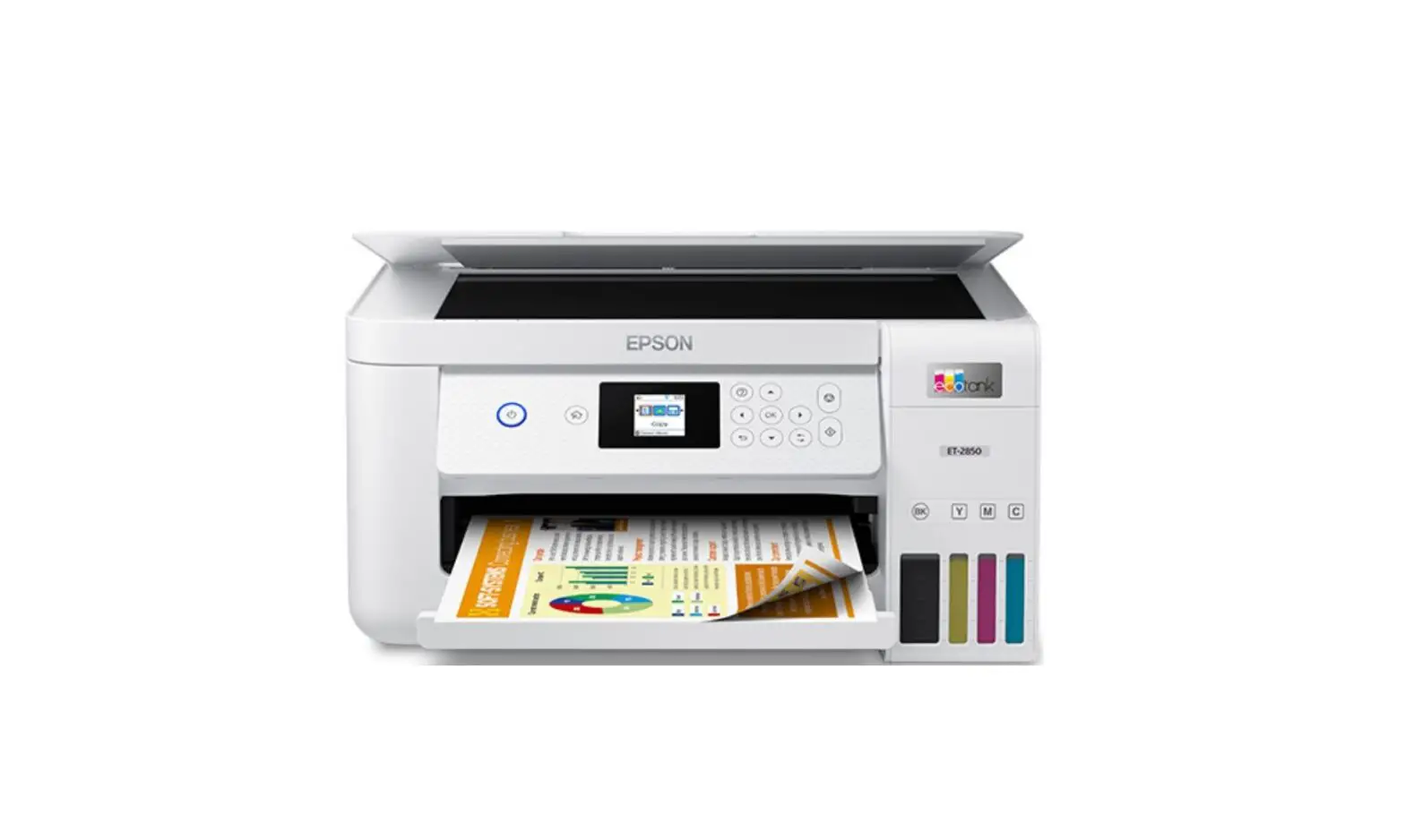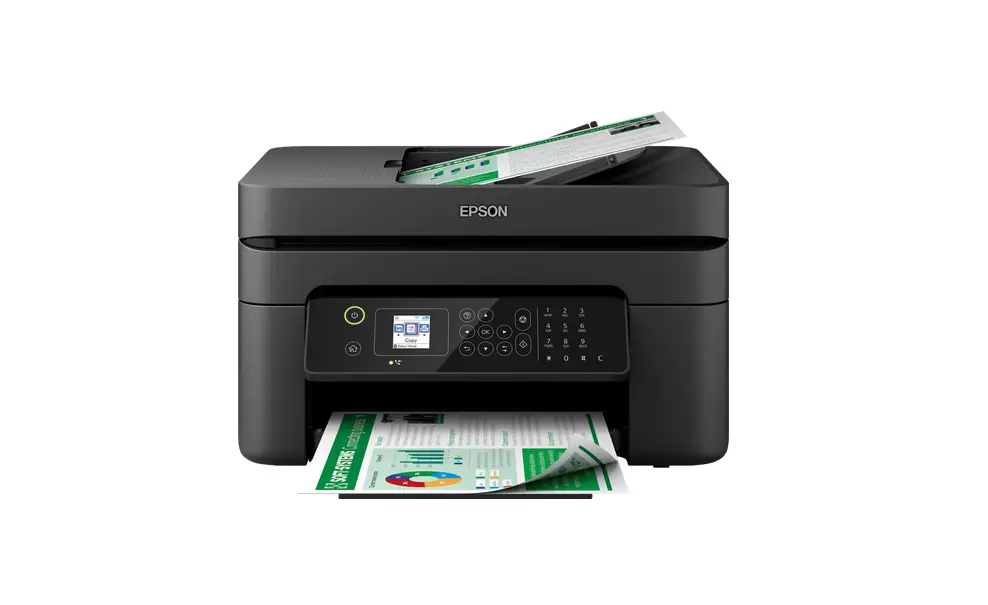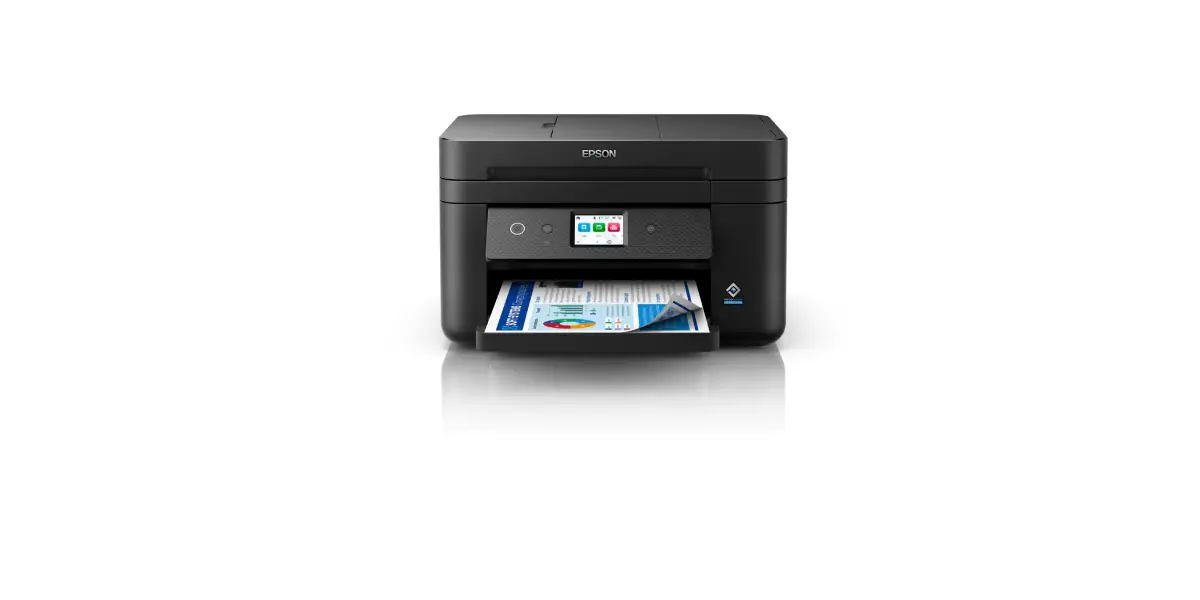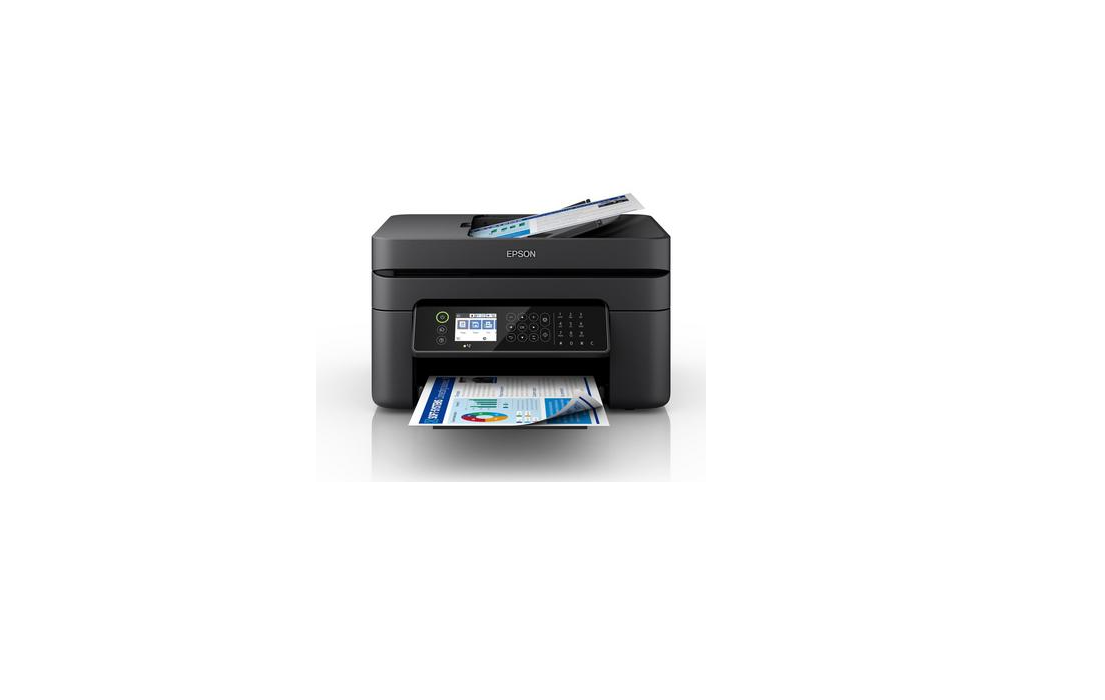
EPSON WF-2870 Series Compact Multifunction
Inkjet Printer User Guide
See this guide or Epson video guides for printer setup instructions.

Do not open the ink cartridge package until you are ready to install it in the printer. The cartridge is vacuum packed to maintain its reliability

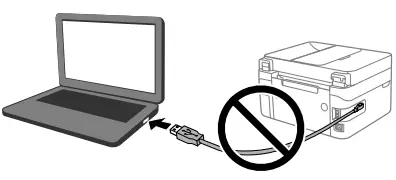
Do not connect a USB cable unless instructed to do so.
Unpacking
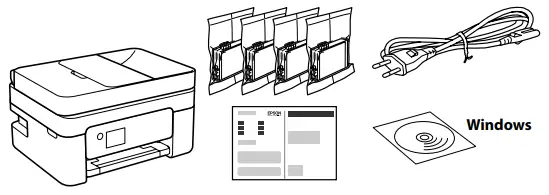
Additional items may be included depending on the location.
For the initial setup, make sure you use the ink cartridges that came with this printer. These cartridges cannot be saved for later use. The initial ink cartridges will be partly used to charge the print head. These cartridges may print fewer pages compared to subsequent ink cartridges.
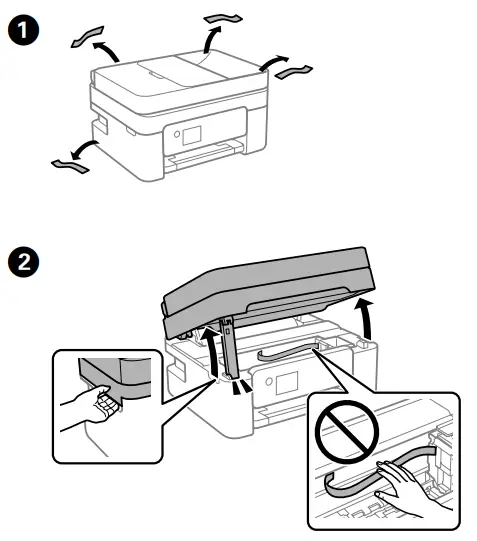
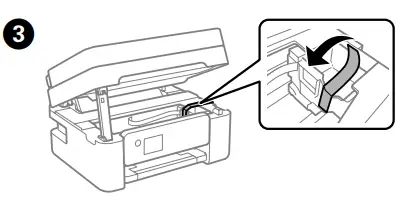
(4) Close. For safety, the unit is closed in two steps.
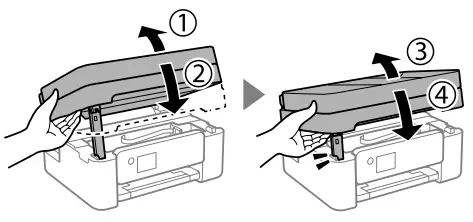
The unit must be closed completely before it can be opened again.
Turning on the Printer
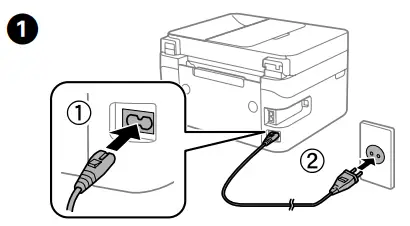
(2) Hold down the button until the power is turned on.
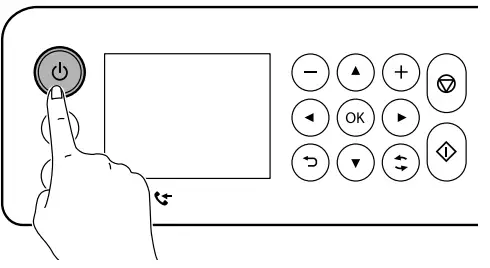
(3) Select a language, country, date and time.
You can enter the date and time using the number buttons.
Installing Ink Cartridges
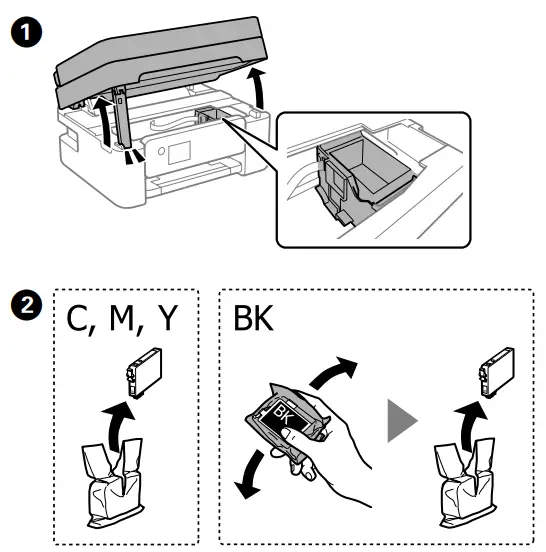
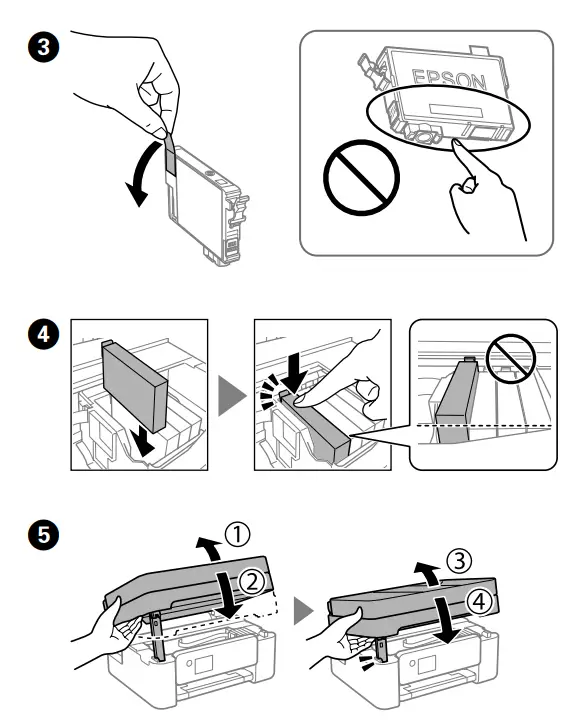
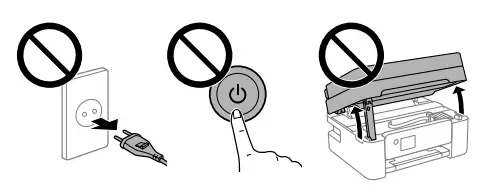
(6) Follow the instructions on the LCD screen. Wait until ink charging is complete.
 Checking Print Quality
(1) Follow the on-screen instructions to perform adjustments. When the paper loading message is displayed, go to the next step.
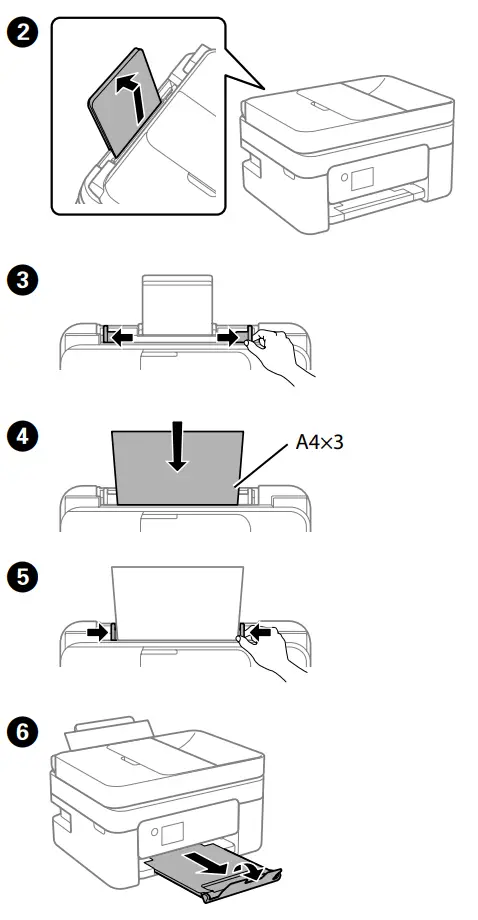
(7) Follow the remaining steps in the wizard. S
Fax Setup
Make the fax settings. You can change these settings later. If you do not want to make settings now, close the fax settings screen and go to the next section.
(1) Connect a phone cable.
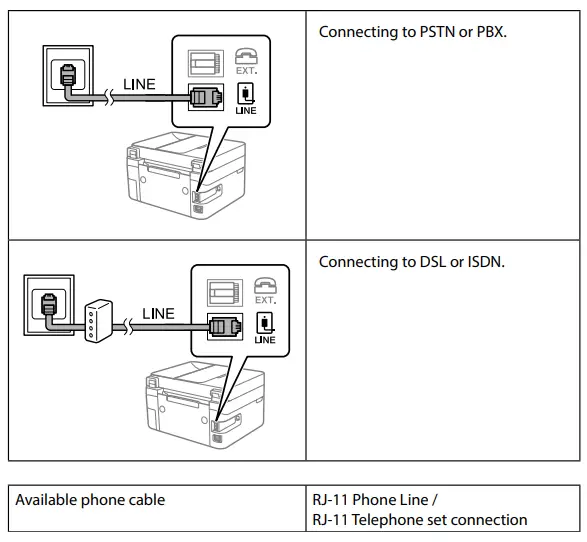
Depending on the area, a phone cable may be included with the printer, if so, use the cable.
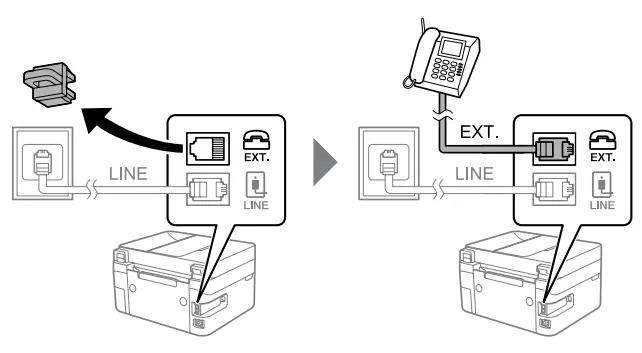
(2) If you want to share the same phone line as your telephone, remove the cap and then connect the telephone to the EXT. port.
(3) Follow the remaining steps in the wizard.
Connecting to Devices

http://epson.sn
Visit the website to install software and configure the network. Windows users can also install software and configure the network using the CD supplied.
Ink Cartridge Codes
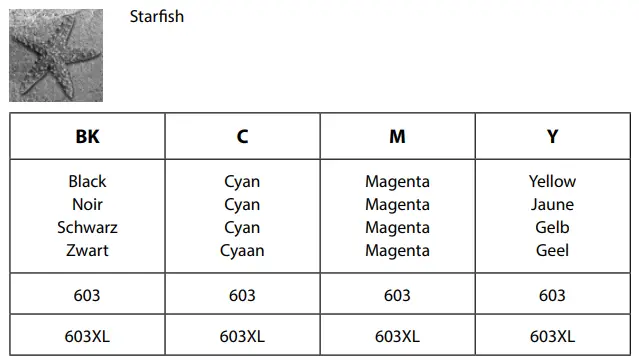
“XL” indicates large cartridge.
Not all cartridges are available in all regions.
For information on Epson’s ink cartridge yields, please visit the website.
http://www.epson.eu/pageyield
Guide to Control Panel
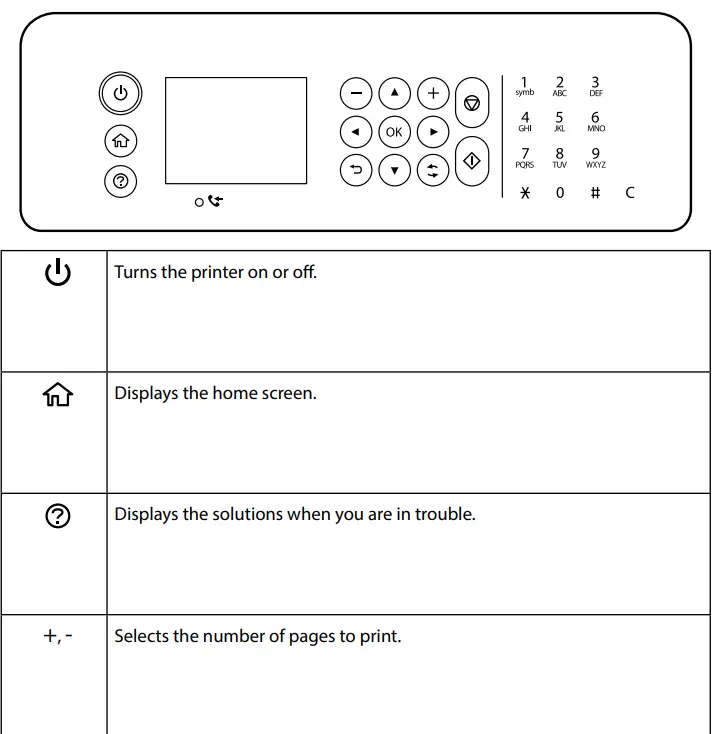
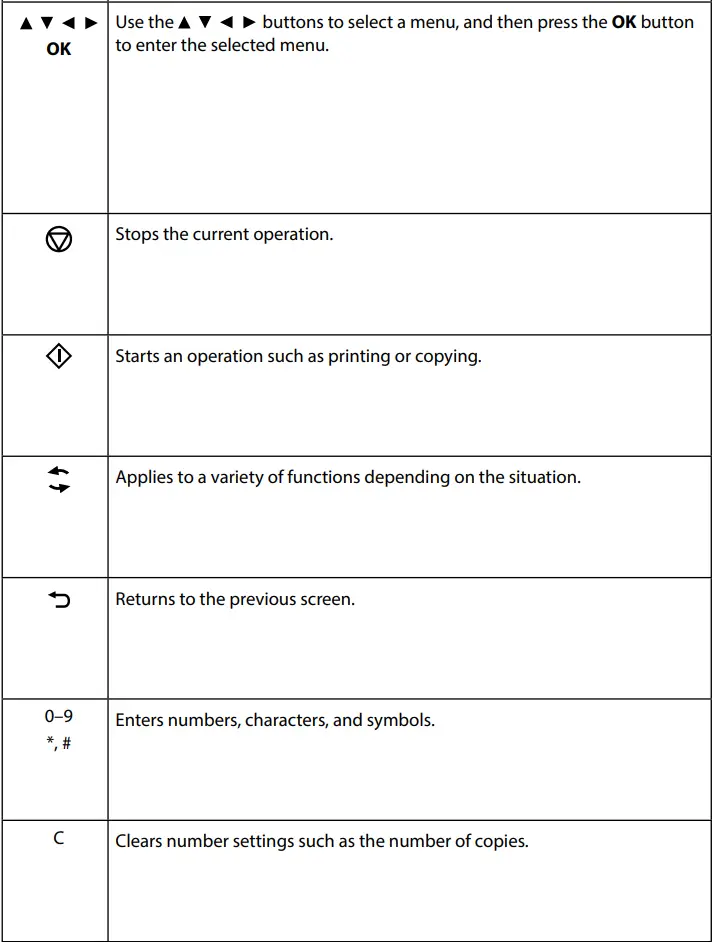

A message is displayed on the LCD screen if there is an error or information that requires your attention. See the User’s Guide for more details.
Copying
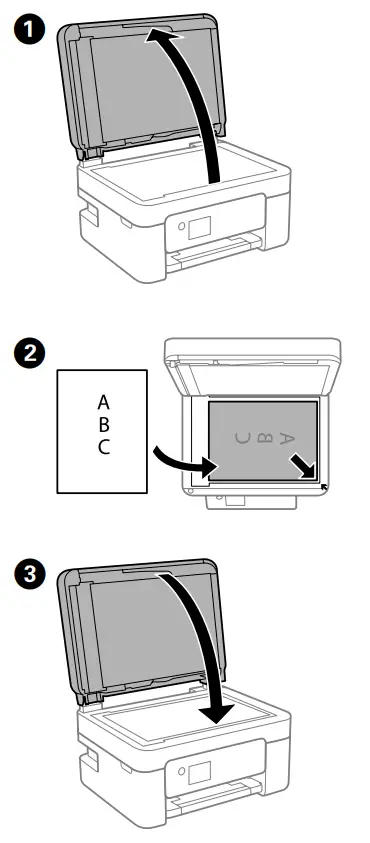
(4) Select Copy on the control panel.
(5) Change settings as necessary. To select an item, use the ▲▼◀▶ buttons, and then press the OK button.
(6) Press the button.
Replacing Ink Cartridges
When you are prompted to replace an ink cartridge, prepare a new ink cartridge.
When replacing ink cartridges before they are expended, select Maintenance > Ink Cartridge Replacement.
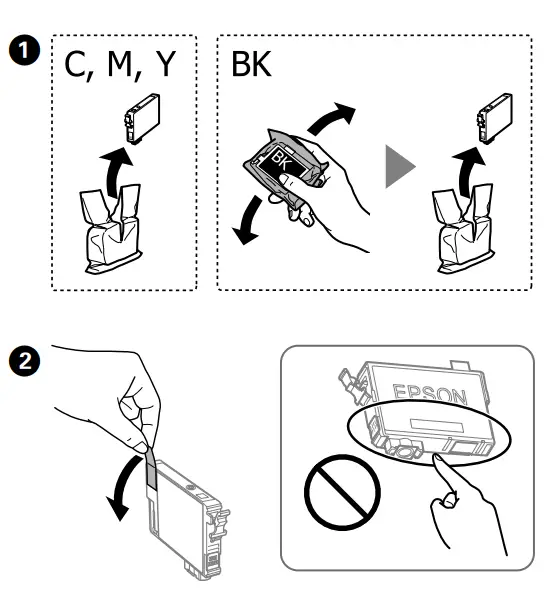
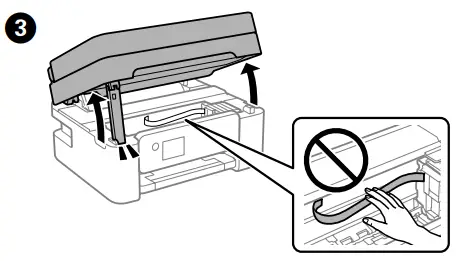
(4) Select Next > Dismiss > Yes, replace now and follow the on-screen instructions
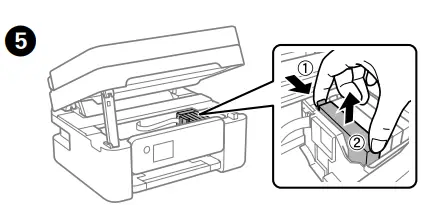
(6) Insert the new ink cartridge and press it down firmly.
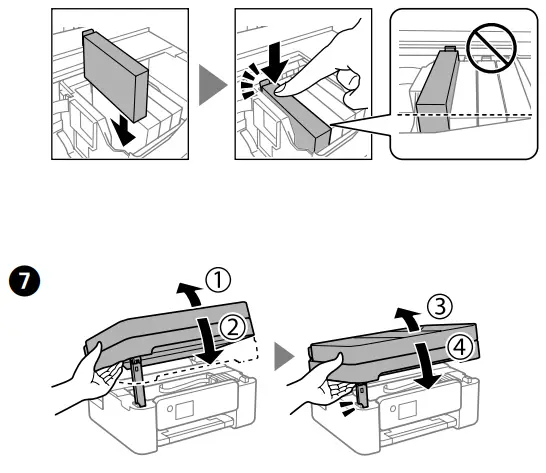
(8) Follow the instructions on the LCD screen. Wait until ink charging is complete.
Print Quality Help
If you see missing segments or broken lines in your printouts, print a nozzle check pattern to check if the print head nozzles are clogged. See the User’s Guide for more details.

Clearing Paper Jam
Follow the instructions on the LCD screen to remove jammed paper. See the User’s Guide for more details.
Important Safety Instructions
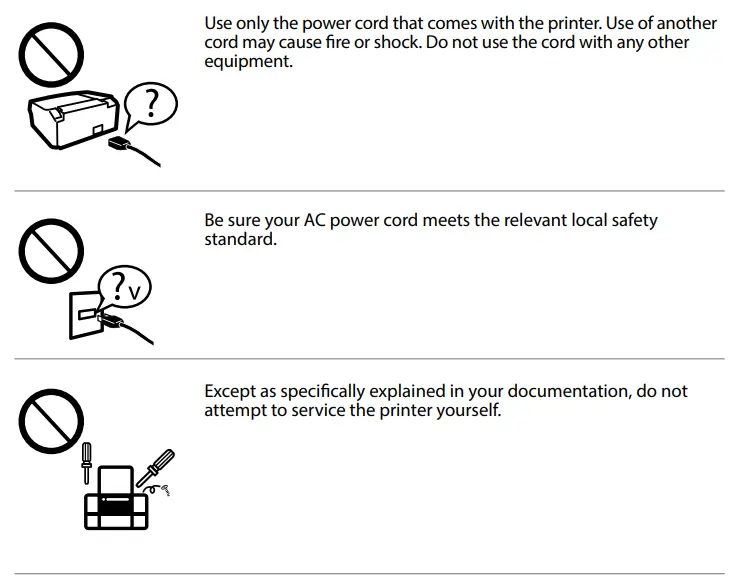
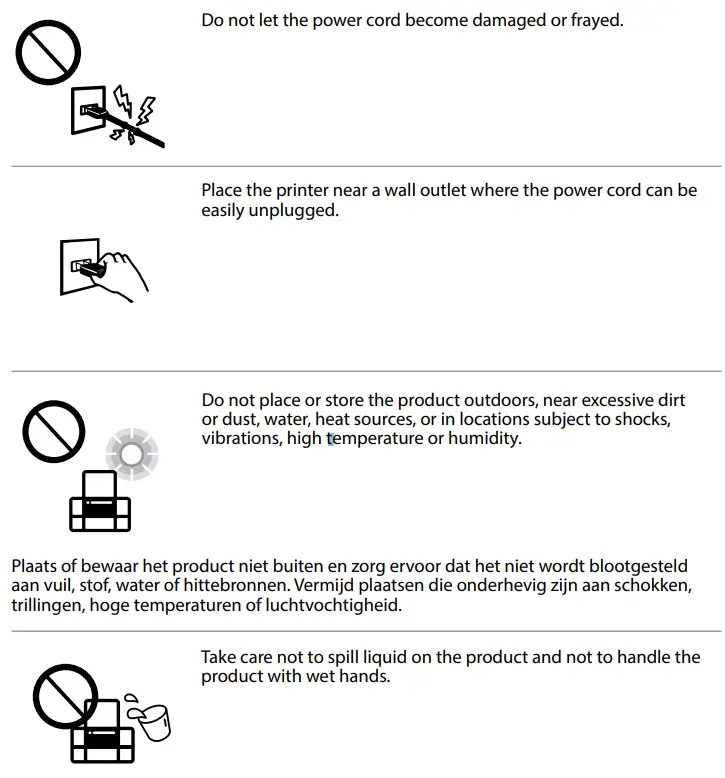
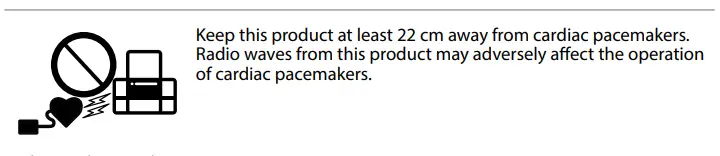

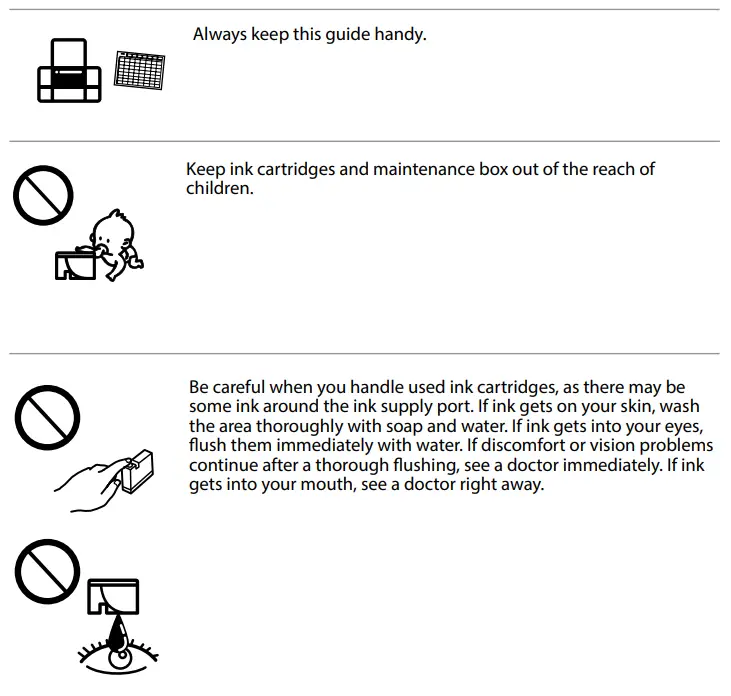
This guide includes basic information about your product and troubleshooting tips. See the User’s Guide (digital manual) for more details. You can obtain the latest versions of guides from the following website.
For outside Europe http://support.epson.net/
For Europe http://www.epson.eu/support
Notice on Printer Information Transmission (only for Users in Europe)
By connecting your printer to the internet (directly or via a computer) you will transmit the printer identity to Epson in Japan. Epson will use this information to check if it is in any Epson supported programme and store it to avoid repeat acknowledgments. On the first occasion an acknowledgment may be sent and printed out on your printer including information about relevant products and services.
Windows® is a registered trademark of Microsoft Corporation.
Maschinenlärminformations-Verordnung 3. GPSGV: Der höchste Schalldruckpegel beträgt 70 dB(A) oder weniger gemäss EN ISO 7779.
Nagano-ken 392-8502 Japan Tel: 81-266-52-3131
Web: http://www.epson.com/
The contents of this manual and the specifications of this product are subject to change without notice.