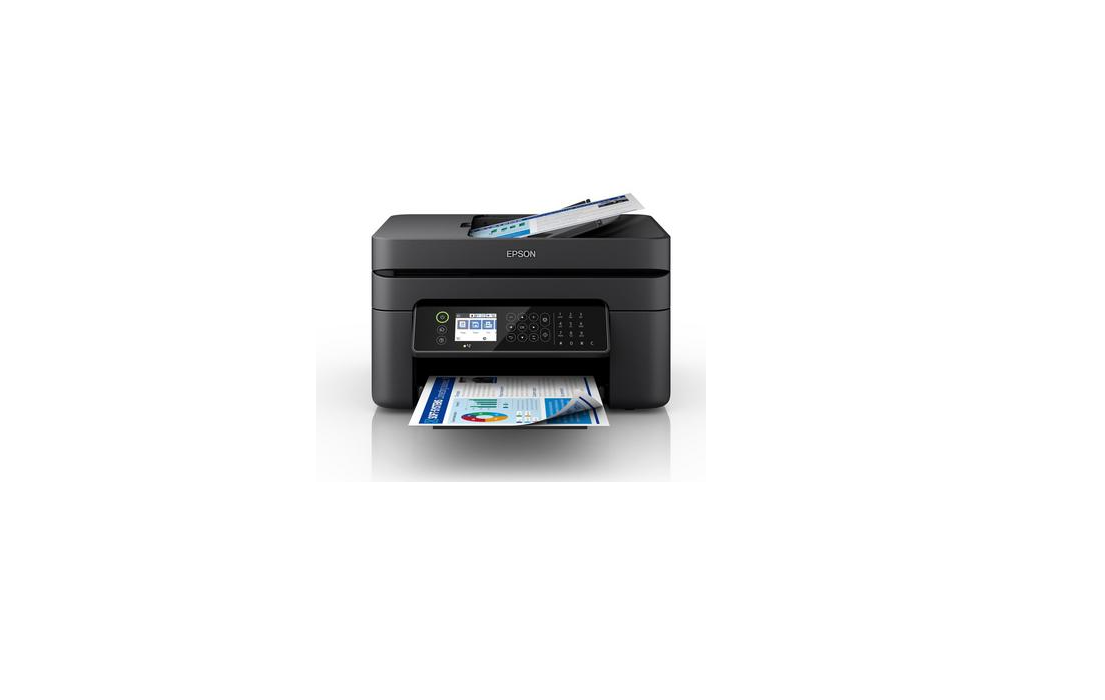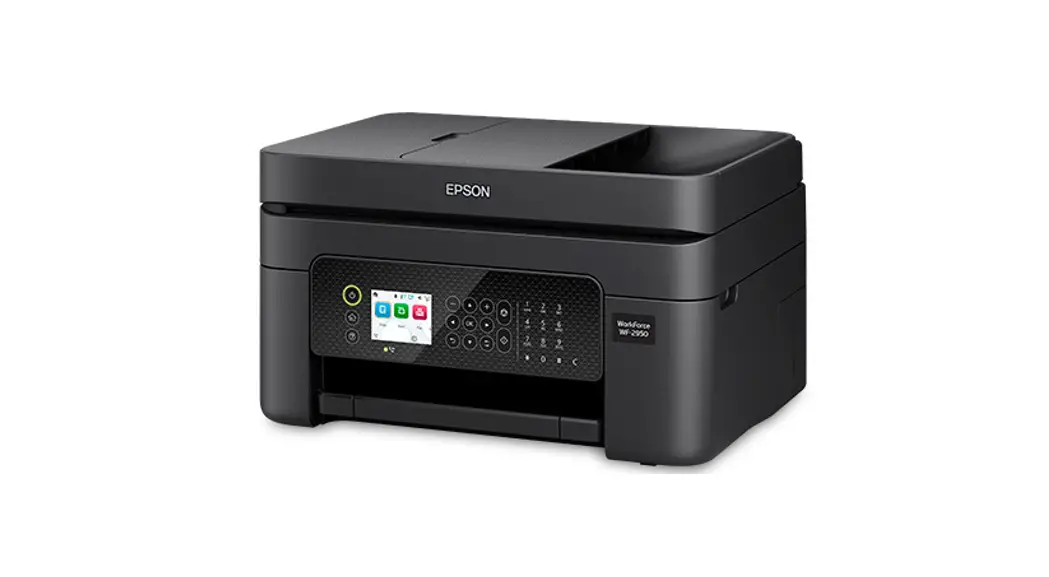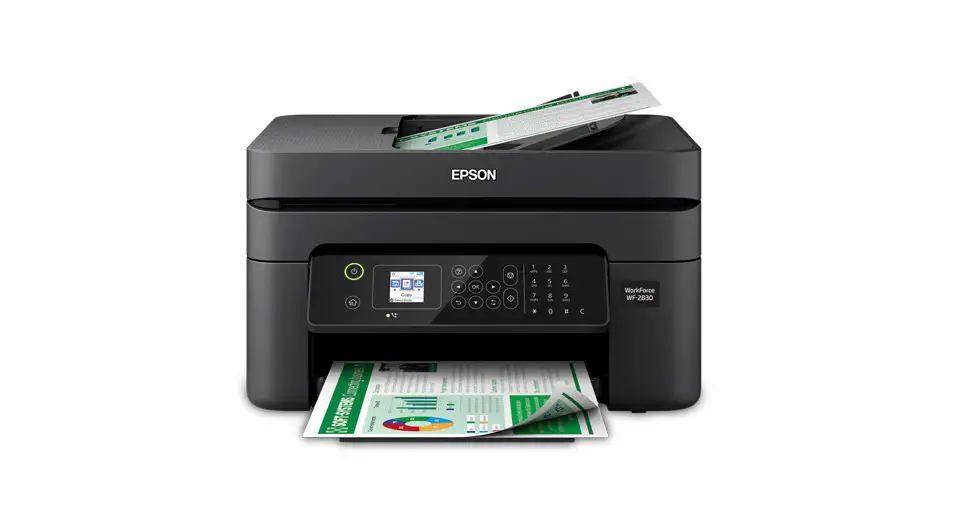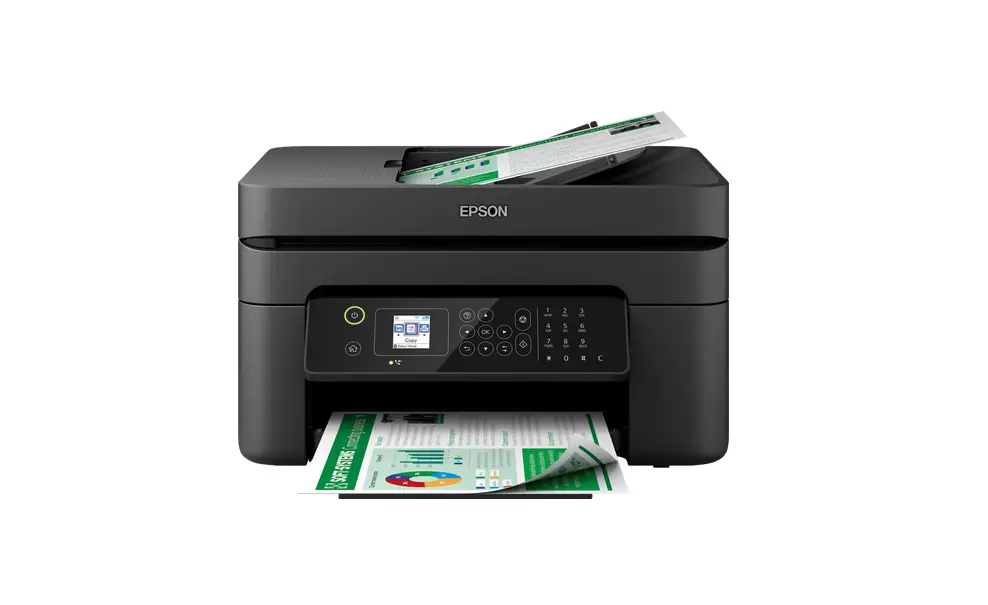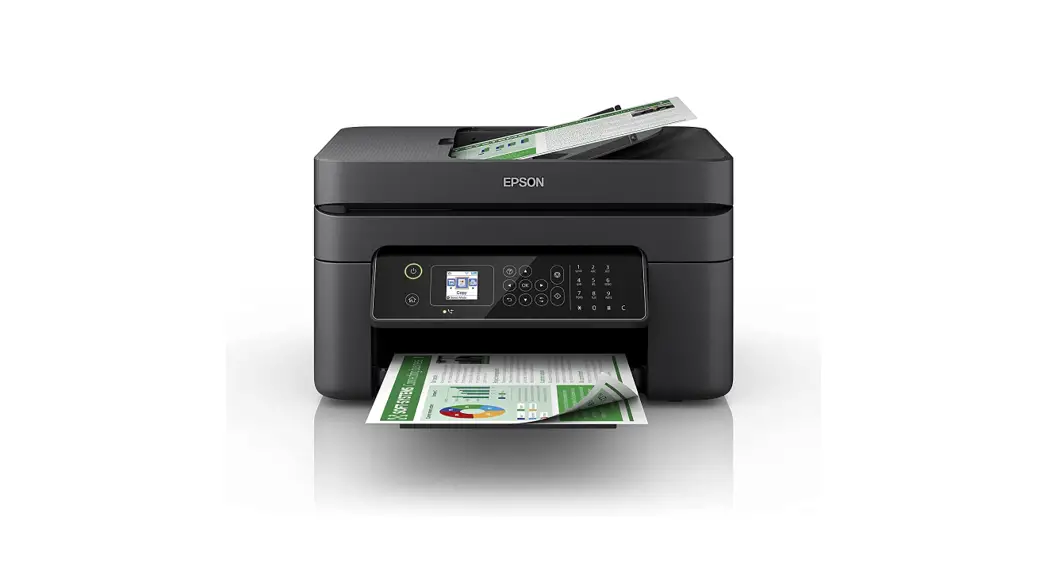

WF-2840 Series
Start Here

© 2021 Seiko Epson Corporation
Printed in XXXXXX
 See this guide or Epson video guides for printer setup instructions.

 Do not open the ink cartridge package until you are ready to install it in the printer. The cartridge is vacuum-packed to maintain its reliability.

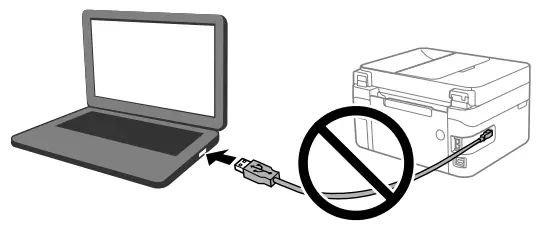
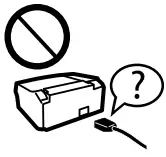
Do not connect a USB cable unless instructed to do so.
Unpacking
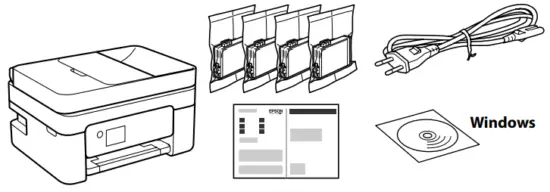
Additional items may be included depending on the location.
For the initial setup, make sure you use the ink cartridges that came with this printer. These cartridges cannot be saved for later use.
The initial ink cartridges will be partly used to charge the print head. These cartridges may print fewer pages compared to subsequent ink cartridges.
1
| 2
|
3
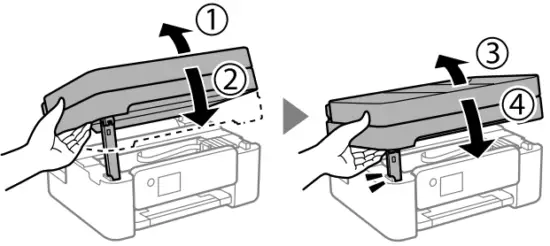
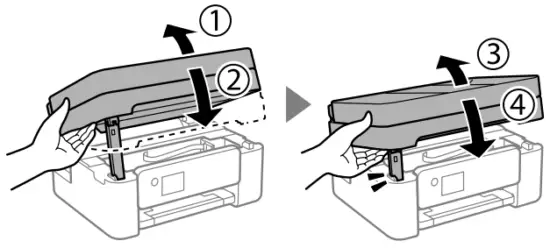
| 4 Close. For safety, the unit is closed in two steps.
|
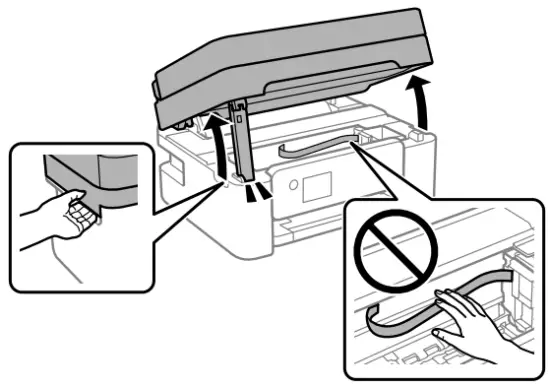
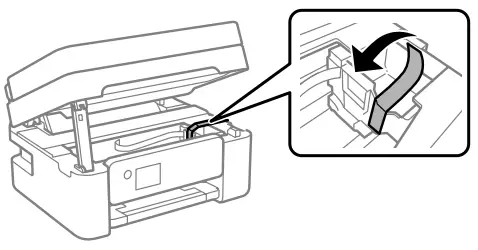
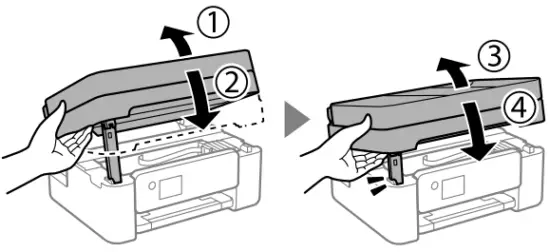
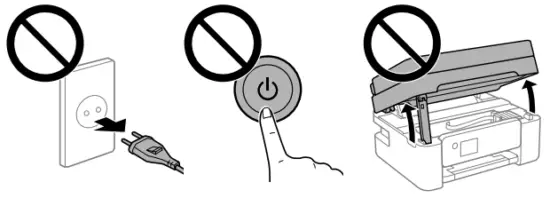
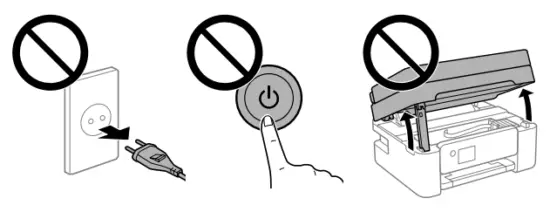
The unit must be closed completely before it can be opened
Turning on the Printer
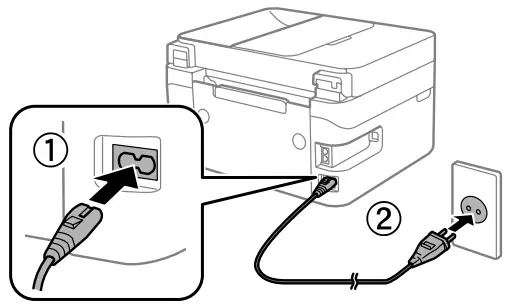
1
| 2 Hold down the  button until the power is turned on. button until the power is turned on.
| 3 Select a language, country, date, and time. |
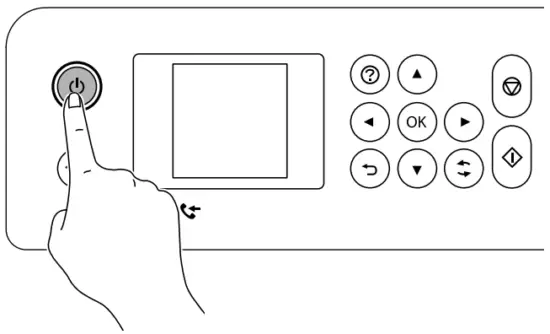
You can enter the date and time using the number buttons.
Installing Ink Cartridges
1
| 2
| 3
|
4
| 5
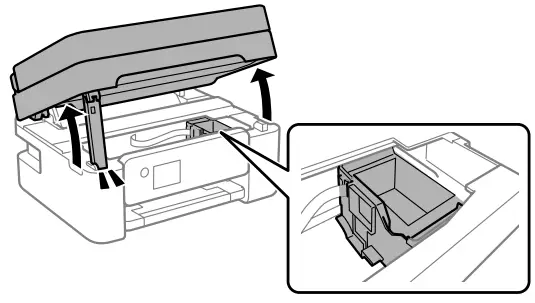
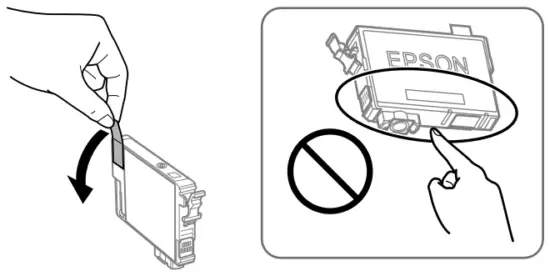
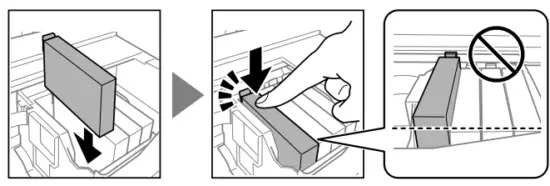
| 6 Follow the instructions on the LCD screen. Wait until ink charging is complete.
|

Checking Print Quality
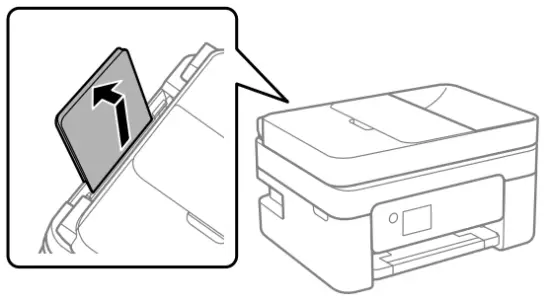
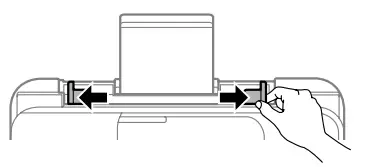
1 Follow the on-screen instructions to perform adjustments. When thepaper loading message is displayed, go to the next step. | 2
|
3
| 4
|
5
| 6
|
7 Follow the remaining steps in the wizard. |
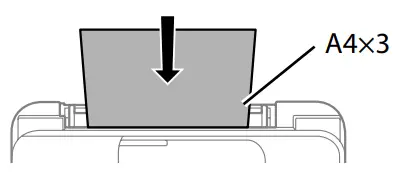
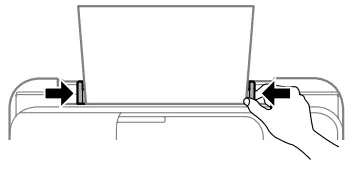
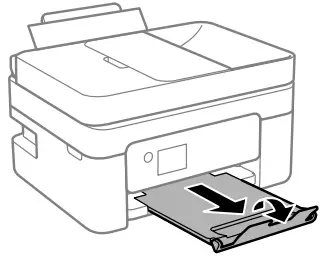
Fax Setup
Make the fax settings. You can change these settings later. If you do not want to make settings now, close the fax settings screen and go to the next section.
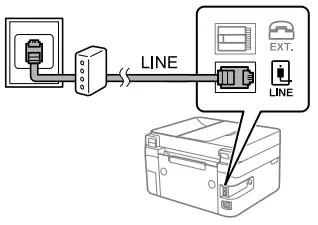
- Connect a phone cable.

Connecting to PSTN or PBX. 
Connecting to DSL or ISDN. Available phone cable RJ-11 Phone Line/RJ-11 Telephone set connection  Depending on the area, a phone cable may be included with the printer, if so, use the cable.
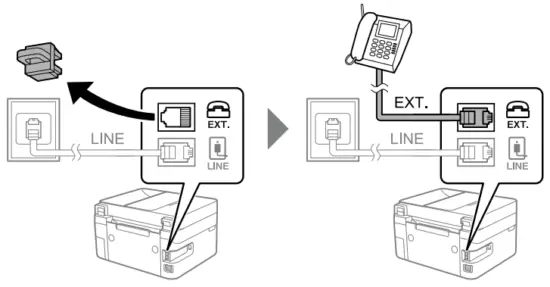
 - If you want to share the same phone line as your telephone, remove the cap and then connect the telephone to the EXT. port.

- Follow the remaining steps in the wizard.
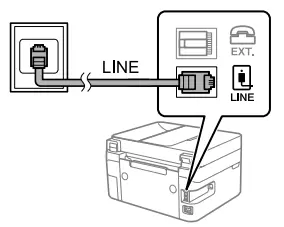
Connecting to Devices
 | |
Visit the website to install software and configure the network. Windows users can also install software and configure the network using the CD supplied.
Ink Cartridge Codes
 Starfish
| BK | C | M | Y |
| Black | Cyan | Magenta | Yellow |
| 603 | 603 | 603 | 603 |
| 603XL | 603XL | 603XL | 603XL |
“XL” indicates a large cartridge.
Not all cartridges are available in all regions.
For information on Epson’s ink cartridge yields, please visit the website. http://www.epson.eu/pageyield
Guide to Control Panel
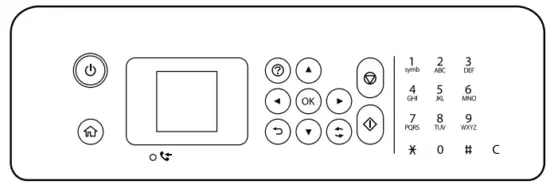
| Turns the printer on or off. |
 | Displays the home screen. |
 | Displays the solutions when you are in trouble. |
| ▲▼◀▶ OK | Use the ▲▼◀▶ buttons to select a menu, and then press the OK button to enter the selected menu. |
 | Stops the current operation. |
 | Starts an operation such as printing or copying. |
 | Applies to a variety of functions depending on the situation. |
 | Returns to the previous screen. |
| 0–9 *, # | Enters numbers, characters, and symbols. |
| C | Clears number settings such as the number of copies. |
 | Turns on when unprocessed documents are available. See the User’s Guide for information on solving this problem. |
A code is displayed on the LCD screen if there is an error or information that requires your attention. See the User’s Guide for more details.
Copying
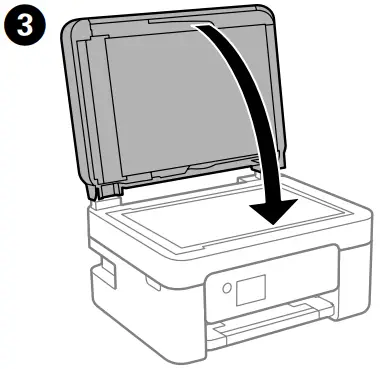
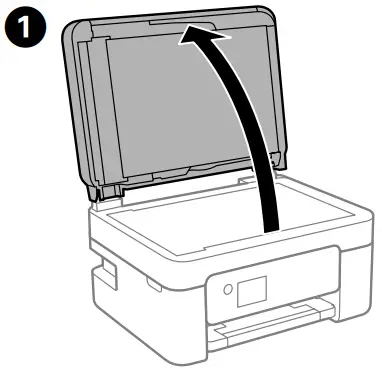 | 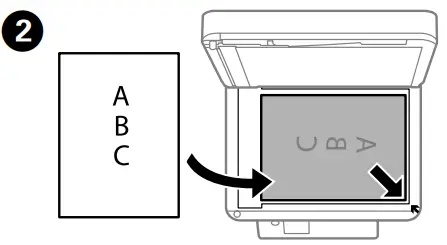 |
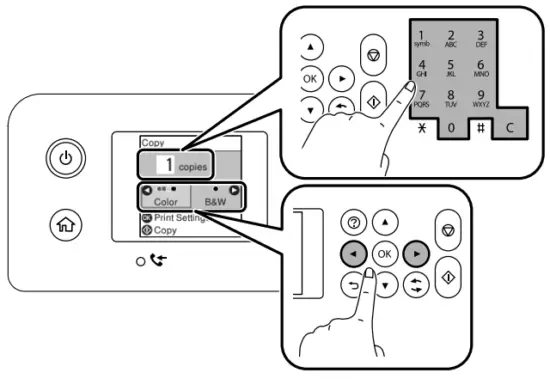
 | 4 Select Copy on the control panel. |
5 Set the number of copies, and then select Color or B&W.
| 6 Make other settings as necessary. |
7 Press the button. |
Replacing Ink Cartridges
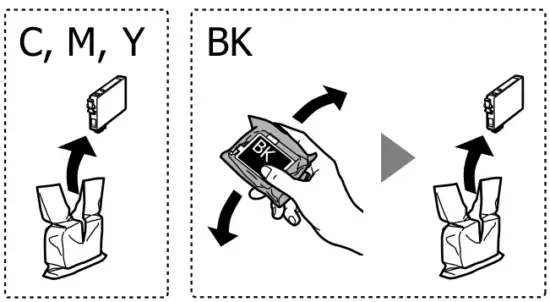
When you are prompted to replace an ink cartridge, prepare a new ink cartridge.
When replacing ink cartridges before they are expended, select Maintenance > Ink Cartridge(s) Replacement.
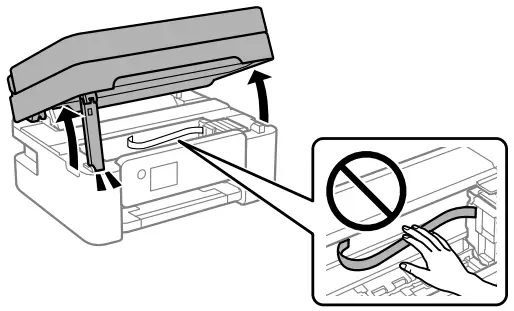
1
| 2
|
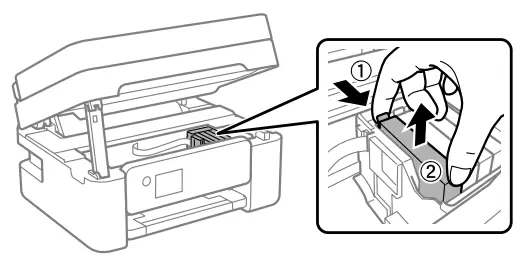
3
| 4 Press the OK button and then select Replace now. |
5
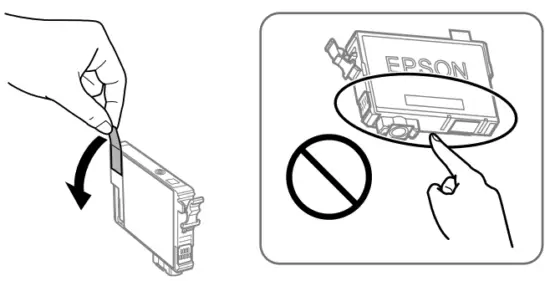
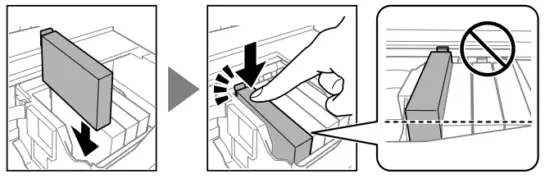
| 6 Insert the new ink cartridge and press it down firmly.
|
7
| 8 Press the button. Charging ink is started. Wait until ink charging is complete.
|
Print Quali Help
If you see missing segments or broken lines in your printouts, print a nozzle check pattern to check if the print head nozzles are clogged. See the User’s Guide for more details.

Clearing Paper Jam
Follow the instructions on the LCD screen to remove jammed paper. See the User’s Guide for more details.
Important Safet Instructions
 | Use only the power cord that comes with the printer. The use of another cord may cause fire or shock. Do not use the cord with any other equipment. |
 | Be sure your AC power cord meets the relevant local safety standard. |
 | Except as specifically explained in your documentation, do not attempt to service the printer yourself. |
 | Do not let the power cord become damaged or frayed. |
 | Place the printer near a wall outlet where the power cord can be easily unplugged. |
 | Do not place or store the product outdoors, near excessive dirt or dust, water, heat sources, or in locations subject to shocks, vibrations, high temperature, or humidity. |
 | Take care not to spill liquid on the product and not to handle the product with wet hands. |
 | Keep this product at least 22 cm away from cardiac pacemakers. Radio waves from this product may adversely affect the operation of cardiac pacemakers. |
 | If the LCD screen is damaged, contact your dealer. If the liquid crystal solution gets on your hands, wash them thoroughly with soap and water. If the liquid crystal solution gets into your eyes, flush them immediately with water. If discomfort or vision problems remain after a thorough flushing, see a doctor immediately. |
 | Always keep this guide handy. |
 | Keep ink cartridges and maintenance boxes out of the reach of children. |
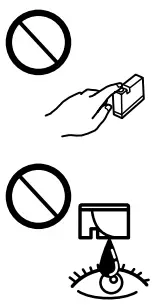 | Be careful when you handle used ink cartridges, as there may be some ink around the ink supply port. If ink gets on your skin, wash the area thoroughly with soap and water. If ink gets into your eyes, flush them immediately with water. If discomfort or vision problems continue after a thorough flushing, see a doctor immediately. If ink gets into your mouth, see a doctor right away. |
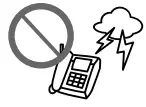 | Avoid using a telephone during an electrical storm. There may be a remote risk of electric shock from lightning. |
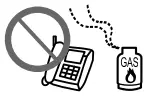 | Do not use a telephone to report a gas leak in the vicinity of the leak. |
This guide includes basic information about your product and troubleshooting tips. See the User’s Guide (digital manual) for more details. You can obtain the latest versions of guides from the following website.
For outside Europe
http://supportepson.net/
For Europe
http://www.epson.eu/support
Notice on Printer Information Transmission (only for Users in Europe) By connecting your printer to the internet (directly or via a computer) you will transmit the printer identity to Epson in Japan. Epson will use this information to check if it is in any Epson-supported program and store it to avoid repeat acknowledgments. On the first occasion, an acknowledgment may be sent and printed out on your printer including information about relevant products and services.
Windows’ is a registered trademark of Microsoft Corporation.
Mac is a trademark of Apple Inc., registered in the U.S. and other countries.
Android is a trademark of Google LCC.
Uretic: SEIKO EPSON CORPORATION
Adres: 3-5, Owa 3-chome, Suwa-shi, Nagano-ken 392-8502 Japan
Tel: 81-266-52-3131
Web: http://www.epson.com/
The contents of this manual and the specifications of this product are subject to change without notice.