
Laia Mts-100sy Myteam Sharer Wireless Solution For Hybrid Meetings User Guide

Laia Mts-100sy Myteam Sharer Wireless Solution For Hybrid Meetings User Guide

laia logo1

THE AI & IoT CAMERA COMPANY

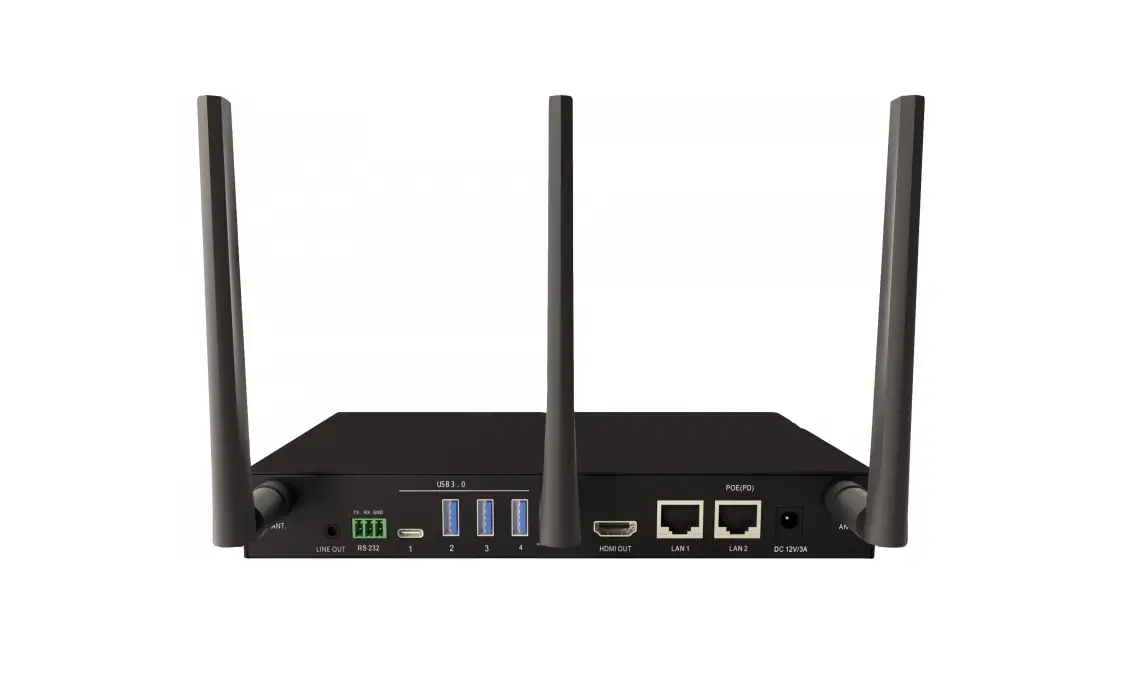
myTeam Sharer

P/N: MTS-100SY

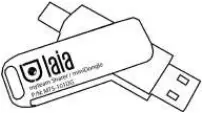
myTeam Sharer/miniDongle
P/N: MTS-101DG

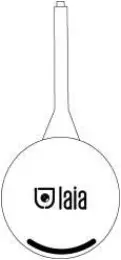
*myTeam Sharer/Dongle
P/N: MTS-102DG (*Optional)

Quick Start Guide
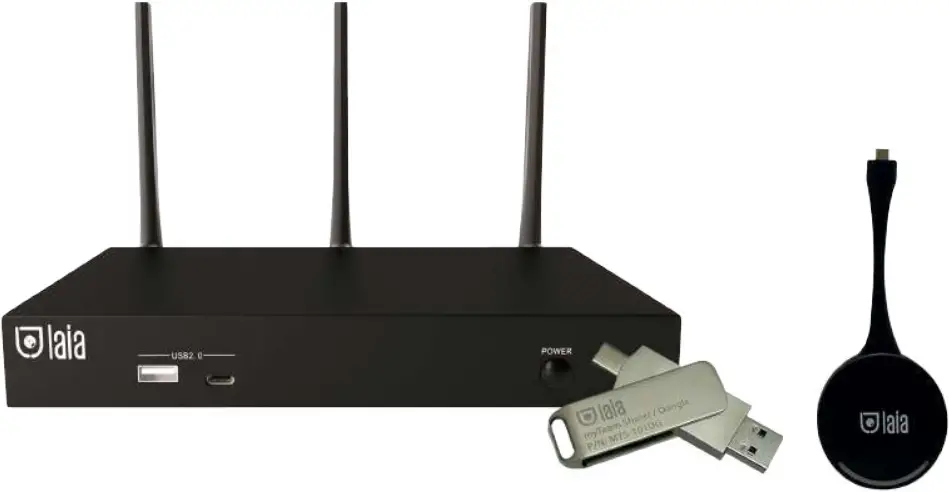
laia MTS-100SY myTeam Sharer Wireless Solution for Hybrid Meetings

*Optional

What’s in the box?
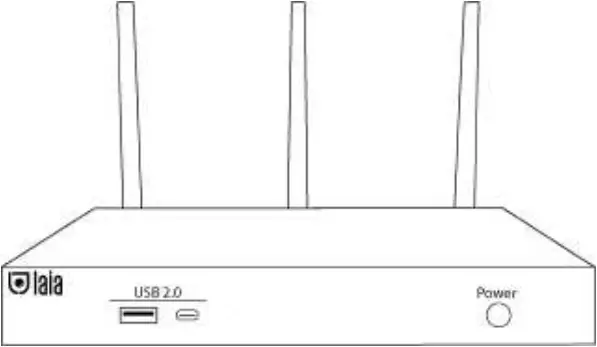
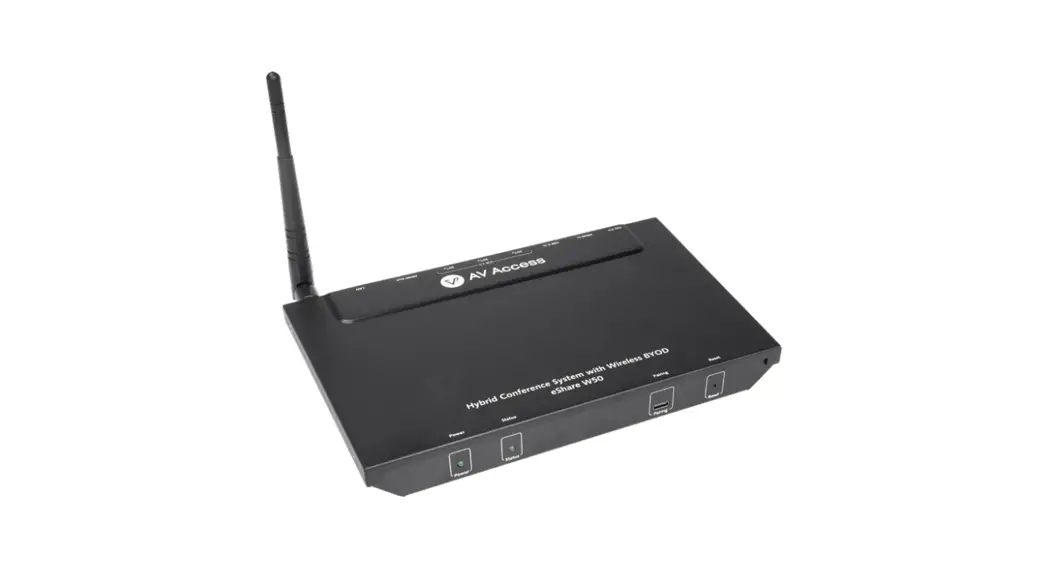
1x myTeam Sharer

laia MTS-100SY - Box Contents 1

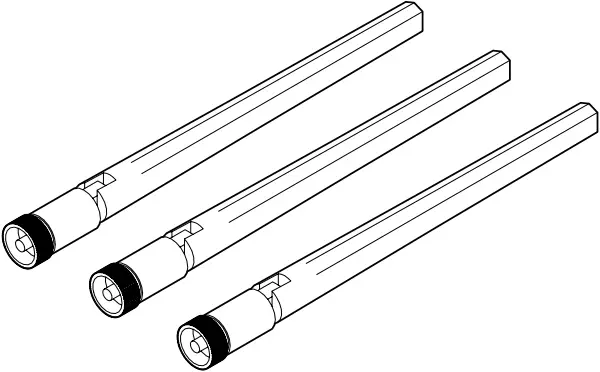
3x Antenna

laia MTS-100SY - Box Contents 2

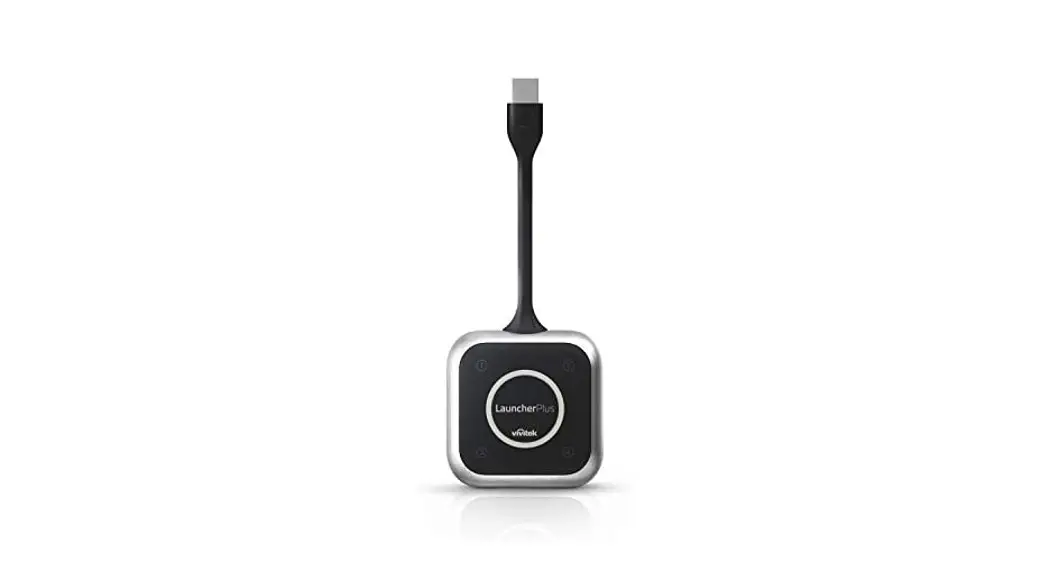
1x USB A/C:myTeam Sharer/miniDongle
P/N: MTS-101DGlaia MTS-100SY - Box Contents 3
1x USB C:myTeam Sharer/Dongle
P/N: MTS-102DG (Optional)laia MTS-100SY - Box Contents 4
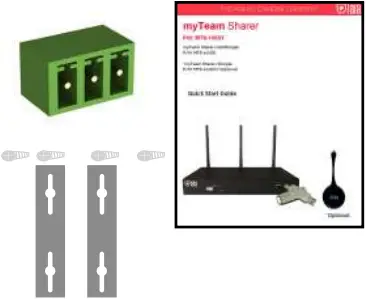
1x Quick guide
1x RS-232 connector
2x Wall mounting bracket
4x Fixing screwslaia MTS-100SY - Box Contents 5
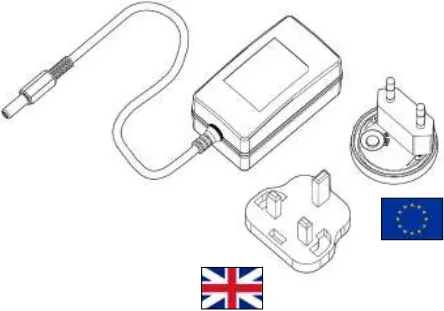
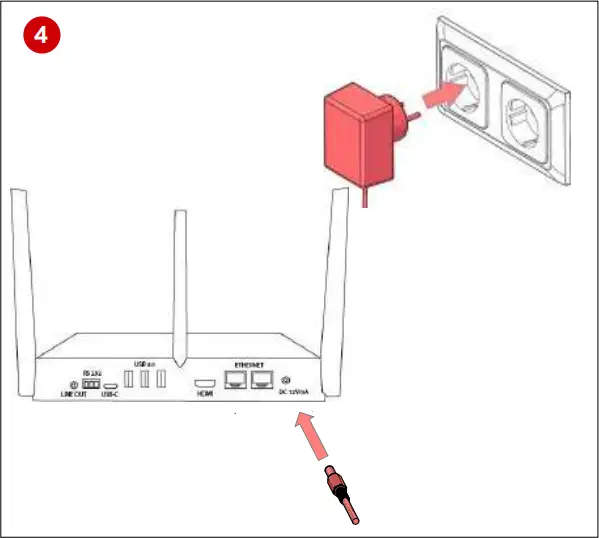
1x Power adapter

laia MTS-100SY - Box Contents 6

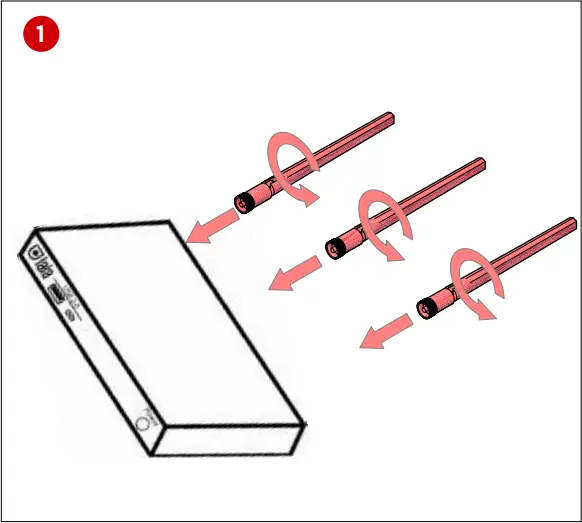
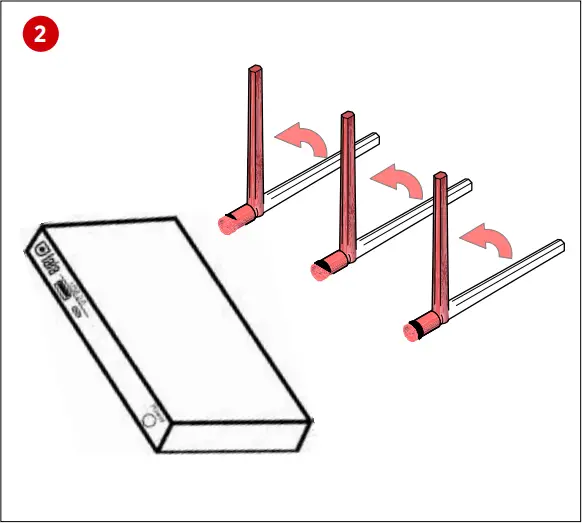
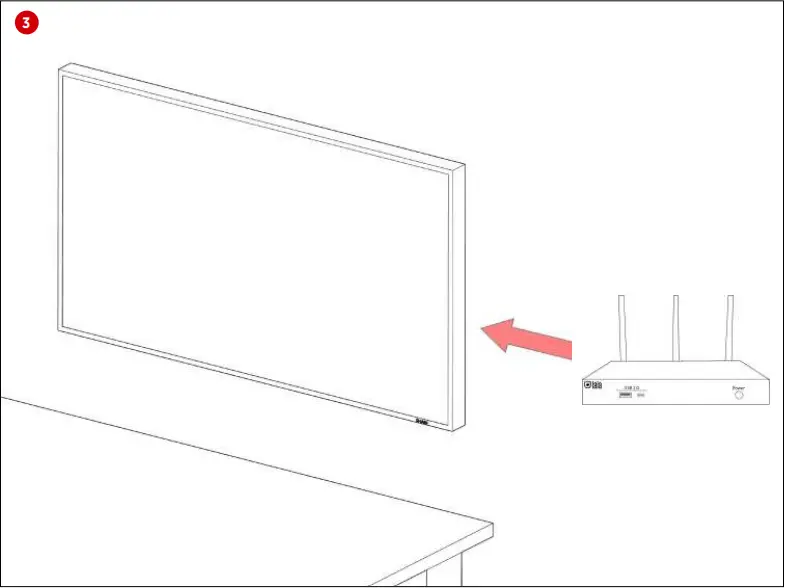
Set up and placement

laia MTS-100SY - Set up and placement 1laia MTS-100SY - Set up and placement 2

laia MTS-100SY - Set up and placement 3

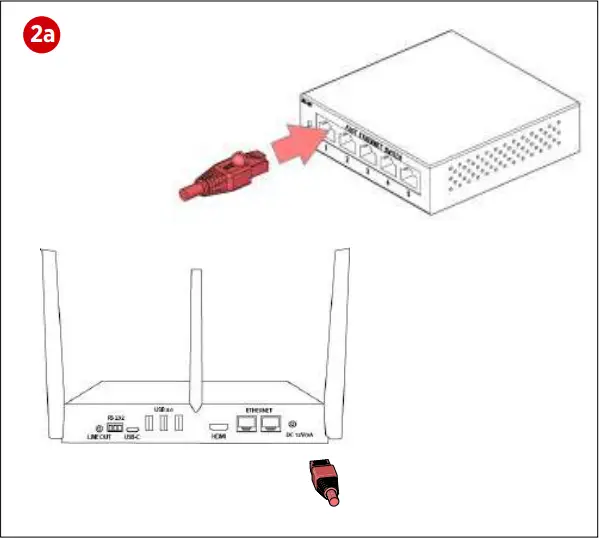
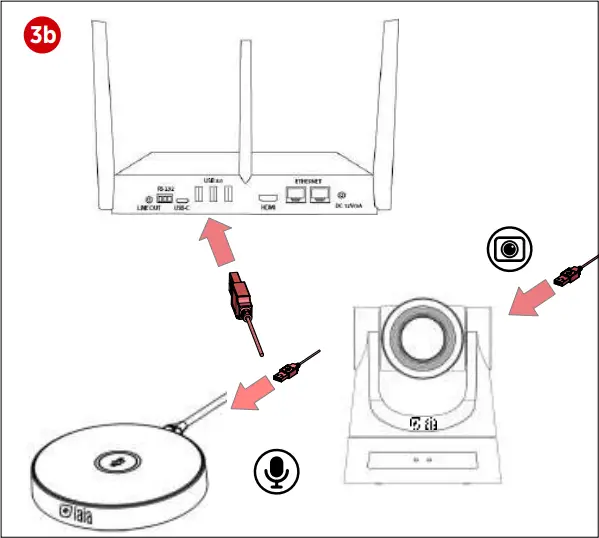
How to connect external devices

(1) HDMI                                   (2a) Optional

Ethernet (LAN1/LAN2)
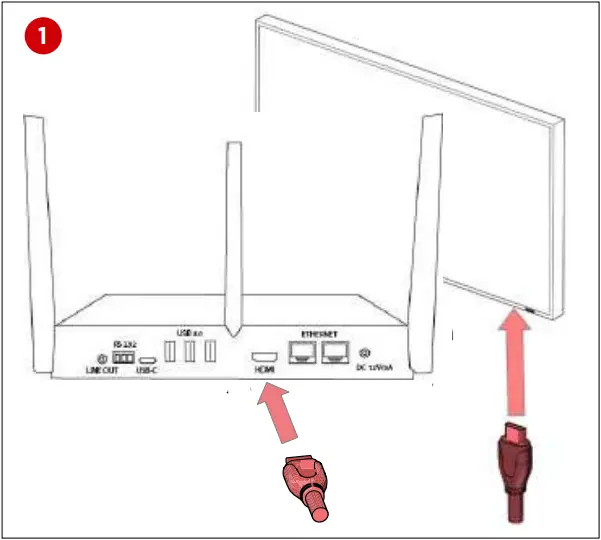
laia MTS-100SY - How to connect external devices 1laia MTS-100SY - How to connect external devices 2a

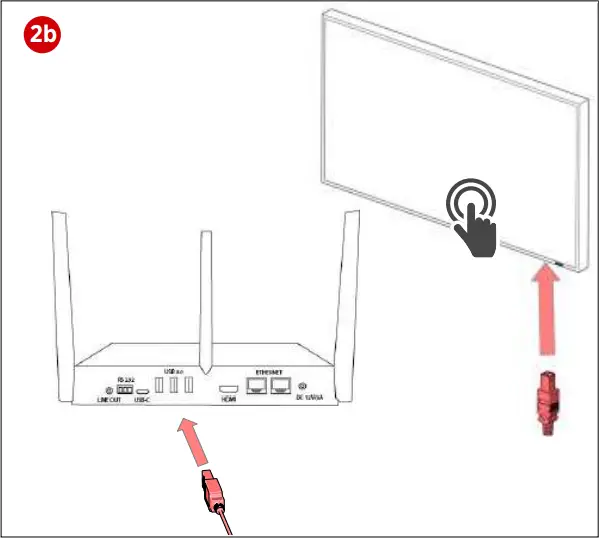
(2b) Optional
USB (HID)

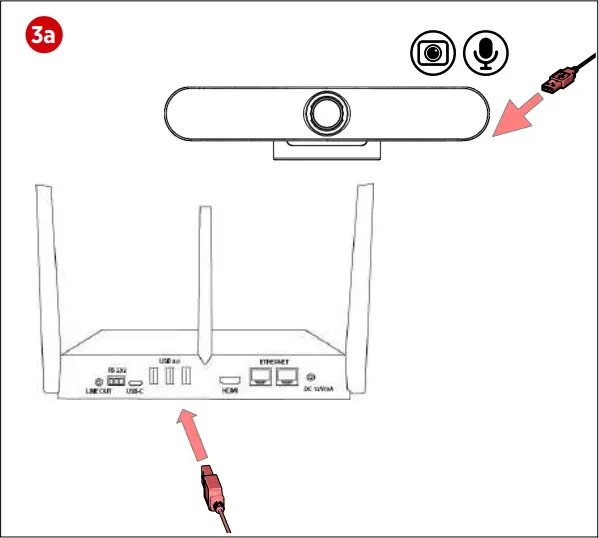
laia MTS-100SY - How to connect external devices 2blaia MTS-100SY - How to connect external devices 3a

laia MTS-100SY - How to connect external devices 3blaia MTS-100SY - How to connect external devices 4

How to use myTeam Sharer/Dongle & miniDongle

*Go to page 8 to see how to use dongle for screensharing or videoconferencing

myTeam Sharer/Dongle
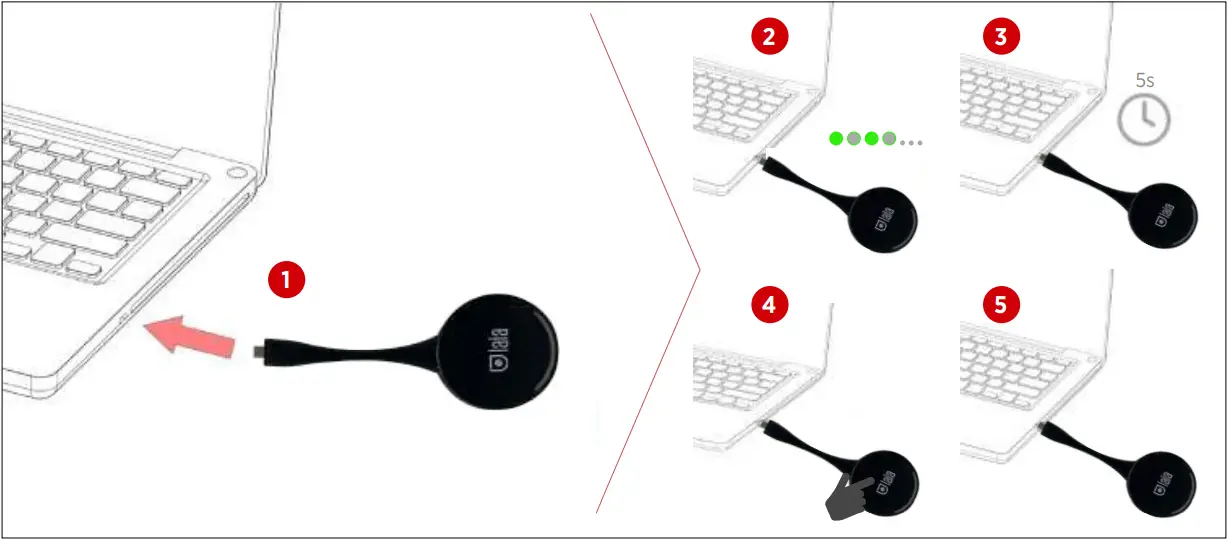
laia MTS-100SY - myTeam Sharer Dongle

myTeam Sharer/miniDongle

laia MTS-100SY - myTeam Sharer miniDongle

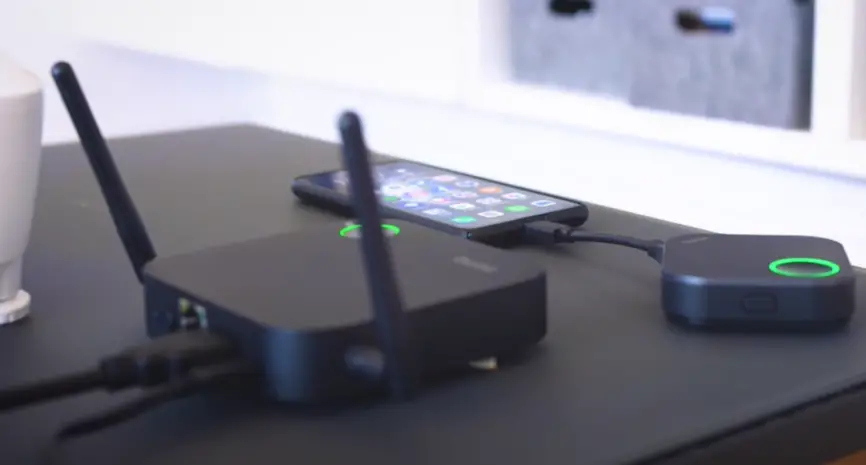
Use AirPlay, Miracast or Chromecast for screen sharing from mobile devices
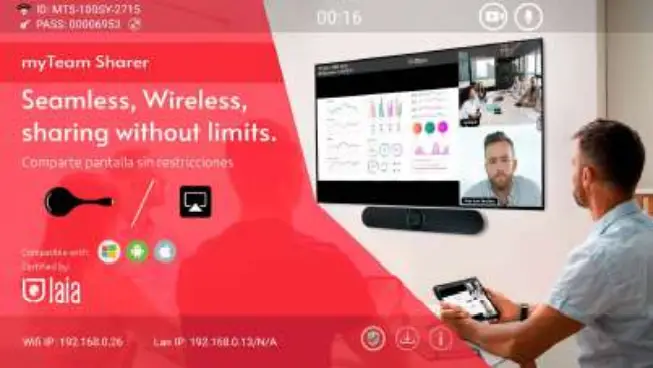
laia MTS-100SY - myTeam Sharer

How to use Sharer App

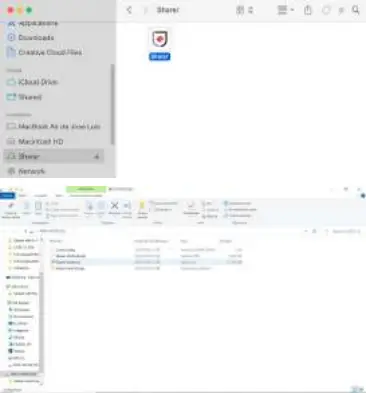
Download Sharer App connecting a USB memory on it for download
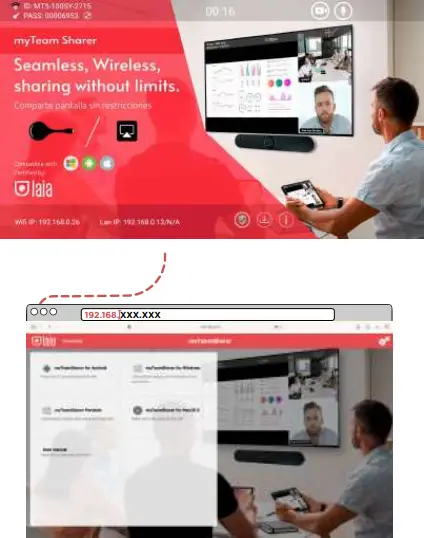
laia MTS-100SY - How to use Sharer App 1

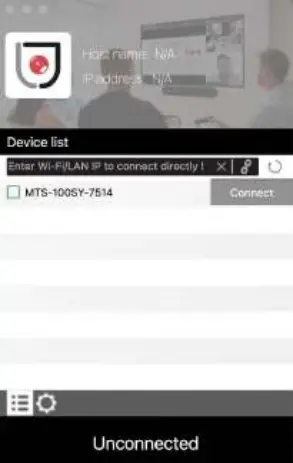
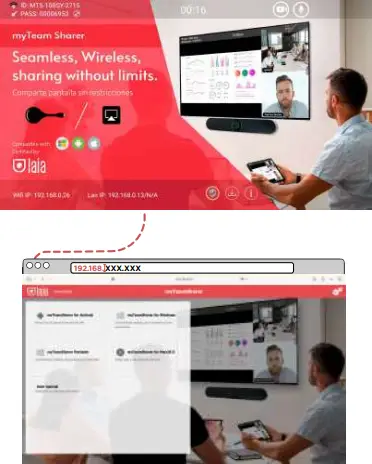
Write auto IP address shown on screen

Connect device

Launch the program depending on your O.S.
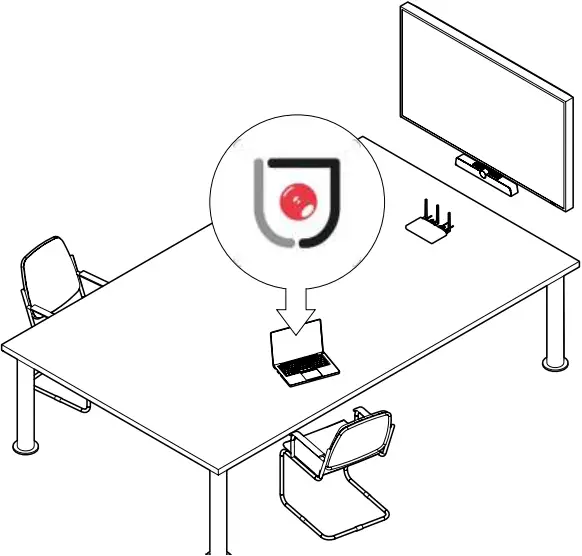
laia MTS-100SY - How to use Sharer App 2

Select MTS-100SY

laia MTS-100SY - How to use Sharer App 3

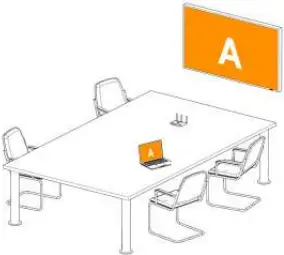
Present fullscreen

laia MTS-100SY - How to use Sharer App 4

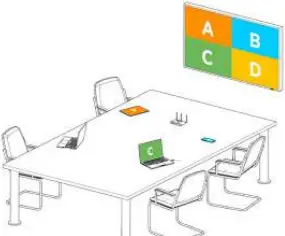
Present Splitscreen

laia MTS-100SY - How to use Sharer App 5

¿How to set up external devices?

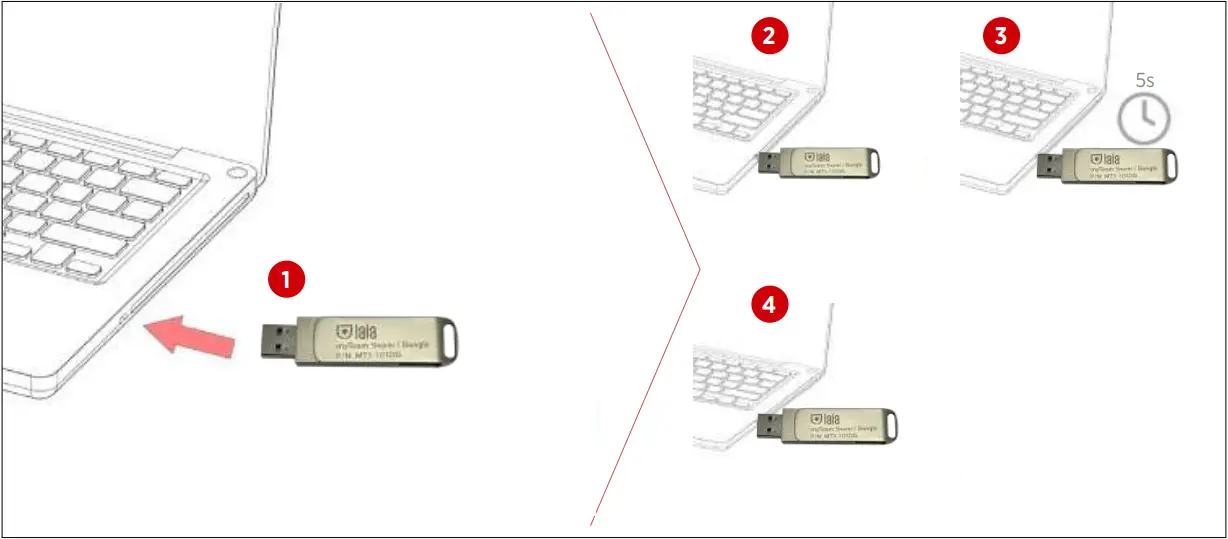
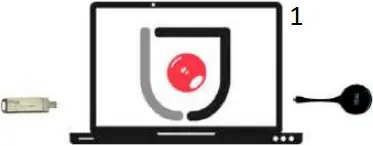
Transceiver: Connect dongle to your computer and launch the program
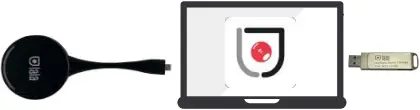
laia MTS-100SY - How to set up external devices 1

laia MTS-100SY - How to set up external devices 2

Download Sharer app from website

laia MTS-100SY - How to set up external devices 3

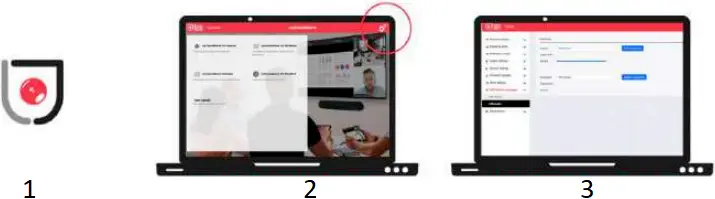
Go to IP address shown on screen and download the app depending on your O.S

Set up your preferences and devices, selecting settings
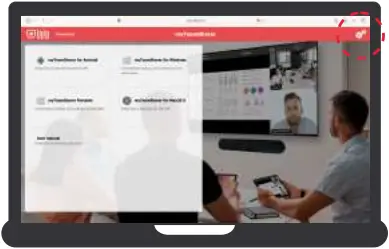
laia MTS-100SY - How to set up external devices 4

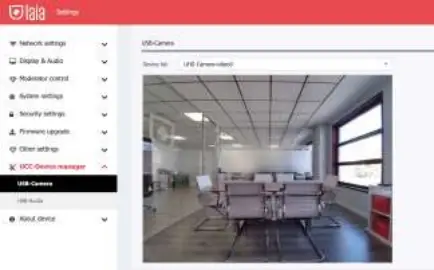
Select your preferred devices for videoconferencing
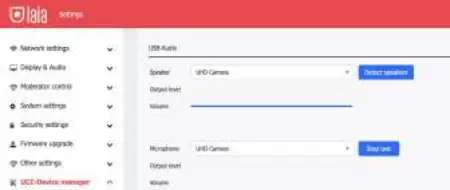
laia MTS-100SY - How to set up external devices 5laia MTS-100SY - How to set up external devices 6

¿How to use
myTeamSharer/Dongle?
  • Screensharing

laia MTS-100SY - How to use myTeam Sharer Dongle 1laia MTS-100SY - myTeam Sharer

  1. Connect the transceiver and the device is ready to share screen
  • Videoconferencing

laia MTS-100SY - How to use myTeam Sharer Dongle 2

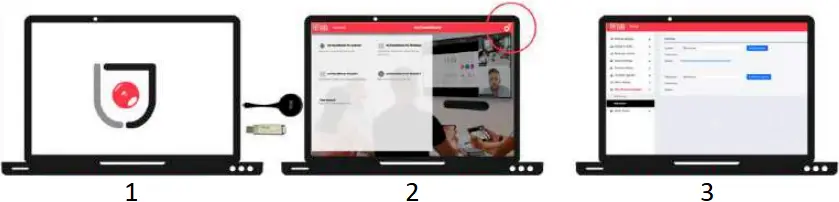
  1. Connect the transceiver and launch Sharer-app
  2. Access configuration from IP generated and select settings
  3. Configure and select devices you want to use
¿How to connect via software?
  • Screensharing and videoconference

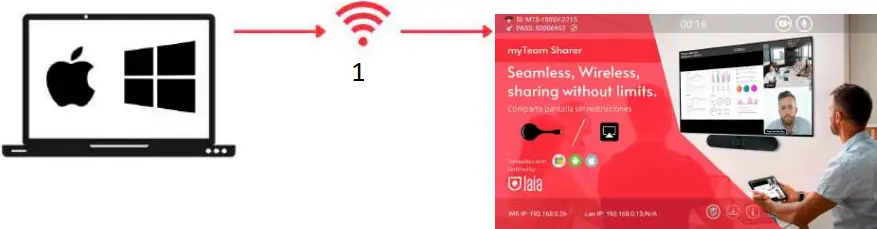
laia MTS-100SY - How to connect via software 1

  1. Connect the device to wifi network
  • Make a videoconference

laia MTS-100SY - How to connect via software 2

  1. Launch Sharer-app
  2. Install audio and video drivers
  3. Configure and select devices you want to use
¿How to connect via smartphone or tablet?
  • Screensharing

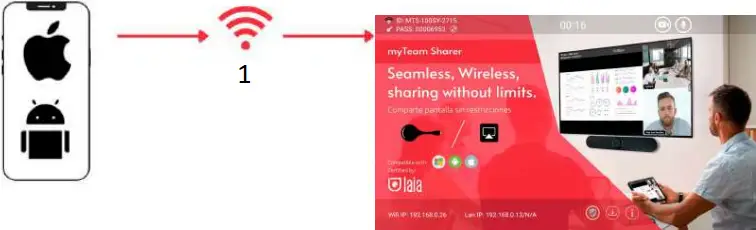
laia MTS-100SY - How to connect via smartphone 1

  1. Connect the device to wifi network
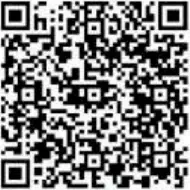
  • Download the app

laia MTS-100SY - QR Code

Available Google Nay Store

laia MTS-100SY - Download the app 1

Use AirPlay on IOS devices

laia MTS-100SY - Download the app 2

Compatible with other screensharings methods like Miracast or Chromecast

Concepted & designed in EU I Copyright © 2017 All rights reserved – www.laiatech.com
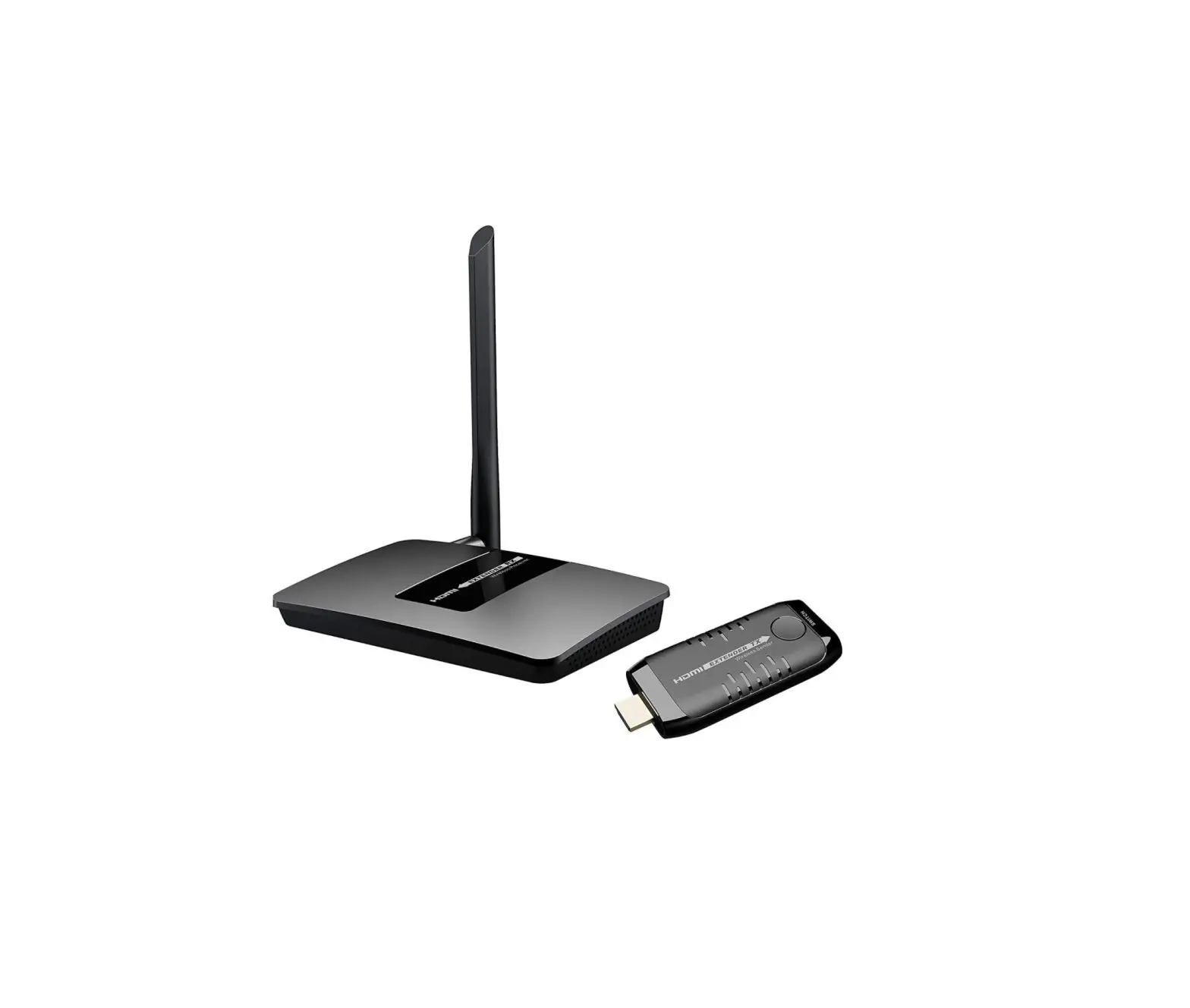
References

    Documents / Resouces

    Download manual
    Here you can download full pdf version of manual, it may contain additional safety instructions, warranty information, FCC rules, etc.


    Related Manuals