
Online Meeting User Guide
Visit Website

Select your preferred display language on the top right corner of the online platform.
Click “Join Meeting Now”.
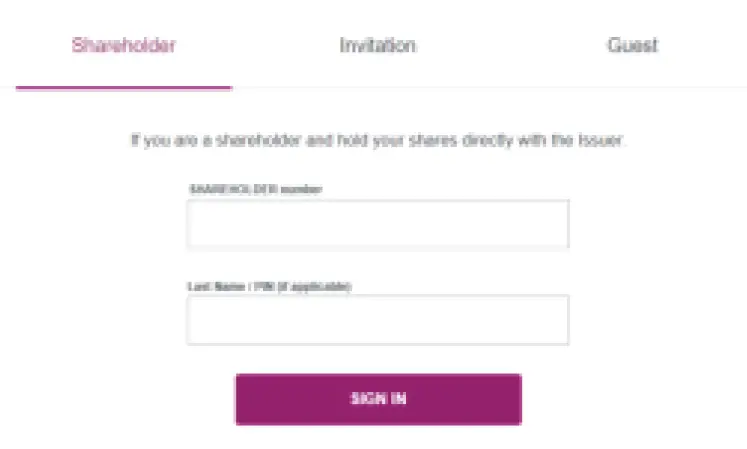
If you are a registered shareholder, please select “Shareholder”. Enter your Shareholder Number, Password and click “Sign In”.
Shareholder Number (“SRN”)
Please refer to the notification letter sent to you. It is a 10-digit shareholder reference number starting with “C”.
Password
Please enter the password as indicated in the notification letter sent to you.
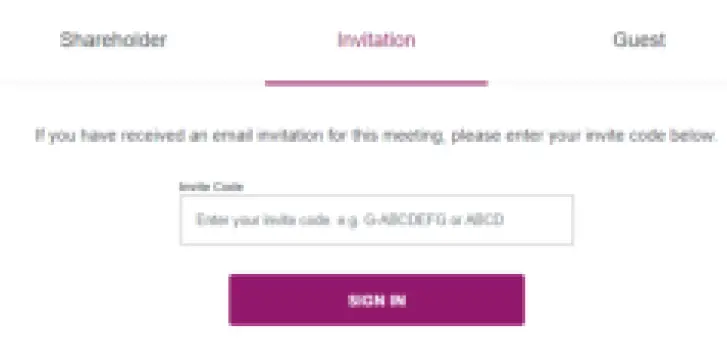
If you are a non-registered shareholder or a proxy or a corporate representative, you will receive an invitation email with a meeting URL if you have provided your email address. Upon clicking the URL, you will be directed to the meeting page. Click “Join Meeting Now” and click “Sign In”.
Alternatively, you can select “Invitation” and enter your invitation code. The invitation code can be found in the invitation email.
Broadcast
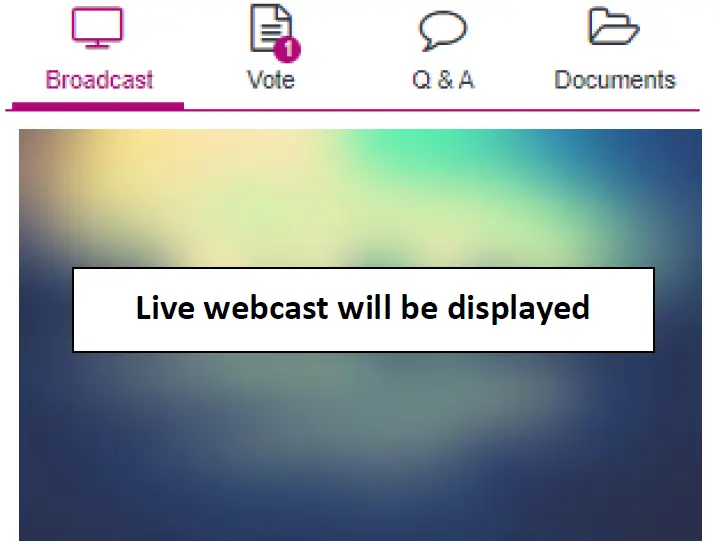
To view the live webcast of the meeting proceedings, click on “Broadcast”.
Vote
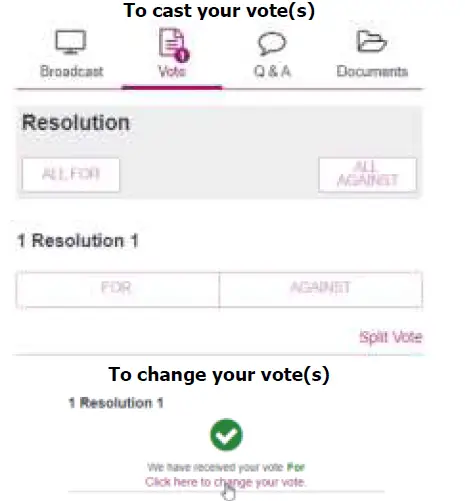
Click “Vote” to cast your vote(s). You can see the resolutions(s) and voting options in this page when the poll
opens. You can vote on each resolution by
- clicking on one of the available voting options, the entire available votes will be selected by default; or
- clicking “Split Vote” and input the relevant number of shares under the respective voting options if only part of the representing shareholding is to be voted, click “Submit Vote” to submit your vote(s).
To change your vote(s), select “Click here to change your vote”. The final option you select before the poll closes shall be your final voting instruction. You can also review your vote(s) before the poll closes.
Q & A
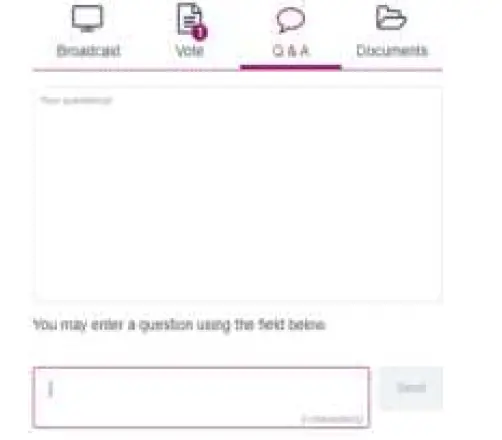
If you would like to submit question(s) during the meeting, click “Q&A” and you can send your question(s). Your question(s) will only be seen by the Company.
Documents
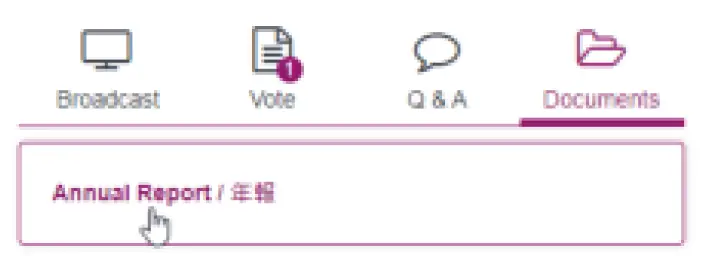
The Company may upload any document(s) related to the meeting; click “Documents” to select the document you would like to read.