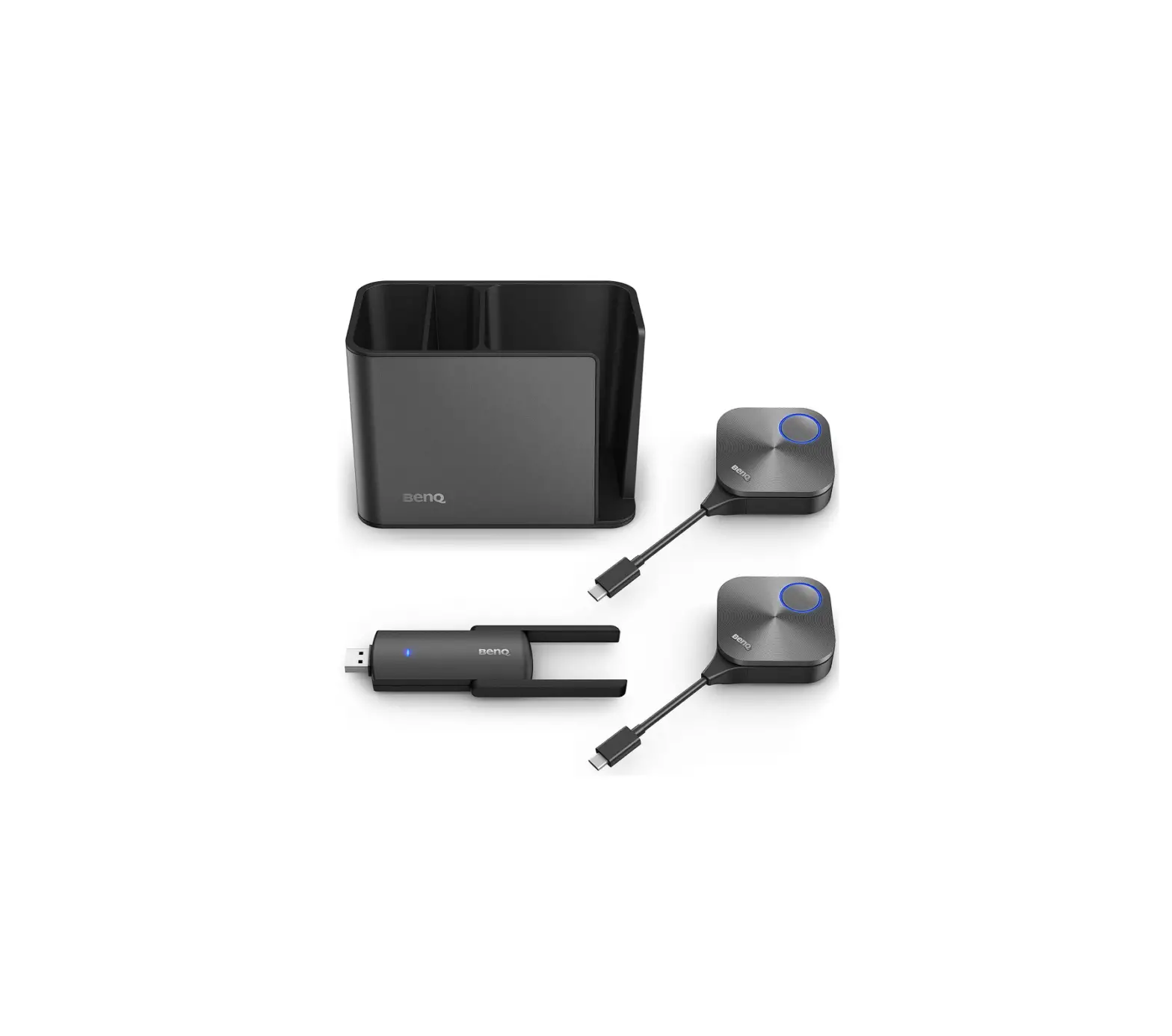
BenQ TZY31 InstaShare Button Solution for Meeting Rooms/Classrooms
Copyright and Disclaimer
Copyright
Copyright © 2022 by BenQ Corporation. All rights reserved. No part of this publication may be reproduced, transmitted, transcribed, stored in a retrieval system or translated into any language or computer language, in any form or by any means, electronic, mechanical, magnetic, optical, chemical, manual or otherwise, without the prior written permission of BenQ Corporation.
Disclaimer
BenQ Corporation makes no representations or warranties, either expressed or implied, with respect to the contents hereof and specifically disclaims any warranties, merchantability or fitness for any particular purpose. Further, BenQ Corporation reserves the right to revise this publication and to make changes from time to time in the contents hereof without obligation of BenQ Corporation to notify any person of such revision or changes.
This user manual aims to provide the most updated and accurate information to customers, and thus all contents may be modified from time to time without prior notice. Please visit www.benq.com for the latest version of this manual.
The illustrations and the images in this guide are for your reference.
Introduction
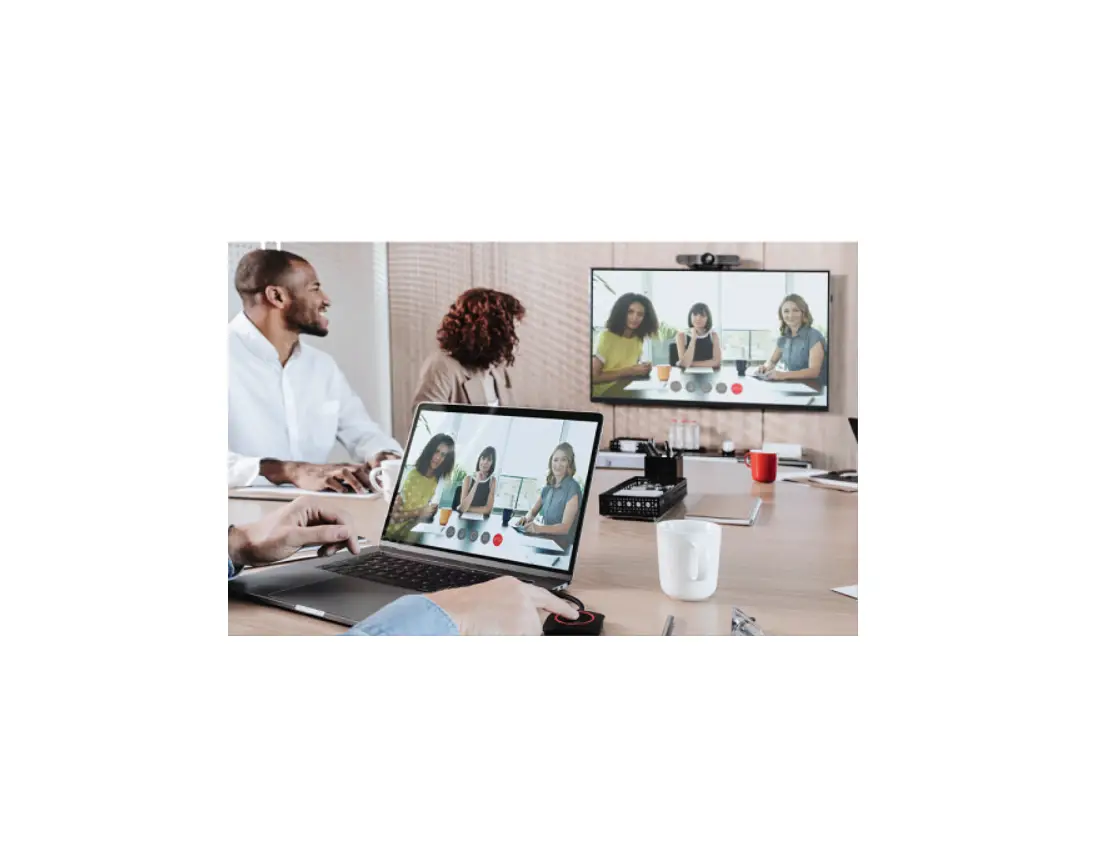
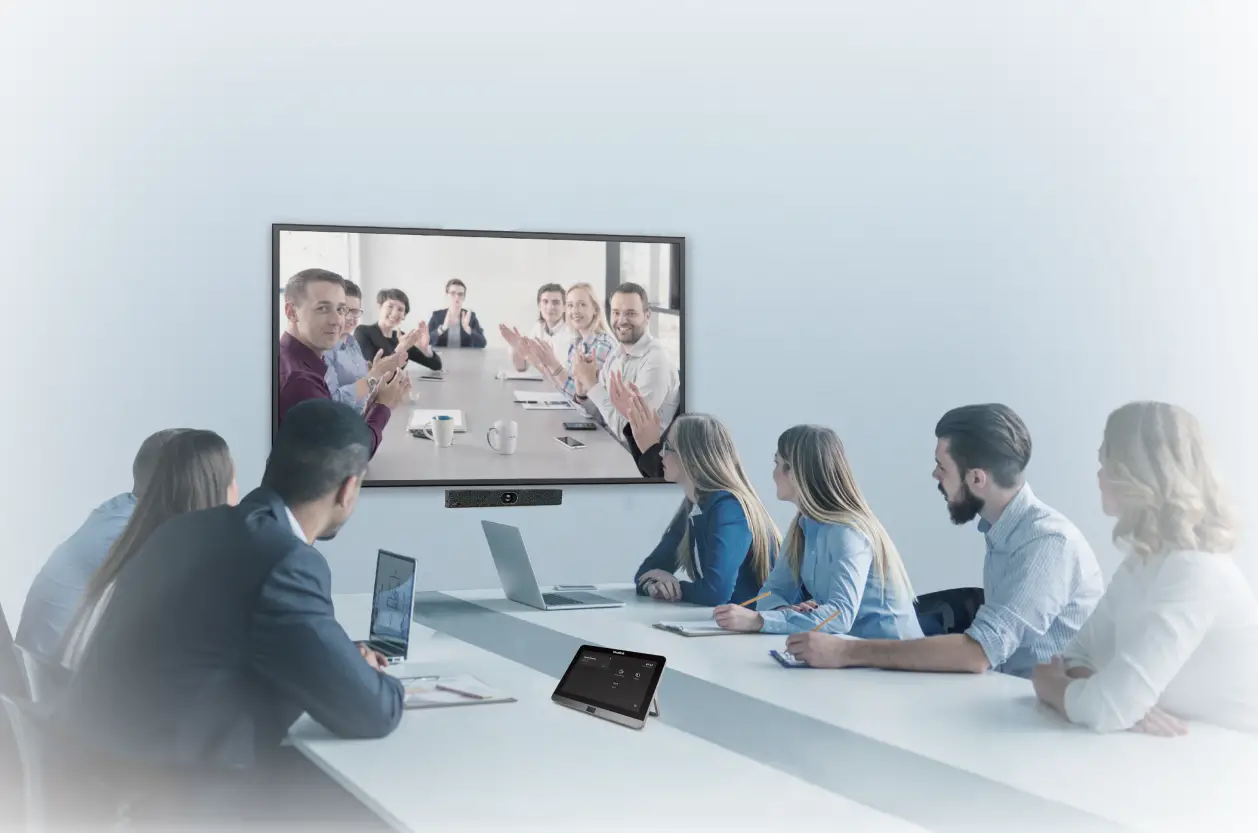
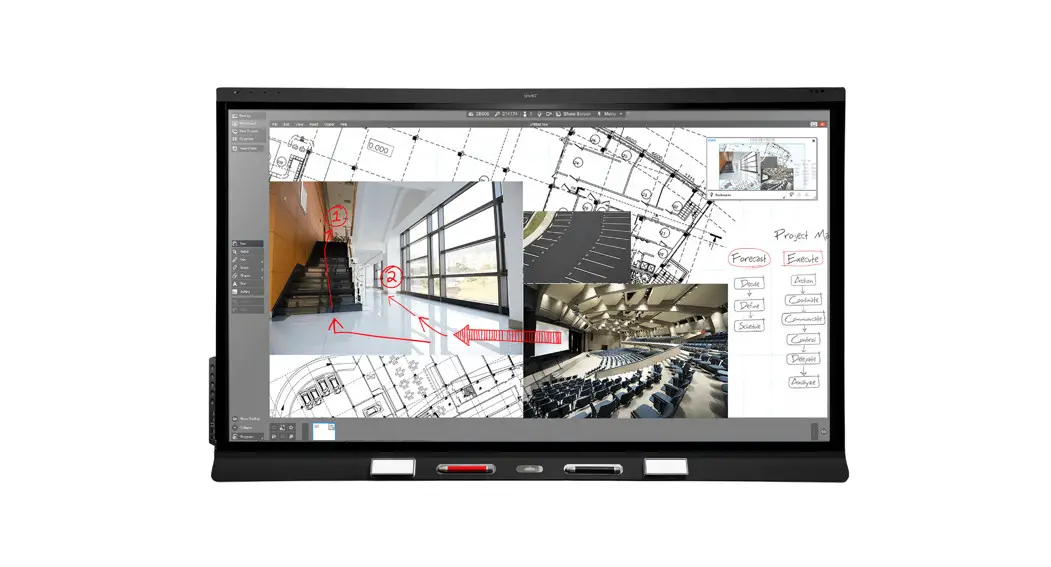
InstaShare Button Solution is a wireless screen sharing solution that allows users to display their notebooks or other personal devices to a presentation display without needing to install software or drivers.
 |
|
 | Your product complies with local wireless regulations and the warranties are valid in the country/region where the product is purchased. Using the product outside the purchased country/region does not guarantee wireless functionality. Any modifications made to the product will void the warranties. |
Product features
The product is equipped with the following features:
| Features | Description |
| Plug & Play | Simply connect the product to the USB Type-C port, then press the present key to start screen sharing. |
| No Software and drivers | The product doesn’t need any software or driver installation. Just plug and share with your Windows, macOS, Chrome, or any other devices with a full-featured USB Type-C port. |
| Smart split-screen | Up to nine users can simultaneously project their screen with InstaShare 2. The layout of the screens will automatically adjust to the number of screens being shared. |
| Touch Back | You can control your personal device by tapping on the interactive display. |
| Wireless 802.11 ac/n | Better wireless connectivity for smooth presentations. |
| Ultra HD 4K Video | 4K Ultra HD video with stereo sound. |
| Extended Desktop | Mirror or extend your desktop with Windows or OS X. |
- Check which displays are compatible with InstaShare Button: Go to www.benq.com > search “TZY31″(model name) > check out the Specifications tab on the product page.
- Touch back is only available on Windows.
- Transmission distance depends on many environmental factors. Stated transmission distance is based on direct line-of-sight.
- According to regulatory restrictions in different regions of the world, Wi-Fi channels cannot be used in countries outside the purchased region.
Package contents
|
|
|
|
|
|
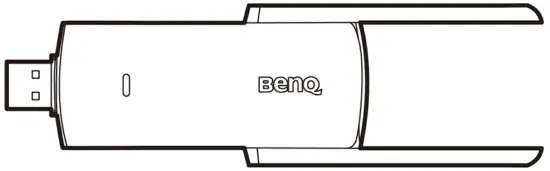 Wireless USB Adapter
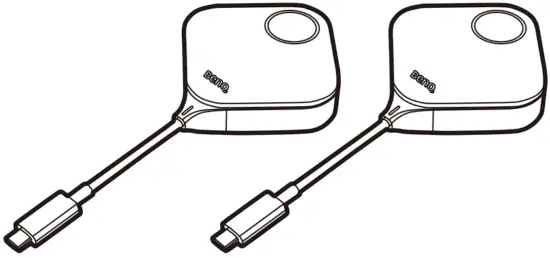 InstaShare Buttons
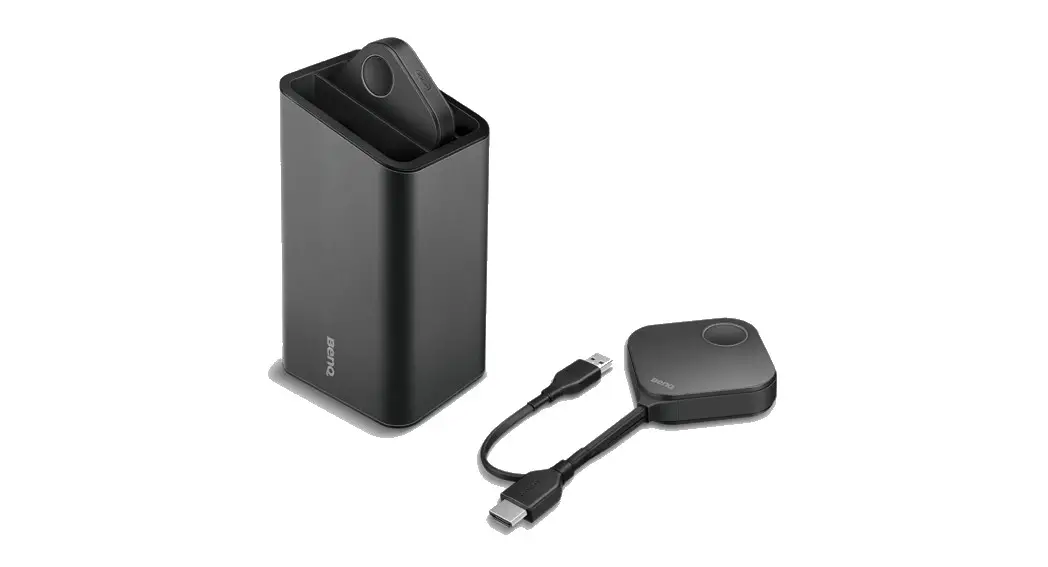
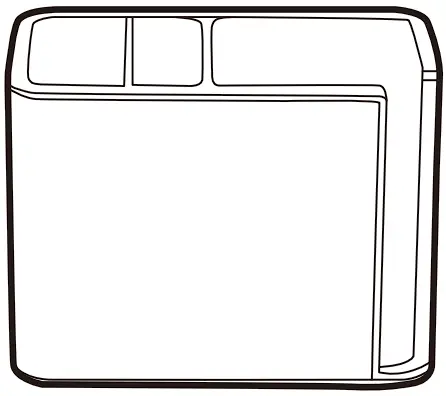 InstaShare Dock
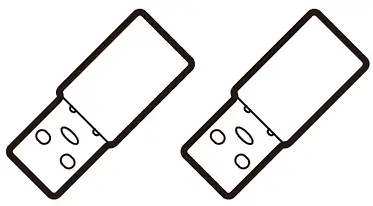 Type-C to Type-A USB Adapters
 Quick Start Guide
 Regulatory Statements
 |
|
Product specifications
| InstaShare Button | |
| Model | InstaShare Button |
| Color | Silver |
| Wireless transmission frame rate | Up to 60 FPS depending on environment (1080P 60FPS/4K 30FPS) |
| Button input resolution | Up to 4K30P |
| Audio rate | Stereo, Radio quality 16bits 48KHz |
| Wi-Fi standard | IEEE 802.11ac 5GHz, 2T2R MIMO |
| Authentication protocol | WiFi Standard |
| Wireless security (encryption) | WPA2/3 Personal/WPA2 Enterprise Support AES-256 |
| Wireless range | Max. 15m (between Button and IFP) |
| Temperature range | Operating: 0°C to +40°C (+32°F to +104°F) |
| Storage: -10°C to +60°C (+14°F to +140°F) | |
| Humidity range | Operating: 10% to 80% relative humidity |
| Storage: 5% to 90% relative humidity (non-condensing) | |
| Cable | USB Type-C |
| Power supply | DC 5V±10%, Minimum 0.9A |
| Power consumption | Max 4.5W Full Loading |
| Dimensions (WxHxD) | 67mm x 67mm x23.2mm |
| Wireless USB Adapter | |
| Color | Black |
| Wi-Fi standard | 802.11 a/b/g/n/ac |
| Interface | USB 3.0 |
| Wi-Fi band | Dual Band 2.4GHz / 5GHz |
| MU-MIMO | Yes |
| Wi-Fi performance | 2.4 GHz Band: up to 400 Mbps 5 GHz Band: up to 867 Mbps |
| External antennas | 2 |
| Supported OS | Android/Windows |
| Wireless range | Max. 15m (between Wireless Adapter and IFP) |
| Security | WPA-PSK/WPA2-PSK WPA/WPA2/WEP |
| Dimension (LxHxW) | 137 x 41 x 12mm |
| Net weight | 0.055kg |
| Operation temperature | 0°C – 40°C |
| Operation humidity | 10% – 90% |
| Storage temperature | -40°C – 70°C |
| Storage humidity | 5% – 90% |
| InstaShare Dock | |
| Color | Black |
| Dimension (LxHxW) | 143x82x106 mm |
| Product material | PC+ABS & Aluminum alloy 6063 & Silica gel |
| Weight | 507g |
| InstaShare Button loading quantity | 4 pcs |
Overview
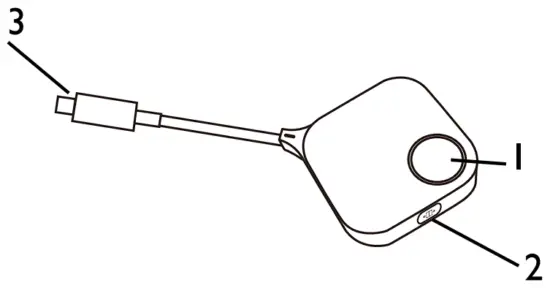
- Present key with LED indicator
Press to start or stop presenting. - Full-screen key
Press to toggle between enlarged view or regular view during split-screen presentations. - USB-C connector
Connect to a computer or lapto
Please refer to the table below for detailed indicator and status descriptions for the Button.
| LED Behavior | Status description |
| Off | Powered off |
| Solid white | Standby |
| Slow blinking white | Firmware upgrading. |
| Flashing green | • Pairing with the display. • Connecting to the wireless adapter. |
| Solid green | Ready to present. |
| Slow blinking green | The Button is waiting for approval to present. The InstaShare 2 app on BenQ smart displays allows you to require approval before a Button can begin presenting. |
| Solid blue | Presenting |
| Slow blinking blue | Unable to present (e.g. the display is in do-not-disturb mode, maximum number of presenters has been reached, etc). |
| Flashing red | Unable to connect to the wireless adapter. |
| Quick flashing red | The Button is not activated. |
| Solid red | USB Type-C port is not transmitting video data. The USB Type-C port on your device may not support ALT mode. |
Connecting the wireless adapter
To begin using InstaShare Button, you must first install the wireless adapter to a USB Type-A port on your display. It is recommended that you use a USB 3.0.
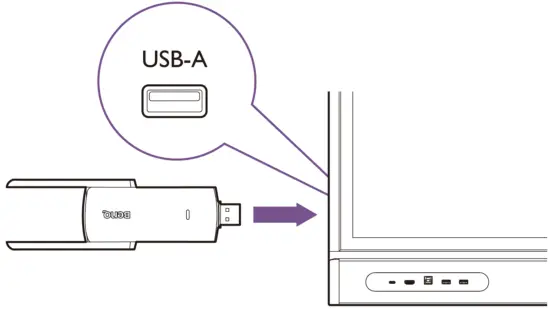
Watch the how-to video here or follow the instructions below to pair each Button.
- Ensure that the wireless adapter is connected to your display and that the display is powered on.
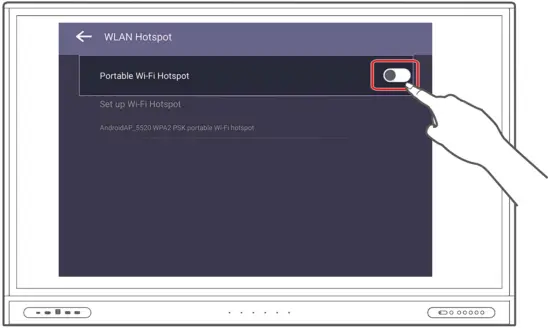
- On the display, go to Settings (
 ) > Network > WLAN Hotspot (
 ).
).
a. Enable Portable Wi-Fi Hotspot.
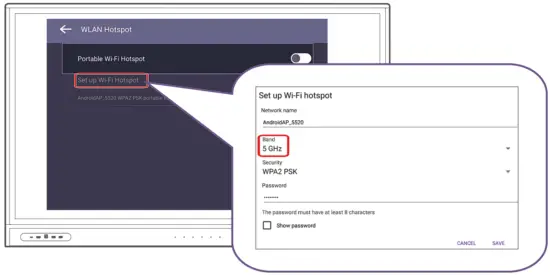
b. Tap Set up Wi-Fi Hotspot , then set Band to 5 GHz.
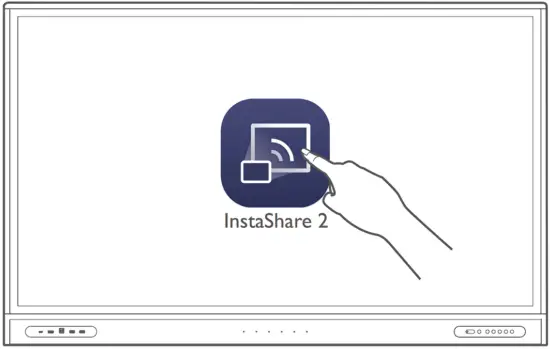
- Launch the InstaShare 2 app on the display.

- Connect a Button to either a USB Type-C port or USB Type-A port (using the supplied Type-C to Type-A USB adapter) on your display. A setup window will launch.


RP02 series models and VC01A only support pairing through the USB Type-A port. - Specify a name for the Button, then tap OK.
- Once the pairing process is complete, a confirmation window will appear on the display and the LED on the Button will turn blue.

- Remove the Button from the display.

- Repeat the process for additional Buttons.
 ) > Network > WLAN Hotspot (
 ).
).
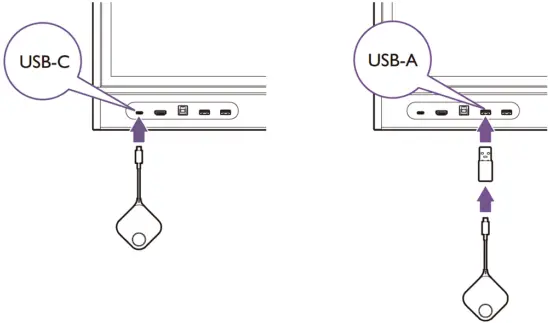
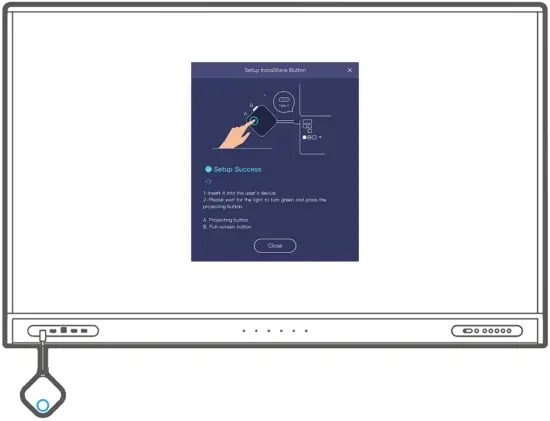
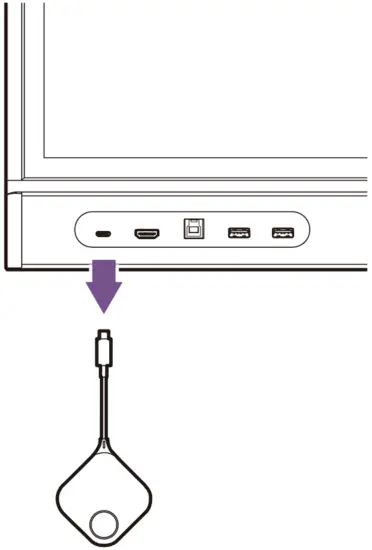
Once a Button is paired, you can use it with any device with a full-functioning USB Type-C port (with DP alt mode or Thunderbolt 3).
| Ensure that WLAN hotspot is still enabled on your display. The Button will not be able to connect to the display if the display is set to normal Wi-Fi mode. |
To start a presentation:
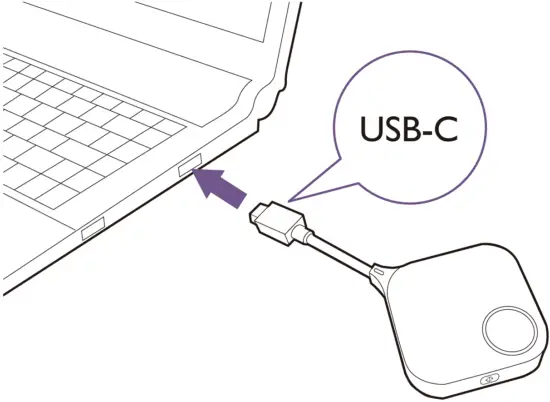
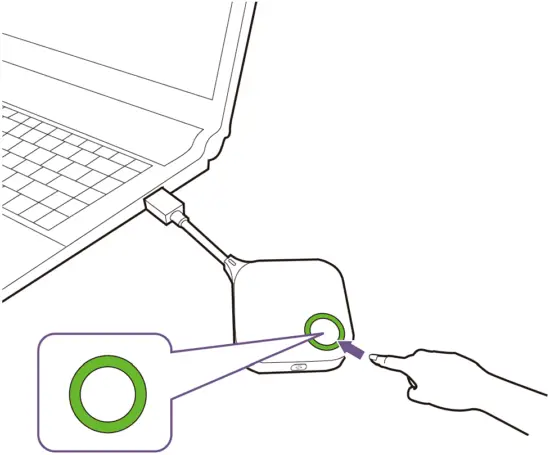
- Insert a Button into your personal device’s USB Type-C port.

The Button will not work using the supplied Type-C-to-Type-A adapter. The adapter is only for the pairing process. - The LED on the Button will flash green for about 10 seconds.
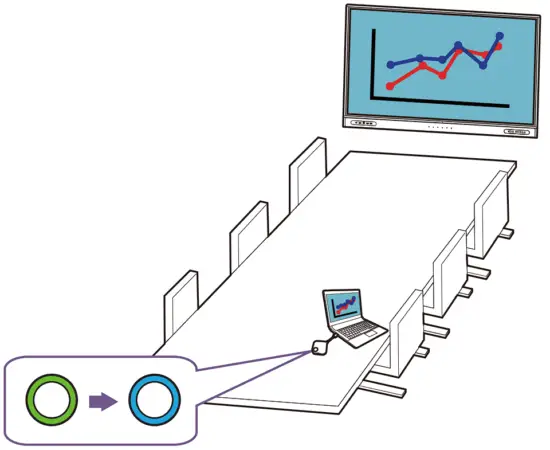
- When the LED turns solid green, press the present key to begin presenting.

Your personal device’s screen will be shared on the BenQ smart display and the LED on the Button will turn solid blue.
- Ensure that the USB Type-C port on your personal device supports video output.
- Make sure the transmission distance between the Button and wireless adapter is within 15 m and with no obstacles in between.
- The product supports MacBooks and Windows laptops to mirror an extended desktop
Split-screen presentations
The product allows up to nine users to present simultaneously in a split-screen mode.
Sharing multiple screens
| Ensure that all Buttons have already been paired to the wireless adapter connected to the display. See Pairing a Button to the wireless adapter on page 6 for more information. |
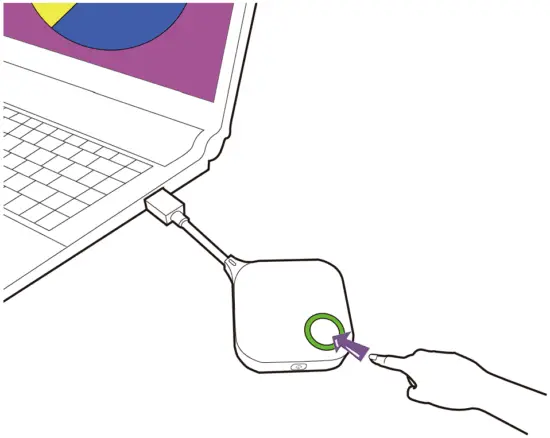
- Press the present key on the Button to start sharing your screen. See Sharing your screen on page 9 for detailed steps.

- Repeat step 1 for addition screens to be shared. InstaShare 2 will automatically switch to splitscreen mode.

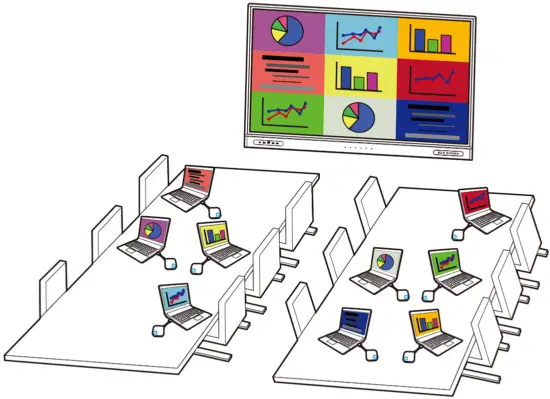
| The layout of the split-screen presentation will be dictated by the amount of users in the presentation. |
Maximize one window in split-screen mode
Users can maximize their screen by pressing the full-screen key on the Button.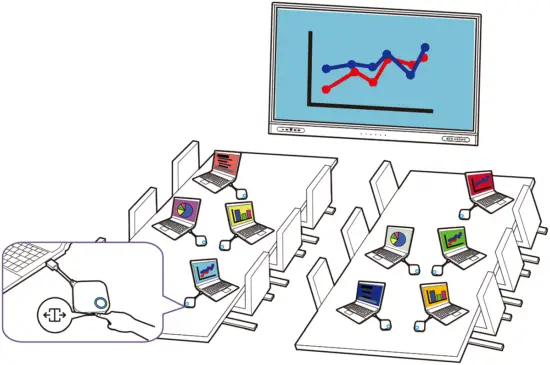
To return to the split-screen presentation, press the full-screen key again.
Touch back
To use touchback, simply tap on the BenQ smart display to control the connected Windows PC.
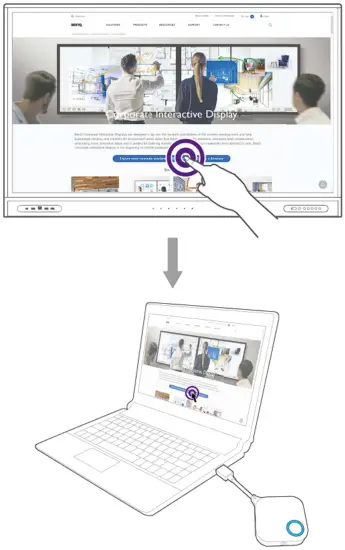
| Touchback is only available on Windows PCs and is not supported during multi-screen sharing. |
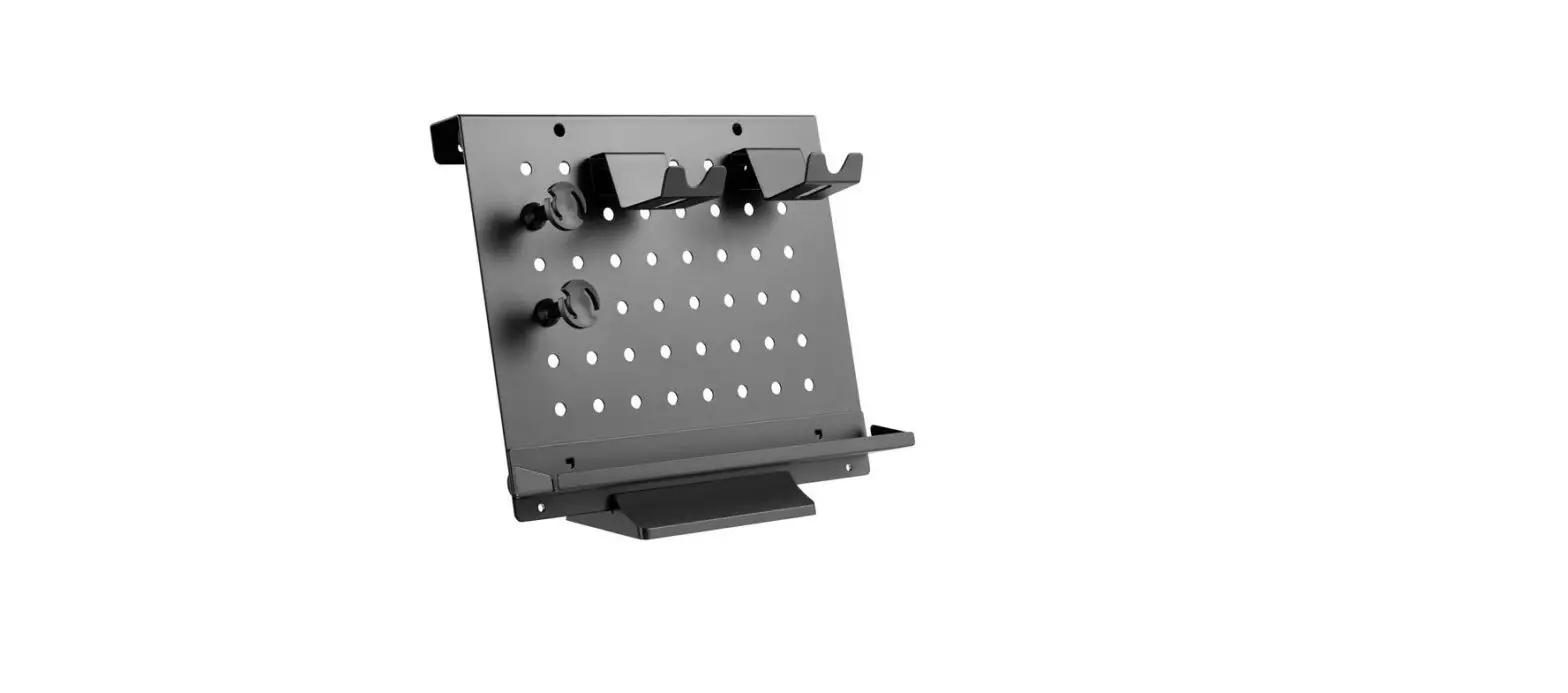
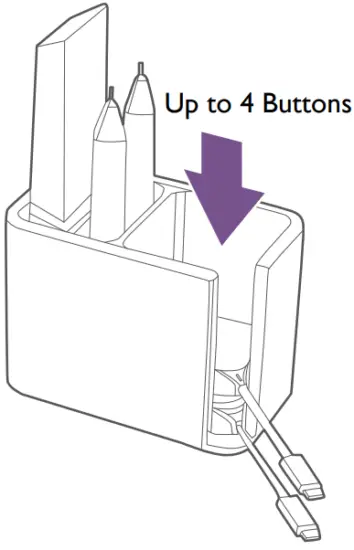
You can store up to four Buttons in the InstaShare Dock along with additional accessories such as styluses and remote control.
Users may contact BenQ support to get the latest firmware upgrade tool and firmware package.
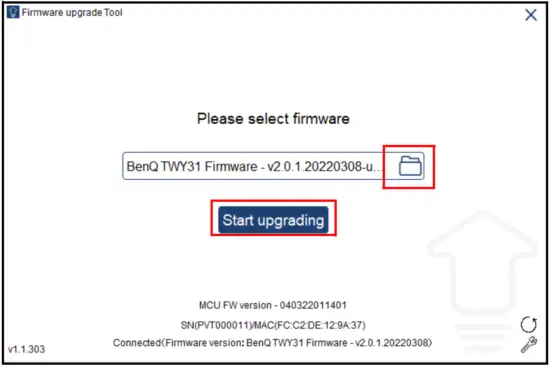
- Run the firmware upgrade tool (
 ) on a Windows device.
 - Insert the Button into the laptop’s USB Type-C port. A message with the button’s current firmware version will appear.

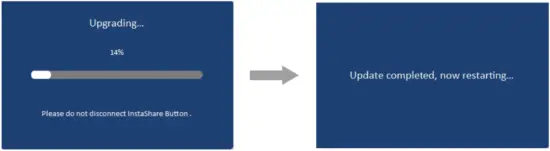
- Select the firmware package (do not unzip) and click Start upgrading.

- A window will appear stating that the firmware has successfully updated and will not restart.

- Remove and re-connect the Button to your laptop to verify the updated firmware version.
 ) on a Windows device.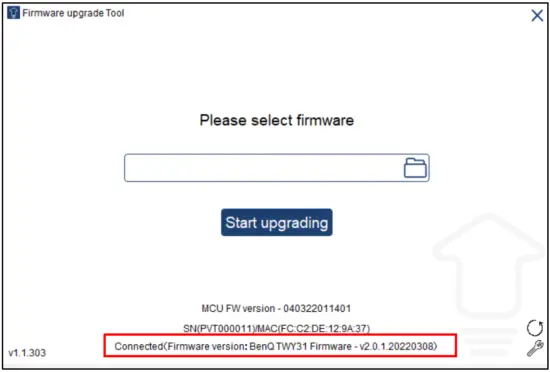

 benq.com