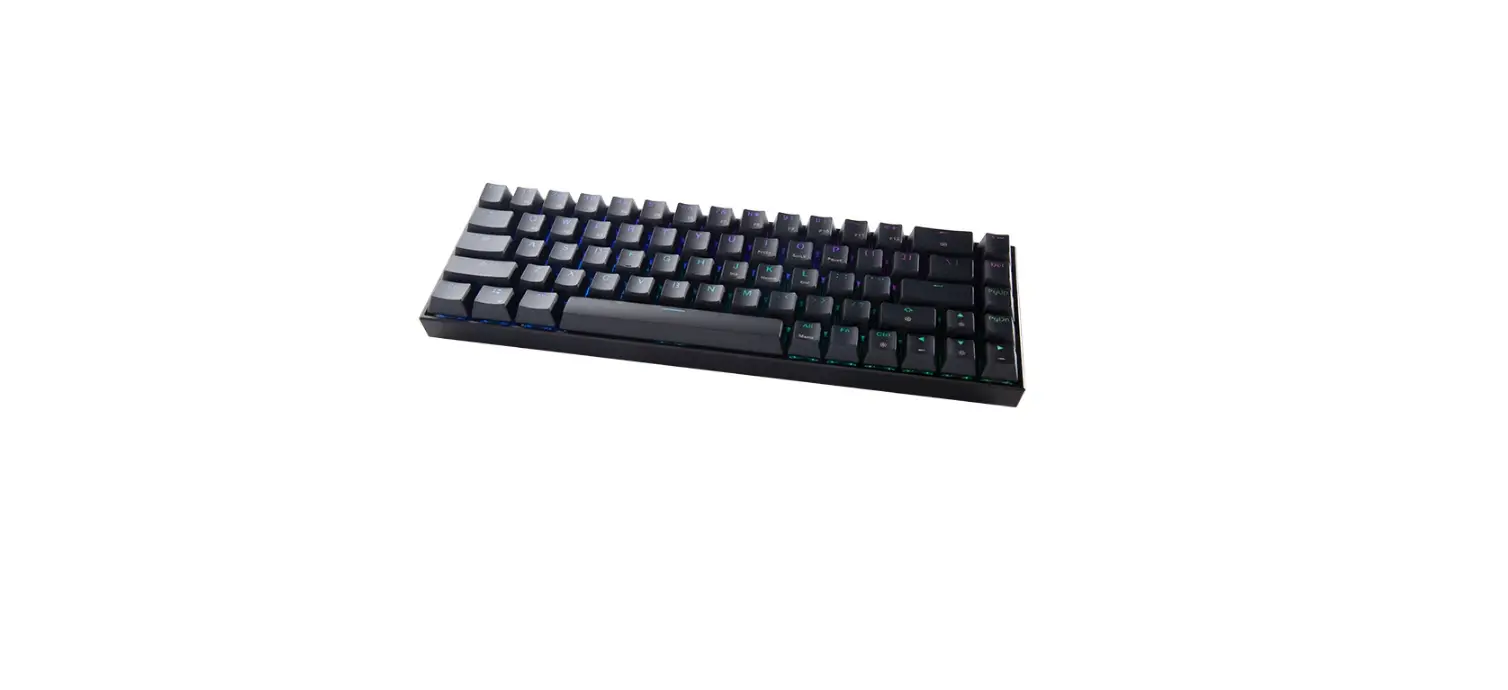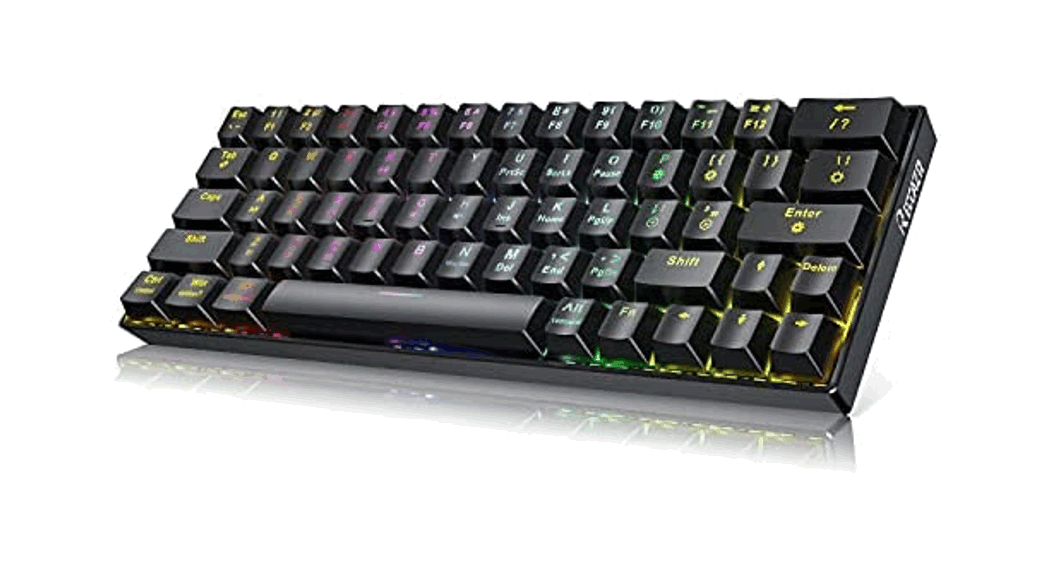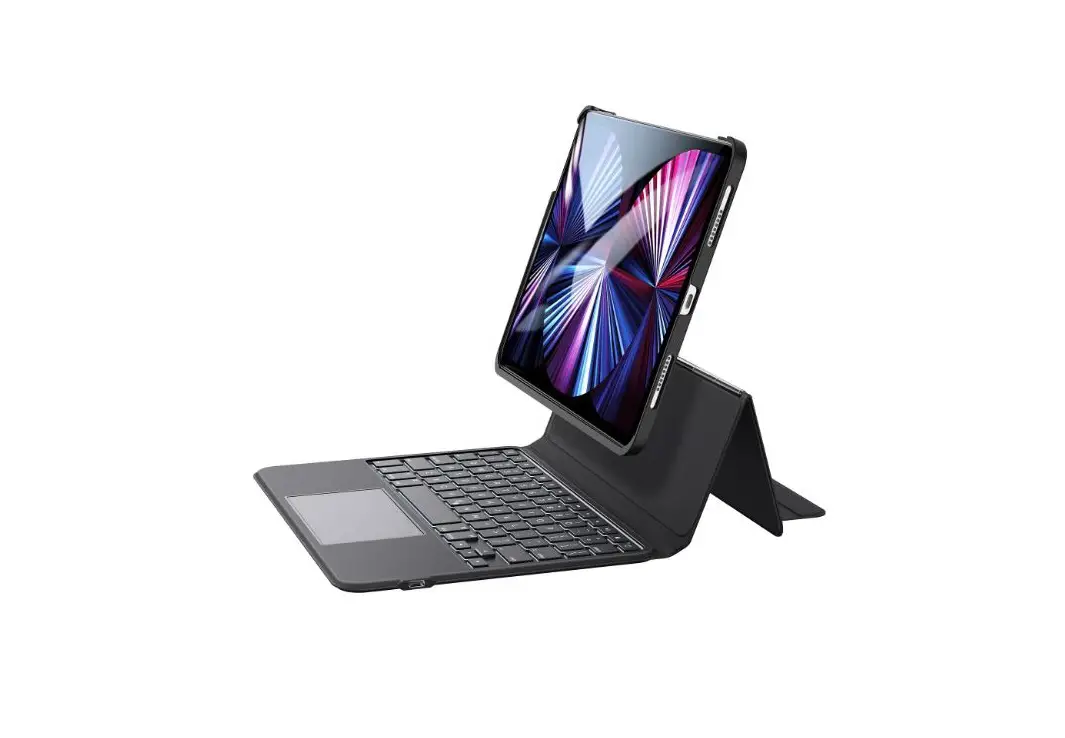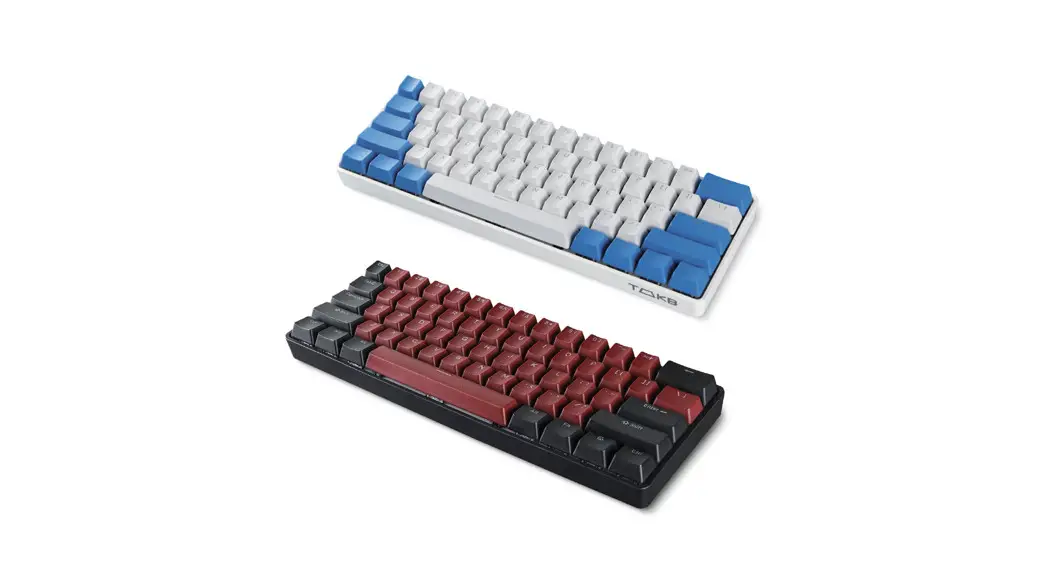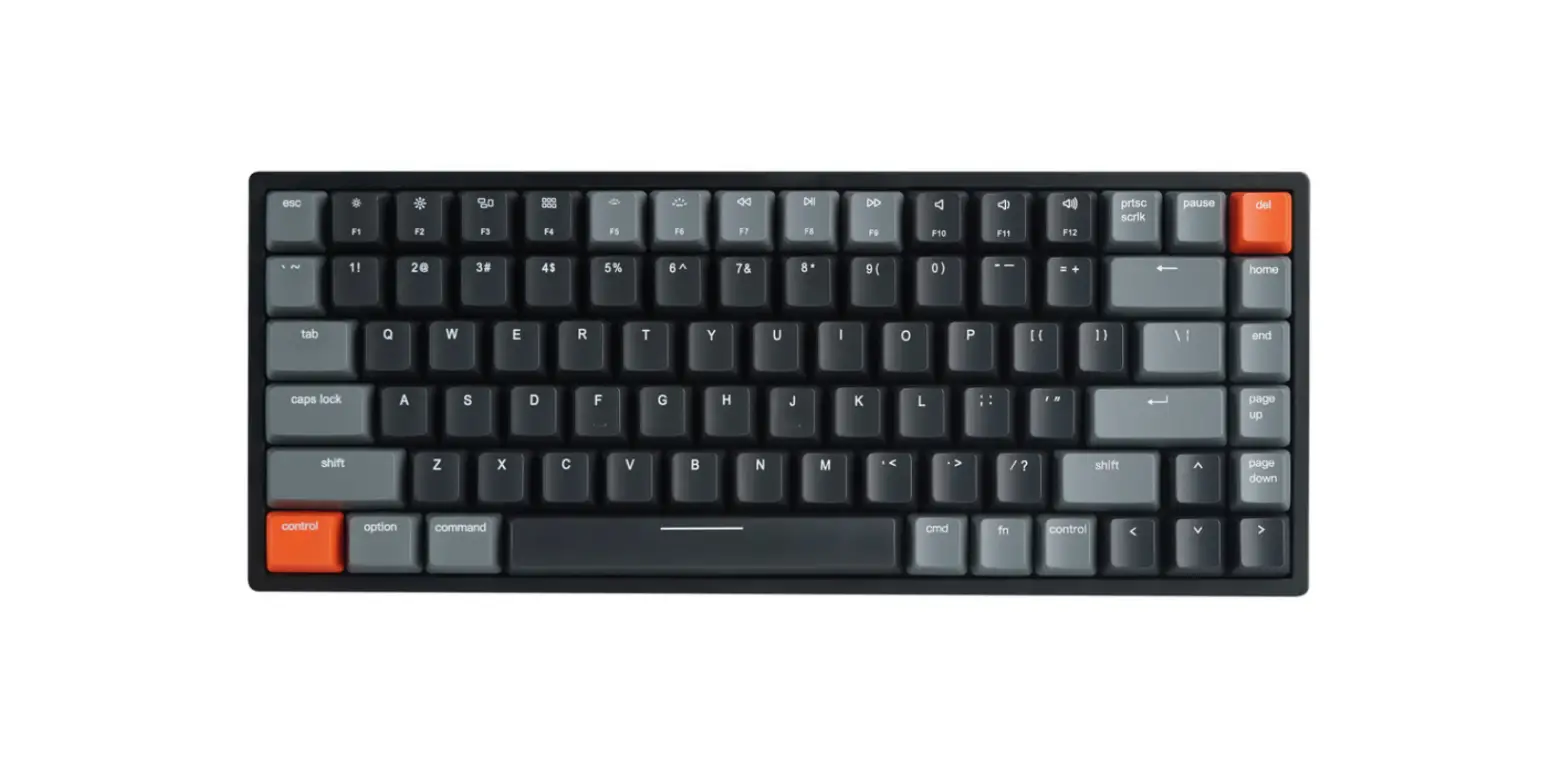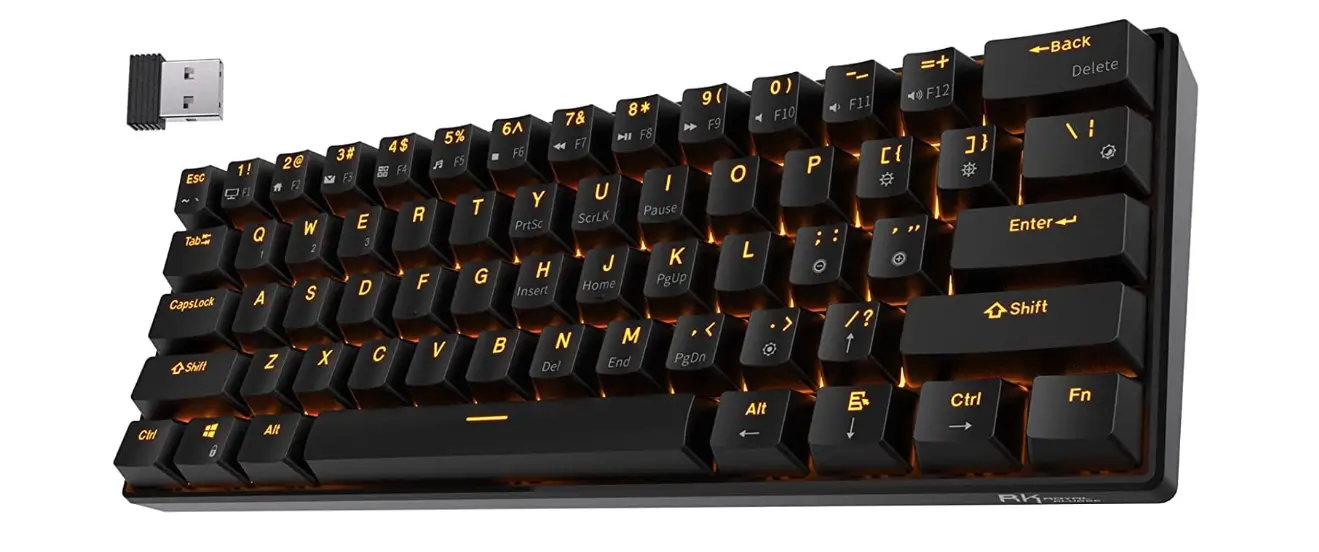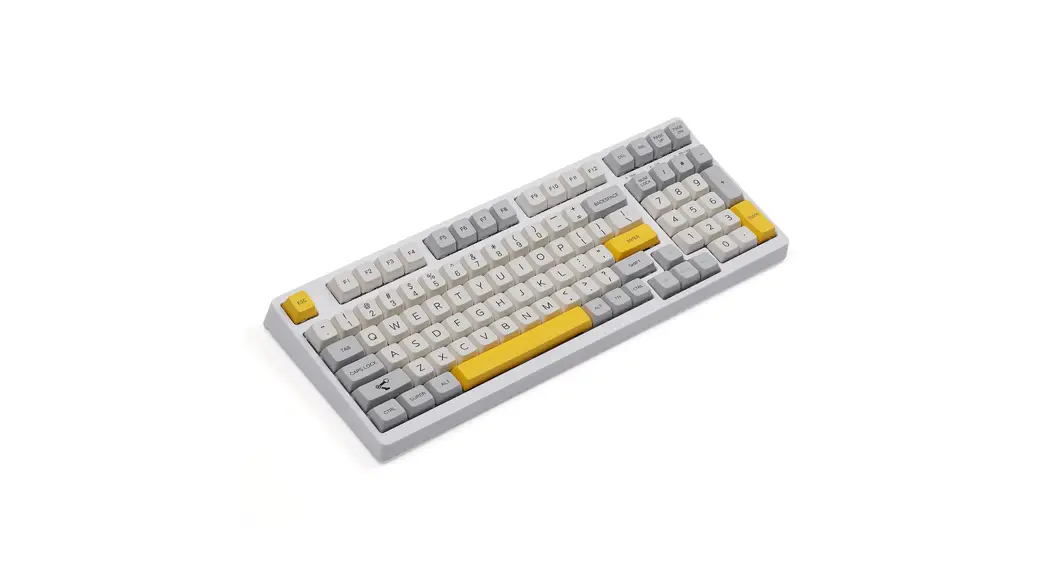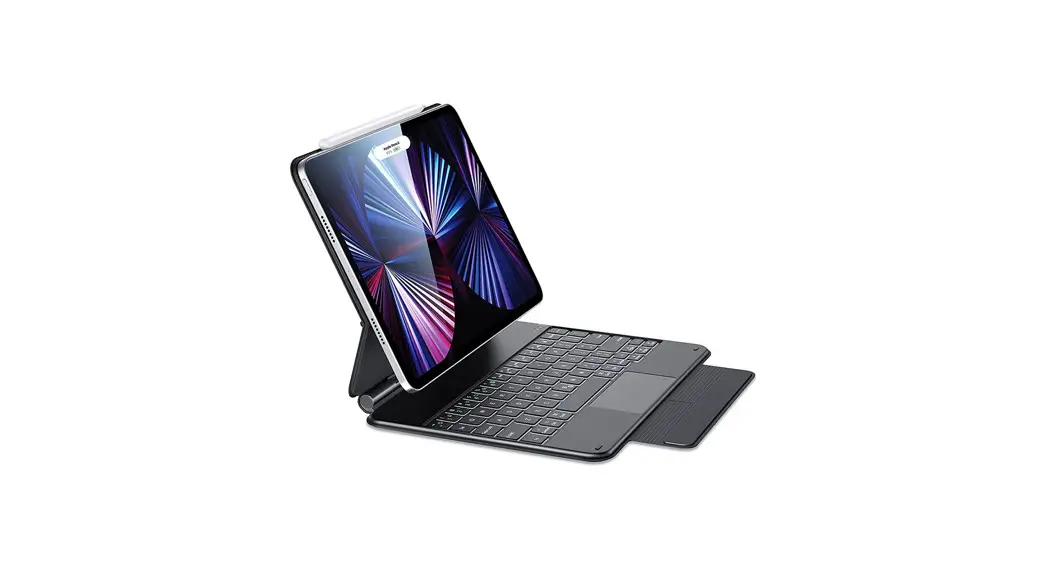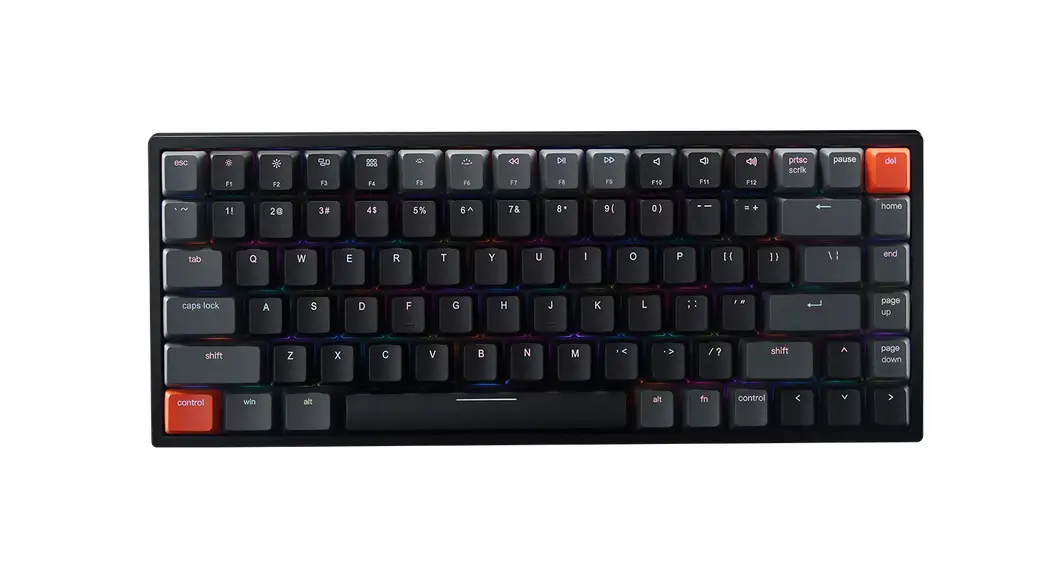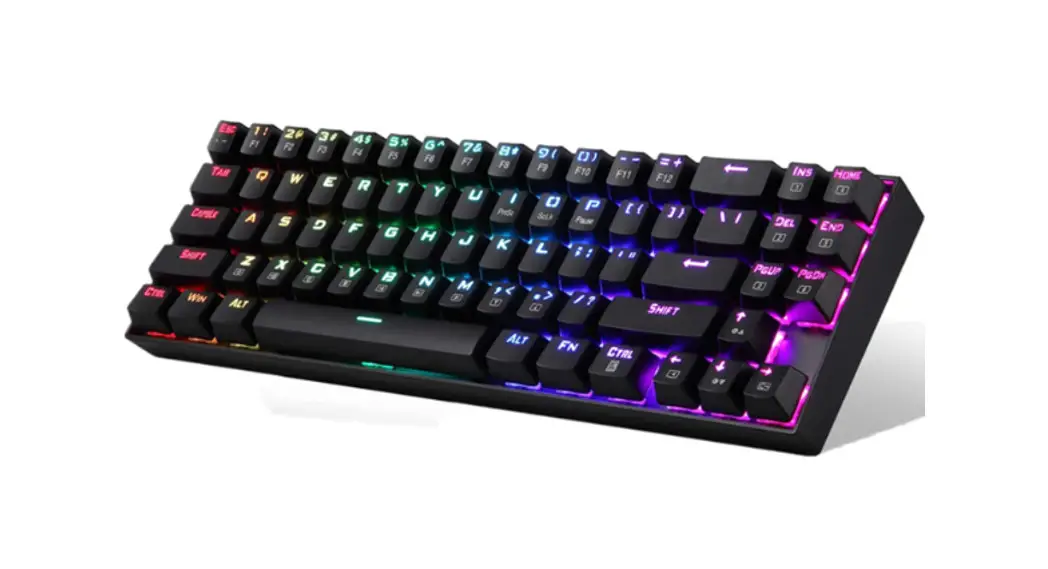
 VELOCITY85
WIRELESS MECHANICAL
KEYBOARD
User Guide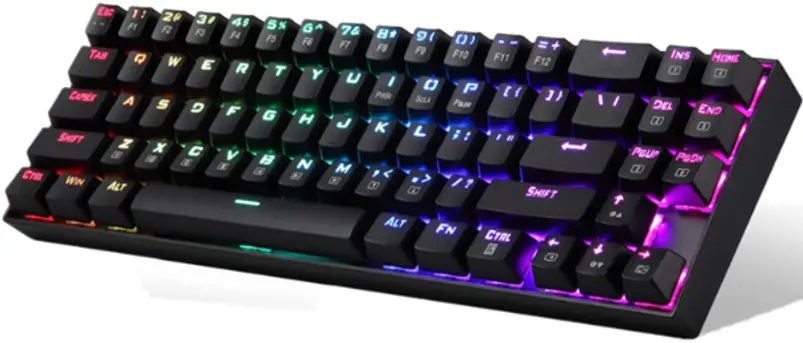
 Using Your Keyboard
 Using Your Keyboard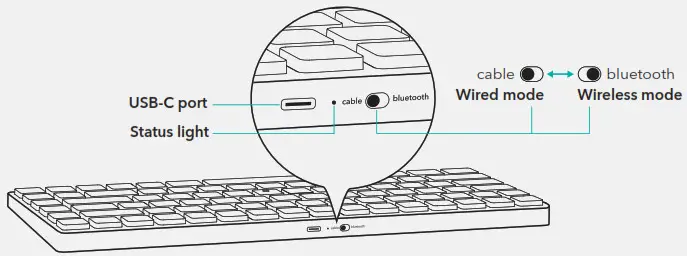
| Wired Mode | Slide switch to “cable  ” and connect via USB-C cable. ” and connect via USB-C cable. |
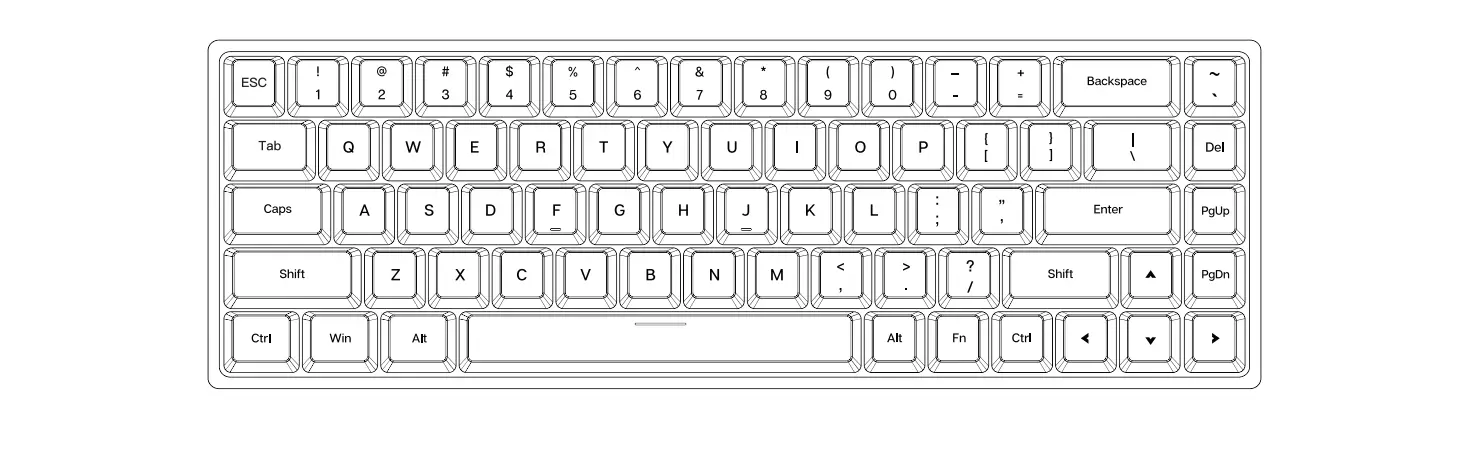
| Wireless Mode | Slide switch to “bluetooth  ” and long press ” and long press  for 3 seconds to enter pairing mode. Key that was pressed to pair will flash white to indicate that keyboard has entered pairing mode. If not connected after 3 minutes, pairing mode will turn off. for 3 seconds to enter pairing mode. Key that was pressed to pair will flash white to indicate that keyboard has entered pairing mode. If not connected after 3 minutes, pairing mode will turn off. |
| Connection methods | Bluetooth or USB-C cable. |
| Maximum paired Bluetooth devices | 3 |
| Bluetooth pairing name | Velocity85 |
| Switch active device | Press to select paired devices. |
| Turn off | Slide switch to “cable ” when USB-C cable is not connected to turn off. |
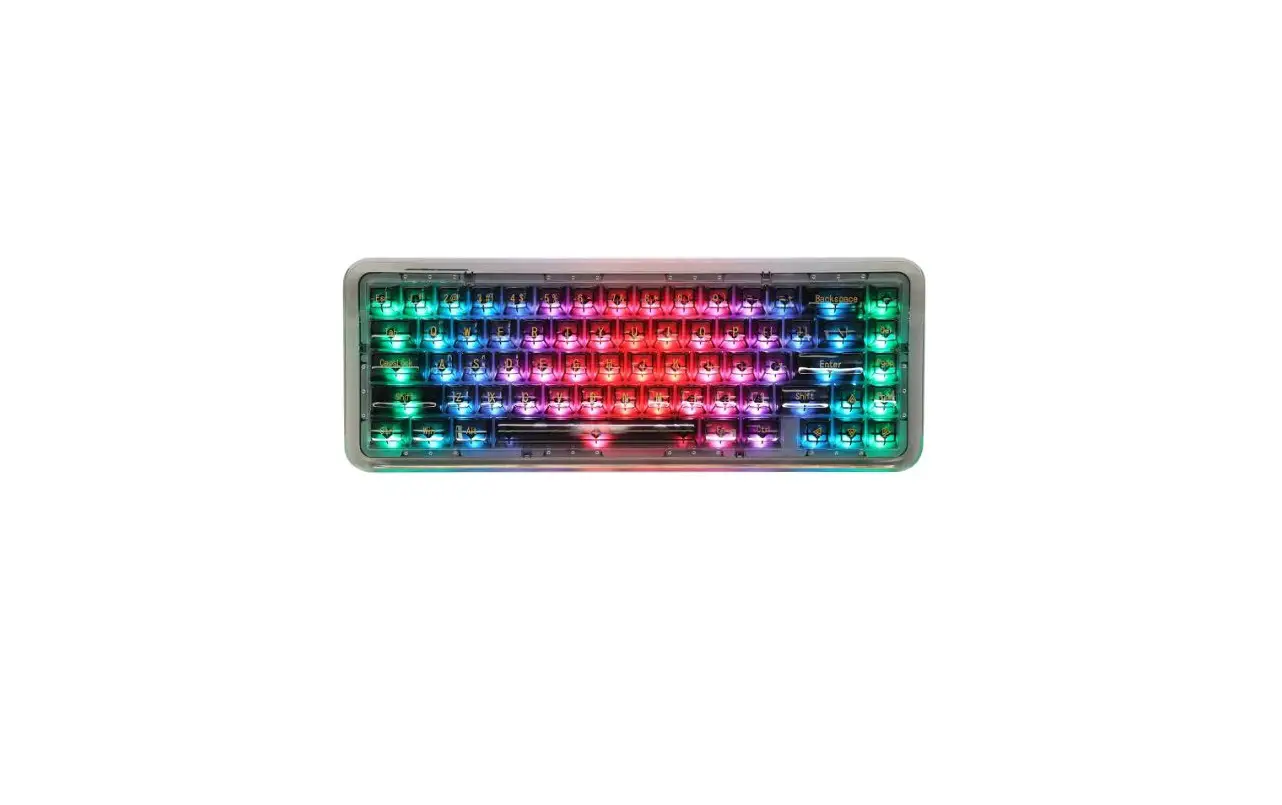
| Backlight | Press  to cycle through RGB light modes. to cycle through RGB light modes. |
| Brightness | Backlight has 5 brightness levels. Press  to increase brightness and to increase brightness and  to decrease brightness. Keys flash white 3 times to indicate minimum or maximum brightness level has been reached. to decrease brightness. Keys flash white 3 times to indicate minimum or maximum brightness level has been reached. |
| Status light guide | Low battery:  Charging:  Fully charged:  |
| Standby mode | Keyboard backlight will turn off automatically after 1 minute of inactivity. After 30 minutes of inactivity, keyboard will enter standby mode and Bluetooth will disconnect. Press any key to wake keyboard and automatically reconnect via Bluetooth. |
| Switch operating systems | Press  to switch to macOS configuration. Press to switch to macOS configuration. Press   to switch to windows configuration. Key that was pressed to switch will flash white 3 times to indicate configuration has been changed. to switch to windows configuration. Key that was pressed to switch will flash white 3 times to indicate configuration has been changed. |
| Factory reset | Long press  for 3 seconds to perform a factory reset. for 3 seconds to perform a factory reset. |
 Troubleshooting Guide
 Troubleshooting Guide
If keyboard is unresponsive in wireless mode:
- Ensure switch is set to “bluetooth
 ”.
”. - Ensure keyboard has sufficient charge. If battery is low, charge keyboard.
- Ensure correct paired device is active by pressing
 to select paired devices.
 - If keyboard still doesn’t work, forget device, factory reset keyboard, and pair again.
 to select paired devices.
If keyboard is unresponsive in wired mode:
- Ensure switch is set to “cable
 “.
“. - Ensure you are using included cable. Third-party cables may not be compatible with keyboard.
If keys don’t match paired device’s operating system:
Ensure keyboard is set to correct configuration by pressing  to switch to macOS configuration or
  to switch to windows configuration.
If problem persists, repeat the above steps.
If you are still experiencing problems, contact customer service of website, app, or store that keyboard was purchased from for further assistance.
Important Reminder
This keyboard has a rechargeable battery. When not using keyboard for an extended period of time, turn keyboard off and charge once every 3 months to prolong battery life.
FCC ID:2APEW-6B013
This device complies with part 15 of the FCC Rules. Operation is subject to the following two conditions: (1) This device may not cause harmful interference, and (2) this device must accept any interference received, including interference that may cause undesired operation.
Warning: Changes or modifications to this unit not expressly approved by the party responsible for compliance could void the user’s authority to operate the equipment.
NOTE: This equipment has been tested and found to comply with the limits for a Class B digital device, pursuant to Part 15 of the FCC Rules. These limits are designed to provide reasonable protection against harmful interference in a residential installation. This equipment generates, uses and can radiate radio frequency energy and, if not installed and used in accordance with the instructions, may cause harmful interference to radio communications. However, there is no guarantee that interference will not occur in a particular installation. If this equipment does cause harmful interference to radio or television reception, which can be determined by turning the equipment off and on, the user is encouraged to try to correct the interference by one or more of the following measures:
- Reorient or relocate the receiving antenna.
- Increase the separation between the equipment and receiver.
- Connect the equipment into an outlet on a circuit different from that to which the receiver is connected.
- Consult the dealer or an experienced radio/TV technician for help.
The device has been evaluated to meet general RF exposure requirement. The device can be used in portable exposure condition without restriction.
IC:24790-6B013
This device complies with Industry Canada licence-exempt RSS standard( s). Operation is subject to the following two conditions:
- this device may not cause interference, and
- this device must accept any interference, including interference that may cause undesired operation of the device.”
RF exposure statement:
The device has been evaluated to meet general RF exposure requirement. The device can be used in portable exposure condition without restriction. This product complies with the radio interference requirements of the European Community.
Declaration of Conformity
This product is intended for use within Europe. Electronic Silk Road Corp. hereby declares that this product 6B013 is in compliance with the essential requirements and other relevant provisions of Directive 2014/53/EU,2014/35/EU,2014/30/EU. The Declaration of Conformity for the 6B013 is available from www.esrgear.com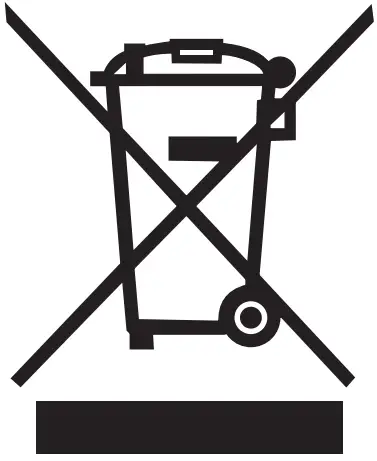 This symbol indicates that this product shall not be treated as household waste. Instead it shall be handed over to the applicable collection point for the recycling of electrical and electronic equipment.
 ESR Official Home, Tech Made Easier