Hi, I’m Jim, for Mercedes-Benz.
I’ m going to show you how to enter a navigation destination using the COMAND touchpad in your vehicle.
The navigation system can guide you to most any location, including street addresses and Points of Interest, with detailed, color on-screen maps and spoken instructions.
There are many ways to enter a destination when the car is stopped.
When it’s in motion, you can only use the voice control system.
To learn how to use your vehicle’s COMAND touchpad and voice control, please view the separate videos covering their operation first.
To enter the navigation menu:
- Press the NAVI key on the console… or
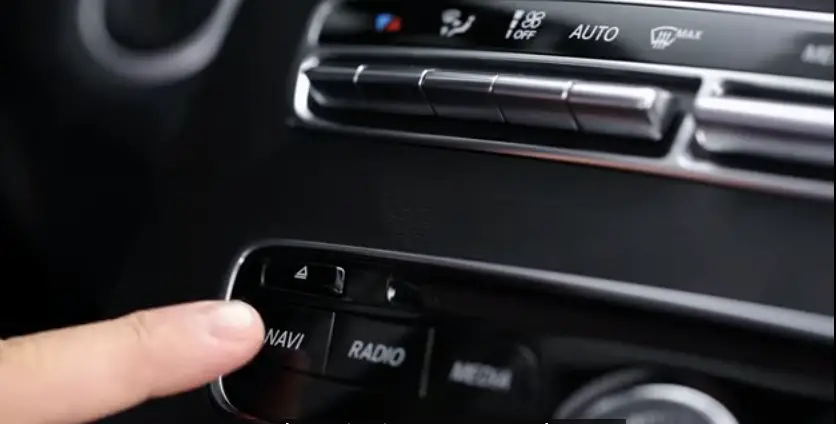
- Use the rotary selector or touchpad to select NAVI from the upper menu bar.
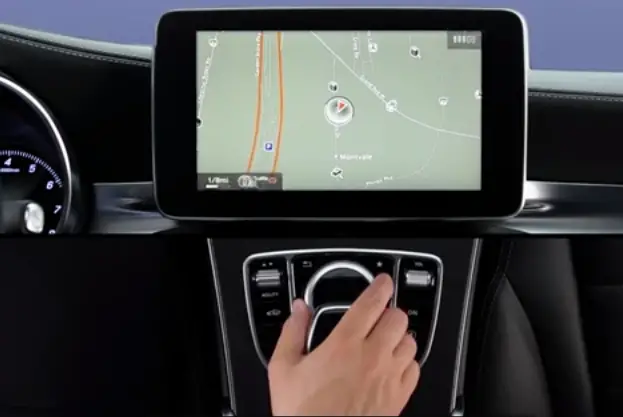
- You can also press the voice control button on the steering wheel and say “navigation.” The map appears, showing your present location. To enter a destination by saying it, press the voice control button on the steering wheel… and after the confirming tone, say “Enter destination.”
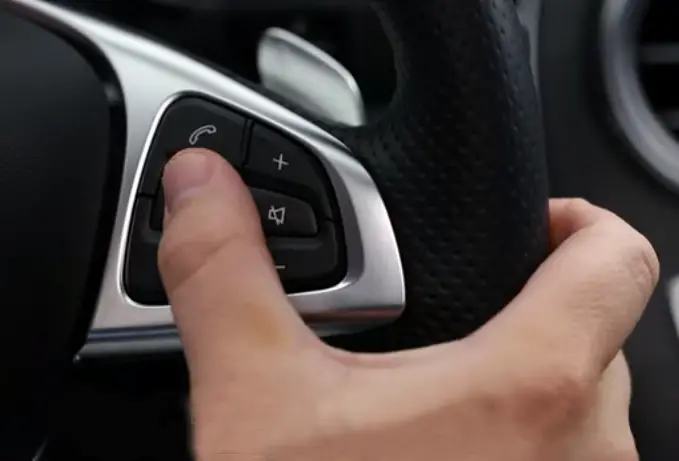
- The system defaults to the state you’re in.
So if your destination is in a different state than what’s shown on the screen, start by saying “Change state,” and when prompted, say the state: “New York.” for example.
When the system asks you for a destination, you can say it all on one shot, like you’re reading it off an envelope: “Four-four-zero Madison Avenue, New York.”
- When prompted to confirm, say “yes,” and guidance will begin.
- If it’s not the destination you want, say “no” and try again.
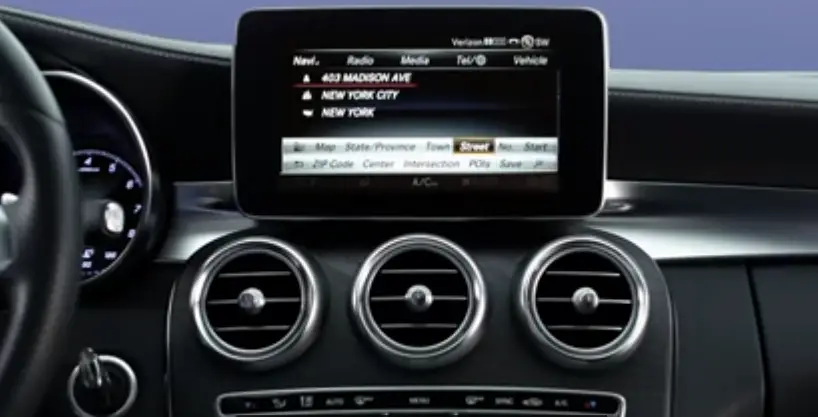
- You can also say “Correct street” or “Correct house number.”
- When the car is stopped, you can enter an address using the COMAND touchpad.
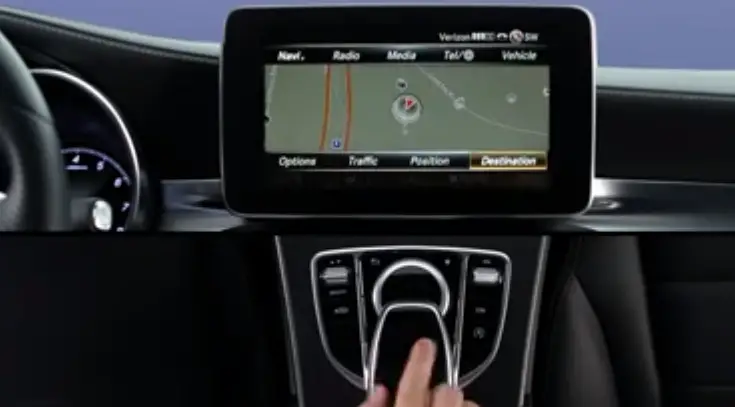
- From the Navigation menu, glide your finger down to Destination in the lower menu bar, tap it… then tap Address Entry.
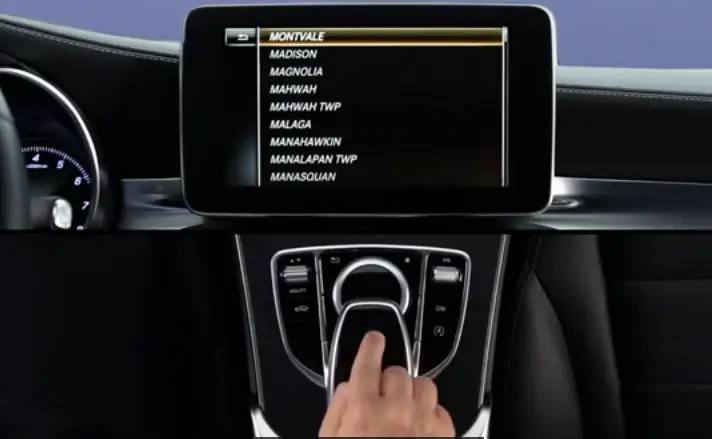
You can handwrite the address starting with its ZIP code or town name, or the state… especially if it’s not the state you’re in right now… or the street name.
- Let’s select “Town.”
When you do, the cursor appears on the town line, and you can start writing letters with your finger.
As matches are found, they appear on the screen.
Press the touchpad, then glide your finger along the list to highlight your choice.
- Then, press to select it.
If you press Start right now, you’ll be guided to the city center. Or select Street and enter its name the same way.
- Then, select Number… and
- Enter the house number.
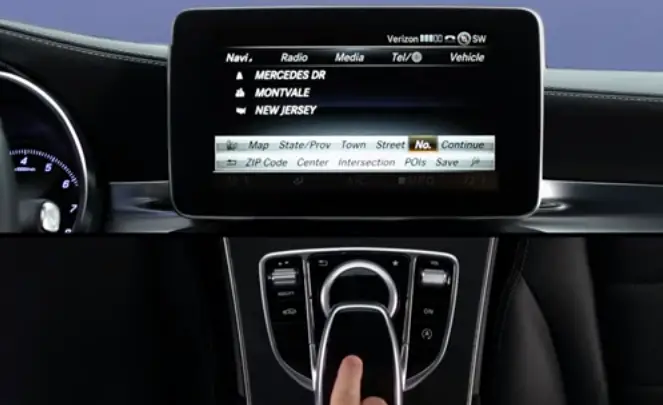
- The list will show only actual house numbers in its database.
You can also enter an address using the rotary selector when the car is stopped.
- Slide the selector down to Destination in the lower menu bar,
- Then turn it Address Entry and press to select.
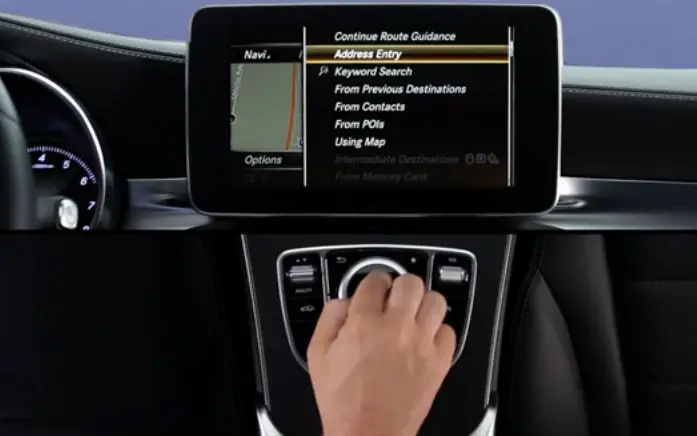
Once again, you can enter the destination by any element of its address.
- Let’s select “Town” again.
- This time, the letter and number bars appear.
- Turn and press the selector to start entering letters or digits.
- Matches appear on the screen as they’re found.
- Scroll through the list and make a selection.
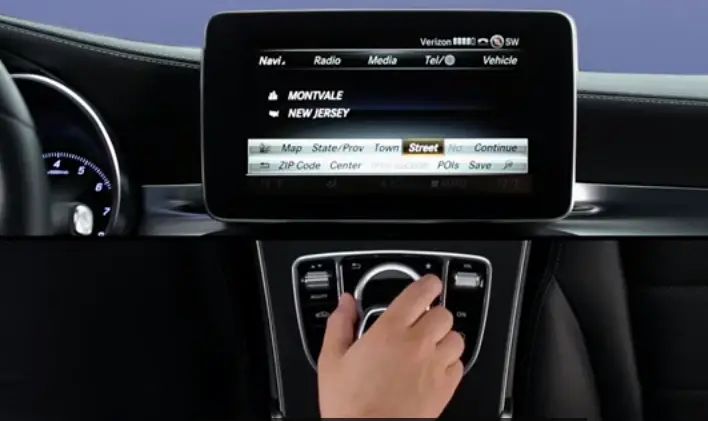
- Continue the process to select the street and house number, until the address is complete.
- Your destination is now entered.
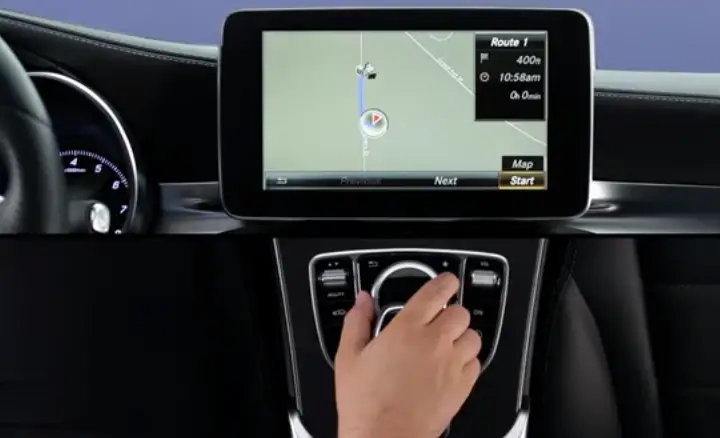
You can select Start to begin guidance… …view any route options the system offers you… …or Save, to store it in memory or your phone’s Contacts, when it’s connected via Bluetooth.
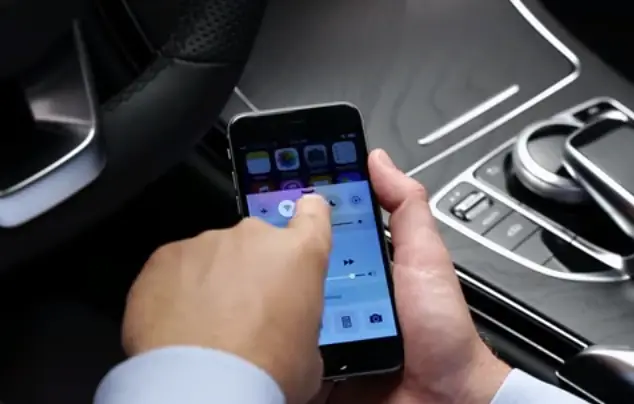
When your Bluetooth phone is connected, you an also select an address from its phonebook.
- From the Destination menu, select “From Contacts.”
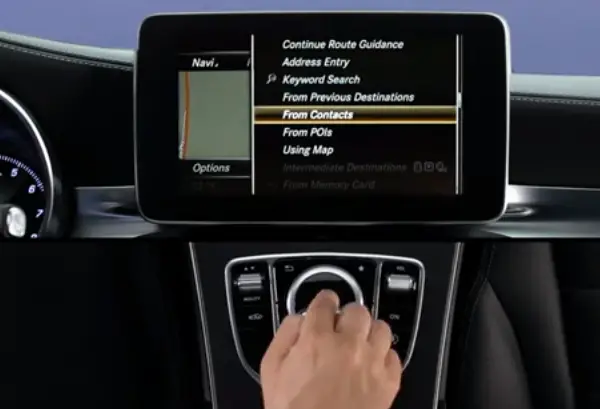
- Entries with a valid address will be indicated with an icon.
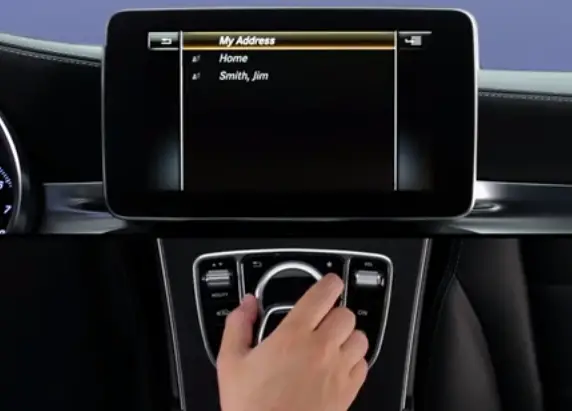
- Select the contact, and then Start to begin guidance.
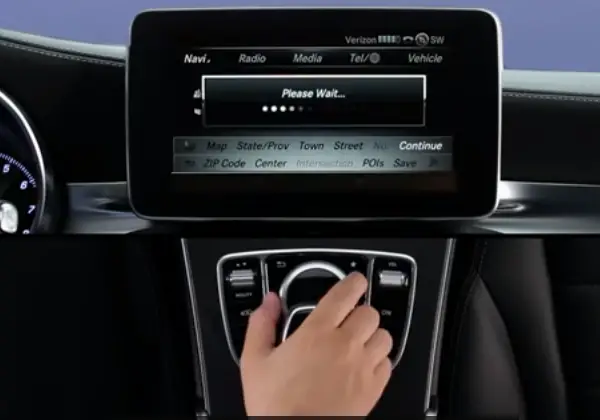
The COMAND system can guide you to millions of points of interest… or POIs … from restaurants and golf courses… to gas stations, airports and Mercedes-Benz dealers.
- From the Destination menu, select “From POIs.”
- You can use the touchpad or rotary selector to access the menus.
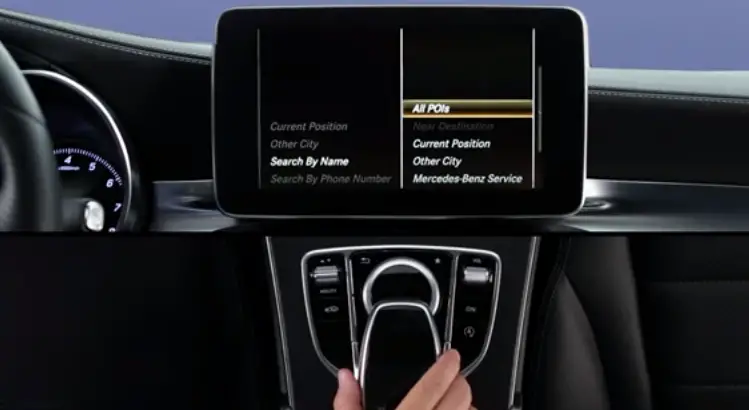
Your choices include three location options:
- Near your destination, if you’re already
- Navigating…
- Near your current position…
- Or in another city.
You can also search by a POI’s Phone number… or by its Name. You’ll probably find the handwriting feature makes this easiest. Follow the on-screen submenus until you find your desired POI.
- Make your selection, and click Start… or you can save it in memory.
Another way to search for destinations is by keywords. By entering a few characters, you can find POIs and addresses.
The handwriting feature makes this easy, too.
- From the Destination menu, select Keyword Search.
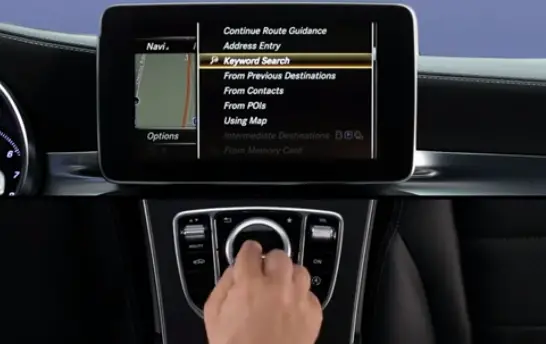
- Then start to enter a string of letters or numbers.
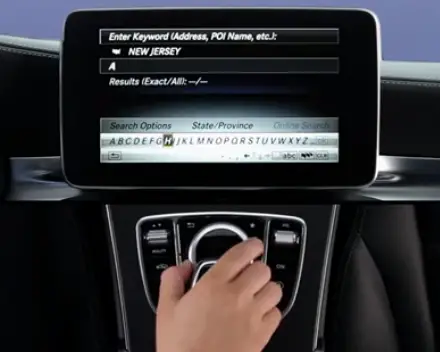
- The system can even overcome some spelling errors.
The results will appear on the screen, divided into four categories:
- Addresses,
- POIs in the vicinity,
- all POIs, and
- Online search.
Numbers, Next to each category show how many exact matches and close matches it’s found.
Select a category, and then an entry from the resulting list.
For Online search, it will search the Internet for similar entries… as long as you have a valid mbrace subscription.
You can also pinpoint a location on the map and navigate to it. From the Destination menu, select Using Map.
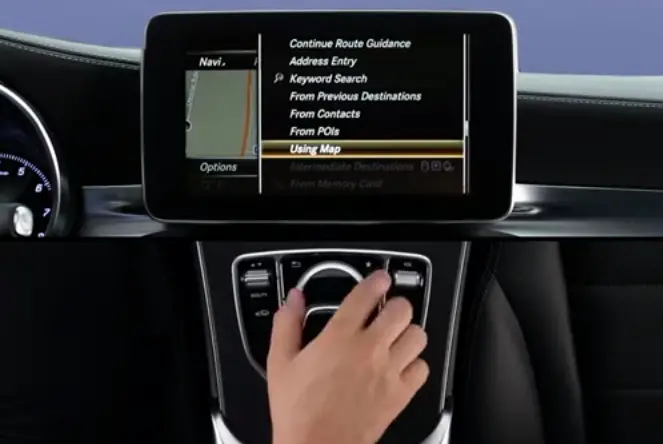
- A crosshair will appear on the map display.
- You can move the map by moving the rotary selector, even diagonally.
- Turning the controller zooms in and out.
- Or you can move the map by sliding your finger in any direction on the touchpad.
- Press the rotary knob to select the location in the crosshairs, and a pop-up will show you any known destinations at that location… or a list, if there are multiple entries at that spot.
- Press to make a selection… and then Start.
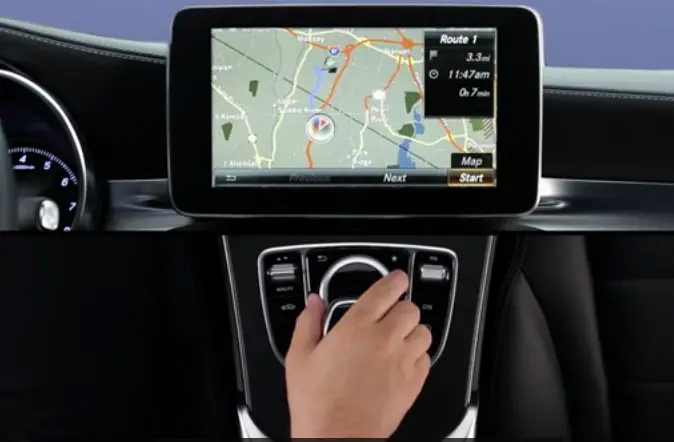
If you know the longitude and latitude of a destination, you can also enter it that way.
- From the Destination menu, select Using Geo-coordinates.
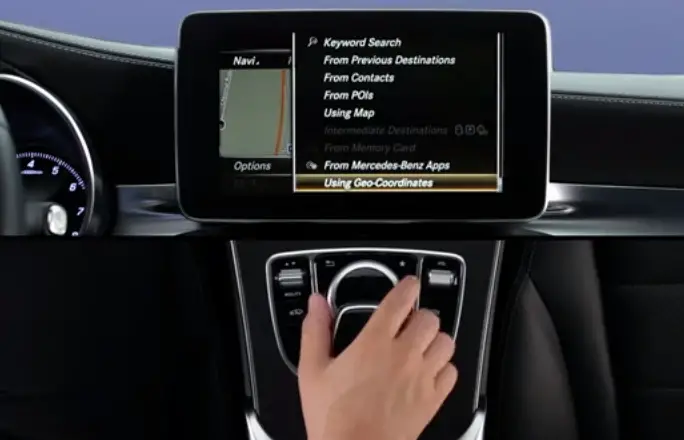
- You can enter the coordinates with the handwriting feature… or use the rotary knob.
- Slide it to move from cell to cell… and rotate it to change the numbers.
- Either way, press Start when you’re done.
In addition to the addresses you save in memory, COMAND also stores your last 100 destinations.
- To call up a saved entry… from the Destination menu, select From Contacts.
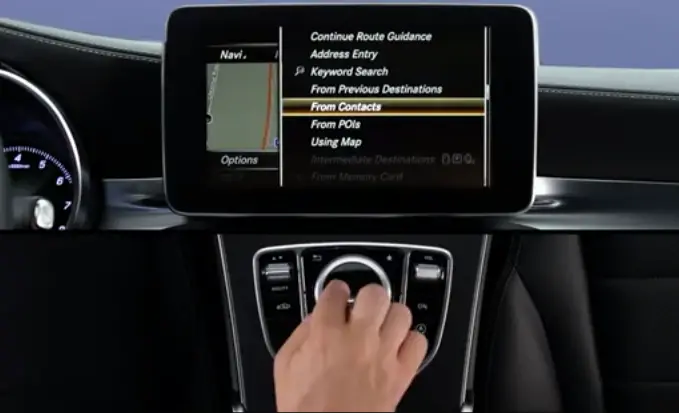
For the list of your last 100 destinations:
- Select From Previous Destinations.
- The select an entry, and click Start.
mbrace also lets you send destinations… and even exact routes… from your computer or smartphone to your car… with our Mobile App.
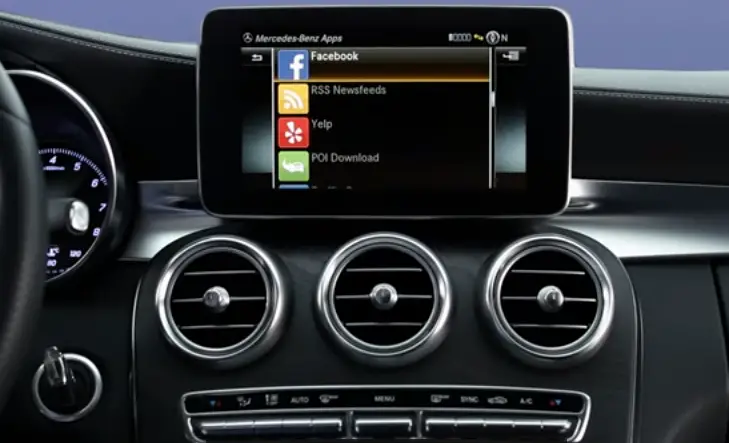
- You can even use some of them in your car, with mbrace apps like Yelp and Facebook.
- They even let you download addresses directly to the navigation.
- You’ll find Mercedes-Benz Apps… in the Destination menu.
To learn more, visit mbusa.com/mbrace.
And for more information… please see your COMAND Operator’s Manual. Remember, there’s also an on-screen Digital Operator’s Manual in your COMAND system.
- Just press the Navi button and select “Info on Navigation”.
If you have further questions, your Mercedes-Benz dealer will be happy to help. Thanks for watching.