Product Information
The product is a set of instructions for setting up the user
interface of Audi A6 A7 models from 2012 to 2019. Specifically, it
is designed for models with the original 8-inch or 6.5-inch
display. The instructions cover settings related to the display,
camera, sound, navigation, language, and Android setup. The product
also includes information on connecting the device to a car with an
AUX or AMI Slot.
Product Usage Instructions
- Tap on the “System” option in the menu.
- Select “Car-Info Resolution Password” and enter the password
“666666”. - Select “Car Type” and choose option 5 or 6 (ignoring the text
for car models). - Scroll down and tap “Reboot”.
- To access camera settings, select “Camera Settings”.
- To adjust sound settings, select “Sound Settings”.
- To modify navigation settings, select “Navigation
Settings”. - To change the language, select “Language Settings”.
- To set up Android, select “Setup > Android”.
- If your car has an AUX connection, follow the instructions
under “Connection for Car with AUX”. If it has an AMI slot, follow
the instructions under “Connection for Car with AMI Slot”.
TAFFIO® JFQ-SERIES QUICKGUIDE
Audi A6 A7 2012-2015 (with Original 8″ Display) &
Audi A6 A7 2012-2019 (with Original 6.5″ Display)
Audi A6 A7 15-18 (with Original 8″ Display)
Einstellungen / Settings
Tippen Sie auf SETUP imHauptmenü Tap on SETUP in Main Menu
Original Display Anzeige Einstellungen / Original Display Menu Settings
Bitte nur ändern wenn Ihr Original MMI Menü nicht korrekt angezeigt wird Please only change if Factory MMI Menu is not displayed correctly
Tippen Sie auf System dann Car-Info Resolution / Passwort > 666666
Tippen Sie auf Fahrzeugtyp und wählen hier 5 oder 6 aus ignorieren Sie den Text für das Fahrzeugmodell , scrollen Sie runter bis Sie “Starten Sie das System Neu“ Button sehen und betätigen Sie diesen
Tap on System then Car-Info Resolution Password > 666666
Tap on Car Type > please choose no 5 or 6 and ignore the text for car models , scroll down and tap Reboot
Kamera Einstellungen / Camera Settings
Tippen Sie im Setup Menü auf Kamera, hier können Sie nun Einstellen Original oder Nachrüst Rückfahrkamera Kamerabild spiegeln Abstandslinien ein- / ausschalten 360° Kamera Einstellungen ( BITTE NICHT EINSCHALTEN WENN SIE KEINE 360° KAMERA HABEN) Front Kamera Autom. Umschaltoption
Select Camera in Setup Menu , here you can set Original or Retrofit Backup Camera Backup Cam Picture Mirroring Parking Lines 360° Camera ( Please let this OFF of you have no 360° Camera System ) Front Camera Auto Switching
Ton Einstellungen / Sound Settings
Tippen Sie im Setup Menü auf Volume, hier können Sie die Tonregulation einstellen Select Volume in Setup Menu , here you can set the Sound Regulation
Navigation Einstellungen / Navigation Settings
Tippen Sie im Setup Menü auf Navigation, wählen Sie hier die Standard Navi App aus die Sie nutzen möchten Select Navigation in Setup Menu , select the standard navigation app that you want to use
Sprache / Language Settings
Setup > Android
System > Sprache und Eingabe Sprachen > +Sprache hinzufügen and select here which language you wish Hold and draw the wished language at the lines right to the first place in the list to confirm and change
E: ANDRIOD MEDIA SOUND
1. Connection for Car with AUX
Choose AUX in Audi Menu, you don’t need to connect to Car AUX IN its already integrated in Power Harness Wählen Sie AUX im Audi Menü, Sie benötigen es nicht mit dem AUX In des Fahrzeugs zu verbinden, da es bereits im Stromkabel integriert ist
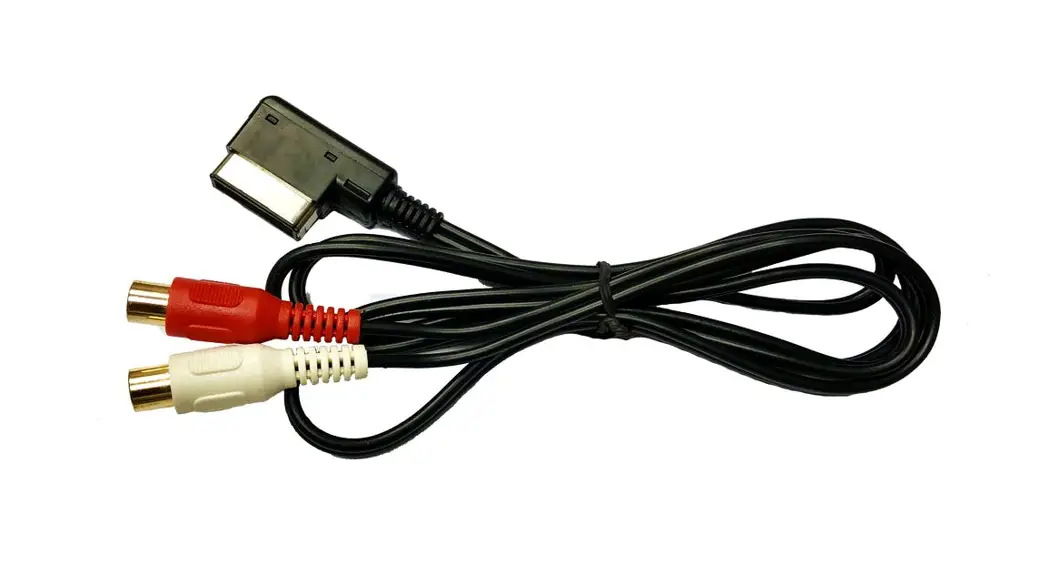
2. Connection for Car with AMI Slot
Choose AMI in Audi Menu and connect AUX Connector to AUX to AMI Adaptor. Connect the AMI Adaptor to Car AMI Port, which is placed in the Hand Glove Compartment Für Fahrzeuge mit AMI schließen Sie das AMI Kabel im Handschuhfach an. Der Stecker ist blind und muss nicht weiter angeschlossen werden lediglich nur an die AMI Buchse. (Dies dient dafür damit Sie unter Quelle den AMI auswählen können)