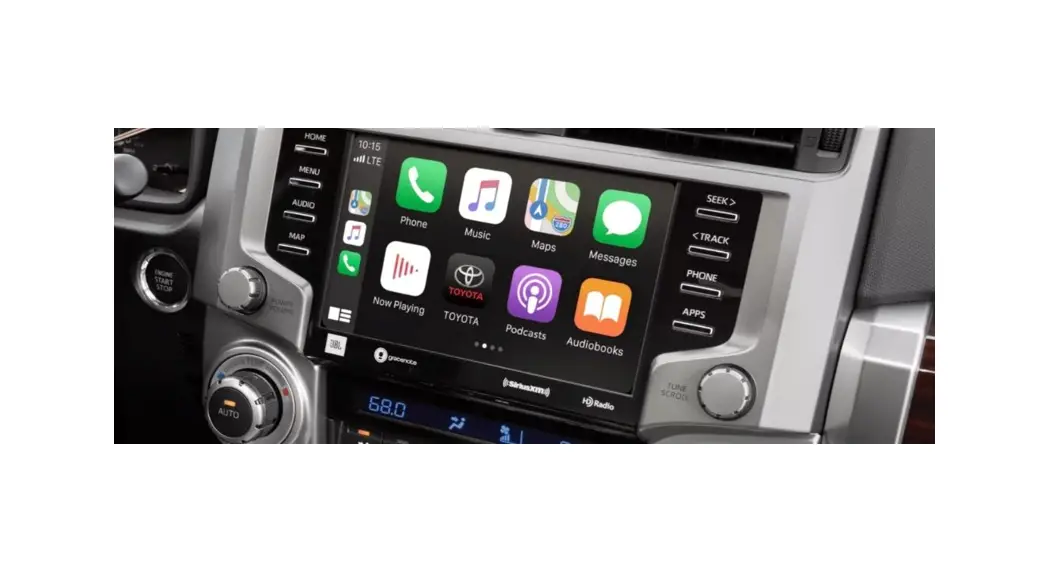
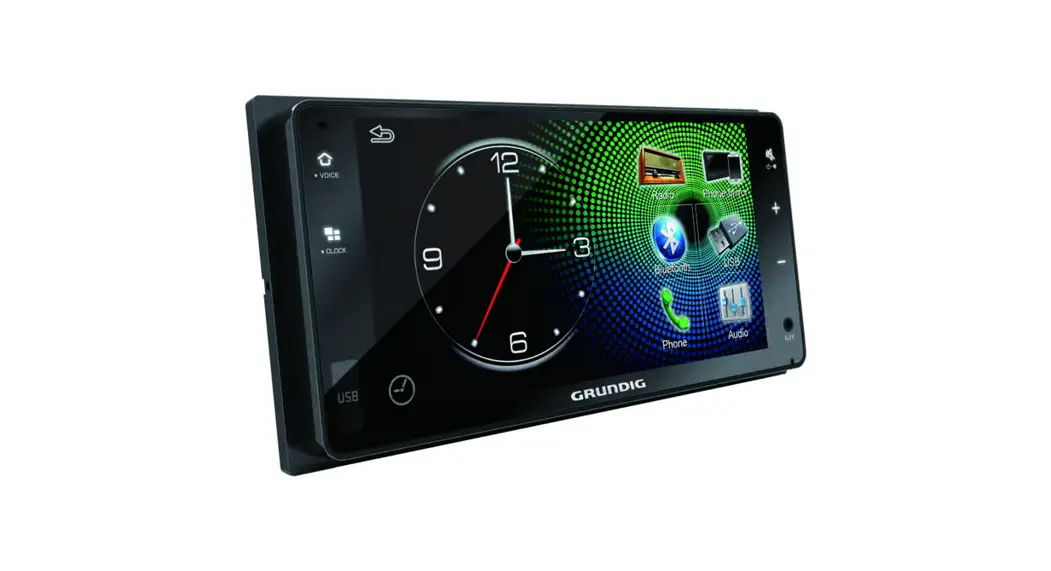
AURIS 2014-2019 Carplay Android Auto Interface
Product Information: Carplay Android Auto Interface for Toyota
AURIS 2014-2019
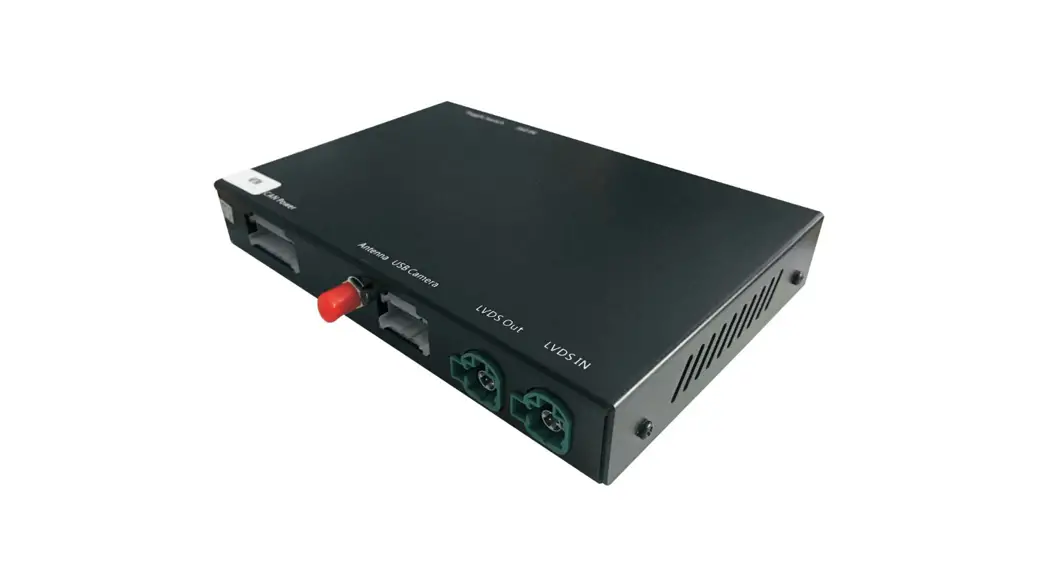
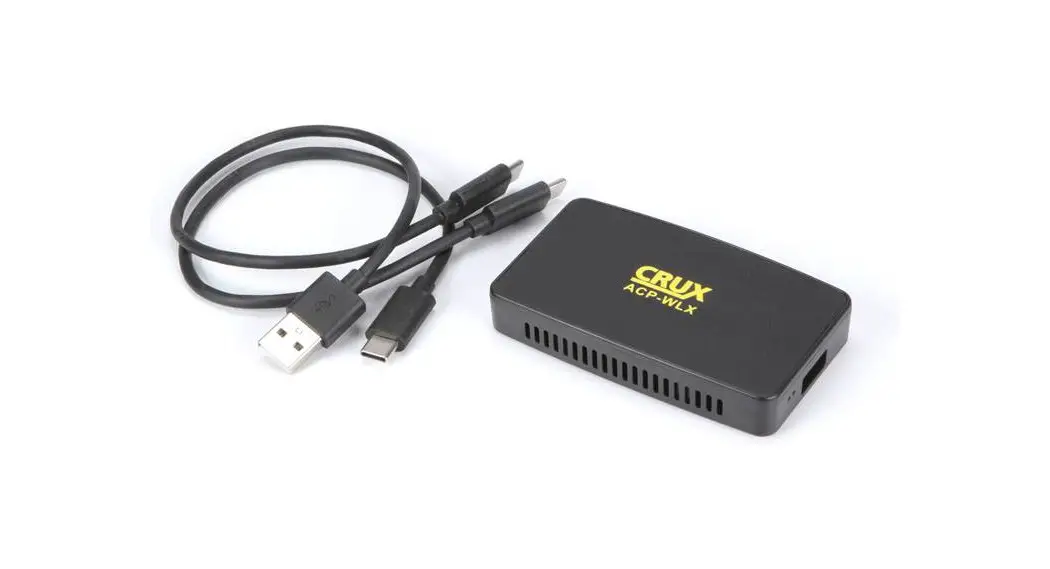
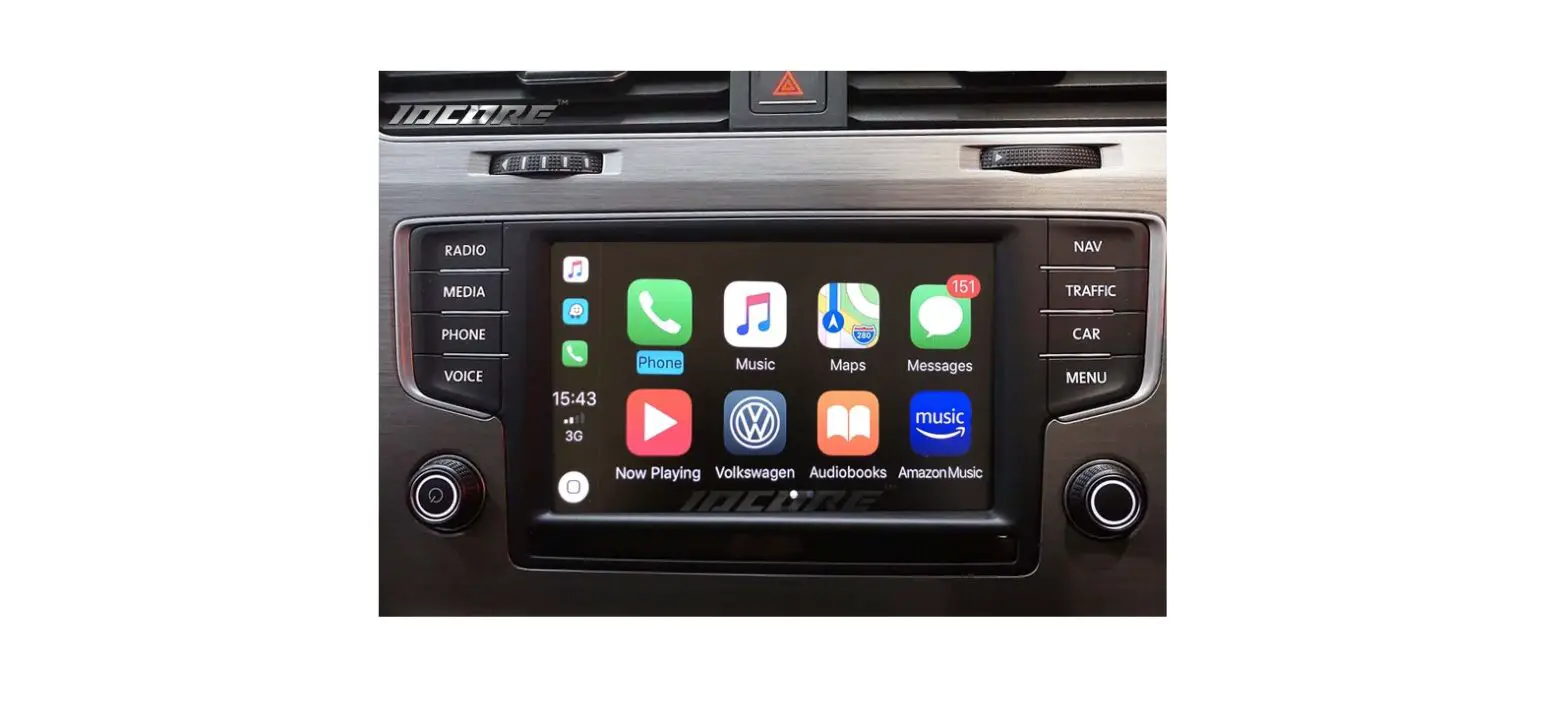
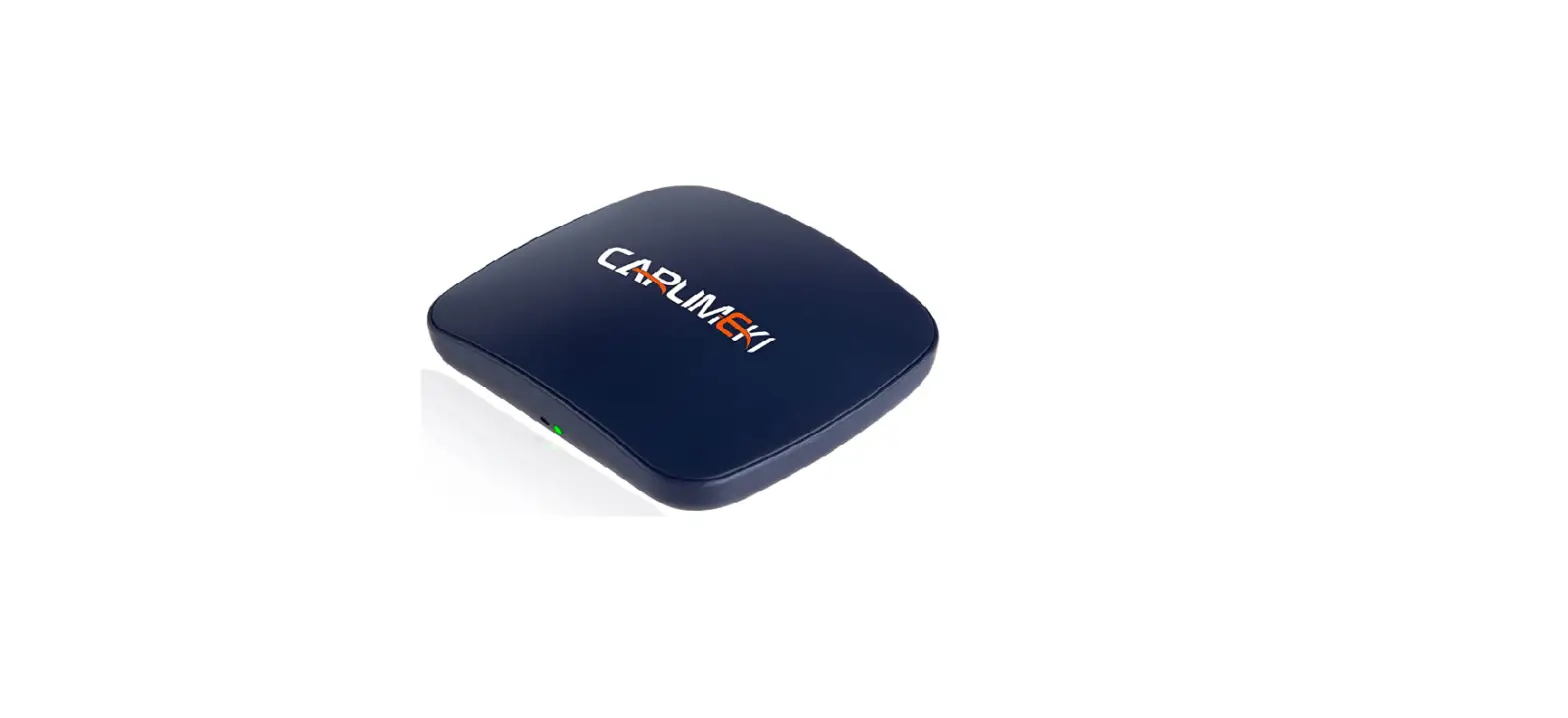
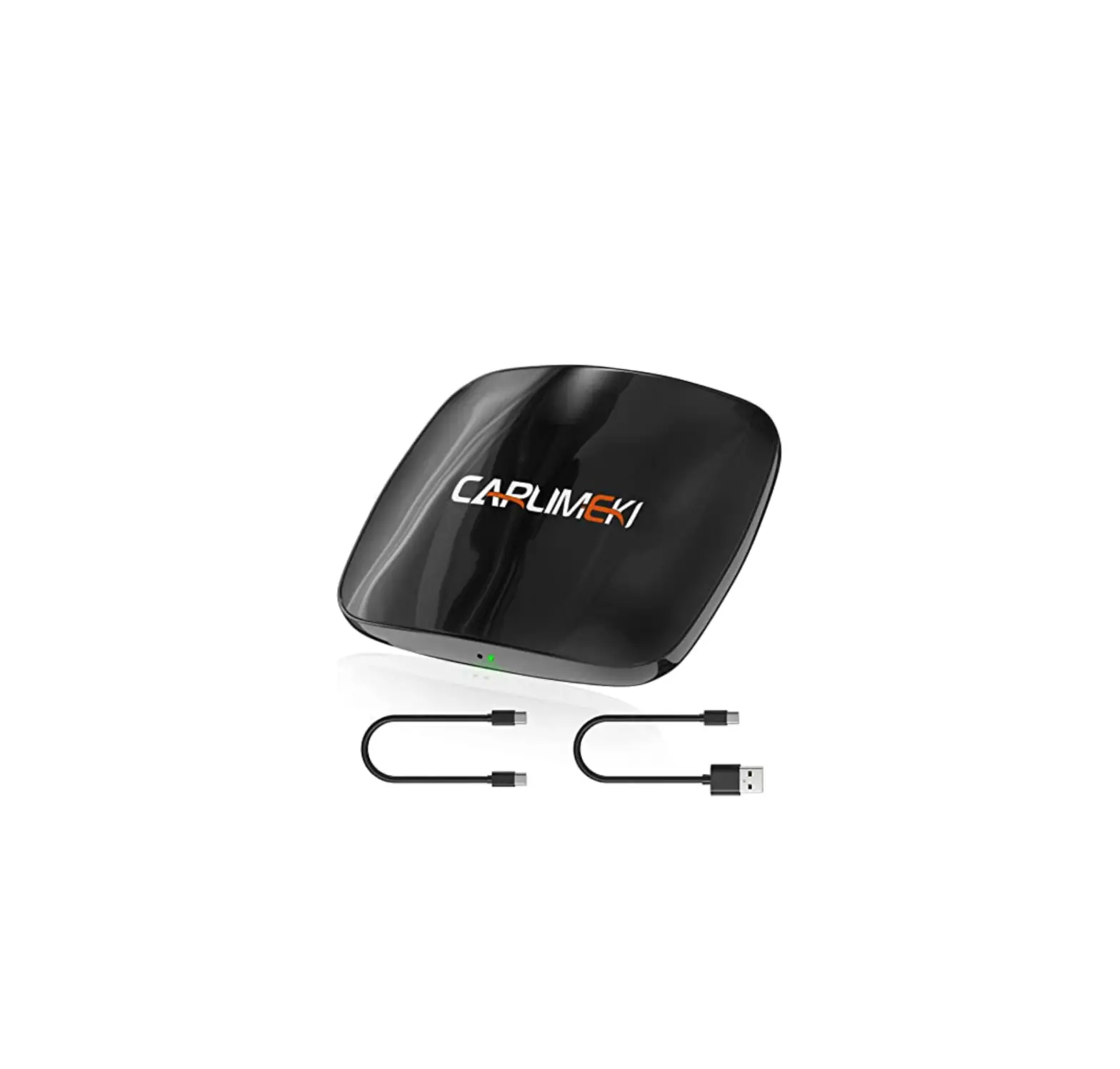
The Carplay Android Auto Interface is a device that can be
installed in Toyota AURIS cars manufactured between 2014 and 2019.
The interface is connected to the radio connectors and allows users
to easily connect their smartphones to the car’s system. The
installation process takes approximately 15-30 minutes and does not
require any programming.
Product Usage Instructions
Follow the steps below to install the Carplay Android Auto
Interface:
- Step 1: Click the panel around the screen. Carefully pull off
the front panel and disconnect the connectors. First, unclip the
little side panel on the left. - Step 2: Remove the display (unscrew). Unscrew the screen. In
total there are 2 or 4 bolts of 10 mm. Place a blanket on the
center console to avoid scratches. Pull the screen towards
you. - Step 3: Prepare the cable. Route the main cable from the glove
compartment to the screen (if you want to place it in the glove
compartment) or find another place for the interface. - Step 4: Connect the three connectors. Disconnect the three
plugs from the screen/radio. Reconnect them to the cable
counter-connectors. Connect the three connectors of the interface
cable to the screen/radio. - Step 5: Reconnect all components. Reconnect all components in
reverse order. Don’t forget to plug back in the front panel
plugs. - Step 6: Have fun!
Note: If you have any improvement tips or tricks, please feel
free to contact [email protected]
Installation instruction for Carplay Android Auto interface Toyota AURIS 201 4-2019 The interface is connected via the connectors of the radio. It is estimated that it takes 15-30 minutes of work to connect the interface. No programming is necessary. Step 1. Click the panel around the screen Carefully pull off the frontpanel and disconnect the connectors.
MoTrade April 2023 ©
(First unclip the little side panel left) Step 2. Remove the display (unscrew) Unscrew the screen. In total there are 2 or 4 bolts of 10 mm. Place a blanket on the center console to avoid scratches. Pull the screen towards you. Step 3. Prepare the cable Route the main cable from the glove compartment to the screen (if you want to place it in the glove compartment) or find another place for the interface.
MoTrade April 2023 ©
Stap 4. Connect the three connectors Disconnect the three plugs from the screen/radio. Reconnect themto the cable counter-connectors. Connect the three connectors of the interface cable to the screen/radio.
Step 5. Install the screen/radio Pull back the screen/ radio and attach the 4 bolts. Step 6. Test the system Connect the interface and the USB cable. Read the manual to choose the correct position of the dip switches. Choose AUX as the source for sound in the original system. Switch to the interface by long pressing the Siri button, MODE button, or AUX. Remove and forget the existing bluetooth connection to the car. Connect the phone to the bluetooth signal of the interface and turn on WIFI. The bluetooth connection creates a WIFI network and then disconnects itself. Test the system with respect to graphics, sound, scchopping between radio and interface and backwards.
MoTrade April 2023 ©
Step 7. Reconnect all components Reconnect all components in reverse order. Don’t forget to plug back in the front panel plugs. Step 8. Have fun!
MoTrade April 2023 ©
This manual has been compiled on the basis of experience and with the necessary care. No rights can be derived from it. Improvement tips/tricks are of course always welcome! ([email protected])
MoTrade April 2023 ©