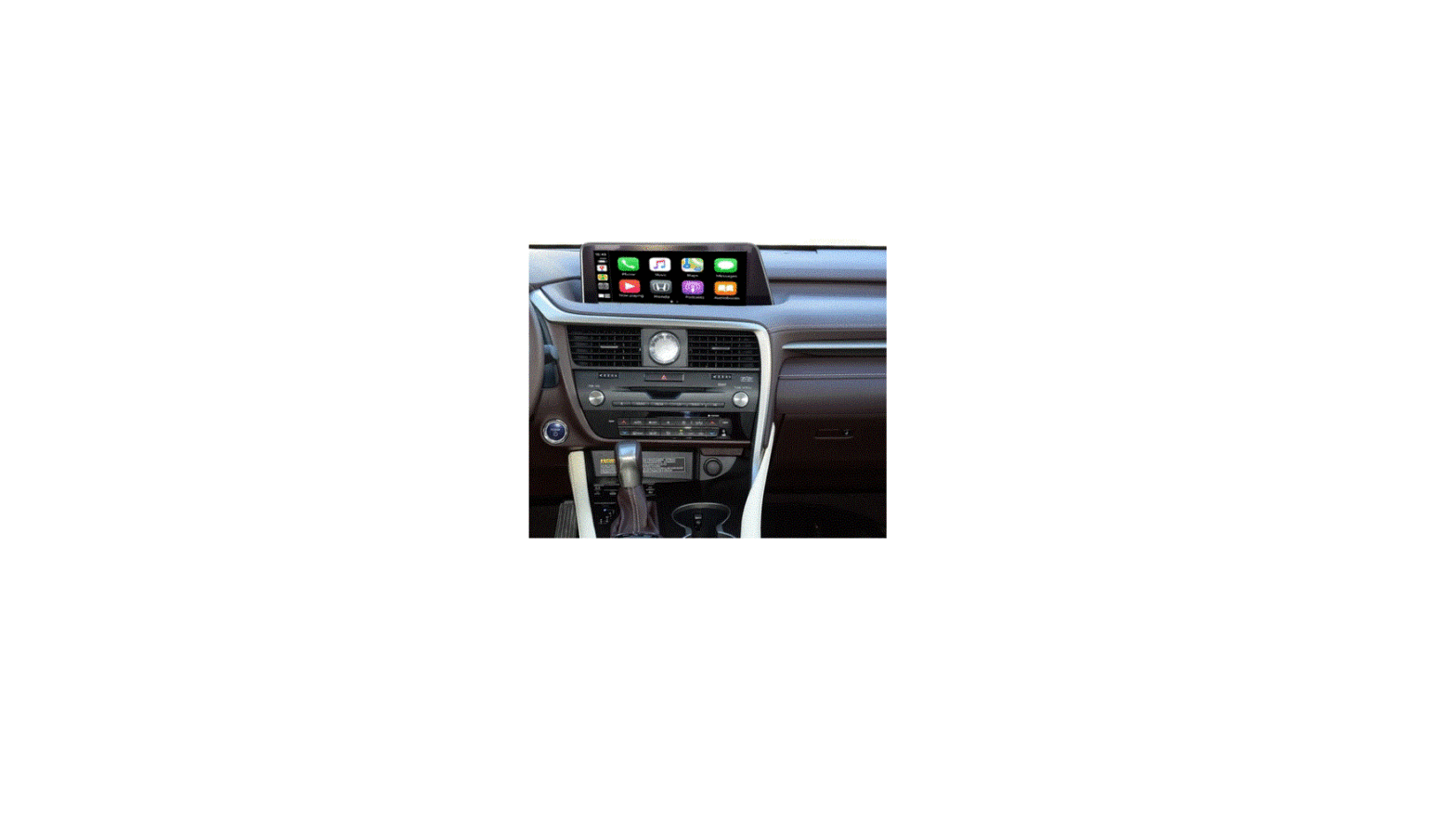
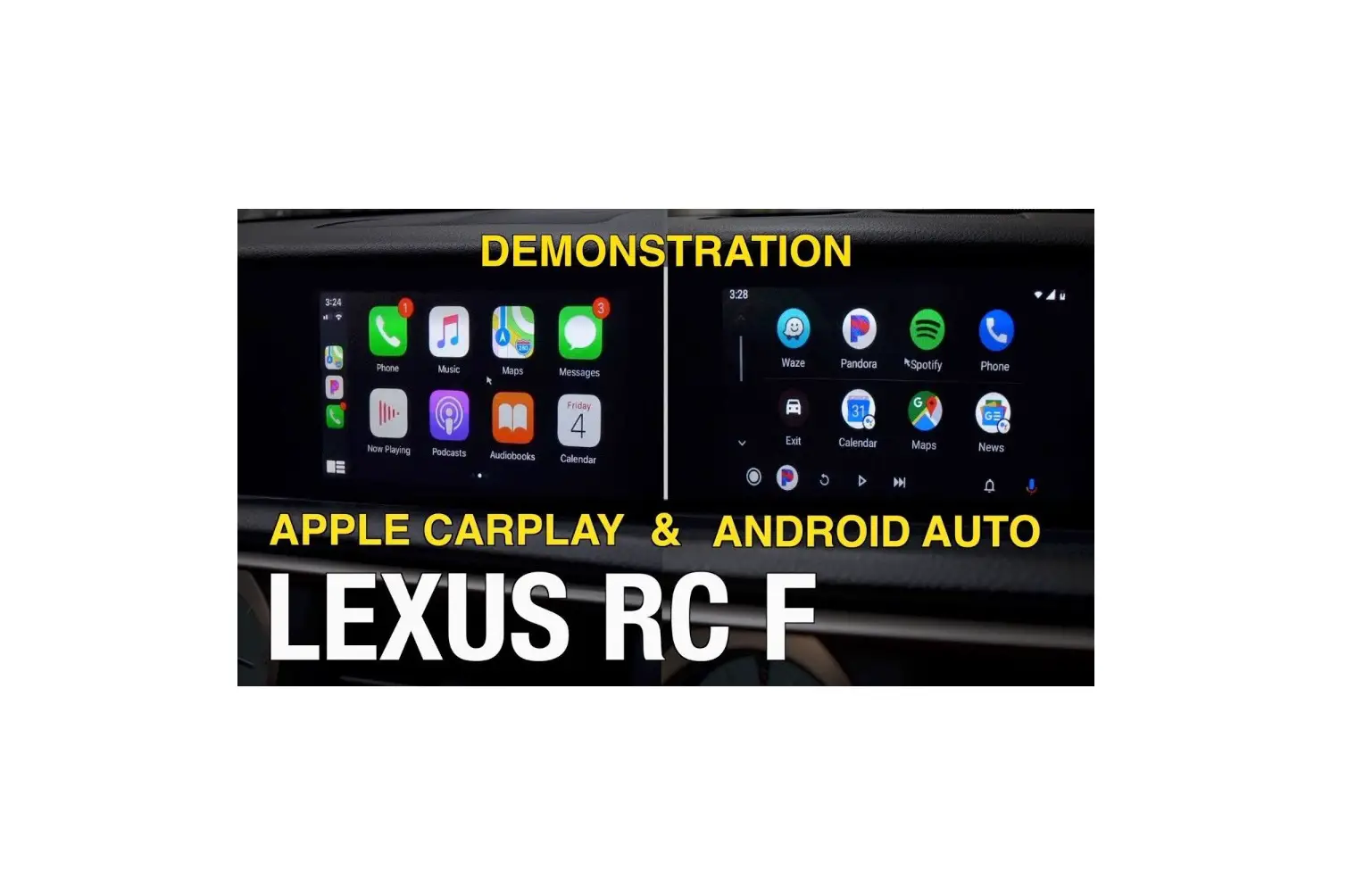
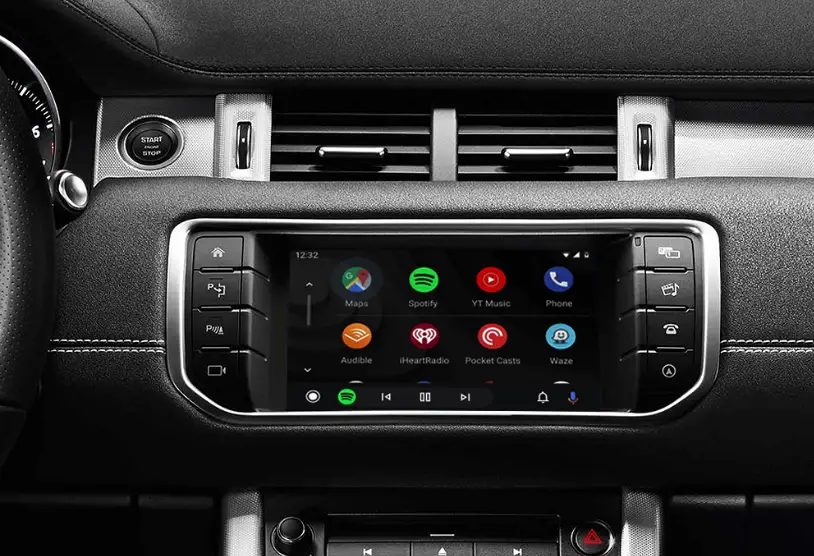
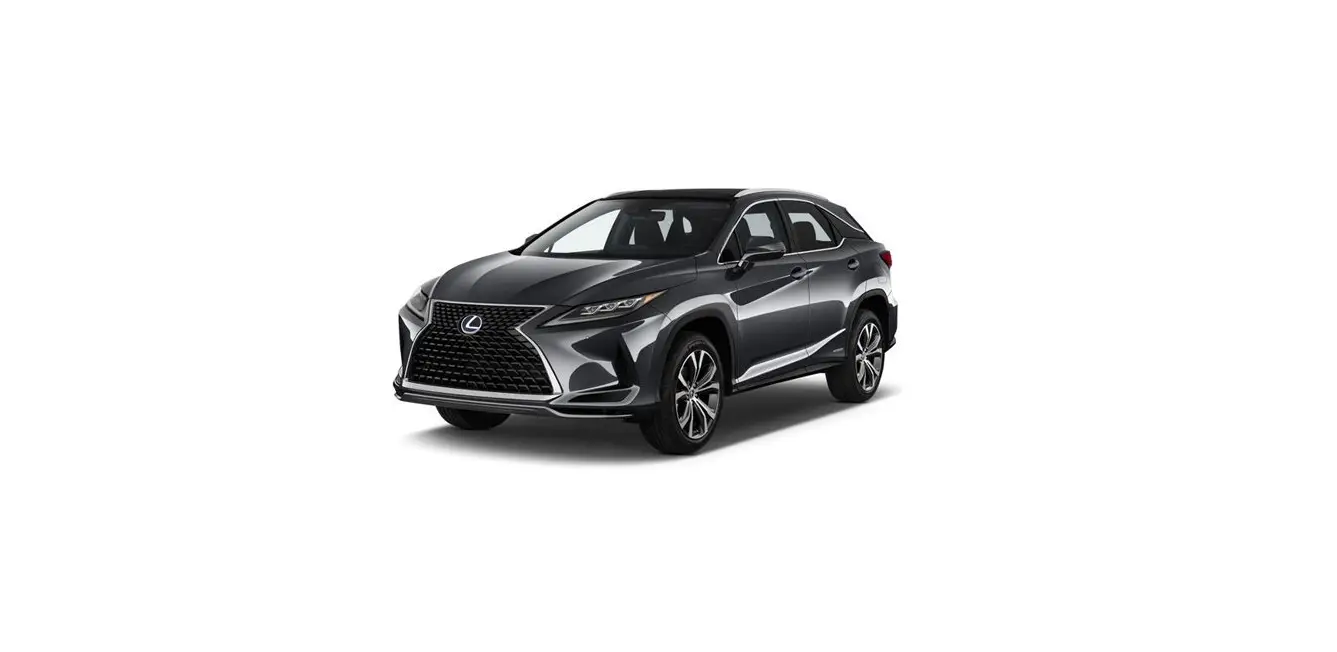
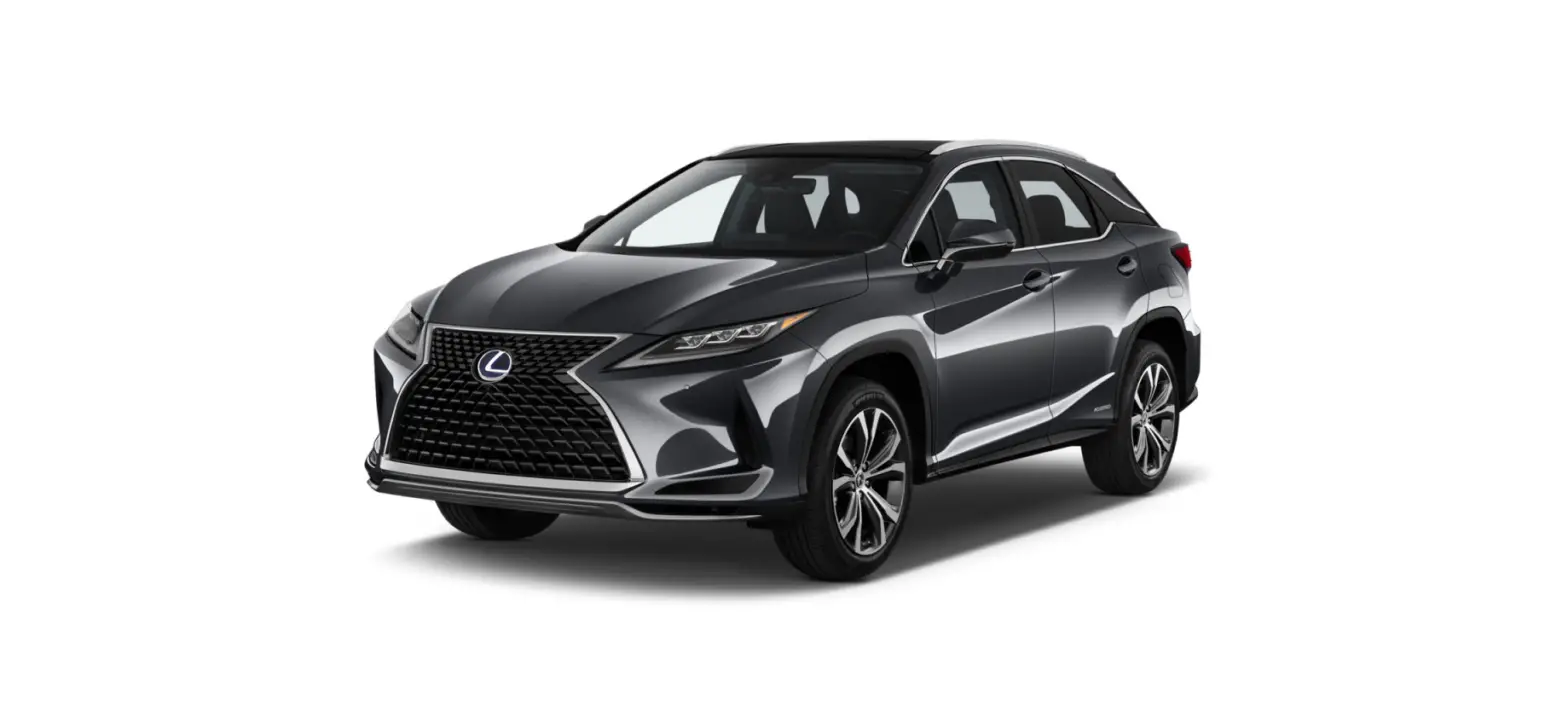
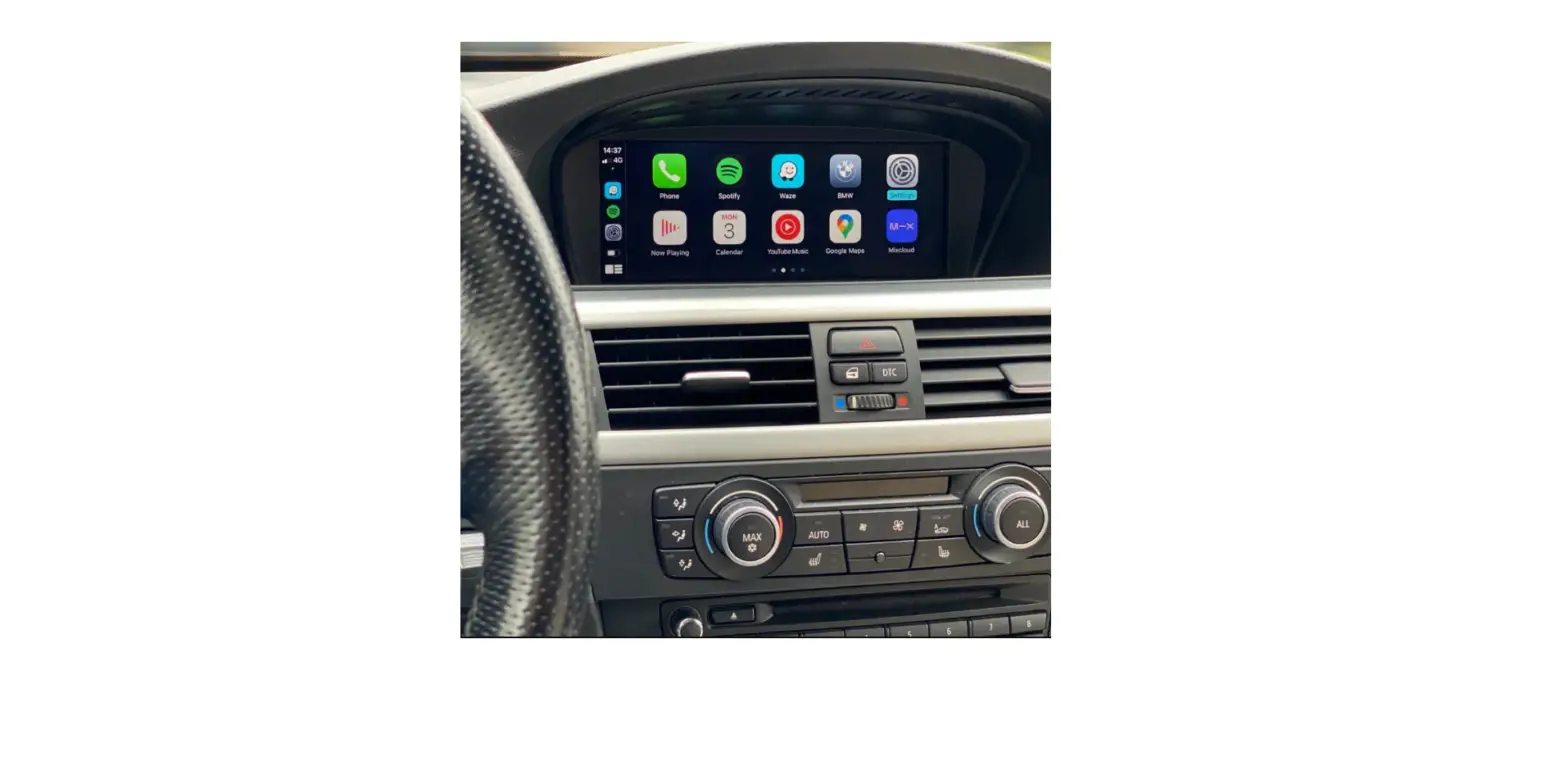
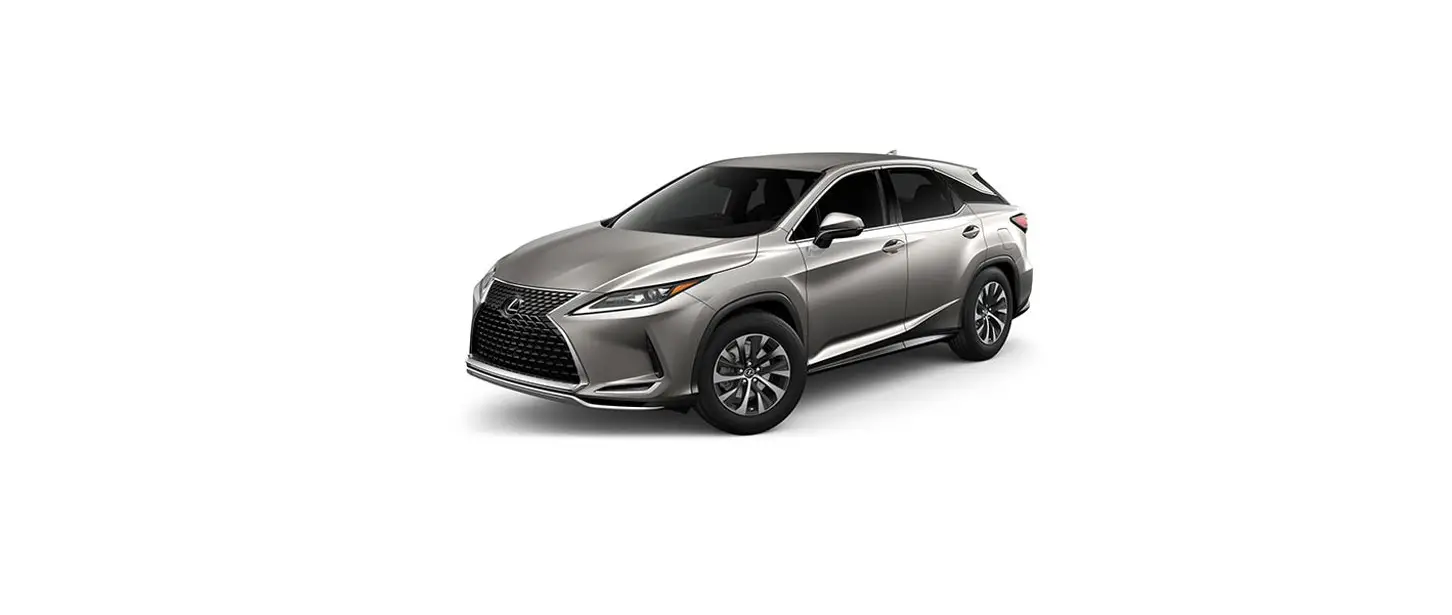
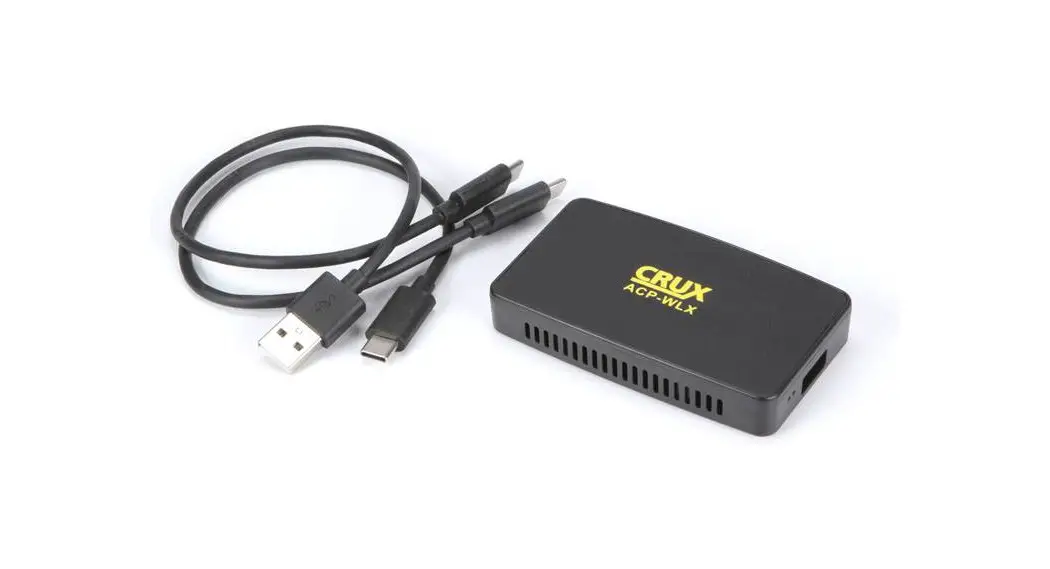
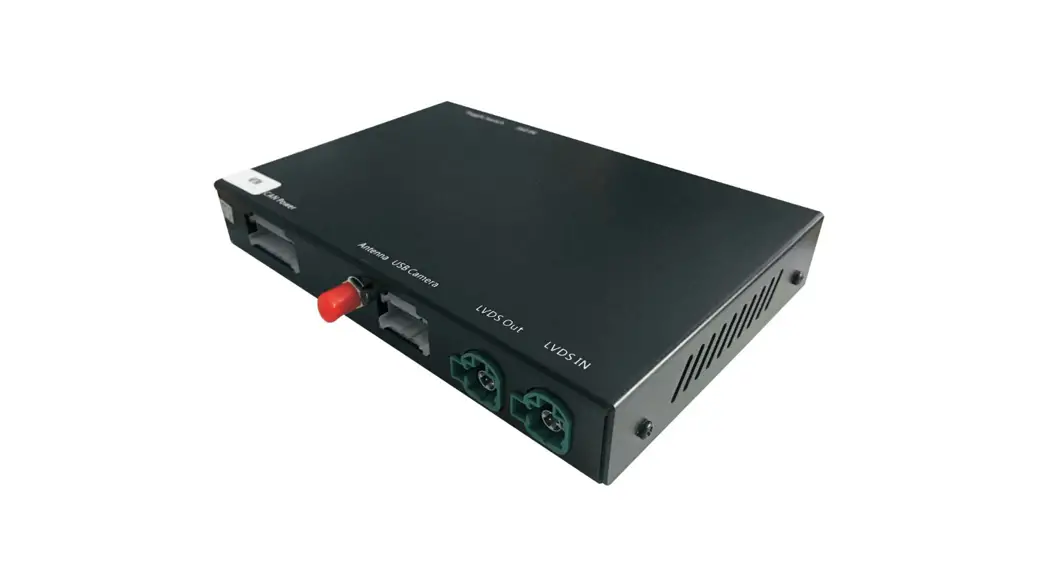
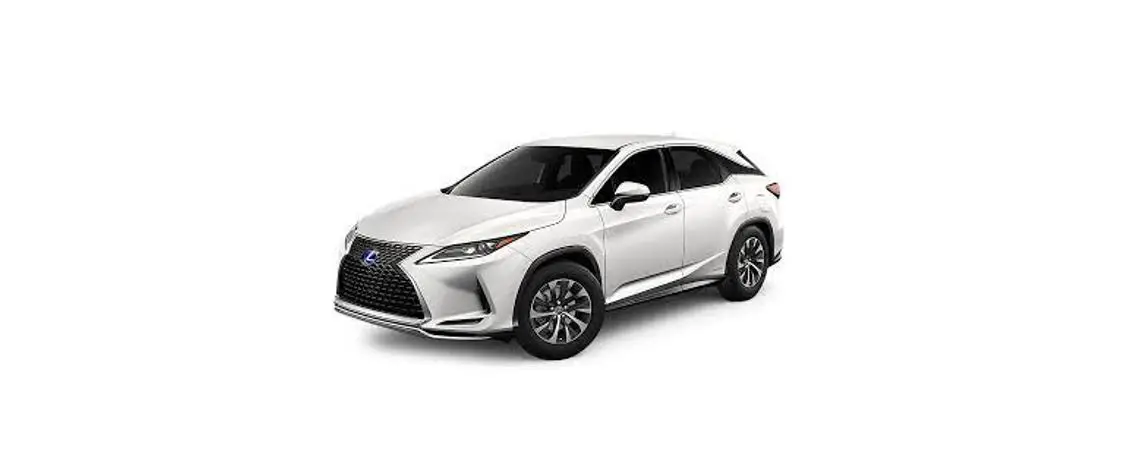
LEXUS RX450 2014-2019 Carplay Android Auto Interface
Product Information:
The product is an interface that allows the user to switch from
the radio to other media sources. It comes with a display and
various plugs for connecting to different devices. The product also
has an antenna, connection plug, video plug, microphone plug, and
USB extension cables included. The installation process involves
removing certain parts of the car console, disconnecting the radio
and display, connecting the plugs to the radio and display, testing
the system, and then mounting the interface in the car.
Product Usage Instructions:
- Remove the decorative strip from the radio console (unclip)
Detach the decorative trip from the radio console. Gently pull the
strip towards you. Start at the narrowest part, at the bottom
right. Place the decorative strip in a safe place. - Remove the panel to the left of the radio console (unclip)
Detach the panel to the left of the radio console. Gently pull the
panel towards you. Start at the top left. Remove the connector from
the panel and place it in a safe place. - Turn the gear lever knob (unscrew) Pull the hood down from the
knob and turn the knob off. Place a towel over the pin to protect
other parts. - Disconnect the radio (unscrew) Left and right is a 10 mm bolt.
Unscrew these bolts using (preferably a magnetic) socket
wrench. - Remove the display (unscrew) Flip up the screen cover and the
cover on the back of the display. If necessary, use auxiliary
tools. Remove the two 10 mm nuts on the front and the 10 mm bolt on
the back. Pull the display up and place it in a safe place to
prevent from scratches. - Connect the plugs to radio and display Pull the radio forward
and connect the large and small plug of the interface. Press the
clip of the gray part to loosen the large connector (see image).
Transfer the two connectors that are released to the contra
connectors. Swap the blue video plug of the display for the new
plug and connect the old plug to the new contrast plug. Plug the
video cable straight down at the indicated position to come out
into the free space of the radio. - Connect the interface Connect the antenna, connection plug,
video plug, microphone plug, and any USB extension cables to the
interface. - Test the system Temporarily plug in the POWER button. Choose
MEDIA to switch from the radio to the interface. Remove and forget
the existing Bluetooth connection to the car. Connect the phone to
the Bluetooth signal of the interface and turn on WIFI. Test the
system with respect to graphics, sound, scchopping between radio
and interface and backwards. - Mount the interface Depending on the type of interface, there
is just enough space to mount the interface at the indicated
position. If there is insufficient space, the interface can be
mounted behind/on the glove compartment. Make sure the video cable
does not kink at the connection point on the interface! - Close the system Reconnect all components in reverse order. The
system uses the existing microphone. - Have fun!
Installation instruction for Carplay Android Auto interface LEXUS RX450 2014-2019 The interface is connected to he radio and the display. It is estimated that it takes 30-60 minutes of work to connect the interface. No programming is necessary. Step 1. Remove both panels from the center console (unclip) Detach the panels on both sides of the center console. The panels are clicked. Gently pull up and away from the center console. The clips are positioned in a horizontal way. Place the panels in a safe place.
Step 2. Remove the decorative strip from the radio console (unclip) Detach the decorative trip from the radio console. Gently pull the strip towards you. Start at the narrowest part, at the bottom right. Place the decorative strip in a safe place.
Motrade March 2023 ©
Step 3. Remove the panel to the left of the radio console (unclip) Detach the panel to the left of the radio console. Gently pull the panel towards you. Start at the top left. Remove the connector from the panel and place it in a safe place.
Motrade March 2023 ©
Step 4. Turn the gear lever knob (unscrew) Pull the hood down from the knob and turn the knob off. Place a towel over the pin to protect other parts.
Step 5. Disconnect the radio (unscrew) Left and right is a 10 mm bolt. Unscrew these bolts using (preferably a magnetic) socket wrench.
Motrade March 2023 ©
Step 6. Remove the display (unscrew) Flip up the screen cover and the cover on the back of the display. If necessary, use auxiliary tools. Remove the two 10 mm nuts on the front and the 10 mm bolt on the back. Pull the display up and place it in a safe place to prevent from scratches.
Step 7. Connect the plugs to radio and display Pull the radio forward and connect the large and small plug of the interface.
Motrade March 2023 ©
Motrade March 2023 ©
Press the clip of the gray part to loosen the large connector (see image). Transfer the two connectors that are released to the contra connectors.
Swap the blue video plug of the display for the new plug and connect the old plug to the new contrast plug. Plug the video cable straight down at the indicated position to come out into the free space of the radio.
Motrade March 2023 ©
Step 8. Connect the interface Connect the antenna, connection plug, video plug, microphone plug, and any USB extension cables to the interface.
Step 9. Test the system Temporarily plug in the POWER button. Choose MEDIA to switch from the radio to the interface.
Remove and forget the existing bluetooth connection to the car. Connect the phone to the bluetooth signal of the interface and turn on WIFI. Test the system with respect to graphics, sound, scchopping between radio and interface and backwards.
Step 10. Mount the interface Depending on the type of interface, there is just enough space to mount the interface at the indicated position. If there is insufficient space, the interface can be mounted behind/on the glove compartment. Make sure the video cable does not kink at the connection point on the interface!
Motrade March 2023 ©
Step 11. Close the system Reconnect all components in reverse order. The system uses the existing microphone. Step 12. Have fun!
Motrade March 2023 ©
This manual has been compiled on the basis of experience and with the necessary care. No rights can be derived from it. Improvement tips/tricks are of course always welcome! ([email protected])
Motrade March 2023 ©