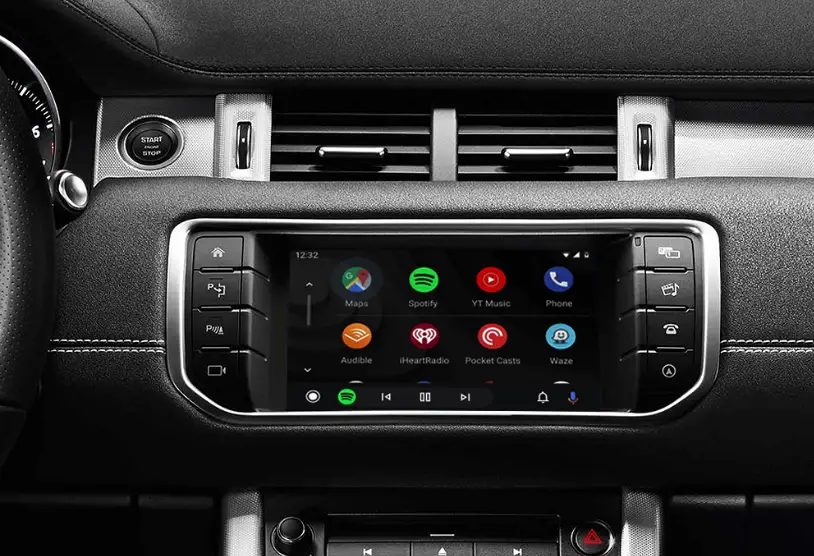
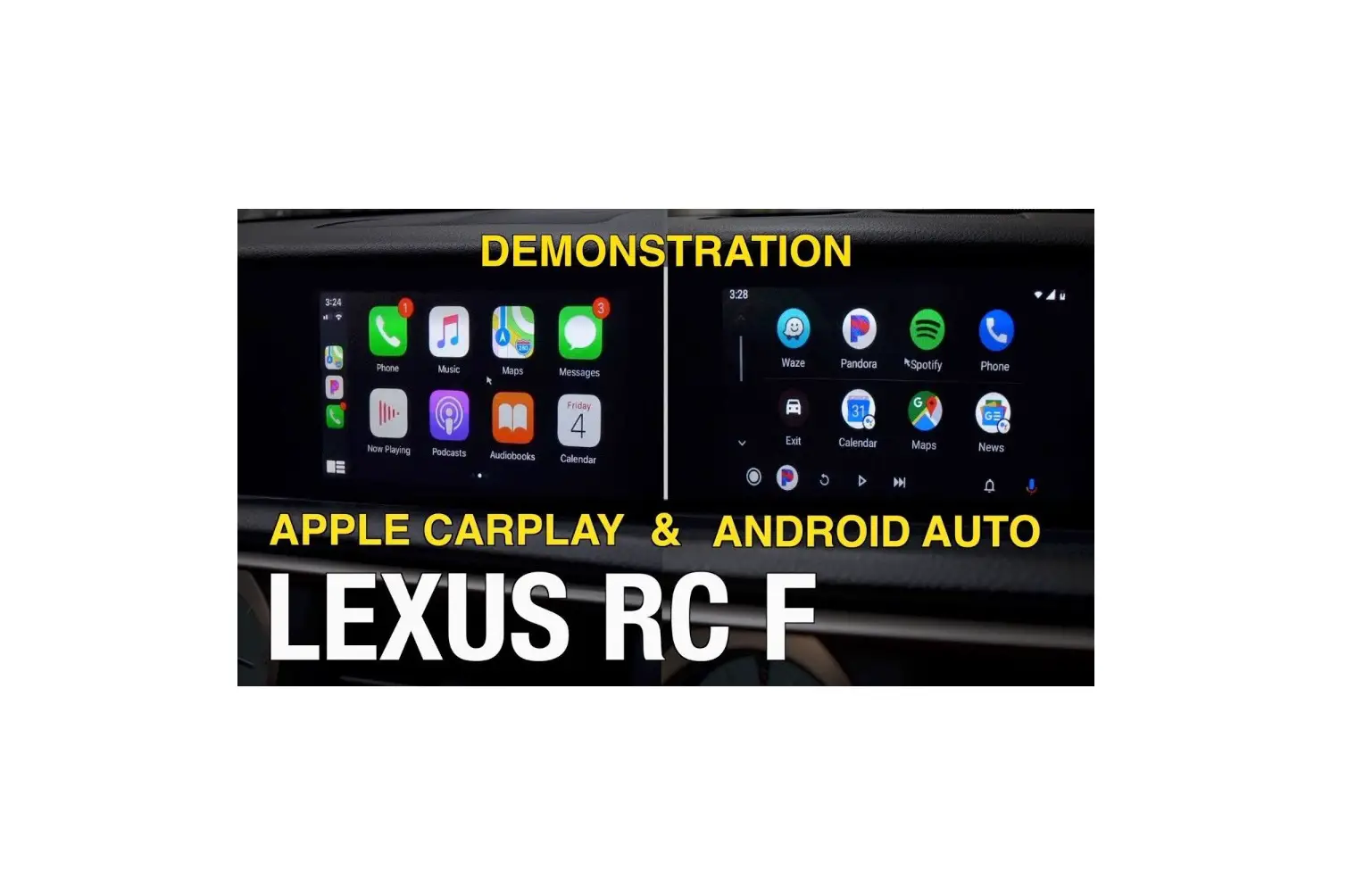
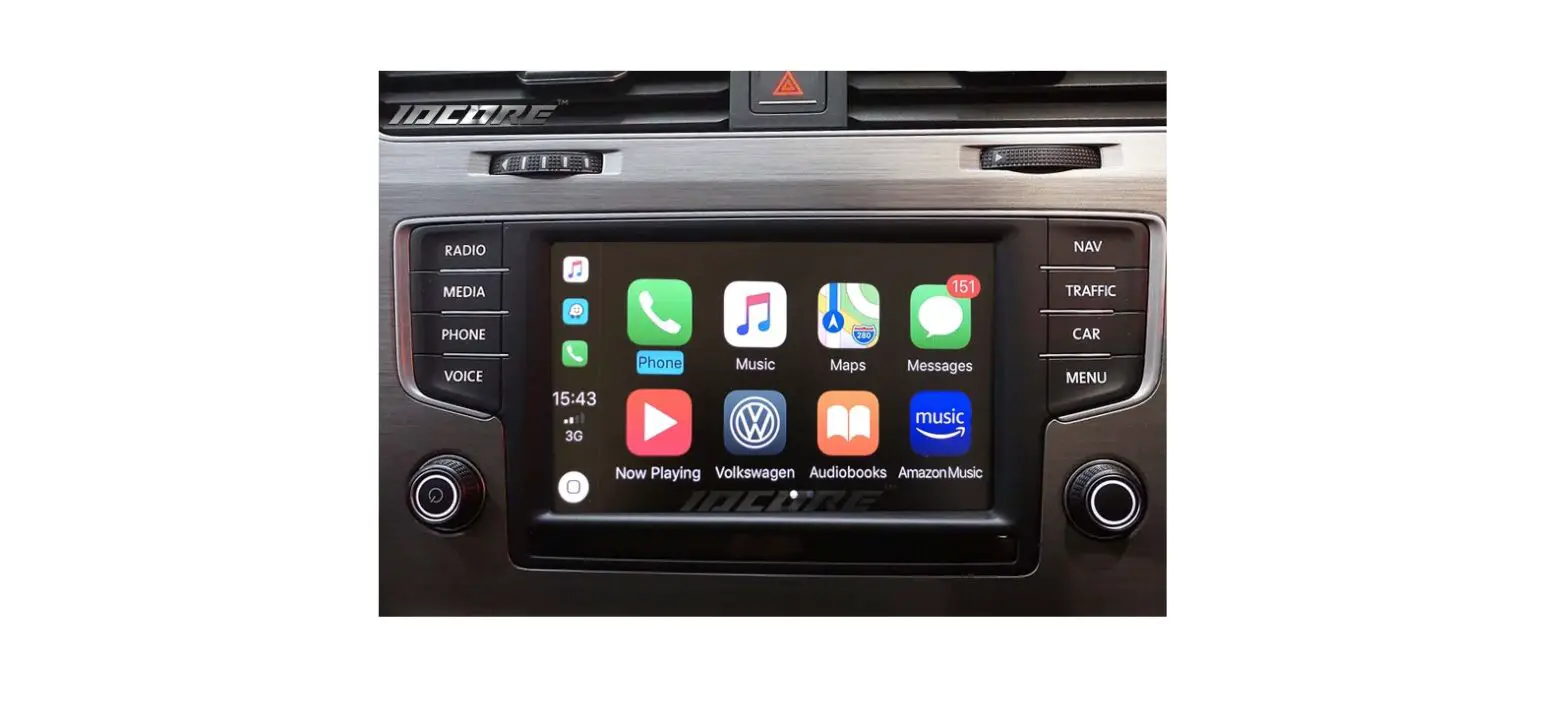
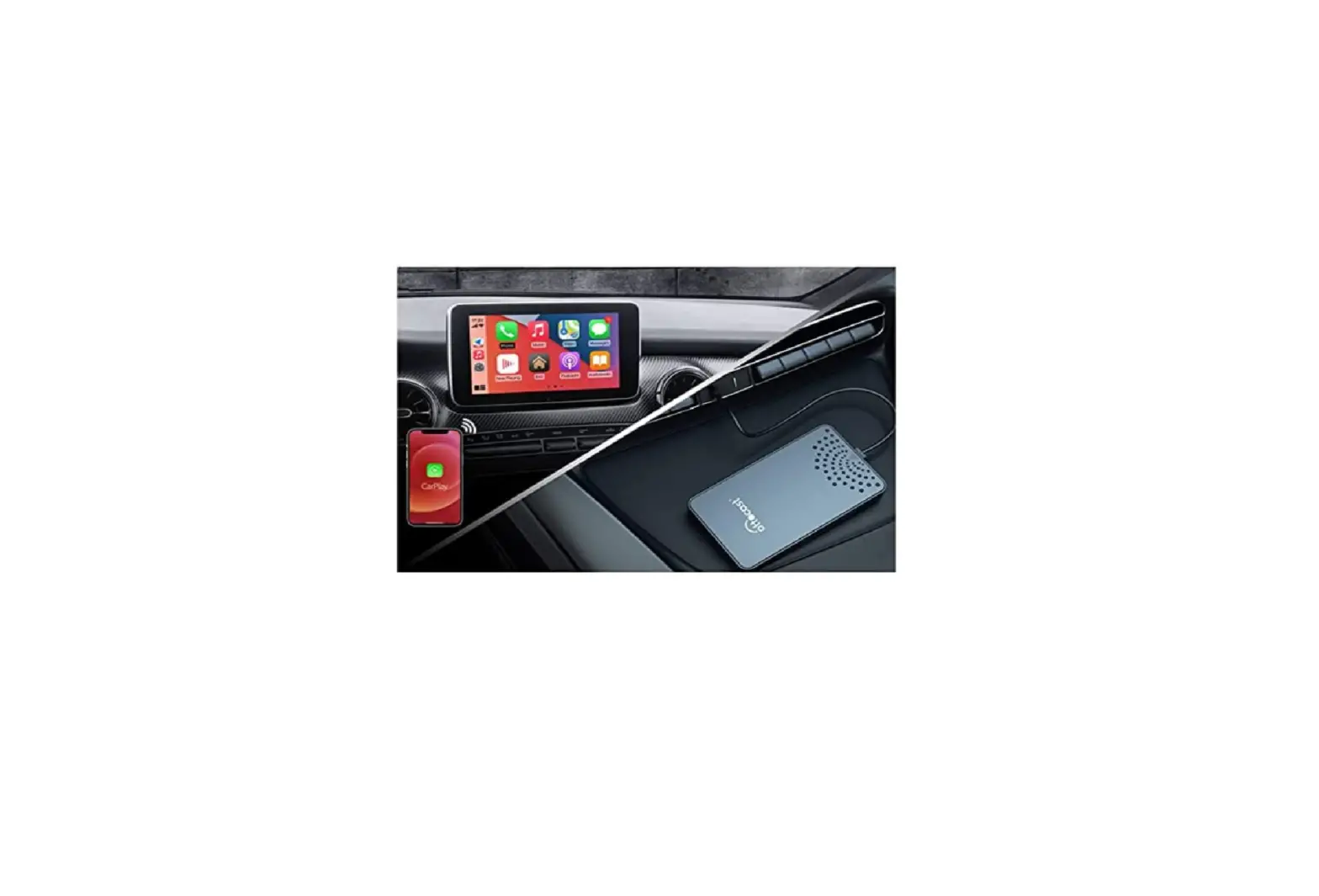
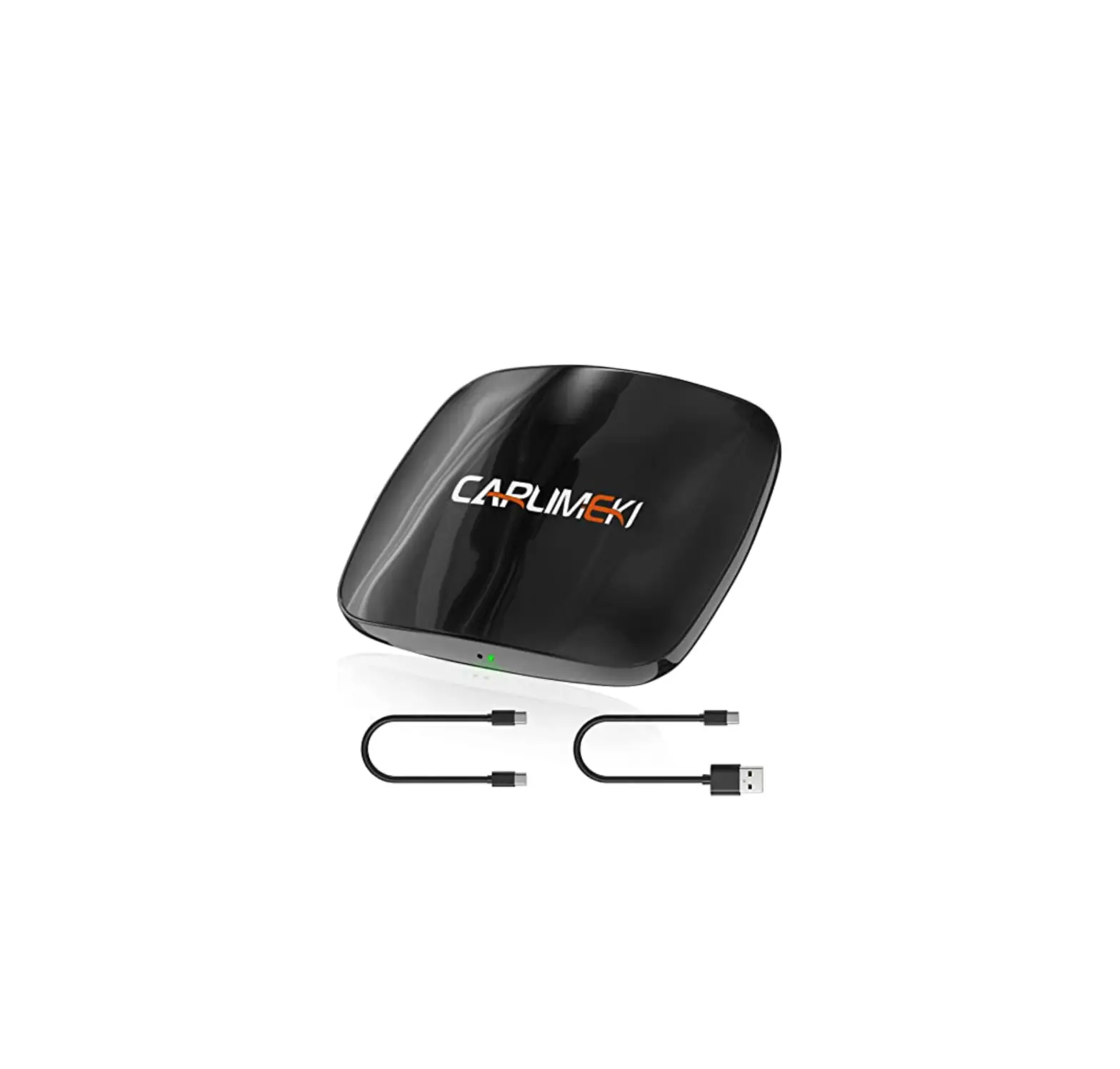
C-HR 2016-2019 Carplay Android Auto interface
Product Information: Carplay Android Auto Interface Toyota C-HR
2016-2019
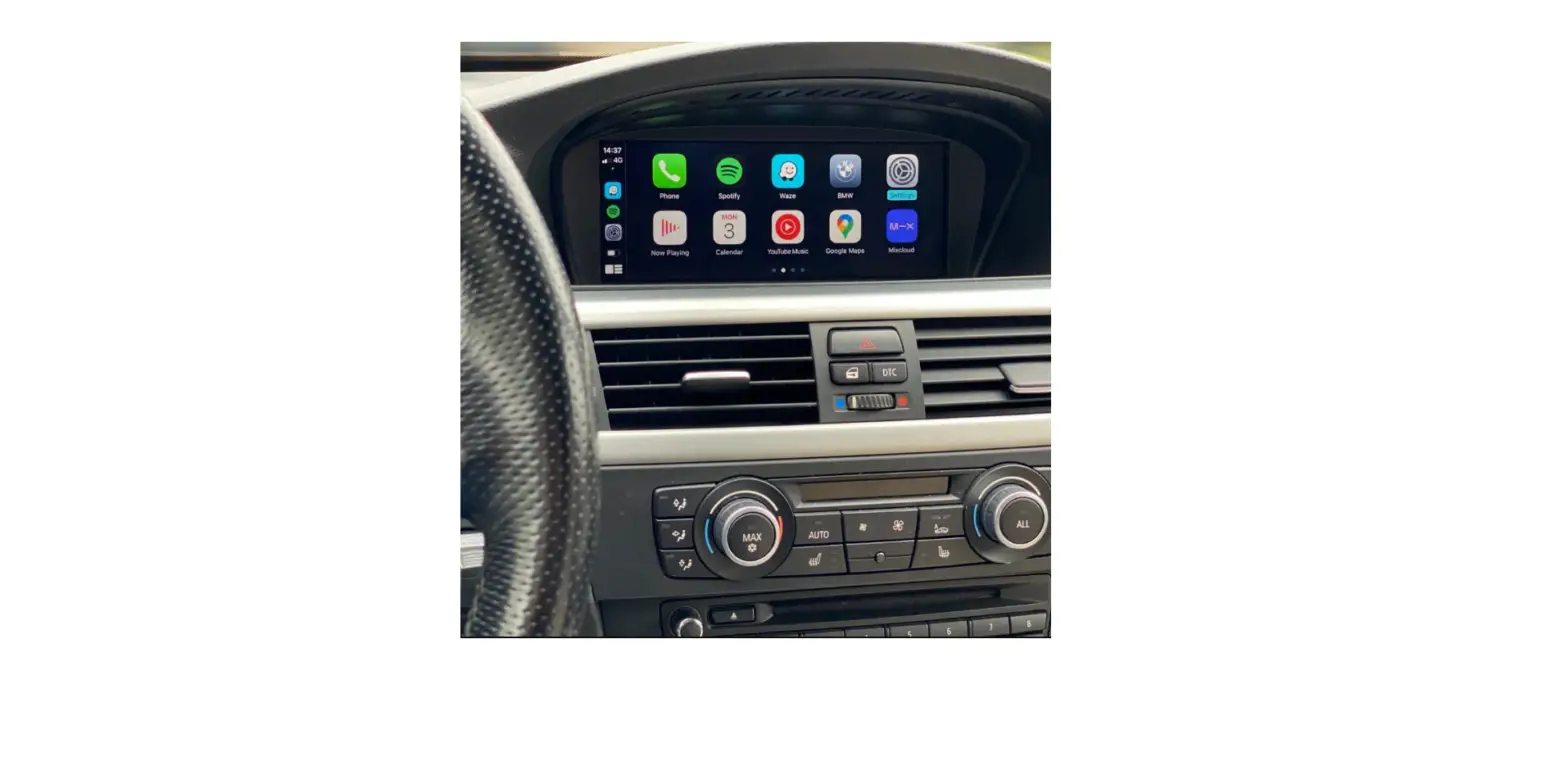
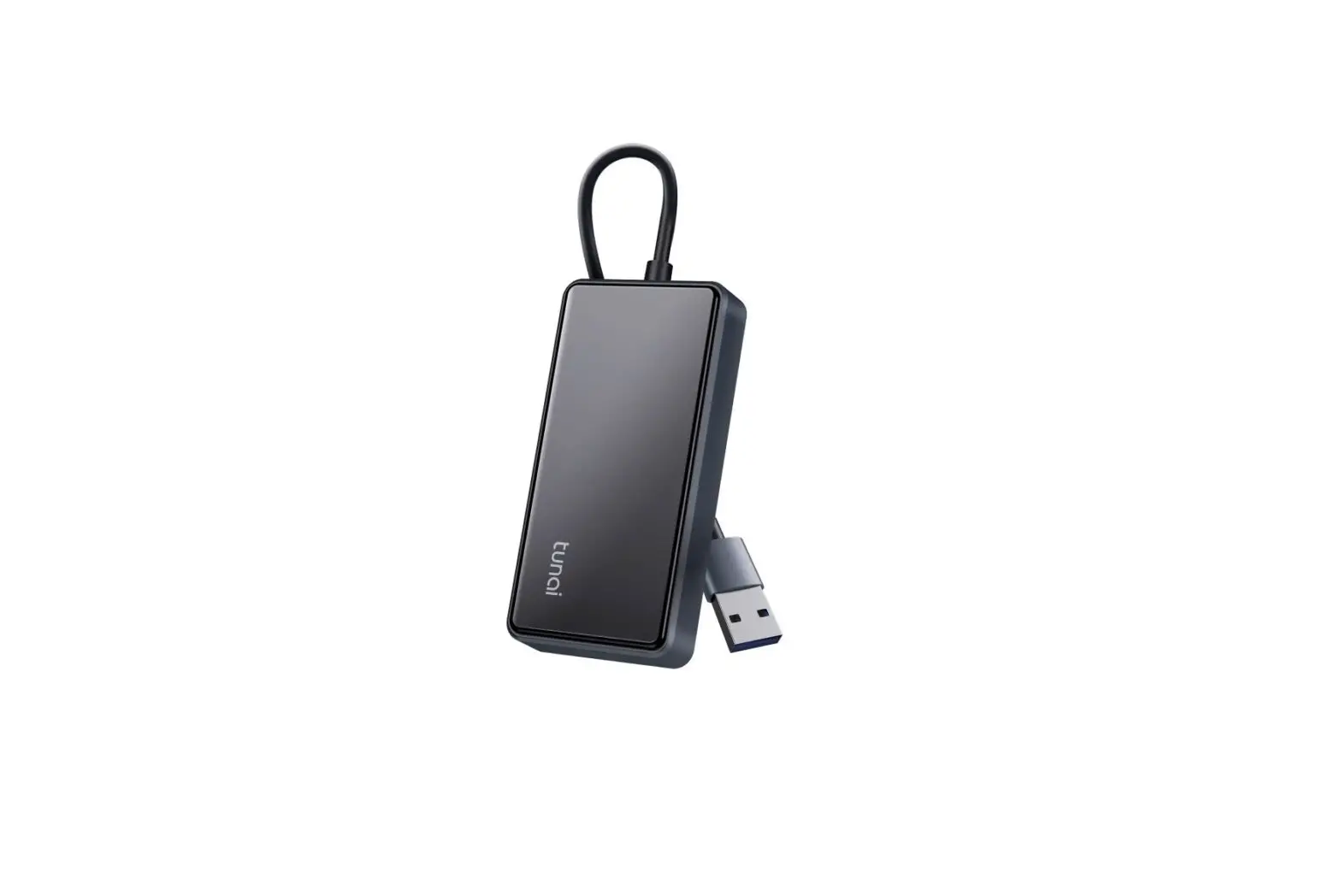
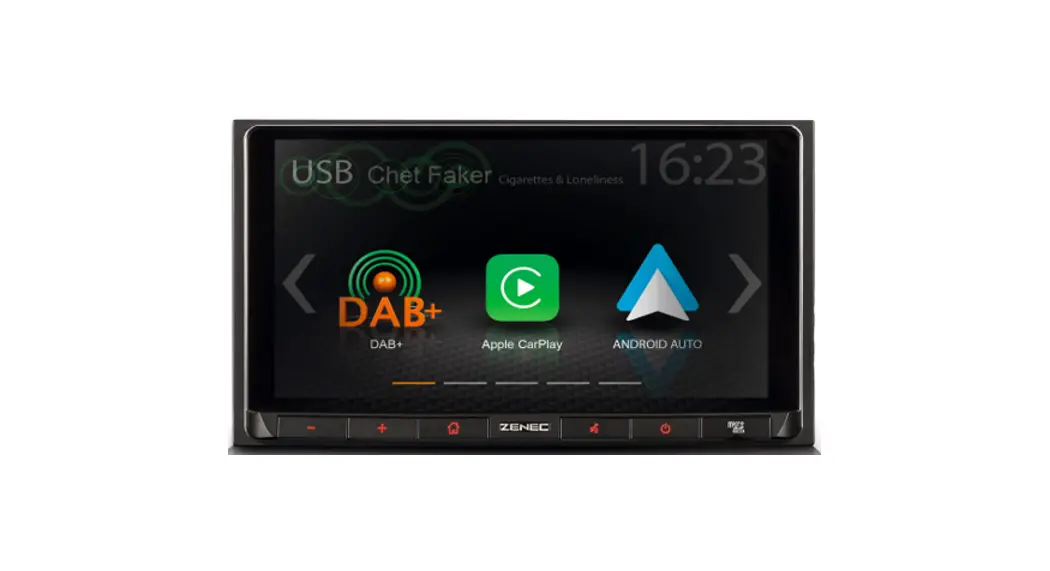
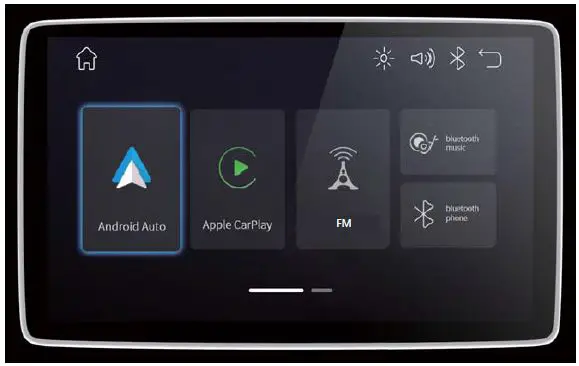
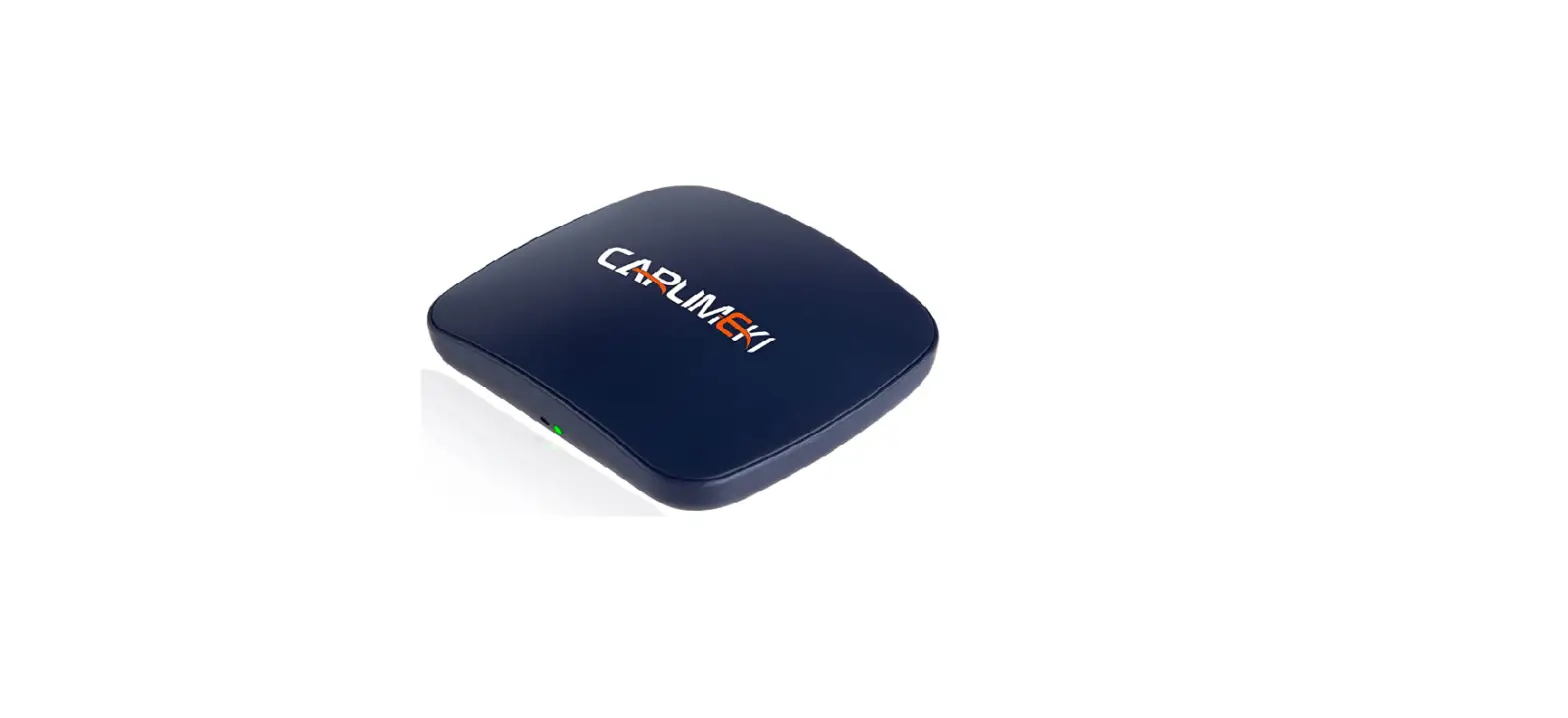
The Carplay Android Auto interface is designed for use in Toyota
C-HR cars manufactured between 2016-2019. The interface allows you
to connect your smartphone to the car’s radio and access features
such as music, navigation, and hands-free calling through the car’s
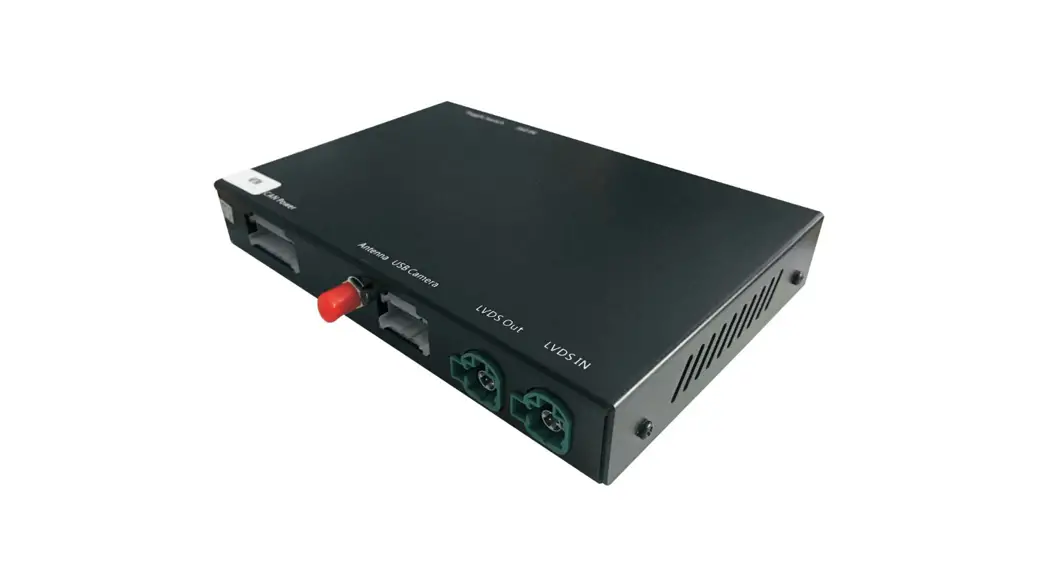
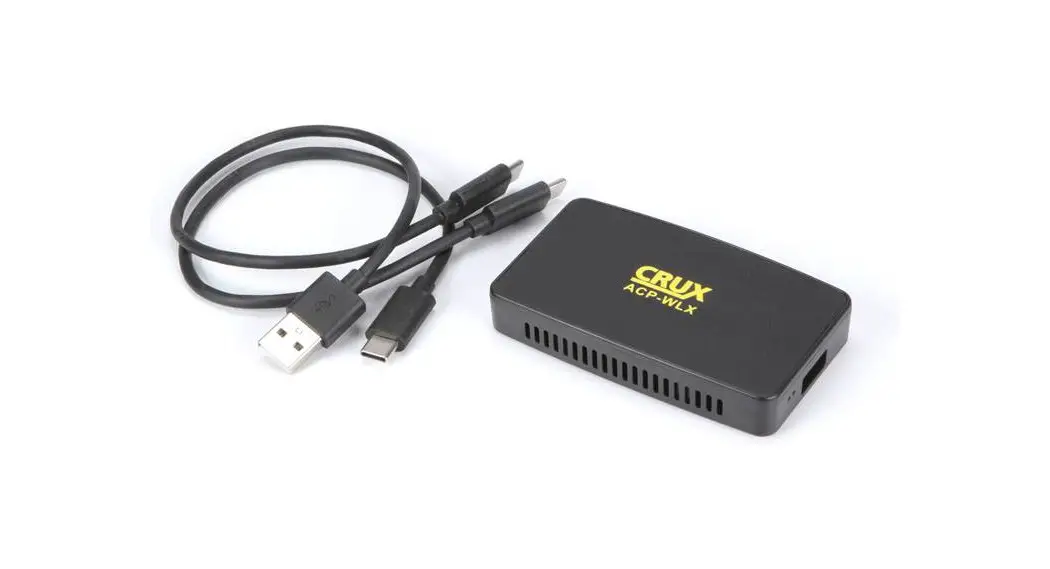
display. The interface comes with a main cable and three
contra-connectors that need to be connected to the car’s
screen/radio.
Product Usage Instructions:
Follow the steps below to install the Carplay Android Auto
interface:
- Step 1. Remove the front cap (unclip): Open the glovebox and
take off the front cap. - Step 2. Remove the control panel (unclip): Take off the control
panel and unplug the connector. - Step 3. Remove the air vents (unscrew): Unscrew the two screws
(crosshead) that hold the air vents. Take off the air vents and
unplug the connector. Be careful, do not force. At the left corner
there is a little obstruction. Just wiggle a bit to disconnect the
vents. - Step 4. Remove the bezel of the screen (unclip): Start at the
narrow part of the bezel and work towards the screen. Unclip the
bezel. Disconnect the connector. Be careful, do not force. At the
corner near the ignition a little part of the bezel is behind the
frame of the car (see red arrow in the picture below). - Step 5. Remove the screen (unscrew): Unscrew the screen. In
total there are 4 10 mm bolts (not the bolts behind the screen!).
Place a blanket on the middle console to avoid scratches. Pull the
screen towards you. - Step 6. Prepare the cable: Lead the main cable from the
glovebox to the screen (if you want to hide it in the glovebox) or
find another place for the interface. - Step 7. Connect the three connectors: Disconnect the three
connectors from the screen/radio. Reconnect them to the new
contra-connectors from the cable. Connect the three connectors from
the interface cable to the screen/radio. - Step 8. Mount the interface: Mount the interface in a suitable
location in the car. - Step 9. Test the interface: Turn on the car and test the
interface to ensure that it is working properly. - Step 10. Reconnect all parts: Reconnect all parts in reverse
order. Don’t forget the connectors of the air-vents, the bezel, and
the control panel. - Step 11. Enjoy!
Note: This manual has been compiled based on experience and with
due care. No rights can be derived from it. Improvement tips/tricks
are always welcome!
Installation instruction for Carplay Android Auto interface Toyota C-HR 2016-2019 The interface is connected via three connection plugs on the radio. It is estimated that it takes about 30-45 minutes of work to connect the interface. No programming is necessary. Step 1. Remove the front cap (unclip) Open the glovebox and take off the front cap.
Step 2. Remove the control panel (unclip) Take off the control panel and unplug the connector.
Motrade December 2023 ©
Step 3. Remove the air vents (unscrew) Unscrew the two screws (crosshead) that hold the air vents. Take of the air vents and unplug the connector. Be careful, do not force. At the left corner there is a little obstruction. Just wiggle a bit to disconnect the vents.
Step 4. Remove the bezel of the screen (unclip) Start at the narrow part of the bezel and work towards the screen. Unclip the bezel. Disconnect the connector. Be careful, do not force. At the corner near the ignition a little part of the bezel is behind the frame of the car (see red arrow in the picture below).
Motrade December 2023 ©
Step 5. Remove the screen (unscrew) Unscrew the screen. In total there are 4 10 mm bolts (not the bolts behind the screen!). Place a blanket on the middle console to avoid scratches. Pull the screen towards you. Step 6. Prepare the cable Lead the main cable from the glovebox to the screen (if you want to hide it in the glovebox) or find another place for the interface.
Motrade December 2023 ©
Step 7. Connect the three connectors Disconnect the three connectors from the screen/radio. Reconnect them to the new contra-connectors from the cable. Connect the three connectors from the interface cable to the screen/radio.
Step 8. Reinstall the screen/radio Push back the screen/radio and fasten the 4 bolts. Step 9. Test the system Connect the interface and the USB-cable. Read the manual to choose the right position of the dipswitches. Choose AUX as a source for sound in the original system. Switch to the interface by long-pressing Siri-button, MODE button or AUX. Remove and forget the existing bluetooth connection with the car. Connect the phone to the bluetooth signal of the interface and put WIFI on. The bluetooth connection will create a WIFI-network and disconnect itself after that. Test the system with regard to graphics, sound, switching between radio and interface and reverse.
Motrade December 2023 ©
The image is a bit blurry. There is no way to avoid this because it’s an analogue video signal. It does not affect the functionalities. Step 10. Reconnect all parts Reconnect all parts in reverse order. Don’t forget the connectors of the air-vents, the bezel and the control panel. Step 11. Enjoy!
This manual has been compiled on the basis of experience and with due care. No rights can be derived from it. Improvement tips / tricks are of course always welcome! ([email protected])
Motrade December 2023 ©