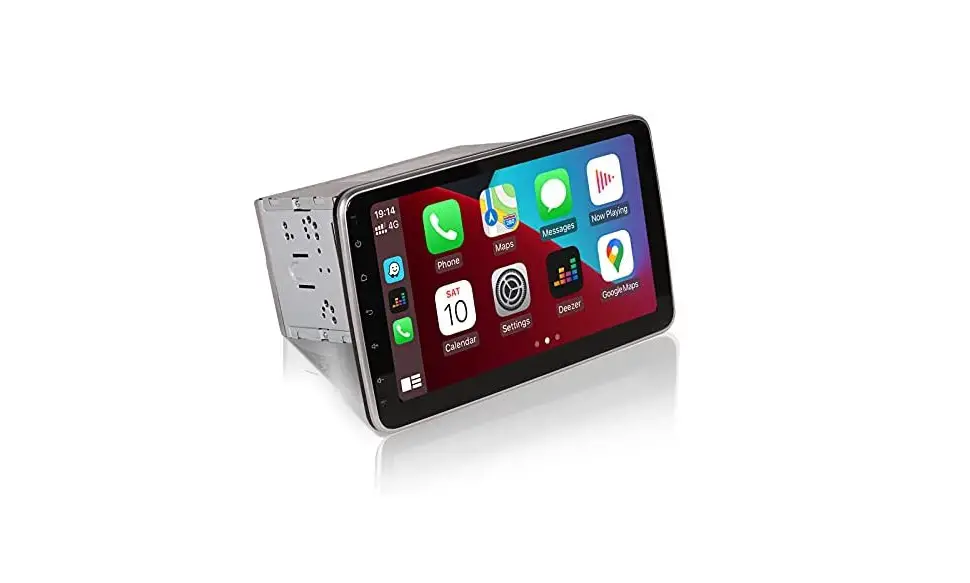
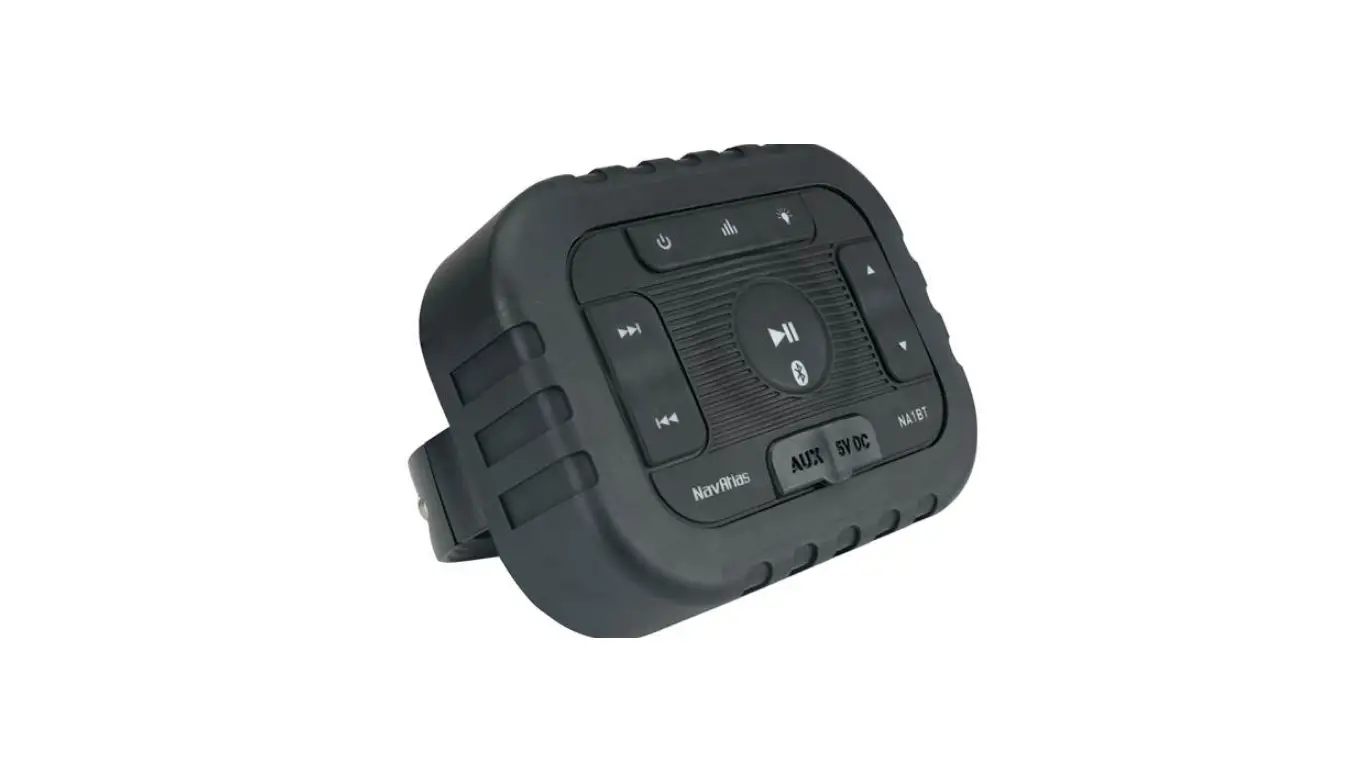
BT Remote Apple CarPlay, Android Auto Interface
BT Remote User Manual for Apple CarPlay / Android Auto
Interface
Manual Version: 1.0
DESIGNED + MANUFACTURED IN THE
NOTICE: We recommend having this installation performed by a
certified technician. All product names, logos, brands, trademarks,
and registered trademarks are the property of their respective
owners.
Remote Operation Guide
- Back Button
- Enter
- Up Rotate Left
- Down Rotate Right Menu
- Voice
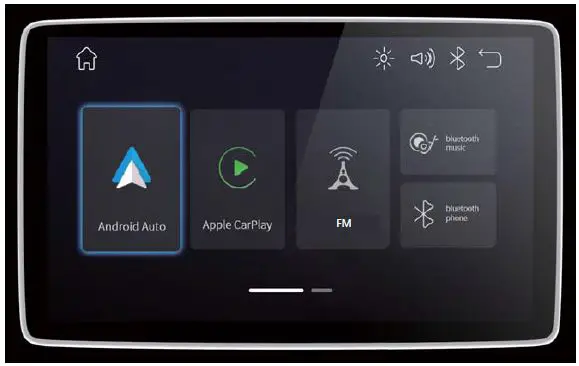
Selecting Apple CarPlay/Android Auto will bring you to your
Apple CarPlay/Android Auto screen if your phone is connected or
paired. If no phone is connected or paired by Bluetooth, it will
bring you to the Apple CarPlay/Android Auto Settings Menu (see
right image). Select Settings to connect your phone to Apple
CarPlay/Android Auto (see next page for instructions).
HDMI Input
Selecting HDMI Input will bring you to the HDMI Input of the
interface. If no HDMI device is connected, you will see a No Signal
HDMI message.
Connecting Your Phone to Apple CarPlay / Android Auto
Before connecting your phone to the interface, disconnect your
phone from the vehicle’s factory Bluetooth. Go to the Bluetooth
settings of your phone and select Forget This Device.
Follow the diagram below to connect your phone. Make sure your
phone’s Wifi and Bluetooth are on. Connect to the Bluetooth name of
the interface on the CarPlay / Bluetooth Setting of your phone.
- iPhone: General > Settings > CarPlay > Connect
- Android: Settings > Bluetooth > Connect
Wireless CarPlay Settings
- Discover and Connect Devices
- Turn on your phone’s Bluetooth and search CX_BTFC4BBCCAB01D
then connect it - Pairing
- Turn on your phone’s Bluetooth and search CX_BTFC4BBCCAB01D
then connect it
Apple CarPlay / Android Auto
To use the BT Remote for Apple CarPlay / Android Auto, follow
the below instructions:
- Connect your phone to the interface using the Bluetooth
settings of your phone. - Select Apple CarPlay/Android Auto on the remote to access the
interface. - Use the remote buttons to navigate through the interface.
BT Remote User Manual for
Apple CarPlay / Android Auto Interface
Manual Version: 1.0
DESIGNED + MANUFACTURED IN THE
NOTICE: We recommend having this installation performed by a certified technician. All product names, logos, brands, trademarks and registered trademarks are property of their respective owners.
1
NavTool.com | Call: +1-877-628-8665 | Text: +1-646-933-2100
User Manual
Disconnect your phone from the vehicle’s factory Bluetooth if connected. Go to the Bluetooth Settings of your phone and select (Forget this Device) for the vehicle. You will be connecting to the Apple CarPlay / Android Auto feature of the interface via Bluetooth Connection. If you do not disconnect your phone from the vehicle’s factory Bluetooth, the vehicle will not know which Bluetooth Connection it should automatically pair to. This will cause connection issues for Apple CarPlay / Android Auto. Set the vehicle’s radio to AUX or an alternative AUX input device. Interface audio will not play through the car speakers if AUX is not connected or radio is not set to AUX input. This includes audio from Apple CarPlay, Android Auto, HDMI, navigation directions, music, and phone calls. Press and hold the back button on the supplied remote for 3-5 seconds to turn on and off the interface. If the interface is not displaying on the screen, please check that the remote control buttons light up when pressing any buttons. If it does not light up, twist open the lid of the remote. Open the battery door and insert or replace batteries.
Back Button
2
NavTool.com | Call: +1-877-628-8665 | Text: +1-646-933-2100
Remote Operation Guide
Enter
Up Rotate Left
Back
Down Rotate Right Menu
Voice
Up- Press to go UP inside of Apple CarPlay or Android Auto. Down- Press to go DOWN inside Apple CarPlay or Android Auto. In Android Auto, DOWN button is used to enter the bottom menu bar of Android Auto. Rotate Left- To go LEFT inside Apple CarPlay, Android Auto, and the interface menu. Rotate Right- To go RIGHT inside Apple CarPlay, Android Auto, and the interface menu. Back- Press to go back inside Apple CarPlay or Android Auto. Press and hold for 3-5 seconds to turn the interface ON or OFF. Voice- Press to activate Siri or Ok Google. Menu- Brings up the interface’s bottom menu to change inputs or go into settings. Enter- ENTER button
3
NavTool.com | Call: +1-877-628-8665 | Text: +1-646-933-2100
Apple CarPlay/Android Auto Settings Menu Selecting Apple CarPlay/Android Auto will bring you to your Apple CarPlay/Android Auto screen if your phone is connected or paired. If no phone is connected or paired by Bluetooth, it will bring you to the Apple CarPlay/Android Auto Settings Menu (see right image). Select Settings to connect your phone to Apple CarPlay/Android Auto (see next page for instructions).
HDMI Selecting HDMI Input will bring you to the HDMI Input of the interface. If no HDMI device is connected, you will see a No Signal HDMI message.
Cameras / Video Input Selecting Camera Inputs will let you see your aftermarket cameras if installed. If your vehicle has factory cameras such as a factory rear view camera, you won’t be able to manually view them from here. It will still automatically display when putting the vehicle in reverse. If the vehicle is equipped with CAN, aftermarket front camera will automatically show when in drive up to 5-10 mph, and aftermarket left and right cameras will automatically show when activating left and right turn signals.
4
NavTool.com | Call: +1-877-628-8665 | Text: +1-646-933-2100
Connecting Your Phone to Apple CarPlay / Android Auto
Disconnect your phone from the vehicle’s factory Bluetooth before connecting your phone to the interface. Go to the Bluetooth settings of your phone and select Forget This Device.
Follow the diagram below to connect your phone. Make sure your phone’s Wifi and Bluetooth are on. Connect to the Bluetooth name of the interface on the CarPlay / Bluetooth Setting of your phone.
iPhone: General > Settings > CarPlay > Connect
Android: Settings > Bluetooth > Connect
Wireless CarPlay Settings
Wireless Android Auto Settings
Discover and Connect Devices
Turn on your phone’s Bluetooth and search CX_BTFC4BBCCAB01D then connect it
Pairing
Turn on your phone’s Bluetooth and search CX_BTFC4BBCCAB01D then connect it
5
NavTool.com | Call: +1-877-628-8665 | Text: +1-646-933-2100
Apple CarPlay / Android Auto
Microphone will not work if the Original MIC setting is not set correctly. Audio will not play from the vehicle’s speakers if the radio is not set to AUX. To access the bottom interface menu bar Press the Menu button or press and hold the Back button for 3-5 seconds on the supplied remote. This will make the bottom interface menu bar appear. To Exit the interface and return to your vehicle’s factory menu Once you have access to the bottom interface menu bar, you can press and hold the Back button for 3-5 seconds on the supplied remote to exit the interface returning you to the vehicle’s factory screen. To Exit Apple CarPlay / Android Auto and return to your vehicle’s factory menu
Apple CarPlay- Select the Main Menu App Android Auto- Select the Exit App You will not have access to the Apple CarPlay / Android Auto Settings Menu once paired If you need to go back and make any changes to the Apple CarPlay / Android Auto Settings, set Apple CarPlay/Android Auto (Auto On Mode) to OFF in the Interface Miscellaneous Settings or disconnect your phone from the interface or turn off your phone’s wifi and Bluetooth. See Interface Menus and Settings section of the manual for details about different settings options.
6
NavTool.com | Call: +1-877-628-8665 | Text: +1-646-933-2100
 NAVTOOL INC