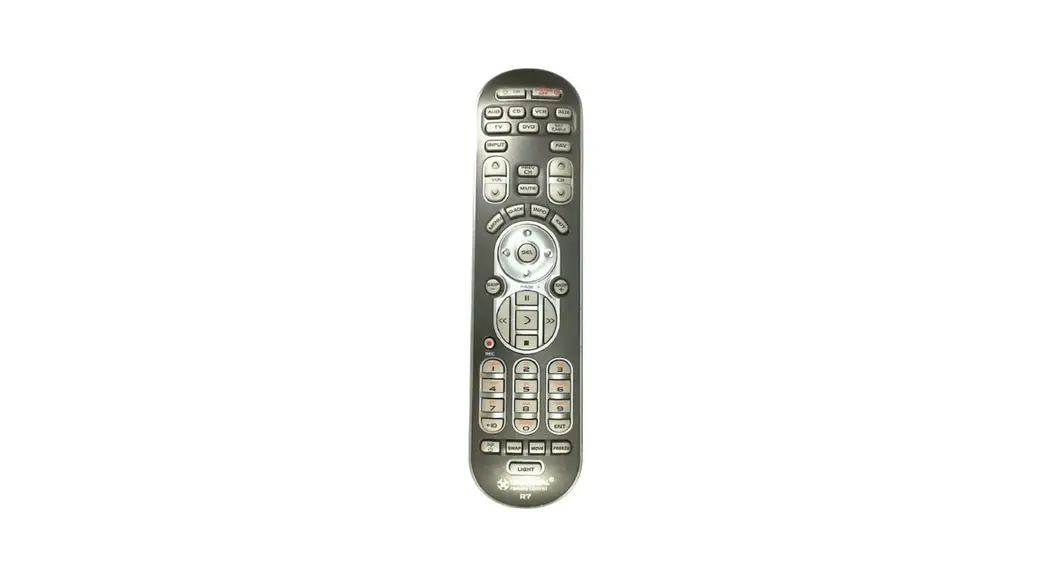
IR Remote HDMI Interface
IR Remote User Manual for HDMI Interface
Product Information
The IR Remote User Manual is designed and manufactured by
NavTool.com. This product is compatible with an HDMI interface and
allows users to control the interface from a distance using an IR
remote. All product names, logos, brands, trademarks, and
registered trademarks are the property of their respective
owners.
Product Usage Instructions
- Set the vehicle’s radio to AUX or an alternative AUX input
device. Interface audio will not play through car speakers if AUX
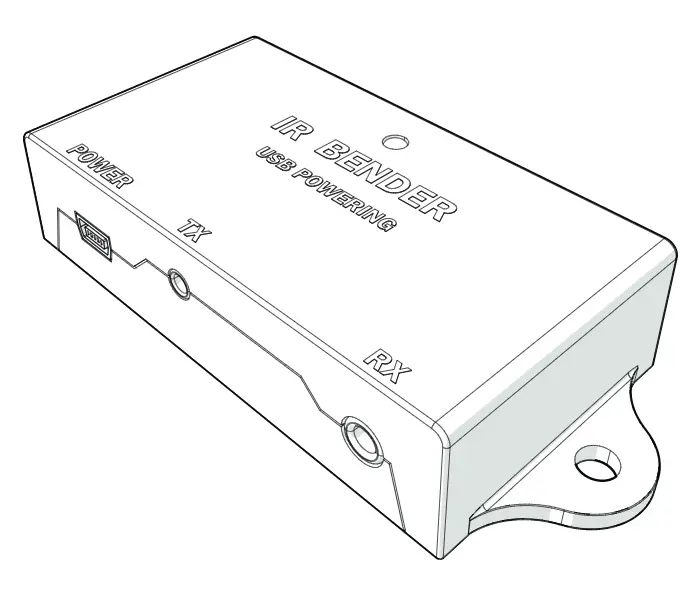
is not connected or radio is not set to AUX input. - Aim the remote at the IR receiver and press the power button to
turn on and off the interface. If the interface is not displaying
on the screen please check that the led in the left arrow on the
remote lights up when pressing any button. If it does not light up,
check and replace the batteries as needed. - Use the following buttons on the IR remote for navigation:
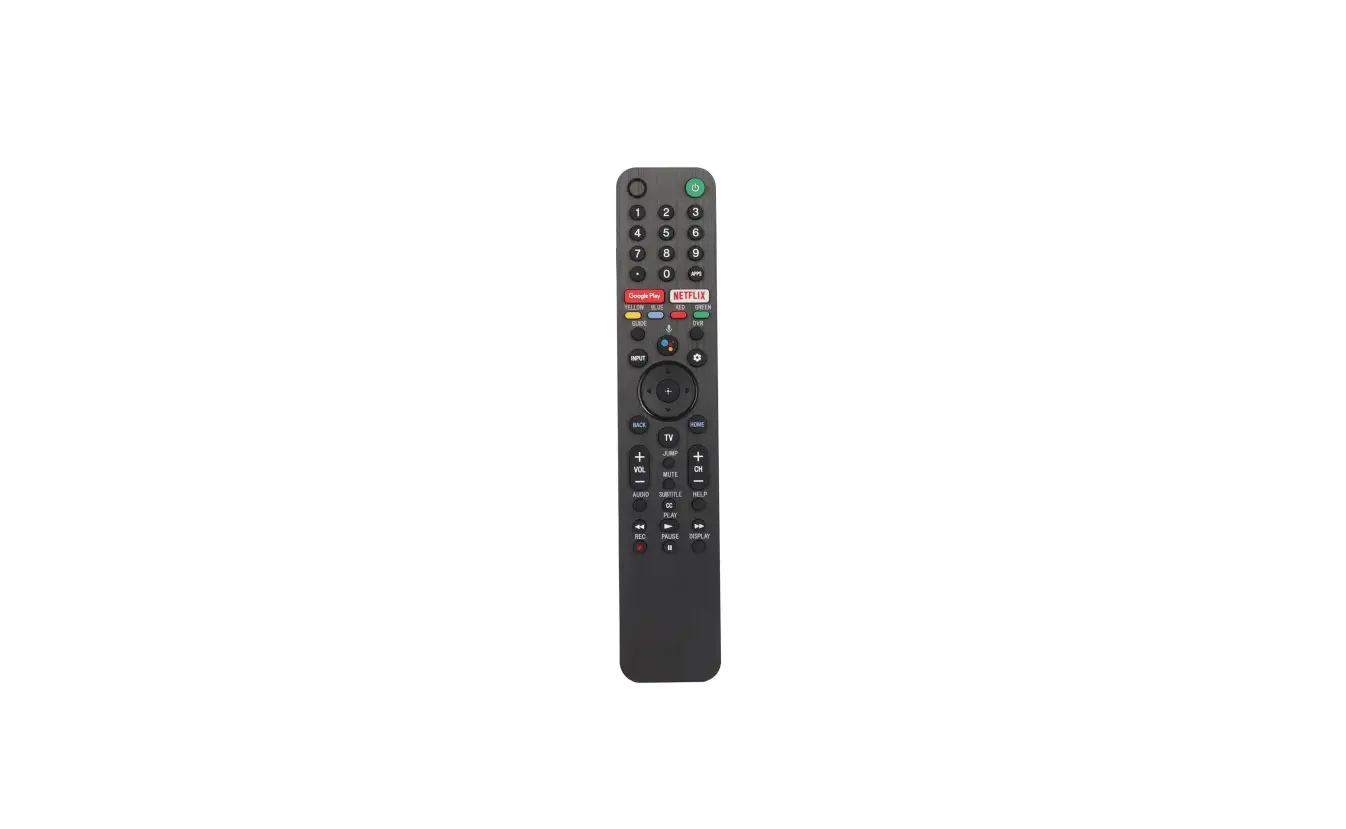
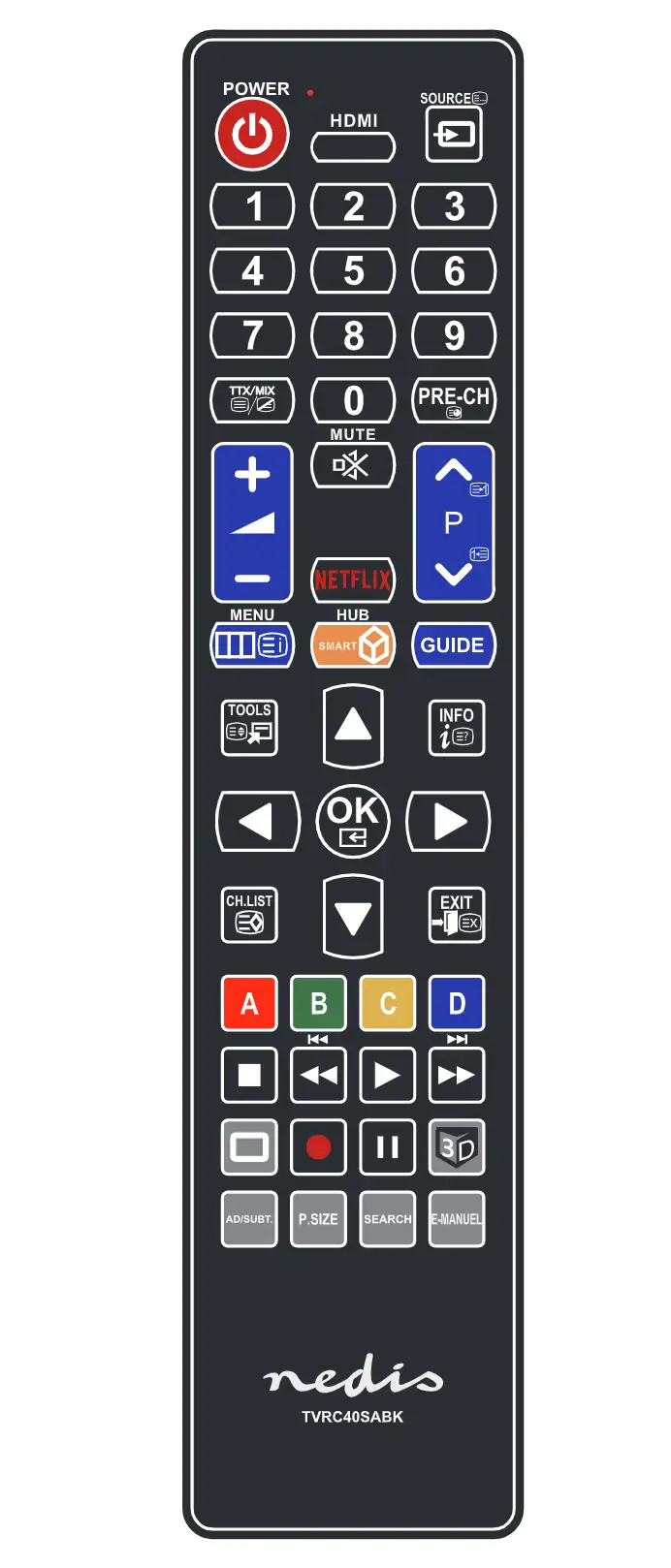
- Power: Turns the interface ON/OFF
- Back: Not Applicable
- Left / Right: Navigates the interface
- Up / Down: Not Applicable
- OK: Enter/Select button
- Voice: Not Applicable
- Menu: Returns to the bottom interface menu bar after selecting
HDMI or Camera Inputs
- Press the Right button on the IR remote to navigate to
HDMI. - Select HDMI by pressing the OK button. This will display the
HDMI input of the HDMI device you connected to the interface. - Press the Menu button to return to the bottom menu bar.
- If no HDMI device is connected, you will get a No Signal HDMI
pop up message. Press the OK button to exit out of the pop up.
IR Remote User Manual for
HDMI Interface
DESIGNED + MANUFACTURED IN THE
NOTICE: All product names, logos, brands, trademarks and registered trademarks are property of their respective owners.
1
NavTool.com | Call: +1-877-628-8665 | Text: +1-646-933-2100
User Manual
Set the vehicle’s radio to AUX or an alternative AUX input device. Interface audio will not play through car speakers if AUX is not connected or radio is not set to AUX input.
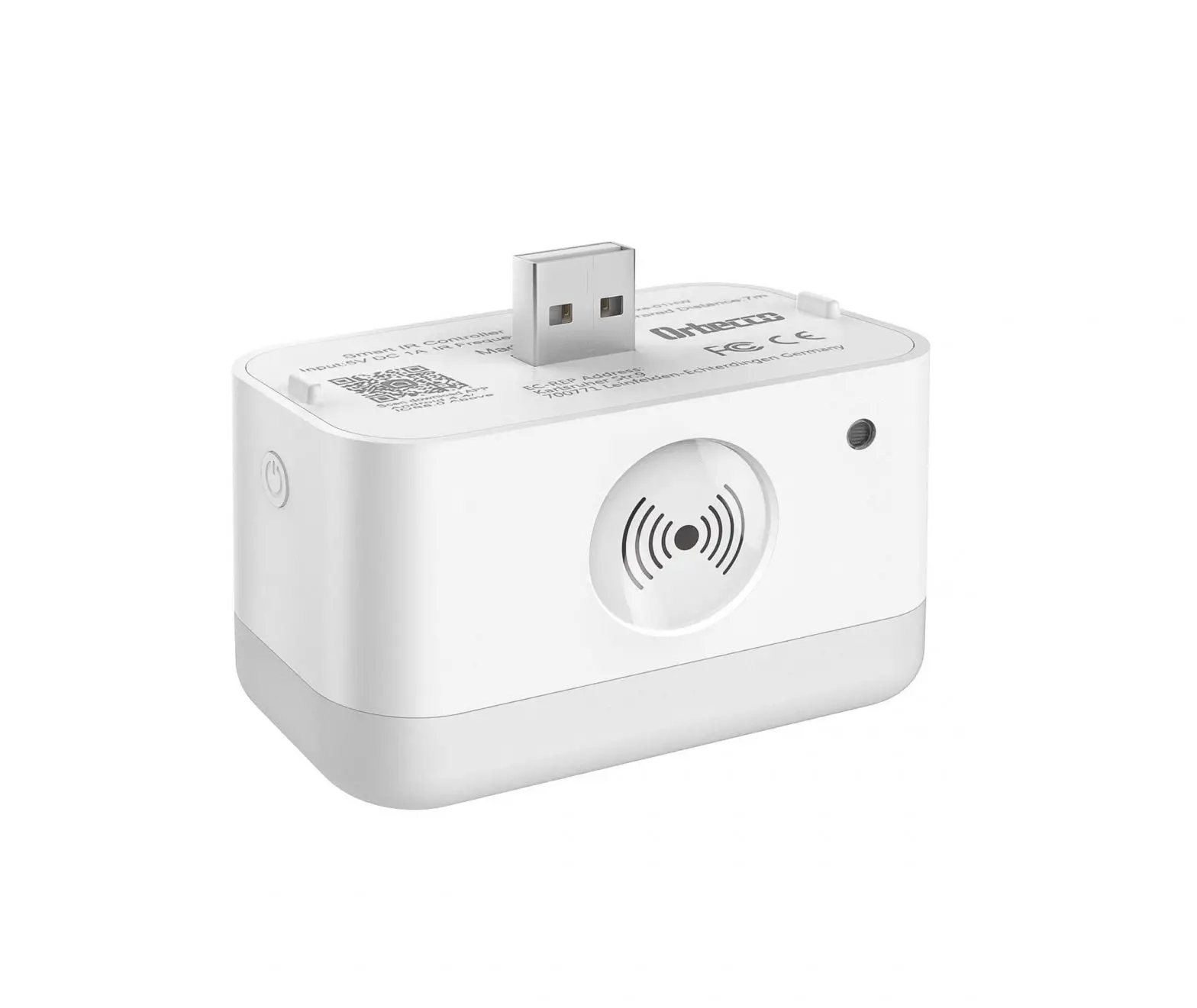
Aim the remote at the IR receiver and press the power button to turn on and off the interface. If the interface is not displaying on the screen please check that the led in the left arrow on the remote lights up when pressing any button. If it does not light up, check and replace the batteries as needed.
Power: Turns the interface ON/OFF
Back: Not Applicable
Left / Right: Navigates the interface
Up / Down: Not Applicable
OK: Enter/Select button
Voice: Not Applicable
Menu: Returns to the bottom interface menu bar after selecting HDMI or Camera Inputs
2
NavTool.com | Call: +1-877-628-8665 | Text: +1-646-933-2100
HDMI: Press the Right button on the IR remote to navigate to HDMI. Select HDMI by pressing the OK button. This will display the HDMI input of the HDMI device you connected to the interface. Press the Menu button to return to the bottom menu bar. If no HDMI device is connected, you will get a No Signal HDMI pop up message. Press the OK button to exit out of the pop up.
Cameras / Video Input: Press the Right button on the IR remote to navigate to Camera / Video Inputs. Press the OK button to view the selected input. Selecting Camera / Video Inputs will let you see your aftermarket cameras / video inputs if installed. Press the Menu button to return to the bottom menu bar. If your vehicle has factory cameras such as a factory rear view camera, you won’t be able to manually view them from here. It will still automatically display when putting the vehicle in reverse. If the vehicle is equipped with CAN, aftermarket front camera will automatically show when in drive up to 5-10 mph, and aftermarket left and right cameras will automatically show when activating left and right turn signals.
3
NavTool.com | Call: +1-877-628-8665 | Text: +1-646-933-2100
 NAVTOOL INC