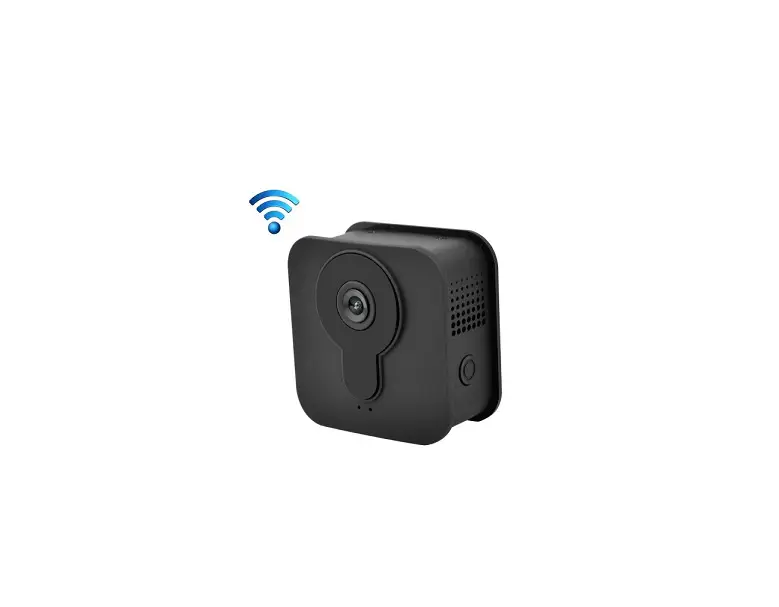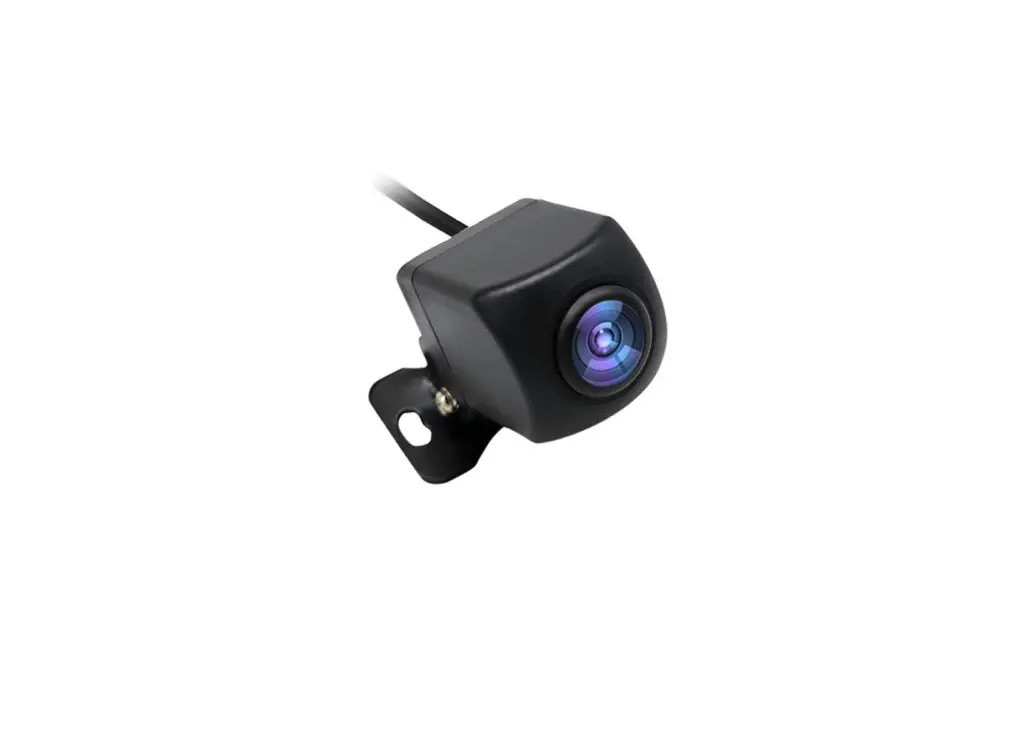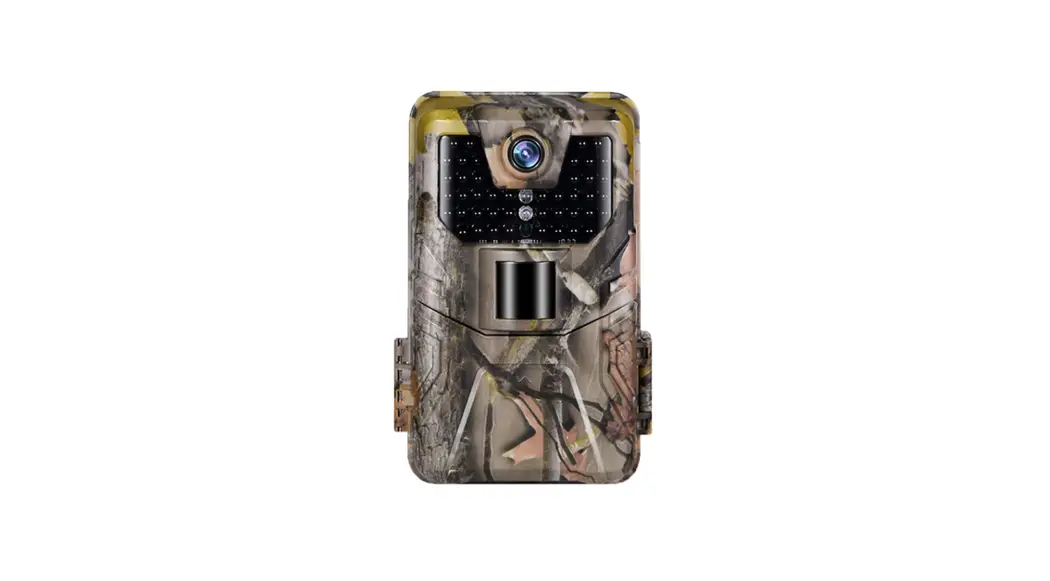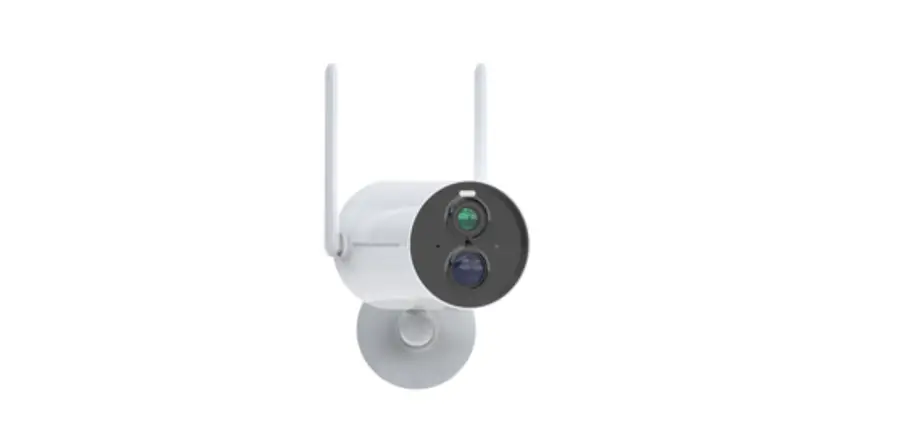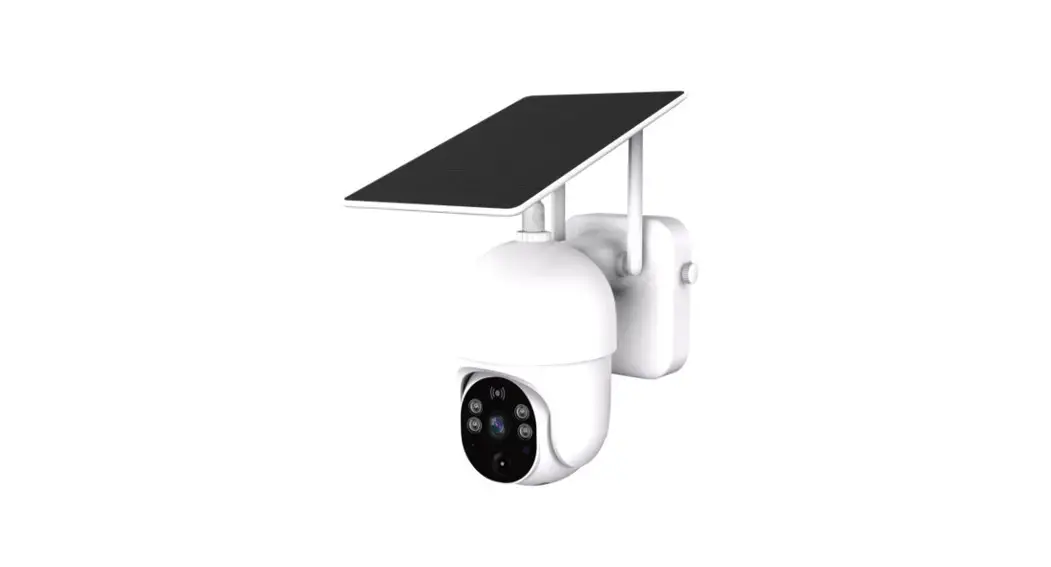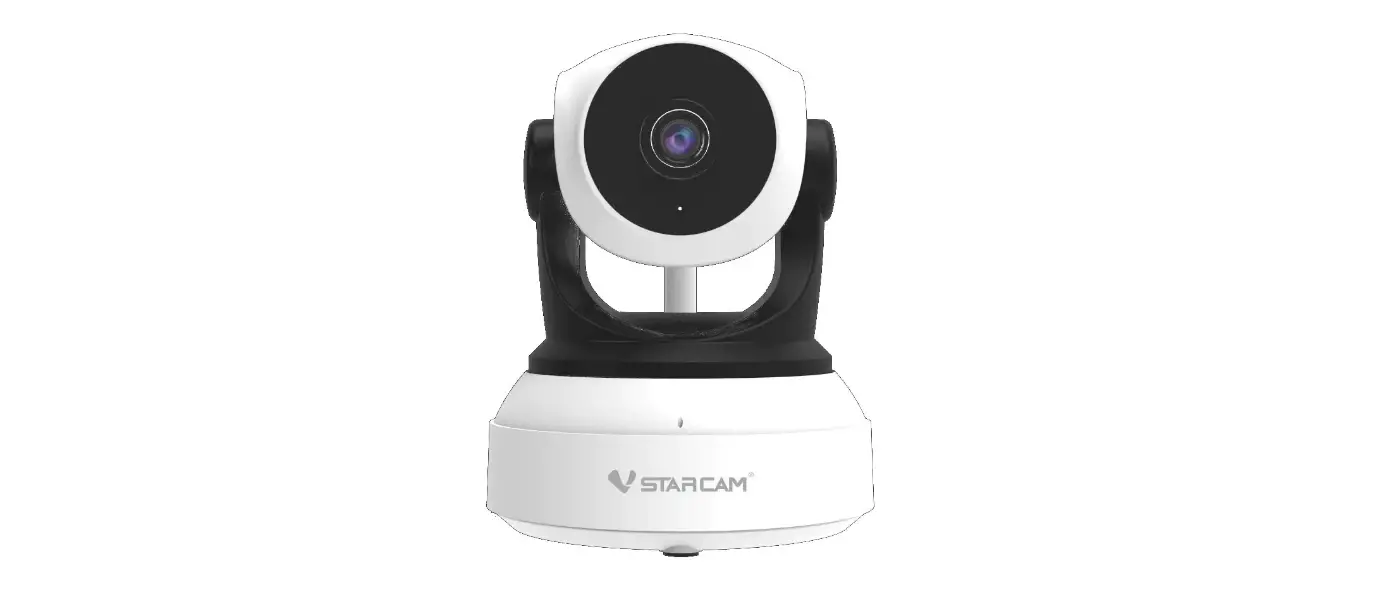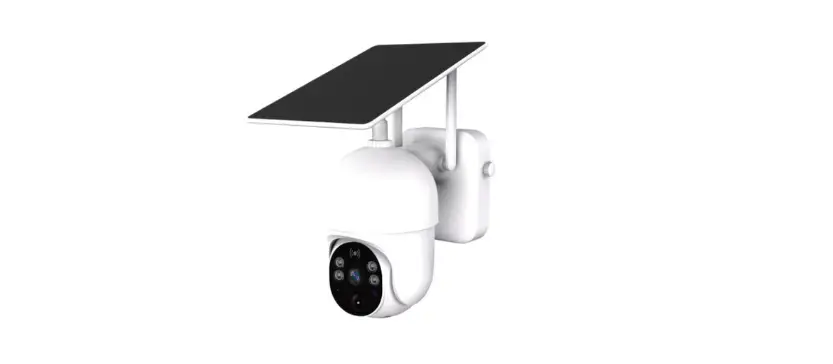

SUNSKY RD03 Wifi Cameras Instruction
INSTALLATION
Download and install JXLCAM. IOS searches for “JXLCAM” download directly at the Apple App Store. For convenience, please scan the download and installation of the QR code below. Note: during installation, all permissions of the JXLCAM APP need to be allowed, otherwise the APP will not work properly.
Please select APP to download
Open the list of mobile phones WIFI, connect to ACCQ…, open the APP
page after success, click “AP” as shown in the figure below, and watch the video.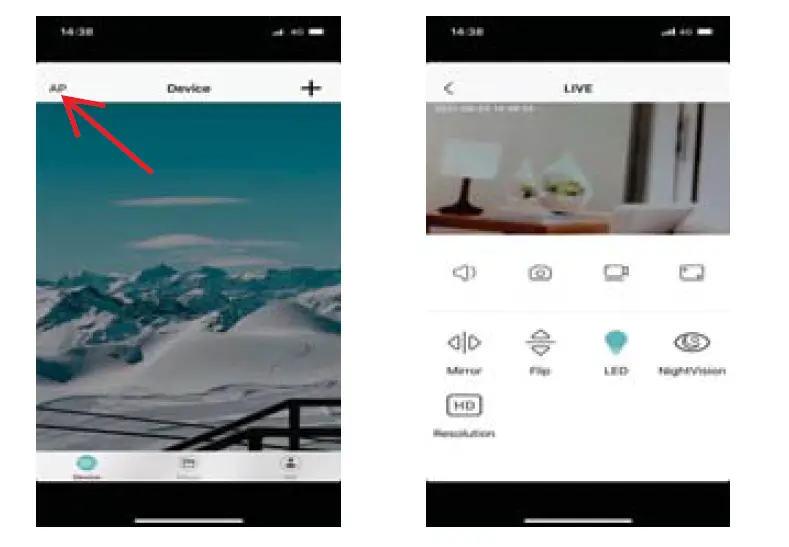
Note: when there is no WIFI in the environment, you can use AP mode to connect, which is valid for no more than 10m, which can achieve localized video viewing.
WAY OF WORK
- First confirm that there is an available WIFI near the device, turn on the device, flash the blue indicator light quickly, and the device is in a state to be connected. ( Note: WIFI signals supported only in the 2.4G band)
- You can’t successfully distribute the network when the power is insufficient.
- When wiring, please try to bring the device close to the router. When the nearby WIFI signal is weak, the image will be stuck if the network is not successful or the network is successful.
Open the APP and follow these steps
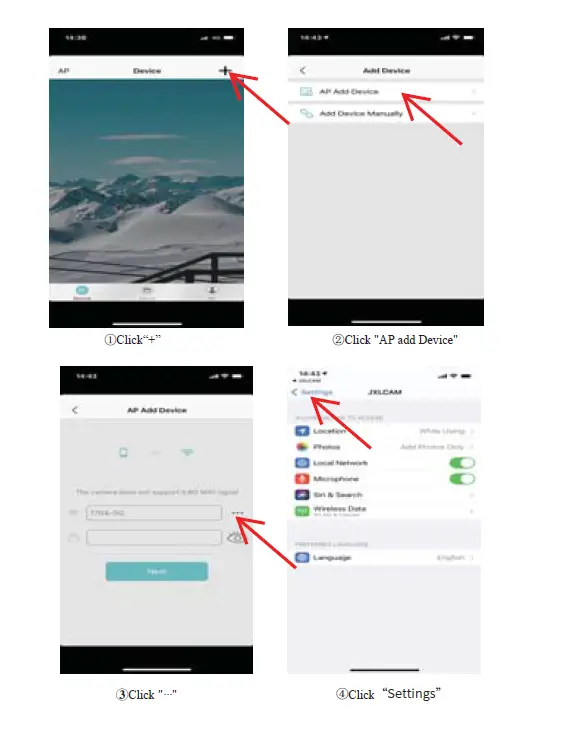
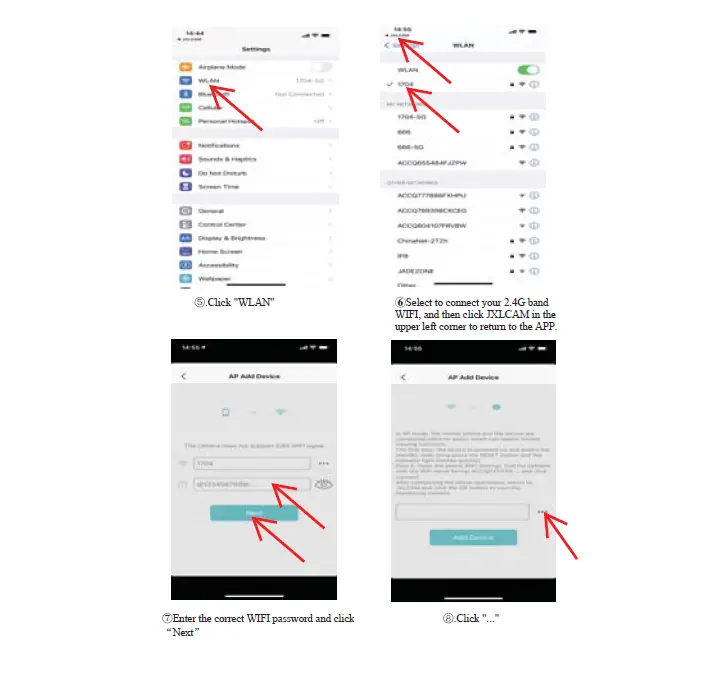
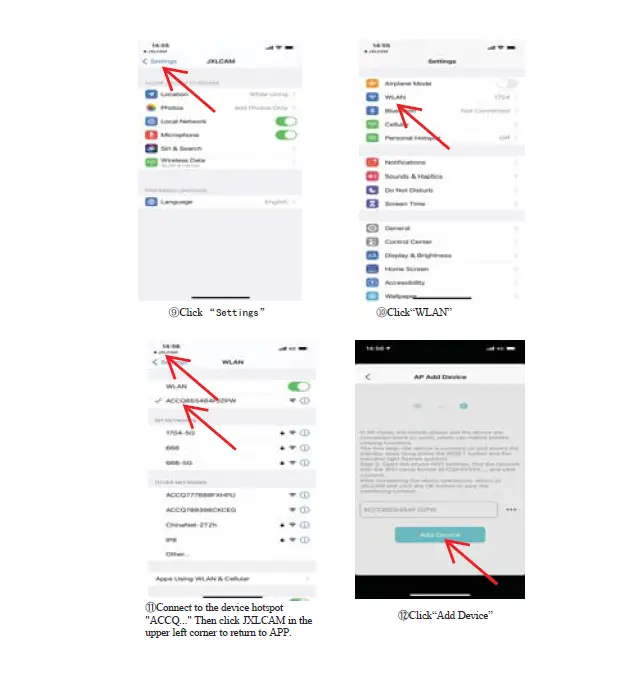
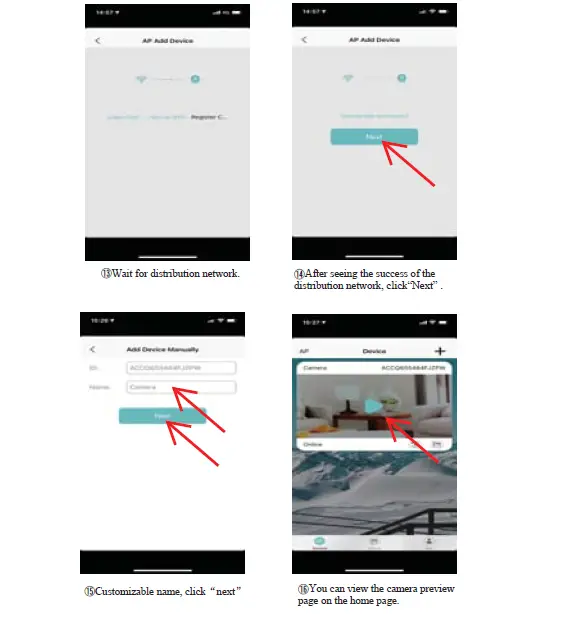
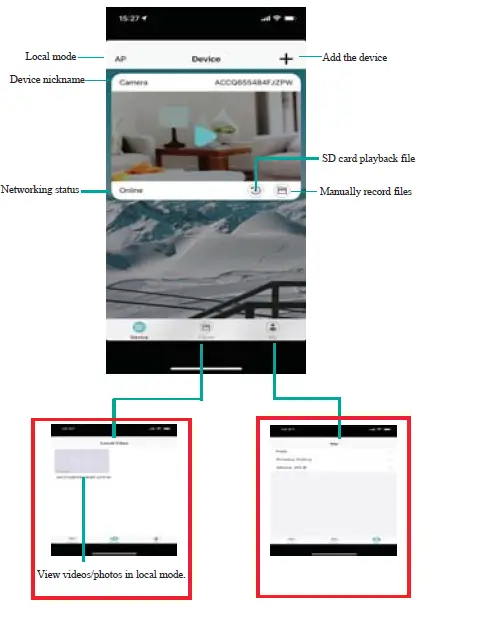
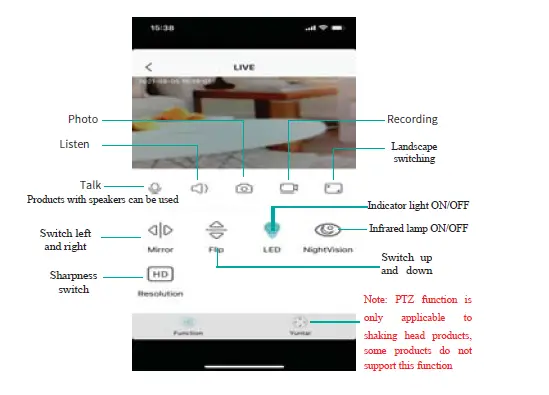
If you need to store video content, you need to install an SD card.
This machine supports loop video recording when the device fails to configure the network, please check whether the router and WiFi password is configured correctly (the device does not support WIFI signals in the 5.8G band). After confirming that it is correct, you can press and hold the reset button until the device indicator ashes quickly, restore the factory settings, and reconfigure the network.