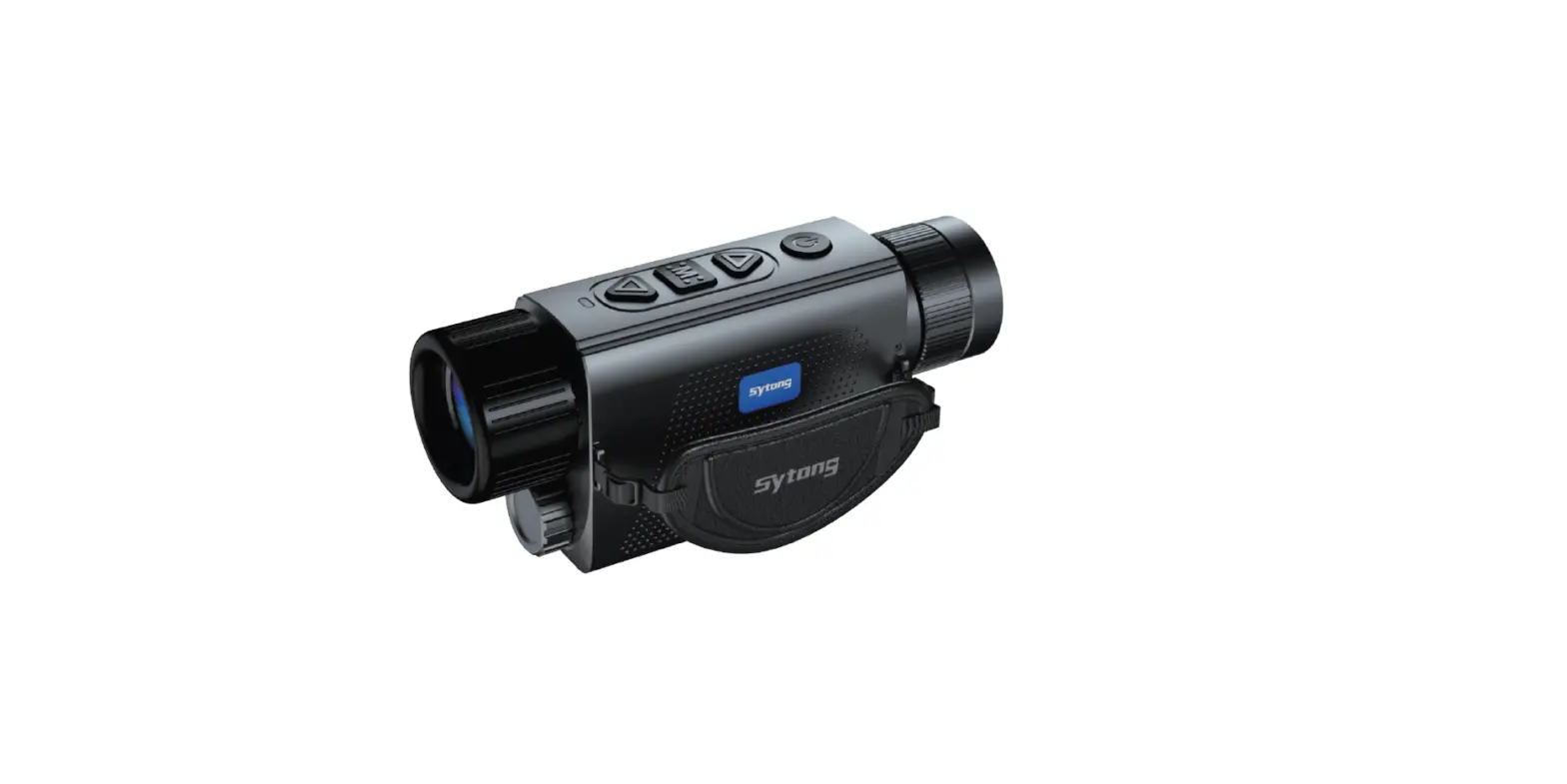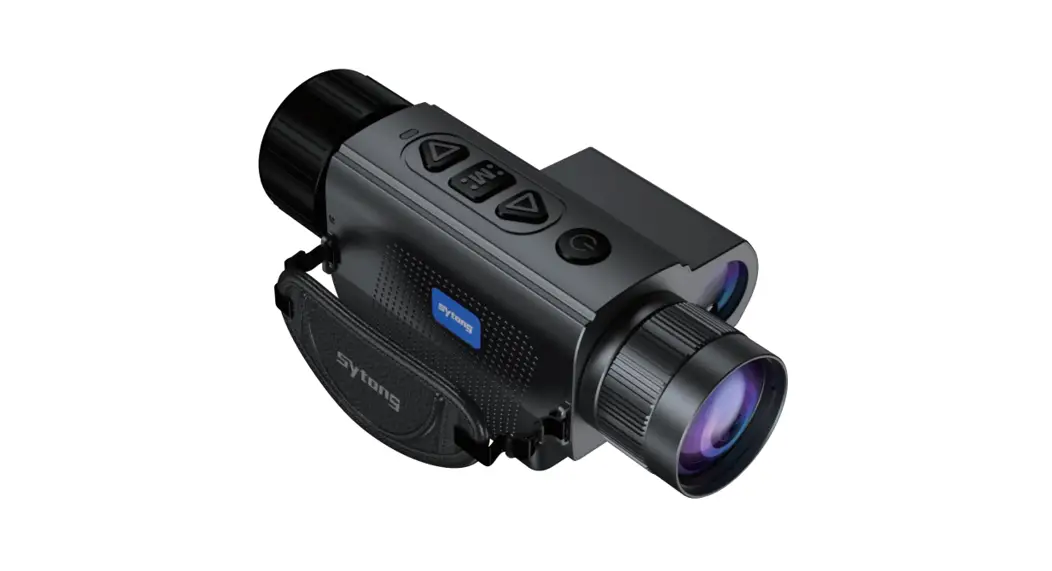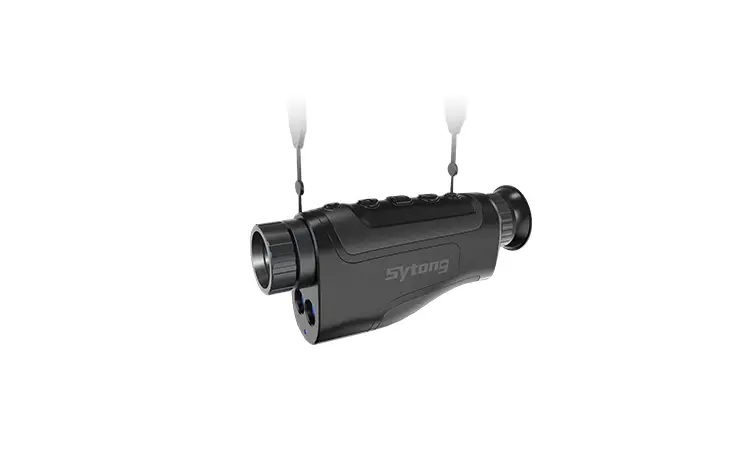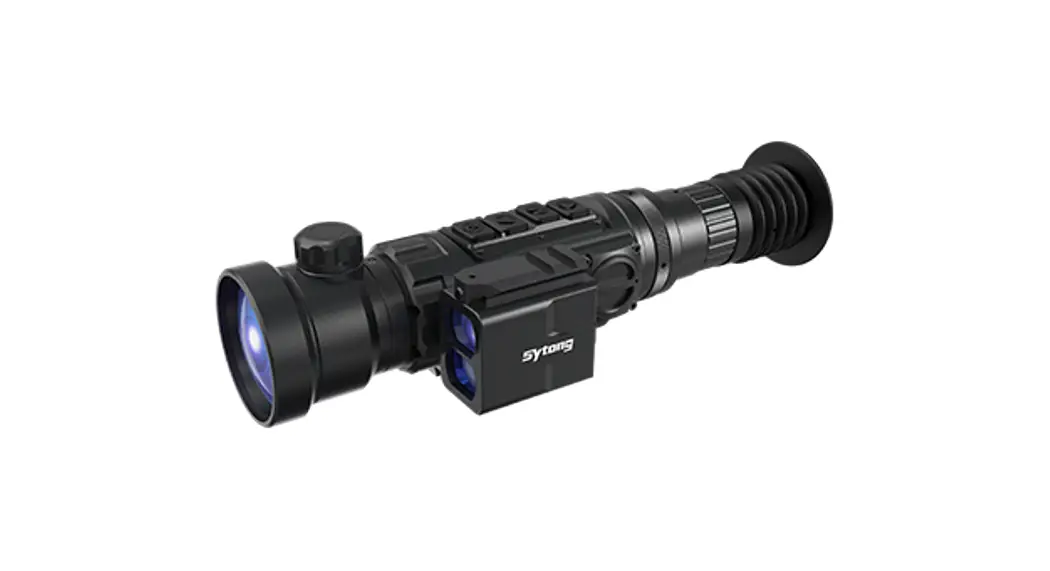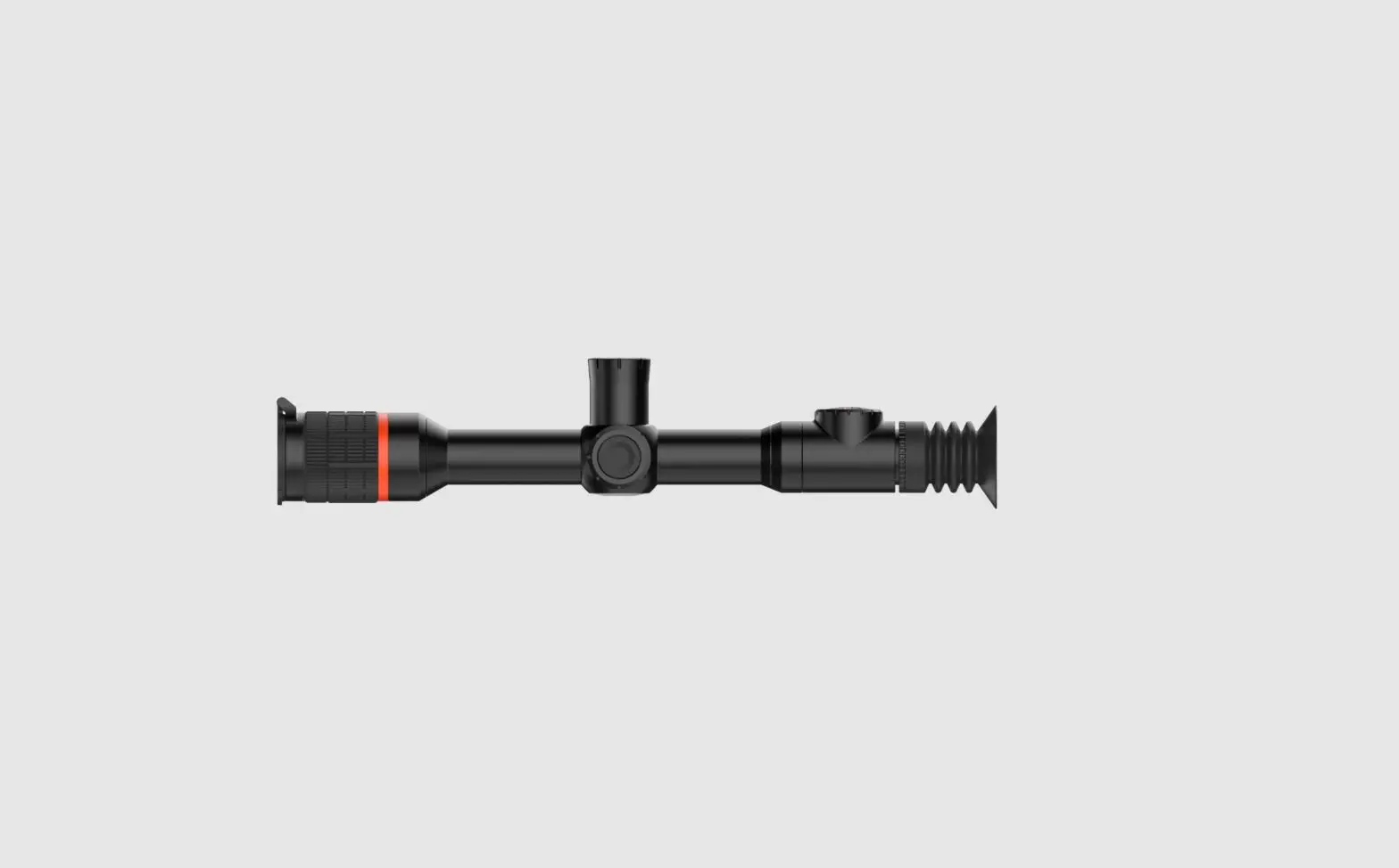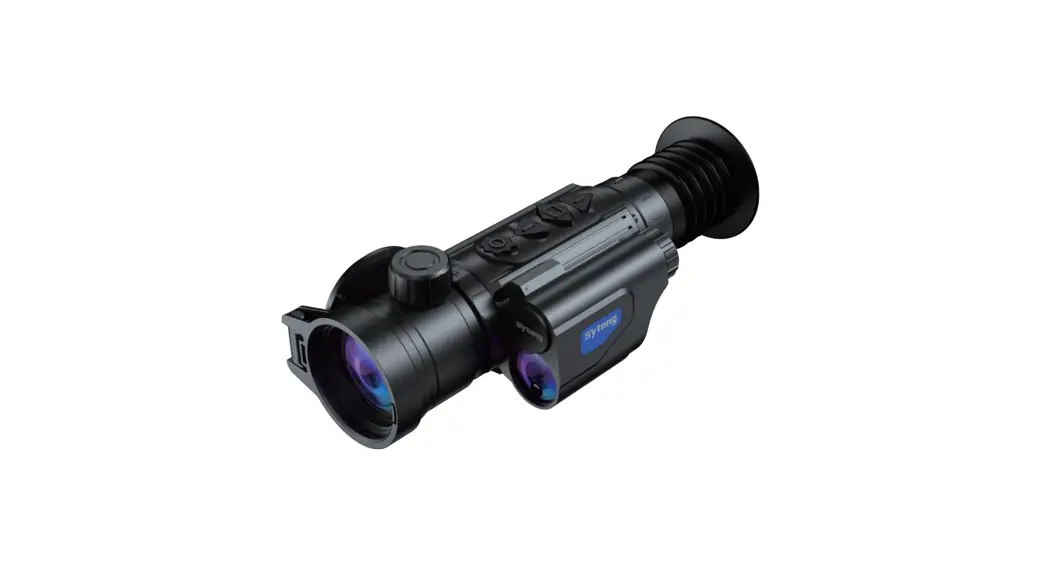
 XM Series Thermal Imaging Sights
User Guide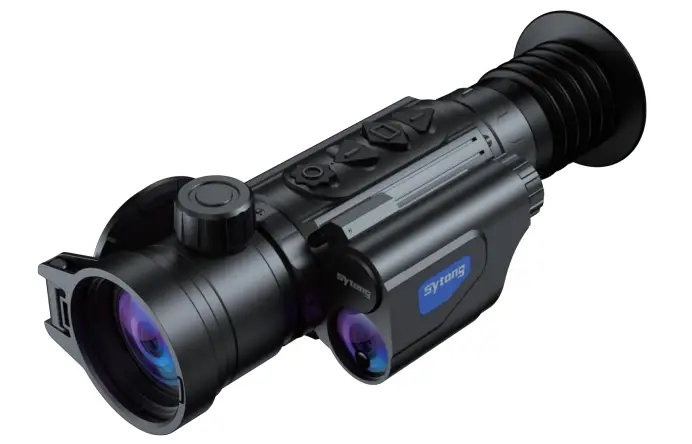 XM SERIES QUICK START GUIDE
Shenzhen Shi Yutong Technology Co., LTD
XM Series Thermal Imaging Sights
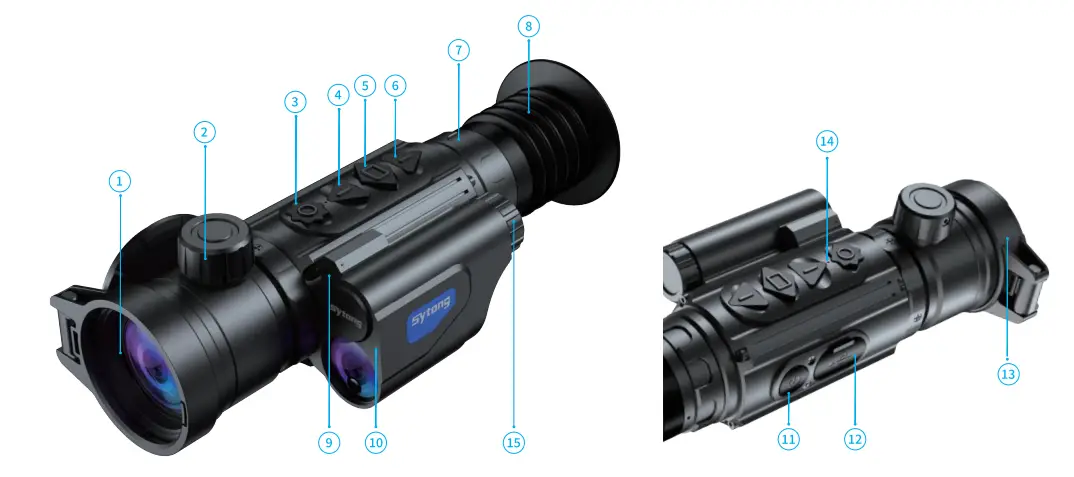
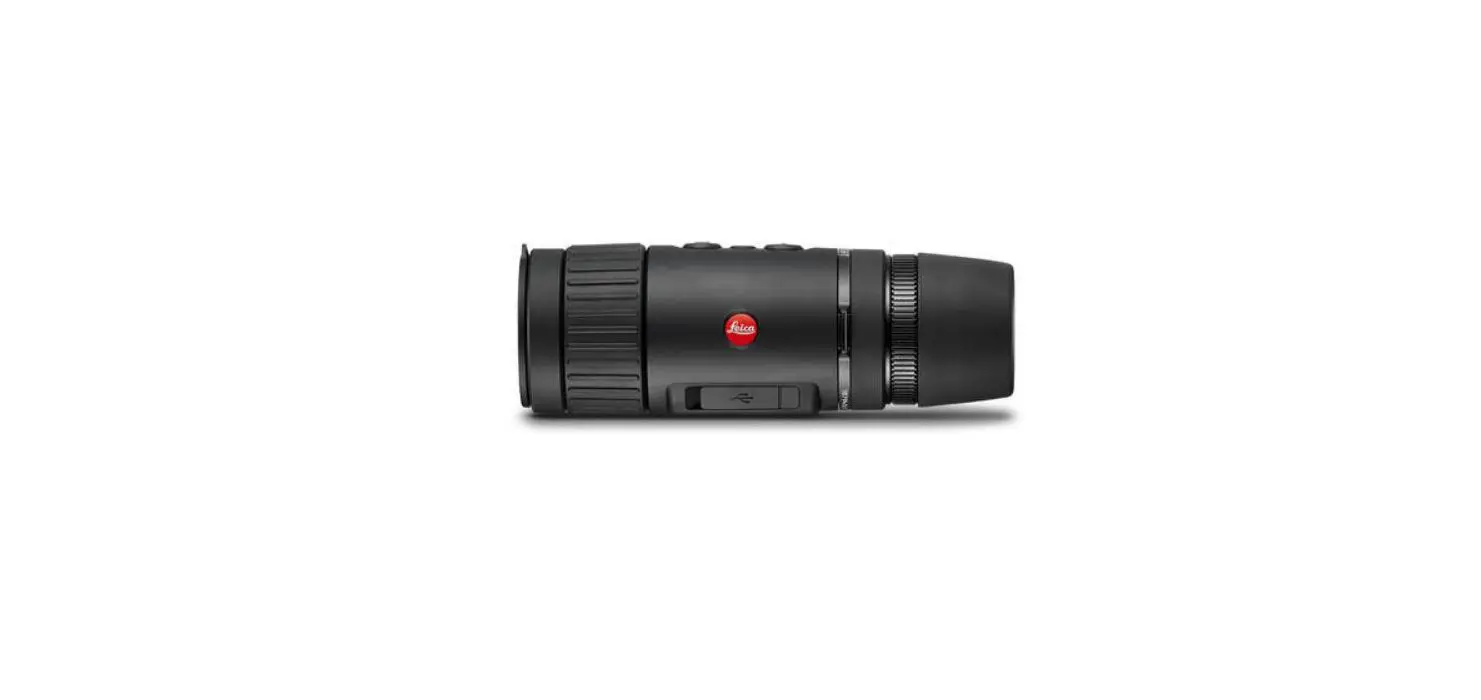
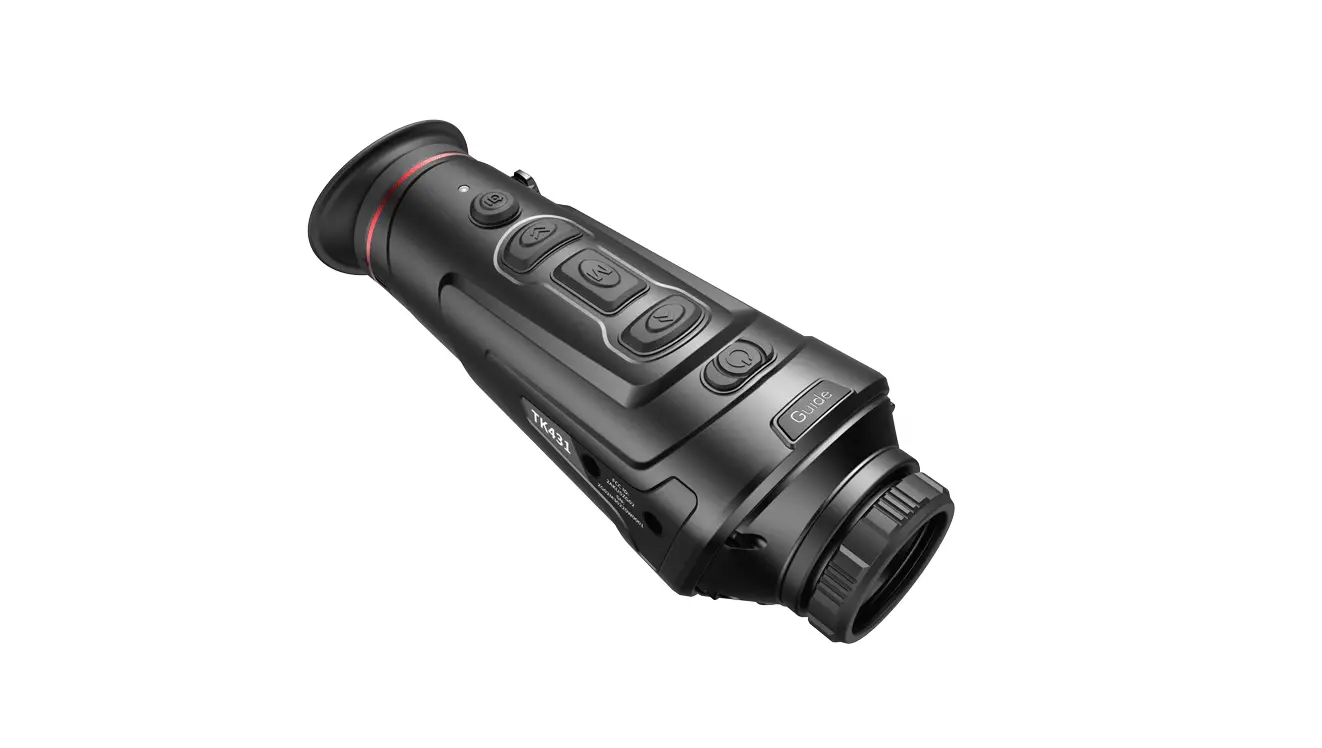
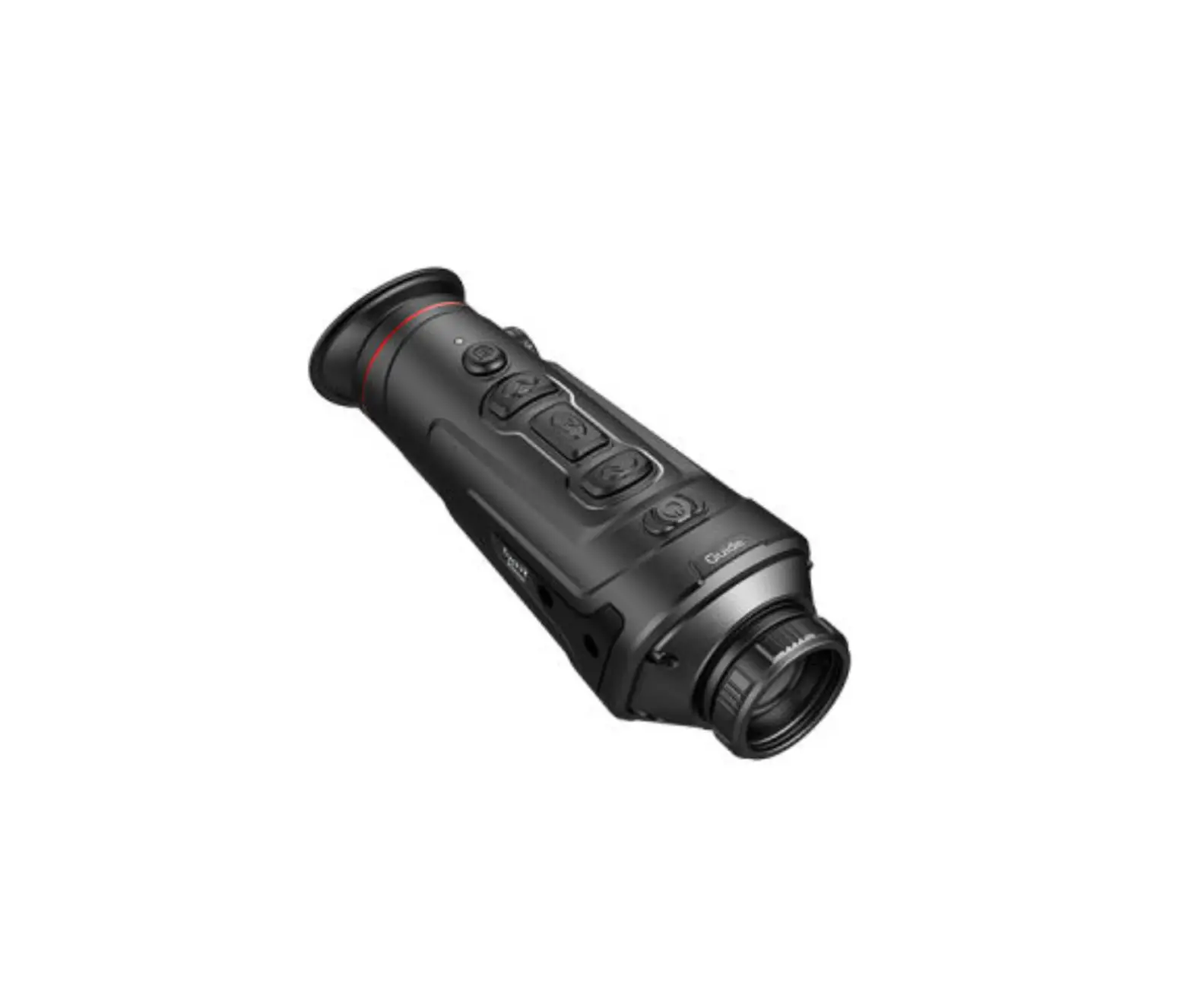
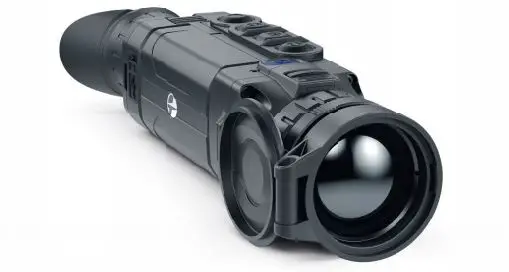
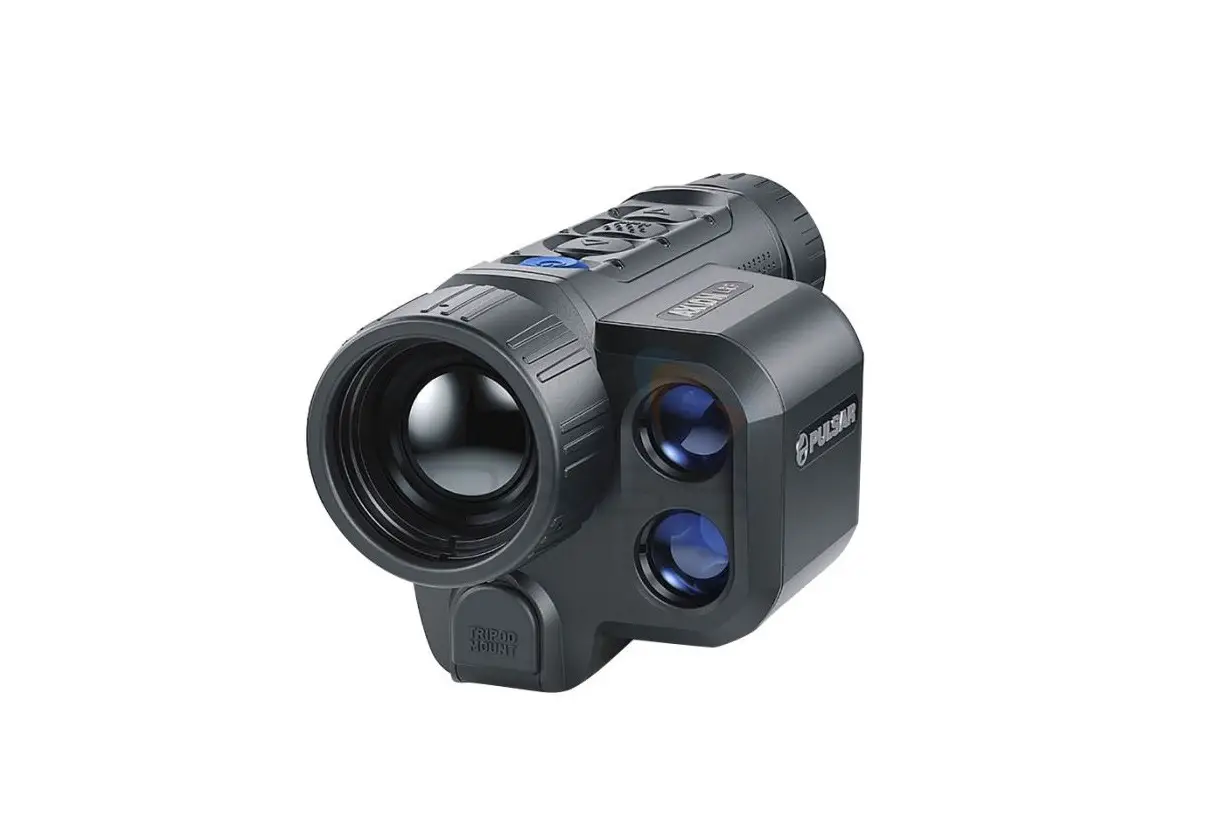
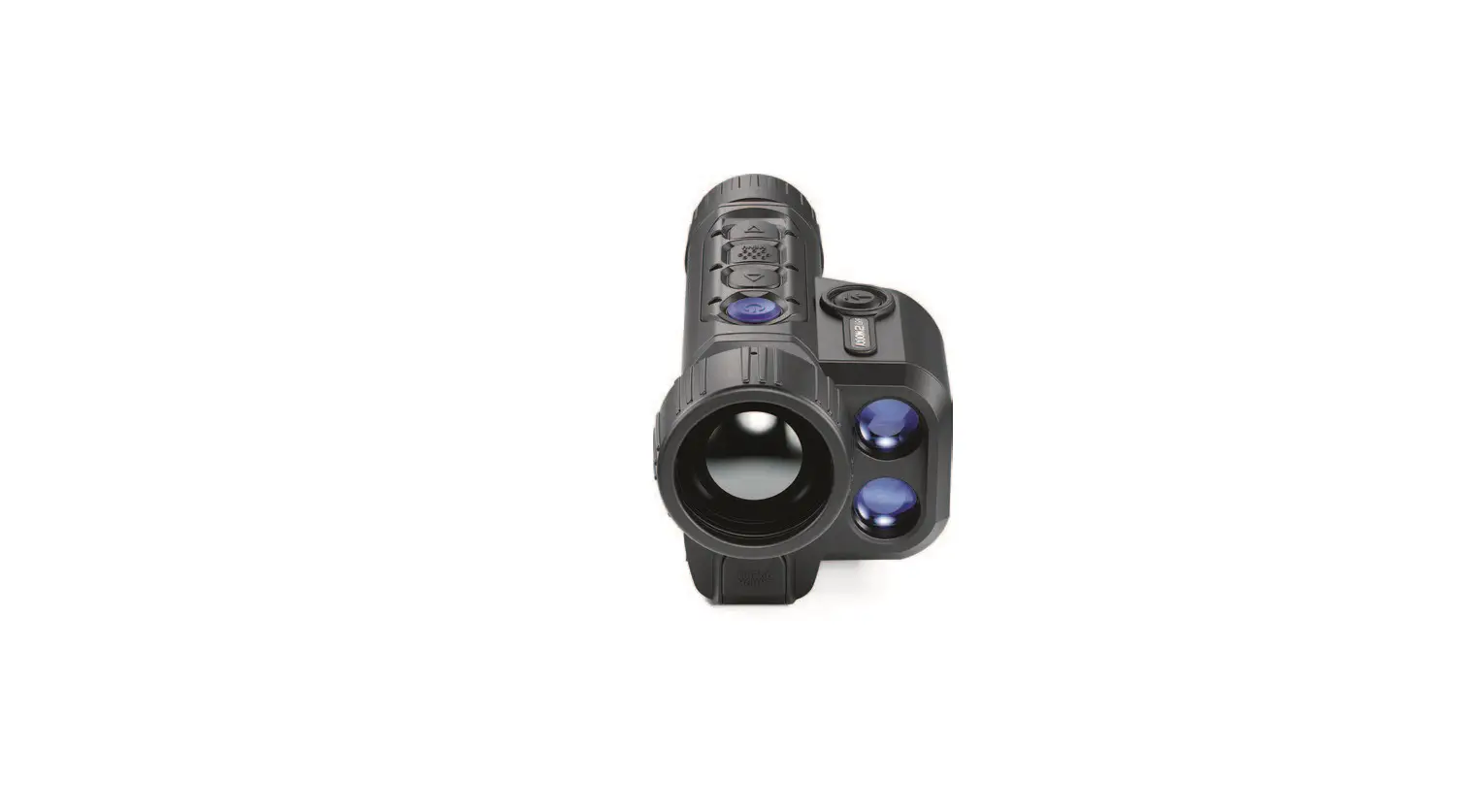
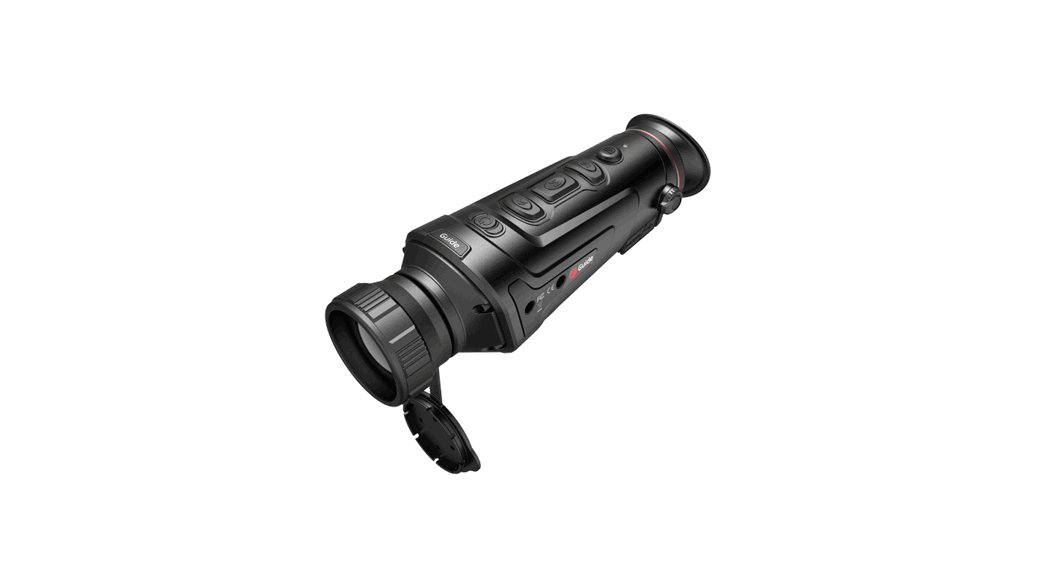
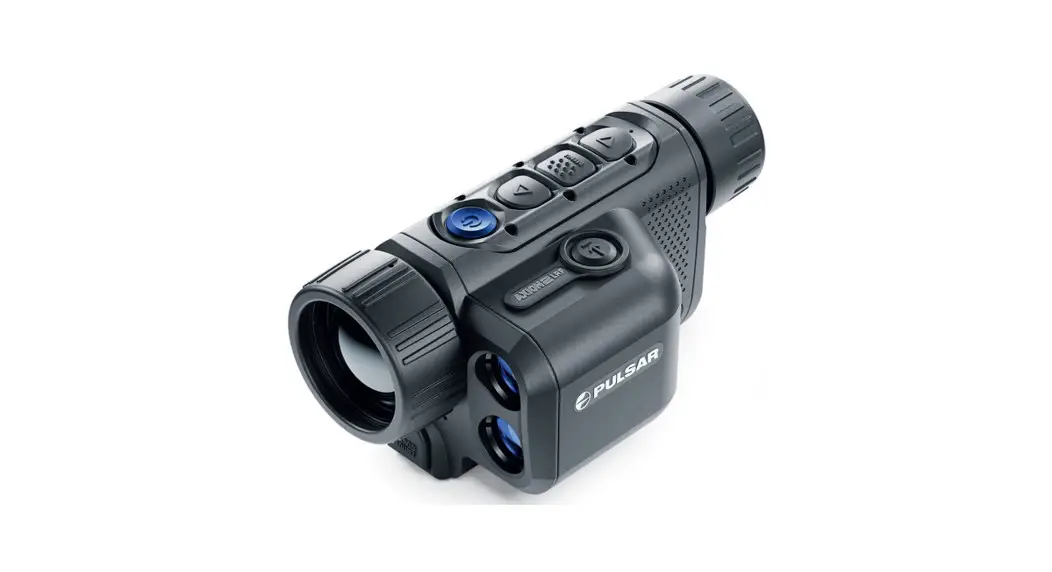
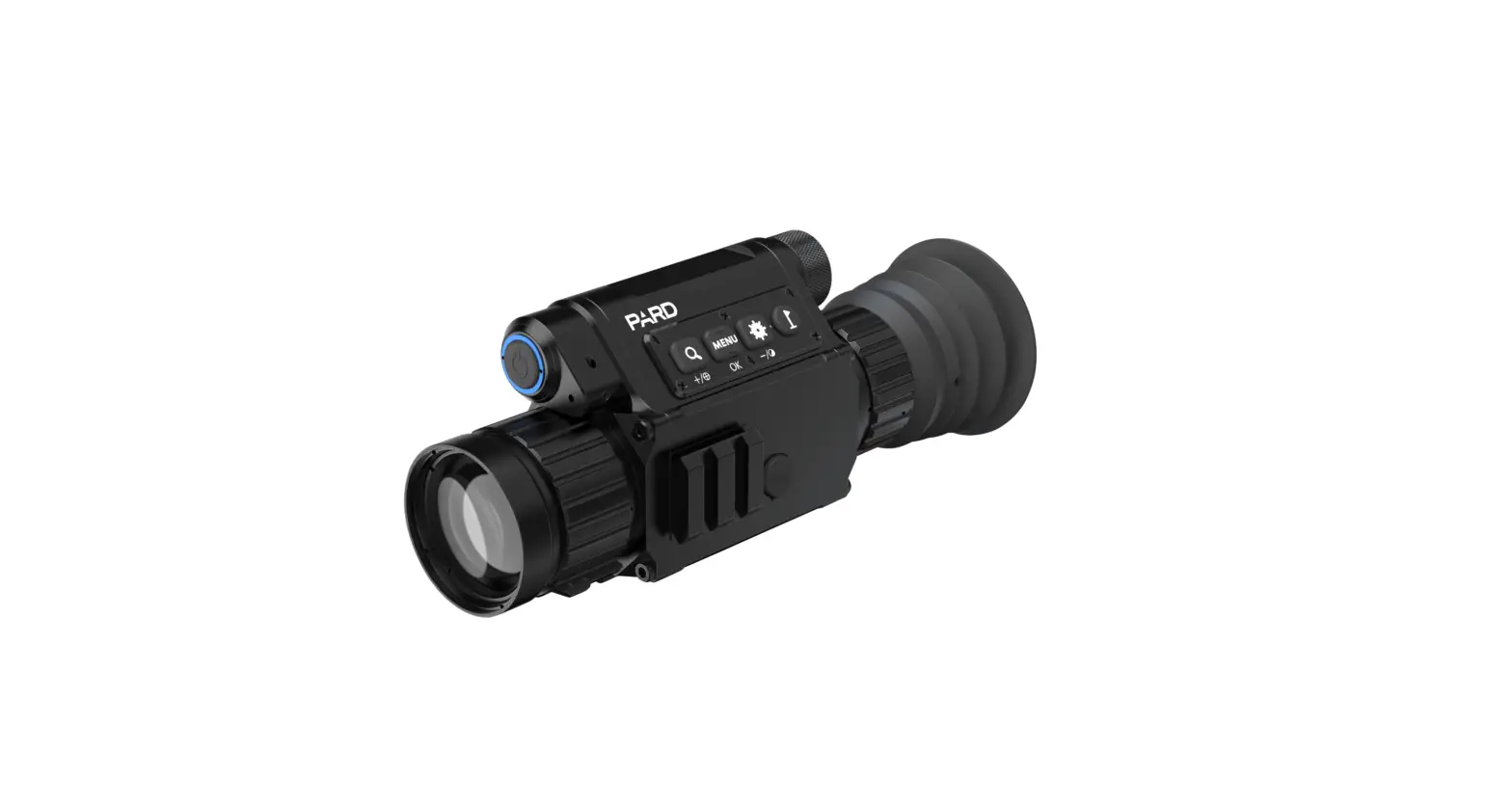
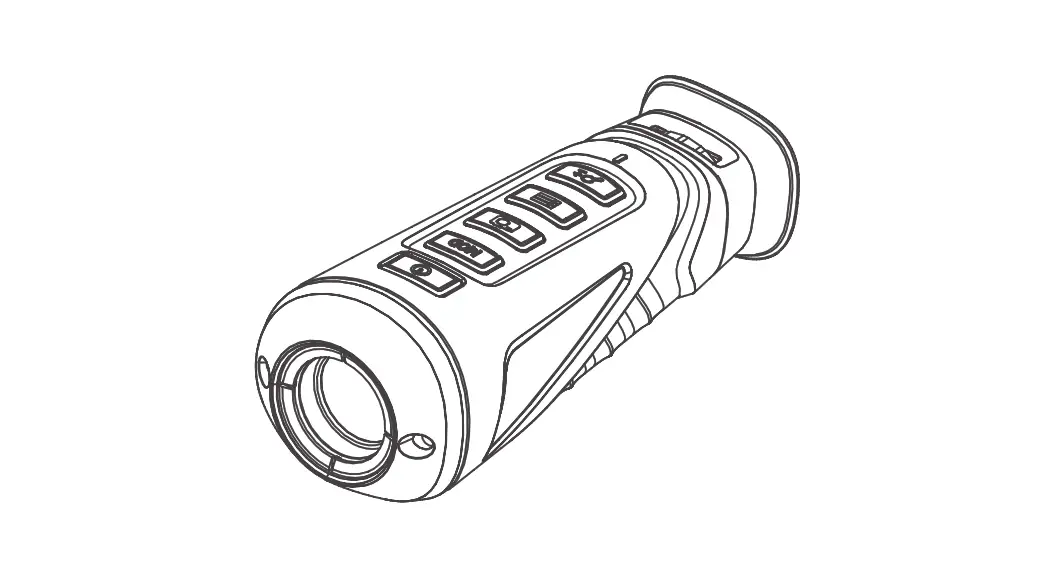
| 1. Objective Lens | 6. Navigation DOWN Button | 11. Power (ON/OFF) Button |
| 3. Record Button (REC) | 7. Dioptre Adjustment Ring | 14. Device LED Indicator |
| 2. Lens Focusing Ring | 10. Laser Rangefinder | 9. Red Laser Pointer |
| 4. Navigation UP Button | 13. Lens Cover | 12. Storage Card Compartment |
| 5. MENU Button | 8. Eyeshade | 15. Battery Cap |
ln The Box
- Thermal Imaging Sight
- Type-C Cable
- Handbag
- Manual
- 5V 2A Adapter
- Battery
- Mount (with screws and hex-nut wrenches)
Quick Start
Power On and Image Settings
- Hold the power (ON/OFF) button (11) for 3 seconds to power on.
- Rotate the dioptre adjustment ring (7) to get a clear image of the icons on the display.
- Rotate the lens focusing ring (2) to get a clear image of the observed object.
- Press the navigation UP button (4) to select the operating modes (White Hot, Sky Mode, Black Hot,Red Hot, Fusion).
- Press the navigation DOWN button (6) to select digital magnification (lx, 2x, 4x, 8x).
- Press the MENU button (5) to enter the menu to select the appropriate parameter.
- Hold the power (ON/OFF) button (11) for 3 seconds to power off. The LED indicator will be turned off after the device is powered off.
Button Legend Power (ON/OFF) Button
Hold the power (ON/OFF) button (12) for 3 seconds to power off. The LEO indicatorwill be turned off after power off. Hold the power (ON/OFF) button (12) for 1-2 seconds to go into sleep mode. The LEO indicator will be red when the device is in sleep mode. Wake the device by pressing the power (ON/OFF) button.
Press the power button to refresh the device. Record Button (REC)
Press: Take a picture.
Hold seconds: Record a video. Navigation UP Button
In menu mode : Press to switch menu items upwards.
When not in menu mode : Press to change operating mode. Hold to turn on or off the Picture in Picture. MENU Button
In menu mode : Press to confirm selection. Hold to exit main menu or submenu.
When not in menu mode : Press to enter menu mode. Hold to turn on or off the red laser pointer. When LRF is on : Press to lock or unlock rangefinding values. Navigation DOWN Button
In menu mode : Press to switch menu items downwards.
When not in menu mode : Press to change set-up zoom lx, 2x, 4x, 8x. Hold to turn on or off laser rangefinder. Long press to turn on or off ranging.
| Number | Main Menu Description | Sub Menu Description |
| Operating Mode | Options: “White Hot”/”Sky Mode”/”Black Hot”/”Red Hot”/”Fusion” Default mode is “White Hot” | |
| 2 | Video Output | The video output function of the CVBS is enabled or disabled |
| 3 | WiFi | Options: “On”/”Off” Turn on WiFi on both the device’s Menu and users phone. On user’s phone, find and connect to “APPshow-XMLRF-XXX” WiFi network with password 12345678. Live image will be displayed on the App after the phone is connected to the device’s WiFi. |
| 4 | Picture In Picture | Options: Off/Zoom 2x/Zoom 4x/Zoom 8x |
| 5 | Reticle Type | Options: Off/Select the preferred reticle type from 8 choices |
| 6 | Reticle color | Options: Black, white, gray, red, green |
| 7 | Reticle Profiles | Select one of the saved profiles (Max. 10 profiles). |
| 8 | Reticle Adjustment (Zeroing) | Freeze the image by pressing the MENU button. Move the reticle horizontally or vertically with the UP/DOWN buttons. Switch between horizontal and vertical adjustments by pressing REC button. After the reticle matches the point of impact, press the MENU button to save the position. Input the target distance and select the unit (Meter/Yard). The reticle profile will be saved with the distance as it’s name. |
| 9 | Gyro | Options: On/Off |
| 10 | Laser Rangefinder Unit | Options: Meter/Yard |
| 11 | Laser Rangefinder Mode | 1.Single distance measurement 2.Continuous distance measurement |
| 12 | OLED Brightness | Options: Super Dark/Dark/Normal/Bright/Super Bright |
| 13 | Target Brightness | Options: 1-5 |
| 14 | Contrast Ratio | Options: 1-10 |
| 15 | Image Detail Boost | Options: 1-4 |
| 16 | Date/Time | Move the options by pressing the REC button. Change the value using the UP/DOWN button. Confirm the values by pressing the MENU button. Quit by holding the MENU button. |
| 17 | Language | Options: English/Chinese/Other Languages |
| 18 | Record Audio | Options: On/Off |
| 19 | Format | Options: Confirm/Cancel |
| 20 | Auto Power Off | Options: 3 Min/5 Min/Off Default : Off |
Installing The Battery
Please use lithium chargeable 3.7V flat battery 18650. Remove battery compartment cap and make sure setting the positive polar towards to the direction inward. Put the cap back and screw it until tight. ( Fail to do so may result in restarting!).
Using The Integrated Laser Rangefinder
- Hold the power (ON/OFF) button (11) for 3 seconds to power on the device.
- Hold the navigation DOWN button (4) for 3 seconds to activate the laser rangefinder.
- The rangefinding indicator (a small box) will appear at the center of the display.
- Point the rangefinding indicator at an object to measure the distance (the distance will be displayed at the top right corner of the display).
Installation Of Mount
- Attach the mount to the base of the scope using a hex-nut wrench and screws.
- The mounting holes in the base of the scope enable the mount to be installed in one of the multiple positions. The choice of the mounting position helps the user to ensure the correct eye relief depending on the device type.
- The scope is ready to be installed on a device and to be zeroed.
- Before using the device, please follow instructions in the section “Reticle Adjustment (Zeroing)”.
APP Connection
Download APP by Scanning the QR code according to the mobile phone system.
 http://app.dayingtech.com/79819049674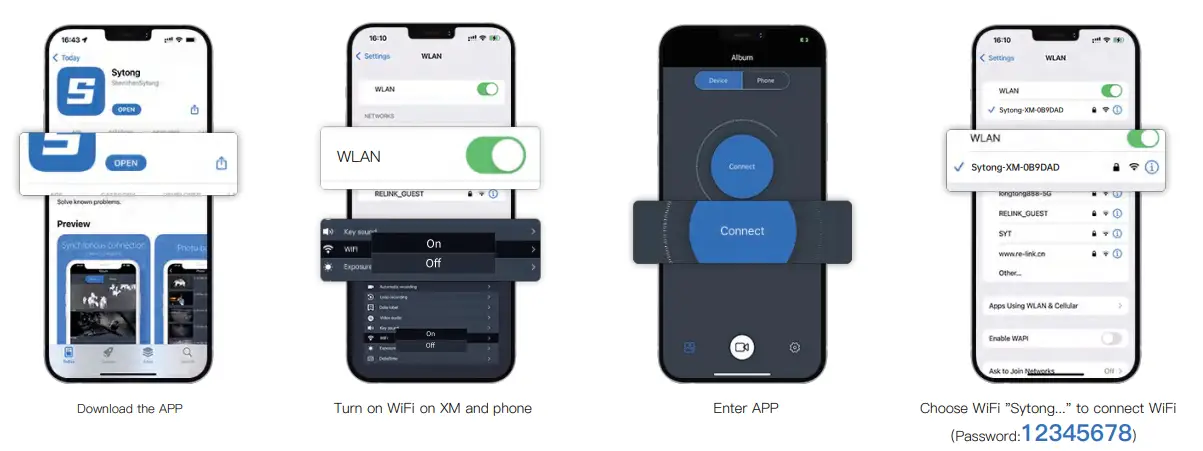
XM03-LRF
Sensor (Military Grade)
| Type | Uncooled | Resolution | 384×288 Super Sensitive |
| Frame Rate | 50 Hz | Pixel Size | 12pm |
| NETD | <Milk |
Optical Characteristics
| Objective Lens | F35mm/50mm | Magnification | 2.8X/4X |
| Digital Zoom | lx/2x/4x/8x | Eye Relief | 50 mm |
| Dioptre Adjustment | +5/-5 D | Close-Up Range | 5m-00 |
| FOV | 7.5°X5.7° / 5.3°X4.0° | ||
| Optical Characteristics | |||
| Operating Mode | White Hot, Sky Mode, Black Hot, Red Hot, Fusion | Type / Resolution | 0.39 inch / OLED / 1024X768 |
| Display | |||
| 3D Gyroscope | Yes | Waterproof Rating | IP66 |
| Power Supply | 3-4.2 V | Battery | 18650 /3200mAh |
Notice!
Operating Instructions For Accessories
Power Adapter
Used only to charge batteries equal to or below 5V/2A.
Red Laser Pointer Adjustment
Hold the MENU button to turn on/off the red laser pointer. Adjust the position of the red laser pointer by using an inner hexagon wrench.
FCC Warning Statement: Changes or modifications to this unit not expressly approved by the party responsible for compliance could void the user’s authority to operate the equipment. This equipment has been tested and found to comply with the limits for a Class B digital device, pursuant to Part 15 of the FCC Rules. These limits are designed to provide reasonable protection against harmful interference in a residential installation. This equipment generates, uses and can radiate radio frequency energy and, if not installed and used in accordance with the instructions, may cause harmful interference to radio communications.
However, there is no guarantee that interference will not occur in a particular installation. If this equipment does cause harmful interference to radio or television reception, which can be determined by turning the equipment off and on, the user is encouraged to try to correct the interference by one or more of the following measures:
- Reorient or relocate the receiving antenna.
- Increase the separation between the equipment and receiver.
- Connect the equipment into an outlet on a circuit different from that to which the receiver is connected.
- Consult the dealer or an experienced radio/TV technician for help.
This device complies with Part 15 of the FCC Rules. Operation is subject to the following two conditions: (1) this device may not cause harmful interference, and (2) this device must accept any interference received, including interference that may cause undesired operation.
FCC Radiation Exposure Statement
The device has been evaluated to meet general RF exposure requirement. The device can be used in portable exposure condition without restriction.
Follow Sytong official account to learn more Website:  https://www.sytong2013.com