

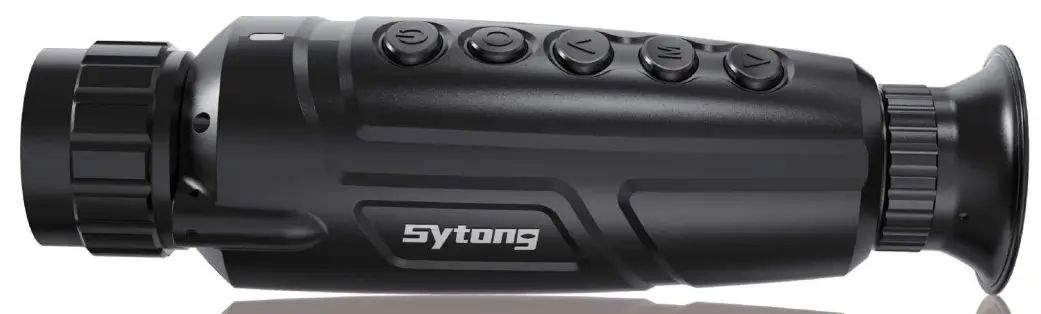
 Series Thermal Imaging Camera
Instruction Manual
packaging Accessories
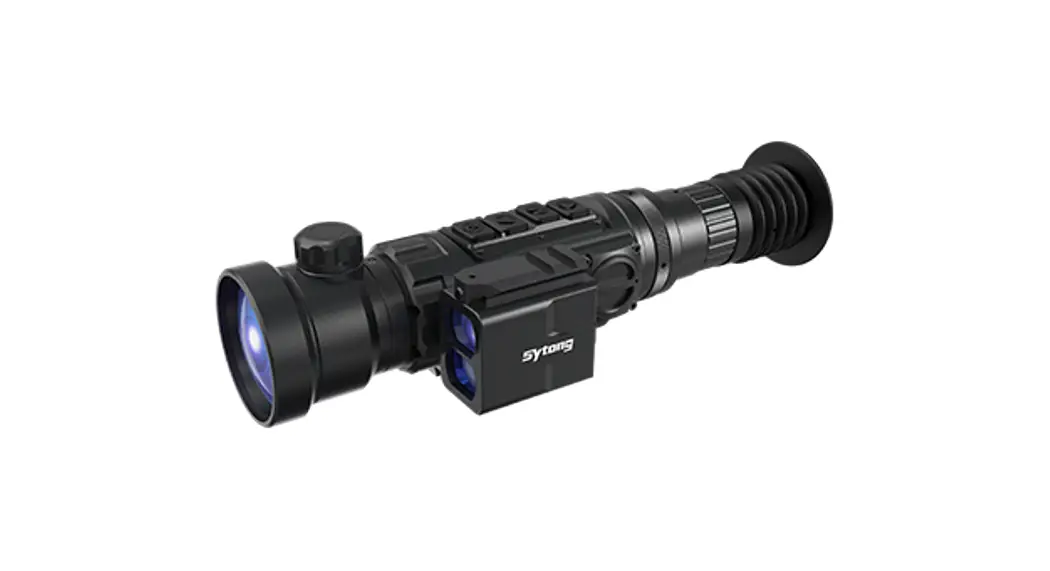
- YS Handheld thermal scope
- Type-c cable
- Manual
- 5V2A adapter
ISta
Power On and Image Settings
- Short press the ON/OFF (3) button to power on.
- Rotate the eyepiece adjustment ring (8) to get a clear image of the icons on the display.
- Rotate the lens focusing ring (2) to get a clear image of the observed object.
- Short press the (5) button to select the operating palettes (White Hot, Target Highlight, RedHot, Black Hot, Fusion Modes).
- Short press the (7) button to select the digital magnification (lx, 2x, 4x, 6x, 8x).
- Short press the (6) button to enter the menu to select the appropriate parameter.
- Long press the ON/OFF (3) button, and within 3 seconds the screen off, for 3 seconds to power off. The indicator light of the buttons will be off after power off.
YS menu detailed functions
- Operating Modes
Providing 5 options(White Hot, Target Highlight, Black Hot, Red Hot, Fusion), default as White hot.
- Camera/Video Output
Turn on or turn off - WIFI 1,
Select “On” or “Off” on the submenu, turn on the WIFI in the menu, then open the WIFI of the mobile phone and the APP, and find the MAC address name of the WIFI of the mobile phone Sytong-Ther-mal and password Confirm 12345678, enter the password to see if the connection is normal (WiFi is off by default). 2. Live images can be observed by APP after WIFI connection.

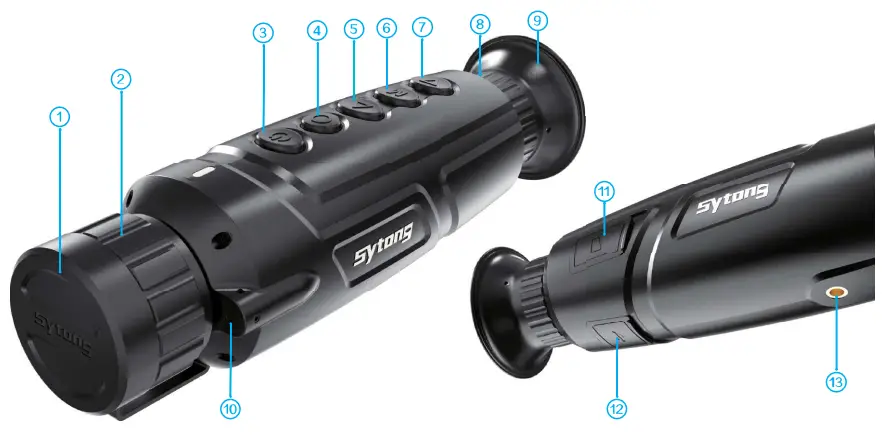
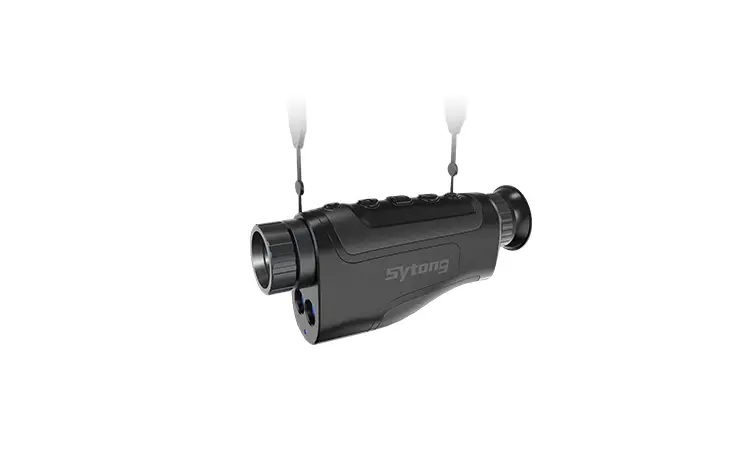
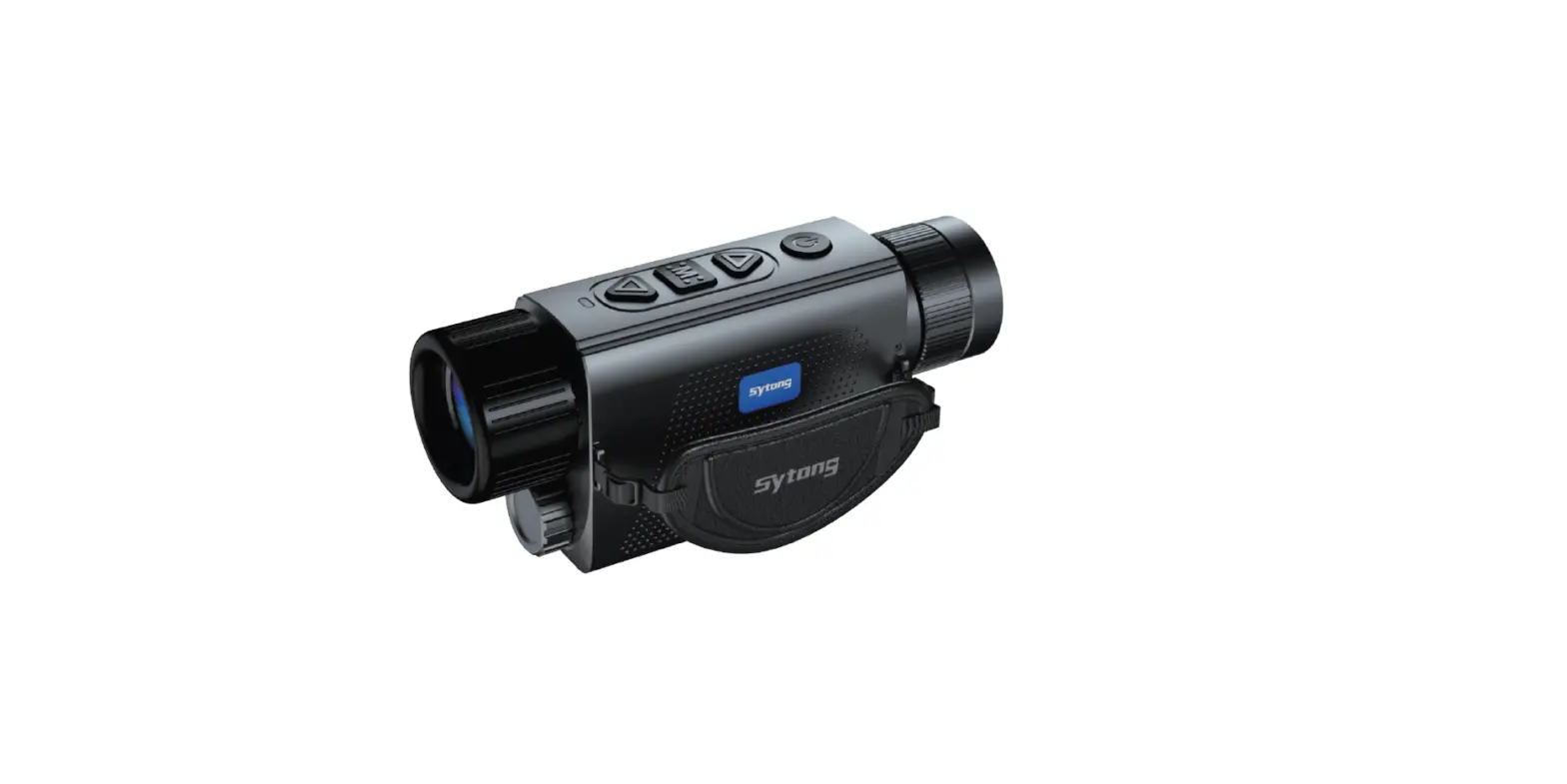
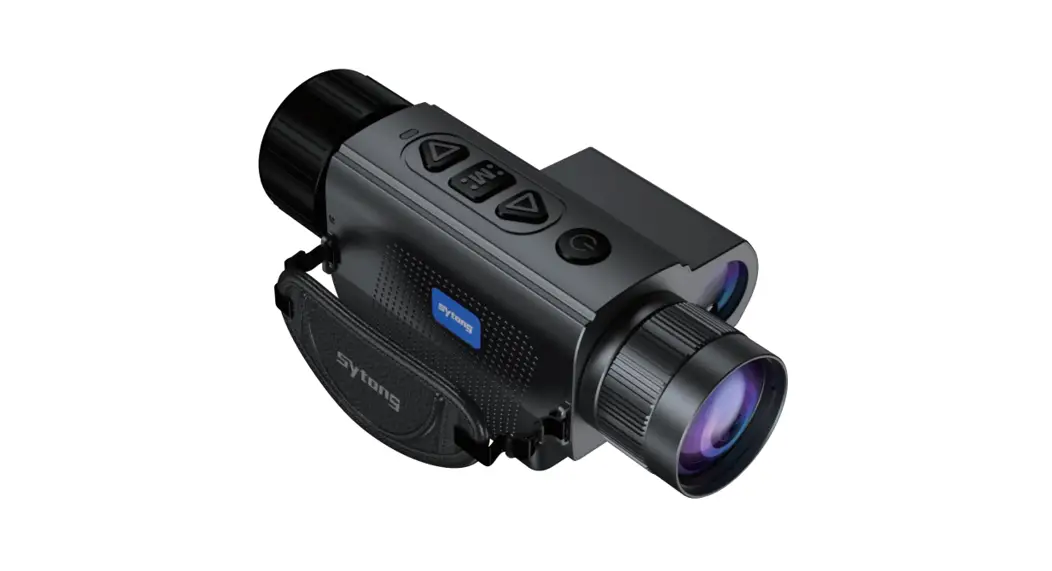
| 1, Objective lens/Protective Cap | 2, 0 bjective focusing ring | 3, Power on/Standby button |
| 4. Recording button REC | 5, Navigation button UP | 6, Menu button |
| 7, Navigation button DOWN | 8, Eyepiece focusing ring | 9, Eyeshade |
| 10, Laser Red dot | 11, Storage card compartment | 12, Charging port/TV OUT |
| 13, Fixture hole for detachable accessories | ||
Packaging Accessories
- YS Handheld thermal scope
- Type-c cable
- Manual
- 5V2A adapter
Start
Power On and Image Settings
- Short press the ON/OFF (3) button to power on.
- Rotate the eyepiece adjustment ring (8) to get a clear image of the icons on the display.
- Rotate the lens focusing ring (2) to get a clear image of the observed object.
- Short press the (5) button to select the operating palettes (White Hot, Target Highlight, RedHot, Black Hot, Fusion Modes).
- Short press the (7) button to select the digital magnification (Ix, 2x, 4x, 6x, 8x).
- Short press the (6) button to enter the menu to select the appropriate parameter.
- Long press the ON/OFF (3) button, and within 3 seconds the screen off, for 3 seconds to power off. The indicator light of the buttons will be off after power off.
YS Hu LLon detailed navigation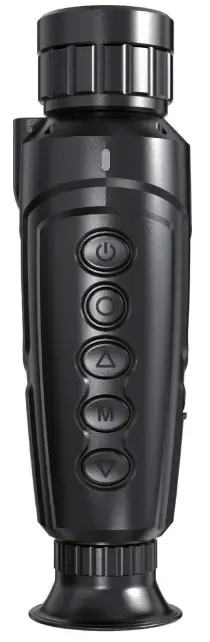
 Power button
Short press to power on. Long press for 3 seconds to power off. When powered on, press and hold the power button for 1-3 seconds, When the sleep icon appears on the screen, it is regarded as standby mode,and a short press under the standby mode can activate the device. ‘mon p,c,, to switch the shutter Recording button REC
Short press to take pictures (press it when the camera function is not turned one-minding: Please turn on the camera and video function first). Long press the button to record the video when the camera function is not turned on, Reminding: Please turn on the camera and video function first). Navigation button UP
Short press to select up, when there is no menu, it is to switch the display mode. M Menu button
Short press to enter the MENU, press up and down to move MENU options, short press MENU to enter the secondary MENU, and short press MENU to confirm. Long press to turn on/off laser red dot, long press to return to the previous menu in menu mode. Navigation button DOWN
Short press to select down, when there is no menu, it is to switch magnificationlx,2x, 4x,6x,8x. Long press to turn distance measuring on or off.
YS menu detailed functions
- Operating Modes
Providing 5 options(White Hot, Target Highlight, Black Hot, Red Hot, Fusion), default as White hot.
- Camera/Video Output
Turn on or turn off - WIFI
1, Select “On” or “Off” on the submenu, turn on the WIFI in the menu, then open the WIFI of the mobile phone and the APP, and find the MAC address name of the WIFI of the mobile phone Sytong-Ther-mal and password Confirm 12345678, enter the password to see if the connection is normal (WiFi is off by default). 2. Live images can be observed by APP after WIFI connection. - Hot Tracking
Click the M button to enter the hot tracking in the main menu, choose to enable or disable the hotspot tracking function. - OLED Brightness
Select “OLED Brightness” with the cursor and press the “OK” key to call out the sub-menu, select “Super Dark”, “Dark”, “Normal”, “Bright” and “Super Bright” on the sub-menu to adjust the brightness of the display screen. The default is normal. - Target Brightness
Click the M button to enter the menu brightness. There are 5 options, and the screen will change accordingly if you choose any option. - Contrast Ratio
Click the M button to enter the menu Contrast Ratio. There are 10 options, and the screen will change accordingly if you choose any option. - Image Detail Boost
The image resolution of a photo or video comparison varies with any option 1-4. The default is 1 . - Date/Time
Select “Date/Time” MENU, short press MENU to enter sub-options, short press the photo button to move options, short press up and down button to adjust the value, and short press MENU to save and exit after adjustment. Long press MENU to exit without saving. - Language
Click the M button to enter the menu language setting, set the language, and confirm. - Record Audio
Select “Record Audio” and press “M” to call out the submenu. Select “On” or “Off” on the submenu, and confirm whether the recording is with voice and audio recording. - Format
Enter into the sub-menu of Format, confirm or cancel with a brief press of the MENU button. Please choose to confirm carefully! Data cannot be recovered after deletion! - Auto Power-Off
Options: 3 minutes,5 minutes, off, off by default, 3 minutes or 5 minutes after the startup can be selected automatic shutdown - Default Setting
Select “Default Setting” with the cursor and press “OK” to call out the submenu. Select “Confirm” or “Cancel” on the submenu to restore the default settings. After confirmation, the factory default settings will be restored. Please operate with caution. - Pixel Cure
Enter the pixel cure under the main menu and click the M button to choose the option. Please cover the lens cap before repair, follow the guide, short press Menu to EXIT, and long press the menu to SAVE. - Version

APP Connection
 http://app.dayingtech.com/79819049674
U Download APP by Scanning the QR code according to the mobile phone system.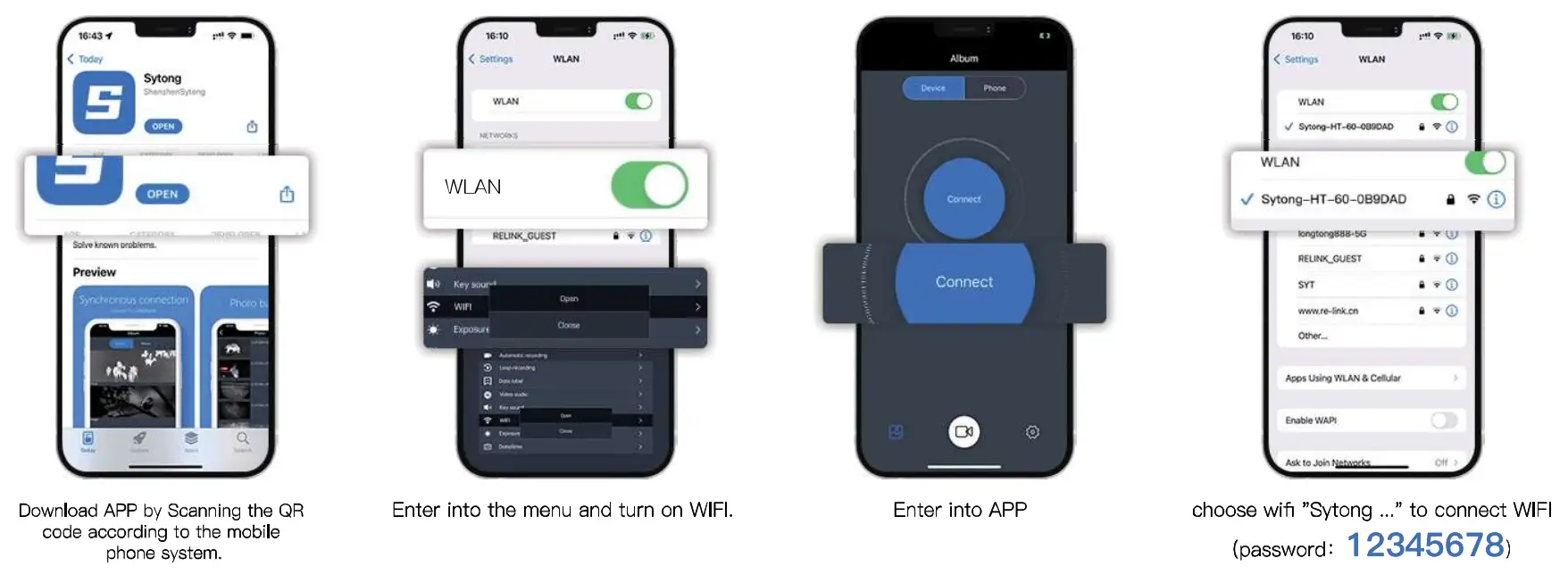
lYS03 YS03
detailed parameter data sheet Sensor (military grade)
| Type | nonref raid’ | Resolution, pixels | 384)(288 super sensitive |
| Frame rate | 50 Hz | Pixel size | 12pm |
| NETD | <30mK |
Optical characteristics
| Objective lens | f 15/25mm, ri o | Magnification | 1.2x/2.0x |
| Continuous digital zoom | lx/ 2x / 49698x | Eye relief | 30 mm |
| Dioptre adjustment | 45/-5 D | Close-up range | Sm |
Display
| Operating modes | Black Hot, White Hot, Red Hot, Fusion, Target Highlight | Type / Resolution | 0.39 inch /MOLE)/ 1024X768 |
Operational characteristics
| Frequency | 2.4GHz | Standard | 802.11 b/g |
| Power supply | 3-4.2 V | Battery | Li-ion Battery Pack/ 6000mAh / DC 3.71/ |
| External power supply | 5V (USB) | Operating time (at t=22°C) | 9 hours |
| Operating temperature | -20•C to + 50•C | Dimensions | 210X64X63mm |
| Weight | 570g |
Video recorder
| Video / photo resolution | 1024×768 | Video / photo format | .mp4 / .jpg |
| Memory type | TF card (FAT32), max.128G |
Wifi channel
| Frequency | 2.4GHz | Standard | 802.11 b/g |
| Line-of-sight reception range | 15m |
IYS06
YS06 detailed parameter data sheet Sensor (military grade)
| Type | nonrefroidi | Resolution, pixels | 640×480 super sensitive |
| Frame rate | 50 Hz | Pixel size | 12um |
| NEED | <30mK |
Optical characteristics
| Objective lens | f25/35mm, F1.0/F1.2 | Magnification | 1.2x/1.7x |
| Continuous digital zoom | lx / 2x/4 zij 6x/8x | Eye relief | 30 mm |
| Dioptre adjustment | +5/-5 D | Close-up range | 5m |
Display
| Operating modes | Black Hot, White Hot, Red Hot, Fusion, Target Highlight | Type/Resolution | 0.39 inch / AMOLED / 1024%768 |
Operational characteristics
| Hot tracking | Yes I | Waterproof rating 11P65 |
| Power supply | 3-4.2V | Battery | LI-Ion / DC 3.NBattery Pack / 6000mAh |
| External power supply | 5V (USB) | Operating time (at t=22°C) | 9 hours |
| Operating temperature | – 20°C to – 50°C | Dimensions | 210%64%63mm |
| Weight | 570g |
Video recorder
| Video / photo resolution | 1024×768 | Video / photo format | .mp4 / .jpg |
| Memory type | TF card(FAT32), max.128G |
Wifi channel
| Frequency | 2.4GHz | Standard | 802.11 b/g |
| Line-of-sight reception range | 15m |
‘Notice!
Accessories Use Reminder
Power Adapter
Only applicable to charging voltage below 5v/2A.
Laser pointer adjustment
Press the menu button to turn on/off the red dot indicator light and adjust the position of the red dot indicator light through the red dot indicator adjustment port of the inner hexagon wrench.
TF card
Whether TF card can be recognized normally, supported (8-128G), smooth and free of delay, connect the USB power supply to boot, open video recording in the menu, and the flash of video label means automatic recording.
Note: Our products are fixed on the equipment and controlled by WiFi connected app. They can’t be close to human eyes and will be damaged. They can only be used fixedly, with a distance of more than 20cm from the human body.
This product can only be used in legal fields such as scientific research, observation, and emergency search, and it is strictly prohibited to be used on illegal purposes. Our company reserves the right to pursue legal liability of illegal users.
 http://weixin.qq.com/r/PRG4oLXElejqrfHD90Qv
Follow Sytong official account to learn more
FCC Warning Statement: Changes or modifications to this unit not expressly approved by the party responsible for compliance could void the user’s authority to operate the equipment. This equipment has been tested and found to comply with the limits for a Class B digital device, pursuant to Part 16 of the FCC Rules. These limits are designed to provide reasonable protection against harmful interference In a residential installation. This equipment generates, uses and can radiate radio frequency energy and, if not installed and used In accordance with the instructions, may cause harmful interference to radio communications.
However, there Is no guarantee that interference will not occur In a particular installation. If this equipment does cause harmful interference to radio or television reception, which can be determined by turning the equipment off and on, the user Is encouraged to try to correct the interference by one or more of the following measures:
Reorient or relocate the receiving antenna.
Increase the separation between the equipment and receiver.
Connect the equipment Into an outlet on a circuit different from that to which the receiver is connected.
Consult the dealer or an experienced radio/TV technician for help.
This device complies with Part 16 of the FCC Rules. Operation is subject to the following two conditions: (1) this device may not cause harmful interference tenet’, and (2) this device must accept any interference received. including interference that may cause undesired operation.
FCC Radiation Exposure Statement
The device has been evaluated to meet general RF exposure requirements. The device can be used In portable exposure conditions without restriction.