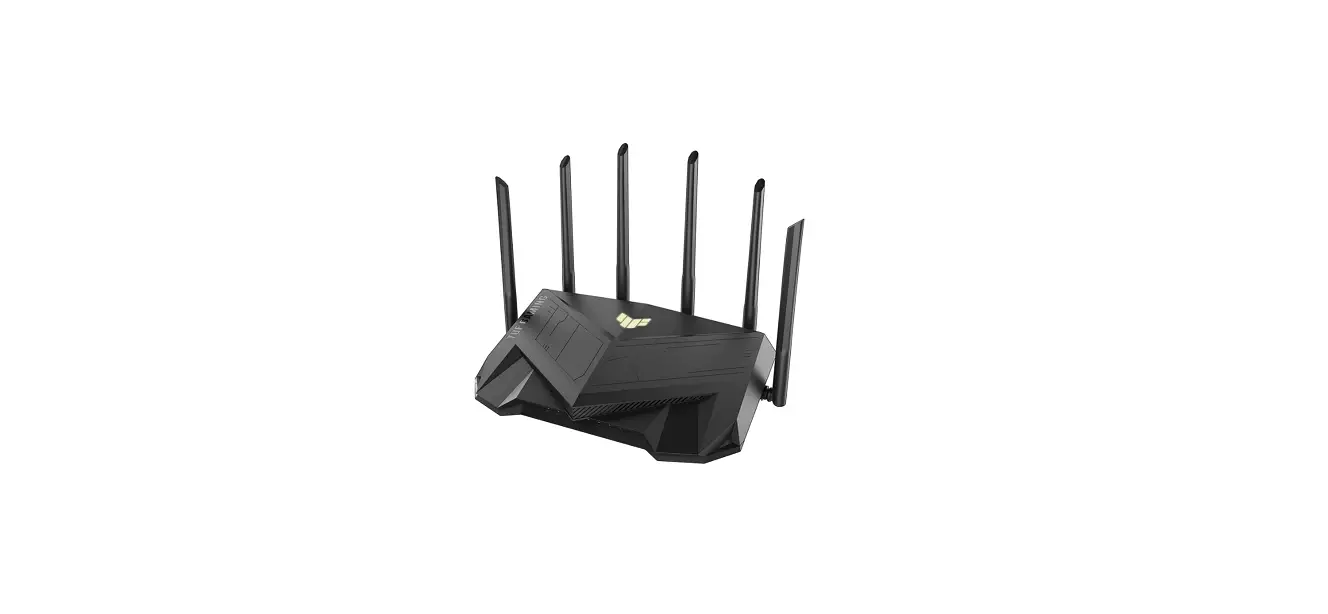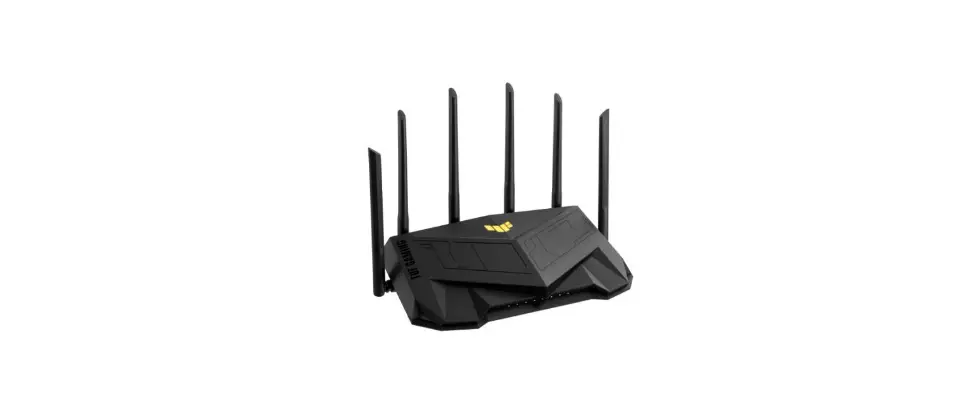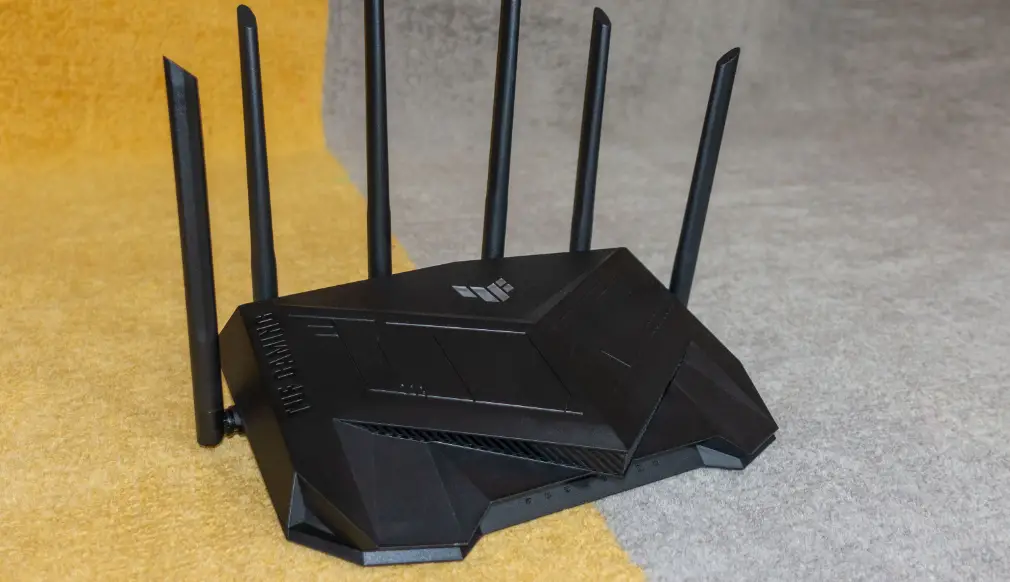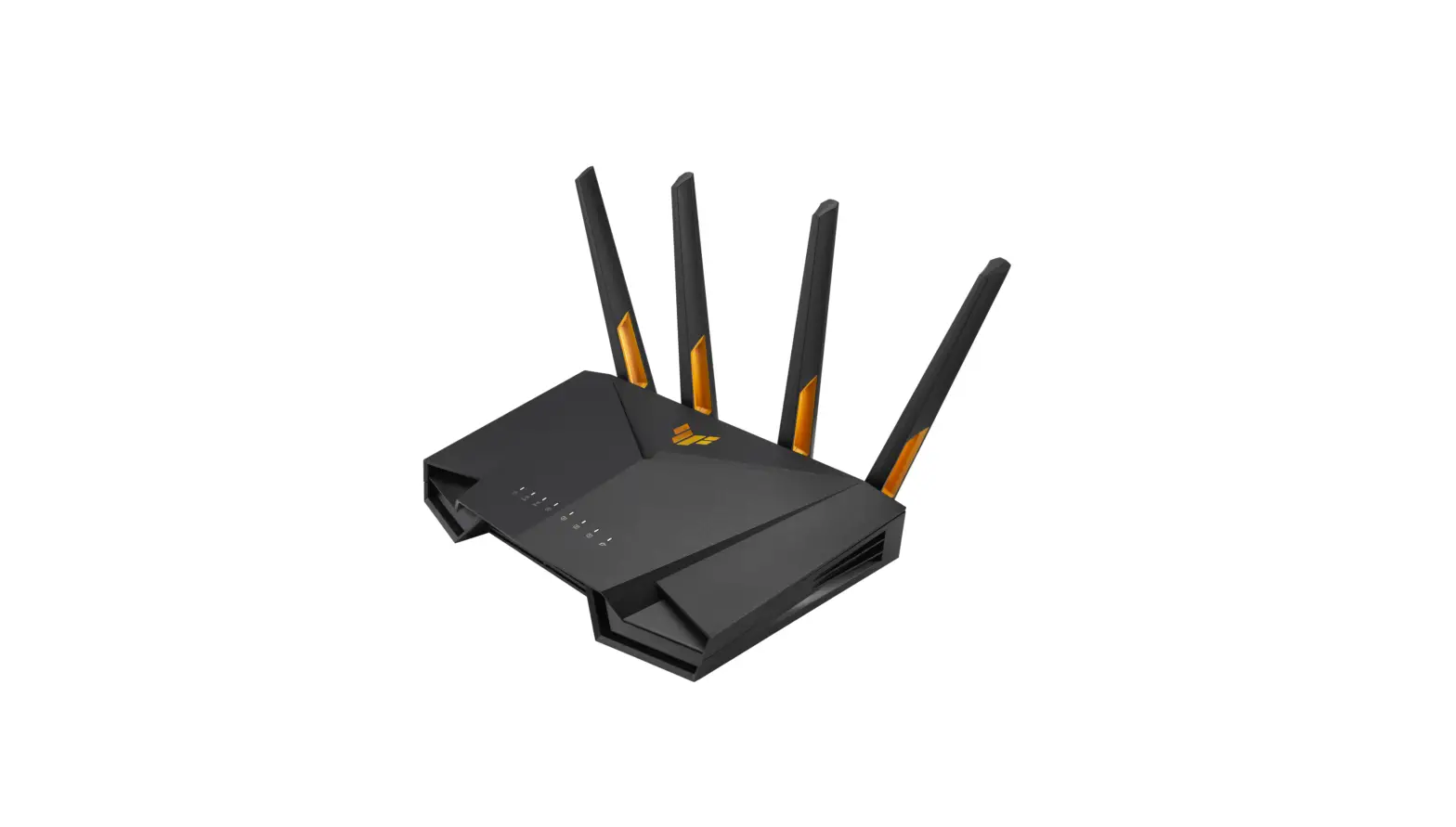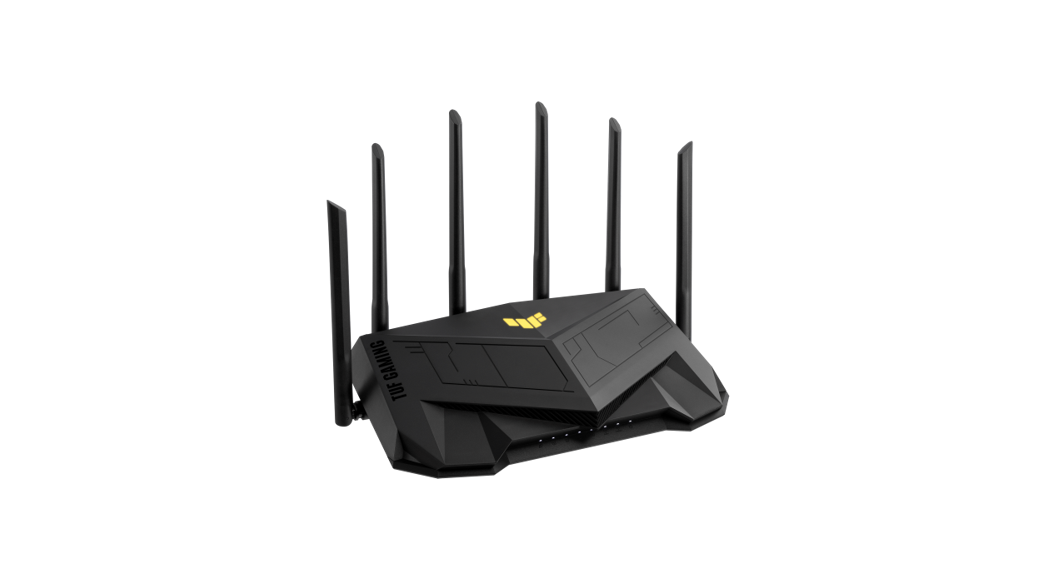
 TUF-AX5400
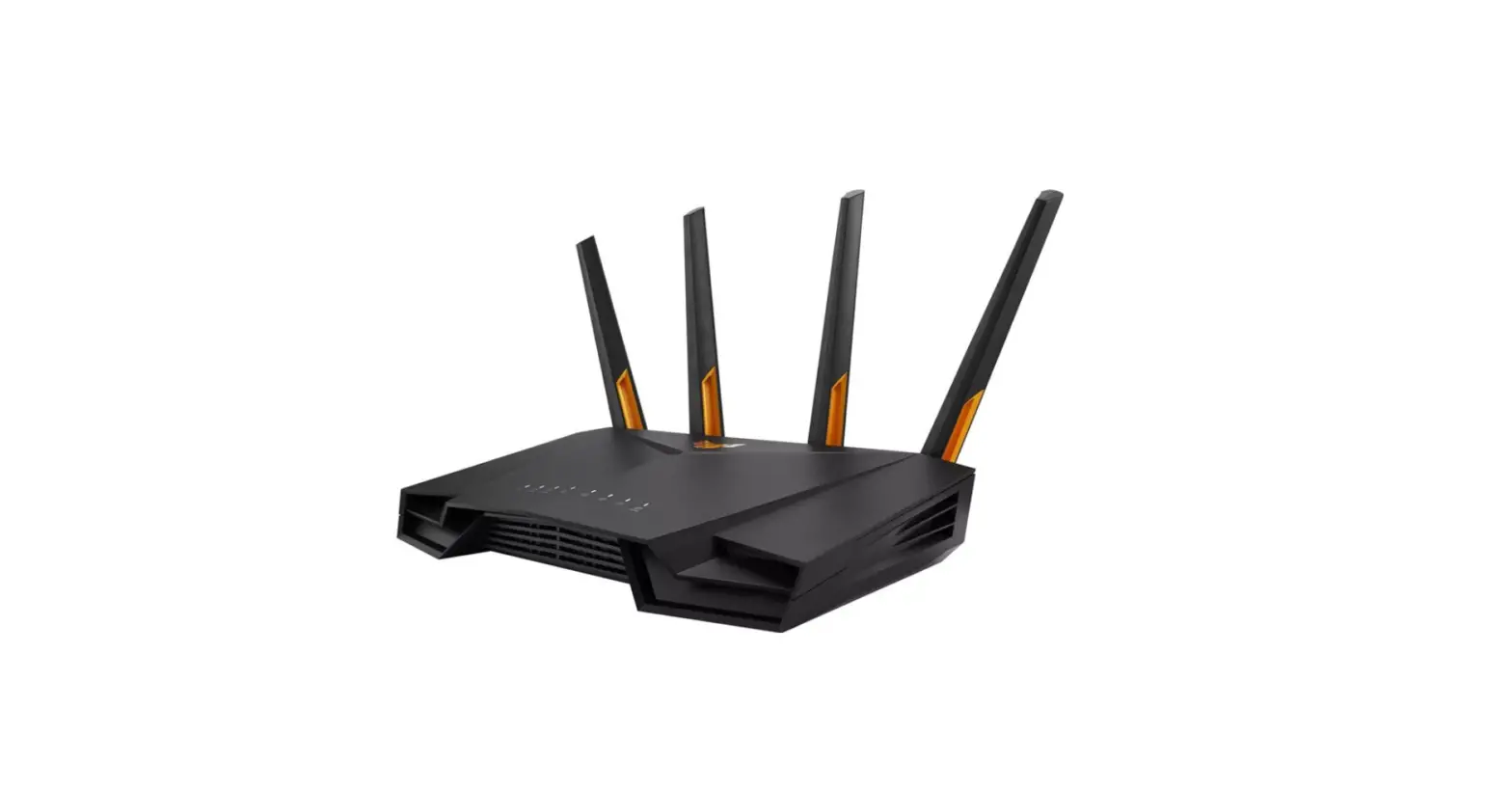
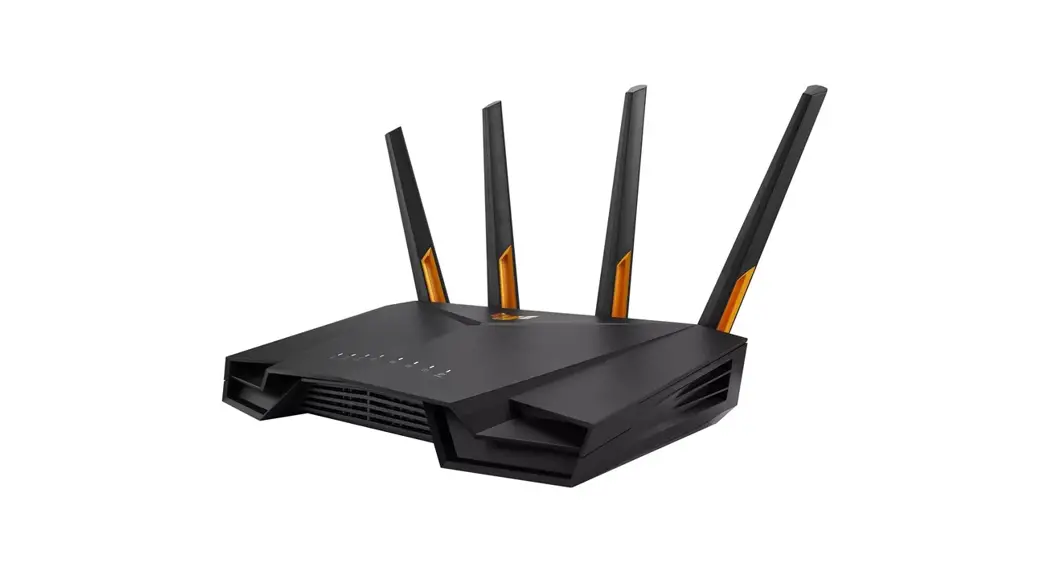
TUF Gaming AX5400 Dual-Band Wi-Fi 6 Router
Quick Start Guide
U18187 / First Edition / April 2021
Package contents
| TUF-AX5400 Wireless Router Network cable (RJ-45) | AC adapter Quick Start Guide |
A quick look at TUF-AX5400
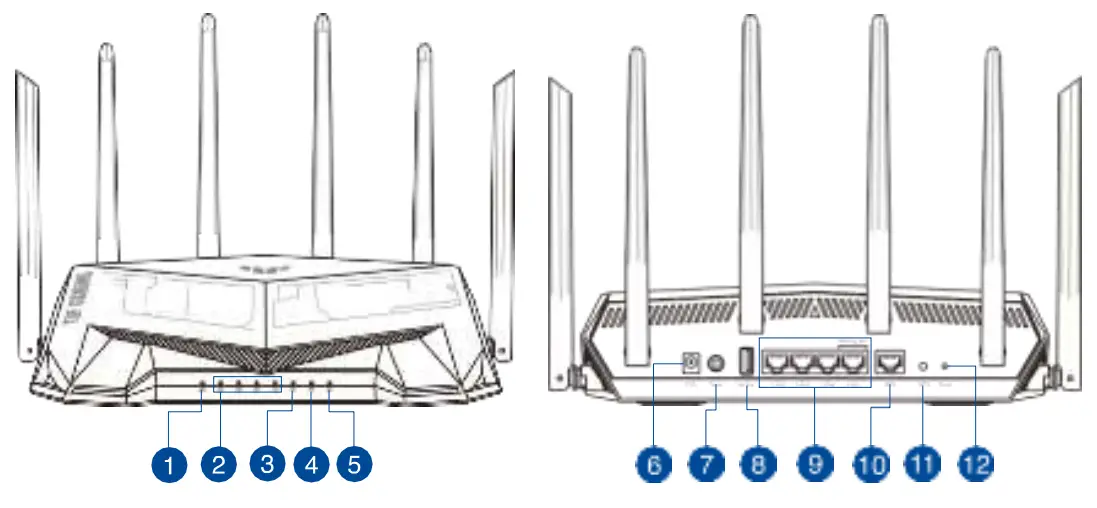
| 1 | WAN (Internet) LED | 7 | Power button |
| 2 | LAN 1 ~ 4 LEDs | 8 | USB 3.2 Gen 1 port |
| 3 | 5GHz LED | 9 | LAN 1 ~ 4 ports |
| 4 | 2.4GHz LED | 10 | WAN (Internet) port |
| 5 | Power LED | 11 | WPS button |
| 6 | Power (DC-IN) port | 12 | Reset button |
Position your wireless router
For optimal wireless transmission between the wireless router and connected wireless devices, ensure that you:
- Place the wireless router in a centralized area for maximum wireless coverage for the network devices.
- Keep the wireless router away from metal obstructions and away from direct sunlight.
- Keep the wireless router away from 802.11g or 20MHz only Wi-Fi devices, 2.4GHz computer peripherals, Bluetooth devices, cordless phones, transformers, heavy-duty motors, fluorescent lights, microwave ovens, refrigerators, and other industrial equipment to prevent signal interference or loss.
- Always update to the latest firmware. Visit the ASUS website at http://www.asus.com to get the latest firmware updates.
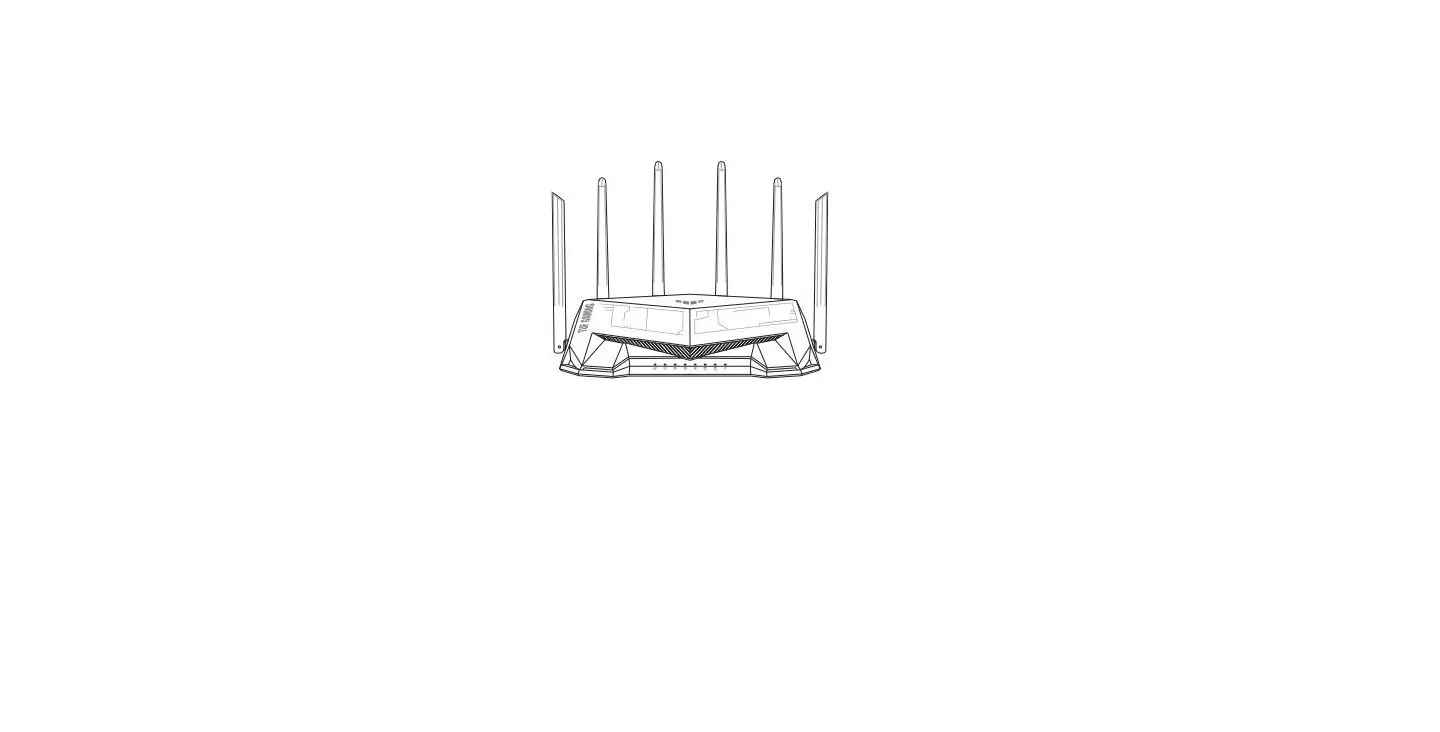
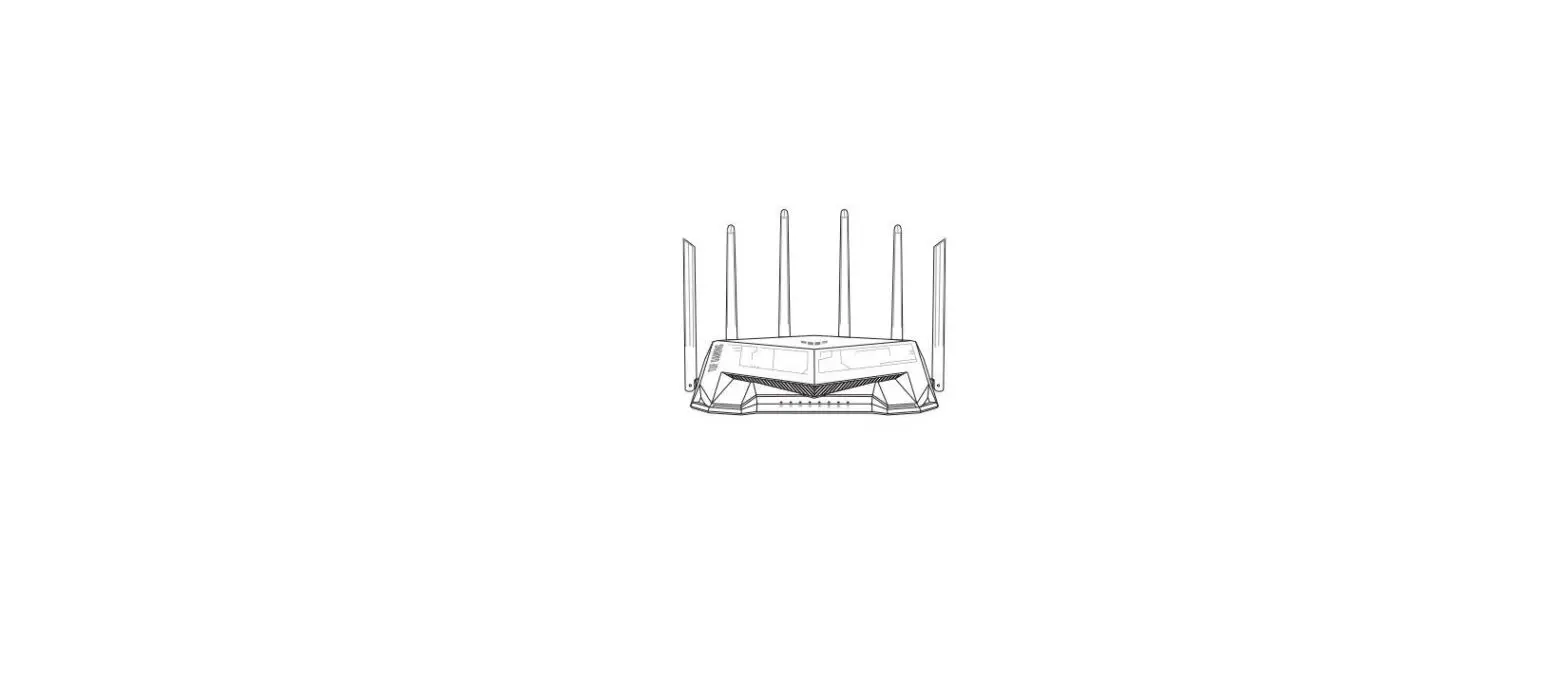
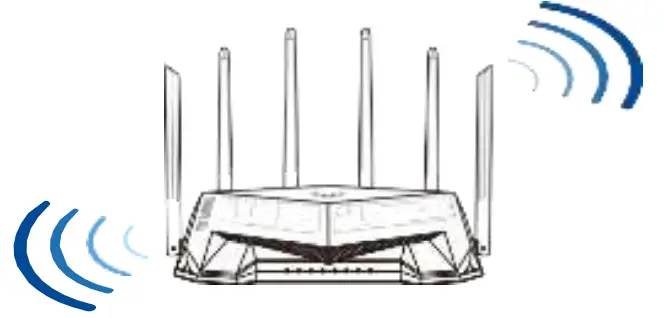
- To ensure the best wireless signal, orient the six non-detachable antennas as shown in the drawing below.
NOTES:
- Use only the adapter that came with your package. Using other adapters may damage the device.
- Specifications:
| DC Power adapter | DC Output: +12V with 2.5A current | ||
| Operating Temperature | 0~40 ºC | Storage | 0~70 ºC |
| Operating Humidity | 50~90% | Storage | 20~90% |
Preparing your modem
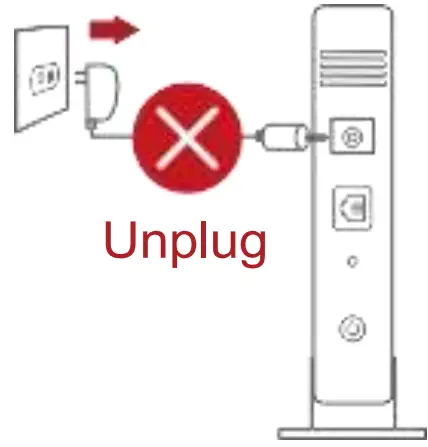
- Unplug the power cable/DSL modem. If it has a battery backup, remove the battery.
NOTE: If you are using DSL for the Internet, you will need your username/password from your Internet Service Provider (ISP) to properly configure the router.
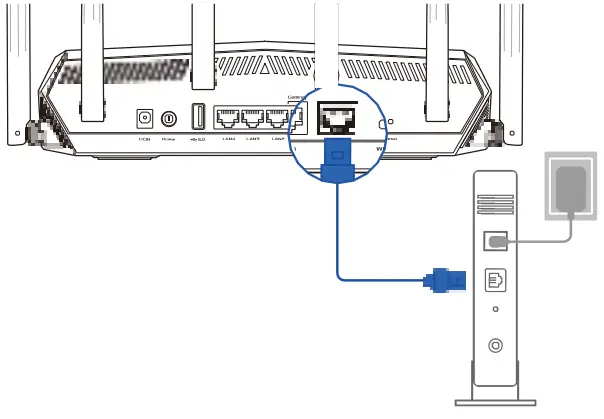
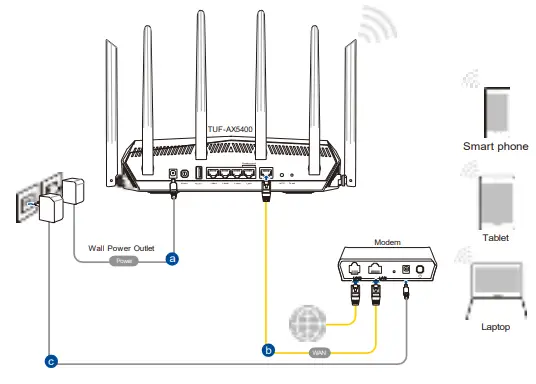
- Connect your modem to the router with the bundled network cable.

- Power on your cable/DSL modem.
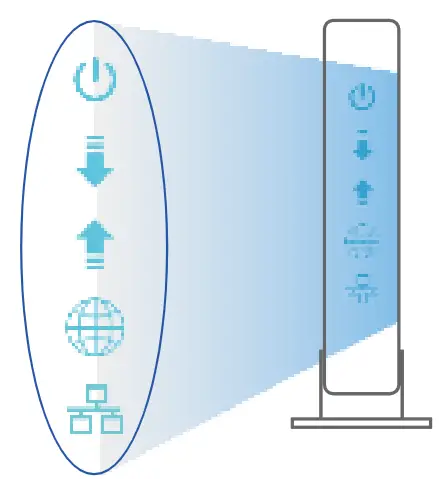
- Check your cable/DSL modem LED lights to ensure the connection is active.
Setting up your TUF-AX5400
You can set up your router via a wired or wireless connection.
A. Wired connection
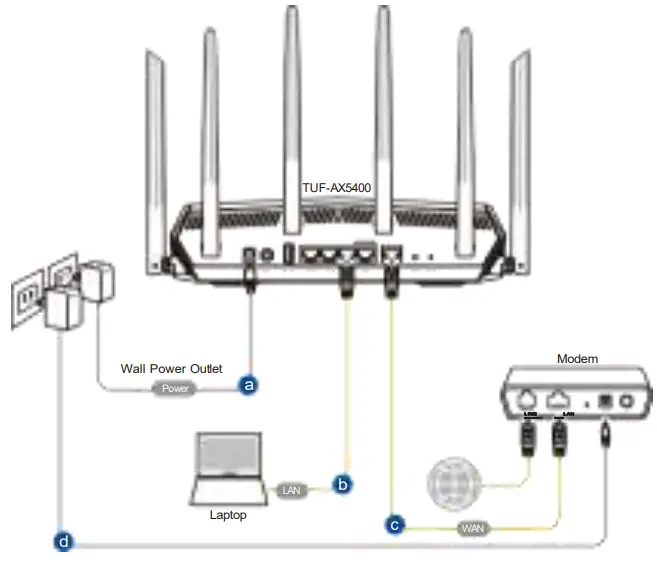
- Plug your router into a power outlet and power it on. Connect the network cable from your computer to a LAN port on your router.

- The web GUI launches automatically when you open a web browser. If it does not auto-launch, enter http://router.asus.com.
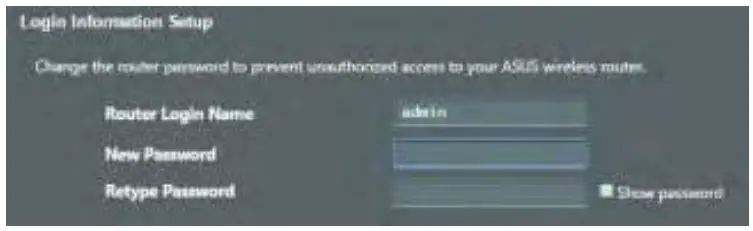
- Set up a password for your router to prevent unauthorized access.
B. Wireless connection
- Plug your router into a power outlet and power it on.

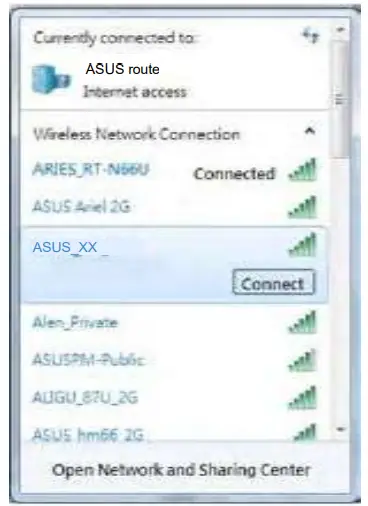
- Connect to the network with the SSID shown on the product label on the back side of the router. For better network security, change to a unique SSID and assign a password.
 Wi-Fi Name (SSID): ASUS_XX
* XX refers to the last two digits of the 2.4GHz MAC address. You can find it on the label on the back of your router. - You can choose either the web GUI or ASUS Router app to set up your router.
a. Web GUI Setup
• Once connected, the web GUI launches automatically when you open a web browser. If it does not auto-launch, enter http://router.asus.com.
• Set up a password for your router to prevent unauthorized access.
 Wi-Fi Name (SSID): ASUS_XX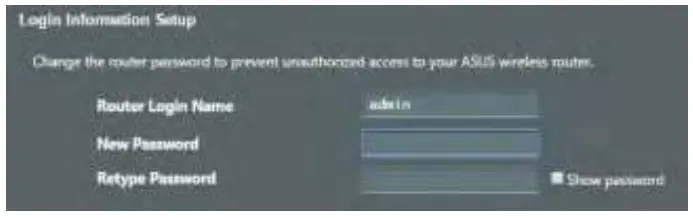
b. App Setup
Download ASUS Router App to set up your router via your mobile devices.
- Turn on Wi-Fi on your mobile devices and connect to your router’s network.
- Follow ASUS Router App setup instructions to complete the setup.
 |  |  |
| https://itunes.apple.com/tw/app/asus-router-manage-secure-boost-wifi-network/id1033794044?mt=8 | ||
 | ||
Remembering your wireless router settings
- Remember your wireless settings as you complete the router setup.
| Router Name: | Password: |
| 2.4 GHz network SSID: | Password: |
| 5GHz network SSID: | Password: |
FAQ
- Where can I find more information about the wireless router?
• Technical support site: https://www.asus.com/support
• Customer hotline: refer to the Support Hotline section in this Quick Start Guide.