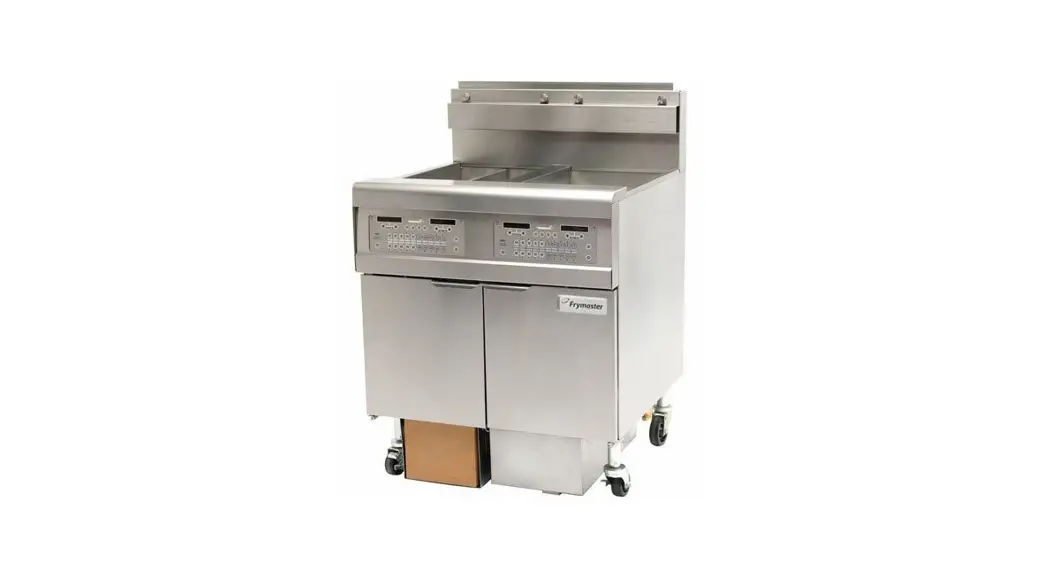

1814 Computer Display Unit
User Manual
 Frymaster, a member of the Commercial Food Equipment Service Association, recommends using CFESA Certified Technicians.
www.frymaster.com
24-Hour Service Hotline
1-800-551-8633
NOTICE TO OWNERS OF UNITS EQUIPPED WITH COMPUTERS
U.S.
This device complies with Part 15 of the FCC rules. Operation is subject to the following two conditions: 1) This device may not cause harmful interference, and 2) This device must accept any interference received, including interference that may cause undesired operation. While this device is a verified Class A device, it has been shown to meet the Class B limits.
CANADA
This digital apparatus does not exceed the Class A or B limits for radio noise emissions as set out by the ICES-003 standard of the Canadian Department of Communications.
1814 Computer
Overview
Multi-Product Mode (5050)
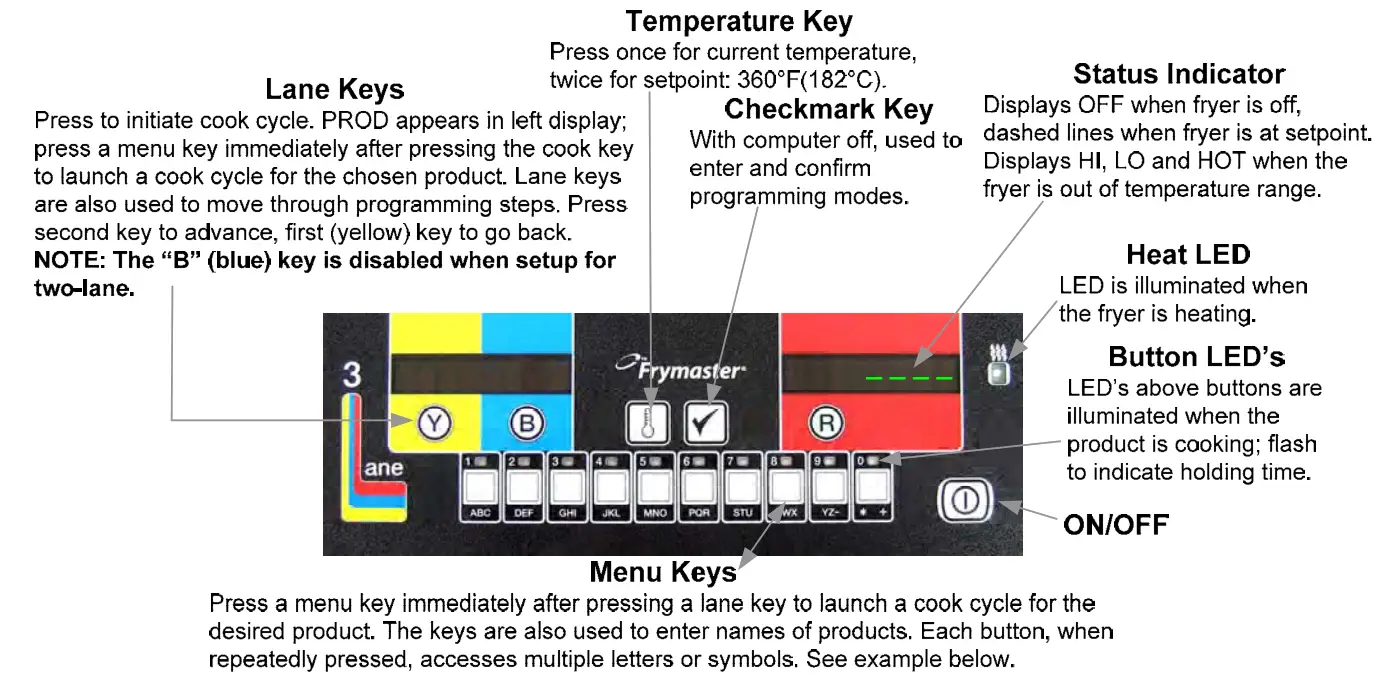

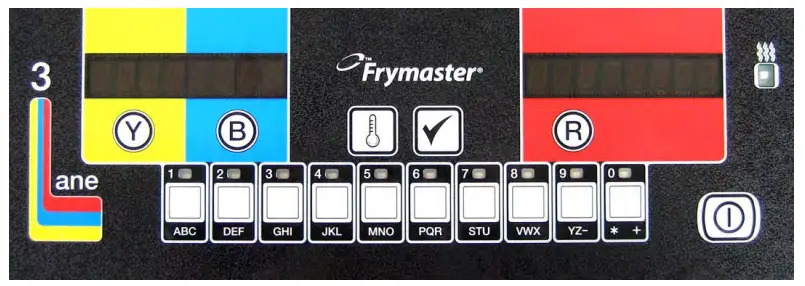
Turn Fryer ON
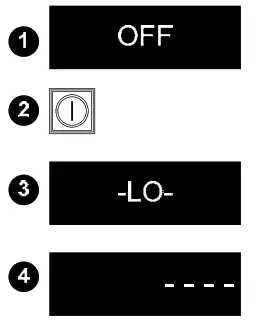
- OFF appears in the status display when the controller is off.
- Press the ON/OFF button.
- LO- appears in a status display. If the melt cycle is enabled. MLT-CYCL will appear until the temperature is over 180°F (82°C).
- Dashed lines appear in the status I display when the fryer is at setpoint basic operation
Launch Cook Cycle
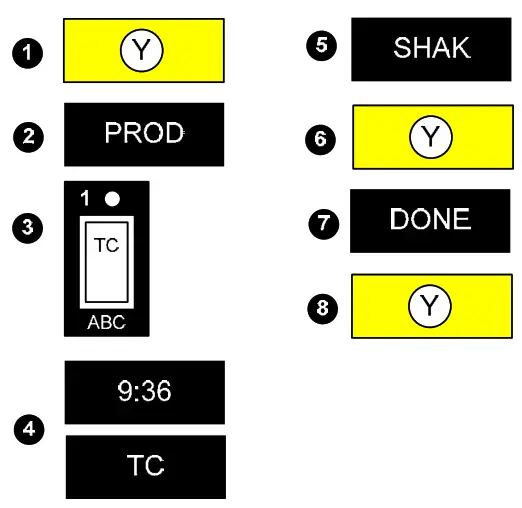
- Press a lane key.
- PROD appears in the window above the pressed button. (An alarm sounds if a menu key is not pressed in five seconds.)
- Press the menu key for the desired product
- The display changes to the cooking time for the product and then alternates between the remaining cook time and the product name.
- SHAK is displayed if a shake time was programmed.
- Shake the basket and press the lane key to silence the alarm.
- DONE appears at the end of the cook cycle.
- Press the Lane key to eliminate the DONE display and silence the alarm.
- Quality time is indicated by a flashing LED over the menu key. Press the key to display the remaining time.
- LED flashes faster and an alarm sounds at the end of the quality countdown. Press the menu key under the flashing LED to halt the alarm
NOTE: To halt a cook cycle, press and hold the lane key under the displayed item for about five seconds.
1814 Computer
Overview French Fry Mode (5060)
Basic Operation
 Turn Fryer ON
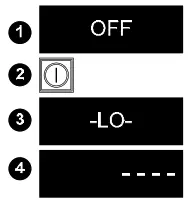
- OFF appears in the status display when the controller is off.
- Press the ON/OFF button.
- L0- appears in a status display. If the melt cycle is enabled, MLT-CYCL will appear until the temperature is over 180°F (82°C).
- Dashed lines appear in the status display when the fryer is at the setpoint.
Launch Cook Cycle
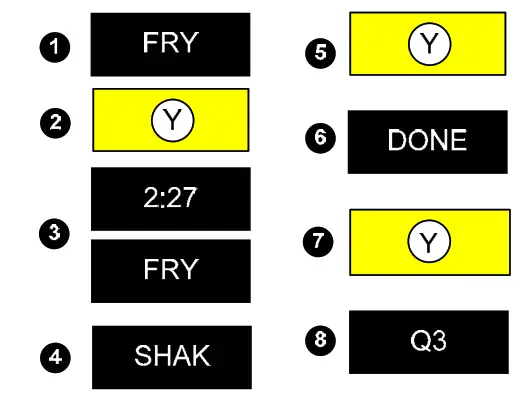
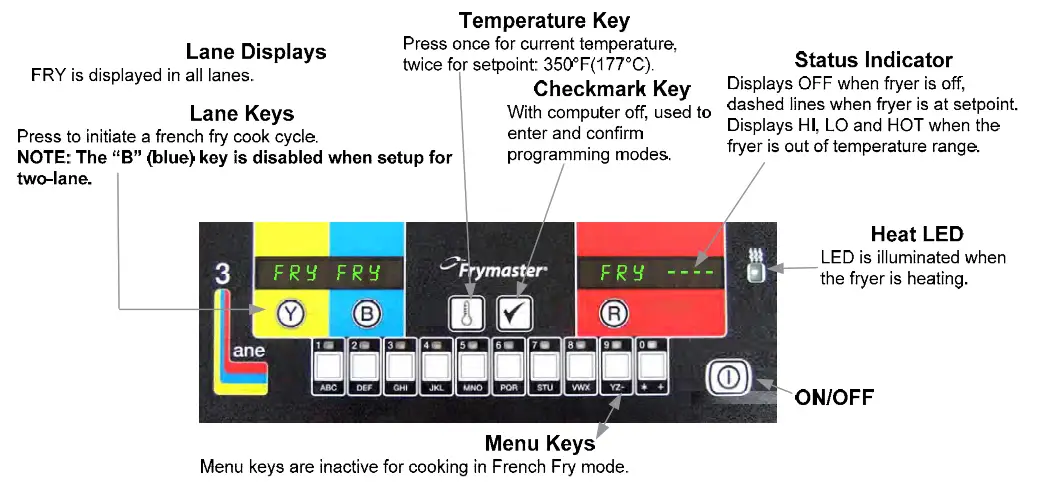
- FRY appears in all lanes.
- Press a lane key.
- The display changes to the cooking time for the fries, alternating with FRY
- SHAK is displayed if a shake time was programmed.
- Shake the basket and press the lane key to silence the alarm.
- DONE appears at the end of the cook cycle.
- Press the Lane key to eliminate the DONE display.
- Display alternates between FRY and quality countdown.
NOTE: To halt a cook cycle, press and hold the lane key under the displayed item for about five seconds.
Programming New Menu Items in Multi-Product Computer
Follow these steps to enter a new product in the computer. The actions to be taken are in the right column; the computer displays are shown in the left and middle columns.
| Left Display | Right Display | Action |
| OFF | Press  | |
| CODE | Enter 5050 with numbered keys. | |
| OFF | Press | |
| CODE | Enter 1650 with numbered keys. Press lane key B (Blue) to advance the cursor, and Y (yellow) key to go back. (NOTE: Press ü if the controller is in any language except English, or the left display will be blank.) | |
| TEND CC | 1 YES | Press the key to advance to the desired position. |
| Product to be changed or open position | Number and Yes | Press. |
| Product name with the cursor flashing under the first character. | Edit | Enter the first letter of a new product with a numbered key. Press until the desired letter appears. Advance cursor left key. Repeat until the eight-letter or less name of the product is entered. Eliminate characters with the key. |
| New product name | Edit | Press. |
| Position number or version of the previous name. | Edit | Enter a four-letter abbreviated name, which will alternate with the cook time display during cook cycles. |
| Abbreviated name | Edit | Press . . |
| Full name | Press | |
| SHAKE 1 | M:00 | Press to toggle between M (manually cancelling alarm) and A (automatically cancelling alarm). Enter time in the cook cycle to shake the basket with the numbered keys. |
| SHAKE 1 | Your settings | Press |
| SHAKE 2 | M:00 | Press to toggle between M and A. Enter the time in the cook cycle to shake the basket a second time. |
| SHAKE 2 | Your settings | Press |
| REMOVE | M:00 | Enter cook time in minutes and seconds with numbered keys. Press to toggle between auto and manually cancelling alarm. |
| REMOVE | Your settings | Press |
| QUAL | M: 00 | Enter time product can be held after cooking. Press to toggle between auto and manually cancelling alarm. |
| QUAL | Your Settings | Press. |
| SENS | 0 | Sens allows the fryer controller to adjust cooking times slightly, ensuring small and large loads cook identically. Setting the number to 0 allows no time adjustment; a setting of 9 produces the most time adjustment. Enter the setting with a numbered key. |
| SENS | Your setting | Press |
| New Product | If a key assignment is needed: press a menu key. Note: This eliminates any previous link associated with the chosen key. Key not needed: skip to the next step | |
| New Product | YES Key Number | Press (power key). (power key). |
Programming New Menu Items in Multi-Product Computer
Assigning Products to Menu Keys
| Left Display | Right Display | Action |
| OFF | Press | |
| CODE | Enter 1650 with numbered keys. | |
| Menu items | YES | Press B (Blue) key to advance through menu items. |
| Desired menu item | YES | Press key to be used to cook product. Note: This eliminates any previous link associated with the chosen key. |
| Product name | Number YES | Press (power key). |
Changing Menu Items in Dedicated Computer
Follow these steps to change a product in the computer. The actions to be taken care in the right column; the computer displays are shown in the left and middle columns.
| Left Display | Right Display | Action |
| OFF | Press | |
| CODE | Enter 5060 with numbered keys. | |
| OFF | Press | |
| CODE | Enter 1650 with numbered keys. Press lanthe e key B (Blue) to advance the cursor, Y (yellow) key to go back. | |
| FRIES | YES | Press . |
| Product name with cursor flashing under first character. | Edit | Enter the first letter of the product name with a numbered key. Press until the desired letter appears. Advance cursor left key. Repeat until the eight-letter or less name of the product is entered. Eliminate characters with the 0 key. |
| Product name | Edit | Press . |
| Previous abbreviated name. | Edit | Enter a four-letter abbreviated name, which will alternate with the cook time display during cook cycles. |
| Abbreviated name | Edit | Press . |
| Full name | YES | Press . |
| SHAK 1 | A:30 | Press to toggle between M (manually cancelling alarm) and A (automatically cancelling alarm). Enter time in the cook cycle to shake the basket with the numbered keys. |
| SHAK 1 | Your settings | Press. |
| SHAK 2 | A:00 | Press to toggle between M and A. Enter the time in the cook cycle to shake the basket a |
| SHAK 2 | Your settings | Press . |
| Left Display | Right Display | Action |
| REMOVE | M 2:35 | Enter cook time in minutes and seconds with numbered keys. Press to toggle between auto and manually cancelling alarm. |
| REMOVE | Your settings | Press . |
| QUAL | M 7:00 | Enter time product can be held after cooking. Press á to toggle between auto and manually cancelling alarm. |
| QUAL | Your Settings | Press. |
| SENS | 0 | Sens allows the fryer controller to adjust cooking times slightly, ensuring small and large loads cook identically. Setting the number to 0 allows no time adjustment; a setting of 9 produces the most time adjustment. Enter setting with numbered keys. |
| SENS | Your setting | Press . |
| FRIES | YES | Press (power key). |
| OFF |
Computer Setup, Codes
Follow these steps to prepare the computer for placement on a fryer:
| LeftDisplay | Right Display | Action |
| OFF | Press | |
| CODE | 1656 with numbered keys. | |
| GAS | YES or NO | Press to toggle between YES and NO. Leave at NO for electric fryer. |
| GAS | NO | With the desired answer in place press . |
| 2 Basket | YES or NO | Pressto toggle between YES and NO. Leave at NO for three baskets. |
| 2 Basket | Y or NO | With the desired answer in place, press . |
| SET-TEMP | NONE 360 | Enter cooking temperature for non-dedicated items with the numbered keys; 360°F is the default setting. |
| SET-TEMP | Entered temperature. | Press . |
| SET-TEMP | DED 350 | Enter cooking temperature for dedicated items with the numbered keys; 350°F is the default setting. |
| SET-TEMP | Entered temperature. | Press . |
| OFF | None. The setup is complete. |
| Left Display | Right Display | Action |
| OFF | Press a | |
| CODE | Enter · 1650: Add or edit menus · 1656: Setup, change energy source · 3322: Reload factory default settings · 5000: Displays total cook cycles. · 5005 Clears total cook cycles. · 5050: Sets unit to multi-product. · 5060: Sets unit to French Fries. · 1652: Recovery · 1653: Boil Out · 1658: Change from F° to C° · 1656: Setup · 1655: Language Choice |
800-551-8633
318-865-1711
WWW.FRYMASTER.COM
EMAIL: [email protected]
 Welbilt offers fully-integrated kitchen systems and our products are backed by KitchenCare’s aftermarket parts and service. Welbilt’s portfolio of award-winning brands includes Cleveland”, Convotherm’, Crem”, De! field”, fit kitchens, Frymaster’, Garland’, Kolpakl, Lincoln’, Marcos, Merrycher and Multiplex’.
Bringing innovation to the table
welbilt.com
©2022 Welbilt Inc. except where explicitly stated otherwise. All rights reserved. Continuing product improvement may necessitate a change of specifications without notice.
Part Number FRY_IOM_8196558 06/2022
 Frymaster - Your Growth Is Our Goal