 CONNECTING TOGETHER
QC3912
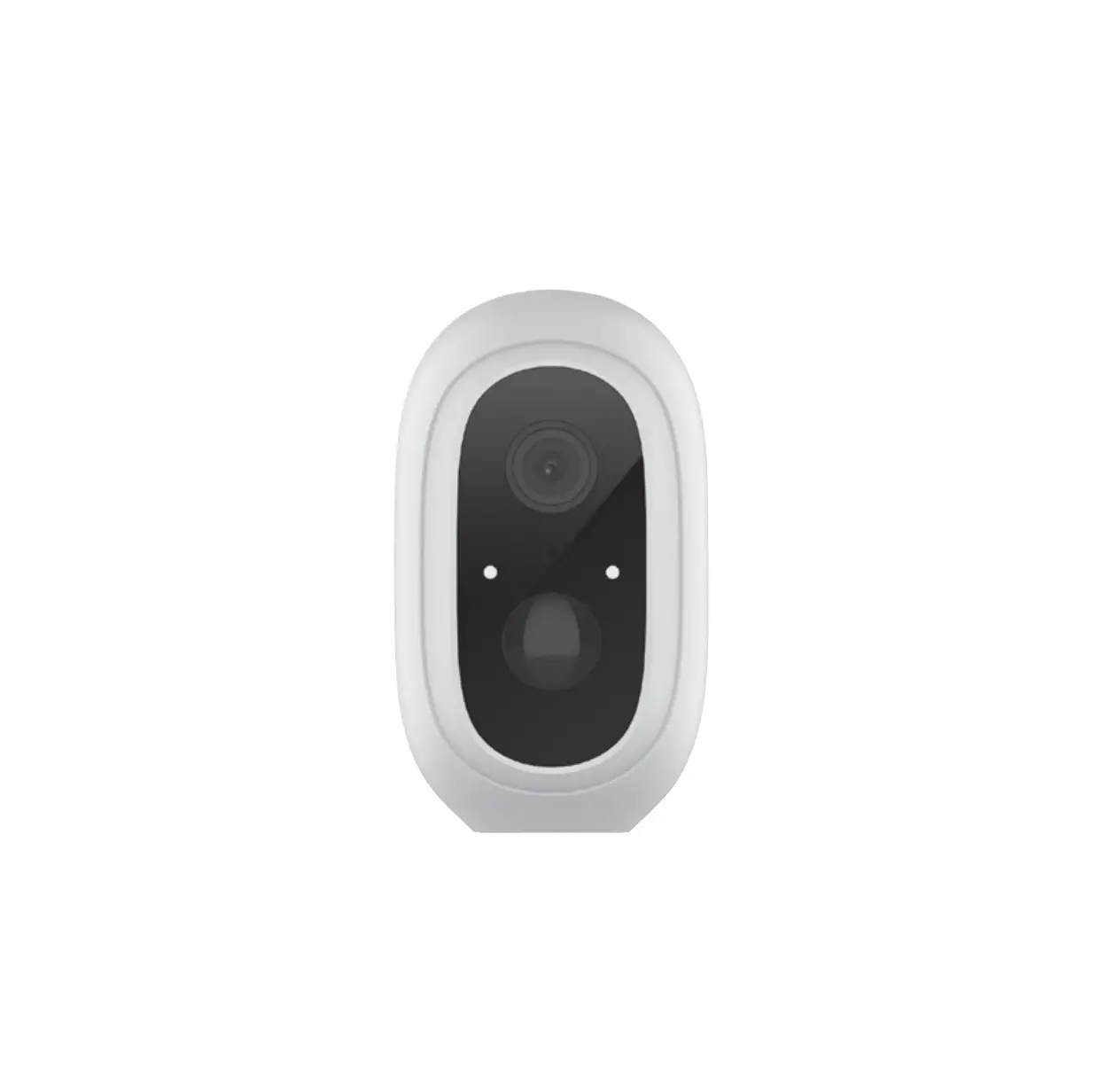
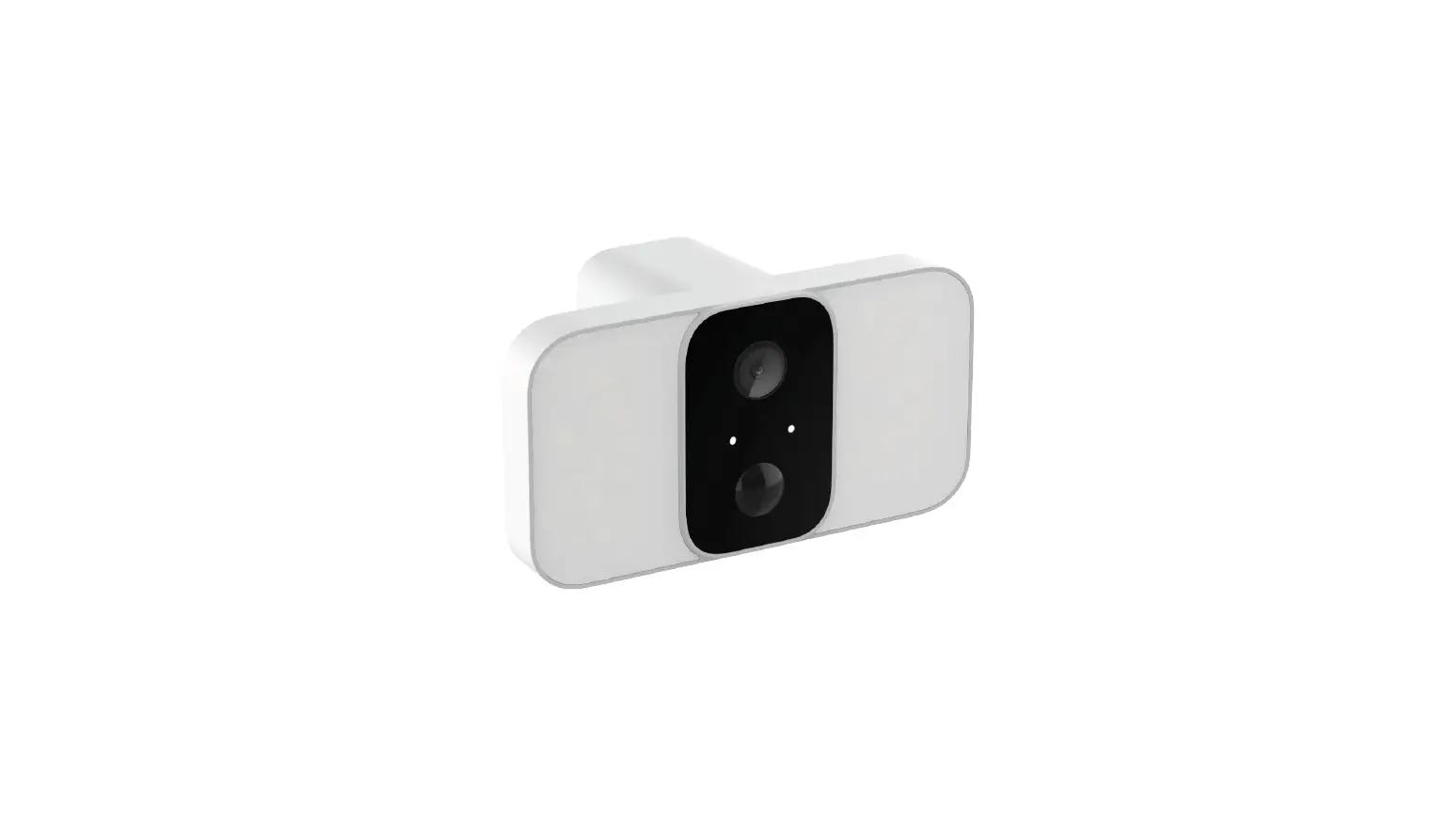
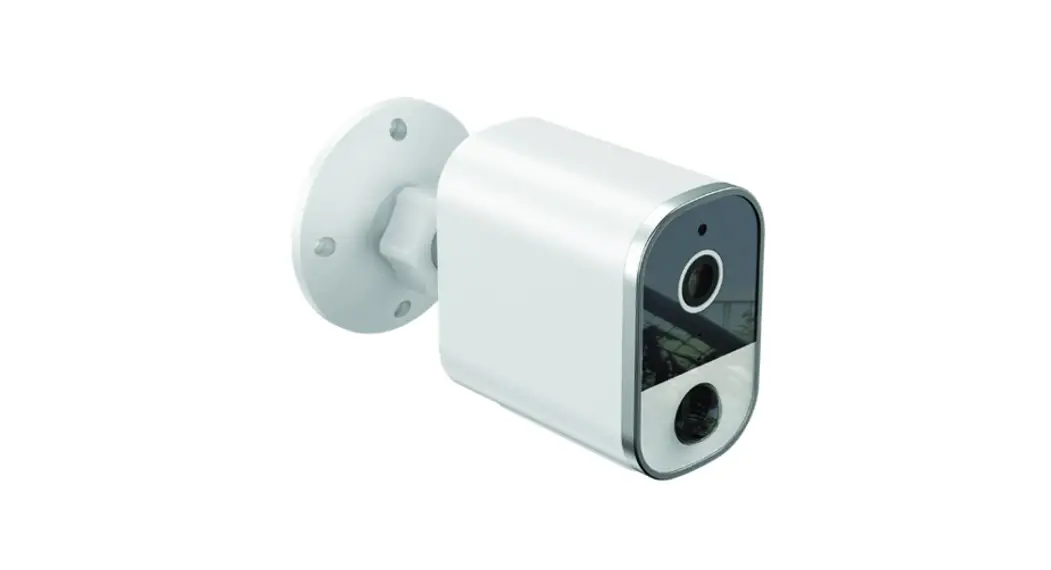
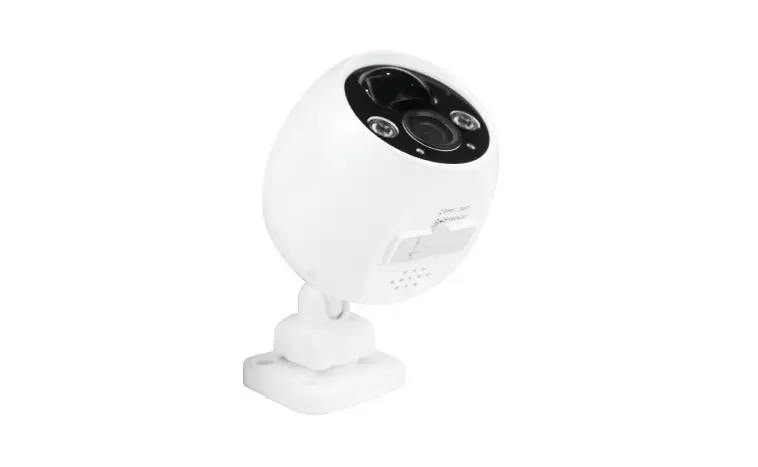
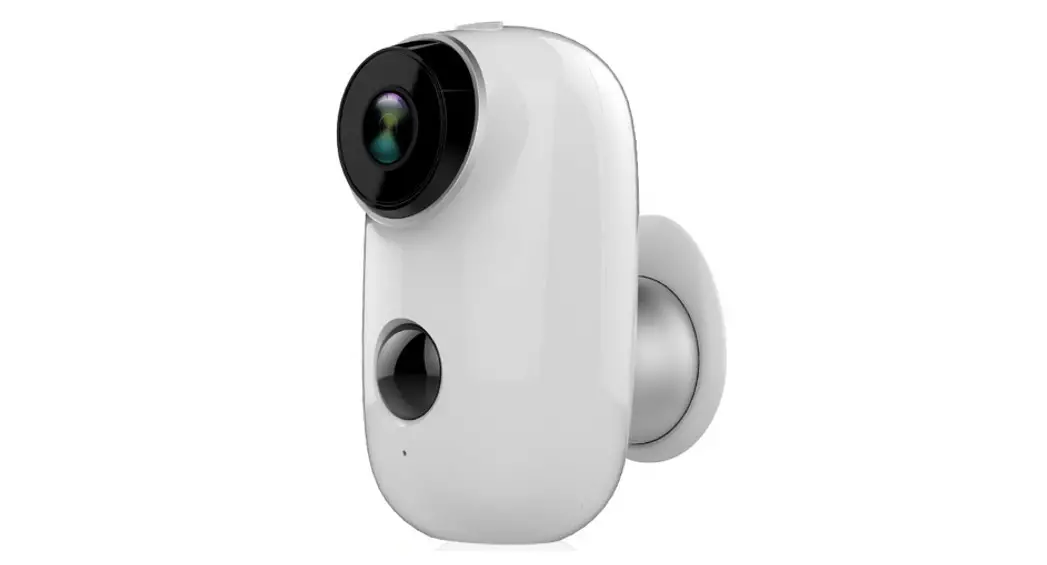
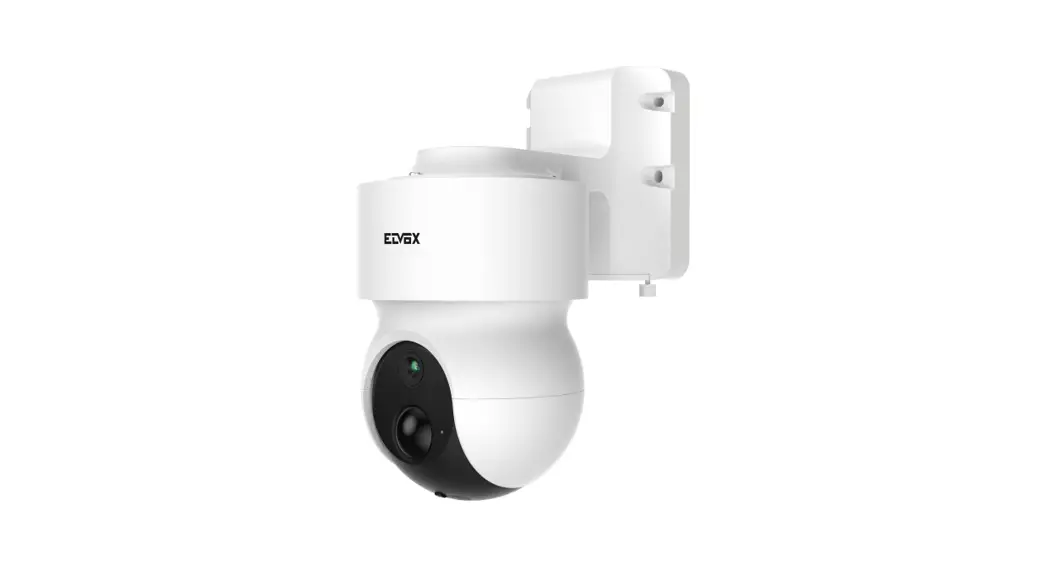
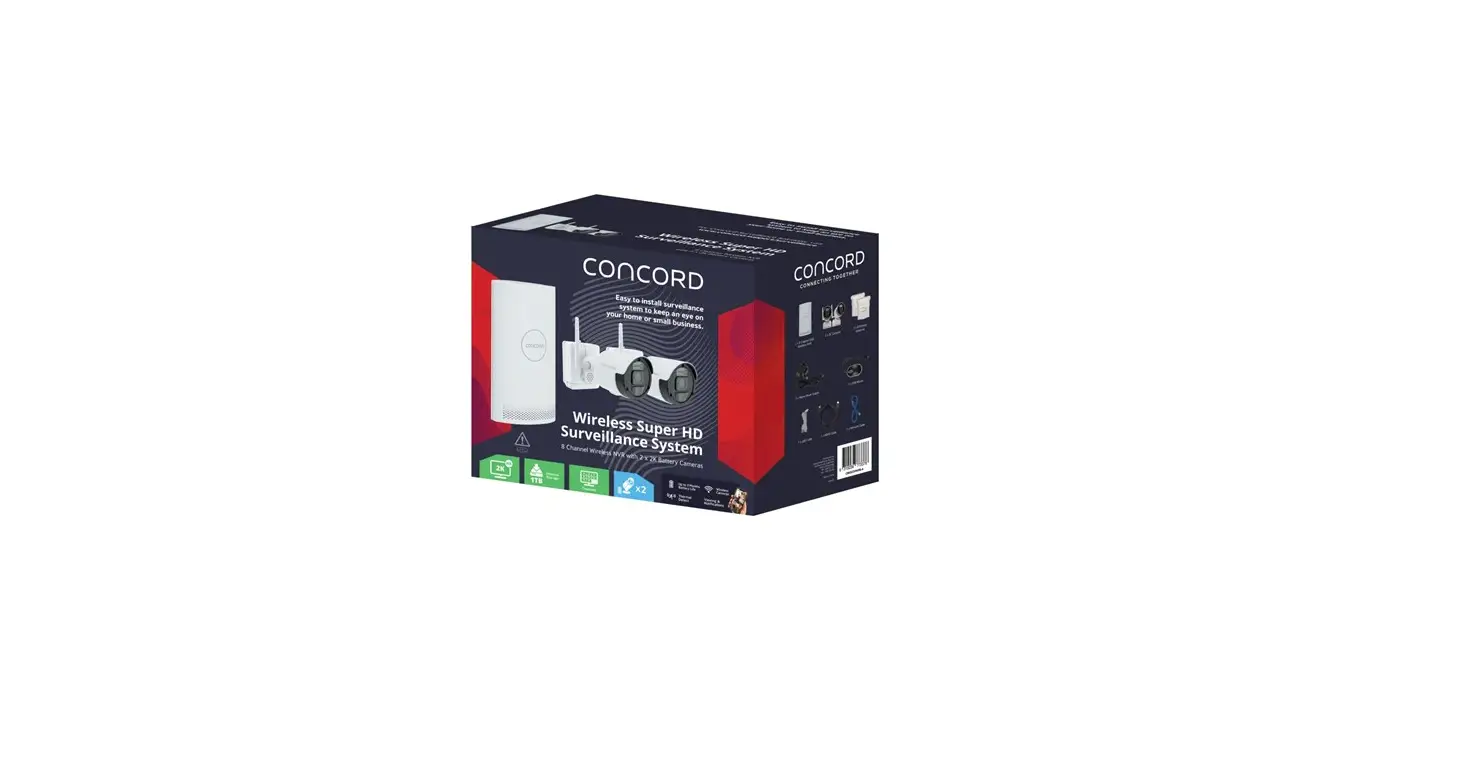
Wi-Fi Battery Powered
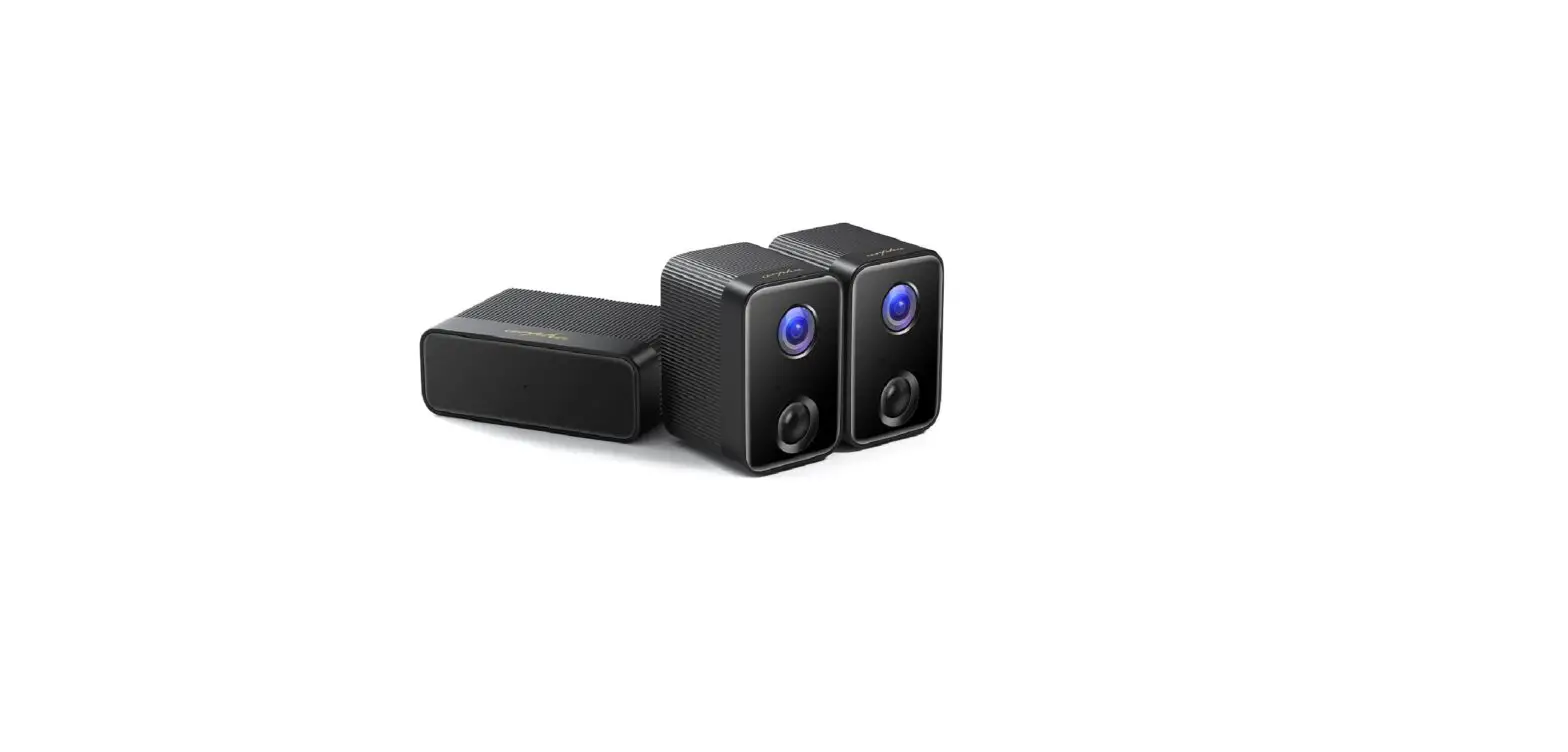
Twin Pack Camera
Quick Start Guide
What’s in the box?
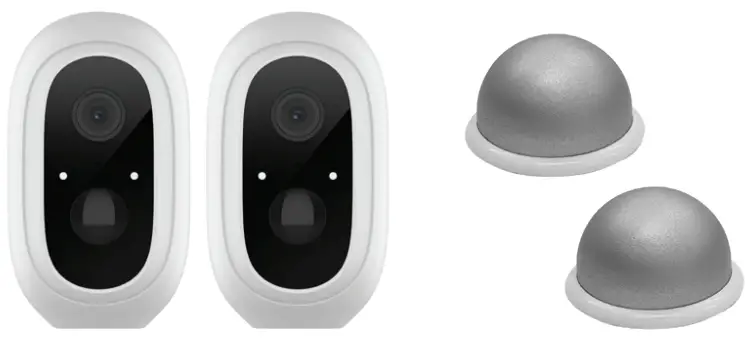 | |
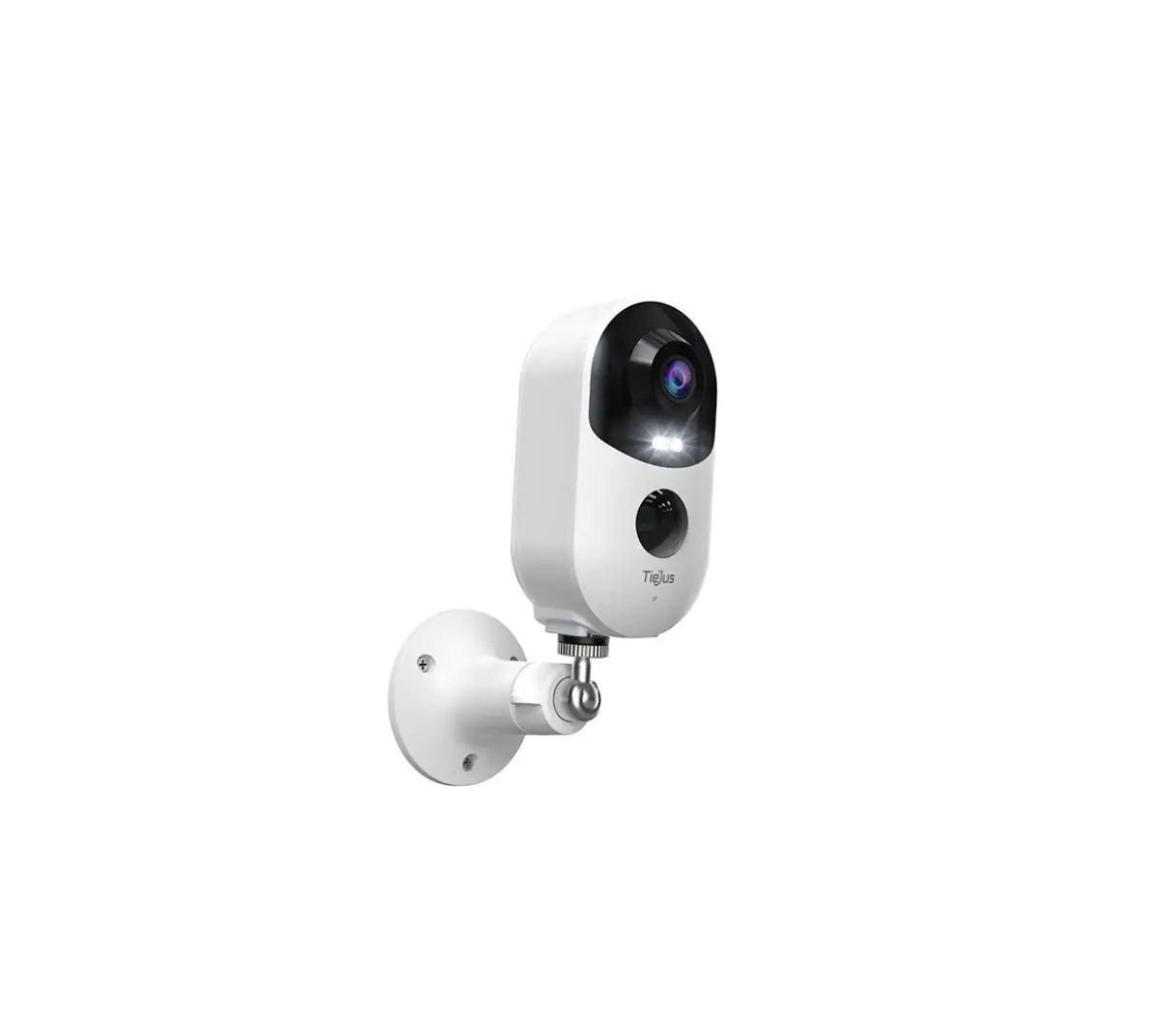
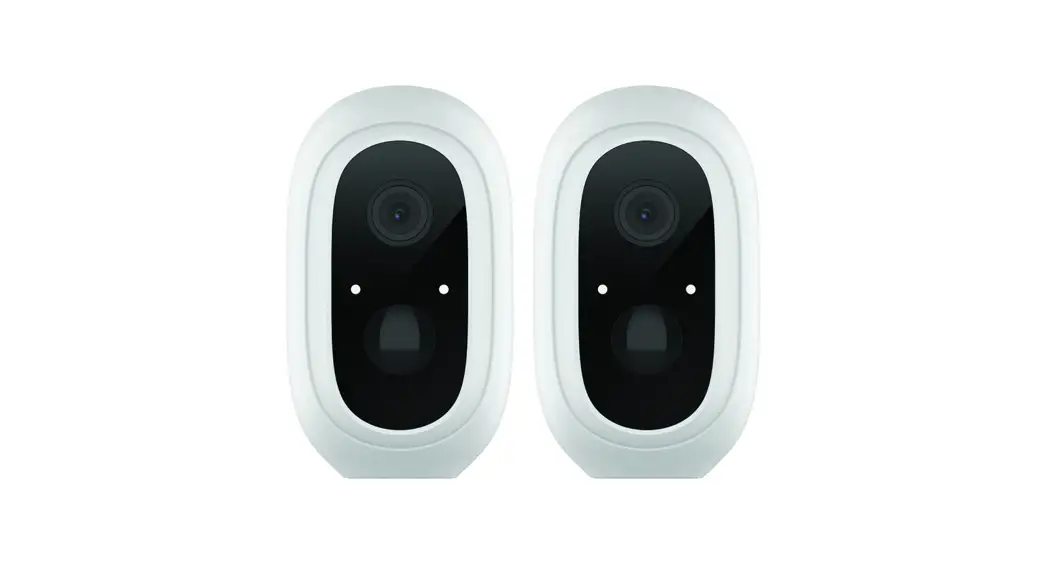
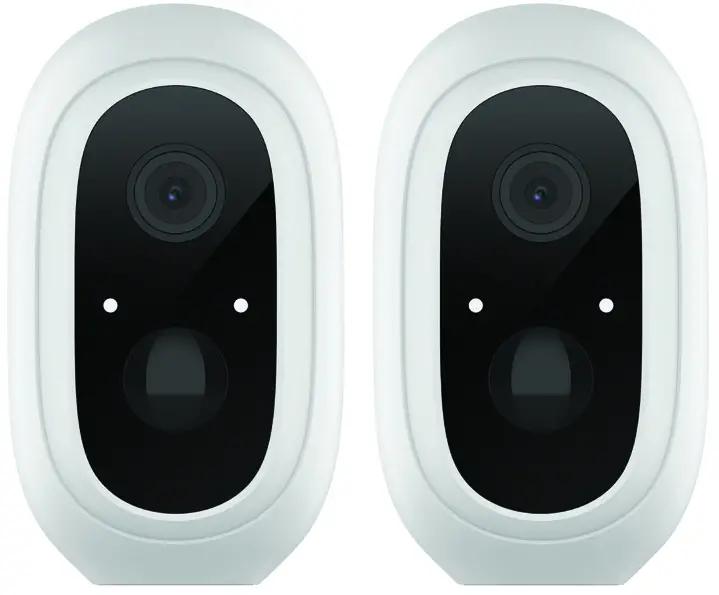
| 2x Wi-Fi Battery Powered Cameras | 2x Magnetic Mounts |
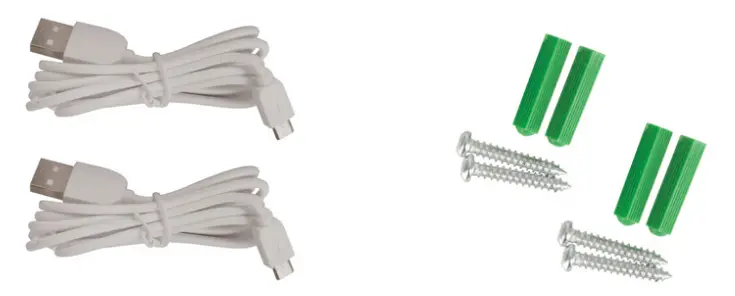 | |
| 2x USB Charging Cables | 2x Wall Mounting Hardware |
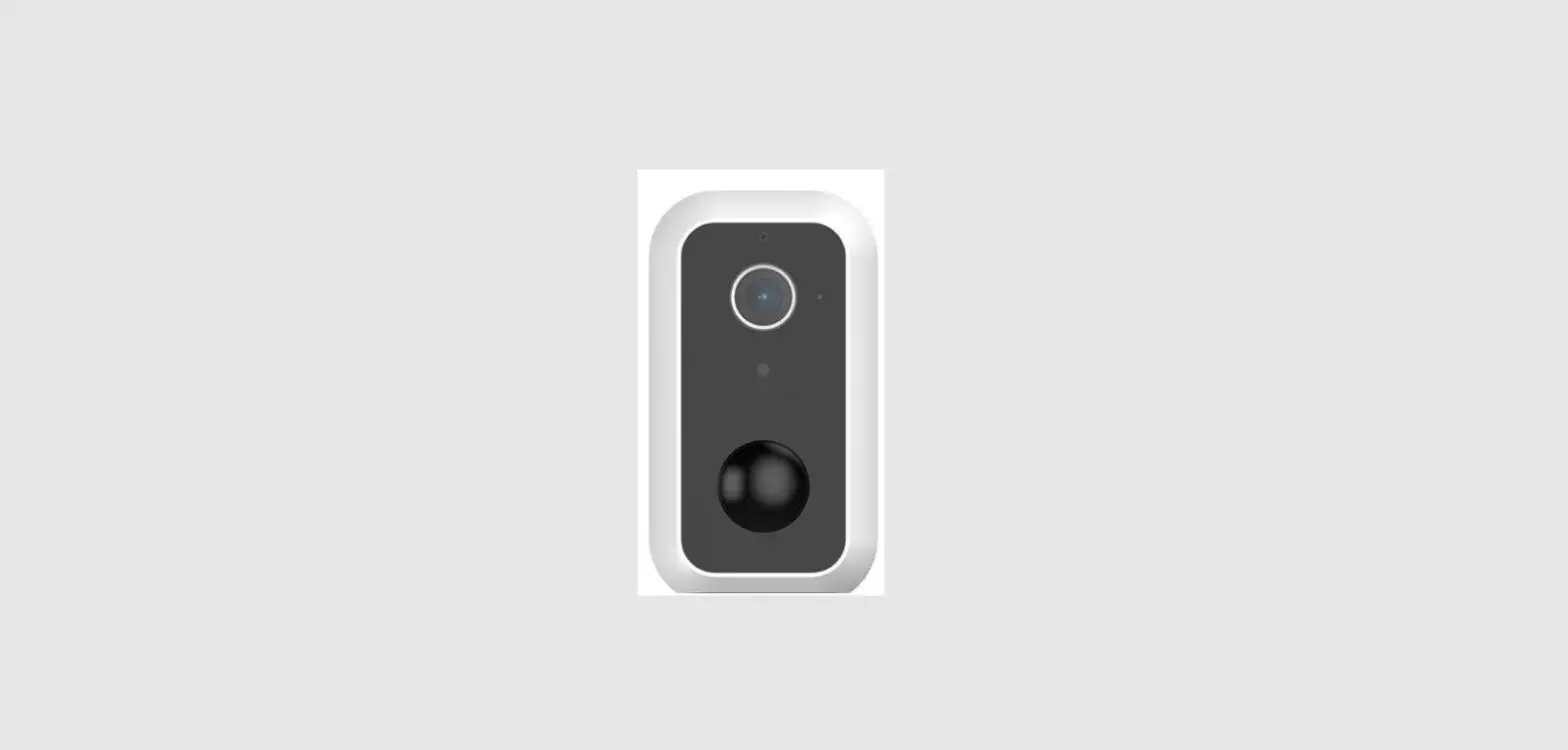
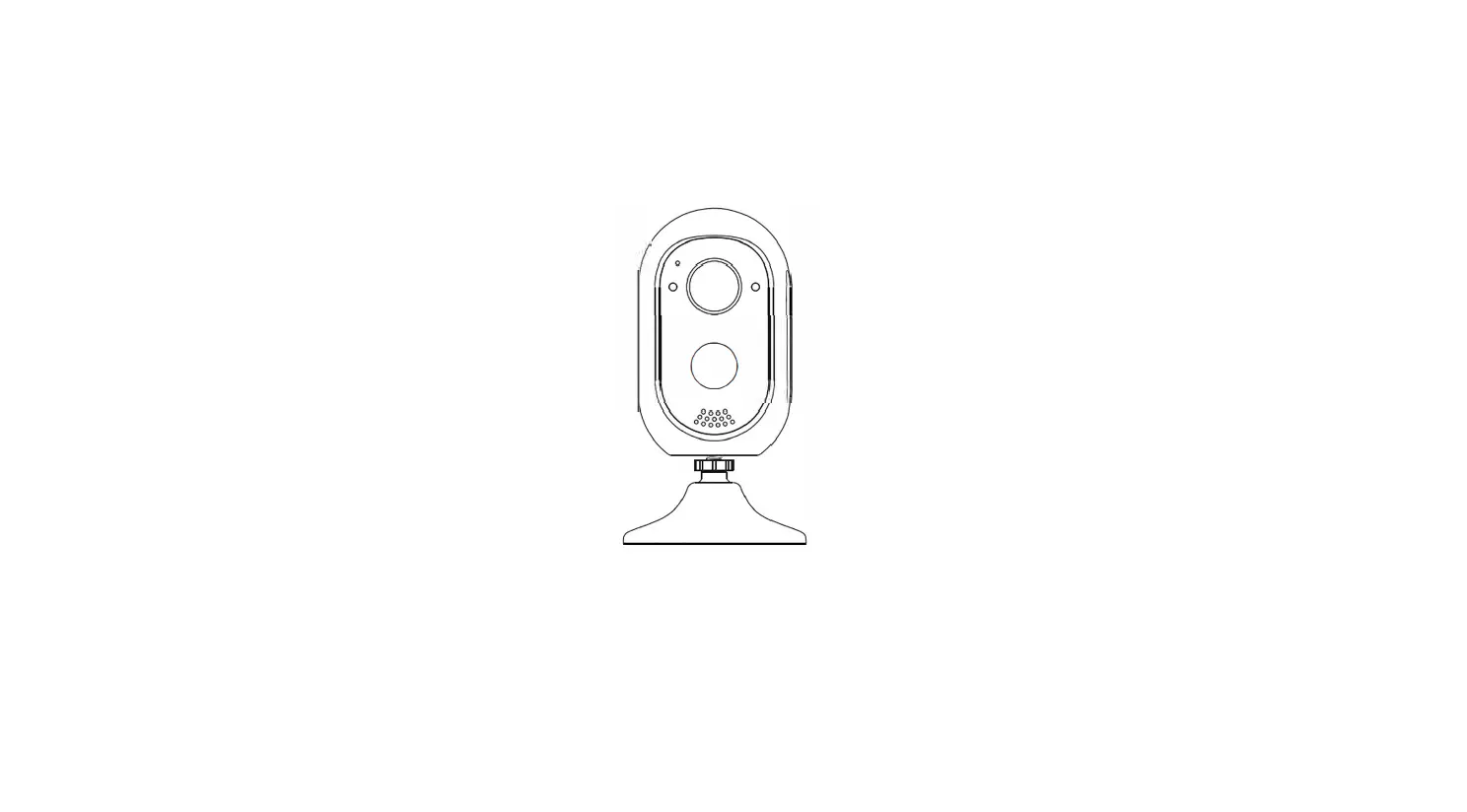
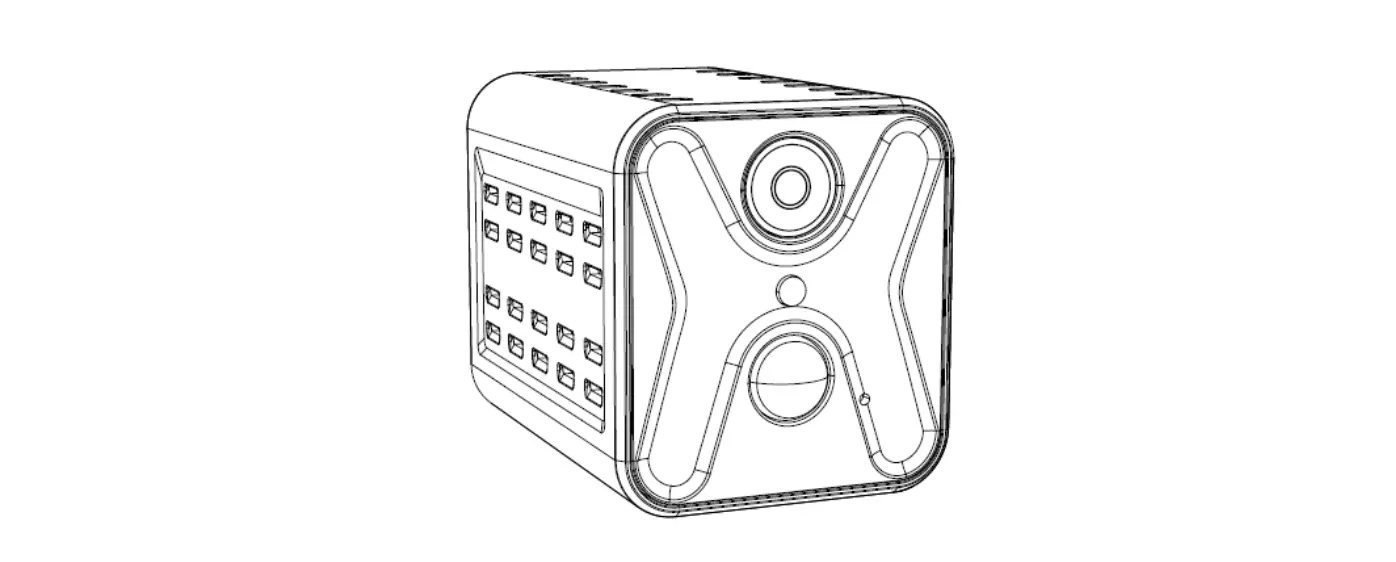
Getting to know your Camera
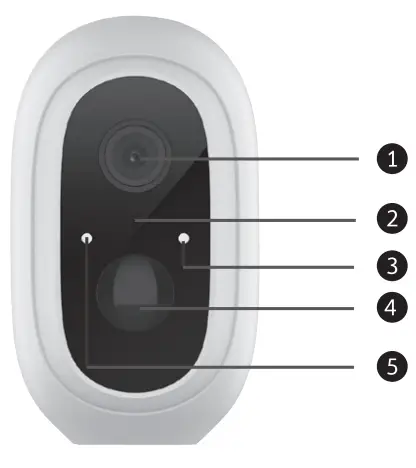
| 1 | Lens |
| 2 | Microphone |
| 3 | Infrared LED |
| 4 | PIR |
| 5 | Light Sensor |
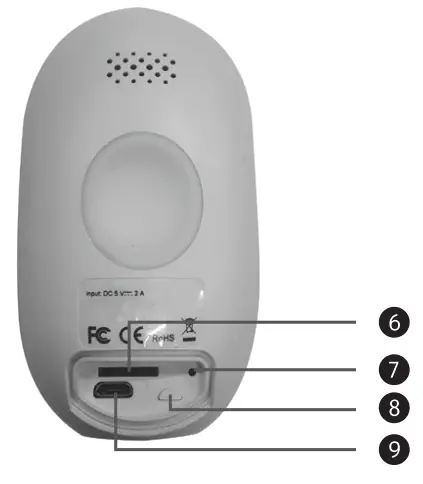
| 6 | Micro SD Card Slot (Up to 128GB) |
| 0 | Reset Button |
| 8 | On/Off Button |
| 9 | Power Input |
Connecting To Wi-Fi
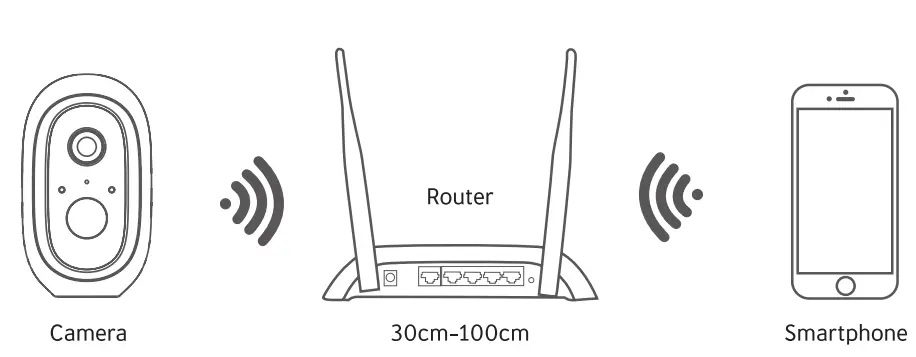
Place your smartphone and camera right next to your wireless modem/router for the connection.
Note: Make sure your smartphone is connected to the same network as your wireless modem/router. Please note the camera only works on 2.4G Wi-Fi as SG Wi-Fi is not supported.
Download the App & Account Setup
Download the “Tuya Smart” app on your smartphone from the App Store or the Google Play store. Alternatively, you can scan the QR code below and the app icon will be displayed after it has been installed correctly.
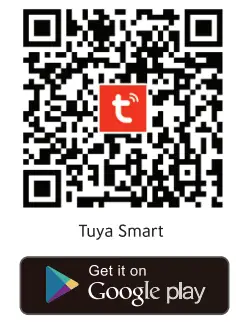 |  |
| https://play.google.com/store/apps/details?id=com.tuya.smart | https://itunes.apple.com/us/app/tuyasmart-smart-life-smart-living/id1034649547?mt=8 |
Setting Up Your Camera
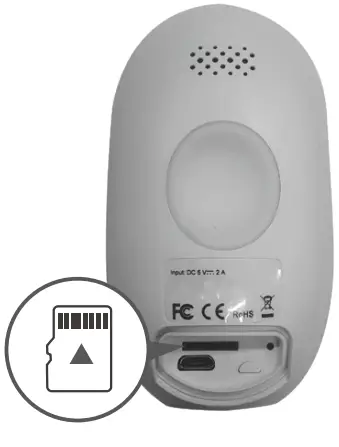
Step 1: Insert a microSD card (Not Included) into the rear side of the camera.
Please note: Class 10 Micro SD cards are recommended. The maximum capacity supported is 128GB.
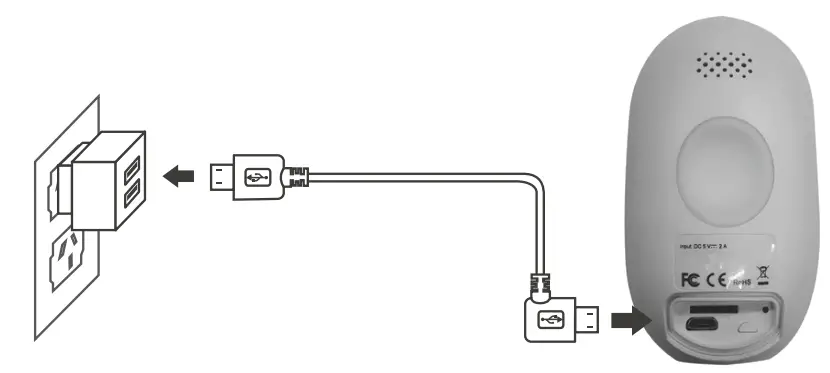
Step 2: Connect the USB Charging Cable to the camera’s power input socket.
Step 3: Connect the opposite end of the USB charging cable to a USB mains power adaptor or computer with at least 2 amps of charging.
Please Note: It is suggested to fully charge the camera for up to 3 hours on first-time use.
Step 4: Press and hold the reset button for up to 5 seconds, then release the button to reset the camera. The LED light will blink quickly.
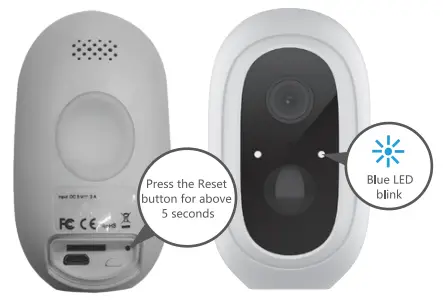
Step 5: Launch the “Tuya Smart” app from your smartphone and click the “Sign Up” button to begin registering an account or the log-in button.
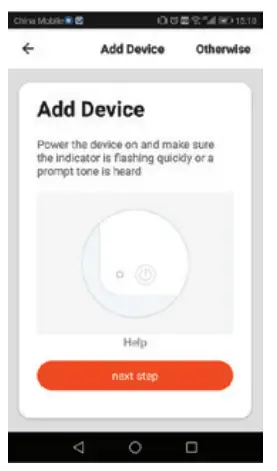
Step 6: Once logged in to your account, press the “+” button in the top right corner. Press the “Add Device” button and follow the on-screen prompts to add your device automatically. To manually add your device, select “Security & Video Surveillance” and then “Smart Camera (Wi-Fi).
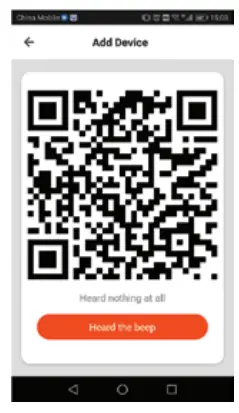
Step 7: Continue to follow the app’s prompts and input your Wi-Fi password. Scan the QR code on the camera (point the camera towards the QR code on your smartphone at a distance of 15-20cm). A beeping sound will be heard from the camera once it has been successfully paired.
Step 8: Once the blue LED stays on, the camera is ready to use. Repeat steps 1-8 to pair the second camera to the “Tuya Smart” app.
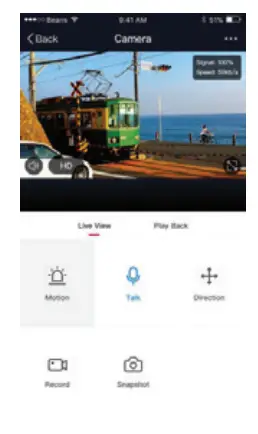
Installing Your Cameras
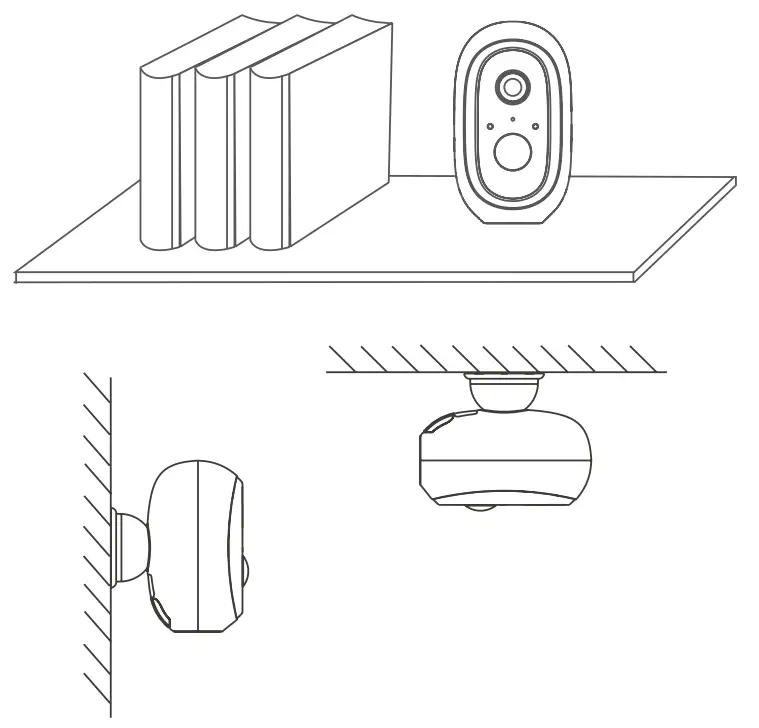
You can place your camera on a shelf or other flat surface, or you can mount it to a wall.
To mount your camera to the wall:
- Fasten the mounting screws into the wall, and then attach the magnetic mount to the screws.
- If you’re mounting the camera to drywall, be sure to install the plastic drywall anchors that are provided.
Camera LED Status
| LED Status | Camera Status |
| Red LED On | System starting up |
| Red LED Flashes Quickly | Standby for configuration |
| Blue LED Flashes Quickly | Network pairing |
| Blue LED On | Camera Online |
| Purple LED Flashes Quickly | OTA Upgrade |
www.concordconnect.com.au
Distributed by: Electus Distribution Pty. Ltd.
320 Victoria Rd, Rydalmere NSW 2116 Australia
Ph: 1300 762 627 Fax: 1300 738 500
Made in China