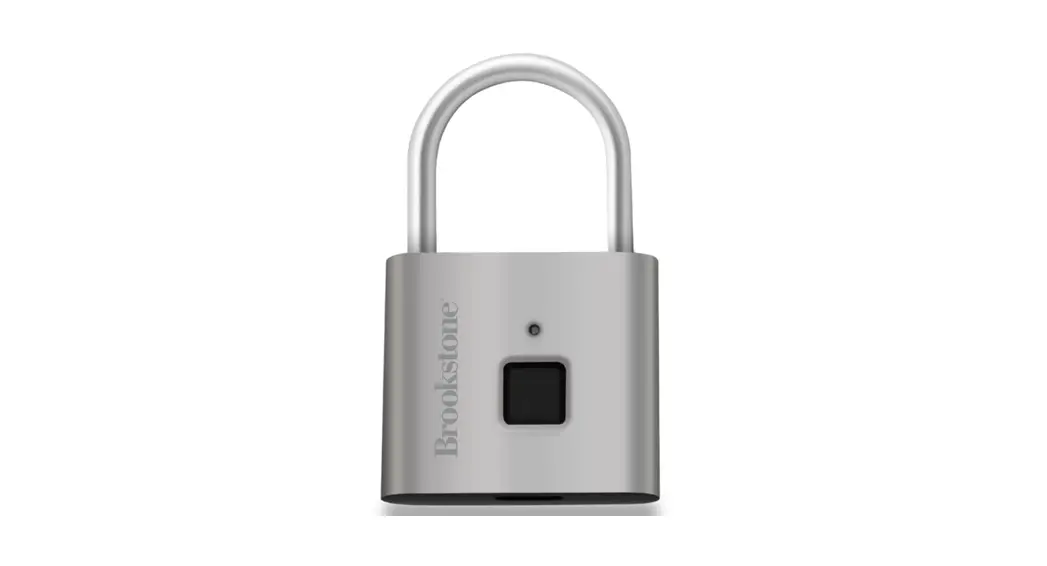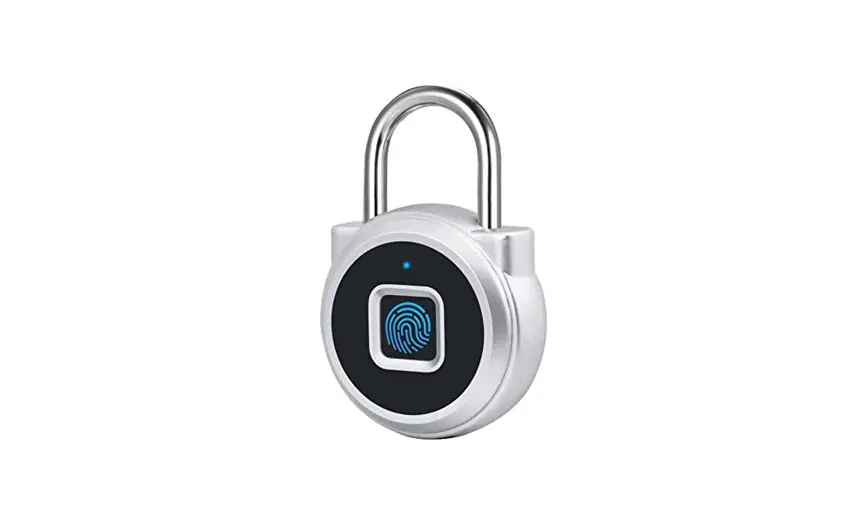
 FINGERPRINT
CABLE PADLOCK
SHFCP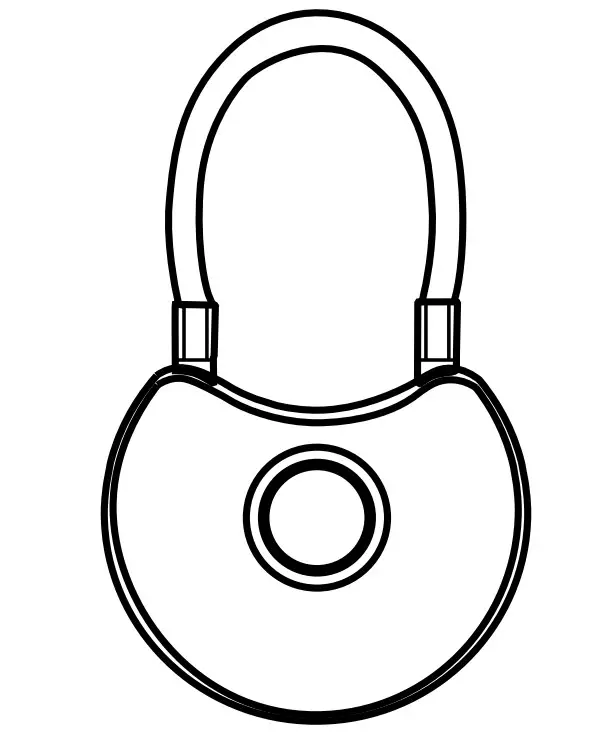
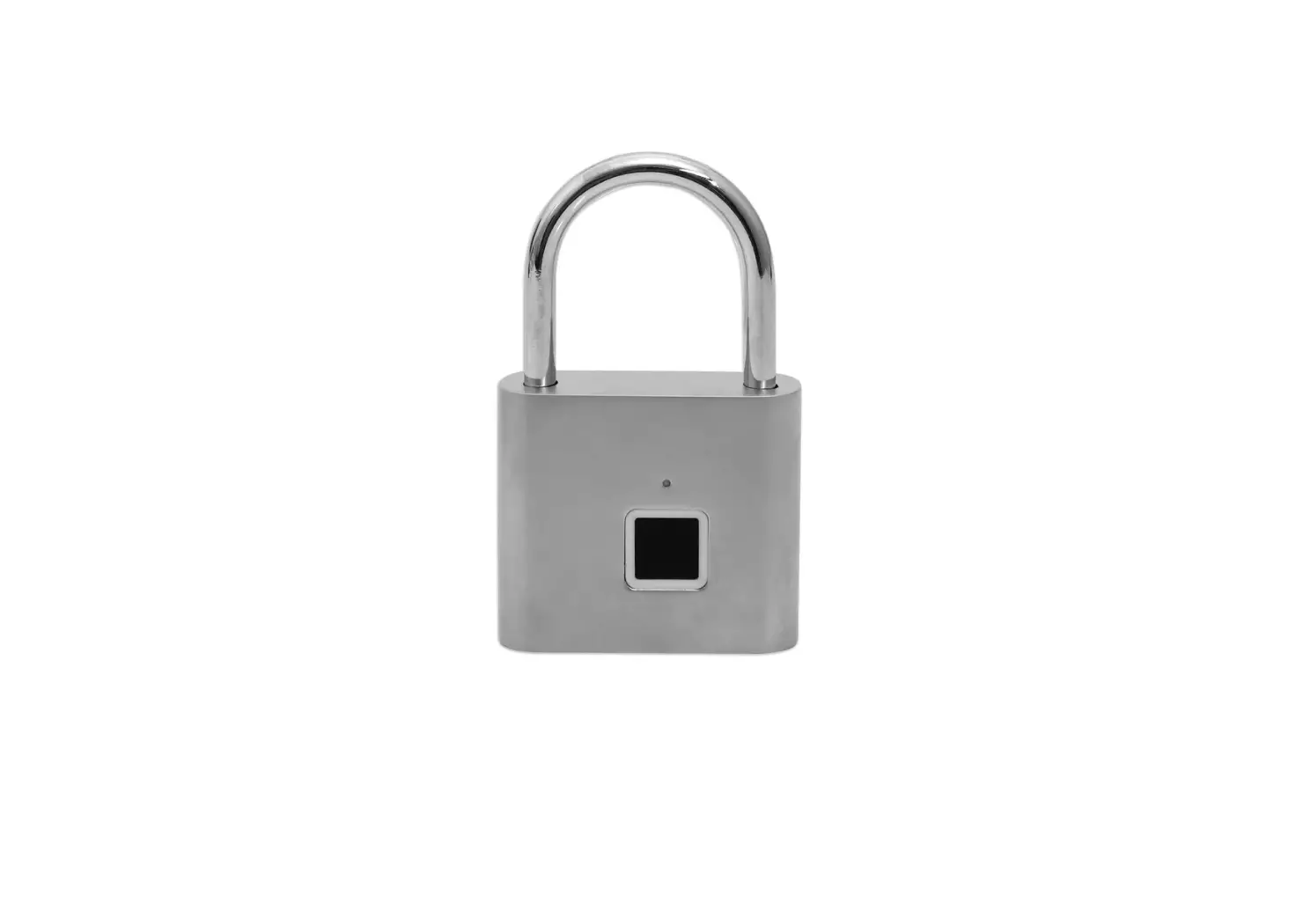
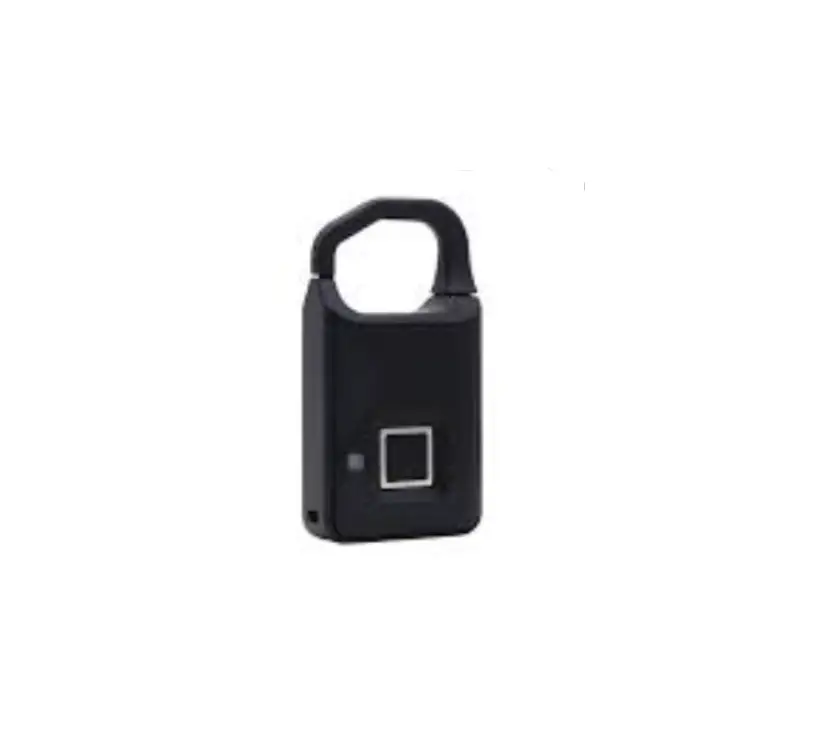
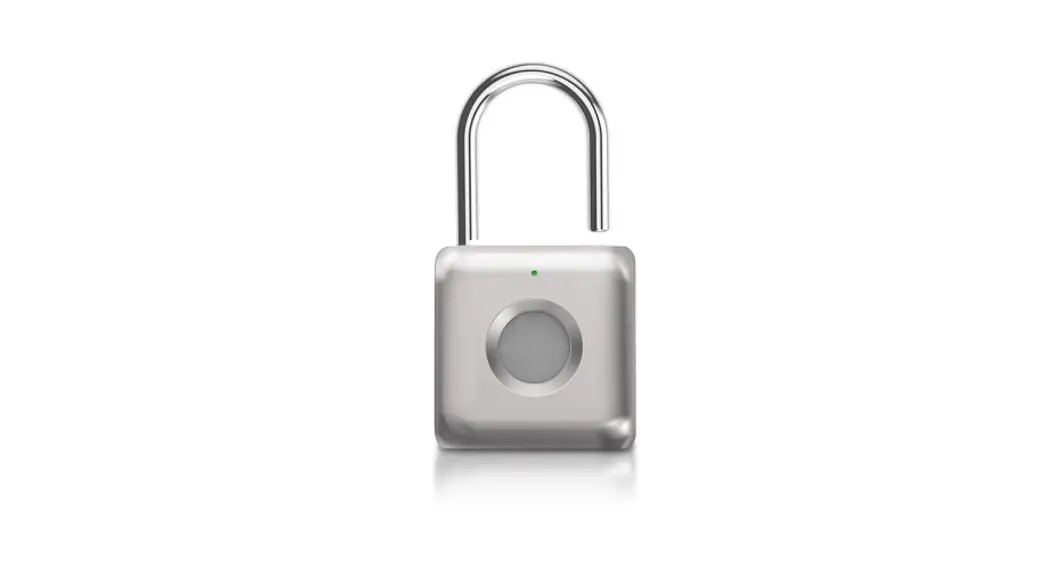
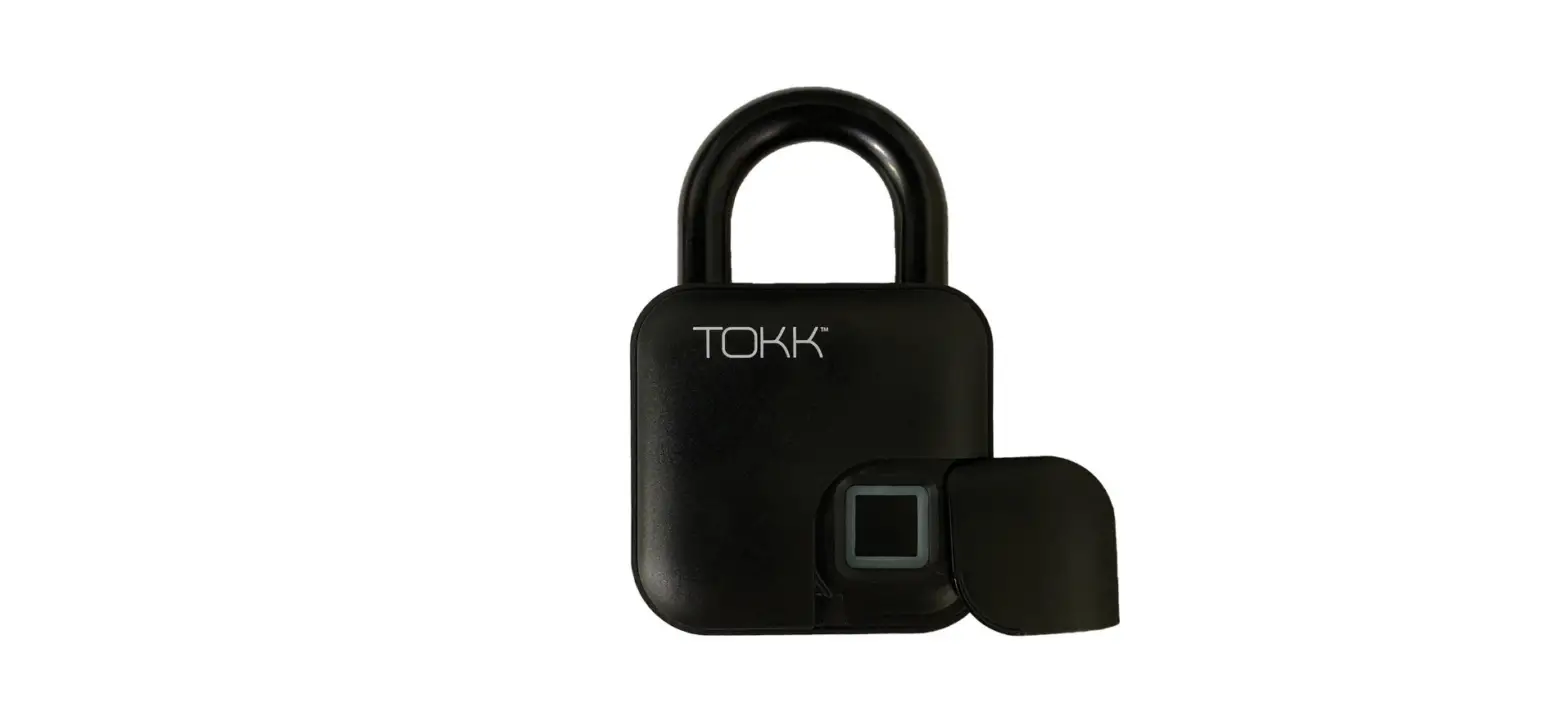
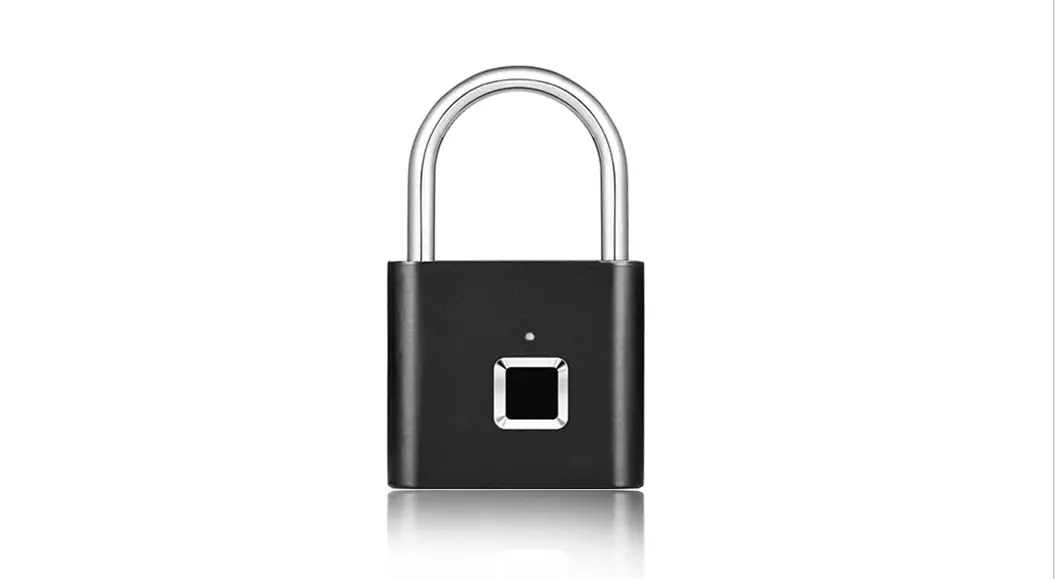
Know your Lock:
- Lock Shackle
- Micro-USB Charging Port
- Fingerprint Reader
- LED Indicators 5. Lock Body
Note: You must set up the master fingerprint via the App, if not, the lock will remain in display/factory mode and will be able to be unlocked with any fingerprint.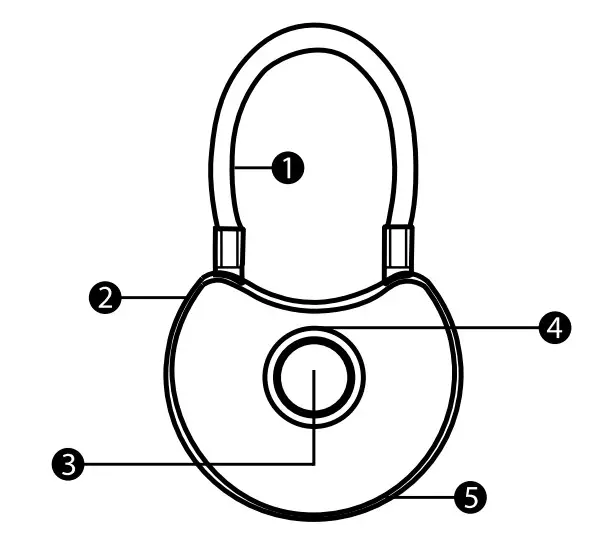
Understand your Lock Status:
| LED Indicator | Beep Sound | Status / Notifications |
| BATTERY STATUS INDICATION | ||
| o Flashing Red (after unlocked) | Low Power Alert | |
| o On Red (Solid) | Charging | |
| o Lights Off | Charging | |
| WORKING STATUS INDICATION | ||
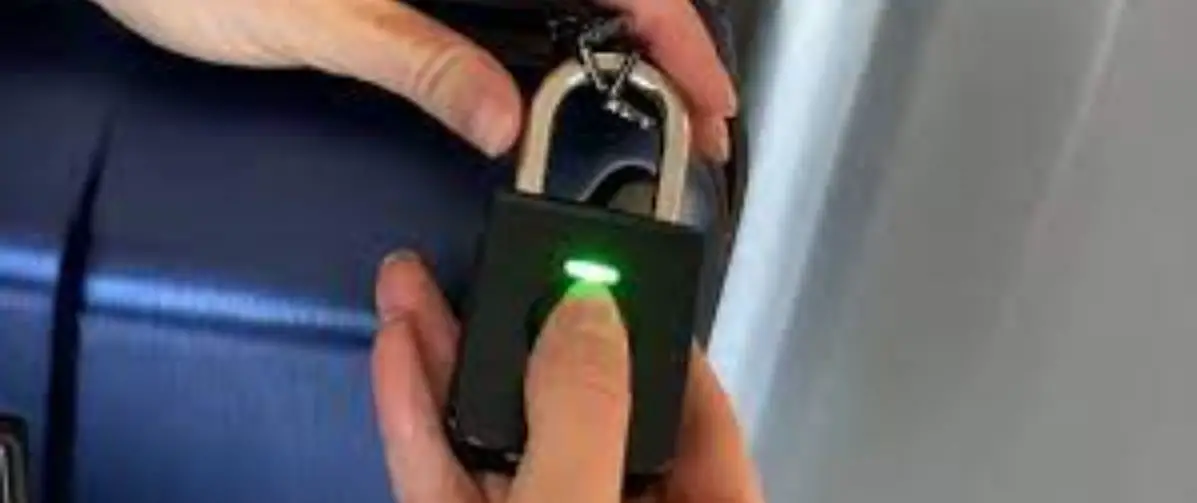
| o Flashing Green | Single Beep | Unlocked |
| o Flashing Red | Single Beep | Unlock Failed |
| WHEN ADDING FINGERPRINTS | ||
| o On Blue | Single Beep | Waiting for Press |
| o Flashing Green | Single Beep | Recognized |
| Long Single Beep | Fingerprint Registered | |
Specifications:
Fingerprint Resolution: 120 x 120 DPI
Fingerprint Storage: 10 Sets
Rechargeable Battery: 90mAh
Capacity Input Voltage: 5V DC
Shackle: 5mm
Stainless-steel cable
Low Power Alert:
The indicator light on the lock will flash red when the battery is low, please recharge using a Micro-USB Cable and a 5V DC USB Charger.
Warning on Water Resistance:
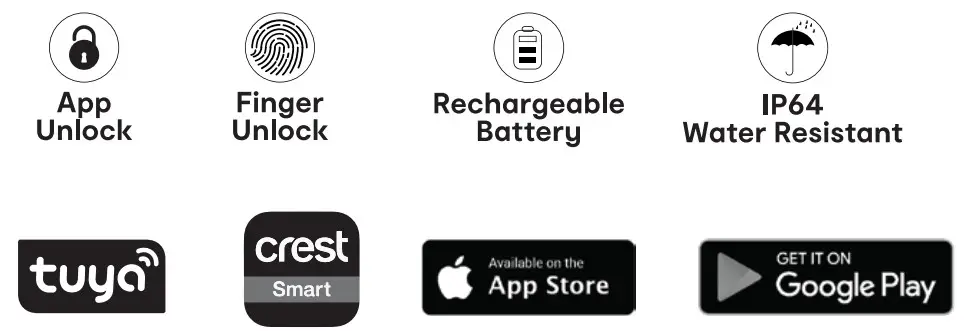
Ensure the lock in not submerged in liquid. A Product with an IP64. Rating is protected against dust and is completely protected against solid objects. It is also protected from water splashing from any angle.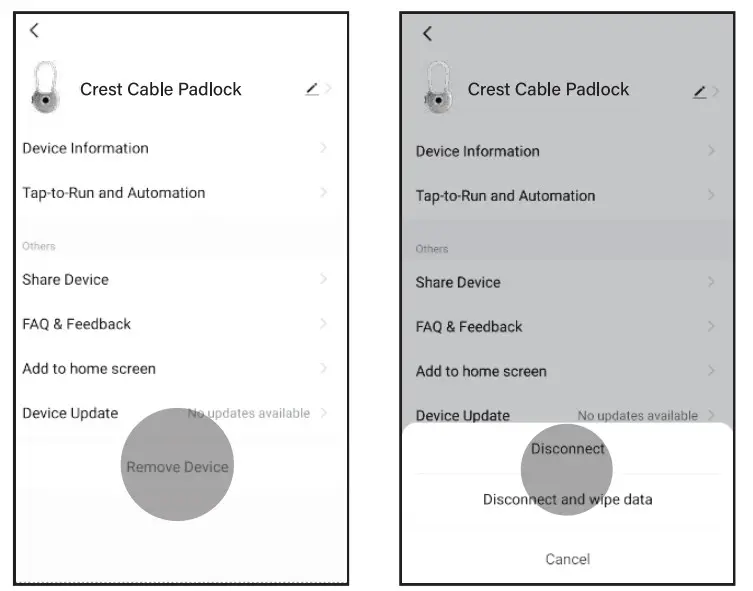
More Functions:
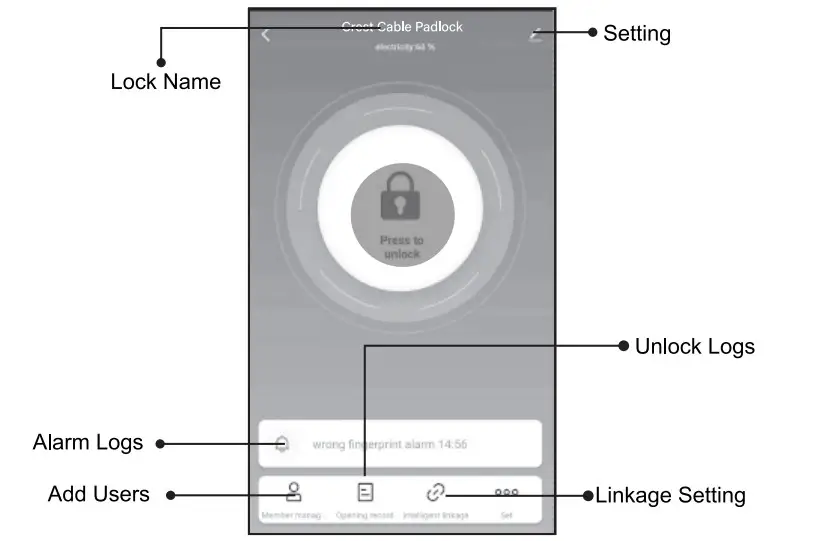
Alarm Logs: The wrong fingerprint attempted alarm, battery low power alarm
Users: Add/manage/remove family members or visitors (by adding their App Account) to your lock so they will have access to your lock at a designated time period
Unlock Logs: A list of unlocking records
Linkage Setting: You can set “if this then that” linkage on this function
Download the Mobile App:
You can search Crest Smart in the iOS App Store (Apple) or Google Play Store (Android), or scan the QR code to download Crest Smart App. 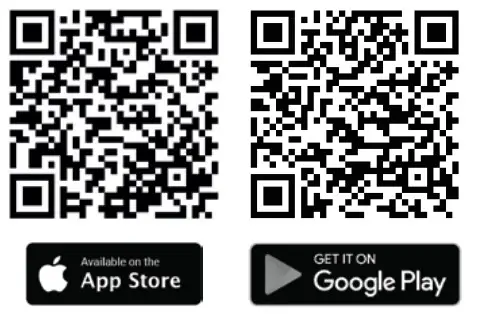
https://apps.apple.com/us/app/crest-smart-home/id1482998192
https://play.google.com/store/apps/details?id=com.crest.smart
Note: You will need to be within a 5m range for App connection to the lock for initial setup, updates, and for normal operation.
Connect your Lock with App:
Step 1: Open the App, register an account
Step 2: Press the fingerprint reader to unlock
Step 3: Tap ++ on the App
Step 4: Tap “Go to add”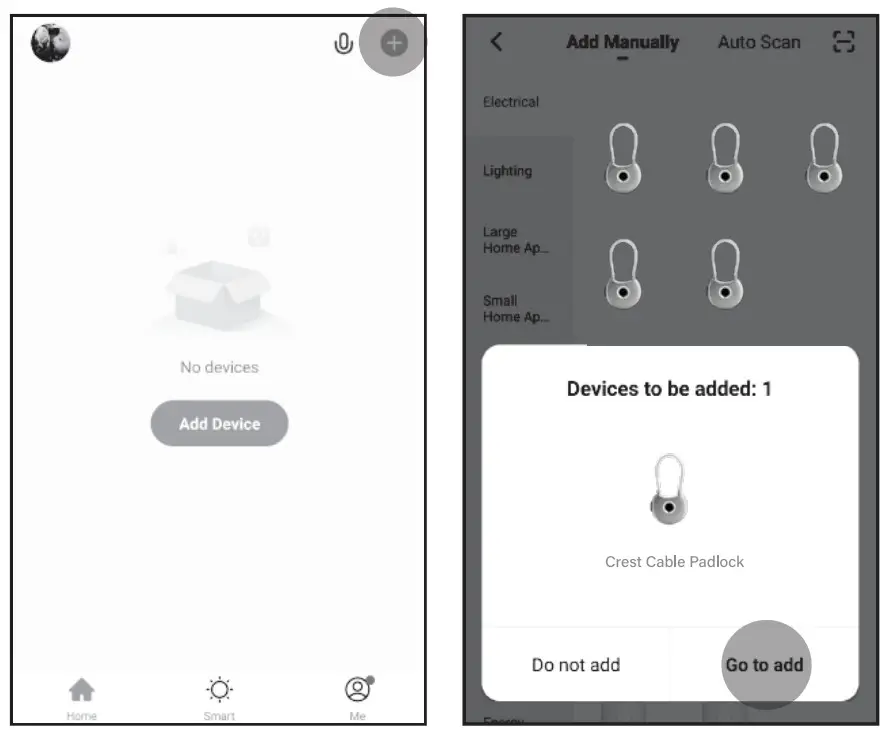
Step 5: Tap NEXT
Step 6: Press and hold to test lock to App connection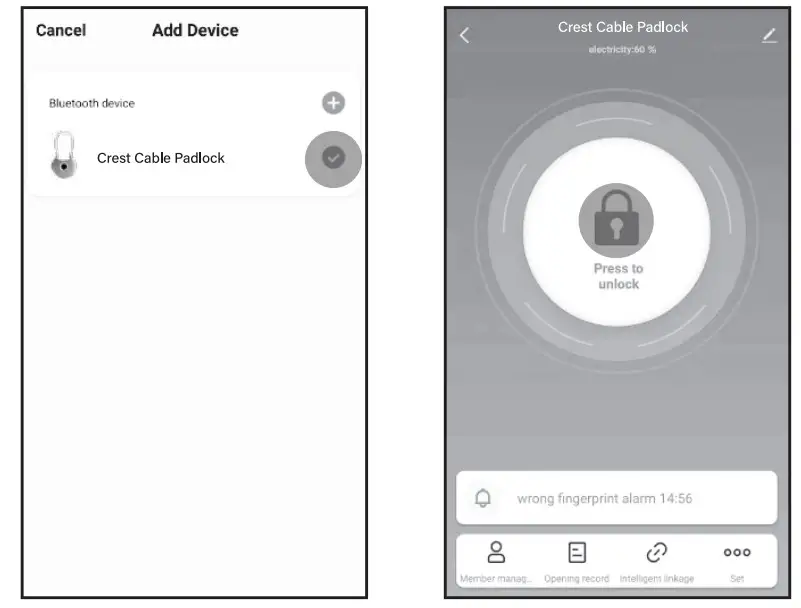
Add your Fingerprints:
Step 1: Tap ooo on the bottom-right corner
Step 2: Tap
Step 3: Tap +
Step 4: Select User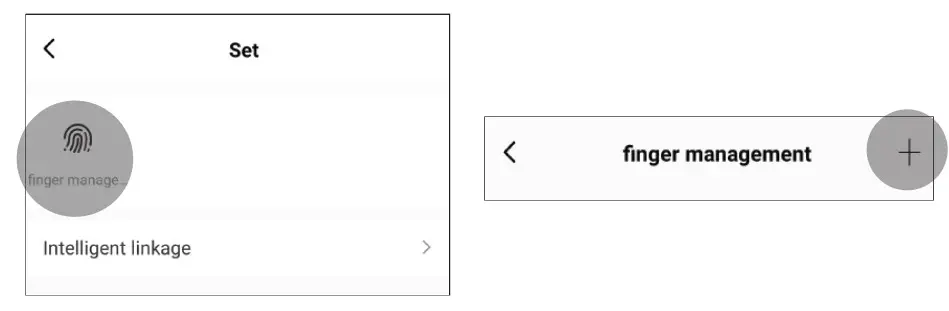
Step 5: Tap > after selecting a user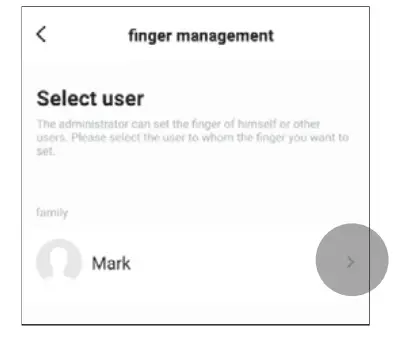
Step 6: Tap “Start collecting”
Step 7: Press the fingerprint reader (of your lock) several times at slightly different angles until the fingerprint is successfully recorded
Step 8: Name the fingerprint you’ve just added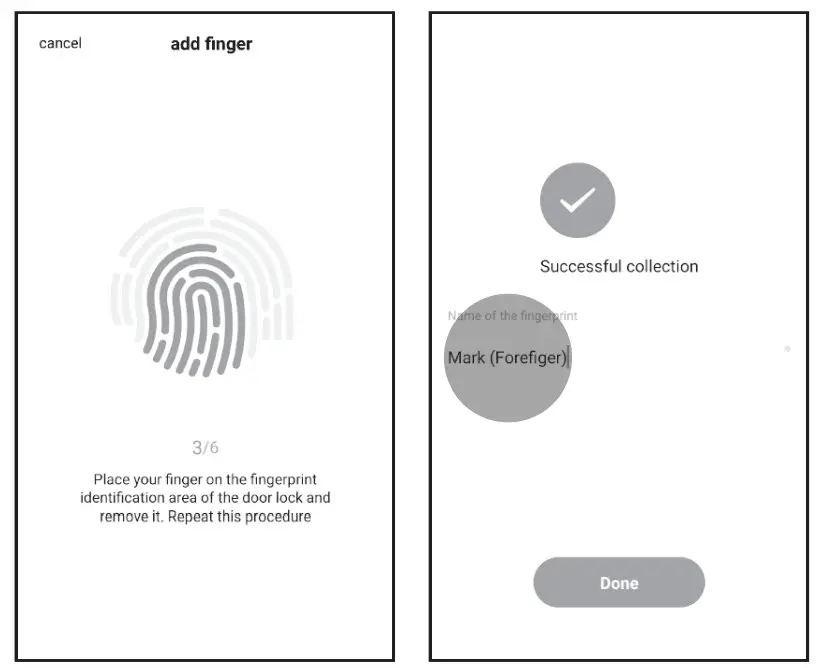
Disconnect (Reset to Factory Mode):
Step 1: Tap on the lock’s homepage (top-right)
Step 2: Tap “Remove Device”
Step 3: Tap “Disconnect and wipe data”
NOTE!
All fingerprints previously set will be deleted if you choose “disconnect and wipe data”
Step 4: Tap “Confirm” to disconnect the lock from your App account, the lock is now reset to the display/factory mode (and will be able to be unlocked with any fingerprint)
Proudly brought to you by: PO Box 5658 Brendale
QLD Australia 4500
Customer Support
1800 812 261
www.crest.com.au
AUSTRALIAN OWNED
 Please note, that not all options within the App maybe be available for the lock due to future App and product software updates