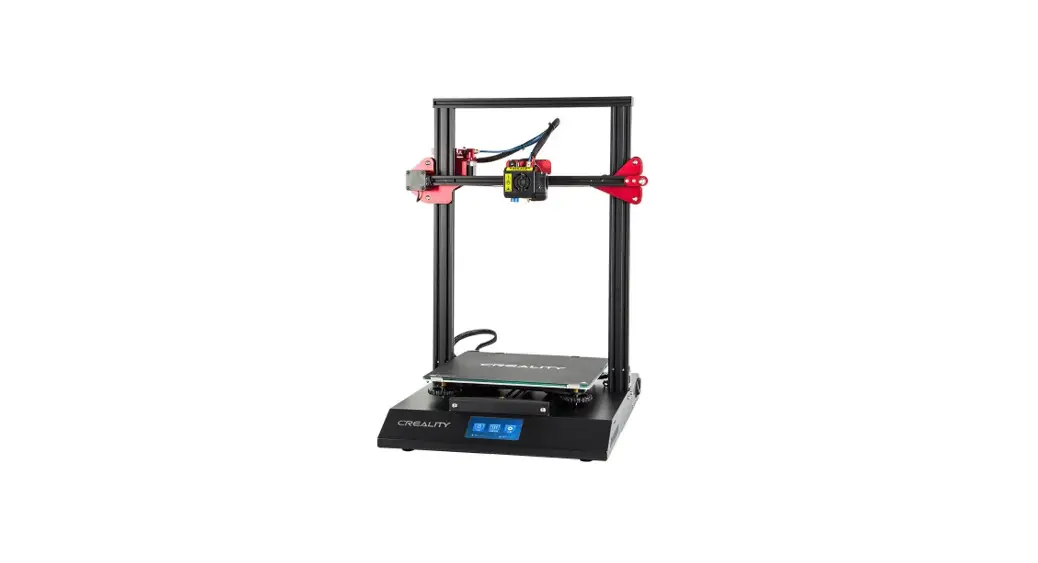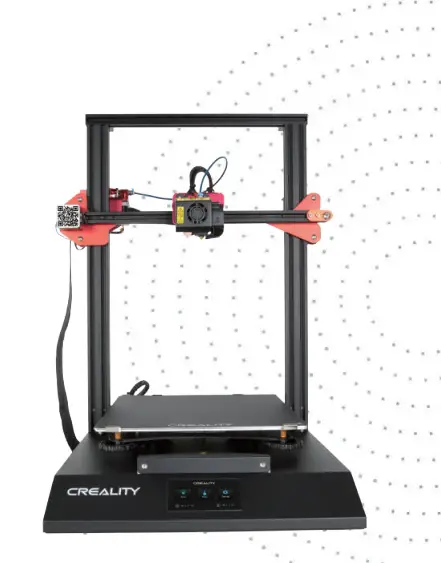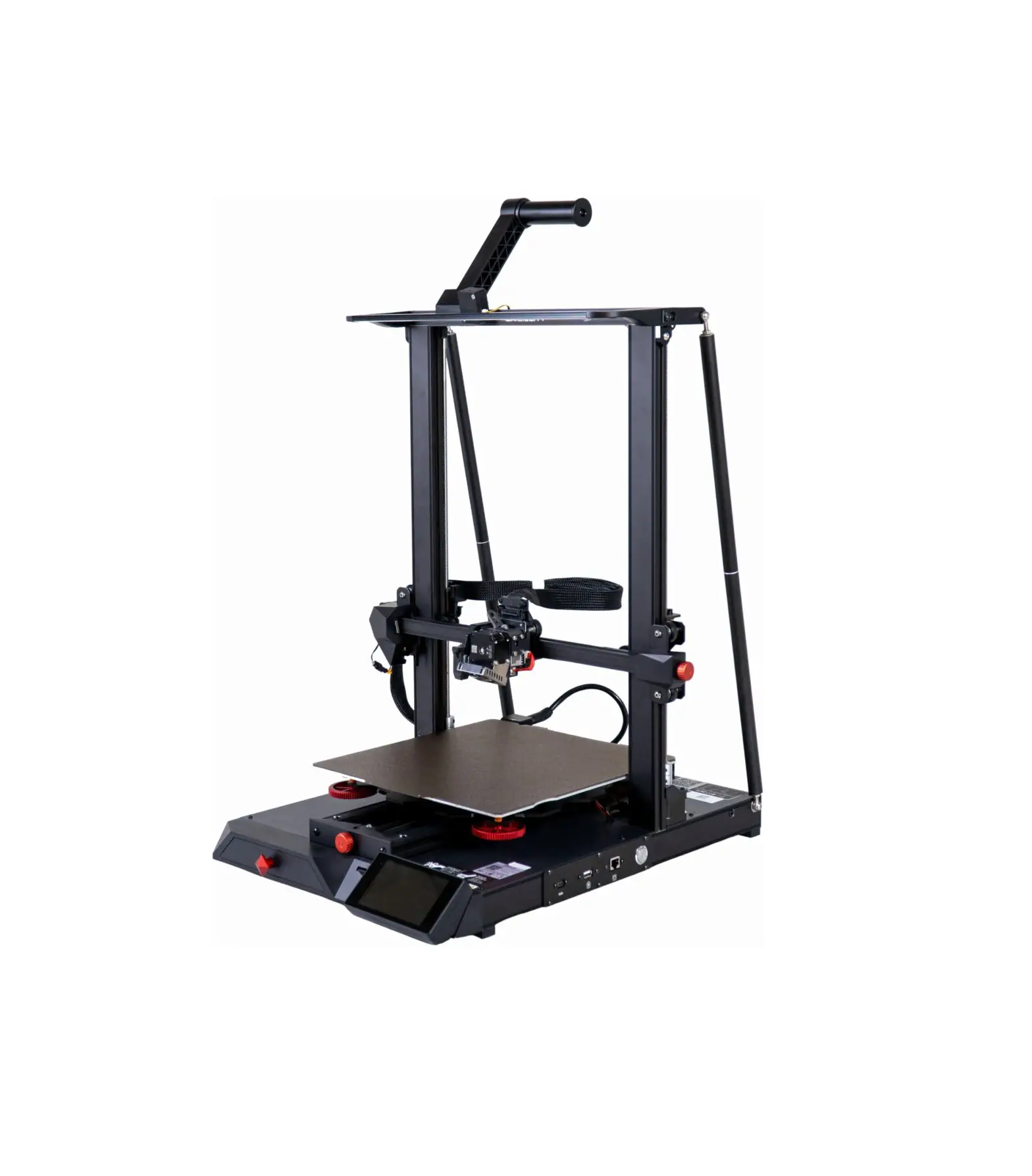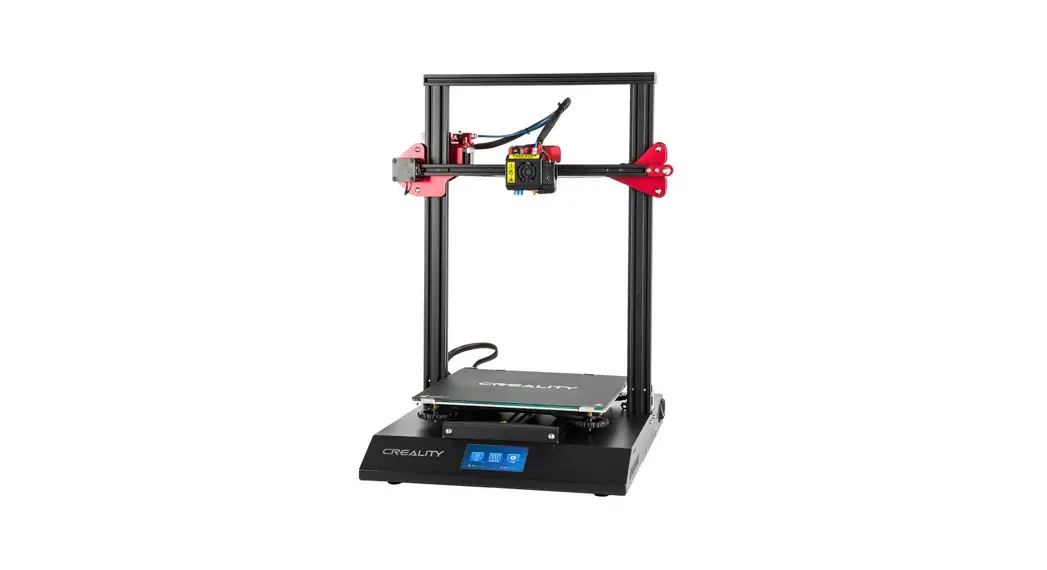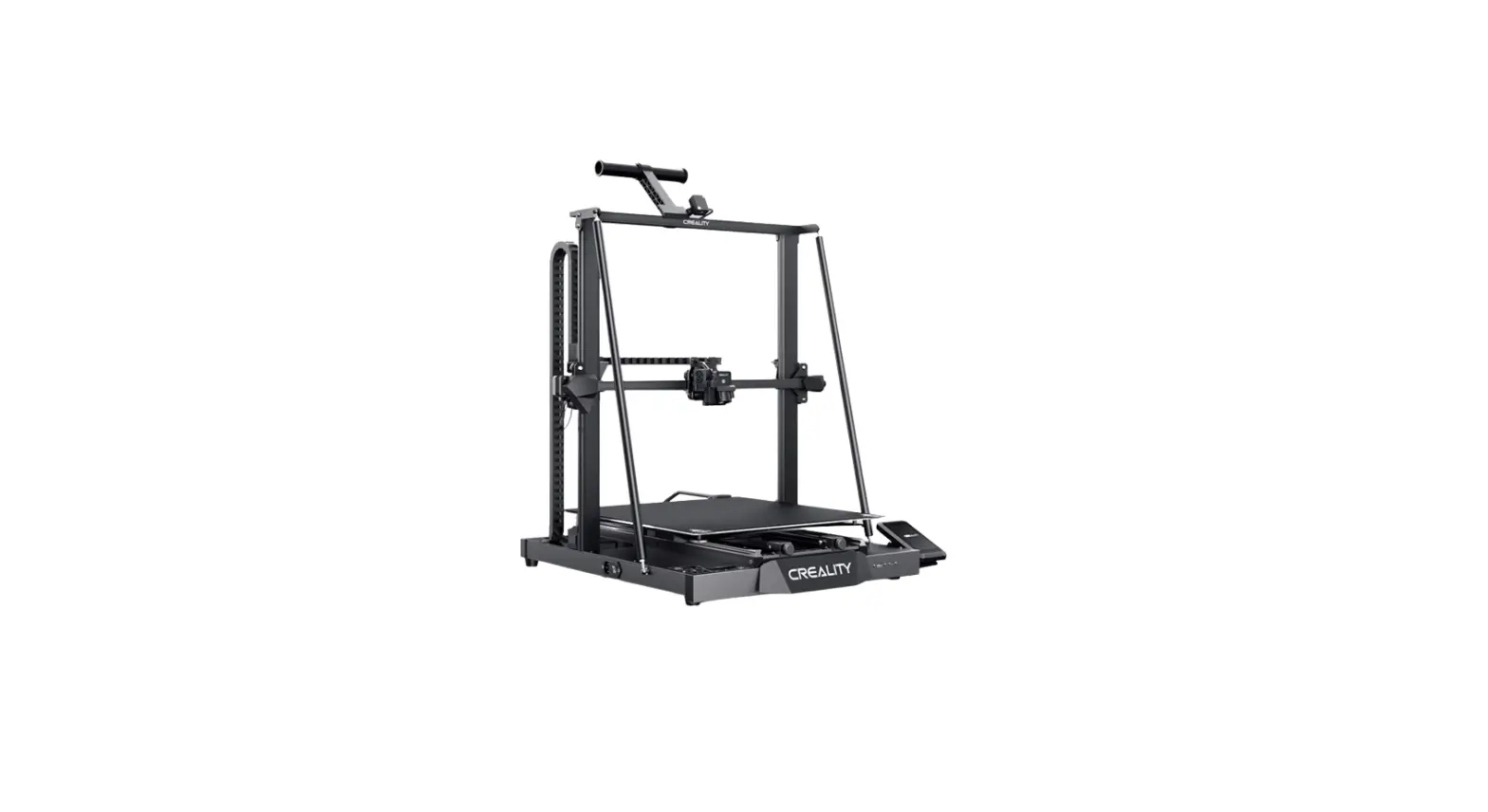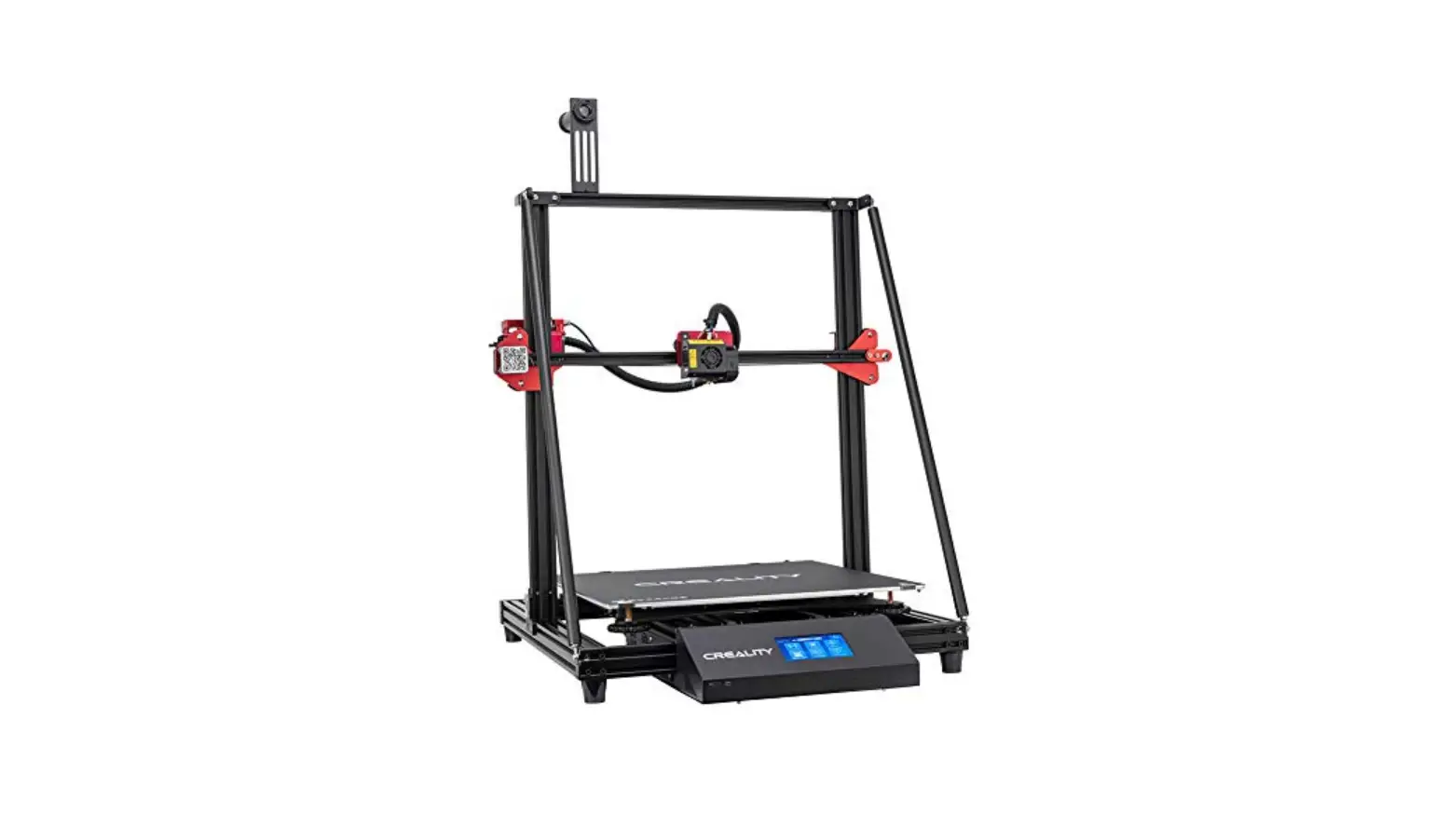
CREALITY CR-10 Max 3D Printer Instruction Manual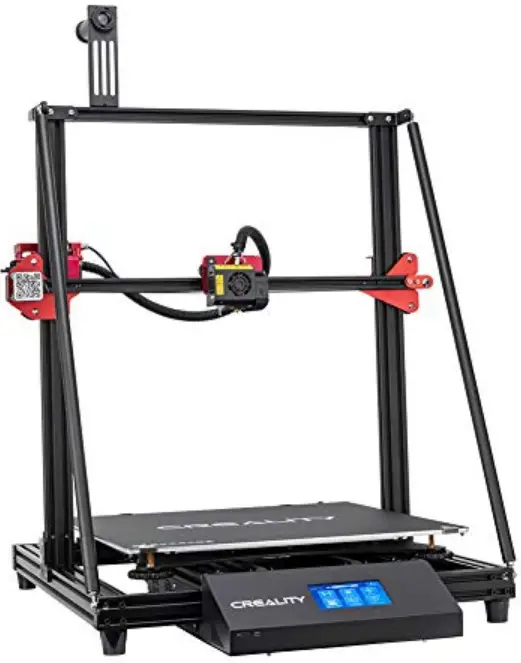
CONTENTS
Dear Consumers,
Thank you for choosing our products. For the best experience, please read the instructions before operating the Printer. Our teams will always be ready to render you the best services. Please contact us via the phone number or e-mail address provided at the end when you encounter any problem with the Printer.
For a better experience in using our product, you can also learn how to use the Printer in the following ways:
View the accompanied instructions and videos in the TF card.
Visit our official website www.cxsw3d.com to find relevant software/hardware information, contact details and operation and maintenance instruction
Notes
- Do not use the printer in any way other than described herein in order to avoid personal injury or property damage.
- Do not place the printer near any heat source or flammable or explosive object. We suggest placing it in a wellventilated, shady and low-dust environment.
- Do not expose the printer to a vibrant or any unstable environment, as this may cause poor print quality.
- We suggest using filaments recommended by manufacturer to avoid the blocking of extrusion structure and the damage of machine.
- Do not use any other power cord except the one supplied. Always use a grounded three-prong power outlet.
- Do not touch the nozzle or hotbed during printing to avoid burns or personal injury.
- Do not wear gloves or loose clothing when operating the printer. Such cloths may become tangled in the printers moving parts to lead to burns, possible bodily injury or printer damage.
- When cleaning debris from the printer hotbed, always use the provided tools. Do not touch the nozzle directly when heated. This can cause personal injury.
- Clean the printer frequently. Always turn the power off when cleaning, and wipe with a dry cloth to remove dust, adhered printing plastics or any other material off the frame, guide rails, or wheels. Use glass cleaner or isopropyl alcohol to clean the print surface before every print for consistent results.
- Children under 10 years of age should not use the printer without supervision.
Notes - This machine is equipped with a security protection mechanism. Do not manually move the nozzle and printing platform mechanism manually while booting up, otherwise the device will automatically power off for safety!
Introduction
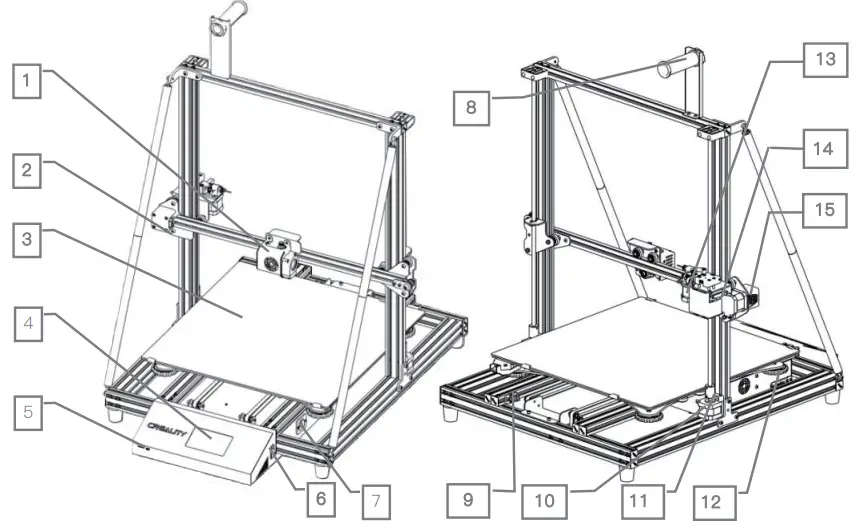
- Nozzle kit & auto leveling
- X-axis limit switch
- Printing platform
- Touch screen
- TF card slot & USB port
- Power switch
- Power socket
- Filament holder
- Y-axis limit switch
- Z-axis motor
- Coupling
- XL bed-leveling nut
- Extruder (E) motor
- Filament detector
- X-axis motor
| Parameters | |
| Model | CR-10 Max |
| Molding Size | 450 x 450 x 470mm |
| Molding Tech. | FDM |
| Nozzle Number | 1 |
| Slice Thickness | 0.1mm-0.4mm |
| Nozzle Diameter | 0.4mm 0.8mm |
| Precision | ±0.1mm |
| Fliament | φ1.75mm PLA |
| File Format | STL/OBJ/AMF |
| Working Mode | Online or TF card offline |
| Slice Software | Creality Slicer/Cura/ Repetier-Host/Simplify3D |
| Power Supply Spec. | Motherboard 75W, 24V, input: 100-240V AC, output: 24V; Hotbed 750W, 24V, input: 100-240V AC, output : 24V |
| Machine Power | 750W |
| Hotbed Power | 700W |
| Hotbed Temp. | ≤100℃ |
| Nozzle Temp. | ≤ 250℃ |
| Resume Print | Yes |
| Filament Detector | Yes |
| Dual Z-Axis | Yes |
| Auto Leveing | Yes |
| Language Selection | EN/CN |
| Operating System | Windows XP/Vista//7/8/10 MAC/Linux |
General List
- Base Frame

- Printing Platform

- Gantry Frame

- Support Rod

- Tool Box

- Filament (1kg)

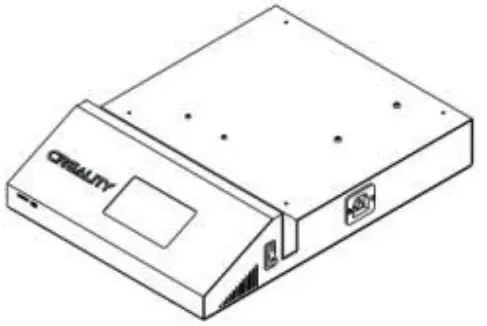
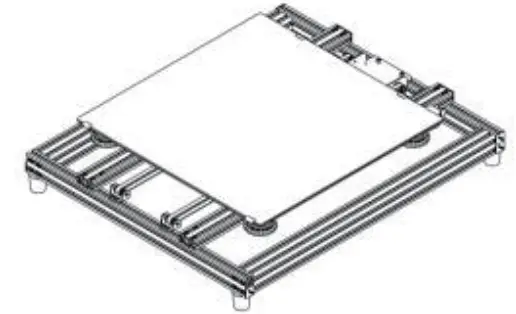
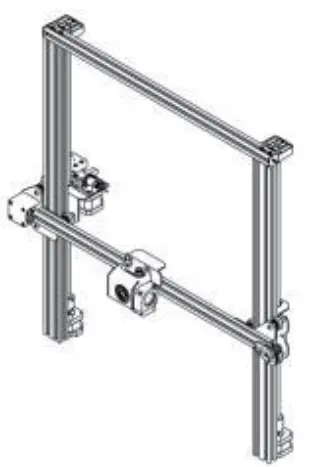
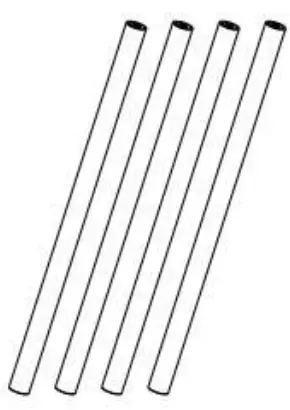
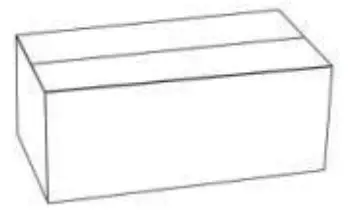
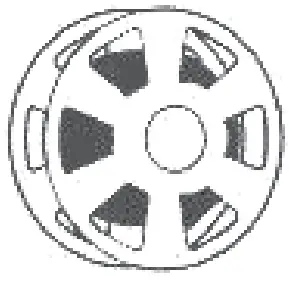
Tool List
| No. | Image | Name | Qty |
| 1 |  | Wrench & Screw Driver | 1 Set |
| 2 | 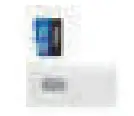 | TF Card & Reader | 1 Set |
| 3 | 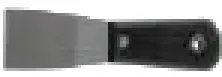 | Spatula | 1 |
| 4 | 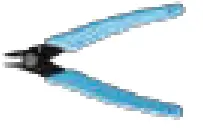 | Pliers | 1 |
| 5 | 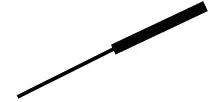 | Nozzle Cleaner | 1 |
| 6 | 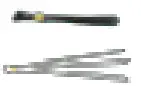 | Cable Ties | 2 |
| 7 | 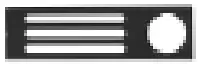 | Filament Holder | 1 |
| 8 | 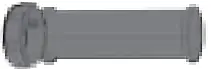 | Filament Holder Tube with Nuts | 1 |
| 9 | 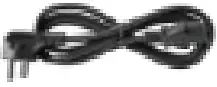 | Power Cord | 1 |
| 10 |  | USB Cable | 1 |
| 11 |  | M4X20 Hexagon Socket Head Cap Screws | 10 |
| 12 |  | T-type Fixed block | 2 |
| 13 |  | Spacer | 1 |
| 14 |  | Feeler Gauge | 1 |
| 15 |  | Spare Parts | 1 Set |
| 16 |  | M5x45 Sems Screw | 4 Sets |
| 17 |  | M4X8 Head Cap Screw and M4 T-Nut | 2 Sets |
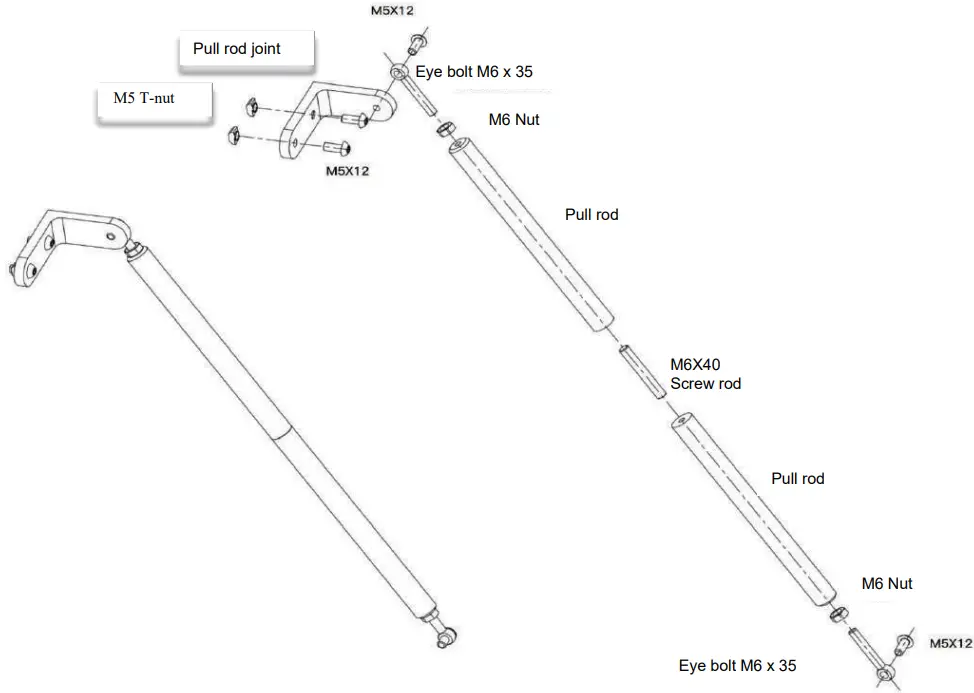
Pull rod details
| No. | Name | Qty |
| 1 | Pull rod | 4pcs |
| 2 | L-type pull rod connecting fittings | 2pcs |
| 3 | Eye bolt M6 x 35 | 4pcs |
| 4 | M6 nut | 4pcs |
| 5 | Set screw M6 x 40 | 2pcs |
| 6 | M5 x 12 Hexagon socket button head screw | 8pcs |
| 7 | M5 T-nut | 4pcs |
Device installation
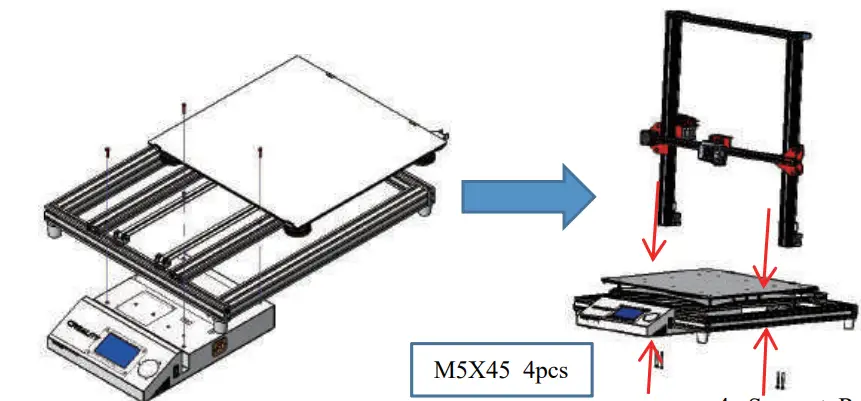
- Printing Platform Installation

- Gantry Frame Installation
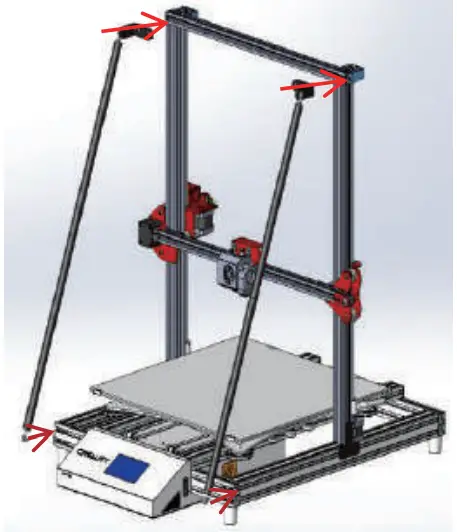
- Support Rod 4pcs M6 x 40 Screw rod 2pcs Eye Bolt M6 x 26 2pcs M6 Nut 4pcs M5 x 12 Screw 8pcs M5 T-Nut 4pcs

- Support Rod 4pcs M6 x 40 Screw rod 2pcs Eye Bolt M6 x 26 2pcs M6 Nut 4pcs M5 x 12 Screw 8pcs M5 T-Nut 4pcs
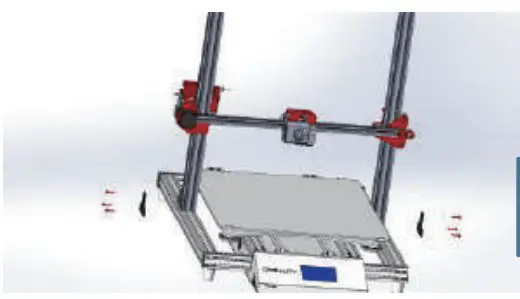
- . Gantry Frame Fixation
- M4 x 20 6pcs T block 2pcs

- M4 x 20 6pcs T block 2pcs
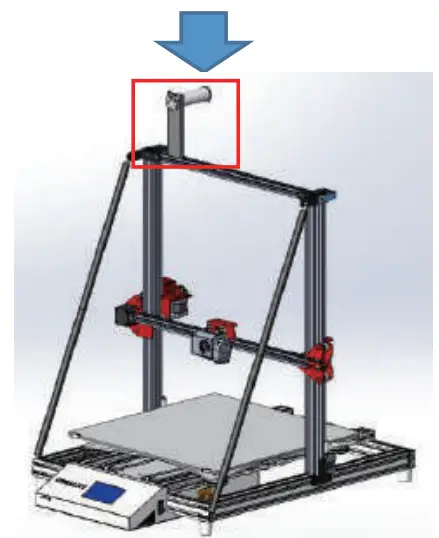
- Filament Holder Installation
- M4 x 8 Head cap screw 4pcs M4 T-Nut 2pcs

- M4 x 8 Head cap screw 4pcs M4 T-Nut 2pcs
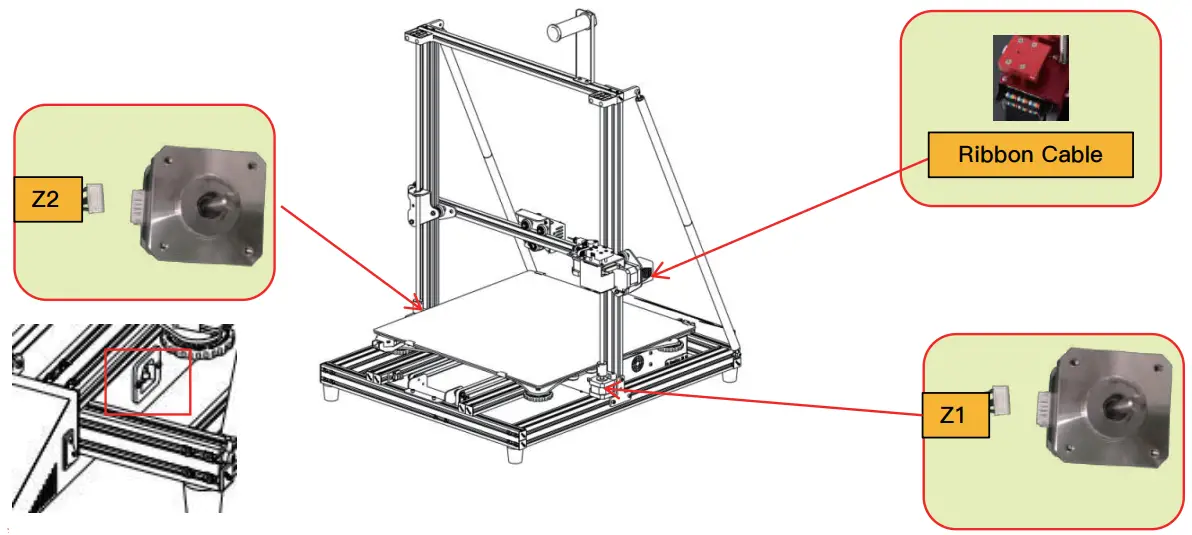
Cable Connection
Screen Information
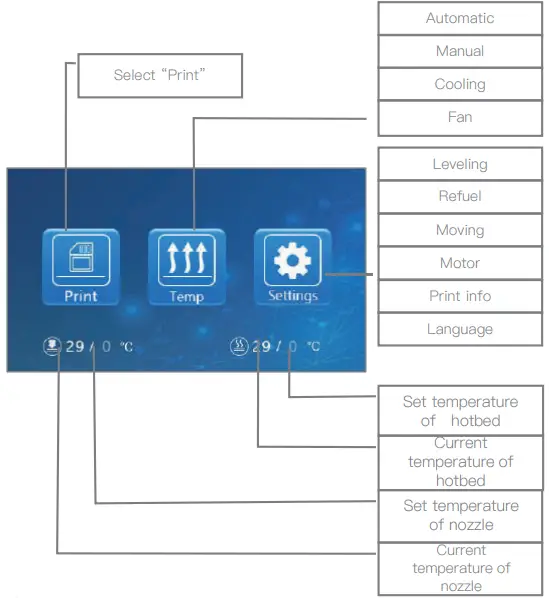
| Screen Information | |||||||
| Main Menu | Sub Menu | Explanation | |||||
| TF card | Stop | ||||||
| Pause/Continue | |||||||
|
Adjust | Print speed | ||||||
| Nozzle temp. | |||||||
| Hot-bed temp. | |||||||
| Fan | |||||||
| Temperature up/Stop | Continue/Stop | ||||||
| Temp | Automatic | PLA \ABS(195°\240°) | |||||
| Manual | Nozzle preheat | ||||||
| Hot-bed preheat | |||||||
| Cooling | Yes\No | ||||||
| Fan | On\Off | ||||||
| Setting | Leveling | Z-axis: Z home, +0.1mm, -0.1mm | |||||
| AUX leveling | Please click numbers (①~⑤) to assisted leveling…… | ||||||
| AUTO leveling (switch) | |||||||
| Platform measurement (measurement parameters) | |||||||
| Refuel | Withdraw | ||||||
| Feed | |||||||
| Moving | X-axis | Y-axis | Z-axis | Z home | |||
| Motor off | Yes \No | ||||||
| Language | English\Chinese | ||||||
| Printer info | Device model, firmware version, printing size, official website | ||||||
Loading Filament
Preheat
- Method 1

- Method 2.


- Feeding

- Go through the filament detector to press and hold the extruder spring. Insert the filament to the position of nozzle through the hole on the extruder. Continue feeding until you see filament extrude from the nozzle.
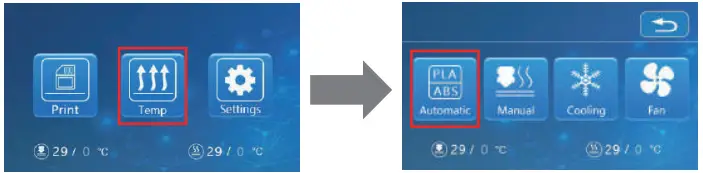
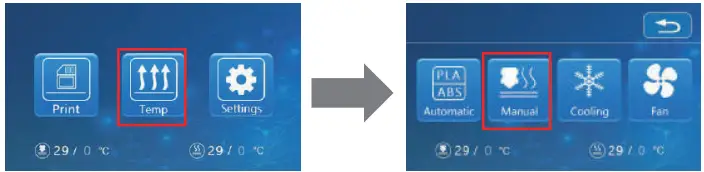
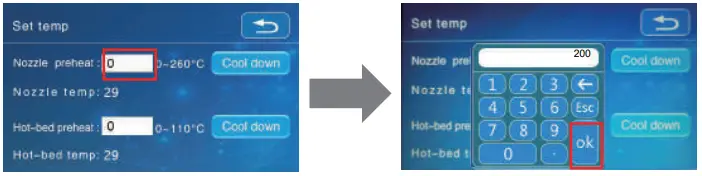
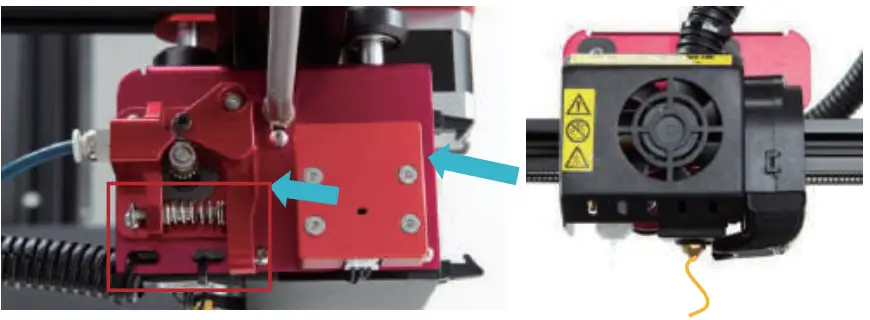
Replacing Filament During Printing:
- Cut the filament near the extruder and feed new filament slowly until new filament is fed into the feeding pipe. (Or)
- Preheat the nozzle and replace the used filament with new filament.
Bed Leveling
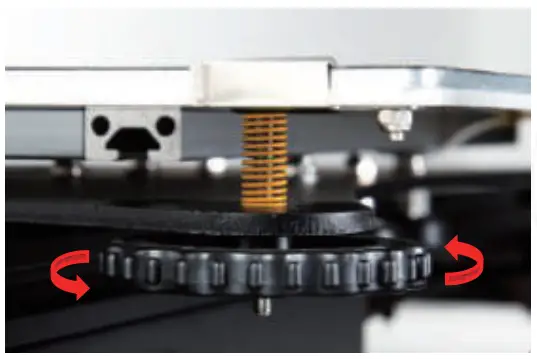
- Tighten four leveling nuts at the bottom of the platform before initial leveling.
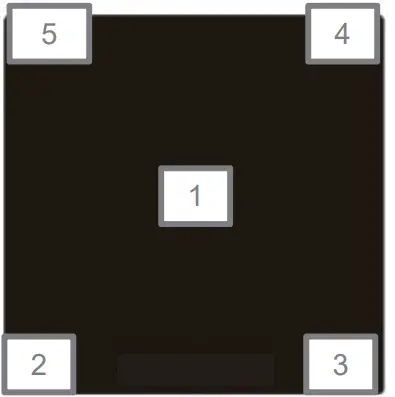
- Select “Settings” → “Leveling Mode” → “Assisted Leveling”, click number ②

- Adjust the platform height by turning the knob underneath. Adjust the printing platform and nozzle to enable the two to just fit each other perfectly with a gap of 0.05mm. Use a piece of A4 paper to assist with the leveling to make sure that the nozzle just scratches on this A4 paper.

- Adjust all leveling nuts with four corners.
- Click number ① to test if the platform gap is proper.

- Repeat above steps once or twice if necessary

 The nozzle is too far away from the platform, so the filament fails to adhere to the platform.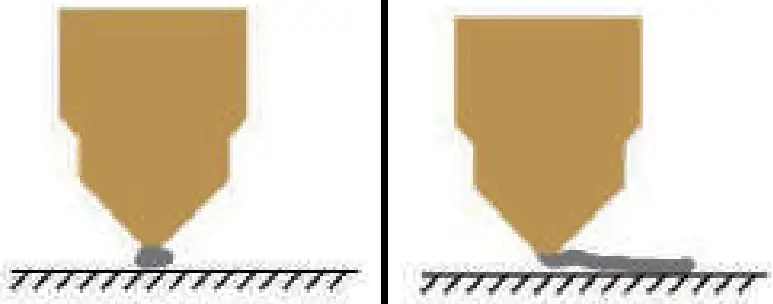
 Filament is extruded evenly to adhere to the platform.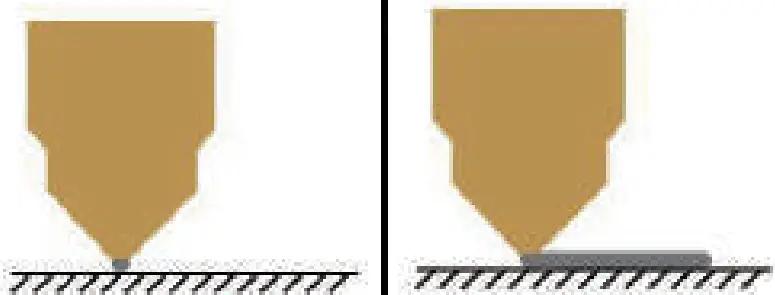
 The nozzle is too close to the platform, and the filament is not extruded insufficiently, and even the platform is scratched.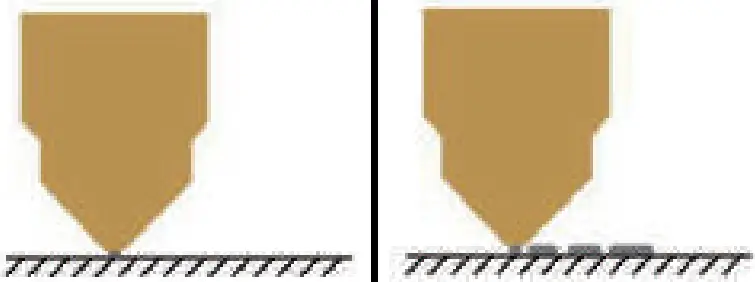
Automatic leveling
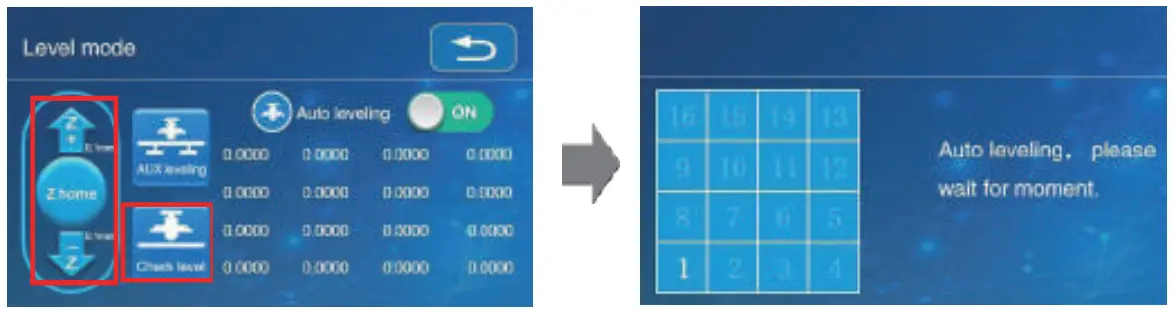
If you need to do automatic leveling , you can change to it in the following interface: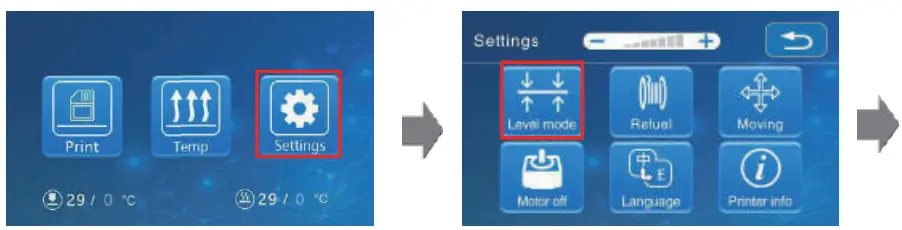
Software Installation
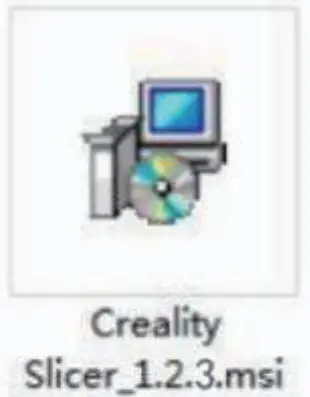
- Double click to install the software

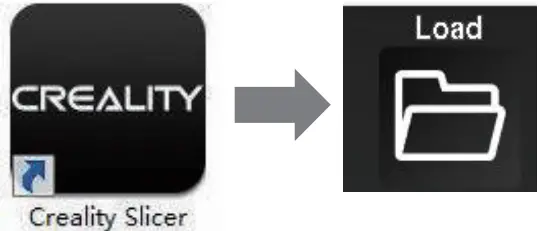
- Double click to open the software.

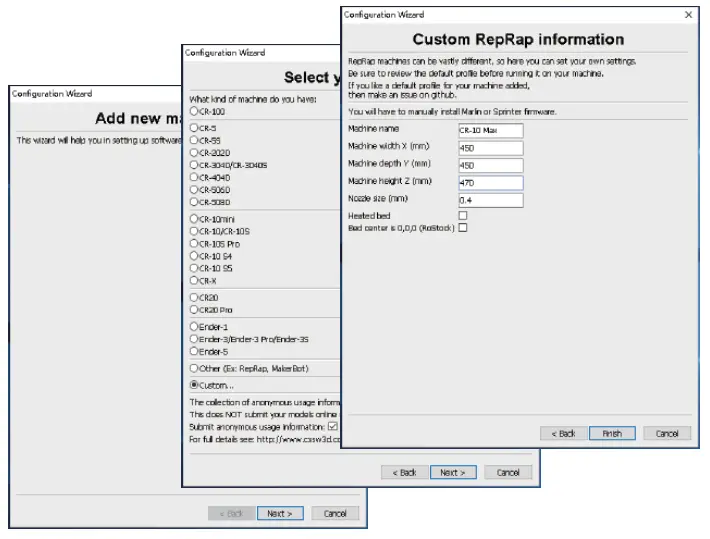
- Select language → Next → Select your machine → Next → Finish.


First Printing
- Slicing
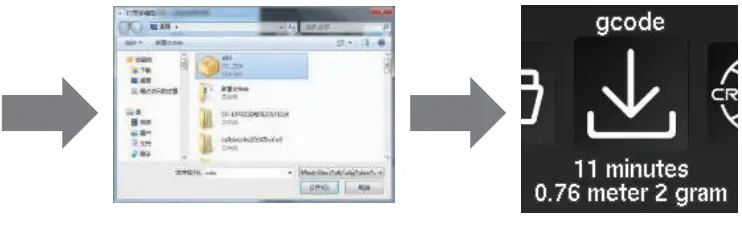
Open the software → Load → Select the file → Wait for slicing to finish ,and save the gcode file to TF card.- File name must be English or number. Don’t use Chinese or special symbols

- File name must be English or number. Don’t use Chinese or special symbols
- Printing
Insert the TF card → Print → Select Model → Print
Tips
- Terms about after-sales service are available in the after-sales service card.
- Slight scratch of profile and slight tilt of platform is normal if printing can still be done smoothly.
- Users must abide by laws and regulations in the location of machine and corresponding countries/regions and adhere to work ethics and are strictly prohibited from using our 3D printers to print any product or object that violate laws and regulations in the location of machine and corresponding countries /regions to make the most of 3D printers, promote the harmonious growth of market economy, consciously enhance industry self-discipline, establish a positive image of 3D printers,
ensure well-organized, legitimate and healthy activities about product certification and quality management system certification, highly mitigate risks from the use of 3D printers and avoid related responsibilities.
Support
The revision date: July 10 ,2019
SHENZHEN CREALITY 3D TECHNOLOGY CO.,LTD.
11F & Room 1201,Block 3,JinChengYuan,Tongsheng Community,Dal ang,Longhua District,Shenzhen,China,518109
Official Website: www.creality3d.cn
Tel: +86 0755-85234565
E-mail: [email protected]
[email protected]
 创想三维(CREALITY) - 3D打印机,教育/工业3D打印机领导品牌