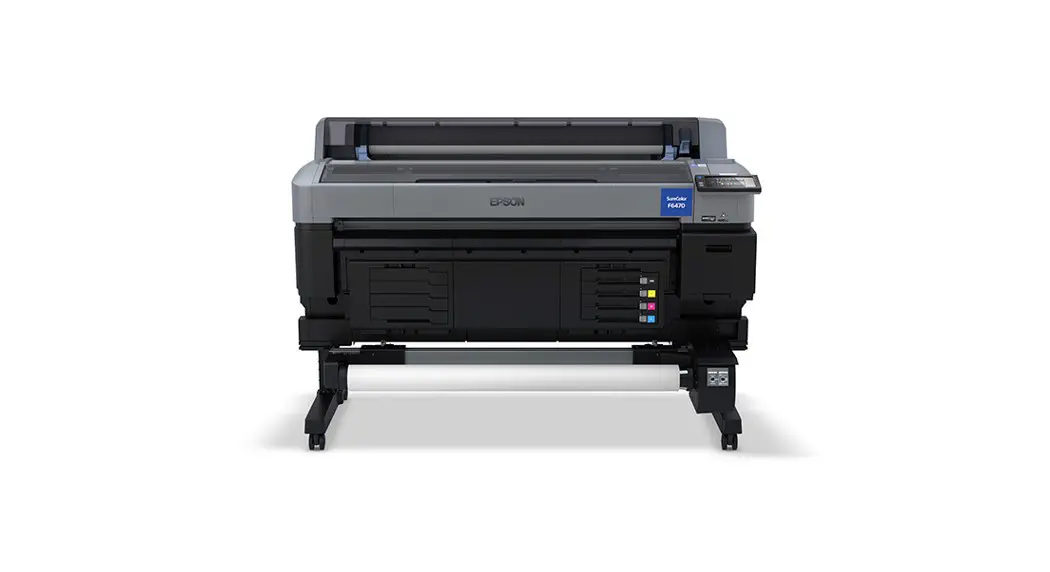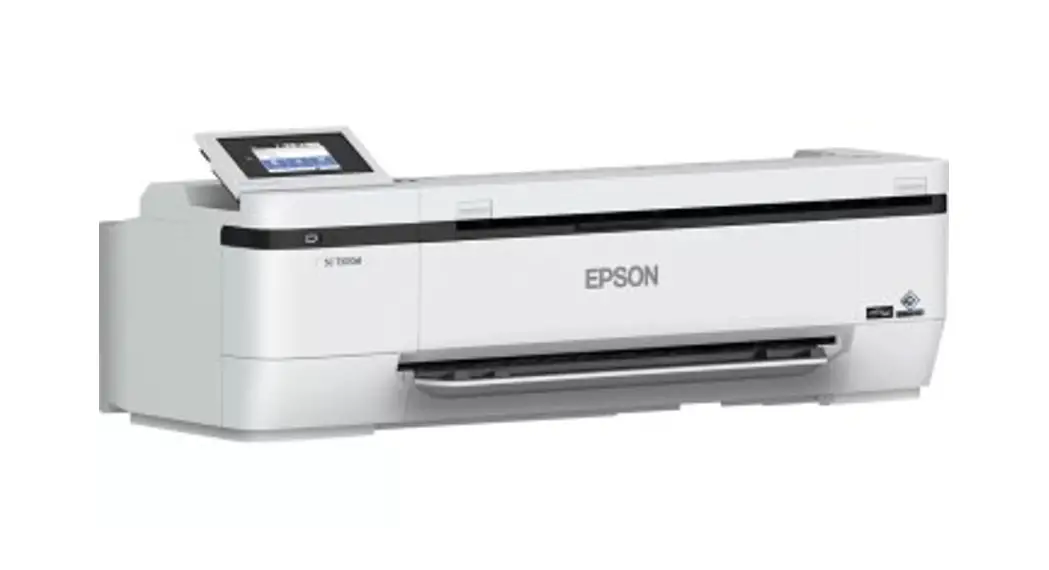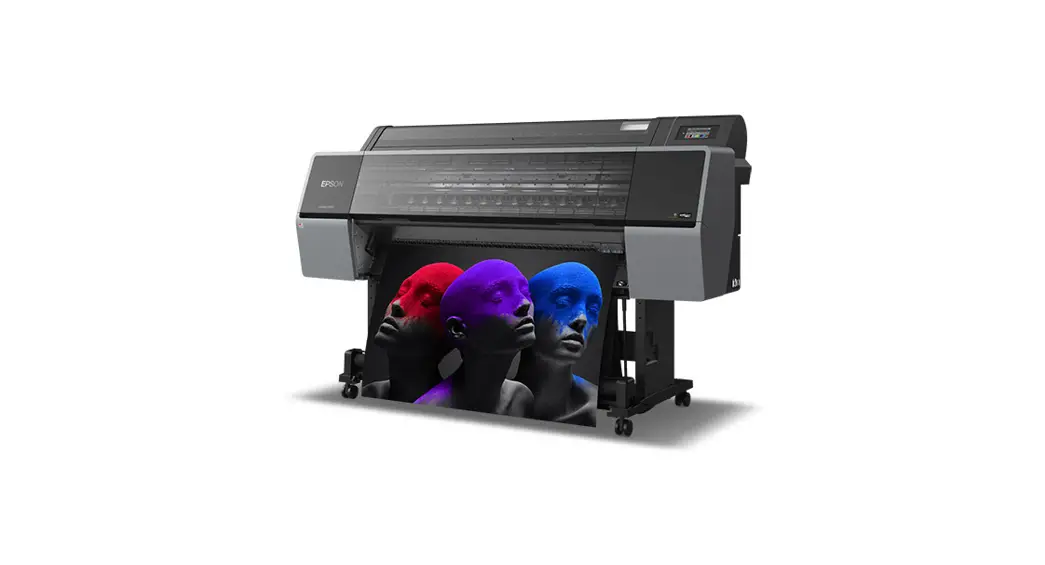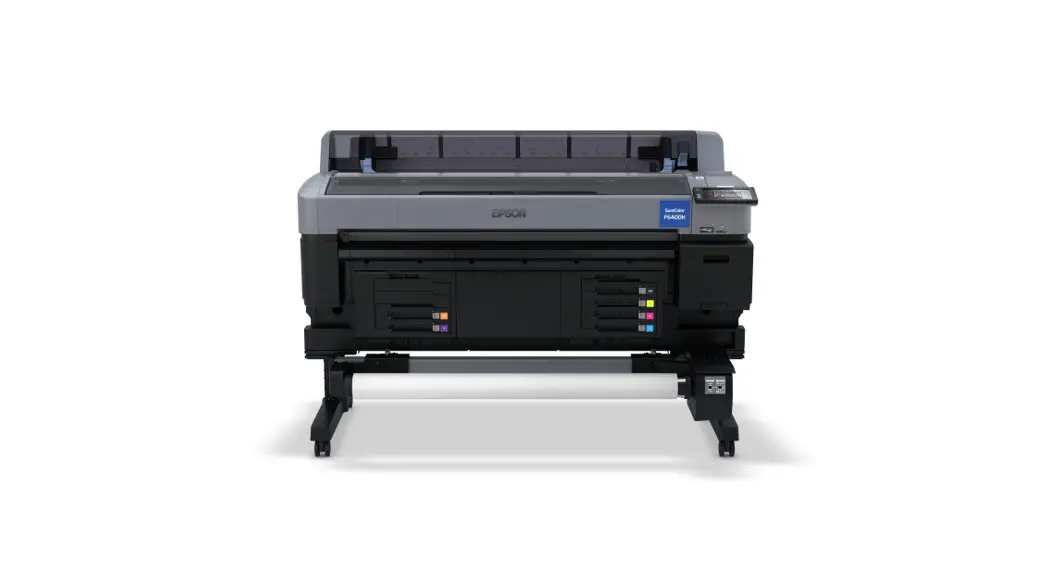

SC-F6400 Suries
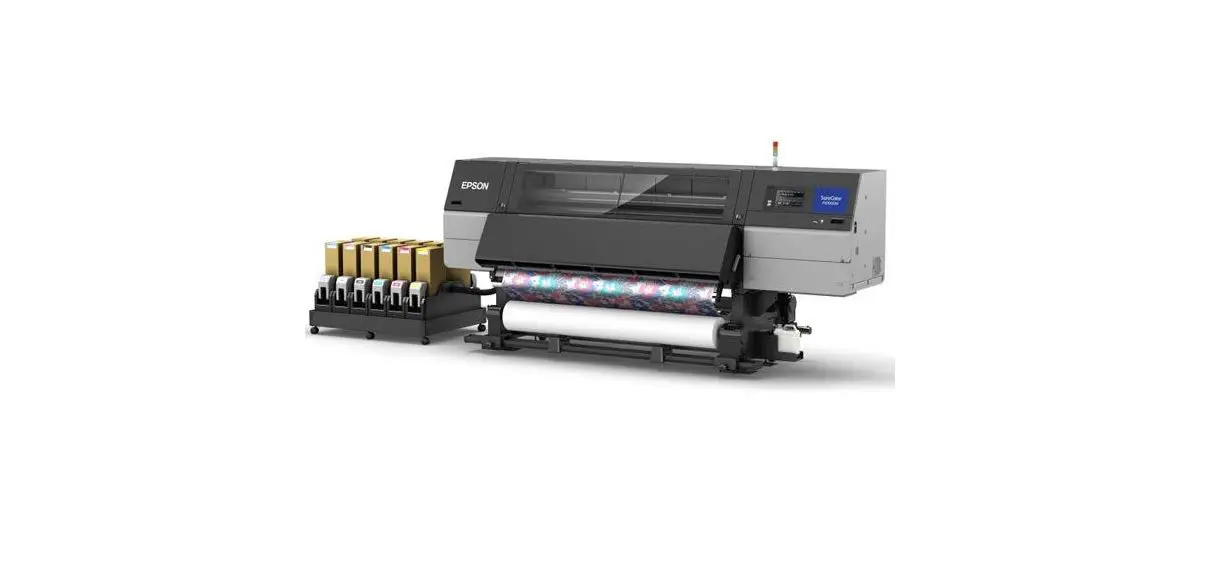
SC-F6400H Suries
General Information
CMP0382-00
SC-F6400 Series/SC-F6400H Series General Information
Copyrights and Trademarks
Copyrights and Trademarks
No part of this publication may be reproduced, stored in a retrieval system, or transmitted in any form or by any means, electronic, mechanical, photocopying, recording, or otherwise, without the prior written permission of Seiko Epson Corporation. The information contained herein is designed only for use with this Epson printer. Epson is not responsible for any use of this information as applied to other printers. Neither Seiko Epson Corporation nor its affiliates shall be liable to the purchaser of this product or third parties for damages, losses, costs, or expenses incurred by the purchaser or third parties as a result of accident, misuse, or abuse of this product or unauthorized modifications, repairs, or alterations to this product, or (excluding the U.S.) failure to strictly comply with Seiko Epson Corporation’s operating and maintenance instructions.
Seiko Epson Corporation shall not be liable for any damages or problems arising from the use of any options or any consumable products other than those designated as Original Epson Products or Epson Approved Products by Seiko Epson Corporation.
Seiko Epson Corporation shall not be held liable for any damage resulting from electromagnetic interference that occurs from the use of any interface cables other than those designated as Epson Approved Products by Seiko Epson Corporation.
EPSON and EPSON EXCEED YOUR VISION or EXCEED YOUR VISION and their logos are registered trademarks or trademarks of Seiko Epson Corporation.
Microsoft® and Windows
® are registered trademarks of Microsoft Corporation.
Mac and macOS are registered trademarks of Apple Inc.
Intel
® is a registered trademark of Intel Corporation.
Adobe and Reader are either registered trademarks or trademarks of Adobe Systems Incorporated in the United States and/or other countries.
YouTube
® and the YouTube logo are registered trademarks or trademarks of YouTube, LLC.
General Notice: Other product names used herein are for identification purposes only and may be trademarks of their respective owners. Epson disclaims any and all rights in those marks. © 2022 Seiko Epson Corporation.
Notes on Manuals
Meaning of Symbols
This manual uses the following symbols to indicate dangerous operations or handling procedures to prevent harm to users or other people or damage to property. Make sure you understand these warnings before reading the content of this manual.
 Warning: Warning: | Warnings must be followed to avoid serious bodily injury. |
| Caution: | Cautions must be followed to avoid bodily injury. |
| cImportant: | Important must be followed to avoid damage to this product. |
| Note: | Notes contain useful or additional information on the operation of this product. |
 | Indicates related reference content. |
Screenshots
The screenshots used in this manual may differ slightly from the actual screens.
Illustrations
Unless otherwise specified, illustrations used in this manual are for SC-F6400 Series.
The illustrations may differ slightly from the model you are using. Please be aware of this when using the manual.
Manual Organization
The manuals for the product are organized as shown below.
You can view the PDF manuals using Adobe Reader or Preview (Mac OS X).
| Setup Guide (booklet) | Provides information on how to setup the printer after unpacking it from the box. Make sure you read this manual to perform operations safely. | |
| General Information (this manual) | This manual provides specifications and contact details for the product. | |
| Safety Instructions | This section provides information that must be followed to prevent harm to users or other people or damage to property. Make sure you read this section to perform operations safely and correctly. For some regions, this content is included in the Setup Guide. | |
| Epson Support (PDF) | Provides information about Epson Support for each region. | |
| Online Manuals | ||
| User’s Guide (PDF) | This manual explains how to use the printer. | |
| Epson Video Manuals | These videos show you how to load media and perform maintenance. | |
| Network Guide (PDF) | This manual provides information on using the printer over a network. | |
| Epson Support (PDF) | Provides information about Epson Support for each region. | |
Opening and Viewing Manuals
Opening Manuals
A See the “Setup Guide” and execute software installation from the supplied software disc or from Setup Navi.
When installation is complete, an [EPSON Manuals] icon is created on the desktop of the computer being used.
B Double-click the [EPSON Manuals] icon on the desktop.
C Select the manual you want to view.
When [Online Manuals] is selected, your Web browser opens and the top page of Online Manuals is displayed.
Click the manual or item you want to view.
You can view the Online Manuals in an environment that can connect to the Internet.
Viewing Video Manuals
The video manuals have been uploaded to YouTube.
Click [Epson Video Manuals (video)] from the top page of Online Manuals, or click the following blue text to view the manuals.
Epson Video Manuals
If the subtitles are not displayed when you play the video, click the subtitles icon shown in the image below.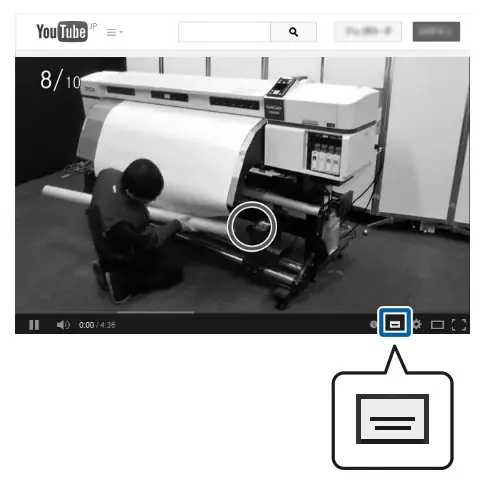
Viewing PDF Manuals
This section uses the Adobe Acrobat Reader DC as an example to explain the basic operations for viewing the PDF in Adobe Reader.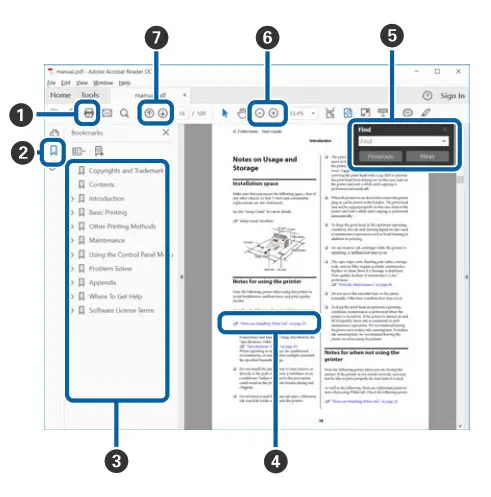
- Click to print the PDF manual.
- Each time it is clicked the bookmarks are hidden or shown.
- Click the title to open the relevant page. Click [+] to open the titles lower in the hierarchy.
- If the reference is in blue text, click the blue text to open the relevant page.
To return to the original page, do the following. For Windows
While pressing the Alt key, press the key.
For Mac
While pressing the command key, press the key. - You can input and search for keywords, such as the names of items you want to confirm. For Windows
Right click on a page in the PDF manual and select Find in the menu that is displayed to open the search toolbar.
For Mac
Select Find in the Edit menu to open the search toolbar. - To enlarge text in the display that is too small to see well, click . Click to reduce the size. To specify a part of an illustration or screenshot to enlarge, do the following.
For Windows
Right click on the page in the PDF manual and select Marquee Zoom in the menu that is displayed. The pointer changes to a magnifying glass, and you can use it to specify the range of the place you want to enlarge. For Mac
Click View menu – Zoom – Marquee Zoom in this order to change the pointer to a magnifying glass. Use the pointer as a magnifying glass to specify the range of the place you want to enlarge. - Opens the previous page or next page.
Supported Media
Types
The following media can be used with the printer.
Print quality is greatly affected by the type and quality of media used. Choose media suited to the task at hand. For information on use, see the documentation supplied with the media or contact the manufacturer. Before buying media in large quantities, try printing on a smaller sample and check the results. cImportant:
Do not use media that is wrinkled, has fluff, is ripped, or stained.
Roll media
| Roll core size (core diameter) | 2 or 3 inches |
| Roll outer diameter | Up to 150 mm |
| Media width* | 254 mm (10 inches) to 1118 mm (44 inches) |
| Media thickness | 0.08 to 0.5 mm |
Using the Printer
This section explains the procedures from loading media to printing.
To obtain optimum print quality, you need to download the necessary EMX files (print setup files), check the nozzles, and make print adjustments. See the User’s Guide (Online Manual) for more details on performing operations.
Printing Process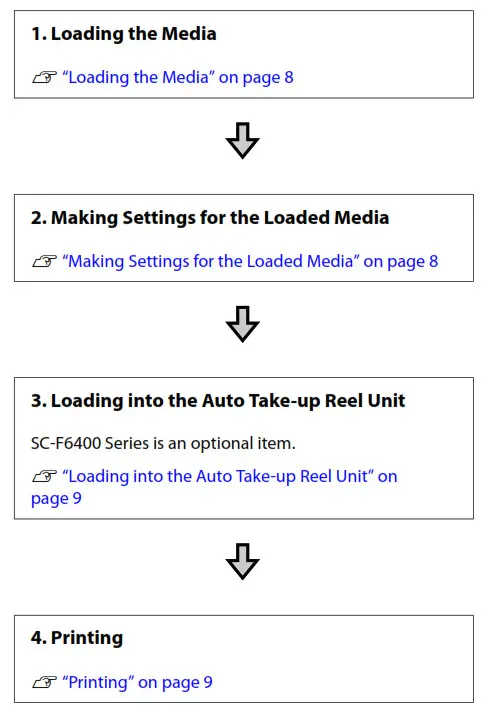
4. Printing
U “Printing” on page 9 Loading the Media
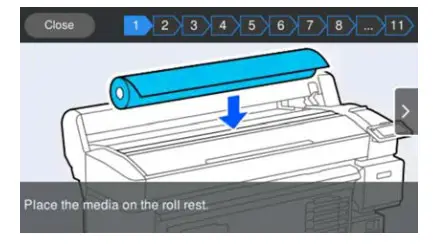
You can load media while viewing the procedure on the screen.
- Check that Load the media. is displayed on the screen, and then press

- Press Start – See Description on the screen to check the loading procedure.
You can then follow the on screen instructions.
Making Settings for the Loaded Media
Make settings for the loaded media.
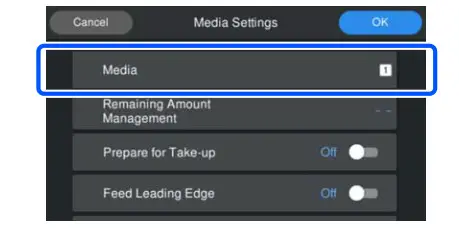
- Press Media to select the registered media number that corresponds to the loaded media.
 When media settings have not been registered for the loaded media
Temporarily select an unregistered number.
In an unregistered status, the media type is set to Med-Thick 70g/m2. If the paper weight of the loaded media is 61 to 89 g/m2, you can leave this as it is.
If the paper weight differs from that of the loaded media, change the media type. Failure to select the appropriate media type can cause print quality problems.
U User’s Guide (Online Manual)
When media settings have been registered for the loaded media/EMX files have already been downloaded
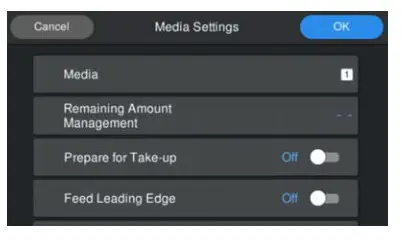
Select the registered media number. - If necessary, set the action to be performed when feeding paper.
 The following shows the details for each operation.
Prepare for Take-up Displayed when the auto take-up reel unit is installed. After feeding media, set this to On to continue loading media into the take-up reel unit.
Cut Leading Edge Set this to On when the leading edge of the loaded media is not straight or is not cut neatly. Feed Leading Edge Set this to On when the remaining media value is printed on the leading edge of the loaded media. The printed section is fed forward to avoid printing over it. Note: If necessary, set Remaining Amount Management and Media Detection when the printer is ready to print. U User’s Guide (Online Manual)
- Press OK when you have finished making settings.
Media feeding starts.
See the following when the auto take-up reel unit is not installed, or when Prepare for Take-up is set to Off.
U “Printing” on page 9
See the next section when Prepare for Take-up is set to On.
 When media settings have not been registered for the loaded media
 The following shows the details for each operation.
Loading into the Auto Take-up Reel Unit
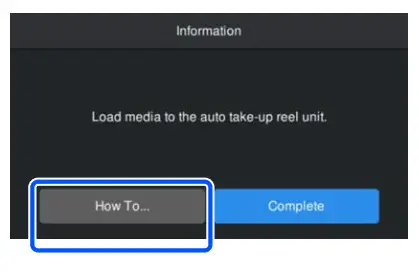
You can load media into the auto take-up reel unit while viewing the procedure on the screen.
- Press How To….

- Press Complete when you have finished loading media.
Printing
When Ready to print. is displayed on the screen, you can start printing.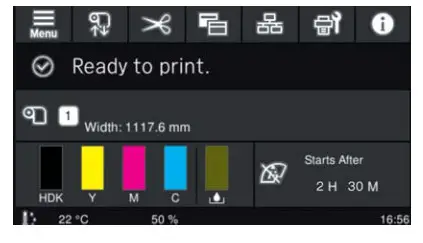
System conditions
The software can be used in the following environments. (As of May, 2022)
Supported OS and other elements may change.
For the latest information, see the Epson Web site.
Epson Edge Dashboard cImportant:
Make sure the computer on which the Epson Edge Dashboard is installed meets the following requirements.
If these requirements are not met, the software cannot monitor the printer correctly.
- Disable your computer’s hibernate function.
- Disable the sleep function so that the computer does not enter sleep status.
Windows
| Operating system | Windows 7 SP1 / Windows 7 x64 SP1 Windows 8 / Windows 8 x64 Windows 8.1 / Windows 8.1 x64 Windows 10 / Windows 10 x64 Windows 11 |
| CPU | Intel Core2Duo 2.5GHz or more |
| Free memory | 1 GB or more |
| Hard disk (free space during installation) | 2 GB or more |
| Display resolution | 1280 × 1024 or better |
| Communication interface | High Speed USB Ethernet 1000Base-T |
| Browser | Internet Explorer 11 Microsoft Edge |
Mac OS X
| Operating system | Mac OS X 10.7 Lion or later |
| CPU | Intel Core2Duo 2.5GHz or more |
| Free memory | 1 GB or more |
System conditions
| Hard disk (free space during installation) | 2 GB or more |
| Display resolution | 1280 × 1024 or better |
| Communication interface | High Speed USB Ethernet 1000Base-T |
| Browser | Safari 6 or later |
Epson Edge Print
| Operating system | Windows 7 SP1 x64 Windows 8 x64 Windows 8.1 x64 Windows 10 x64 Windows 11 |
| CPU | Intel® Core™ i3 3.0 GHz or higher (released after April 2014) |
| Free memory | 8 GB or more |
| Hard disk (free space during installation) | 50 GB or more |
| Display resolution | 1280 × 1024 or better |
| Communication interface | High Speed USB Ethernet 100Base-TX/1000Base-T |
We recommend installing this software on a computer with high specifications since the software will be used in combination with software applications such as Adobe Illustrator.
Also, this software normally handles data that is several GB in size, and in some cases may be tens of GB in size particularly when performing high quality banner printing jobs.
We therefore recommend using a computer with sufficient hard disk space.
Web Config
The following is a list of supported browsers. Make sure you are using the latest version.
Internet Explorer 11, Microsoft Edge, Firefox, Chrome, Safari
Specifications Table
| Printer Specifications | ||
| Printing method | On-demand ink jet | |
| Nozzle configura- tion | SC-F6400 Series: 400 nozzles x 2 rows x 4 colors (High Density Black, Cyan, Magenta, Yellow) | |
| SC-F6400H Series: 400 nozzles x 1 row x 6 colors (High Density Black, Cyan, Magenta, Yellow, Light Cyan/ Fluorescent Pink/Violet, Light Magenta/Fluorescent Yellow/ Orange) | ||
| Resolution (maxi- mum) | 600 x 1200 dpi | |
| Control code | ESC/P raster (undisclosed command) | |
| Media feed meth- od | Friction feed | |
| Built-in memory | 1 GB | |
| Interface | SuperSpeed USB 100Base-TX/1000Base-T*1 | |
| Rated voltage | AC100 to 240 V | |
| Rated frequency | 50 to 60 Hz | |
| Rated current | 3.4 to 1.6 A | |
| Power consumption | ||
| Printing | Approx. 80 W | |
| Sleep mode | Less than 19 W | |
| Power off | Less than 0.3 W | |
| Temperature and humidity (without condensation) | ||
| Printer Specifications | ||
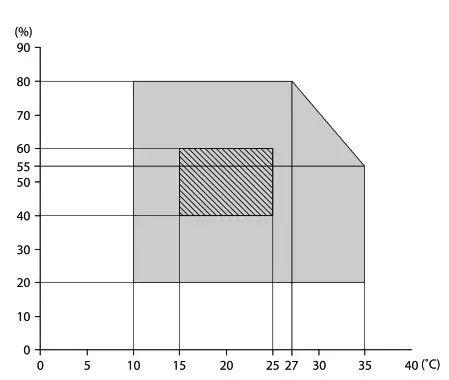
| Printing | 10 to 35˚C, 20 to 80% Recommended: 15 to 25˚C, 40 to 60% | |
| In storage (Before unpacking) | -20 to 60˚C, 5 to 85% (Within 120 hours at 60 ˚C, within a month at 40 ˚C) | |
| In storage (Before charging ink) | -20 to 40˚C, 5 to 85% (Within a month at 40 ˚C) | |
| In storage (After charging ink) | 5 to 35˚C, 5 to 85% | |
| Temperature and humidity range Gray area: Operating Cross-hatch lines: Recommended | ||
| Dimension | ||
| When stored | Printer: (W) 1608 × (D) 745 × (H) 1128 mm When the auto take-up reel unit is installed: (W) 1608 × (D) 916 × (H) 1128 mm | |
| Maximum time | Printer: (W) 1608 × (D) 745 × (H) 1206mm When the auto take-up reel unit is installed: (W) 1608 × (D) 916 × (H) 1206mm | |
| Weight | ||
| SC-F6400 Series | 120 kg*2 | |
| SC-F6400H Series | 140 kg*3 | |
- Use a shielded twisted pair cable (category 5e or better).
- Not including ink packs and auto take-up reel unit.
- Not including ink packs.
| Auto take-up reel unit specifications* | |
| Media width | 431.8 mm (17 inches) to 1118 mm (44 inches) |
| Media outer diameter | 3 inch core: up to 150 mm |
| Gross weight | Approx. 13 kg |
| Temperature and humidity (without condensation) | Recommended: 15 to 25˚C, 40 to 60% When operating: 10 to 35˚C, 20 to 80% |
| Rated voltage | AC100 to 240 V |
| Rated frequency | 50 to 60 Hz |
| Rated current | 1.0 to 0.5 A |
| Power consumption | Printing: Approx. 5.4 W Sleep mode: Approx. 2.8 W Power off: Approx. 0.45 W |
SC-F6400 Series is an optional item.
| Ink Specifications | |
| Type | Dedicated ink pack |
| Sublimation dye ink | SC-F6400 Series: High Density Black, Cyan, Magenta, Yellow |
| SC-F6400H Series: High Density Black, Cyan, Magenta, Yellow, Light Cyan, Light Magenta, Fluorescent Pink, Fluorescent Yellow, Violet, Orange | |
| Use by date | See the expiration date printed on the ink pack (store at normal temperature) |
| Print quality guarantee expiry | One year from printer installation |
| Storage temperature | 5 to 35˚C |
| External dimensions (approx.) | (W) 180 × (D) 410 × (H) 30 mm |
| Capacity | 1600ml |
 Note: To ensure your printouts have consistent coloring, keep the room at a constant temperature between 15 and 25˚C.
cImportant: Use the printer at an altitude of 2000 m or less. Warning: This is a class A product. In a domestic environment this product may cause radio interference in which case the user may be required to take adequate measures.
Information of EU declaration of conformity The full text of the EU declaration of conformity of this equipment is available at the following internet address.
https://www.epson.eu/conformity