Contents hide

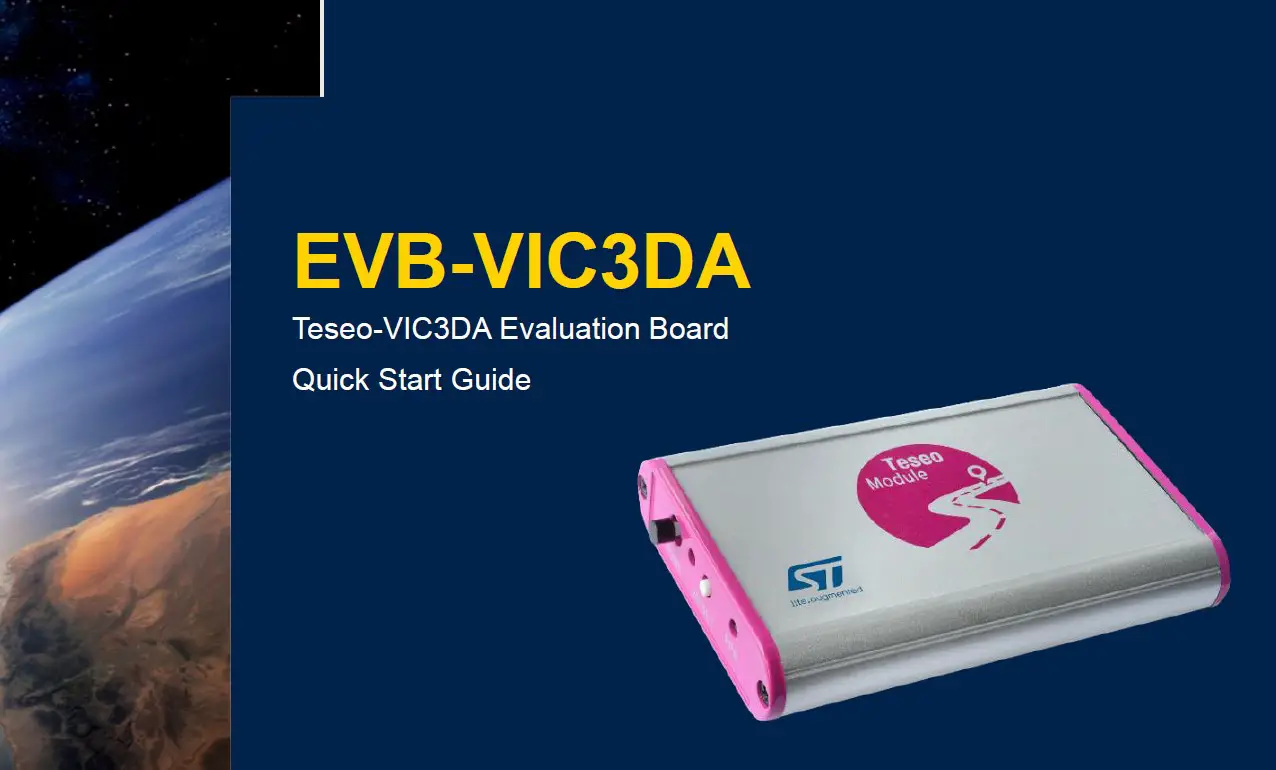
Teseo EVB-VIC3DA Evaluation Board
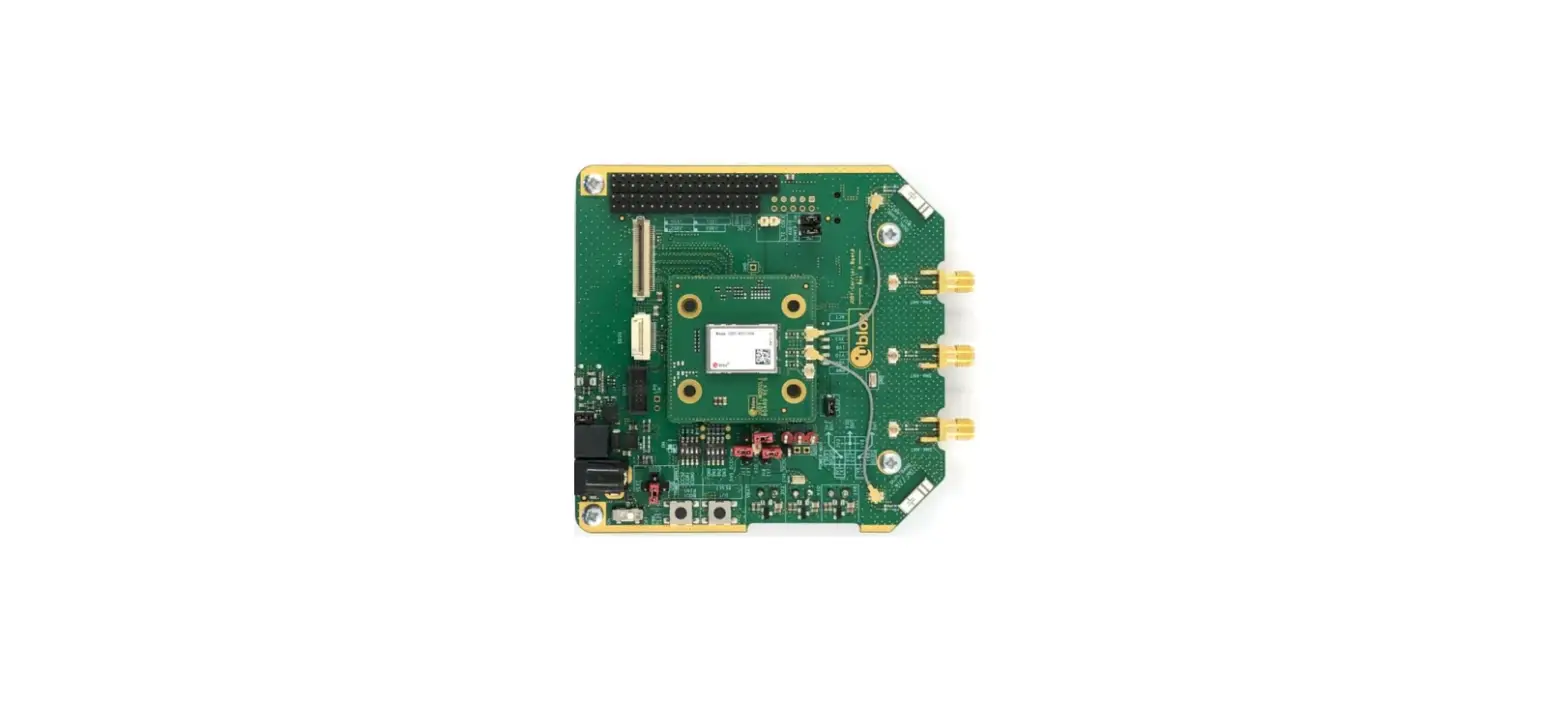
Introduction to EVB-VIC3DA
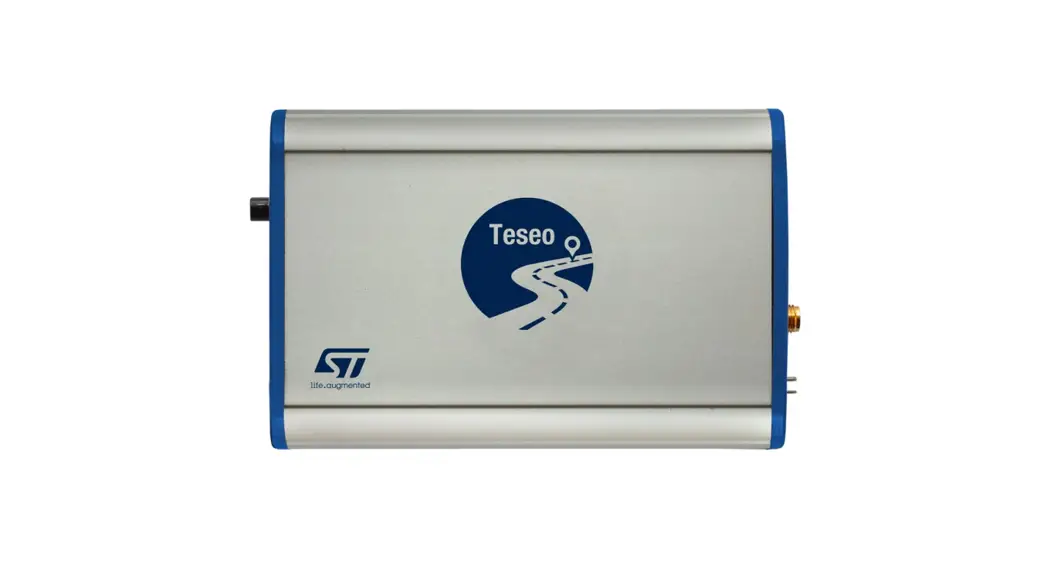
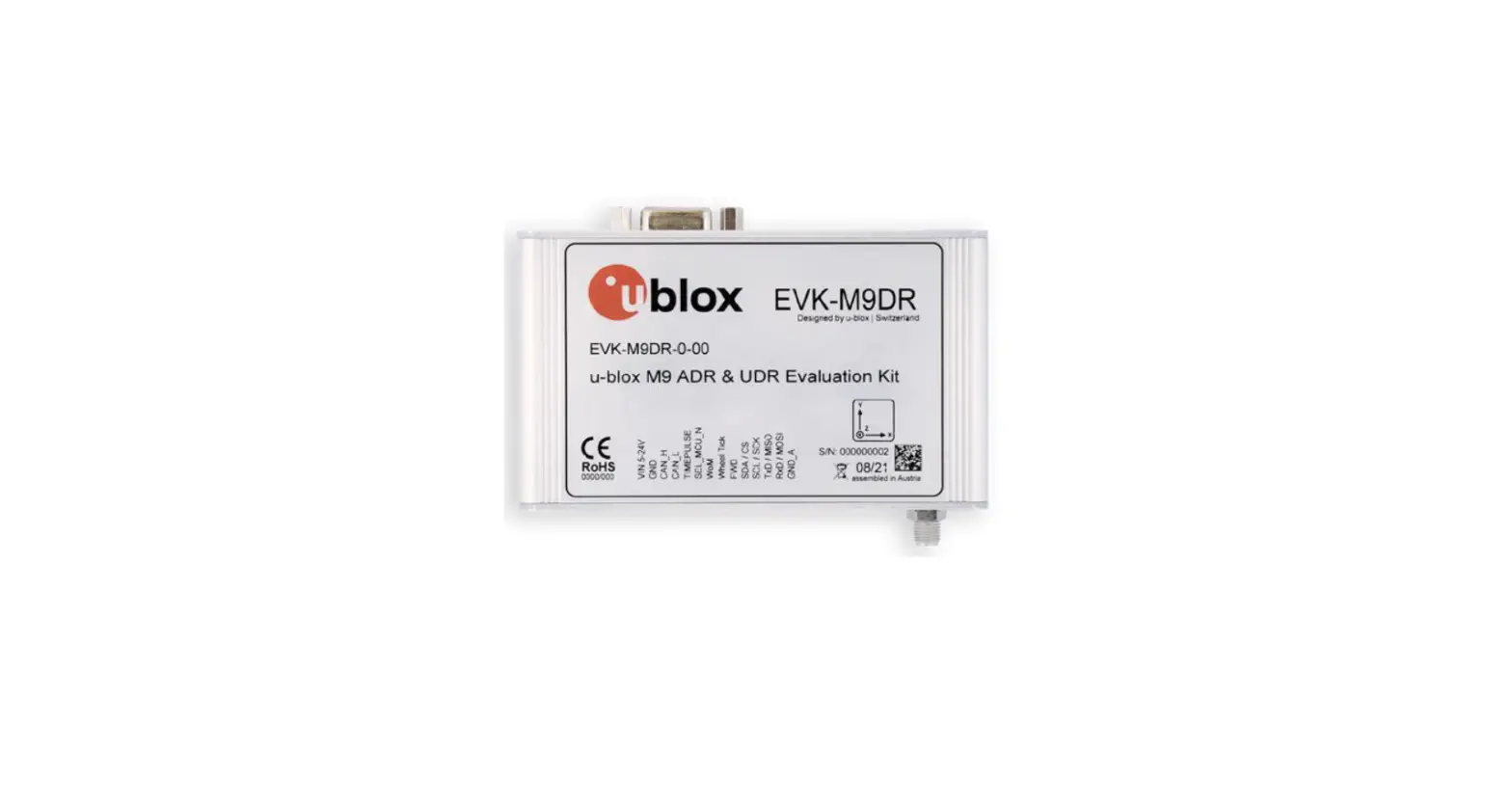
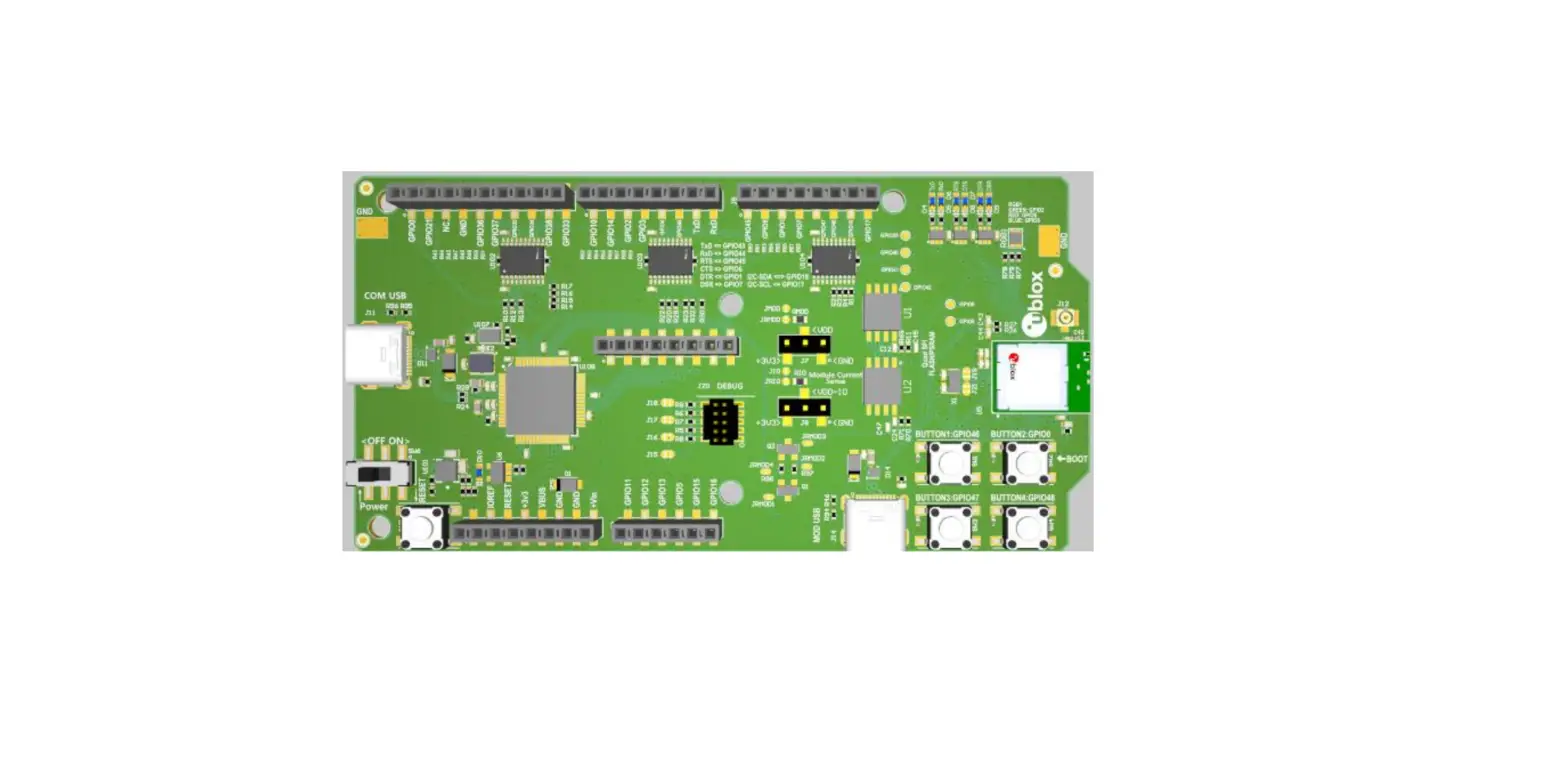
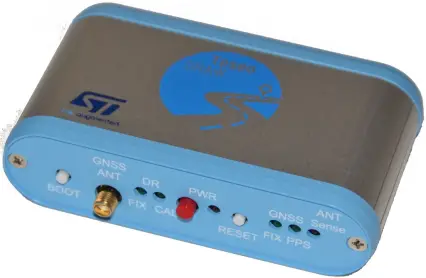
- The EVB-VIC3DA evaluation board is a complete standalone evaluation platform for Teseo-VIC3D/DA Dead-Reckoning GNSS module

- The Teseo-VIC3DA module is an easy-to-use Dead-Reckoning Global Navigation Satellite System (GNSS) stand-alone module, embedding Teseo III single die stand-alone positioning receiver IC working on multiple constellations (GPS, GLONASS, Beidou, Galileo, QZSS)
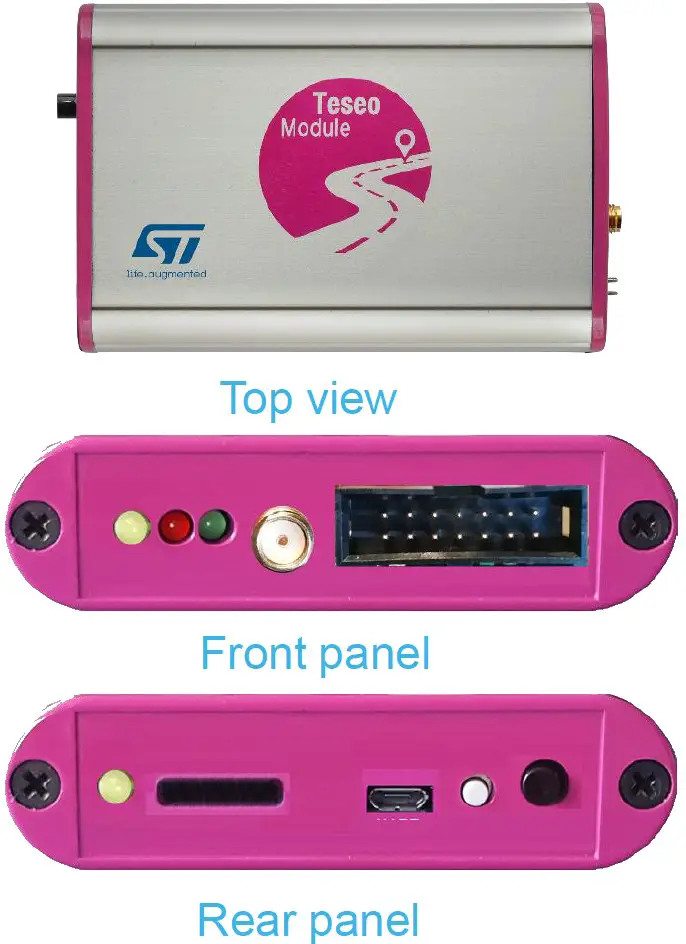
EVB-VIC3DA – Front and Rear Panels
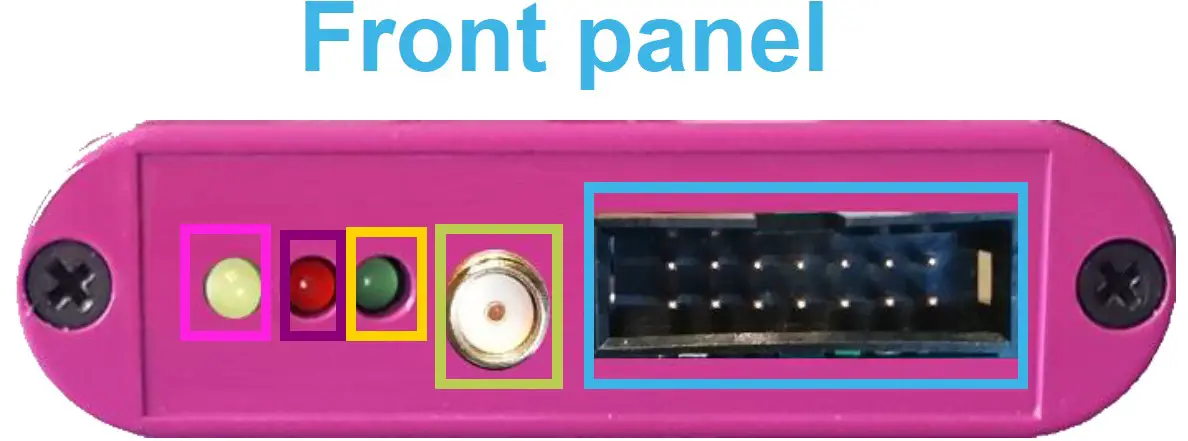
- Yellow LED
- PWR Red LED
- PPS Green LED
- SMA Antenna connector
- IO-ODO connector
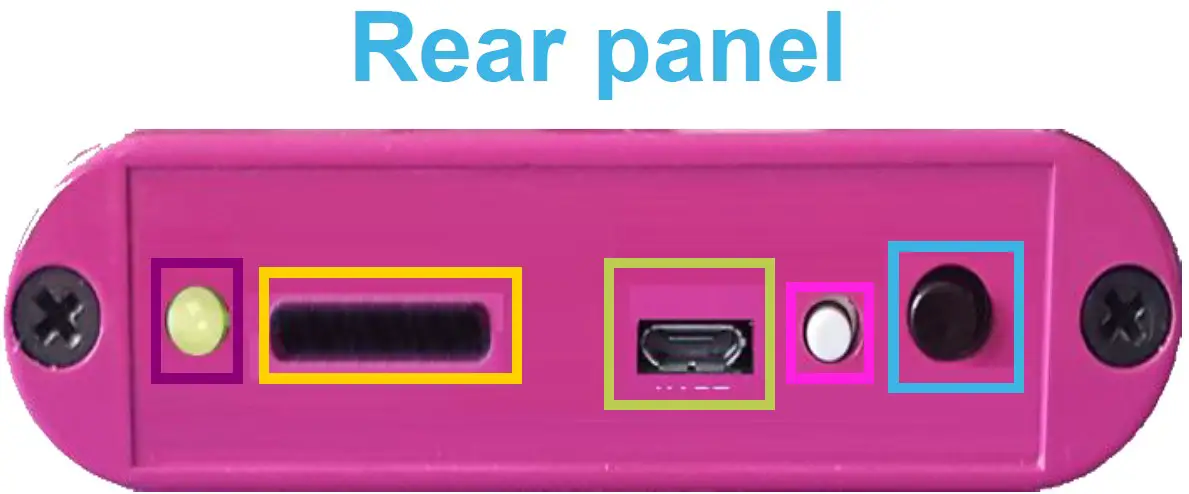
- Yellow LED
- SD/MMC card
- UART/USB connector
- Reset Button
- On/Off Switch button
I/O-ODO Connector Signals
- I/O ODO Connect is a 14 pins connector providing the signal reported in table
1 | 3 | 5 | 7 | 9 | 11 | 13 |
12V_CAR_BAT | FWD | INT-1 | I2C_SCD | VBAT | 3.3V_GNSS | GND |
| 12V_CAR_BAT | WHELLTICK | INT-2 | I2C_SDA | VBAT_VIC3 | 3.3V_VIC | GND |
2 | 4 | 6 | 8 | 10 | 12 | 14 |
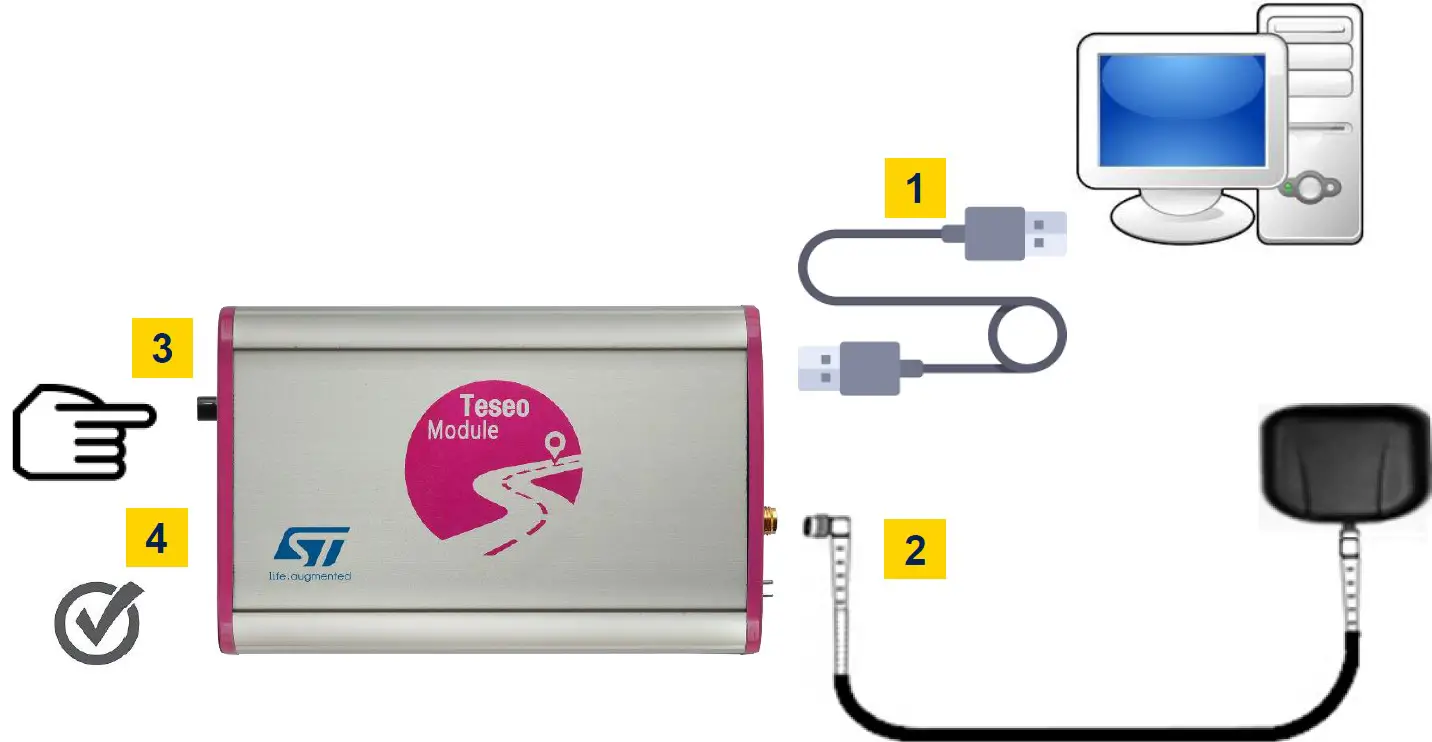
Connect and Start EVB-VIC3DA
- Connect the USB cable between PC USB and the EVB-VIC3DA UART port
- Connect GNSS Antenna to the SMA input connector
- Press the power on button
- Verify that the RED Power LED is ON
Install Teseo-Suite and VCP Driver
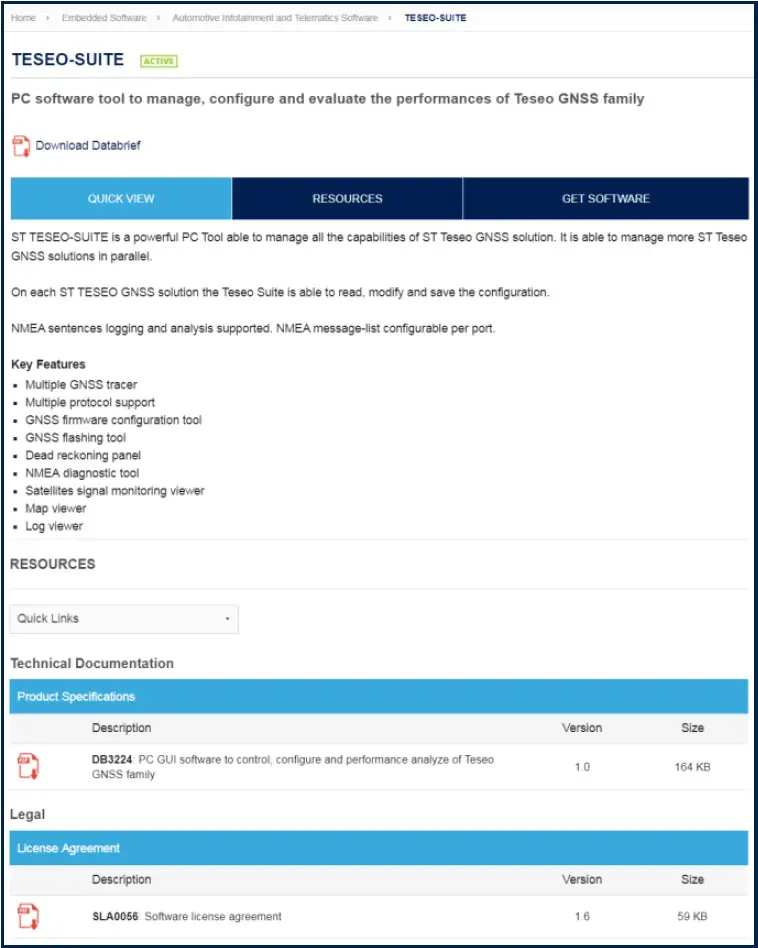
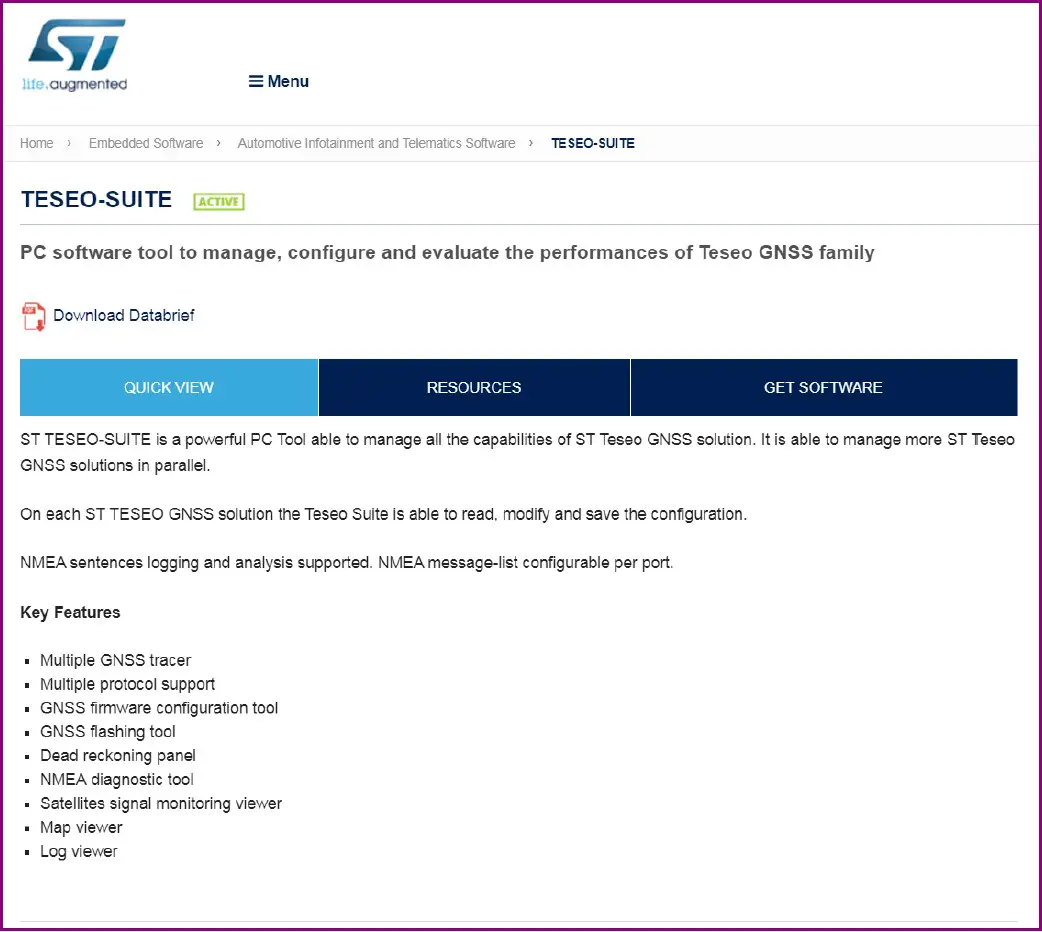
The Teseo-Suite is a powerful PC Tool able to manage the EVB-VIC3DA evaluation board
- Download and install the Teseo-Suite from www.st.com
- Download and install the Silicon Labs VCP Driver from www.silabs.com
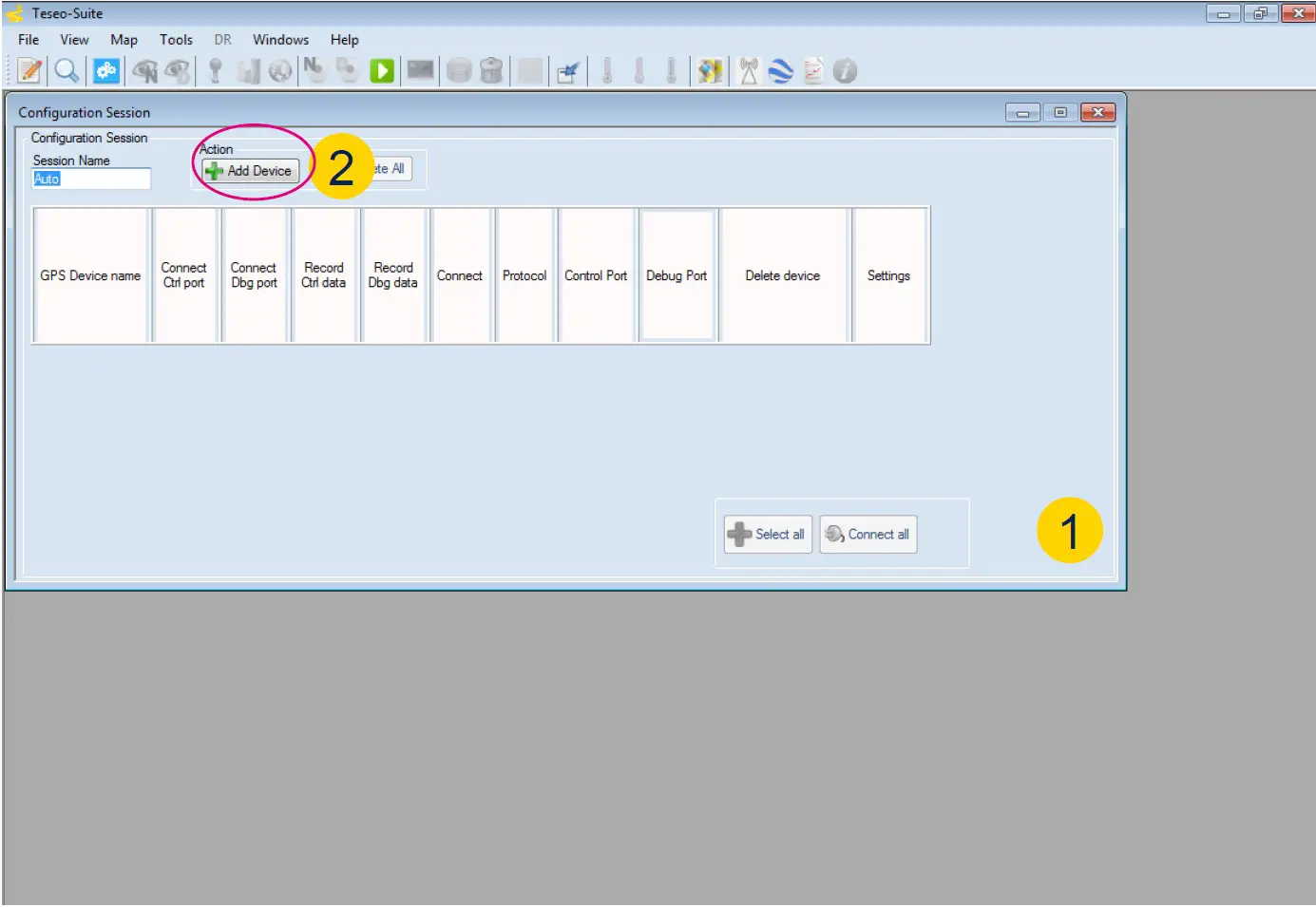
Teseo-Suite – Start
- During the application start-up, the Configuration Session panel is shown
- Click the ‘Add Device’ button to add a new entry
Teseo-Suite – Configuration Device
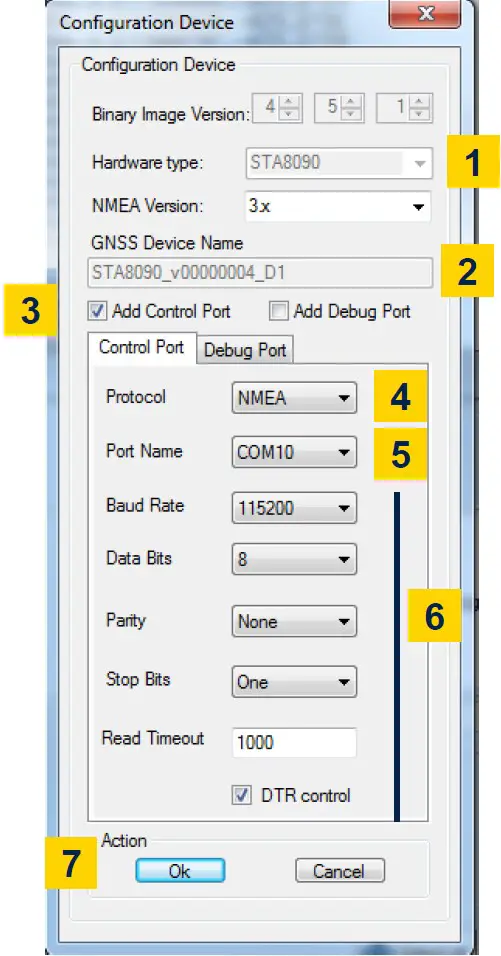
- Set the Hardware type: STA8090
- Set the GNSS Device Name: EVB-VIC3DA
- Enable Add Control Port
- Set the Protocol: NMEA
- Set the Port Name: according to the discovered on the PC
- Configure the port as following table:
Baud rate
Data bits Stop Bits Parity Handshake 115200 bps 8 Bits 1 Bit None None
- Click the Ok button
Teseo-Suite – Connect the Device
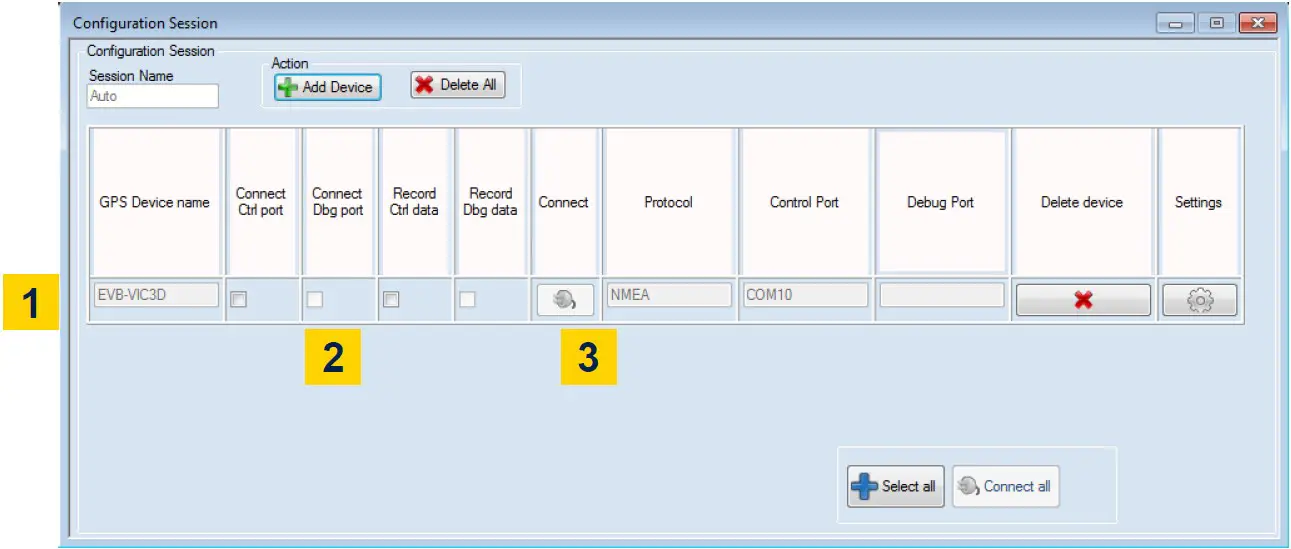
- In the Configuration Session panel a new entry (row) is shown
- Enable Connect Ctrl port
- Click the Connect button
Teseo-Suite – Device Working
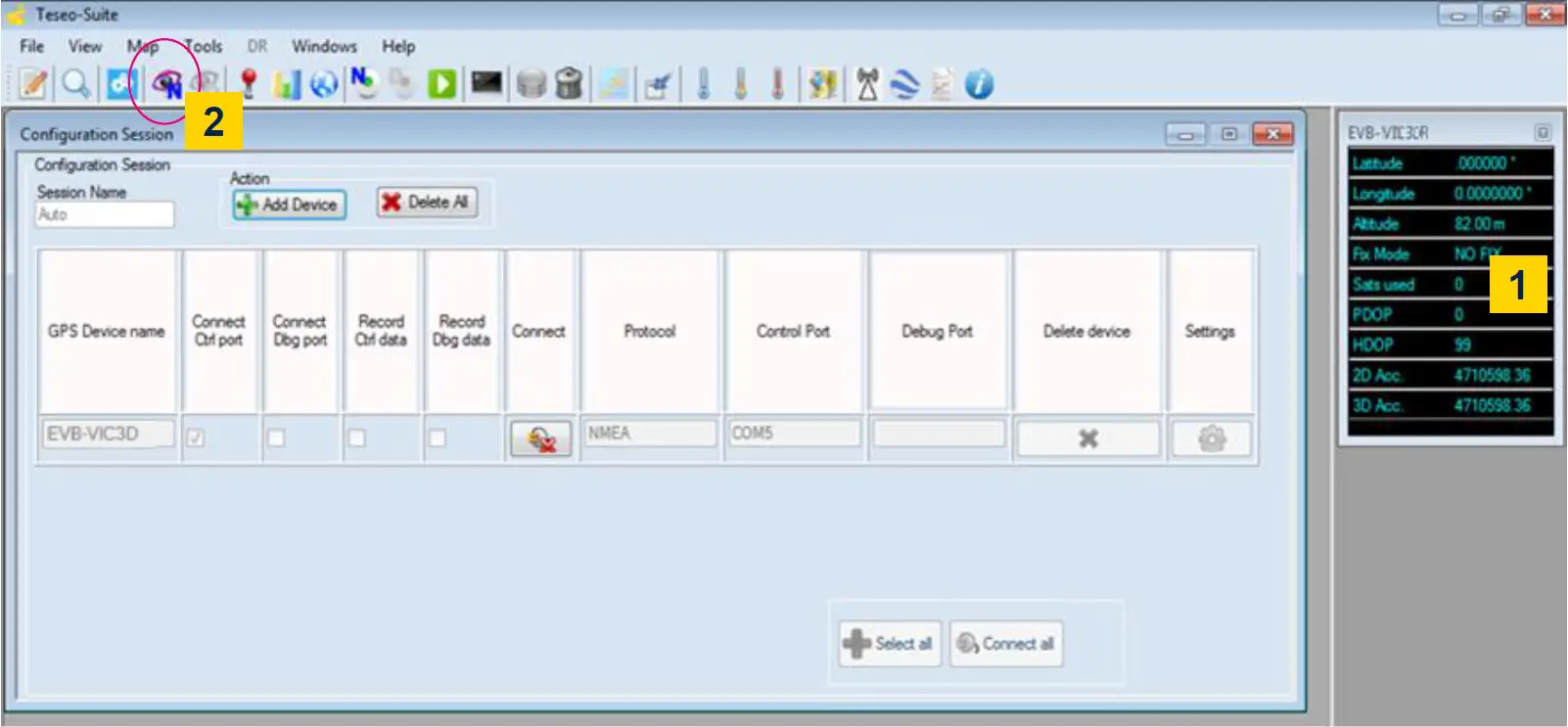
- In the summary panel, the GNSS EVB-VIC3DA state is reported
- Click on the NMEA output window to inspect the NMEA stream
Teseo-Suite – Inspect Device
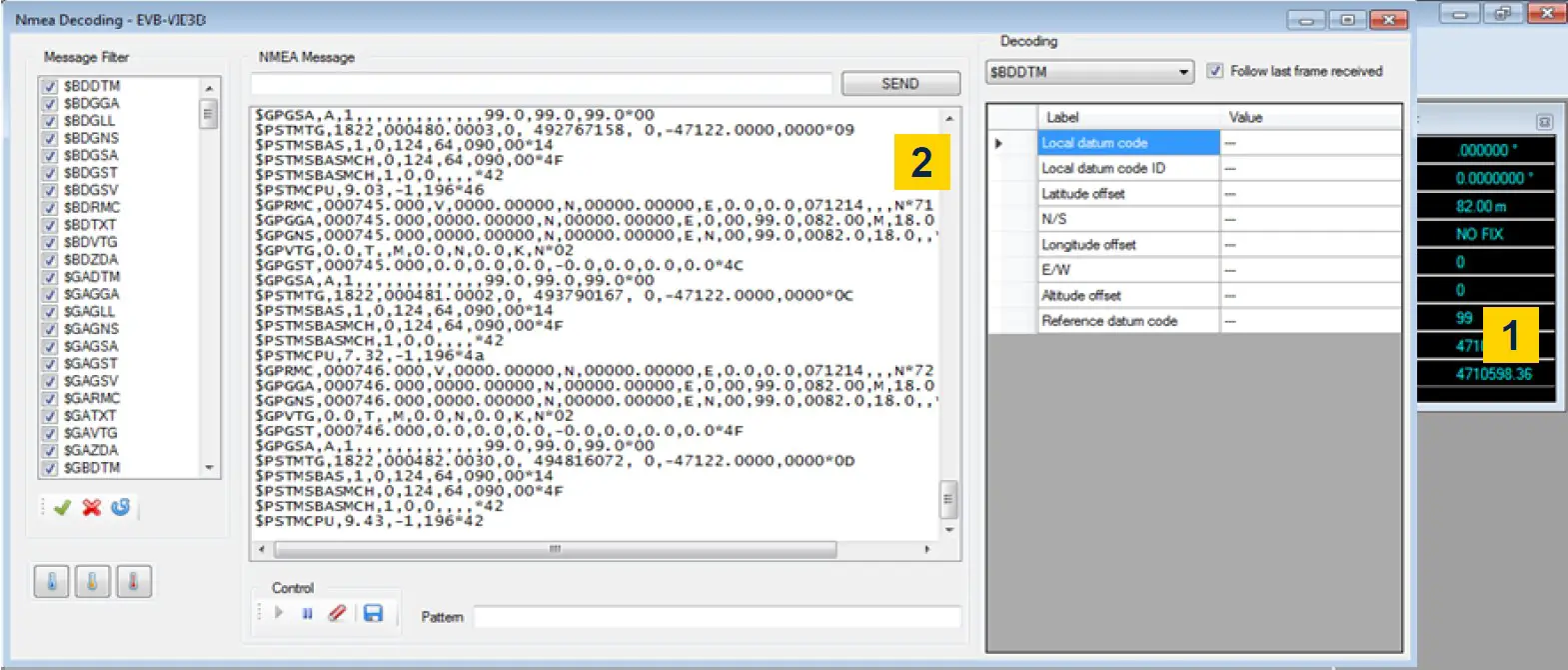
- The NMEA Decoding panel is shown
- The NMEA Stream can be seen and inspect
Teseo Suite – Extra Features
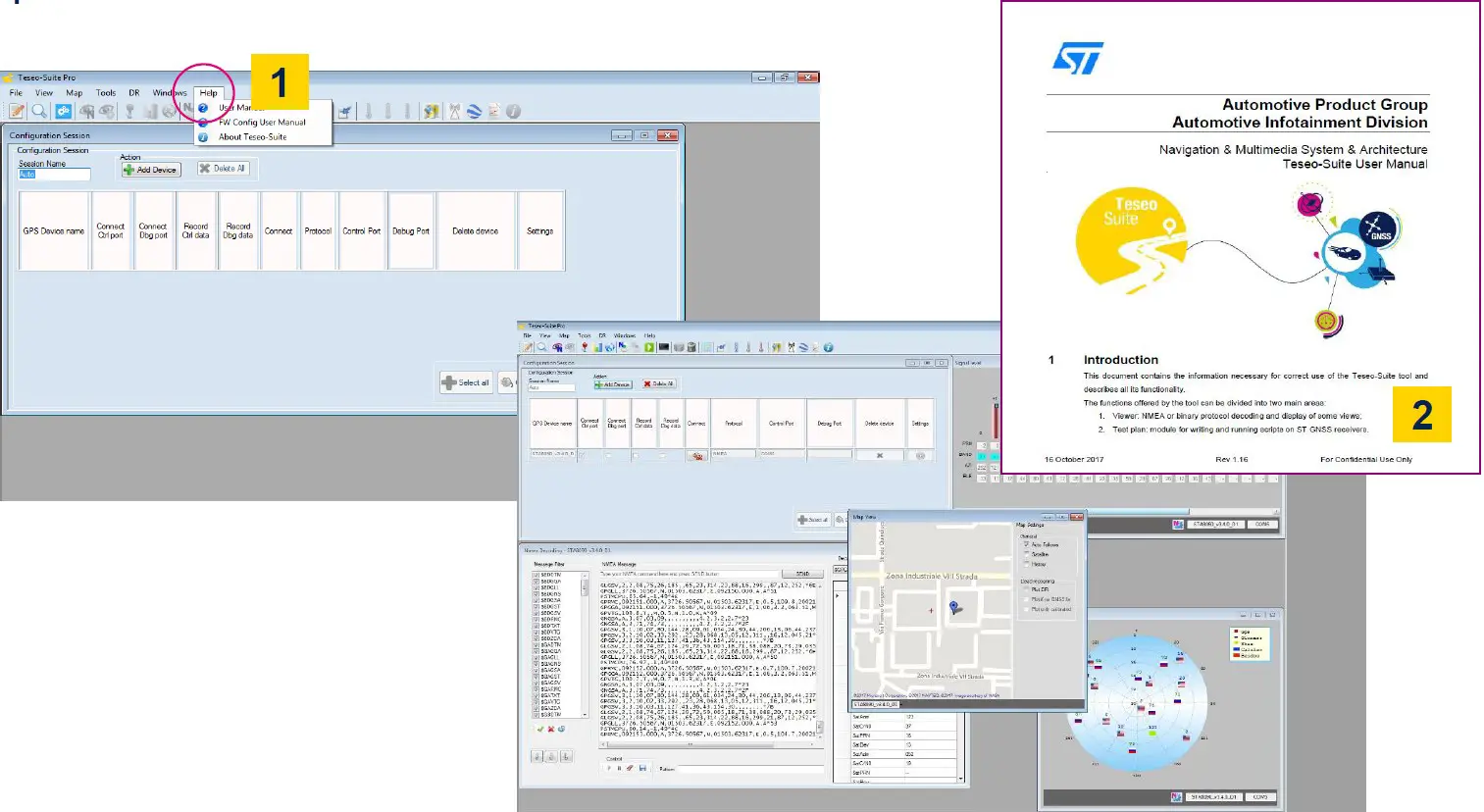
- Click Help menu to access User-Manual
- User-Manual reports all information needed
Enjoy with EVB-VIC3DA
Now you can enjoy the EVB-VIC3DA and explore all its features with the Teseo-Suite
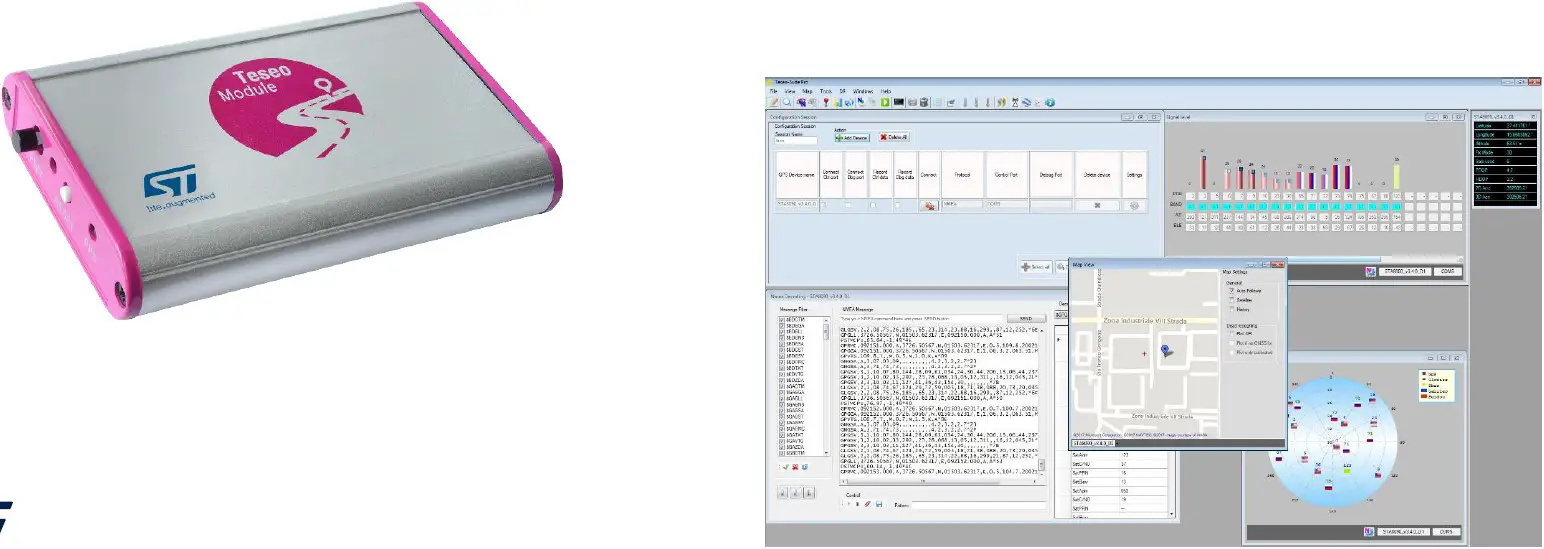
All documents are available on: www.st.com
- Teseo-VIC3DA:
- Data-sheet
- Hardware User Manual
- Software User Manual
- EVB-VIC3DA:
- Datasheet
- User Manual
- Quick Start Guide
- Teseo-Suite:
- Datasheet
- Install program