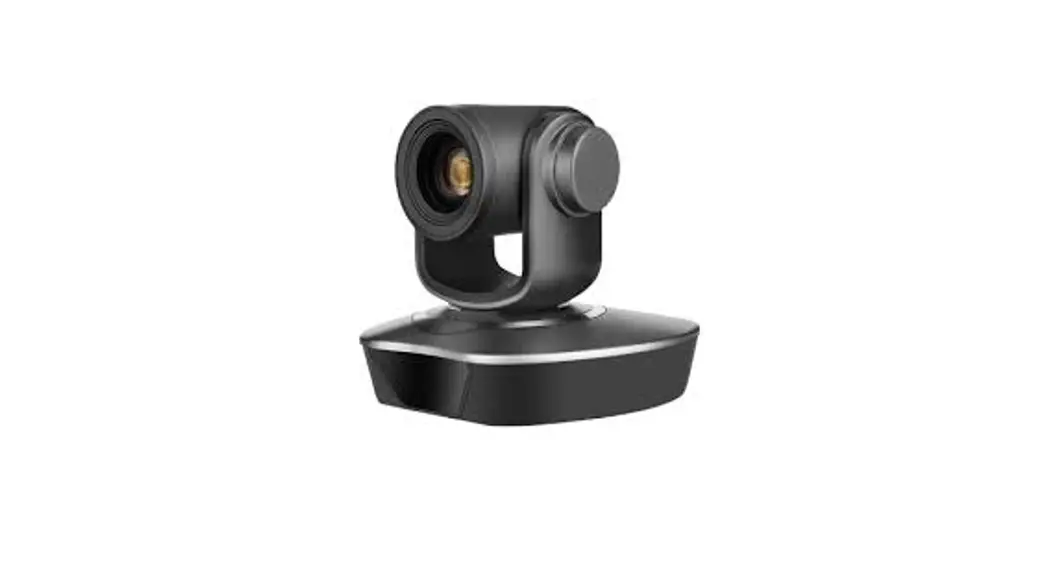

Conference Camera ( CP30 )
User Manual 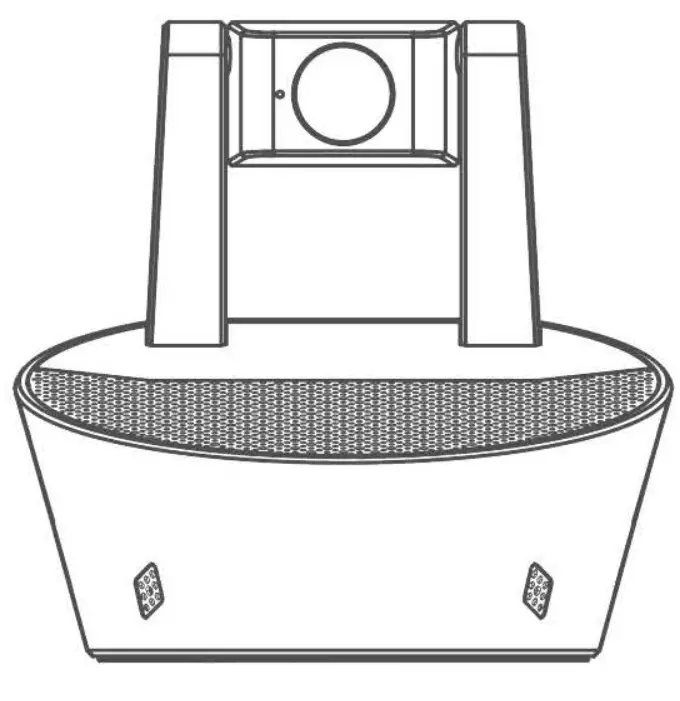
Package List
| • CP30 device*1 | • User manual *1 |
| • Power adapter ( 12V/1A ) *1 | • Bluetooth wireless dongle*1 |
| • 3.5mm Audio line in AUX cable*1 | • USB Type-C to Type-A adapte*1 |
| • USB Type-C cable*1 | |
Product Introduction
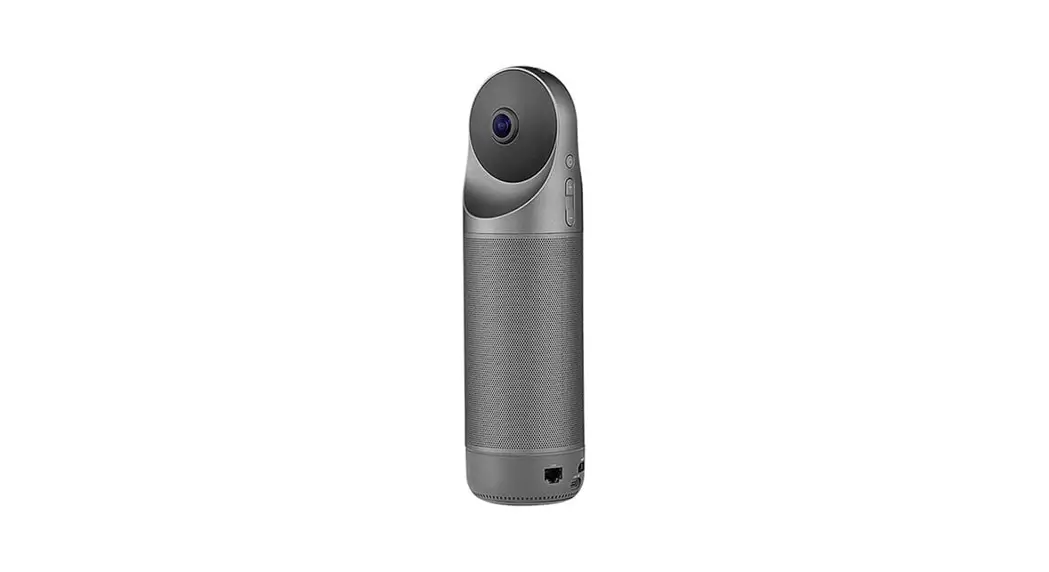
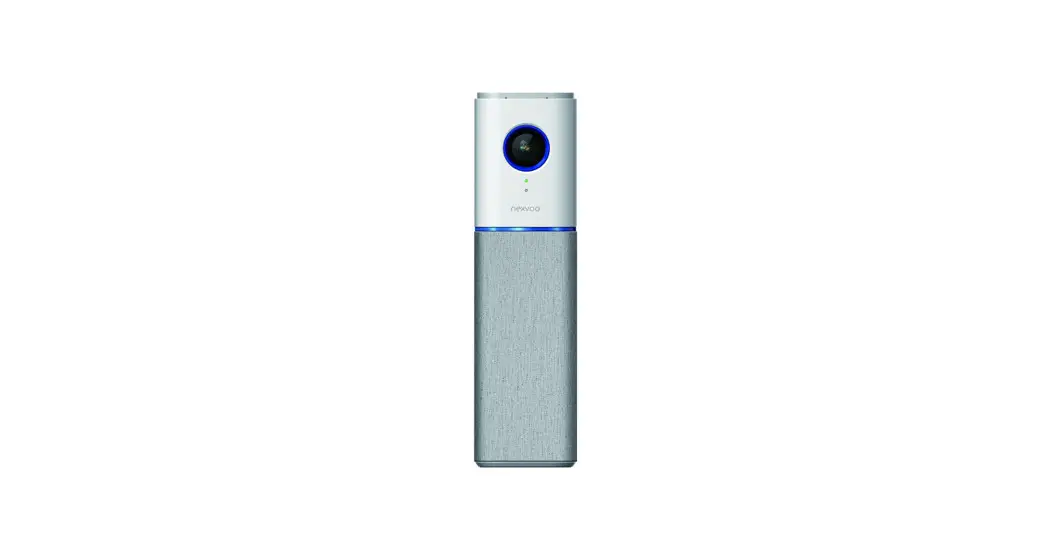
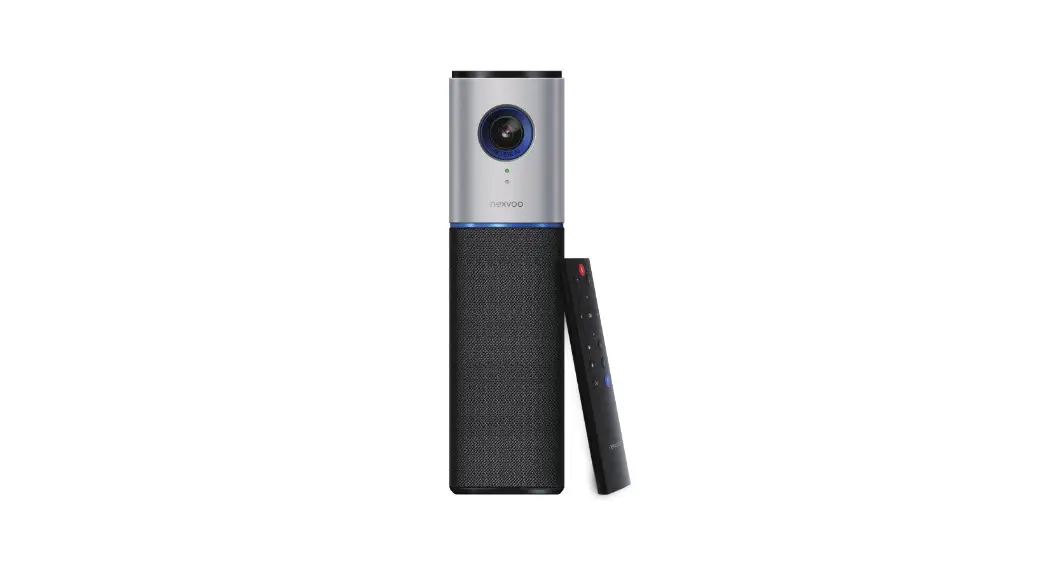
CP30 is a smart audio/video conference device with 4 pieces 360° full direction pickup microphones, highly-fidelity speakers, and an HD camera. It’s suitable for various small conference scenarios below 40m2, supporting connecting mobile phones, computers, tablets, and other office electronics, and compatible with various common operating systems, to meet your needs to start a meeting anytime and anywhere.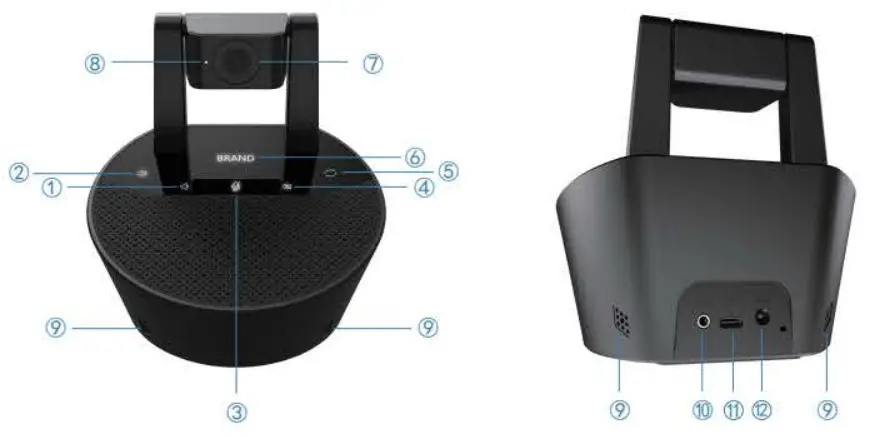
| 1. Volume down button | 7. HD Camera (1080P Or 4K) |
| 2. Volume up button | 8. HD Camera indicator |
| 3. Microphone mute button | 9. Omnidirectional Microphone (4mic) |
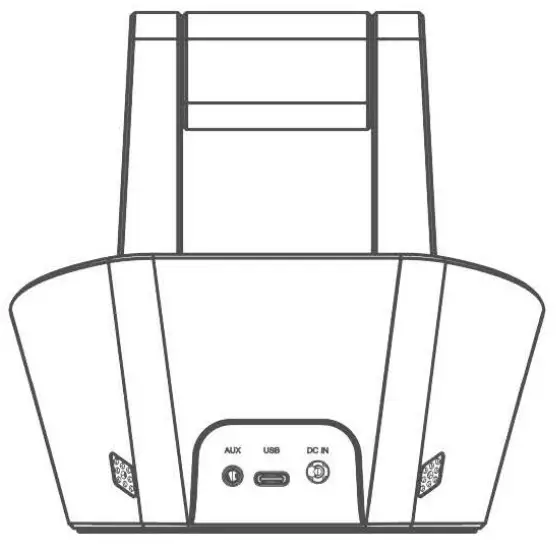
| 4. Camera control button | 10.3.5mm Line-in AUX cable |
| 5. Switch mode button | 11.USB Type-C cable |
| 6. BRAND LOGO | 12.DC IN adapter(12V/1A) |
Instructions for Usage
Connect the power adapter, turn on the device, the Logo light and function light will turn on automatically, with a prompt sound. CP30 can connect to PC, mobile phones, tablets, and other devices by Type-C cable, 3.5mm Line-in AUX cable, and Bluetooth connectivity. After the CP30 is successfully connected to the device, it will enter working mode.
04/connect with Device
1) Connect to device with USB Type-C cable
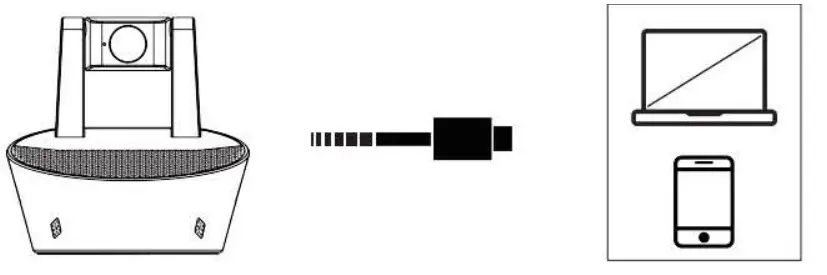
a. AudioNideo conference call
- Connect the power adapter ( included in the accessory package)
- Connect the USB Type-C cable ( included in the accessory package)
- Set up CP30 with default input and output audio device on your PC
- Open audio/video Meeting APPS (WeChat, Skype, Teams, etc.), the device enters into audio/video conference call.
b. Audio output peripherals - Connect the power adapter ( included in the accessory package)
- Connect the USB Type-C cable ( included in the accessory package)
- Set up CP30 with default input and output audio device on your PC
- Connect the USB Type-C cable ( included in the accessory package)
- CP30 can be used with audio output peripherals, you can enjoy music and movie with high-fidelity speakers.
2) Connect to device with 3.5mm Line-in AUX cable
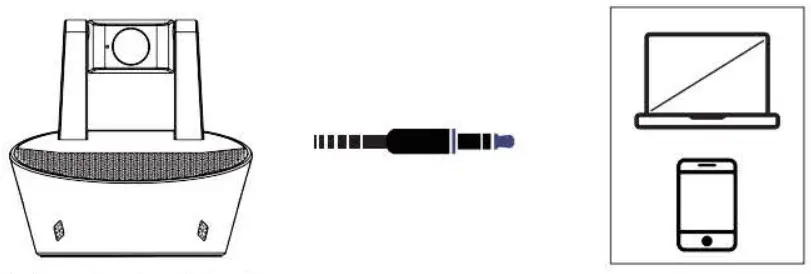
a. Audio output peripherals
- Connect the power adapter ( included in the accessory package)
- Connect the 3.5mm line-in AUX cable( included in the accessory package)
- CP30 can be used with audio output peripherals, you can enjoy music and movie with high-fidelity speakers.
3) Connect to device with Bluetooth
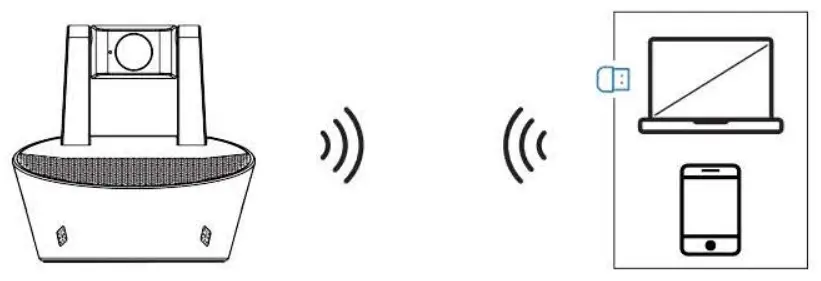
- Connect the power adapter ( included in the accessory package)
- Connect to your phone or PC with Bluetooth,if your PC is without Bluetooth function, you need to insert Bluetooth wireless dongle to support it.
- Open audio meeting APPs (WeChat, Skype, Teams, etc.), the device enters into the audio network conference call
- Also, you can use CP30 to start a telephone call meeting via Bluetooth.
| ICON | FUNCTION | OPERATION | ICON | FUNCTION | OPERATION |
 | Mute/unmute
| Touch the button |  | Music mode play/pause | Touch the button |
| Call mode answer/hang up | Touch the button | ||||
| Call mode reject | Touch and hold the button for 3 seconds | ||||
 | Volumn up | Touch the button | Bluetooth mode Disconnect Bluetooth | Touch and hold the button for 3 seconds | |
 | Volumn down | Touch the button |  | Camera ON/OFF | Touch the button |
Trouble Shooting
| Issue Description | The possible cause of the issue | Approach |
| Can not power on | Without the adapter | Reconnect the adapter |
| No voice | The cable does not connect correctly or the device is mute | Check the cable connected correctly and do not mute the device |
| USB Type-C can not work | The USB Type-C cable does not connect | Check the USB Type-C is connected correctly |
| Bluetooth can not work | Confirm your device Bluetooth function is successful | Check your device Bluetooth function and re-pair the Bluetooth |
FCC Statement
This equipment has been tested and found to comply with the limits for a Class B digital device, pursuant to part 15 of the FCC Rules. These limits are designed to provide reasonable protection against harmful interference in a residential installation. This equipment generates, uses, and can radiate radio frequency energy and, if not installed and used in accordance with the instructions, may cause harmful interference to radio communications. However, there is no guarantee that interference will not occur in a particular installation. If this equipment does cause harmful interference to radio or television reception, which can be determined by turning the equipment off and on, the user is encouraged to try to correct the interference by one or more of the following measures:
- Reorient or relocate the receiving antenna.
- Increase the separation between the equipment and receiver.
- Connect the equipment into an outlet on a circuit different from that to which the receiver is connected.
- Consult the dealer or an experienced radio/TV technician for help. Caution: Any changes or modifications to this device not explicitly approved by the manufacturer could void your authority to operate this equipment. This device complies with part 15 of the FCC Rules. Operation is subject to the following two conditions: (1) This device may not cause harmful interference, and (2) this device must accept any interference received, including interference that may cause undesired operation.
RF Exposure Information
This equipment complies with FCC radiation exposure limits set forth for an uncontrolled environment. This equipment should be installed and operated with a minimum distance of 20cm between the radiator and your body.


Made In China
Back