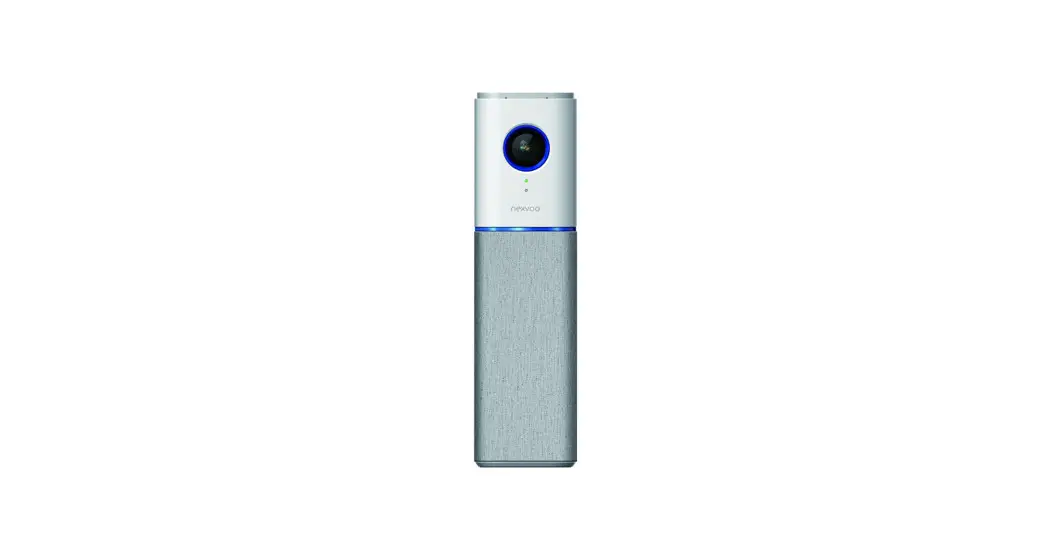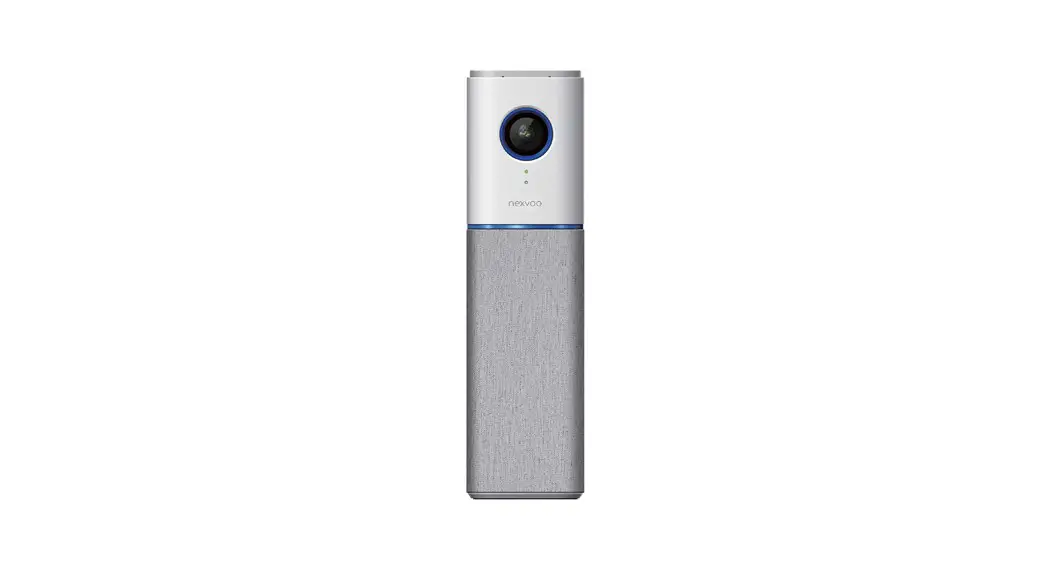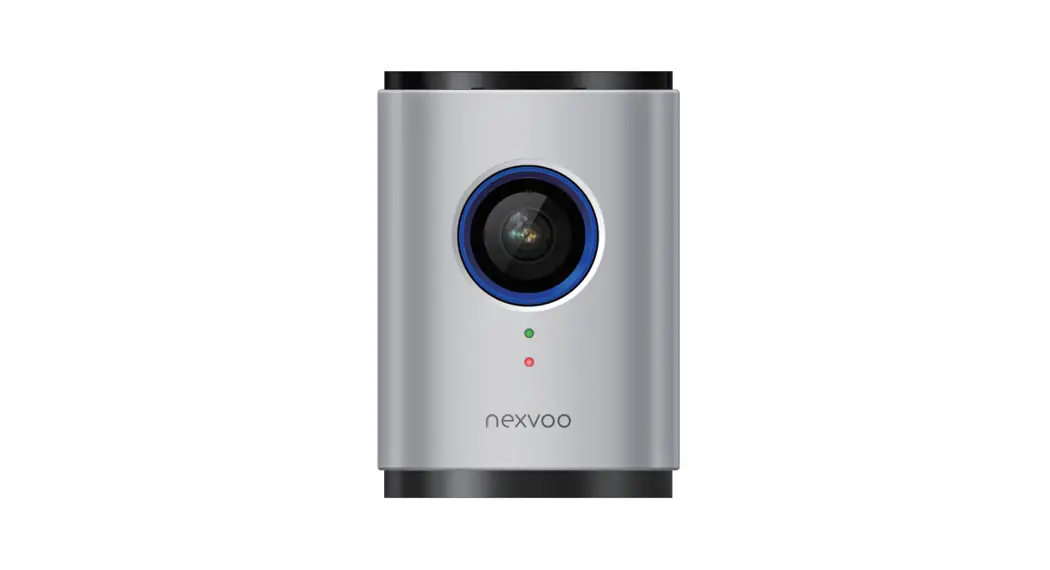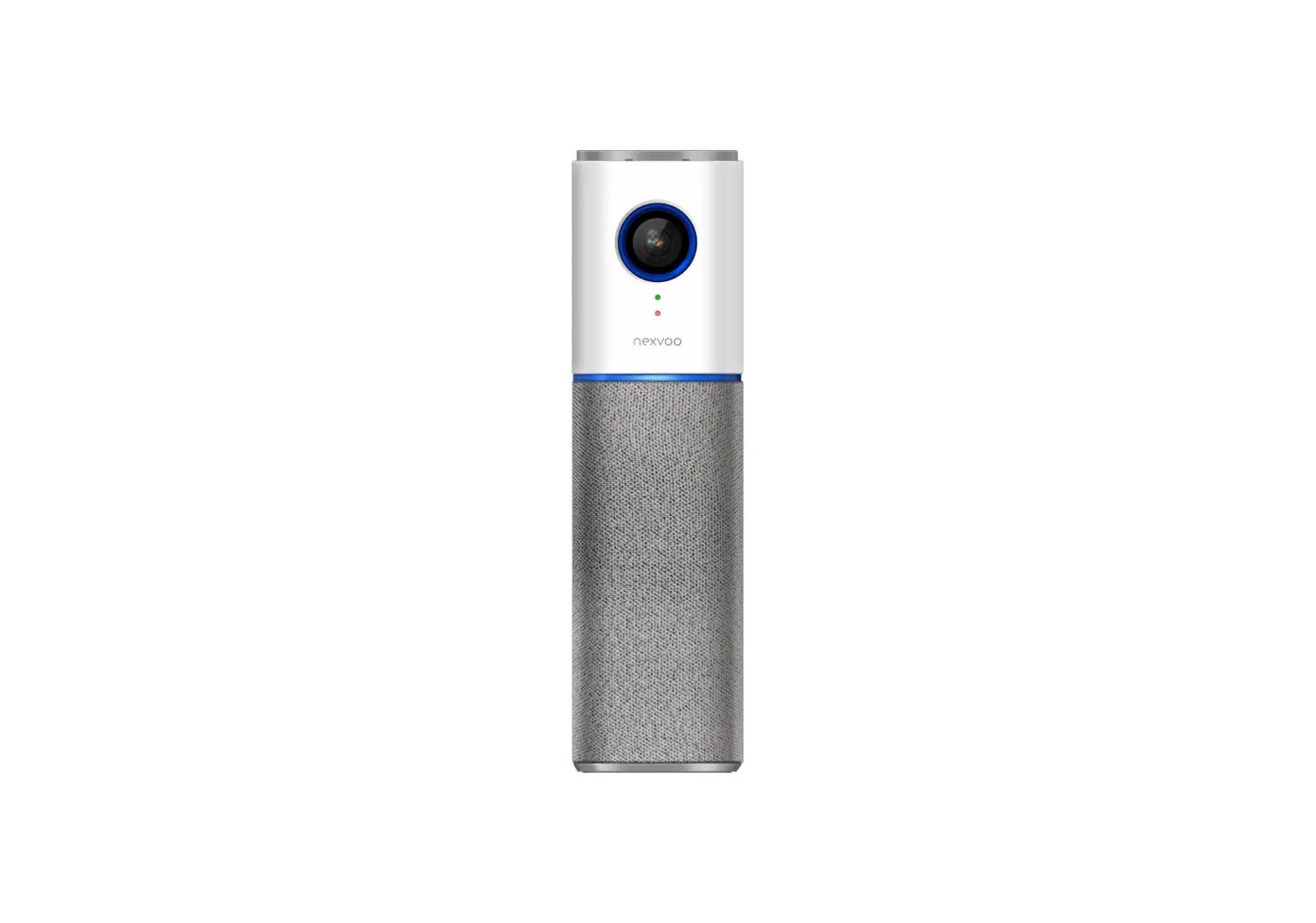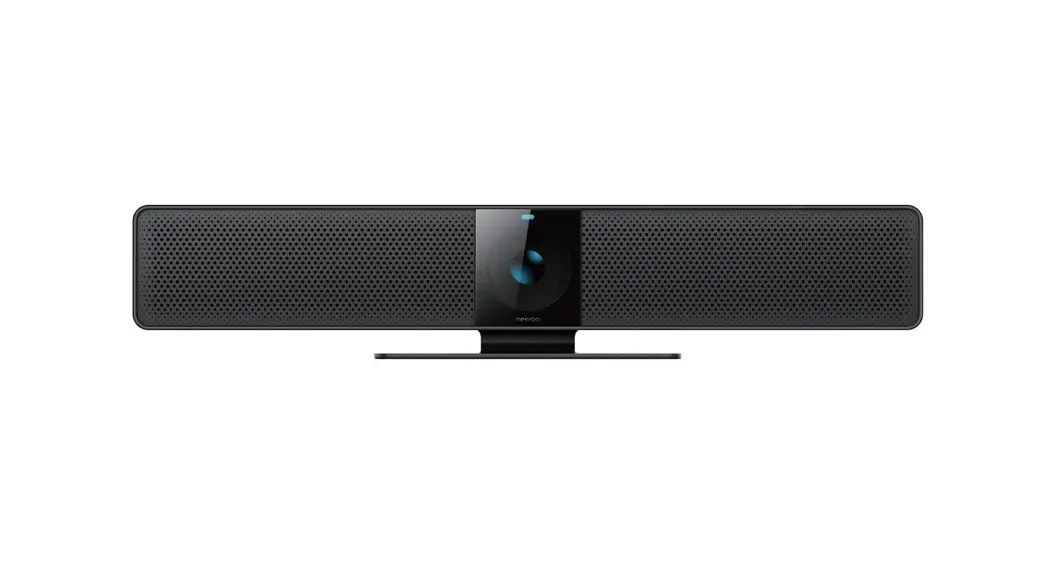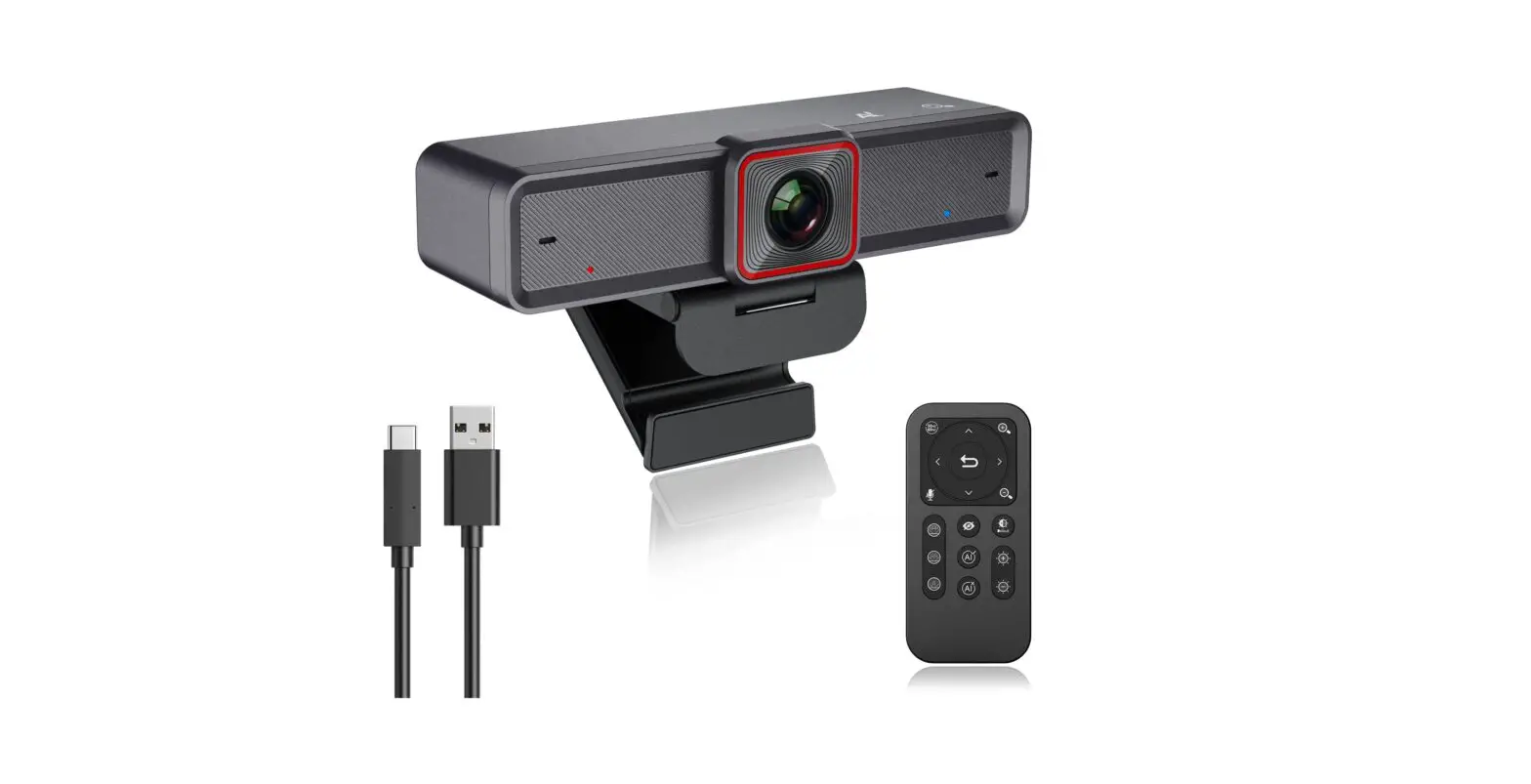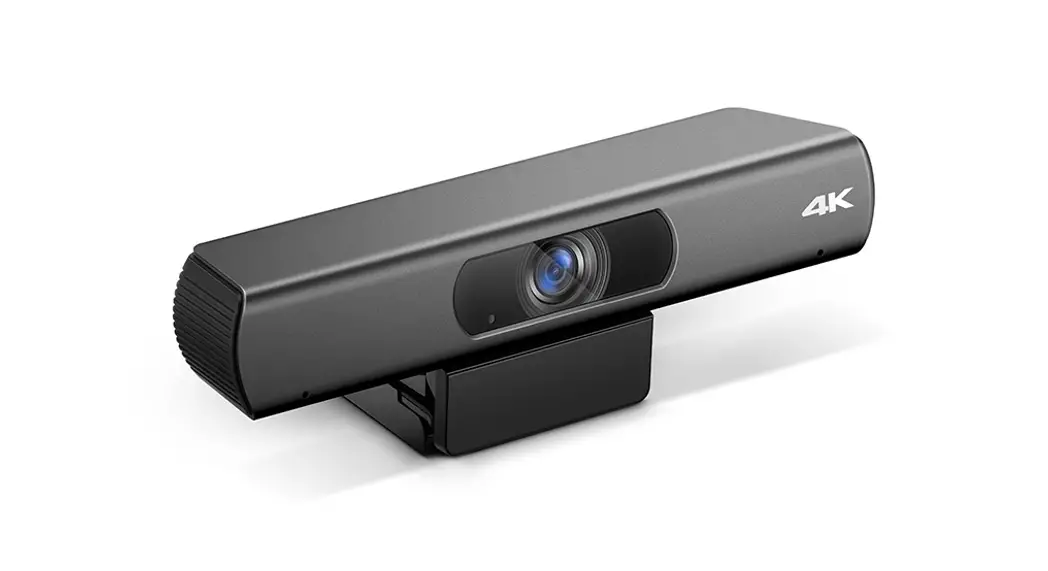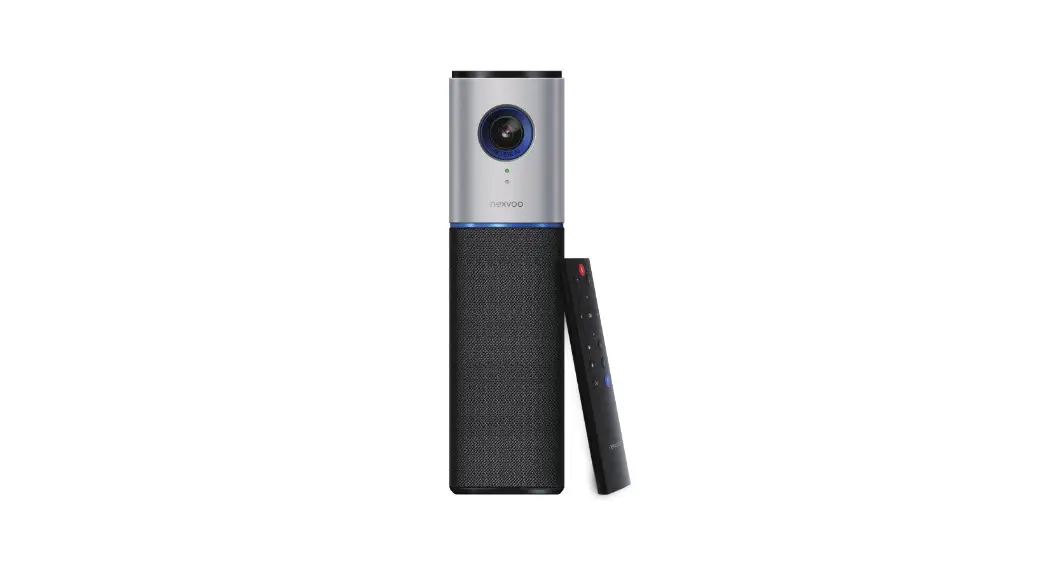
 N149 4K AI USB Conference Camera
User Manual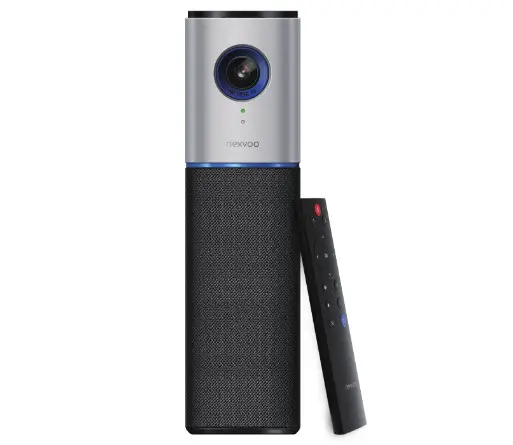 User Manual
(Model: N149)
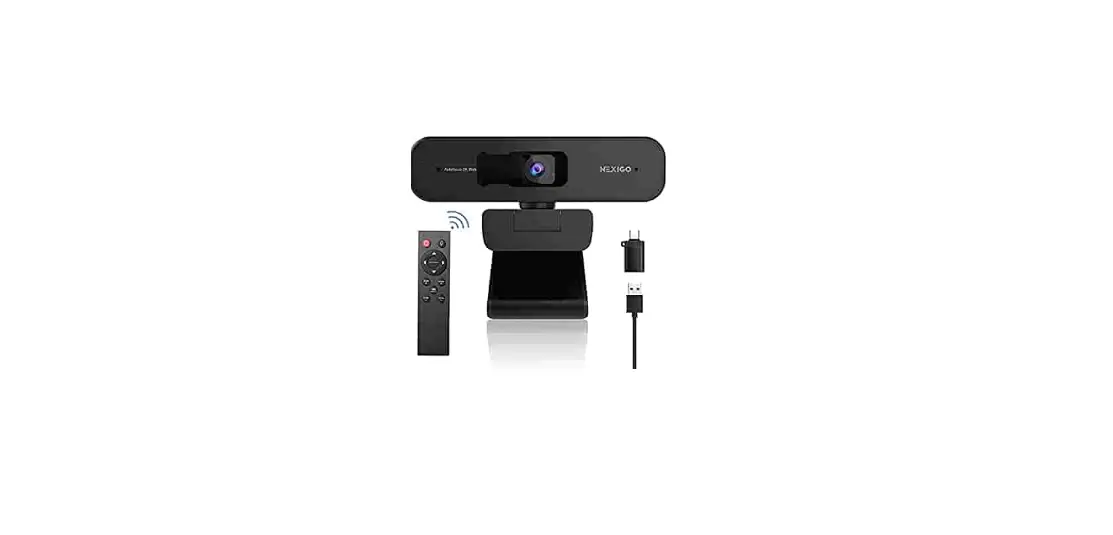
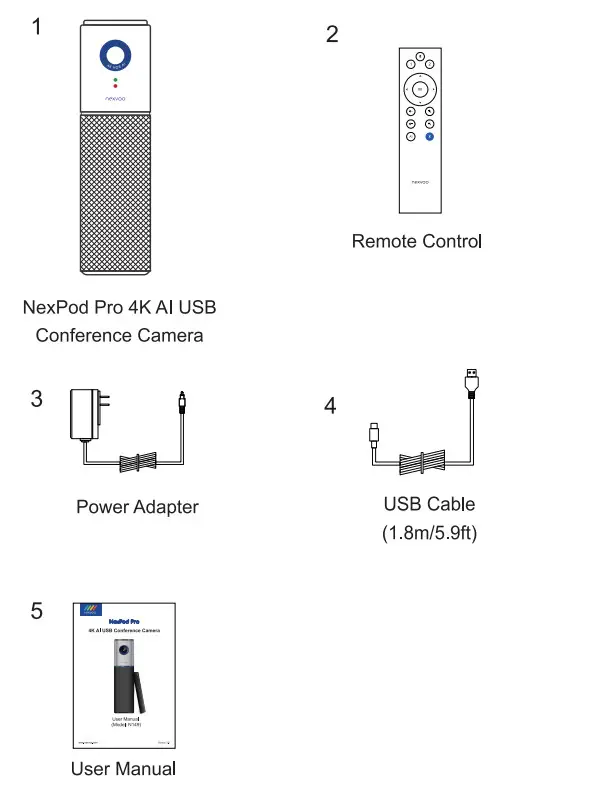
Package Contents
Features
- 120° field of view 4K Camera to capture all meeting participants crystal clear.
- 4K 30fps Ultra HD video call.
- 2-Element beamforming microphone arrays, your voice can be heard clearly every time.
- Uninterrupted full-duplex two-way communication, Al noise-suppression, echo-cancellation, competent under various acoustic environments.
- Al auto framing and Al speaker tracking.
- Quickly and easily create a connection between any Bluetooth device and the integrated speakerphone.
- Adjustable camera vertical angle.
- Sleek, easy to carry, USB plug-and-play connectivity.
- Works with most video conference applications.
Know your product
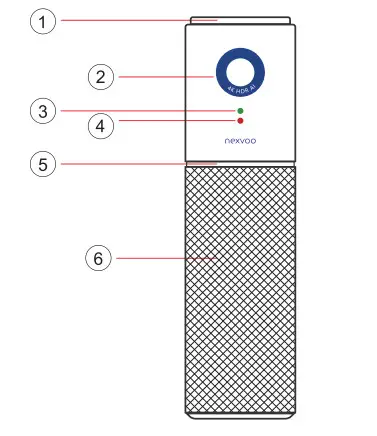
| 1. Microphones | 4. Battery LED |
| 2. HDR Camera, 4K and 120° FOV | 5. Status indicator |
| 3. Camera LED | 6. Speaker |
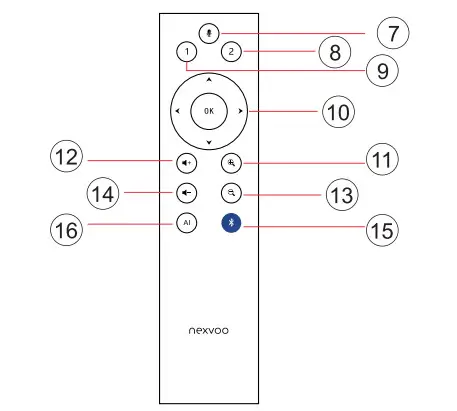
| 7. Mute | 12. Volume up |
| 8. Camera Preset 2 | 13. Zoom out |
| 9. Camera Preset 1 | 14. Volume down |
| 10. Pan and Tilt | 15. Bluetooth |
| 11. Zoom In | 16. Al Switch |
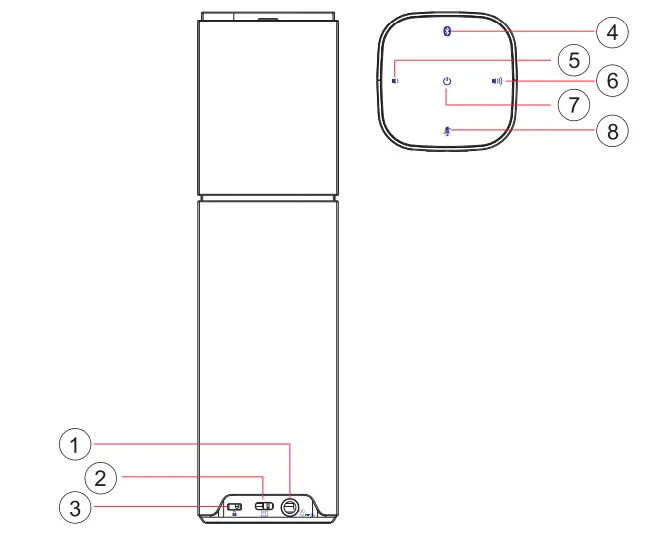
| 1. Power | S. Volume down button |
| 2. USB Connector | 6. Volume up button |
| 3. Kensington Lock | 7. Power On/Off button |
| 4. Bluetooth Mode button | 8. Microphone Mute button |
Installation
Place on the table. 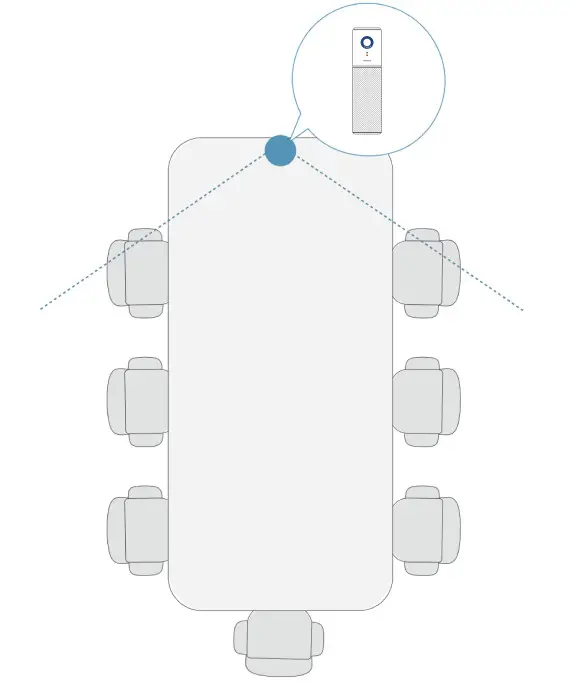
Setup your product
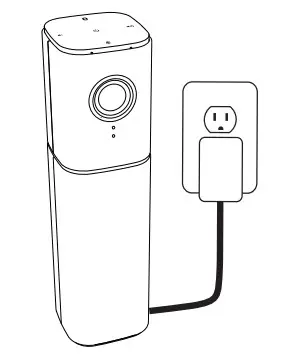
Connect NexPod Pro to external power.
Although NexPod Pro comes with a rechargeable battery, it must first be plugged into external power and charged till the battery LED turns off.
Note: The device can also be charged through USB on your PC or Mac (charging time may vary).
Touch and hold the power On/Off button to turn on the device.
A sound will play and the device LEDs will light on . 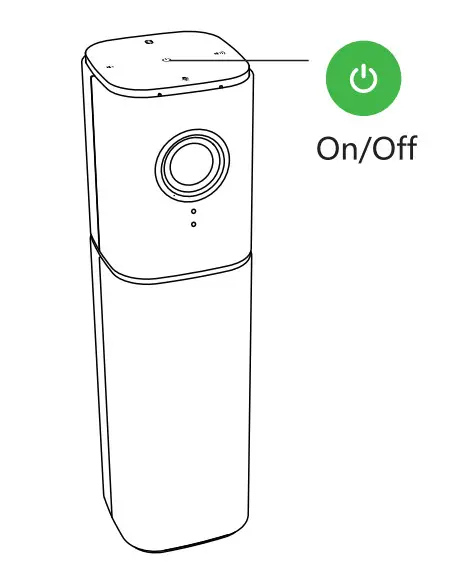
Select the following modes and follow the instructions to get started.
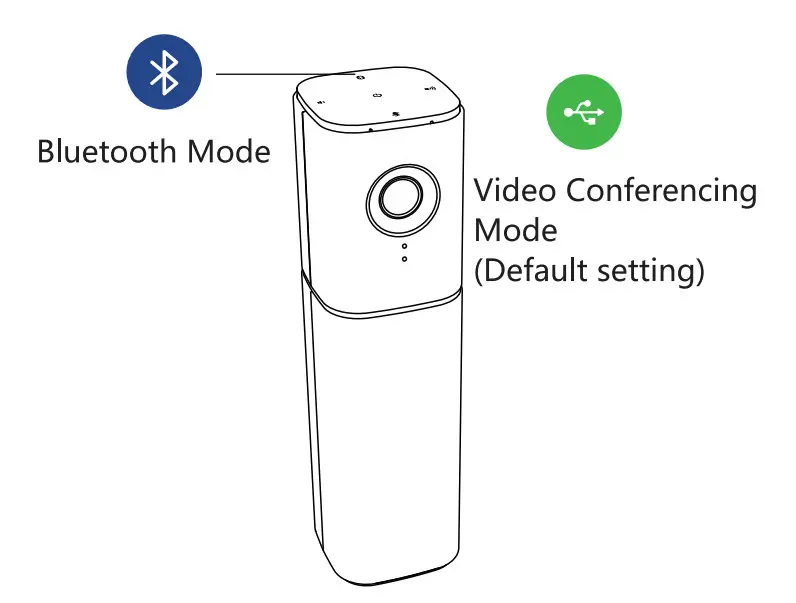
Video Conferencing Mode:
- Connect the USB cable to the device and to your USB port.
- To start video conference from your PC or Mac application, NexPod Pro is selected as
- Video Conference Mode by default. The camera LED and the status indicator will light to show that a connection is taking place.
- If these activities do not take place, try again and then consult Troubleshooting.
- Ensure that NexPod Pro is selected as the default video and audio device in your OS settings and in your conferencing application. Start your video or audio call from your application.
Bluetooth Mode:
- To connect NexPod Pro to your mobile device:
- Select Bluetooth mode on the NexPod Pro.
- The NexPod Pro Bluetooth is set to pairing mode, and the status indicator shows blue breathing status.
- If you can’t find the Bluetooth of the NexPod Pro, you can touch the Bluetooth mode button to make Bluetooth in pairing mode.
- On your mobile device, go to settings and turn on Bluetooth to connect. NexPod Pro will also light blue color LED to acknowledge the connection.
Use your product
Video
- Starting the video: The video is controlled by the application and will start once the camera is selected and the video is started in the application. The camera LED will turn on when the video is streaming.
- Pan, tilt, and zoom the camera using the controls on the remote control. Press once for incremental or press and hold for continuous pan or tilt. You can also pan and tilt the camera image – first zoom in, and then pan the image or tilt the image. You may also manually tilt the camera itself.
- Saving pan, tilt, and zoom settings: It can be saved by long pressing the Camera presets 1 and 2 of the remote control. After saving successfully, the status indicator will blink blue for 1 second.
Audio
- Volume: Volume Up and Down adjusts the volume.
- Mute: Mute microphone with Mute button.
Connection with Bluetooth remote control:
- NexPod Pro will automatically search the remote control’s Bluetooth after power-on. If the remote control is found, NexPod Pro can pair and connect automatically with the remote control.
- If the remote control is not found within 3 minutes, the search will be stopped.
- Please short-press the Bluetooth button of the device to restart the search.
- If the remote control is lost or cannot be found, how to pair a new remote control, can do the following:
- Touch the Bluetooth mode button and microphone mute button for 3 seconds to delete the paired Bluetooth remote control, NexPod Pro will automatically search and connect to the
new remote control.
Note: The control distance of the remote control is about 1 0meter(32.8ft).
Advanced Al Technologies
Advanced Al technologies include Auto Framing and Speaker Tracking functions.
The Auto Framing is based on participants’ face detection, realizing real-time detection and position tracking of everyone in the meeting, and can automatically adjust the camera according to the number of participants and changes in position, so that the screen covers all participants and their position. Besides, based on the Auto Framing function, the device adds a speaker tracking function In a meeting the camera lens can be individually focused on the speaker giving the speaker the best close-up shot of a single person.
You can turn it off or turn on by Al switch button through the Remote Control.
 | Touch the button and hold for 3 seconds to power on or off |
 | Touch the button to increase speaker volume |
 | Touch the button to decrease speaker volume |
 | Touch the button to mute or unmute the microphones |
 | Touch the button and hold for 3 seconds to turn Bluetooth mode on or off |
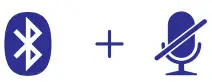 | Touch the buttons and hold for 3 seconds to clear the paired remote control, the device can be paired with a new remote control |
Light Indicator
Camera LED
 | Camera on |
 | Camera off |
Battery LED
 | The battery is over 75% capacity when the charging cable is not connected |
| The battery is being charged |
 | The battery has less than 20% capacity |
 | Fully charged while the charging cable is connected |
| The blue LED turns off when the battery the level is below 75% |
Status Indicator
 | The device is turned on |
 | The device is in video conferencing mode |
| The device is in Bluetooth Mode and device’s Bluetooth is successfully connected | |
 | NexPod Pro successfully connected with the remote control |
| Saved Camera preset successfully | |
 | The device is in Bluetooth Mode |
| Bluetooth is in pairing mode | |
 | The microphones are on mute |
The actual color of the LED indicator may be slightly different and shall prevail.
Web Management
You can configure the Nexvoo NexPod Pro USB video device on the Web management.
You can configure the following settings on the Web management.
- View device information
- Bluetooth mode
- Remote control configuration
- Camera Tracking
- System update & reset
- Change password
- Restore default settings
Note: Web management only supports Windows systems.
Network configuration
- After NexPod Pro is connected to the power supply, it will automatically turn on, then long press the Bluetooth key and volume + key of the device for 3 seconds, and the ring blue LED flashes and plays a sound, the device turns on the AP mode, The SSID of the device’s WIFI is: NexPod.
Note: If WIFI is not connected within 5 minutes, NexPod Pro will turn off AP mode. - Search for “NexPod” and connect via WIFI on your computer.
Login Web management
- Start the browser, and enter http://192.168.1.1 to open the login interface of the NexPod Pro Web management platform.
- Enter the username and password, and click “Sign in” to log in to the web management platform. (Default username: Admin, Password: 123456)
Note: Some browsers may not be fully compatible. It is recommended to use Chrome/Firefox/Microsoft Edge browser etc.
View device information
You can view the basic information for your NexPod Pro USB device through the Web
Management platform.
Procedure
- Login to the web management platform through a browser.
- In the Dashboard section, view the basic information for your NexPod Pro USB device.
Bluetooth Mode
You can set the Bluetooth mode and clear the paired remote control in the Bluetooth Settings menu through the web management platform.
Procedure
- Login to the web management platform through a browser.
- Go to General Settings – Bluetooth Settings.
- The following Bluetooth functions of the NexPod Pro USB device can be used:
| Features | Description |
| Bluetooth Mode | The default is off, After the Bluetooth mode is turned on, you can connect NexPod Pro via Bluetooth to your mobile phone or PC, and use NexPod Pro to make audio calls or play music. |
| Clear Remote Control | Click the “Clear Remote Control” button to clear the paired remote control, then you can pair and connect a new remote control. |
Camera tracking
You can set the AI technology of the device in the Camera Tracking menu through the web management platform.
Procedure
- Login to the web management platform through a browser.
- Go to General Settings – Camera Tracking.
- Control the NexPod Pro USB device through the following functions:
| Features | Description |
| AI Technology | The default is on. After the AI technology is turned on, the device will enable Auto Framing and Speaker Tracking functions. |
| Tracking Speed | The tracking speed setting refers to how long the speaker continues to speak, the screen will automatically track the speaker and focus on the speaker. You can set Fast / Normal / Slow, the default is Fast. |
| Return to the Panorama Screen regularly during Tracking | The default is on. After this function is turned on, the system will return to the panoramic screen regularly according to the time set in the “Return Time” item. If it is turned off, the screen will not be returned to the panoramic screen regularly during tracking, it will continue to focus on the speaker until it is no longer peaking. |
| Return Time | Return time refers to when the screen is tracked and focused on the speaker, how long the speaker has not spoken or keeps speaking will automatically return to the panoramic screen. you can set 15s / 30s / 45s / 60s, the default is 30 seconds. |
Update the NexPod Pro USB Device
You can update the firmware of the NexPod Pro USB device through Web Management platform.
Procedure
- Login to the web management platform through a browser.
- Go to System Settings – System Update.
Click or drag the firmware file with the format of .img to the firmware import area, then click the “Update” button to start the system update.
Note: Make sure your computer doesn’t enter sleep mode during the system update. Otherwise, the update may fail.
Change Your Password
Nauvoo recommends that you change your device’s password from the default for security reasons
Procedure
- Login to the web management platform through a browser.
- Go to System Settings – Change Password.
- Enter your Current Password.
- Enter a new password in New Password and Confirm Password fields.
- Click Save.
Restore Default Settings
You can erase all configurations and restore the NexPod Pro USB video device default setting through the Web Management platform.
The default settings to be cleared include but are not limited to:
- Password
- Remote control presets
- Bluetooth settings
- Camera Tracking
- Audio settings
Procedure
- Open the login interface of the Web management platform.
- Click Restore Default Settings.
- Enter the correct SN number of the device.
- Click OK to restore default settings.
Notes & Warnings
Please read and follow all the safety instructions carefully.
- Use the included USB cable to connect the device, the use of an unapproved third-party USB cable may damage your device.
- Unauthorized dismantlement and strong impact may damage the device.
- Keep the device away from high-temperature environments, heat sources, and strong magnetic, or electric fields.
- Do not immerse the device in water or any other liquid. Store the whole device in dry and cool places.
- Constant high-volume sounds have a negative impact on human hearing.
- Dispose of the packing materials, the whole device, the battery, and other electronic components properly.
- Do not dismantle, crush, or pitch the battery into fire.
- The package and this device contain small components that can be dangerous to children, Please keep the device out of children’s reach.
- The device can be an interference source for other electronic devices and medical equipment.
Troubleshooting tips
Please visit www.nexvoo.com for troubleshooting tips, information on software tools, and for a diagnostic tool to help troubleshoot any issues you may have with your NexPod Pro.
Dimensions
- 275.5 x 76 x 76mm (H x W x D)
10.9 x 3.0 x 3.0inches (H x W x D)
Weight
- 581g
1.28Ibs/20.Sources
Camera Specs
- f/1.8 Aperture
- 4K Video Output
- 120° FOX
- 4X digital zoom/ EPTZ
- 3F HDR> 120d8
- Auto Framing and Speaker tracking
- Automatic White Balance
- Automatic Exposure
- Fixed focus
Video Specs
- UHD 4K@30fps
- FHD 1080p@30fps
- HD 720p@30fps
Speaker Specs
- Peak Power: SW
- Speaker Frequency Response: 100Hz-16KHz
- Speaker Volume: [email protected]
Audio Specs
- 2-element Beamforming Microphone Array
- Frequency Response: 20Hz-15KHz
General Specs
- Rechargeable Battery supports up to
3 hours video conferencing,
8 hours for Bluetooth audio.
Battery charging time (from AC power, device idle): 3 hours. - Battery rechargeable through AC Power or USB port.
- 6-feet detachable USB cable for PC or Mac-based video conferencing
- Works with most video conferencing applications
- Kensington Security Slot
System Requirements
- Windows 7, Windows 8 or Windows 10
- Mac® OS x® 10.15 or higher
- Chrome OS”
- Android™ 6.0 or higher
Connector
- USB Type-C (USB2.0)
Power Input
- 5V=2A
*The specifications above are subject to changes without notice.
 Asia office:
No.56-58, North 5F, Huoju Plaza, Huoju Road, Huli district
Xiamen city, Fujian province
China
[email protected]
USA office:
9325 Uptown Drive, Suite 900
IN 46256 Indianapolis
USA
[email protected]
EMEA office:
Poort van Midden Gelderland Rood 22
6666 LT Heteren
The Netherlands
[email protected]