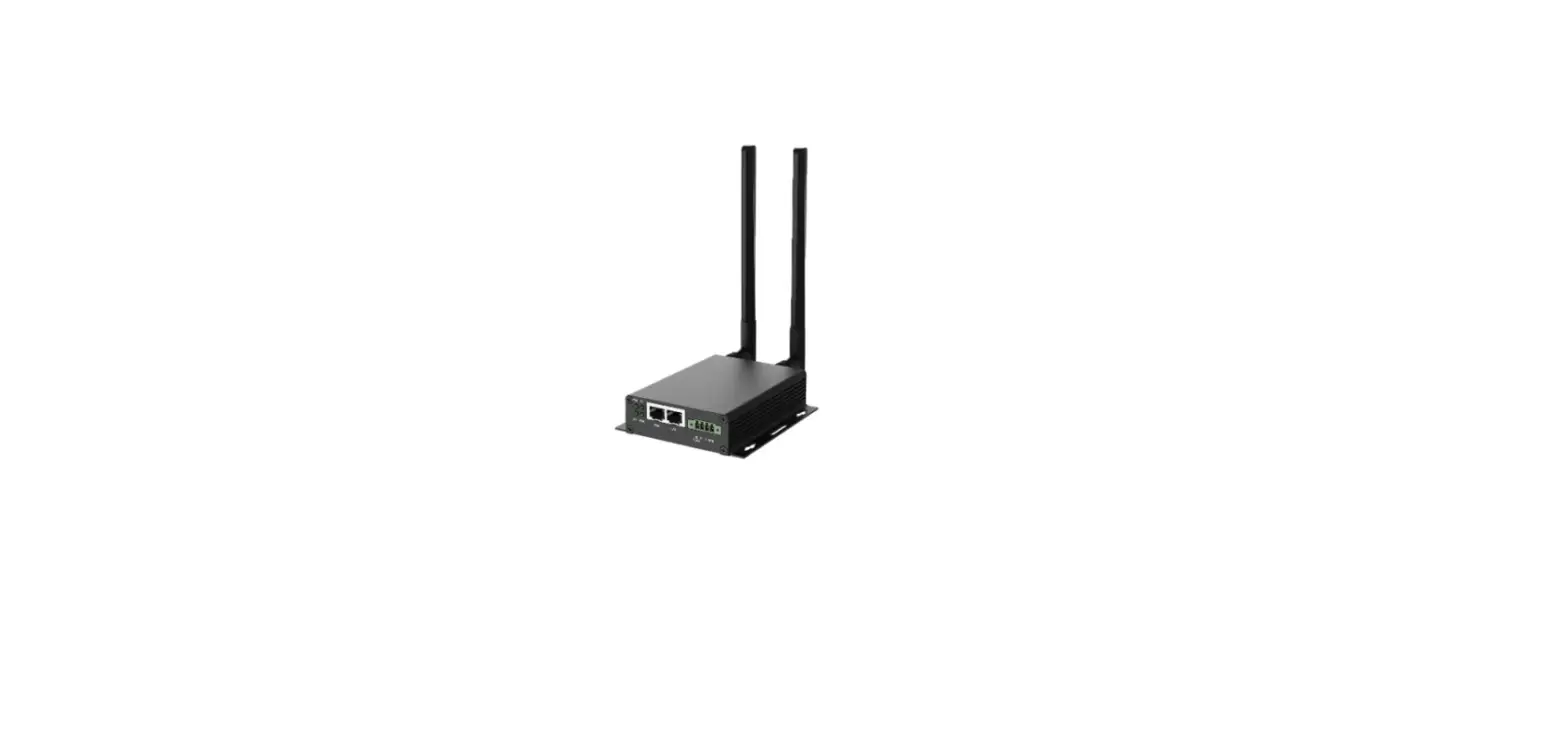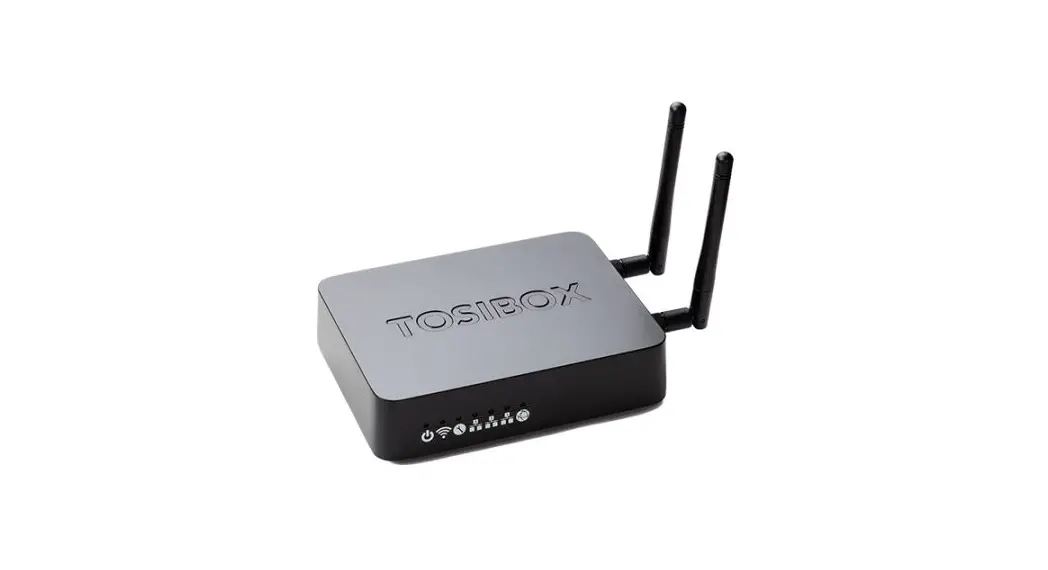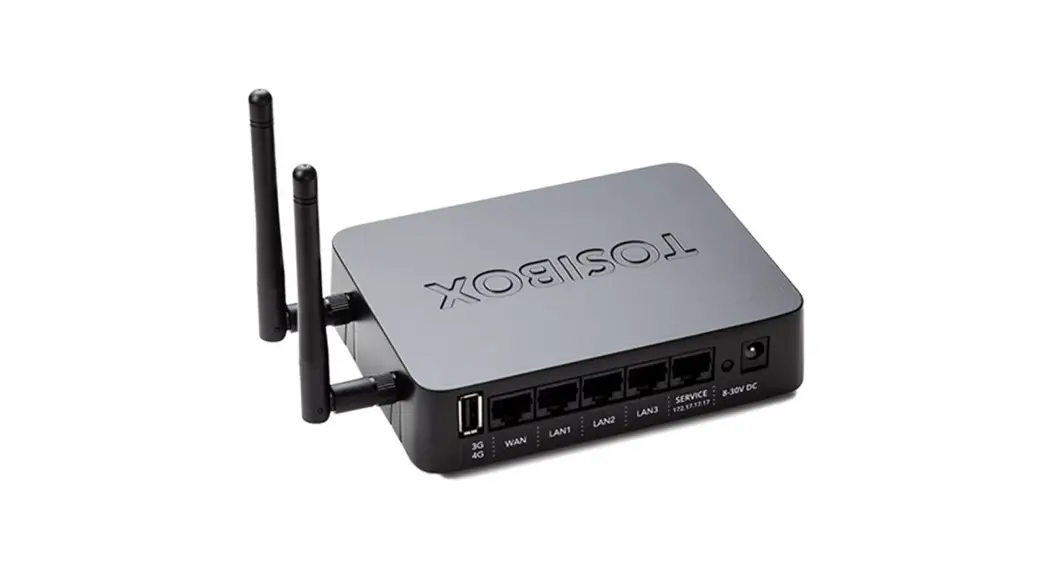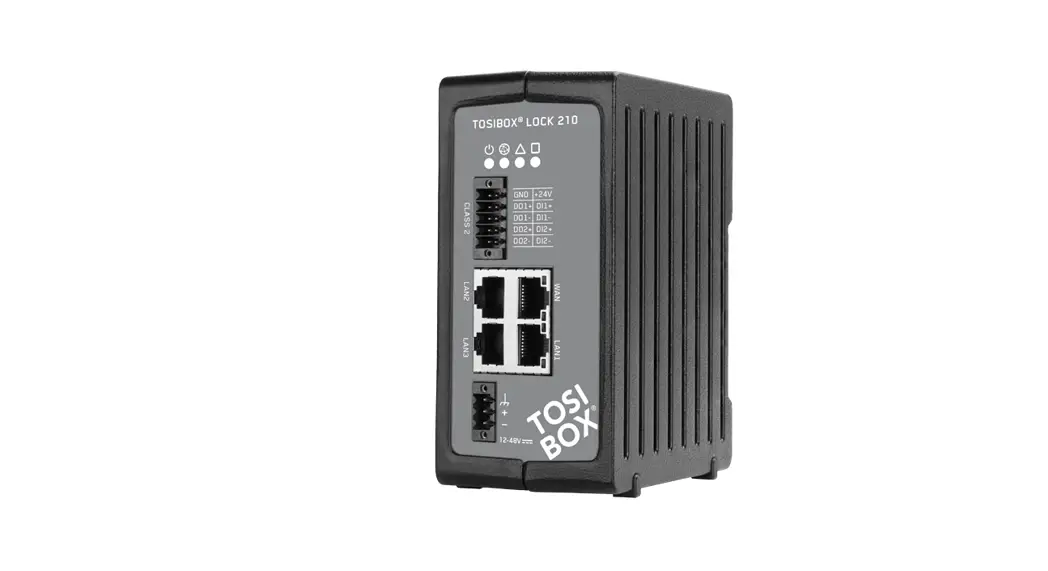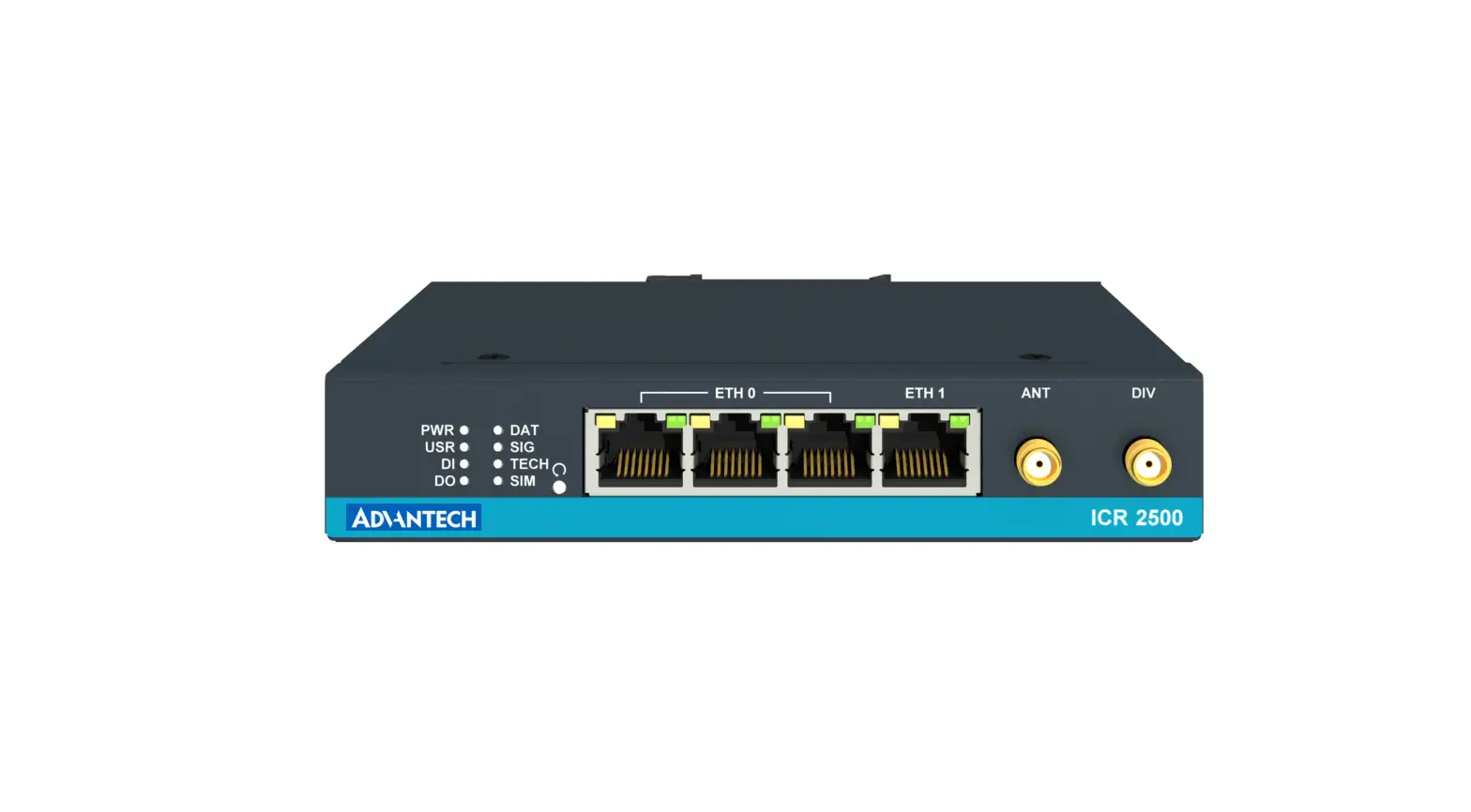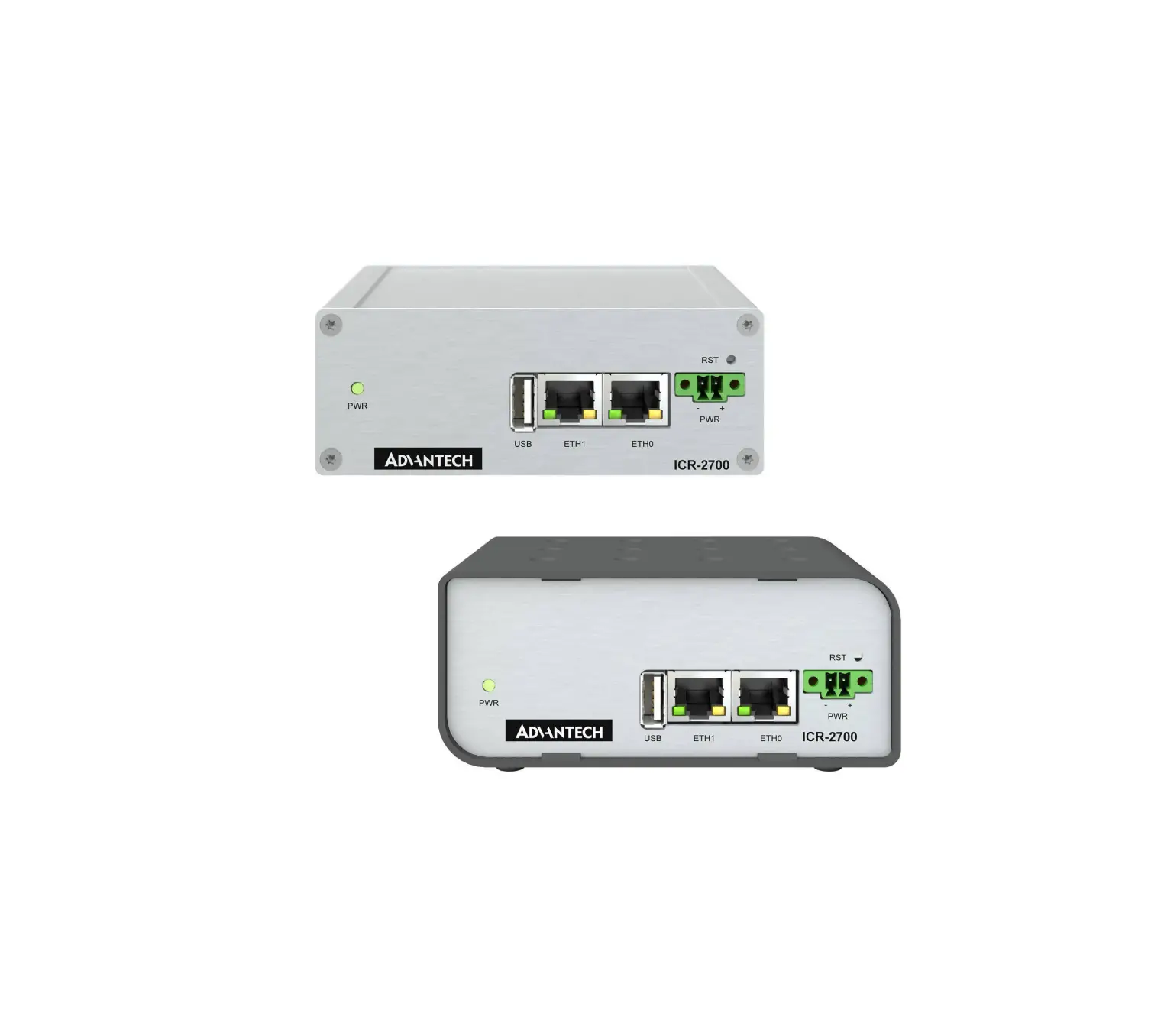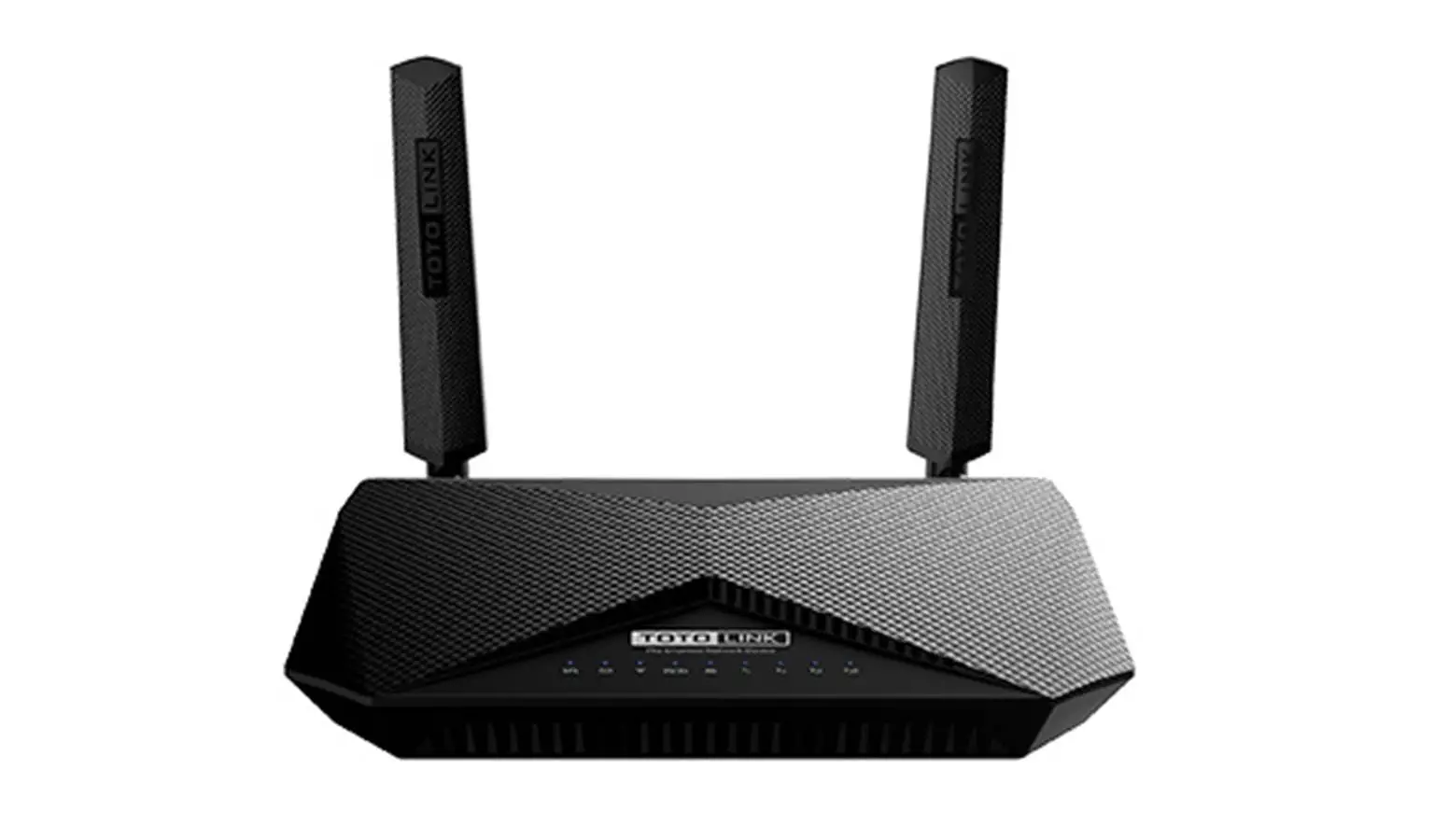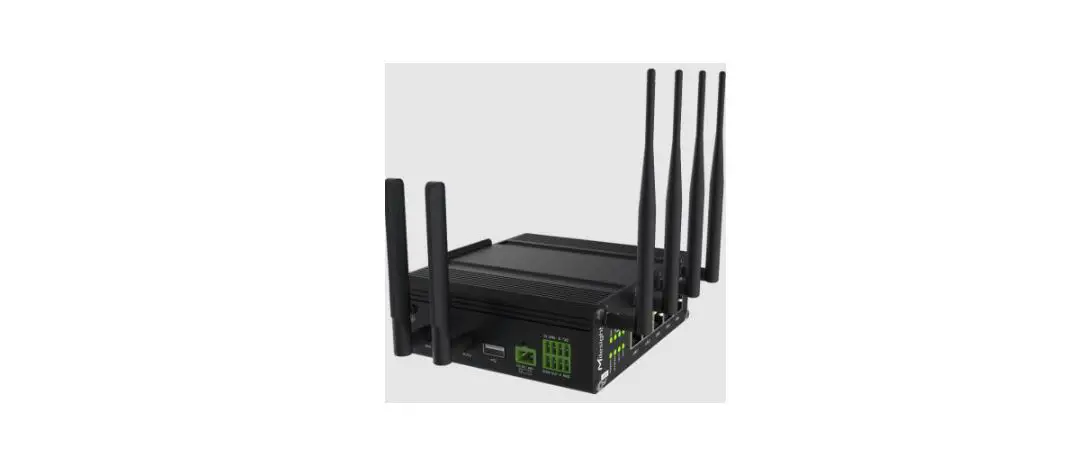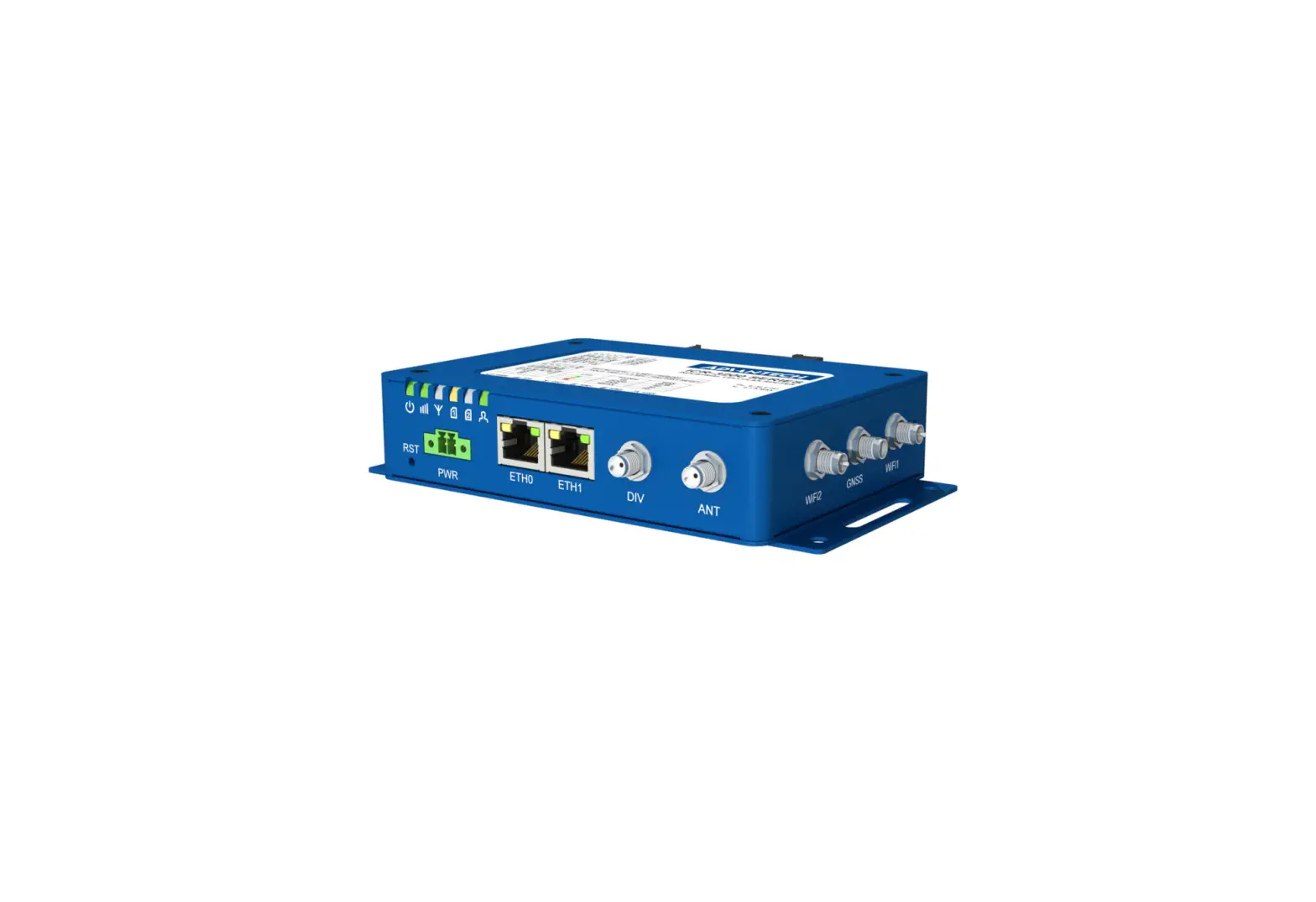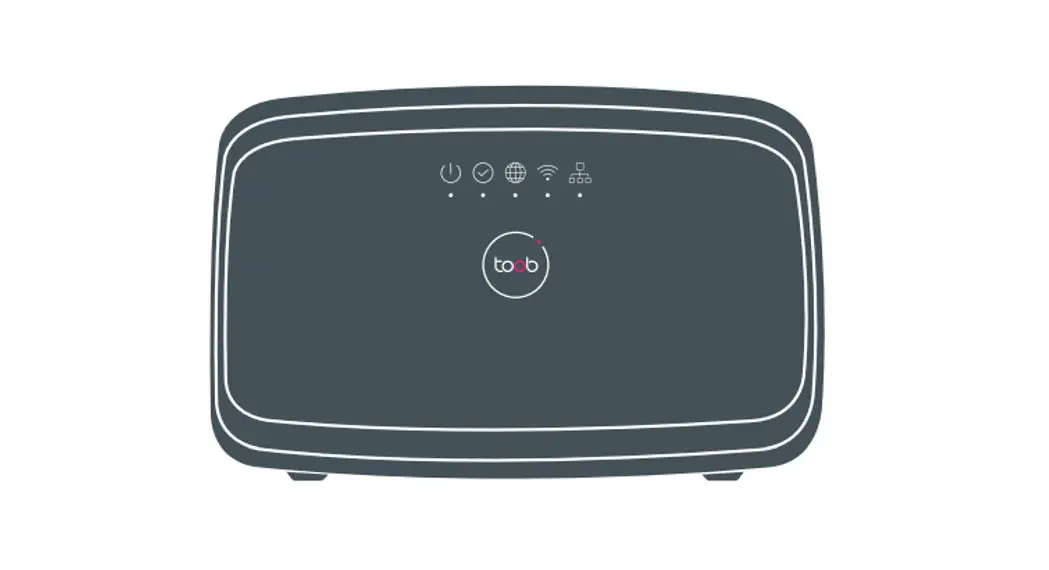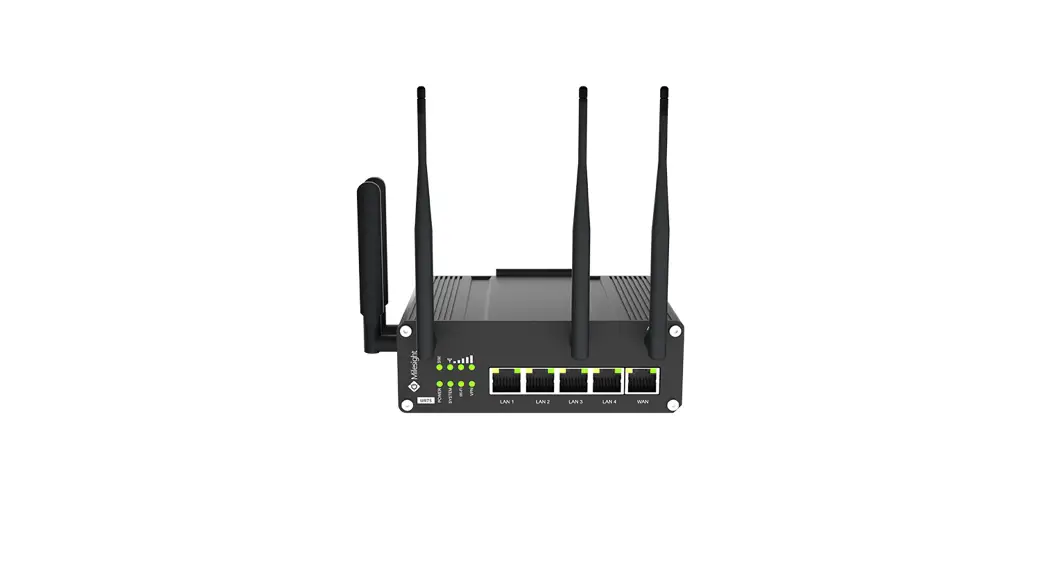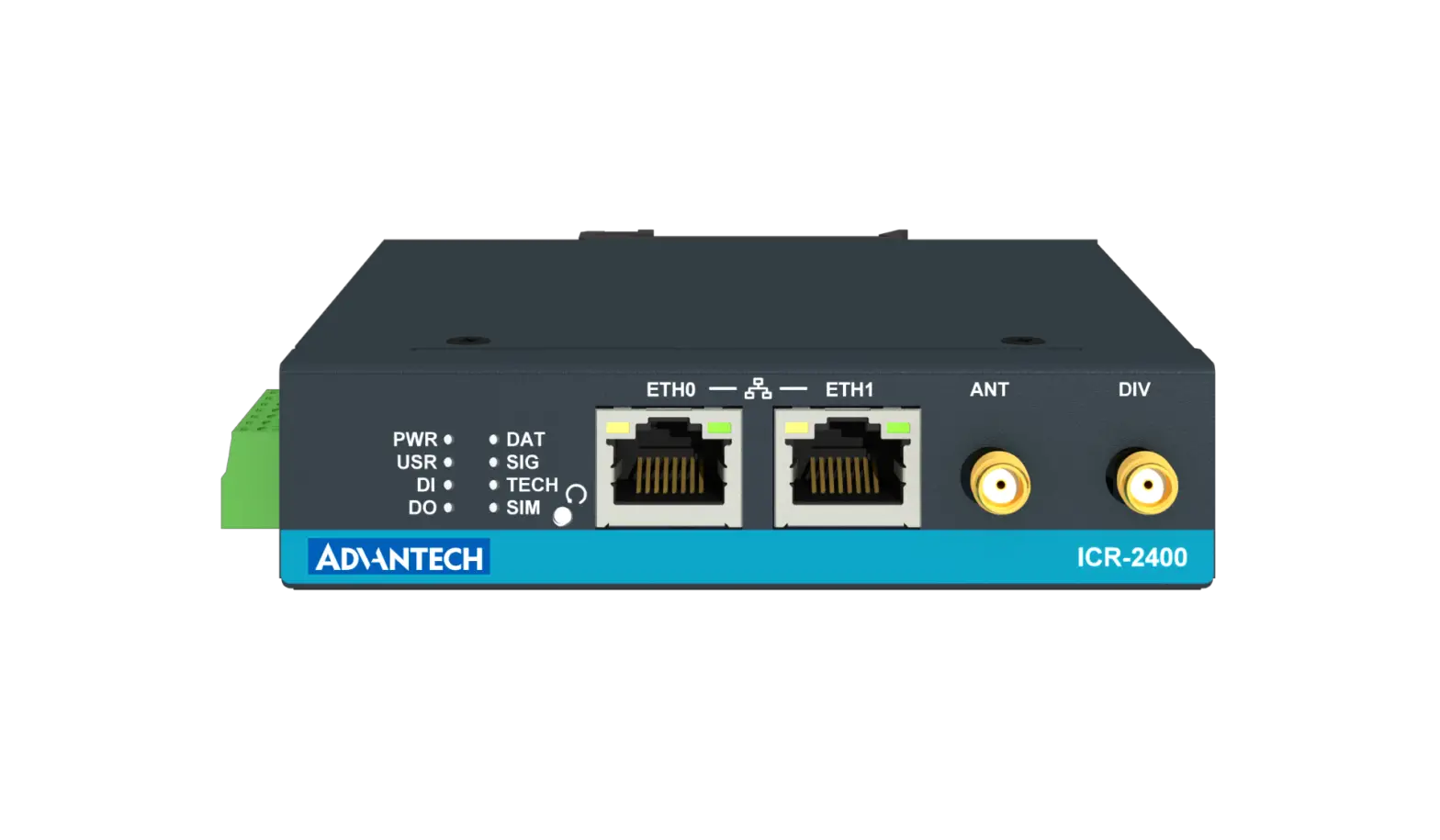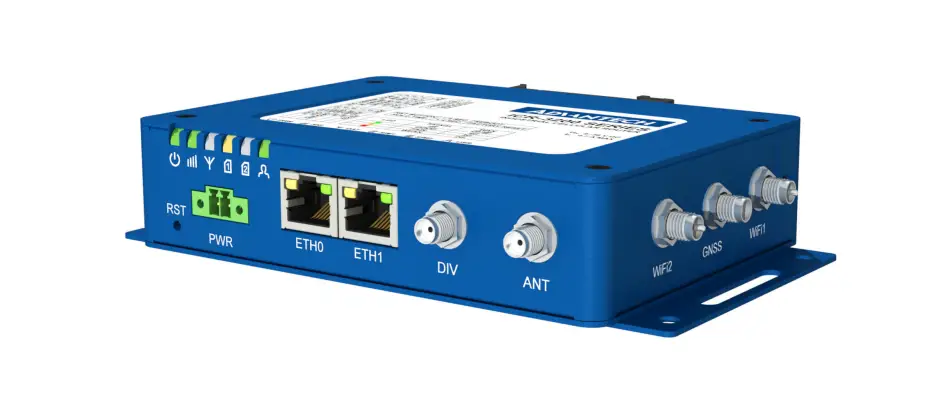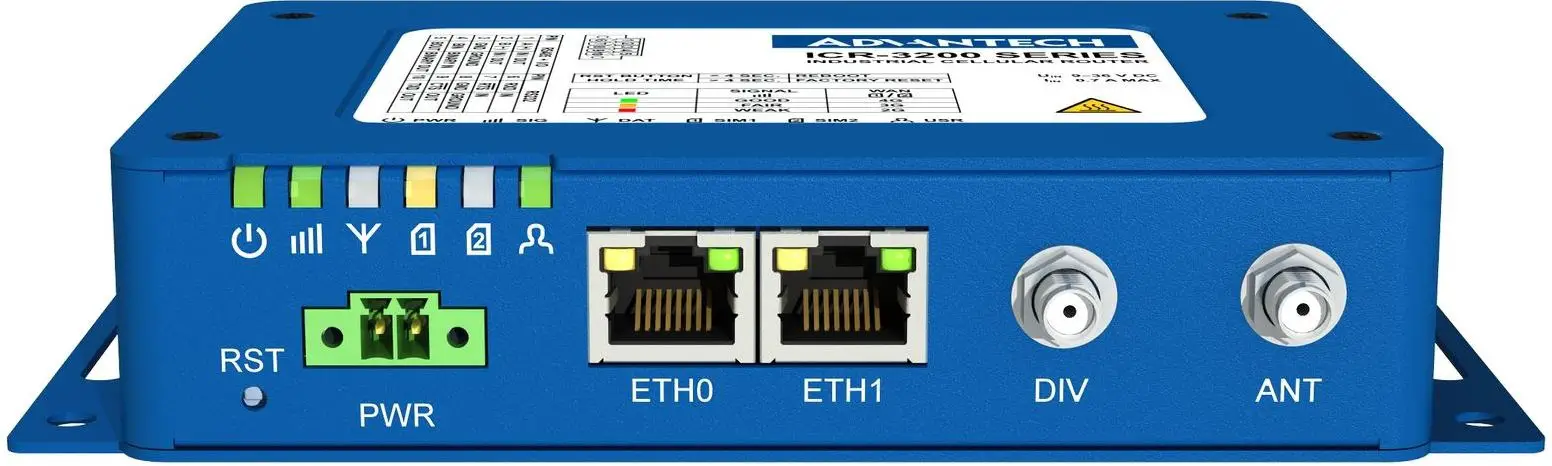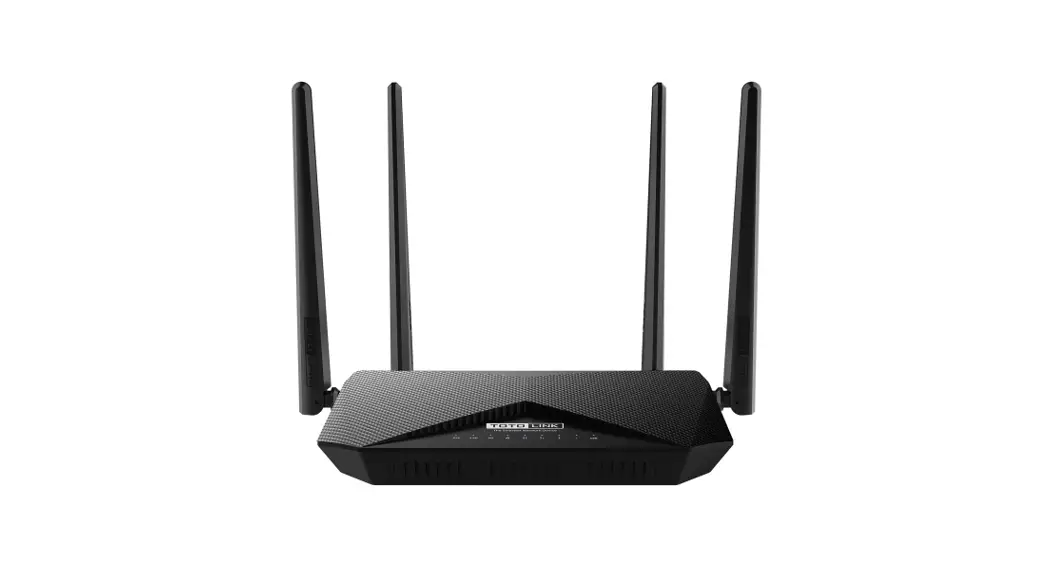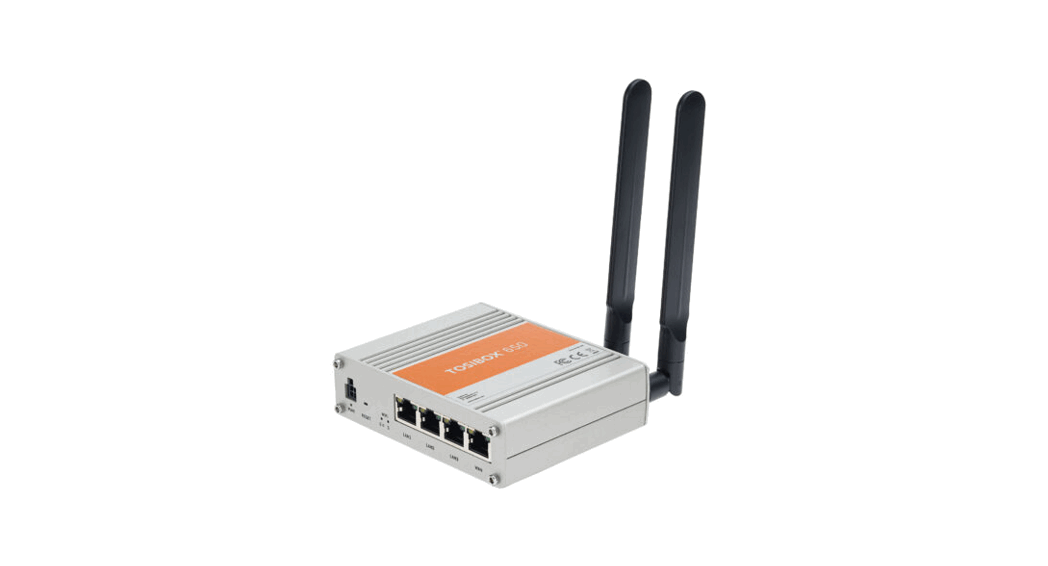

610, 650, 670, 675
Quick Start Guide

Copyright © Tosibox Oy, 2022
Matching your TOSIBOX® Node with the Key
- Connect the operating voltage of 9-50 V DC to the Node and wait for 1 minute.
- Insert the Key into the USB port of the Node. When the LED on the Key turns off, (after approx. 10 seconds) the matching is complete, and you can remove the Key from the USB port.
- Go to
3aif you are connecting to the Internet using an Ethernet connection or3bif setting up the wireless connection. If deploying Nodes as DHCP clients into existing networks, please see the TOSIBOX user manual.
Set Up Router
- Connect ethernet cable into LAN port of TOSIBOX® Node and the other end of the cable into LAN port of your computer.
- Visit 10.10.10.254 in your browser to set up your device.
- Log in using the “admin” account. The password can be found from the bottom of the Node.
- TOSIBOX® Node needs an Internet connection to function. Go to
3aif deploying into broadband networks (ethernet) or3bif deploying into wireless connection.
 Update the device software immediately when you are connected to the Internet.
Go to Settings > Software update. If there is a software update available for the device, start the update by clicking Start software update.
3a Connect to the Internet using an Ethernet connection
- Connect your TOSIBOX® Node from the WAN port to the Internet with a fixed Ethernet cable.
- When the WAN ETH LED is lit on the front plate of the Node, the Internet connection is working. If the light is not lit, investigate possible connectivity issues.
3b Set up a wireless connection
Connect the device to the Internet using an internal LTE Modem (670 and 675)
You can connect the device to the Internet with an internal Modem. Before inserting or removing the SIM card, disconnect the device power supply.
- Install the antenna
- Insert a SIM card
- Select Network > Internal Modem and fill in the APN according to your mobile operator settings. Enter PIN code if necessary.
Click Save.
Connect the device to the Internet using wireless LAN (650 and 675)
- Attach WLAN antenna to the device.
- Open the service connection to the device and log in with your credentials.
- Configure wireless LAN settings at “Network > WLAN”.
- When the WAN WIFI LED is lit on the front plate of the Device, the WLAN connection is working.
Position the antennas in orthogonal pattern, i.e. in such a way that they form 90 degrees angle between each other.
Using the Key
To install the Key software, insert the TOSIBOX® Key into the USB port of your computer.
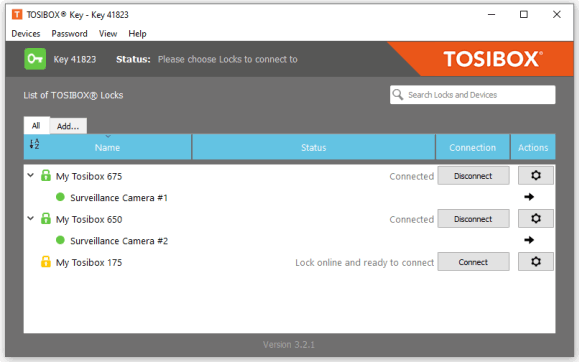
The TOSIBOX® Key user interface shows all Nodes matched to the Key and the network devices connected to them. For more options, click  or
or  .
.
 The Node is connected to the Internet and the Key has a remote connection to the Node.
 The Node is connected to the Internet, but the Key doesn’t have a remote connection to the Node.
 The Node is not connected to the Internet.
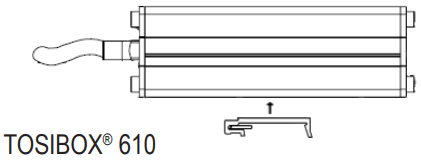
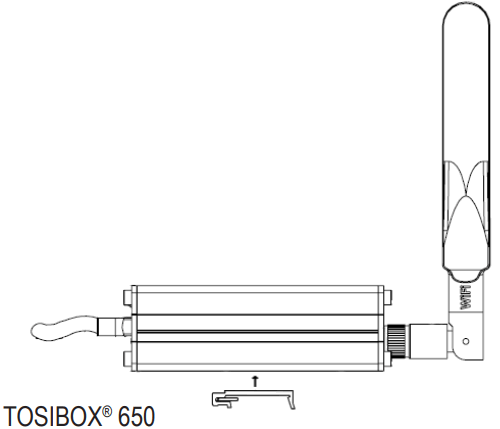
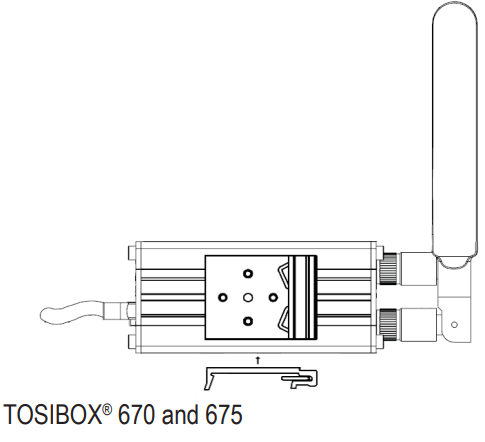
Mount DIN-Rail adapter as shown in the picture in any position between the housing slots. Use the screws provided in the package.
 |  |  |
DECLARATION OF CONFORMITY
Hereby, Tosibox Oy declares that the radio equipment types 610, 650, 670, and 675 are in compliance with Directive 2014/53/EU. The full text of the EU declaration of conformity is available at www.tosibox.com/documentation-and-downloads
Patented, incl. US8831020, US9900178, US14/119753, US14/39015
FEDERAL COMMUNICATION COMMISSION INTERFERENCE
STATEMENT
This device complies with FCC part 15 of the FCC rules. Operation is subject to the following two conditions: (1) This device may not cause harmful interference, and (2) this device must accept any interference received, including interference that may cause undesired operation. FCC
Caution: Any changes or modifications not expressly approved by the party responsible for compliance could void the user´s authority to operate this equipment.
FCC: Not applicable for TOSIBOX® 610
TOSIBOX® 650 FCC ID: 2AHCNLOCK675
TOSIBOX® 670 FCC ID contains XMR201807EG06A
TOSIBOX® 675 FCC ID: 2AHCNLOCK675 contains XMR201807EG06A
This radio device has been tested to operate with the external antenna types listed below with the maximum permissible gain and required antenna impedance for each antenna type indicated. Antenna types not included in this list, having a gain greater than the maximum gain indicated for that type, are strictly prohibited for use with this device.
TOSIBOX® 650 and 675: Wi-Fi monopole antenna, 50 ohm, max peak gain 3.5 dBi.
This equipment should be installed and operated with a minimum distance of 20 cm between the antenna and the user or bystanders.

FCC: Not applicable for TOSIBOX® 610

Visit Support, download user manual www.tosibox.com/support/
TOSIBOX® 600 SERIES Quick Start Guide v1.2
www.tosibox.com
[email protected]