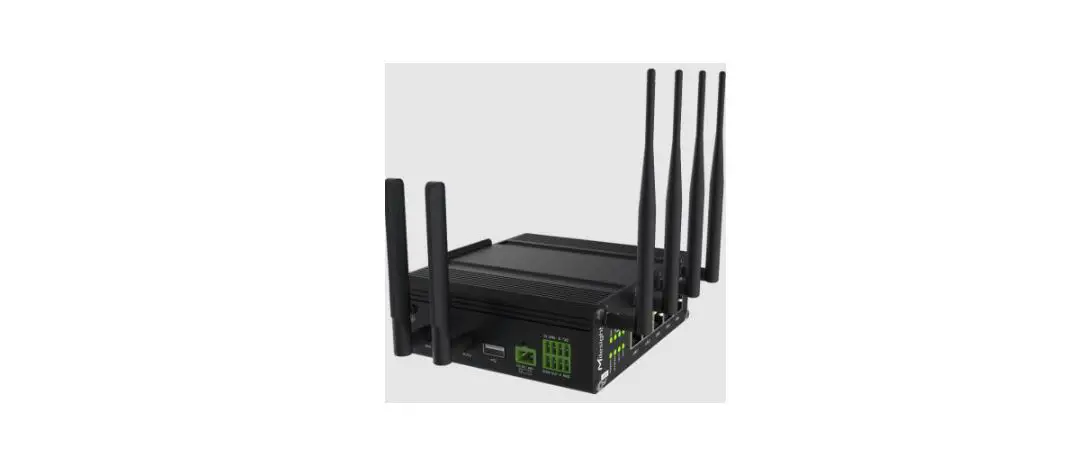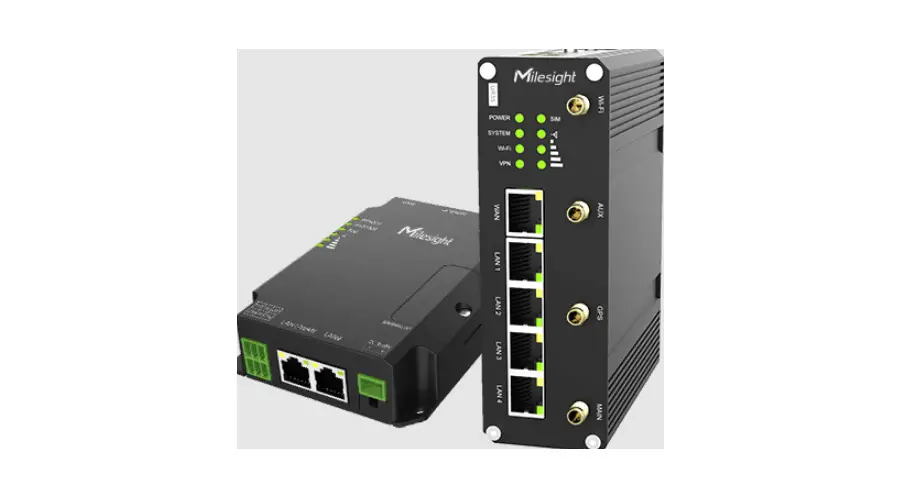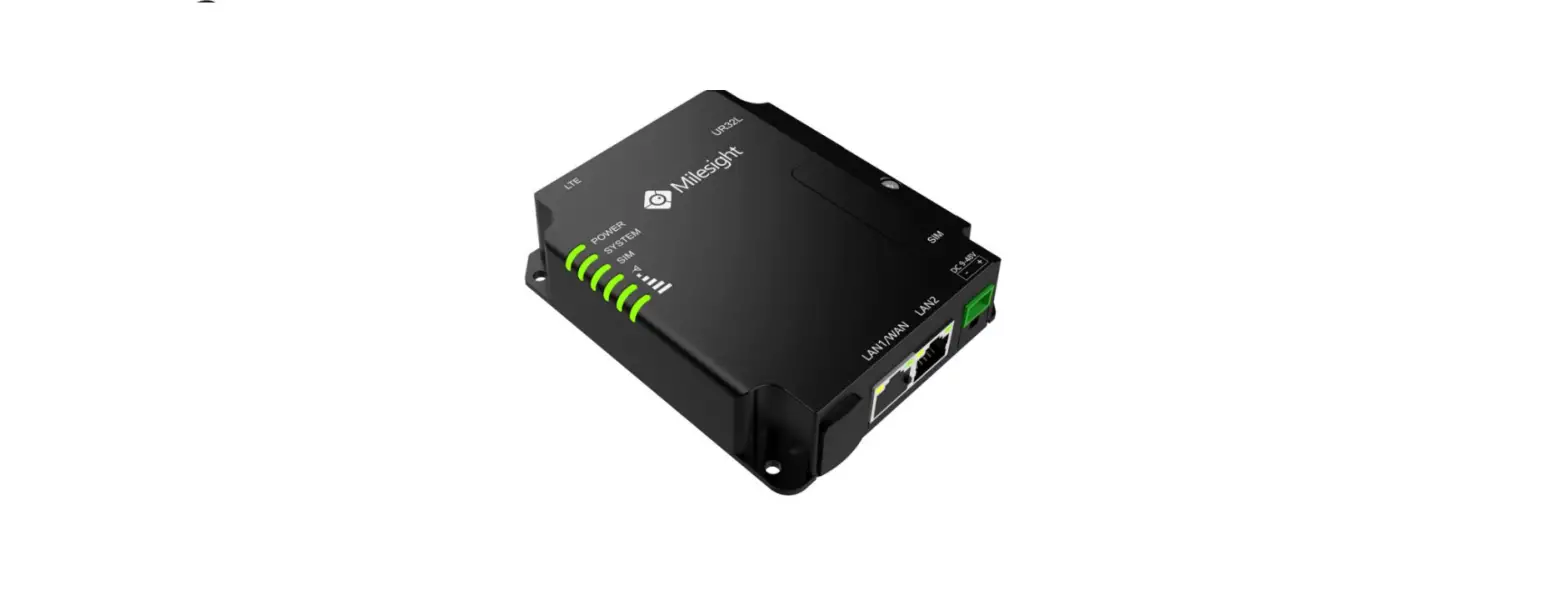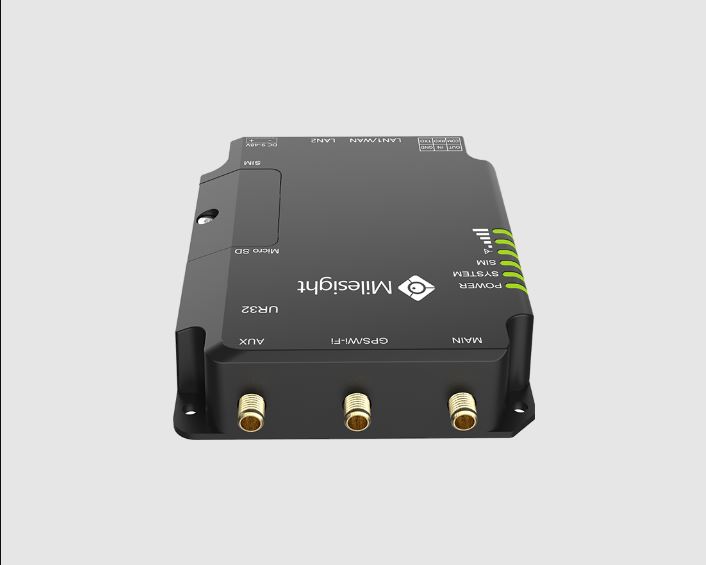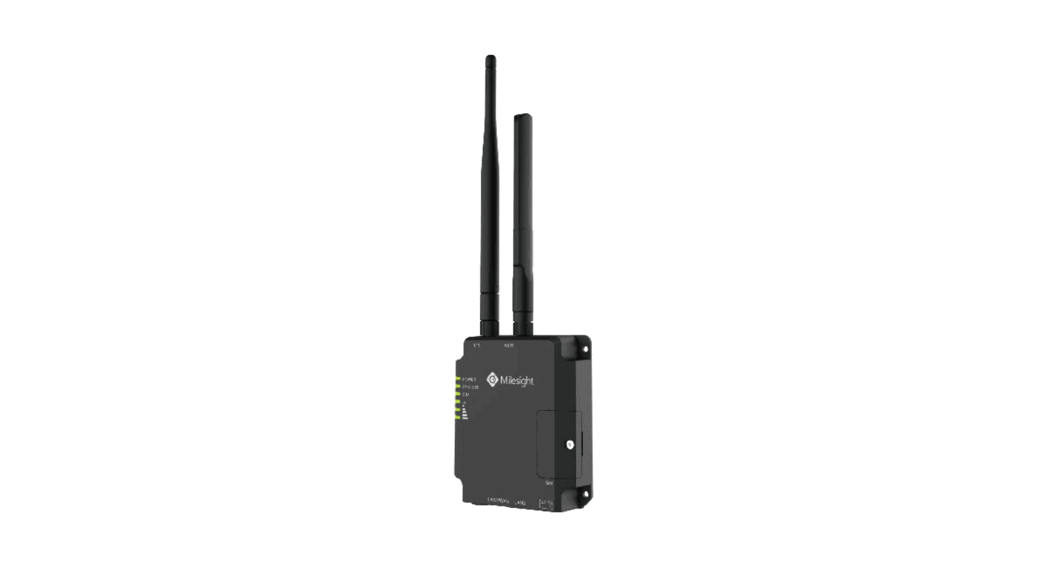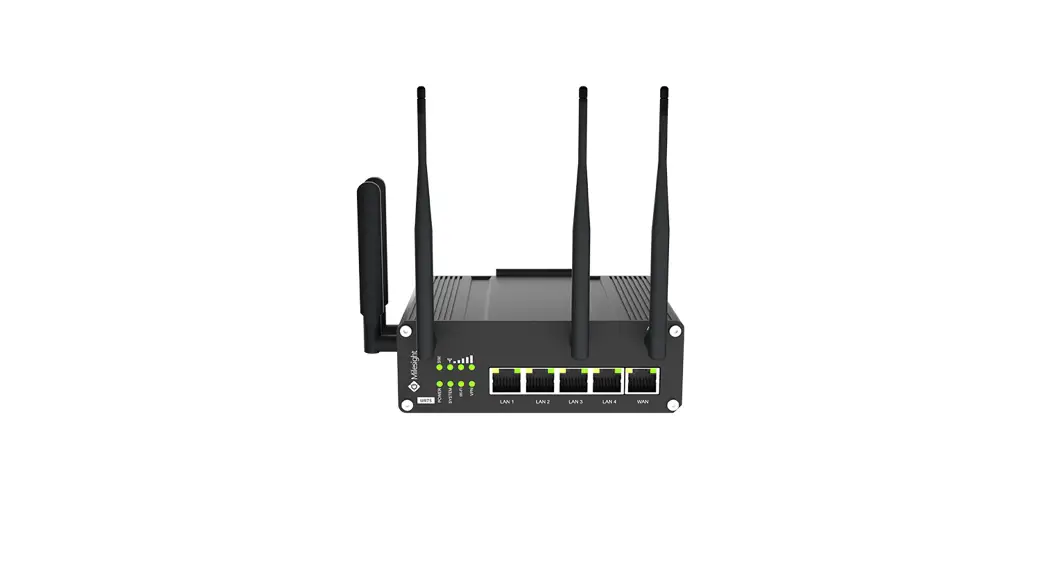
 Industrial Router Ultra Series
UR75
Quick Start Guide
Safety Precautions
Milesight will not shoulder responsibility for any loss or damage resulting from not following the instructions of this operating guide.
- The device must not be modified in any way.
- Do not place the device close to objects with naked flames.
- Do not place the device where the temperature is below/above the operating range.
- Do not power on the device or connect it to another electrical device when installing.
- Check lighting and water protection when used outdoors.
- Do not connect or power the equipment using cables that have been damaged.
Related Documents
This Start Guide only explains the installation of the Milesight UR75 router. For more functionality and advanced settings, please refer to the relevant documents below.
| Document | Description |
| UR75 Datasheet | Datasheet for UR75 industrial cellular router. |
| UR75 User Guide | Users could refer to the guide for instructions on how to log in to the web GUI, and how to configure all the settings. |
The related documents are available on the Milesight website: https://www.milesight-iot.com
Declaration of Conformity
UR75 is in conformity with the essential requirements and other relevant provisions of the CE, FCC, and RoHS.

© 2011-2022 Xiamen Milesight IoT Co., Ltd.
All rights reserved.
All information in this guide is protected by copyright law. Whereby, no organization or individual shall copy or reproduce the whole or part of this user guide by any means without written authorization from Xiamen Milesight IoT Co., Ltd.
Revision History
| Date | Doc Version | Description |
| Aug. 4, 2020 | V 1.0 | Initial version |
| Nov. 20, 2020 | V 2.0 | Layout replace |
| Dec. 1, 2021 | V 2.1 | Update cellular pictures |
| 8-Jun-22 | V 2.2 | 1. Wall mounting bracket customizable 2. Web GUI logo update |
Packing List
Before you begin to install the UR75 router, please check the package contents to verify that you have received the items below.
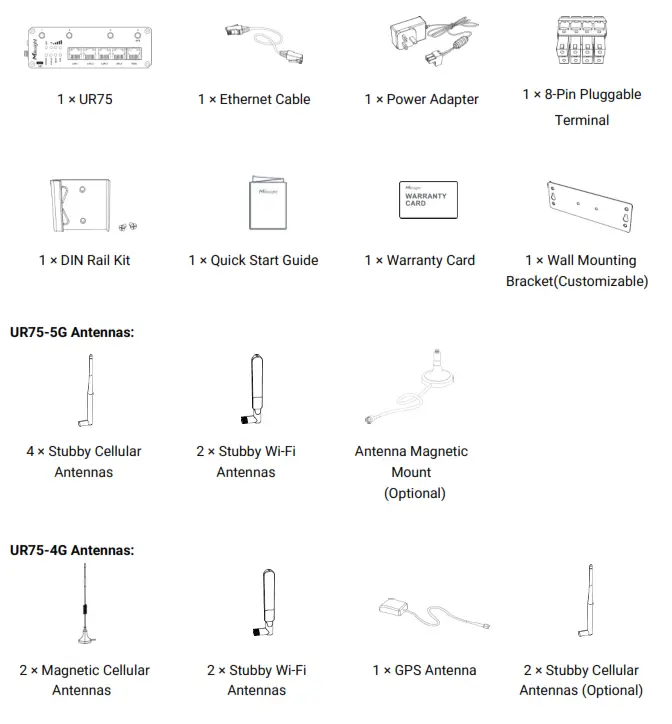
 If any of the above items are missing or damaged, please contact your sales representative.
Hardware Introduction
2.1 Overview
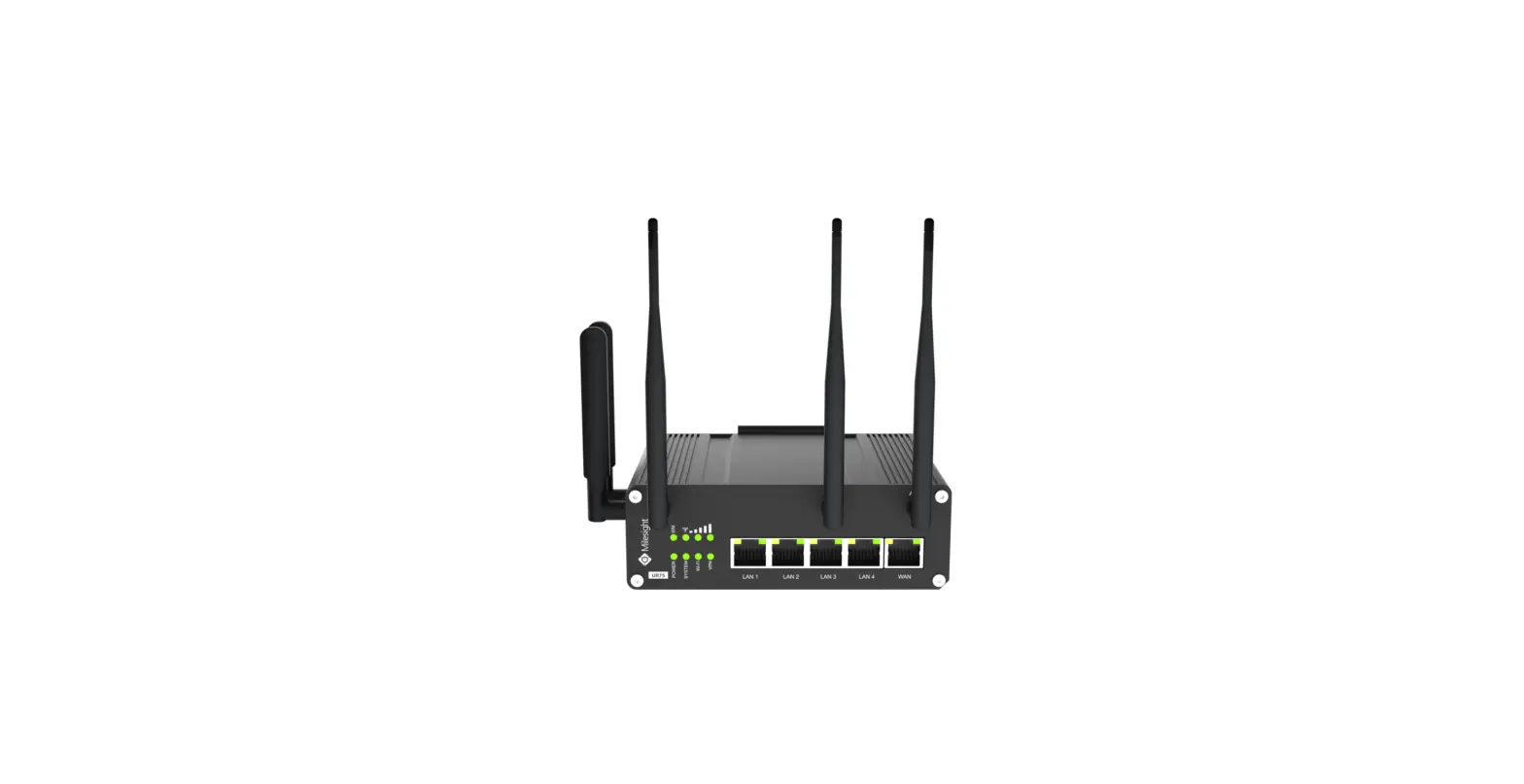
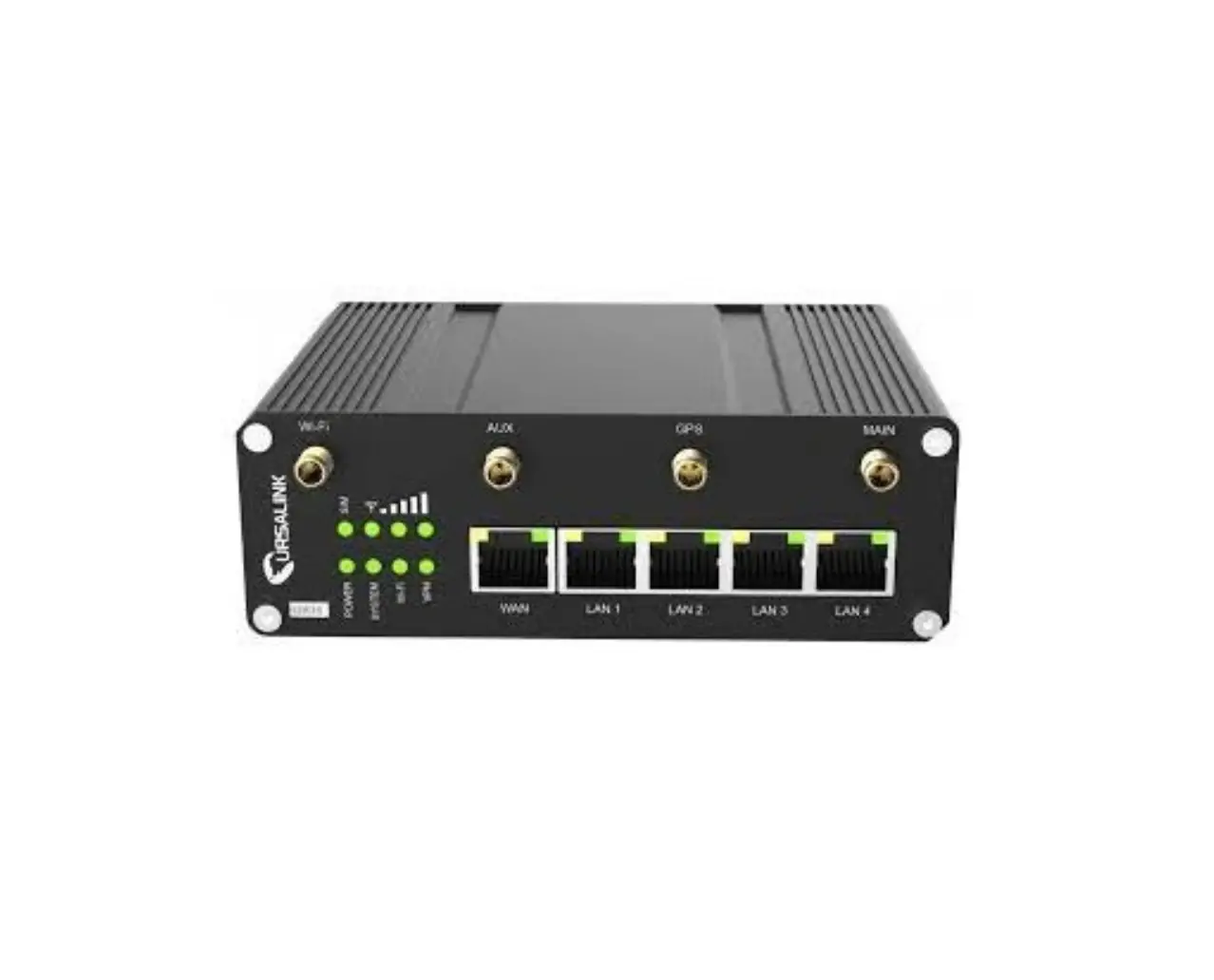
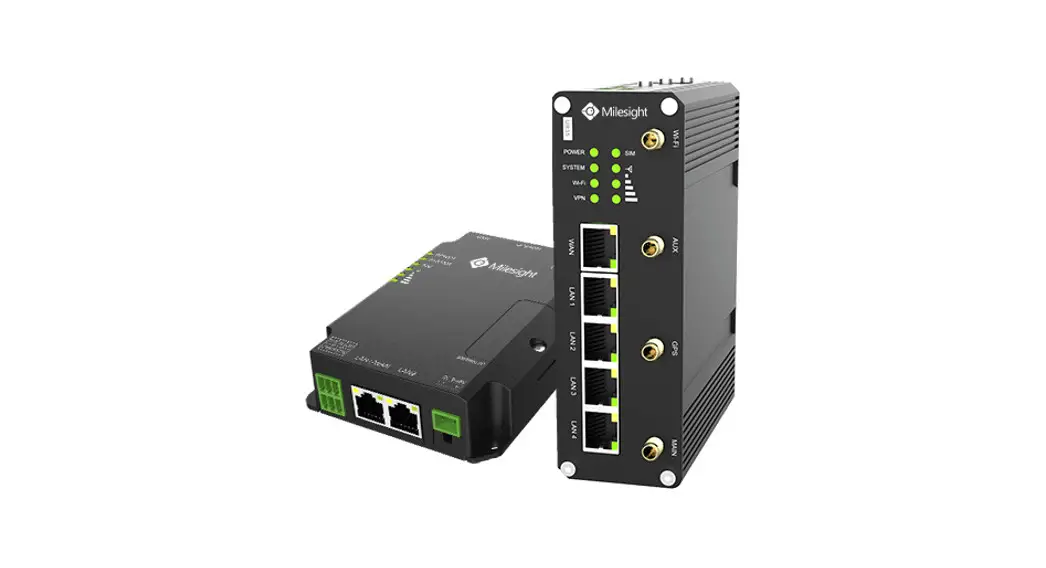
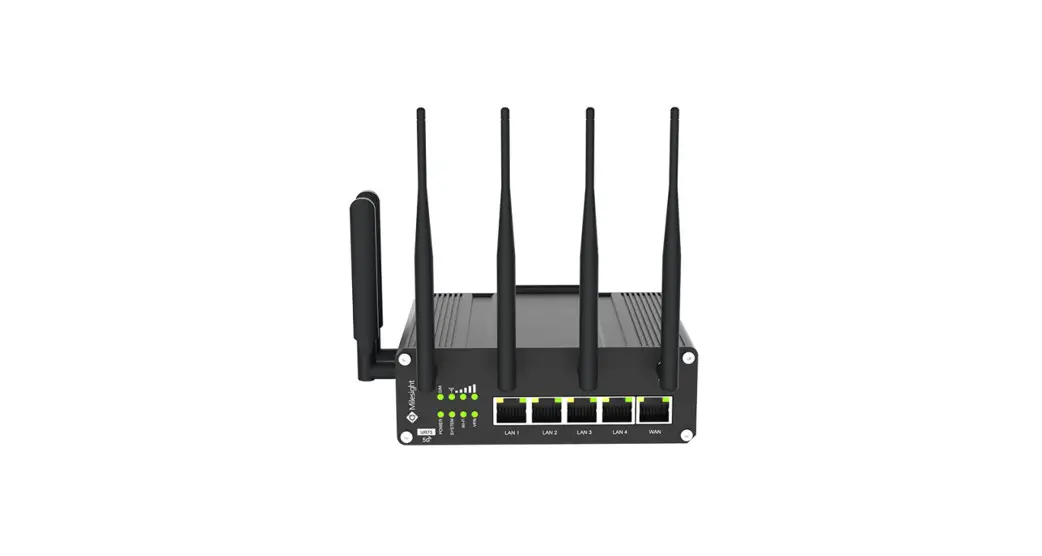
A. Front Panel of UR75-5G
 LED Indicator Area
POWER: Power Indicator
SYSTEM: Status Indicator
Wi-Fi: Wi-Fi Indicator
VPN: VPN Indicator
SIM: SIM Status Indicator : Signal Strength Indicator
- Ethernet Ports & Indicators
- Cellular Antenna Connectors (Connector 4 is for both GPS and cellular)
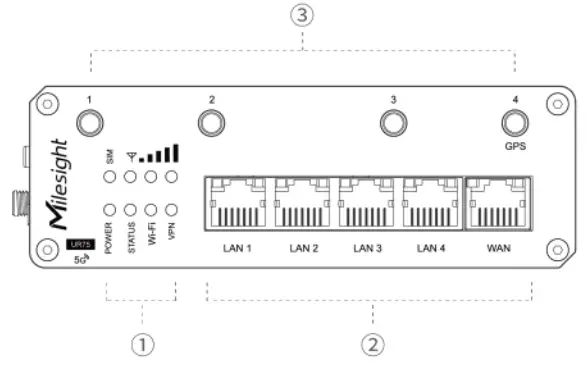 LED Indicator Area
 : Signal Strength Indicator
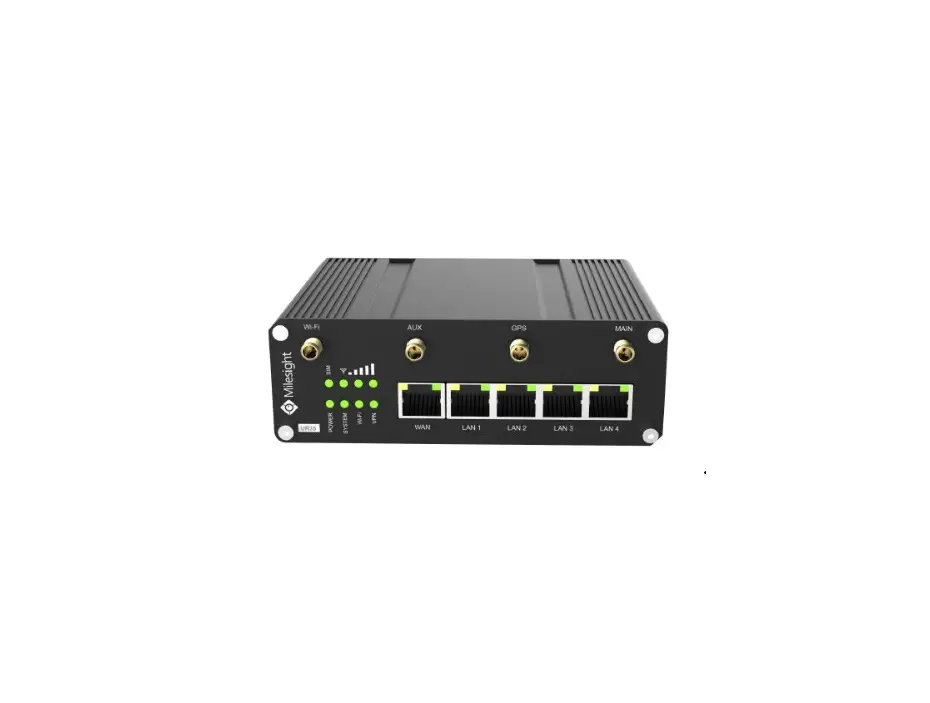
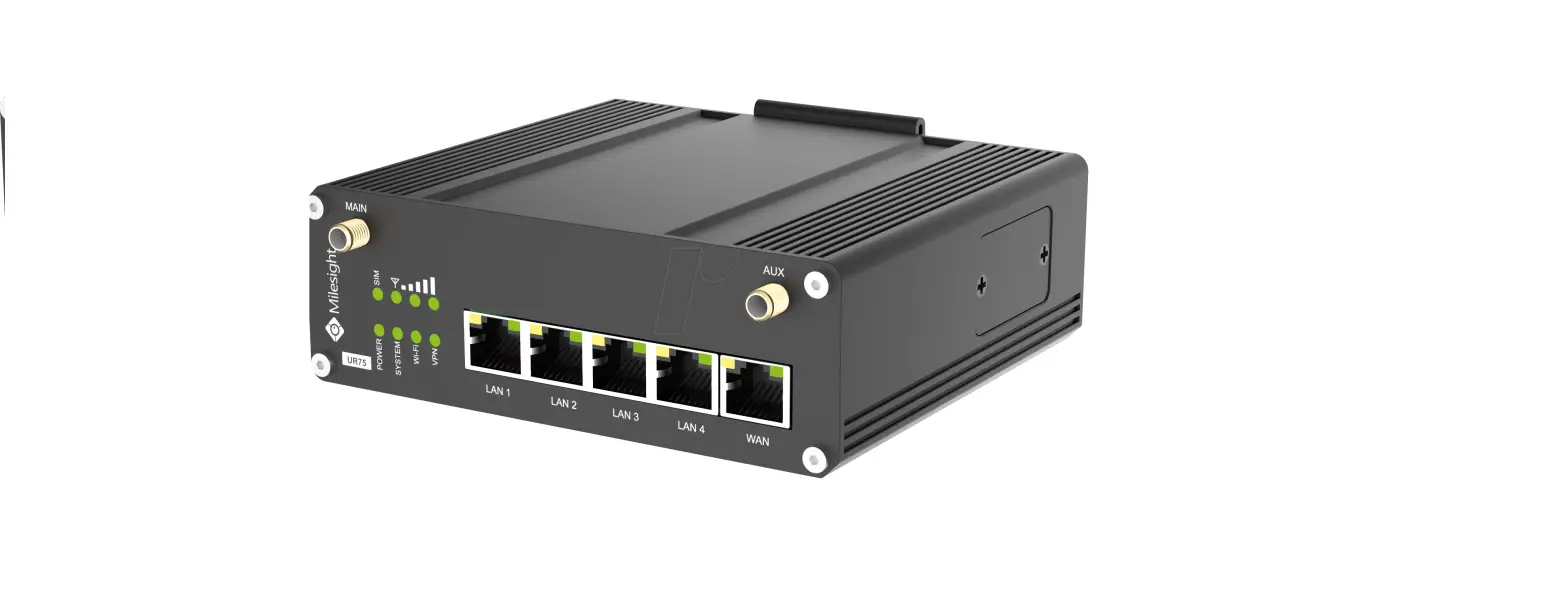
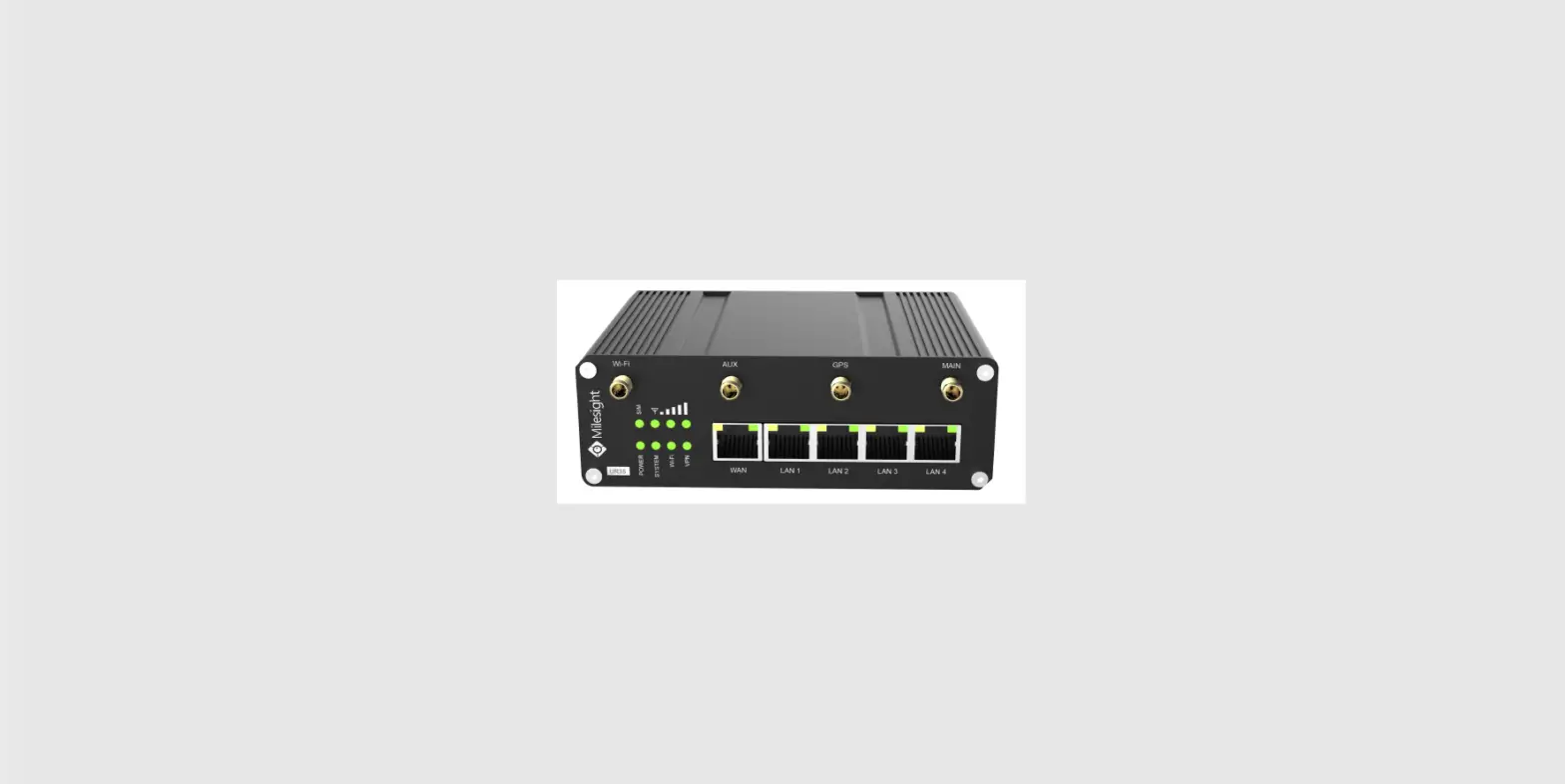
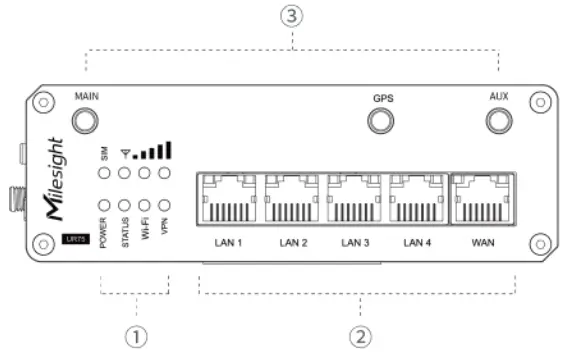
B. Front Panel of UR75-4G
 LED Indicator Area
POWER: Power Indicator
SYSTEM: Status Indicator
Wi-Fi: Wi-Fi Indicator
VPN: VPN Indicator
SIM: SIM Status Indicator : Signal Strength Indicator- Ethernet Ports & Indicators
- Antenna Connectors
MAIN: Main Cellular Antenna Connector
AUX: Auxiliary Cellular Antenna Connector
GPS: GPS Antenna Connector
C. Left Side Panel
- Wi-Fi Antenna Connector 1
- Wi-Fi Antenna Connector 2
- USB Port (Reserved)
- Power Connector
- Serial Port & I/O Ports
- Grounding Stud
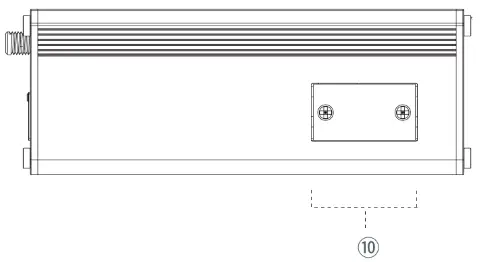
D. Right Side Panel
- SIM and Reset Button Holder
 LED Indicator Area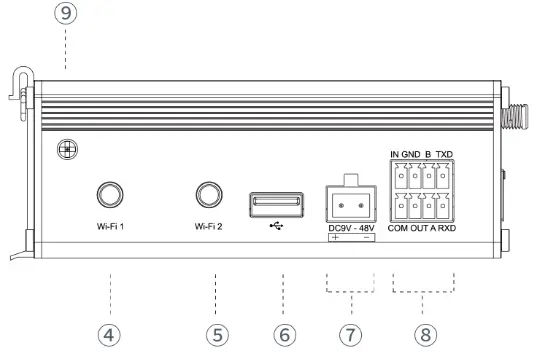
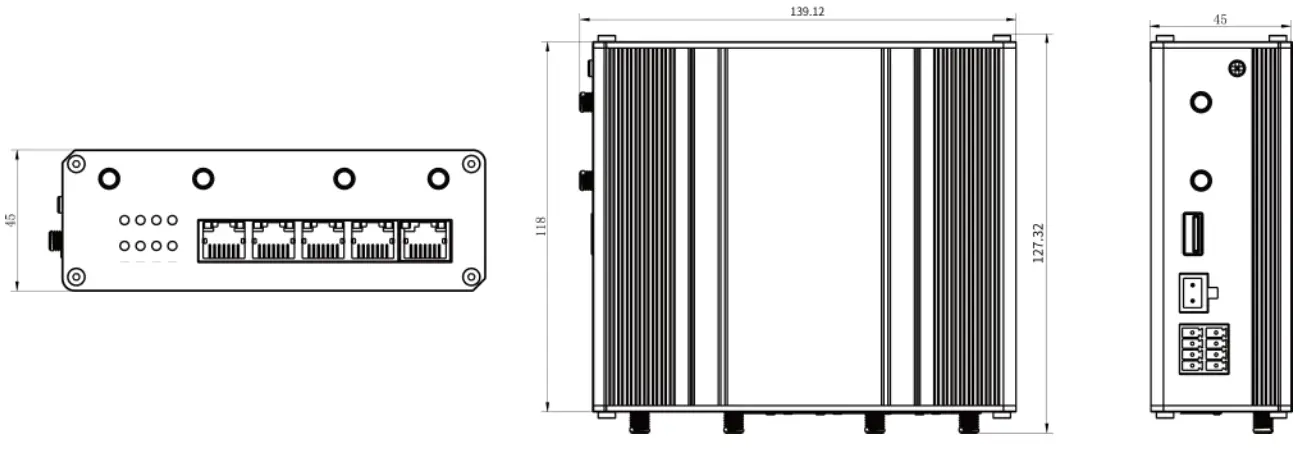
2.2 Dimensions (mm)
2.3 Serial & IO & Power Pinouts
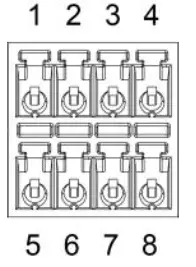
| PIN | RS232 | RS485 | DI | DI | Description |
| 1 | — | — | IN | IN | Digital Input |
| 2 | GND | — | GND | GND | Ground |
| 3 | — | B | — | — | Data – |
| 4 | TXD | — | — | — | Transmit Data |
| 5 | — | — | — | — | Common Ground |
| 6 | — | — | — | — | Digital Output |
| 7 | — | A | — | — | Data + |
| 8 | RXD | — | — | — | Receive Data |
Note: For -RS485 model, RXD—>A, TXD—>B.
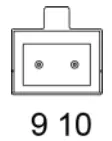
| PIN | Description | Wire Color |
| 9 | Positive | Red |
| 10 | Negative | Black |
2.4 LED Indicators
| LED | Indication | Status | Description |
| POWER | Power Status | Off | The power is switched off |
| On | The power is switched on | ||
| SYSTEM | System Status | Green Light | Static: Start-up |
| Blinking slowly: the system is running properly | |||
| Red Light | The system goes wrong | ||
| VPN | VPN Status | Off | VPN is disconnected |
| Green Light | VPN is connected | ||
| Wi-Fi | Wi-Fi Status | Off | Wi-Fi is disabled |
| Green Light | Static: Wi-Fi is enabled | ||
| Blinking slowly: sending or receiving data via Wi-Fi | |||
| SIM | SIM Card Status | Off | SIM1 or SIM2 is registering or fails to register (or there are no SIM cards inserted) |
| Green Light | Blinking slowly: SIM1 (as primary SIM) has been registered and is ready for dial-up | ||
| Blinking rapidly: SIM1(as primary SIM) has been registered and is dialing up now | |||
| Static: SIM1 (as primary SIM) has been registered and dialed up successfully | |||
| Orange Light | Blinking slowly: SIM2 (as primary SIM) has been registered and is ready for dial-up | ||
| Blinking rapidly: SIM2 (as primary SIM) has been registered and is dialing up now | |||
| Static: SIM2 (as primary SIM) has been registered and dialed up successfully | |||
| Signal Strength | Signal 1/2/3 | Off | No signal |
| Green Light | Static/Off/Off: weak signals with 1-10 ASU (please check if the antenna is installed correctly, or move the antenna to a suitable location to get better signal) | ||
| Static/Static/Off: normal signals with 11-20 ASU (average signal strength) | |||
| Static/Static/Static: strong signals with 21-31 ASU (signal is good) |
2.5 Reset Button
The reset button is under the SIM slots.
| Function | Description | |
| SYSTEM LED | Action | |
| Reset | Blinking | Press and hold the reset button for more than 5 seconds. |
| Static Green → Rapidly Blinking | Release the button and wait. | |
| Off → Blinking | The router is now reset to factory defaults. |
2.6 Ethernet Port Indicator
| Indicator | Status | Description |
| Link Indicator (Orange) | On | Connected |
| Blinking | Transmitting data | |
| Off | Disconnected |
Hardware Installation
Environmental Requirements
- Power Input: 9-48 VDC (48 VDC is needed for PoE output)
- Power Consumption: ≤ 7.9W (In Non-PoE mode)
- Operating Temperature: -40°C to 70°C (-40°F -158°F)
- Relative Humidity: 0% to 95% (non-condensing) at 25°C/77°F
3.1 SIM Card InstallationUR75 do not support hot plug. Please cut off the power before inserting or taking off cards.
A. Unscrew the holder of the SIM card.
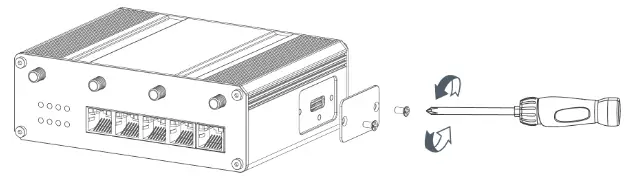
B. Insert the SIM card(s) into the device following the triangle location of SIM card(s).
C. Put SIM card into the slot and screw it up.
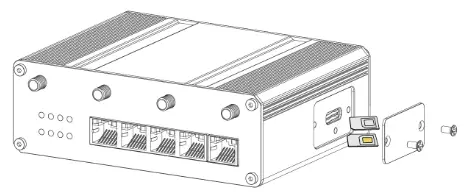
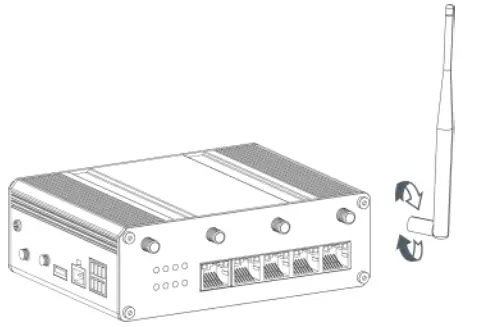
3.2 Antenna Installation
Rotate the antenna into the antenna connector accordingly.
The external antenna should be installed vertically always on a site with a good signal.
3.3 Router Installation
The router can be placed on a desktop or mounted to a wall or a DIN rail.
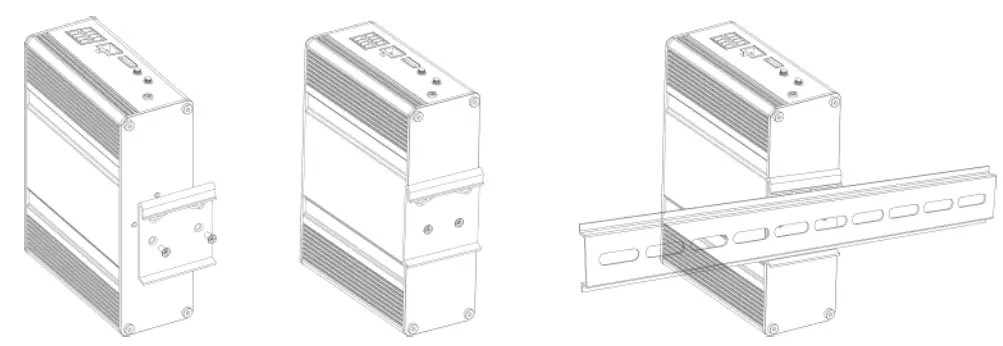
3.3.1 DIN Rail Mounting (Measured in mm)
Use 2 pcs of M3 × 6 flat head Phillips screws to fix the mount clip to the router, and then hang the device to the DIN rail. The width of DIN rail is 3.5cm. Recommended torque for mounting is 1.0 N·m, and the maximum allowed is 1.2 N·m.
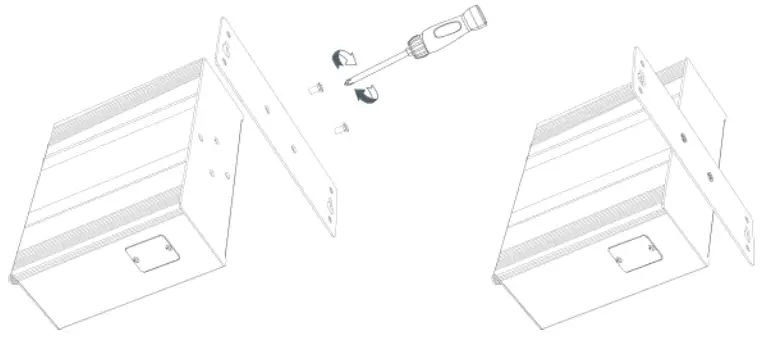
3.3.2 Wall Mounting (Measured in mm)
Use 2 pcs of M3 × 6 flat head Phillips screws to fix the wall mounting bracket to the router, and then use 2 pcs of M3 drywall screws to mount the router associated with the wall plugs on the wall. Recommended torque for mounting is 1.0 N·m, and the maximum allowed is 1.2 N·m.
3.4 Protective Grounding Installation
Remove the grounding nut, then connect the grounding ring of the cabinet’s grounding wire onto the grounding stud and screw up the grounding nut.
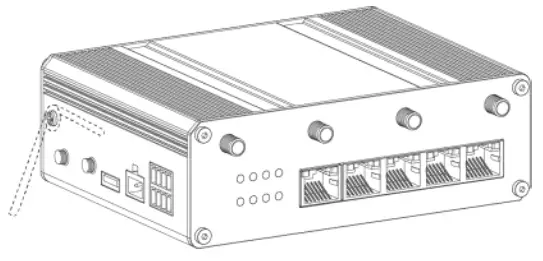
The router must be grounded when deployed. According to the operating environment, the ground wire should be connected with the grounding stud of the router.
Log in to the Web GUI of Router
UR75 provides a web-based configuration interface for management. If this is the first time you configure
the device, please use the default settings below:
IP Address: 192.168.1.1
Username: admin
Password: password
4.1 Wireless Access
A. Enable Wireless Network Connection on your computer and search for access point “Router_******” to connect it.
B. Open a Web browser on your PC (Chrome is recommended) and type in the IP address 192.168.1.1 to access the web GUI.
C. Enter the username and password, and click “Login”.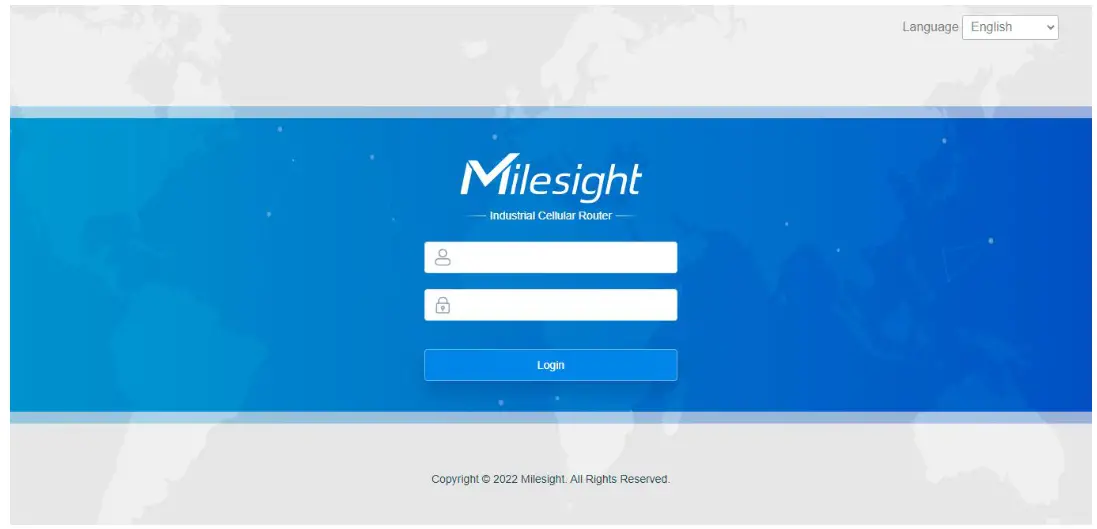 If you enter the username or password incorrectly more than 5 times, the login page will be locked for 10 minutes.
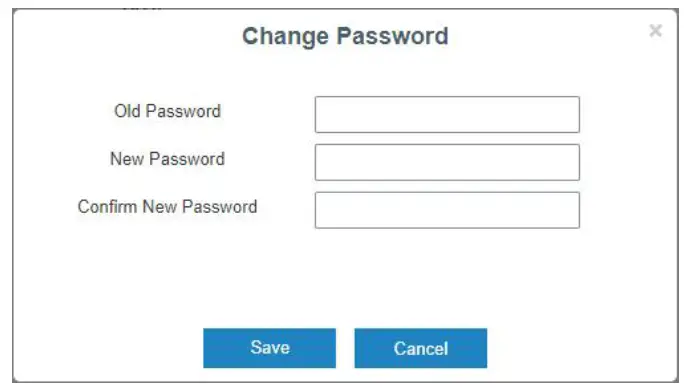
D. When you log in with the default username and password, you will be asked to modify the password. It’s suggested that you change the password for the sake of security. Click the “Cancel” button if you want to modify it later.
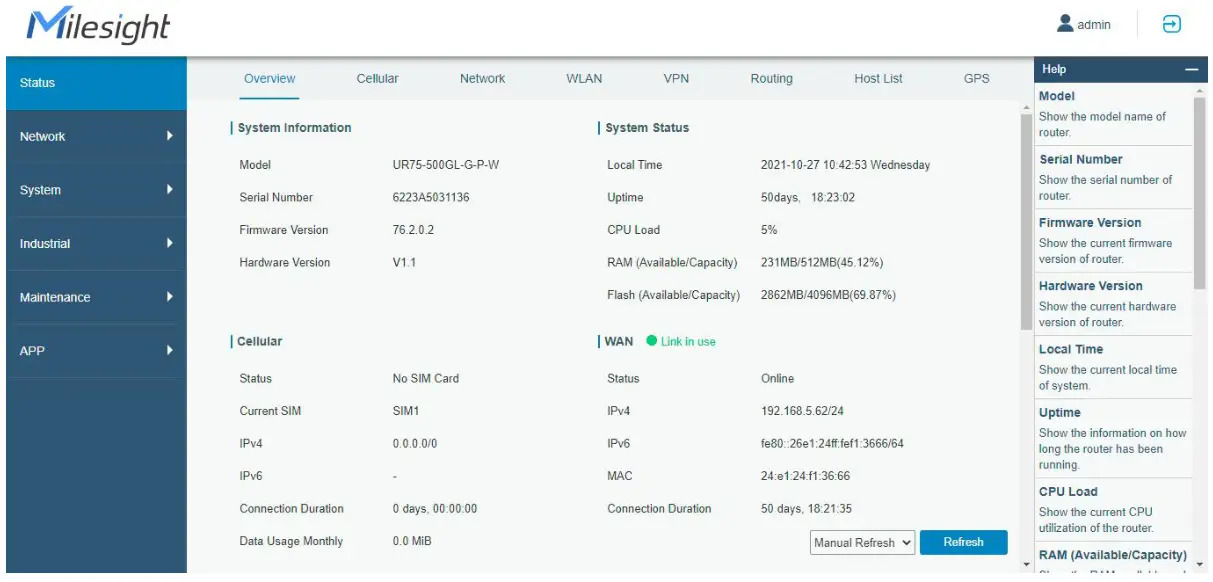
E. After you log in the Web GUI, you can view system information and perform configuration on the device.
4.2 Wired Access
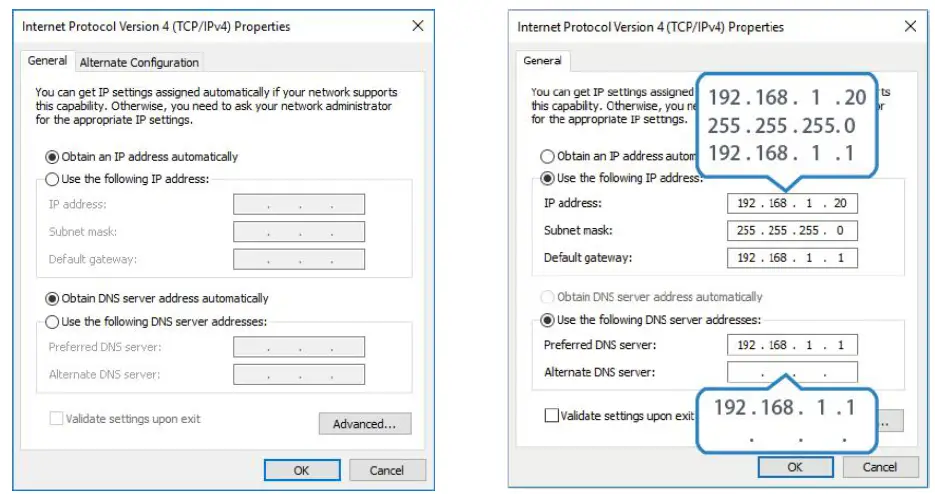
Connect PC to LAN port of UR75 router directly. The following steps are based on Windows 10 operating system for your reference.
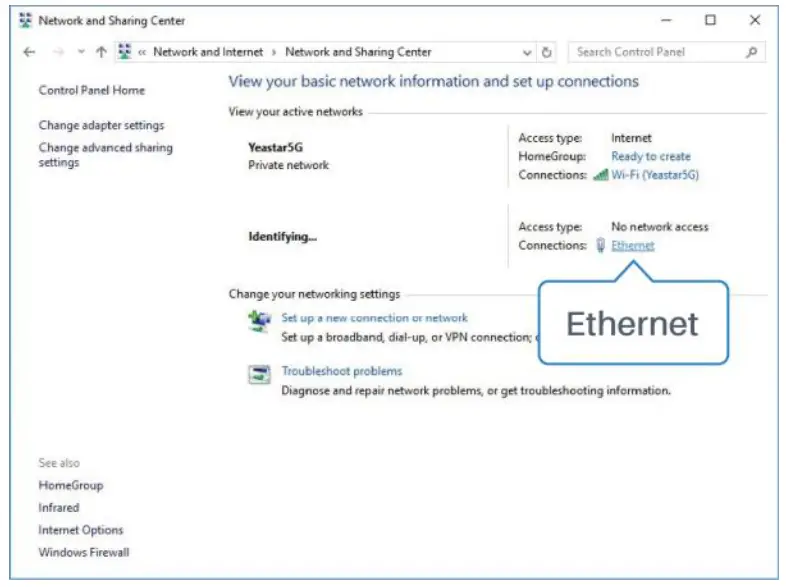
A. Go to “Control Panel” → “Network and Internet” → “Network and Sharing Center”, then click “Ethernet” (May have different names).
B. Go to “Properties” → “Internet Protocol Version 4(TCP/IPv4) ”, select “Obtain an IP address automatically” or “Use the following IP address”, then assign a static IP manually within the same subnet of the device.
 C. Open a Web browser on your PC (Chrome is recommended), type in the IP address 192.168.1.1, and press Enter on your keyboard.
D. Enter the username, and password, and click “Login”.
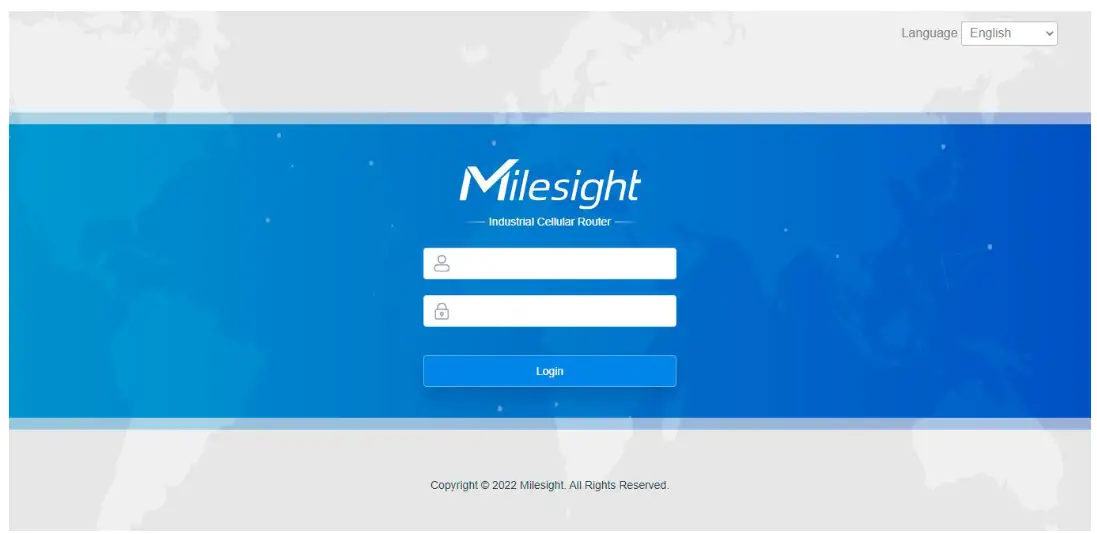
If you enter the username or password incorrectly more than 5 times, the login page will be locked for 10 minutes.
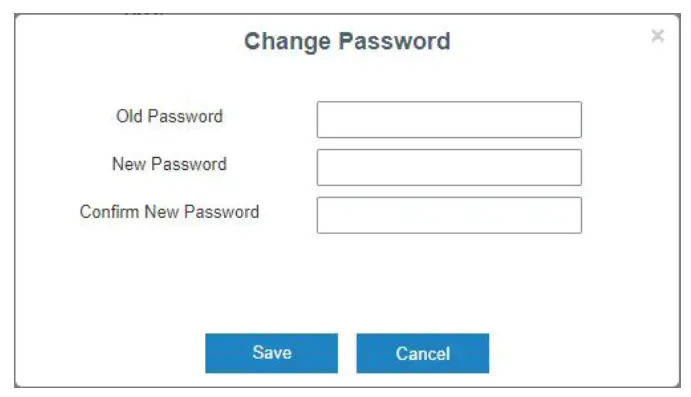
E. When you log in with the default username and password, you will be asked to modify the password. It’s suggested that you change the password for the sake of security. Click the “Cancel” button if you want to modify it later.
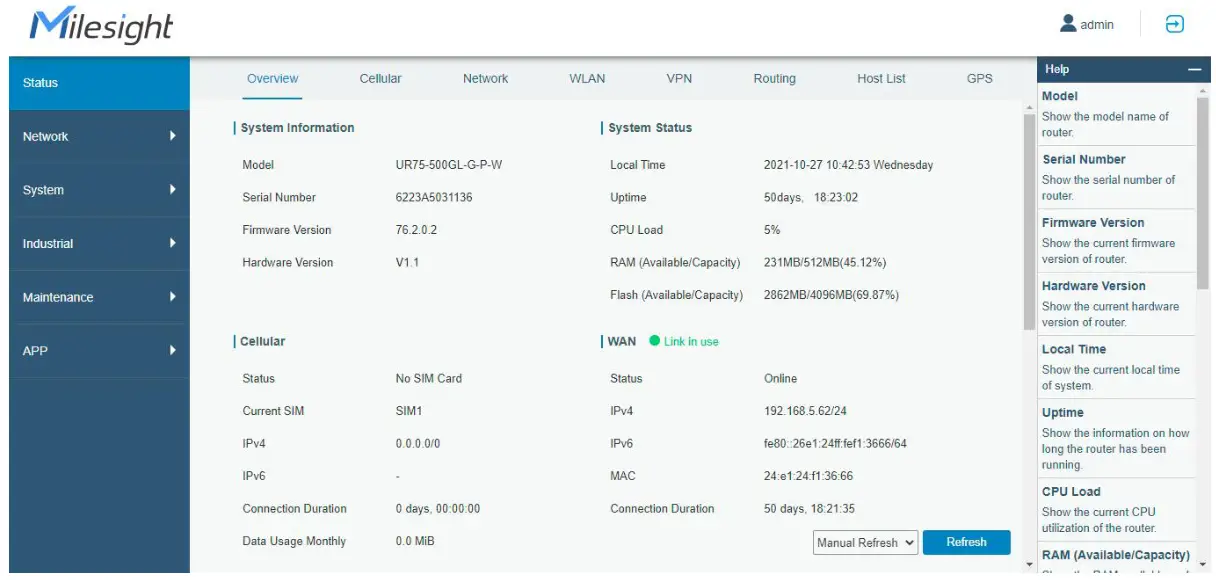
F. After you log in the Web GUI, you can view system information and perform configuration on the device.
Network Configuration
This chapter explains how to connect UR75 to network via WAN connection, Wi-Fi or cellular.
5.1 Ethernet WAN Configuration
A. Go to “Network” → “Interface” → “WAN” to select connection type and configure WAN parameters, click “Save & Apply” button to make the changes take effect.
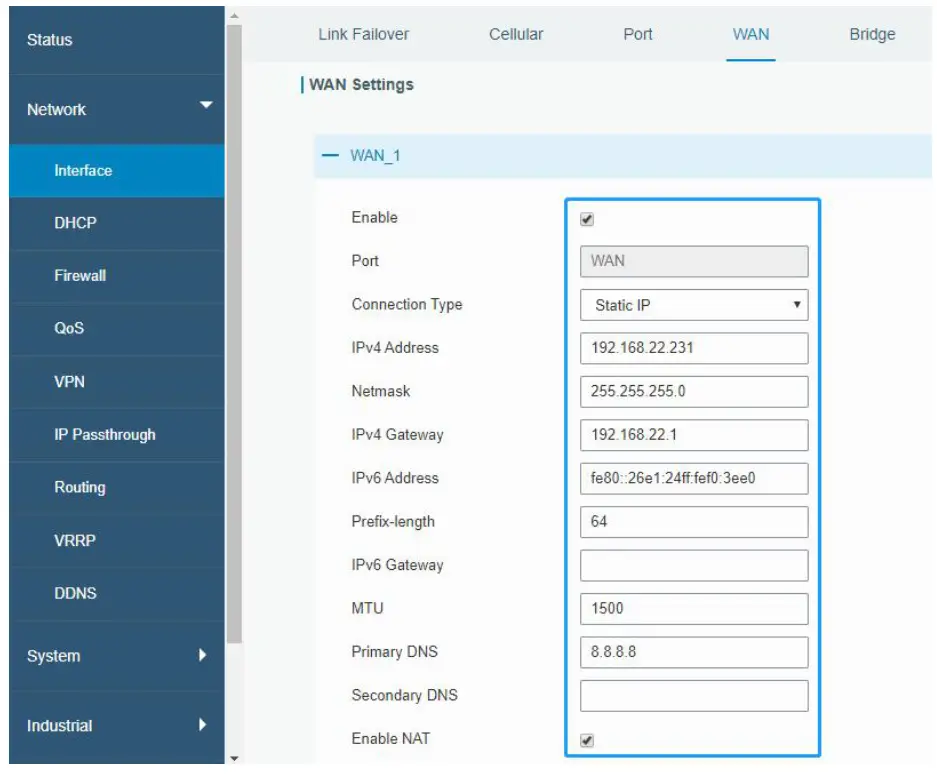
B. Connect the WAN port to another network device like a modem.
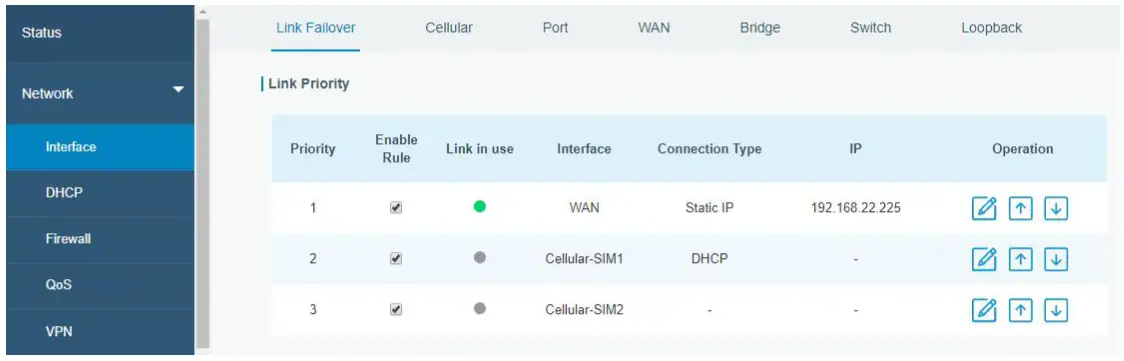
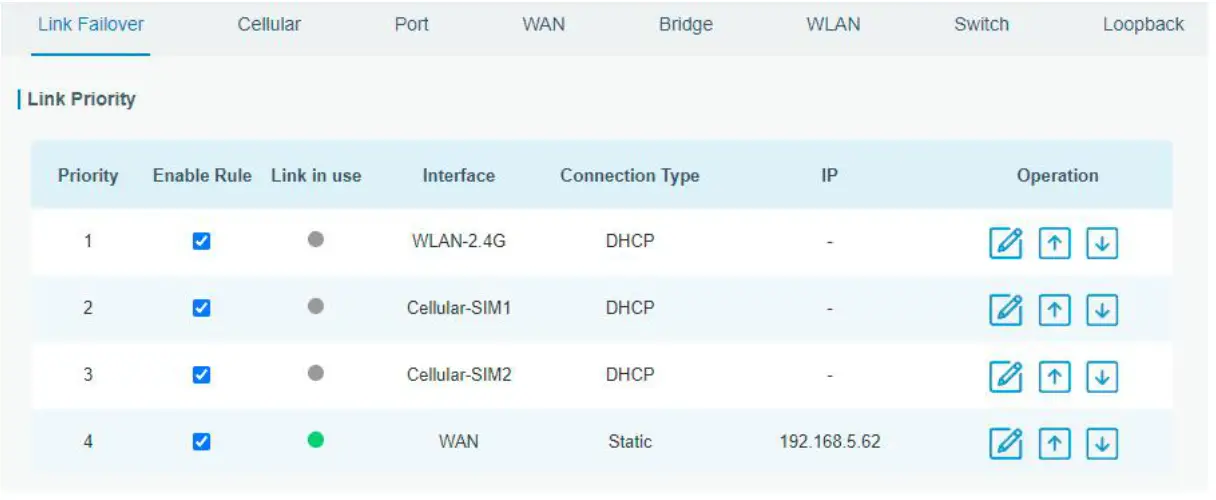
C. Go to “Network” → “Interface” → “Link Failover” to rise the WAN priority to 1.
D. Open your preferred browser on PC, then type any available web address into the address bar and see if it is able to visit the Internet via the UR75 router.
5.2 Cellular Connection Configuration
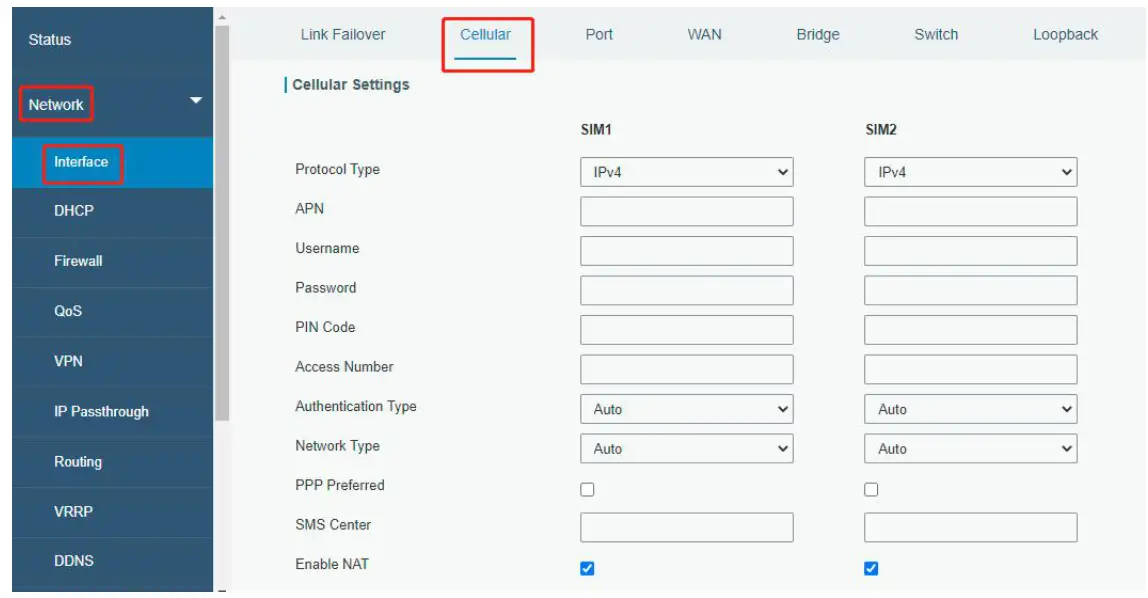
Take inserting a SIM card into a SIM1 slot as an example; please refer to the following detailed operations.
A. Go to “Network” → “Interface” → “Cellular” → “Cellular Setting” to configure APN, PIN code, or other cellular info, click “Save” and “Apply” to save the configuration.
B. Go to “Network” → “Interface” → “Link Failover” to enable SIM1 and rise link priority of SIM1.
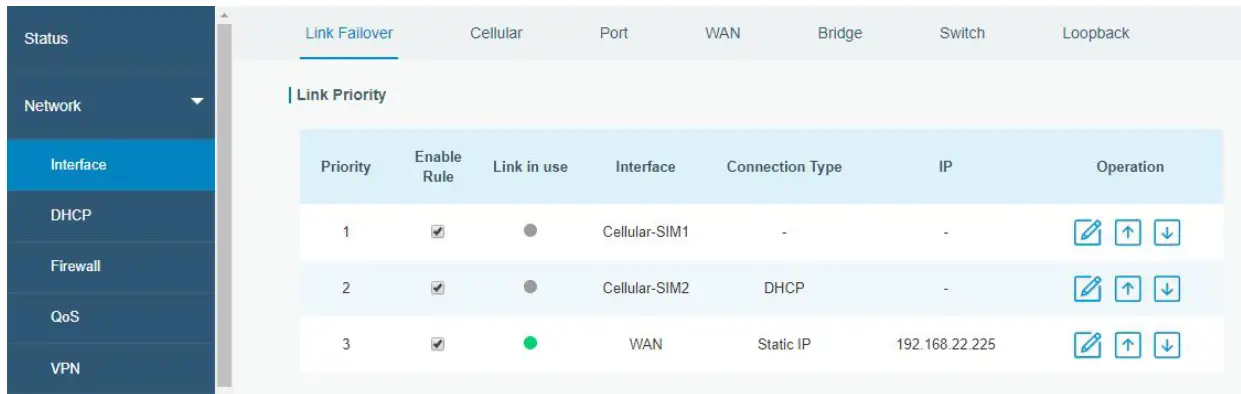
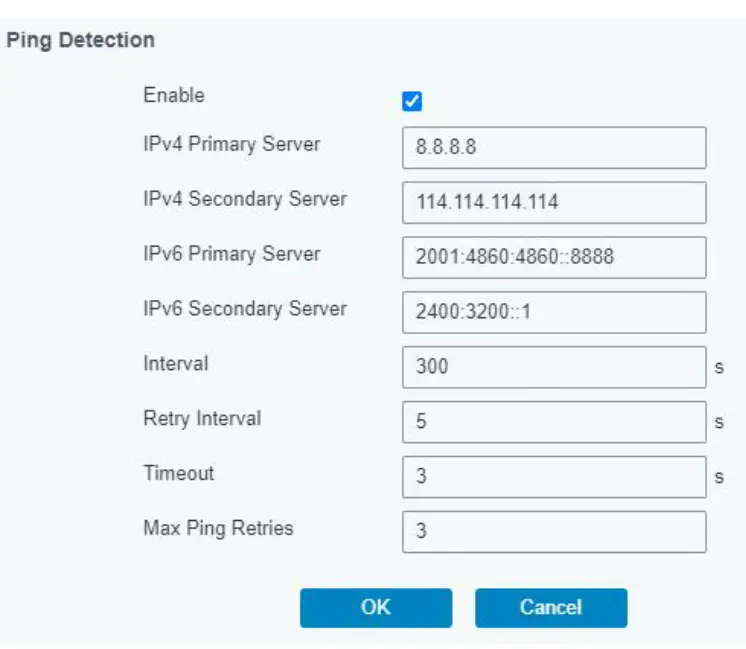
C. Click to configure ICMP ping detection information.
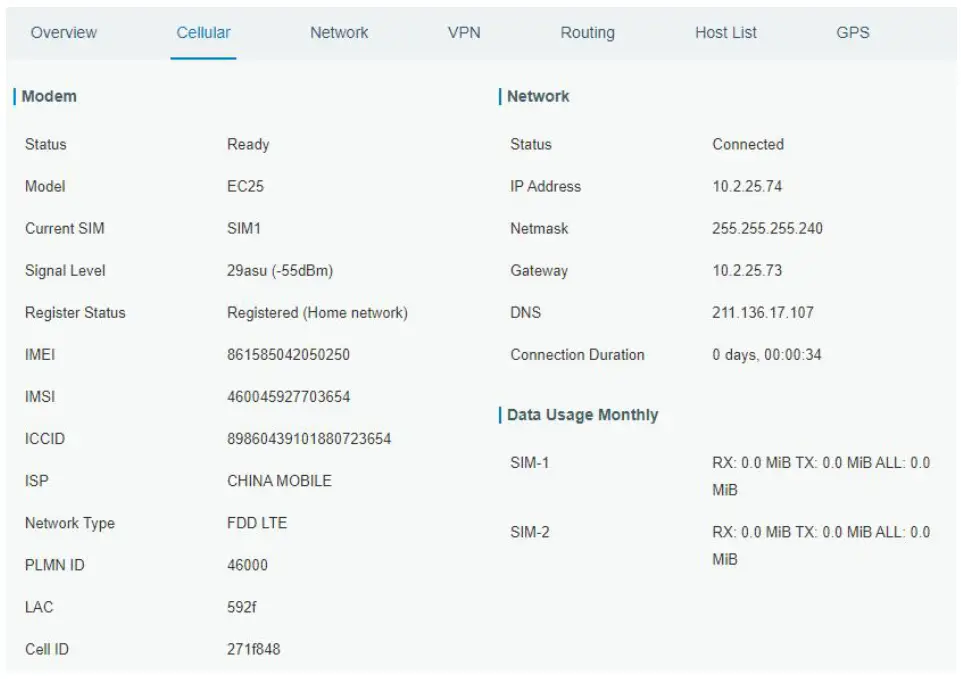
D. Click “Status” → “Cellular” to view the status of the cellular connection. If it shows “Connected”, it means SIM1 has dialed up successfully. On the other hand, you can check the status of the SIM indicator. If it keeps on light statically, it means SIM1 has dialed up successfully.
E. Open your preferred browser on PC, then type any available web address into the address bar and see if it is able to visit the Internet via the UR75 router.
5.3 Wi-Fi Configuration
A. Go to “Network” → “Interface” → “WLAN” and select “Client” mode.
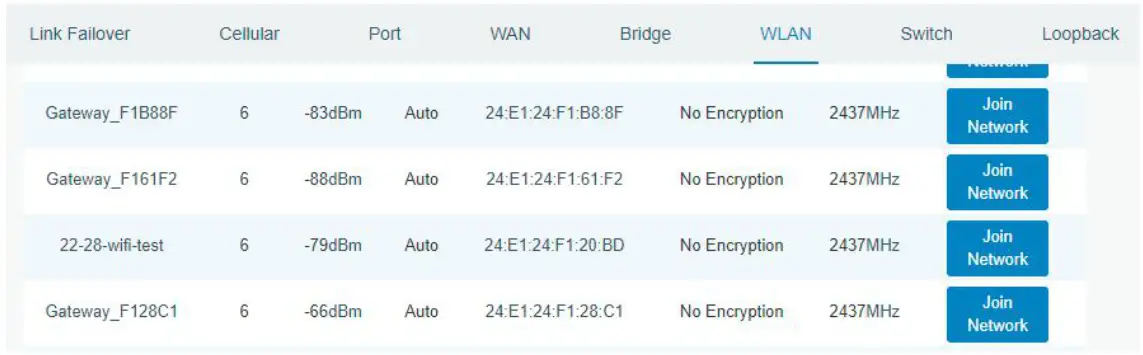
B. Click “Scan” to search for a Wi-Fi access point. Select the available one and click “Join Network”.
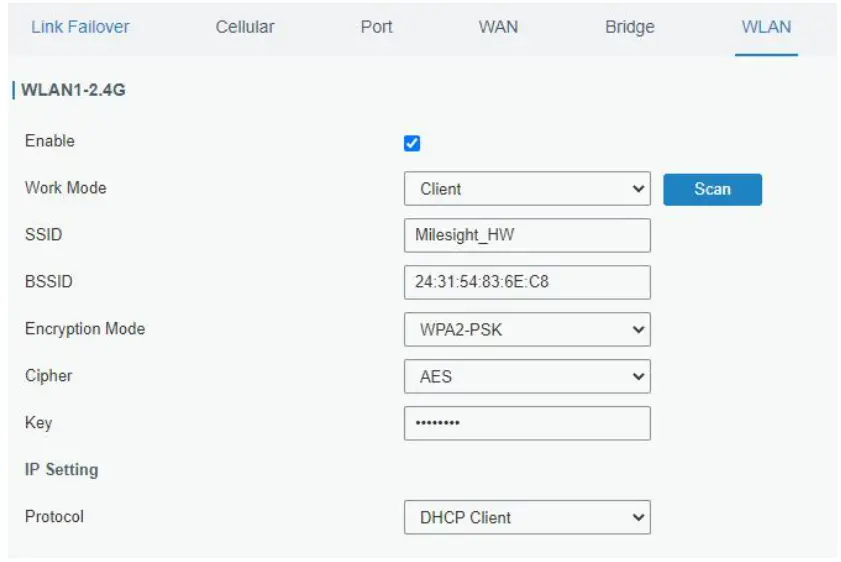
C. Type the key of Wi-Fi.
D. Go to “Network” → “Interface” → “Link Failover” to enable WLAN.
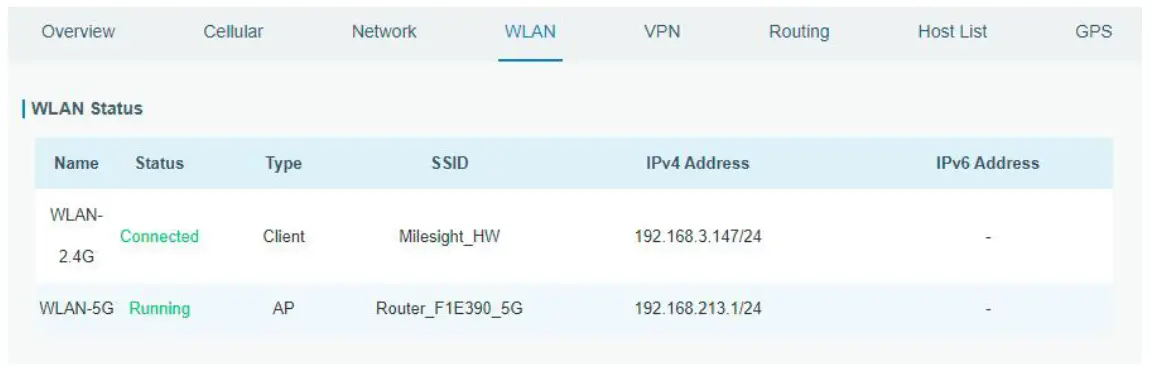
E. Go to “Status” → ”WLAN” to check Wi-Fi status. If it shows “Connected”, it means the device connects to Wi-Fi successfully.
 For assistance, please contact Milesight technical support:
Email: [email protected]
Tel: 86-592-5085280
Fax: 86-592-5023065
Address: Building C09, Software Park III, Xiamen
www.milesight-iot.com
361024, China
 Milesight IoT - LoRaWAN, 5G & AIoT