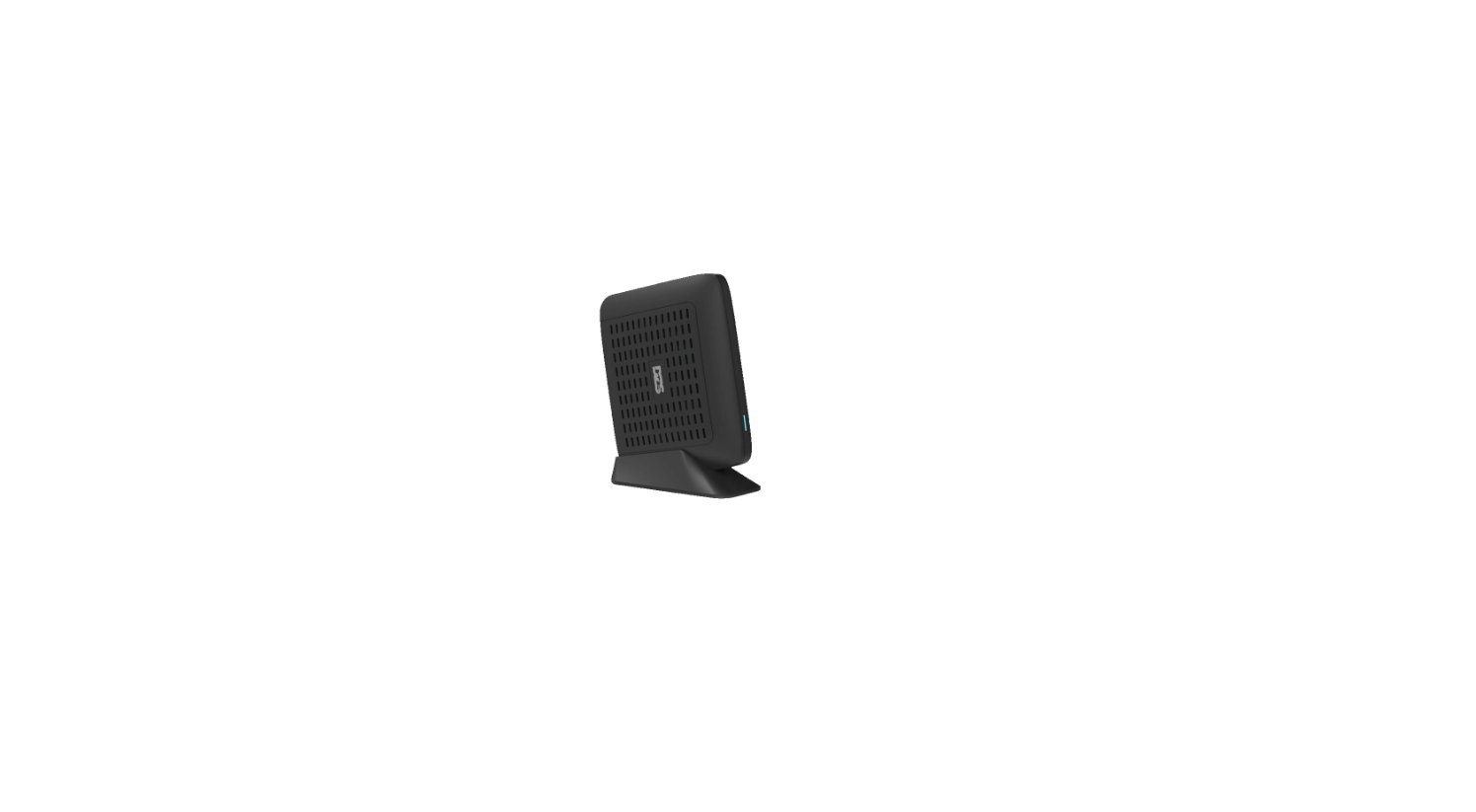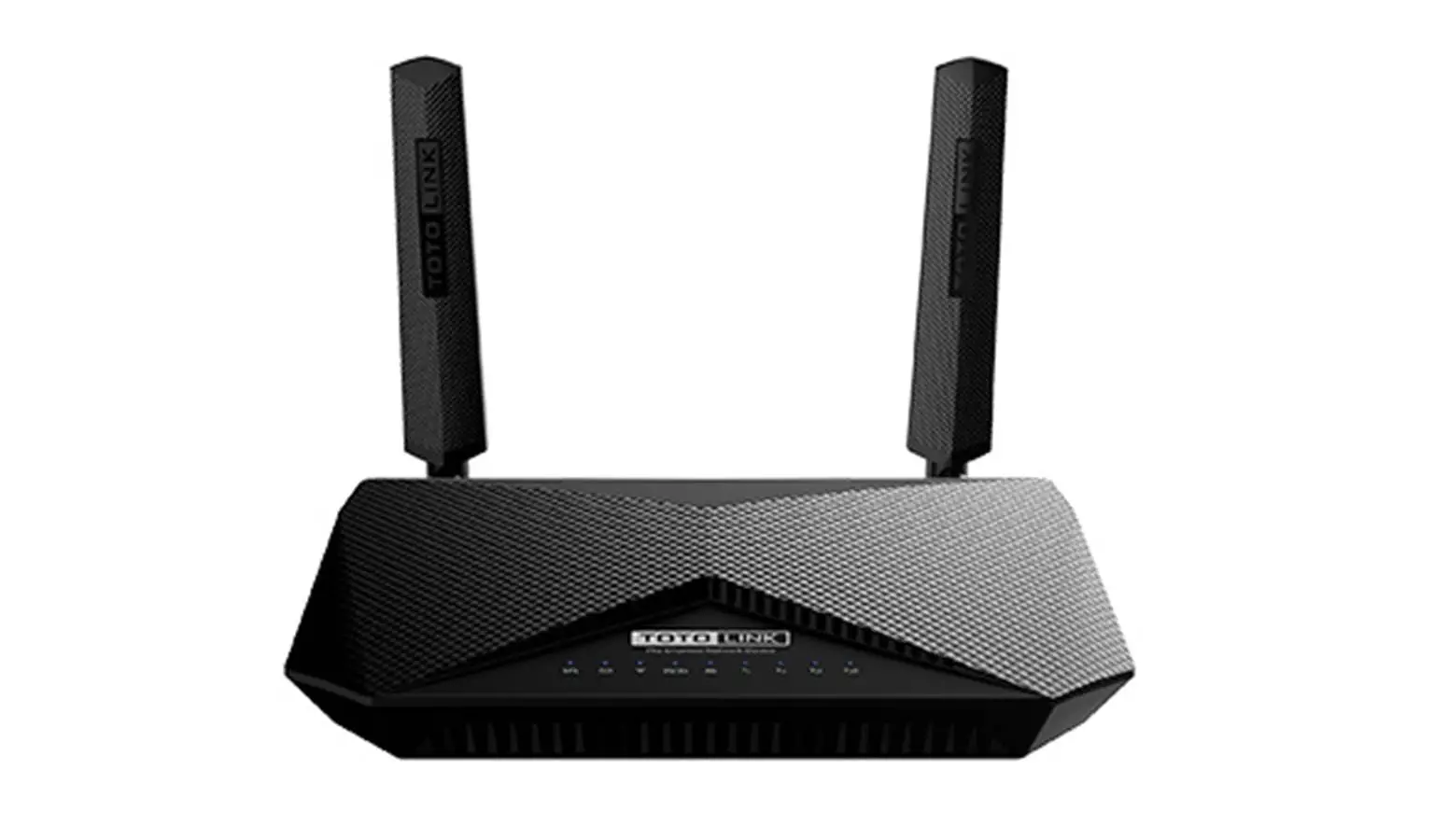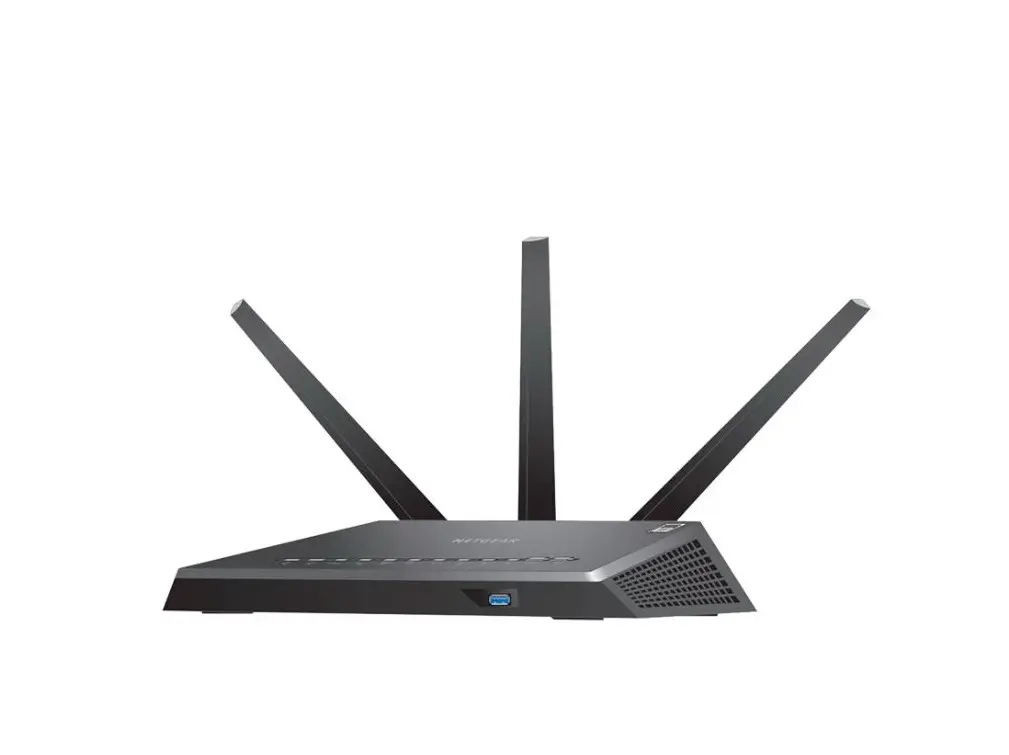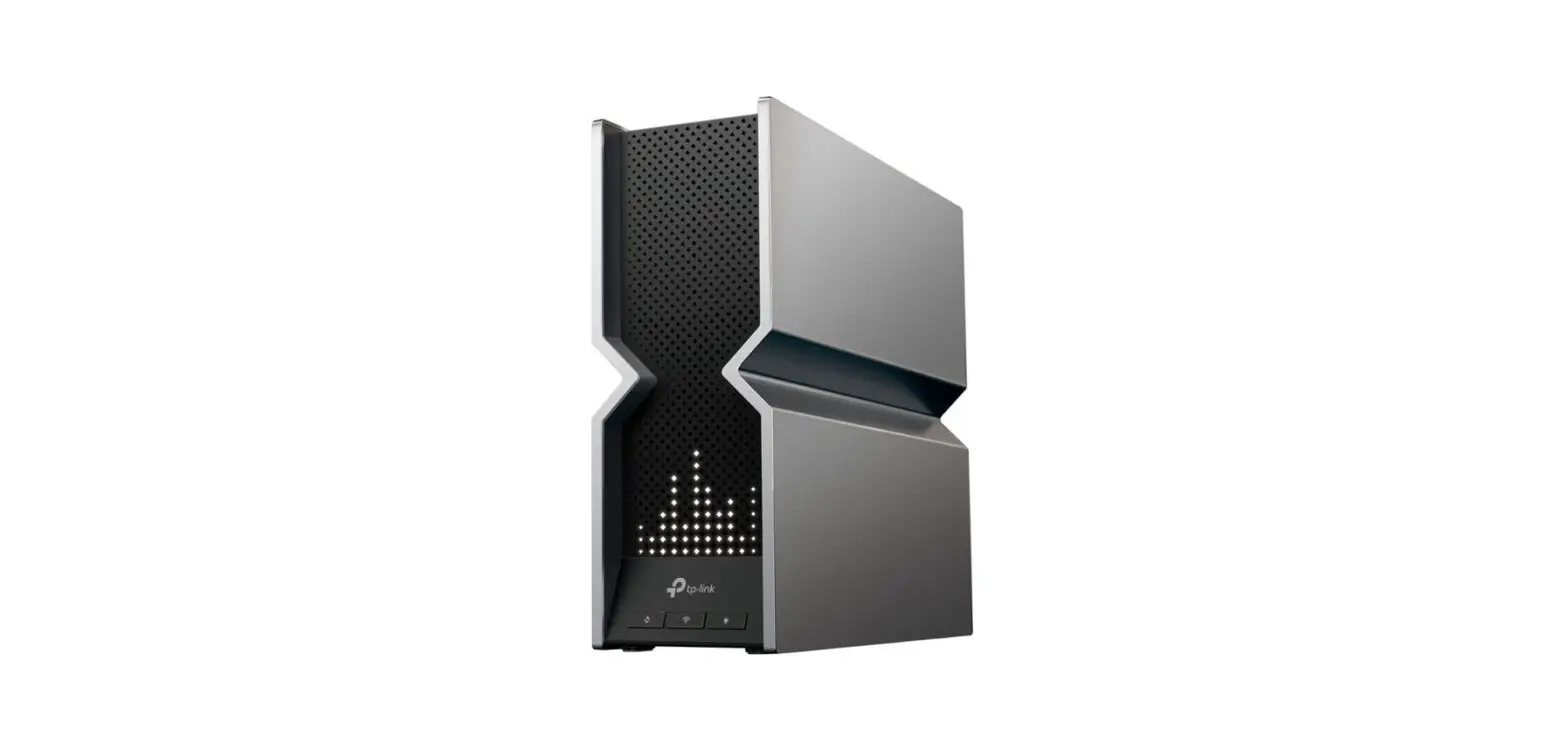
 welcome
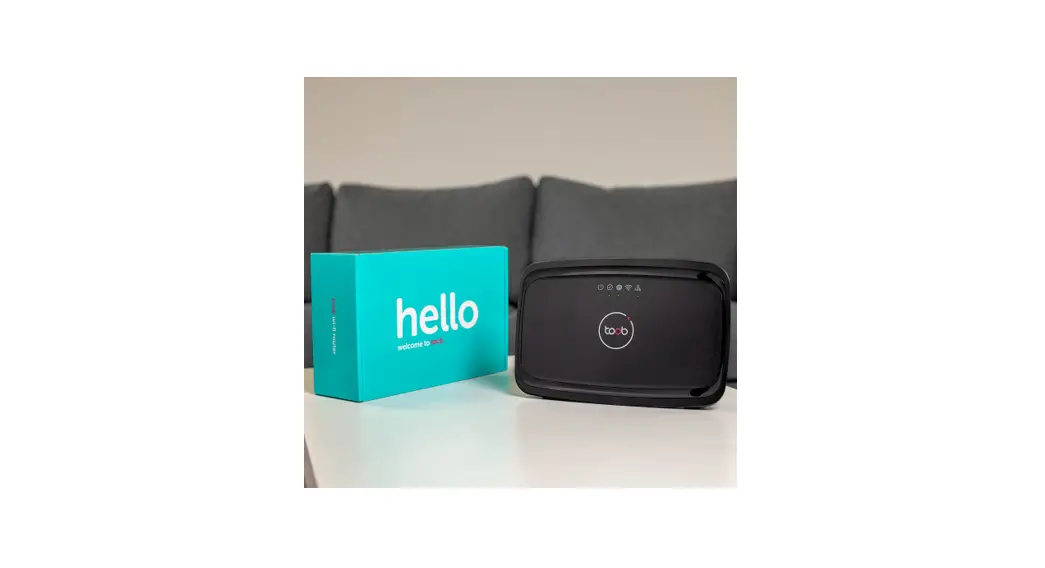
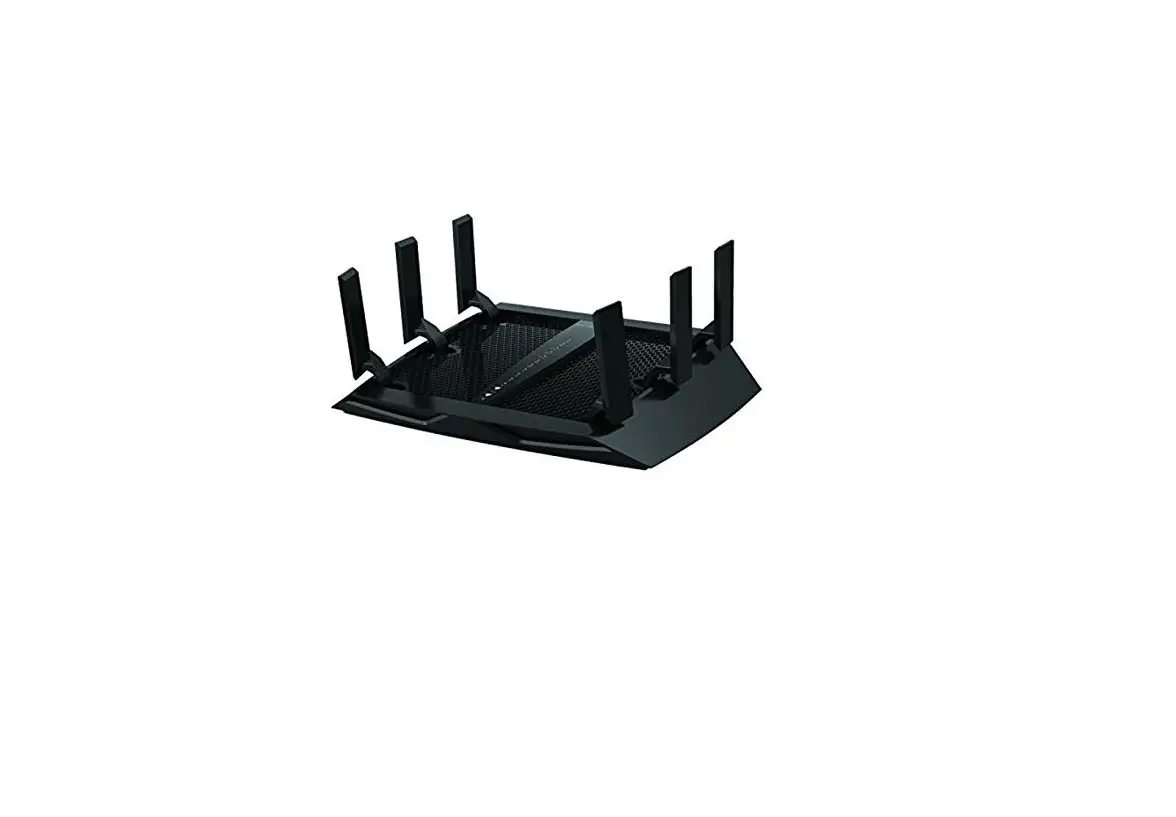
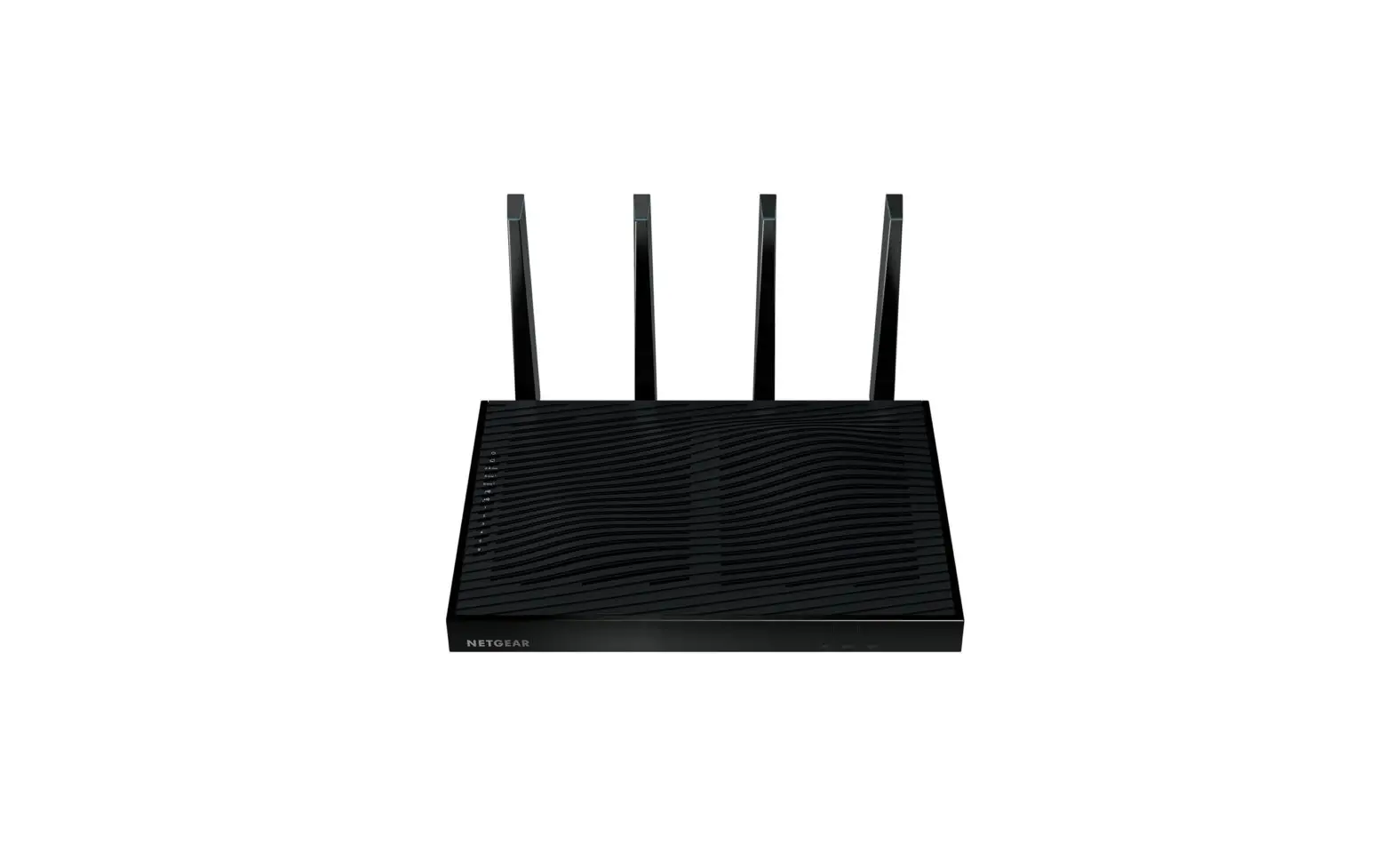
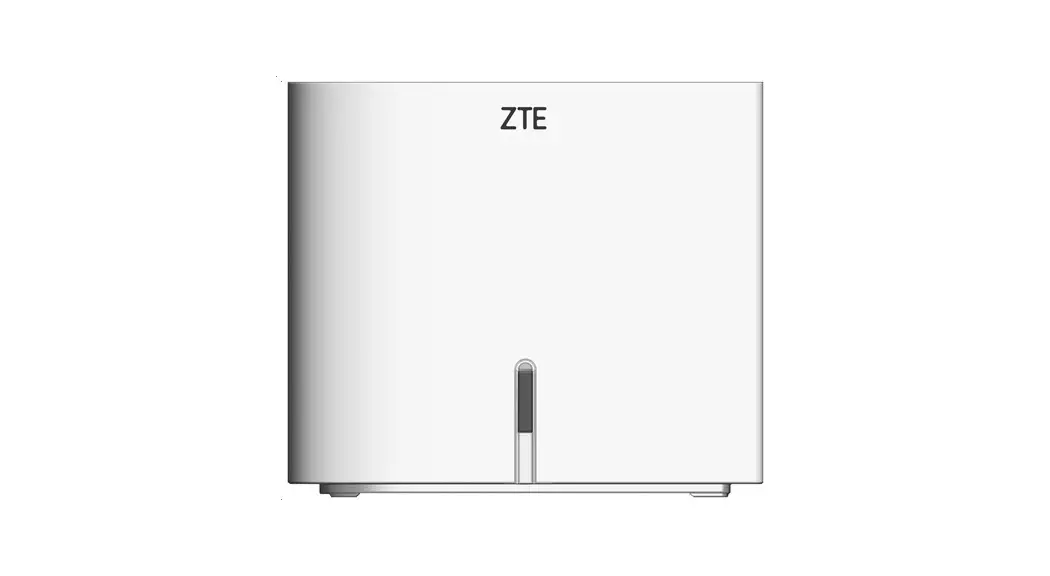
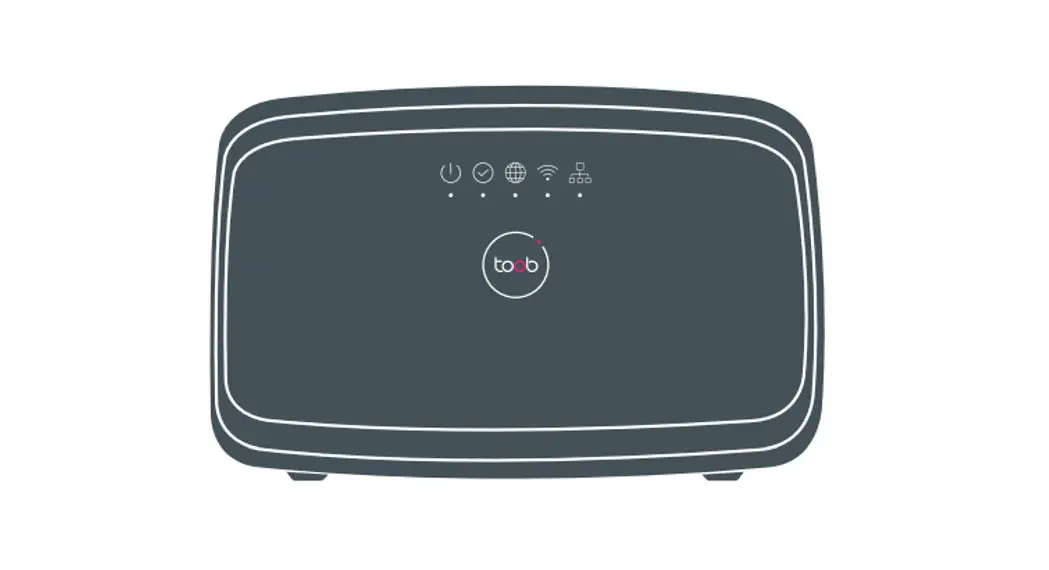
this is your wi-fi router guide
User Guide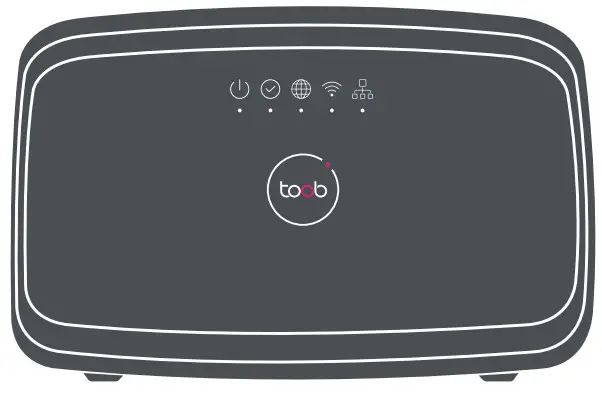
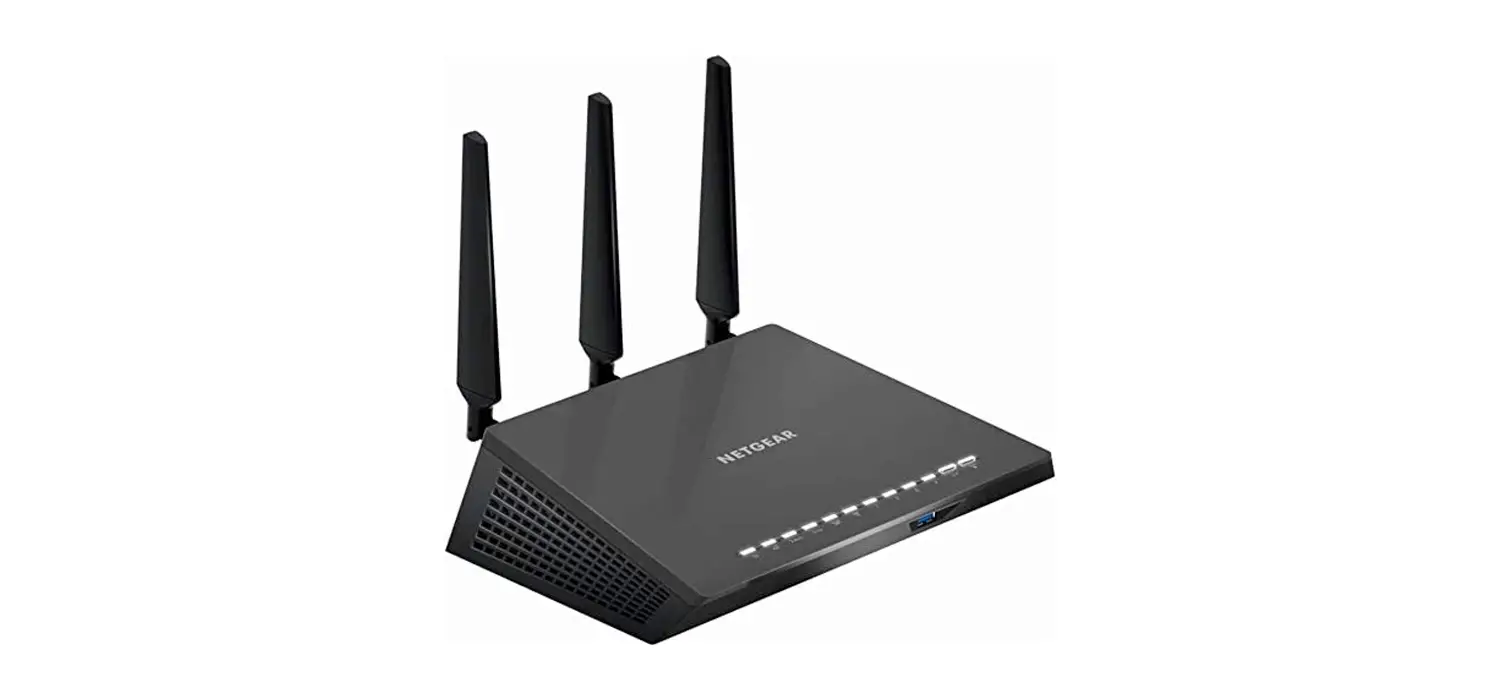
Setting up your wi-fi router
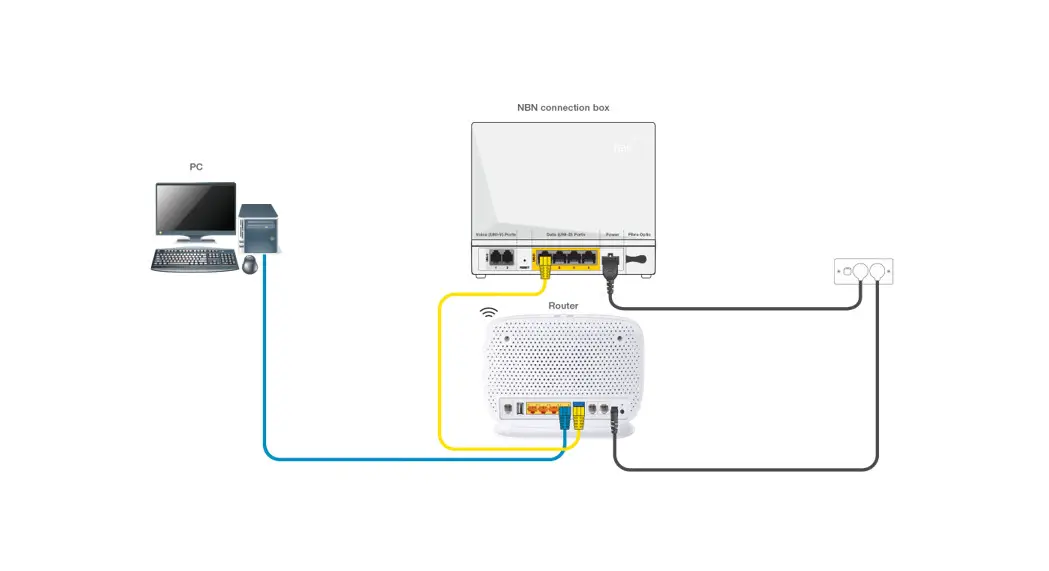
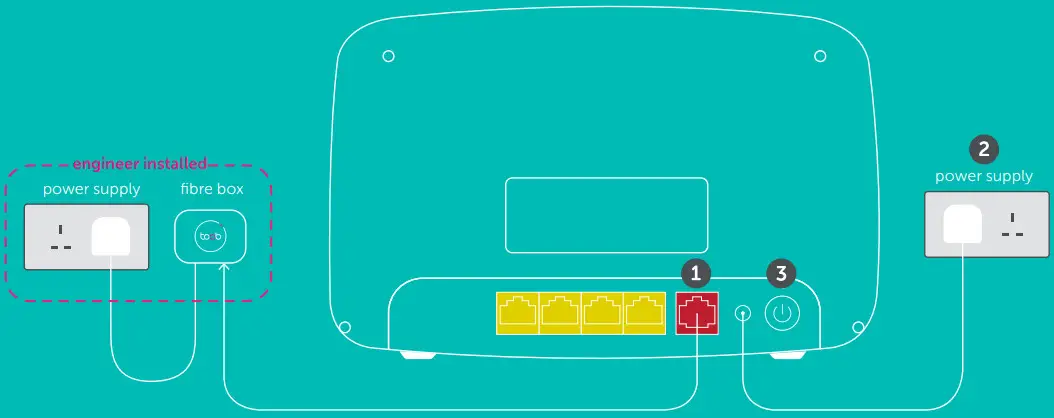
- Connect your fibre box (the wall unit) to the red WAN port on your router using the cable provided
- Plug in the power cable
- Press the power button
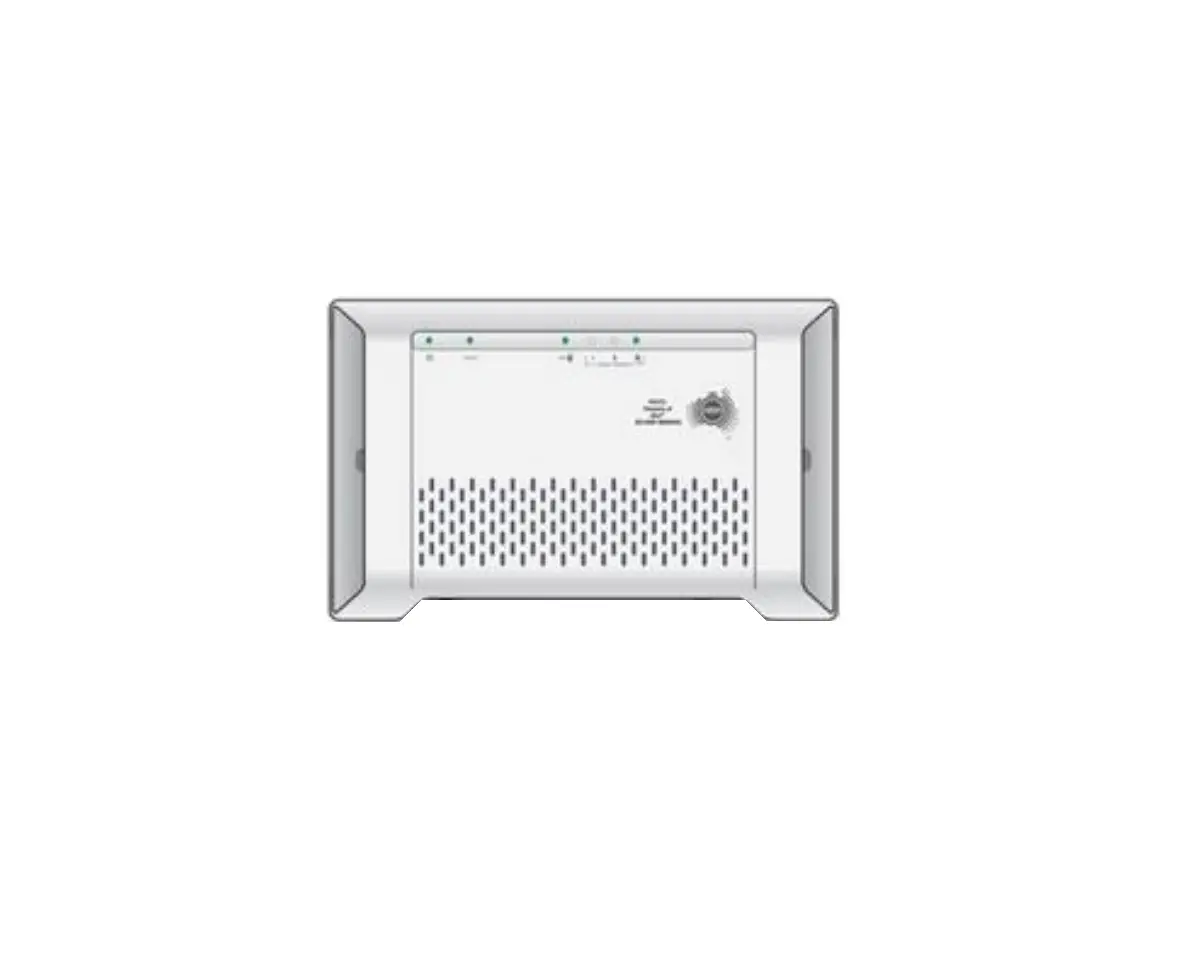
Your wi-fi router lights
| symbol | activity | description | |
| power |  | green light flashing redred light | router is working normally router is booting (up to 10 mins) router has failed to start up properly |
| connection |  | green light | connected to toob’s full-fibre network |
| internet |  | green light | connected to the internet |
| wi-fi |  | green light slow flashing fast flashing (2 secs) of | wi-fi is active (2.4GHz and/or 5GHz) WPS is in pairing mode WPS connection successful disabled |
| LAN |  | green light | external device connected via ethernet cable |
Connecting to your wi-fi router
Connect using wi-fi: use the wi-fi name and password on the back of the router and the wi-fi reference card to connect. Alternatively, scan the QR code on the router and reference card to connect your devices automatically.
Connect using Ethernet: you can connect up to 4 devices via the yellow LAN (Local Area Network) ports on the back of the router.
Connect using wi-fi protected setup
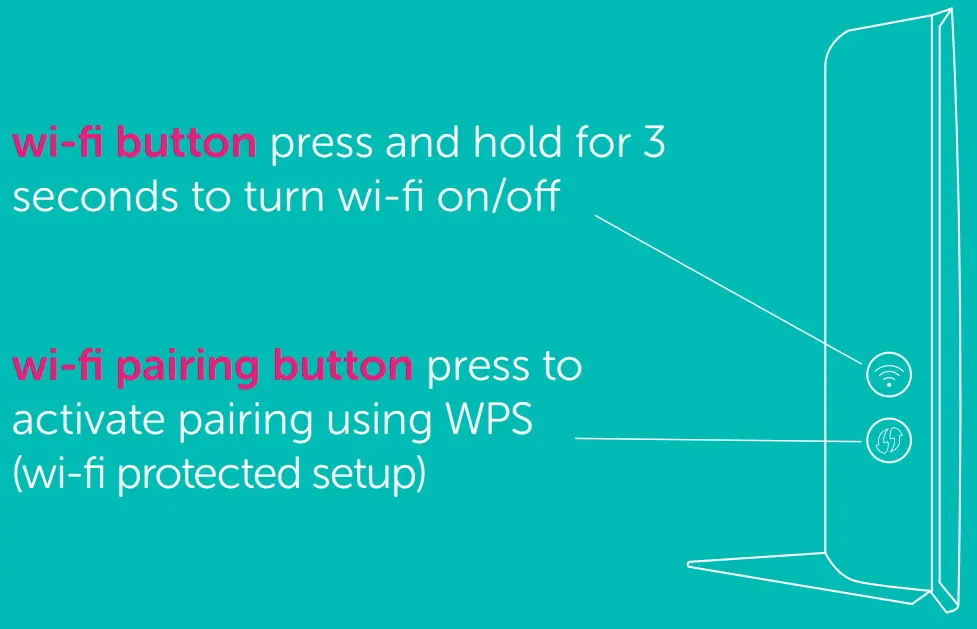
(WPS): press the wi-fi pairing button to activate WPS on the router. Then follow the instructions for WPS setup on your device. Note: ensure your device is in the same room as your router when attempting to pair using WPS.
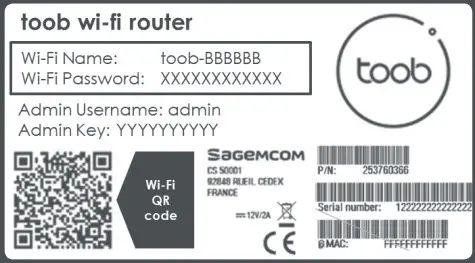
Expert mode: you can manage your router through a portal in your internet browser. Enter http://192.168.1.1 in your browser and use “admin” as the username. Use the admin key found on the back of the router as the password.
From here you can manage your wi-fi name, password and device access.
Note: some of the settings in your router portal can efect the performance of your router. If in doubt please check our website for more details or contact customer services.
help and advice
To learn more about managing your broadband visit our website at toob.co.uk
If you are having connection issues, check that your router is connected as per the setup instructions and restart your router by pressing the power button, waiting 30 seconds and pressing the power again and waiting for the router to boot up. Check the connection with more than one device to ensure the issue is with the router.
If you still need help then visit our website at toob.co.uk.
Note: maximum wi-fi speeds are dependent on a number of factors, including device capability, router placement, distance from router and interference from other routers and electrical devices. For more details on how to get the best from your router visit our website.
version 1
© toob ltd 2019
 toob full-fibre broadband for your home