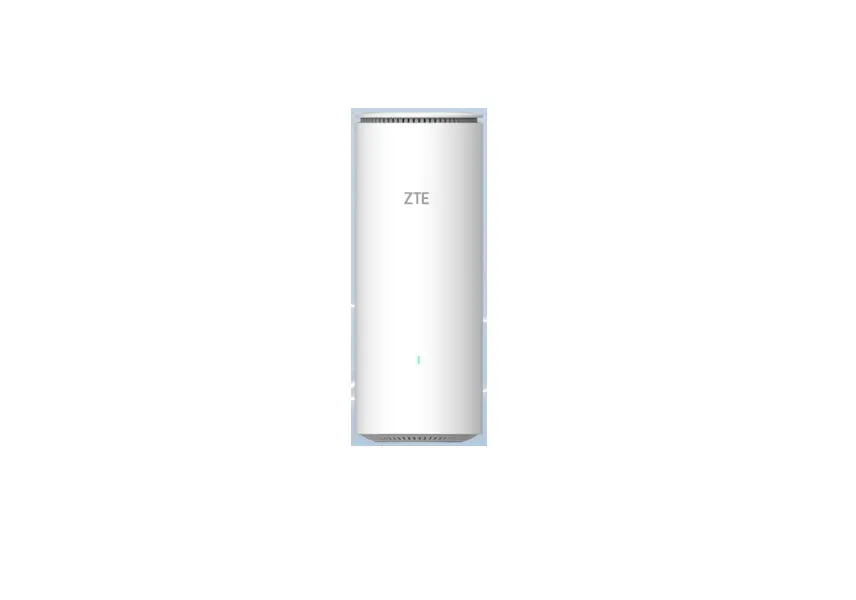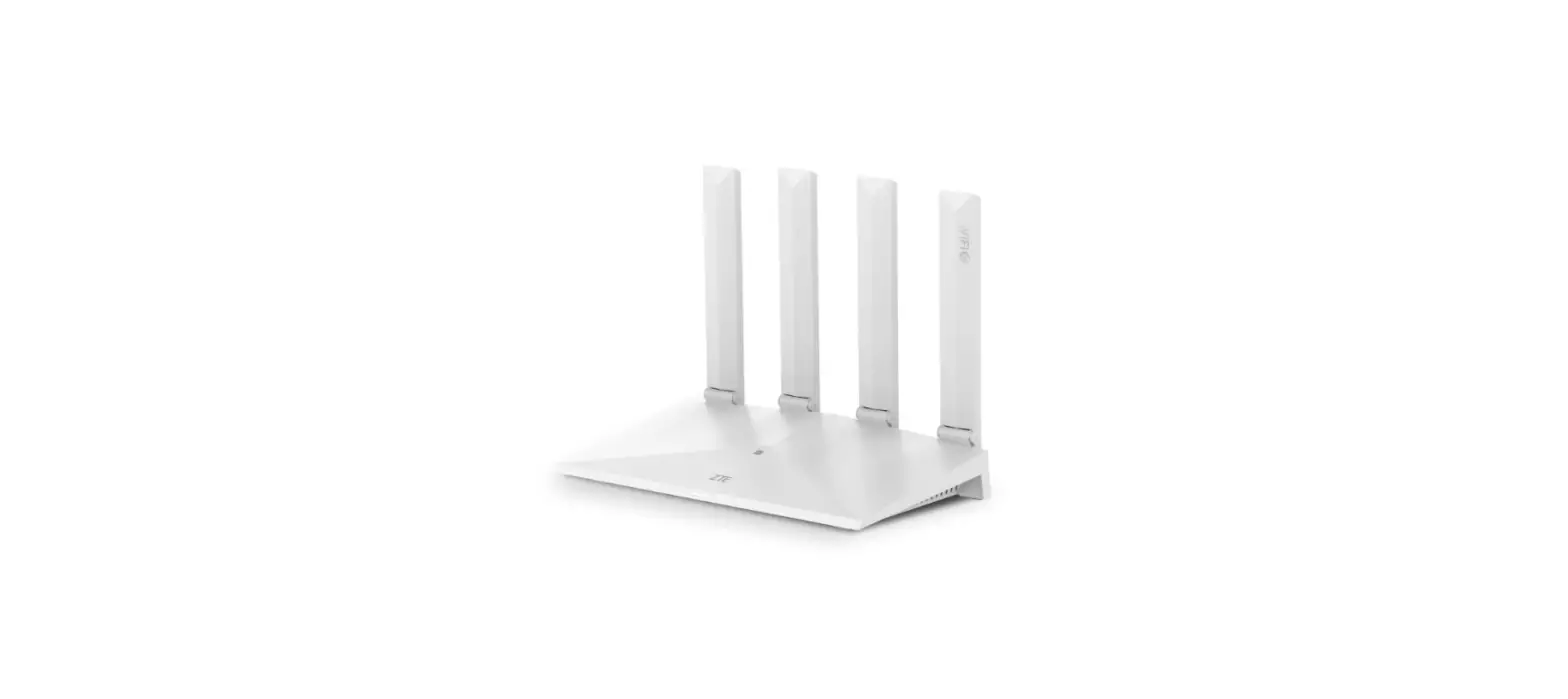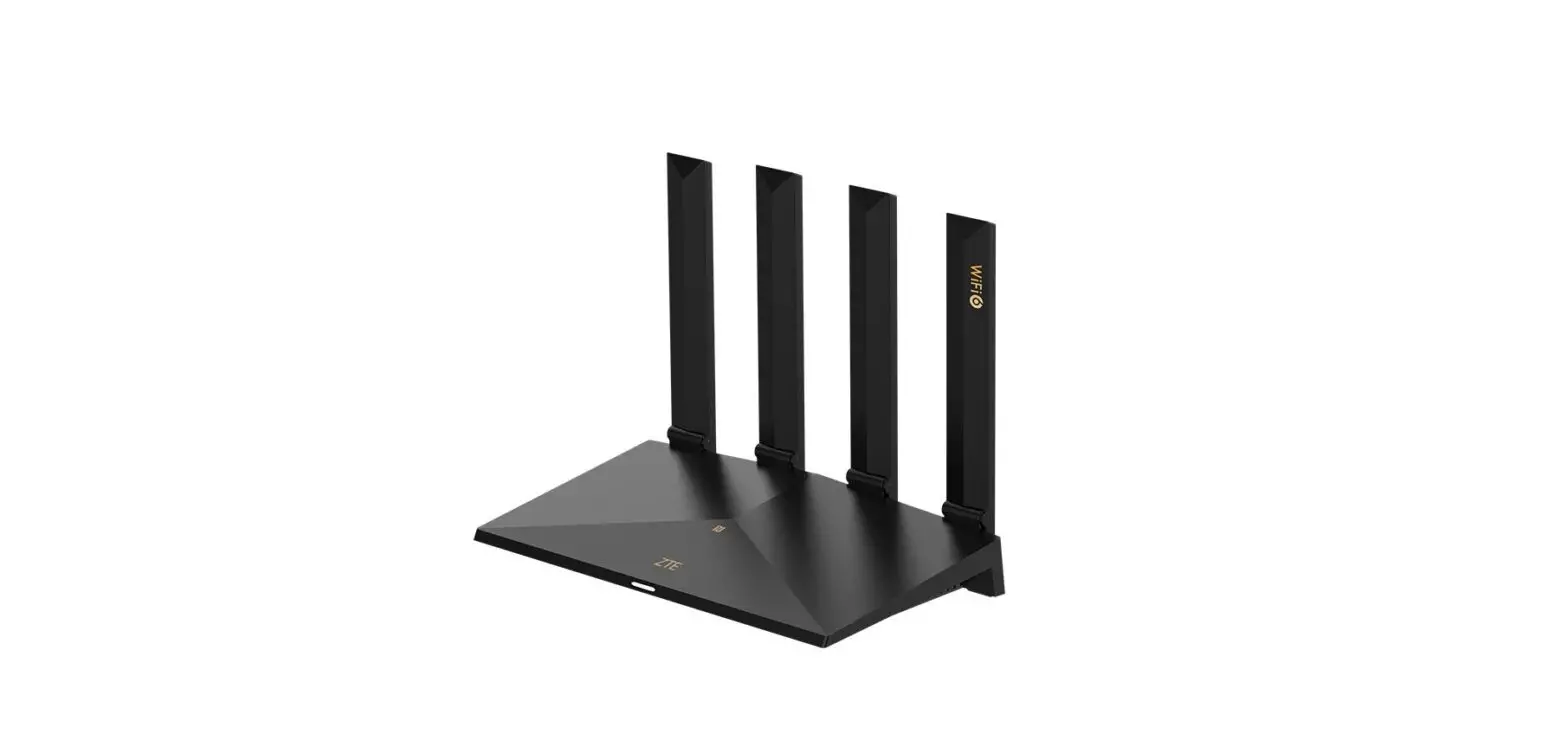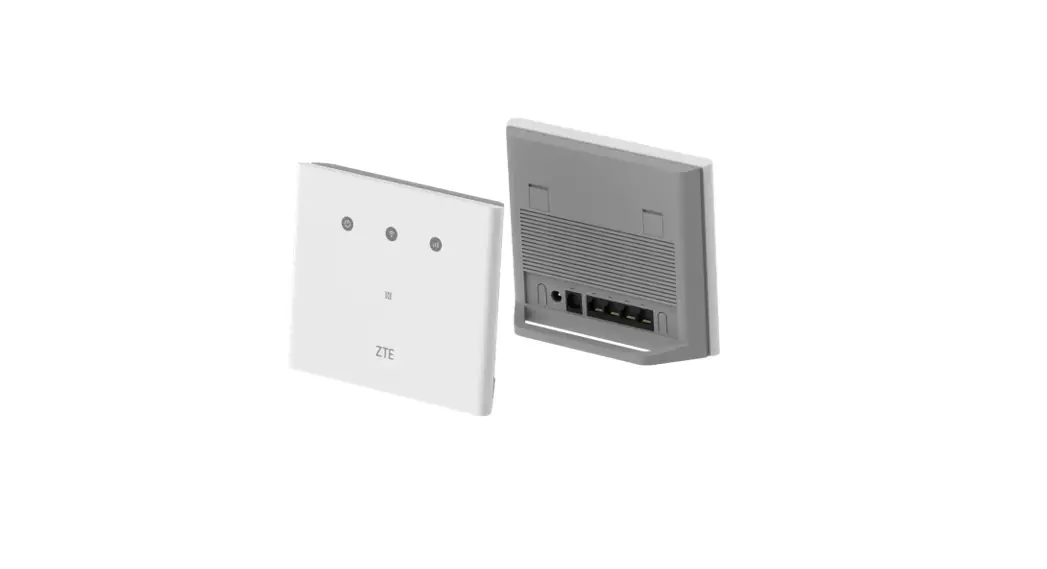

ZXHN H196A
WiFi Router
User Manual
CORPORATION
Manual No: SJ-20190711154832-005
Edition Time: 2020-09-25 (R1.0)
LEGAL INFORMATION
Copyright © 2020 ZTE CORPORATION.
The contents of this document are protected by copyright laws and international treaties. Any reproduction or distribution of this document or any portion of this document, in any form by any means, without the prior written consent of ZTE CORPORATION is prohibited. Additionally, the contents of this document are protected by contractual confidentiality obligations.
All company, brand and product names are trade or service marks, or registered trade or service marks, of ZTE CORPORATION or of their respective owners.
This document is provided “as is”, and all express, implied, or statutory warranties, representations or conditions are disclaimed, including without limitation any implied warranty of merchantability, fitness for a particular purpose, title or non-infringement. ZTE CORPORATION and its licensors shall not be liable for damages resulting from the use of or reliance on the information contained herein. ZTE CORPORATION or its licensors may have current or pending intellectual property rights or applications covering the subject matter of this document. Except as expressly provided in any written license between
ZTE CORPORATION and its licensee, the user of this document shall not acquire any license to the subject matter herein. ZTE CORPORATION reserves the right to upgrade or make technical change to this product without further notice.
Users may visit ZTE technical support website http://support.zte.com.cn to inquire related information. The ultimate right to interpret this product resides in ZTE CORPORATION.
Safety Precautions
 Note: Before using the device, read the following safety precautions. ZTE bears no liability to the consequences incurred by violation of the safety instructions.
Usage Cautions
- Read all the safety cautions carefully before using the device.
- Only use the accessories included in the package, such as power supply adapter and battery.
- Do not extend the power cord, otherwise the device will not work.
- The power supply voltage must meet the requirements of the device input voltage (The voltage fluctuation range is less than 10%).
- Keep the power plug clean and dry to prevent any risk of electric shock or other dangers.
- Disconnect all the cables during a lightning storm to prevent the device from damage.
- Power off and unplug the power plug when the device is not in use for a long time.
- Do not attempt to open the covers of the device. It is dangerous to do so when the device is powered ON.
- Power off and stop using the device under the conditions such as, abnormal sound, smoke, and strange smell. Contact the service provider for maintenance if the device is faulty.
Environment Requirements
- Ensure proper ventilation to the device. Place the device away from direct sunlight.
- Keep the device ventilated and dry. Never spill any liquid on the device.
- Do not place any object on the device to prevent any deformation or damage to the device.
- Do not place the device near any source of heat or water.
- Keep the device away from any household appliances with strong magnetic or electric fields, such as microwave oven and refrigerator.
Cleaning Requirements
- Before cleaning, power off the device, and unplug all the cables connected to the device, such as power cable, optical fiber, and Ethernet cable.
- Do not use any liquid or spray to clean the device. Use a soft dry cloth.
Environment Protection
- Do not dispose the device or battery improperly.
- Observe the local regulations about the equipment disposal or treatment.
Environmental Information
The equipment you purchased has required the extraction and use of natural resources for its production. It may contain substances that are hazardous to people’s health and to the environment. To avoid putting such substances into our environment and to reduce pressure on our natural resources, we ask that you reuse or recycle your end-of-life equipment by using an accredited electronics take-back system. The symbols below indicate that this product should be reused or recycled and not simply discarded. Please locate and use an appropriate reuse and recycling site. If you need more information on collection, reuse and recycling systems, contact your local or regional waste administration. You may also contact your equipment provider for more information on the environmental performances of these products.

Overview
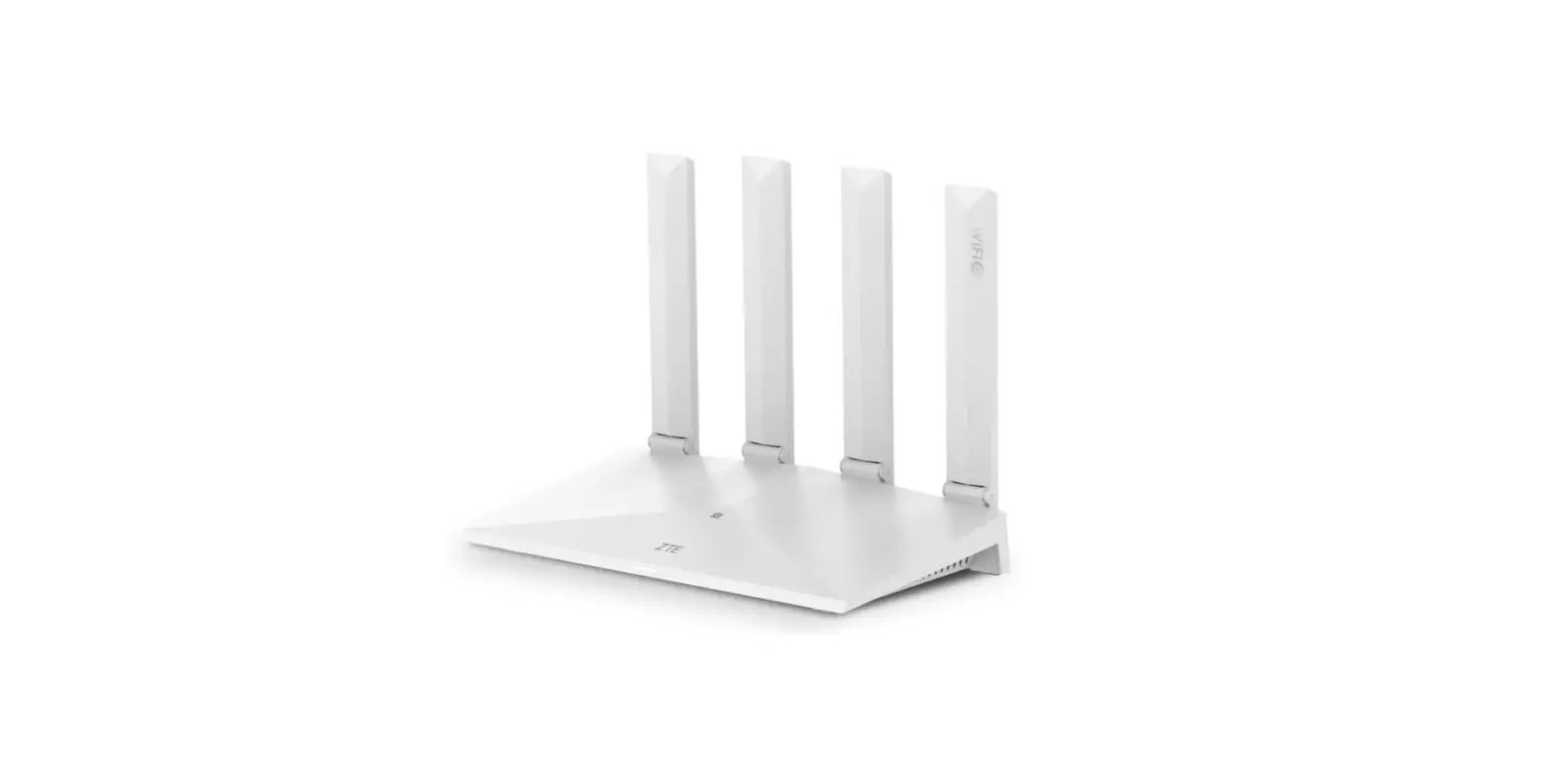
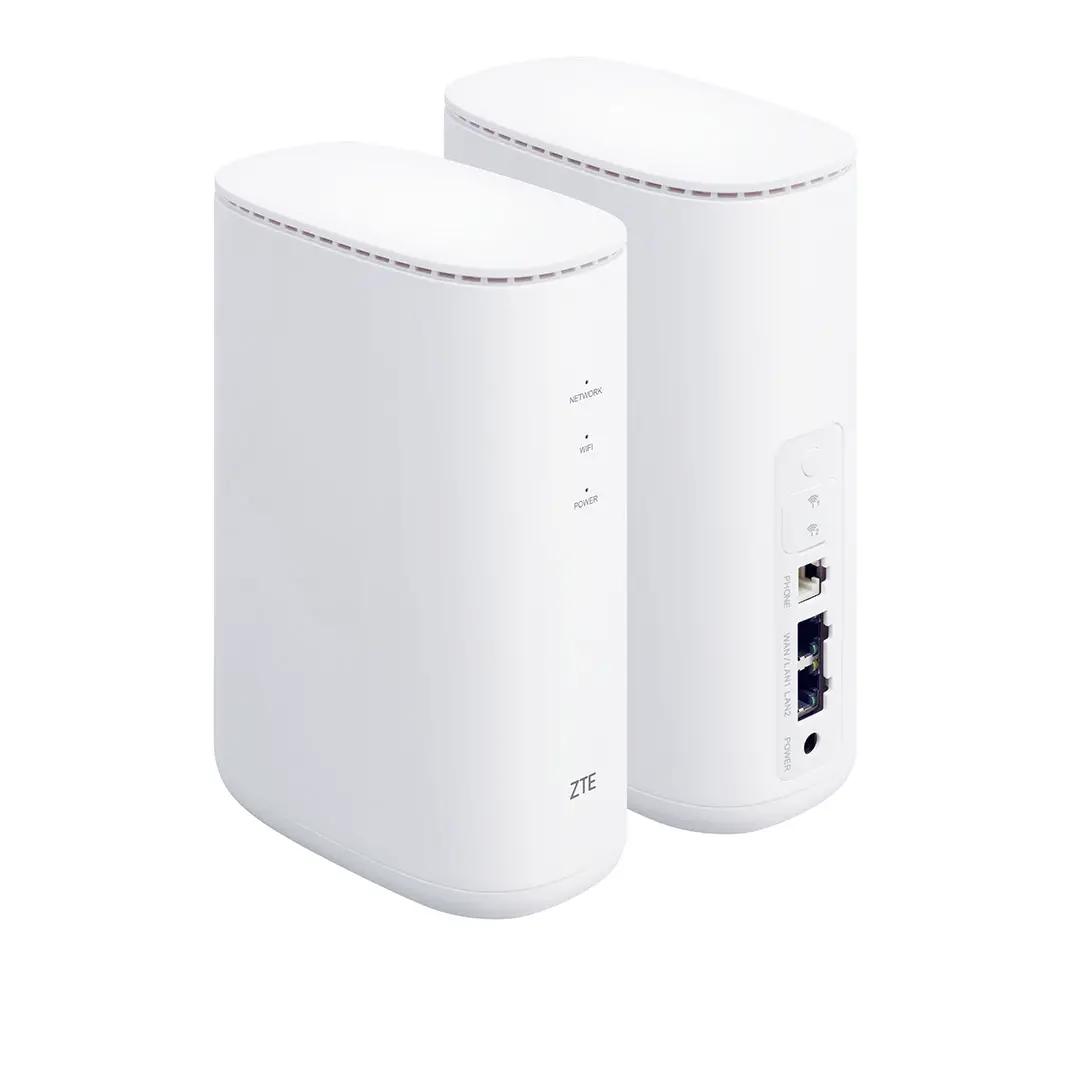
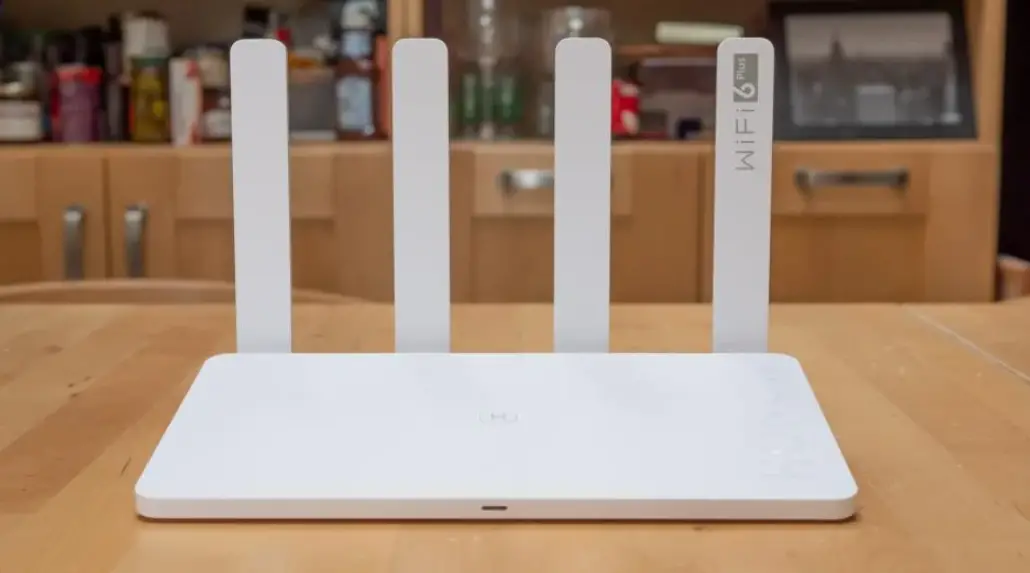
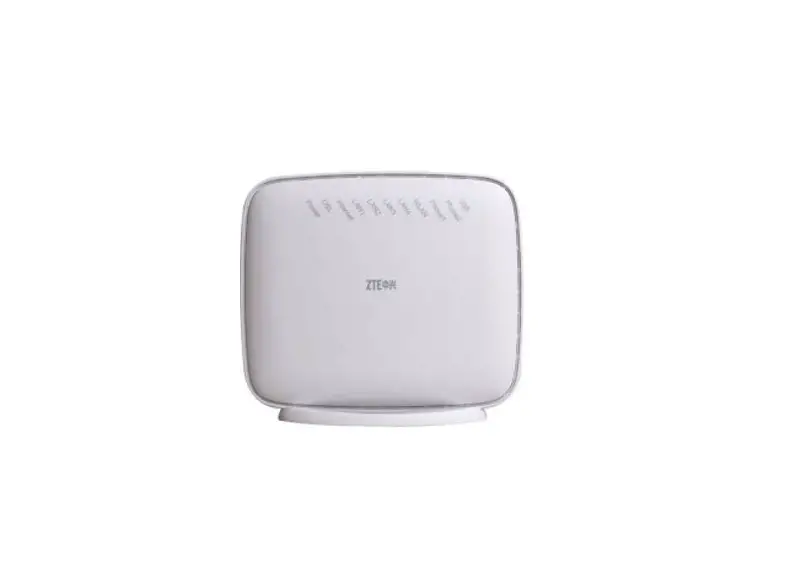
The ZXHN H196A is an advanced router that supports Dual-band concurrent 11ac Wi-Fi. It provides High Speed Internet, IPTV services through the GE uplink. Those services are delivered by the gateway on your home network to the PCs, STBs, gaming devices and so on via the integrated interfaces: Ethernet, Wi-Fi.
It supports the following features:
- Gigabit Ethernet WAN Uplink
The ZXHN H196A can provide Internet access through Gigabit Ethernet WAN connection. So it is possible for ZXHN H196A to provide Internet access choices to suit various broadband access network. - GE LAN Ports
The ZXHN H196A is equipped with 2 Gigabit Ethernet LAN interfaces which provides higher bandwidth and speed for networking and makes the device more future-proof. - Dual Band Concurrent Wi-Fi
The ZXHN H196A supports Dual-Band concurrent Wi-Fi up to 300Mbps(802.11n 2×2 @ 2.4GHz) and 1.16Gbps(802.11ac 2×2 @5GHz). Wi-Fi is a key feature for the end users to build up a home network without any cabling in the house or in the office. - IPv4 / IPv6 Dual Stack
The ZXHN H196A supports IPv4 / IPv6 dual stack mechanism for IPv6 network migration. - Remote management
The ZXHN H196A supports TR-069, including TR-098 data model. It is convenient for operators to facilitate the large-scale deployment and maintenance by zero-touch provisioning.
Product Specifications
| Technical Specifications | |
| Dimension | 95 mm (L) x 95 mm (W) x 80mm (H) |
| Power adapter | Input: AC 100 V – 240 V, 50 Hz/60 Hz Output: DC 12.0 V, 1.0 A |
| Environment Requirements | |
| Operation temperature | 0 °C – 40 °C (32 °F – 104 °F) |
| Operation humidity | 5% – 95% (non-condensing) |
Package Check
After unpacking the ZXHN H196A product, check that the following items are complete.
| Name | Quantity |
| ZXHN H196A | 1 |
| Power adapter | 1 |
| RJ-45 Ethernet cable | 1 |
| User manual | 1 |
Note:
The list is only for reference. The actual contents may vary from the list.
If any item is found to be wrong, missing, or damaged, contact your service provider. Keep the package and all the items in good condition if you want to replace the product.
Installation Preparation
Hardware Description
Front panel
Figure 3-1 shows the front panel of the ZXHN H196A.
Figure 3-1 The Front Panel
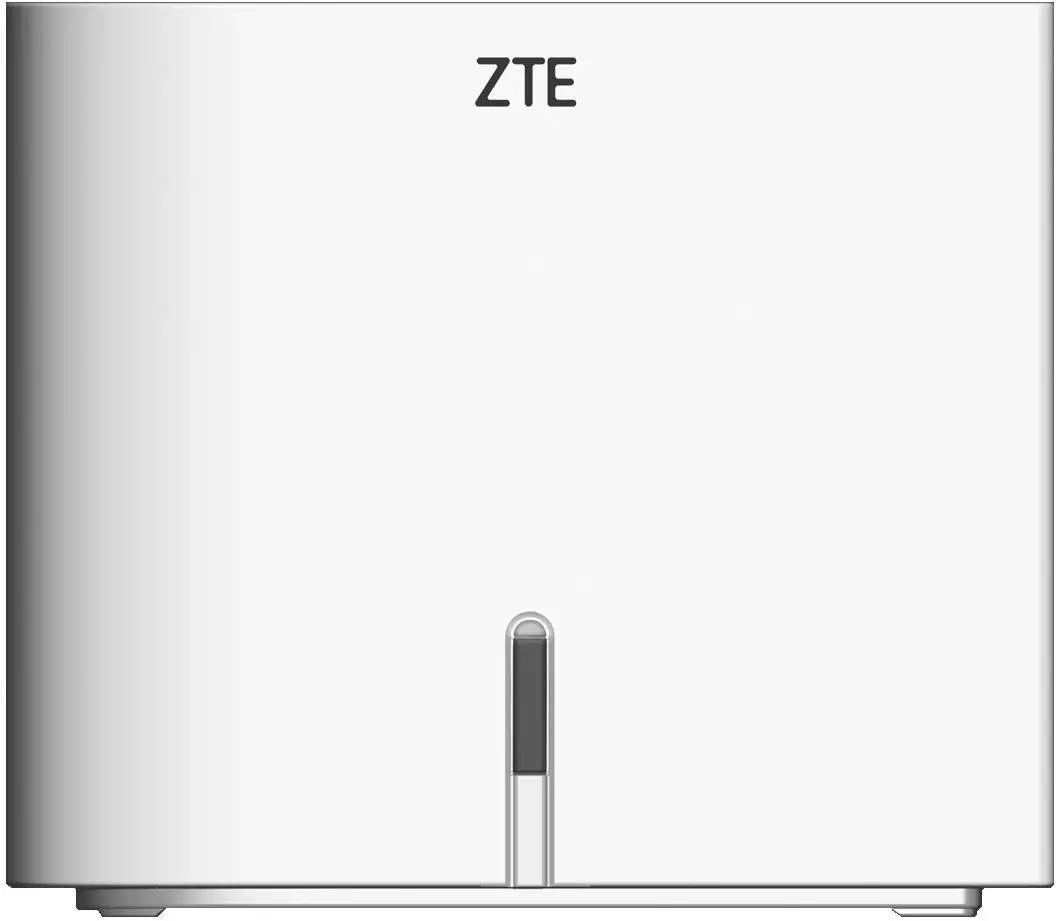
| Indicator Color | Status | Definition |
| Red | Solid | The device is being started or the device is abnormal. |
| Flashing | The uplink connection is failured, or failure to configure synchronization in the Extender mode. | |
| Green | Solid | The uplink connection is normal. |
| Flashing | The WPS negotiation connection is being implemented. | |
| Blue | Solid | In the Extender mode, the wireless uplink signal is strong, or the connection is successful and the configuration synchronization is successful in the Extender mode. |
| Flashing | In the Extender mode, the wireless uplink signal is weak. | |
| Red and purple | Flashing | Flashing red, green, and blue at the same time. The device is upgrading software. |
Rear panel
Figure 3-2 shows the interfaces and buttons on the rear panel of the ZXHN H196A.
Figure 3-2 The Rear Panel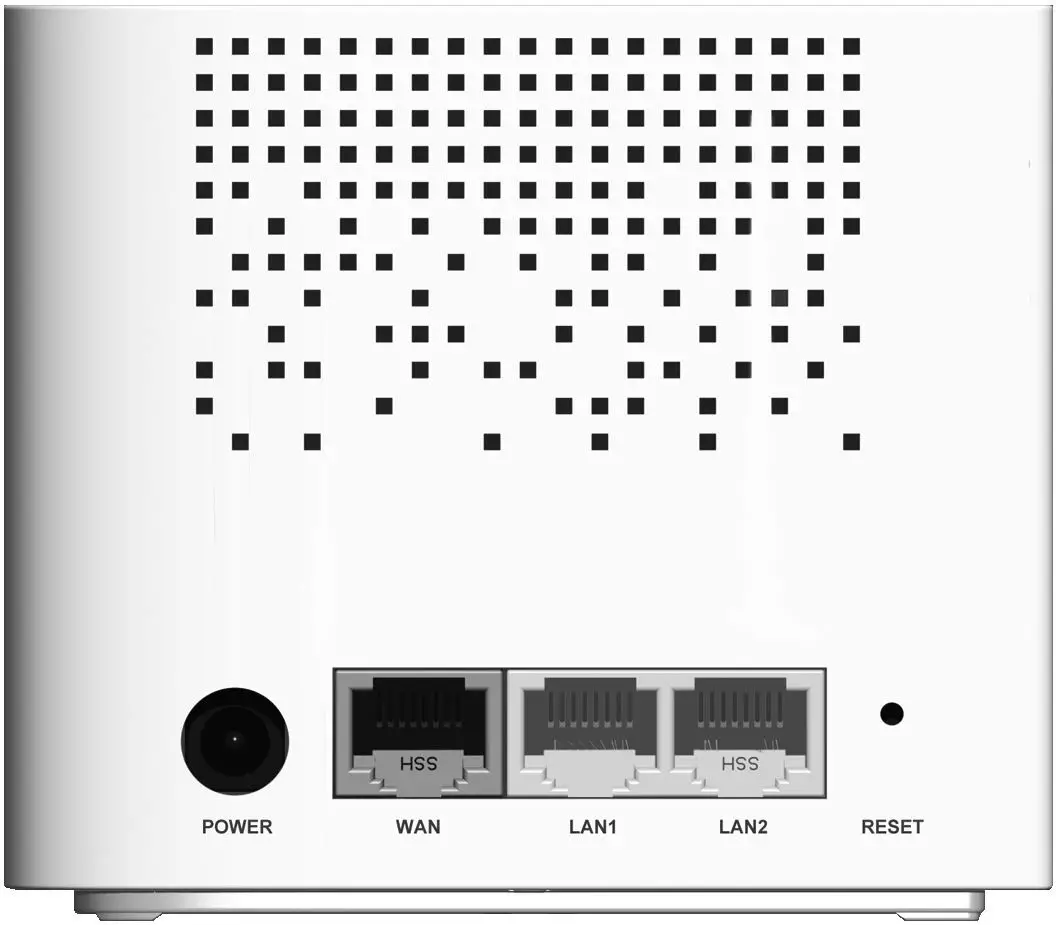
| Interface/Button | Function |
| POWER | Power supply port, it is connected to the power adapter. |
| WAN | RJ-45 port, it is used to to connect to the uplink access network. |
| LAN1/LAN2 | RJ-45 port, it is used to connect the modem to computer, STB or other network devices. |
| RESET | During power ON period, hold on this button for more than 5 seconds to reset the current settings to the factory default setting, and then the system restarts automatically. |
| WPS | WPS Push Button, press this button to enable or disable the WPS function. |
- *The WPS button is located in the front of the device, but there is no mark.
Hardware Connection
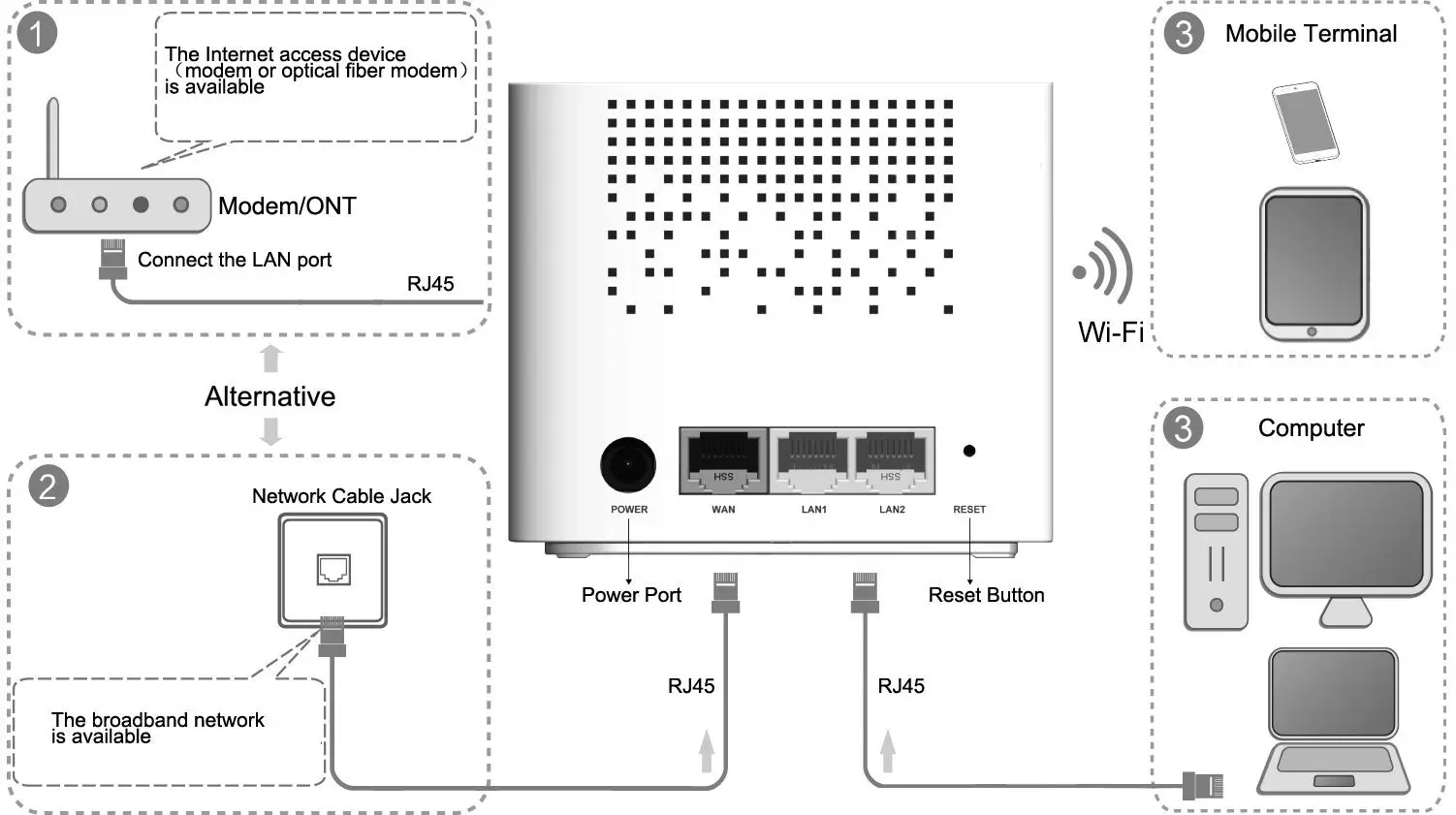
Figure 3-3 shows the devices that are connected to interfaces of the ZXHN H196A.
Figure 3-3 Cable Connection
 The factors affecting the wireless network coverage range include the location of the product, distance between the product and a wireless terminal, number of obstacles, obstacle material and density, and interference source. It is recommended that you place the product in accordance with the following principles to maximize the strength of wireless signals.
- The product should be far away from the objects affecting wireless signal propagation, for example, an object with a high reflectivity such as a metallic object or a mirror.
- The product should be far away from an electrical appliance with a strong magnetic or electric field, for example, a microwave oven, a refrigerator, a wireless router, a cordless phone, or a Bluetooth product.
- The product should be installed on the same floor as the applied area. Do not put other objects on the product. Try to reduce the number of obstacles between the product and a wireless terminal.
- Horizontally place the product in the middle of the applied area and do not put it in a corner.
- Do not place the product at a high position while it is placed horizontally. The recommended height is 1.2 to 1.5 meters.
Troubleshooting
The green indicator on the front panel is off after the device is powered on.
- The wireless network is not enabled and checking the configuration of wireless network.
- The indicator function is disabled.
- The uplink signal is weak in the Extender mode and checking the uplink connection.
The red indicator on the front panel is flashing after the device is powered on.
- The WAN link is not established.
- The Ethernet cable is not correctly connected to the WAN interface.
- Please contact the service provider for help.
Unable to connect to the network.
- Check that the Ethernet cable is correctly connected to the WAN interface and the Ethernet cable is correctly connected to the LAN interface.
- Check the indicator on the front panel is solid red or flashing red.
Restore the factory default settings.
After the power is on, use a needle to press the button for over 5 seconds to restore the default factory settings.
FCC Statement
FCC Statement
This equipment has been tested and found to comply with the limits for a Class B digital device, pursuant to part 15 of the FCC Rules. These limits are designed to provide reasonable protection against harmful interference in a residential installation. This equipment generates, uses and can radiate radio frequency energy and, if not installed and used in accordance with the instructions, may cause harmful interference to radio communications. However, there is no guarantee that interference will not occur in a particular installation. If this equipment does cause harmful interference to radio or television reception, which can be determined by turning the equipment off and on, the user is encouraged to try to correct the interference by one or more of the following measures:
- Reorient or relocate the receiving antenna.
- Increase the separation between the equipment and receiver.
- Connect the equipment into an outlet on a circuit different from that to which the receiver is connected.
- Consult the dealer or an experienced radio/TV technician for help.
To assure continued compliance, any changes or modifications not expressly approved by the party responsible for compliance could void the user’s authority to operate this equipment. (Example- use only shielded interface cables when connecting to computer or peripheral devices).
FCC Radiation Exposure Statement
This device complies with FCC radiation exposure limits set forth for an uncontrolled environment and it also complies with Part 15 of the FCC RF Rules. This equipment must be installed and operated in accordance with provided instructions and the antenna(s) used for this transmitter must be installed to provide a separation distance of at least 20 cm from all persons and must not be co-located or operating in conjunction with any other antenna or transmitter. End-users and installers must be provide with antenna installation instructions and consider removing the no-collocation statement.
This device complies with Part 15 of the FCC Rules. Operation is subject to the following two conditions:
- This device may not cause harmful interference.
- This device must accept any interference received, including interference that may cause undesired operation.
 Caution! Any changes or modifications not expressly approved by the party responsible for compliance could void the user’s authority to operate the equipment.
CERTIFICATIONS
CHECKER______________________
DATE__________________________
Address: No.55, Hi-tech Road South, ShenZhen, P.R.China
Postcode: 518057
Tel: +86-755-2677 1900
URL: http://support.zte.com.cn
E-mail: [email protected]