ZR2720N Industrial Router
Product Information
The ZR2720N is an industrial cellular VPN router designed for
reliable and secure network connectivity. It comes with a
comprehensive package of components, including:
- 1 x ZR2720N Industrial Cellular VPN Router
- 1 x Power Adapter (12V DC/1A)
- 1 x Quick Start Guide
- 1 x Ethernet Cable
- 1 x SMA Cellular Antenna (stubby/magnet optional)
- 1 x SMA Wi-Fi Antenna (stubby/magnet optional)
Please ensure that all the items mentioned above are included in
the package. If any item is missing or damaged, please contact your
sales representative for assistance.
Environmental Requirements
The ZR2720N router should be installed under the following
environmental conditions:
- Temperature: -20°C to 60°C
- Humidity: 10% to 90% (non-condensing)
Hardware Introduction
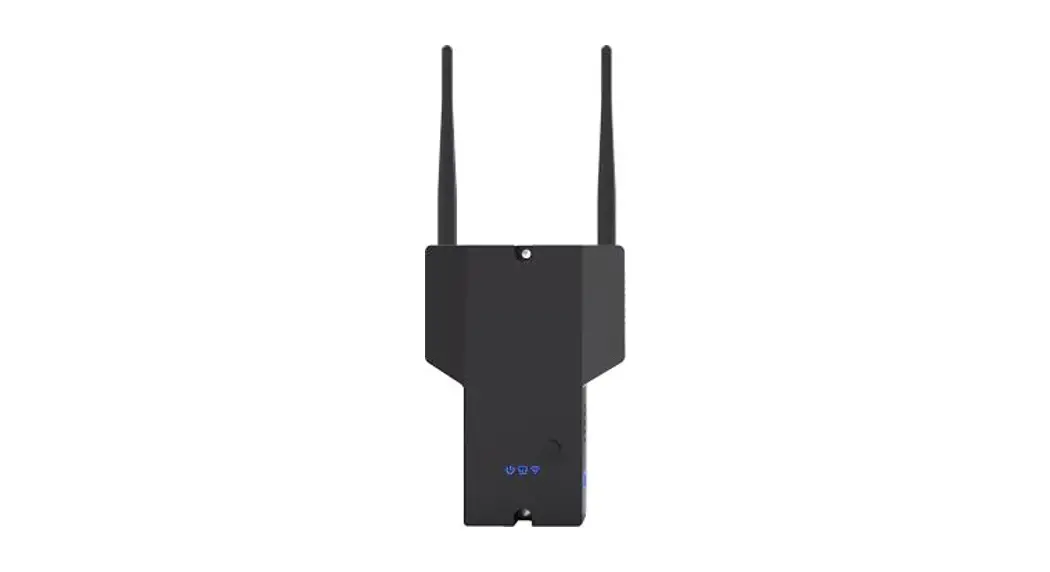
The router has the following hardware features:
- Overview: Provides an overview of the hardware
installation process. - LED Indicators: Indicates the status of
various connections and network operations. - Reset Button: Allows you to restore the router
to factory defaults.
Product Usage Instructions
Hardware Installation
- Insert or Remove SIM Card: Insert or remove
the SIM card as per your network provider’s instructions. - Attach External Antenna (SMA Type): Connect
the SMA cellular and Wi-Fi antennas to the router’s antenna
connectors. Ensure a tight connection and verify compatibility with
your ISP’s frequency range and impedance requirements. - Mount the Router: Place the router on a
desktop or mount it on a wall using the provided wall mounting kit
and drywall screws. - Connect the Router to a Computer: Connect one
end of an Ethernet cable to the LAN port of the router and the
other end to your computer. - Power Supply: Connect the power adapter to the
power input interface of the router. Ensure that the voltage input
is within the range of 7.5V-32V DC.
PC Configuration
To configure your computer for proper connectivity, follow these
steps:
- Obtain an IP address automatically from Local Area Connection
or configure a static IP address manually within the same subnet as
the router. - For automatic IP address allocation, go to Start > Control
Panel > Network and Internet > Network and Sharing Center
> Change Adapter Settings. Double-click on Local Area Connection
(Ethernet), click Properties, select Internet Protocol Version 4
(TCP/IPv4), choose “Obtain an IP address automatically,” and click
OK. - For manual IP address configuration, follow the same steps as
above but select “Use the following IP address.” Set the IP address
as 192.168.1.XXX (where XXX can be any number between 2 and 254) to
match the router’s default IP address of 192.168.1.1. Click OK to
finish the configuration.
Router Configuration
To access the router’s management page and configure its
settings, follow these steps:
- Open a web browser on your PC (e.g., Internet Explorer, Google
Chrome, Firefox). - Type the IP address of the router (default: 192.168.1.1) into
the address bar and press Enter.
Note: The actual IP address may vary based on your network
configuration.
Installation and Configuration Quick Guide ZR2720N
Package Contents
Before installing your ZR2720N Router, please verify the kit contents as following. 1 x ZR2720N Industrial Cellular VPN Router 1 x power adapter(12V DC/1A) 1 x Quick Start Guide
Industrial router
1 x Ethernet Cable 1 x SMA Cellular antenna (stubby/magnet optional) 1 x SMA Wi-Fi antenna (stubby/magnet optional)
*If any of the above items is missing or damaged, please contact your sales representative.
Environmental Requirements
Input voltage: 7.5V-32V(standard DC12V/1A) Operating temperature: -30 to +70 °C Storage temperature: -40 to 85°C Relative humidity: < 95% (no condensation)
Hardware Introduction
1
1. Overview
Hardware Installation
2. LED Indicators
Name PWR WAN
LAN
NET
Color Green Green
Green
Green
Status On Off On, blinking
(100 mSec blink time)
Off On, blinking
(100 mSec blink time)
Off On, solid
On, blinking
Off
Description Router is powered on Router is powered off Link connection is working
Link connection is not working Link connection is working
Link connection is not working Network is joined successfully and worked in an optimum one Network is joined successfully but worked in a lower-level than standard Network is not joined
3. Reset Button
After powered up the router, press and hold the RST button for 10 seconds, and release the button to return the router to factory defaults.
2
1. Insert or Remove SIM Card
Insert or remove the SIM card as shown in the following steps. Insert SIM card 1) Make sure router is powered off. 2) To open the SIM card slot, use a card removal pin plug in the card hole. 3) To insert SIM card, press the card with finger until your hear a click and then push back the sim card slot Remove SIM card 1) Make sure router is powered off. 2) To open the SIM card slot, use a card removal pin plug in the card hole. 3) To remove SIM card, press the card with finger until it pops out and then take out the card. 4) To push back the sim card slot.
Note: 1) Use the specific card when the device is working in extreme temperature (temperature exceeding 40 °C), because the regular card for long-time working in harsh environment will be disconnected frequently. 2) Do not forget to push back the card to avoid being lost. 3) Do not touch the metal of the card surface in case information in the card will lose or be destroyed. 4) Do not bend or scratch the card. 5) Keep the card away from electricity and magnetism. 6) Make sure router is powered off before inserting or removing the card.
2. Attach External Antenna (SMA Type)
Attach external SMA antenna to the router’s antenna connector and twist tightly. Make sure the antenna is within the correct frequency range provided by the ISP and with 50 Ohm impedance.
3. Mount the Router
The router can be placed on a desktop or mounted to a wall. Use 2 pieces of drywall screws to mount the router with the wall mounting kit on the wall.
4. Connect the Router to a Computer
Connect an Ethernet cable to the LAN port of the router, and connect the other end of the cable to your computer.
3
Connect the power adapter to the power input interface of the router. Note: Voltage input is during 7.5V-32V DC.
5. Power Supply
PC Configuration
There are two methods to get IP address for the PC. One is to obtain an IP address automatically from “Local Area Connection”, and another is to configure a static IP address manually within the same subnet of the router. Please refer to the steps below. Here take Windows 10 as example, and the configuration for windows system is similar.
1. Click Start > Control panel, click Network and Internet, click Network and Sharing Center, click Change Adapter Settings, and then double-click Local Area Connection (Ethernet).
2. Click Properties in the window of Local Area Connection (Ethernet) Status.
3. Choose Internet Protocol Version 4 (TCP/IPv4) and click Properties.
4
4. Two ways for configuring the IP address of PC. 1) Obtain an IP address automatically:
2) Use the following IP address Configured a static IP address manually within the same subnet of the router, router default IP address is 192.168.1.1, so static IP address set as 192.168.1.xxx (XXX can be any number between 2254).
5. Click OK to finish the configuration.
5
Router Configuration
1. Log in the Router
To log in to the management page and view the configuration status of your router, please follow the steps below. 1) On your PC, open a web browser such as Internet Explorer, Google or Firefox etc. 2) From your web browser, type the IP address of the router into the address bar and press enter. The default IP address of the router is 192.168.1.1, though the actual address may vary.
4) After logging in, the home page of the ZR2720N 5) Router’s web interface is displayed, for example.
2. Configure the Cellular Connection
There are two methods to dial up for cellular connection of this router. 1) DHCP dial-up (Default) Click Basic Network > Mobile Network, choose “DHCP client” as the Protocol, don’t change other default settings, click SAVE & APPLY button.
3) In the login page, enter the username and password, then click Login. The default username and password are “admin”.
2) PPP dial-up When you don’t want to dial up with DHCP, this router also provide PPP dial-up option. Click Basic Network > Mobile Network, choose “PPP” as the Protocol, click SWITCH PROTOCOL button, no need to change the default parameter, click SAVE & APPLY button.
6
3) This router support wired connection, the configuration is similar with cellular network. Click Basic Network > Wired Network > WAN, choose “DHCP client” (Optional PPPoE, Static address) as the Protocol, click SAVE & APPLY button. 4) This router support Wi-Fi client mode for connection, detail please refer to user manual.
3) Check the cellular connection status Click System Status > 4G WAN Status to view the status of the cellular connection, the details status information will be displayed.
Note: 1) This router support IoT and VPDN card of multiple carriers. 2) Generally, this router will identify APN information automatically. When dail-up fail with some IoT card and VPDN card, please contact your carrier and fill in the AP data such as username, password to configuration then get cellular connection.
3.Connect PC and Terminal to Router
There are two methods to connect PC and terminal to router. One is connect with Ethernet cable, and another is connect through Wireless Access Point. Please refer to the steps below.
1) Ethernet cable connection (Wired) Connect an Ethernet cable to the LAN port of the router, and connect the other end of the cable to your computer or terminal. Obtain an IP address automatically from “Local Area Connection”, or to configure a static IP address manually, detail please refer to page 4 “PC Configuration”
2) Wireless Access Point To log in to the router management page, please refer to Page 6 “Router Configuration” Click Basic Network > Wireless Network> Wireless Overview, click EDIT button
7
> Wireless Security, recommend choose “WPA-PSK/WPA2-PSK Mixed Mode” as Encryption, set password in key, click SAVE & APPLY button. > General Setup, Choose “Access Point” as Mode, fill in ESSID, click SAVE & APPLY button.
When finished, use your computer or terminal scan available Wireless Access Point, choose your ESSID and key in password, then enjoy the high speed, stability, flexibility network.
8
FCC Warnning: This equipment has been tested and found to comply with the limits for a Class B digital device, pursuant to part 15 of the FCC Rules. These limits are designed to provide reasonable protection againstharmful interference in a residential installation. This equipment generates, uses and can radiateradio frequency energy and, if not installed and used in accordance with the instructions, maycause harmful interference to radio communications. However, there is no guarantee thatinterference will not occur in a particular installation. If this equipment does cause harmfulinterference to radio or television reception, which can be determined by turning the equipmentoff and on, the user is encouraged to try to correct the interference by one or more of thefollowing measures: · Reorient or relocate the receiving antenna. · Increase the separation between the equipment and receiver. · Connect the equipment into an outlet on a circuit different from that to which the receiver is connected. · Consult the dealer or an experienced radio/TV technician for help.
Caution: Any changes or modifications to this device not explicitly approved by manufacturer could void your authority to operate this equipment.
This device complies with part 15 of the FCC Rules. Operation is subject to the following two conditions: (1)This device may not cause harmful interference, and (2) this device must accept any interference received, including interference that may cause undesired operation.
This equipment complies with FCC radiation exposure limits set forth for an uncontrolled environment. This equipment should be installed and operated with minimum distance 20cm between the radiator and your body.
ISED Statement
–
English: This device complies with Industry Canada license-exempt RSS standard(s).
Operation is subject to the following two conditions: (1) This device may not cause interference, a
nd (2) This device must accept any interference, including interference that may cause undesired
operation of the device. The digital apparatus complies with Canadian CAN ICES-3 (B)/NMB-3(B).
– French: Le présentappareilestconforme aux CNR d’Industrie Canada applicables aux appareils
radio exempts de licence. L’exploitationestautorisée aux deux conditions suivantes: (1) l’appareil
ne doit pas produire de brouillage, et (2) l’utilisateur de l’appareildoit accepter tout brouillageradi
oélectriquesubi, mêmesi le brouillageest susceptible d’encompromettre le fonctionnement.
l’appareil numérique du ciem conforme canadien peut – 3 (b) / nmb – 3 (b).
This device meets the exemption from the routine evaluation limits in section 2.5 of RSS 102 and compliance with RSS 102 RF exposure, users can obtain Canadian information on RF exposure and compliance.
cet appareil est conforme à l’exemption des limites d’évaluation courante dans la section 2.5 du cnr – 102 et conformité avec rss 102 de l’exposition aux rf, les utilisateurs peuvent obtenir des données canadiennes sur l’exposition aux champs rf et la conformité.
This equipment complies with Canada radiation exposure limits set forth for an uncontrolled environment.
This equipment should be installed and operated with minimum distance 20cm between the radiator & your body. Cet équipement est conforme Canada limites d’exposition aux radiations dans un environnement non contrôlé. Cet équipement doit être installé et utilisé avec une distance minimale de 20 cm entre le radiateur et votre corps.