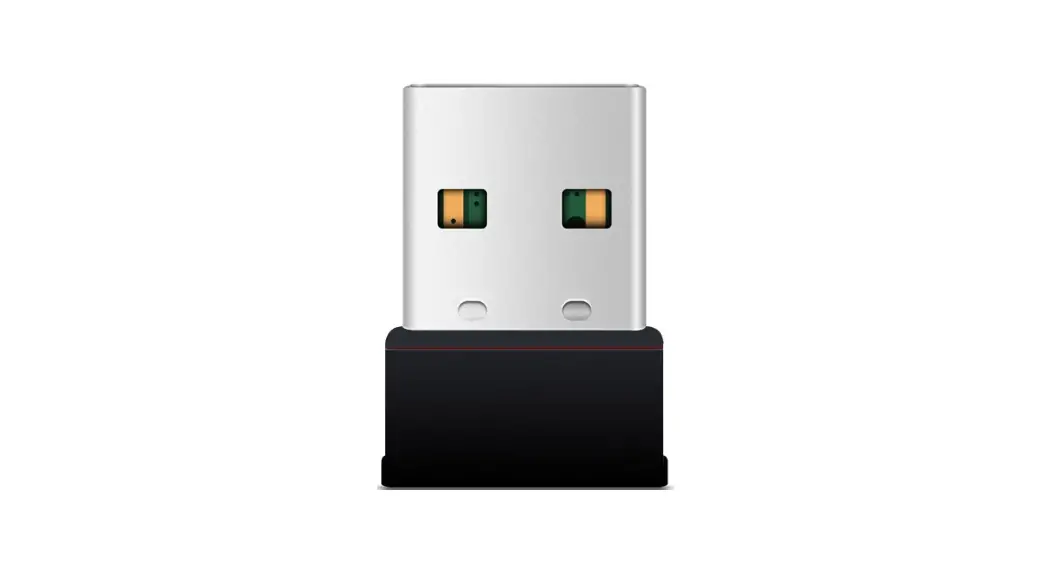
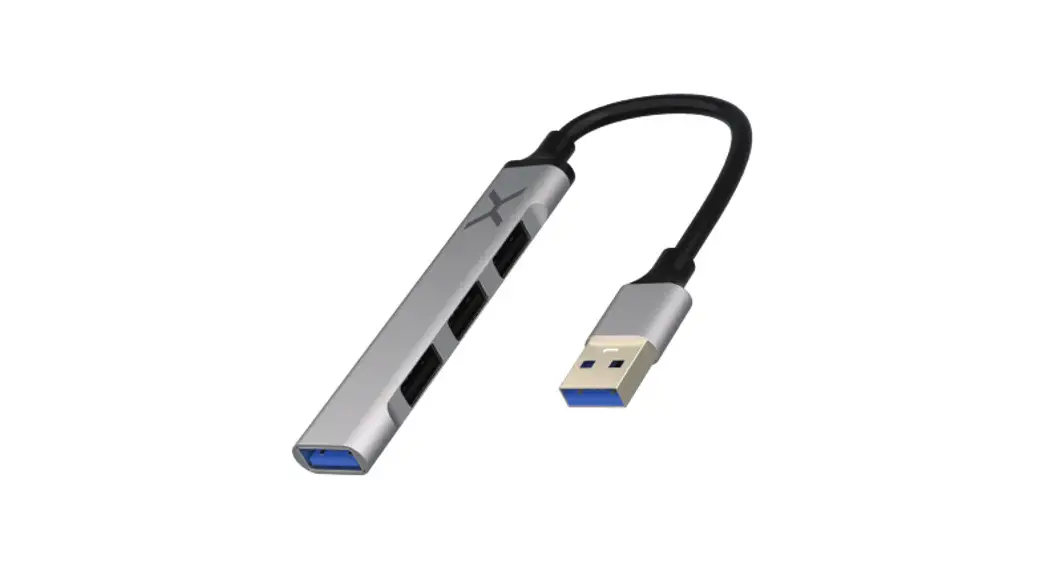
KG04 USB Gateway
KG04 Configuration Guide
Product name: KG04
Model: USB Gateway
Version: V1.1
Release date: 2023-06-10
Copyright by KKM Co.,Ltd
Contents
- Download KGateway APP
- LED Flashing Instruction
- Network Provision
- Declaration
Copyright by KKM Co.,Ltd
1. Download KGateway APP
Download the App ‘KGateway’ from iOS App Store or Android Google
Play or scan the QR code below to download the App.
Minimum requirements:
- Android version > 10.0
- IOS version > 13.0
Reminder: This instruction uses Android App to demonstrate. The
iOS App interface is slightly different from Android App.
2. LED Flashing Instruction
| Status | Description |
|---|---|
| Red light flashes rapidly | The device enters the network configuration state. |
| Red light flashes slowly | The device has successfully connected to Wi-Fi and is trying to connect to the server. |
| Red light remains on | Device is connecting to Wi-Fi. |
| Blue light remains on | The device connects to the cloud server successfully. |
3. Network Provision
The KG04 gateway can be connected to the network through
KGateway APP. There is no limit to the number of network
configuration gateway, as long as the gateways are configured in
the same Wi-Fi LAN network.
Product Usage Instructions
Follow these steps to configure the KG04 USB Gateway:
- Ensure that the KG04 device enters configuration mode.
- Connect the mobile phone to a 2.4G Wi-Fi, open the KGateway APP
and click ‘+’ to enter the configuration mode. - Select the 2.4G Wi-Fi network where the phone is located, enter
the Wi-Fi password, and request network configuration. The gateway
device will use the acquired Wi-Fi name and password (i.e.,
SSID/password/token) to connect to the router.
Setup Flowchart:

Detailed Setup Process
- 3.1 Enter Configuration Mode
Please make sure your gateway is plugged into the USB slot and
powered on. After pressing the button on the gateway, the gateway
will flash a red light to enter the configuration mode. - 3.2 Provision Wi-Fi
Click the ‘+’ and then click the ‘Go to Wi-Fi Setting’ to
connect to Wi-Fi. Please note that Wi-Fi must include the 2.4GHz
frequency. Enter the password for Wi-Fi and click ‘Next’.Kindly note: In order to scan the SSID
information of the Wi-Fi router, please allow the APP to acquire
the location information of the phone.
Copyright by KKM Co.,Ltd
KG04 configuration guide
KG04 Configuration Guide
Product name Model Version
Release date
USB Gateway KG04 V1.1
2023-06-10
Copyright by KKM Co.,Ltd
1/
KKM Co.Ltd
Contents
KG04 configuration guide
1. Download KGateway APP………………………………………………………………………………………………………………… 3 2. LED Flashing Instruction ………………………………………………………………………………………………………………….. 3 3. Network Provision ……………………………………………………………………………………………………………………………. 3
3.1 Enter Configuration Mode ……………………………………………………………………………………………………….. 5 3.2 Provision Wi-Fi ……………………………………………………………………………………………………………………….. 5 3.3 Trouble Shooting …………………………………………………………………………………………………………………….. 7 4. Services Provision……………………………………………………………………………………………………………………………. 7 4.1 MQTT Configuration ……………………………………………………………………………………………………………….. 8
4.1.1 Basic Parameters………………………………………………………………………………………………………8 4.1.2 MQTT with SSL …………………………………………………………………………………………………………9 4.2 HTTP Configuration ………………………………………………………………………………………………………………. 10 4.2.1 Basic Parameters…………………………………………………………………………………………………….11 4.2.2 HTTP with SSL………………………………………………………………………………………………………..11 4.3 BLE Data Collection………………………………………………………………………………………………………………. 11 4.3.1 Scan Settings ………………………………………………………………………………………………………….11 4.3.2 BLE Filter Parameters……………………………………………………………………………………………..13 4.3.3 Cache BLE Data ……………………………………………………………………………………………………..13 4.3.4 Time Parameters …………………………………………………………………………………………………….14 5. Apply Configuration………………………………………………………………………………………………………………………… 14 6. Other settings…………………………………………………………………………………………………………………………………. 15
6.1 Device Lists…………………………………………………………………………………………………………………………… 15 6.2 Device Settings……………………………………………………………………………………………………………………… 16 6.3 Gateway IP Address ……………………………………………………………………………………………………………… 17 6.4 Firmware Update…………………………………………………………………………………………………………………… 17 6.5 Remove Device …………………………………………………………………………………………………………………….. 18 6.6 Reset Configuration ………………………………………………………………………………………………………………. 18
7. Declaration …………………………………………………………………………………………………………………………………….. 19
Copyright by KKM Co.,Ltd
public
2/
KKM Co.Ltd
KG04 configuration guide
1. Download KGateway APP
Download the App `KGateway’ from iOS App Store or Android Google Play or scan the QR code below to down the App.
iOS APP
Android APP
Minimum requirements:
Android version > 10.0, IOS version > 13.0 Reminder: This instruction uses Android App to demonstrate. The iOS App interface is slightly
different from Android App.
2. LED Flashing Instruction
Status Red light flashes rapidly Red light flashes slowly Red light remains on Blue light remains on
Description The device enters the network configuration state. The device has successfully connected to Wi-Fi and is trying to connect to the server. Device is connecting to Wi-Fi.
The device connects to the cloud server successfully.
3. Network Provision
The KG04 gateway can be connected to the network through KGateway APP. There is no limit to the number of network configuration gateway, as long as the gateways are configured in the same Wi-Fi LAN network.
Copyright by KKM Co.,Ltd
public
3/
KKM Co.Ltd
KG04 configuration guide
Your Wi-Fi router
Internet
Phone with KGateway APP
Wi-Fi
Wi-Fi
KG04
1. Ensure that the KG04 device enters configuration mode.
2. Connect the mobile phone to a 2.4G Wi-Fi, open the KGateway APP and click “+” to enter the configuration mode.
3. Select the 2.4G Wi-Fi network where the phone is located, enter the Wi-Fi password, and request network configuration. The gateway device uses the acquired Wi-Fi name and password (ie. SSID/ password/token) to connect to the router.
Setup flowchart:
we using kkm_guest Wi-Fi as an example:
Copyright by KKM Co.,Ltd
public
4/
KKM Co.Ltd
KG04 configuration guide
The detailed setup process is as follows:
3.1 Enter Configuration Mode
Please make sure your gateway is plugged into the USB slot and powered on. After pressing the button on the gateway, the gateway flashes a red light to enter the configuration mode.
3.2 Provision Wi-Fi
Click the “+” and then click the “Go to Wi-Fi Setting” to connect Wi-Fi. Please note that Wi-Fi must include the 2.4GHz frequency. Enter the password for Wi-Fi and click “Next”.
Kindly note: In order to scan the SSID information of Wi-Fi router, please allow the APP to acquire the location
information of the phone.
Copyright by KKM Co.,Ltd
public
5/
KKM Co.Ltd
KG04 configuration guide
After connecting to Wi-Fi successfully, the provisioned gateway list will appear. Please select the gateway to configure based on its MAC address and then you will enter the parameter configuration page.
Copyright by KKM Co.,Ltd
public
6/
KKM Co.Ltd
KG04 configuration guide
3.3 Trouble Shooting
1. The APP cannot detect the Wi-Fi connected to the mobile phone. Please grant the app permission to access the phone location.
2. The APP cannot scan the Wi-Fi signal of KG04. Because the APP needs to call the Wi-Fi scanning function of the OS system, and sometimes the APP cannot scan the Wi-Fi signal of KG04 due to various reasons. At this time, the following suggestions are suggested: Make sure you phone connect to 2.4G Wi-Fi not 5G Wi-Fi. Press the button of KG04 to re-enter the configuration mode. Exit the KGateway APP, and then
enter the APP again. Turn off the Wi-Fi of the mobile phone, and then turn on the Wi-Fi. Then restart the KGateway
APP to try again. If it still doesn’t work, try to replace another Android phone or iOS phone.
4. Services Provision
KKM gateway currently supports the use of MQTT and HTTP protocol to communicate with local or Internet servers. Users can choose the desired protocol based on your server architecture.
Copyright by KKM Co.,Ltd
public
7/
KKM Co.Ltd
KG04 configuration guide
4.1 MQTT Configuration
KG04 gateway supports the use of MQTT protocol to communicate with local or internet servers. The KG04 is connected to the KKM’s service by default when it leaves the factory. When using MQTT access, the KG04 gateway supports the function of regularly uploading BLE data and remote command control. The MQTT server configuration is as follows:
4.1.1 Basic Parameters
Parameters Host address MQTT port Client ID Name Password
Qos
Defaults
Description
api.ieasygroup.com 61613 mac address of the kg04 kkmtest testpassword
Qos0
The MQTT cloud address.
MQTT client ID MQTT client user name MQTT client password Qos0: Best effort for MQTT report Qos 1: The message will be sent to ensure that it can be
Copyright by KKM Co.,Ltd
public
8/
KKM Co.Ltd
KG04 configuration guide
received by the subscriber, but the subscriber may receive it repeatedly due to message retransmission. Qos 2: The message will be sent to ensure that it can be received by the subscriber, but also to ensure that the subscriber does not receive the same information repeatedly.
Keep interval
alive 120 seconds
Publish topic kbeacon/publish/{mac}
The time-to-live interval is defined by the MQTT protocol.
The KGateway report alive and broadcast messages to the cloud server through this topic.
Subscribe topic
kbeacon/subaction/{mac}
KBeacon configuration request subscribe topic. If the server needs to send a configuration request to the gateway, it will send a configuration message to the gateway through this topic.
Response topic
kbeacon/pubaction/{mac}
KBeacon configuration request response topic. If a configuration request is sent to gateway, the KGateway will send an execution result message through this topic.
Upload interval 1
KGateway uses this parameter to control upload period of modified advertisement data of KBeacon to Cloud.
4.1.2 MQTT with SSL
KG04 supports the following SSL methods: SSL with CA certificate
The gateway needs to verify the server’s CA certificate. At this point, you need to deliver the server’s CA certificate to the gateway.
Copyright by KKM Co.,Ltd
public
9/
KKM Co.Ltd
KG04 configuration guide
SSL with self signed certificate Except the gateway needs to verify the server’s CA certificate. Your server also needs to verify the
CA certificate on the gateway side.
SSL without certificate
The gateway and the server use SSL encrypted communication, but the gateway does not verify the
CA certificate of the server, and there is a possibility of middle attach in this way.
How to upload the certificate to the gateway When you choose to use certificate-based SSL, the APP will add a menu item for you to choose to
upload a certificate. Click the menu to enter the upload certificate page. When entering the upload certificate page, you can choose to copy the certificate into the text box, or
you can choose to download the certificate from the specified URL. Then click upload to upload the certificate to the gateway.
4.2 HTTP Configuration
The HTTP protocol adopts a request/response model. The client sends a request message to the server, and the request message contains the requested method, URL, protocol version, request header, and request data. The server responds with a status line containing the protocol version, success or error code, server information, response headers, and response data.
Copyright by KKM Co.,Ltd
public
10/
KKM Co.Ltd
4.2.1 Basic Parameters
KG04 configuration guide
Parameters
Defaults
Description
URL address http://api.ieasygroup.com:8091/postdata URL of the HTTP server
HTTP Basic no
authentication
yes or no
Name
Authentication username
Http Basic Authentication
password
Authentication password
Http Basic Authentication
Upload 1
interval
KGateway uses this parameter to control upload period of modified advertisement data of KBeacon to Cloud.
4.2.2 HTTP with SSL
When using HTTP access, the HTTPS protocol is supported. Please make sure the URL address is begin with “https://”, then you can chose with SSL type for HTTPS.
The SSL configuration in HTTP mode is the same as the SSL configuration in MQTT mode, so please refer to section 4.1.2.
4.3 BLE Data Collection
4.3.1 Scan Settings
After the gateway is power on, it will continue to scan BLE advertisement data, and if the network is available, it will send data to the connected server. App operation is as follows:
Copyright by KKM Co.,Ltd
public
11/
KKM Co.Ltd
KG04 configuration guide
Parameters
Defaults
Scan interval 100ms
Scan duration
100ms
Description
Bluetooth scan interval
Bluetooth scan windows. The scan window parameter should not be larger than the scan interval. When the two parameters are equal, the scan duty cycle can reach 100%. Reducing the scan window can help improve Wi-Fi performance.
Scan window idle
idle
Time
Scan interval
Copyright by KKM Co.,Ltd
public
12/
KKM Co.Ltd
4.3.2 BLE Filter Parameters
KG04 configuration guide
Parameters
Defaults
Filter RSSI -100
Mac List
NA
Mac NA
RegEx
Raw NA
data
Description
When the received broadcast message signal is smaller than the filter value, the message will be discarded. For example, when this parameters set to -67, weak signals below -67 will not be uploaded to the server.
You can scan the Mac address of the beacon device QR code for filtering, and the maximum scanning limit is 15 Mac addresses.
Regular expression for BLE MAC address. For example, if you only want to receive BLE MAC starting with BC5729, the regular expression is: ^BC5729* (Note: the gateway can only recognize uppercase raw data strings).
Regular expression for BLE raw data. For example, if you only want to receive BLE raw data starting with 020106, the expression is:^020106* (Note: the gateway can only recognize uppercase raw data strings).
4.3.3 Cache BLE Data
Considering that the network connection may be unstable sometimes, KG04 has the function of
Copyright by KKM Co.,Ltd
public
13/
KKM Co.Ltd
KG04 configuration guide
Cache message. When sending data to the cloud fails, KG04 will cache the message to local buffer.
It can cache up to 1000 BLE broadcast messages. When the network recovers, KG04 will report the
cached message.
If the cached broadcast messages exceed 1000, the oldest message will be deleted.
4.3.4 Time Parameters
Parameters
Defaults
NTP zone
UTC-0
NTP server pool.ntp.org
Description
When KG04 uploads BLE message data to the server, it will carry a timestamp. The time zone of the timestamp can be configured through this parameter.
NTP time server
5. Apply Configuration
When all the configuration information is filled in, click the “COMPLETE” option, and “Reboot device” dialog appears. After clicking “OK”, the gateway will automatically restart and the green light will flash.
Copyright by KKM Co.,Ltd
public
14/
KKM Co.Ltd
KG04 configuration guide
6. Other settings
6.1 Device Lists
After the gateway is successfully configured, the APP will automatically save the gateway information (IP address, MAC, etc.) to the APP, so that if you want to modify the services data of the gateway, you do not need to perform network provisioning.
After opening the APP, the APP will periodically send hello messages to the gateway. If the gateway responds successfully, the status bar of the gateway will turn green, indicating that you can directly configure the gateway. Kindly note:
Please ensure that the mobile phone and the gateway are in the same network segment (under the same Wi-Fi router), otherwise the APP may not be able to connect to the gateway.
Copyright by KKM Co.,Ltd
public
15/
KKM Co.Ltd
KG04 configuration guide
6.2 Device Settings
If the network between the APP and the gateway is connected, click on the device to enter the configuration page. If you want to modify the configuration data again, you can modify the data by clicking “Device setting”.
Copyright by KKM Co.,Ltd
public
16/
KKM Co.Ltd
KG04 configuration guide
6.3 Gateway IP Address
Sometimes, the IP address assigned to the gateway by the router may change, and at this time, the app will not be able to monitor the status of the gateway and modify the configuration. At this point you only need to modify it according to the actual IP address of the gateway.
Select a KGateway which you want to modify parameters. Click “IP Address” to modify the IP address, and then click “Save”.
6.4 Firmware Update
Click the “Firmware update”, the APP will automatically check from the server whether there is the latest firmware that needs to be upgraded. If the latest firmware is found, it will prompt you if you need to upgrade.
Copyright by KKM Co.,Ltd
public
17/
KKM Co.Ltd
KG04 configuration guide
6.5 Remove Device
If you want to remove the gateway information on the app, please click “Remove Device”. And the information of the gateway will be deleted on the APP. Remove the device information from the APP will not cause any changes to the configuration data on the gateway.
6.6 Reset Configuration
After plugging the KGateway and powering on, press the button for 10 seconds. The gateway flashes red, indicating successful factory reset.
Copyright by KKM Co.,Ltd
public
18/
KKM Co.Ltd
KG04 configuration guide
7. Declaration
Statement of Rights
The contents of this manual belong to KKM Company Limited. Without the permission of the Company,
no individual, organization, may modify, copy or use it for any commercial purpose. The Company reserves
the right to pursue legal liability for the use of illegal means to obtain, reproduce or use the information in
this manual.
Disclaimer
KKM team is not responsible for products developed independently by users without checking the
product manual, instructions for use or technical specifications. We reserve the right of final interpretation
of the products, and are not responsible for any property or personal injury caused by improper operation.
FCC Statement
This equipment has been tested and found to comply with the limits for a Class B digital device, pursuant to part 15 of the FCC Rules. These limits are designed to provide reasonable protection against harmful interference in a residential installation. This equipment generates, uses and can radiate radio frequency energy and, if not installed and used in accordance with the instructions, may cause harmful interference to radio communications. However, there is no guarantee that interference will not occur in a particular installation. If this equipment does cause harmful interference to radio or television reception, which can be determined by turning the equipment off and on, the user is encouraged to try to correct the interference by one or more of the following measures: · Reorient or relocate the receiving antenna. · Increase the separation between the equipment and receiver. · Connect the equipment into an outlet on a circuit different from that to which the receiver is connected. · Consult the dealer or an experienced radio/TV technician for help. Caution: Any changes or modi cations to this device not explicitly approved by manufacturer could void your authority to operate this equipment. This device complies with part 15 of the FCC Rules. Operation is subject to the following two conditions: (1) This device may not cause harmful interference, and (2) this device must accept any interference received, including interference that may cause undesired operation.
RF Exposure Information The device has been evaluated to meet general RF exposure requirement. The device can be used in portable exposure condition, compliance with exposure requirements.
Copyright by KKM Co.,Ltd
public
19/
 api.ieasygroup.com:8091/postdata