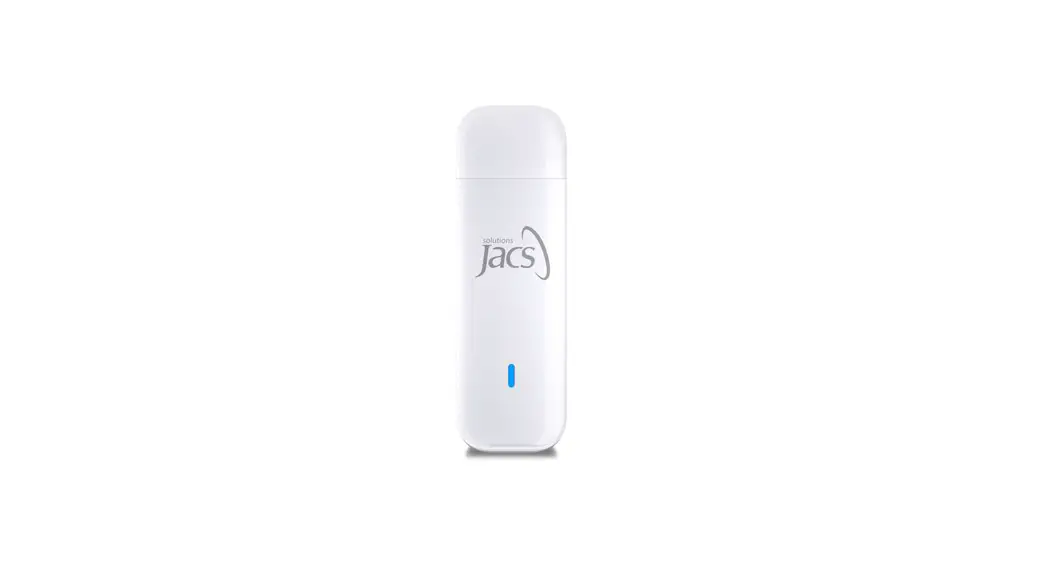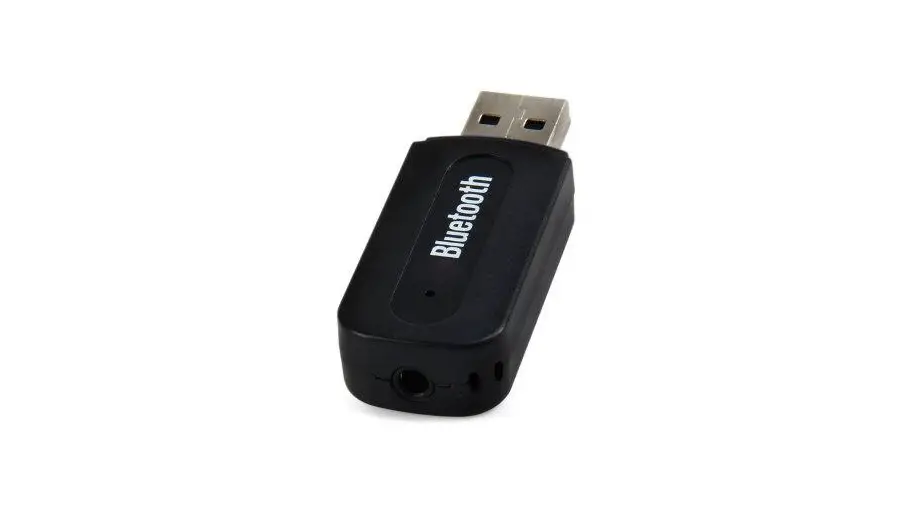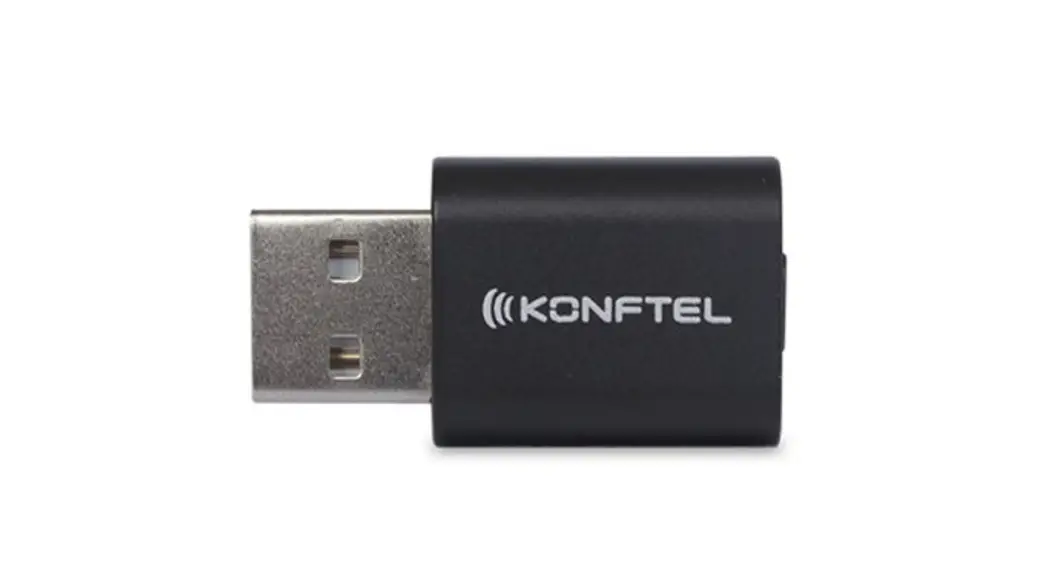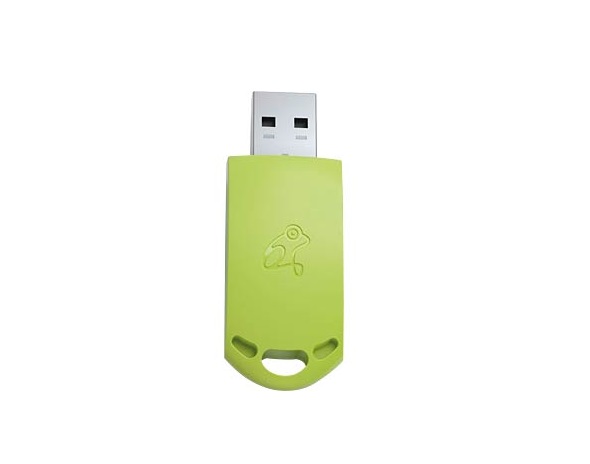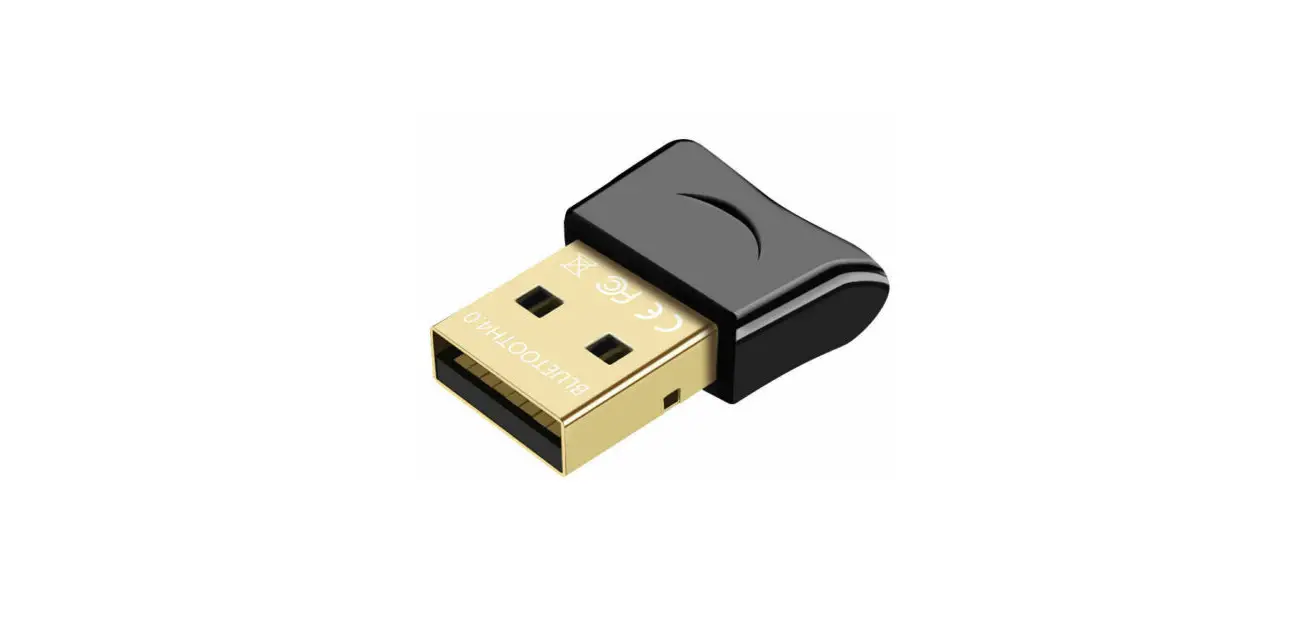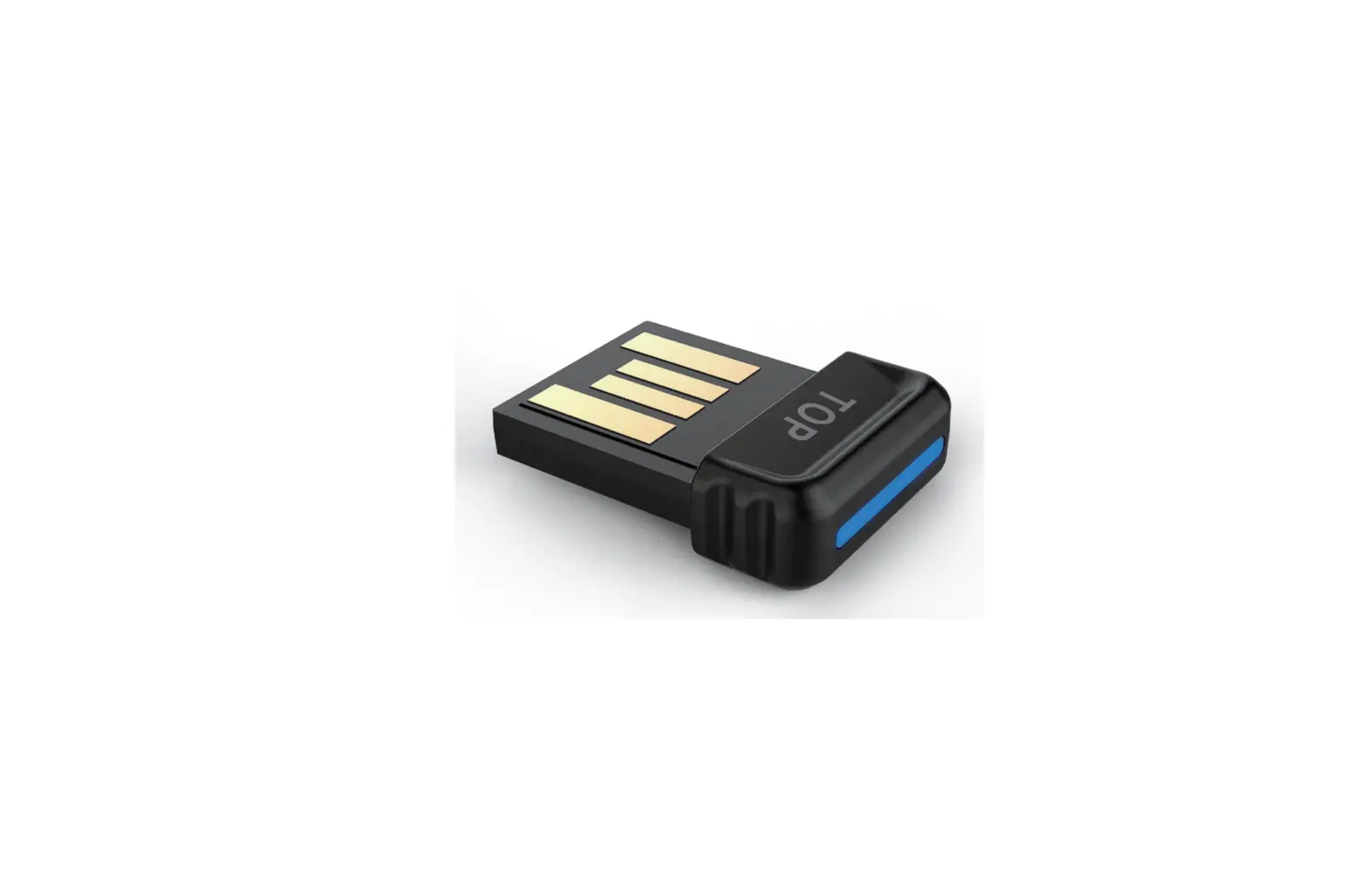

KBLED50
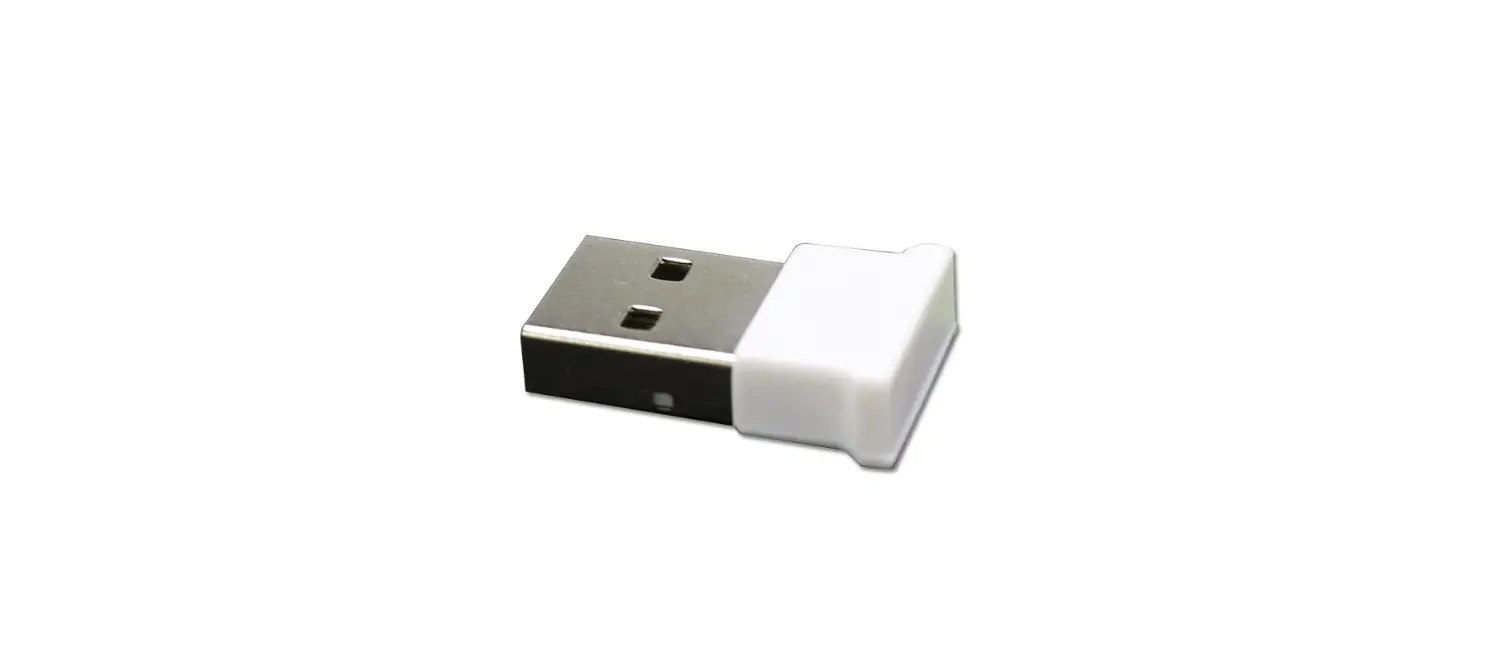
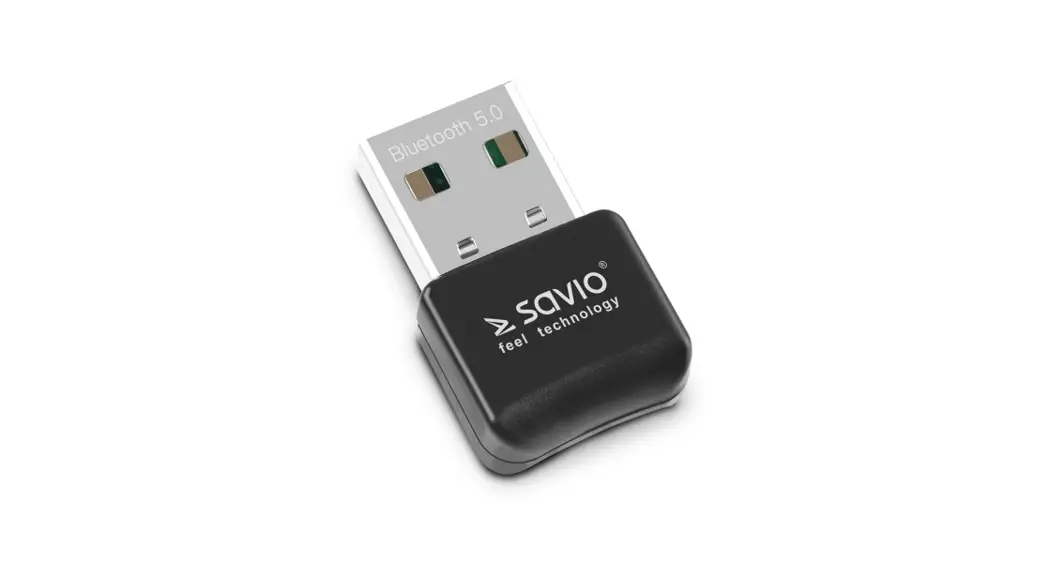
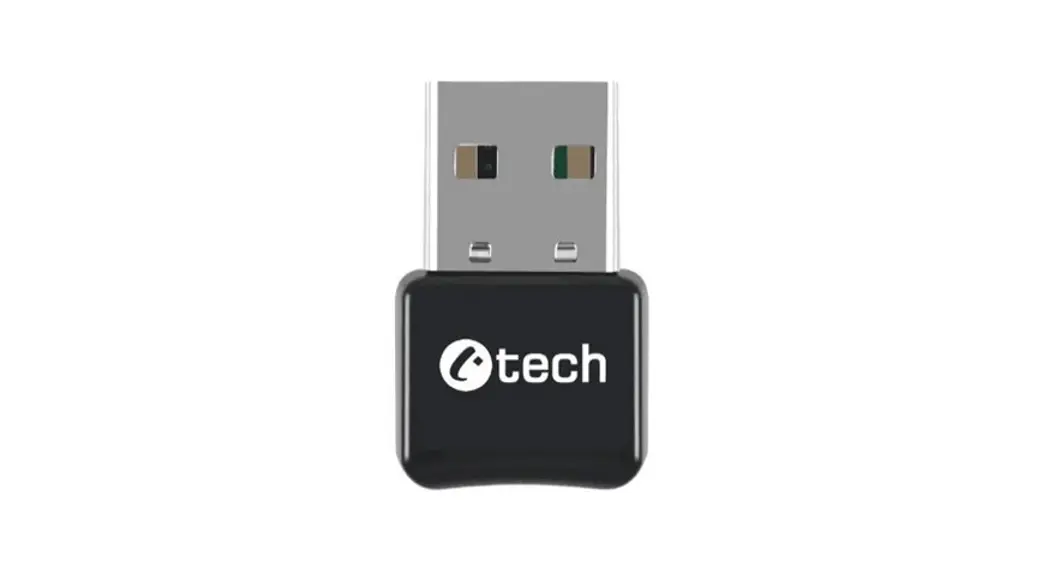
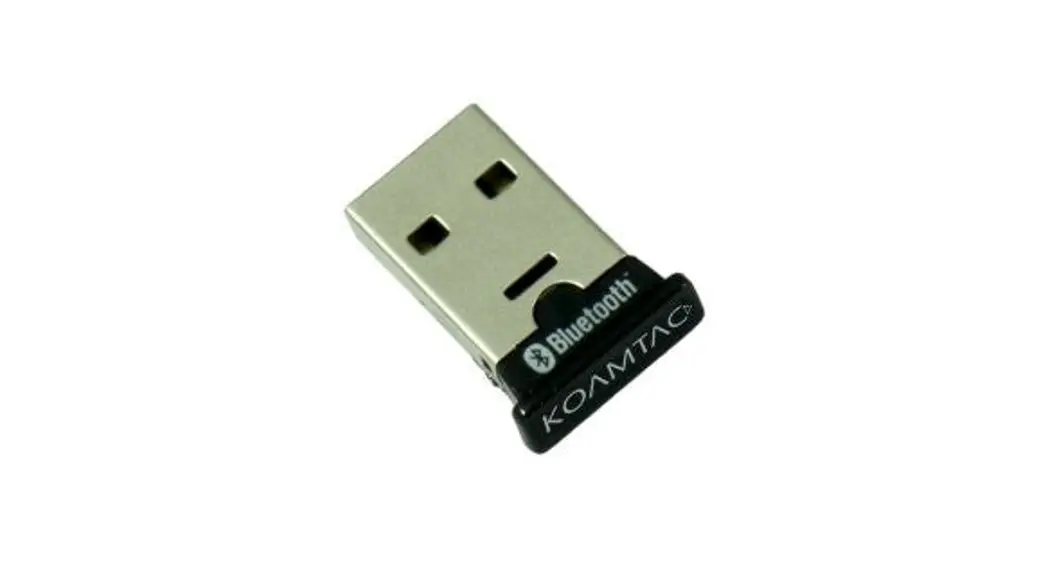
USB BLE Dongle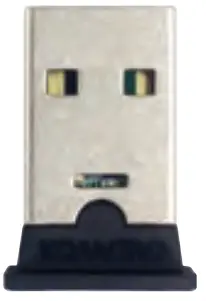
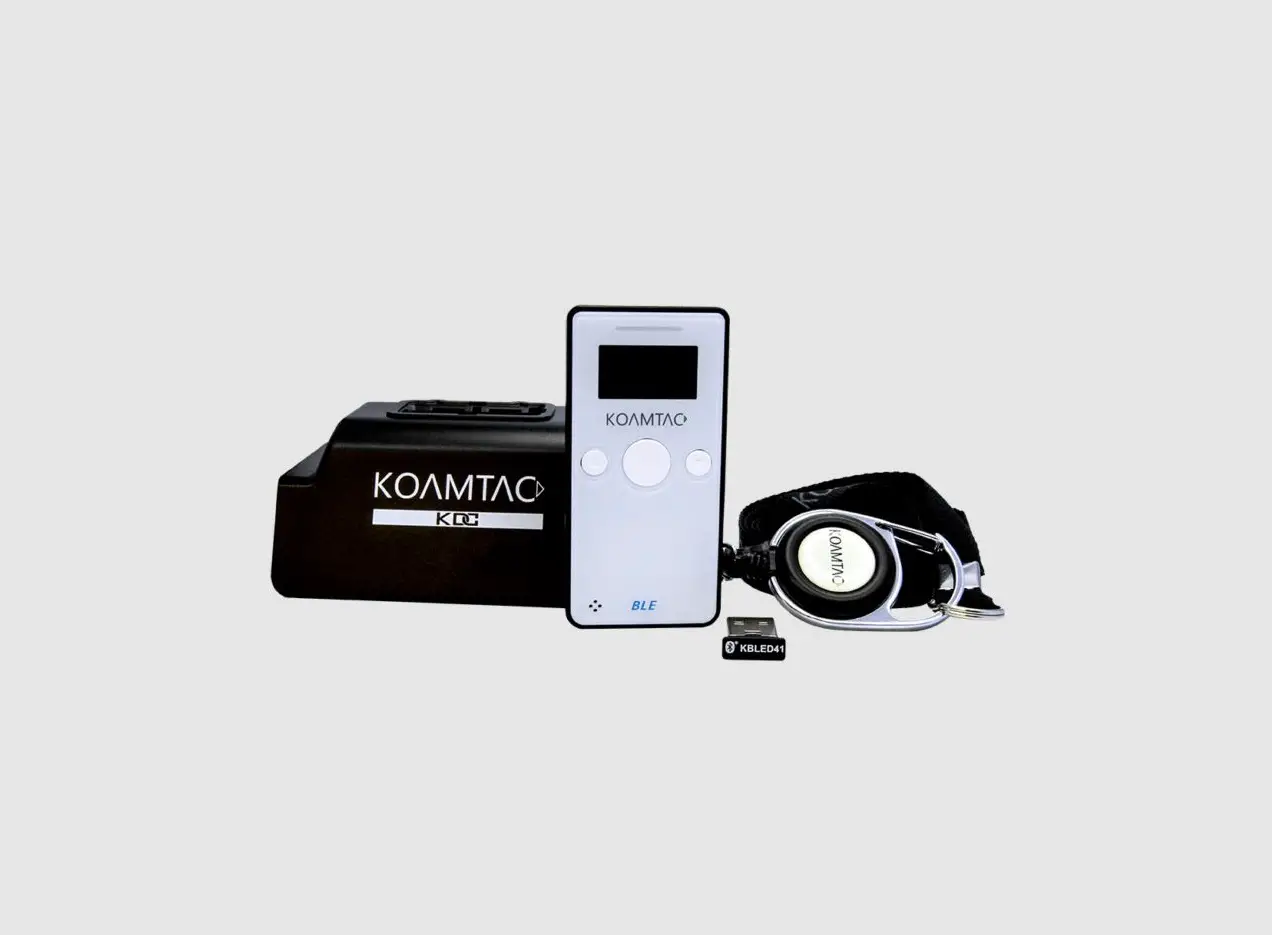
Package Contents
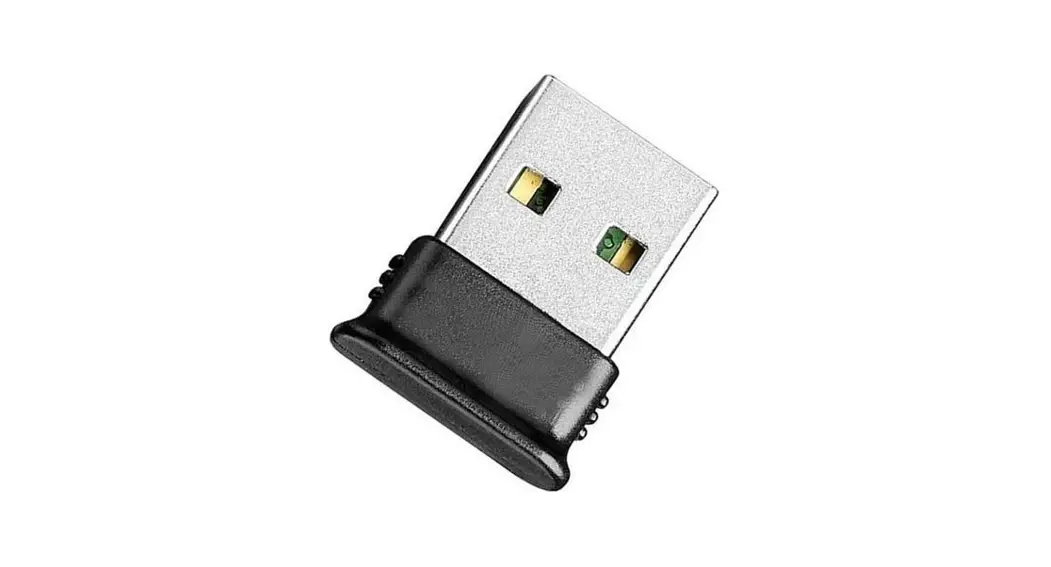
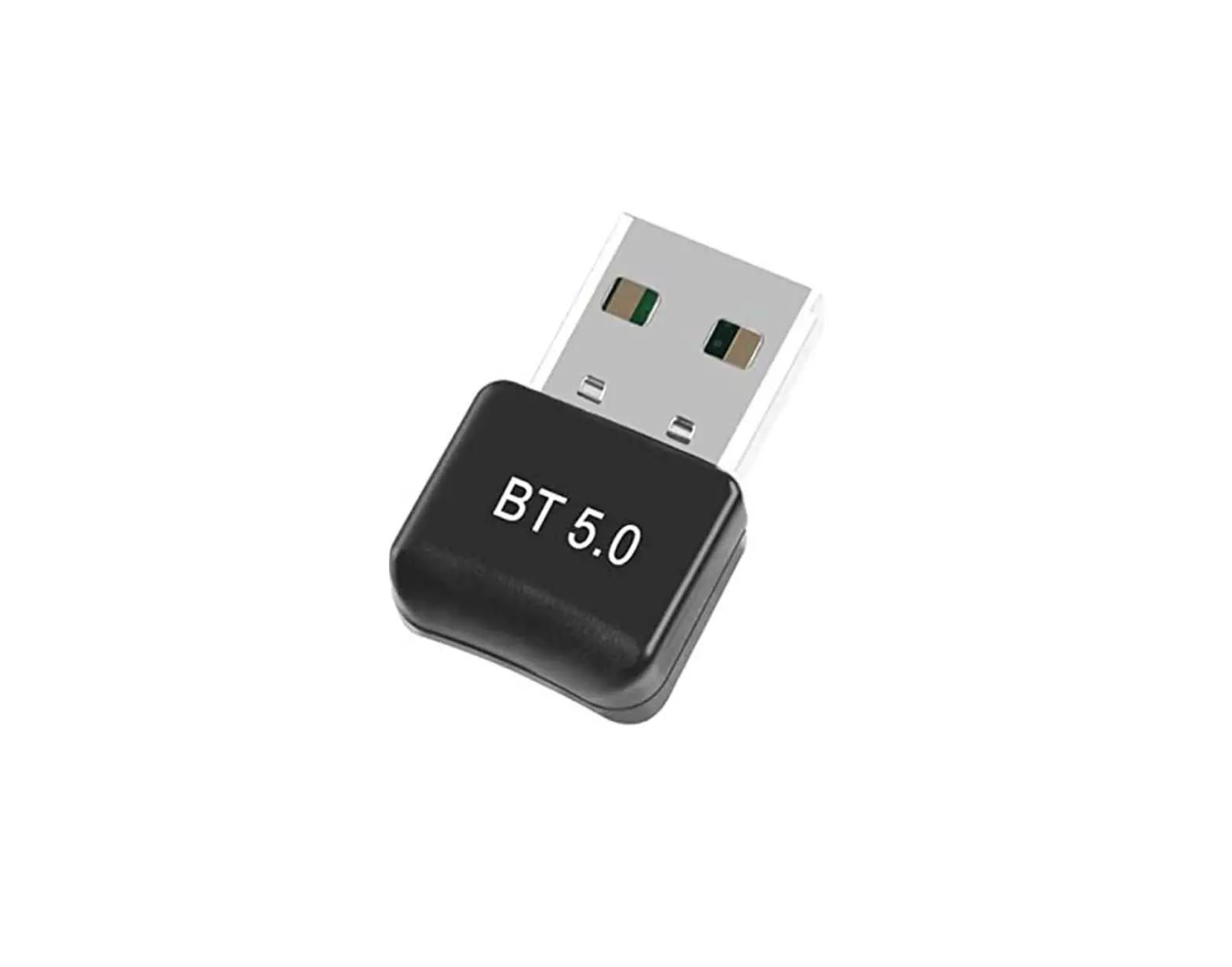
KBLED50 USB BLE Dongle
Quick guide
Connect Barcode
System Requirements
OS: Windows 7/8/10/11
Specifications
Bluetooth Standards: Bluetooth Low Energy 5.0
Radio Frequency: 2.4 GHz
Physical Dimensions: 0.87″ x 0.59″ x 0.21″ (22 mm x 15 mm x 5.35 mm)
Weight: 0.07 oz (2.0 g)
Antenna: Internal Chip Antenna
Interface: USB 2.0 (HID/Serial)
Transfer Rate: Up to 2.0Mbps
OS support: Windows 7/8/10/11
Quick Guide
- Insert KBLED50 USB BLE Dongle into your PC USB port.
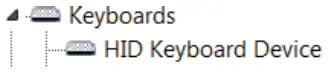
- Windows will automatically install the “HID Keyboard Device” which can be verified from Device Manager.

- Attach the “Connect” barcode sticker to the PC next to KBLED50.
- Scan the “Connect” barcode included in this package using a KDC and the KBLED50 will be connected to the KDC automatically.
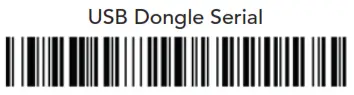
- Scan the “USB Dongle Serial” barcode to switch KBLED50 to “Serial Mode” from “HID Mode.”

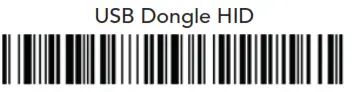
- Scan the “USB Dongle HID” barcode to switch KBLED50 back to “HID Mode” from “Serial Mode.”

- KBLED50 will be configured as a COM port in “Serial Mode” which can be verified from Device Manager.

116 Village Blvd, Ste 305, Princeton, NJ 08540
+1 609-256-4700 I +1 609-228-4373
[email protected] I www.koamtac.com
829535