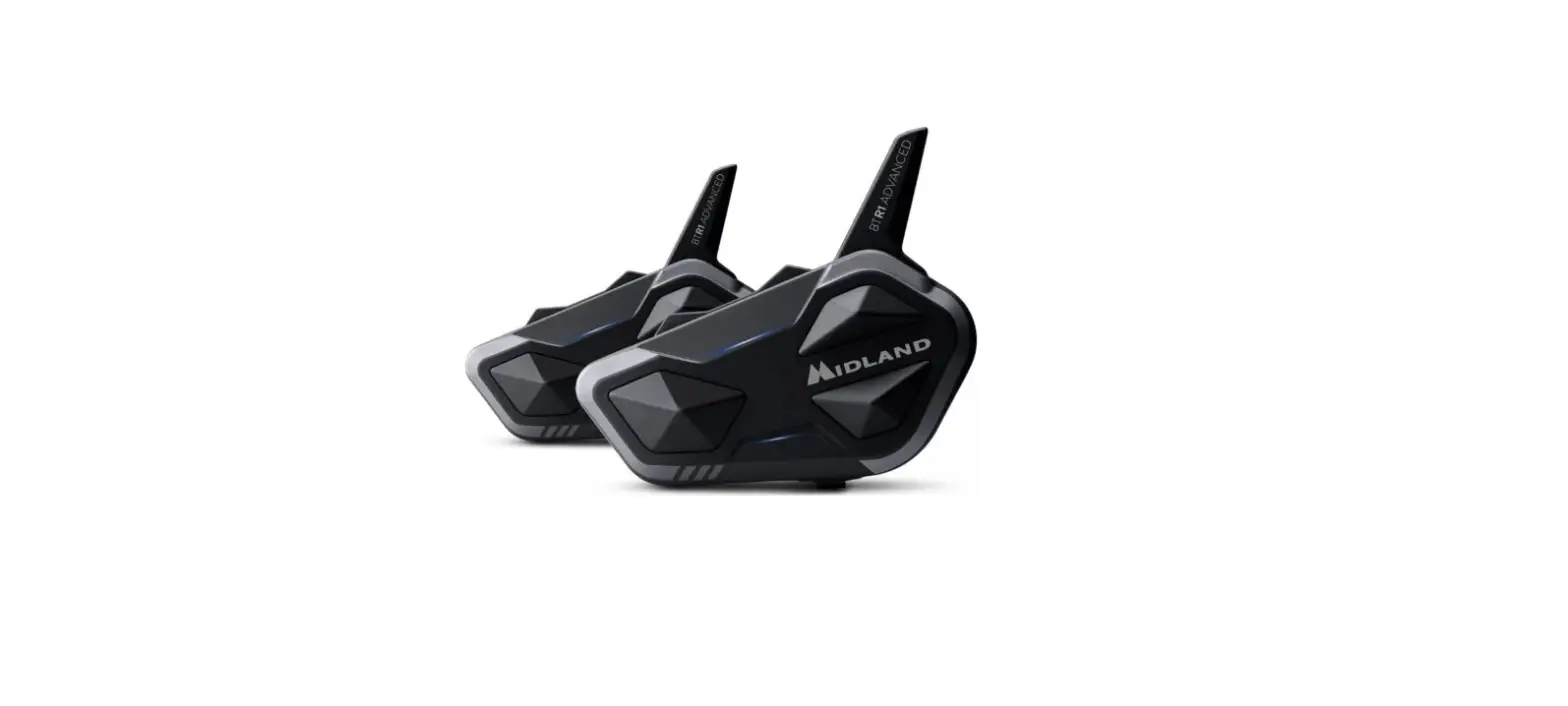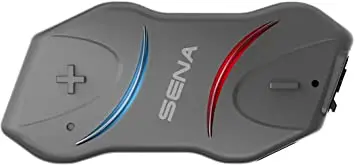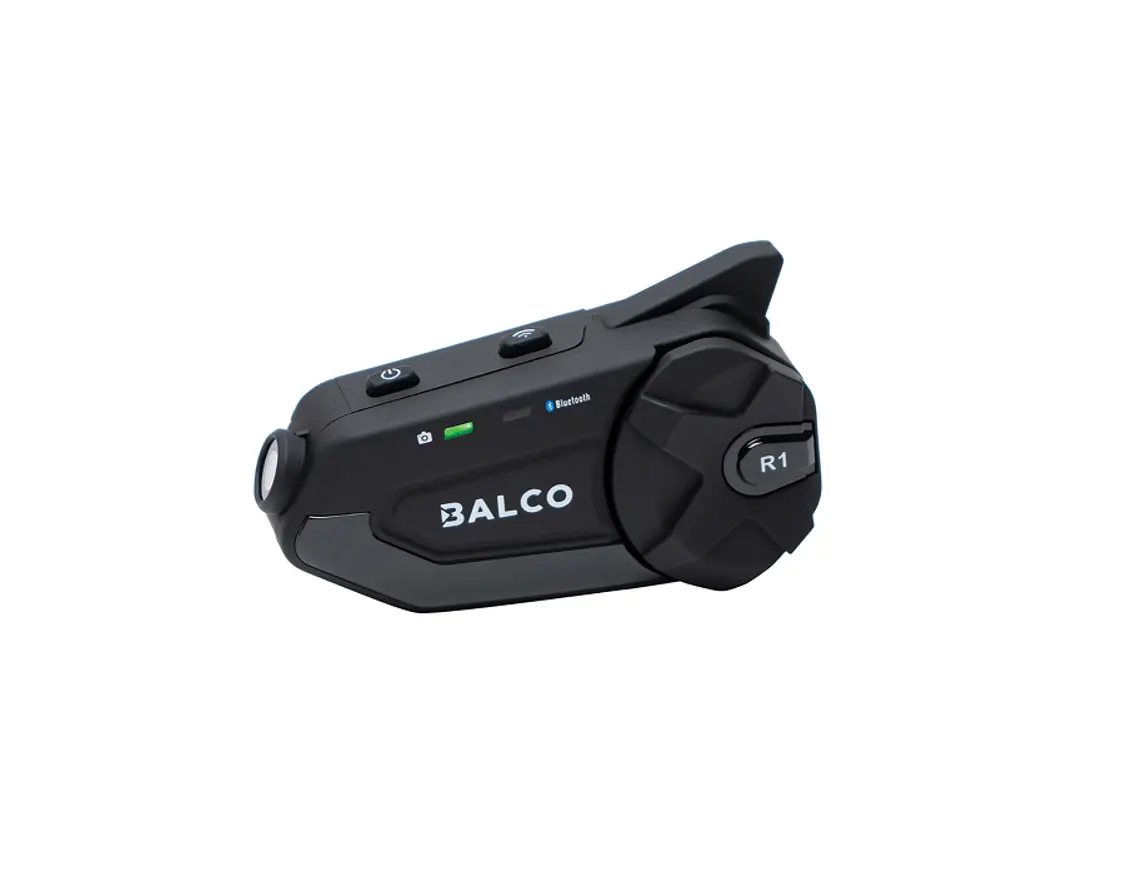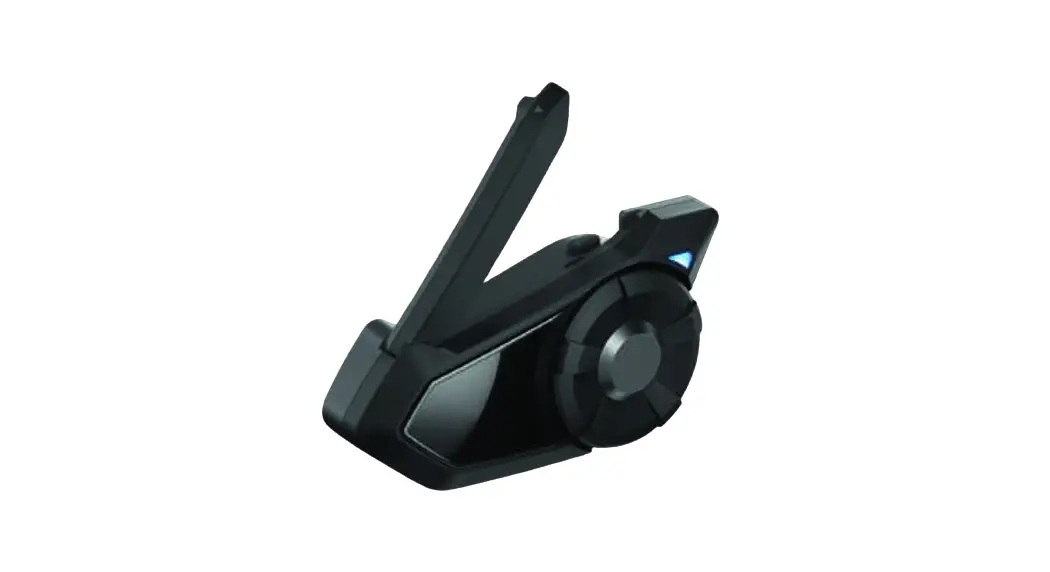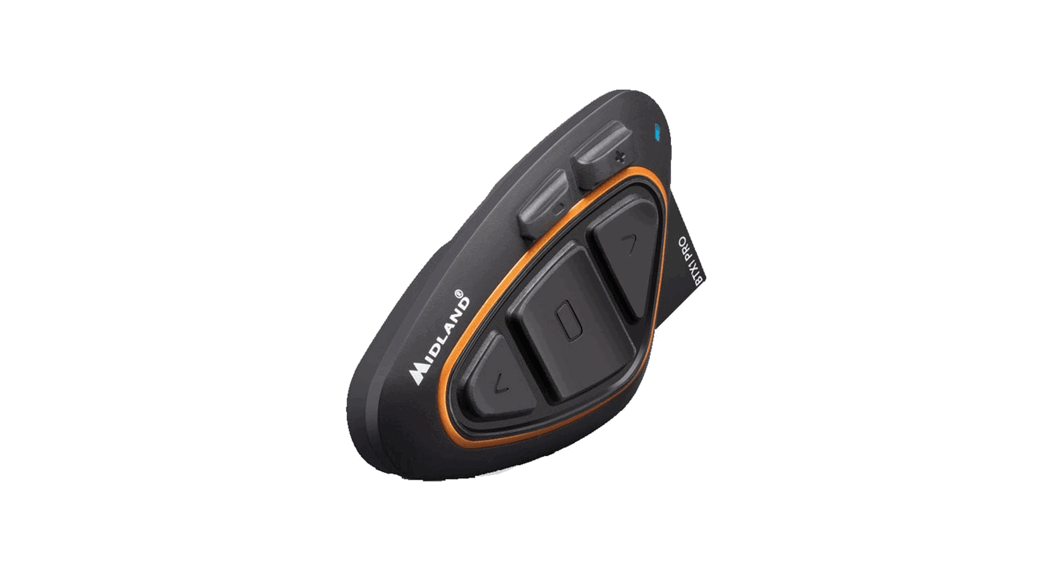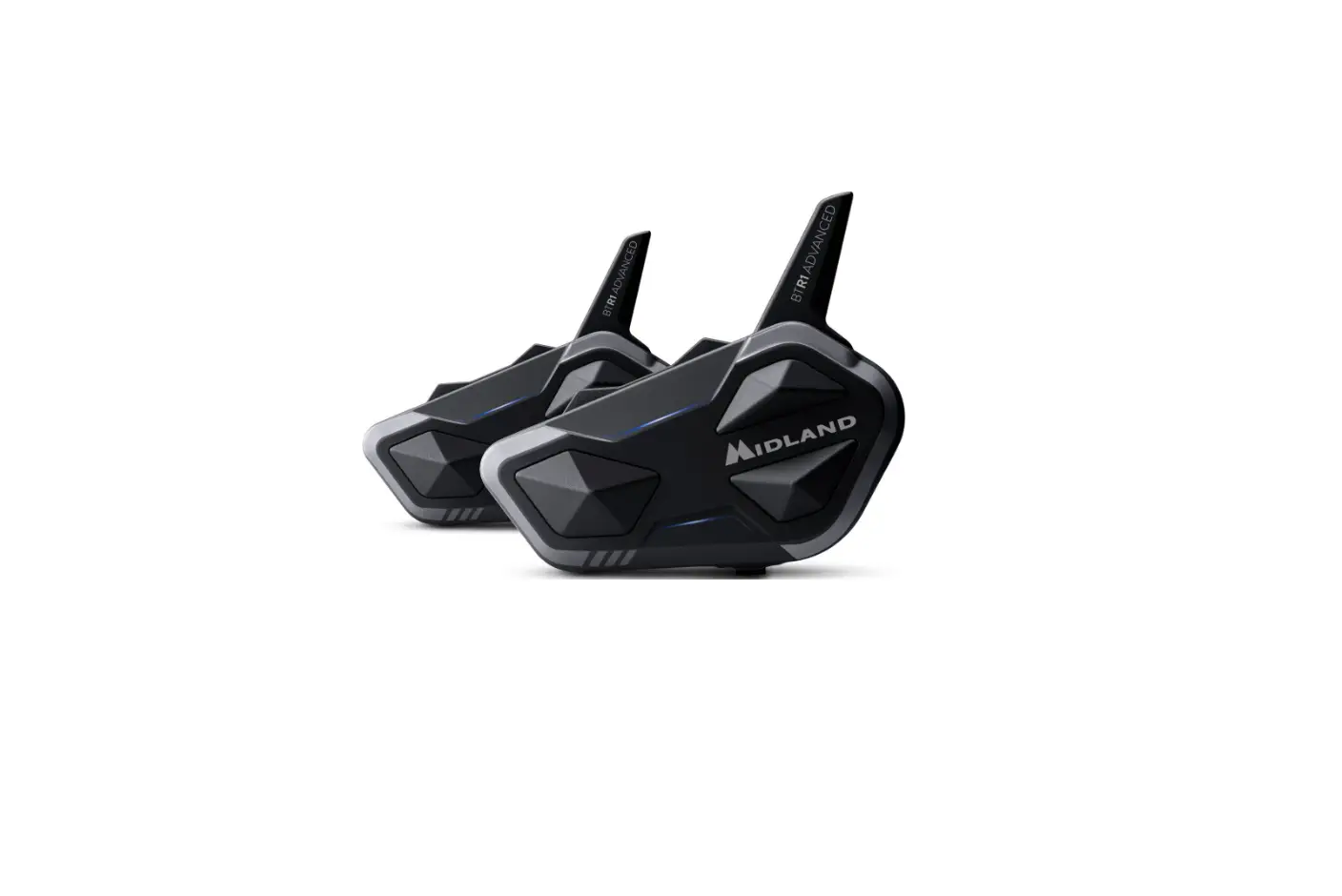
MIDLAND BTR1 ADVANCED Bike to Bike Conference Communication User Manual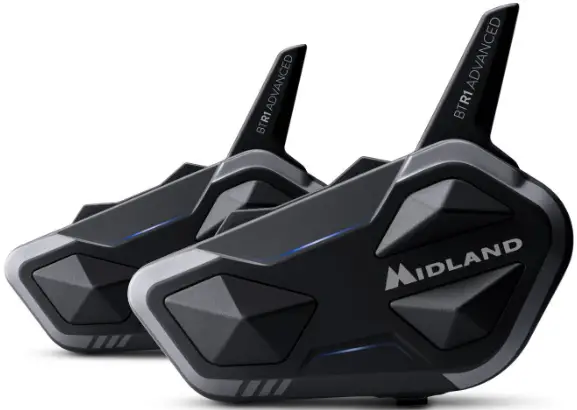
OPERATING MODES
A. Intercom Mode: to communicate with another device.
B. Phone Mode: for phone calls or for managing music.
C. FM Radio Mode: to listen to radio, search and store stations.
Note: Phone mode and Intercom mode are enabled only when your intercom is paired to other devices.
CHOOSE OPERATING MODE
Status: device on
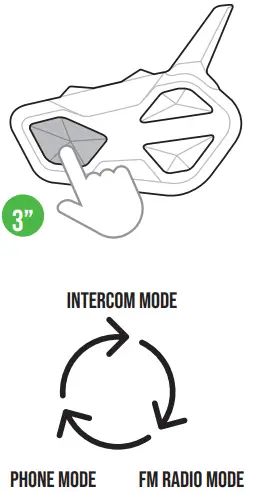
Press for 3 seconds to change mode or press and hold to scroll quickly
 Operating mode status
Note: By pressing simultaneously Vol + and Vol -, BTR1 Advanced communicates the selected operating mode.
INTERCOM MODE
FUNCTION DESCRIPTION
TO OPEN/CLOSE INTERCOM MANUALLY
Status: Intercom mode
Press 1 time
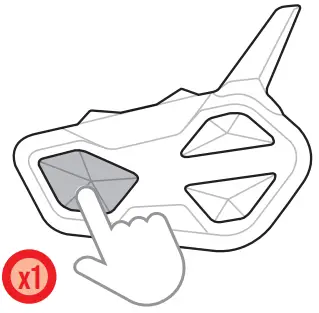
| Beep |
| Flashes |

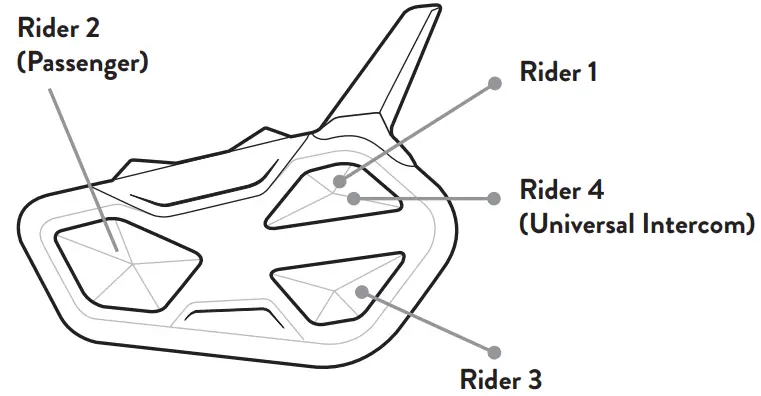
Nota: to communicate with Rider 1/3 repeat the process pressing the Up/ (Rider 1)/Down (Rider 3) buttons.
VOX ACTIVATION/DEACTIVATION
Status: in all modes
Press for 7 seconds
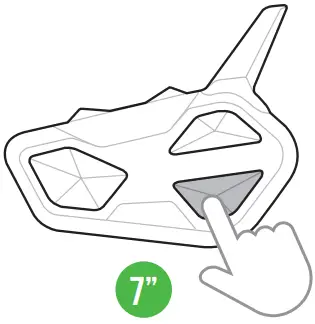
Voice announcement
TO OPEN/CLOSE INTERCOM BY VOICE
Status: in all modes
| Say “Hi” |
| Voice announcement |
| Flashes |
| Silent for 40 sec. the intercom deactivates |
| Beep |


Note: Voice activation is only possible when the intercom device is paired with the Control button.
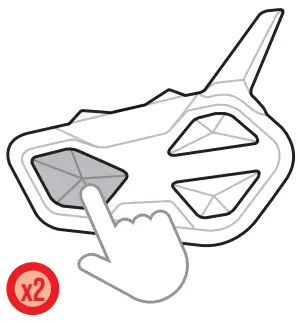
SHORTCUT: In Intercom/FM radio modes pressing Control 2 times activates/deactivates the music.
TO OPEN/CLOSE UNIVERSAL INTERCOM
Status: Intercom mode
Press for 3 seconds to activate or deactivate the Universal Intercom
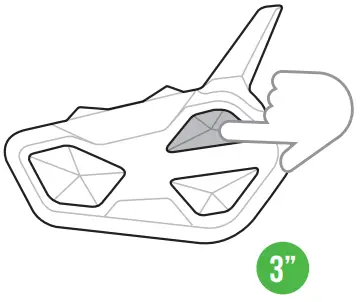
| Beep |
| Flashes |
Note: to activate/deactivate the audio from a different brand device, use the voice call command (for some models it is necessary to send the voice call twice)
TO ENABLE/DISABLE THE CONFERENCE MODE
Status: in all modes
Keep pressed together for 3 seconds; the Conference mode will be enabled/ disabled.
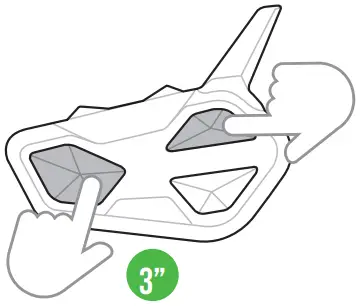
| |
|
Note: in Conference mode, the devices paired to Vol+/Vol- are temporarily disconnected.
TO OPEN/CLOSE CONFERENCE
Press once opens/closes Conference to the unit paired to button Up.
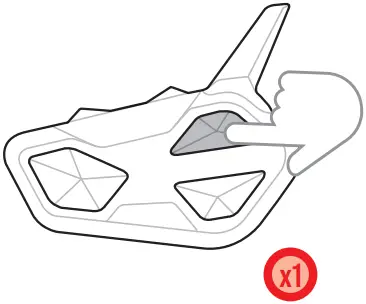
Press once opens Conference to all units paired.
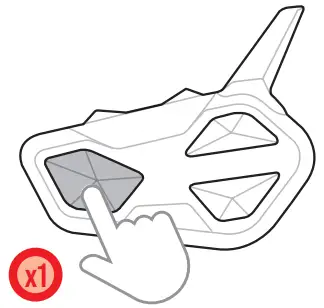
Press once opens/closes Conference to unit paired to button Down.
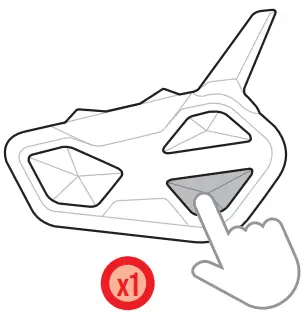
PHONE MODE
FUNCTION DESCRIPTION
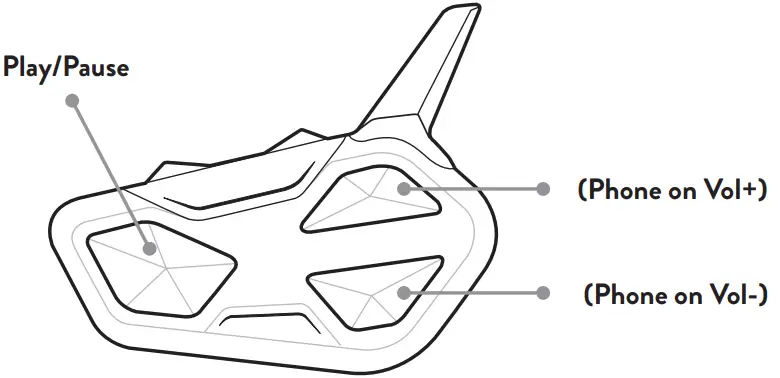
(Phone on Vol+)
- Call
- Answer
- End
- Reject
- Next song
(Phone on Vol-)
- Call
- Answer
- End
- Reject
- Previous track
MAKING A CALL
Status: Phone mode
Press 1 time
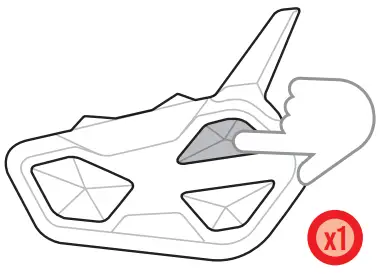
Note: If you have a phone paired with the Vol – button, use the Down button.
| Voice Assistant Response (Google assistant, Siri) |
| Give instructions |
| Call |


Note: If you have a phone paired with the Vol – button, use the Down button.
SHORTCUT: In Phone mode by pressing the UP/DOWN buttons twice, turns the Intercom on/off (Rider 1, 3).
ANSWERING/ENDING A CALL – REJECTING A CALL
Status: All modes
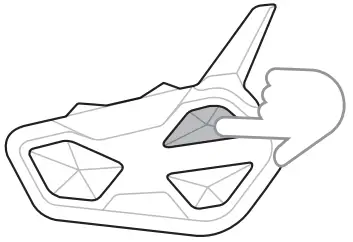
| Press 1 time to answer/end a call |
| Press for 3 sec. to reject a call |
Note: If you have a phone paired with the Vol – button, use the Down button.
MUSIC
Status: Phone mode
 Select Music app

Press 1 time Play/Pause
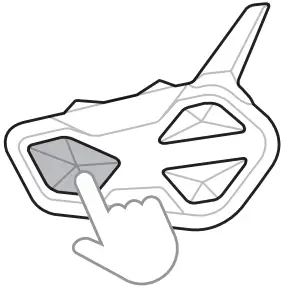
Press 1 time Next track
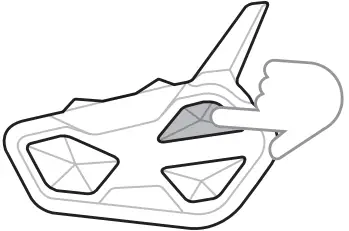
Press 1 time Previous track

Press for 3 sec. Start/stop sharing music with passenger (paired with Control button)
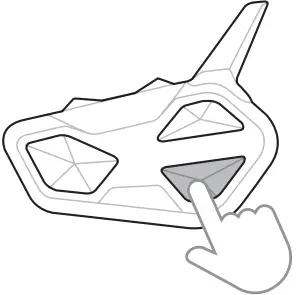
RADIO MODE
FUNCTION DESCRIPTION
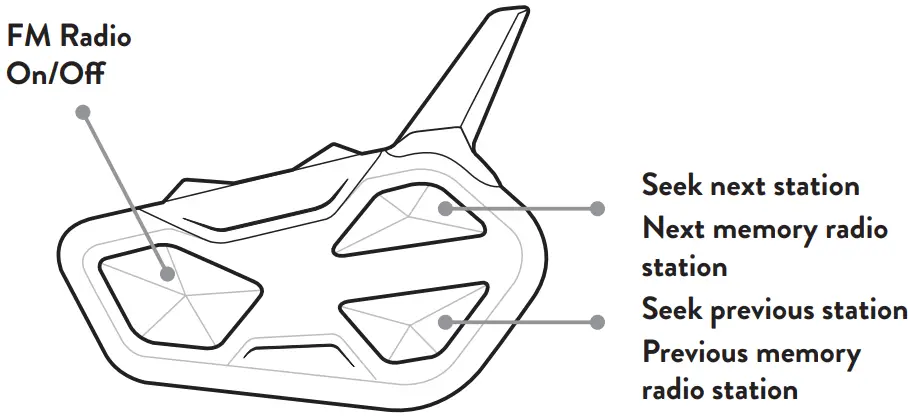
FM RADIO
Status: Radio mode
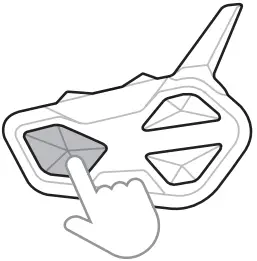
Press 1 time ON/OFF
Press 1 time Next station
Press for 3 seconds Next preset
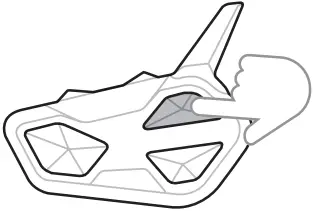
Press 1 time Previous station
Press for 3 seconds Previous preset
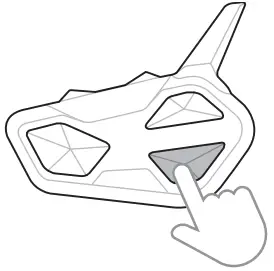
ON/OFF
DESCRIPTION OF BUTTONS
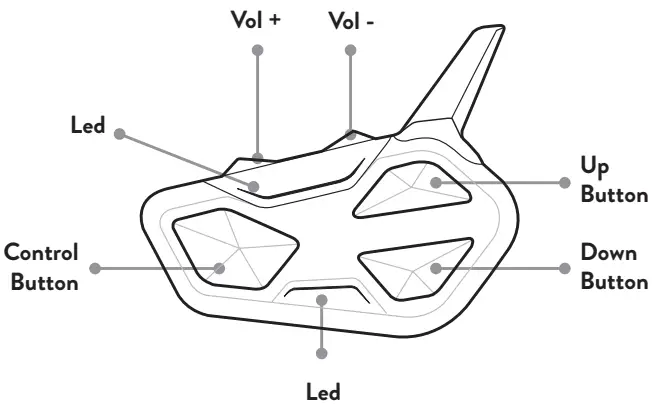
SWITCH ON
Press for 3 seconds
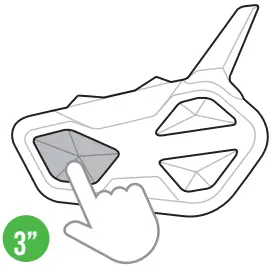
| Beep |
| Flashes |
SWITCH OFF
Press together for 3 sec.
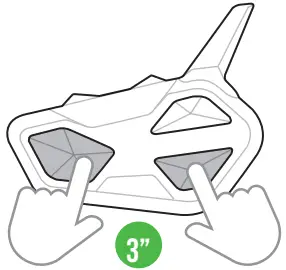
| Flashes |
| Notification jingle |


PAIRINGS
DESCRIPTION OF BUTTONS
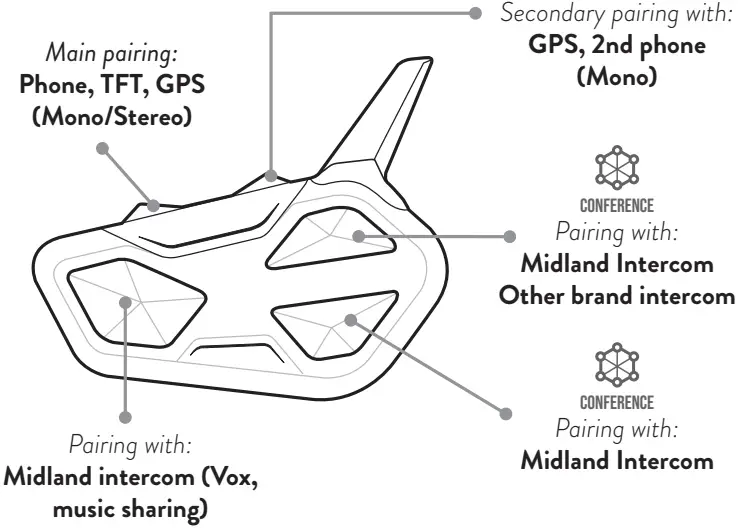
ATTENTION: To carry out any pairings you need to access Settings.
If the Control button is pressed for fewer than 7 seconds, the device will switch itself on instead of accessing Settings. If this occurs, repeat the process.
ACCESS SETTINGS
Status: device off
Press for 7 seconds
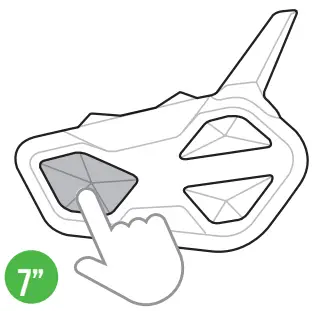
| Beep |
| Flashes |
| Static |

PHONE, GPS, TFT PAIRING
Status: Settings
Press for 3 seconds
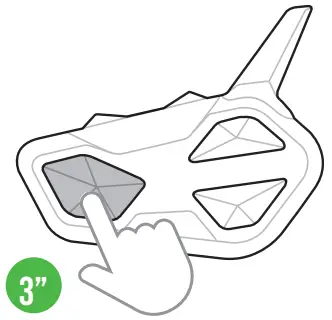
| Beep |
| Flashes |
| Select BTR1 Advanced on phone, GPS or TFT |
| Beep |
| Confirm (1 sec.) |


Note: to pair a 2nd device in mono audio, repeat this procedure using Vol -.
MIDLAND INTERCOM PAIRING
Status: Settings
Press for 3 seconds
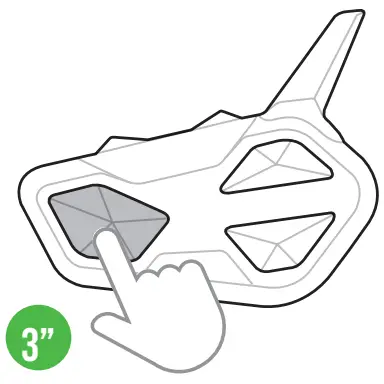
| Flashes |
| Confirm (1 sec.) |
Press for 3 seconds
| Flashes |
| Confirm (1 sec.) |
Pairing successful
Note: to pair another Midland intercom, follow the same procedure using the Up/Down buttons.
OTHER BRAND INTERCOM PAIRING
(UNIVERSAL INTERCOM)
Status: Settings
Press for 7 seconds
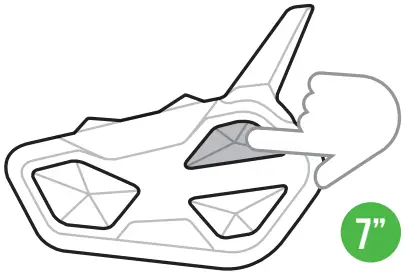
| Flashes fast (press and hold) |
| Flashes slowly (Release) |

Follow procedure to pair with a phone
PAIRING 4 UNITS IN CONFERENCE
Status: Settings
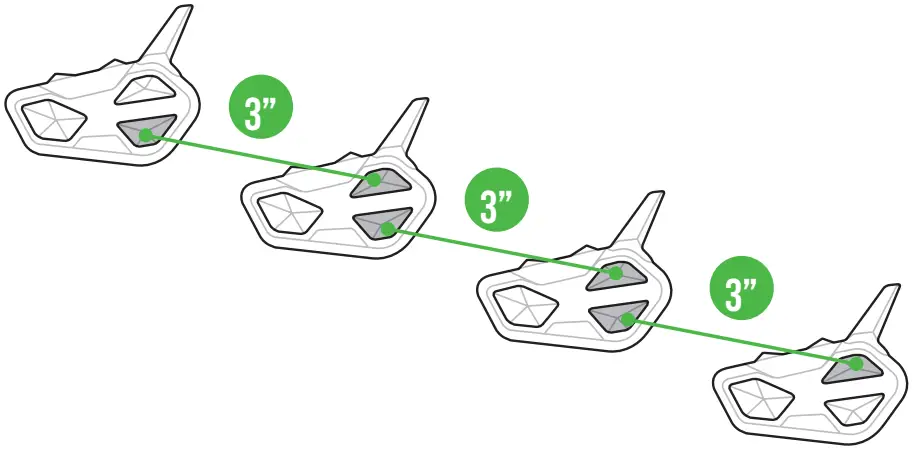
Note: the Conference mode allows the simultaneous communication amongst units. All units must be paired in a “chain” configuration: the Down button of the first unit must be paired to the Up button of the second unit and so on. For a detailed description of the function go to paragraph “Conference” of the complete user manual or watch the video tutorial
RESET BLUETOOTH PAIRINGS
Status: Settings
Press together, 3 seconds
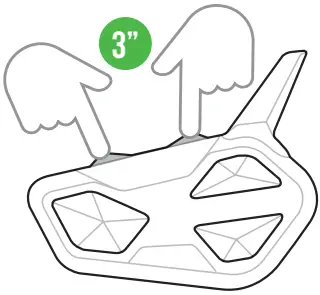
| Beep |
| Confirm (1 sec.) |
| Static |
EXIT SETTINGS MODE CANCEL PAIRING
Status: Settings
Flashing changes
| Frequency (GHz) | Max power (mW) |
| 2.402 – 2.480 | 100 |
Go to our website midlandeurope.com, download the complete manual and the BT Updater software.
Customize your intercom and discover all the functions with the BTPRO SetApp.
Download it here:





 Startseite | Alan Electronics
 Midland Europe | Radio e CB, Interfoni Moto e Action Cam