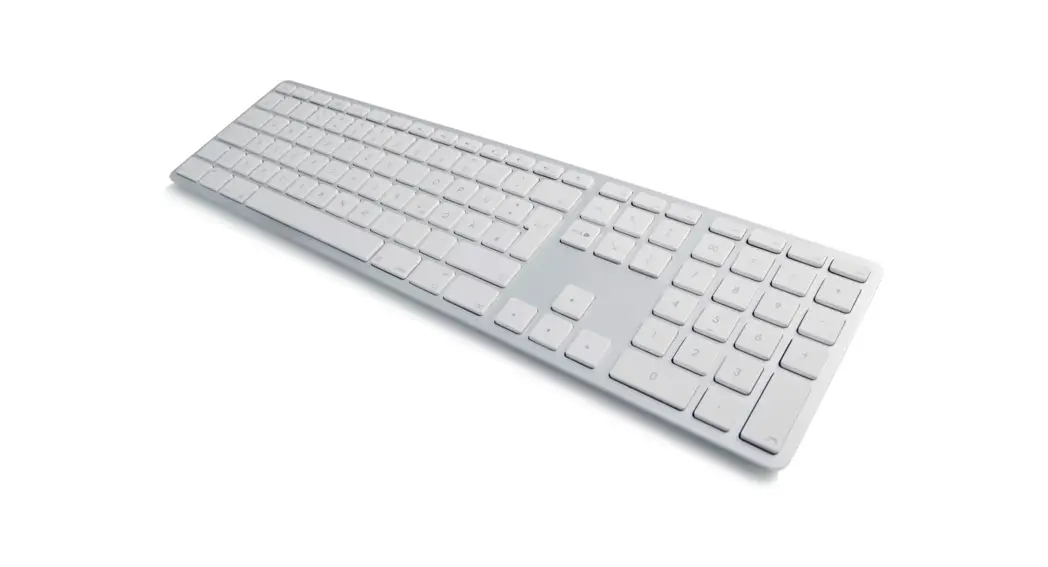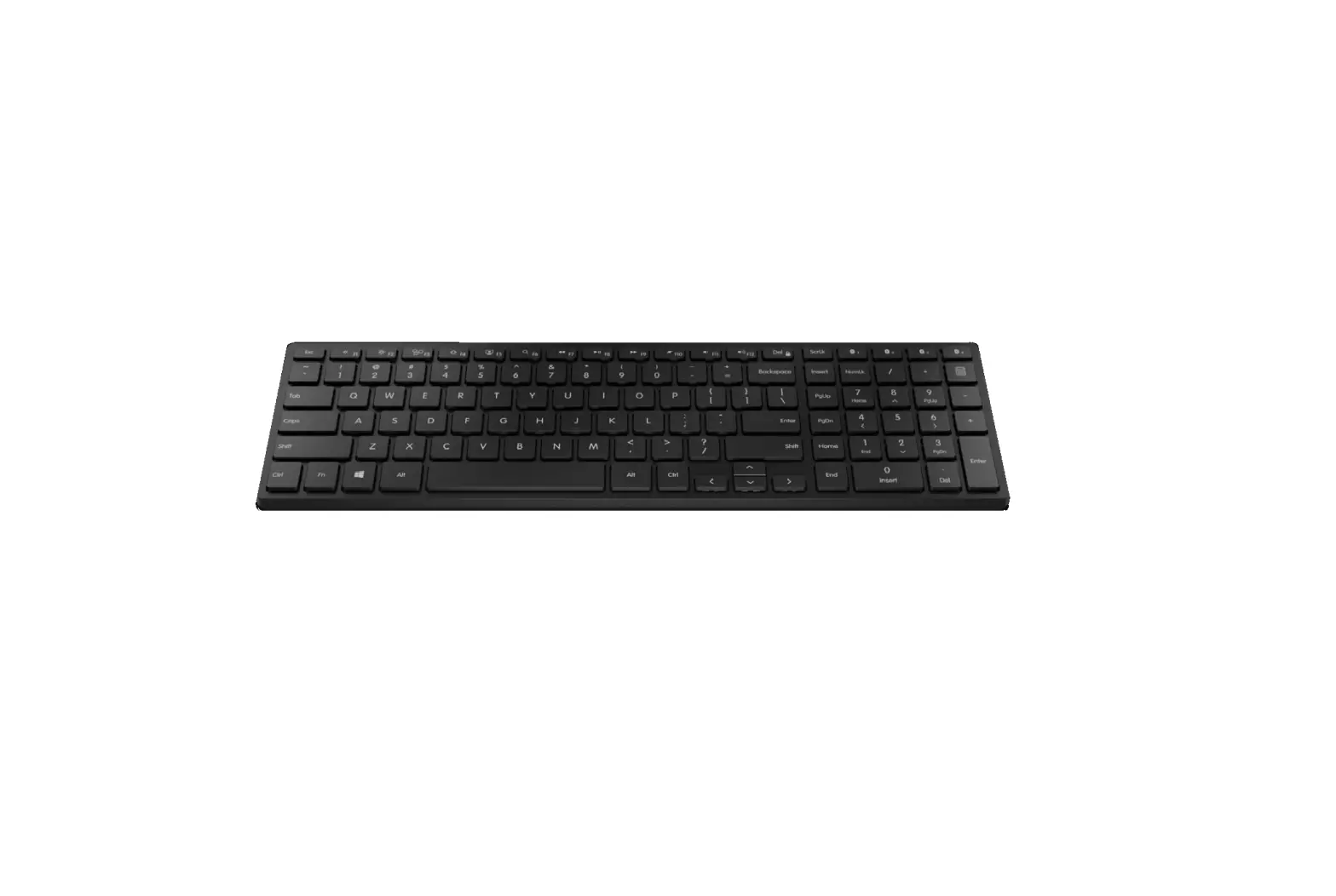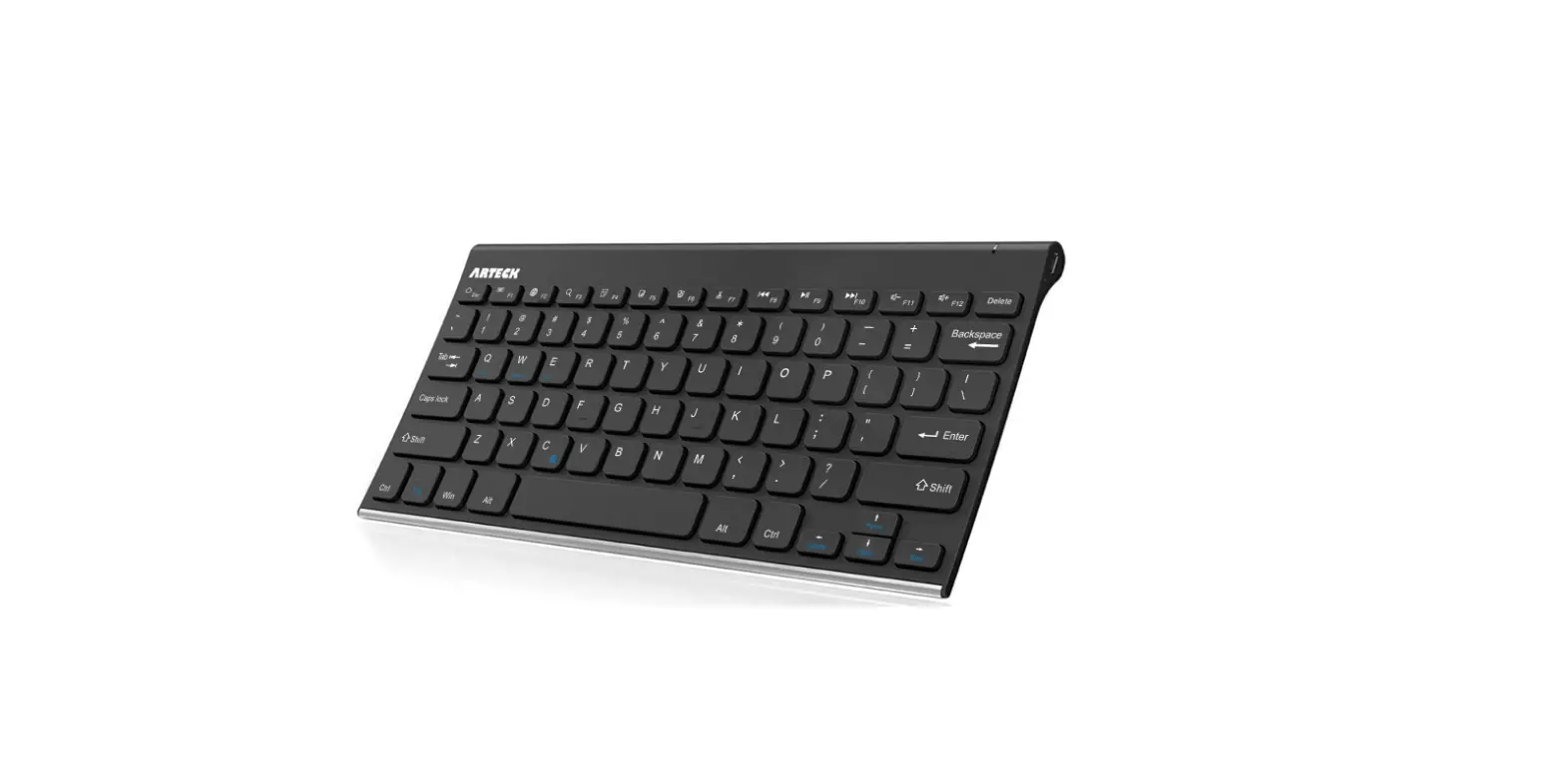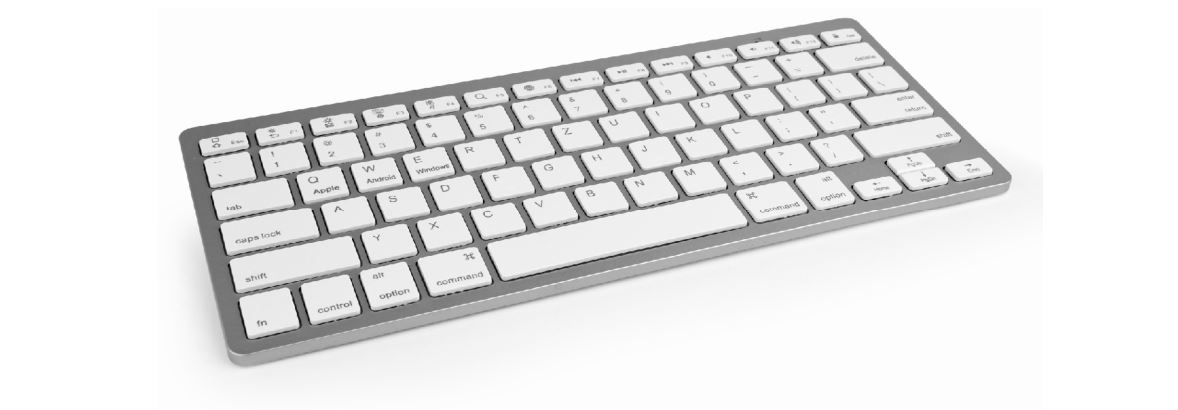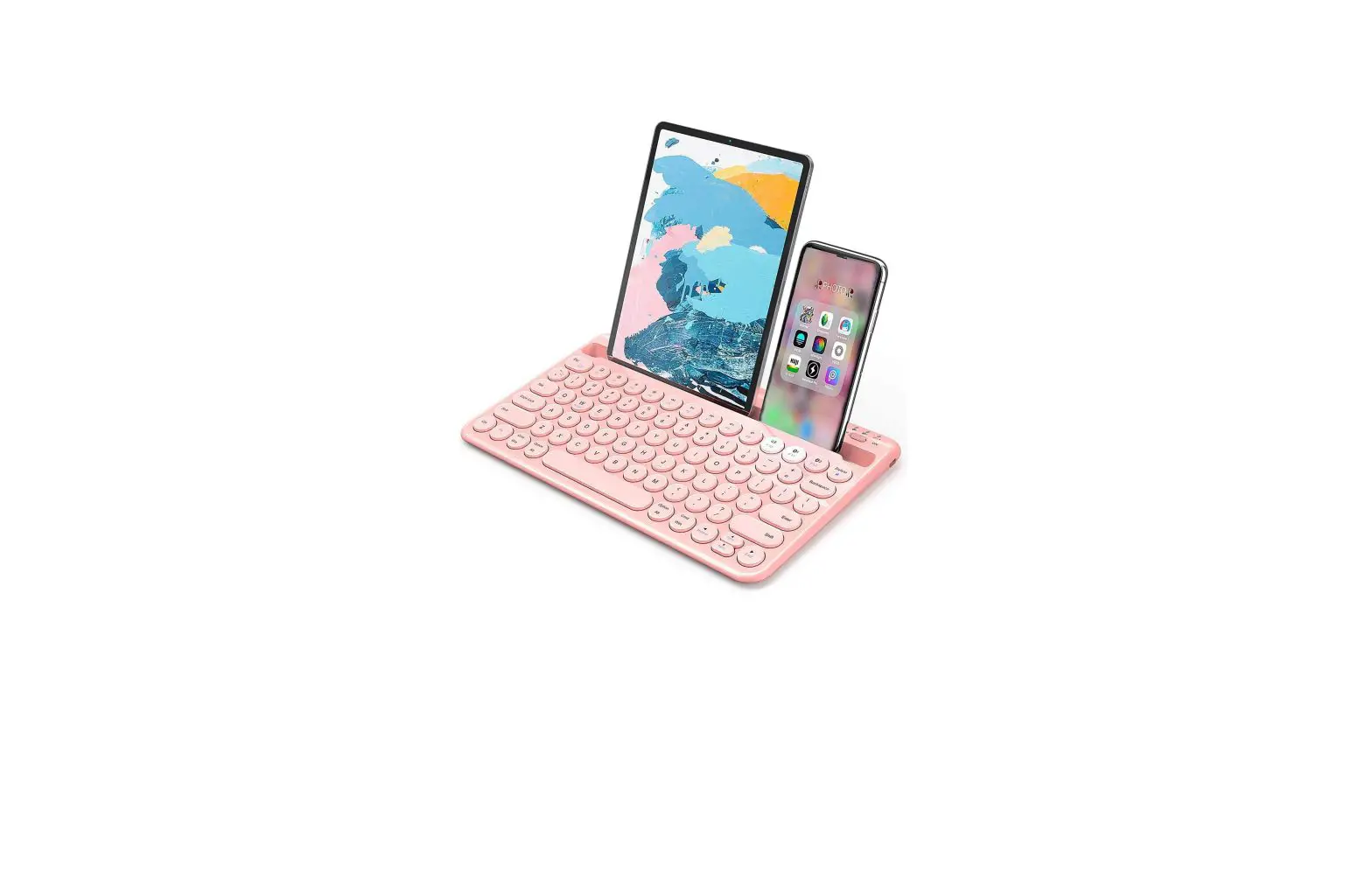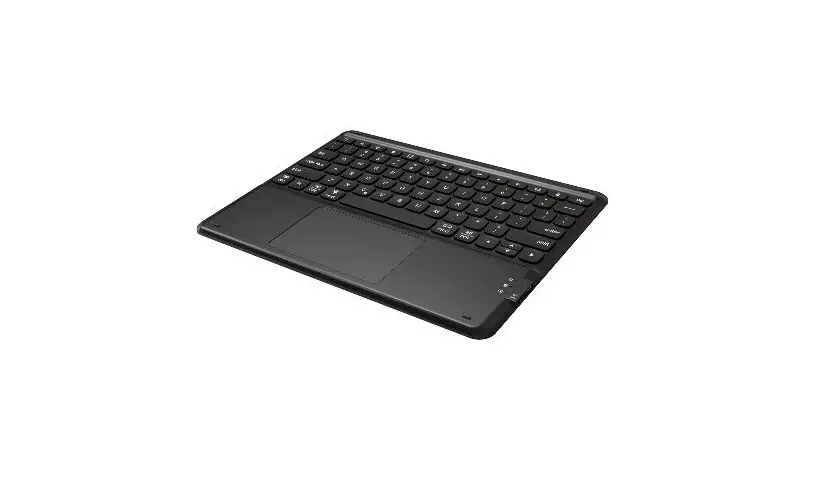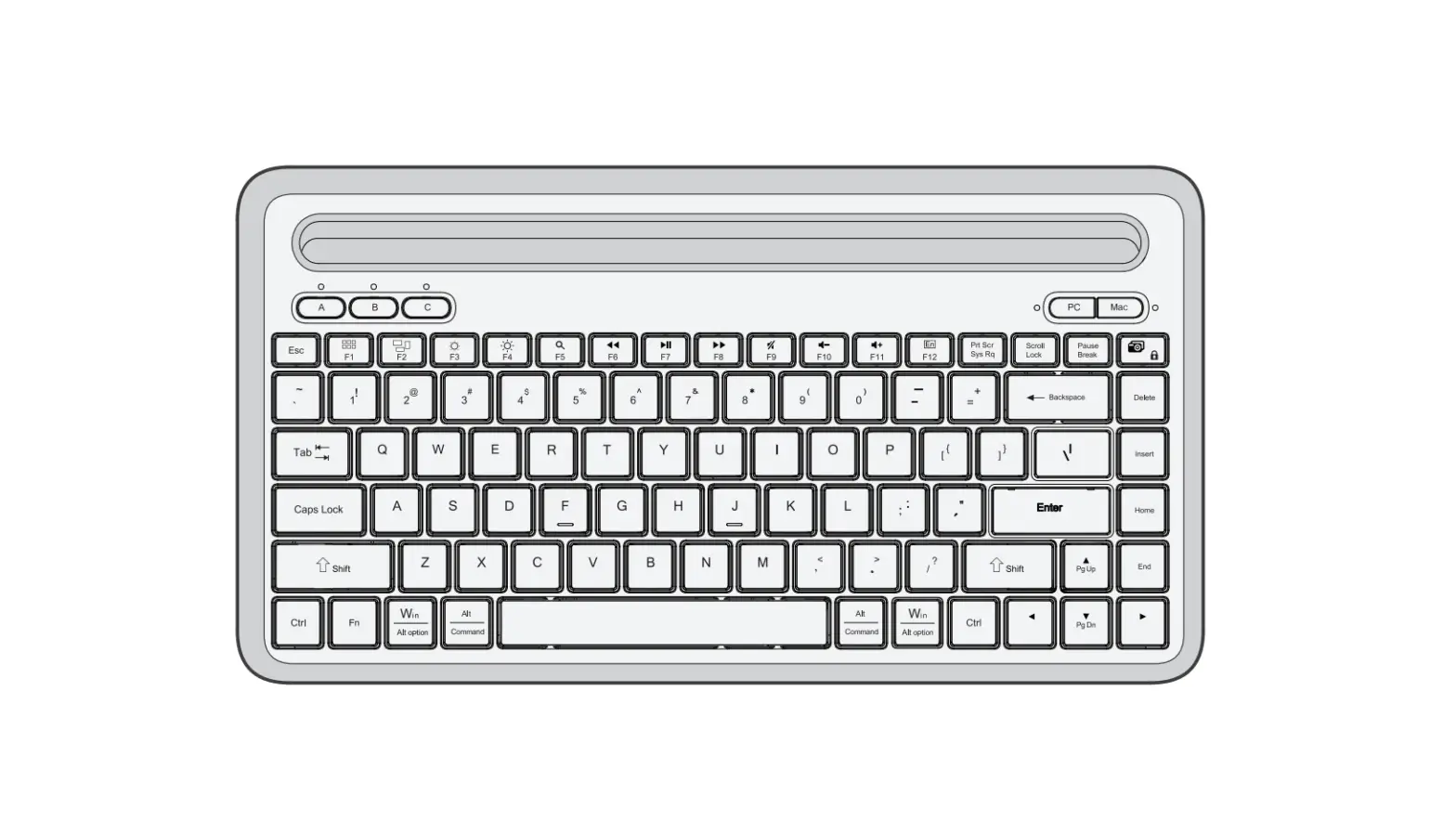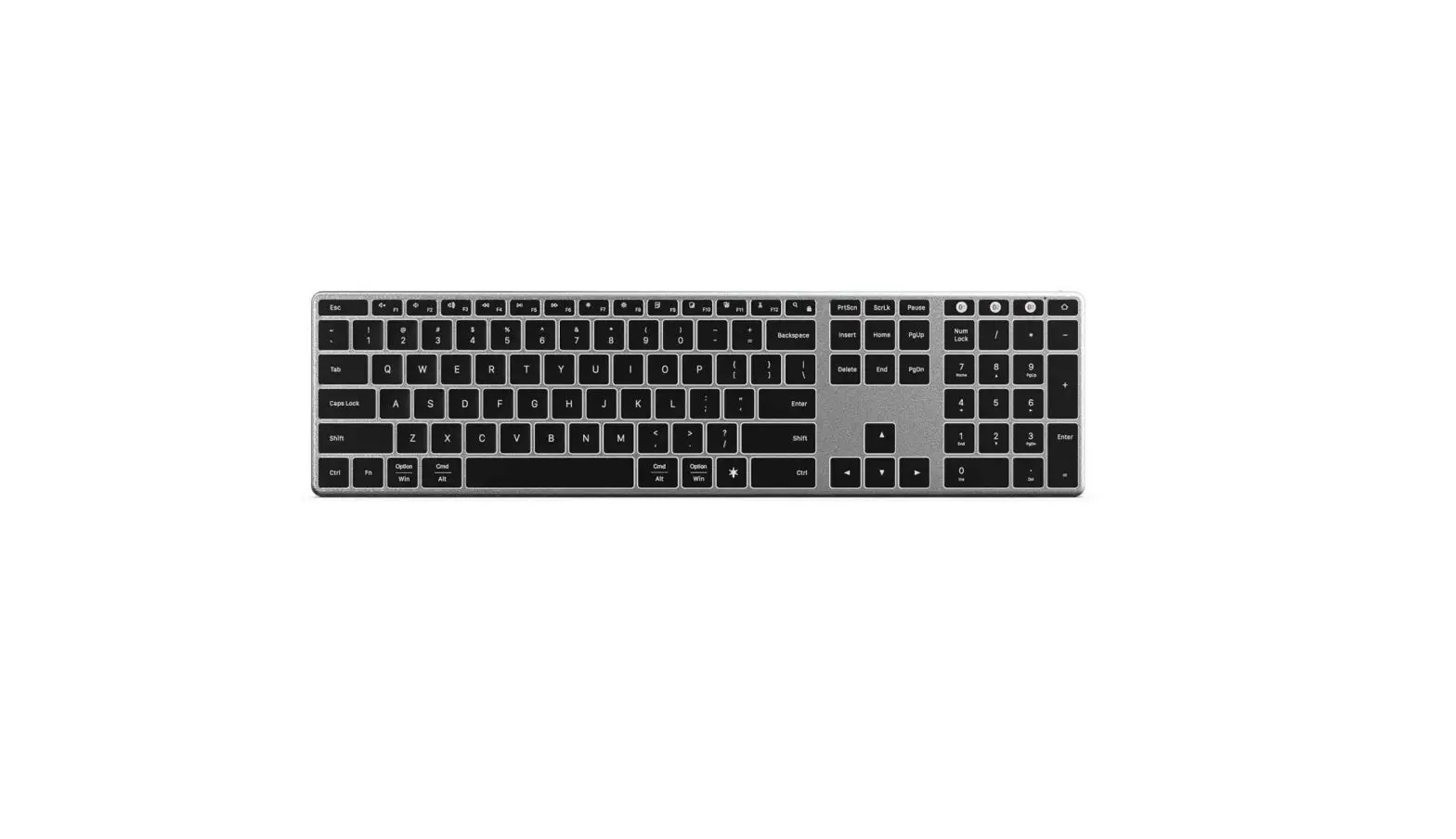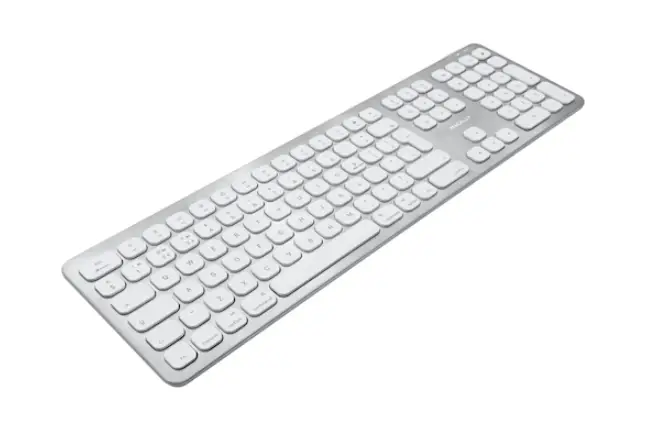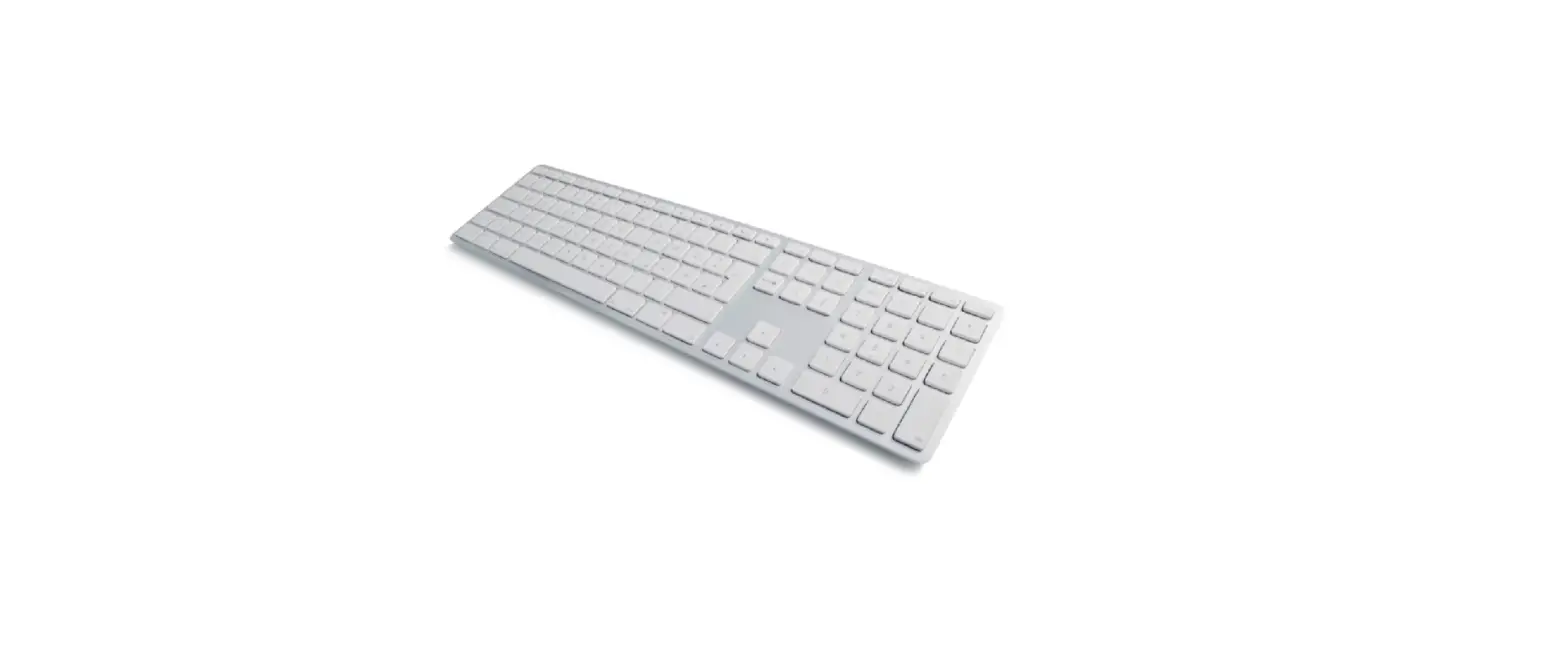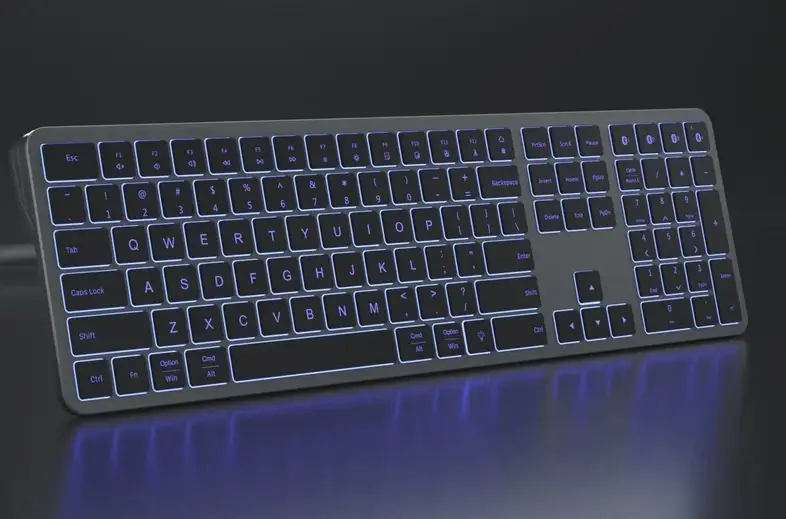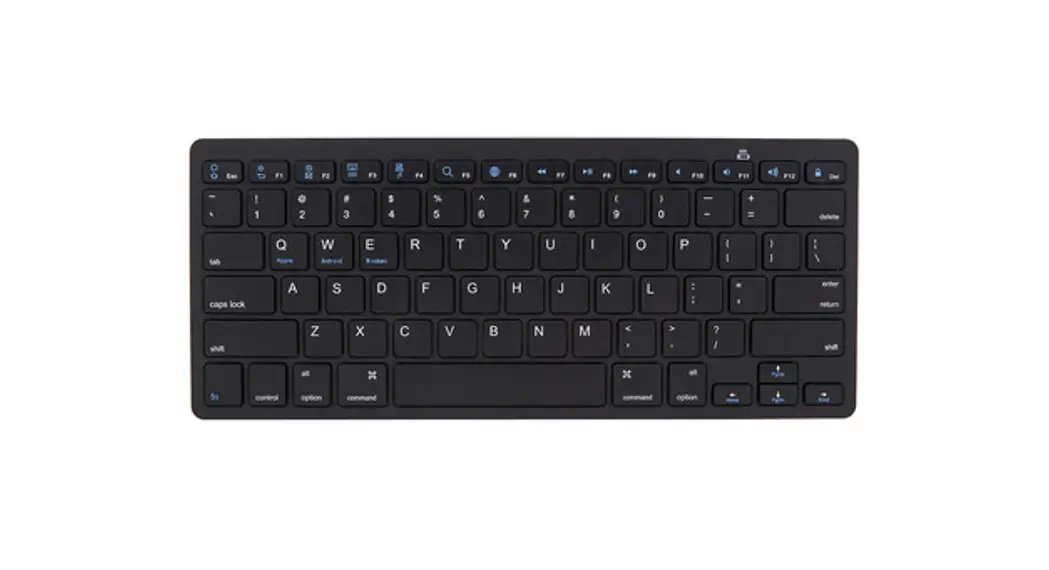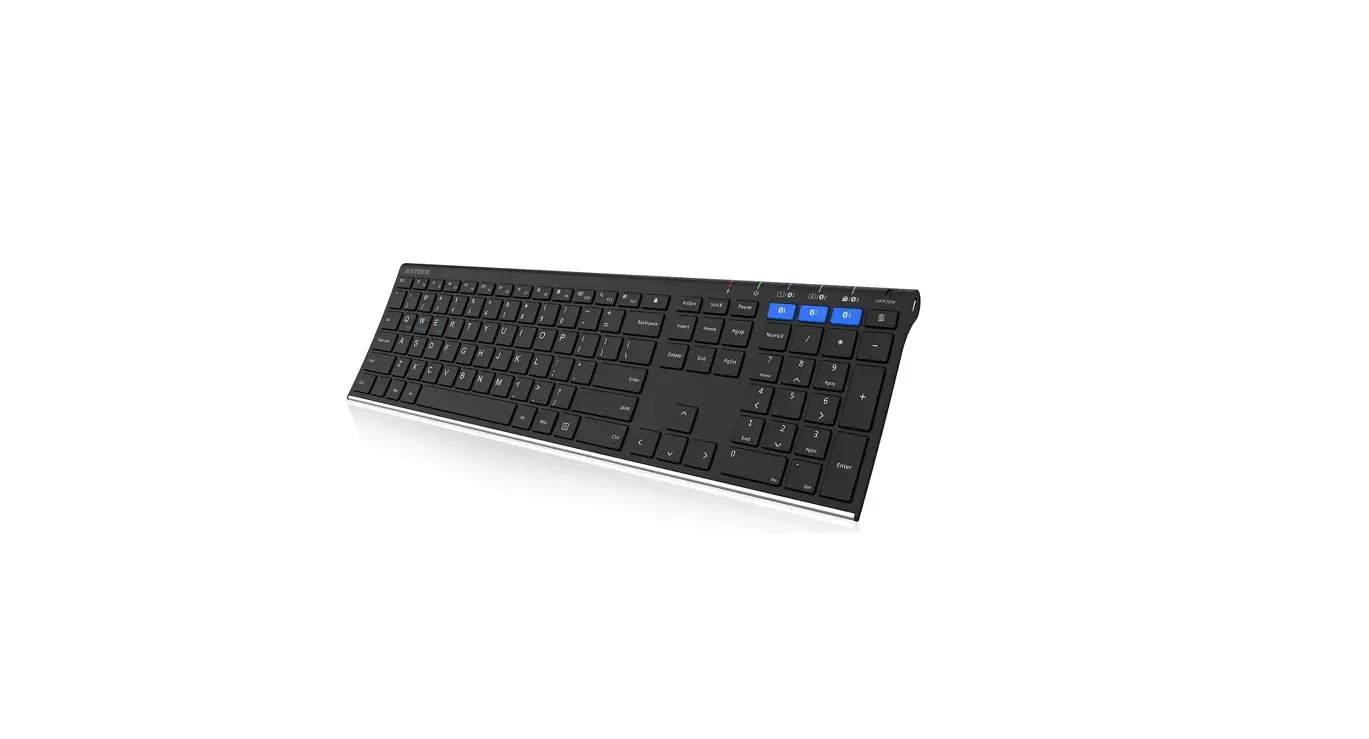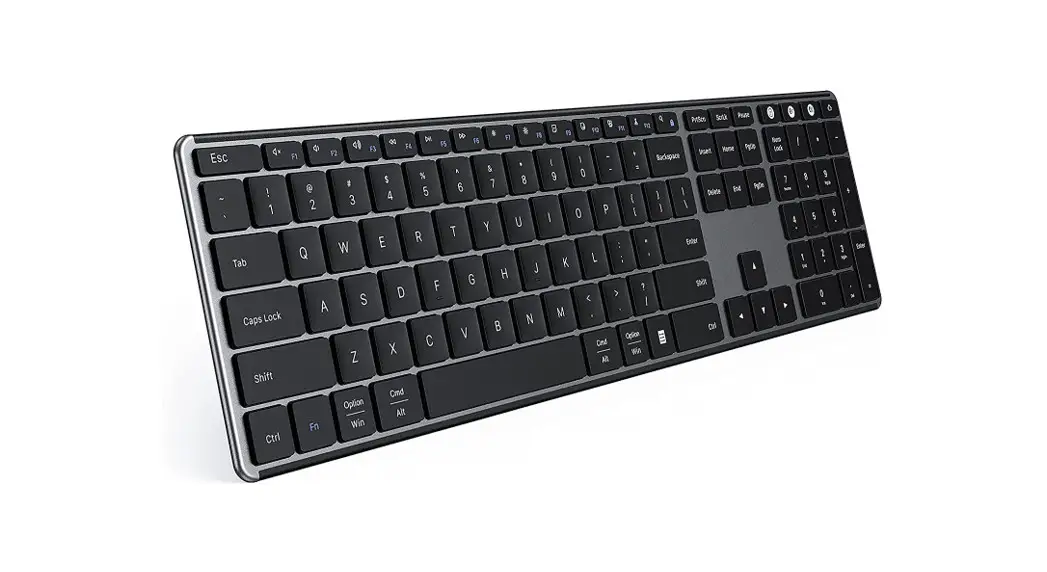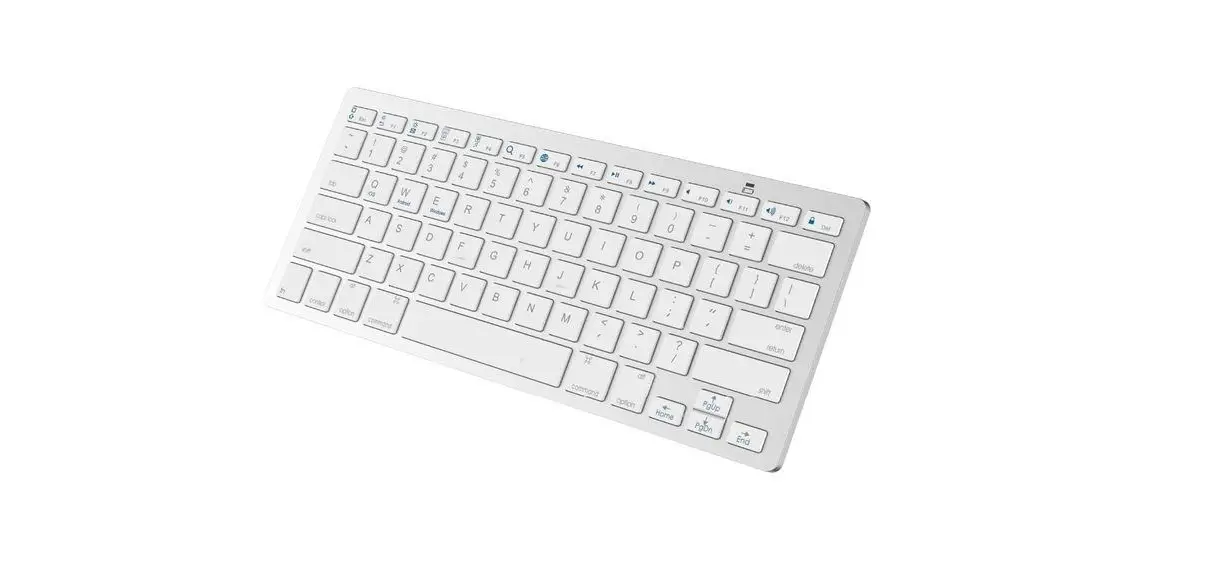

bluebuilt BBWLBKQ23 Wireless Bluetooth Keyboard
Product Information
| Product Name | Flying Start Wireless Bluetooth Keyboard |
|---|---|
| Model Number | 921904 – BBWLBKQ23 |
| Product Specifications | Frequency: 2.4GHz Working current: 5mA Battery capacity: 300mAh |
| Declaration of Conformity | This product complies with RoHS Directive 2011/65/EU and Radio Equipment Directive 2014/53/EU. The EU Declaration of Conformity can be found at www.coolblue.nl/en/product/921904. |
| Warranty and Liability | This device comes with a warranty period of five (5) years from the date of purchase. For more information about the warranty terms and conditions, visit https://www.coolblue.nl/en/customer-service. Coolblue B.V. is not liable for any material or immaterial damage caused by non-compliance with the instructions in this manual. |
Product Usage Instructions
How to Connect Your Keyboard
To turn on the keyboard, operate the switch located on the top right. Then, follow these steps:
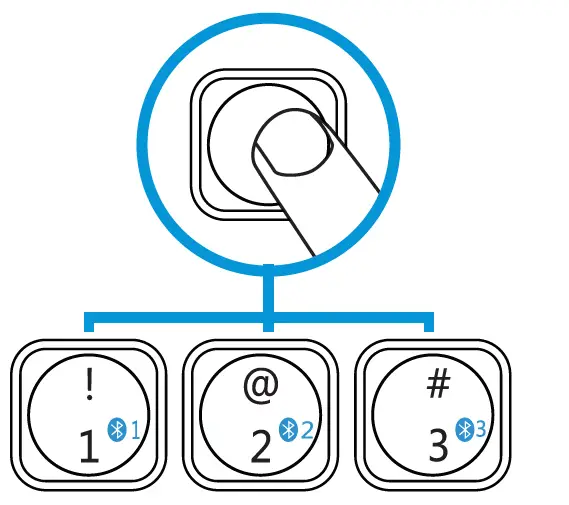
- Press the “Fn” key and one of the Bluetooth channels simultaneously.
- Select one of the three channels.
- The light on the top right will illuminate once.
- Press and hold for 5 seconds on Bluetooth channel 1 to enter Bluetooth pairing mode. The indicator light will flash quickly.
- Open the Bluetooth settings on your device.
- Select the keyboard from the available devices and establish a connection.
Keyboard Indicators
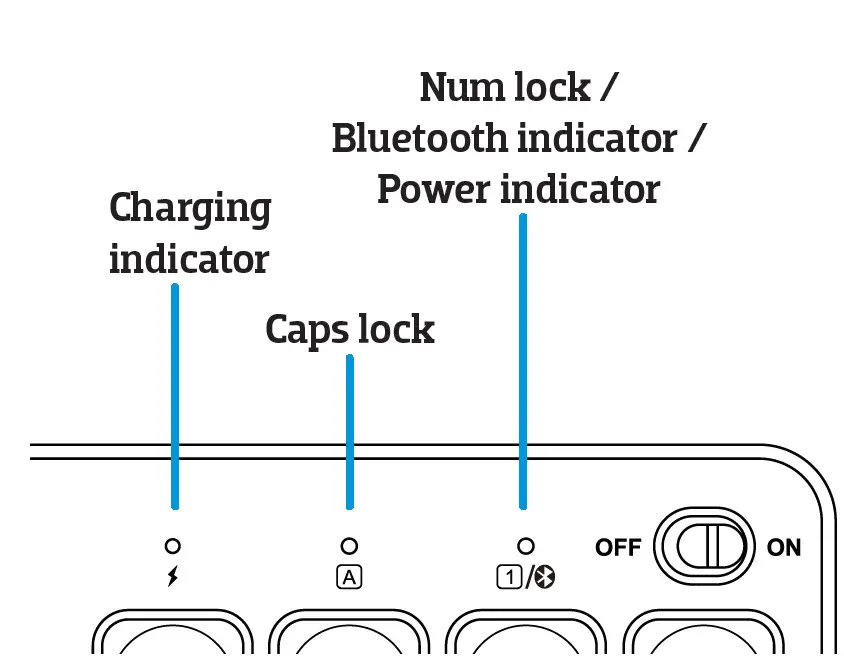
After turning on the keyboard, a red light will appear momentarily. The following indicators provide information:
- Caps Lock Indicator: Indicates whether caps lock is enabled or disabled. Caps lock is enabled when the light is turned on.
- Num Lock Indicator: Indicates whether the numpad is enabled or disabled. Num lock is enabled when the light is turned on.
- Charging Indicator: Indicates the charging status of the keyboard.
- Num Lock / Bluetooth Indicator / Power Indicator
Charging Your Keyboard
When the battery is low, the battery indicator light will start flashing. To charge the keyboard:
- Plug the included USB-C cable into the top of the keyboard.
- Ensure a proper connection for charging.
- Please note: When the battery is low, the transmission of the keyboard may be delayed or unstable.
Keys and Functions
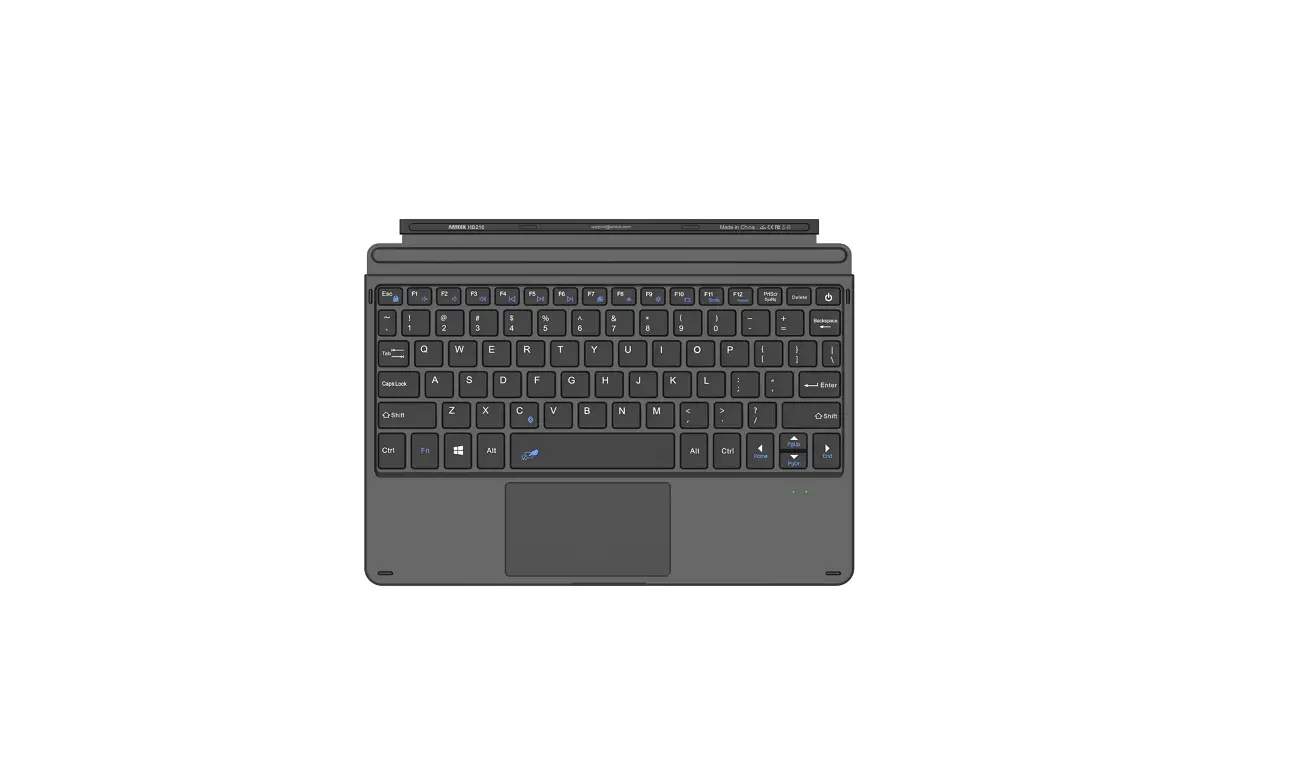
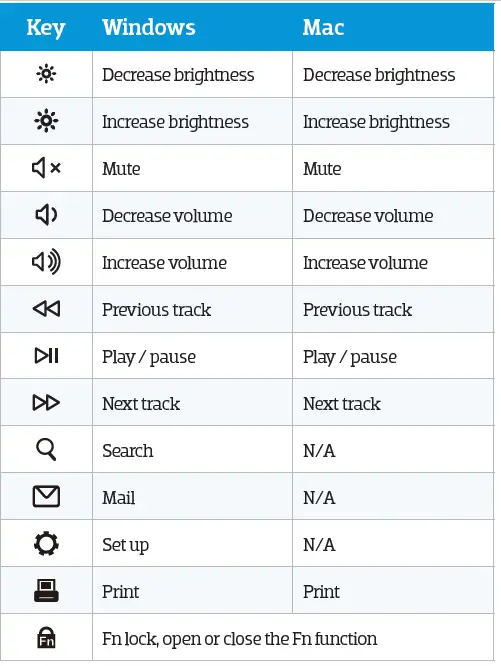
| Key | Windows | Mac |
|---|---|---|
| Decrease brightness | Decrease brightness | Decrease brightness |
| Increase brightness | Increase brightness | Increase brightness |
| Mute | Mute | Mute |
| Decrease volume | Decrease volume | Decrease volume |
| Increase volume | Increase volume | Increase volume |
| Previous track | Previous track | Previous track |
| Play / pause | Play / pause | Play / pause |
| Next track | Next track | Next track |
| Search | N/A | N/A |
| N/A | N/A | |
| Set up | N/A | N/A |
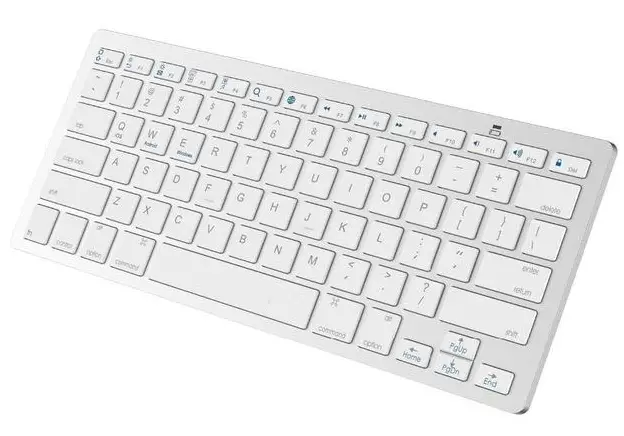
| Fn lock | Open or close the Fn function | N/A |
HOW TO CONNECT YOUR KEYBOARD
You turn the keyboard on by operating the switch on the top right.
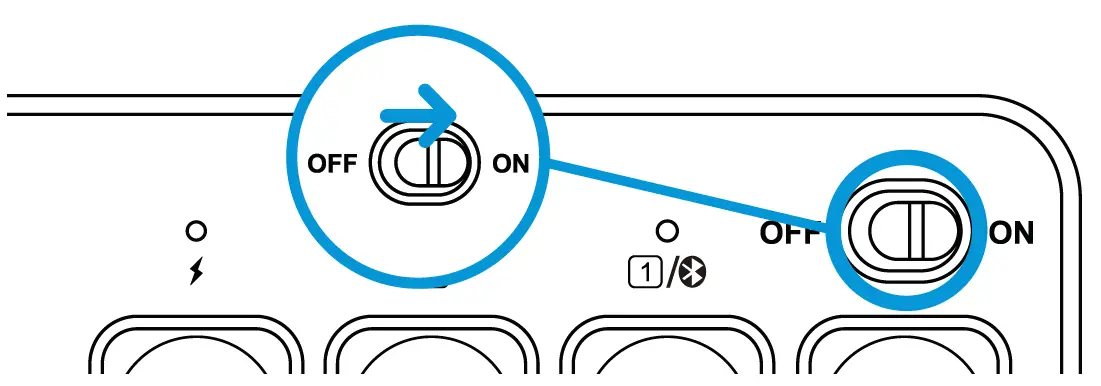
Press Fn and one of the Bluetooth channels at the same time, select one of the three channels, and the light on the top right will light up once. Press and hold for 5 seconds on Bluetooth channel 1, the chosen channel will start the Bluetooth pairing mode, and the indicator light will flash quickly.
Open the Bluetooth settings on your device, select the keyboard and make a connection.
KEYBOARD INDICATORS
After the keyboard is powered on, a red light will appear. This light will dissapear after 3 seconds.
Indicates whether caps lock is enabled or disabled, caps lock is enabled when the the light is turned on.
Indicates whether the numpad is enabled or disabled, num lock is enabled when the light is turned on.
CHARGING YOUR KEYBOARD
When the battery is low the battery indicator light will start to flash, plug the included usb-C cable on the top of the keyboard to charge. 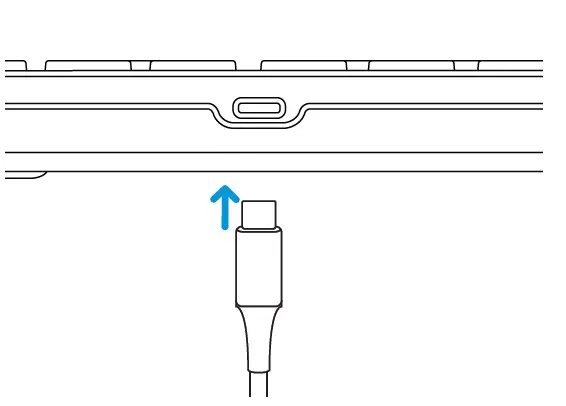
Please note: when the battery is low, the transmission of the keyboard can be delayed or unstable.
KEYS AND FUNCTION
Declaration of conformity
- Product specifications Frequency: 2.4GHz
- Working current: ≤5mA
- Battery capacity: 300mAh
Safety instructions
- Always follow these instructions and note the warnings, save this document for future use as long as you own or use the device, and give it to the next users of the device.
- Make sure you read and understand the entire manual before you use the device.
- Use the device only in the application for which it is intended, namely as a pointing device that is connected to a laptop or computer to control the cursor on the screen with a hand movement.
- Before you connect a device, check if the output power of the charger provides enough power for the connected device.
- Don’t expose the device to extreme heat, like sunlight or fire. Avoid sudden temperature shifts.
- Don’t use or use the device in moist or wet conditions.
- Don’t use the device close to explosive gasses or flammable materials.
- Don’t burn the device.
- Avoid contact with the chemicals of the battery. When the chemicals of the battery come into contact with skin or the eyes, stop using the device right away, use plenty of water to rinse off the chemicals, and contact a doctor.
- Don’t throw, shake, vibrate, drop, or mechanically misuse the device and don’t expose it to impacts.
- Don’t cover the device with objects that affect the heat dispersal.
- Only use the device with the included cables or with cables that came with the device. Don’t use the device when the included cables are damaged or have gotten damaged over time.
- Disconnect the device when it’s not in use. Don’t charge or discharge the device unsupervised.
- Keep the device away from children.
- Don’t disassemble, open, or repair the device.
- Only clean the device with a damp cloth with water. Don’t use (aggressive) cleaning agents.
- This device can be used by people with reduced physical, sensory, or mental capacity, or by people without experience and knowledge, given that they’re supervised or have gotten instructions about safe use of the product and understand any dangers.
Warranty and liability
This device comes with a warranty period of five (5) years after the date of purchase. For more information about the warranty terms and conditions, go to https://www.coolblue.nl/en/customer-service. Coolblue B.V. can in no way be held liable for material and immaterial damage suffered by you, others, the device, other property, or the property of others due to non-compliance with the instructions in this manual.
CE: Hereby, Coolblue B.V. declares that this product is in compliance with RoHS Directive 2011/65/EU and Radio Equipment Directive 2014/53/EU. The full text of the EU Declaration of Conformity is available at www.coolblue.nl/en/product/921904.
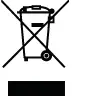 This symbol on the product indicates that it can’t be treated as regular waste, but that it’s supposed to be collected separately. Hand the product in at a collection point for the recycling of electronic devices if you live in the EU or in a different European country that has a separate collection system for electronic devices. If you correctly dispose of the product, you help to avoid risks for the environment and public health which might arise by the mishandling of disposed devices. Recycling materials contributes to the maintenance of our natural resources.
| Keyboard parameters | |
| Battery capacity | 300mAh |
| Battery life | 1000 times charge and discharge cycles |
| Key life | 3 million key strokes |
| Standby time | 200 hours |
| Continuous working time | 50 hours |
| Wake-up method | Press any key |
| Effective distance | Within 8 meters |
| Working current | ≤5mA |
| Product dimensions | 362×116.6×21.5mm |
BlueBuilt is a registered trademark of Coolbue B.V., Weena 664, 3012 CN Rotterdam, The Netherlands.
References
 Coolblue - tout pour un sourire
-
Customer Service - Coolblue - anything for a smile
-
Coolblue - alles voor een glimlach
-
BlueBuilt Draadloos Bluetooth Toetsenbord QWERTY - Coolblue - Before 23:59, delivered tomorrow
-
BlueBuilt Draadloos Bluetooth Toetsenbord QWERTY - Coolblue - Voor 23.59u, morgen in huis
 Coolblue - tout pour un sourire
 Customer Service - Coolblue - anything for a smile
 Coolblue - alles voor een glimlach