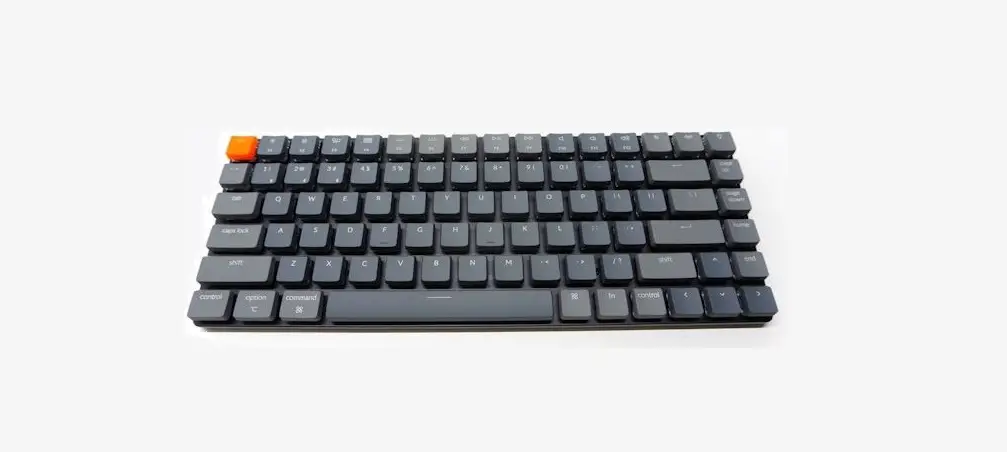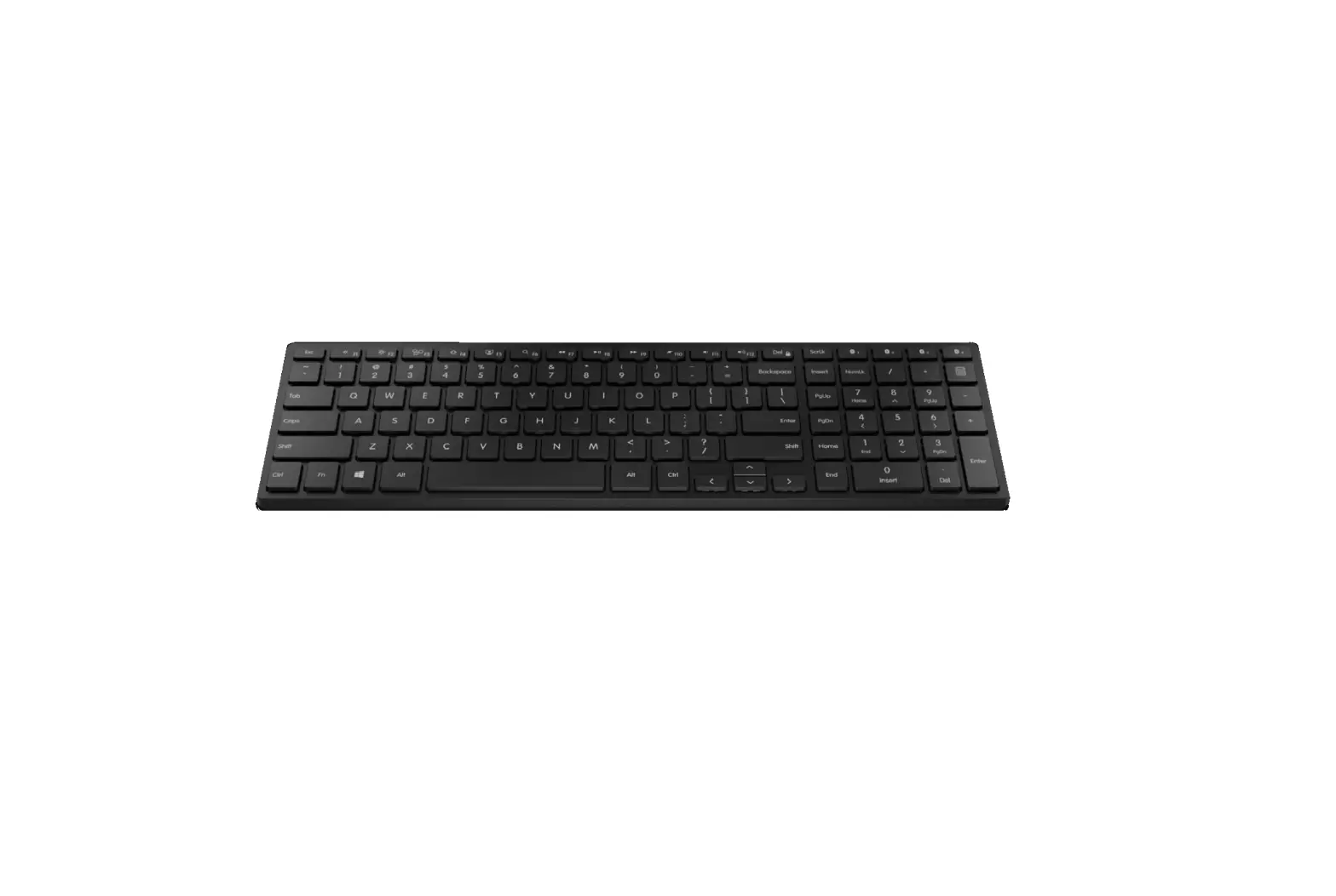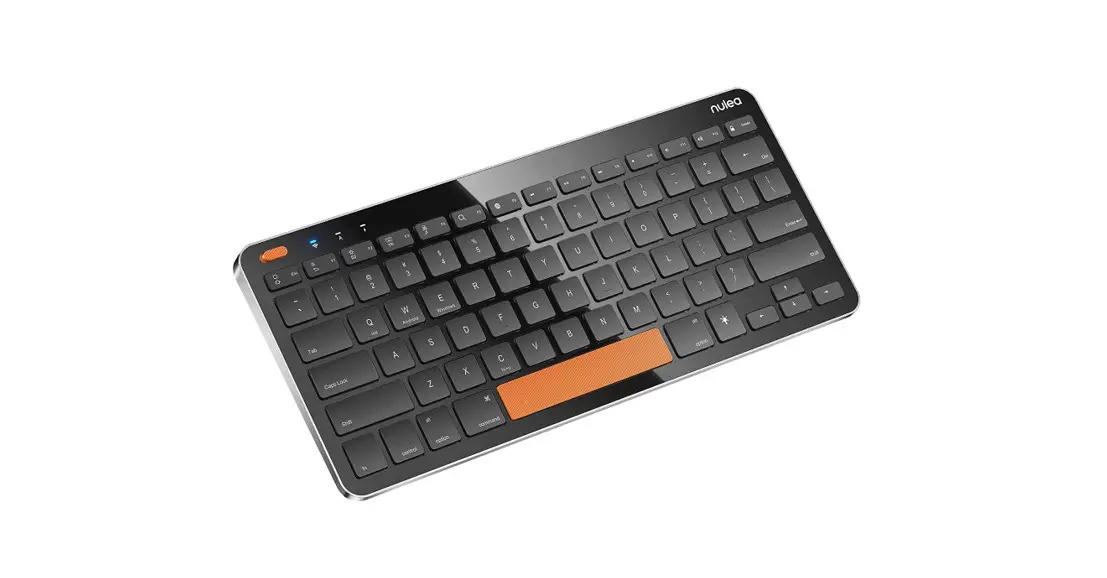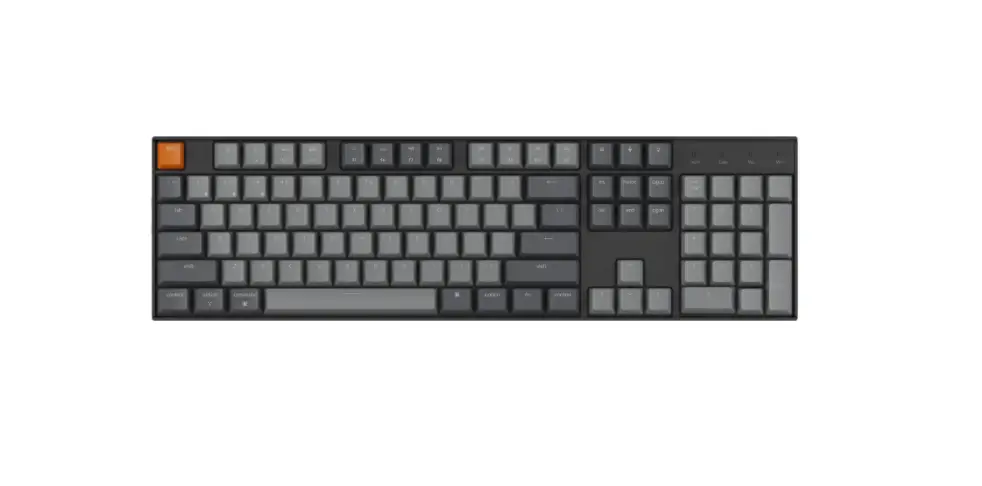
 K15B-3 Wireless Bluetooth Keyboard
User Manual
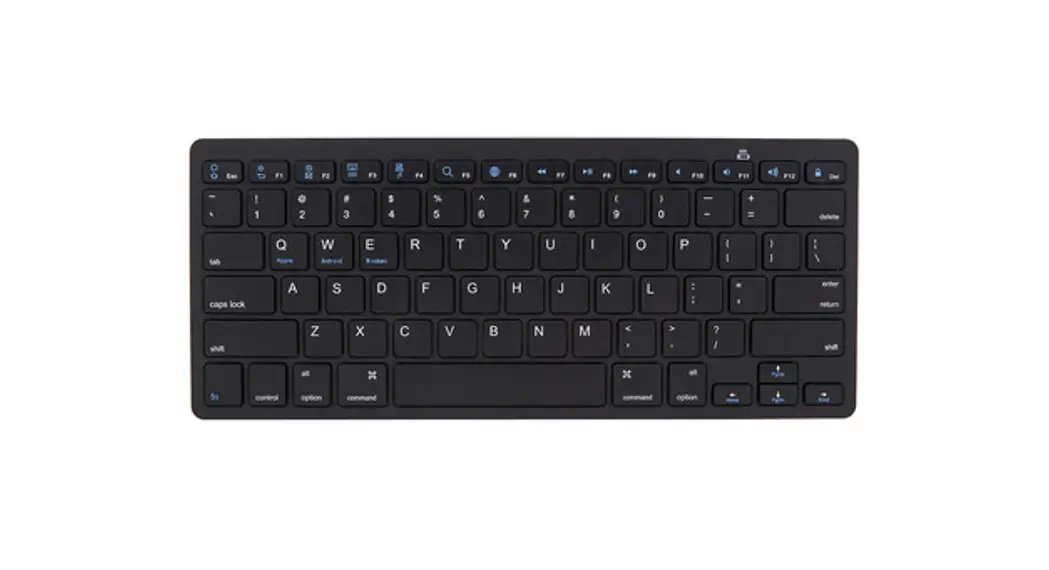
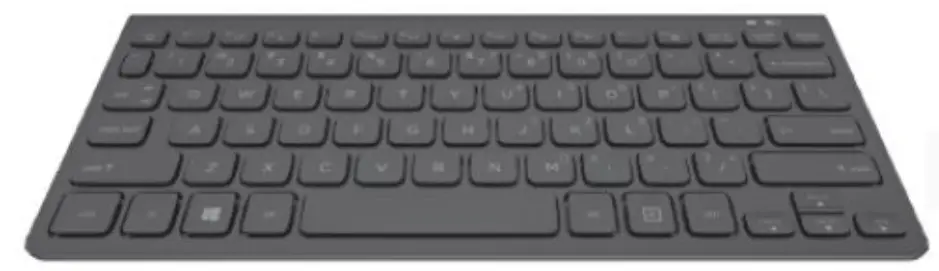
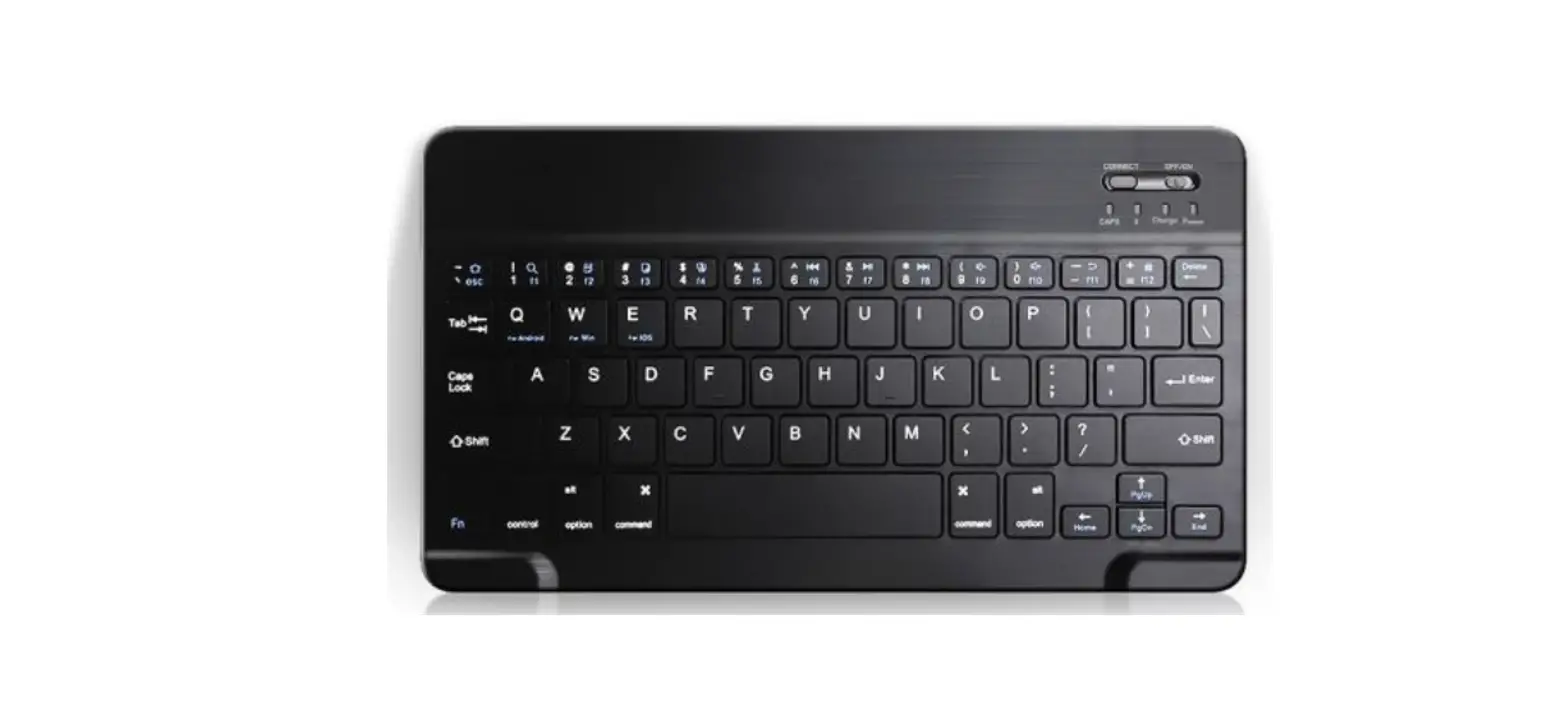
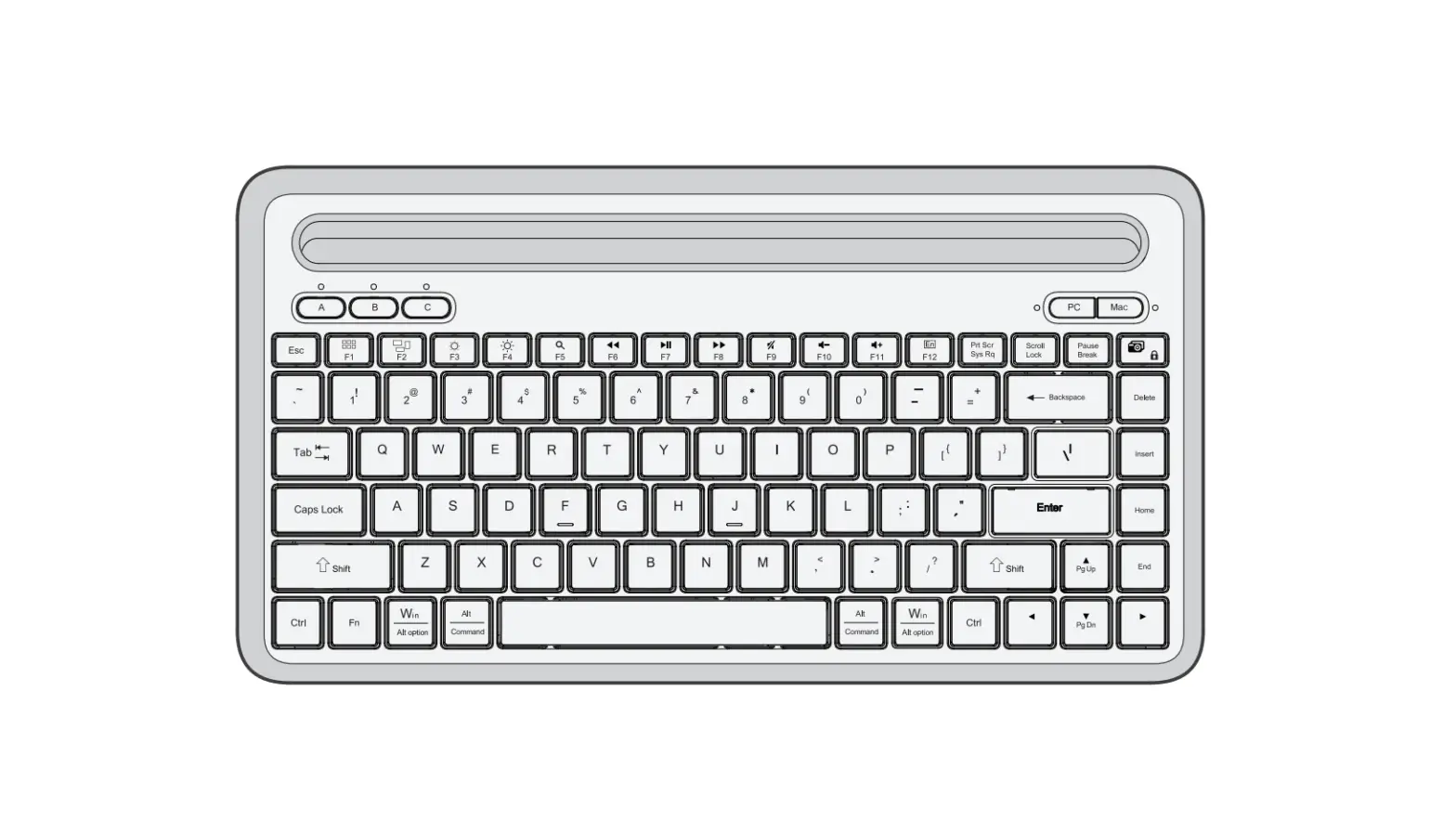
Product Function
Bluetooth Connection
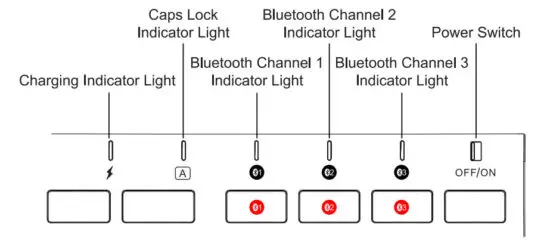
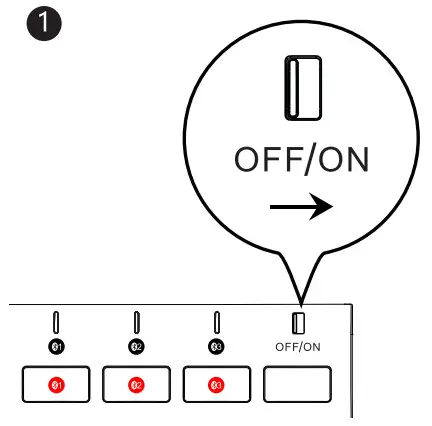
- Turn on the power switch.

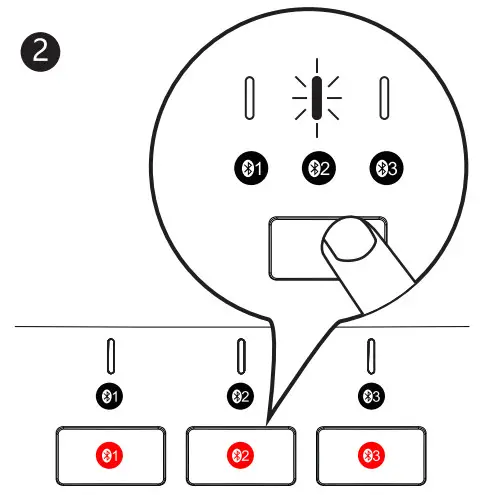
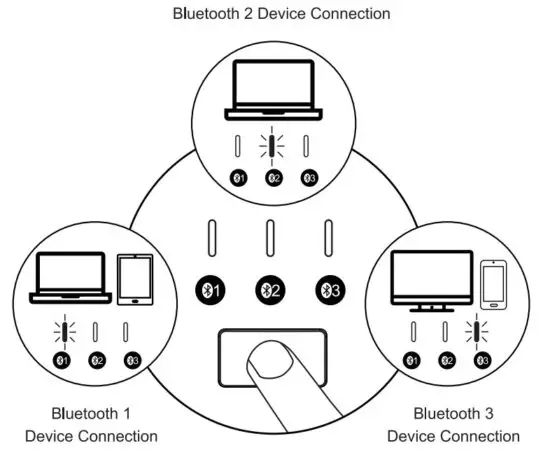
- Press once to choose Bluetooth Channel 1, 2 or 3, the blue indicator light flashes and the keyboard enters into Bluetooth mode.

- Long press for 3-5 seconds, the blue indicator light flashes quickly and the keyboard enters into Bluetooth pairing mode.


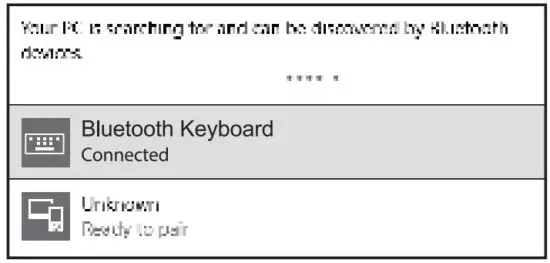
Windows 10 OS
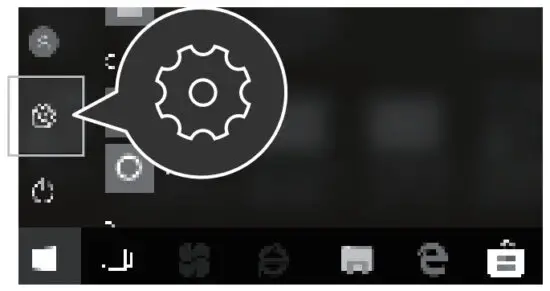
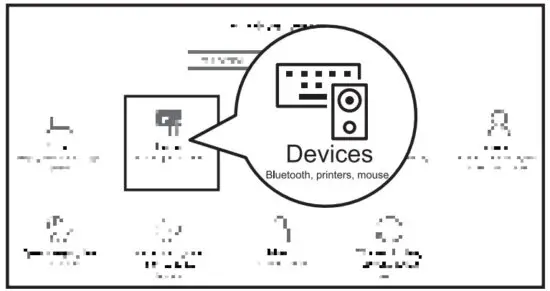
- Open the “Setting” and find “Bluetooth Device” on the computer.

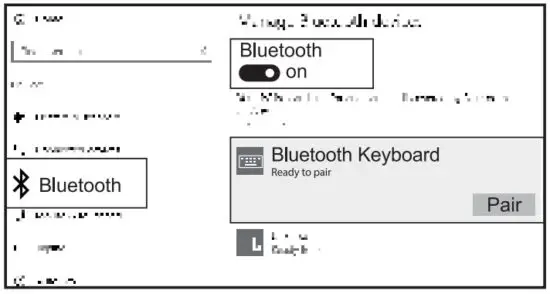
- Choose “Add / Delete Bluetooth Devices”.
- Search and click to pair the “Bluetooth Keyboard”

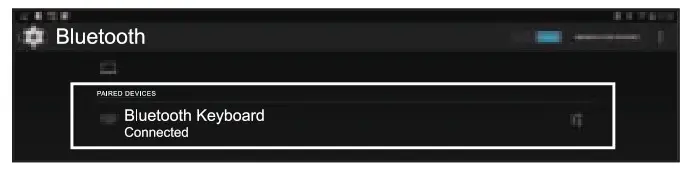
- Successfully paired when it shows “Bluetooth Keyboard Connected”.

Mac OS
Refers to Keyboard Bluetooth Mode Installation Steps 1, 2, and 3 before pairing.
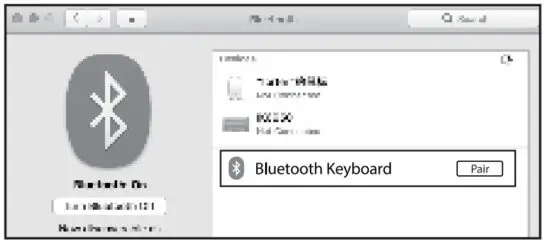
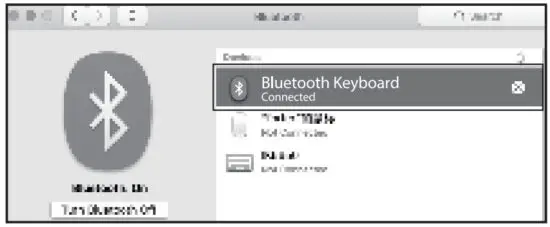
- Find “System Preferences” on Macs.


- Choose “Bluetooth” in System Preferences.

- Search and click to pair the “Bluetooth Keyboard”.

iOS System
Refers to Keyboard Bluetooth Mode Installation Steps 1, 2, and 3 before pairing.
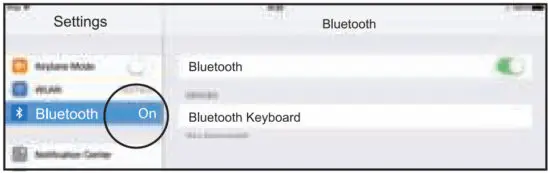
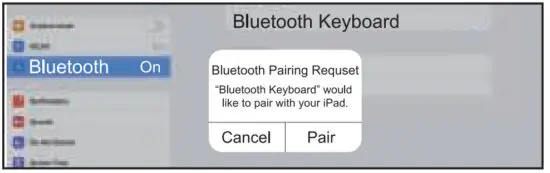
- Open “Settings” and turn on the Bluetooth function.

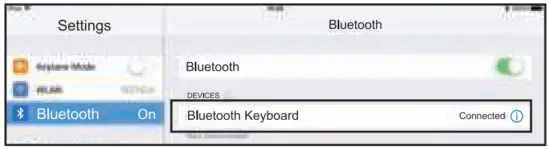
- Search and click to pair the “Bluetooth Keyboard”.
- Successfully paired when it shows “Bluetooth Keyboard Connected”.

Android System
Refers to Keyboard Bluetooth Mode Installation Steps 1, 2, and 3 before pairing.
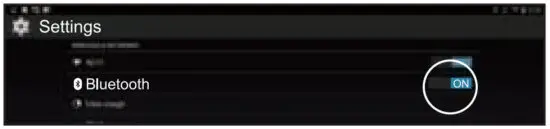
- Open “Settings” and turn on the Bluetooth function.

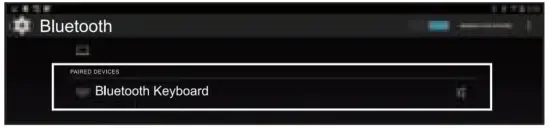
- Search and click to pair the “Bluetooth Keyboard”.
- Successfully paired when it shows “Bluetooth Keyboard Connected”.

Charging
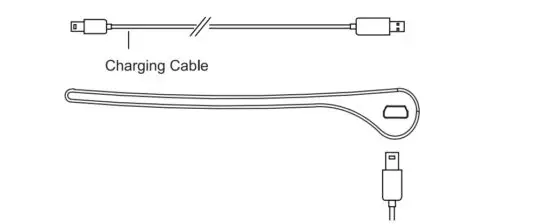
When the battery of the keyboard is very low, the working channel indicator light will flash until the keyboard turns off, please recharge the keyboard at this time to make sure the keyboard can work properly. When the battery is too low, a delay or slow response will appear while typing.
Keyboard Mode Switch Method
After connecting, short press the Bluetooth channel button to switch the devices.
Multimedia Function Keys
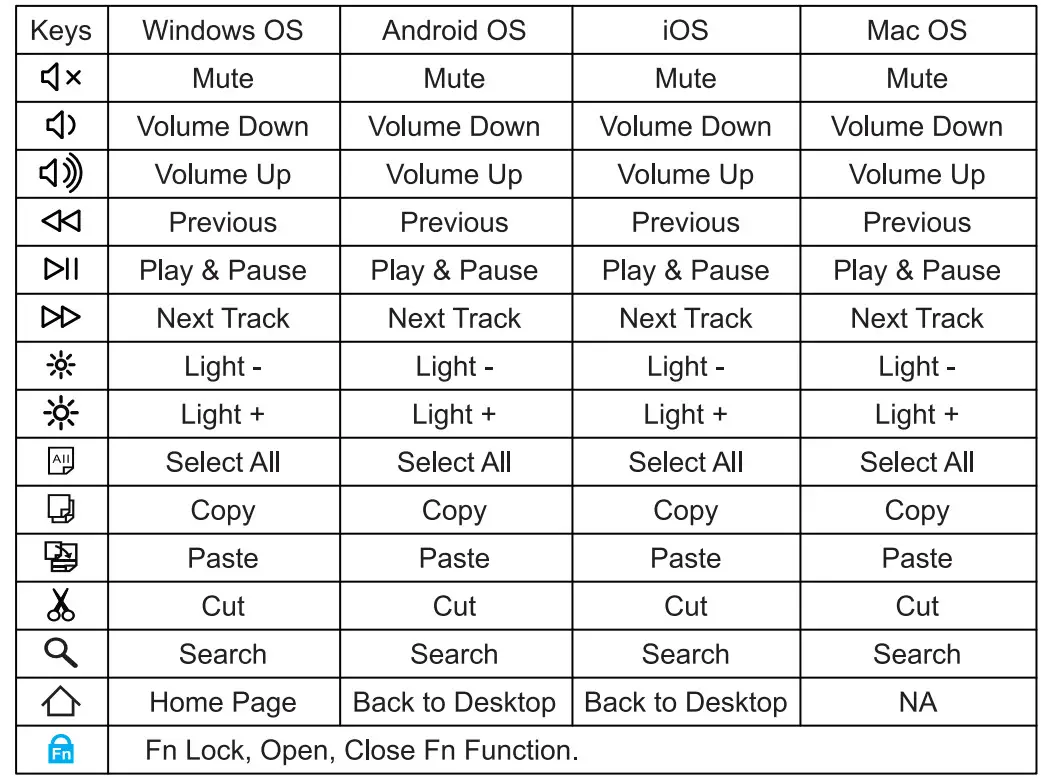
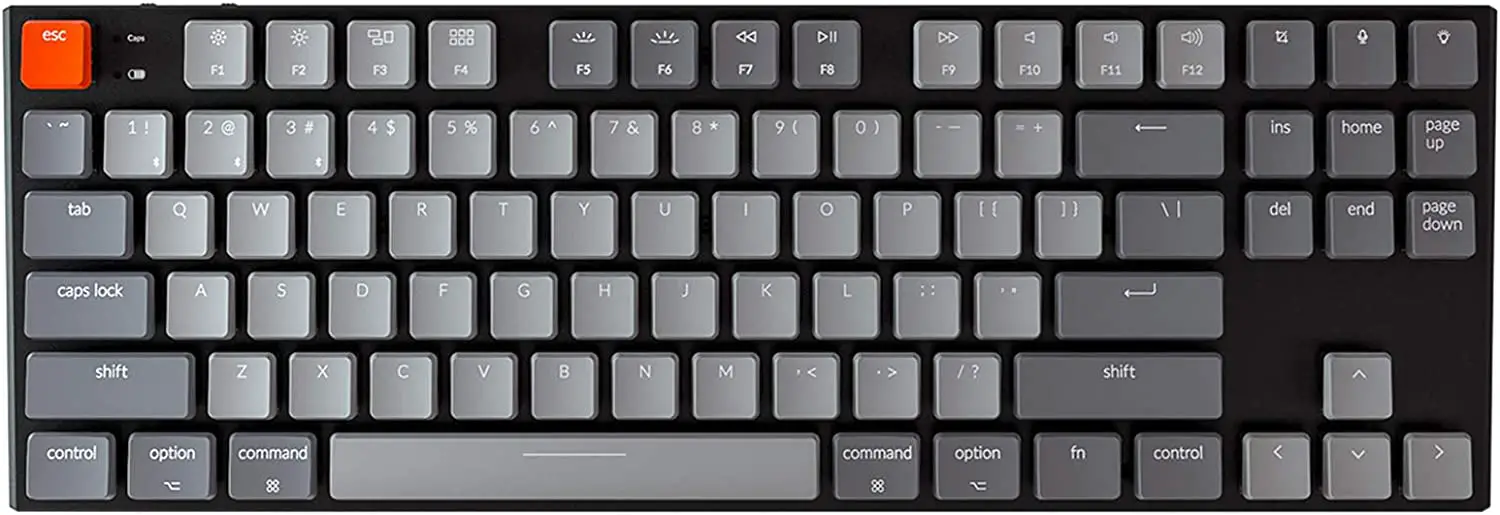
Please NOTE: You need to press “Fn” and “F1-F12° keys at the same time to realize the multimedia keys function.
Sleep Mode
- When the keyboard is not used for over 10 minutes, the keyboard will automatically enter into the sleep mode, the indicator light will be off.
- When you want to use the keyboard again, please press any key, the keyboard will wake up within 3 seconds, and the indicator light will be on again.
Product Parameters
| Compatible Operating Systems | Windows 8, Windows 10 or above Mac OS X 10.10 or above Android 4.3 or above |
| Battery Capacity | 280mAh |
| Battery Life | 1000 times charge and discharge |
| Key Life | 3 Million Strokes |
| Standby Time | 200 Hours |
| Continuous Working Time | 50 Hours |
| Wake Up Way | Press any key |
| Operating Distance | Within 8 meters |
| Working Current | 55.5mA |
| Keyboard Dimension | 428 x 125 x 16.3mm |
Kind Note
- When the keyboard is not connected properly, please turn off the power switch, restart the Bluetooth of the device and connect again, or delete extra Bluetooth device names in the Bluetooth list, and connect again.
- Please press the channel button to switch between the devices that are already connected successfully, wait for 3 seconds, it will work properly.
- The keyboard has memory function, when the keyboard is connected properly at one channel, turn off the keyboard and turn on again, the keyboard will be in the default channel, and the indicator light of this channel is on.
Package List
▶1 x Wireless Bluetooth Keyboard
▶1 x USB Charging Cable
▶1 x User Manual