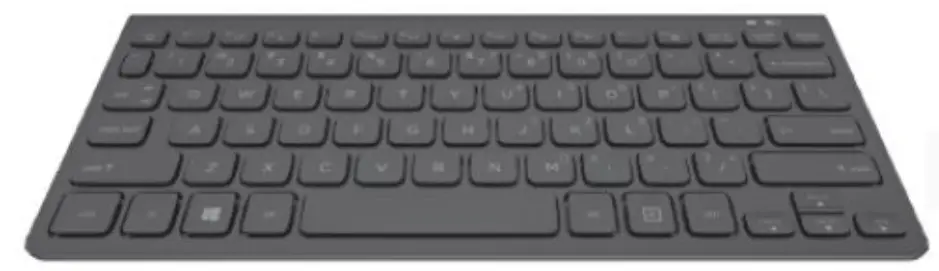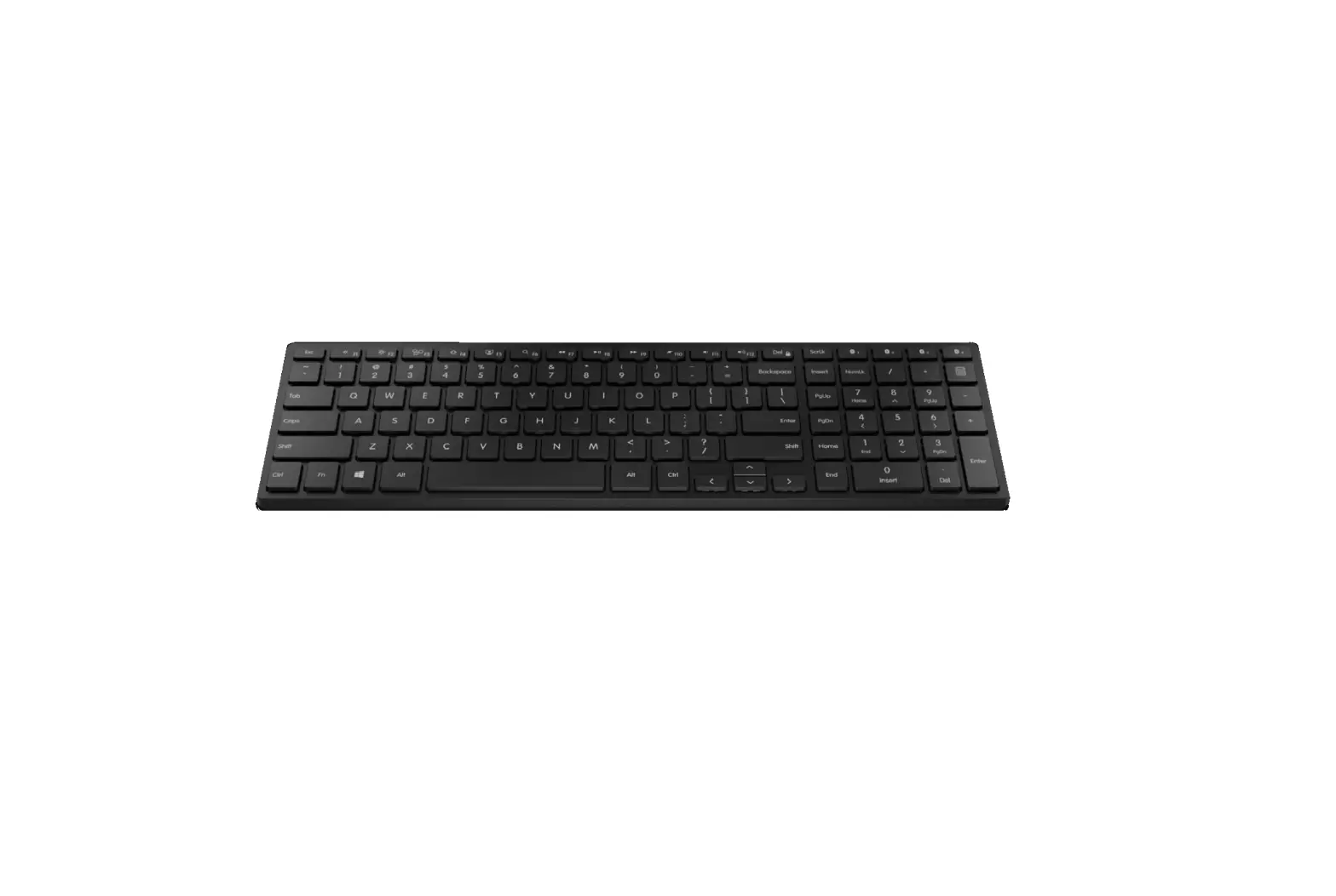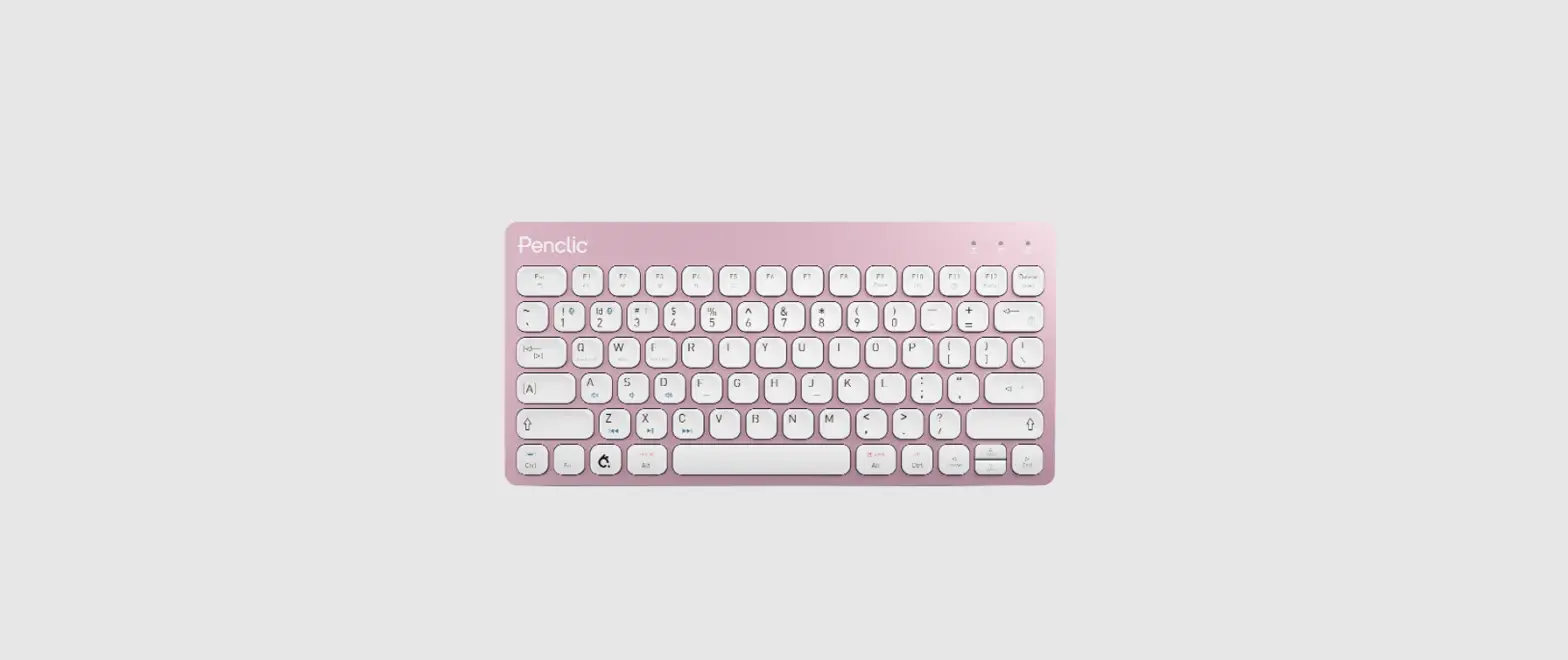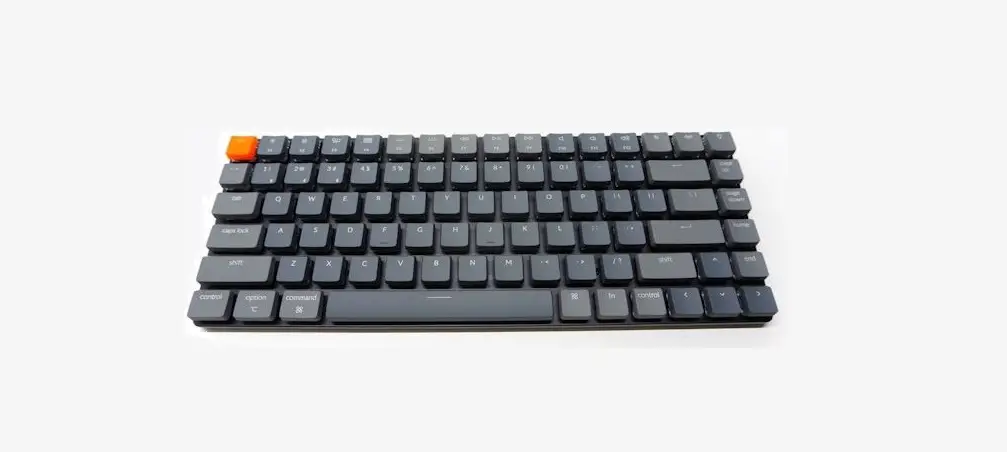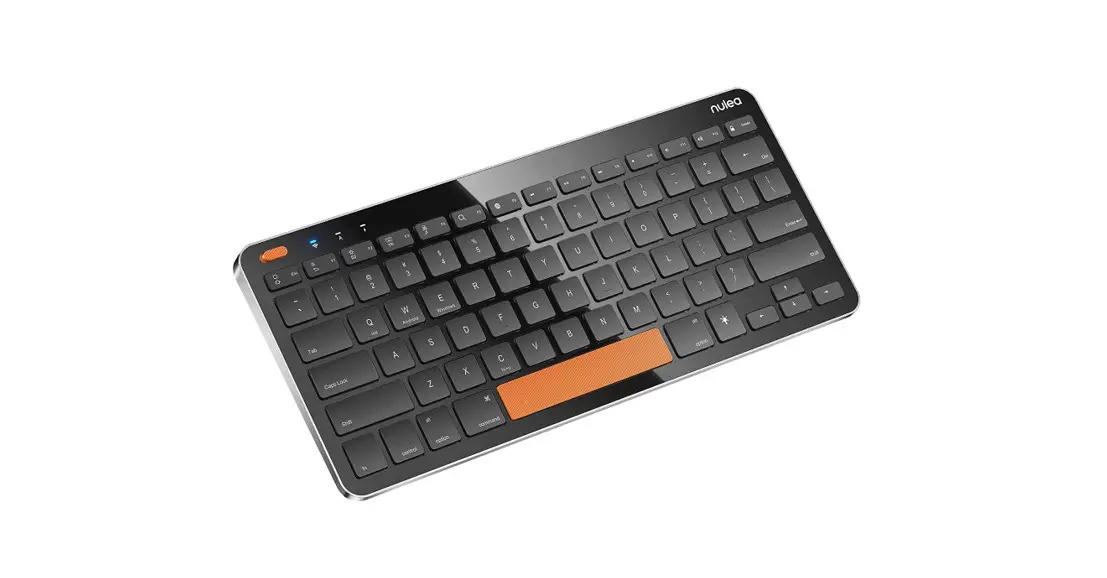
 KM16 Wireless Bluetooth Keyboard
User Manual
www.nulea.com
[email protected]
Product description
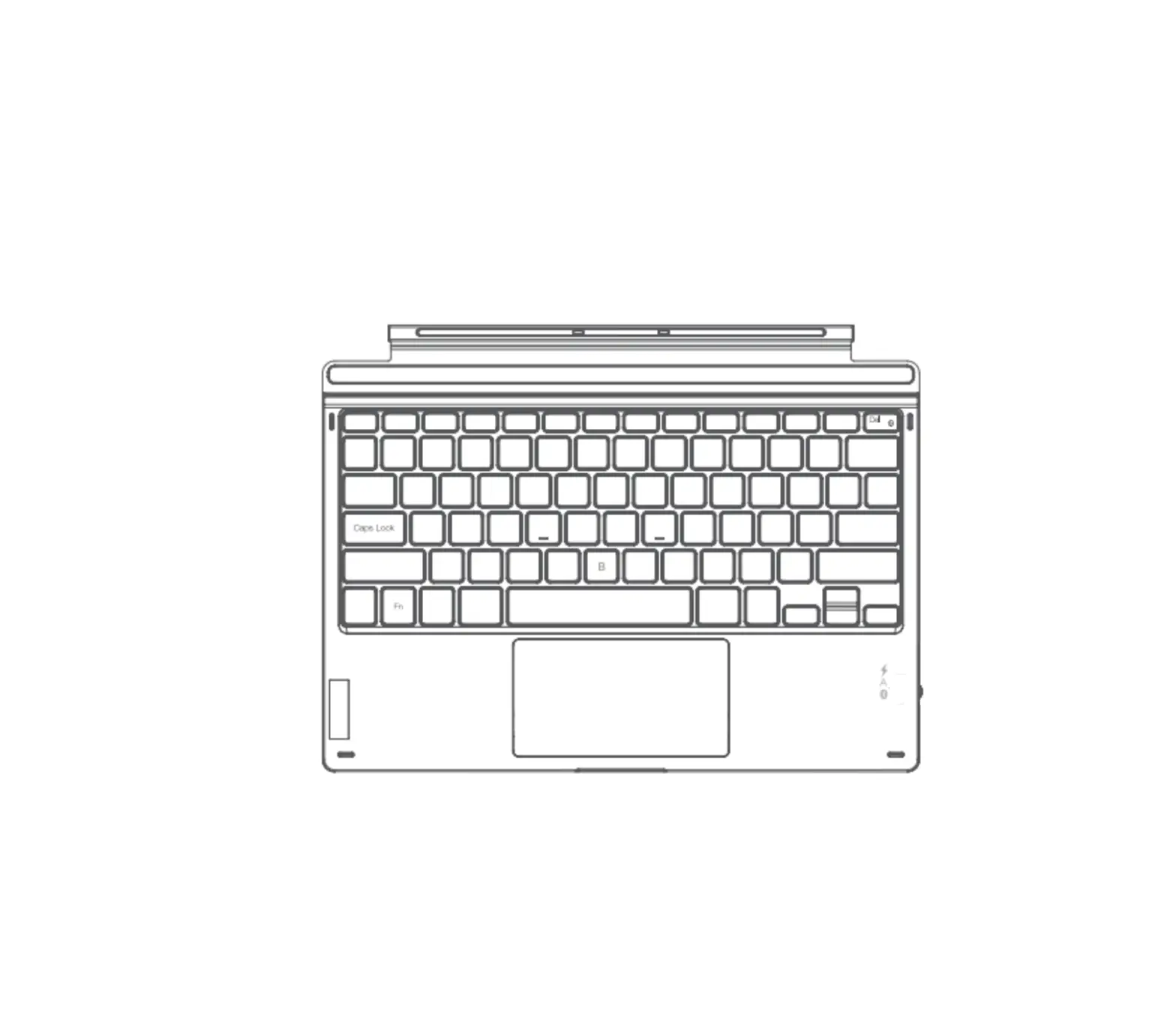
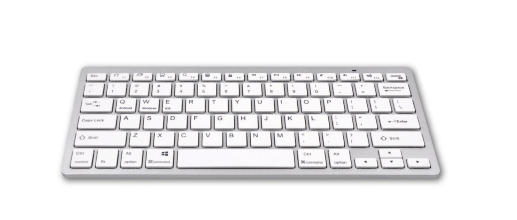
Standard Bluetooth specification, perfect support for PC and tablet use; built-in recyclable lithium battery and intelligent power management solution, long use time.
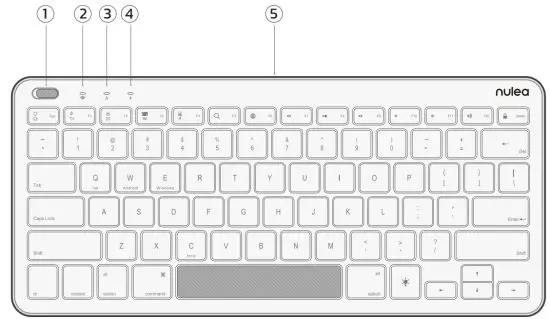
| 1 |  | Power switch key |
| 2 |  | Bluetooth/Switch indicator |
| 3 |  | Caps indicator |
| 4 |  | Charging/Power indicator |
| 5 |  | Charging port |
Specifications
| Working hours | 4-10 hours (with backlight on) 200 hours (without backlight) | Working current | no backlight5.3.0mA, backlight 65-120mA |
| Working voltage | 3.0V-4.2V | Low battery alarm | 3.0-3.3V |
| Sleep current | .‹).3mA | Standby time | 150 days |
| Battery capacity | 650mAh | Battery life | 2 years |
| Keystroke life | 3 million times | Keystroke force | 50g-70g |
| Connection distance | 10m | Charging interface | Type-C |
| Charging current | 200mA | Charging time | 3-4 hours |
| Reconnection time | 5_2 seconds | Wake-up time | 5_2 seconds |
| Shelf life | 12 months | Working temperature | -10°C-+55°C |
Indicator light
| Caps indicator light | Press Caps Lock on the keyboard, and the blue indicator light is on |
| Bluetooth indicator light | Power on, press and hold “Fn+C” the blue light flashes slowly to enter Bluetooth pairing, the pairing is completed and goes off |
| Charging indicator | Slow flashing red light indicates low power; red light is always on when charging; green light is on when charging is complete |
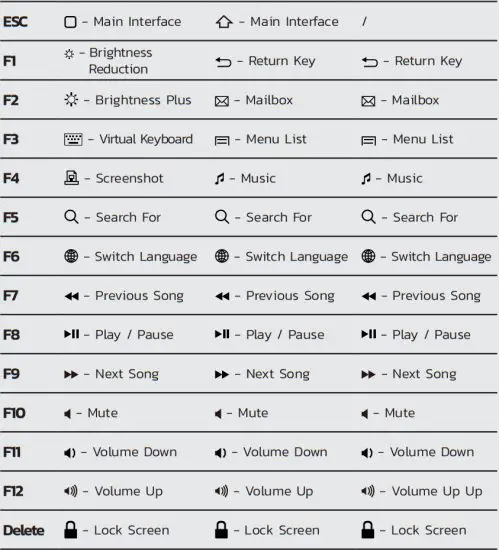
| IOS system single press to realize the following multimedia | Android system single click to realize the following multimedia | Win system fn+key combination to achieve the following multimedia |
Instructions
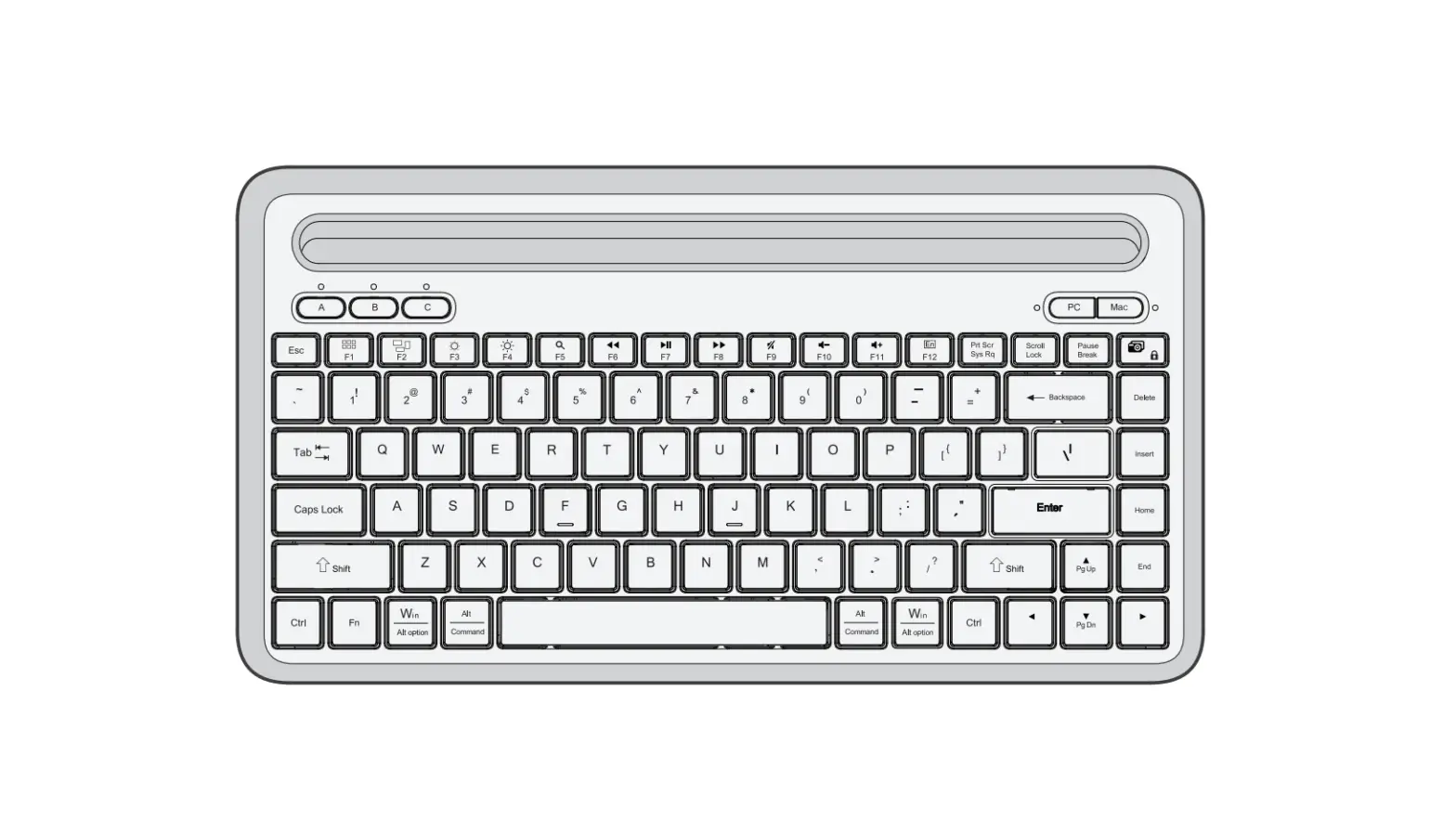
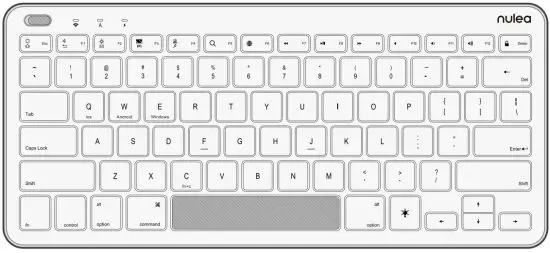
- Convert fn+Q keyboard to IOS Apple system; fn+W convert to Android system; fn+E convert to Microsoft win system.
- Turn the power switch to the left “ON”, press the “FN+C” key combination to enter the Bluetooth pairing state (the Bluetooth indicator flashes slowly);
- Turn on the tablet Bluetooth, click the searched Bluetooth keyboard, and enter the random code matching state (or directly pair without a password);
- Enter the pairing password displayed on the tablet on the keyboard and press the confirm key; confirm that the pairing is successful, you can use it;
- If there is no operation on the keyboard within 10 minutes, it will automatically enter the dormant state, and then press any key and wait for 2 to 3 seconds to automatically connect to the device.
- Backlight instructions:
1) Turn on the power switch and the backlight will light up. The backlight will go out after 30 seconds when it is not in use.
Press any button and the backlight will light up. When the backlight logo is pressed, the backlight can be controlled 0-12-3 Four brightness levels, 0 is the off level.
2). Backlight logo + up or down key combination on the directional keyboard to switch between seven backlight colors of white, blue, red, green, purple, cyan, and yellow.
 is pressed, the backlight can be controlled 0-12-3 Four brightness levels, 0 is the off level.
Maintenance and warning
- Don’t squeeze or twist or tap the keyboard.
- Don’t perform microwave scanning, keep away from the magnetic field.
- Keep away from liquids and use in a relatively dry environment.
- Clean the keyboard with a soft cloth, and turn off the power if it is not used for a long time.
Common connection troubleshooting
- Make sure that the power is turned on and the battery is fully charged.
- Ensure that the keyboard is within working distance.
- Make sure that the Bluetooth-related functions of the device are turned on.
- Make sure that the keyboard and the device are paired and connected.
- Clear the device pairing record, turn off the Bluetooth function, restart the device, and pair again.
FCC ID Statement
Any changes or modifications not expressly approved by the party responsible for compliance could void the user’s authority to operate the equipment.
This device complies with part 15 of the FCC Rules. Operation is subject to the following two conditions: (1) This device may not cause harmful interference, and (2) this device must accept any interference received, including interference that may cause undesired operation.
This equipment has been tested and found to comply with the limits for a Class B digital device, pursuant to part 15 of the FCC Rules. These limits are designed to provide reasonable protection against harmful interference in a residential installation. This equipment generates uses and can radiate radio frequency energy and, if not installed and used in accordance with the instructions, may cause harmful interference to radio communications.
However, there is no guarantee that interference will not occur in a particular installation. If this equipment does cause harmful interference to radio or television reception, which can be determined by turning the equipment off and on, the user is encouraged to try to correct the interference by one or more of the following measures:
- Reorient or relocate the receiving antenna.
- Increase the separation between the equipment and receiver.
- Connect the equipment into an outlet on a circuit different from that to which the receiver is connected.
- Consult the dealer or an experienced radio/TV technician for help
BY GALAXY
www.nulea.com
[email protected]



| UK | REC |
CET PRODUCT SERVICE LTD.
Chase Business Centre, 39-41 Chase Side,
London N14 5BP United Kingdom
Email: info.cetseryiceegmaiL.com
Phone: +447419325266
| EK | REC |
C&E Connection E-Commerce(DE) GmbH
Zum Linnegraben 20, 65933,
Frankfurt am Main, Germany
Email: infoece-connection.de
Phone: +49(069) 27246648
 nulea offical