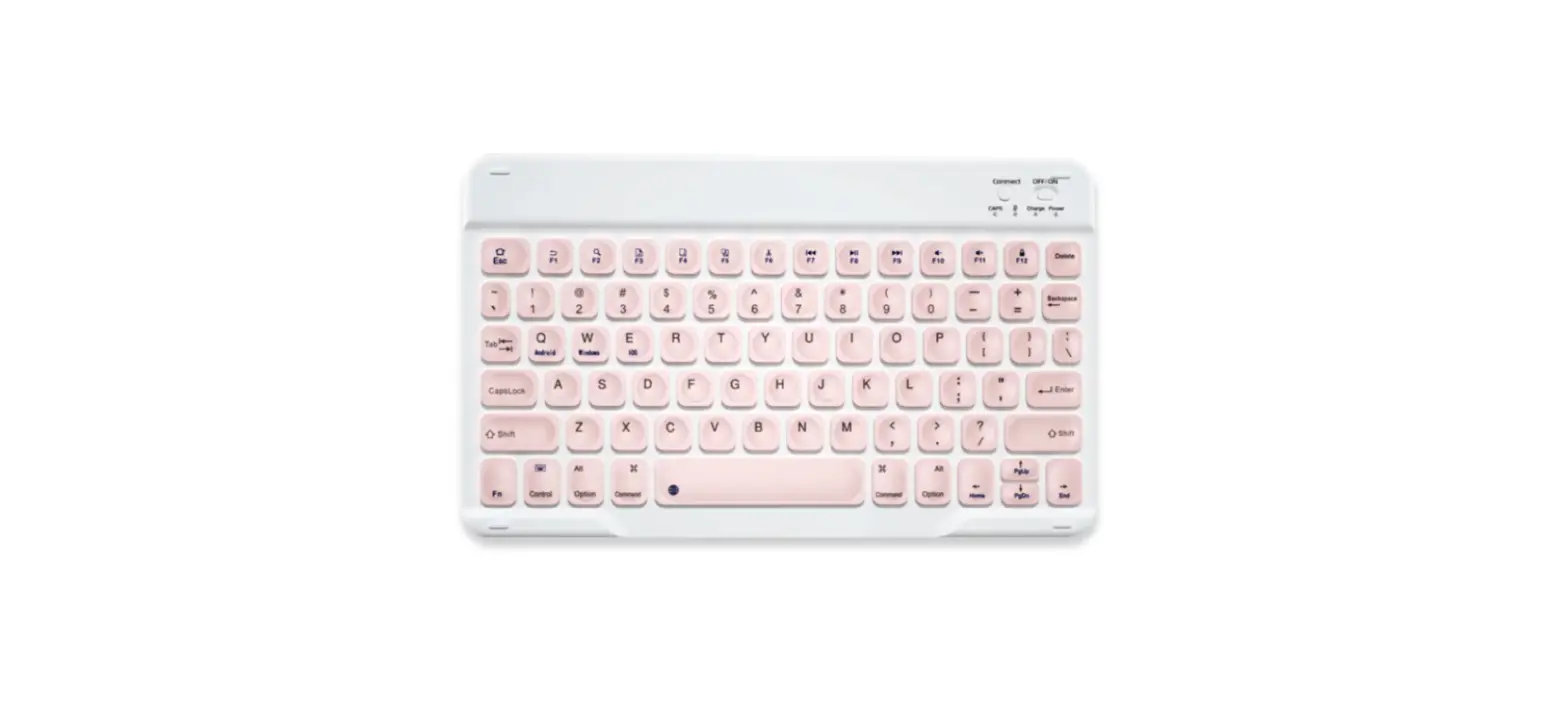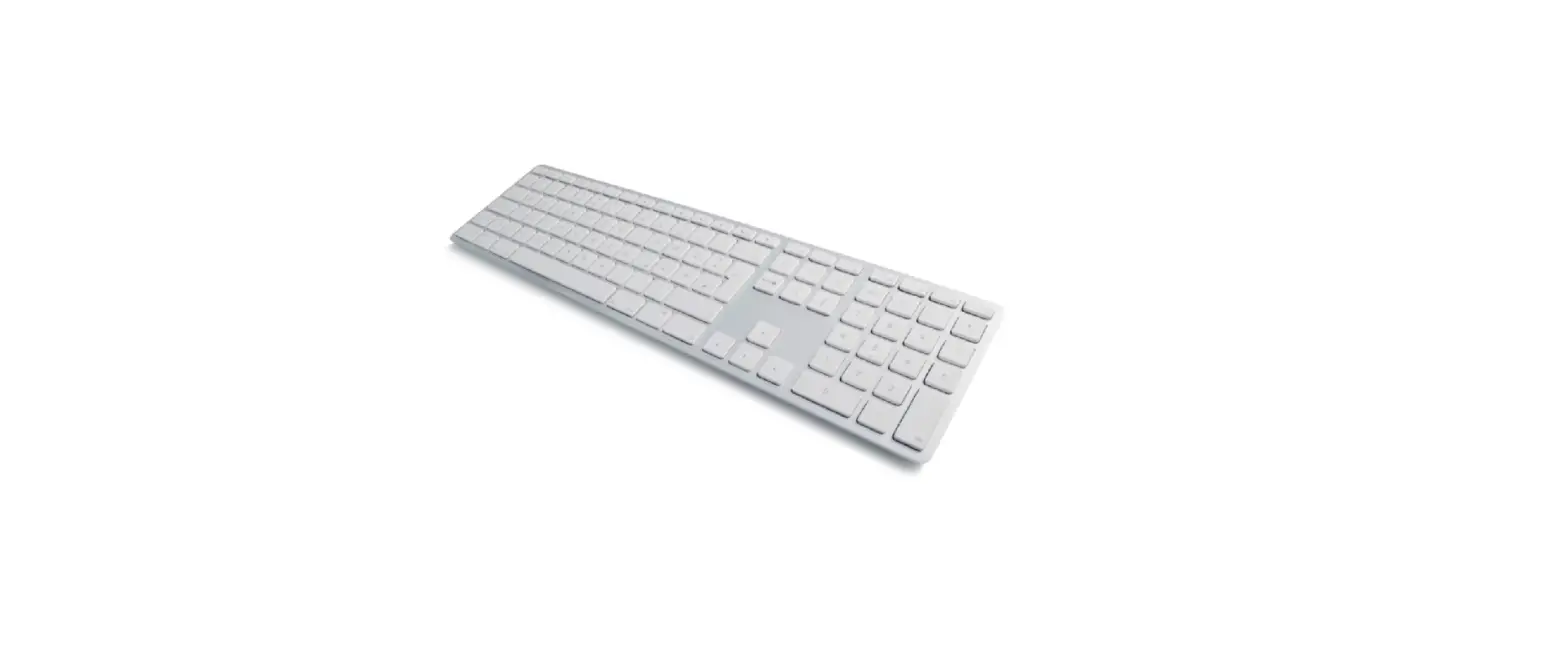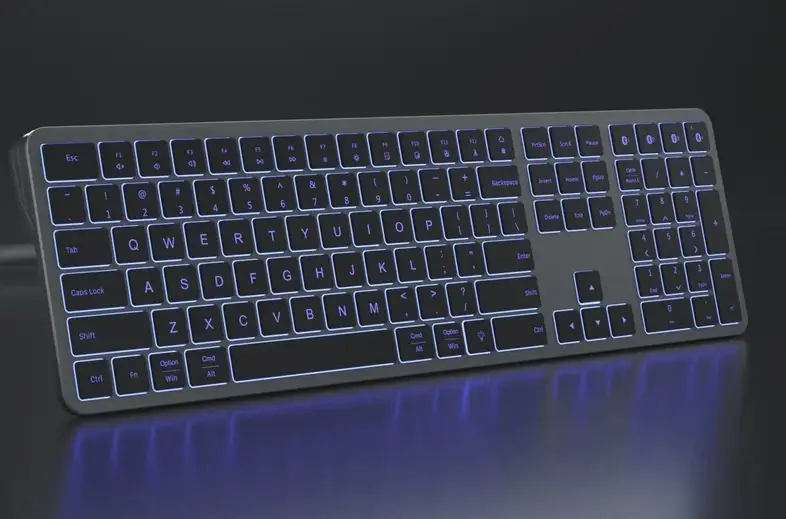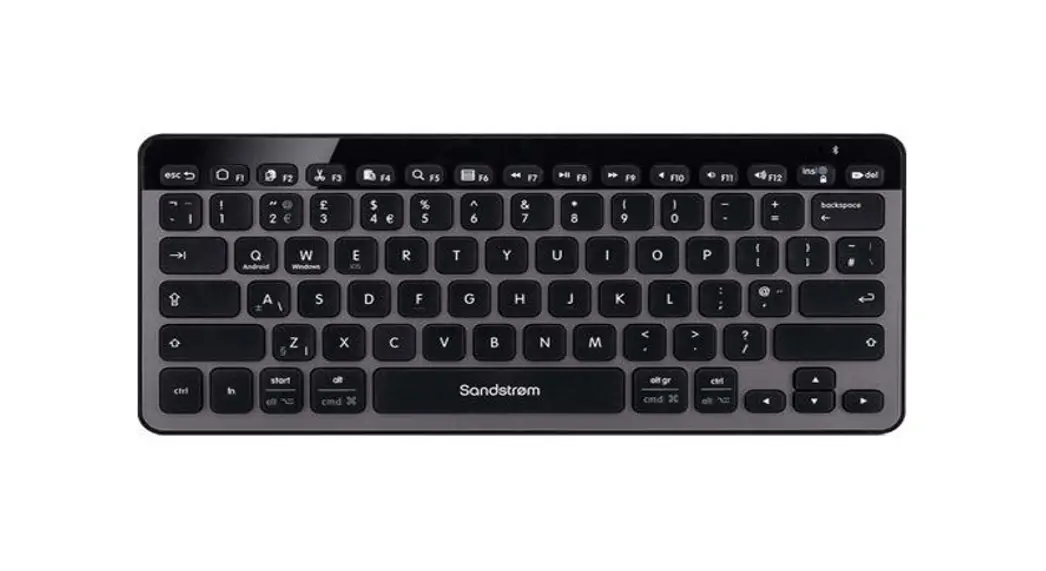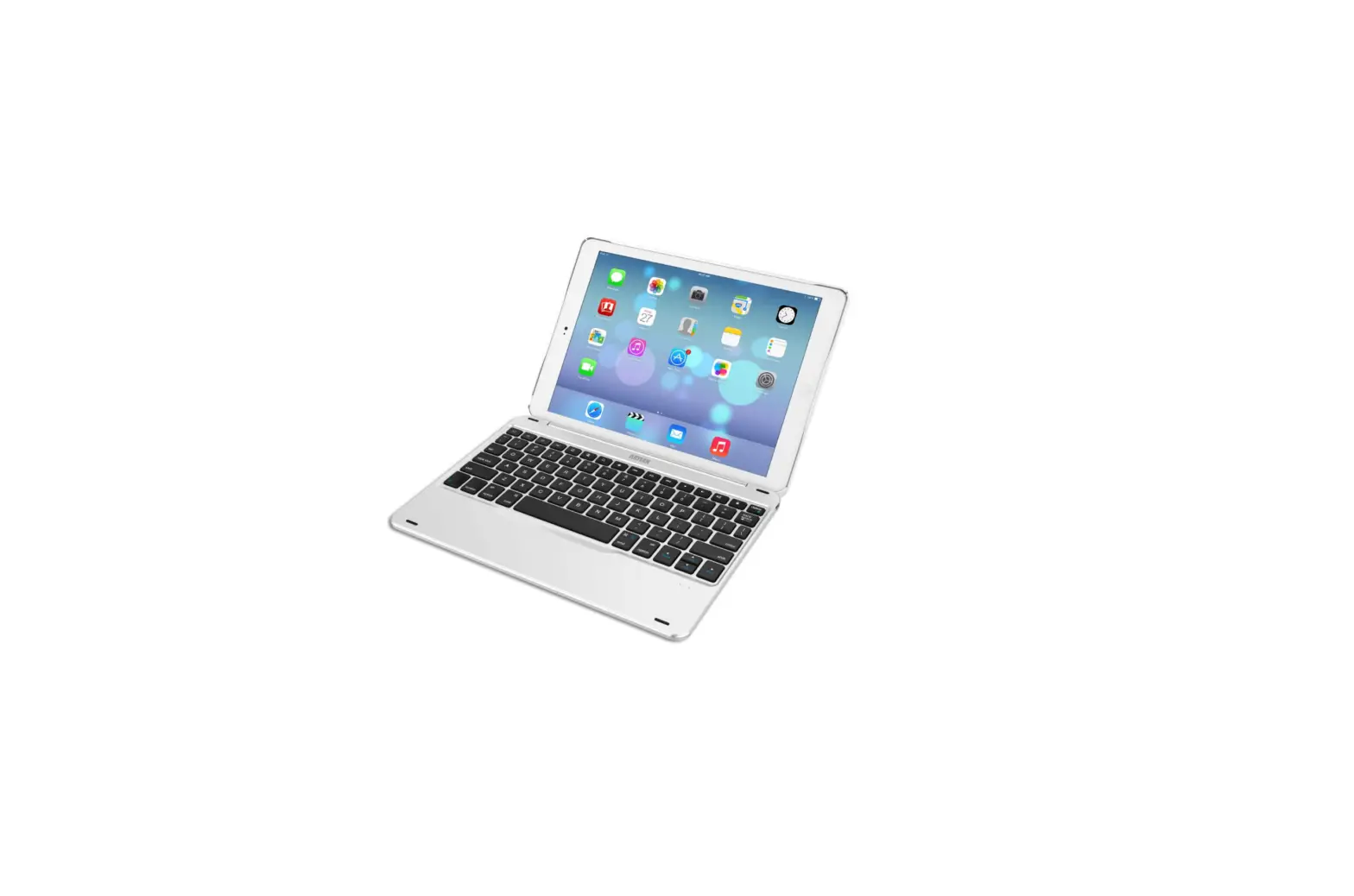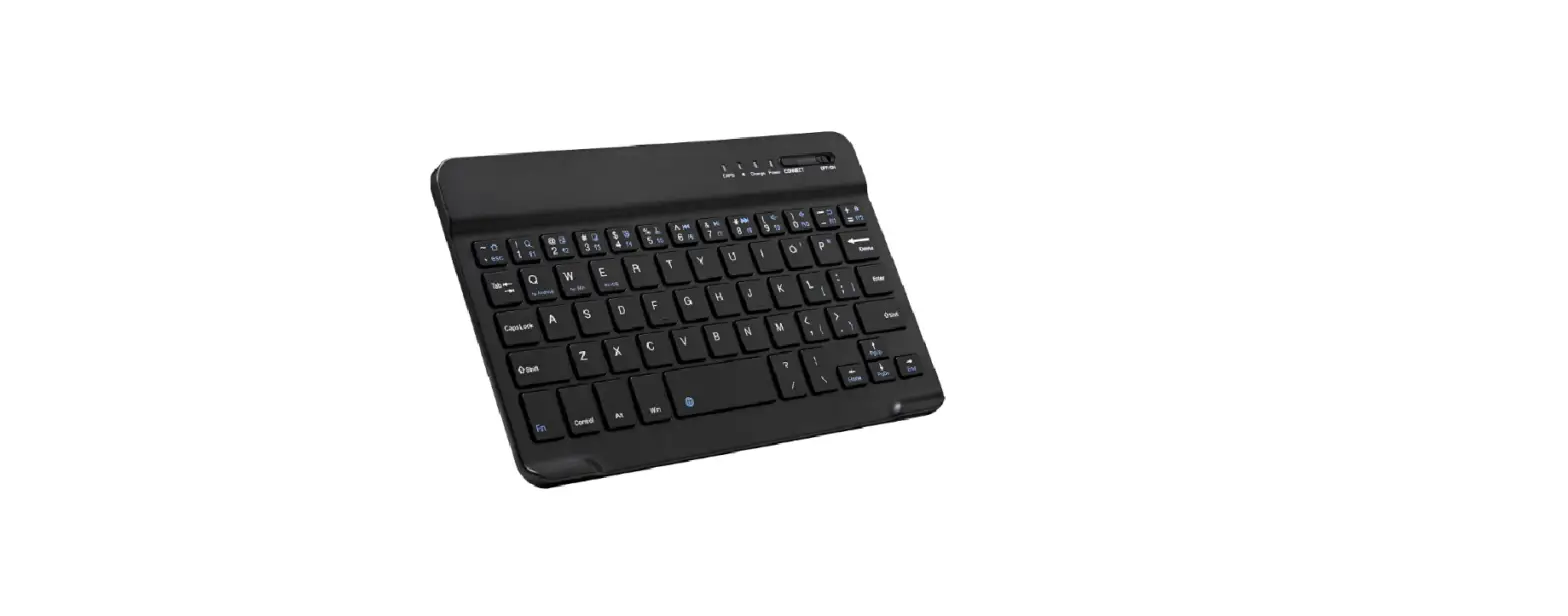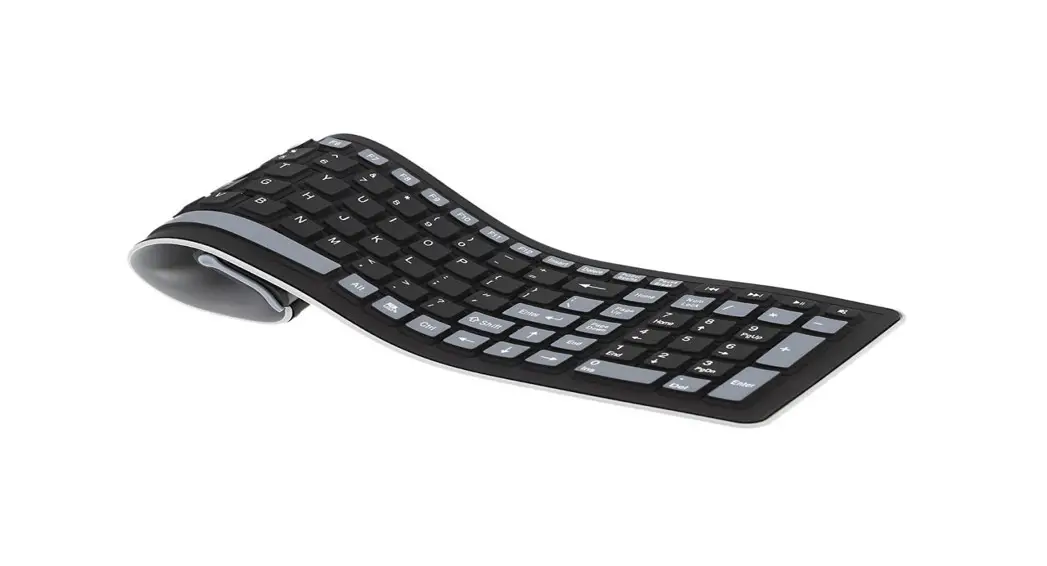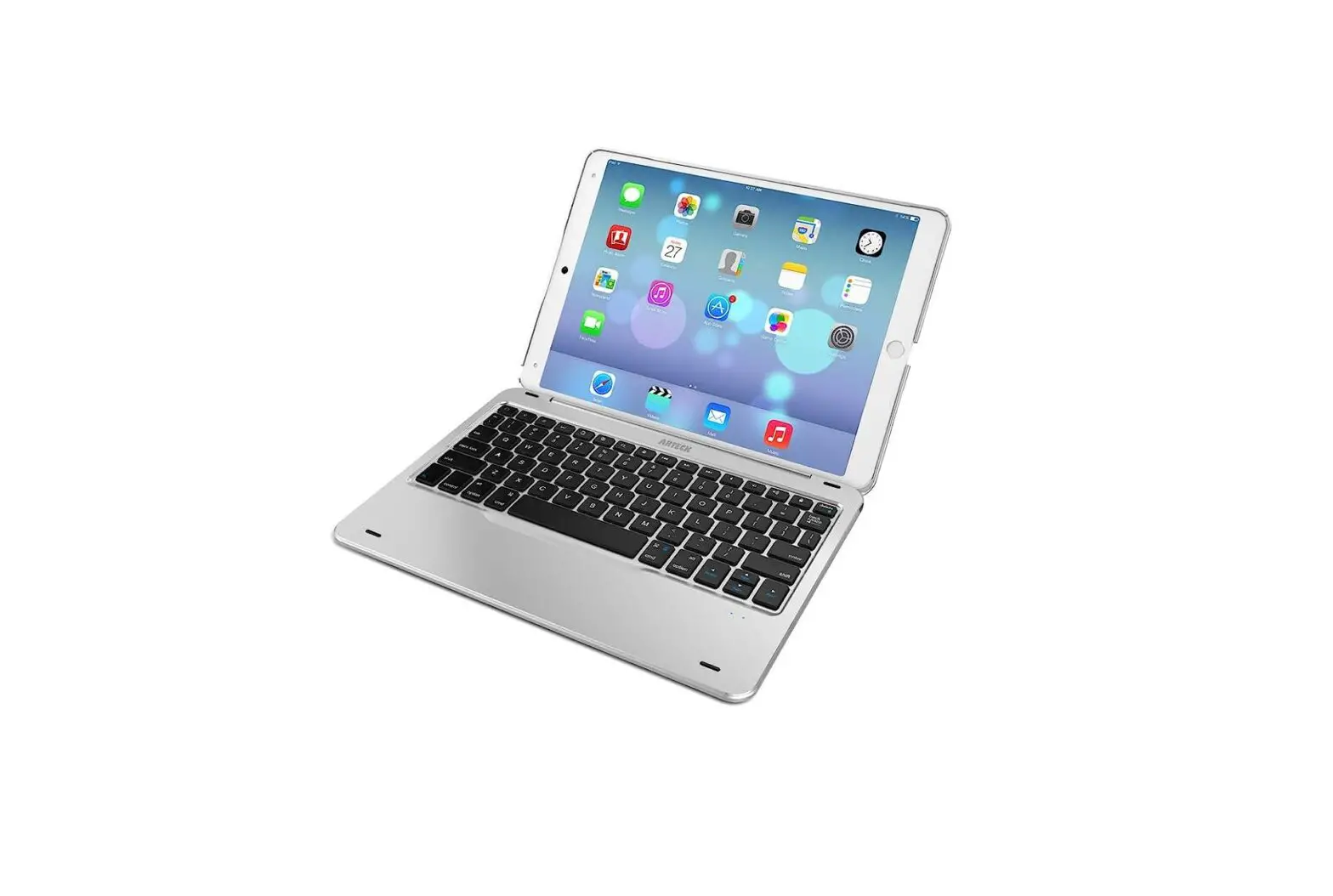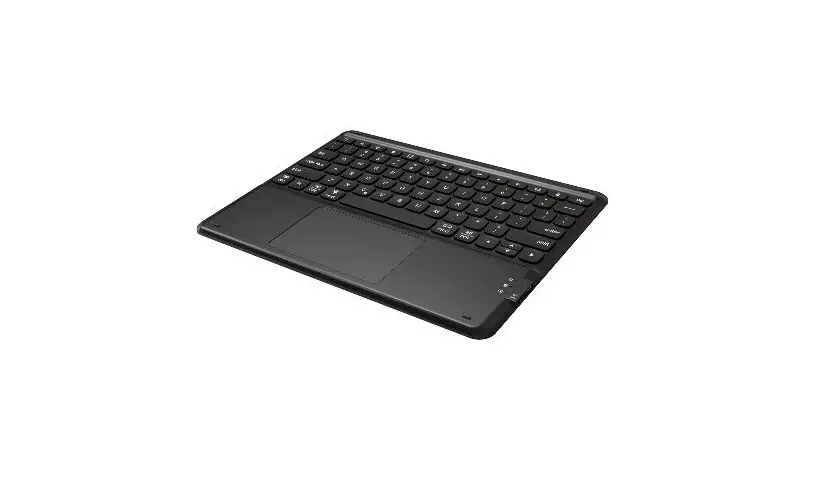
Keyboards HB336 Bluetooth Keyboard User Manual
Thank you for using the keyboard provided by us, please read this manual carefully before using this product.
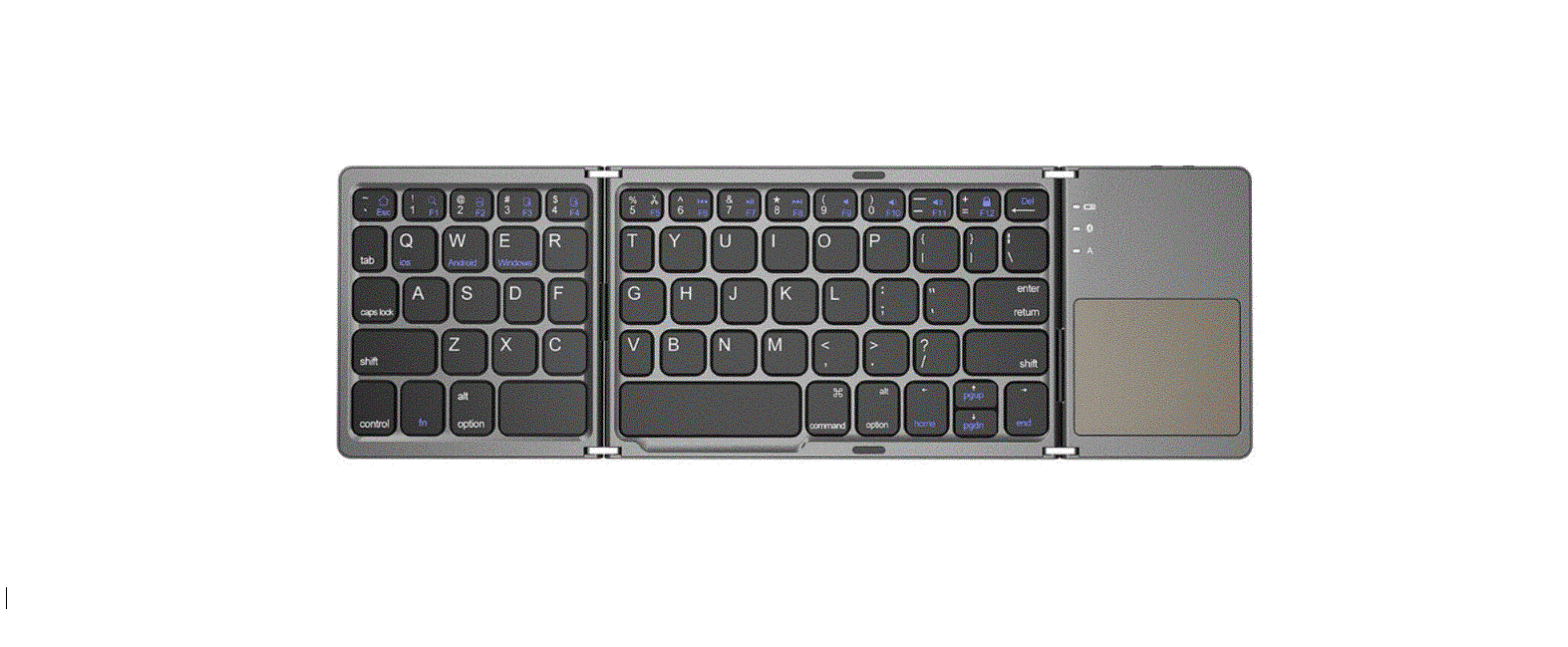
Product Overview
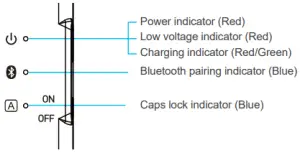
| Keyboard indicator | Indicator color | Indicator status |
| Power indicator | Red | The red light turn on for 3 seconds and then off |
| Low voltage indicator | Red | When voltage lower than 3.3V, the red light will flash. When the voltage is lower than 3.0V, it power off automatically. |
| Charging indicator | Red/Green | The red indicator light stays on and turn to green light when fully charged. |
| Bluetooth pairing indicator | Blue | The code-matching state will flash once for 1 second, and it will go out after the connection is successful. If the 180S is not paired, the keyboard will enter the dormant state |
| Caps lock indicator | Blue | The green light is always on when entering the uppercase state, and the light is off when entering the lowercase state. |
Keyboard Connection Steps
- Step 1. Turn on the power switch of the keyboard. Short press FN+(
 ), the Bluetooth code matching indicator becomes slow flashing blue; entering the pairing state.
 - Step 2. Open the Bluetooth of the device to search, the Bluetooth of the device can be searched by itself or manually to find the keyboard name (Bluetooth name: Bluetooth Keyboard), and click to connect.
- Step 3. It will show that it has been successfully connected, and the Bluetooth code matching indicator will go out.
 ), the Bluetooth code matching indicator becomes slow flashing blue; entering the pairing state.
Function Key
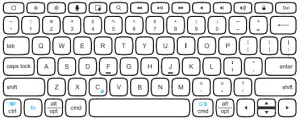
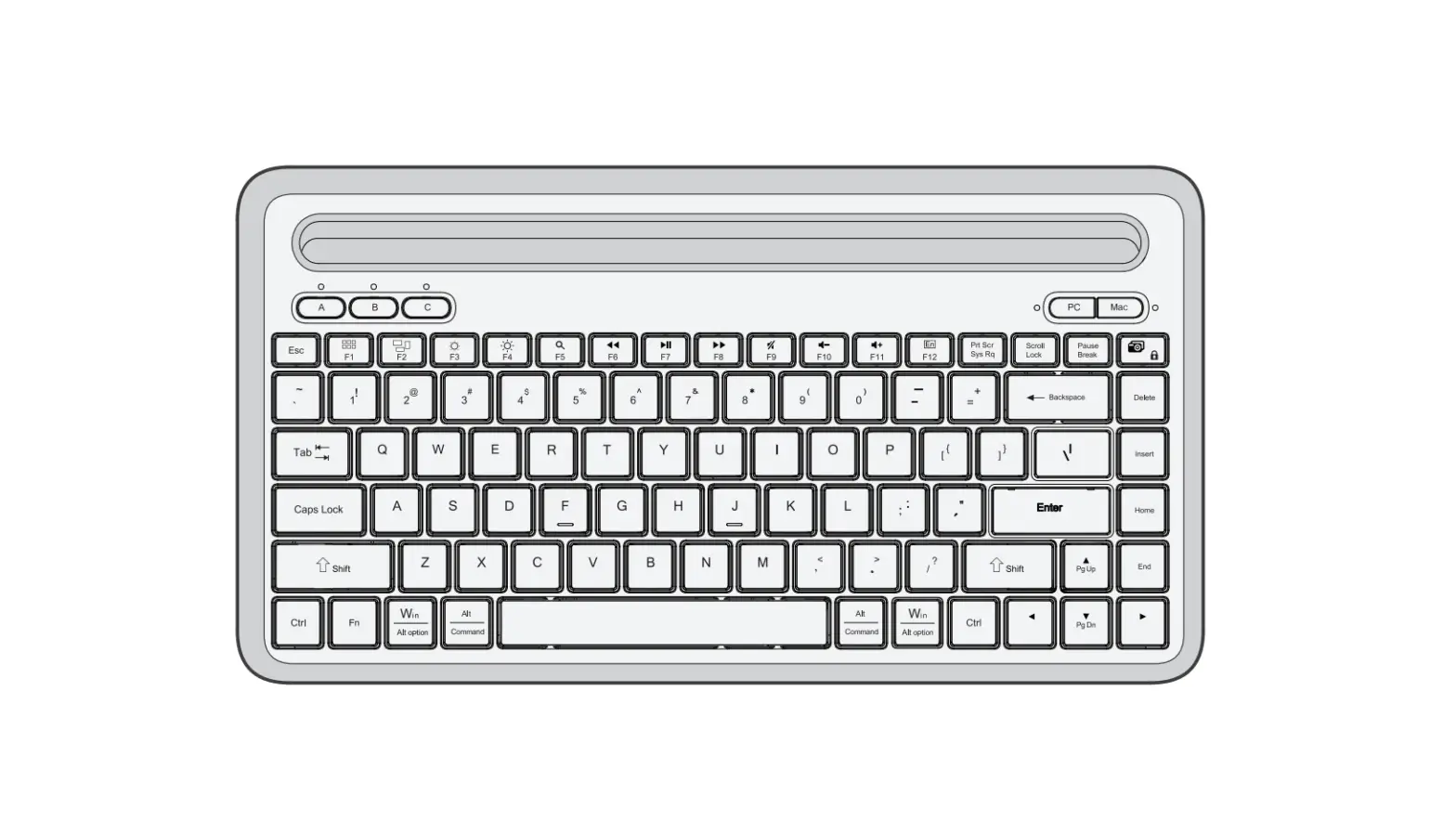
| icon | Win | iOS | Android |
 | Browser homepage | HOME | HOME |
 | Brightness – | Brightness – | Brightness – |
 | Brightness + | Brightness + | Brightness + |
 | NA | siri | NA |
 | Screenshot | Screenshot | Screenshot |
 | Search | Search | Search |
 | Last track | Last track | Last track |
 | Next track | Next track | Next track |
 | Pause/playback | Pause/playback | Pause/playback |
 | Mute | Mute | Mute |
 | Volume – | Volume – | Volume – |
 | Volume + | Volume + | Volume + |
 | Screen lock | Screen lock | Screen lock |
 | Touchpad switch | Touchpad switch | Touchpad switch |
 | Keyboard display | Keyboard display | NA |
Touchpad Function
| Gesture Diagram | iOS 14.1 | Win 10 | Android |
 Single finger click Single finger click | left mouse button | left mouse button | left mouse button |
 Swipe one finger Swipe one finger | Move the cursor | Move the cursor | Move the cursor |
 Quickly click without loosening with one finger, drag Quickly click without loosening with one finger, drag | Left click to select the target and drag | Left click to select the target and drag | Left click to select the target and drag |
 Two-finger click Two-finger click | Right mouse button | Right mouse button | Right mouse button |
 Two fingers move vertically Two fingers move vertically | Scroll bar moves vertically Scroll bar moves horizontally | Scroll bar moves vertically Scroll bar moves horizontally | Scroll bar moves vertically Scroll bar moves horizontally |
 Move two fingers in or out along the existing line Move two fingers in or out along the existing line | Enlarge | Enlarge | Enlarge |
 Swipe up with three fingers at the same time Swipe up with three fingers at the same time | Open the APP switcher (Double-click HOME) | Open the task browser window | N/A |
 Move two fingers inward along a straight line Move two fingers inward along a straight line | Zoom out | Zoom out | Zoom out |
 Swipe right with three fingers at the same time Swipe right with three fingers at the same time | Application window switching (Win+Tab) | Application window switching (Win+Tab) | Application window switching (Win+Tab) |
| Swipe left with three fingers at the same time | Application window switching (Win+Tab) | Application window switching (Win+Tab) | Application window switching (Win+Tab) |
 Three fingers click at the same time Three fingers click at the same time | Middle mouse button | Open Cortana | N/A |
 Three fingers S click at the same time Three fingers S click at the same time | N/A | Back to the desktop | N/A |
 Four-finger tap Four-finger tap | Screenshot | Open Action Center | N/A |
Input Method Switching Method
- iOS system: Caps+Space or Ctrl+Space or Win+Spacebar (Because the iOS system version is different, the switch is also different, you can try the above methods)
- Android system: Shift+Space or Ctrl+Space or Win+Spacebar (Because the system version is different, the switch is also different, you can try the above methods)
- Windows system: Ctrl+Shift
Charging
When the voltage is low, the indicator light flashes red quickly (below 3.0V automatically goes out), then you need to charge the keyboard.
- Connect the B end of the original Type-C cable to the keyboard charging port.
- Connect end A of the original USB cable to the power adapter or the USB port of the computer.
- It keeps red when charging, until the battery is saturated and the indicator light turn off.
Notice:
- In order to obtain a longer battery life, charge the keyboard only when the keyboard power light flashes.
- The original power cord must be used for charging under working conditions. If other data lines are used for charging during work, garbled codes and malfunctions may occur.
Keyboard Specifications
| Bluetooth Specification | Bluetooth 5.0 |
| Operating Range | Up to 10 meters |
| Modulation System | GFSK |
| Operating Voltage | 3.0-4.2V |
| Working Current | Single finger tap: 2.2mA Turn on the LED: 2.5mA,Touchpad:8mA |
| Sleepping Current | 10uA |
| Standby Time | 700 days |
| Uninterrupted Work Time | 84 hours(close CAPS LOCK) |
| Charge Time | ≤2 hours |
| Lithium Battery Capacity | 210 mAh |
| Button Force | 50~80g |
| Button Life | ≥3 million clicks |
| Keyboard Size | 280.56*214.9*7.45mm |
| Weight | 337.41H |
Safety Caution
 Warning: it can cause fire, electric shock, damage of keyboard system if disobey the safety notes
 Dangerous (be careful of highly dangerous )
 Warning (be careful of mid dangerous)Caution (slight dangerous should be noted)
 Keep the keyboard away from sharp objects.
 Do not Microwave the keyboard.
- Do not place heavy object on the keyboard.
- Do not force or distorted the keyboard.
 Keep away from oil, chemical or any other organic liquid.
FCC Statement
FCC Warnning:
This equipment has been tested and found to comply with the limits for a Class B digital device, pursuant to part 15 of the FCC Rules. These limits are designed to provide reasonable protection against harmful interference in a residential installation. This equipment generates, uses and can radiate radio frequency energy and, if not installed and used in accordance with the instructions, may cause harmful interference to radio communications. However, there is no guarantee that interference will not occur in a particular installation. If this equipment does cause harmful interference to radio or television reception, which can be determined by turning the equipment off and on, the user is encouraged to try to correct the interference by one or more of the following measures:
- Reorient or relocate the receiving antenna.
- Increase the separation between the equipment and receiver.
- Connect the equipment into an outlet on a circuit different from that to which the receiver is connected.
- Consult the dealer or an experienced radio/TV technician for help.
Caution: Any changes or modifications to this device not explicitly approved by manufacturer could void your authority to operate this equipment.
This device complies with part 15 of the FCC Rules. Operation is subject to the following two conditions: (1)This device may not cause harmful interference, and (2) this device must accept any interference received, including interference that may cause undesired operation.
RF Exposure Statement
This equipment complies with FCC RF radiation exposure limits set forth for an uncontrolled environment. This equipment should be installed and operated with a minimum distance of 0 centimeters between the radiator and your body