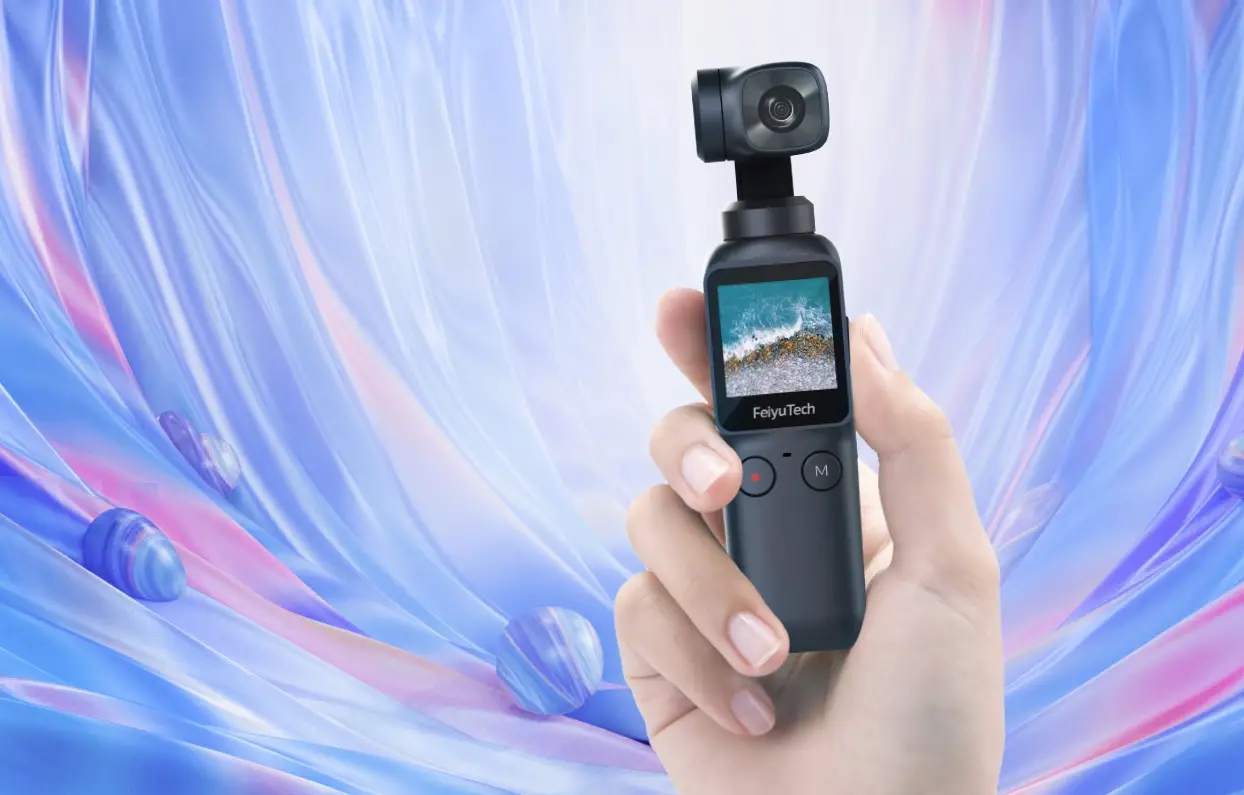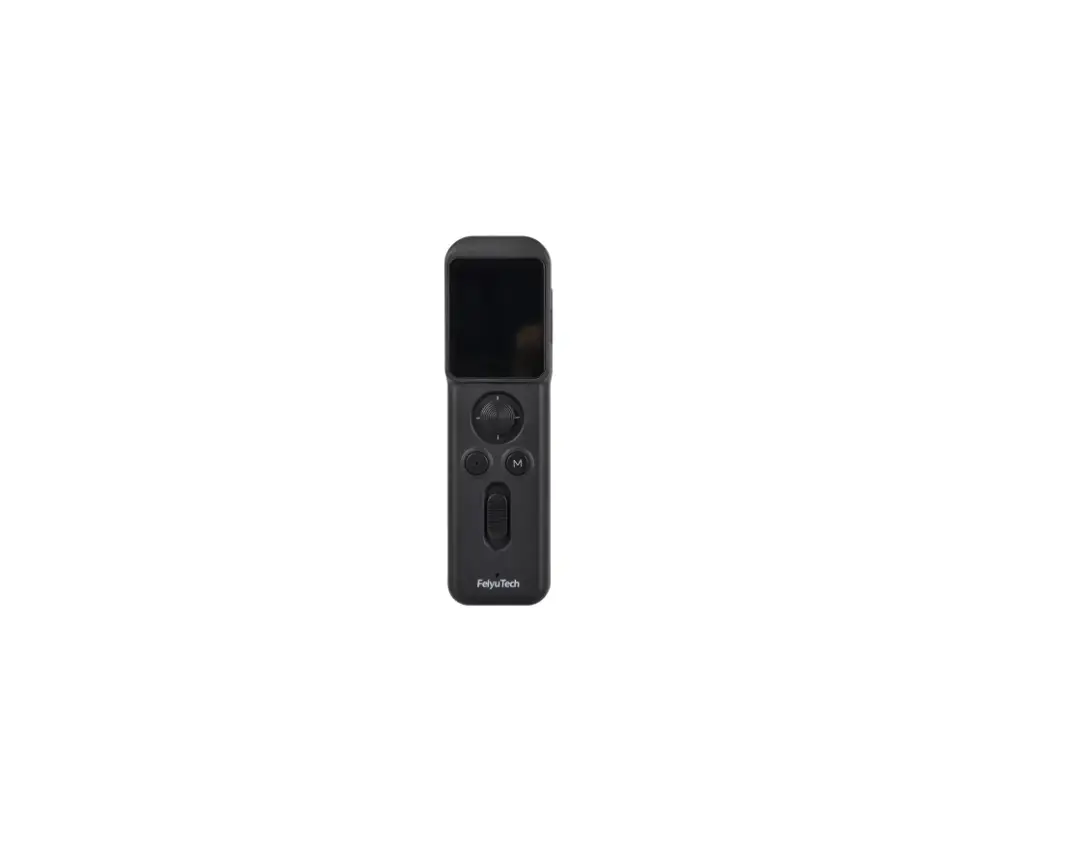
FeiyuTech Remote Handle for Feiyu Pocket 3
Suggestion
This product includes below information, please read the information before using it.
- Quick start guide
- Online instruction
- Tutorial
Tutorial
* The tutorial videos can be watched at FeiyuTech official website or scan the QR code.
https://www.feiyu-tech.com/play/
Download APP
Connect with FeiyuCam App to achieve more functions.
Scan the QR code to download the app, or search for “FeiyuCam” in the App Store or Google Play.
* Requires iOS 13.0 or above, Android 6.0 or above.
iOS
Android
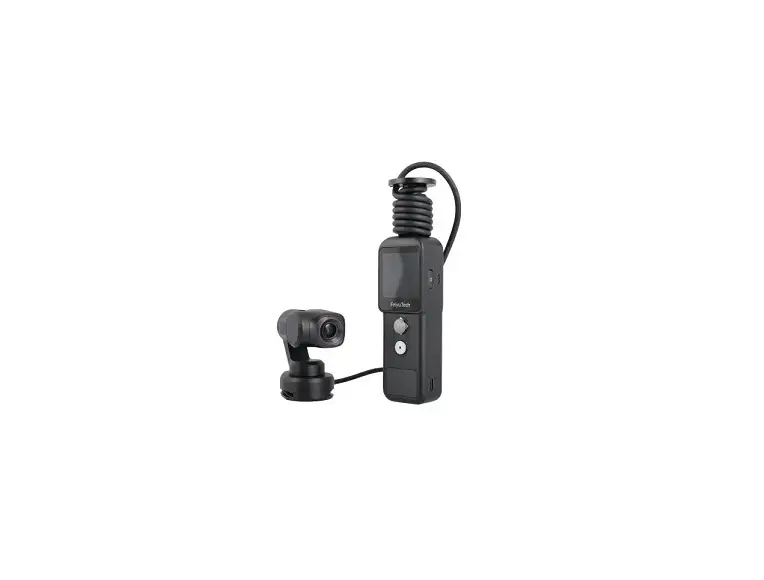
* This product dose NOT include Feiyu Pocket 3
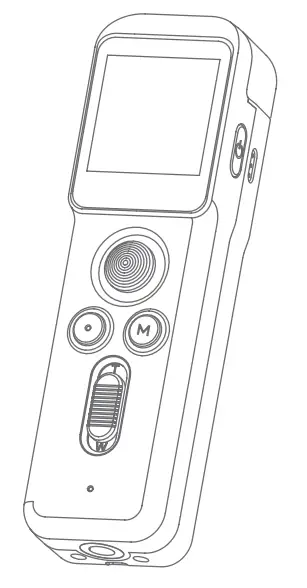
Overview
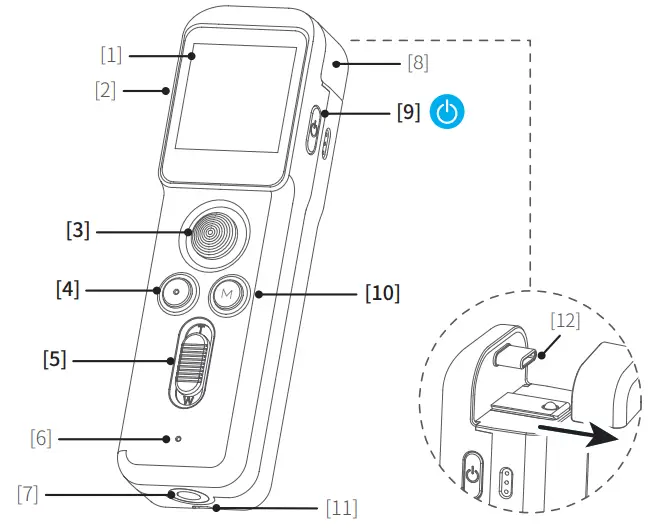
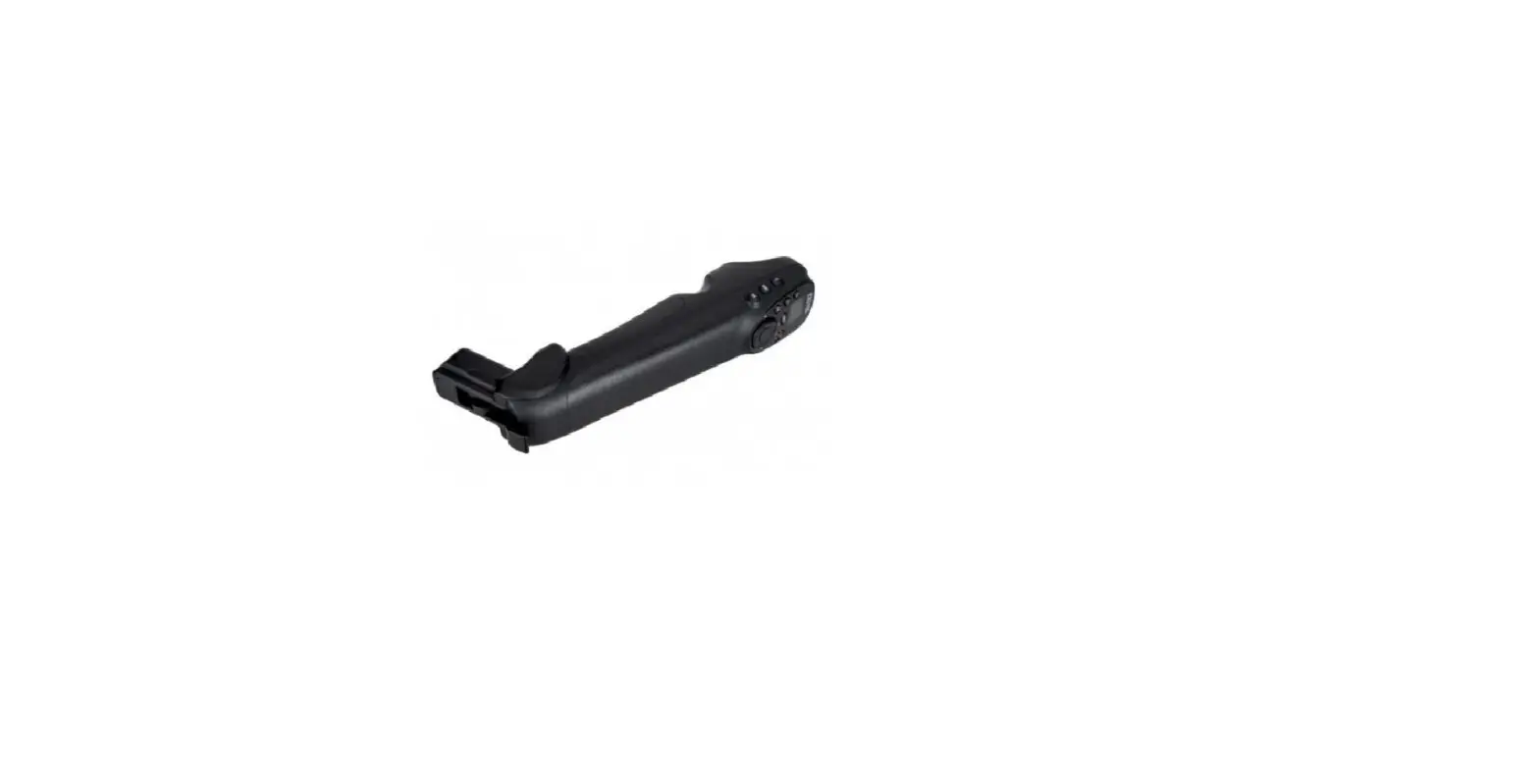
- Touch screen
- USB-C charging port
- Joystick
- Shutter cutton
- Zoom button
- Microphone
- 1/4 inch thread Hole
- USB-C port cover
- Power button
- Gimbal mode button
- Wrist strap Hole
- Gimbal connecting plug
List
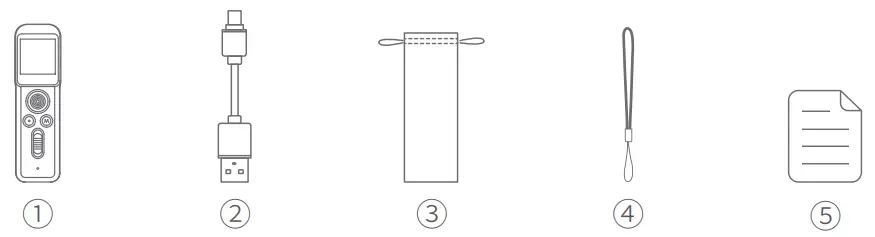
① Remote Handle x 1
② USB-C Cable x 1
③ Portable bag x 1
④ Wrist strap x 1
⑤ Manual x 1
Start to Use

- Please fully charge the battery before powering on the product for the first time.
- When not in use, power off the product
Charging
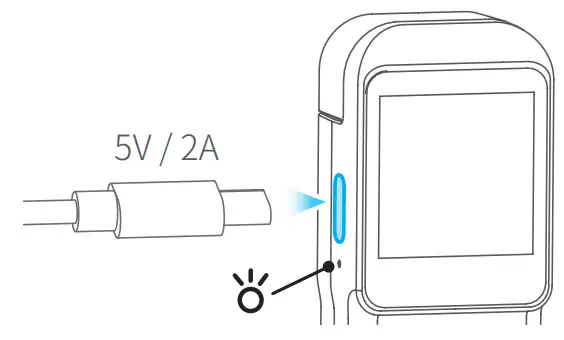
Connect USB-C cable with charging port to charge.
We recommend that you charge your camera at least once a month.
| Charging status | While working (screen status) | While off (indicator status) |
| Charging |  Display Display | Red light is on |
| Complete |  Disappear Disappear | Green light is on |
Connection
USB-C connection
Put the dovetail slot which at the button of Feiyu Pocket 3 stabilized camera aim to the convex slot of remote handle, and slide in along the slot to connect the USB-C port.
Then users can control the camera through the remote handle after power on.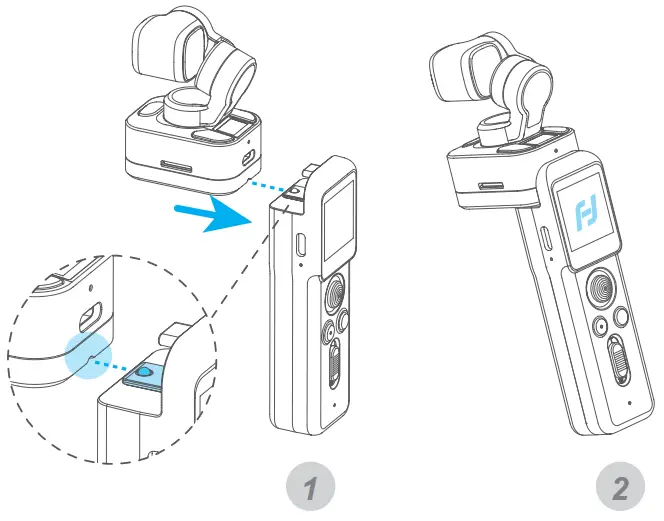
Wireless connection
Before using for the first time, please connect the remote handle with camera physically (Refer to 3.2.1), and power on.
Then detach the remote handle and the stabilized camera, and the screen on camera will prompt to enter wireless connection status, then the remote handle can control the camera wirelessly.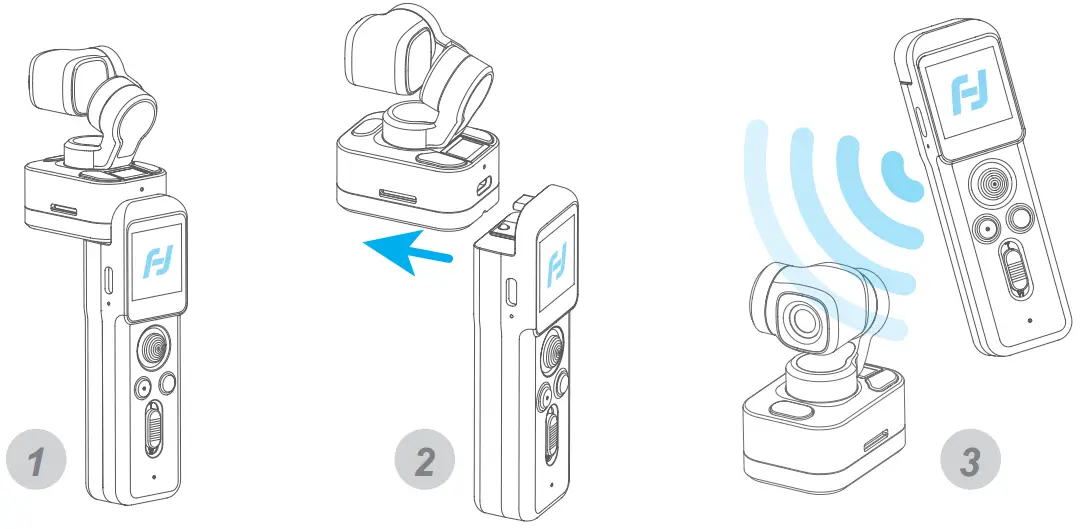
Operation
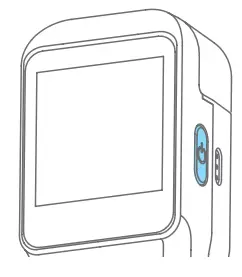
Long press for 1s: Power ON/ OFF
Long press for 8s: Power off forcely
Single tap:
- Switch among video/ Photo mode/ Recently used function
- Return to the previous menu

Joystick
Push: Control the movement of the tilt and pan axes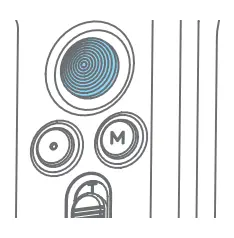
Single tap: Follow mode/All follow mode/Pan mode (Switch in turn)
Double tap: Recenter
Triple tap: Enter/Exit selfie mode
Press and hold: Enter lock mode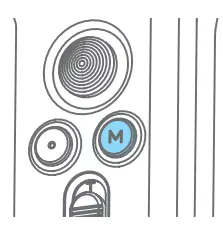
Single tap: Start/stop recording/Take photo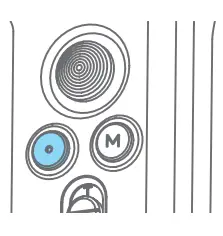
Slide up (T): zoom in
Slide down(W): zoom out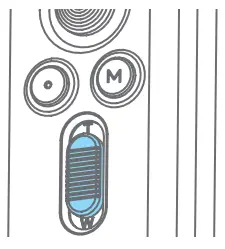
Screen Operation
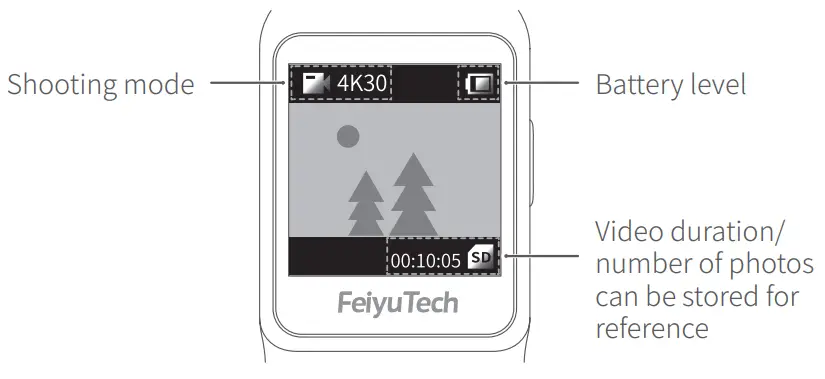
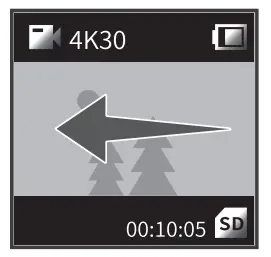 | Swipe from right to left:
| |
 | Photograph | Users can set aspect ratio of photos and countdown to take photo. Optional aspect ratio: 4:3 / 16:9 Optional countdown time: Off/ 3s/ 5s/ 7 |
 | Video | Users can set video resolution and FPS. Optional video resolution: 4K / 2.7K / 1080P Optional FPS: 24 / 25 / 30 / 48 / 50 / 60 /120 |
 | Slow motion | Users can shoot slow-motion video. Optional ratio of slow-motion recording: 4K 2X/1080P 4X/720P 8P |
 | Time-lapse photography | Users can choose static, motion timelapse, or hyperlapse and enter shooting interface after chose, and set shooting interval and duration by tap the bottom of the interface. Optional video resolution: 4K / 2.7K / 1080P When you choose motion timelapse, tap |
 | Panorama mode | Users can choose different panorama modes:2×2/3×3/180° 2×2: two images above and two below combine to one picture |
 to set start position
  ,tap
,tap  , tap
, tap  to delete position.
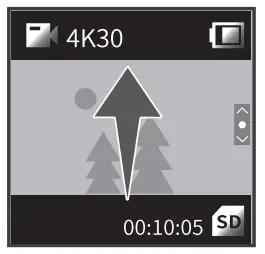 | Swipe up:
| |
| (1) Gimbal follow mode setting |  | Tap to recenter, lens return to center and keep towards front or back as before. |
 | Follow mode | |
 | All follow mode(FPV) | |
 | Pan mode | |
| (2) Selfie mode |  | Camera horizontally rotate 180° to shoot, which can be used to take selfie. |
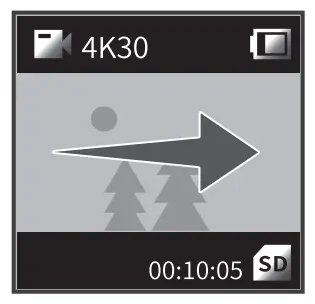 | Swipe from left to right: *Available only for USB-C connection
| |
 | Play | Tap to play the current video |
 | Favorite | Photos and videos which are marked as like, can be viewed in album [ Favorite ] after connected Feiyu Cam App. Tap to unmark. |
 | Haven’t been marked as favorite yet | Tap to mark it as favorite. |
 | Delete | Delete the current picture or video. |
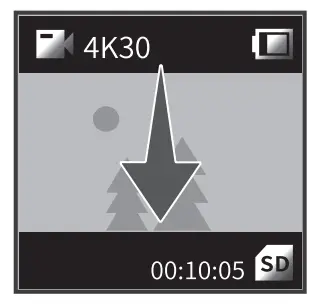 | Swipe down: *Available only for USB-C connection
| |
| (1) Mode setting |  | Mounting mode |
 | Handheld mode | |
| (2) System |  | Swipe to left / right to get move settings |
 | Display battery level | |
 | Turn on/off camera Wi-Fi | |
 | Anti-flicker setting | |
 | Key tone on /off | |
 | Display remaining storage spaces, tap to show format option. | |
 | Auto power off setting | |
 | Enter calibration. When camera is not level, users can use it to fix. Place the product on a stable horizontal plane such as table, and follow the prompts on the screen to operation. | |
 | Average metering | |
 | Spot metering is available | |
 | Move settings, users can switch languages / reset system parameters / view device information ( firmware version, SN code, etc.)/motor calibration | |
| (3) Viewing angle |  | Super wide angle |
 | Wide viewing angle | |
 | Narrow viewing angle | |
| (4) Face tracking |  | Turn on/off face tracking( available in photo, video and slow motion modes) |
| (5) Beauty |  | Open beauty |
 | Close beauty ( available in photo modes) | |
| (6) Image quality |  | Super high quality |
 | High quality ( available in video and slow motion modes) | |
| (7) Display |  | Full screen display |
 | Normal display | |
| (8)Professional/ Normal mode |  | Professional Mode |
 | Normal mode | |
After switch to professional mode, users can tap  icon to set the related parameters. icon to set the related parameters. | ||
Shooting mode | PRO mode | ||||
Settings | Image | White | Exposure | Color | Volume |
Photograph | √ | √ | √ | ||
Video | √ | √ | √ | √ | |
Slow motion | √ | √ | √ | ||
Time-lapse | √ | √ | √ | ||
Panoramic photo | √ | √ | √ | ||
Image Format: Select save format (JPG or J+R) for photo
White balance: Select a preset white balance mode or set color temperature manually
Exposure: Set ISO, shutter speed or exposure compensation
Color: Switch between normal color and Fy-log color ( Which is advantageous for postproduction color modulation)
Volume: Set video volume
| (9) Brightness |  | High brightness |
 | Normal brightness | |
 | Low brightness | |
| (10) Saving |  | Save video |
 | Save photos and video |
Indicator light instructions
| Indicator light | Indicator status | Instructions | Status | |
| Photo indicator | Battery indicator | |||
| Flash once | – | Photograph | Power on |
| Keeps flashing | – | Video | ||
| – | Constant green light | Finished charging | ||
| – | Battery indicator keeps on | Charging | Power off |


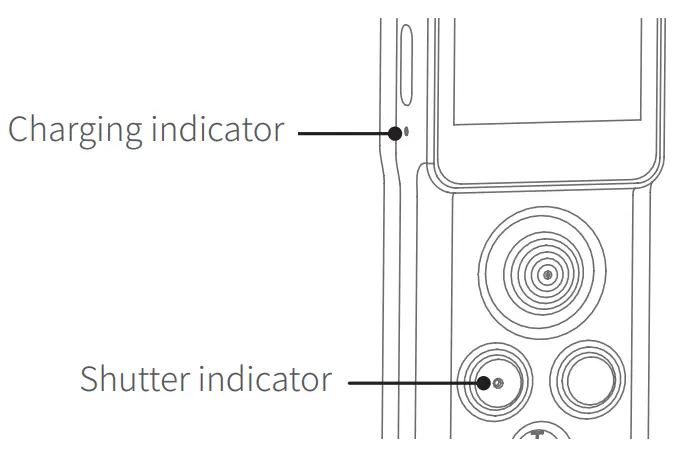
Specifications
| Product name | Remote Handle for Feiyu Pocket 3 |
| Product model | FeiyuVCAM3SRH |
| Battery Capacity | 750mAh |
| Charging Time | About 1.2h |
| Weight | About 73g |
| Product Size | 105.3*30.8*23.1mm |
Notice
- Make sure motor spinning is not blocked by external force when the product is power on.
- The product DO NOT contact water or other liquid if the product is not mark waterproof or splash-proof. Waterproof and splash-proof product DO NOT contact sea water or other corrosive liquid.
- DO NOT disassembly the product except marked detachable. It need send to FeiyuTech after-sales or authorized service center to fix it if you accidently disassembly and cause abnormal work. The relevant costs are borne by user.
- Prolonged continuous operation may cause the product surface temperature to rise, please operate carefully.
- DO NOT drop or strike the product. If the product is abnormal, contact Feiyu After-sales support.
Find More Features
Facebook
Youtube
Twitter
CUSTOMER SUPPORT
This document is subject to change without notice.
If you have any questions about this document, please contact us by the following ways.
Manufactured by: Guilin Feiyu Technology Incorporated Company
Website: www.feiyu-tech.com
Tel: +86 773-2320865
E-mail: [email protected]

 FeiyuTech - Official Website