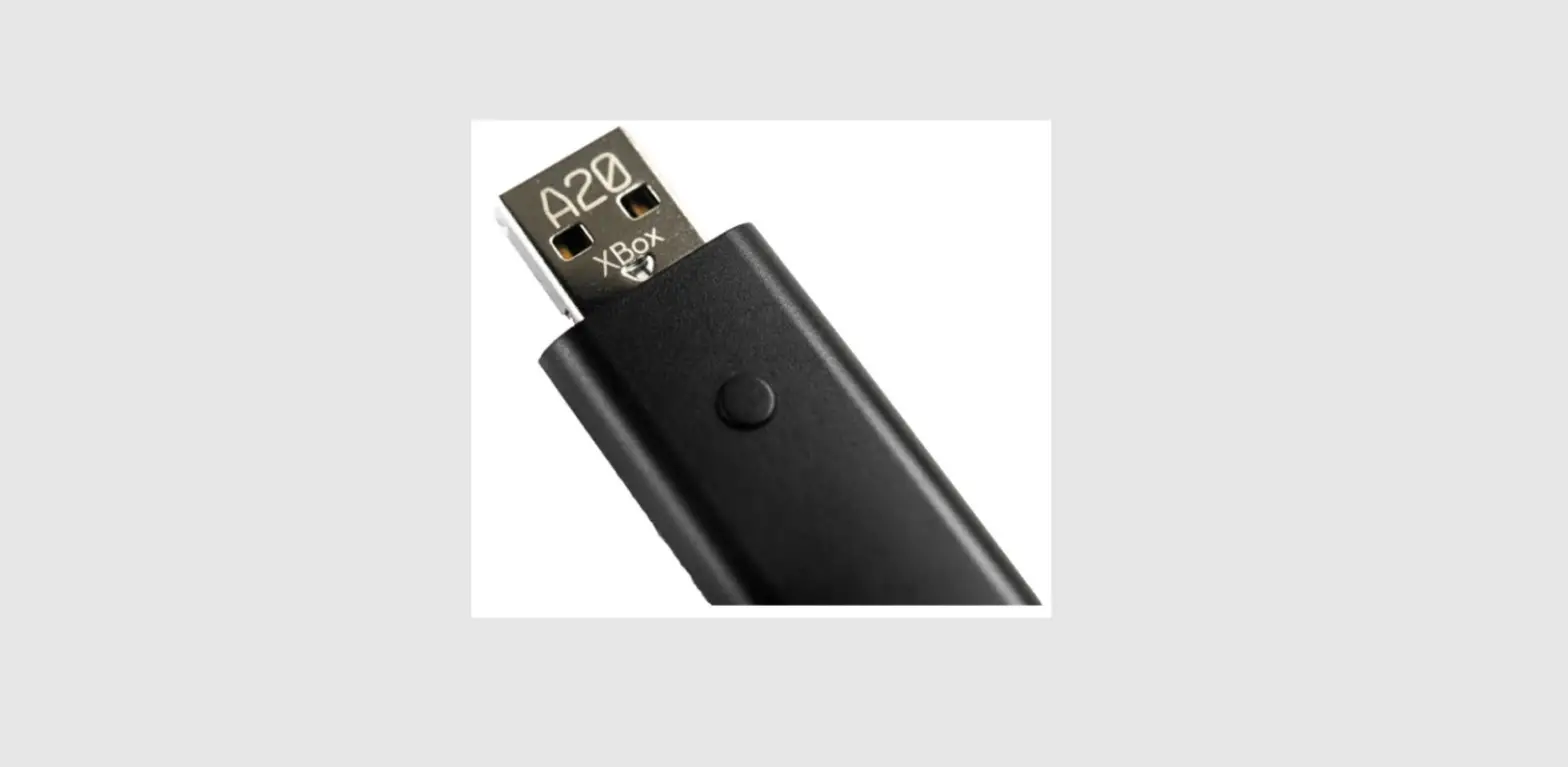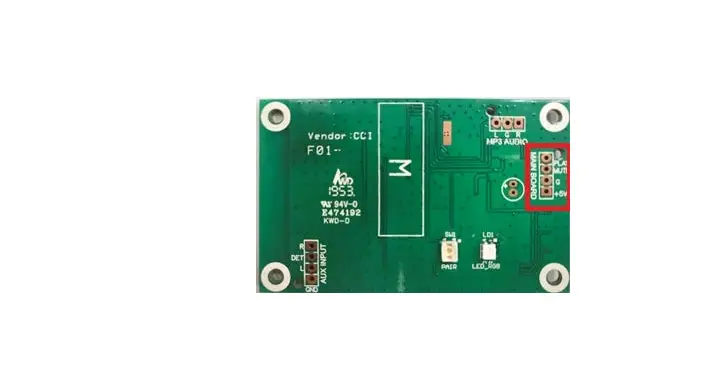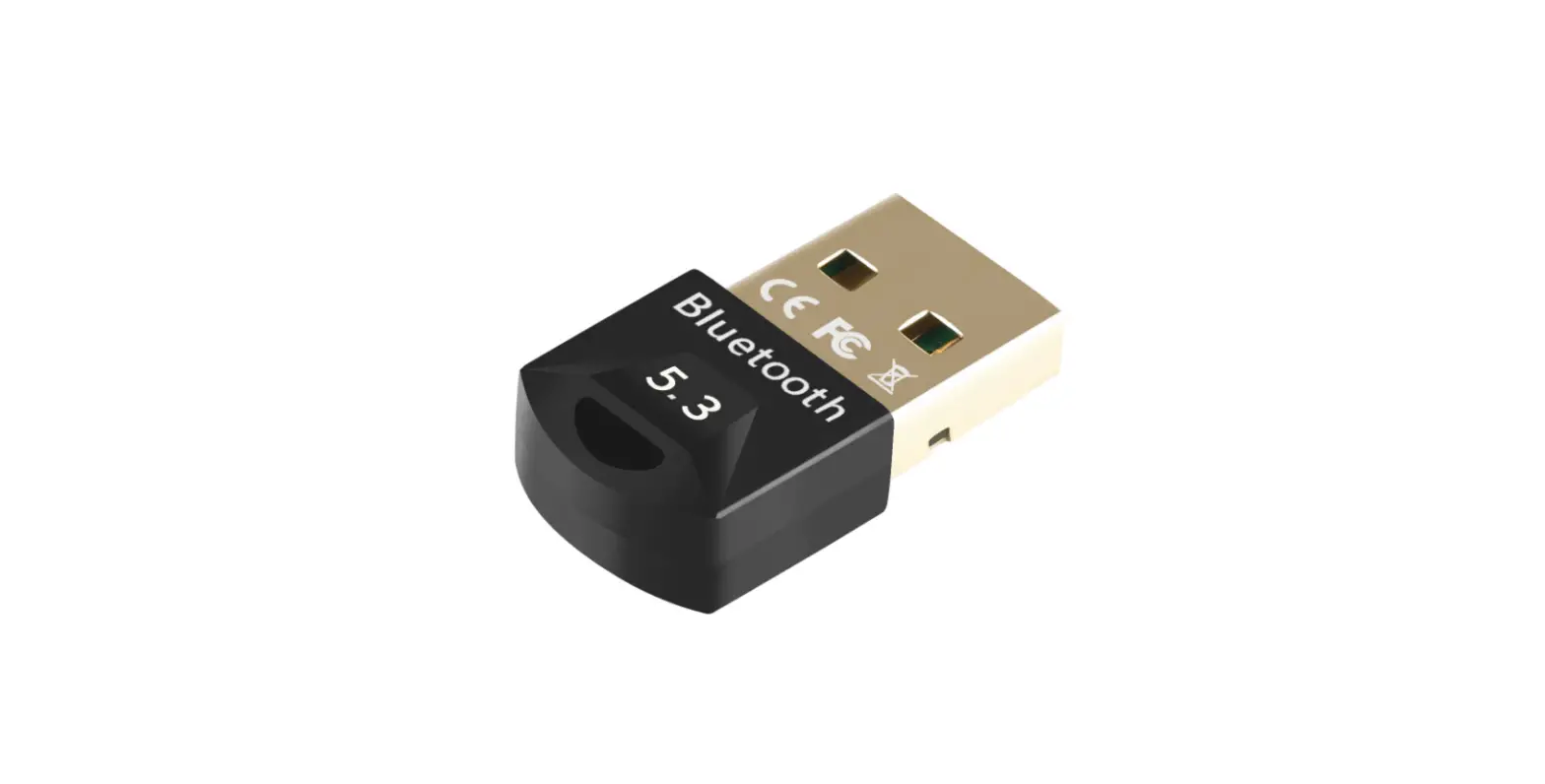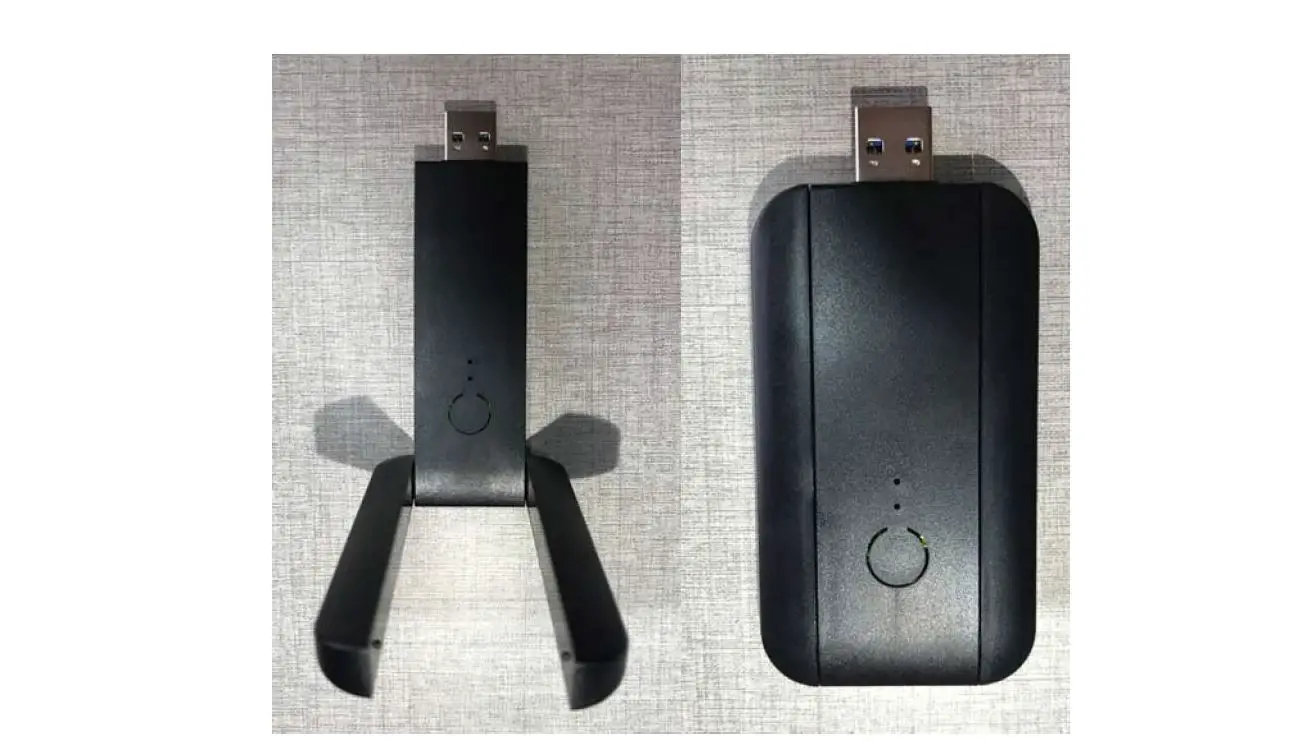

ATS2831 Dongle usage instructions
- Background and application scenario description With Bluetooth speakers, the popularity of Bluetooth headsets, wireless brought great convenience into people’s lives, so he went to the cable is a major trend of the current consumer electronics industry, and the integrity of the Bluetooth technology with its agreement, universality, standard, and the intelligent device on congenital advantage, has become the preferred one of wireless communication technology, for the PC, Through the USB sound card output, can achieve free drive, then through the ordinary Bluetooth Dongle output in PC compatibility and ease of use. The following is a list of common scenarios, but not limited to these scenarios. This solution can be used in any scenario similar to that in which the PC pushes audio to the Bluetooth receiver.
As shown in Figure 1 below, it is mainly applied to the scenario where the computer pushes the audio to the Bluetooth speaker headset through Bluetooth, carries out voice chat or call, or holds teleconferencing through the Bluetooth speaker headset.
Figure 1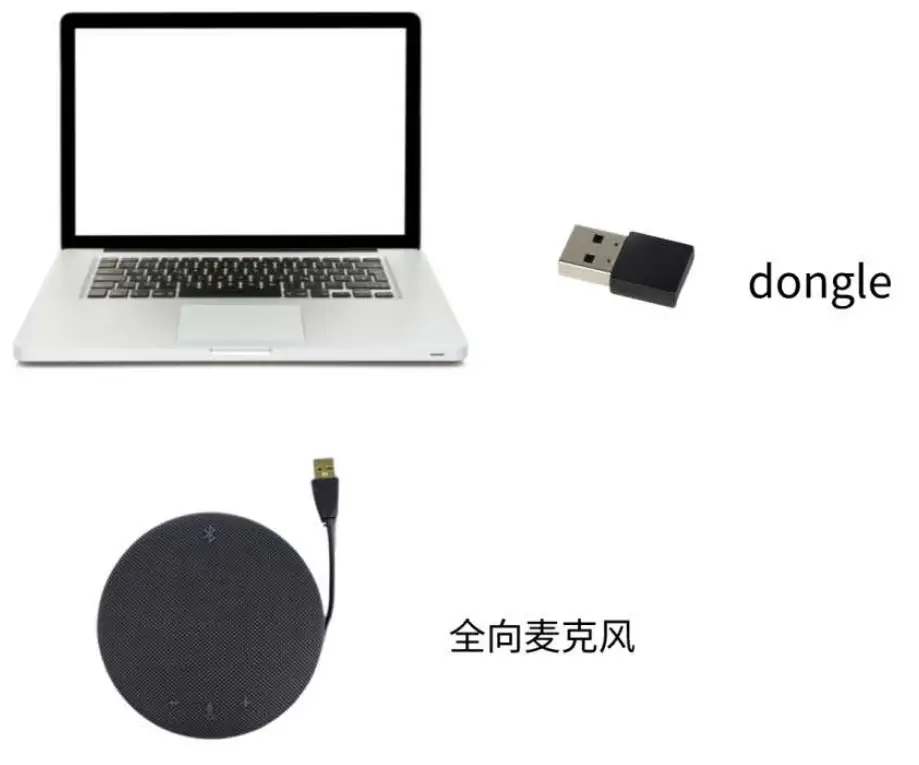
As shown in Figure 2 below, it is mainly used in teleconferencing systems, which is equivalent to eliminating the microphone line of traditional telephone systems and making the microphone part wireless.
Figure 2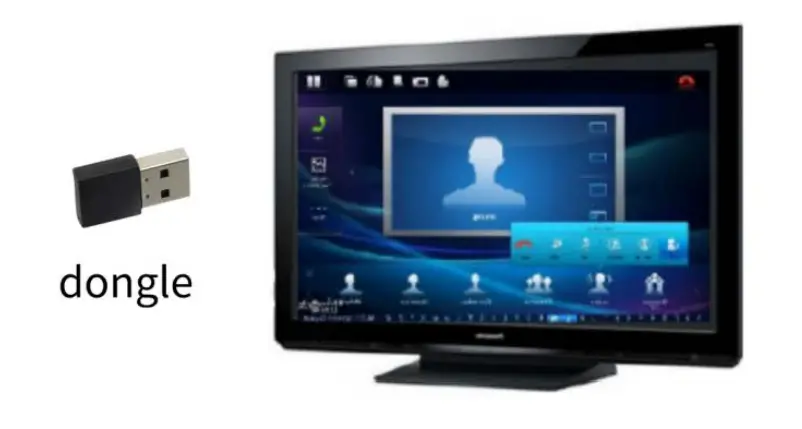
As shown in Figure 3 below, it is mainly applied in the home living room scenario, where the sound of the TV is transmitted to the Bluetooth speaker or earphone through the Dongle.
Figure 3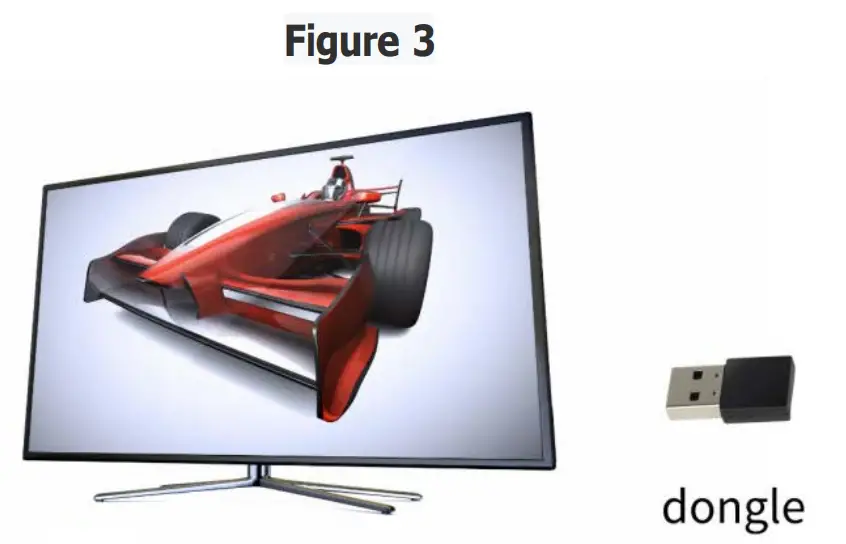
2. Schematic diagram
The schematic diagram of this case is shown in Figure 4 below. The computer is connected to Dongle through USB Audio, and the dongle is connected to a Bluetooth speaker or earphone through Bluetooth h A2DP or HFP. In other words, music on the computer can be pushed to a Bluetooth speaker or earphone. Or use Bluetooth speaker or headset through chat software or teleconferencing software and friends for voice calls, through USB HID and Bluetooth AVRCP, Bluetooth speaker or headset can also do some control on PC playback. 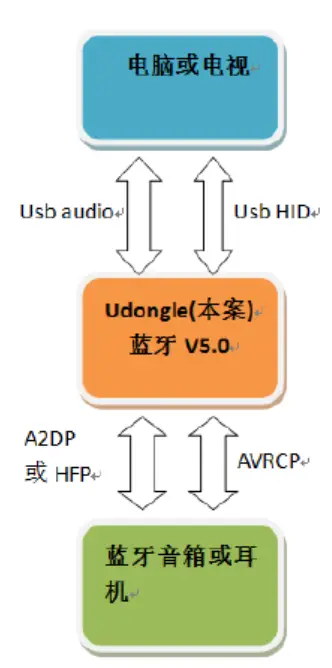
3. Function Description:
| function | requirements | note |
| Supports Bluetooth 5.0 protocol | Bluetooth supports the 5.0 core protocol and the Bluetooth Profile (A2DP, HFP) related to the dongle for voice calls. | |
| Support USB Audio transmission | The PC sends the audio playback data to the Dongle through the USB Audio channel, and the Dongle sends the data to the receiving device (speaker or headset) through the Bluetooth A2DP. | |
| USB Audio supports hands-free voice calls | One end of the Dongle is connected to a PC through a USB Audio channel, and the other end is connected to a Bluetooth SPEAKER or headset through a Bluetooth HFP as an AG, enabling the phone to be hands-free using a Bluetooth speaker or headset. | |
| Voice calls support common voice and HD voice | Voice calls support common voice (8K sampling rate, CVSD codec) and WBS (broadband voice: 16K sampling rate and MSBC codec). | |
| Bluetooth audio transmission supports AVRCP control | The receiver can control the transmitting end by AVRCP to play, pause, bend up and down switch, etc | |
| Bluetooth supports digital volume adjustment when transmitting audio | During Bluetooth transmission, if the connected Bluetooth speaker does not support volume synchronization, you can adjust the digital volume of the sent data. | |
| Bluetooth supports volume synchronization for | Supports volume synchronization between the receiver and transmitter, that is, the receiver and transmitter use the same volume. |
| audio transmission or voice calls |
Bluetooth protocol support
| agreement | Plan calls for | BBQ needs | note |
| Bluetooth Core protocol version | V5.0 | support | |
| A2DP version | V1.3 | support | |
| A2DP SRC role | support | support | |
| AVRCP version | V1.6 | support | |
| AVRCP TG SRC role | support | support | |
| HFP version | V1.7 | support | |
| HFP AG SRC role | support | support |
5. Bind and connect
- Insert the Dongle into the USB port on the PC
- Select USB Dongle as the default sound card on PC according to the following operations

- Turn on the Bluetooth speaker or earphone, and press the pairing button (some speakers or earphones do not need it, please refer to the product manual for details) to enter the pairing mode
- Place a Bluetooth speaker or headset close to the Dongle, preferably within 0.5 meters to improve the pairing success rate, and wait for the pair to be connected to the nearest Bluetooth speaker or headset
- when the dongle and Bluetooth speakers or headset paired automatically connected to the speakers or headset, Bluetooth speakers or headphones after being connected will have a speech or prompt, it is not sure whether the connection is successful, can open players play songs on the PC terminal if, after the success of the Bluetooth connection, you can play the song sounds on speakers or headphones
- When the Bluetooth connection is successful, the device will be bound, and the device will be connected by default when the next startup
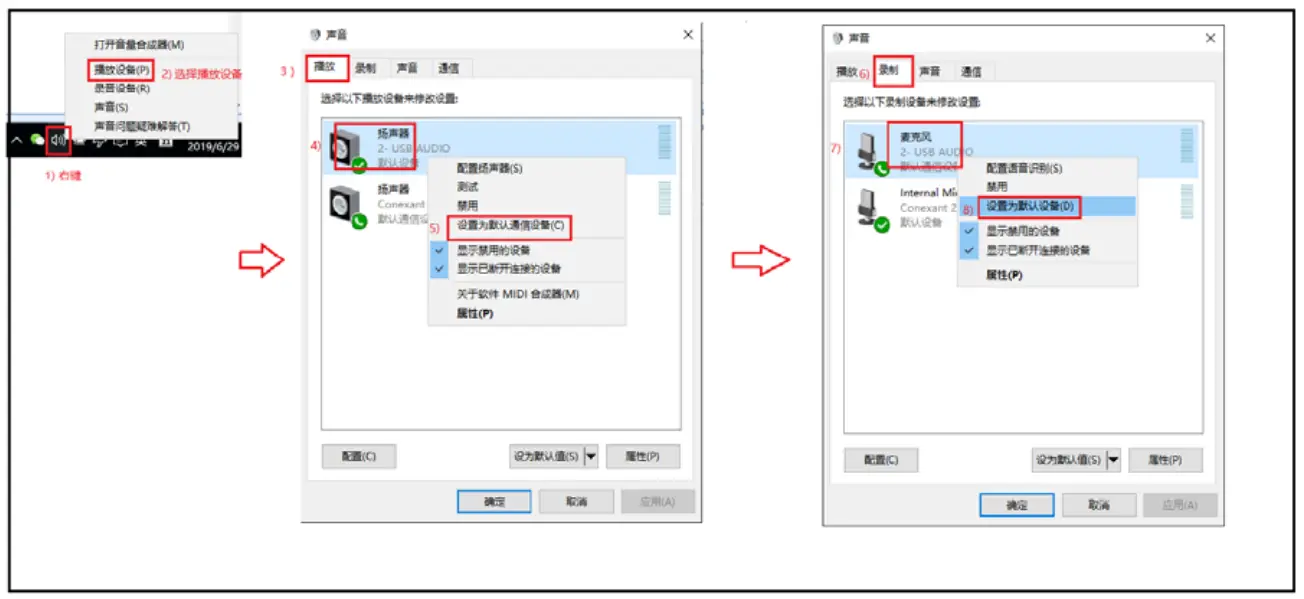
AVRCP control
If the speaker or headset has “Next”, “Prev”, “Play/Pause” keys and supports Bluetooth AVRCP, you can press the “Next”, “Prev” keys on the speaker or headset to switch the PC player to “Next, previous”. You can press Play/Pause to pause or continue the player on the PC.
call
The Dongle can support calls with WeChat, QQ, Skype, and other conference software on PC. The following uses WeChat as an example to explain how to use the dongle. Other communication tools are similar:
Open WeChat on the PC and initiate a voice chat with your friends. Enter the voice chat interface for normal voice chat. Then the other party’s voice will be played on the speaker or earphone.
The volume synchronization
If a Bluetooth speaker or headset has a volume button and supports volume synchronization, you can adjust the volume on the PC by pressing the volume button on the speaker or headset, no matter when playing music or talking.
The connection
After the device is connected to the system for the first time, the system remembers the name of the last device before the device is disconnected. After the device is powered on again, the system automatically enters the connection back state. If the device cannot be connected back within 15 seconds, the system automatically enters the search and pairing state.
Indicators corresponding to each state
- Search pairing: red and blue lights flash alternately,
- Back connection: blue light flashes once every one second
- Successful connection: blue light flashes once every 5 seconds.
This device complies with part 15 of the FCC Rules. Operation is subject to the following two conditions: (1) this device may not cause harmful interference, and (2) this device must accept any interference received, including interference that may cause undesired operation.
Any changes or modifications not expressly approved by the party responsible for compliance could void the user’s authority to operate the equipment.
NOTE: This equipment has been tested and found to comply with the limits for a Class B digital device, pursuant to Part 15 of the FCC Rules. These limits are designed to provide reasonable protection against harmful interference in a residential installation. This equipment generates, uses, and can radiate radio frequency energy and, if not installed and used in accordance with the instructions, may cause harmful interference to radio communications. However, there is no guarantee that interference will not occur in a particular installation. If this equipment does cause harmful interference to radio or television reception, which can be determined by turning the equipment off and on, the user is encouraged to try to correct the interference by one or more of the following measures:
— Reorient or relocate the receiving antenna.
— Increase the separation between the equipment and receiver.
— Connect the equipment into an outlet on a circuit different from that to which the receiver is connected.
— Consult the dealer or an experienced radio/TV technician for help.
The device has been evaluated to meet general RF exposure requirements. The device can be u sed in portable exposure condition without restriction FCC ID: 2A4BG-AIRHUG03