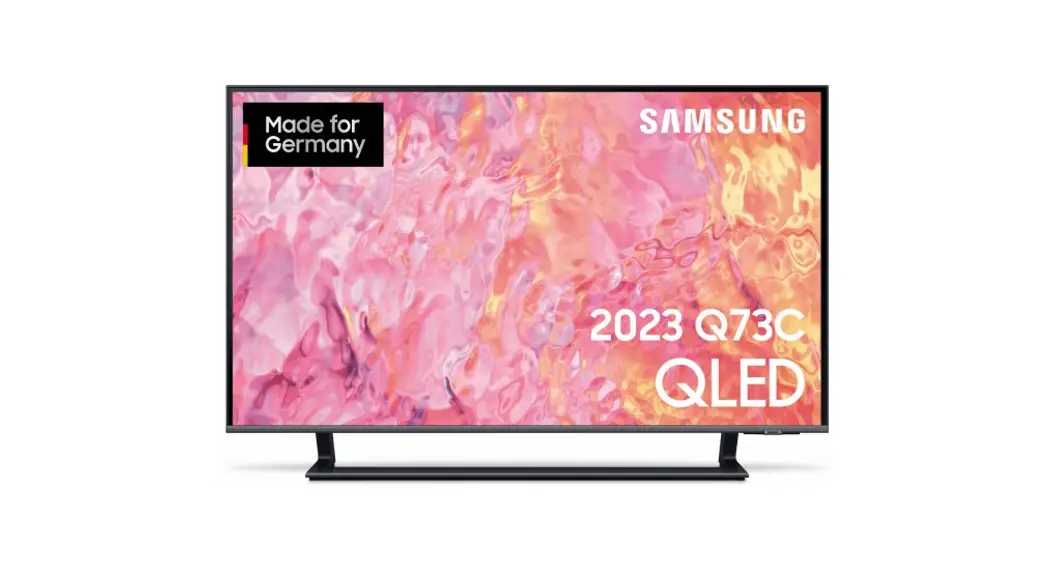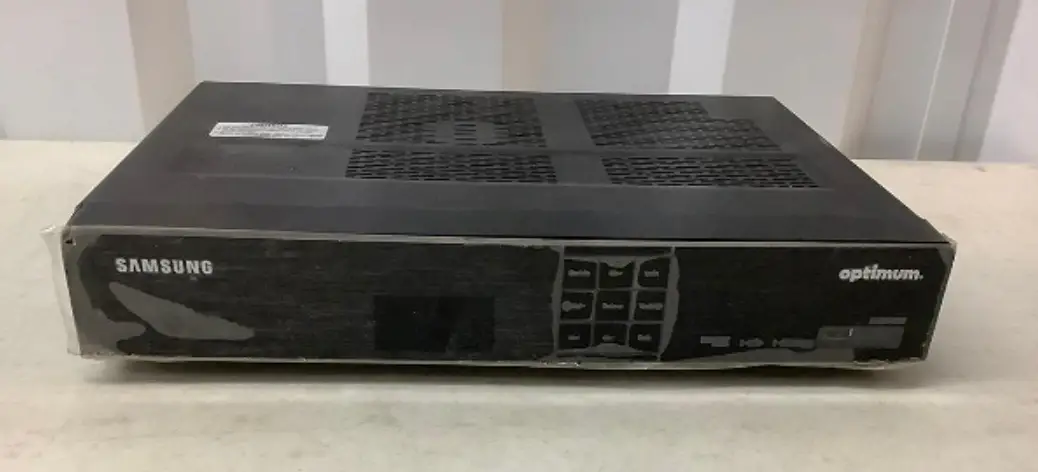
 Samsung and Scientific Atlanta TV
Installation Guide

Let’s get started
This easy-to-follow guide will show you how to quickly connect your cable box to your TV. Complete every step before moving to the next. Start by selecting your cable box below:
| Samsung cable box | 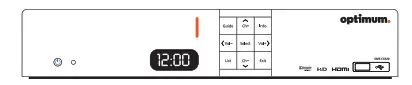 |
| With an HD TV | 6 |
| With a non-HD TV | 8 |
| Scientific Atlanta cable box | 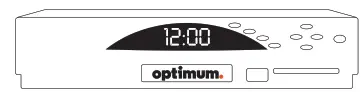 |
| With an HD TV | 10 |
| With a non-HD TV | 12 |
| Additional Information | |
| Using a cable splitter | 14 |
| A few tips to keep in mind | 15 |
| Help | 16 |
What’s included
Available at Optimum stores
| HDMI cable |  |
| Power cord |  |
| Coaxial cable (may be black or white) |  |
| Coaxial cable clips | 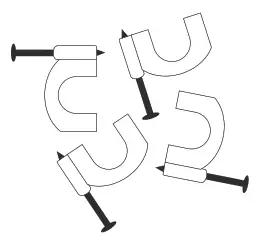 |
You’ll also want to have your TV remote handy for the set-up process.If you’re connecting a modem and cable box, use Optimum-provided equipment to ensure the best uality. The items below are available at any Optimum store, free of charge.
| Coaxial cable (may be black or white) |  |
| Cable splitter | 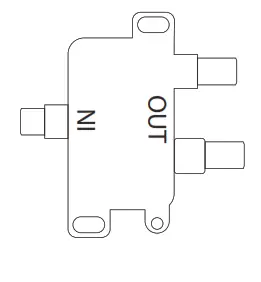 |
Samsung cable box with HD TV
Connect the cable box
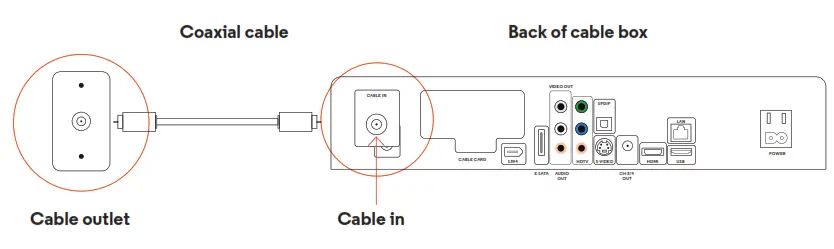
Connect the coaxial cable from the cable outlet on the wall to the “Cable in” port on the back of the cable box. Manually tighten all connections. Note: If your cable outlet is already in use, see page 14 on how to use a cable splitter.
Connect the cable box to your TV
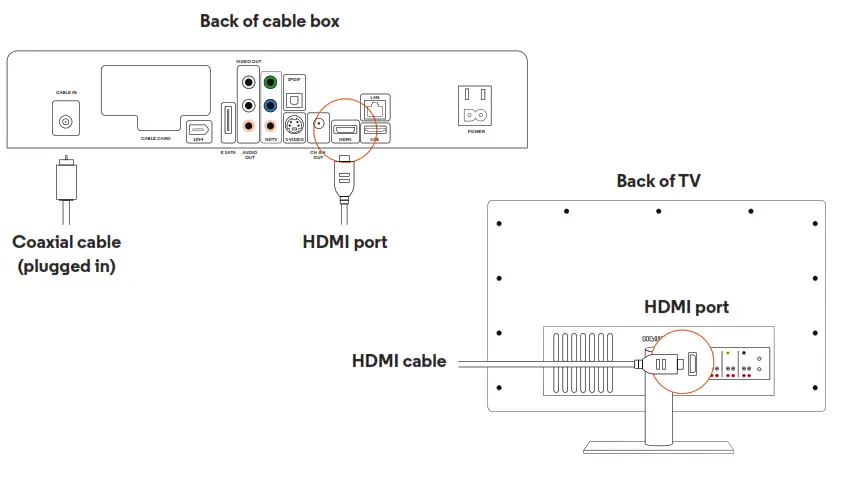
Connect one end of the HDMI cable provided to the HDMI port on the back of the cable box. Connect the other end of the HDMI cable to one of the HDMI ports on the back of your TV (note which TV port you plug the cord into to use in Step 3).
Connect the power
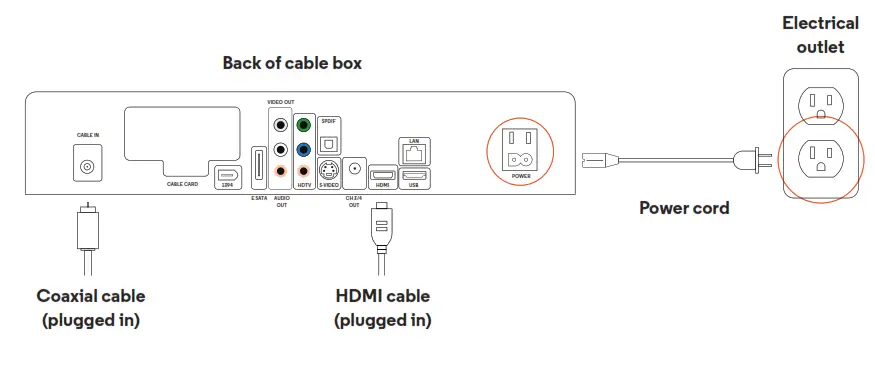
Plug the power cord into the back of the cable box and then plug the other end into an electrical outlet. Plug in your TV and turn it on. Using your TV’s remote (not the optimum remote), on-screen select the input port you chose in Step 2 by pressing the input, source or TV/video button.
Activate
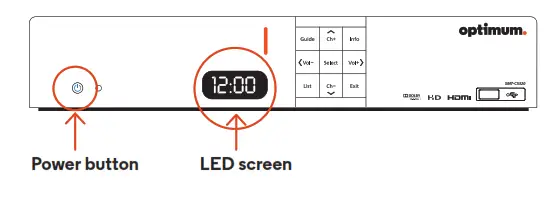
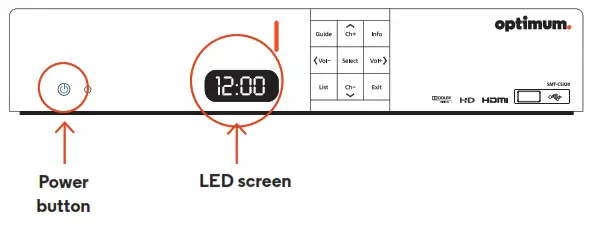
Activation should begin automatically. Once “Turn” and “On” alternate on the LED screen, turn on your digital cable box if it’s not already on. The power is on if the power button is blue. On your TV you’ll see text that reads: “Please wait, we are preparing the service for you.” When the service is ready, the time will display on the LED screen. This may take several minutes.
HDMI Product Notice The terms HDMI and HDMI HighDefi nition Multimedia Interface, and the HDMI logo are trademarks or registered trademarks of HDMI Licensing LLC in the United States and other countries.
Samsung cable box with non-HD TV
Connect the cable box
Connect the coaxial cable from the cable outlet on the wall to the “Cable in” port on the back of the cable box. Manually tighten all connections. Note: If your cable outlet is already in use, see page 14 on how to use a cable splitter.
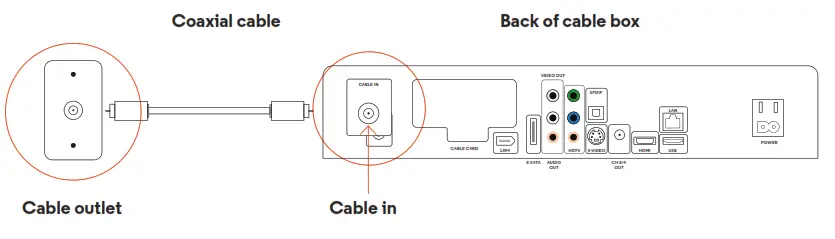
Connect the cable box to your TV
Connect one end of the coaxial cable to the “CH 3/4 out” port on the back of the cable box and the other end to the “VHF/UHF” or “Antenna in” port on the back of your TV.
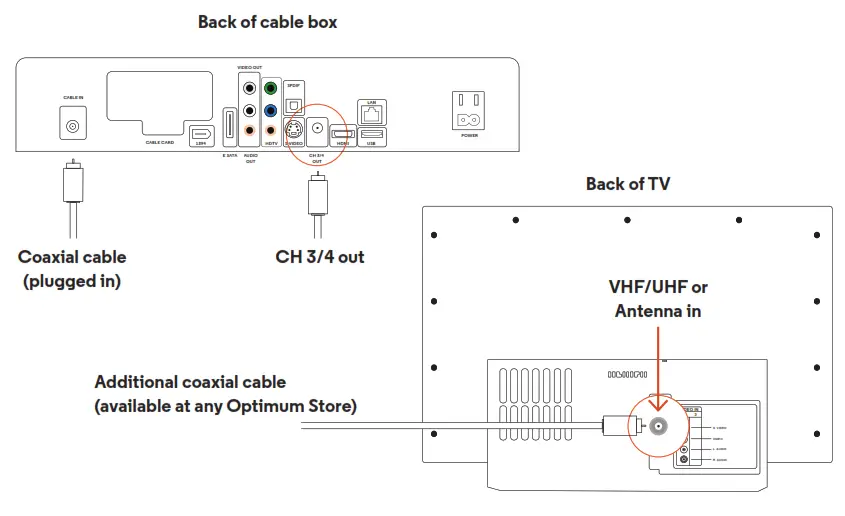
Connect the power
Plug the power cord into the back of the cable box and then plug the other end into an electrical outlet. Plug in your TV and turn it on. Using your TV’s remote (not the Optimum remote), tune to channel 3 or 4 on your TV to get a signal.
Note: Once your TV is set to the right channel, DO NOT CHANGE it with your TV remote or you will lose your cable signal. Use only the Optimum remote to change channels after setup.
Activate
Activation should begin automatically. Once “Turn” and “On” alternate on the LED screen, turn on your digital cable box if it’s not already on. The power is on if the power button is blue. On your TV you’ll see text that reads: “Please wait, we are preparing the service for you.” When the service is ready, the time will display on the LED screen. This
may take several minutes.
Scientific Atlanta cable box with HD TV
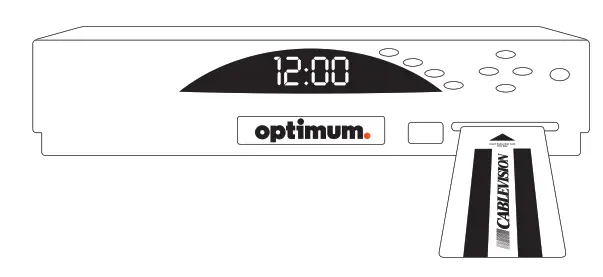
Insert the Smart Card
Insert the Smart Card into the front of the cable box. Note: It will not insert completely. Once inserted, DO NOT REMOVE.
Connect the cable box
Connect the coaxial cable from the cable outlet to the “Cable in”port on the back of the cable box. Manually tighten all connections.
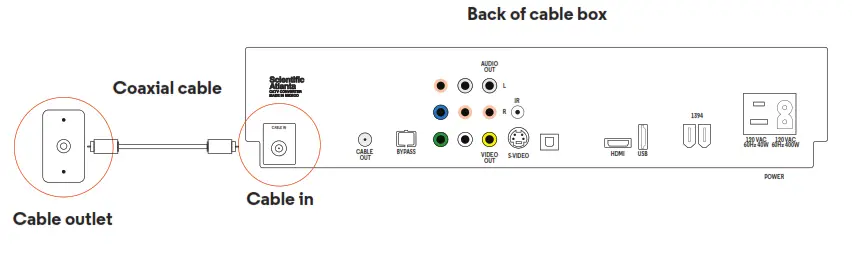
Note: If your cable outlet is already in use, see page 14 on how to use a cable splitter.
Connect the cable box to the TV
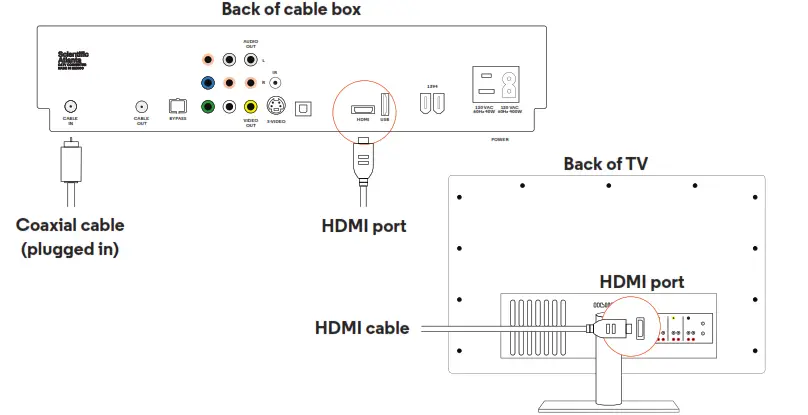
Connect one end of the HDMI cable provided to the HDMI port on the back of the cable box. Connect the other end of the HDMI cable to one of the HDMI ports on the back of your TV (note which TV port you plug the cord into to use in Step 4).
Connect the power
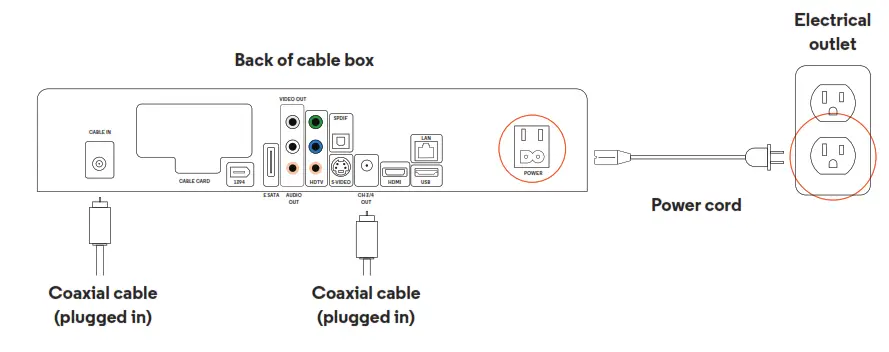
Plug the power cord into the back of the cable box and then plug the other end into an electrical outlet. Plug in your TV and turn it on. Using your TV’s remote (not the Optimum remote), on-screen select the input port you chose in Step 3 by pressing the input, source or TV/video button.
Connect the power
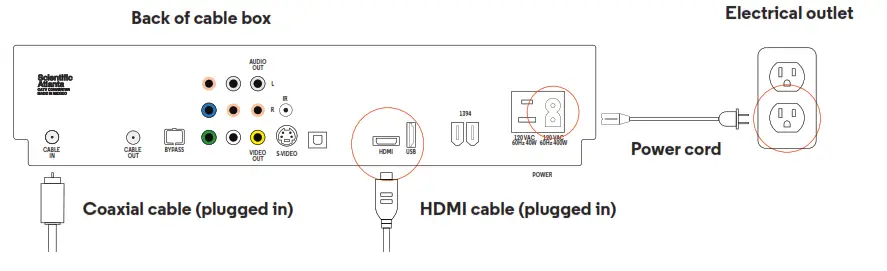
Plug the power cord into the back of the cable box and then plug the other end into an electrical outlet. Plug in your TV and turn it on. Using your TV’s remote (not the Optimum remote), on-screen select the input port you chose in Step 3 by pressing the input, source or TV/video button.
Activate
Activation should begin automatically and takes several minutes. Once “Turn” and then “On” alternate on the LED screen, press the power button on the front of the cable box.
The time will display whether n service is activated.
Scientific Atlanta cable box with non-HD TV
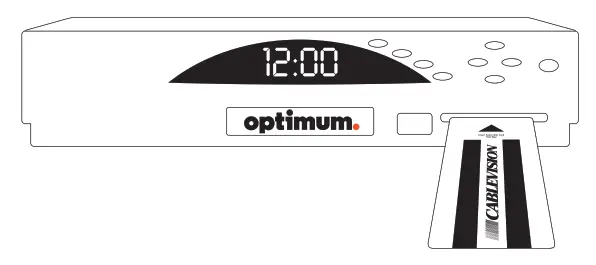
Insert the Smart Card
Insert the Smart Card into the front of the cable box.
Note: It will not insert completely. Once inserted, DO NOT REMOVE.
Connect the cable box
Connect the coaxial cable from the cable outlet to the “Cable in” connection on the back of the cable box. Manually tighten all connections.
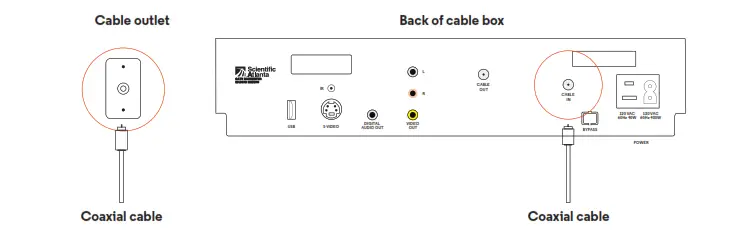
Note: If your cable outlet is already in use, see page 14 on how to use a cable splitter.
Connect the cable box to the TV
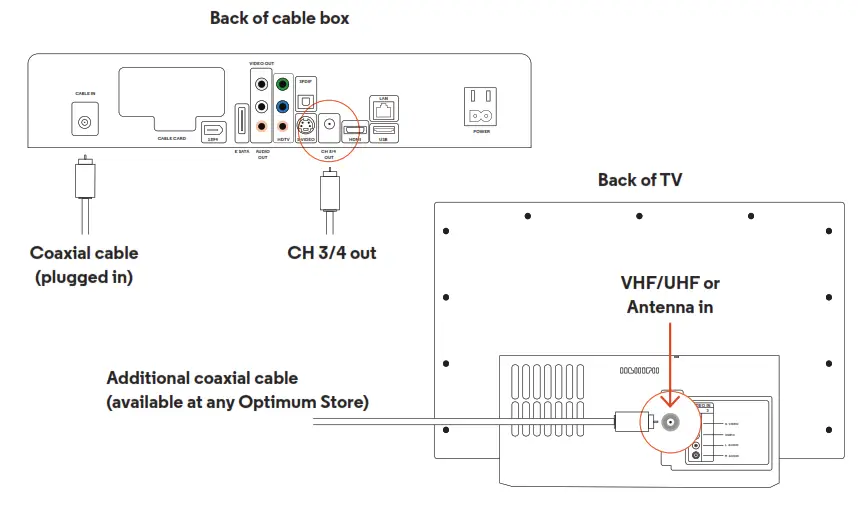
Connect one end of the coaxial cable to the “Cable out” port on the back of the cable box and the other end to the “VHF/UHF” or “Antenna in” port on the back of your TV.
Connect the power
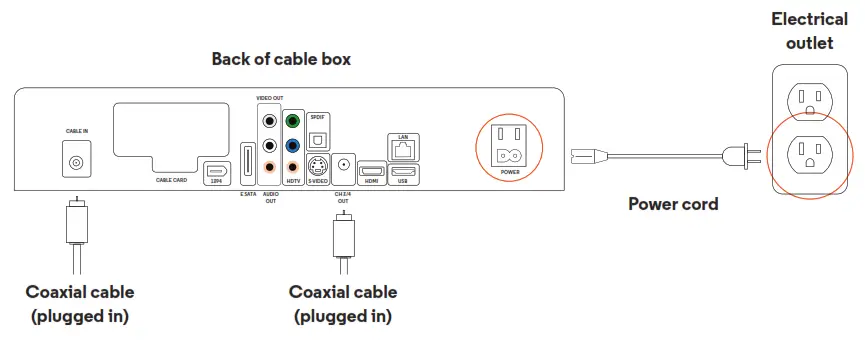
Plug the power cord into the back of the cable box and then plug the other end into an electrical outlet. Plug in your TV and turn it on. Using your TV’s remote (not the Optimum remote), tune to channel 3 or 4 on your TV to get a signal.
Note: Once your TV is set to the right channel, DO NOT CHANGE it with your TV remote or you will lose your cable signal. Use only the Optimum remote to change channels after setup.
Activate
Activation should begin automatically and takes several minutes. Once “Turn” and then “On” alternate on the LED screen, press the power button on the front of the cable box. The time will display when the service is activated.
Using a cable splitter
A few tips to keep in mind
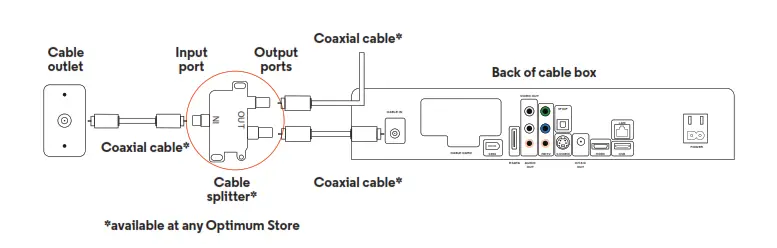
You’ll need a cable splitter and extra coaxial cables for this setup process. Pick these up at any Optimum store to ensure the best quality of service.
Using a cable splitter (if a cable outlet is already in use)
Disconnect your existing coaxial cable from the cable outlet and connect it to one of the output ports on your cable splitter. The second output port will be used to connect your cable box. Use the additional Optimum store-provided coaxial cable to connect the input port to the cable splitter and connect the other end to the cable outlet on the wall. To continue the set-up process, go back to the section with your specific cable box and TV combination.
Example
If you’re replacing an existing cable box
Return your old cable box and power cord to any Optimum store or get a shipping label to send them back at optimum.net/returns.
Help
DIY troubleshooting, no tools required.
Here are a few quick tips to keep your services running smoothly and help you save time:
+ If you’re not getting a picture or you see a blue or black screen, check that your TV and cable box are plugged in and powered on. Then, make sure all of your connections are secure.
+ Next, make sure that your TV is on the correct input by pressing TV INPUT on the Optimum remote, or TV/VIDEO, INPUT or SOURCE on your TV manufacturer’s remote, until you see a picture on your screen.
+ If you’re still having issues, reset your cable box by unplugging it from either the wall\outlet or the box itself. Wait about fi ve seconds, then plug it back in and allow the box to reboot, which takes about three minutes.
We know that your time is valuable. That’s why we have plenty of ways to make getting help easier:
 optimum.net/support
 optimum.net/chat
 Optimum Support App
 @OptimumHelp
 youtube.com/optimum
 facebook.com/optimum
USA, Inc. © 2022 CSC Holdings, LLC
 Please Wait