HERO SPEED
FK03AY Smart Device 2000 Face Recognition Thermal Camera
User Guide
About this Manual
- Use this manual as a guide. The photos. graphics. icons. etc- provided in the manual are for explanation purposes only. and may atter from the specific products. Please proof in kind.
- This manual may be upgraded later for product upgrading or oMer request needs. For the latest version. pis contact our atter sales
Responsibility Statement
- To the fullest extent permitted by law. the prOduCt described n the manor (hardware. salvage. fermate% included)
- I: sanded ‘as is*. No expressed warranties or riven] warranties are made by us. including Out but not limited to its fnarketabitry. quality-satisfaction: special purpose-serving. Noninfringement of third-party Mints: No re:from-4341y an oared by us for any special collateral. Incidental or indirect damage caused by using our manor Of product. indulging but not inited to damage on commercial prom loss, date Of fie loss
- Regarding the product with internet access. the use Of pocket than be wholly at yoke own asks. Our Company than not take any responsible: es for abnormal operation. privacy leakage or other damages rebutting from cyber attack hacker attack yaw PspectOrt or Ogee ‘Memel security tales. however. our company will provide timely technical support it reputed
- Regulatory approaches are influenced by jurisdictirnBef ore using Pis product. please check all relevant laws in your jurialCben to ensure that your use confirms the applicable Weskit the product a used with illegal products or used for other improper purposes✓ such as infringing the rights of turd parties. the company Salt does not assume any responsibility.
- ki the event of any cord Icts between the manual and the applicable law. the legal provision anal prevail
Products Description
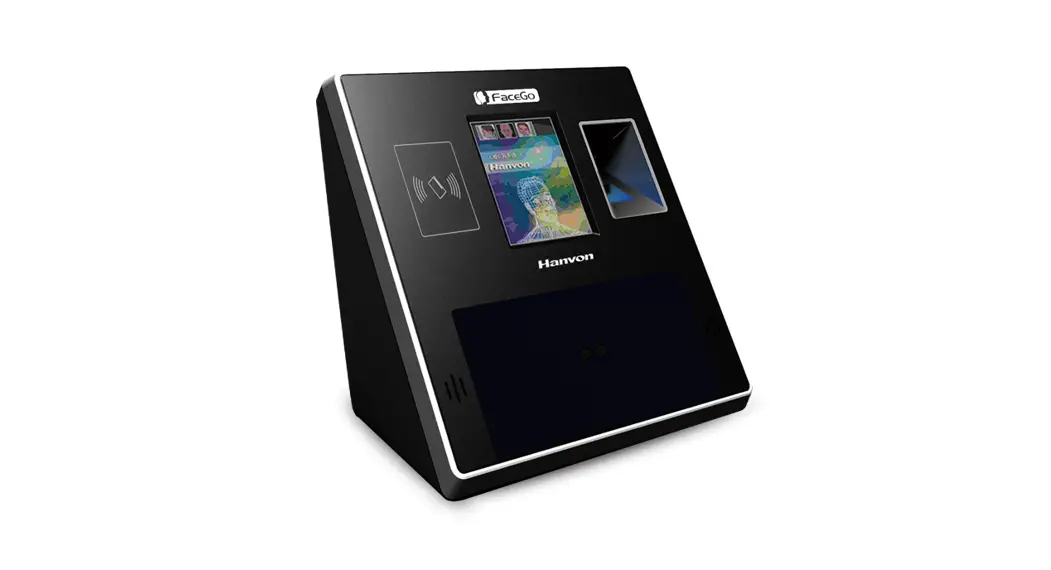
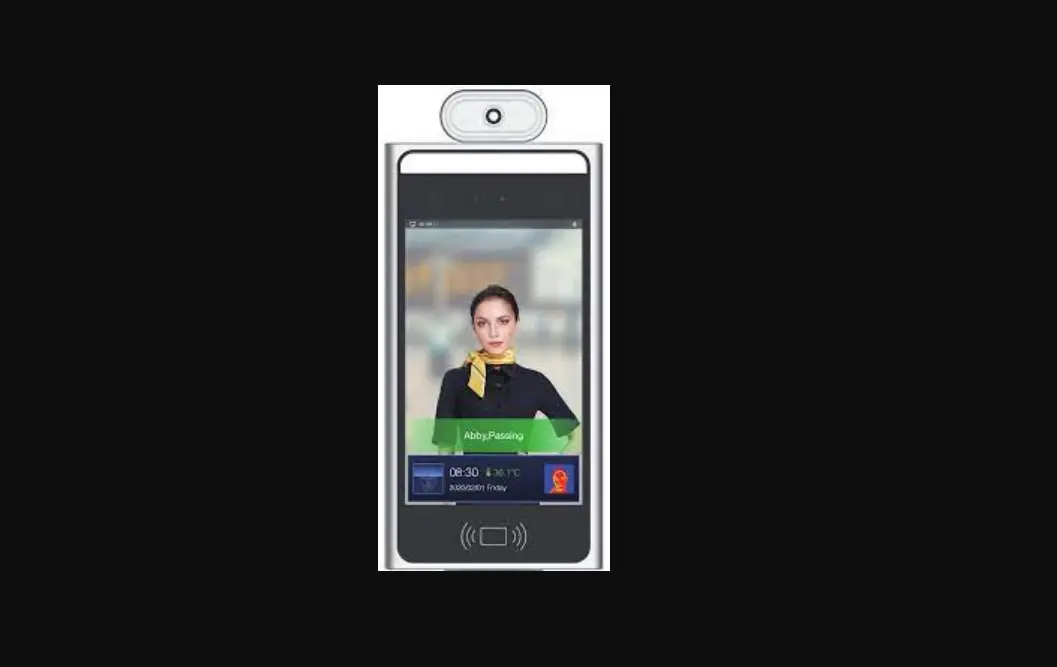
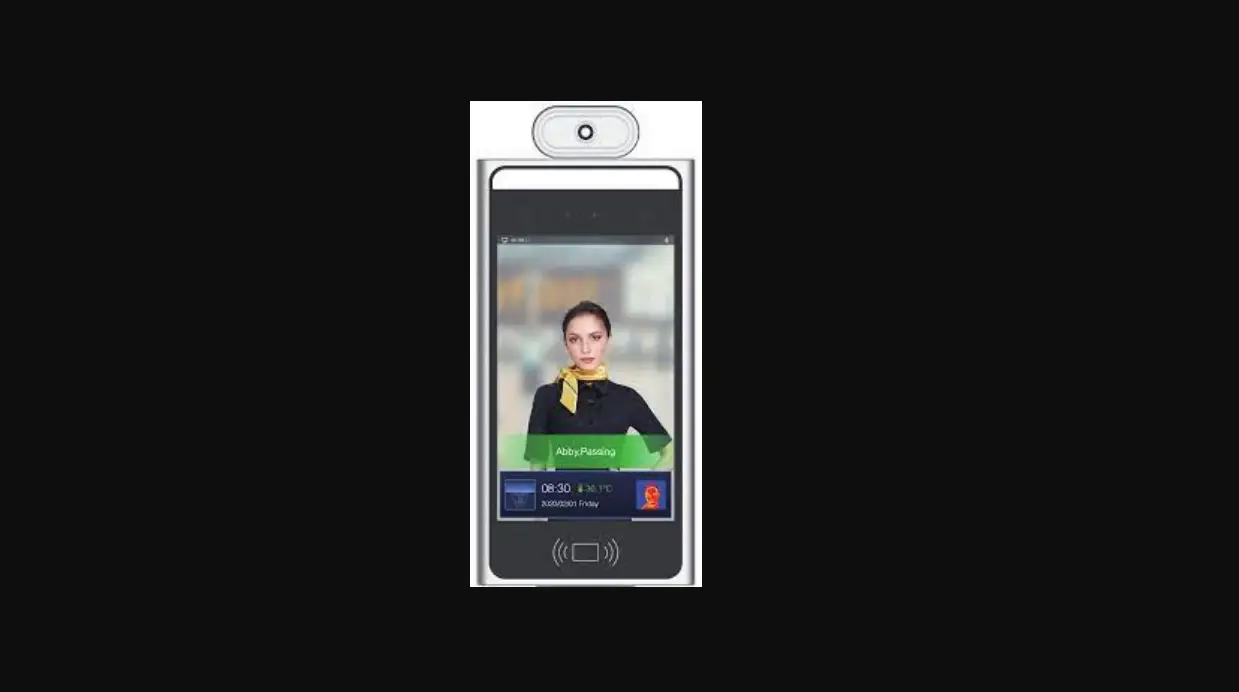
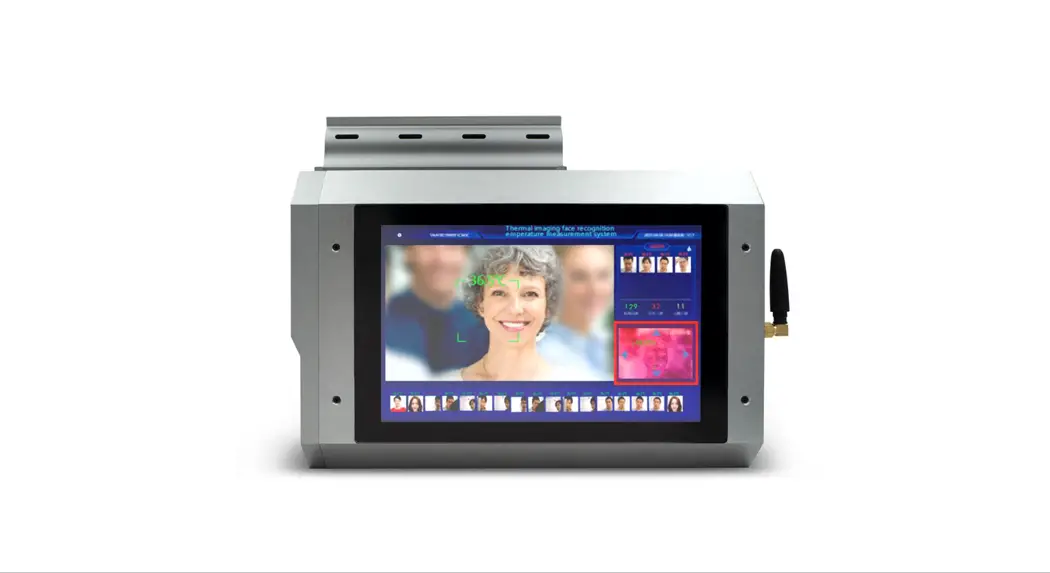
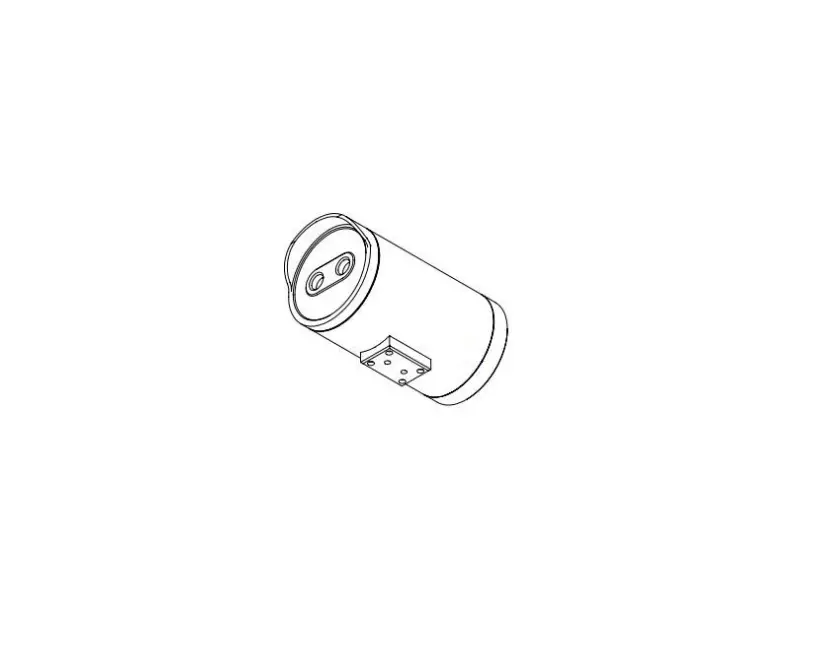
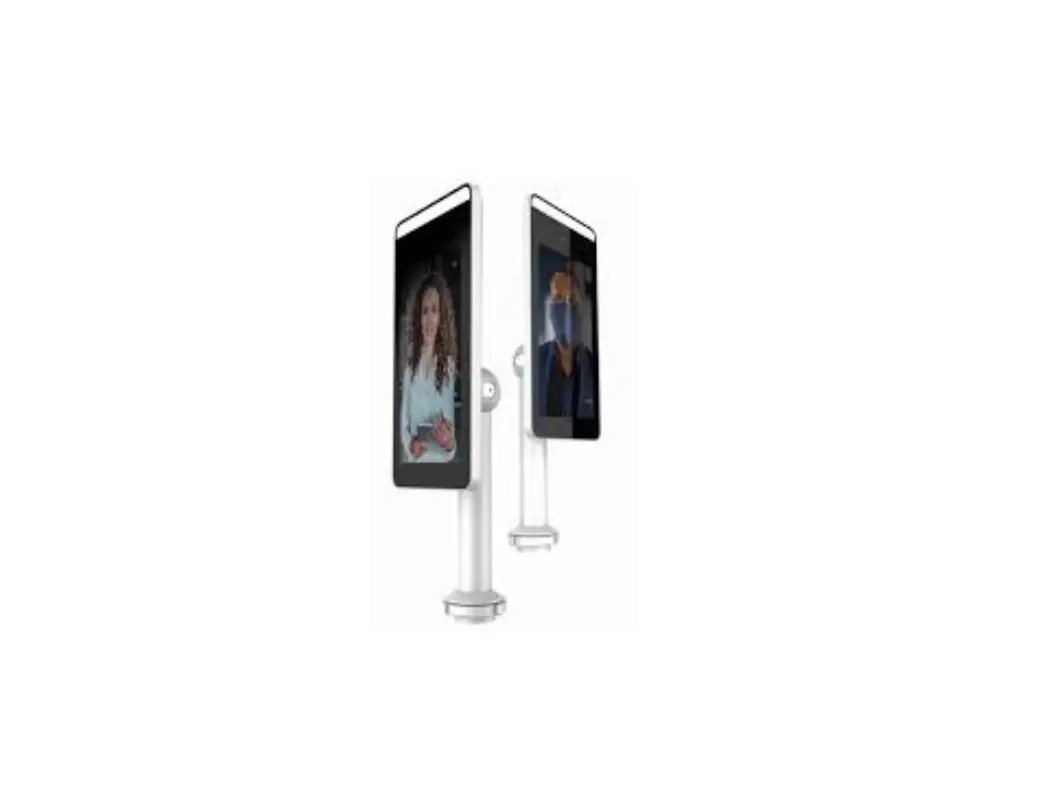
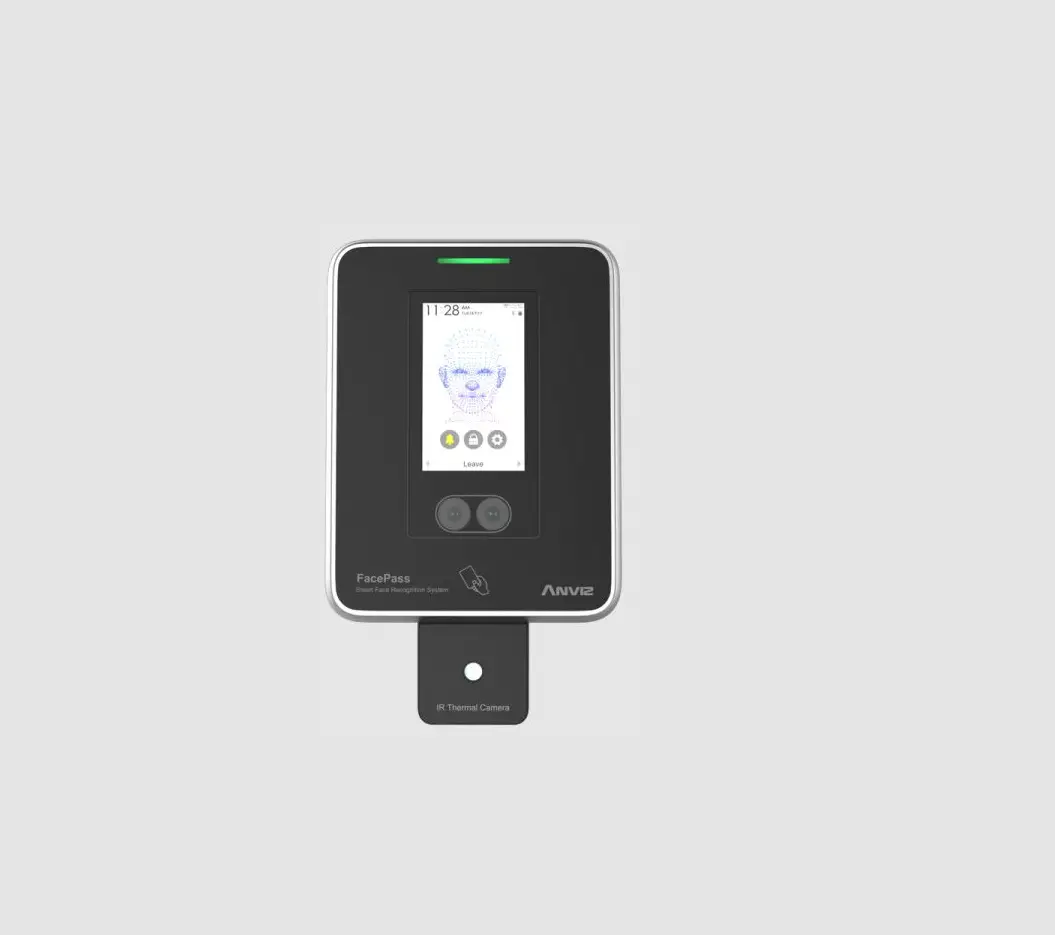
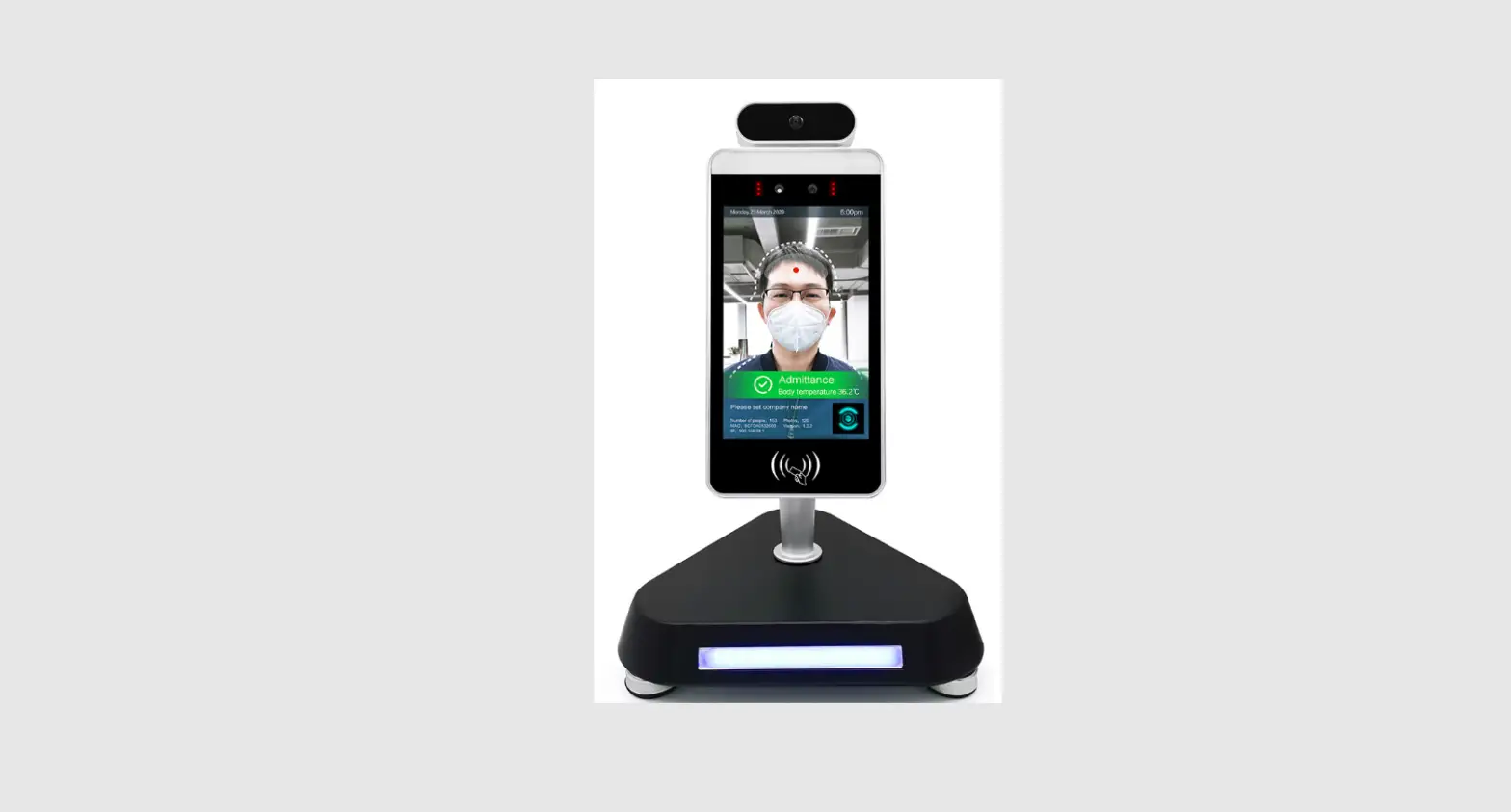
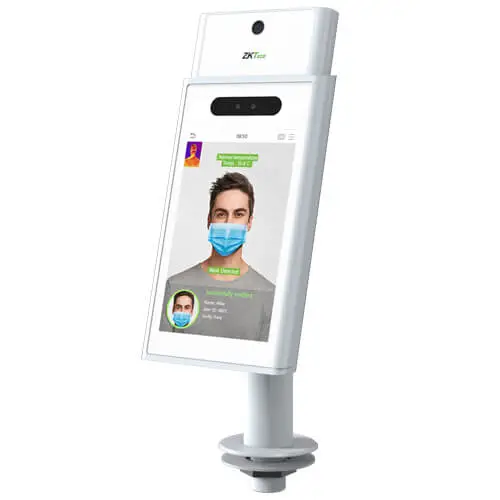
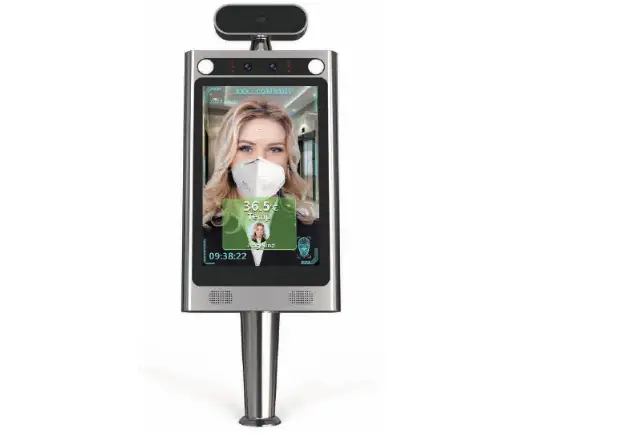
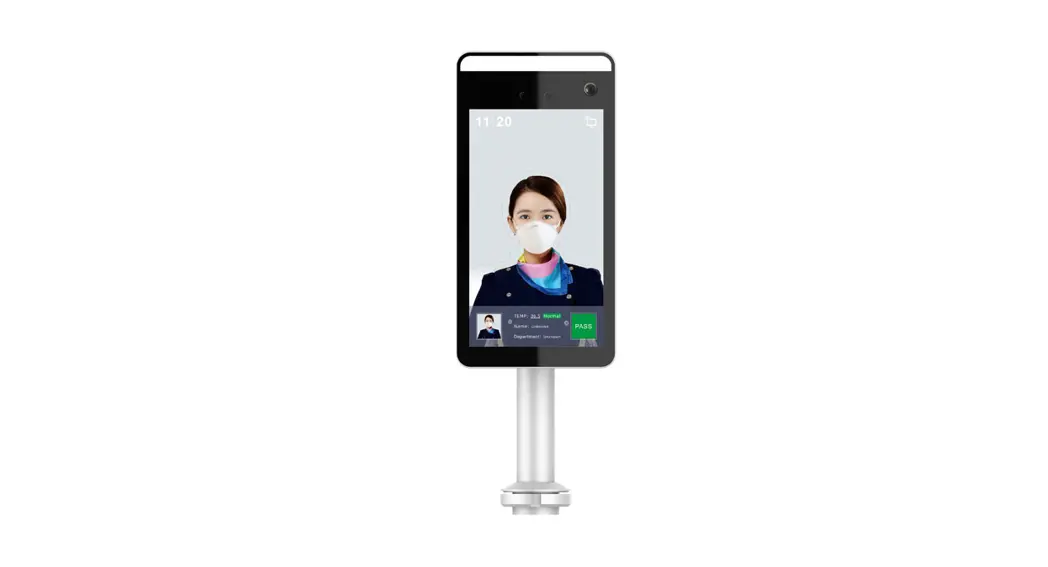
Smart Terminal 2000 is a fxe recognition temperature sensing terminal independently developed by our company that integrates face recognition. temperature measurement. attendance. and wireless connection.
A number of sighs and new technologies have been adopted such as video and audio coding and decoding technology. embedded system technology. storage technology. network technology and intelligent technology.
It has excellent face recognition and Eying body judgment functions. and accurate correction of body temperature detection technology based on the Al algorithm to achieve real-time matching of the face and body temperature. When the body temperature is abnormal. the device will broadcast the voice.
After the smart terminal 2000 is installed. the device can be managed through the SDP2020 platform or the device-side web page.
The attendance management function can realize 24-hour smart attendance check-in by setting attendance points and attendance plans. manage and query attendance records. control access control switches based on the recognition results and generate attendance reports. One machine for multiple uses. Mich awn brings all-around guarantees for enterprises and stores to resume work after the epidemic.
At present. in response to the multi-element requirements of various &acetate/1s. this product can be widely used in reports. entry and exit gates. airway statens_ government agencies. schools. scent spots. large I actores and other places Het repute identification. This; socket will help customers achieve more efficiency. safe and smarter access management
Products Appearance
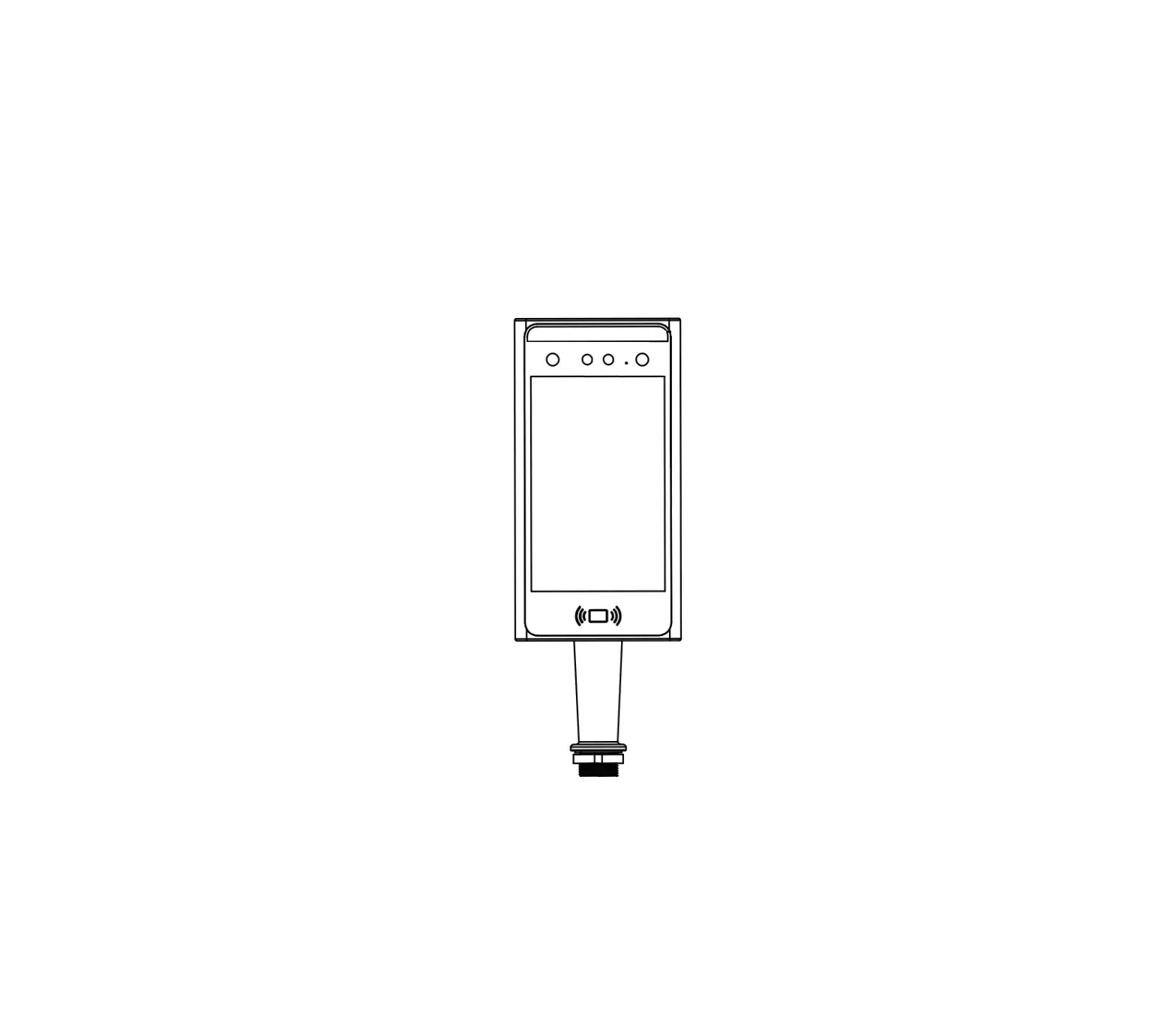
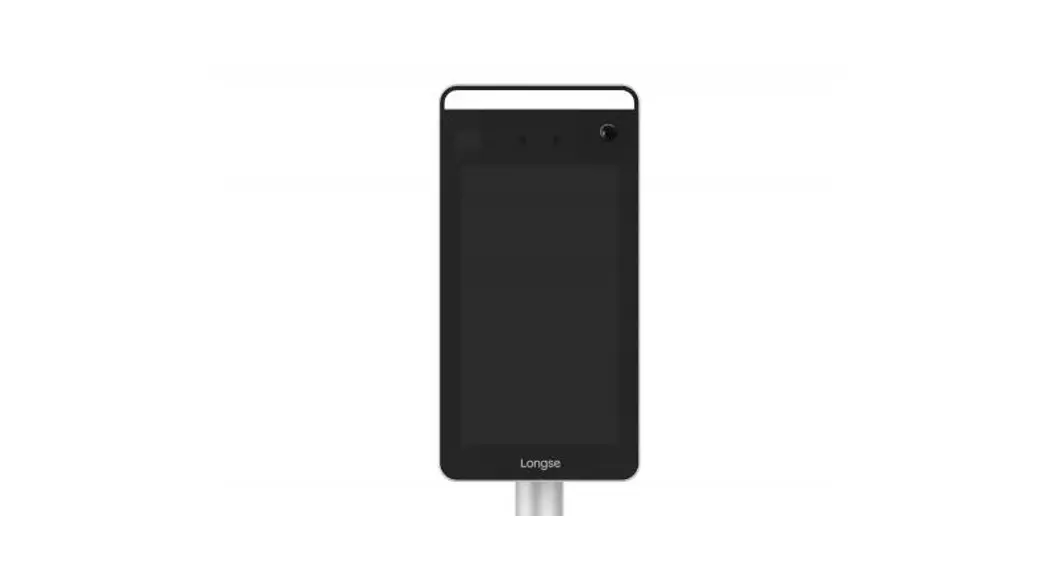
2.1. Front
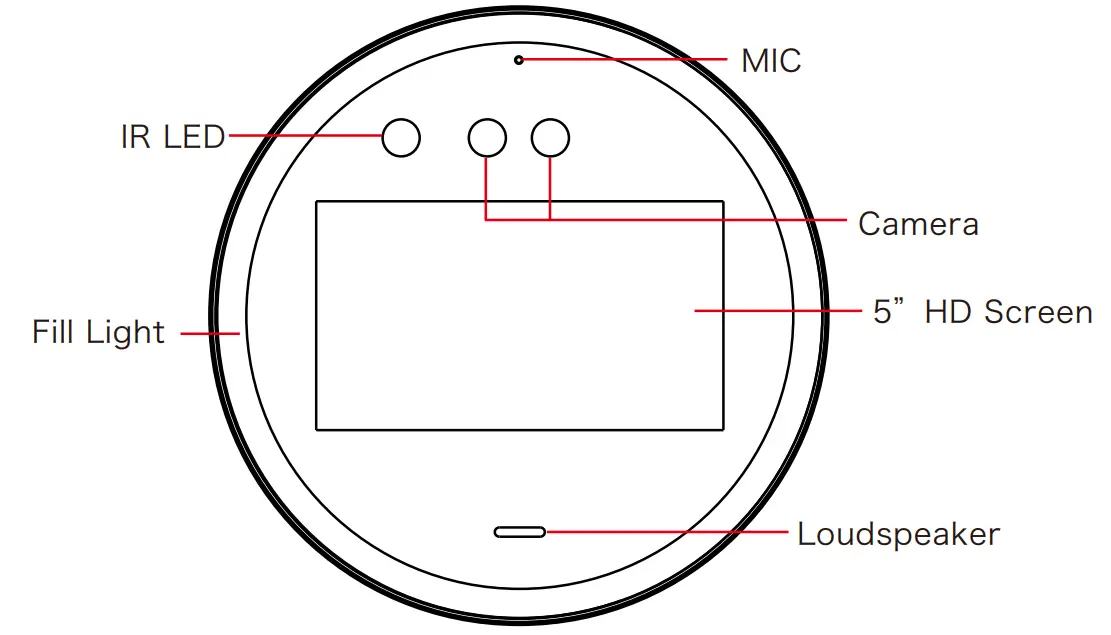 2.2. Back
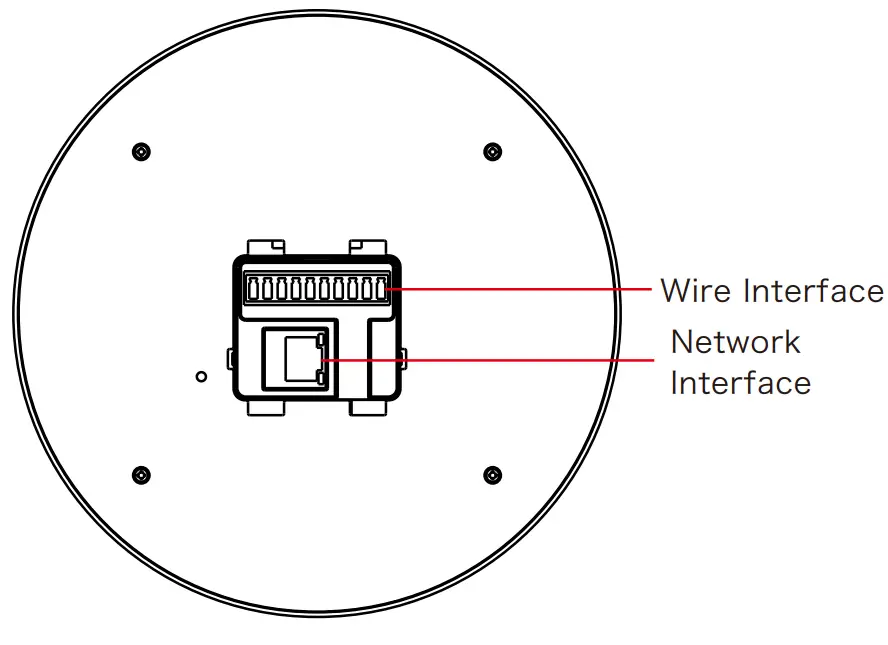
3. wire Interface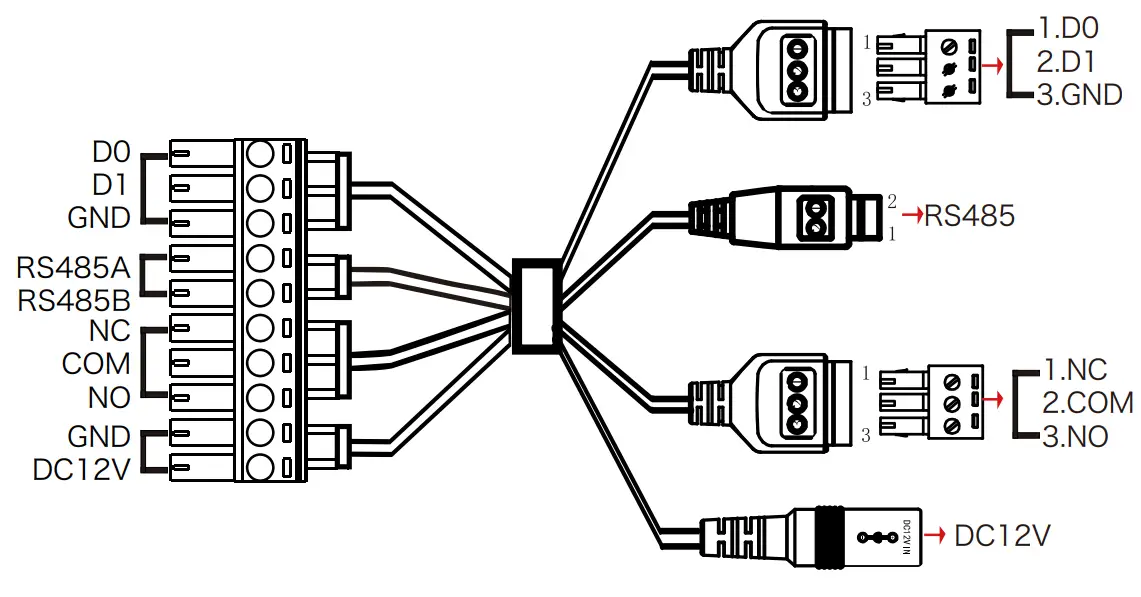
| Interface | Mark | Color |
| Wiegand Interface | DO | Blue |
| Dl | Purple | |
| W_GND | Gray | |
| RS485 Interface | 485A | Brown |
| 485B | Orange | |
| Relay Interface | NC | Green |
| COM | Yellow | |
| NO | White | |
| Power Interface | GND | Black |
| DC12V | Red |
Device Installation
4.1. Installed On The Desktop
Step 1: Turn the camera end of the device upward and turn it to the back.
Step 2: Put the silicone ring into the screw hole position on the inside of the desktop bracket.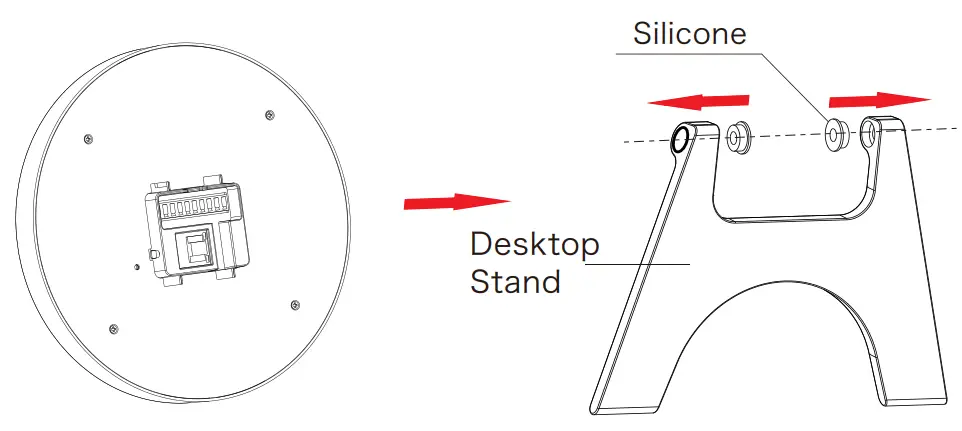 Step 3: Align the holes of the bracket with the holes of the device, and fasten the bracket to the body with screws.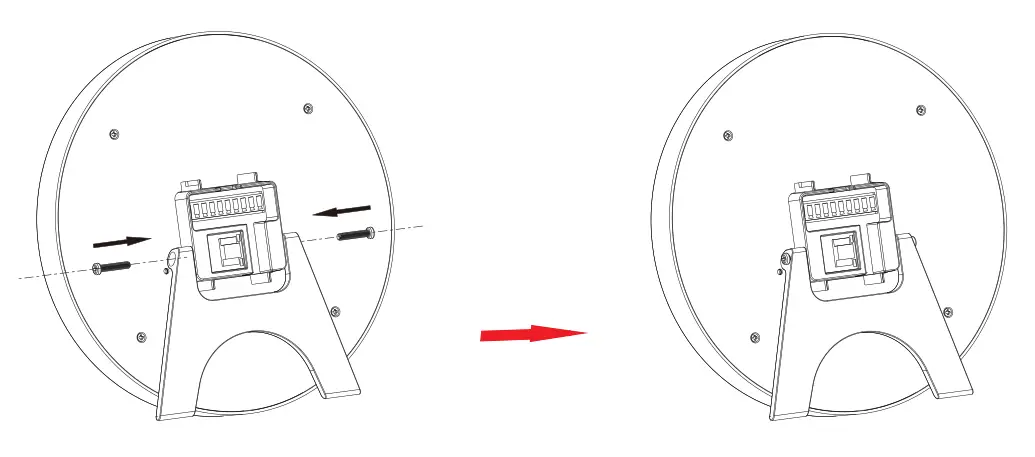
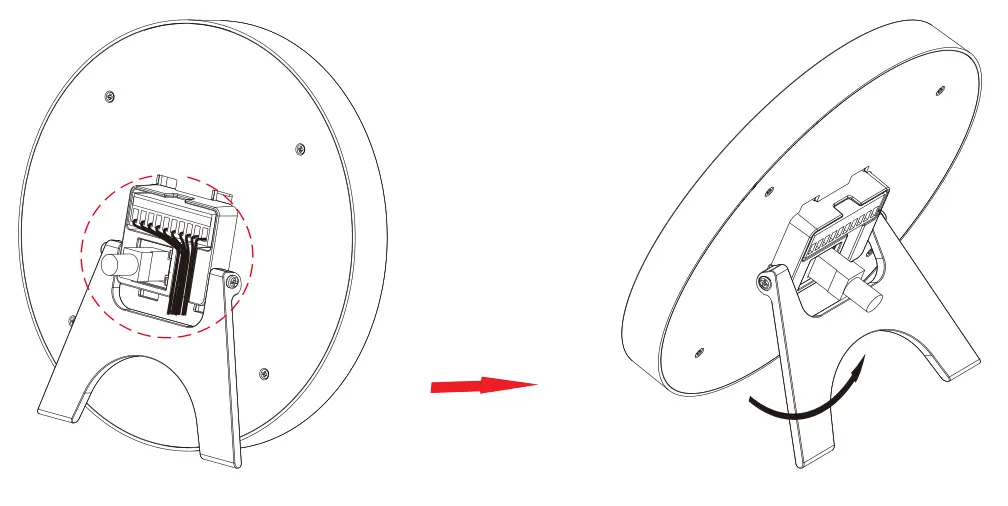
Step 4: Connect wires. To spread the desktop stand and adjust the angle as needed.
 4.2. Wall Mounted
Step 1: According to the installation sticker, open holes on the wall and install the rubber plug. 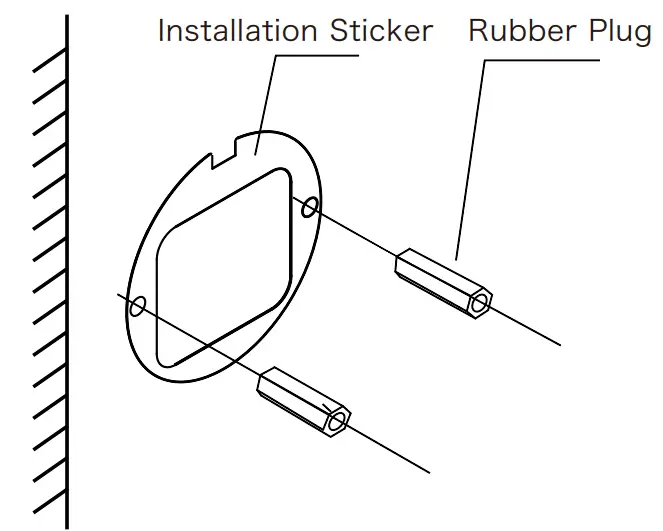
Step 2: Pass the network cable and 10PIN wire through the wall bracket, and arrange the wire into the wire groove, then fix the bracket to the wall with screws.
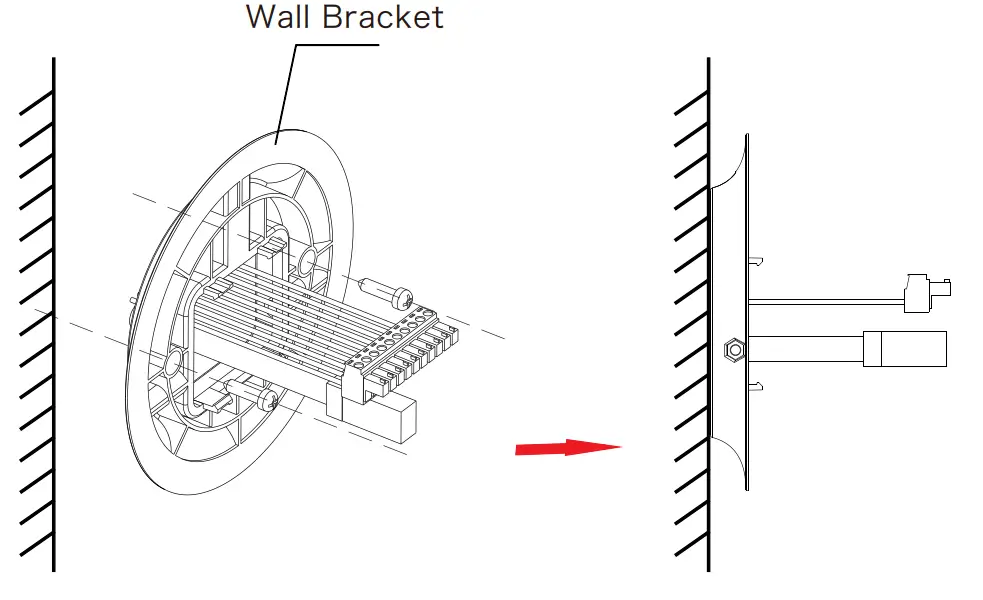 Step 3: Connect wires, install the device on the wall bracket, then align the screw holes on the left and right sides, install the nuts and lock the screws.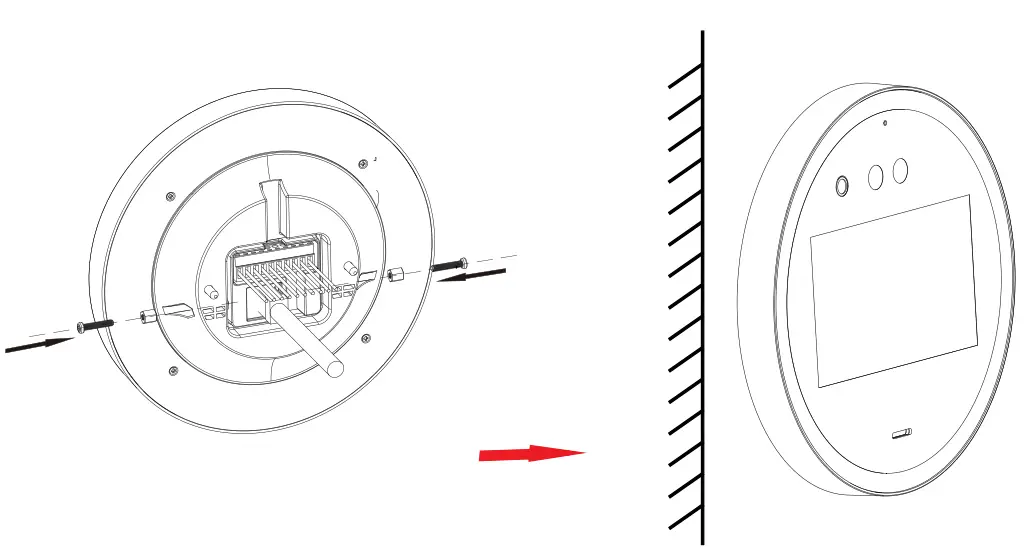
Platform Operation
Boot
According to the introduction of the wired interface, connect the device to the network so that the device and the configuration computer are under the same router, and power on.
5.1. Platform Installation
Step 1: Under the Windows operating system, double-click “SDP2000_EN_x64_VX.X. X.exe”, and follow the prompts to perform the installation. SDP2000
Step 2: After the installation is complete, the desktop displays the SDP2000 Server platform icon.
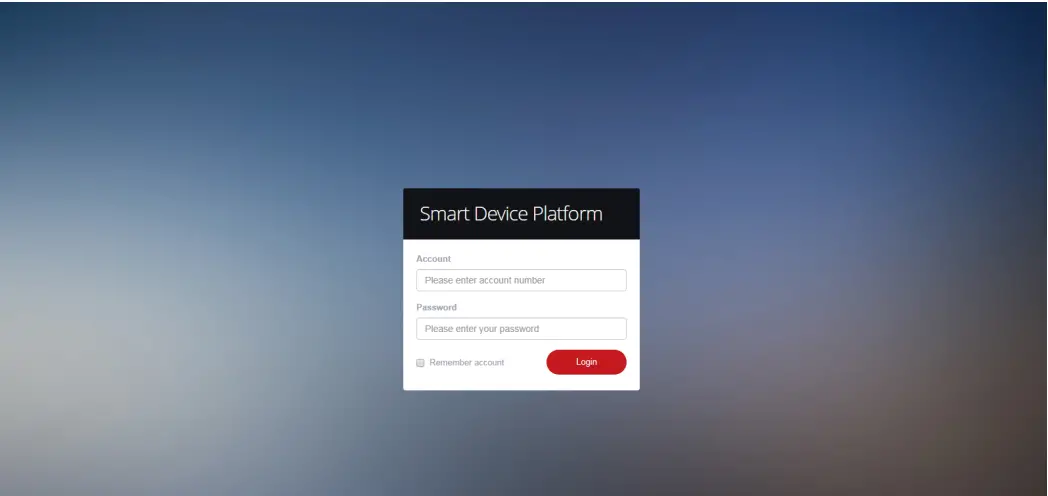
5.2. Log In
Step 1: Double-click on the desktop “ ” to enter the login interface. Google Chrome or Firefox browser is recommended).
Step 2: Enter the user name “admin”, password “admin”, and click “Login” to log in to the LAN platform.
5.3. Add Device
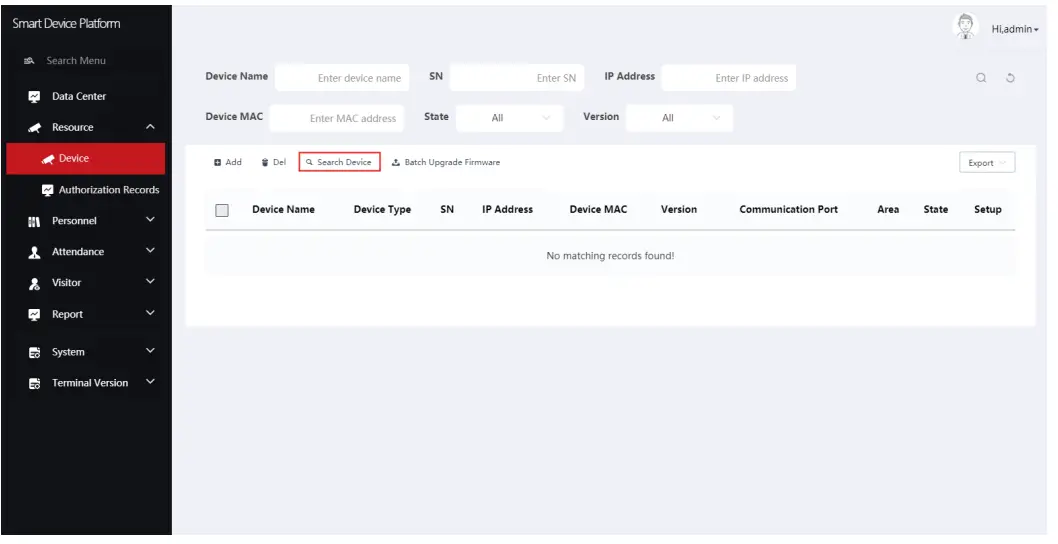
Step 1: After logging into the platform, check “Resource – Device – Search Device”.
 Step 2: Select the device, click ” “Submit”. ” to modify the device IP, and click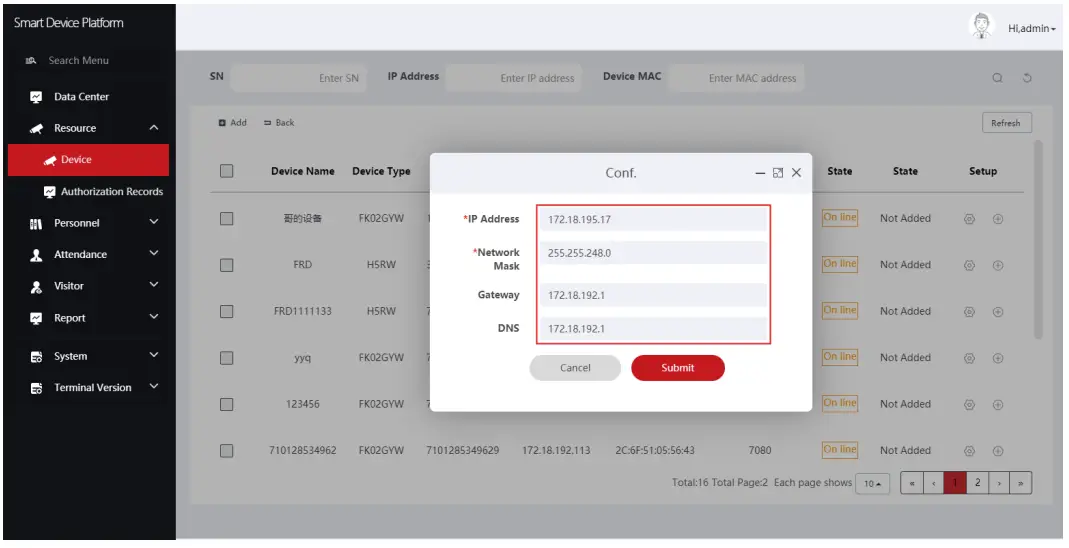
The device is turned on “DHCP” by default after leaving the factory. If the device is not connected to a DHCP server, but DHCP is set to “On”, the default values are as follows: IP Address: “192.168.1.88” Subnet Mask: 255.255.255.0 Port: “80” (Some device ports are “7080”)
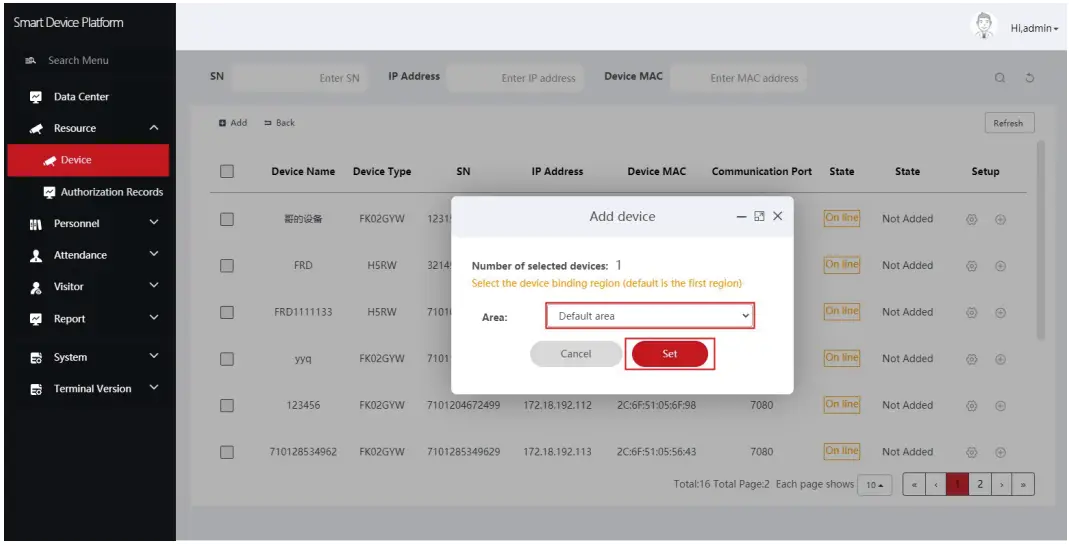
Step 3: Select the device and click ” + ” or ” – Add “, select the area, and click “Set”
5.4. Device Configuration
After logging in to the platform, enter the “Device” interface and click “ to configure the basic parameter and another parameter of network, remote, function, and delete the device.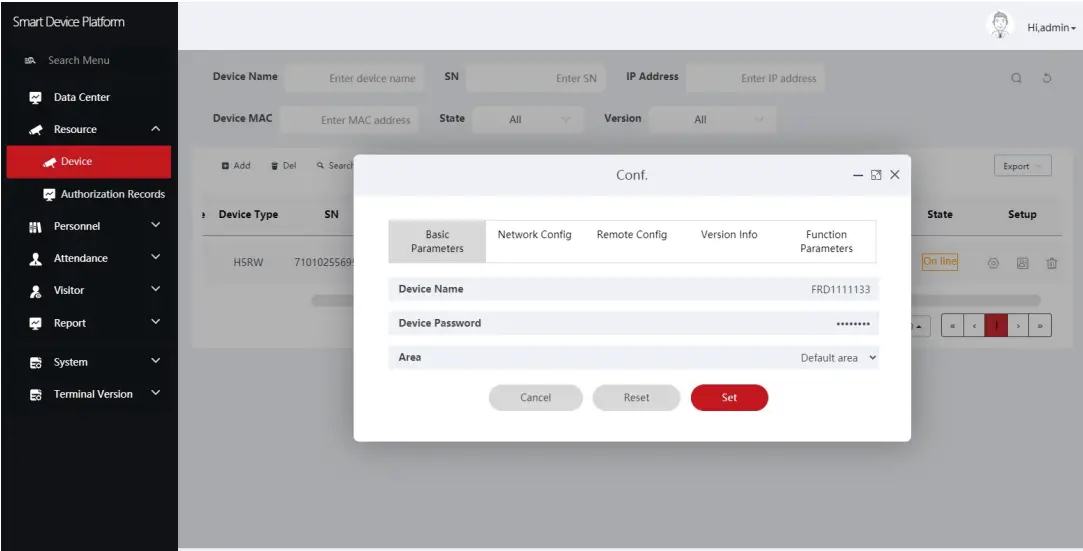
5.5. Import Face Library
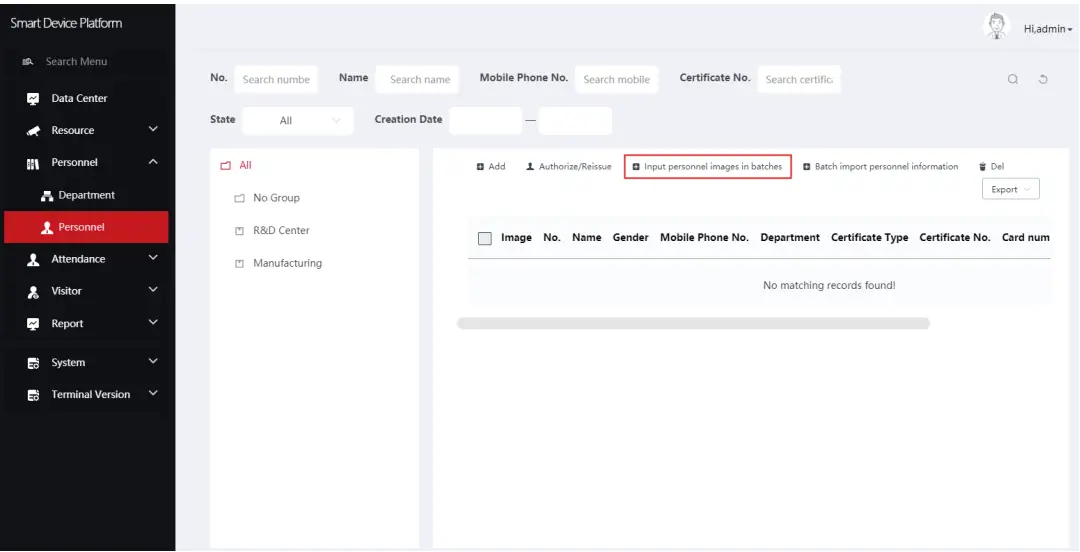
Step 1: [Input personnel images in batches] After logging into the platform, click “Personnel – Personnel – Import personnel images in batches” – select pictures – “Upload” and the pictures are added into the device.
 CAUTION
[Input personnel information in batches] When importing pictures in batches, the pictures must meet the following requirements:
- The picture naming format can be set as: name.jpg, name_department name.jpg, name_department name_ personnel number.jpg (the department name must exist in the system; the personnel number must be unique).
- Ensure a clear face picture and the total size must be less than 80M.
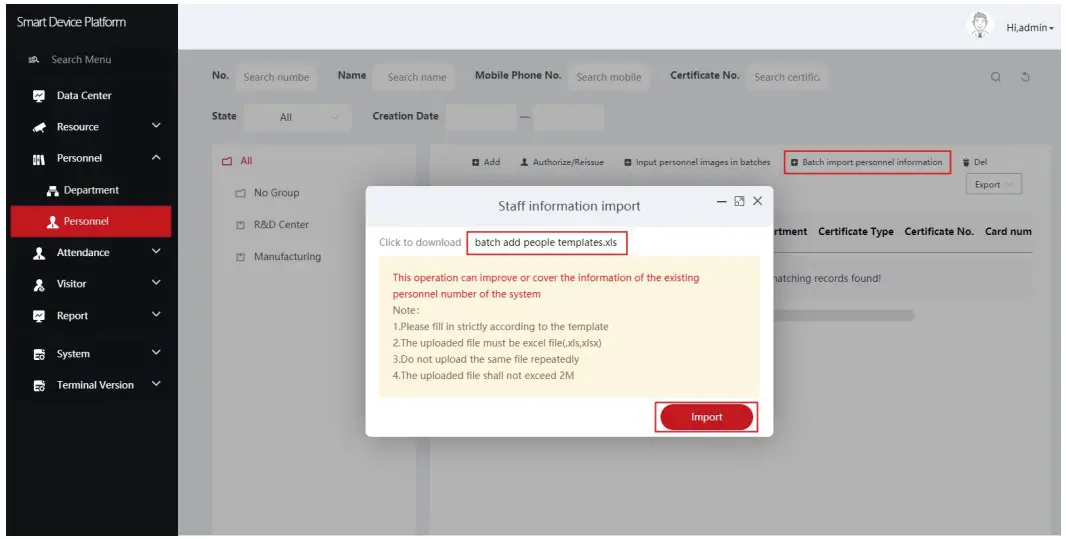
Step 2: Click “Input personnel in batches – batch add people templates.xls”, download “Templates”, enter personnel information in the template according to the picture, then save the template, click “Import”, and import the saved personnel information template.
 Step 3: After the gallery is added to the device it can realize face recognition.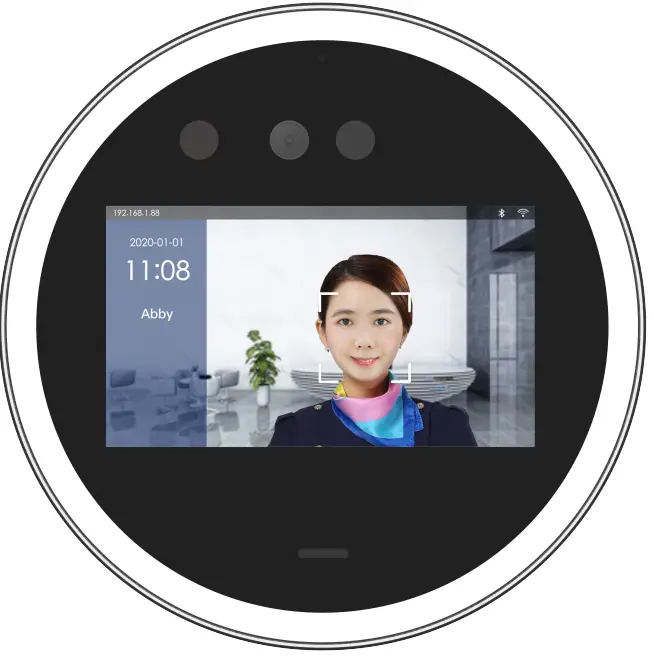
CAUTION
When an abnormality occurs on the smart terminal platform, such as abnormal reading or abnormal data interface request, please follow the steps below: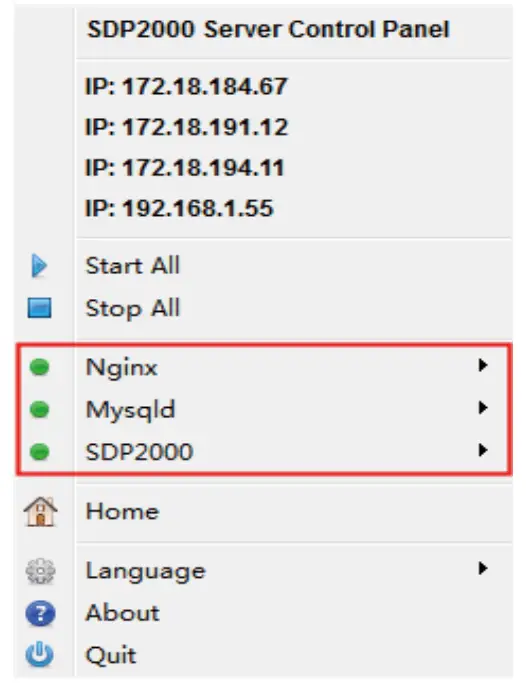 Right-click the running SDP2000 icon in the lower right corner of the desktop to check whether the status of Nginx, Myself, and SDP2000 is green (normal state). If any item is displayed in gray, restart the software to make it green.
Online Upgrade
Prerequisites: The device is connected to the Internet.
Auto online upgrade
Step 1: Open the IE browser, enter “HTTP: // device IP address: port number”, such as “http://192.168.1.88“, enter the login interface, enter the device default user name (admin) and password (12345).
Step 2: Click “Configuration—, System Configuration—Maintain”, check “Auto Online upgrade”, every Wednesday (this time can be set to another day) the equipment automatically detects whether there is a new version online, when “New version detected, update or not” is displayed, click “Upgrade” , The device interface displays “Upgrade will start after reboot. Please do not shut down the power”, then the upgrade progress bar will be displayed, and the latest version of the program will be used after the upgrade is completed.
Manual online upgrade
Step 1: Open the IE browser, enter “HTTP: //device IP address: port number”, such as “http://192.168.1.88“, enter the login interface, enter the device default user name (admin) and password ( 12345).
Step 2: Download the upgrade file and click “Configuration—System Configuration—Maintain Online Test”. When there is a new version, the system will prompt a sign stating whether to download it? Click “OK” to automatically download the new version to the default path.
Step 3: In the upgrade file location, click “Browse”, select the downloaded upgrade file, click “Upgrade”, the device interface will display “Upgrade will start after reboot. Please do not shut down the power”, the device starts to upgrade, and wait for the upgrade progress bar to complete. The equipment is upgraded.