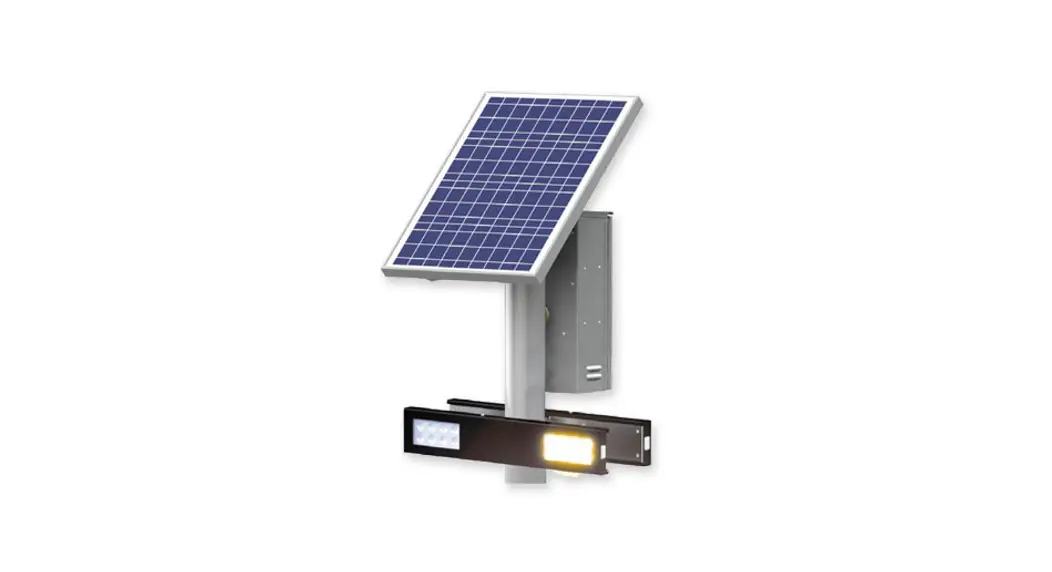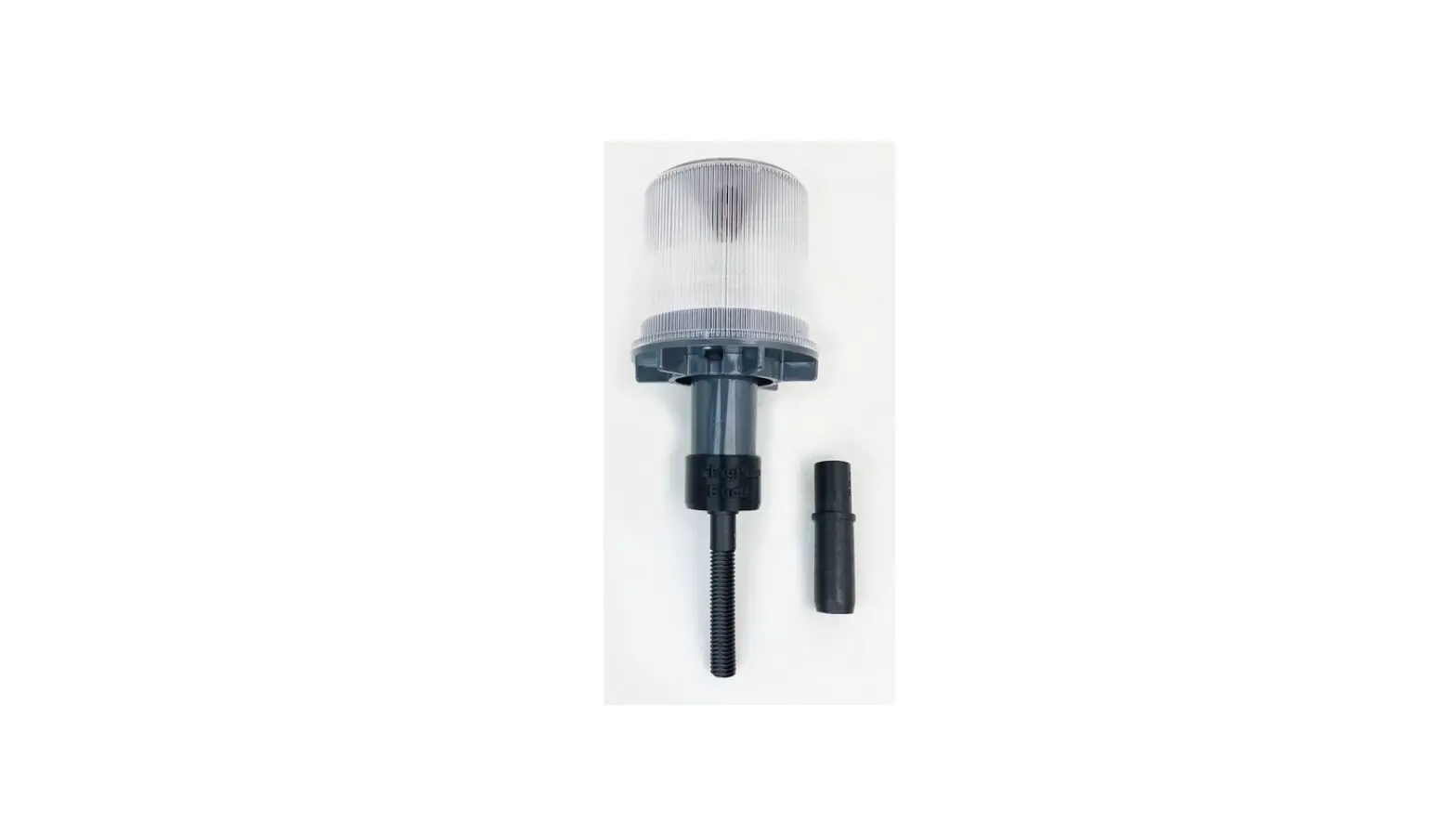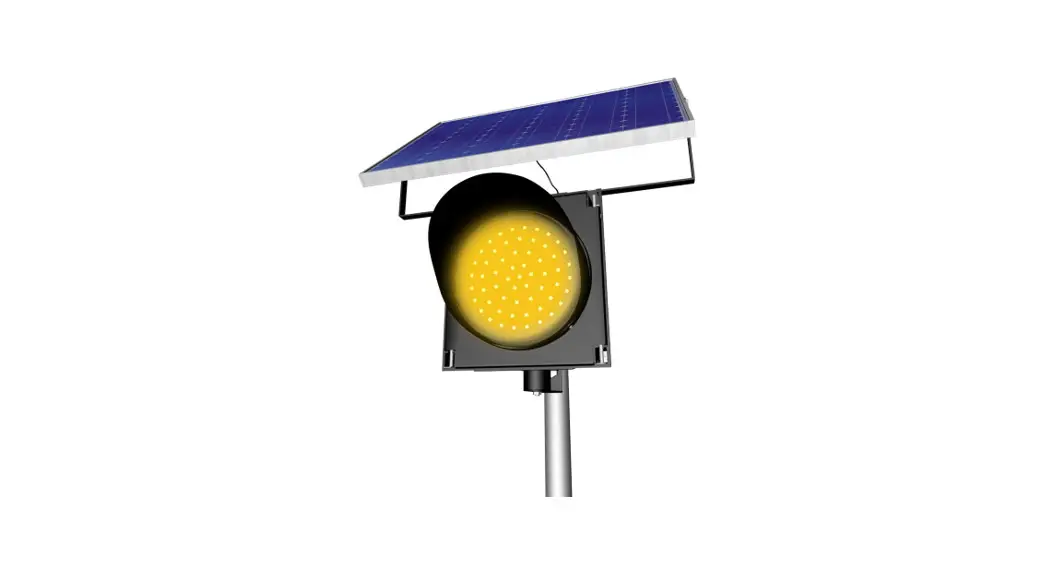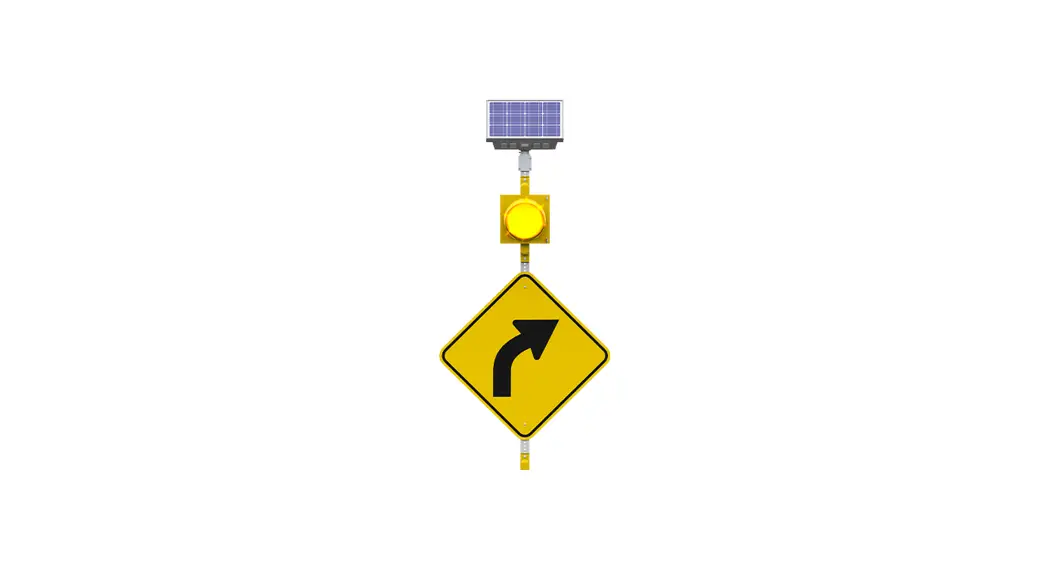
 G Series
TRAFFIC BEACON QUICK START GUIDE
For the SC315-G, R820-G, R829-G, and R247-G flashing beacons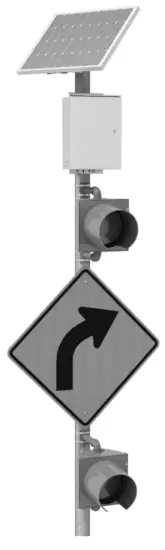 84776_QSG_TRA_G-Series_RevF
Safety Precautions
 ELECTRICAL SHOCK HAZARD. DO NOT ALLOW THE BATTERY TERMINALS TO COME INTO CONTACT WITH ANY EXPOSED METAL.
The product can have sharp edges. Accidental movement of hinged components can cause injury.
Batteries are shipped fully charged. Use extreme caution when handling the batteries as they can generate hazardous short-circuit currents. Remove all jewelry (bracelets, metal-strap watches, etc.) before handling the batteries.
Solar panels produce DC electricity when exposed to light and can therefore cab produce an electrical shock or burn. To render solar panels inoperative, remove them from sunlight or fully cover their front surface with an opaque material.
Before lifting any heavy or bulky equipment, ensure the load is secured so moving parts do not shift, and that it can be lifted as far as needed without back strain or loss of grip. Installation may require more than one person.
Ensure the equipment is not energized during installation.
Recheck all completed wiring for proper polarity prior to energizing the system.
Perform all installation, wiring, grounding, and maintenance in conformance with local building and electrical codes. Adherence to the National Electrical Code (NEC) is mandatory to comply with any certification markings. Non-adherence to code may void the warranty.
Changes or modifications to Carmanah equipment not expressly approved by Carmanah could void both the user’s authority to operate the equipment and the warranty.
For solar applications, ensure the installation location has an unobstructed view of the sun’s path. Obstructions such as trees or buildings could significantly reduce the amount of sunlight on the solar panel. Shade analysis is highly recommended to understand how shadows will change according to the time of year. Contact Carmanah for a detailed examination and solar simulations for your site.
NOTE: This quick start guide is not a replacement for the complete product user manual.
Visit support.carmanah.com to download the complete product user manual.
Tools and Materials Required
The following tools and materials may be required to mount your Carmanah flashing beacon depending on the G Series model and configuration:
| a. Imperial socket set | h. Drill and drill bits |
| b. Crescent wrench | i. Fine tip felt marker |
| c. Tap set | j. Multi-bit screwdriver |
| d. Imperial Allen-Wrench set | k. Pelco Roger-Wrench (Optional) |
| e. Fish tape | l. Ladder or lift device |
| f. Level | m. Lithium grease |
| g. Compass or pre-determined equatorial direction | n. Electrical Multi-meter (Optional) |
Commissioning
After installing and programming the G Series flashing beacon system, the following commissioning verification checklist helps ensure that everything is working as intended:
- EMS settings are correct.
- No LED fault message on the EMS.
- For single or triple fixture systems, ensure the flash pattern is set for unison 0.5U or 0.5A3.
Fixtures flash properly: - Use “TEST” at the EMS user interface to check the functionality of LED fixtures.
- All fixtures are mounted securely and pointed in the correct direction toward oncoming traffic lanes.
- For school zone systems, the retrieved calendar from R829-G is confirmed to be accurate.
- The solar panel pointed South (or as per specific instructions provided by Carmanah).
It- Not applicable for AC-powered models. - Override box (if equipped) correctly activates or deactivates the flashing (depending on model input setting).
- The solar panel is properly mounted, and the mount is secure.
It- Not applicable for AC-powered models. - No debris covering the photosensor window on top of the solar engine.
- Vents are clear, and screens are intact.
- The sealing gaskets on the door are intact.
- The solar panel is producing a voltage in sunlight (use EMS “Solar” user interface menu item).
It- Not applicable for AC-powered models. - The system has clear-sky access, and no removal of obstructions is required.
It- Not applicable for AC-powered models. - Note the possibility for nearby foliage to eventually shade the solar panel at a different time of year. If so, set a reminder to inspect later.
It- Not applicable for AC-powered models. - Battery voltage is healthy (use either a voltmeter or EMS “Battery” user interface menu item).
It- Not applicable for AC-powered models. - Verify both fuses are intact (use voltmeter to confirm fuse continuity).
- RRFB light bar flashing starts with the left LED module first.
- Remote systems are turning on and off correctly via wireless control.
- For RRFB systems, verify the indicator LEDs on the ends of light bars can be seen by pedestrians across the street.
- Ensure the cabinet door is fully closed and latched.
Solar Panel Mounting (Side of Pole)
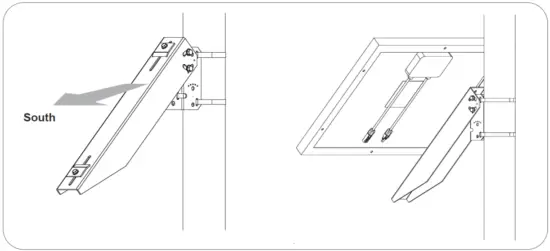
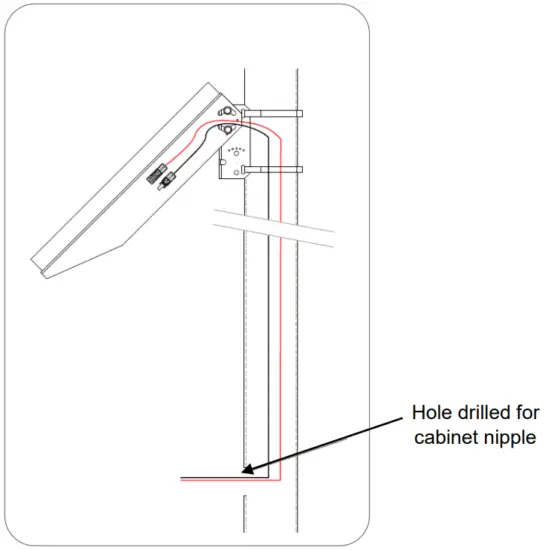
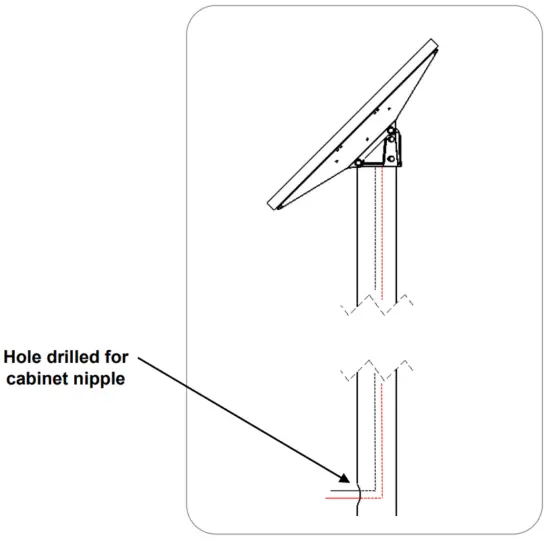
- Mark the position of the solar panel mount on the pole and drill a suitable hole for the solar panel wires. Follow instructions supplied with the mount. Install using a 45° tilt angle. Ensure the solar panel is facing South (for Northern Hemisphere locations).

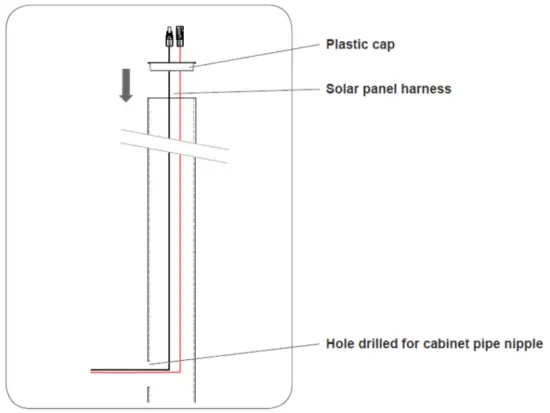
- Route supplied solar panel wires down pole and through-hole for cabinet conduit nipple.

Solar Panel Mounting – Top of Pole (Legacy Galvanized Steel Mount)
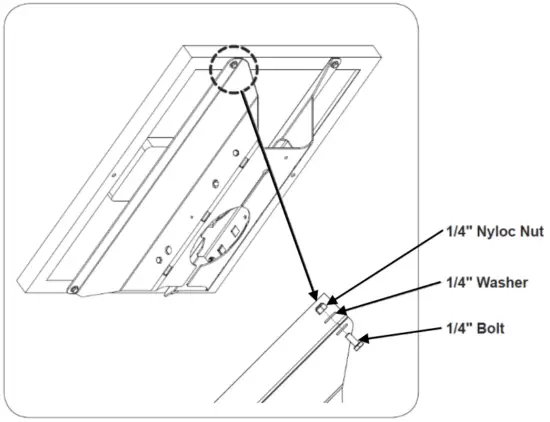
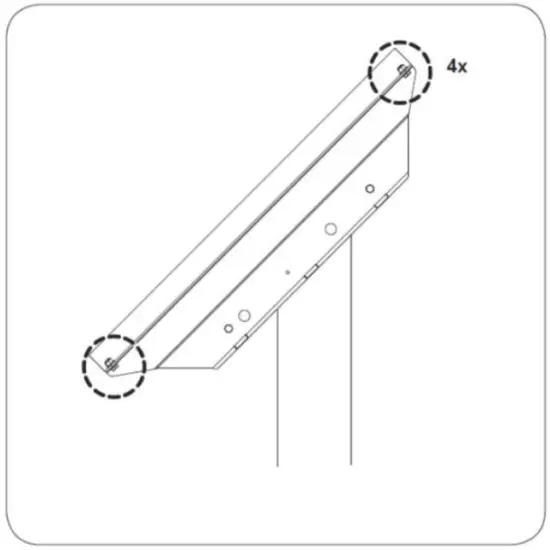
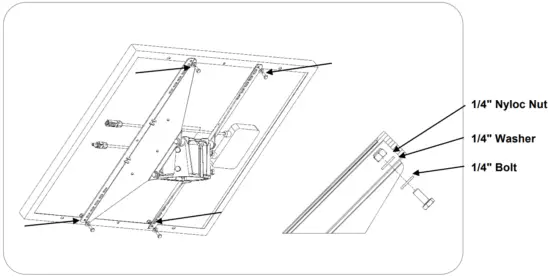
- Attach solar panel to the top of pole mount using supplied ¼” bolts, washers, and locknuts. Leave nuts finger tight. DO NOT FULLY TIGHTEN at this stage.

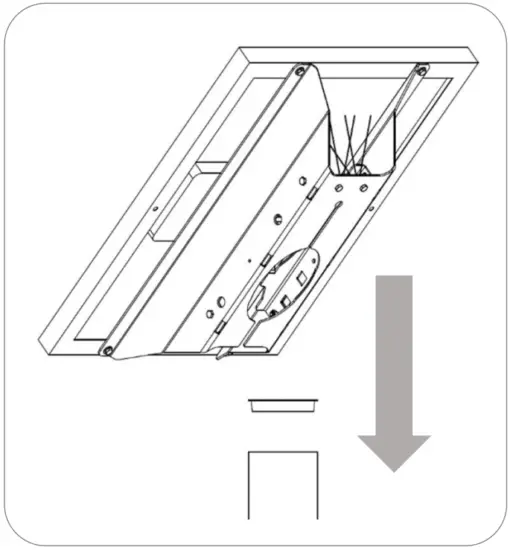
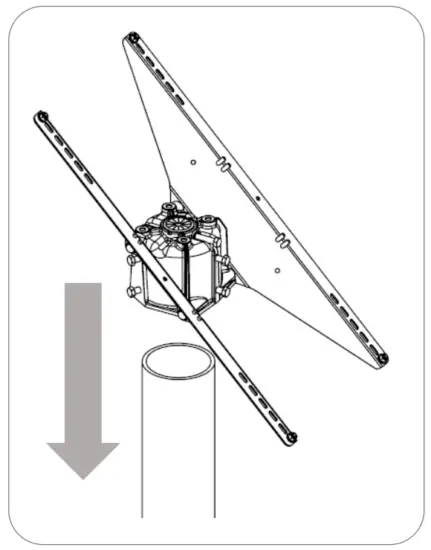
- Insert cap into pole top and slide bracket onto the pole.

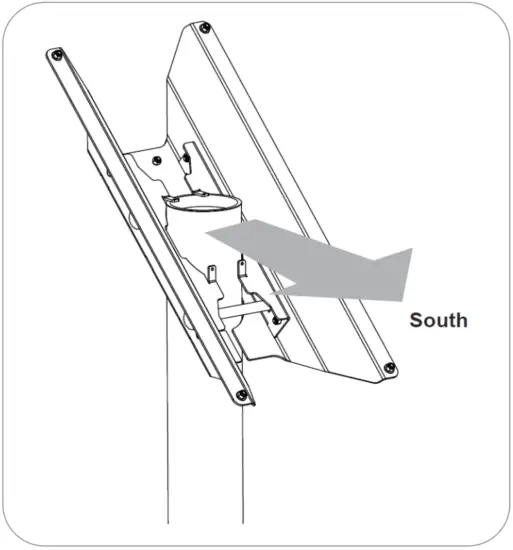
- Ensure panel mount sits securely on the top of pole cap, as shown below (image shows solar panel removed for illustration purposes). Orient so panel faces South (in Northern Hemisphere).

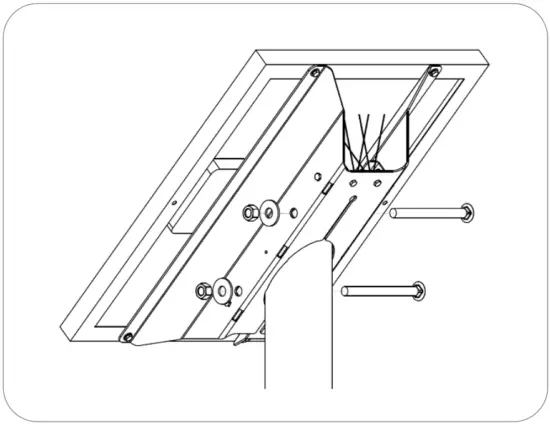
- Install and tighten supplied 5/8” bolts with nuts and washers.

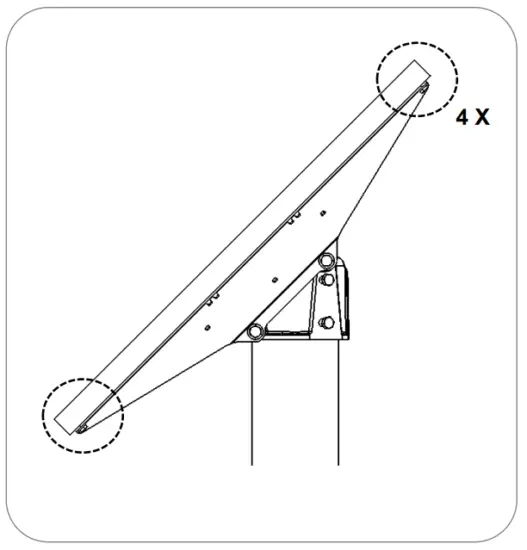
- Tighten ¼” bolts and nuts securing the solar panel to mount.

- Route supplied solar panel wires down pole and through-hole for cabinet conduit nipple.

Solar Panel Mounting – Top of Pole (Cast Mount)
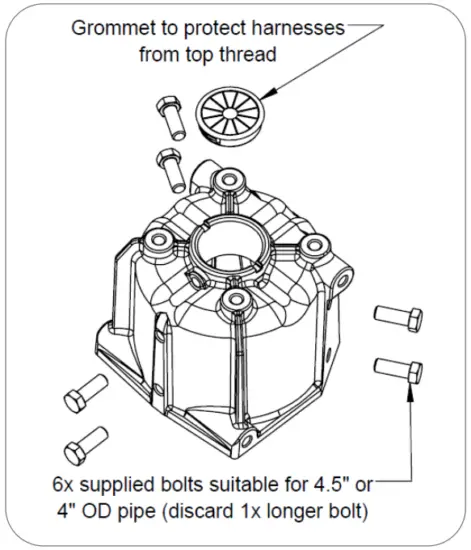
- Install grommet and thread 6x 3/8” bolts into casting. Only thread in a couple of turns so bolts do not protrude inside.

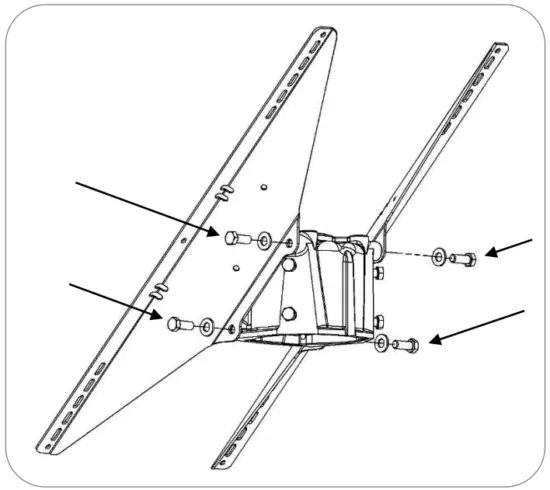
- Attach both sheet metal brackets to casting with supplied 3/8” bolts and washers.

- Attach solar panel to the top of pole mount using supplied ¼” bolts, washers, and locknuts. Leave the fasteners finger tight. DO NOT FULLY TIGHTEN at this stage.

- Slide casting over top of pole and orient so panel faces South (in Northern Hemisphere). Tighten the 6x 3/8” bolts to secure casting to pole (solar panel not shown for illustration purposes).

- Tighten ¼” bolts and nuts securing the solar panel to mount.

- Route supplied solar panel wires down pole and through-hole for cabinet conduit nipple.

Cabinet Mounting
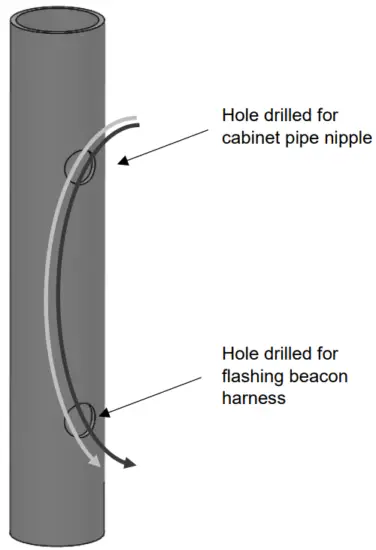
- Mark the positions of the flashing beacon(s), LED sign(s) or light bar(s), and cabinet on the pole. Drill holes for cables and pipe nipple exit/entry points as shown below.

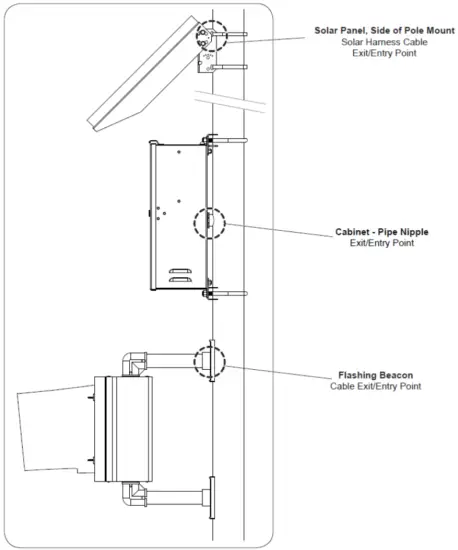
NOTE: Before mounting the cabinet to the pole, all wiring internal to the pole (power, LED, optional StreetHub™ serial communications, and ground cables) should be fished through the pole.
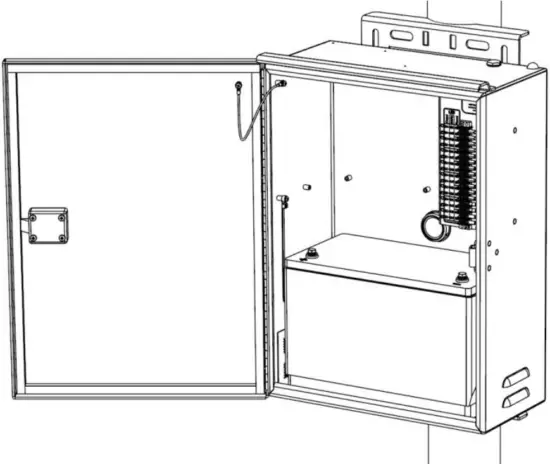
- Loosen four nuts on the back of the cabinet and spread brackets outward. Tighten nuts to 20 ft-lb.
 NOTE: On the back of the cabinet, there are 2 drill points that may be used for routing of liquid-tight conduit external to the mounting pole. Prior to drilling the cabinet, ensure there are no components that may be damaged on the inside of the cabinet.
An optional hole plug kit is available if the pipe nipple is removed from the cabinet (see below).
- Route the beacon or light bar harnesses through the cabinet pipe nipples.

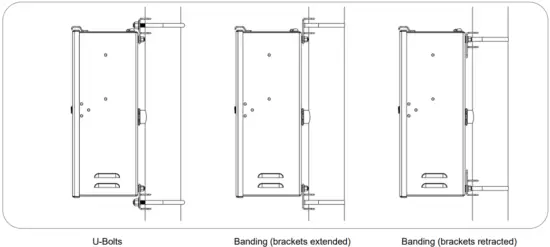
- Route solar panel wires into the cabinet and install the cabinet onto the pole with an optional U-bolt kit or suitable banding (not supplied).

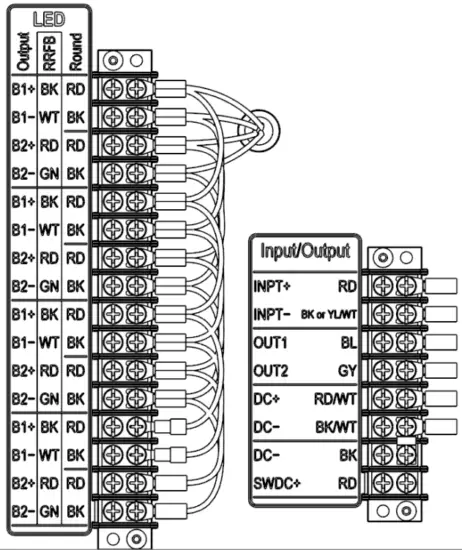
- Connect the beacon/light bar harness(es) to the LED terminals. For light bars, use the “RRFB” wire colors shown on the label. For beacons or signs use the “Round” wire colors shown on the label. If a pushbutton is used, connect push-button terminals: red to INPT(+), black to INPT(−).

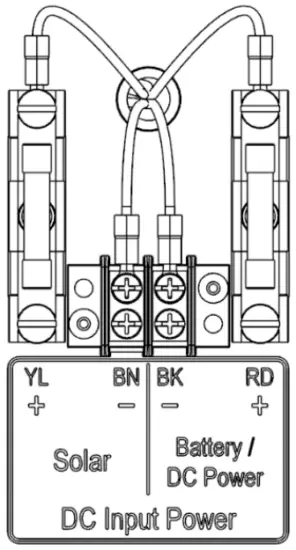
- Connect solar panel harness to terminals on right side of cabinet: red wire with yellow heat shrink to Solar (+), black wire with brown heat shrink to Solar (−).

- Install and connect the battery using the color-coded wires as shown on the terminal wiring label (red to positive, black to negative).

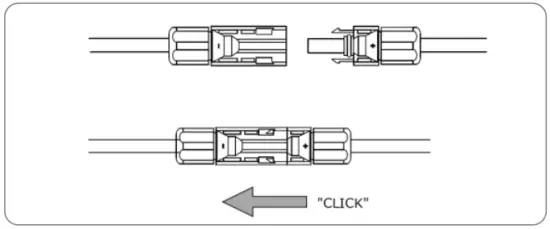
- Connect the solar panel harness to the solar panel. Solar panel connectors and excess cable can be coiled up and tie-wrapped underneath the solar panel.

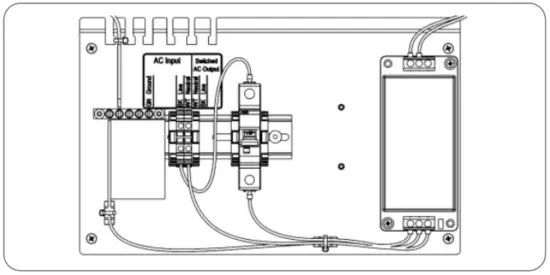
- For AC systems, connect AC input wires according to the label description Black / HOT to the circuit breaker, White / NEUTRAL to the terminal block, and Green / GROUND to the ground bus bar.

 Ensure the cabinet door is fully closed and latched once all internal wiring connections and system configuration have been completed; otherwise, damage may occur to the cabinet door or internal components.
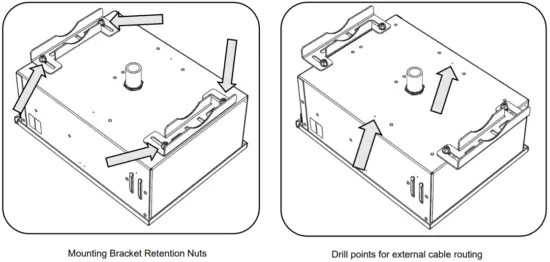 NOTE: On the back of the cabinet, there are 2 drill points that may be used for routing of liquid-tight conduit external to the mounting pole. Prior to drilling the cabinet, ensure there are no components that may be damaged on the inside of the cabinet.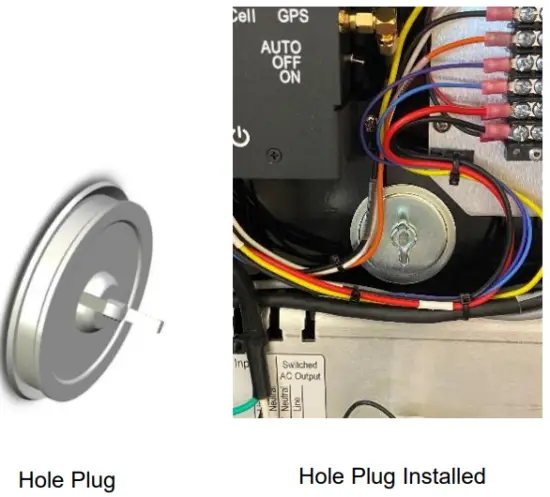
RRFB Light Bars Installation (SC315-G)
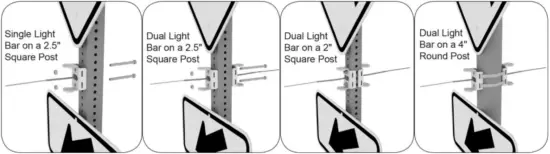
- Feed light bar cable(s) through the post, creating a drip loop.
- Mount light bar universal bracket(s). Bolts and banding not supplied.

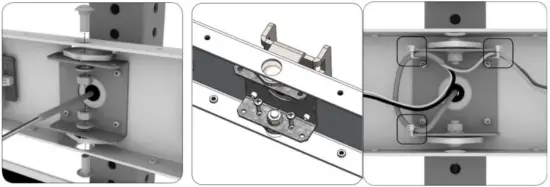
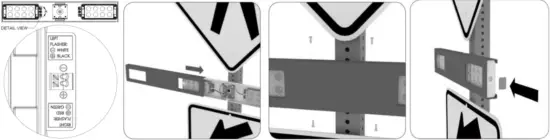
- Mount light bar(s) onto universal bracket(s) through slots in the back. Bolt light bar to universal bracket as shown. Install two anti-vandal rotation locking screws. Tighten mounting nuts. Secure cable using supplied cable ties as shown.

- Align the light bar as required. Push light bar wires into light bar connectors, following the color scheme indicated on the unit. For FHWA compliance, mount a light bar so black and white wires are on the left side. Slide on light bar cover and secure with four screws provided. If the pedestrian confirmation light is not required in one direction, use the supplied opaque label to cover the indicator light.

RRFB Light Bar Backplates (R920-E/F)
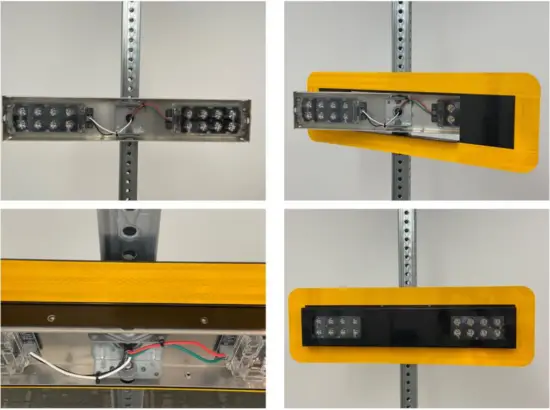
- With the light bar already installed and wired, install the backplate over and behind the light bar with the flanges facing forward.
- Install light bar cover and align screw holes.
- Slide backplate flanges forward over light bar cover.
- Align and install four screws for several turns, then tighten all four.

Pushbutton Installation (SC315-G / R820-G)
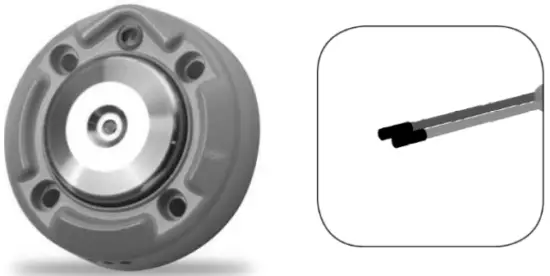
NOTE: If the G Series is wired for a pushbutton but none is needed (such as an advance RRFB), insulate the ends and secure the wires.
NOTE: The pushbutton can be connected in either polarity.
- For round poles, cut holes to size and tap as required. Deburr the hole that the pushbutton wiring will pass through.
- Feed the pushbutton cable through the pole, creating a drip loop.
NOTE: This section applies to both the INX and IDX (touchless) audible pushbuttons.
The Polara INX /IDX series supersedes the XAV audible pushbutton and integrates the controller inside the pushbutton assembly. The INX /IDX pushbutton kit includes a pushbutton harness (available in 16ft, 36ft, or 75ft lengths), the INX /IDX audible pushbutton assembly, and the R10-25 pedestrian pushbutton sign.
NOTE: The Digital Output on the EMS must be set to ALL when used with the INX /IDX pushbuttons standard systems.
NOTE: For systems with no installed LED fixtures, the Digital Output must be set to “NLED.” This function requires the EMS to have firmware version 1.1.5.0 or newer. See Firmware Version in Section 6.1 in the complete user manual for instructions on how to check the EMS firmware version.
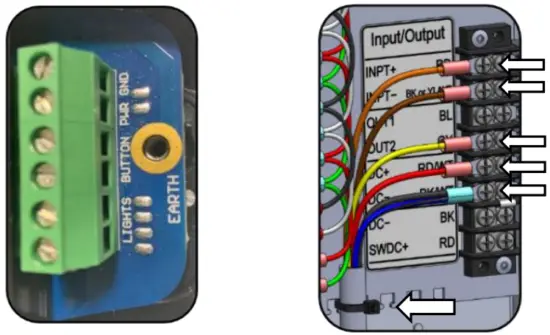
- Connect the INX/IDX harness to the EMS and pushbutton terminals as detailed below. Torque EMS terminal block screws to 12 in-lb. Please consult Polara’s installation documentation for more information.
INX/IDX Terminal Wire Color EMS Terminal Function GND Black DC- Battery Negative PWR Red DC+ Provides +12V power to pushbutton BUTTON Orange INPUT+ Triggers EMS to activate beacons (Non-Polarized) Brown INPUT- Triggers EMS to activate beacons LIGHTS Blue/Black DC- Battery Negative (Non-Polarized) Yellow OUT2 Provides confirmation signal that beacons are flashing to INX/IDX – triggering audible message - Secure cable to EMS near terminal block using a cable tie.
- Check that the button is configured correctly.
NOTE: Onsite configuration of the pushbutton can be done via the INX/IDX Android and iOS app, refer to the Polara INX/IDX user manual for details.
Ensure that the “wireless sync” feature is disabled. Go to Wireless Sync from the app homepage.
Ensure that the flash pattern in the Polara app corresponds to the beacon flash pattern. The default is set to “rapid flash,” suitable for RRFBs. In the settings menu, under LED Flash Behavior, select the Play Predefined Pattern option and chose the appropriate option based on the EMS flash pattern (see reference table below):
| EMS Flash pattern | INX/IDX flash pattern |
| RFP, rFb2, 0.1u, 0.25u, 0.1uF, 0.1AF | Rapid Flash |
| 0.5u, 0.5A, 0.5A3 | Simple On/Off |
| stdY | Solid LED On |
The Campbell Guardian audible pushbutton kit includes a pushbutton harness (16ft, 36ft, or 75ft) prewired to the G Series EMS (as shown below), along with the Guardian audible pushbutton, and an associated sign. Please consult Campbell’s installation documentation for more information.
NOTE: The Digital Output on the EMS must be set to ALL when used with the Guardian pushbutton on standard systems.
NOTE: For systems with no installed LED fixtures, the Digital Output must be set to nLED. This function requires the EMS to have firmware version 1.1.5.0 or newer. See Firmware Version in Section 6.1 in the complete user manual for instructions on how to check the EMS firmware version. Contact Carmanah for instructions if adding an audible pushbutton to an older system.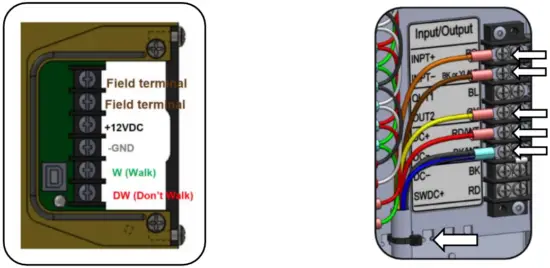
| Campbell Terminal | Wire Color | Terminal Block Connection | Function |
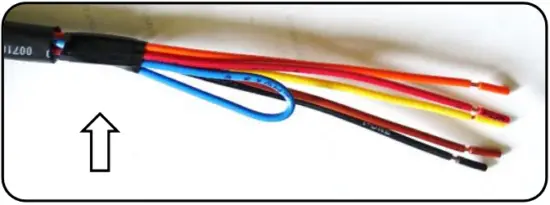
| Field terminal | Orange | INPT+ | 1 of 2 pushbutton inputs to EMS from Guardian |
| Field terminal | Brown | INPUT− | 2 of 2 pushbutton inputs to EMS from Guardian |
| +12VDC | Red | DC+ | The positive side of 12-volt power supply for Guardian |
| #NAME? | Black | DC− | The negative side of 12-volt power supply for Guardian |
| W (Walk) | Yellow | OUT2 | Guardian sense line for triggering recorded message when fixture flashing is detected |
| Not Used | Blue/Black | DC- | Not Used, apply tape to wire end or trim at jacket exit |
| DW (Don’t Walk) | Not used |
EMS Programming and Testing
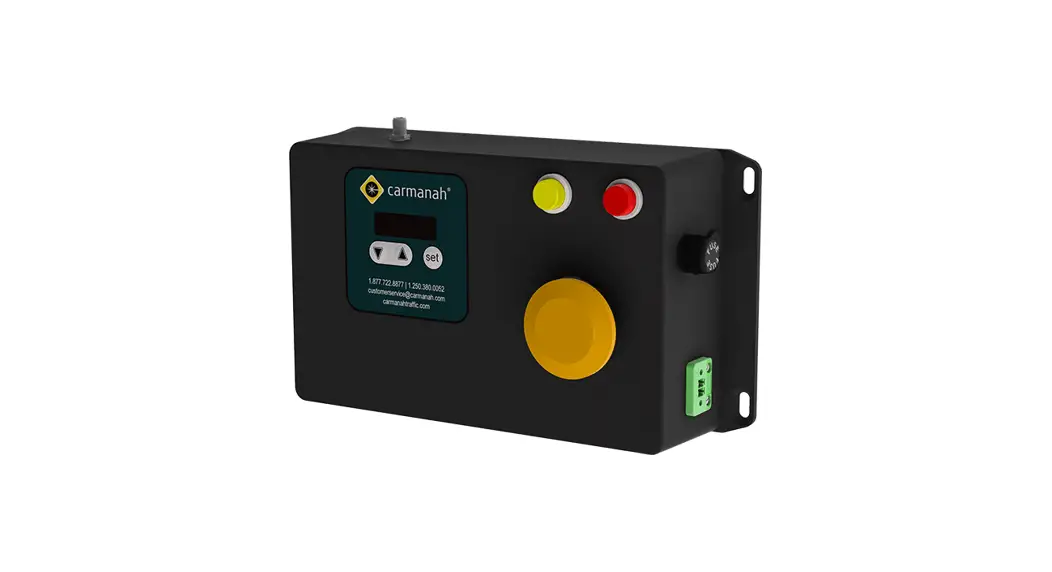
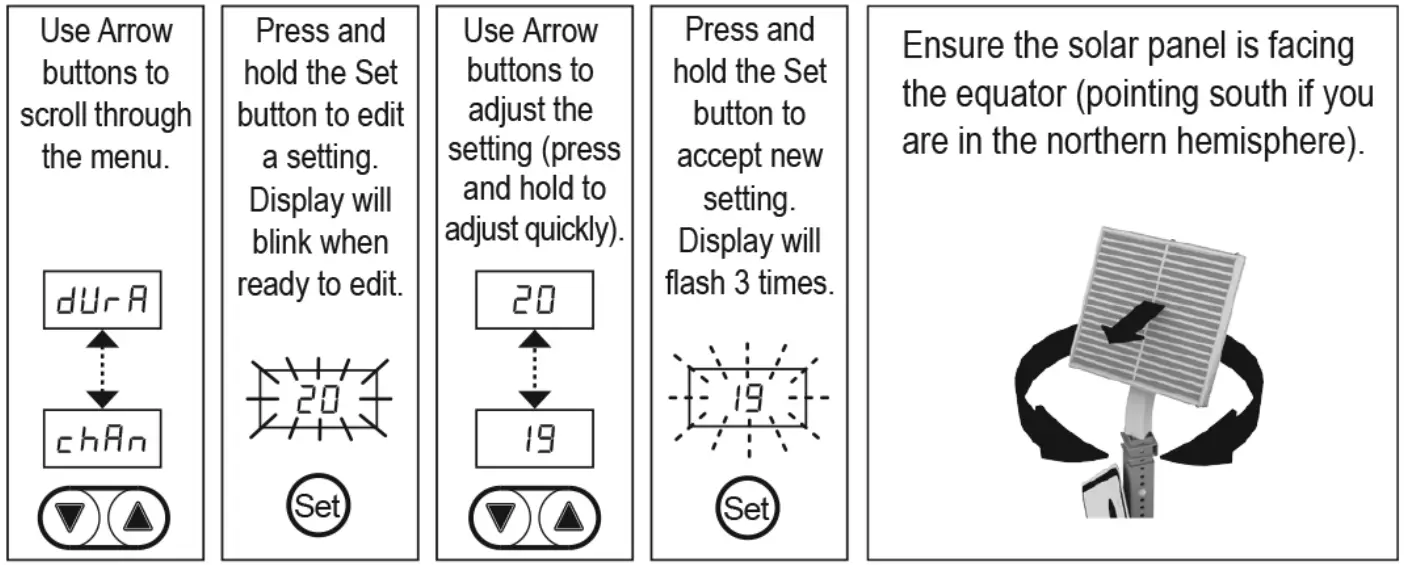
The G Series’ Energy Management System (EMS) has several programming functions and settings. These are accessed through the On-Board User Interface (OBUI). Specific products will use a subset of the complete OBUI settings, which are covered in the full user manual’s sections specific to each product.
EMS On-Board User Interface Operation
The EMS OBUI has three buttons to navigate and change settings and activate functions as required. The Up arrow, Down arrow, and SET button are used to scroll through menus, access settings, and accept changes to settings.
Use the Up or Down buttons to initially activate the OBUI and illuminate the display.
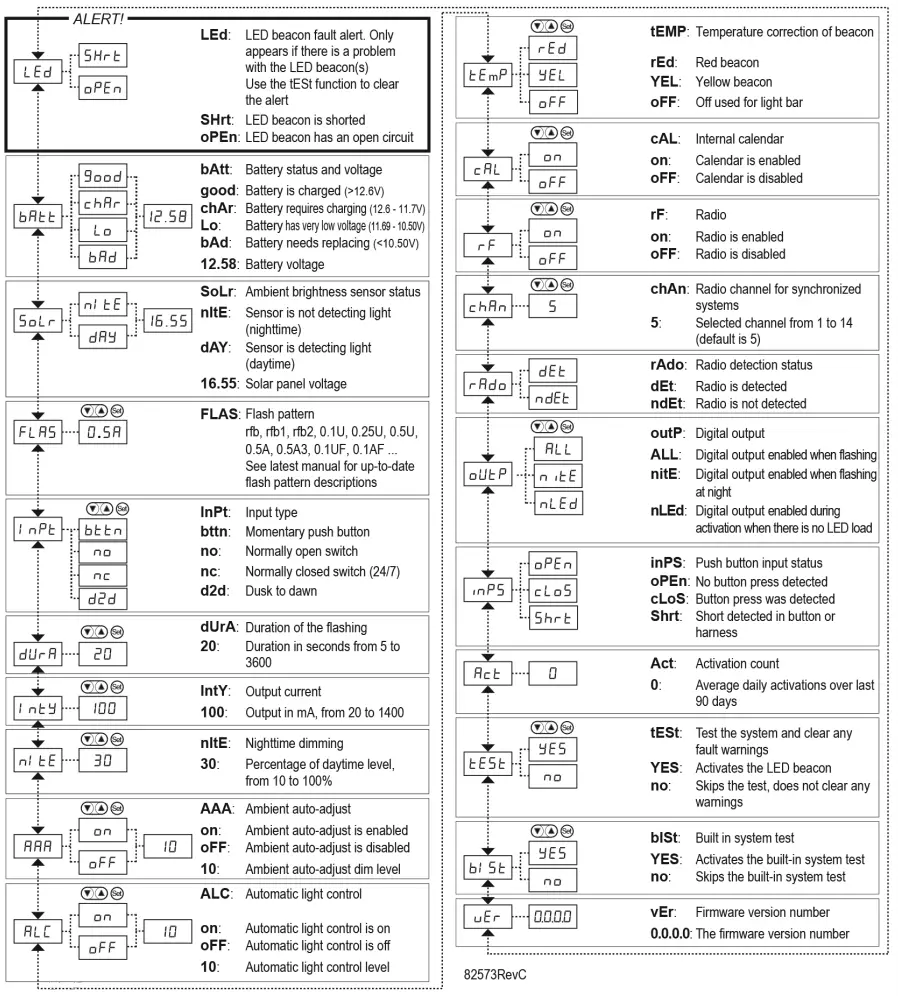
See the following sections which contain both an image of the cabinet door label and an expanded list of settings and functions.
 For RRFBs and crosswalk beacons, use the input type button (button) only. All other options are non-compliant and not to be used.
| Mail: | Carmanah Technologies Corporation 250 Bay Street Victoria, BC V9A 3K5, Canada |
| Phone: | 1.250.380.0052 1.877.722.8877 (Toll-free) |
| Email: | [email protected] |
| Website: | carmanah.com |
EMS On-Board User Interface Settings Overview
| Menu Items | User-adjustable | Broadcast to other systems? | Setting Description or Function |
| LED Fault | NO | NO | Not normally visible, only appears when the EMS detects an LED fault. |
| Battery Status | NO | NO | Reports battery voltage and status |
| Solar Status | NO | NO | Reports solar panel voltage and status |
| Flash Pattern | YES | NO | Indicates the flash pattern currently set |
| Input Type | YES | NO | Indicates input mode, NC for 24/7 operation, bun for momentary button input, and NO for calendar setting. |
| Flashing Duration | YES | YES | For crosswalks, reports the time duration for a flash pattern. |
| Intensity (LED Driver Current) | YES | NO | Indicates the intensity (in milli-amps) the LED modules are set to use. Higher numbers mean brighter lights. |
| Night Dimming | YES | YES | Indicates what fraction of the daytime intensity the LEDs are set to at night. |
| Ambient Auto-Adjust | YES | YES | If enabled, automatically dims LEDs on overcast days up to 50% to prevent glare for drivers. |
| Automatic Light Control (ALC) | YES | NO | If enabled, automatically dims LEDs in response to unexpected solar deficiency to preserve battery life. |
| LED Temperature | YES | NO | If enabled, adjusts LED power output to account for the effects of environmental temperature variations. |
| Internal Calendar | YES | NO | Allows LED loads to be set to turn on and off according to a time schedule programmed using Carmanah calendar programming software |
| Radio Enable | YES | NO | Turns the radio on or off |
| Radio Channel | YES | NO | Allows channels to be changed to overcome radio interference issues on a per-unit basis. |
| Radio Detection Status | NO | NO | Confirms whether a radio module has been detected by the system controller (EMS). |
| Digital Output | YES | NO | Used for relay control. Can be adjusted to allow external loads to be switched on at any time, or only at night. |
| Pushbutton Input Status | NO | NO | Detects the status of the pushbutton input and whether there are any faults found. |
| LED Fixture Test | YES | NO | Allows the LED loads to exhibit a test flash sequence. |
| Built-In Self-Test | YES | NO | Allows the system to run a number of self-tests and can be used for troubleshooting purposes. |
| Firmware Version | NO | NO | Displays the firmware version programmed on the system controller (EMS). |
Troubleshooting
| Symptom | Possible Cause and What to Check |
The EMS does not activate or display any information. |
|
LEDs won’t flash when the pushbutton on the same post is pressed. |
|
LEDs on the same post flash, but other systems in the wireless group won’t flash. |
|
The LED fixture on the same post does not flash. |
|
The LEDs appear too bright when flashing |
|
Fixtures flash when no button is pressed |
|
LED Open Fault is showing on User Interface |
|
© 2022 Carmanah Technologies Corporation
Technical Support:
Email: [email protected]
Toll Free: 1.877.722.8877 (US & Canada)
Worldwide: 1.250.380.0052
Fax: 1.250.380.0062
Web: carmanah.com
Carmanah Technologies Corp. | 250 Bay St, Victoria, BC V9A 3K5, Canada | 1.250.380.0052 | [email protected] | carmanah.com
 Systems for Traffic Beacons and Signs | Solar LED Beacons | Carmanah
 Product Support Center