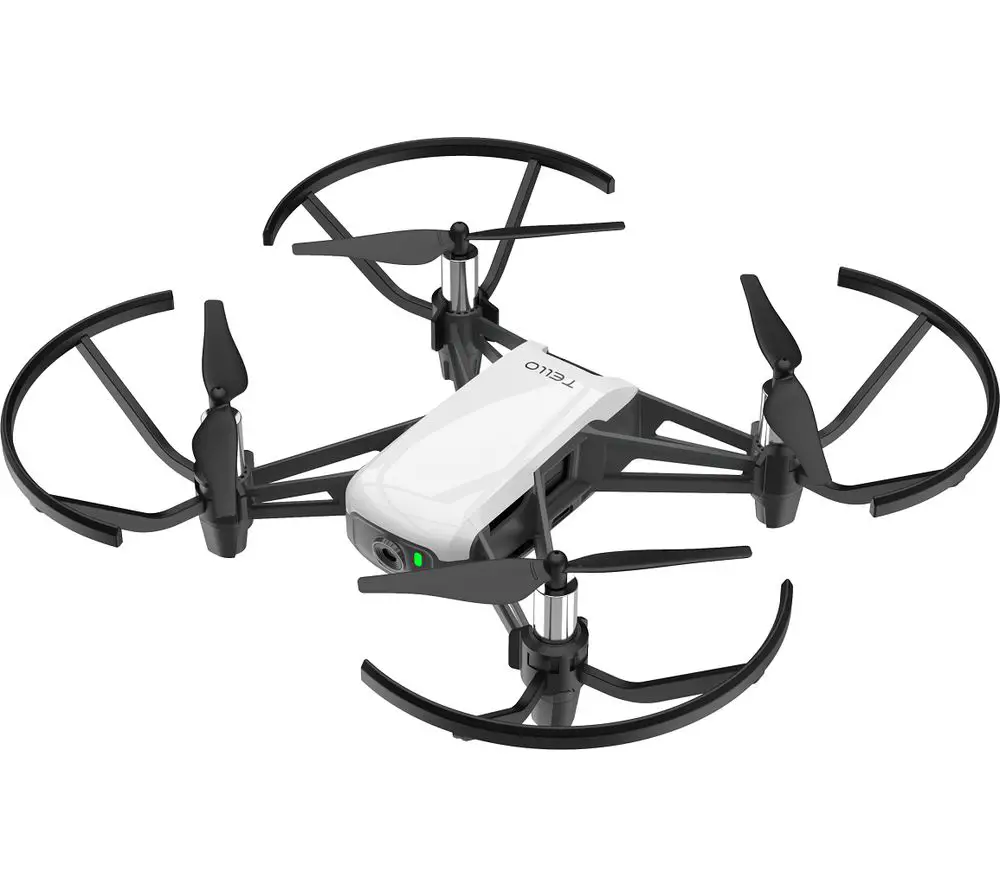
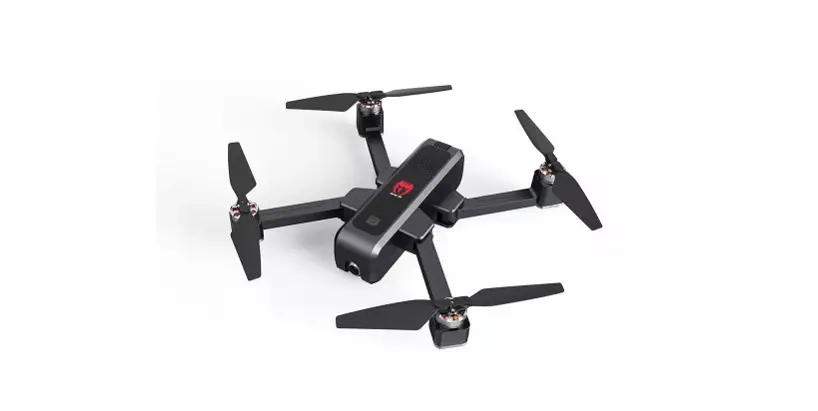
LU20 Drone
Product Information
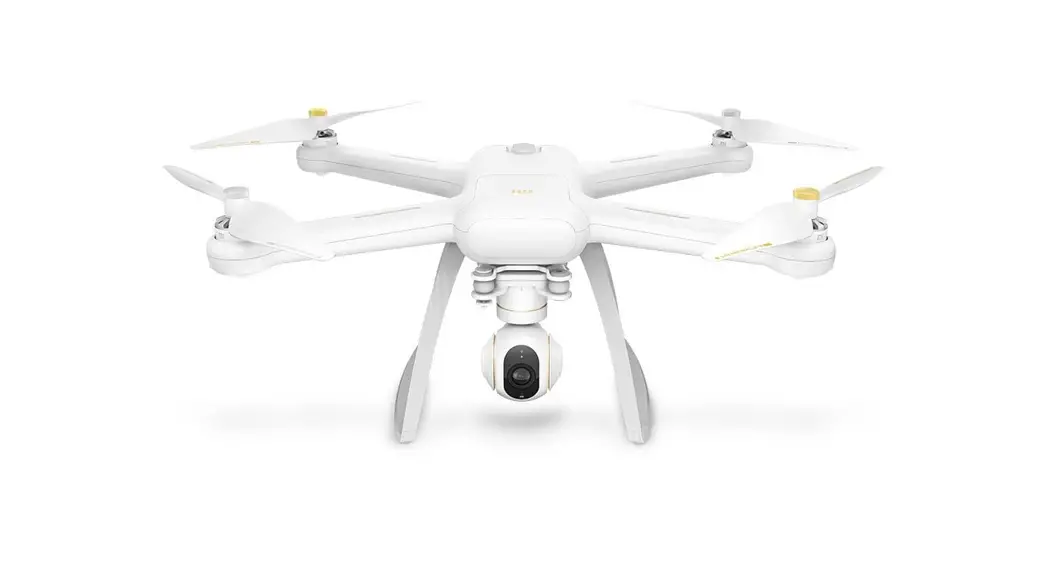
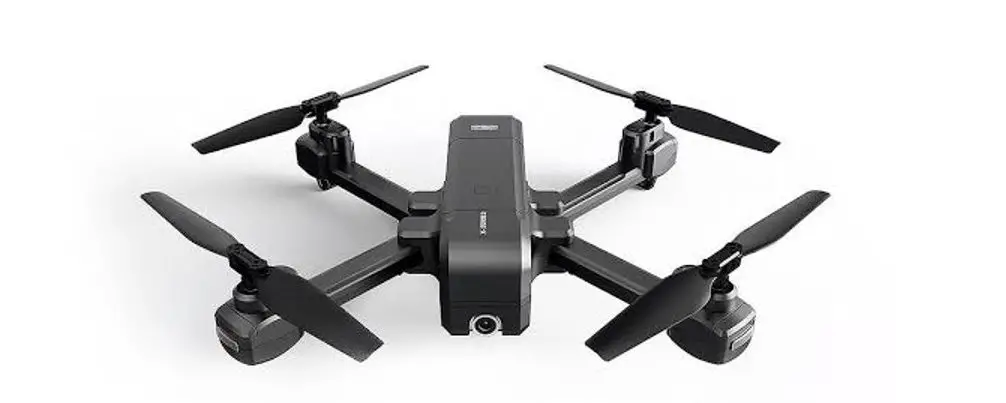
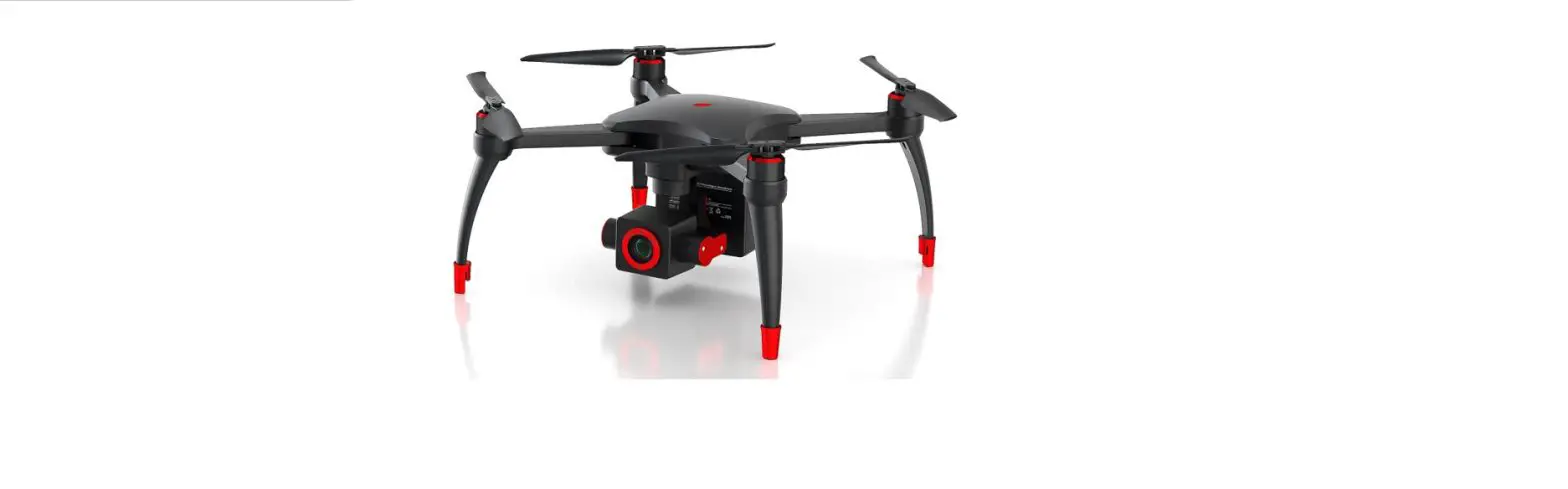
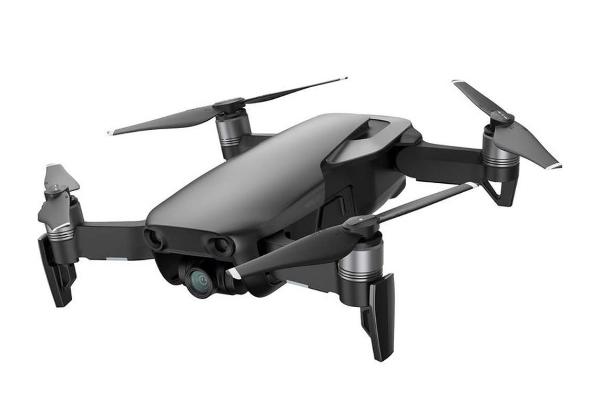
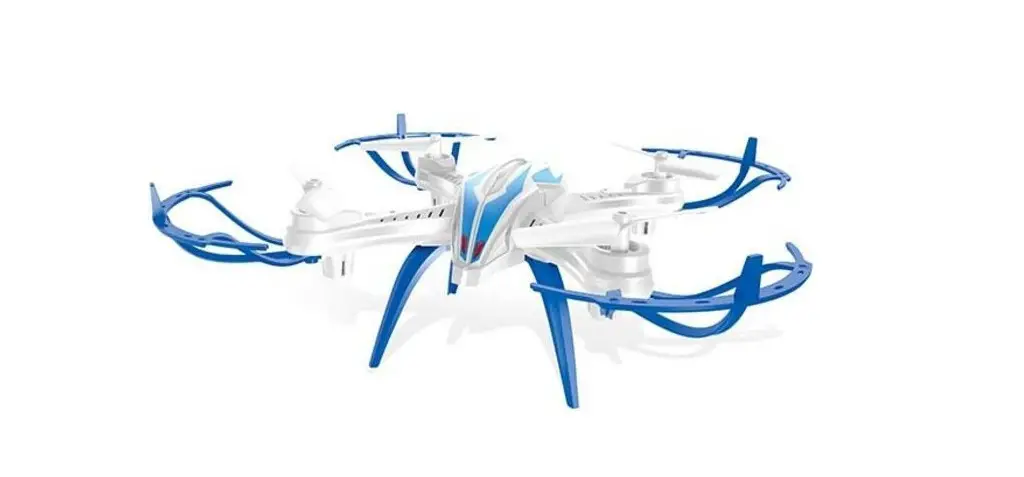
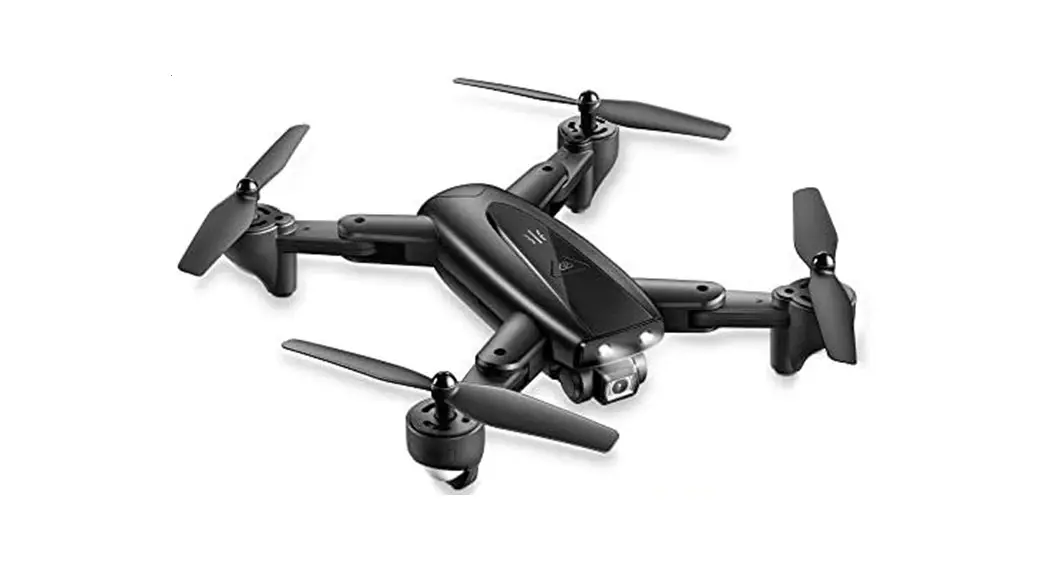
The LUDRONE is a personal photographer drone that offers various
features and functions for capturing photos and videos. It is
equipped with a 2.4G frequency alignment system for easy control.
The drone has good controllability and stability, and it includes
features such as real-time image transmission, information return,
mobile phone control, photography and video recording, gesture
recognition, trajectory flight, one-key return, headless mode, and
low power alarm tips. The drone operates on a 3.7V battery (adapter
needs to be purchased separately) and comes with a remote control
that requires three AA batteries (also needs to be purchased
separately).
Product Usage Instructions
- Remote Control Batteries Installation: Open
the battery cover of the remote control and insert three AA
batteries, ensuring correct polarity as shown in the picture. Close
the cover and screw it. - Calibration: Turn on the power switch of both
the drone and the remote control. Place the drone on a flat surface
with the indicator flashing. Pull out the two rockers to correct
the gyroscope with a sound of “Di.” The indicator light of the
drone will stay on for a long time, indicating successful frequency
matching. The drone can now be taken off. Note: Gyroscope
calibration is required every time the flight is restarted, and the
drone should be placed horizontally on the ground. - One-Button Take-Off and Landing: After
completing the calibration, press the one-button take-off button on
the remote control to initiate take-off. Press the same button
again for one-button landing. - Speed Control: Press the speed switch button
on the remote control to change the flight speed of the drone. Each
sound of “Di” indicates a different speed level. The gear
automatically returns to the low speed when the drone is turned off
and restarted. - Headless Mode: Press the headless mode button
on the remote control to activate or exit this mode. In headless
mode, the drone’s orientation is independent of its actual front
direction. - Rolling: Press the rolling button on the
remote control and push the direction control lever to roll the
drone in different directions. Note that rolling consumes a lot of
power and should be used sparingly, especially for beginners. It is
recommended to use this function in an open space. Rolling is
temporarily suspended during low battery time. - Photo/Video Capture: After turning on the
drone, press the Photo/Video button on the remote control to take
photos and record videos.
LUDRONE
Your personal photographer…
Remote control batteries installation
2.4G frequency alignment One-button take-off and one-button landing
Rolling Photo/Video Obstacle Avoidance
The aircraft has good controllability and stability, and with the functions of real-time image transmission, information return, mobile phone control, photography and video, gesture recognition, trajectory flight, one-key return and headless mode, etc. Also it is low power alarm tips.
FRONT AFTER
3.7V
(Adapter needs to be purchased separately.)
Remote control batteries installation
Open and remove the battery cover, according to the correct polarity putting into the three AA batteries, battery installation direction as shown in the picture, close the cover and screw it.
( AA * 3PCS Remote control battery needs to be purchased separately.)
One key rolling Headless mode One key take-off / One key landing Speed Power switch Lens upward fine-tuning
Lens downward fine-tuning Photo/ Video Obstacle Avoidance Up & down/ Turn left & right Forward & backward/ Left & right
1acalibration
Turn on the power switch and place the aircraft on
the flat ground with the indicator flashes. And then
turn on the power switch of the remote control, and
the aircraft will automatically matching the frequency.
After, pulling out the two rockers to correct the
gyroscope with a sound of Di, and the aircraft indicator
light is on for a long time, which means that the frequency matching is completed, and the aircraft can be taken off.
Note that the gyroscope needs to be calibrated every time the flight is restarted, and the aircraft needs to be placed horizontally on the ground
2aOne-button take-off and one-button landing
It is suggested that the height of this product is
One-button lifting
determined by barometer.Due to the influence of
various environmental temperatures and other
different factors, it is normal for the aircraft to change
evenly at the beginning of flight or at low voltage.
It must be operated after 2.4 G alignment is completed
One-button descent
Press the speed switch button on the remote control to switch the flight speed of the aircraft. When switching to the medium speed gear, the remote control deliver two sounds of Di. When switching to the high gear, the remote control will deliver three sounds of Di. Each time the remote control and the aircraft are turned off and restarted, the aircraft gear will automatically return to the low gear.
Speed
Press headless mode button,start Headless mode,press again exit this mode.
The drone camera up or down adjustment.
Headless mode
Rolling
Press the rolling button and then push the direction control lever to roll the aircraft in different directions. Warning: rolling function consumes a lot of power and should be reduced. More important, the novice suggests using it in an open space.(When the battery is fully charged, the rolling time is about 10 minutes. And the function is temporarily suspended during the remaining battery time, while the other functions are normally. )
Photo/Video
After turn on the aircraft, press the Photo/Video button to take photos and record video.
Obstacle Avoidance
After turning on the aircraft, press the obstacle avoidance mode button. At this time, if the steering rod is turned in any direction, the obstacle avoidance head of the aircraft will automatically sense whether there is an obstacle in that direction. If there is, the aircraft will not be able to fly in that direction.
Lens upward fine-tuning Lens downward fine-tuning
Rolling Photo/Video Obstacle Avoidance
FCC Statement
This device complies with part 15 of the FCC rules. Operation is subject to the following t wo conditions: (1) this device may not cause harmful interference, and (2) this device mu st accept any interference received, including interference that may cause undesir ed operation. Caution: Changes or modifications not expressly approved by the party responsible for compliance could void the user’s authority to operate the equipment. NOTE: This equipment has been tested and found to comply with the limits for a Class B digital device, pursuant to part 15 of the FCC Rules. These limits are designed to provide reasonable protection against harmful interference in a residential installation. This equip ment generates uses and can radiate radio frequency energy and, if not installed and use d in accordance with the instructions, may cause harmful interference to radio communic ations. However, there is no guarantee that interference will not occur in a particular insta llation. If this equipment does cause harmful interference to radio or television reception, which can be determined by turning the equipment off and on, the user is encouraged to t ry to correct the interference by one or more of the following measures: – Reorient or relocate the receiving antenna. – Increase the separation between the equipment and receiver. – Connect the equipment into an outlet on a circuit different from that to which the receiver is connected. – Consult the dealer or an experienced radio/TV technician for help important announceme nt
Radiation Exposure Statement The device has been evaluated to meet general RF exposure requirement. The device can be used in portable exposure condition without restriction.