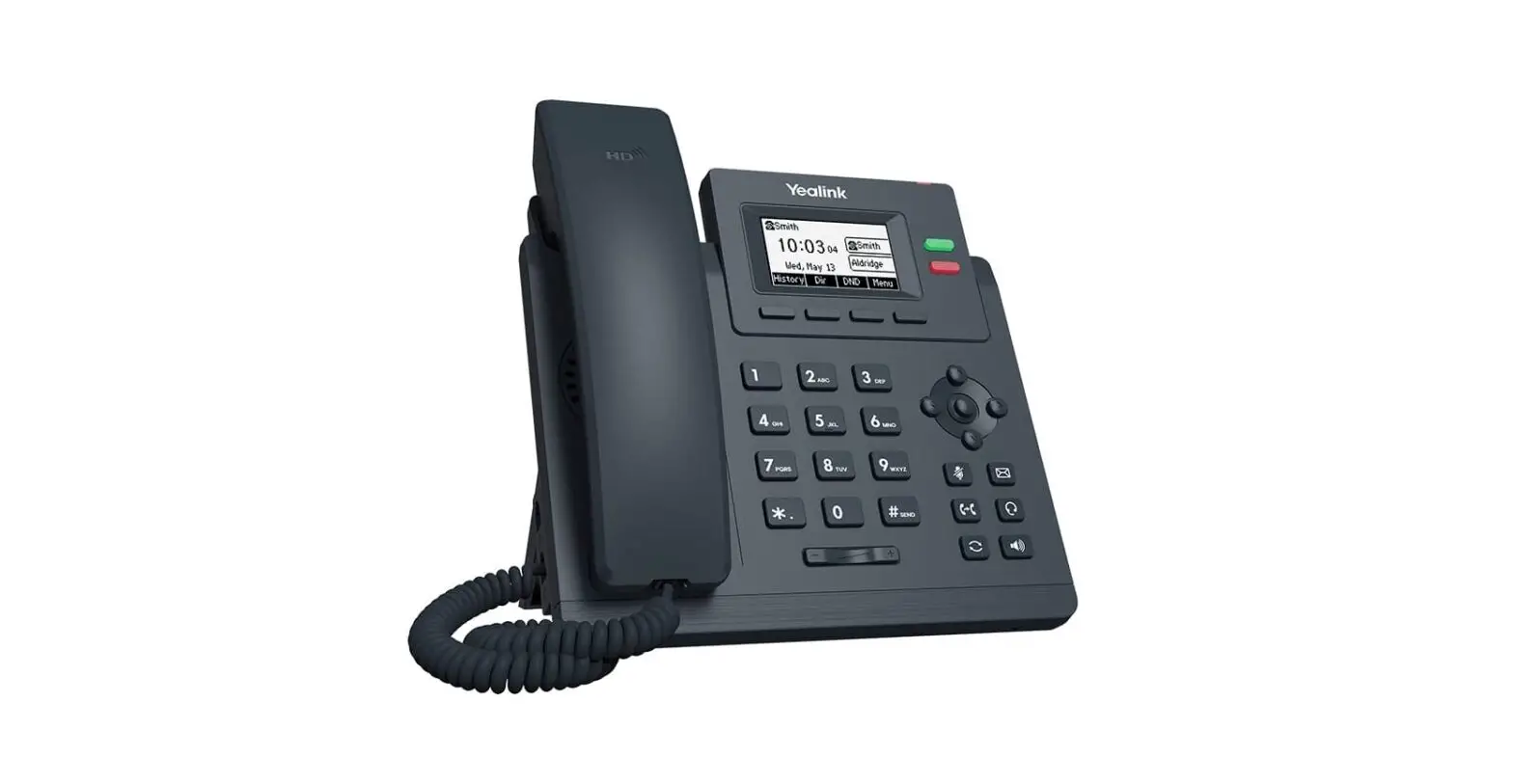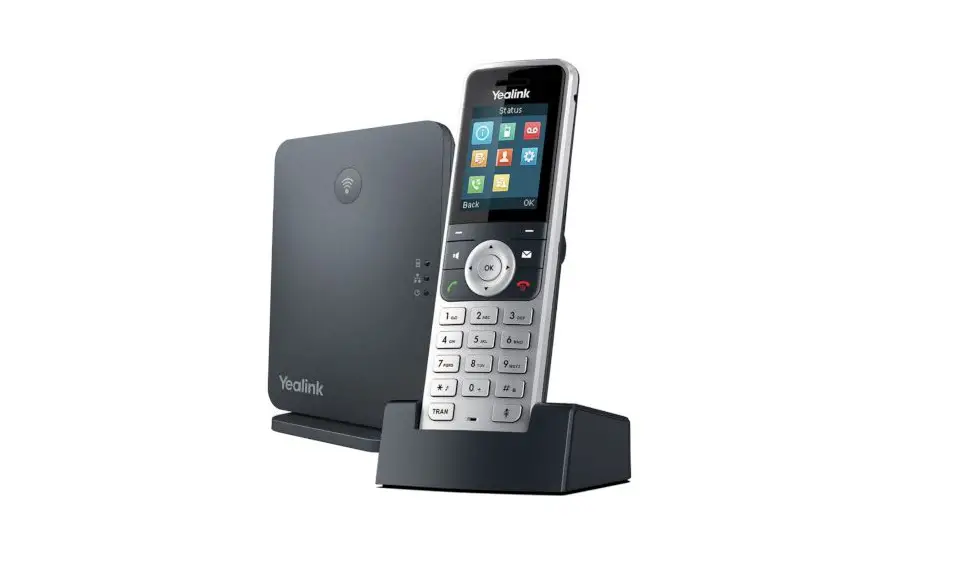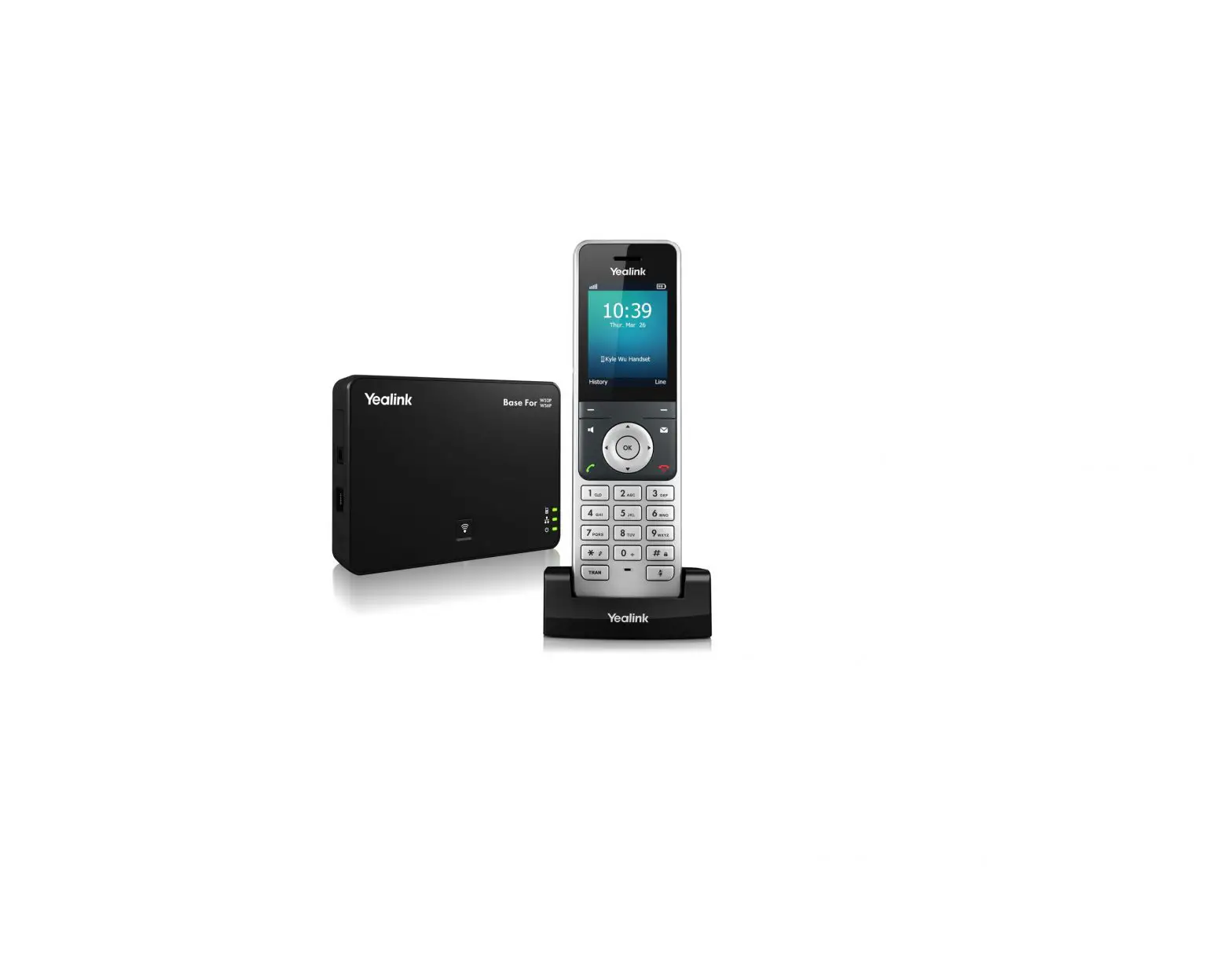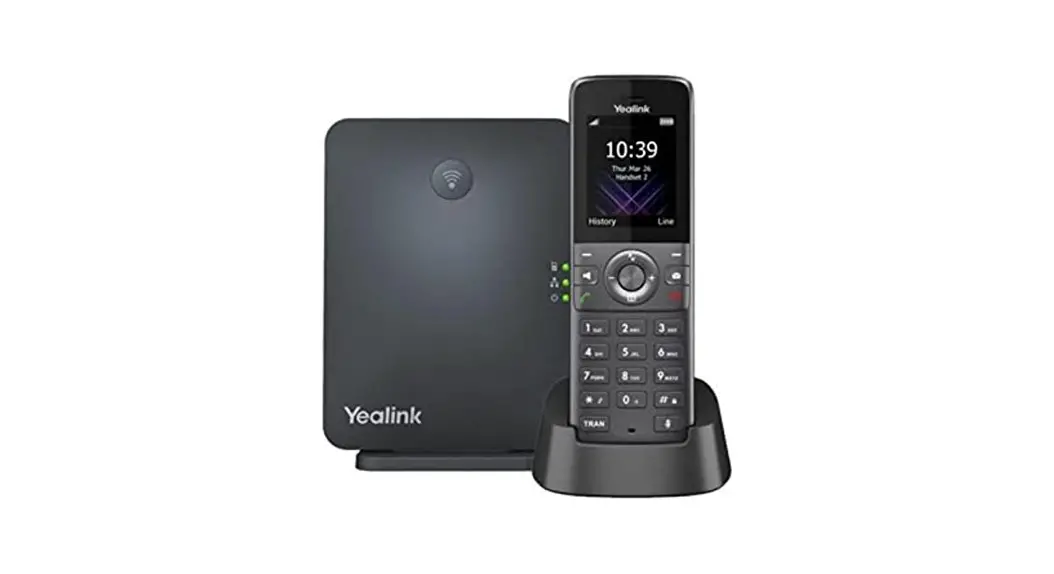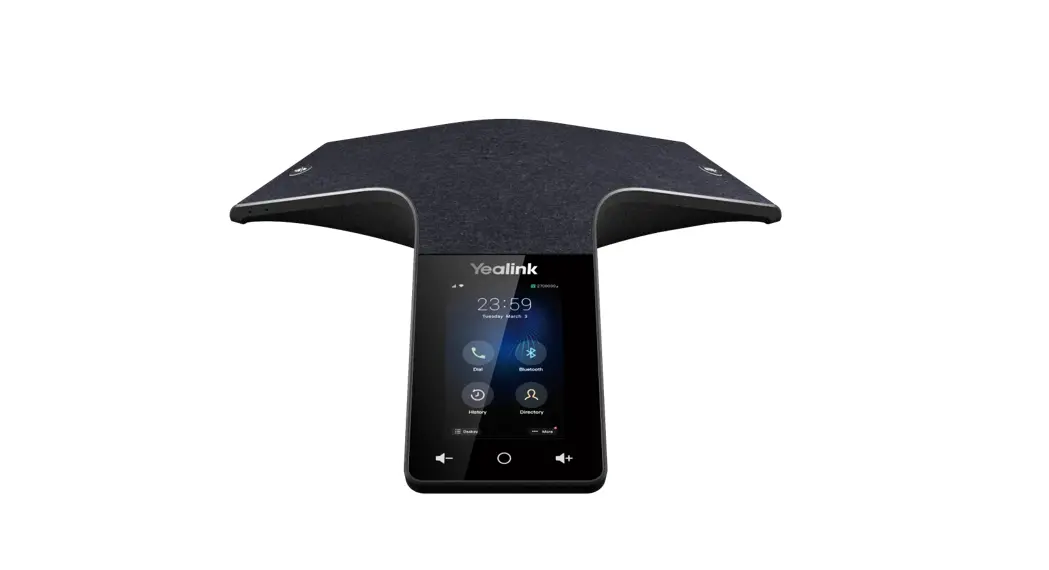

Yealink T33G Classic Business IP Phone
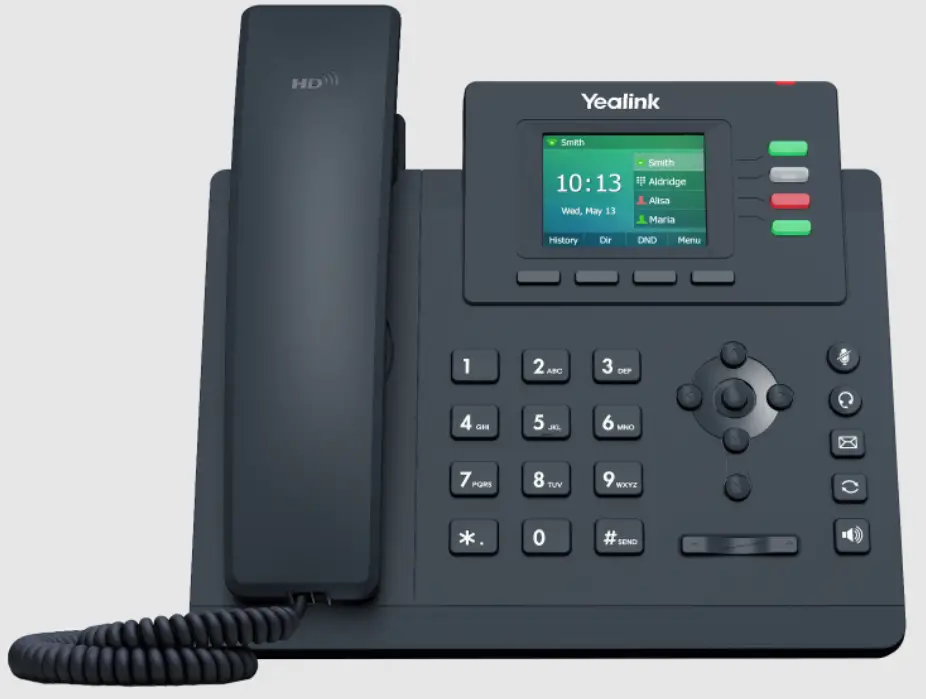
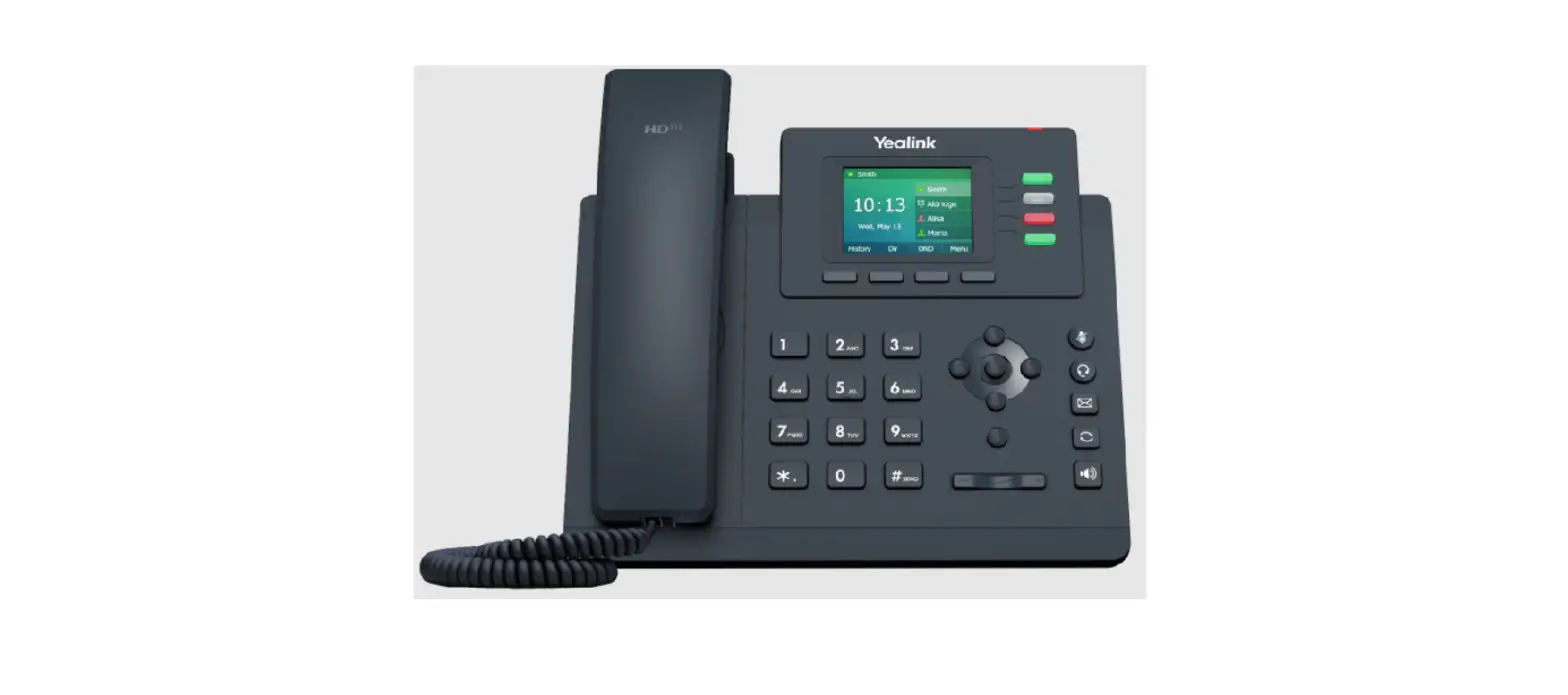
Feature Description 
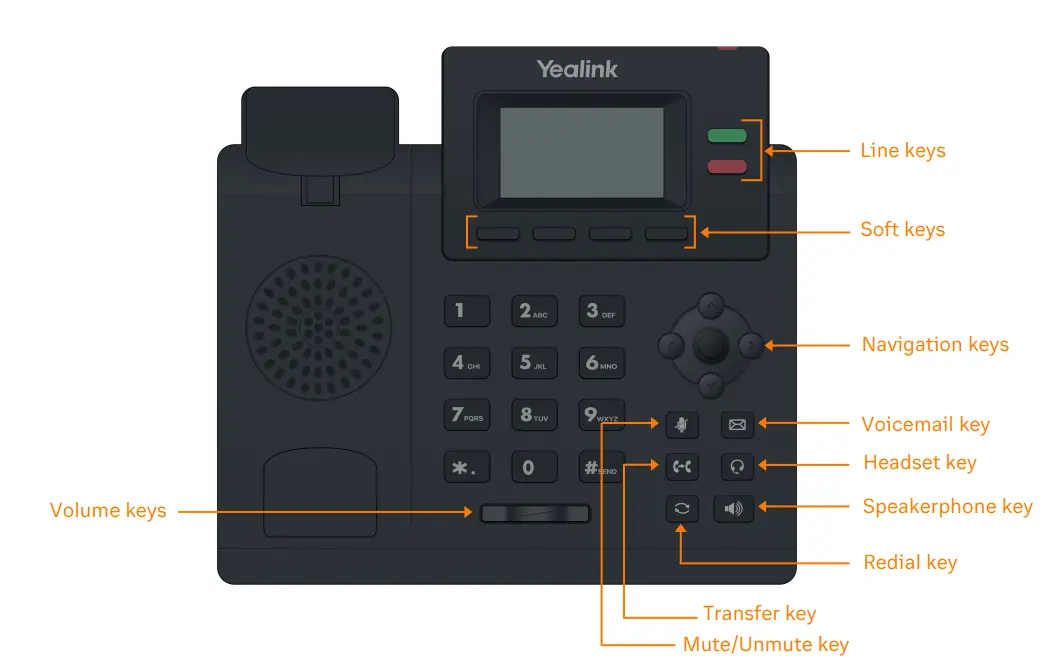
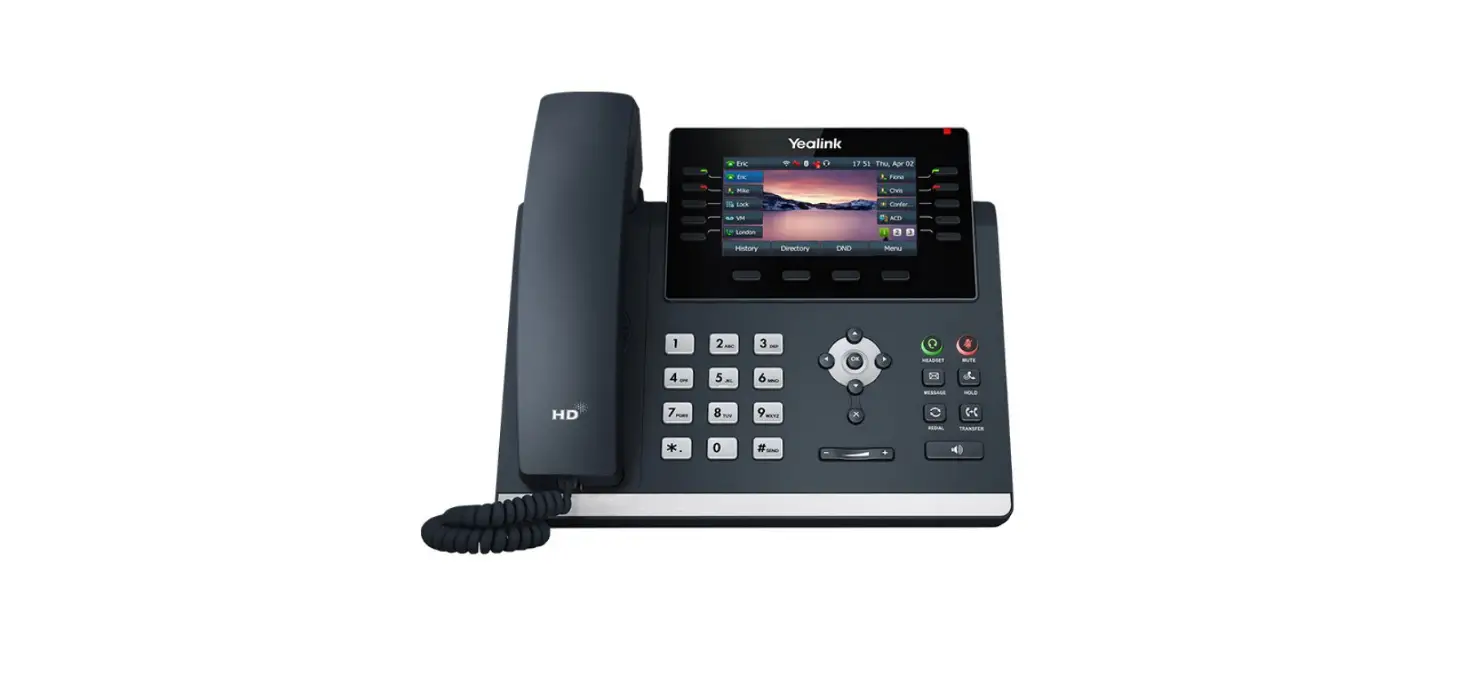
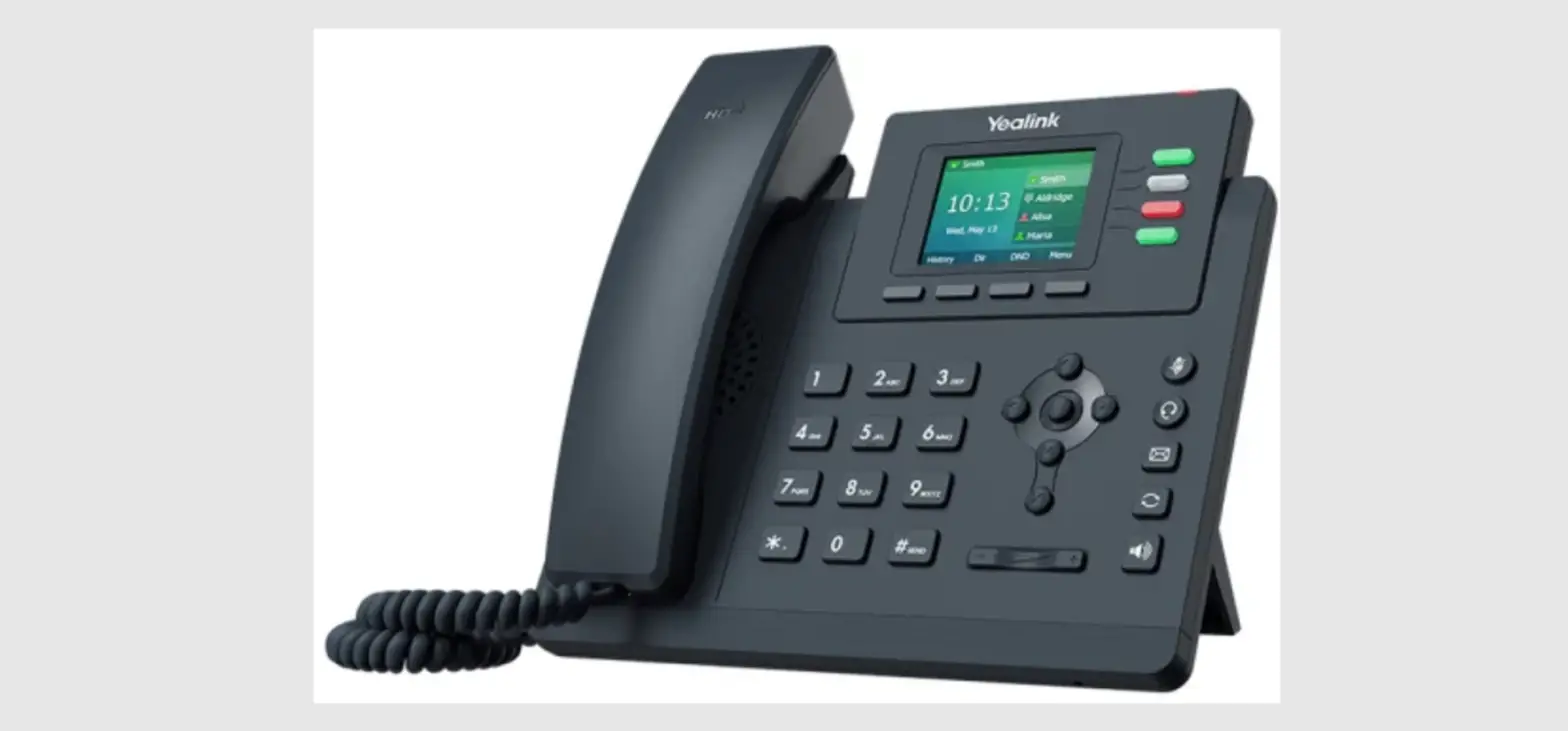
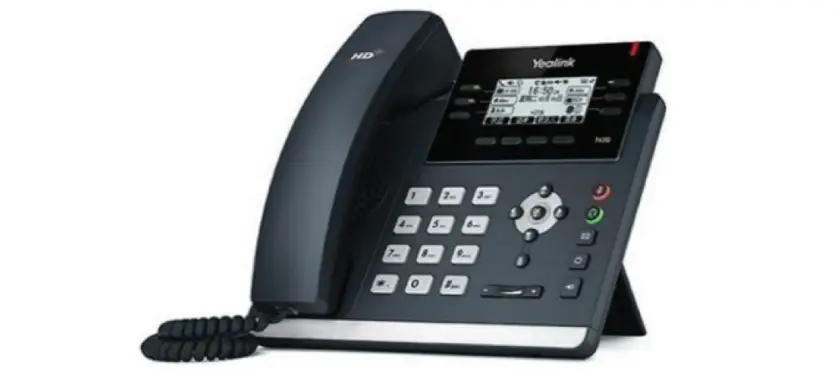
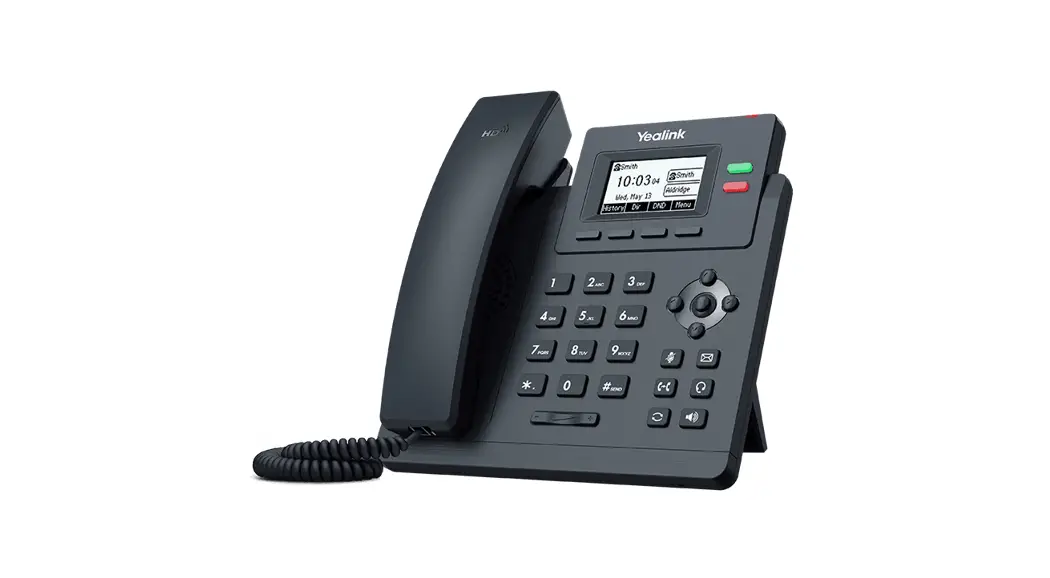
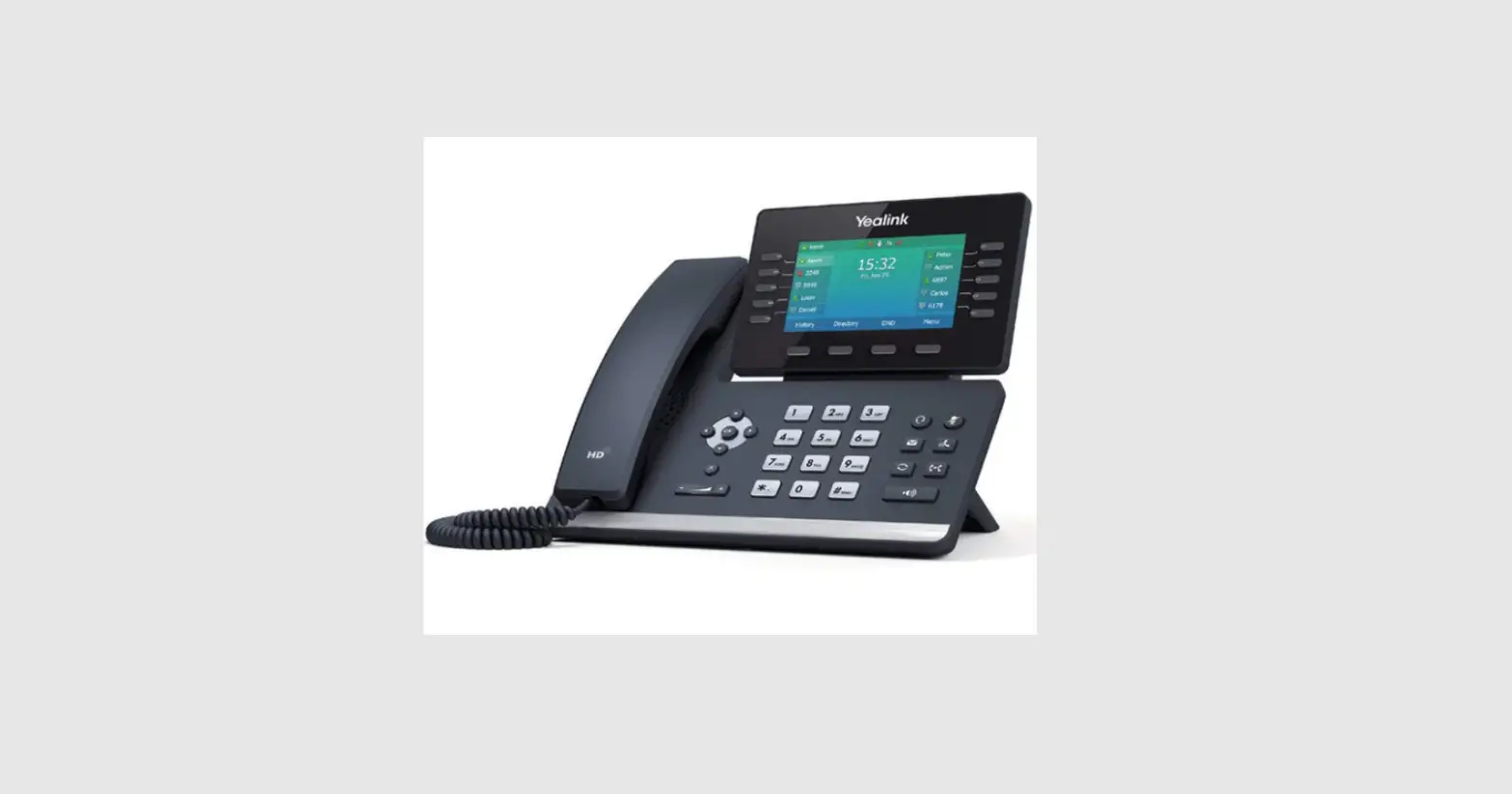
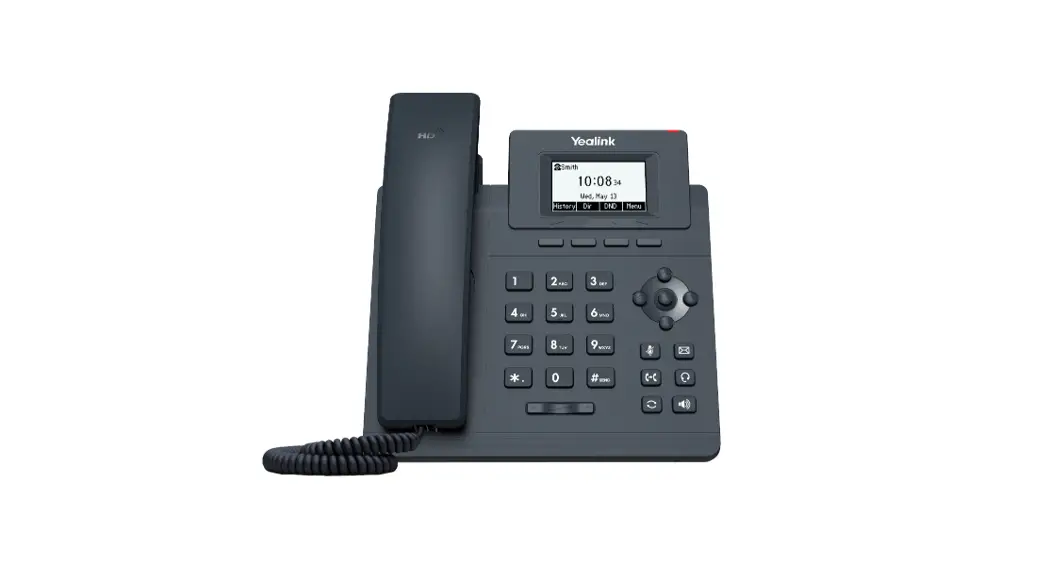
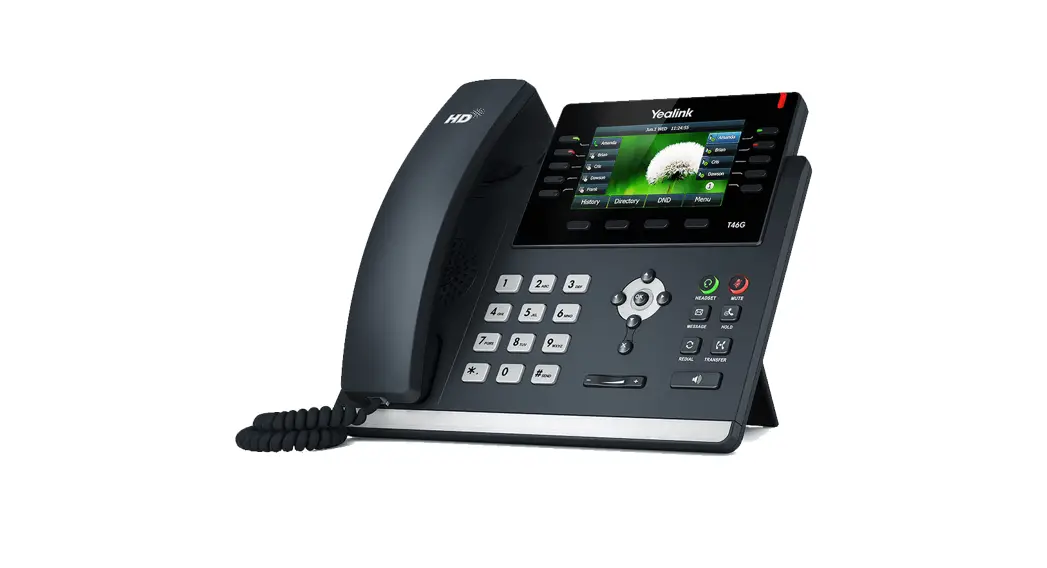
- Line keys—enables you to select a phone line, view calls on a line, or quickly call a favorite contact.
- Soft keys—enables you to select context-sensitive keys that display along the bottom of the screen.
- Navigation keys—scrolls through information and options displayed on the phone screen.
- Voicemail key—enables you to access voicemail messages.
- Headset key—enables you to place and receive calls through a headset.
- Speakerphone key—enables you to place and receive calls using the speakerphone.
- Redial key—enables you to dial the last called number or extension.
- Transfer key—transfer an active call to a contact.
- Mute/Unmute key—mutes audio during calls and conferences.
- Volume keys—adjusts the volume of the handset, headset, and speaker.
Placing a call
Dial the number and do one of the following:
- Lift the receiver.
- Press
 to use the headset.
 - Press
 to use the speakerphone.
 to use the headset.
 to use the speakerphone.
Answering a call
Options:
- Lift the receiver.
- Press to answer a call via headset.
- Pressto answer a call via speakerphone.
Placing a call on hold
- Press the Hold soft key or dial
 while on an active call.
 while on an active call.
Retrieving a held call
- Press the Resume soft key or dial to retrieve a held call.
Starting a Three-Way call
- While on an active call, press the Conf soft key.
- Dial the extension of the other party that you would like to add to the call.
- Once the other party answers, press the Conf soft key to merge the two calls.
Transferring a call
Warm Transfer:
- While on an active call, press
 or the Transfer soft key
 - Dial the number of the other party.
- When the destination party answers, provide the information and confirm that they would like to take the call.
- Press or the Transfer soft key.
 or the Transfer soft key
Blind Transfer:
- While on an active call, press or the Transfer soft key.
- Press the Blind soft key.
- Dial the extension of the other party.
- Press or the Transfer soft key.
Voicemail Transfer:
- Press or the Transfer soft key.
- Press the Blind soft key.
- Dial
 plus the extension number of the voicemail where you want to transfer the call.
 plus the extension number of the voicemail where you want to transfer the call.
Parking a call
Option 1:
- While on an active call, press the More soft key until the Park soft key is displayed.
- Press the Park soft key.
- Listen to the prompt indicating that the call has been parked. The prompt will also announce the extension where the call is parked.
- Note the park location. Example *802.
Option 2:
- While on an active call, press

- Listen to the prompt indicating that the call has been parked. The prompt will also announce the extension where the call is parked.
- Note the park location. Example *802.

Retrieving a Parked Call
- Press
 , followed by the park location.
 , followed by the park location.
Paging
- Press
 , then follow the prompt.
 , then follow the prompt.
Initiating an Intercom call
- Press
 , then follow the prompt.
 , then follow the prompt.
Hot Desking
- Press the Login soft key then follow the prompt.
- Enter your extension number, then press

- Enter your voicemail pin, then press

Recording a call
- While on an active call, press
 to start the recording.
 - Press to end the recording.
 to start the recording.
DOWNLOAD RESOUURCES
- Yealink T33G Classic Business IP Phone [pdf] User Guide T33G Classic Business IP Phone, T33G, Classic Business IP Phone
- Read more: https://#manualsee.com/yealink/t33g-classic-business-ip-phone-manual#ixzz7df4t5xdO
FAQ’S
You can use the phone book to store up to 500 contacts.
You can set up a conference call by pressing the Transfer key and entering the extension number or name.
You can place an intercom call by pressing the Transfer key and entering the extension number or name.
You can access voicemail messages by pressing the Voicemail key.
You can use the headset to place and receive calls. The headset is included in your package.
Yes, the T43U and the T46U support the use of WF50 WiFi USB dual-band adapter; this adapter (dongle) is a USB device that allows you to wirelessly connect your VoIP desk phone to the internet.
Yealink SIP-T22P Professional IP Phone with 3 Lines and HD Voice.
Navigate to the IP address of the Yealink phone in your browser, and then press ‘Enter’ to search. Enter the username (default: admin) and password (default: admin) on the login page and click ‘Login’.
When “Network Unavailable” is displayed, it usually indicates one of two issues: Improper connection. Make sure that the ethernet cord is connected to the correct port on your router or switch on one end, and that at the other end it is connected to the port labeled “SW”; Phone needs to be rebooted.
Simply press and hold the ‘OK’ key on the face of the phone for 10 seconds – as shown below:
This will prompt you to accept or decline a factory reset.
If you accept, the unit will restore itself to factory default settings – without the need the admin password.
The entire process takes roughly 30 seconds.
Long press Pound (#)when the handset is idle until the LCD screen prompts: Keypad Locked, Press and hold ‘#’ to unlock! The keypad is locked and the Lock icon appears on the status line. You can still answer or reject incoming calls as usual.
Please check that you do not have the Do Not Disturb (DND) function enabled on the phone. If DND is not the cause of the issue and the problem still persists please check the ringer volume on the phone to make sure it is turned up. This reboot should then resolve the issue.
VIDEO
www://yealink.com/