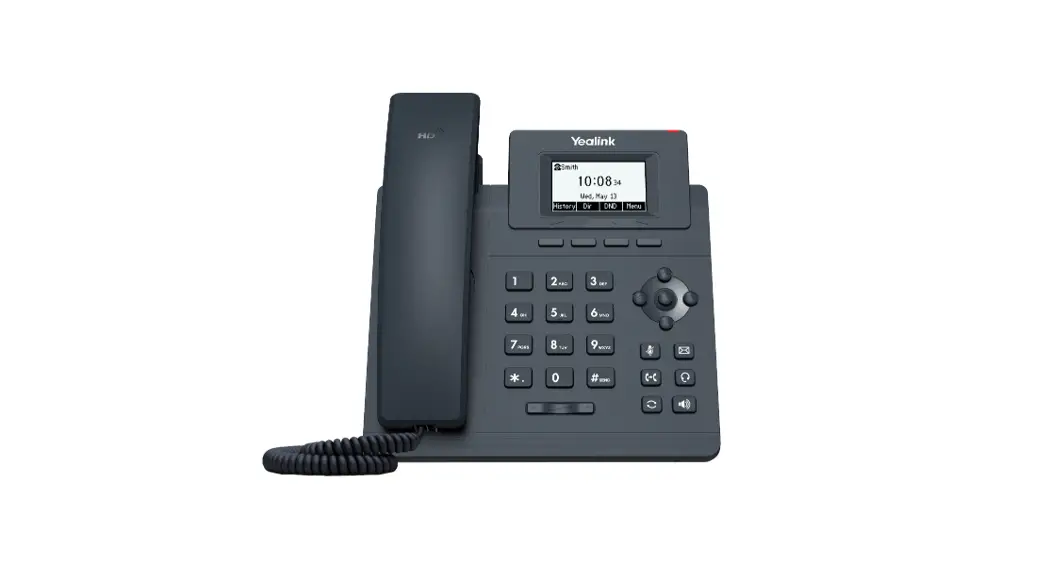
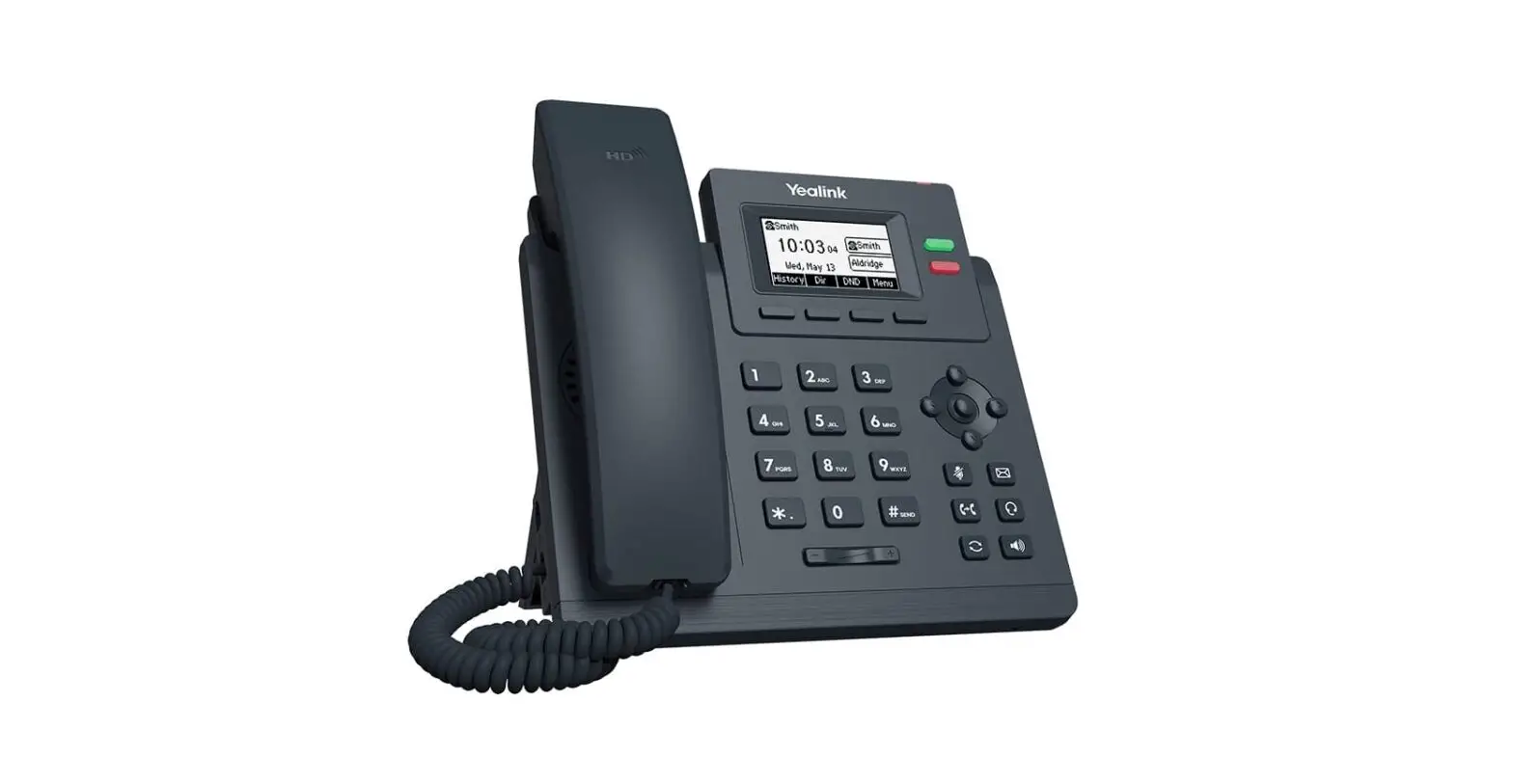
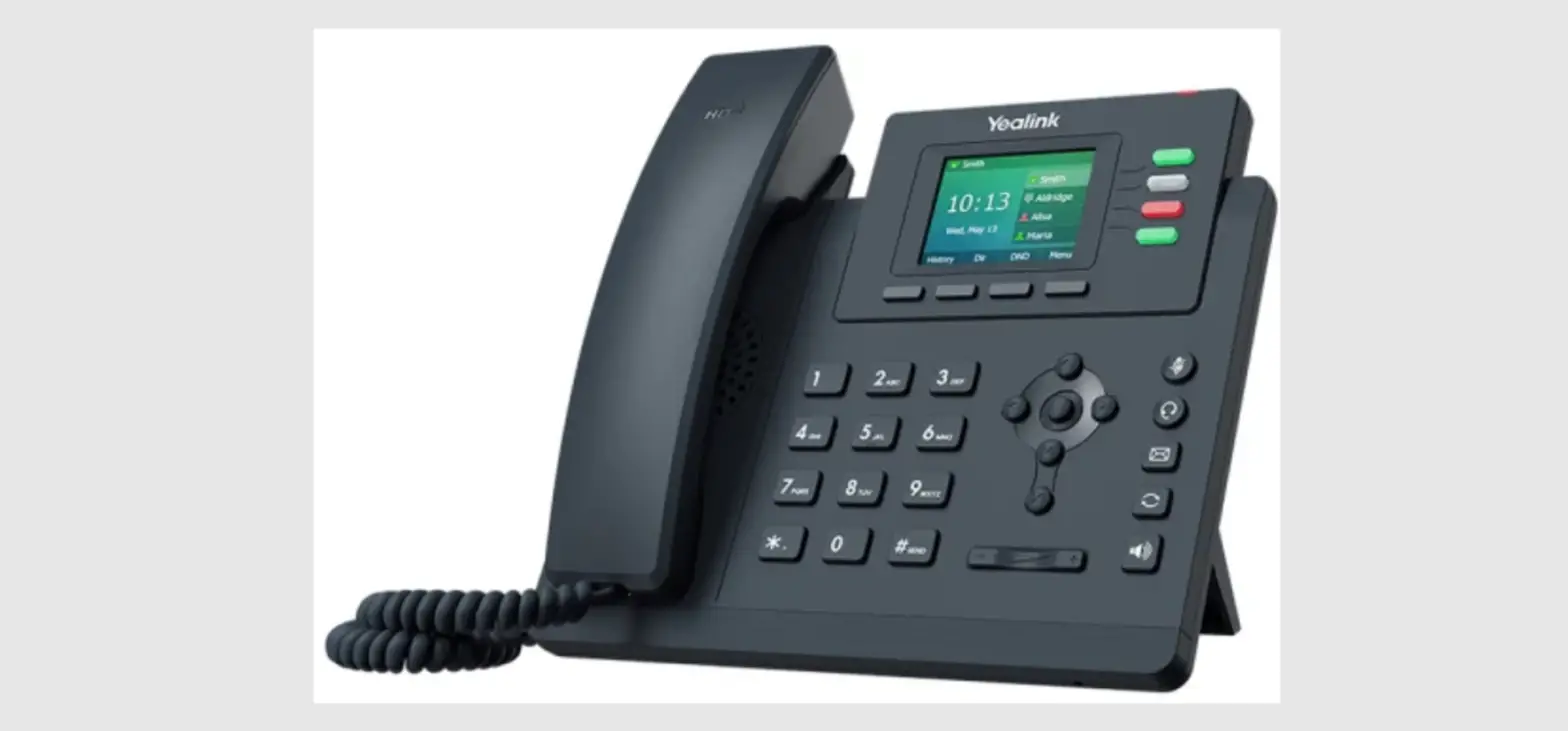
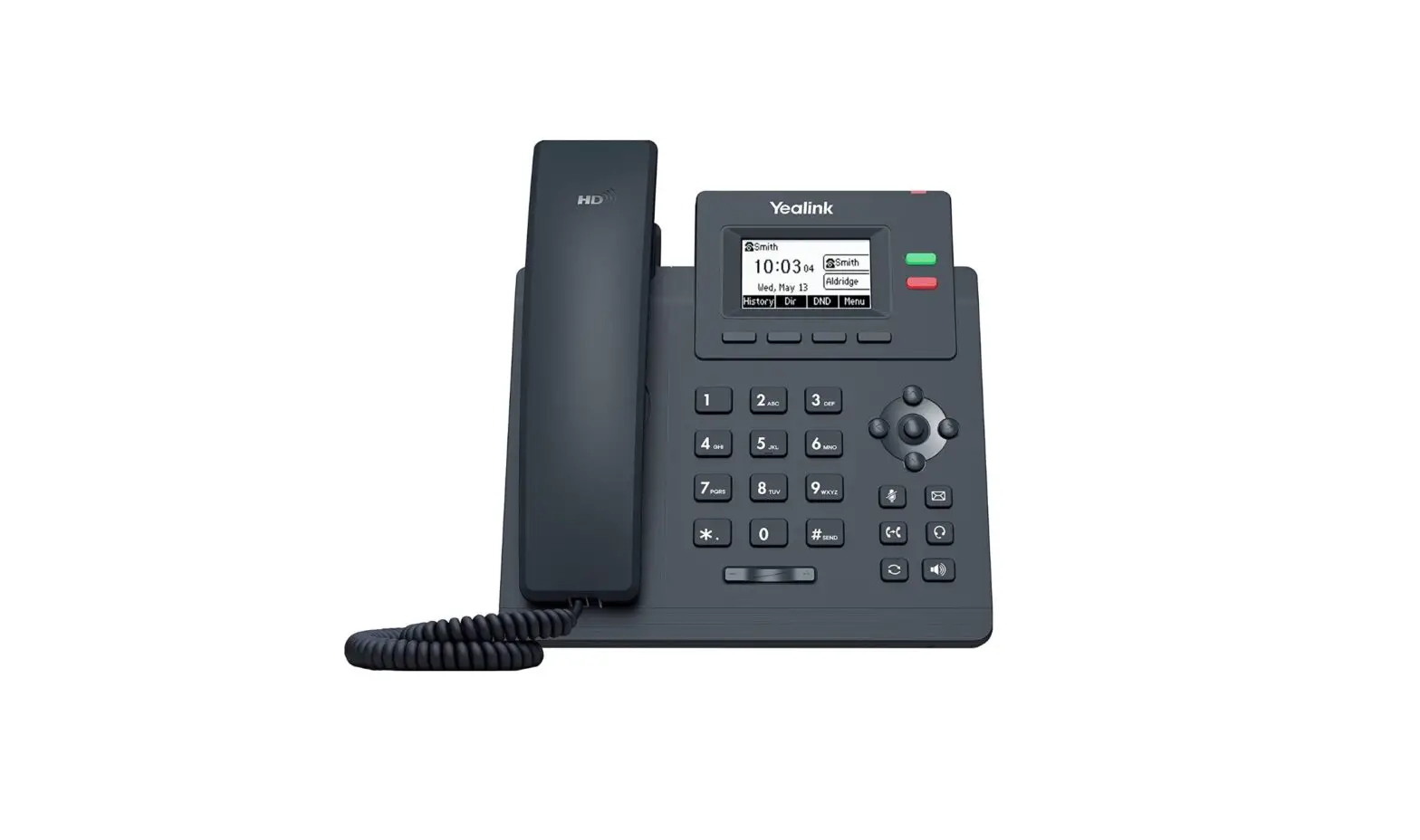
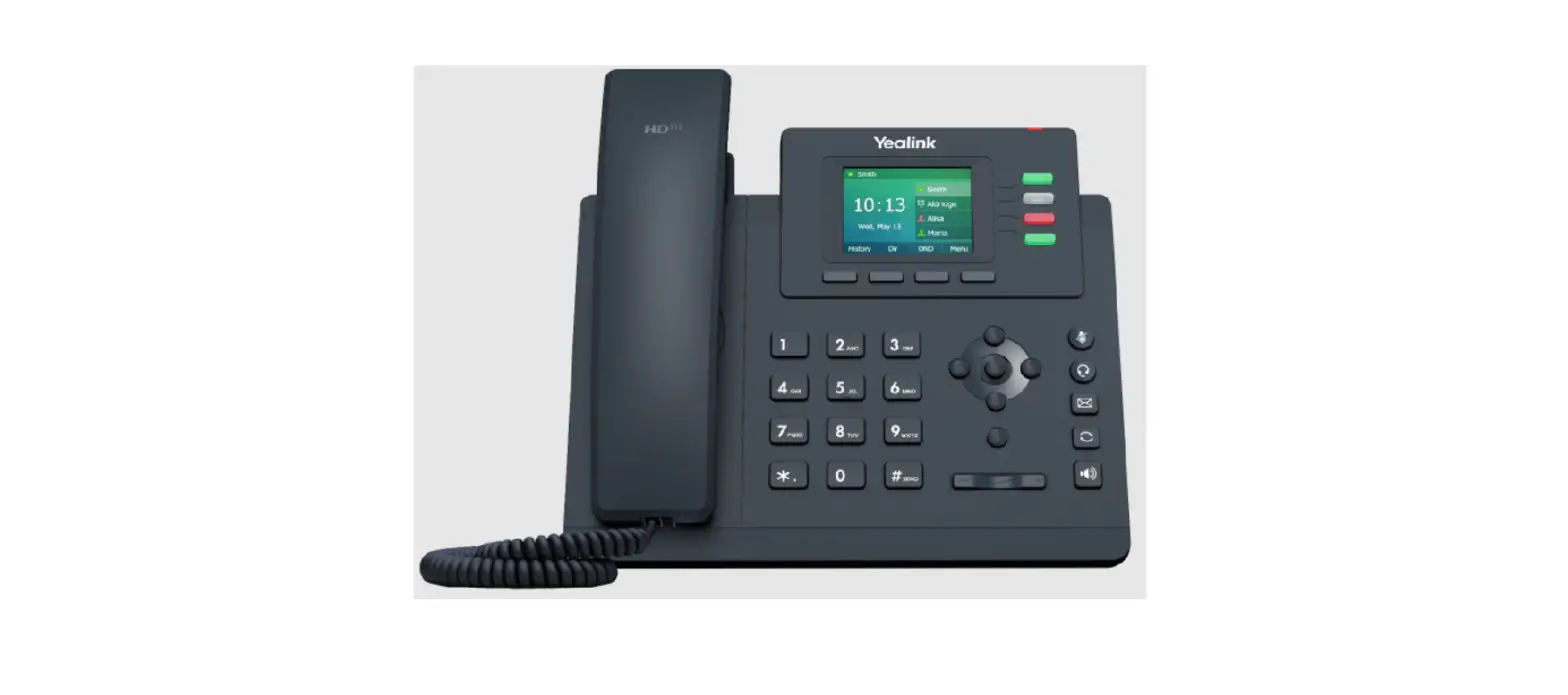
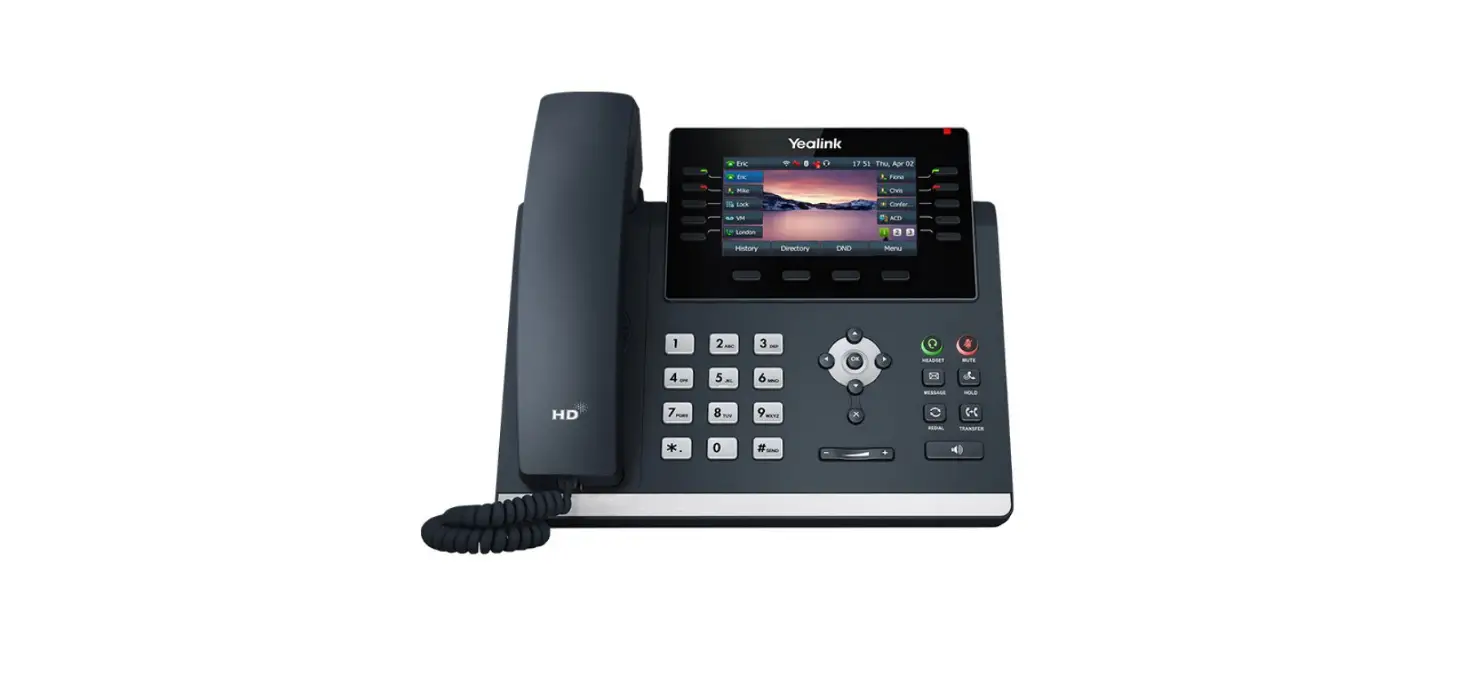
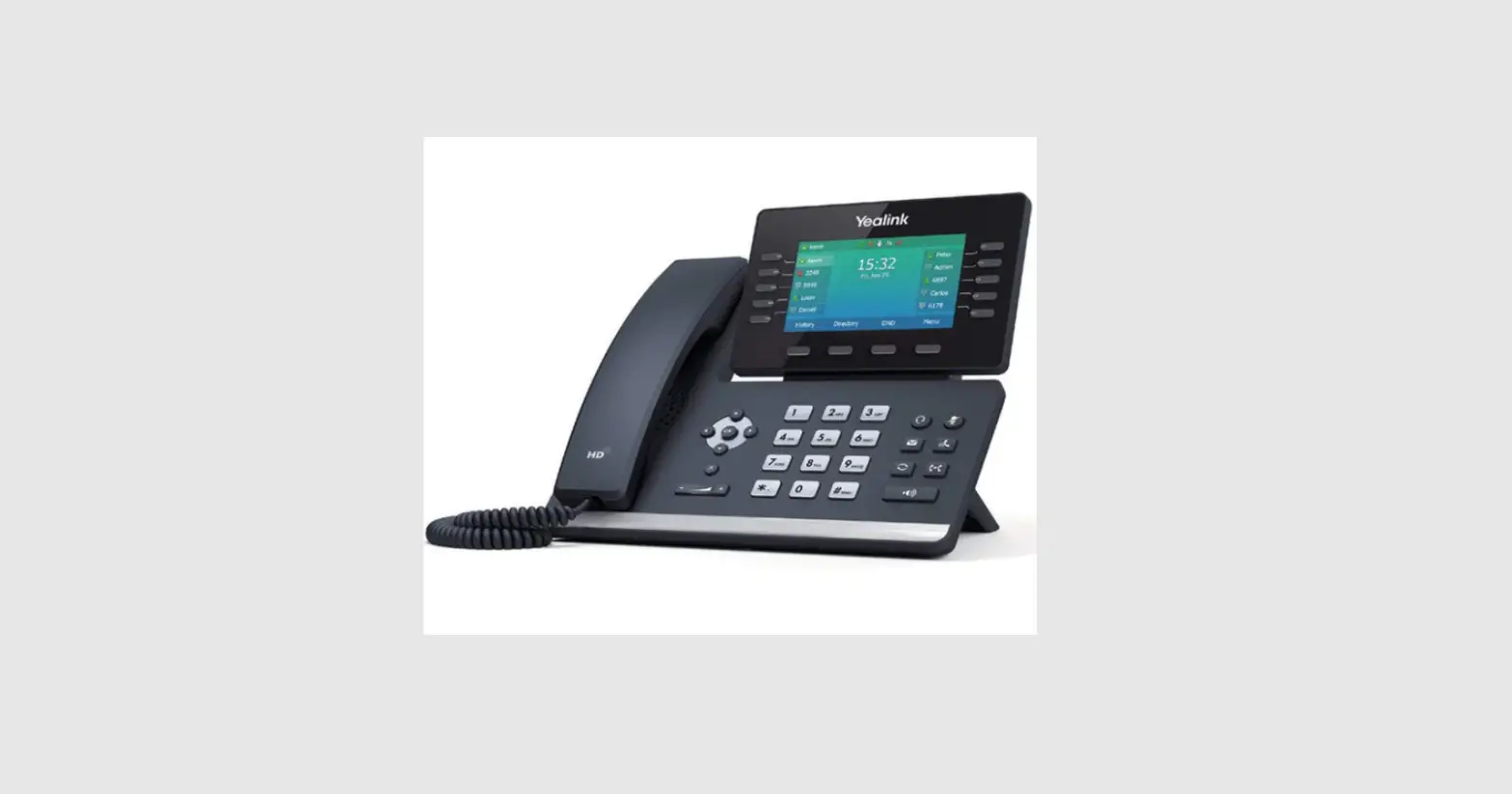
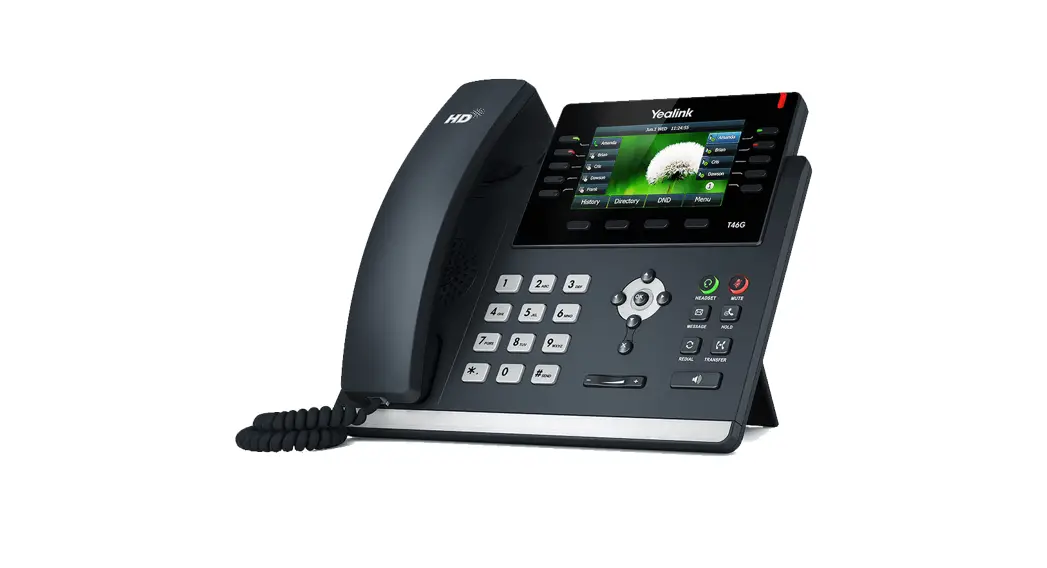
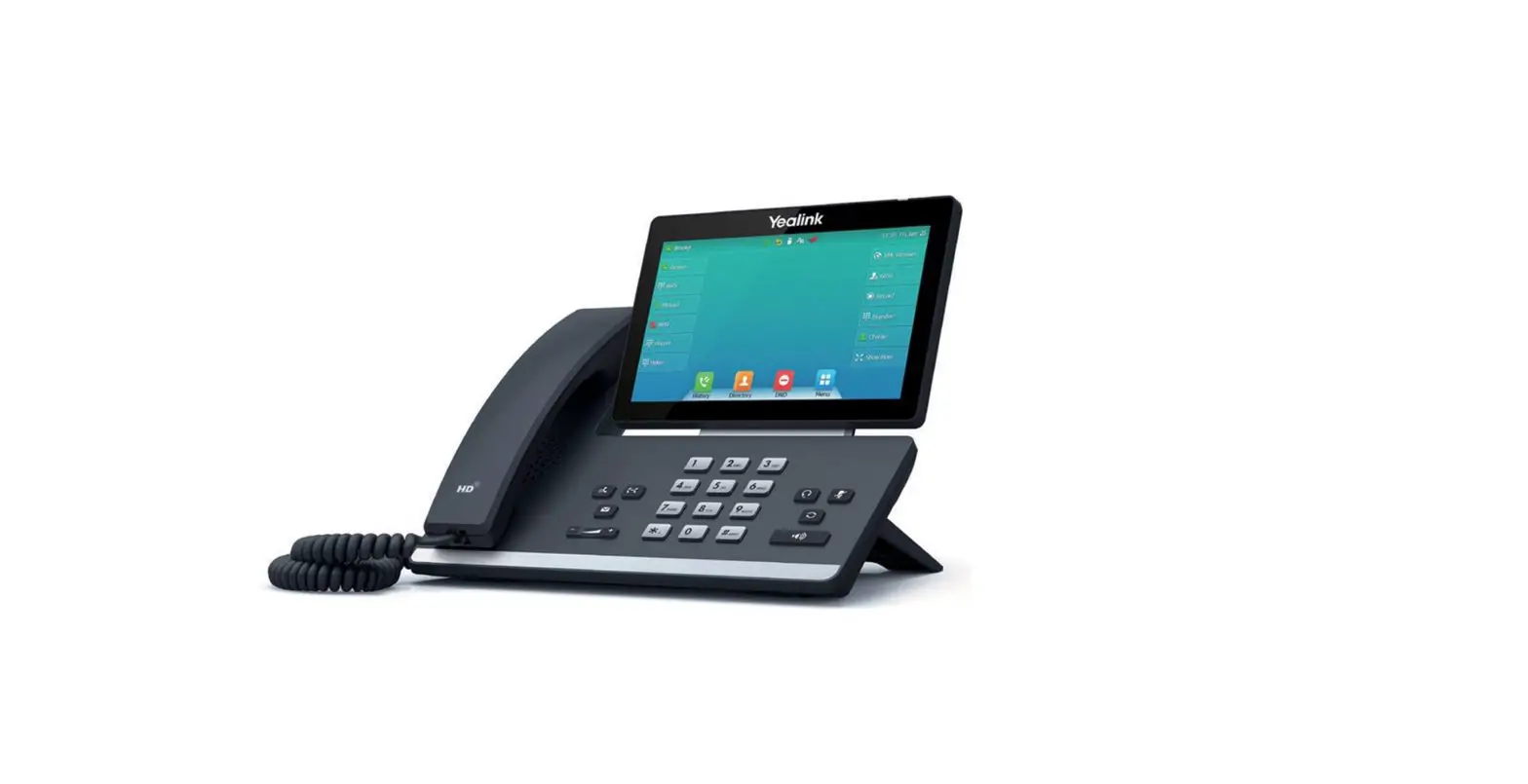
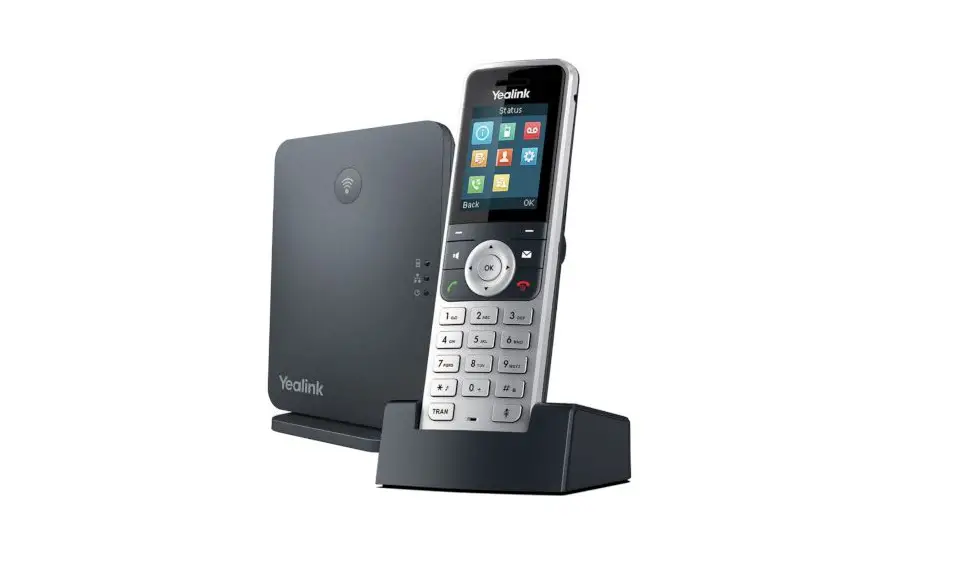
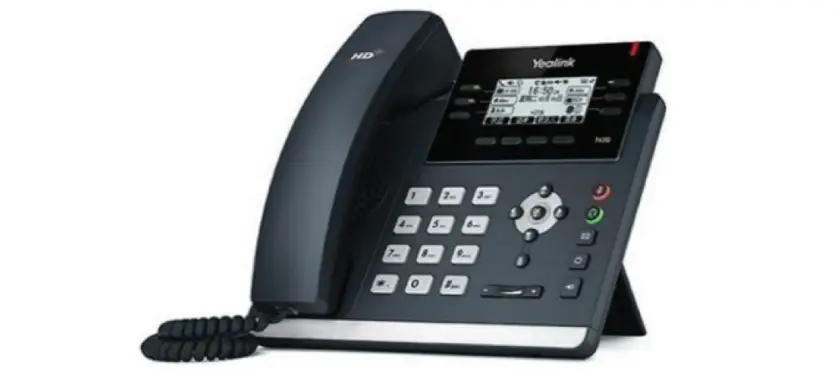
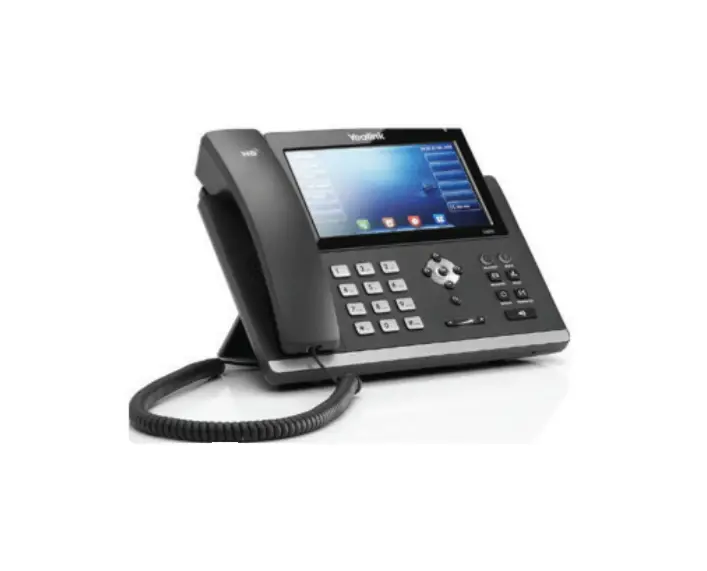
SIP-T33P Classic IP Phone
Yealink SIP-T33P & T33G Classic IP Phone
The Yealink SIP-T33P & T33G Classic IP Phone is a
high-quality communication device designed for business use. It
comes with a range of features that make it ideal for use in small
and medium-sized businesses. The phone includes a handset cord,
Ethernet cable, stand, IP phone, and a quick start guide. There is
also an optional power adapter that you can use to power the
phone.
Package Contents
- Handset Cord
- Ethernet Cable
- Stand
- IP Phone
- Handset
- Quick Start Guide
- Power Adapter (Optional)
We recommend that you use the accessories provided or approved
by Yealink. The use of unapproved third-party accessories may
result in reduced performance.
Assembling the Phone
Assembling the phone is easy. Follow these steps:
- Attach the stand or mount the phone to a wall.
- Connect the handset and optional headset.
- Connect the network and power. You have two options for network
and power connections. Your system administrator will advise you
which one to use.
- PC Connection (Optional)
- PC
- Power Adapter (DC 5V)
- AC Power Option
- PoE (Power over Ethernet) Option
- IEEE 802.3af compliant PoE Hub/Switch
The IP phone should be used with Yealink original power adapter
(5V/600mA) only. The use of a third-party power adapter may cause
damage to the phone. If you are connecting a PC to your phone, we
recommend that you use the Ethernet cable provided by Yealink. If
inline power (PoE) is provided, you don’t need to connect the power
adapter. Make sure the hub/switch is PoE-compliant.
Startup
After the IP phone is connected to the network and supplied with
power, it automatically begins the initialization process. After
startup, the phone is ready for use. You can configure the phone
via phone user interface or web user interface.
Initializing… Please wait
Configuring Your Phone
You can configure your phone in two ways: via phone user
interface or web user interface.
Configuring via Web User Interface
To access the web user interface:
- Press the OK key when the phone is idle to obtain the IP
address of the phone. - Open a web browser on your computer, enter the IP address into
the address bar (e.g., http://192.168.0.10 or 192.168.0.10) and
then press Enter. - Enter the user name (default: admin) and password (default:
admin) in the login page and click Login.
You can configure the network settings and account settings in
the following ways:
Network Settings
To configure network settings:
- Click on Network → Basic → IPv4 Config.
- You can configure the network settings in the following
ways:
- DHCP: By default, the phone attempts to contact a DHCP server
in your network to obtain its valid network settings, e.g., IP
address, subnet mask, gateway address, and DNS address. - Static IP Address: If your phone cannot contact a DHCP server
for any reason, you need to configure the IP address, subnet mask,
gateway address, primary DNS address, and secondary DNS address for
the phone manually.
default.
your phone and may have an impact on the network performance.
Contact your system administrator for more information.
Account Settings
To configure account settings:
- Click on Account → Register → Account X (X=1, 2, 3, 4).
- You can configure the following parameters of the account:
- Register Status: It shows the register status of the current
account. You can select Enabled/Disabled to enable/disable the
account. - Line Active: It is shown on the LCD screen to identify the
account. - Label: It is shown as caller ID when placing a call.
- Display Name: It is provided by ITSP for registration
(required). - User Name: It is an authenticated ID for authentication
provided by ITSP (required). - Register Name: It is provided by ITSP for registration
(required). - Password: It is provided by ITSP for registration
(required). - Server Host: It is provided by ITSP for registration
(required).
http://support.yealink.com/
SIP-T33P & T33G Classic IP Phone
Quick Start Guide
Table of Contents
English ……………………………………1 Deutsch …………………………………..7 Español …………………………………13 Français …………………………………19
E
Package Contents
N G
The
following
items
are
included
in
your
package.
If
you
find
anything
missing,
contact
your
system
L I
administrator.
S
H
Handset Cord
Ethernet Cable
Stand
IP Phone
Handset
Quick Start Guide
Power Adapter (Optional)
We recommend that you use the accessories provided or approved by Yealink. The unapproved third-party accessories may result in reduced performance.
Assembling the Phone
1. Attach the stand:
q
q
You can also mount the phone to a wall.
1
2. Connect the handset and optional headset:
3. Connect the network and power:
You have two options for network and power connections. Your system administrator will advise you which one to use.
PC Connection (Optional)
PC
Power Adapter (DC 5V)
A AC Power Option
B PoE ( Power over Ethernet ) Option
PC Connection
PC
(Optional)
IEEE 802.3af compliant PoE Hub/Switch
The IP phone should be used with Yealink original power adapter (5V/600mA) only. The use of the third-party
power adapter may cause the damage to the phone. If you are connecting a PC to your phone, we recommend that you use the Ethernet cable provided by Yealink. If inline power (PoE) is provided, you don’t need to connect the power adapter. Make sure the hub/switch is PoEcompliant.
Startup
After the IP phone is connected to the network and supplied with power, it automatically begins the initialization process. After startup, the phone is ready for use. You can configure the phone via phone user interface or web user interface.
2
Welcome
Initializing… Please wait
Configuring Your Phone
Configuring via web user interface Accessing the web user interface:
1. Press
(the OK key) when the phone is idle to obtain the IP address of the phone.
2. Open a web browser on your computer, enter the IP address into the address bar (e.g., “http://192.168.0.10” or “192.168.0.10”) and then press the Enter.
3. Enter the user name (default: admin) and password (default: admin) in the login page and click Login.
Network Settings: Click on Network->Basic->IPv4 Config
You can configure the network settings in the following ways:
DHCP: By default, the phone attempts to contact a DHCP server in your network to obtain its valid network settings, e.g., IP address, subnet mask, gateway address and DNS address.
Static IP Address: If your phone cannot contact a DHCP server for any reason, you need to configure the IP address, subnet mask, gateway address, primary DNS address and secondary DNS address for the phone manually.
The IP phone also supports IPv6, but IPv6 is disabled by default.
Wrong network settings may result in the inaccessibility of your phone and may have an impact on the network performance. Contact your system administrator for more information.
Account Settings: Click on Account->Register ->Account X (X=1, 2, 3, 4)
Parameters of the account:
Register Status: Line Active: Label: Display Name: User Name: Register Name: Password: Server Host:
It shows the register status of the current account. You can select Enabled/Disabled to enable/disable the account. It is shown on the LCD screen to identify the account. It is shown as caller ID when placing a call. It is provided by ITSP for registration (required). It is an authenticated ID for authentication provided by ITSP (required). It is provided by ITSP for registration (required). It is provided by ITSP for registration (required).
Register status icons on the LCD screen:
(Green)Registered
(Yellow) Registering
(Gray)Register Failed
Check with your system administrator if any error appears during the registration process or a specific configuration is required for your registration.
Configuring via phone user interface Network Settings: Press the Menu soft key when the phone is idle, select Advanced (default password: admin)->Network-> WAN Port->IPv4 to configure the network.
Account Settings: Press the Menu soft key when the phone is idle, select Advanced (default password: admin)->Accounts to configure the account.
For more information on account parameters, refer to Configuring via web user interface above.
3
Placing a Call
Using the handset:
1. Pick up the handset. 2. Enter the number and press the Send soft key.
Using the speakerphone:
1. With the handset on-hook, press
.
2. Enter the number and press the Send soft key.
Using the headset:
1. With the headset connected, press the headset mode.
to activate
2. Enter the number and press the Send soft key.
Answering a Call
Using the handset:
Pick up the handset.
Using the speakerphone:
Press
.
Using the headset: Press .
You can reject an incoming call by pressing the Reject soft key.
Ending a Call
Using the handset: Hang up the handset or press the EndCall soft key.
Using the speakerphone:
Press
or the EndCall soft key.
Using the headset:
Press the EndCall soft key.
Redial
· Press to enter the Placed Calls list, select the desired entry, and press or the Send soft key.
· Press twice when the phone is idle to dial out the last dialed number.
Call Hold
To place a call on hold: Press the Hold soft key during an active call.
To resume the call, do one of the following: · If there is only one call on hold, press the Resume
soft key.
· If there is more than one call on hold, select the desired call, and press the Resume soft key.
Call Transfer
You can transfer a call in the following ways:
Blind Transfer 1. Press the Trans soft key during an active call. 2. Enter the number you want to transfer to. 3. Press the B Trans soft key.
Semi-Attended Transfer 1. Press the Trans soft key during an active call. 2. Enter the number you want to transfer to, and press
the Send soft key. 3. Press the Trans soft key when you hear the ring-
back tone.
Attended Transfer 1. Press the Trans soft key during an active call. 2. Enter the number you want to transfer to, and press
the Send soft key. 3. Press the Trans soft key when the second party
answers.
Call Forward
To enable call forward: 1. Press the Menu soft key when the phone is idle,
and then select Features->Call Forward. 2. Select the desired forward type. 3. Enter the number you want to forward to. For No
Answer Forward, select the desired ring time to wait before forwarding from the After Ring Time field. 4. Press the Save soft key to accept the change.
Call Mute
· Press · Press
to mute the microphone during a call. again to un-mute the call.
4
Call Conference
1. Press the Conf soft key during an active call. The call is placed on hold.
2. Enter the number of the second party, and press the Send soft key.
3. Press the Conf soft key again when the second party answers. All parties are now joined in the conference.
4. Press the EndCall soft key to disconnect all parties.
If you press the Option soft key, you can also do the following:
· Select Detail to view detailed information about the entry.
· Select Add to Contacts to add the entry to the local directory.
· Select Add to Blacklist to add the entry to the blacklist.
· Select Delete All to delete all entries from the list.
You can split the conference call into two individual calls by pressing the Split soft key.
Speed Dial
To configure a speed dial key: 1. Press the Menu soft key when the phone is idle,
and then select Features->Dsskey. 2. Select the desired DSS key, and press the Enter
soft key. 3. Select SpeedDial from the Type field, select the
desired line from the Account ID field, enter a label in the Label field, enter the number in the Value field. 4. Press the Save soft key to accept the change.
To use the speed dial key: Press the speed dial key to dial out the preset number.
Voice Message
Message waiting indicator on the idle screen indicates that one or more voice messages are waiting at the message center. The power indicator LED slowly flashes red.
To listen to voice messages: 1. Press or the Connect soft key. 2. Follow the voice prompts to listen to your voice
messages.
Contact Directory
To add a contact:
1. Press the Dir soft key when the phone is idle, and then select All Contacts.
2. Press the Add soft key to add a contact. 3. Enter a unique contact name in the Name field and
contact numbers in the corresponding fields. 4. Press the Save soft key to accept the change.
To edit a contact:
1. Press the Dir soft key when the phone is idle, and then select All Contacts.
2. Press or to select the desired contact, press the Option soft key and then select Detail from the prompt list.
3. Edit the contact information. 4. Press the Save soft key to accept the change.
To delete a contact:
1. Press the Dir soft key when the phone is idle, and then select All Contacts.
2. Press or to select the desired contact, press the Option soft key and then select Delete from the prompt list.
3. Press the OK soft key when the LCD screen prompts “Delete selected item?”.
Volume Adjustment
Call History
1. Press the History soft key when the phone is idle, press or to scroll through the list.
2. Select an entry from the list, you can do the following: · Press the Send soft key to call the entry.
· Press the Delete soft key to delete the entry from the list.
Press
to adjust the volume.
5
Regulatory Notices
Operating Ambient Temperatures
· Operating temperature: +14 to 122°F (-10 to 50°C) · Relative humidity: 5% to 90%, noncondensing · Storage temperature: -22 to +160°F (-30 to +70°C)
Warranty
Our product warranty is limited only to the unit itself, when used normally in accordance with the operating instructions and the system environment. We are not liable for damage or loss resulting from the use of this product, or for any claim from a third party. We are not liable for problems with Yealink device arising from the use of this product; we are not liable for financial damages, lost profits, claims from third parties, etc., arising from the use of this product.
DC symbol
is the DC voltage symbol.
· Do not tread on, pull, or over-bend any cable in case of malfunction of the device.
· During a thunderstorm, stop using the device and disconnect it from the power supply. Unplug the power plug and the Asymmetric Digital Subscriber Line (ADSL) twisted pair (the radio frequency cable) to avoid lightning strike.
· If the device is left unused for a rather long time, disconnect it from the power supply and unplug the power plug.
· When there is smoke emitted from the device, or some abnormal noise or smell, disconnect the device from the power supply, and unplug the power plug immediately. Contact the specified maintenance center for repair.
· Do not insert any object into equipment slots that is not part of the product or auxiliary product.
· Before connecting a cable, connect the grounding cable of the device first. Do not disconnect the grounding cable until you disconnect all other cables.
Restriction of Hazardous Substances Directive (RoHS)
This device complies with the requirements of the EU RoHS Directive. Statements of compliance can be obtained by contacting support@yealink. com.
Safety Instructions
Cleaning Requirements
· Before cleaning the device, stop using it and disconnect it from the power supply.
· Use a piece of soft, dry and anti-static cloth to clean the device. · Keep the power plug clean and dry. Using a dirty or wet power plug may
lead to electric shock or other perils.
Save these instructions. Read these safety instructions before use! The following basic safety precautions should always be followed to reduce risk of fire, electrical shock, and other personal injury.
ENVIRONMENTAL RECYCLING
Never dispose of the device with domestic waste
General Requirements
Ask your Town Council about how to dispose of it in an
· Before you install and use the device, read the safety instructions
environmentally friendly way. The cardboarc box, plastic packaging
carefully and observe the situation during operation. · During the process of storage, transportation, and operation, please
always keep the device dry and clean. · During the process of storage, transportation, and operation, please
avoid collision and crash of the device.
and player components may be recycled in accordance with prevailing recycling regulations in your country.
Always adhere to prevailing regulations
· Please attempt not to dismantle the device by yourself. In case of any discrepancy, please contact the appointed maintenance center for repair.
· Without prior written consent, no organization or individual is permitted to make any change to the structure or the safety design of the device.
Those who fail to do so may be fined or prosecuted in accordance with the law. The crossed out garbage can that appears on the device means that when it has reached the end of its useful life, it should be taken to a special waste disposal centre and treated separately to general urban waste.
Yealink is under no circumstance liable to consequences or legal issues caused by such changes.
Troubleshooting
· Please refer to the relevant laws and statutes while using the device. The unit cannot supply power to Yealink device.
Legal rights of others should be respected as well.
There is a bad connection with the plug.
Environmental Requirements
· Place the device at a well-ventilated place. Do not expose the device under direct sunlight.
· Keep the device dry and free of dusts. · Place the device on a stable and level platform.
1. Clean the plug with a dry cloth. 2. Connect it to another wall outlet. The usage environment is out of operating temperature range. 1. Use in the operating temperature range. The cable between the unit and the Yealink device is connected incorrectly. 1. Connect the cable correctly.
· Please place no heavy objects on the device in case of damageand You cannot connect the cable properly.
deformation caused by the heavy load.
1. You may have connected a wrong Yealink device.
· Keep at least 10 cm between the device and the closest object for heat dissipation.
· Do not place the device on or near any inflammable or fire-vulnerable object, such as rubber-made materials.
· Keep the device away from any heat source or bare fire, such as a candle or an electric heater.
· Keep the device away from any household appliance with strong
2. Use the correct power supply. Some dust, etc., may be in the port. 1. Clean the port. Contact your dealer or authorized service facility for any further questions.
Contact Information
YEALINK NETWORK TECHNOLOGY CO.,LTD.
magnetic field or electromagnetic field, such as a microwave oven or a 309, 3rd Floor, No.16, Yun Ding North Road, Huli District, Xiamen City, Fujian,
refrigerator.
P.R.C
Operating Requirements
· Do not let a child operate the device without guidance. · Do not let a child play with the device or any accessory in case of
accidental swallowing. · Please use the accessories provided or authorized by the manufacturer
only.
YEALINK (EUROPE) NETWORK TECHNOLOGY B.V. Strawinskylaan 3127, Atrium Building, 8th floor, 1077ZX Amsterdam, The Netherlands YEALINK (USA) NETWORK TECHNOLOGY CO., LTD. 999 Peachtree Street Suite 2300, Fulton, Atlanta, GA, 30309, USA Made in China
· The power supply of the device shall meet the requirements of the input
voltage of the device. Pleaseusethe provided surge protection power
socket only.
· Before plugging or unplugging any cable, make sure that your hands
are completely dry. · Do not spill liquid of any kind on the product or use the equipment
near water, for example, near a bathtub, washbowl, kitchen sink, wet
basement or near a swimming pool.
D
Verpackungsinhalt
E U
T
Folgende Teile sind im Lieferumfang Ihres Telefons enthalten. Sollte etwas fehlen, wenden Sie sich bitte an S
Ihren Systemadministrator.
C
H
Hörerkabel
Ethernet-Kabel
Standfuß
IP-Telefon
Hörer
Kurzanleitung
Netzgerät (optional)
Wir empfehlen die Verwendung von Zubehör, das von Yealink entweder geliefert oder empfohlen wird. Der Gebrauch
von Drittanbietern bereitgestellten Zubehörs, das von Yealink nicht freigegeben wurde, kann zu einer verminderten Leistungsfähigkeit führen.
Installation des Telefons
1. Befestigen Sie den Standfuß:
q
q
Sie können das Telefon auch an einer Wand befestigen.
7
2. Verbinden Sie den Hörer und das optionale Headset:
3. Verbinden Sie das Netzwerk und die Stromversorgung:
Es gibt zwei Möglichkeiten für die Verbindung des Netzwerks und der Stromversorgung. Ihr Systemadministrator wird Sie über die entsprechende Methode informieren.
PC-Verbindung (optional)
PC
Netzgerät (DC 5V)
A AC Stromversorgung
B PoE-Option (Power over Ethernet)
PC-Verbindung
PC
(optional)
PoE Netzwerk-Switch
Das IP-Telefon darf nur mit dem originalen Yealink Netzteil (5V/600mA) genutzt werden. Die Verwendung eines
Netzteiles eines Drittanbieters kann zu einer Beschädigung des Telefons führen. Falls Sie beabsichtigen, Ihr Telefon mit einem PC zu verbinden, empfehlen wir, daß Sie das von Yealink gelieferte Ethernet-Kabel benutzen. Bei einer Online-Versorgung (PoE) muss das Netzgerät nicht angeschlossen werden. Stellen Sie sicher, dass der Hub/Switch PoE-kompatibel ist.
Startvorgang
Nach der Verbindung mit dem Netzwerk und der Stromversorgung startet das IP-Telefon automatisch den Initialisierungsvorgang. Nach der Initialisierung ist das Telefon betriebsbereit. Sie können das Telefon via Weboberfläche oder Benutzeroberfläche des Telefons konfigurieren.
8
Welcome
Initializing… Please wait
Konfiguration Ihres Telefons
Konfiguration über die Weboberfläche Zugriff auf die Weboberfläche:
1. Drücken Sie im Ruhezustand des Telefons die Taste
(OK), um die IP-Adresse des Telefons zu beziehen.
2. Öffnen Sie an Ihrem Computer den Webbrowser, geben Sie die IP-Adresse in die Adresszeile ein (z.B. ,,http://192.168.0.10″ oder ,,192.168.0.10″) und drücken Sie dann Enter.
3. Geben Sie auf der Login-Seite den Benutzernamen (werksseitig: admin) und das Passwort (werksseitig: admin) ein und klicken Sie auf Anmeldung.
Netzwerkeinstellungen: Klicken Sie auf Netzwerk->Basis->IPv4-Konfig
Sie können die Netzwerkeinstellungen wie folgt konfigurieren:
DHCP: Per Standardeinstellung kontaktiert das Telefon einen DHCP-Server in Ihrem Netzwerk, um die gültigen Netzwerkeinstellungen zu beziehen, z.B. IP-Adresse, Subnetzmaske, Gateway-Adresse und DNSAdresse.
Statische IP: Falls Ihr Telefon aus irgendeinem Grund keinen DHCP-Server kontaktieren kann, müssen Sie die IP-Adresse, Subnetzmaske, Gateway-Adresse, primäre DNS-Adresse und sekundäre DNS-Adresse für das Telefon manuell konfigurieren.
Das IP-Telefon unterstützt auch IPv6, dieses ist jedoch standardmäßig deaktiviert.
Falsche Netzwerkeinstellungen können zur Unzugänglichkeit Ihres Telefons und zu einer Beeinträchtigung der Netzwerkleistung führen. Bitte wenden Sie sich für weitere Informationen an Ihren Systemadministrator.
Kontoeinstellungen: Klicken Sie auf Account->Register->Konto X (X=1, 2, 3, 4)
Einstellungen des Kontos:
Registrierungsstatus:
Zeigt den Status der Registrierung des aktuellen Kontos an.
Leitung aktiv:
Wählen Sie Enabled/Disabled, um das Konto zu aktivieren/deaktivieren.
Label:
Anzeige erscheint im Touchscreen für die Identifizierung des Kontos.
Anzeigename:
Erscheint während eines Anrufs als Anrufer-ID.
Benutzername:
Wird von ITSP für die Registrierung bereitgestellt (erforderlich).
Registrierungsname:
Dies ist eine von ITSP bereitgestellte bestätigte ID für die Authentifizierung
(erforderlich).
Passwort:
Wird von ITSP für die Registrierung bereitgestellt (erforderlich).
Server-Host:
Wird von ITSP für die Registrierung bereitgestellt (erforderlich).
Icons für die Anzeige des Registrierungsstatus im LCD:
(Grün) Registriert
(Gelb) Registrierung im Gang
(Grau) Registrierung fehlgeschlagen
Wenden Sie sich an Ihren Systemadministrator, falls während der Registrierung ein Fehler auftritt oder für Ihre Registrierung eine bestimmte Konfiguration benötigt wird. Konfiguration via Benutzeroberfläche des Telefons Netzwerkeinstellungen: Drücken Sie im Ruhezustand des Telefons die Bildschirmtaste Menü und wählen Sie Erweitert (Passwort: admin)->Netzwerk-> WAN-Port->IPv4 zur Konfiguration des Netzwerks.
Kontoeinstellungen:
Drücken Sie im Ruhezustand des Telefons die Bildschirmtaste Menü und wählen Sie Erweitert (Passwort: admin)->Konten zur Konfiguration des Kontos.
Weitere Informationen zu den Kontoeinstellungen finden Sie im Abschnitt Konfiguration via Weboberfläche.
9
Anruf tätigen
Mit dem Hörer:
1. Nehmen Sie den Hörer ab. 2. Geben Sie die Nummer ein und drücken Sie dann im
Bildschirm auf Anrufen.
Mit Freisprecheinrichtung:
1. Drücken Sie bei aufgelegtem Hörer auf die Taste
.
2. Geben Sie die Nummer ein und drücken Sie dann im
Bildschirm auf Anrufen.
Mit Headset:
1. Drücken Sie bei angeschlossenem Headset auf die
Taste
, um den Kopfhörermodus zu aktivieren.
2. Geben Sie die Nummer ein und drücken Sie dann im Bildschirm auf Anrufen.
Anruf entgegennehmen
Mit dem Hörer: Nehmen Sie den Hörer ab.
Mit Freisprecheinrichtung:
Drücken Sie auf die Taste
.
Mit Headset:
Drücken Sie auf die Taste
.
Sie können einen eingehenden Anruf ignorieren, indem Sie die Bildschirmtaste Reject drücken.
Anruf beenden
Mit dem Hörer:
Legen Sie den Hörer auf oder drücken Sie die Bildschirmtaste Auflegen.
Mit Freisprecheinrichtung:
Drücken Sie
oder die Bildschirmtaste Auflegen.
Mit Headset: Drücken Sie die Bildschirmtaste Auflegen.
Wahlwiederholung
· Drücken Sie die Taste
, um die Liste Placed
Calls zu öffnen, und drücken Sie dann
oder die
Bildschirmtaste Send.
· Drücken Sie im Ruhezustand zweimal die Taste , um die zuletzt gewählte Nummer erneut zu wählen.
Anruf stumm
· Drücken Sie die Taste stellen.
, um einen Anruf stumm zu
· Drücken Sie erneut, um die Funktion zu deaktivieren.
10
Anruf halten
Anruf in Wartestellung versetzen:
Drücken Sie während eines aktiven Anrufs die Bildschirmtaste Halten.
Gehen Sie wie folgt vor, um den Anruf fortzusetzen:
· Falls sich nur ein Anruf in Wartestellung befindet, drücken Sie die Bildschirmtaste Fortsetzen.
· Falls sich mehrere Anrufe in Wartestellung befinden, wählen den gewünschten Anruf und drücken Sie dann die Bildschirmtaste Resume.
Rufweiterleitung
Sie können Anrufe wie folgt weiterleiten:
Direkte Weiterleitung
1. Drücken Sie während eines aktiven Anrufs die Bildschirmtaste Übergeben.
2. Geben Sie die Nummer ein, an die der Anruf weitergeleitet werden soll.
3. Drücken Sie die Bildschirmtaste BT-Send.
Weiterleitung mit Rufzeichen
1. Drücken Sie während eines aktiven Anrufs die Bildschirmtaste Übergeben.
2. Geben Sie die Nummer ein, an die der Anruf weitergeleitet werden soll und drücken Sie dann Send.
3. Drücken Sie die Bildschirmtaste Übergeben, sobald Sie den Rückrufton hören.
Weiterleitung mit Rücksprache
1. Drücken Sie während eines aktiven Anrufs die Bildschirmtaste Übergeben.
2. Geben Sie die Nummer ein, an die der Anruf weitergeleitet werden soll und drücken Sie dann Send.
3. Drücken Sie die Bildschirmtaste Übergeben, sobald der zweite Teilnehmer den Anruf entgegennimmt.
Anrufumleitung
Rufweiterleitung aktivieren:
1. Drücken Sie im Ruhezustand des Telefons die Bildschirmtaste Menü und wählen Sie dann Leist. Merkm.->Rufweiterleitung.
2. Wählen Sie die gewünschte Art der Rufumleitung. 3. G e b e n S i e d i e N u m m e r e i n , a n d i e A n r u fe
umgeleitet werden sollen. Wählen Sie für die Option Keine Antwort mit den Tasten oder den Zeitraum aus, nach Ablauf dessen der Anruf umgeleitet werden soll. 4. Drücken Sie die Bildschirmtaste Speichern zur Übernahme der Änderungen.
Telefonkonferenz
1. Dr ücken Sie während eines aktiven Anr ufs die Bildschirmtaste Konf.. Der Anruf wird in Wartestellung versetzt.
2. Geben Sie die Nummer des zweiten Teilnehmers ein und drücken Sie dann im Bildschirm auf Anrufen.
3. Drücken Sie die Bildschirmtaste Konf. erneut, sobald der zweite Teilnehmer den Anruf entgegennimmt. Alle Teilnehmer sind nun der Telefonkonferenz zugeschaltet.
4. Drücken Sie die Bildschirmtaste Auflegen um alle Teilnehmer zu trennen.
Sie können die Telefonkonferenz in zwei separate Anrufe aufteilen, indem Sie die Bildschirmtaste Split drücken.
Kurzwahl
Kurzwahltasten konfigurieren:
1. Dr ücken Sie im Ruhezustand des Telefons die Bildschirmtaste Menü und wählen Sie dann Leist. Merkm.->Direktwahltaste.
2. Wählen Sie die gewünschte DSS-Taste und drücken Sie dann die Bildschirmtaste Eingeben.
3. Wählen Sie im Feld Typ die Option Kurzwahl. Wählen Sie unter Feld Konto ID die gewünschte Leitung und geben Sie im Feld Label ein Kürzel und im Feld Wert die Nummer ein.
4. Drücken Sie die Bildschir mtaste Speichern zur Übernahme der Änderungen.
Verwendung von Kurzwahltasten:
Drücken Sie auf die Kurzwahltaste, um die zugewiesene Nummer anzuwählen.
Sprachnachrichten
Die Anzeige für eingegangene Nachrichten auf dem Ruhebildschirm weist darauf hin, dass im Nachrichtenzentrum eine oder mehrere Sprachnachrichten eingegangen sind. Die LEDBetriebsanzeige blinkt langsam rot.
Sprachnachrichten abspielen:
1. Drücken Sie
oder die Bildschirmtaste Verbinden.
2. Folgen Sie den Sprachanleitungen, um Ihre Nachrichten
abzuspielen.
Anrufliste
1. Drücken Sie im Ruhezustand des Telefons auf die Bildschirmtaste Historie und drücken Sie dann
oder
, um durch die Liste zu scrollen.
2. Wählen Sie einen Eintrag in der Liste. Sie haben dann folgende Möglichkeiten:
· Drücken Sie die Bildschirmtaste Anrufen, um einen
Anruf zu tätigen.
· Drücken Sie die Bildschirmtaste Löschen, um den Eintrag aus der Liste zu löschen.
Drücken Sie die Bildschirmtaste Optionen, um eine der nachfolgenden Funktionen auszuführen:
· Wählen Sie die Option Detail, um detaillierte Informationen des Eintrags anzuzeigen.
· Wählen Sie die Option Zu den Kontakten hinzufügen, um einen Eintrag zum lokalen Verzeichnis hinzuzufügen.
· Wählen Sie die Option Zur schw.Li.addn, um den Eintrag auf die schwarze Liste zu setzen.
· Wählen Sie Alles löschen, um alle Einträge in der Liste zu löschen.
Telefonbuch
Kontakt hinzufügen:
1. Dr ücken Sie im Ruhezustand des Telefons die Bildschirmtaste Verzeichnis und wählen Sie dann die gewünschte Gruppe aus.
2. Drücken Sie im Bildschirm auf Hinzufü., um einen Kontakt hinzuzufügen.
3. Geben Sie in das Feld Name einen unverwechselbaren Namen und in die jeweiligen Felder die Telefonnummern ein.
4. Drücken Sie die Bildschir mtaste Speichern zur Übernahme der Änderungen.
Kontakt bearbeiten:
1. Dr ücken Sie im Ruhezustand des Telefons die Bildschirmtaste Verzeichnis und wählen Sie dann die gewünschte Gruppe aus.
2. Wählen Sie mit oder den gewünschten Eintrag. Drücken Sie die Bildschirmtaste Optionen und wählen Sie dann in der geöffneten Liste die Option Detail.
3. Bearbeiten Sie die Kontaktinformationen. 4. Drücken Sie die Bildschir mtaste Speichern zur
Übernahme der Änderungen.
Kontakt löschen:
1. Dr ücken Sie im Ruhezustand des Telefons die Bildschirmtaste Verzeichnis und wählen Sie dann die gewünschte Gruppe aus.
2. Wählen Sie mit oder den gewünschten Eintrag. Drücken Sie die Bildschirmtaste Optionen und wählen Sie dann in der geöffneten Liste die Option Löschen.
3. Drücken Sie die Bildschirmtaste OK, wenn im LCD die Mitteilung ,,Delete Selected Item?” erscheint.
Lautstärke einstellen
Drücken Sie
um Lautstärke einzustellen. 11
Sicherheitshinweise
Betriebsumgebungstemperaturen
· Betriebstemperatur: -10 bis 50 °C · Relative Luftfeuchtigkeit: 5 % bis 90 %, nicht kondensierend · Lagertemperatur: -30 bis + 70 °C
Garantie
Unsere Produktgarantie ist auf das Gerät selbst beschränkt, wenn es normal und gemäß den Betriebsanweisungen und der Systemumgebung verwendet wird. Wir sind weder für Schäden oder Verluste haftbar, die aus der Verwendung dieses Produkts entstehen, noch für Ansprüche eines Dritten. Wir sind nicht haftbar für Probleme mit dem Yealink Gerät, die aus der Verwendung dieses Produkts entstehen. Wir sind nicht haftbar für finanzielle Schäden, Gewinnverluste, Ansprüche
Dritter etc., die aufgrund der Verwendung dieses Produkts entstehen.
Symbol DC
ist das Symbol für DC-Spannung.
Richtlinie zur Beschränkung der Verwendung bestimmter gefährlicher Stoffe in Elektro- und Elektronikgeräten (RoHS)
Das Gerät erfüllt die Anforderungen der RoHS-Richtlinie der EU. Für Bestätigungen der Einhaltung können Sie sich an [email protected] wenden.
Sicherheitshinweise
Bewahren Sie diese Anweisungen auf. Lesen Sie diese Sicherheitshinweise vor der Verwendung! Die folgenden grundlegenden Vorsichtsmaßnahmen müssen zur Vermeidung von Bränden, Stromschlag und anderen Verletzungen immer befolgt werden.
Allgemeine Vorschriften
· Lesen Sie vor der Installation und Verwendung des Geräts die Sicherheitshinweise sorgfältig durch und beobachten Sie die Situation im Betrieb.
· Halten Sie das Gerät während der Lagerung, dem Transport und dem Betrieb stets sauber und trocken.
· Vermeiden Sie während der Lagerung, dem Transport und dem Betrieb stets Zusammenprallen und Stürze des Geräts.
· Versuchen Sie nicht das Gerät eigenständig zu demontieren. Wenden Siesich im Falle von Mängeln an das zuständige Wartungscenter für eine Reparatur.
· Ohne vorherige schriftliche Zustimmung dürfen weder Unternehmen noch Einzelperson Änderungen an der Struktur oder dem Sicherheitskonzept des Geräts vornehmen. Yealink übernimmt unter keinen Umständen die Haftung für Folgen oder Rechtsansprüche, die auf solche Änderungen zurückzuführen sind.
· Beachten Sie bitte die entsprechenden Gesetze und Vorschriften bei der Verwendung des Geräts. Die gesetzlichen Rechte Dritter müssen ebenfalls beachtet werden.
Umweltvorschriften
· Stellen Sie das Gerät an einem gut belüfteten Ort auf. Setzen Sie das Gerät nicht direkter Sonneneinstrahlung aus.
· Halten Sie das Gerät trocken und frei von Staub. · Stellen Sie das Gerät auf einen stabilen, ebenen Untergrund. · Bitte legen Sie keine schweren Gegenstände auf das Gerät, da
Beschädigung und Verformungen durch zu hohe Last möglich sind. · Halten Sie mindestens 10 cm Abstand zwischen dem Gerät und dem
nächsten Objekt ein, um die Wärmeabfuhr zu gewährleisten. · Stellen Sie das Gerät nicht auf oder in der Nähe von entflammbaren oder
brandgefährdeten Objekt wie Gummimaterialien auf. · Halten Sie das Gerät fern von Hitzequellen und offenem Feuer, wie Kerzen
oder einer elektrischen Heizung. · Halten Sie das Gerät fern von jedem Haushaltsgerät mit starkem Magnetfeld
oder Elektromagnetfeld, z.B. einem Mikrowellenherd oder einem Kühlschrank.
Betriebsvorschriften
· Lassen Sie das Gerät nicht ohne Aufsicht durch ein Kind verwenden. · Lassen Sie kein Kind mit dem Gerät oder einem Zubehörteil spielen, da
Kleinteile verschluckt werden können. · Bitte verwenden Sie ausschließlich Zubehör, das vom Hersteller bereitgestellt oder
genehmigt wurde. · Die Stromversorgung des Geräts muss den Anforderungen der Eingangsspannung
des Gerätes entsprechen. Bitte verwenden Sie ausschließlich den bereitgestellten Überspannungsschutz an der Steckdose. · Achten Sie vor dem Anschließen oder Abziehen des Kabels darauf, dass Ihre Hände vollständig trocken sind.
· Verschütten Sie keine Flüssigkeiten auf das Gerät und verwenden Sie es nicht in der Nähe von Wasser, beispielsweise in der Nähe einer Badewanne, Waschschüssel, einem Spülbecken, in einem feuchten Keller oder in der Nähe eines Schwimmbeckens.
· Treten Sie nicht auf das Kabel, ziehen und verbiegen Sie es nicht, da es dadurch zu einer Fehlfunktion des Geräts kommen kann.
· Schalten Sie das Gerät bei Gewitter aus und trennen Sie es von der Stromversorgung. Ziehen Sie das Netzkabel und das ADSL-Twisted-PairKabel (Festnetzkabel) zurVermeidung eines Blitzschlags.
· Wenn das Gerät längere Zeit ungenutzt bleibt, trennen Sie es von der Stromversorgung und ziehen Sie den Netzstecker.
· Wenn Rauch oder ungewöhnliche Geräusche oder Gerüche aus dem Gerät austreten, trennen Sie das Gerät sofort von der Stromversorgung und ziehen Sie das Netzkabel. Wenden Sie sich an das angegebene Wartungscenter für eine Reparatur.
· Führen Sie keine Gegenstände in Einschübe oder Anschlussöffnungen des Geräts ein, die kein Bestandteil des Produktes oder ein Zubehörteil sind.
· Schließen Sie zuerst das Erdungskabel des Geräts an, bevor Sie ein Kabel anschließen.Trennen Sie das Erdungskabel nicht, bis nicht alle anderen Kabel entfernt wurden.
Reinigungsvorschriften
· Bevor Sie das Gerät reinigen, schalten Sie es aus und trennen Sie es von der Stromversorgung.
· Verwenden Sie ein Stück trockenes, weiches und antistatisches Tuch zum Reinigen des Geräts.
· Halten Sie das Netzkabel sauber und trocken. Über einen schmutzigen oder nassen Netzstecker kann es zu einem elektrischen Schlag oder anderen Gefahren kommen.
UMWELTFREUNDLICHE VERWERTUNG
Entsorgen Sie das Gerät nicht mit dem Hausmüll.
Erkundigen Sie sich bei Ihrer Stadtverwaltung, wie Sie das Gerät
umweltfreundlich entsorgen können Pappkarton, Kunststoffverpackung
und Bauteile des Gerätes können im Einklang mit den geltenden
Vorschriften in Ihrem Land verwertet werden.
Halten Sie stets die geltenden Vorschriften ein.
Deren Nichtbeachtung kann eine Buße oder Verfolgung gemäß dem geltenden Recht nach sich ziehen Die durchgestrichene Mülltonne auf dem Gerät bedeutet, dass das Gerät am Ende seiner Nutzungsdauer zu einer speziellen Elektroschrottsammelstelle gebracht und vom Hausmüll gesondert verarbeitet werden muss.
Fehlerbehebung
Die Einheit kann das Yealink Gerät nicht mit Strom versorgen. Es gibt Probleme mit dem Steckeranschluss. 1. Reinigen Sie den Stecker mit einem trockenen Tuch. 2. Schließen Sie ihn an einer anderen Steckdose an. Die Umgebungstemperatur liegt oberhalb des Betriebstemperaturbereichs. 1. Verwenden Sie die Einheit innerhalb des Betriebstemperaturbereichs. Das Kabel zwischen der Einheit und dem Yealink Gerät ist nicht richtig angeschlossen. 1. Schließen Sie das Kabel richtig an. Das Kabel lässt sich nicht richtig anschließen. 1. Sie haben möglicherweise ein falsches Yealink Gerät angeschlossen. 2. Verwenden Sie die richtige Stromversorgung. Es befindet sich möglicherweise Staub etc. im Port. 1. Reinigen Sie den Port. Setzen Sie sich bei weiteren Fragen mit Ihrem Händler oder Ihrer anerkannten Servicestelle in Verbindung.
Kontaktdaten des Ansprechpartners
YEALINK NETWORK TECHNOLOGY CO., LTD. 309, 3rd Floor, No. 16, Yun Ding North Road, Huli District, Xiamen City, Fujian, VR China YEALINK (EUROPE) NETWORK TECHNOLOGY B.V. Strawinskylaan 3127, Atrium Building, 8th floor, 1077ZX Amsterdam, Niederlande YEALINK (USA) NETWORK TECHNOLOGY CO., LTD. 999 Peachtree Street Suite 2300, Fulton, Atlanta, GA, 30309, USA Hergestellt in China
E
Contenido de la caja
S P
A
En la caja se incluyen los siguientes artículos. Si detecta que falta algo, contacte con el administrador de su Ñ
sistema.
O
L
Cable del auricular Cable Ethernet
Base
Teléfono IP
Auricular
Guía de inicio rápido
Adaptador eléctrico (opcional)
Utilice siempre accesorios proporcionados o aprobados por Yealink. El uso de accesorios no homologados puede causar un mal funcionamiento del equipo.
Assembling the Phone
1. Puede fijar el soporte en dos alturas distintas:
q
q
También puede montar el teléfono en una pared.
13
2. Conecte el auricular y los cascos (opcional):
3. Conecte la red y la alimentación:
Tiene dos opciones para las conexiones de red y de alimentación. El administrador de su sistema le recomendará cuál usar.
Conexión a PC (opcional)
PC
Adaptador eléctrico (5 Vdc)
A Opción Alimentador
B Opción PoE (Power over Ethernet)
Conexión a PC
PC
(opcional)
Hub/Switch PoE conforme a IEEE 802.3af
Utilice siempre el adaptador original de Yealink (5V/600mA) . El uso de alimentadores de terceros puede causar
daños irreparables en el equipo. Si quiere conectar un PC al terminal, le recomendamos usar el cable Ethernet proporcionado por Yealink. Si se proporciona alimentación en línea (PoE), no necesita conectar el alimentador. Asegúrese de que el hub/ switch es compatible con PoE.
Puesta en funcionamiento
El proceso de inicialización empezará automáticamente cuando el teléfono IP esté conectado a la red y reciba alimentación. El teléfono estará listo para usar tras la puesta en funcionamiento. Puede configurar el teléfono a través de la interfaz de usuario web o la interfaz de usuario del teléfono.
14
Welcome
Initializing… Please wait
Configuración del teléfono
Configuración a través de la interfaz de usuario web Acceso a la interfaz de usuario web:
1. Pulse la tecla
(the OK key) cuando el teléfono esté en reposo para obtener su dirección IP.
2. Abra el navegador de Internet en su ordenador, introduzca la dirección IP en la barra de direcciones (es decir, “http://192.168.0.10” o “192.168.0.10”) y a continuación pulse la tecla Entrar.
3. Marque el nombre de usuario (predeterminado: admin) y la contraseña (predeterminada: admin) en la página de inicio de sesión y haga clic en Iniciar sesión.
Configuración de la red: Haga clic en Red->Básico->Config IPv4
Puede configurar los ajustes de la red de las formas siguientes:
DHCP: El teléfono intentará contactar con un servidor DHCP de su red para obtener los ajustes de red válidos, es decir, la dirección IP, máscara de subred, dirección de la puerta de enlace y dirección DNS.
IP estática: Si el teléfono no puede contactar con un servidor DHCP por alguna razón, deberá configurar manualmente la dirección IP, máscara de subred, dirección de la puerta de enlace y los DNS primario y secundario del teléfono.
El teléfono IP también es compatible con IPv6, pero está deshabilitado de forma predeterminada.
Los ajustes incorrectos de la red pueden dar como resultado la inaccesibilidad del teléfono y tener influencia en el comportamiento de la red. Contacte con el administrador de su sistema para obtener más información.
Ajustes de cuenta: Haga clic en Cuenta->Registro ->Cuenta X (X=1, 2, 3, 4)
Parámetros de la cuenta:
Estado de registro: Estado de línea: Etiqueta: Mostrar nombre: Nombre de usuario: Nombre del registro: Contraseña: Servidor Host:
Muestra el estado del registro de la cuenta actual. Puede seleccionar Habilitar/Deshabilitar para habilitar/deshabilitar la cuenta.
Se muestra en la pantalla LCD para identificar la cuenta. Se muestra como ID de la llamada cuando se hace una llamada.
Proporcionado por el ITSP para registrarse (requerido). Es el nombre requerido para la autenticación con el servidor (requerido). Proporcionado por el ITSP para registrarse (requerido). Proporcionado por el ITSP para registrarse (requerido).
Iconos del estado del registro en la pantalla LCD:
(Verde) Registrada
(Amarillo) Registrando
(Gris) Error de registro
Compruebe con el administrador de su sistema si aparece algún error durante el proceso de registro o si se requiere una configuración específica para registrarse.
Configuración a través de la interfaz de usuario del teléfono Configuración de la red: Pulse la tecla de función Menú cuando el teléfono esté en reposo, seleccione Avanzado (contraseña por defecto: admin)->Red-> Puerto WAN->IPv4 para configurar los ajustes de la red.
Ajustes de cuenta:
Pulse la tecla de función Menú cuando el teléfono esté en reposo, seleccione Avanzado (contraseña por defecto: admin)->Cuentas para configurar los ajustes de cuenta.
Para más información sobre los parámetros de cuenta, consulte Configuración a través de la interfaz de usuario a web.
15
Hacer una llamada
Con el auricular:
1. Levante el auricular. 2. Marque el número y a continuación pulse la tecla
de función Enviar.
Con el altavoz:
1. Con el auricular colgado, pulse
.
2. Marque el número y a continuación pulse la tecla de función Enviar.
Con los cascos:
1. Con los cascos conectados, pulse el modo auricular.
para activar
2. Marque el número y a continuación pulse la tecla de función Enviar.
Responder a una llamada
Con el auricular: Levante el auricular. Con el altavoz: Pulse . Con los cascos: Pulse .
Puede ignorar una llamada entrante pulsando la tecla de función Rechazar.
Terminar una llamada
Con el auricular: Cuelgue el auricular o pulse la tecla de función EndCall .
Con el altavoz:
Pulse
o la tecla de función Terminar .
Con los cascos:
Pulse la tecla de función Terminar .
Rellamada
· Pulse para entrar en la lista Llamadas realizadas, seleccionar la llamada deseada y a continuación pulse o la tecla de función Enviar.
· Pulse
dos veces cuando el teléfono esté en
reposo para llamar al último número marcado.
Silenciar
· Pulse
para silenciar el micrófono durante una
llamada.
· Pulse de nuevo para activar el sonido.
16
Llamada en espera
Poner una llamada en espera:
Pulse la tecla de función Retener durante una llamada activa.
Para reanudar la llamada, ejecute una de las acciones siguientes:
· Si hay solamente una llamada en espera, pulse la tecla de función Reanudar.
· Si hay más de una llamada en espera, seleccionar la llamada deseada y a continuación pulse la tecla de función Reanudar.
Transferencia de llamadas
Puede transferir una llamada de las formas siguientes:
Transferencia ciega
1. Durante una llamada activa, pulse la tecla de función Tranferir .
2. Marque el número al que quiere transferir la llamada.
3. Pulse la tecla de función Tran. B..
Transferencia semi atendida
1. Durante una llamada activa, pulse la tecla de función Tranferir .
2. Marque el número y a continuación pulse la tecla de función Enviar.
3. Cuando escuche el tono de llamada, pulse la tecla de función Tranferir .
Transferencia atendida
1. Durante una llamada activa, pulse la tecla de función Tranferir .
2. Marque el número y a continuación pulse la tecla de función Enviar.
3. Cuando la otra parte responda, pulse la tecla de función Tranferir .
Desvío de llamadas
Para habilitar el desvío de llamadas:
1. Cuando el teléfono esté en reposo, pulse la tecla de función Menú y a continuación seleccione Caracteristicas->Desvío de llamada.
2. Seleccione el tipo de desvío deseado. 3. Marque el número al que quiera desviar la llamada.
Para desvio si no responde, seleccionar el tiempo de tono en el campo Después de tono antes de desviar la llamada. 4. Pulse la tecla de función Guardar para aceptar el cambio.
Conferencia
1. Durante una llamada activa, pulse la tecla de función Conf . La llamada se pone en espera.
2. Marque el número del siguiente participante y a continuación pulse la tecla de función Enviar.
3. Cuando la otra parte responda, pulse de nuevo la tecla de función Conf . Todas las partes están ahora participando en la conferencia.
4. P u l s e l a t e c l a d e f u n c i ó n Te r m i n a r p a r a desconectar a todas las partes.
Puede dividir la conferencia en dos llamadas individuales
pulsando la tecla de función Dividir.
Marcación rápida
Configurar una tecla de marcación rápida:
1. Cuando el teléfono esté en reposo, pulse la tecla de función Menú y a continuación seleccione Caracteristicas->Teclas DSS.
2. Seleccione la tecla DSS deseada y a continuación pulse la tecla de función Entrar.
3. Seleccione Maracación rápida en el campo Tipo, seleccione la línea deseada en el campo Cuenta ID, introduzca una etiqueta en el campo Etiqueta y marque el número en el campo Valor.
4. Pulse la tecla de función Guardar para aceptar el cambio.
Usar la tecla de marcación rápida:
Pulse la tecla de marcación rápida para marcar el número preestablecido.
Mensaje de voz
El indicador de mensaje en espera de la pantalla en reposo indica que hay uno o más mensajes de voz en el centro de mensajes. El LED indicador de alimentación parpadea lentamente en rojo.
Para escuchar los mensajes de voz:
1. Pulse o la tecla de función Conectar. 2. Siga las indicaciones de voz para escuchar sus
mensajes de voz.
Historial de llamadas
1. Pulse la tecla de función Historial cuando el
teléfono esté en reposo y, pulse
o
para
desplazarse por la lista.
2. Seleccione una entrada de la lista, puede hacer lo siguiente:
· Para hacer una llamada, pulse la tecla de función Enviar.
· Pulse la tecla de función Eliminar para eliminar la entrada de la lista.
Si pulsa la tecla de función Opción, también puede hacer lo siguiente: · Seleccionar Detalles para ver la información
detallada relacionada con ese registro.
· Seleccionar Añadir a Contactos para añadir la entrada al directorio local.
· Seleccionar Añadir a Lista negra para añadir la entrada a la lista negra.
· Seleccionar Eliminar todo para eliminar todas las entradas de la lista.
Directorio de contactos
Añadir un contacto:
1. Pulse la tecla de función Directorio cuando el teléfono esté en reposo y, a continuación, seleccione Todos los contactos.
2. Pulse la tecla de función A ñ a d i r para añadir un contacto.
3. Introduzca un nombre de contacto único en el campo Nombre y los números de contacto en los campos correspondiente.
4. Pulse la tecla de función Guardar para aceptar el cambio.
Editar un contacto:
1. Pulse la tecla de función Directorio cuando el teléfono esté en reposo y, a continuación, seleccione Todos los contactos.
2. Pulse
o
para seleccionar el contacto
deseado, pulse la tecla de función Opción y
a continuación seleccione Detalle en la lista
mostrada.
3. Edite la información de contacto.
4. Pulse la tecla de función Guardar para aceptar el cambio.
Eliminar un contacto:
1. Pulse la tecla de función Directorio cuando el teléfono esté en reposo y, a continuación, seleccione Todos los contactos.
2. Pulse
or
para seleccionar el contacto
deseado, pulse la tecla de función Opción y
a continuación seleccione Eliminar en la lista
mostrada.
3. Pulse la tecla de función OK cuando la pantalla LCD indique “Eliminar contacto seleccionado?”.
Control de volumen
Pulse
para ajustar el volumen del timbre.
17
Instrucciones de seguridad
Temperatura ambiente de funcionamiento
· Temperatura de funcionamiento: +14 to 122°F (-10 to 50°C) · Humedad relativa: 5% to 90%,sin condensación · Temperatura de almacenaje: -22 to +160°F (-30 to +70°C)
Garantía
La garantía del producto está limitada solo a la unidad, cuando se usa normalmente de acuerdo con las instrucciones de operación y el entorno del sistema. No somos responsables por daños o pérdidas resultantes del uso de este producto, o por cualquier reclamo de un tercero. No nos hacemos responsables de los problemas con el dispositivo Yealink que surjan del uso de este producto; No nos hacemos responsables de los daños financieros, pérdidas de beneficios, reclamaciones de
terceros, etc., que surjan del uso de este producto.
Símbolo CC
Es el símbolo de voltaje de CC.
Directiva de Restricción de Sustancias Peligrosas (RoHS)
Este dispositivo cumple con los requisitos de la directiva RoHS de la UE. Las declaraciones de cumplimiento se pueden obtener contactando a support@yealink. com.
Instrucciones de seguridad
Conserve estas instrucciones. ¡Lea estas instrucciones de seguridad antes de usar el dispositivo! Las siguientes instrucciones básicas de seguridad deben respetarse siempre para reducir el riesgo de incendio, descarga eléctrica y otras lesiones personales.
Requisitos generales
· Lea detenidamente estas instrucciones de seguridad antes de instalar y usar el dispositivo y controle la situación durante el funcionamiento.
· Mantenga siempre el dispositivo seco y limpio durante el proceso de almacenaje, transporte y funcionamiento.
· Evite golpes y sacudidas en el dispositivo durante el proceso de almacenaje, transporte y funcionamiento.
· No desmonte el dispositivo por su cuenta. En caso de fallos, póngase en contacto con el centro de mantenimiento designado para su reparación.
· No se permite hacer modificaciones en la estructura ni el diseño de seguridad del dispositivo sin previo consentimiento por escrito. Yealink no será responsable bajo ninguna circunstancia de las consecuencias o problemas legales derivados de dichas modificaciones.
· Consulte las leyes y estatutos pertinentes cuando use el dispositivo. También deben respetarse los derechos legales de terceros.
Requisitos ambientales
· Coloque el dispositivo en un lugar bien ventilado. No exponga el dispositivo a la luz del sol directa.
· Mantenga el dispositivo seco y libre de polvo. · Coloque el dispositivo sobre una plataforma estable y nivelada. · No coloque objetos pesados sobre el dispositivo para evitar daños o
deformaciones causadas por el peso. · Deje al menos 10 cm de distancia entre el dispositivo y los objetos más
cercanos para facilitar la disipación del calor. · No coloque el dispositivo encima o cerca de objetos inflamables o
vulnerables al fuego, como materiales hechos de goma. · Mantenga el dispositivo alejado de fuentes de calor o fuego vivo, como velas
o radiadores eléctricos. · Mantenga el dispositivo alejado de aparatos domésticos con campos
magnéticos o electromagnéticos intensos, como hornos microondas o neveras.
Requisitos de funcionamiento
· No permita que los niños utilicen el dispositivo sin supervisión. · No permita que los niños jueguen con el dispositivo ni sus accesorios para
evitar asfixia accidental. · Utilice únicamente los accesorios suministrados o autorizados por el fabricante. · La alimentación eléctrica debe cumplir los requisitos de voltaje de entrada del
dispositivo. Utilice únicamente una toma de corriente con protección contra sobretensiones. · Asegúrese de tener las manos completamente secas antes de enchufar o
desenchufar los cables.
· No derrame líquidos de ningún tipo sobre el producto ni use el equipo cerca de agua, por ejemplo, cerca de una bañera, palangana, fregadero, sótanos húmedos o piscinas.
· No pise, estire ni retuerza los cables para evitar fallos del dispositivo. · En caso de tormenta, deje de usar el aparato y desenchúfelo de la
alimentación eléctrica. Desenchufe la clavija eléctrica y el cable de par trenzado (el cable de radiofrecuencia) de la línea de abonado digital simétrica (ADSL, por sus siglas en inglés) para evitar rayos. · Si deja el dispositivo sin utilizar durante mucho tiempo, desconéctelo de la alimentación eléctrica y desenchufe la clavija eléctrica. · Si sale humo del dispositivo o ruidos u olores anormales, desconecte el dispositivo de la alimentación eléctrica y desenchufe la clavija eléctrica inmediatamente. Póngase en contacto con el centro de mantenimiento designado para su reparación. · o introduzca ningún objeto que no forme parte del producto o de los accesorios en las ranuras del equipo. · Antes de conectar un cable, conecte el cable de toma de tierra del dispositivo. No desconecte el cable de toma de tierra hasta que haya desconectado los demás cables.
Requisitos de limpieza
· Antes de limpiar el dispositivo, deje de utilizarlo y desconéctelo de la alimentación eléctrica.
· Utilice un trapo suave, seco y antiestático para limpiar el dispositivo. · Mantenga el enchufe eléctrico limpio y seco. Si usa un enchufe eléctrico
sucio o húmedo podría provocar una descarga eléctrica y otros peligros.
RECICLAJE AMBIENTAL
Nunca deseche el equipo con los residuos domésticos
Pregunte en su ayuntamiento cómo desecharlo de forma respetuosa con
el medio ambiente. Se debe reciclar la caja de cartón, el embalaje de
plástico y los componentes en conformidad con la normativa de reciclaje
vigente en su país.
Respete siempre la normativa vigente
En caso de incumplirla, podría ser multado o procesado en cumplimiento de la ley. El cubo de basura tachado que aparece en el producto indica que debe llevarse a un centro de eliminación de residuos especiales y debe tratarse por separado de los residuos urbanos al final de su vida útil.
Problemas y soluciones
La fuente de alimentación no alimentar al dispositivo de Yealink. Hay una mala conexión con el enchufe. 1. Limpie el enchufe con un trapo seco. 2. Conecte a una toma de pared diferente. La temperatura del entorno está fuera del rango de temperatura de funcionamiento. 1. Asegúrese de que la temperatura del entorno está dentro de los límites
permitidos. El cable entre la unidad y el dispositivo de Yealink no está conectado correctamente. 1. Conecte el cable correctamente. El cable no se puede conectar correctamente. 1. Es posible que haya conectado un dispositivo incorrecto. 2. Utilice la fuente de alimentación correcta. El puerto está sucio. 1. Limpie el puerto Póngase en contacto con su distribuidor o centro de atención autorizado para cualquier consulta.
Información de Contacto
YEALINK NETWORK TECHNOLOGY CO.,LTD. 309, 3rd Floor, No.16, Yun Ding North Road, Huli District, Xiamen City, Fujian, P.R.C YEALINK (EUROPE) NETWORK TECHNOLOGY B.V. Strawinskylaan 3127, Atrium Building, 8th floor, 1077ZX Amsterdam, The Netherlands YEALINK (USA) NETWORK TECHNOLOGY CO., LTD. 999 Peachtree Street Suite 2300, Fulton, Atlanta, GA, 30309, USA Made in China
F
R
Contenu de la boîte
A
N
Les articles suivants sont inclus dans la boîte. Si un article est manquant, contactez votre administrateur de Ç
système.
A
I
S
Cordon du combiné Câble Ethernet
Pied
Téléphone IP
Combiné
Guide de démarrage rapide
Adaptateur d’alimentation
(en option)
Nous vous recommandons d’utiliser les accessoires fournis et approuvés par Yealink. L’utilisation d’accessoires tiers non approuvés peut engendrer une perte de capacité des produits.
Montage du téléphone
1. Fixez le pied:
q
q
Vous pouvez également installer le téléphone au mur.
19
2. Raccordez le combiné et le casque en option:
3. Raccordez le réseau et l’alimentation:
Vous avez deux options pour les raccordements du réseau et de l’alimentation. Votre administrateur de système vous indiquera lequel utiliser.
Connexion PC (en option)
PC
Adaptateur d’alimentation
(5 V CC)
A Option Alimentation secteur
B Option PoE (Power over Ethernet)
Connexion PC
PC
(en option)
Hub/Interrupteur PoE conforme à la norme
IEEE 802.3af
Le téléphone IP doit seulement être utilisé avec l’alimentation Yealink (5V/600mA) d’origine. L’utilisation d’un
adaptateur secteur tiers peut endommager le téléphone. Si vous connectez un ordinateur à votre téléphone, nous vous recommandons d’utiliser le câble Ethernet fourni par Yealink. Si une alimentation en ligne (PoE) est fournie, vous n’avez pas besoin de raccorder l’adaptateur d’alimentation. Assurez-vous que le concentrateur/commutateur soit conforme au PoE.
Démarrage
Une fois que le téléphone IP est connecté au réseau et est alimenté en courant, la procédure d’initialisation démarre automatiquement. Après le démarrage, le téléphone est prêt à l’utilisation. Vous pouvez configurer le téléphone via l’interface utilisateur du téléphone ou via l’interface d’utilisateur sur le web.
20
Welcome
Initializing… Please wait
Configurer votre téléphone
Configuration via l’interface utilisateur web Accès à l’interface utilisateur web :
1. Appuyez sur la touche téléphone.
(la touche OK) lorsque le téléphone est inactif pour obtenir l’adresse IP du
2. Ouvrez le navigateur web sur votre ordinateur, saisissez l’adresse IP dans la barre d’adresse (par exemple « http://192.168.0.10 » ou « 192.168.0.10 ») et appuyez sur la touche Connexion.
3. Saisissez le nom d’utilisateur (par défaut : admin) ainsi que le mot de passe (par défaut : admin) dans la page de connexion et cliquez sur Connexion.
Paramètres du réseau: Cliquez sur Réseau->Basique->Configuration IPv4
Vous pouvez configurer les paramètres du réseau de l’une des manières suivantes :
DHCP: Par défaut, le téléphone tente de se connecter à un serveur DHCP de votre réseau pour obtenir des paramètres de réseau valables, par exemple l’adresse IP, le masque de sousréseau, l’adresse de passerelle et l’adresse DNS.
IP fixe: Si votre téléphone ne peut pas contacter un serveur DHCP pour quelque motif que ce soit, vous devez configurer manuellement l’adresse IP, le masque de sousréseau, la passerelle, les adresses DNS primaire et secondaire pour le téléphone.
Le téléphone IP prend également en charge IPv6, mais IPv6 est désactivé par défaut.
Des paramètres de réseau erronés peuvent faire échouer l’accessibilité de votre téléphone et avoir un impact sur la performance du réseau. Contactez votre administrateur de système pour plus d’informations.
Paramètres du compte: Cliquez sur Compte->Registre->Compte X (X=1, 2, 3, 4)
Paramètres du compte :
Statut du registre :
Il affiche le statut du registre du compte actuel.
Ligne active :
Vous pouvez sélectionner Enabled/Disabled pour activer/désactiver le compte.
Étiquette :
Elle s’affiche sur l’écran LCD pour identifier le compte.
Afficher le nom :
Il s’affiche comme l’ID appelant quand vous passez un appel.
Nom de l’utilisateur :
Il est fourni par l’ITSP pour l’enregistrement (requis).
Nom d’enregistrement :
Il s’agit de l’ID authentifié pour l’authentification fournie par l’ITSP (requis).
Mot de passe :
Il est fourni par l’ITSP pour l’enregistrement (requis).
Serveur hôte :
Il est fourni par l’ITSP pour l’enregistrement (requis).
Icônes du statut d’enregistrement sur l’écran LCD :
(Vert) Enregistré
(Jaune) Enregistrement en cours
(Gris) Échec de l’enregistrement
Vérifiez auprès de votre administrateur de système si une erreur apparaît pendant la procédure d’enregistrement ou si
une configuration spécifique est requise pour votre enregistrement. Configuration via l’interface utilisateur du téléphone
Paramètres du réseau:
Appuyez sur la touche de fonction Menu lorsque le téléphone est inactif, sélectionnez Avancés (mot de passe : admin)->Comptes-> Port WAN->IPv4 pour configurer les paramètres du réseau.
Paramètres du compte:
Appuyez sur la touche de fonction Menu lorsque le téléphone est inactif, sélectionnez Avancés (mot de passe : admin)->Comptes pour configurer le compte.
Pour plus d’informations concernant les paramètres de compte, veuillez vous référer à la section Configuration via l’interface utilisateur web.
21
Passer un appel
Utiliser le combiné :
1. Décrocher le combiné.
2. Saisissez le numéro, puis appuyez sur la touche de fonction Envoyer.
Utiliser le haut-parleur :
1. Le combiné étant raccroché, appuyez su
.
2. Saisissez le numéro, puis appuyez sur la touche de
fonction Envoyer.
Utiliser le casque :
1. Le casque étant branché, appuyez sur activer le mode casque.
pour
2. Saisissez le numéro, puis appuyez sur la touche de fonction Envoyer.
Répondre à un appel
Utiliser le combiné :
Décrocher le combiné.
Utiliser le haut-parleur :
Appuyez sur
.
Utiliser le casque :
Appuyez sur
.
You can reject an incoming call by pressing the Reject soft key.
Terminer un appel
Utiliser le combiné :
Décrochez le combiné ou appuyez sur la touche de fonction EndCall .
Utiliser le haut-parleur :
Appuyez sur
ou sur la touche de fonction FinAppel .
Utiliser le casque : Appuyez sur la touche de fonction FinAppel .
Recomposer
· Appuyez sur pour accéder à la liste Placed call, sélectionner l’entrée souhaitée puis appuyez sur
ou sur la touche Envoyer.
· Appuyez sur
deux fois lorsque le téléphone est
inactif pour appeler le dernier numéro composé.
Mettre un appel en sourdine
· Appuyez sur pendant un appel.
· Appuyez sur l’appel.
22
pour couper le son du microphone à nouveau pour activer le son de
Mise en attente
Mettre un appel en attente :
Appuyez sur la touche de fonction Hold pendant un appel actif.
Pour reprendre l’appel, suivez l’une de ces actions :
· S’il n’y a qu’un seul appel en attente, appuyez sur la touche de fonction Reprendre.
· S’il y a plusieurs appels en attente, sélectionner l’appel souhaité, puis appuyez sur la touche de fonction Reprendre.
Transfert d’appel
Vous pouvez transférer un appel d’une des façons suivantes:
Transfert sans préavis
1. Appuyez sur la touche de fonction Transf. pendant un appel actif.
2. Saisissez le numéro auquel vous souhaitez transférer l’appel.
3. Appuyez sur la touche de fonction TransfB.
Transfert semi-privé
1. Appuyez sur la touche de fonction Transf. pendant un appel actif.
2. Saisissez le numéro auquel vous souhaitez transférer l’appel puis appuyez sur la touche de fonction Envoyer.
3. Appuyez sur la touche de fonction Transf. quand vous entendez la tonalité de retour.
Transfert supervisé
1. Appuyez sur la touche de fonction Transf. pendant un appel actif.
2. Saisissez le numéro auquel vous souhaitez transférer l’appel puis appuyez sur la touche de fonction Envoyer.
3. Appuyez sur la touche de fonction Transf. lorsque le second interlocuteur répond.
Renvoyer un appel
Pour activer un renvoi d’appel :
1. Appuyez sur la touche de fonction Menu lorsque le téléphone est inactif, puis sélectionnez Fonctions>Renvoyer un appel.
2. Sélectionnez le type de renvoi. 3. Saisissez le numéro que vous voulez renvoyer. Pour No
Answer Forward, appuyez sur ou sur pour sélectionner la durée après laquelle vous souhaitez que les appels soient transférés depuis le champ After Rng Time. 4. Appuyez sur la touche de fonction Enregistrer pour accepter la modification.
Conférence téléphonique
2. Sélectionnez une entrée dans la liste, vous pouvez faire ce qui suit :
1. Appuyez sur la touche de fonction Conf pendant un appel actif. L’appel est mis en attente.
· Appuyer sur la touche de fonction Envoyer pour passer un appel.
2. Saisissez le numéro du second interlocuteur, puis appuyez sur la touche de fonction Envoyer.
· Appuyer sur la touche de fonction Supprimer pour supprimer l’entrée de la liste.
3. Appuyez encore une fois sur la touche de fonction Conf lorsque le second interlocuteur répond. Tous les interlocuteurs sont maintenant connectés à la conférence.
Si vous appuyez sur la touche de fonction Option, vous pouvez aussi faire ce qui suit :
· Sélectionner Détail pour afficher les informations détaillées de l’entrée.
4. Appuyez sur la touche FinAppel pour déconnecter · Sélectionner Ajouter aux contacts pour ajouter l’entrée
tous les interlocuteurs.
au répertoire local.
Vous pouvez diviser la conférence en deux appels individuels en appuyant sur la touche de fonction Split.
Numérotation rapide
Pour configurer une touche de numérotation rapide :
1. Appuyez sur la touche de fonction Menu lorsque le téléphone est inactif, puis sélectionnez Fonctions>ToucheDSS.
2. Sélectionnez la clé DSS souhaitée, et appuyez sur la touche de fonction Choisir.
3. Sélectionnez la fonction Numér. rapide dans le champ Type, Sélectionnez la ligne souhaitée dans le champ Account ID, saisissez une étiquette dans le champ Étiquette et saisissez le numéro dans le champ Valeur.
4. Appuyez sur la touche de fonction Enregistrer pour accepter la modification.
Pour utiliser la touche de numérotation rapide :
Appuyez sur la touche de numérotation rapide pour composer le numéro prédéfini.
Message vocal
L’indicateur de message en attente sur l’écran inactif indique qu’un ou plusieurs messages sont en attente dans la messagerie. Le témoin d’alimentation lumineux rouge clignote lentement. Le témoin d’alimentation lumineux rouge clignote lentement.
Pour écouter les messages vocaux :
1. Appuyez sur Connecter.
ou sur la touche de fonction
2. Suivez les instructions vocales pour écouter vos messages vocaux.
Historique des appels
1. Appuyez sur la touche de fonction Historique lorsque
le téléphone est inactif, appuyez sur
ou pour
parcourir la liste.
· Sélectionner Ajouter à la liste noire pour ajouter l’entrée à la liste noire.
· Sélectionnez Supprimer tout pour supprimer toutes les entrées de la liste.
Répertoire des contacts
Pour ajouter un contact:
1. Appuyez sur la touche de fonction Annuaire lorsque le téléphone est inactif puis sélectionnez Tous les contacts.
2. Appuyez sur la touche de fonction Ajouter pour ajouter un contact.
3. Saisissez un nom de contact unique dans le champ Nom, puis saisissez le numéro de téléphone dans le champ spécifique.
4. Appuyez sur la touche de fonction Enregistrer pour accepter la modification.
Pour modifier un contact:
1. Appuyez sur la touche de fonction Annuaire lorsque le téléphone est inactif puis sélectionnez Tous les contacts.
2. Appuyez sur
ou
pour sélectionner l’entrée
souhaitée, appuyez sur la touche de fonction Option
puis sélectionnez Détail.
3. Modifier les informations de contact.
4. Appuyez sur la touche de fonction Enregistrer pour accepter la modification.
Pour supprimer un contact:
1. Appuyez sur la touche de fonction Annuaire lorsque le téléphone est inactif puis sélectionnez Tous les contacts.
2. Appuyez sur ou pour sélectionner le contact souhaité, appuyez sur la touche de fonction Option puis sélectionnez Supprimer dans la liste d’invite.
3. Appuyez sur la touche OK quand l’écran LCD indique « Delete Selected Item? ».
Réglage du volume
Appuyez sonnerie.
sur pour régler le volume de la
23
Consignes de sécurit
Températures de fonctionnement ambiantes
· Température de fonctionnement : +14 à 122 °F (-10 à 50 °C) · Humidité relative : 5 % à 90 %, sans condensation · Température de stockage : -22 à +160 °F (-30 à +70 °C)
Garantie
Notre garantie produit est limitée à l’appareil lui-même, lorsqu’il est utilisé normalement selon le mode d’emploi et l’environnement du système. Nous ne sommes pas responsables des dommages ou pertes découlant de l’utilisation de ce produit ou de toute réclamation d’un tiers. Nous ne sommes pas responsables des problèmes avec les appareils Yealink découlant de l’utilisation de ce produit. Nous ne sommes pas responsables pour les dommages financiers, pertes de profits,
réclamations de tiers, etc. découlant de l’utilisation de ce produit.
Symbole DC
est le symbole de tension CC.
Directive sur les substances dangereuses (RoHS)
Ce dispositif est conforme aux exigences de la directive RoHS de l’Union européenne. Vous pouvez obtenir les déclarations de conformité en envoyant un message à l’adresse : [email protected].
Consignes de sécurité
Gardez ces instructions. Lisez ces consignes de sécurité avant utilisation de l’appareil ! Les précautions de base suivantes doivent toujours être suivies pour réduire le risque d’incendie, d’électrocution et de blessures.
Exigences générales
· Avant d’installer et d’utiliser l’appareil, lisez les consignes de sécurité et observez la situation pendant le fonctionnement.
· Lorsque l’appareil est rangé, transporté ou utilisé, veuillez le garder toujours propre et sec.
· Lorsque l’appareil est rangé, transporté ou utilisé, veuillez éviter tout choc ou toute collision.
· Ne tentez pas de désassembler vous-même l’appareil. En cas de mauvais fonctionnement, veuillez contacter le centre de service désigné.
· Sans consentement écrit préalable, aucune organisation ou individu n’est autorisé à apporter des changements à la structure ou au dispositif de sécurité de l’appareil. Yealink n’est en aucun cas responsable des conséquences ou des problèmesjuridiques causés par ces changements.
· Veuillez vous référer aux lois et règlements pertinents lorsque l’appareil est utilisé. Les droits légaux des tiers doivent également être respectés.
Exigences environnementales
· Placez l’appareil dans un espace correctement ventilé. N’exposez pas l’appareil à la lumière directe du soleil.
· Gardez l’appareil propre et sec. · Placez l’appareil sur une surface stable et plate. · Veuillez ne placer aucun objet lourd sur l’appareil risquant d’entraîner dégâts
et déformations. · Maintenez une distance d’au moins 10 cm entre l’appareil et l’objet le plus
proche afin que la chaleur puisse se dissiper. · Ne placez pas l’appareil sur ou à proximité de tout objet inflammable ou
vulnérable au feu, comme des matériaux en caoutchouc. · Gardez l’appareil loin de toute source de chaleur ou des flammes, comme
une bougie ou un radiateur électrique. · Gardez l’appareil loin de tout appareil électroménager avec un fort champ
magnétique ou un champ électromagnétique, tel qu’un four à micro-ondes ou un réfrigérateur.
Exigences d’utilisation
· Ne laissez pas des enfants utiliser l’appareil sans surveillance. · Ne laissez pas les enfants jouer avec l’appareil ou ses accessoires pour
éviter tout risque d’étouffement. · Veuillez uniquement utiliser les accessoires fournis ou autorisés par le
fabricant. · L’alimentation de l’appareil doit satisfaire aux exigences de la tension d’entrée
de l’appareil. Veuillez uniquement utiliser la prise protégée contre les surtensions fournie.
· Avant de brancher ou de débrancher tout câble, assurez-vous que vos mains sont complètement sèches.
· Ne renversez aucun liquide sur le produit et n’utilisez pas l’équipement près de l’eau, par exemple, près d’une baignoire, d’un lavabo, d’un évier, dans sous-sol humide ou près d’une piscine.
· Veuillez à ne pas marcher sur, tirer sur, ou plier les câbles de l’appareil, cela pourrait entraîner son mauvais fonctionnement.
· En cas d’orage, n’utilisez pas l’appareil et débranchez-le de son alimentation. Débranchez la prise d’alimentation et l’Asymmetric Digital Subscriber Line (ADSL) à paire torsadée (le câble de fréquence radio) pour éviter la foudre.
· Si l’appareil reste inutilisé pendant une longue période de temps, débranchez-le de l’alimentation électrique et débranchez le cordon d’alimentation.
· Si l’appareil émet de la fumée, des odeurs ou bruits anormaux, débranchez l’appareil de son alimentation et débranchez immédiatement le cordon d’alimentation. Pour toute réparation, contactez le centre de service spécifié.
· N’insérez aucun objet dans les fentes de l’appareil ne faisant pas partie du produit ou n’est pas un produit auxiliaire.
· Avant de brancher un câble, connectez d’abord le câble de mise à la terre du de l’appareil. Ne débranchez pas le câble de mise à la terre jusqu’à ce que tous les autres câbles aient été débranchés.
Exigences de nettoyage
· Avant de nettoyer l’appareil, arrêtez de l’utiliser et déconnectez-le de son alimentation.
· Utilisez un chiffon doux, sec et antistatique pour nettoyer l’appareil. · Maintenez la prise d’alimentation propre et sèche. Une prise sale ou humide
peut causer des chocs électriques et autres dangers.
RECYCLAGE ENVIRONNEMENTAL
Ne jetez pas cet appareil avec les déchets ménagers
Contactez vos collectivités locales pour savoir comment l’éliminer de
façon écologique. La boîte en carton, l’emballage en plastique et les
composants de l’appareil peuvent être recyclés conformément à la
réglementation en vigueur dans votre pays.
Respectez toujours la réglementation en vigueur
Les personnes qui l’enfreignent sont passibles de poursuites judiciaires. Le symbole de poubelle barrée apposé sur l’appareil signifie que lorsque celui-ci a atteint sa fin de vie utile, il doit être amené à un centre de traitement des déchets spécial et traité séparément des déchets ménagers ordinaires.
Dépannage
L’unité ne peut pas alimenter le dispositif de Yealink. Mauvaise connexion avec la fiche. 1. Nettoyez la fiche avec un chiffon sec. 2. Branchez-la sur une autre prise murale. L’environnement d’utilisation est hors de la plage de températures de fonctionnement. 1. Utilisez l’appareil dans sa plage de températures de fonctionnement. Le câble entre l’appareil et le dispositif Yealink est mal branché. 1. Branchez le câble correctement. Vous ne pouvez pas brancher le câble correctement. 1. Vous avez peut-être branché le mauvais dispositif Yealink. 2. Utilisez une source d’alimentation appropriée. Le port contient peut être de la poussière. 1. Nettoyez le port. Contactez votre revendeur ou un réparateur agréé pour toute autre question.
Informations de contact
YEALINK NETWORK TECHNOLOGY CO.,LTD. 309, 3rd Floor, No.16, Yun Ding North Road, Huli District, Xiamen City, Fujian, Chine YEALINK (EUROPE) NETWORK TECHNOLOGY B.V. Strawinskylaan 3127, Atrium Building, 8th floor, 1077ZX Amsterdam, Pays-Bas YEALINK (USA) NETWORK TECHNOLOGY CO., LTD. 999 Peachtree Street Suite 2300, Fulton, Atlanta, GA, 30309, États-Unis Fabriqué en Chine
YEALINK (XIAMEN) NETWORK TECHNOLOGY CO.,LTD WWW.YEALINK.COM
Declaration of Conformity
We, YEALINK(XIAMEN) NETWORK TECHNOLOGY CO.,LTD, Address: 309, 3rd Floor, No.16, Yun Ding North Road, Huli District, Xiamen City, Fujian, P.R.C
CE DATE: 10th /July/2020
declare that the product Type: Classic IP Phone Model: SIP-T33P, SIP-T33G meets the essential requirements and other relevant provisions according to the following EC directive
Directive: 2014/35/EU, 2014/30/EU; Conformity
The product complies with the following standards: Safety : EN 62368-1:2020/A11:2020 EMC: EN 55032:2015 EN 55035:2017 EN61000-3-2: 2014 EN61000-3-3: 2013
Directive 2011/65/EU and (EU)2015/863 of the European Parliament and of the Council of 8 June 2011 and 4 June 2015 on the restriction of the use of certain hazardous substances in electrical and electronic equipment(RoHS 2.0) Directive 2012/19/EU of the European Parliament and of the Council of 4.July.2012 on Waste electrical and electronic equipment(WEEE) Regulation (EC) No.1907/2006 of the European Parliament and of the Council of 18.December.2006 on Registration, Evaluation, Authorization, and Restriction of Chemicals (REACH)
NAME: Stone Lu DATE: 10/July/2020
TITLE: Vice President
YEALINK (EUROPE) NETWORK TECHNOLOGY B.V Address: Strawinskylaan 3127, Atrium Building, 8th floor, 1077ZX Amsterdam, the Netherlands Telephone: +31(0)646111373 Email: [email protected]
Addr: 309, 3rd Floor, No.16, Yun Ding North Road, Huli District, Xiamen City, Fujian, P.R.C
Tel: +86-592-5702000 Fax: +86-592-5702455
Technical Support
Visit Yealink WIKI (http://support.yealink.com/) for the latest firmware, guides, FAQ, Product documents, and more. For better service, we sincerely recommend you to use Yealink Ticketing system (https://ticket.yealink.com) to submit all your technical issues.
YEALINK(XIAMEN) NETWORK TECHNOLOGY CO.,LTD. Web: www.yealink.com Copyright©2021 YEALINK(XIAMEN) NETWORK TECHNOLOGY CO.,LTD.All rights reserved.
 Yealink Support
 Yealink | UC & C Terminal, Video Collaboration, Conference Phone, IP Phone, Headsets & Video Conferencing
 Yealink Ticket